Fixed: "Missing Accessible Label" in the Power Apps App Checker

The App checker in Power Apps Studio lists red errors: Missing accessible label, one per control. Your screen looks fine, but people using a screen reader get nothing useful from those controls. The fix is to give each one an AccessibleLabel that says what it is or what it does.
The Error
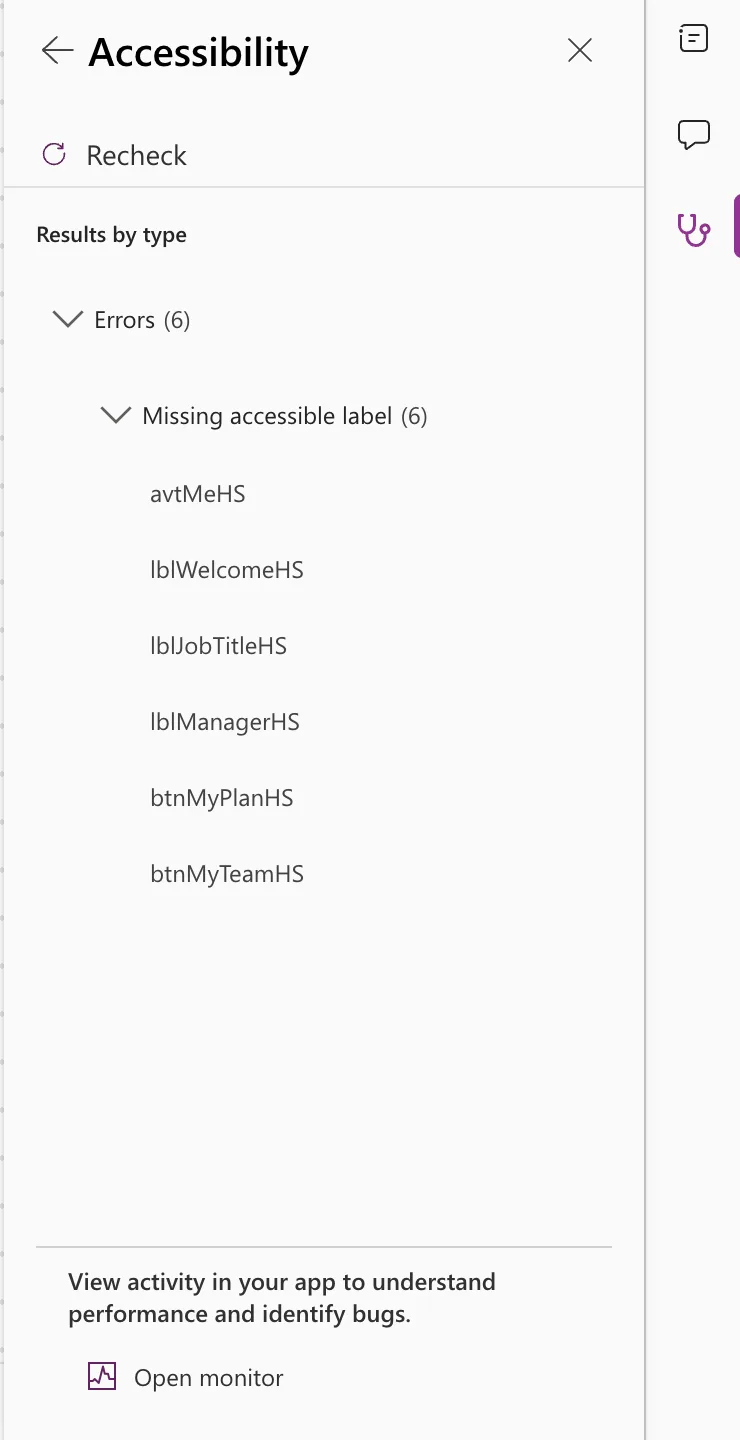
In the example, the Career Development Plan app's Home screen (built in Part 4 of the series) had an avatar, three Text controls and two buttons. In the App checker (the stethoscope icon on Studio's right edge) → Accessibility, all six were listed:
Selecting the arrow next to an item opens its details:
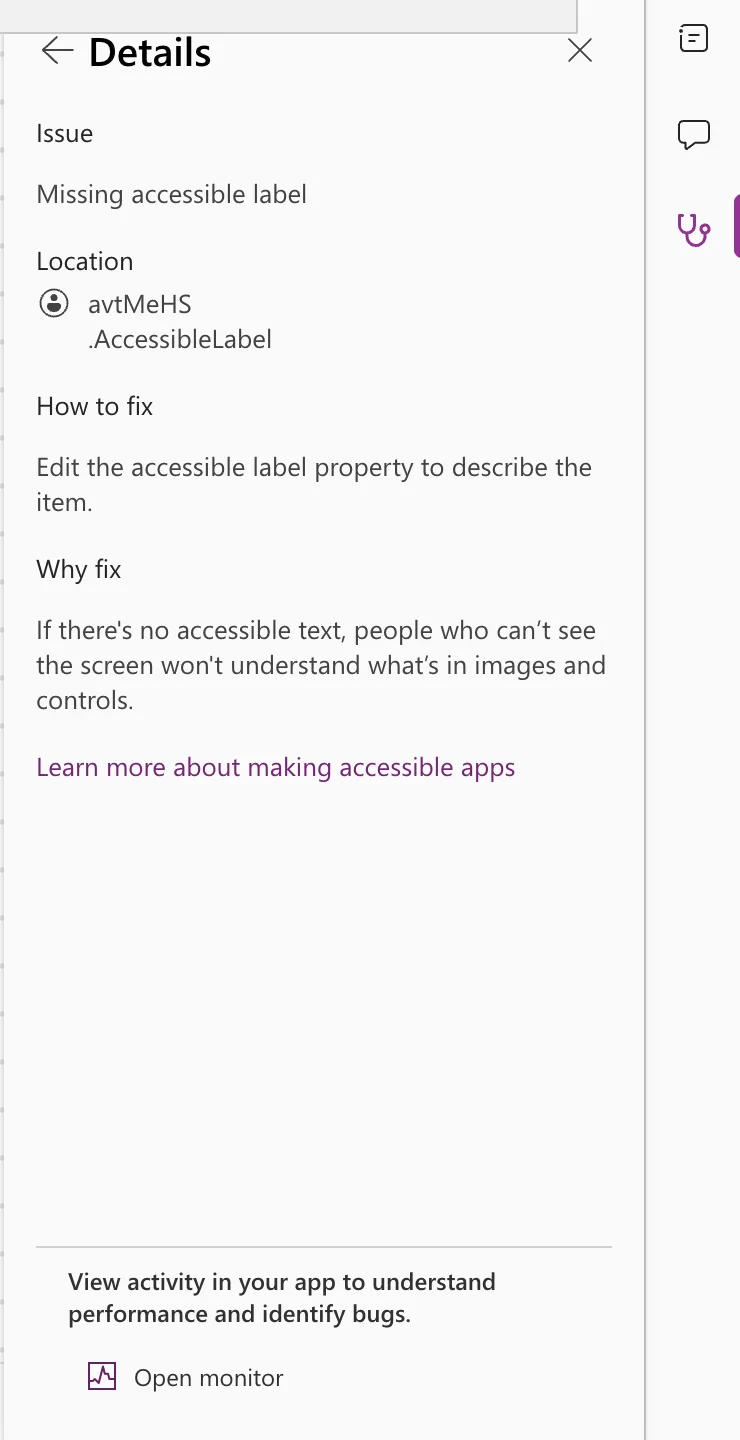
Issue: Missing accessible label
Location: avtMeHS .AccessibleLabel
How to fix: Edit the accessible label property to describe the item.
Why fix: If there's no accessible text, people who can't see the screen won't understand what's in images and controls.
What It Means
AccessibleLabel is the "label for screen readers", according to Microsoft's accessibility properties reference. When it's empty, a screen reader has nothing to announce for the control.
The Accessibility checker documentation classes it as an Error, its most serious level: an issue that makes the app difficult or impossible to use for people with a disability. Its table describes the check for interactive controls, such as buttons. In the example, it also listed the avatar and the three Text controls.
The Fix: Give Every Control a Label
For each control in the list:
- Select the control (in the list, on the canvas, or in Tree view).
- In the property list on the left of the formula bar, choose AccessibleLabel.
- Type a formula that describes the control.
The labels used in the example:
| Control | AccessibleLabel | Why this label |
|---|---|---|
avtMeHS (Avatar) | "Profile picture of " & User().FullName | Says what the picture is and whose it is |
lblWelcomeHS, lblJobTitleHS, lblManagerHS (Text) | Self.Text | Reads exactly what's on screen, and stays in step when the text changes |
btnMyPlanHS (Button) | "My plan: the competencies for your job title" | Starts with the visible text, then says where it goes |
btnMyTeamHS (Button) | "My team: your direct reports and their responses" | The same pattern |
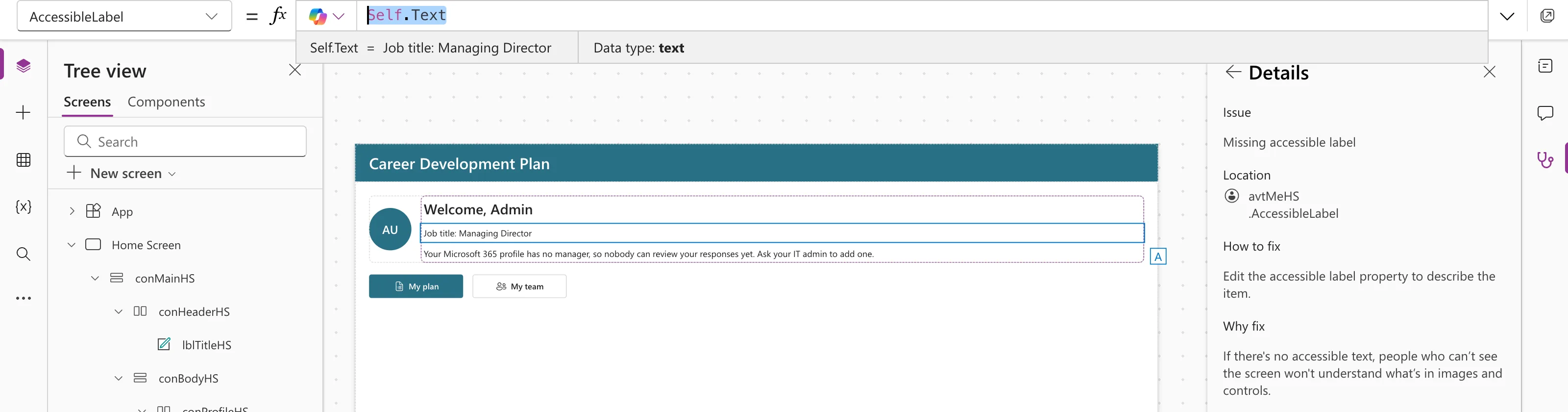
Self means "this control", so Self.Text is the control's own Text (Self and Parent operators). Here it is on the job-title line:
Why the button labels start with the visible text
People who control their computer by voice say what they see: "click My plan". The W3C's Label in Name guidance asks for the visible text to be part of the accessible name, and recommends putting it first. That's why each label starts with the button's own text, and then adds the detail a screen reader user needs.
Check That It's Fixed
Select Recheck (or Recheck all on the App checker's main page). After the six labels were set, Accessibility no longer showed a count:
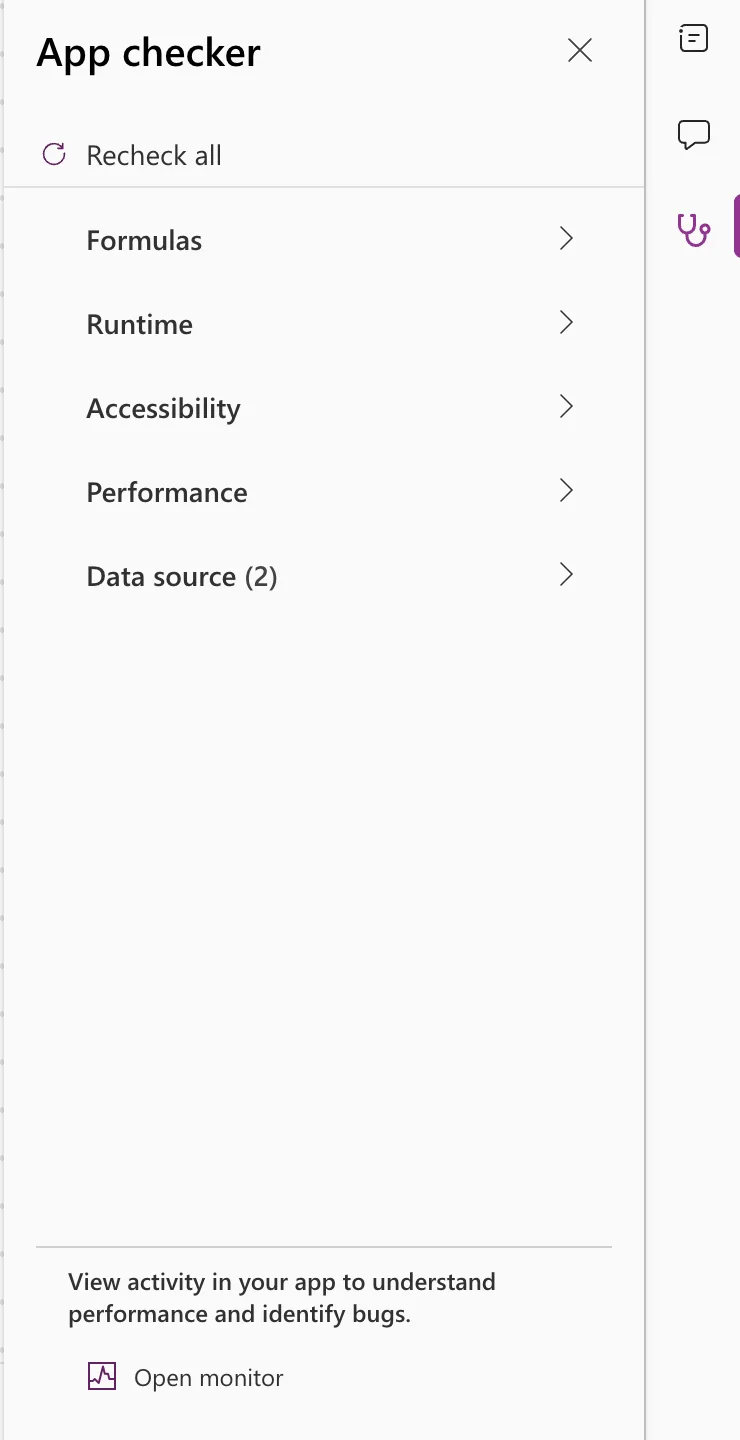
Data source (2) is a separate check. In the example, it warned about two SharePoint lists that the app didn't use yet (Fixed: "Unused Data Sources").
Common Mistakes
| Mistake | What happens | Do this instead |
|---|---|---|
| Generic labels such as "Button" or "Image" | The screen reader announces nothing useful | Say what it is or what it does |
| A button label that doesn't include its visible text | Voice users can't select it by saying what they see | Start the label with the visible text |
| Typing a Text control's words into its label | The label goes out of date when the text changes | Use Self.Text |
| Labeling a purely decorative image | Extra noise for screen reader users | Leave it empty; Microsoft says an empty label hides Image, Icon and Shape controls from screen readers |
Troubleshooting
| Symptom | Likely cause | Fix |
|---|---|---|
| The error is still listed after the fix | The list hasn't been refreshed | Select Recheck |
| Can't find AccessibleLabel | It's not on the tab you're looking at | Pick it from the property list on the left of the formula bar |
| A new control shows the error | Its label starts empty | Set the label when you add the control |
FAQ
Does the Avatar need a label if it already has a name?
Microsoft's Avatar reference says that when AccessibleLabel isn't set, the control uses Name. The App checker still listed it in the example, and "Profile picture of Admin User" says more than a name on its own.
Do I have to fix every App checker suggestion?
Microsoft says to weigh each suggestion against what your app needs to do, and that you can ignore any that do more harm than good. Labels aren't one of those: they cost a minute and only help.
Which screen readers work with Power Apps?
Microsoft lists JAWS and Narrator with Edge, NVDA with Chrome and Firefox, TalkBack with Chrome and the Power Apps mobile app, and VoiceOver with the Power Apps mobile app and Safari (Create accessible canvas apps).
Conclusion
Missing accessible label means a screen reader has nothing to say about a control. Set AccessibleLabel on each one: describe pictures, use Self.Text for text, and start button labels with their visible text. Then select Recheck.
Additional Resources
- Review a canvas app for accessibility: the Accessibility checker and its issue types.
- Accessibility properties: AccessibleLabel, Role and keyboard focus.
- Create accessible canvas apps: layout, keyboard and screen reader guidance.
- Understanding Label in Name: why the visible text belongs in the accessible name.
