Fixed: "Invalid Field Name" BadGateway When Removing a Column from a SharePoint View in Power Automate

I ran my setup flow a second time to prove it was safe to run again. Instead of finishing in seconds, it sat on Waiting for half an hour, then failed: Action 'Remove_Title_from_the_view' failed: BadGateway. Behind the 502 was SharePoint saying Invalid field name. The first run had already removed that column from the view, and asking again was an error that Power Automate retried for minutes at a time.
What I Was Doing
The setup flow in Part 11 of the Career Development Plan series creates two SharePoint lists and their columns. A list created with the REST API shows its Title column in the default view, so one step, Remove Title from the view, takes it out with this request (How to Hide the Title Column of a SharePoint List with the REST API explains it):
_api/web/lists/getbytitle('@{items('For_each_list')?['title']}')/defaultview/viewfields/removeviewfield('LinkTitle')
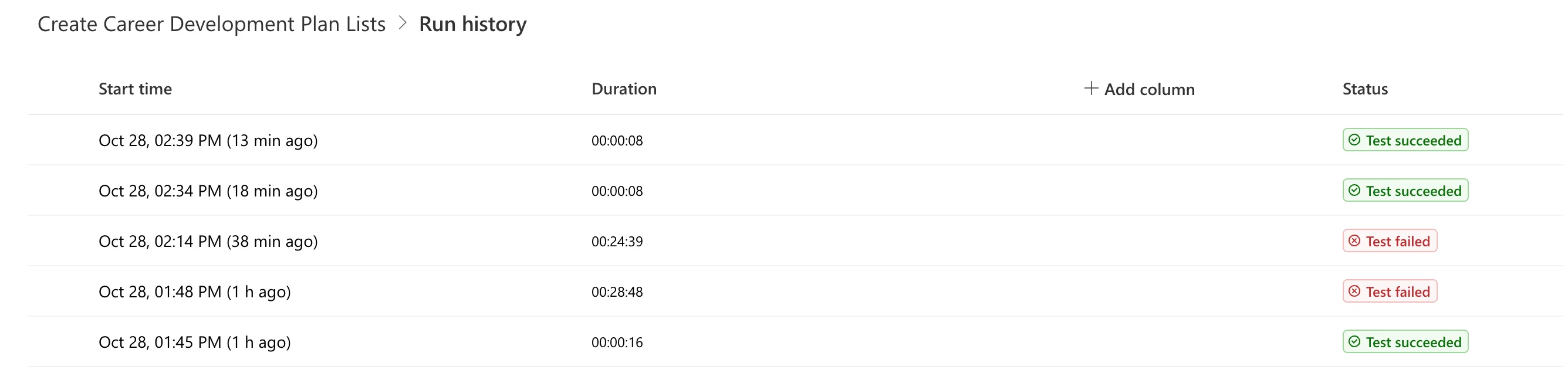
LinkTitle is the name SharePoint gives the Title column in a view. While I built the flow, I ran it several times on an empty test site. The last of those runs, at 1:45 PM, was the first with every step: it hid Title on both lists and added all their columns, in 16 seconds. Then I ran the flow again on the same site, at 1:48 PM, to check that a second run changes nothing.
What I Expected
Another quick run, with every Create step skipped because the lists and columns already existed.
What I Got
The run didn't finish. Eight minutes in, the run view showed For each list and every step inside it as Waiting, and Find the list, the loop's first step, had no status at all:
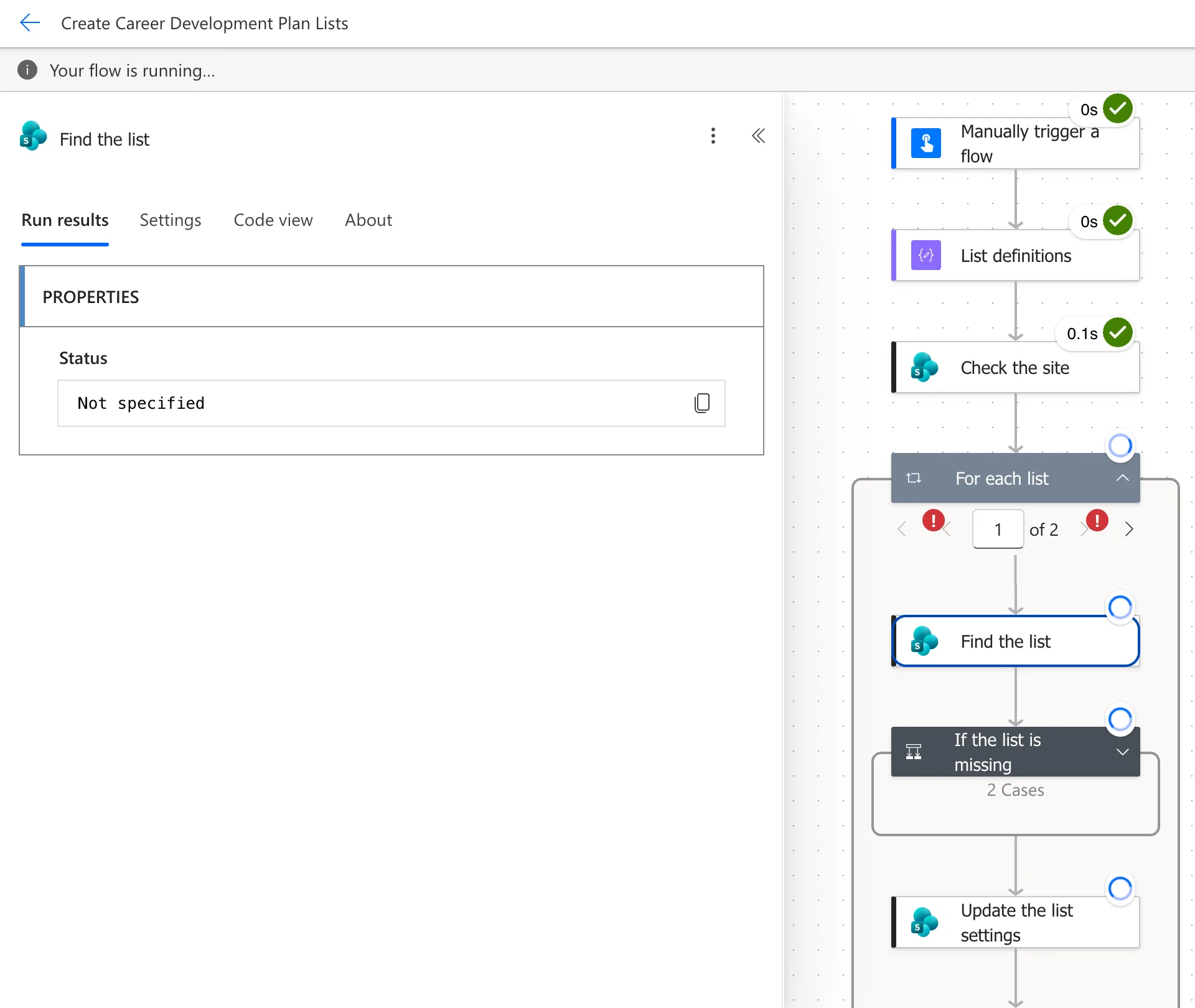
After 20 minutes, I selected Cancel in the run view. Nothing changed, so I also ticked the run in All runs and selected Cancel flow run(s), the way Microsoft's cancel and resubmit article describes:
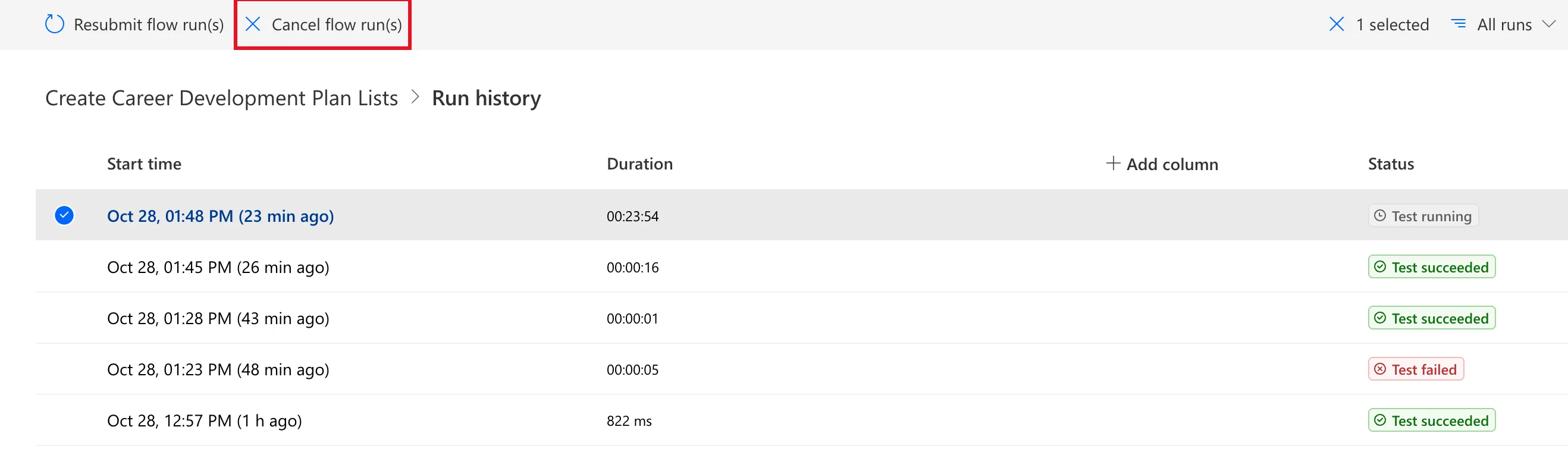
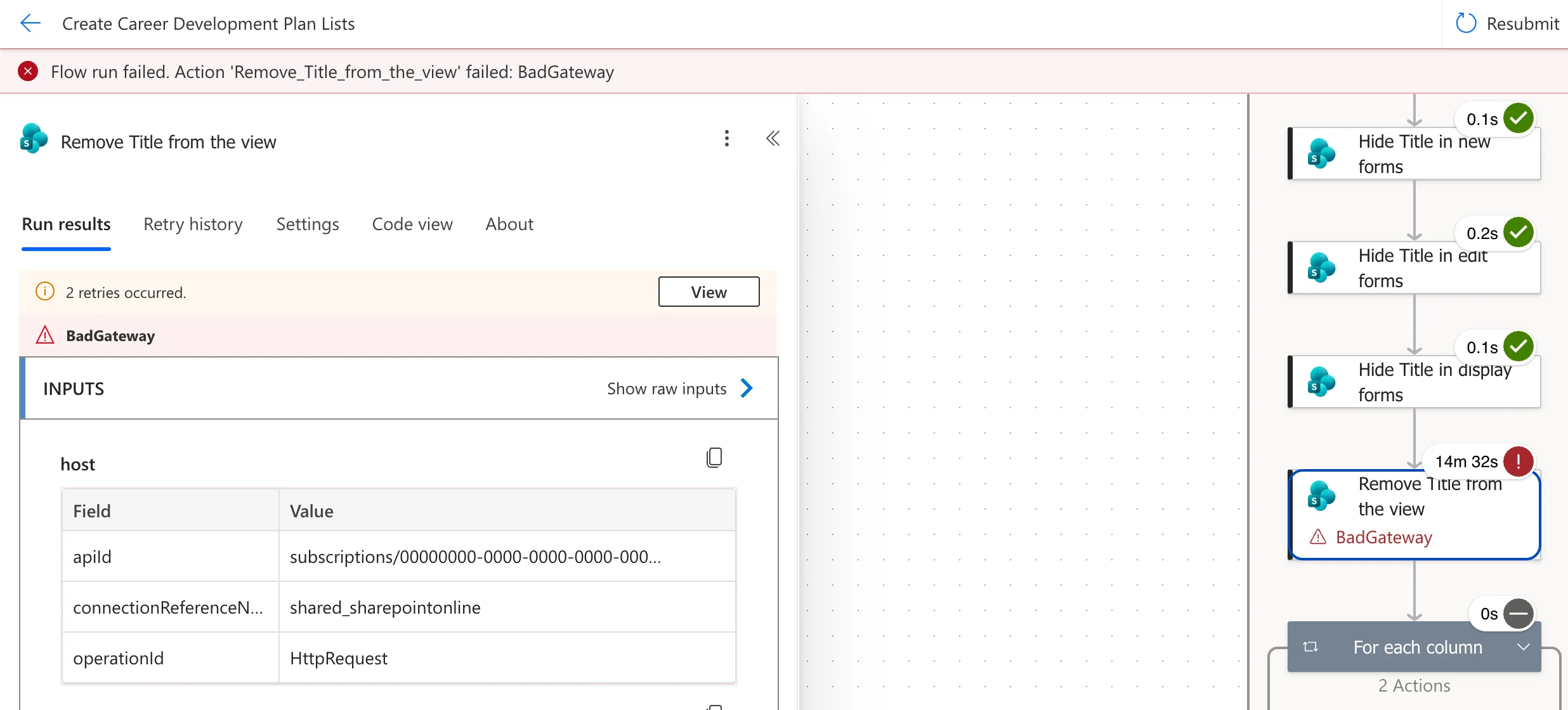
The run wasn't canceled. After 28 minutes and 48 seconds it ended by itself, as Test failed, with Flow run failed. Action 'Remove_Title_from_the_view' failed: BadGateway. The step had taken 14 minutes 32 seconds, and its pane said 2 retries occurred:
A second run, started at 2:14 PM before I found the cause, also failed, after 24 minutes.
What I Checked
-
Whether Microsoft had an outage. Service health in the Microsoft 365 admin center showed Power Automate and SharePoint Online as healthy, and the Power Platform admin center's Service health reported no issues.
-
Microsoft's Troubleshoot slow running flows. It lists a slow service, connector throttling and plan limits. None fit a flow that had run a handful of times that day, the last time in 16 seconds.
-
The loop's settings. Concurrency control was off, so the loop ran its items one after another, the default.
-
The failed step's outputs, once the run had ended. Its Run results showed status code 502, and these fields in the body, with the request IDs masked:
Error fields from the step's outputserror.code 502error.message BadGatewayerror.innerError.status 502error.innerError.message {"odata.error":{"code":"-2146232832, Microsoft.SharePoint.SPException","message":{"lang":"en-US","value":"Invalid field name."}}}error.innerError.source https://contoso.sharepoint.com/sites/CareerDevelopmentPlanTest/_api/web/lists/getbytitle('RoleCompetencies')/defaultview/viewfields/removeviewfield('LinkTitle')So the 502 wasn't a gateway problem: SharePoint had refused the request with Invalid field name.
-
The step's Retry history. The first attempt ran at 1:48:13 PM and the retry at 1:53:15 PM, five minutes later. Both failed with BadGateway in about a second. The last attempt ended at 2:02:45 PM, about ten minutes after that:
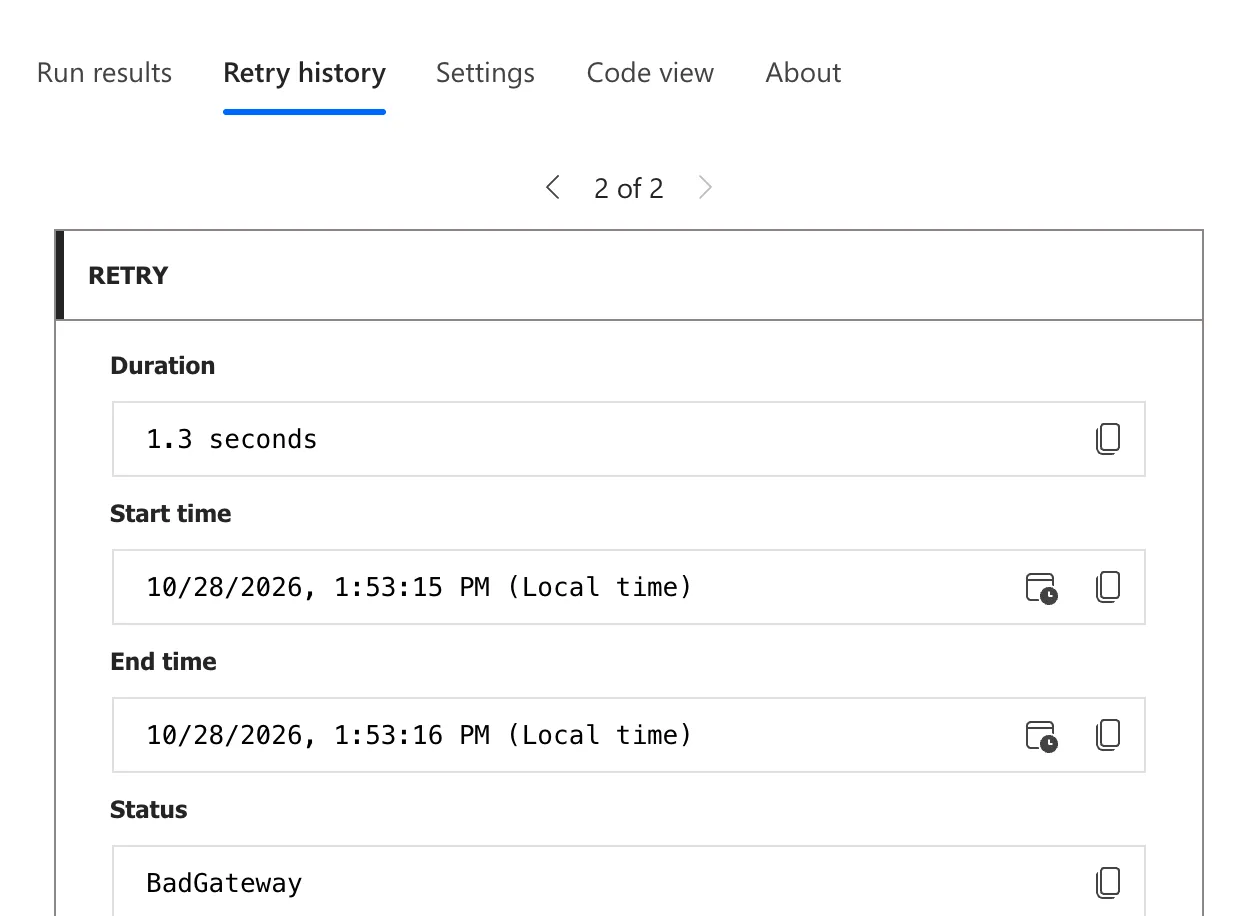
Microsoft's limits article explains the timing. For flows on the Low performance profile, which covers Microsoft 365 licenses, the default retry policy sends up to two retries, at intervals that grow in steps of 5 minutes up to about 10. Microsoft's error handling article says requests are retried when they fail with a 408, 429 or 5xx response. A 502 is a 5xx, so each list waited about 14 minutes for an error that was never going to go away.
-
The view. A GET request to the list's
defaultview/viewfieldsreturned the view's columns inItems, andLinkTitlewasn't one of them. The 1:45 PM run had removed it. Microsoft's reference for removing a field from a view only describes the method. It doesn't say what happens when the field isn't in the view. SharePoint's answer was Invalid field name. -
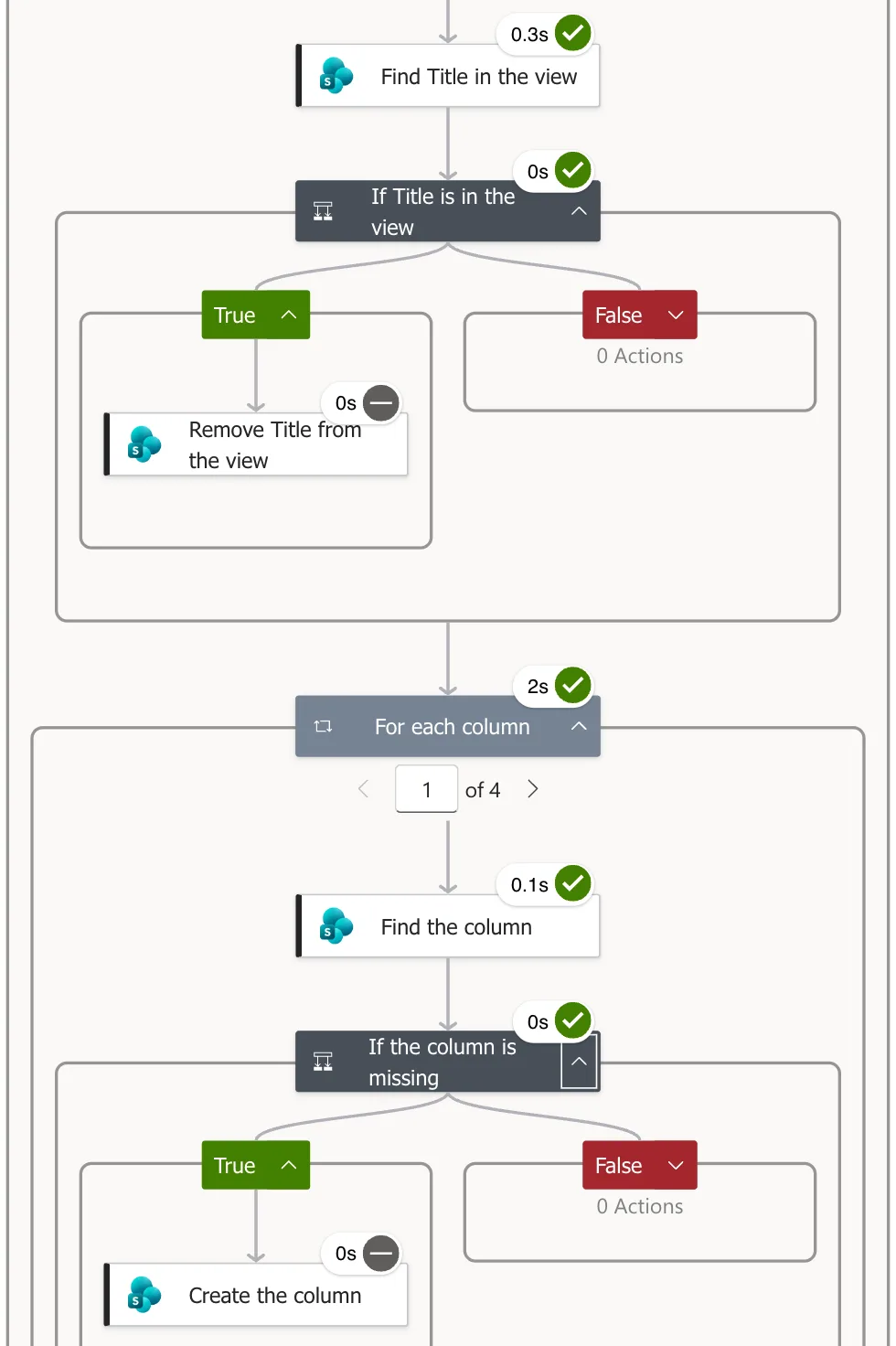
The run view. Once the run had ended, Find the list and the steps after it showed real times: they had all succeeded at 1:48 PM. While the loop was still running, the run view had shown them as Waiting.
Why It Happens
removeviewfield works only when the column is in the view. On a second run, the run before it had already removed Title, so SharePoint refused the request. The connector reported that as a 502, and Power Automate retried it twice, minutes apart, before failing the step. That took about 14 minutes for each of the two lists, while the run view showed the loop as Waiting.
The Fix
Check the view before removing the column, the same way the flow already checks for a list and a column before creating them.
-
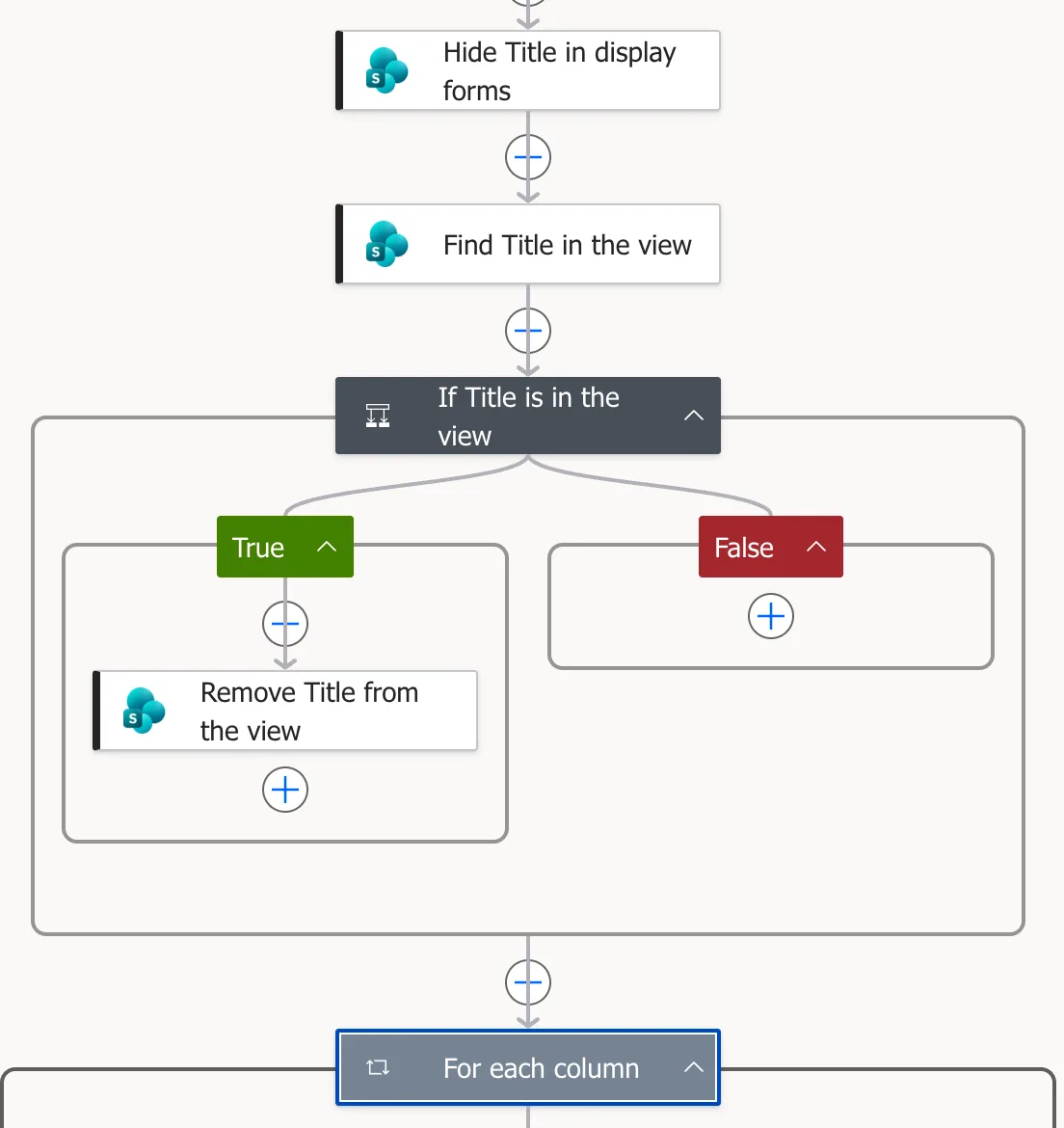
Add a Send an HTTP request to SharePoint action, Find Title in the view, just before the removal. It reads the view's columns:
Uri_api/web/lists/getbytitle('@{items('For_each_list')?['title']}')/defaultview/viewfields -
Add a Condition, If Title is in the view, that checks whether those columns include
LinkTitle, and compare it withtrue(How to Check Whether an Array Contains a Value):Expressioncontains(body('Find_Title_in_the_view')?['Items'], 'LinkTitle')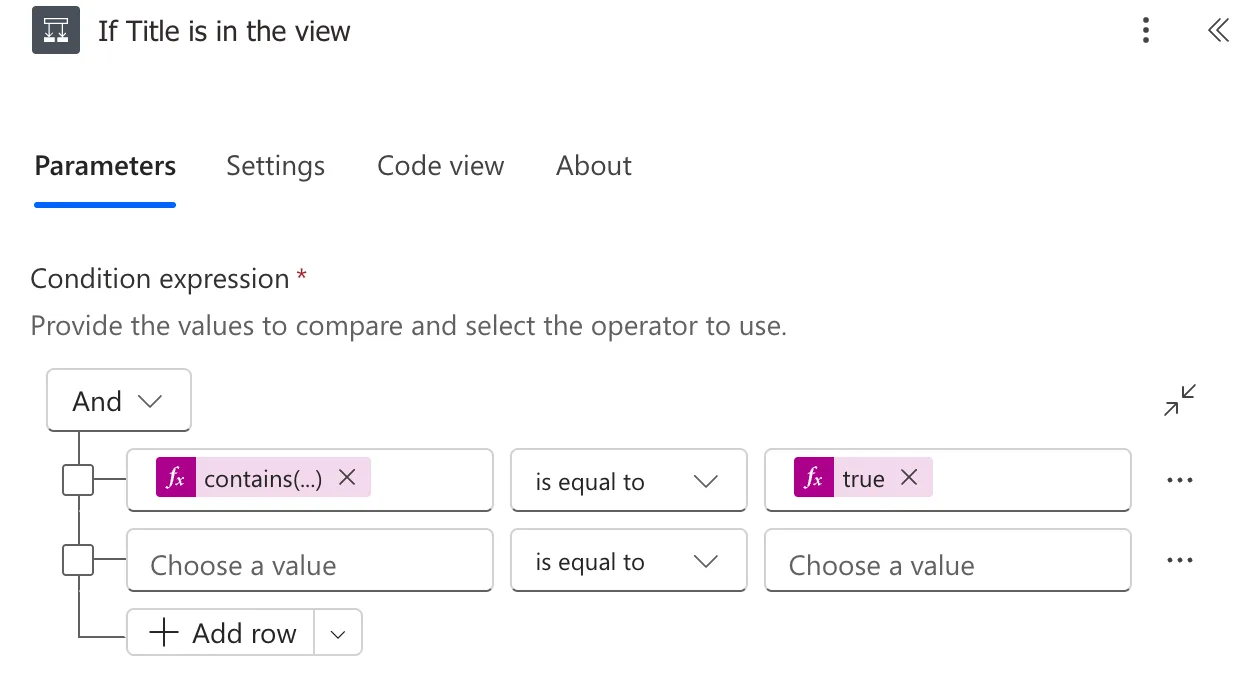
-
Move Remove Title from the view into the condition's True branch. I copied it there and deleted the original (How to Copy and Paste an Action):
-
Save the flow.
After the Fix
The next run on the same site took 8 seconds and succeeded. Remove Title from the view was skipped, along with every Create step:
To test the other branch, I put Title back into the list's view with SharePoint's own Show or hide columns, and ran the flow again. It took 8 seconds too, and Title was out of the view afterwards. The run history tells the story:
Common Mistakes
| Mistake | What happens | Do this instead |
|---|---|---|
| Removing a view column without checking | The second run fails after long retries | Read defaultview/viewfields first |
| Waiting for a run that shows Waiting | Up to 15 minutes per failed step | Check the steps' retry history once the run ends |
| Trusting the 502 | You look for a network problem | Read error.innerError.message |
Troubleshooting
| Symptom | Likely cause | Fix |
|---|---|---|
| A loop shows Waiting for many minutes | A step inside it is being retried | Wait for the run to end, then read that step's Retry history |
Invalid field name. from removeviewfield | The column isn't in the view | Check Items in defaultview/viewfields first |
| Cancel doesn't stop the run | Canceling can take time | Microsoft's article allows up to 24 hours for bulk cancel; my run ended first |
FAQ
Why was it a 502 and not a 400?
The Send an HTTP request to SharePoint connector returned 502 BadGateway, with SharePoint's own error inside it. Read the inner error, not just the status.
Could I turn the retries off instead?
Microsoft's error handling article describes a None retry policy that doesn't resend the request, so the step would fail at once. But it would still fail. Checking first means it never has to.
Do the other Title steps have the same problem?
No. Making Title optional and hiding it from the forms set a value, and setting the same value twice is fine. Both runs after the fix ran those steps without errors.
Conclusion
A REST call that removes something fails if it's already gone, and Power Automate retries that failure for minutes at a time on a Microsoft 365 license. Check first: read the view's Items, and remove LinkTitle only when contains() finds it. The flow is then safe to run as often as you like.
Additional Resources
- Limits of automated, scheduled, and instant flows: the default retry policy for each performance profile.
- Handle errors and exceptions in Azure Logic Apps: which responses are retried.
- Troubleshoot slow running flows: the usual causes of a slow run.
- Cancel or resubmit flow runs in bulk: canceling runs from the run history.
