Fixed: "Incompatible Types for Comparison. These Types Can't Be Compared: Number, Error" in Power Apps

Incompatible types for comparison. These types can't be compared: Number, Error. means one side of a comparison has already failed. In my case, a duplicated screen compared a number with a context variable that only the original screen receives. The fix is to give the new screen its own variable.
What I Was Doing
I was adding the Competency screen to the Career Development Plan app (Part 9). Its layout matches the Review screen from Part 8: a header with Back, a title and Refresh, a scrolling body, a text box with a character count and a row of two buttons. So instead of building it again, I duplicated the Review screen (How to Duplicate a Screen in Power Apps).
The Review screen loads its response in its Refresh button. One line of that formula reads the response by its ID:
LookUp(
    CompetencyResponses,
    ID = locResponseId
)
What I Expected
A copy named Review Screen_1 that I could rename and change, step by step.
What I Got
The copy appeared, and so did a red ⊗ next to its Refresh button and a red dot on the App checker icon. The App checker's Formulas list had two errors, both on the copy's Refresh button:
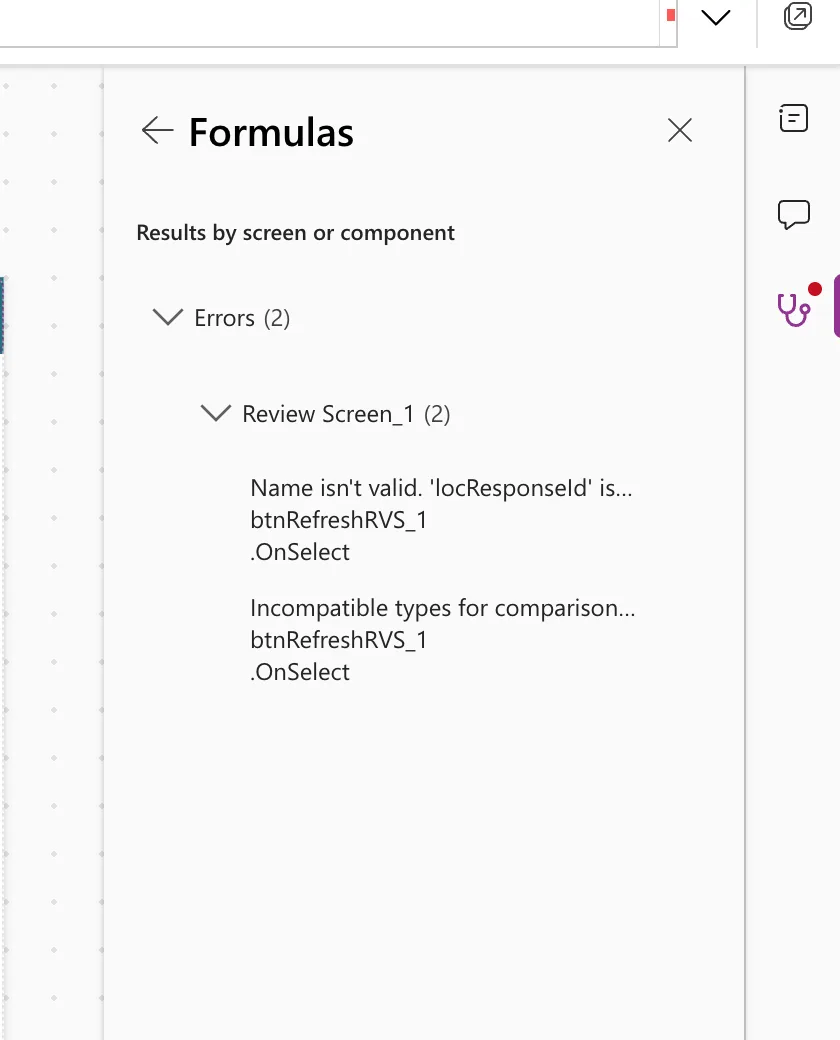
In the expanded formula bar, the = in ID = locResponseId was underlined, and so was locResponseId. Pointing at the = showed:
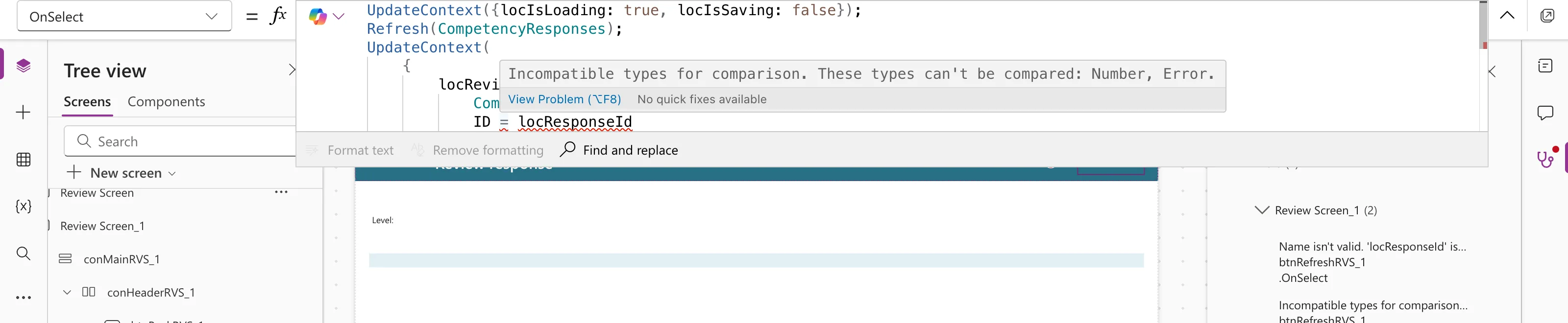
Incompatible types for comparison. These types can't be compared: Number, Error.
Name isn't valid. 'locResponseId' isn't recognized.
What I Checked
The comparison has two sides. ID is the SharePoint item's ID, a number. The second message says locResponseId isn't a valid name on this screen. A name Studio can't resolve becomes an error, so the comparison was Number against Error, which is exactly what the first message says.
On the original Review screen, the same formula has no errors. The difference is where locResponseId comes from. The Team Member screen's waiting list opens the Review screen with it:
Navigate('Review Screen', ScreenTransition.None, {locResponseId: ThisItem.ID})
Microsoft's article on variables gives context variables the scope Screen: you reference them from only one screen (Understand variables in canvas apps). The Navigate reference says its record sets context variables on the target screen (Navigate function). Nothing navigates to the copy with locResponseId, so on the copy it doesn't exist.
Why It Happens
Duplicating a screen copies its formulas, not the variables other screens send to it. Any formula on the copy that reads such a variable gets Name isn't valid. If the variable is used in a comparison, Studio also reports the comparison, because one side is now an error. It's the same cause as Fixed: "The '.' Operator Cannot Be Used on Error Values", where the failed name was on the left of a dot.
The Fix
Give the new screen its own variables, then make its formulas use them. I did it in this order, which Fixed: "Name Isn't Valid" explains: first the Navigate that creates the variables, then the formulas that read them.
-
On the Team Member screen, the plan rows open the renamed copy, Competency Screen, with the competency's ID and the job title:
galPlanTMS → OnSelectNavigate('Competency Screen', ScreenTransition.None, {locCompetencyId: ThisItem.ID, locJobTitle: locMemberJobTitle}) -
I replaced the copy's loader with one that reads
locCompetencyIdinstead oflocResponseId:btnRefreshCS → OnSelectUpdateContext({locIsLoading: true, locIsSaving: false, locConfirmRemove: false});Refresh(RoleCompetencies);UpdateContext({locCompetency: If(IsBlank(locCompetencyId),Blank(),LookUp(RoleCompetencies,ID = locCompetencyId))});Reset(txtNameCS);UpdateContext({locIsLoading: false})
After the Fix
Both errors were gone. In their place, the App checker listed 45 others, all of the same kind: Name isn't valid. 'locReview' isn't recognized. and The '.' operator cannot be used on Error values. on the copied labels and buttons:
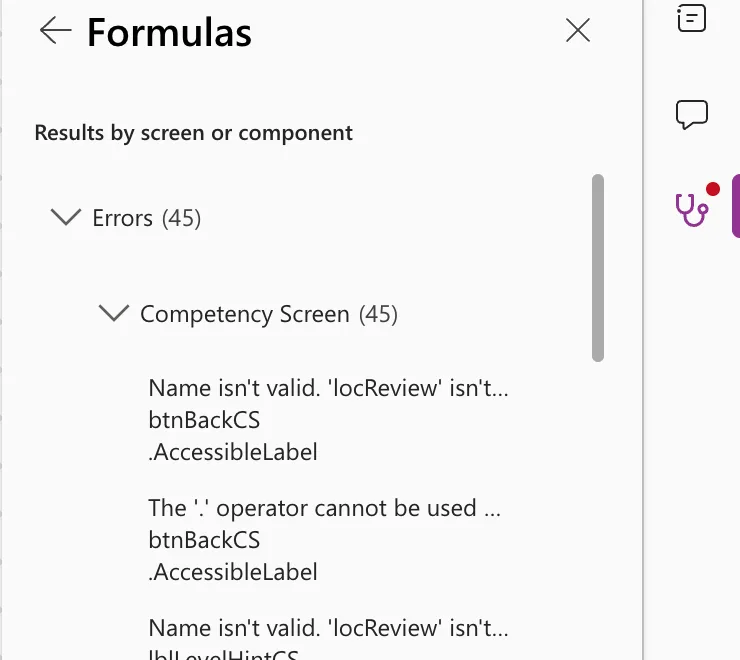
That was expected. locReview was created by the old loader, which I had just replaced, and the copied controls still read it. Each error went away when its control got the Competency screen's own formula. With the screen finished, the Formulas section had no count left:
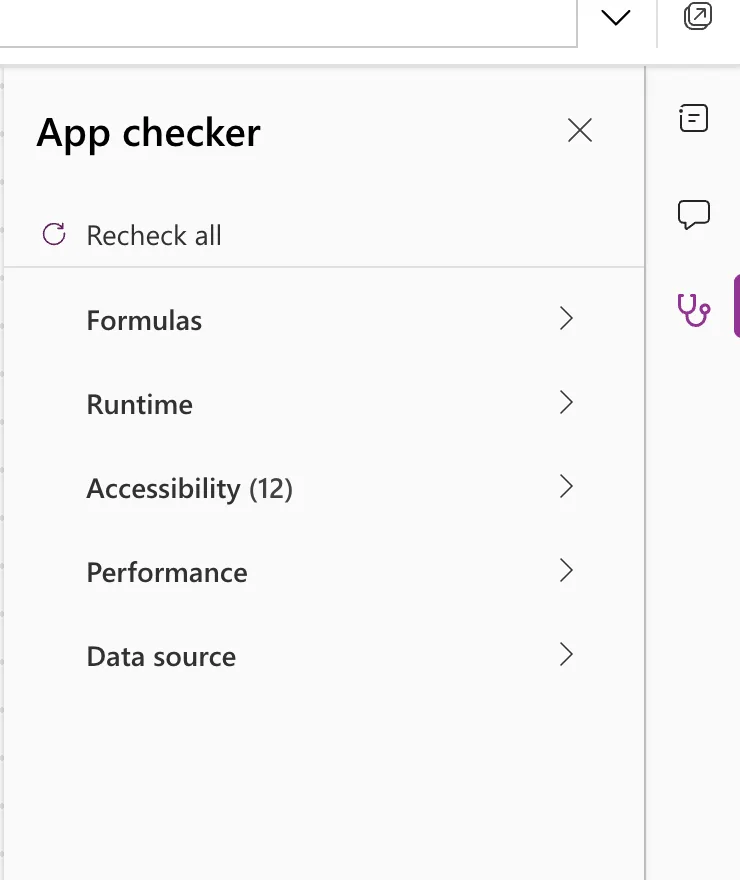
The 12 accessibility results are the screen headings explained in Fixed: "Missing Tab Stop", two on each screen's title.
Common Mistakes
| Mistake | What happens | Do this instead |
|---|---|---|
Rewriting the comparison, for example Value(locResponseId) | The name error stays and the result is still wrong | Fix the name: give the screen its own variable |
| Writing the new loader before the Navigate that creates its variable | Name isn't valid on the new variable | Write the Navigate first |
| Expecting zero errors right after the new loader | Controls that read the old variables still fail | Change each copied control's formulas, one by one |
Troubleshooting
| Symptom | Likely cause | Fix |
|---|---|---|
| The same message with Text, Error or Boolean, Error | The failed side of the comparison has a different type | Same fix: find the name that isn't valid |
| The error is on a formula you didn't copy | The variable isn't created anywhere | Fixed: "Name Isn't Valid" |
| The '.' operator cannot be used on Error values on copied labels | They read a record variable from the old screen | Fixed: "The '.' Operator Cannot Be Used on Error Values" |
FAQ
Why does Studio show two errors for one mistake?
Each part of the formula is checked. The name is invalid, and the comparison that uses it fails too. Fix the name and both disappear.
Would a global variable avoid this?
It would remove the error, but the value would then be shared by every screen. Passing the value with Navigate keeps it on the screen that needs it.
Conclusion
These types can't be compared: Number, Error points at a comparison, but the cause is the side that's an error. After duplicating or copying, look for a context variable that only the original screen receives, give the new screen its own through Navigate, and replace the formulas that read the old one.
