Fixed: "Focus Isn't Showing" in the Power Apps App Checker

Focus isn't showing in the App checker means a control's focus border has a thickness of 0. Someone moving through the app with the keyboard can't see when they've landed on it. For anything they can tab to, give it a border; for a control they can't tab to, the border never appears anyway.
The Error
In the example, the App checker (stethoscope icon, right edge of Studio) → Accessibility listed Focus isn't showing for lblTitleMPS, the heading of the Career Development Plan app's My Plan screen:
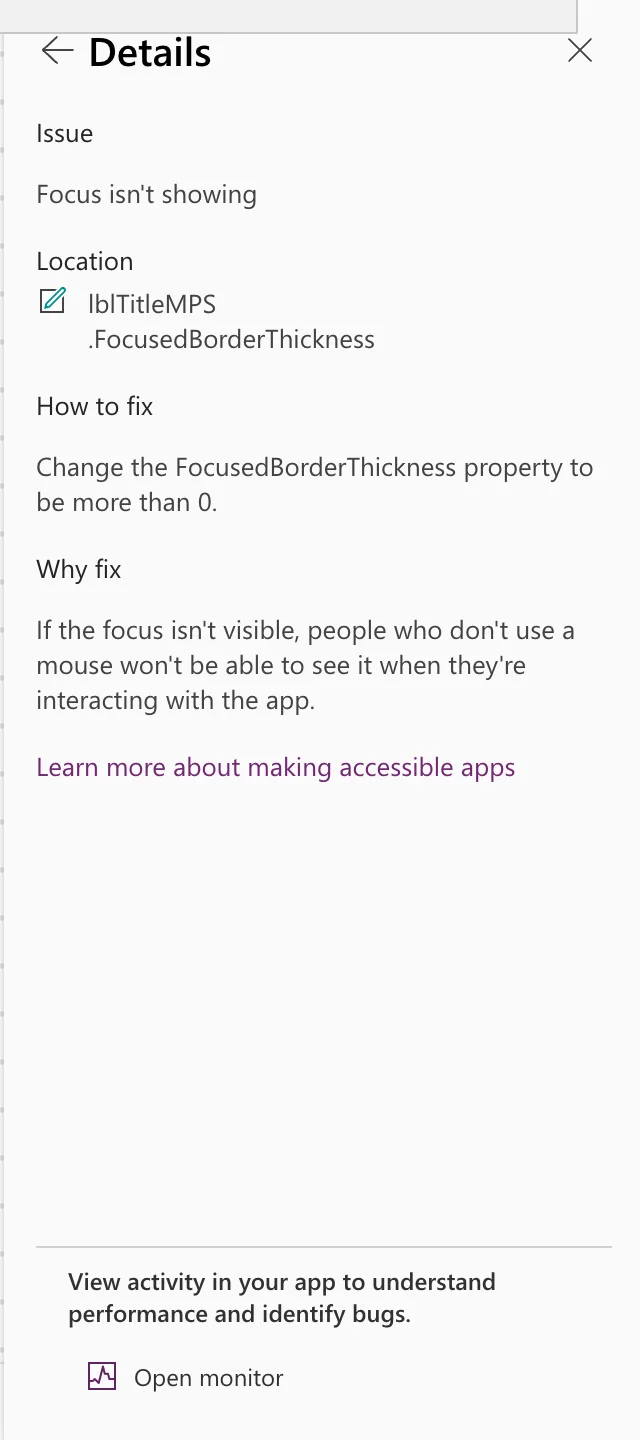
Focus isn't showing
Location: lblTitleMPS .FocusedBorderThickness
How to fix: Change the FocusedBorderThickness property to be more than 0.
Why fix: If the focus isn't visible, people who don't use a mouse won't be able to see it when they're interacting with the app.
Why It Happens
Microsoft's checker reports this when a control's FocusedBorderThickness is 0 (Types of issues). The focus border is the outline a control shows when the keyboard is on it.
The Fix for Controls People Can Tab To
Set FocusedBorderThickness above 0, and choose a FocusedBorderColor that contrasts with the control and what's around it. Microsoft's label and icon guidance asks for clearly visible focus indicators on anything used as a button or link (Label control accessibility).
In the same app, the gallery galMyPlanMPS has a FocusedBorderThickness of 4 by default and TabIndex 0, and the checker didn't list it.
The Heading: Why It Was Left As It Is
lblTitleMPS is a heading that does nothing when selected, with TabIndex -1. Microsoft's accessibility properties say a control with TabIndex below 0 doesn't take part in keyboard navigation (Accessibility properties), so the keyboard never lands on it and a focus border would never be seen.
The checker listed it together with Missing tab stop on the same label. Making it a tab stop would have screen readers announce the heading as a button, so it keeps TabIndex -1, and its focus border doesn't matter. The checker documentation allows for this: weigh each suggestion, and ignore any that would do more harm than good.
The Home screen's heading in the same app has the same settings and isn't listed.
Common Mistakes
| Mistake | What happens | Do this instead |
|---|---|---|
Setting the border on a tab stop to 0 for looks | Keyboard users lose track of where they are | Keep a visible border, styled to fit |
| Making a heading a tab stop to satisfy the checker | It's announced as a button | Keep -1 on non-interactive text |
| A focus border the same color as the background | It's there but invisible | Pick a contrasting FocusedBorderColor |
Troubleshooting
| Symptom | Likely cause | Fix |
|---|---|---|
| The item stays after changing the thickness | The checker hasn't rerun | Select Recheck and wait for it to finish |
| A plain label is listed | The checker treats it as interactive | Check its OnSelect and TabIndex: if it does nothing, it doesn't need focus |
FAQ
How do I see the focus border?
Preview the app and press Tab: the control with focus shows its border.
Why wasn't the gallery listed?
Its FocusedBorderThickness was 4 from the start, so it already had a visible focus border.
Conclusion
Focus isn't showing means FocusedBorderThickness is 0. Give every control people can tab to a visible, contrasting focus border; for text that isn't in the Tab order, the border never shows.
Additional Resources
- Review a canvas app for accessibility
- Color and border properties: FocusedBorderColor and FocusedBorderThickness.
