Fixed: "Failed to create Microsoft Entra app: Insufficient privileges to complete the operation" in the Teams Developer Portal

Creating a bot in the Teams Developer Portal stopped with Failed to create Microsoft Entra app: Insufficient privileges to complete the operation. Every bot the portal creates comes with a Microsoft Entra app registration, made in your name. My tenant didn't let ordinary users register apps. An admin gave my account the Application Developer role, and the bot was created on the next try.
What I Was Doing
I was registering a bot for an agent, signed in to the Teams Developer Portal with an ordinary user account from my Microsoft 365 developer tenant. Under Tools > Bot management I selected New bot, typed the name Lunch Picker and selected Create.
What I Expected
The new bot's Configure page, where you set the endpoint that Teams sends messages to.
What I Got
The dialog stayed open with an error above the name:
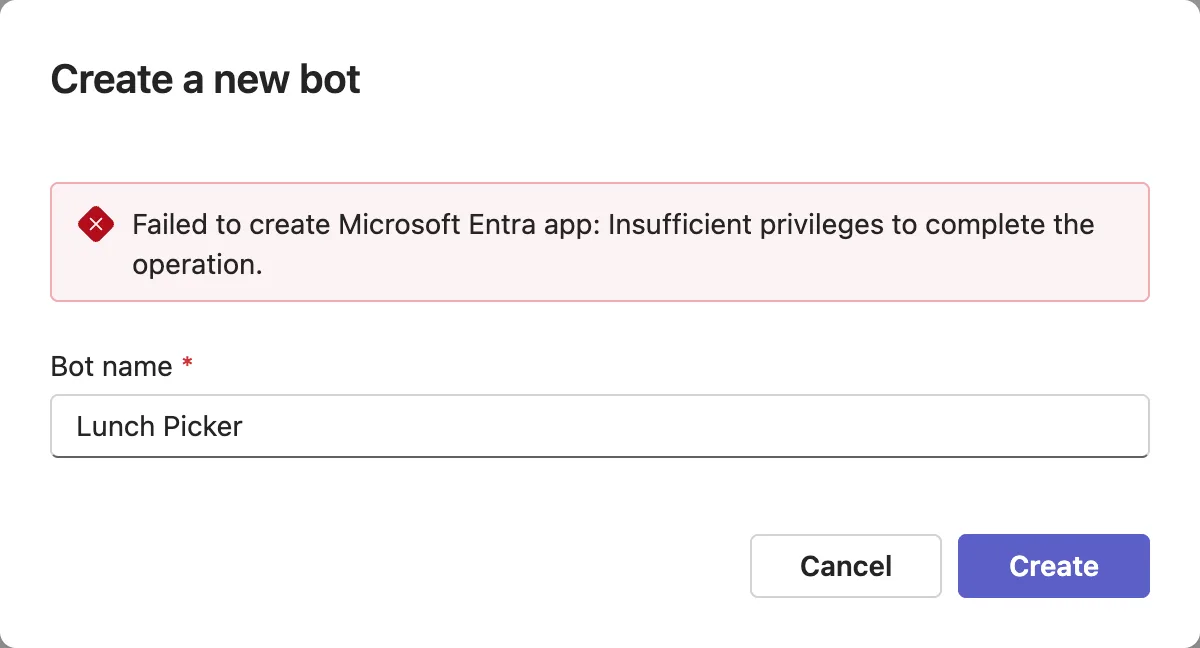
No bot appeared in the list.
What I Checked
What the portal creates. Microsoft's guide to registering an agent for Teams: Every agent will have one primary Entra ID app registration, linked to its ACS registration, used to uniquely identify it. (ACS is the Agent Communication Service, the registration Teams sends the bot's messages through.) The Developer Portal's New bot dialog makes that app registration for you, in your tenant, and the error names exactly that step: Failed to create Microsoft Entra app.
The tenant's setting. An admin of the tenant opened the Microsoft Entra admin center, went to Entra ID > Users > User settings, and read the default user permissions:
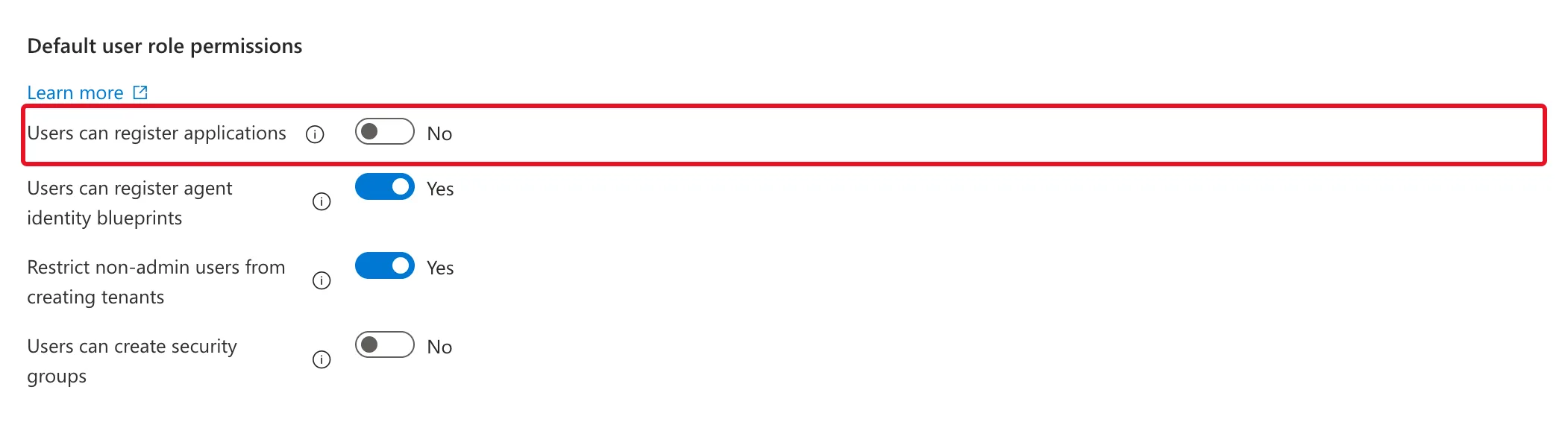
What Microsoft's documentation says about that switch. The article on delegating app registration permissions: By default in Microsoft Entra ID, all users can register applications and manage all aspects of applications they create. An admin can turn that off and grant it back to chosen people: You can choose to selectively grant those permissions by setting the global switches to 'No' and adding the selected users to the Application Developer role.
Why It Happens
With Users can register applications set to No, only admins and people with a role that allows it can create app registrations. The Developer Portal creates the bot's app registration with the permissions of the account you're signed in with. For an ordinary user in such a tenant, that request is refused, and the portal shows the error it got back.
The Fix
Microsoft's built-in roles reference describes the least privileged role for this: Users in this role can create application registrations when the "Users can register applications" setting is set to No. An admin assigns it to the person who creates the bot. These are the steps the admin took.
1. Find the Role
In the Microsoft Entra admin center, go to Entra ID > Roles & admins, and search for Application Developer:

Select the role's name to open its assignments.
2. Add an Assignment
Select Add assignments:

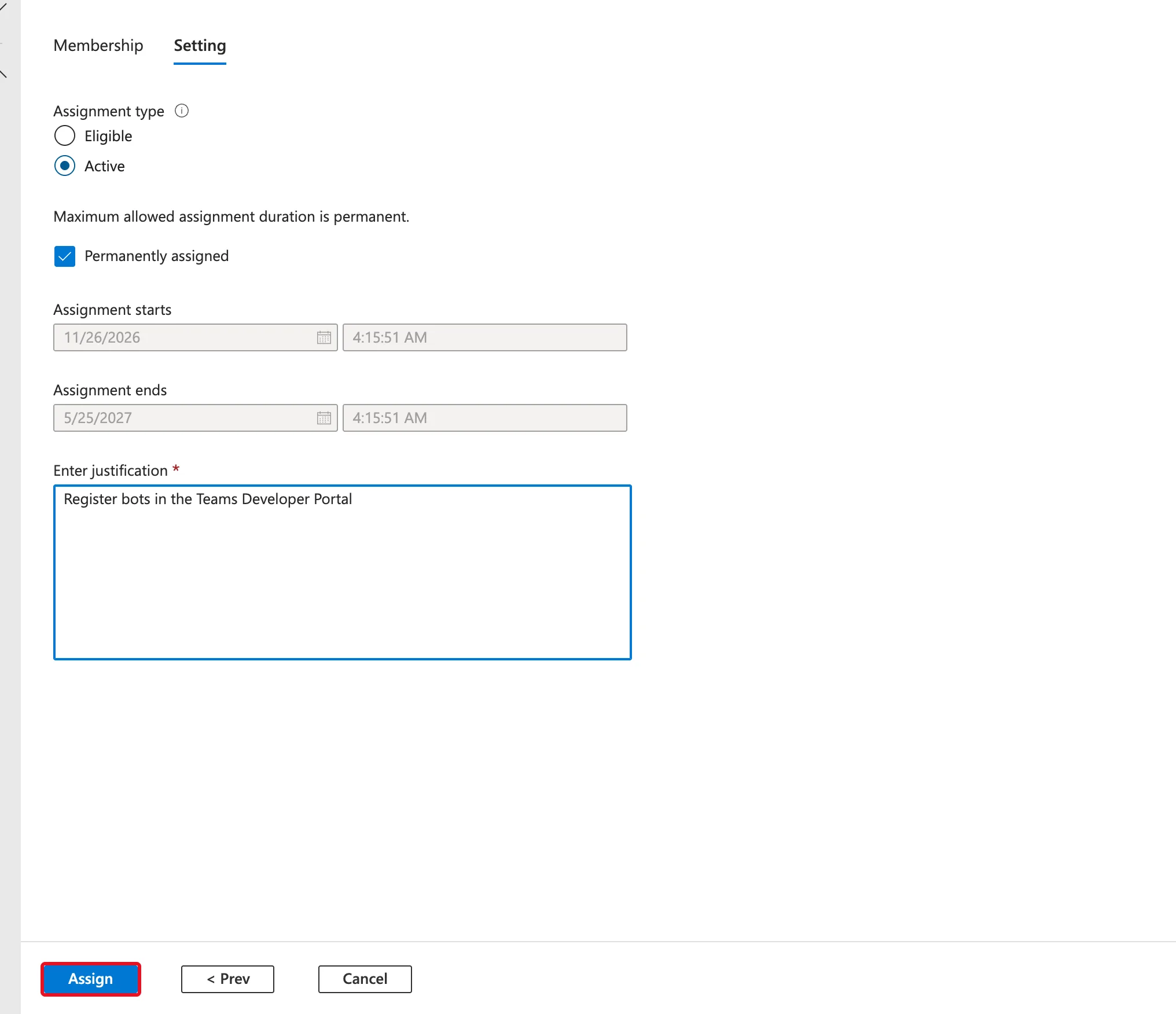
My tenant has Microsoft Entra ID P2, so the assignment opens in Privileged Identity Management, in two steps: Membership and Setting.
3. Choose the Person
Under Select member(s), select No member selected, search for the person, select them, and choose Select:
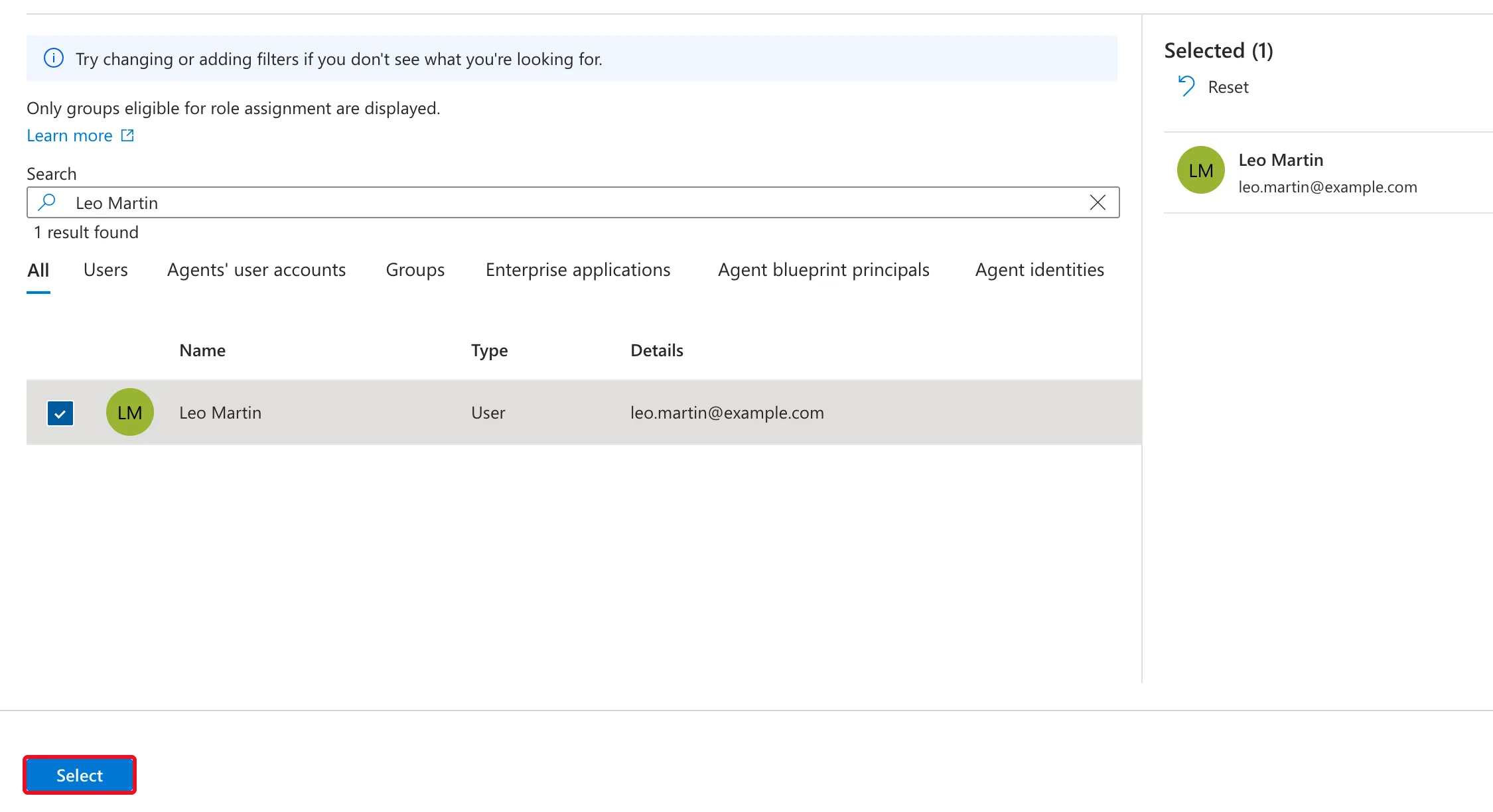
The Membership step now names the role and the person. Select Next:
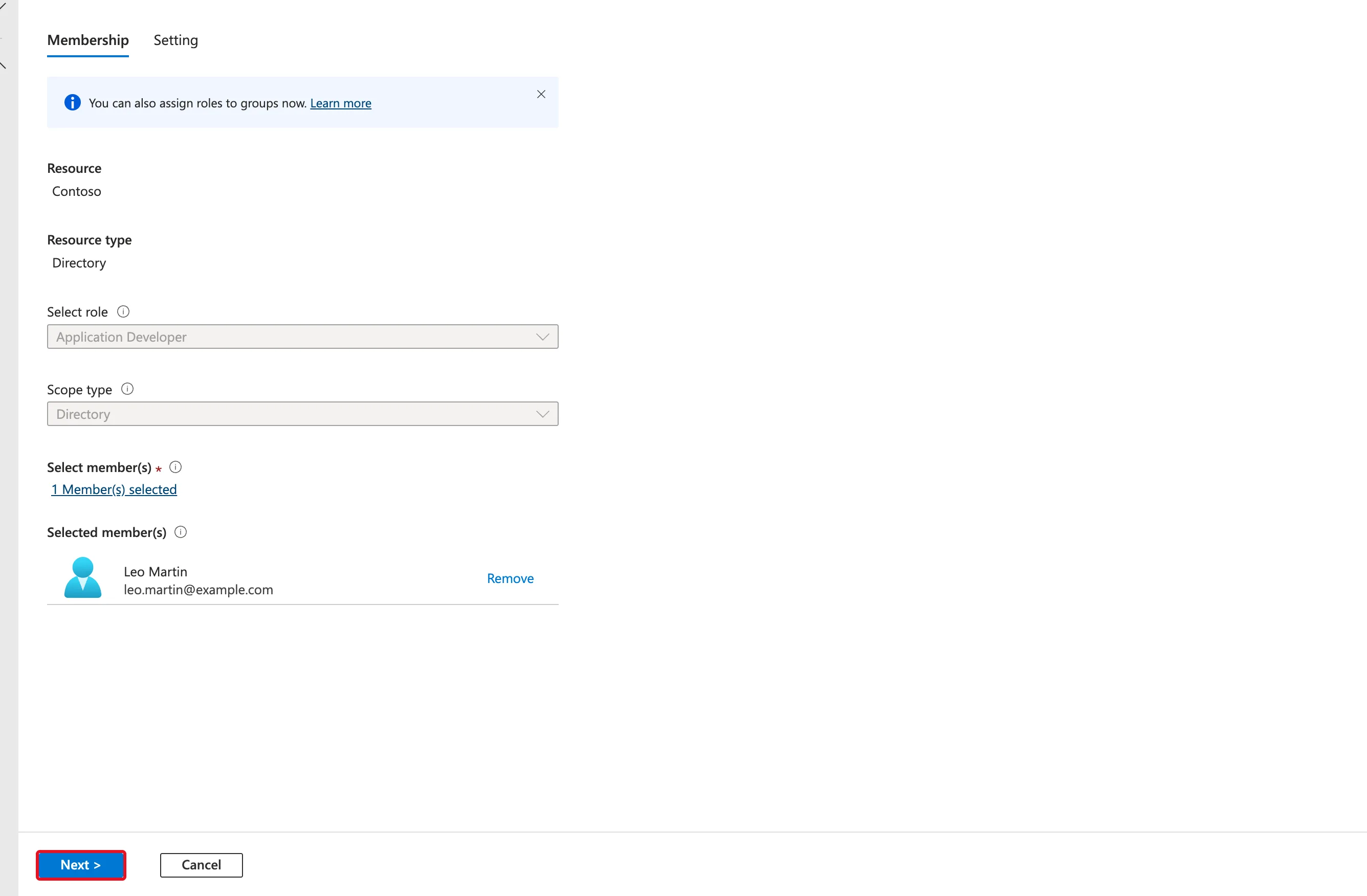
4. Make It Active
Under Assignment type, choose Active, so the role works straight away. Eligible would make the person activate it before each use. I left Permanently assigned checked and wrote a justification, which this step requires, then selected Assign:
Back on the role's page, the Active assignments tab (after Refresh) lists the person:

After the Fix
Back in the Developer Portal, still signed in as the same user, I reloaded Bot management, selected New bot, typed Lunch Picker again and selected Create. This time the portal created the bot and opened its Configure page. I didn't have to sign out and back in: reloading the page was enough.
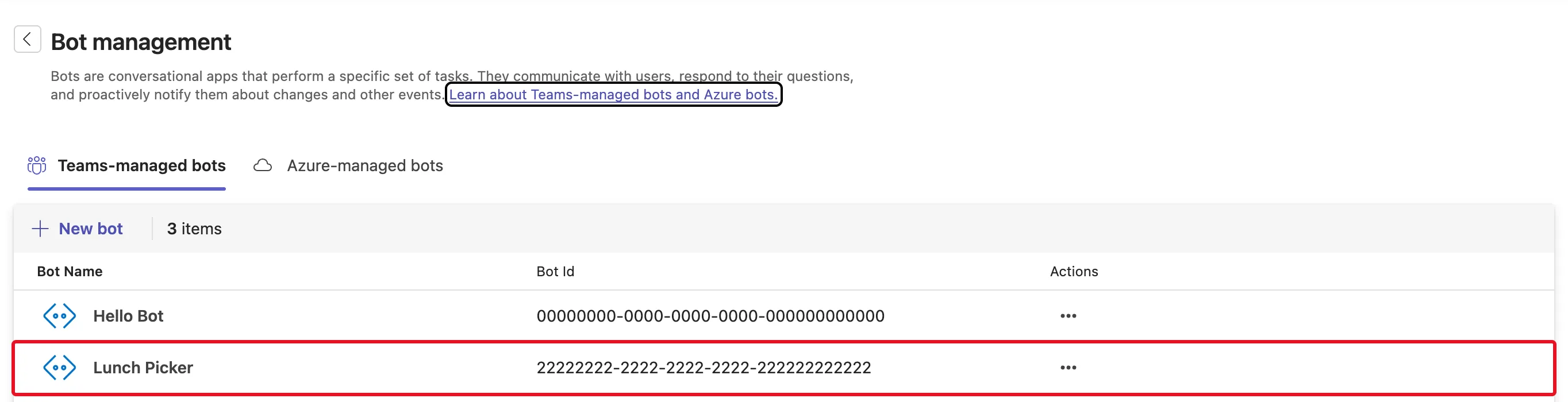
Bot management now lists the bot with its bot ID:
Common Mistakes
| Mistake | What happens | Do this instead |
|---|---|---|
| Making the developer a Global Administrator | Far more access than registering apps needs | Assign Application Developer |
| Choosing Eligible | The role does nothing until it's activated in Privileged Identity Management | Choose Active, or activate it before creating the bot |
| Retrying Create without any change | The same error | Change the role or the setting first |
Troubleshooting
| Symptom | Likely cause | Fix |
|---|---|---|
| The error appears for every new bot | The user can't register apps in this tenant | Ask an admin for the Application Developer role |
| You can't open Roles & admins | You aren't an admin | Ask your Microsoft Entra admin to make the change |
FAQ
Is there another way to fix it?
Yes: an admin can set Users can register applications back to Yes, which lets everyone in the tenant register apps again. That's broader than one role for one person, so I kept the setting and assigned the role.
What else does the Application Developer role allow?
Managing the app registrations you create. Microsoft's description of the role: Users assigned to this role are added as owners when creating new application registrations, and they can update applications that they own. It also lets you consent for yourself when the tenant has turned user consent off.
Does deleting the bot remove the app registration?
No. When I deleted a bot later, the Developer Portal said so: The AAD app registration for the bot is not deleted please go to the Azure portal to remove it manually. Delete it in the Microsoft Entra admin center under App registrations.
Conclusion
Failed to create Microsoft Entra app: Insufficient privileges to complete the operation means your account can't create app registrations in the tenant, and the Developer Portal needs one for every bot. Ask an admin to assign you the Application Developer role in Microsoft Entra ID, active, then create the bot again.
Additional Resources
- Delegate app registration permissions in Microsoft Entra ID — the setting and the role.
- Microsoft Entra built-in roles: Application Developer — what the role allows.
- Registering an agent on the Teams platform — the app registration every bot gets.
