Fixed: "Expected Text Value" for a SharePoint Choice Column in Power Apps

You set a label in a gallery to a SharePoint column, and instead of text you get a red error icon and Expected Text value. The column is a Choice column, and Power Apps gets a Choice as a record, not as text. Add .Value and it works.
The Error
In the example, the Career Development Plan app's My Plan screen has a gallery of the RoleCompetencies SharePoint list. A Text control in it, lblLevelMPS, was set to the Level column:
ThisItem.Level
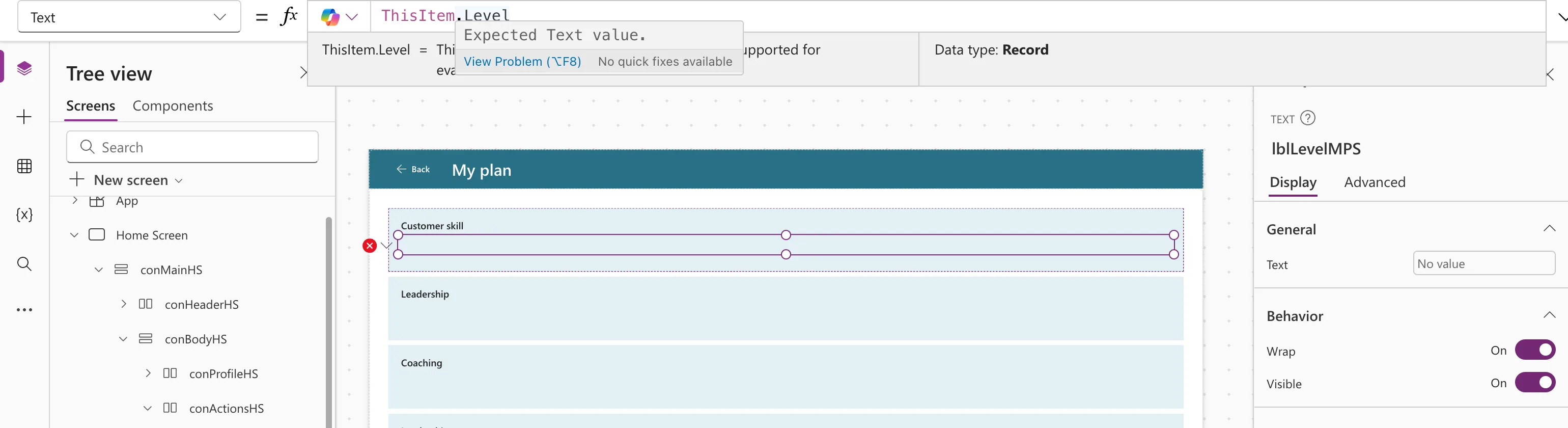
Expected Text value.
View Problem (⌥F8)    No quick fixes available
1 formula errors exist within the formula. Press F8 to access.
The signs:
- A red X next to the control on the canvas. Its menu offers Edit in the formula bar and Get help for this error.
- The preview strip under the formula bar says Data type: Record.
- The control shows nothing, and the Text box in the properties pane says No value.
Why It Happens
Level is a SharePoint Choice column. Microsoft's data type mappings put Choice, Lookup and Person columns in the Complex group: they arrive as records with subfields. A Text property needs text, and ThisItem.Level is a record, hence Expected Text value.
The Fix: Use .Value
The text of a Choice is in its Value field:
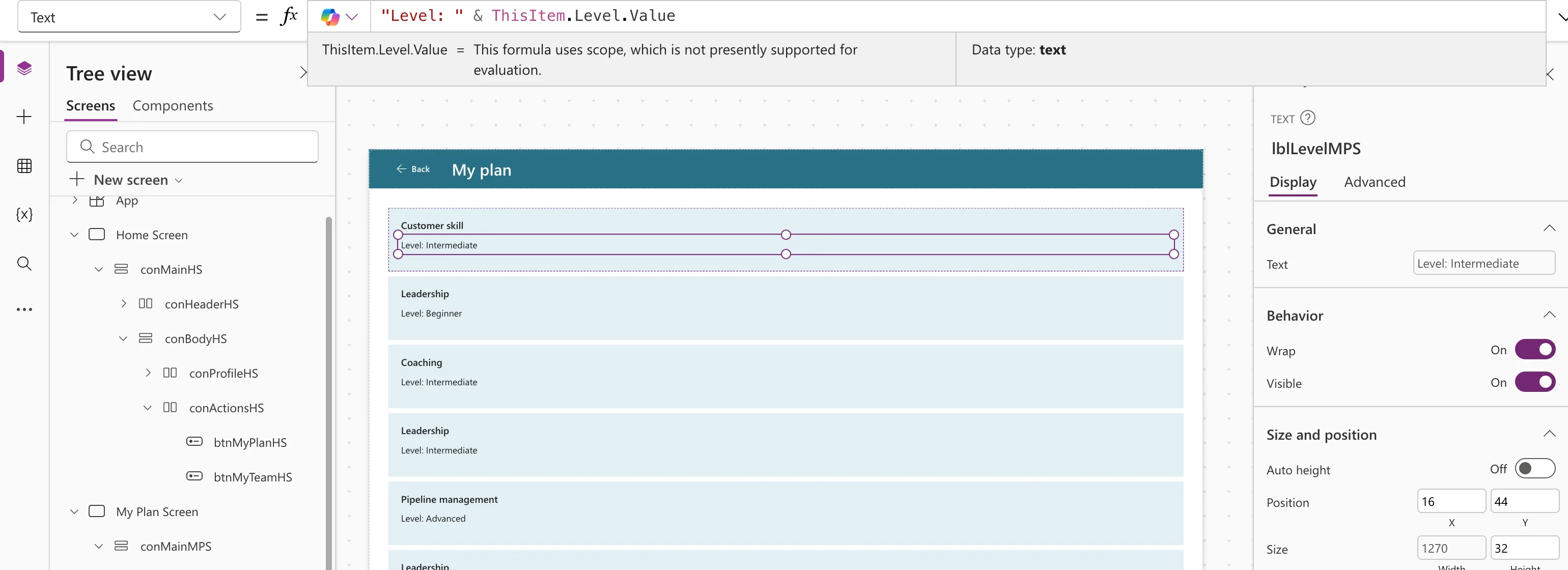
"Level: " & ThisItem.Level.Value
The error is gone, the strip shows Data type: text, and every row shows its level:
The same goes anywhere you need the choice as text: a badge's Content, a comparison such as Level = planItem.Level.Value, or text joined with &. See How to Show a SharePoint Choice Column's Value in Power Apps.
Common Mistakes
| Mistake | What happens | Do this instead |
|---|---|---|
| Changing the column to single line of text in SharePoint | The list loses its list of choices | Keep the Choice column and use .Value |
Putting the formula in quotes, "ThisItem.Level" | The label shows those words literally | Type the formula without quotes |
Troubleshooting
| Symptom | Likely cause | Fix |
|---|---|---|
| Expected Text value on a Lookup or Person column | The same: they're records too | Use their subfield, such as the Lookup's Value or the Person's DisplayName |
| The fix works but some rows are empty | Those items have no choice selected | Allow for blank with Coalesce |
FAQ
Why doesn't Studio offer a quick fix?
In the example it said No quick fixes available. The fix is one word, .Value, at the end of the column.
Is ThisItem the problem?
No. ThisItem is right for a gallery (How to Use ThisItem in a Power Apps Gallery). The issue is the column's type.
Conclusion
Expected Text value on a SharePoint column usually means it's a Choice (or another Complex column). Use ThisItem.Column.Value, and the record becomes the text you want.
Additional Resources
- Connect to SharePoint from a canvas app: data type mappings for SharePoint columns.
