Fixed: Excel Total of Times Wraps Around After 24 Hours

I added up a timesheet's Time worked column with SUM and got 12:15. The shifts came to 60 hours 15 minutes. The total was right, but its format, hh:mm, shows a time of day, so it dropped every whole 24 hours. The custom format [h]:mm shows 60:15.
What I Was Doing
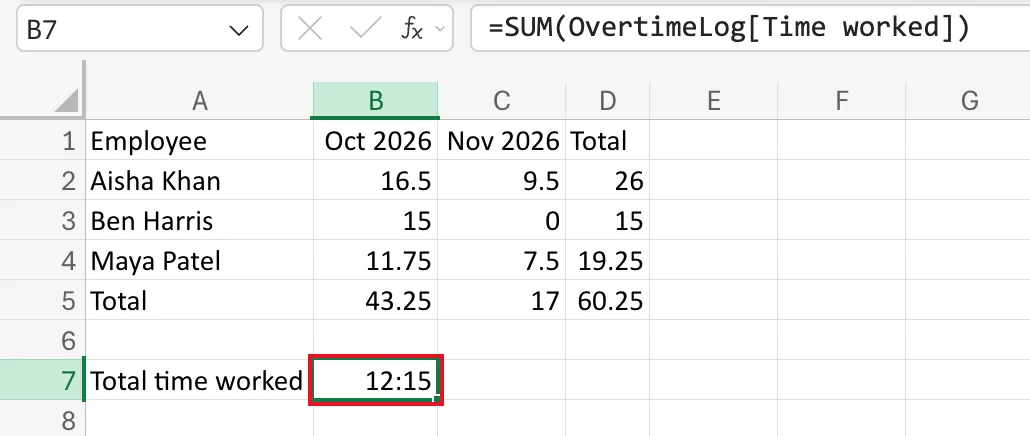
The Monthly totals sheet of the old overtime timesheet, from Part 1 of the Overtime Timesheet series, adds up hours per person. I wanted the grand total as a time as well, so I typed Total time worked in A7 and this formula in B7:
=SUM(OvertimeLog[Time worked])
OvertimeLog[Time worked] is the whole Time worked column of the OvertimeLog table, where each shift's length is a time such as 03:30.
What I Expected
60:15. The decimal Hours column of the same table adds up to 60.25, which is 60 hours and 15 minutes.
What I Got
12:15. The Number Format box on the Home tab said Custom:
What I Checked
- The arithmetic. 60:15 minus two whole days, 48 hours, leaves 12:15. The total was right; whole days were missing from the display.
- The format. I opened Number Format → More Number Formats. The All formatting options pane opened on the Custom category, with the cell's current format,
hh:mm, selected in the list and the preview showing 12:15:
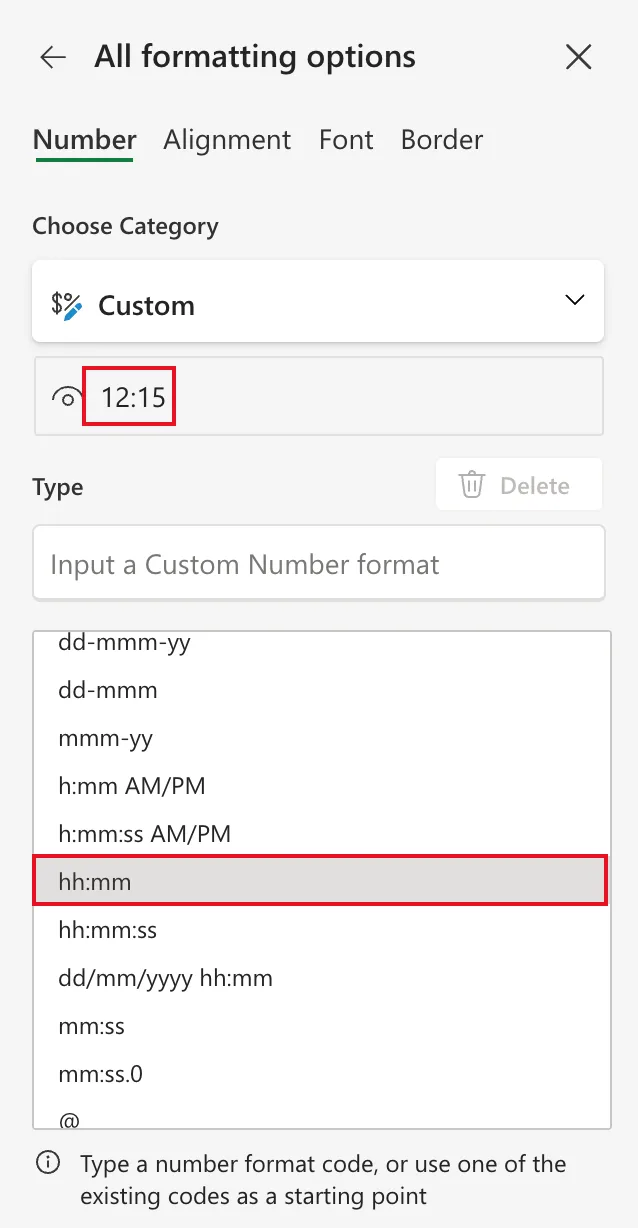
Excel had given the total the same time format as the Time worked cells it adds up.
3. Microsoft's documentation. Review guidelines for customizing a number format lists [h] as elapsed time in hours, and says to use a format like [h]:mm:ss when a formula returns a time with more than 24 hours. Add or subtract time in Excel totals hours with [h]:mm for the same reason.
Why It Happens
Excel stores a time as a fraction of a day, so 60 hours 15 minutes is stored as 2.51 days. The hh code shows the hour of the day, from 00 to 23, which is right for a clock time and wrong for a total. Put square brackets round it, [h], and Excel shows all the elapsed hours instead.
The Fix
Give the total a custom format with [h]:
- With B7 selected, open Number Format → More Number Formats. The Custom category is already chosen.
- In Type, enter
[h]:mm. - Select Confirm, the tick at the right of the box.
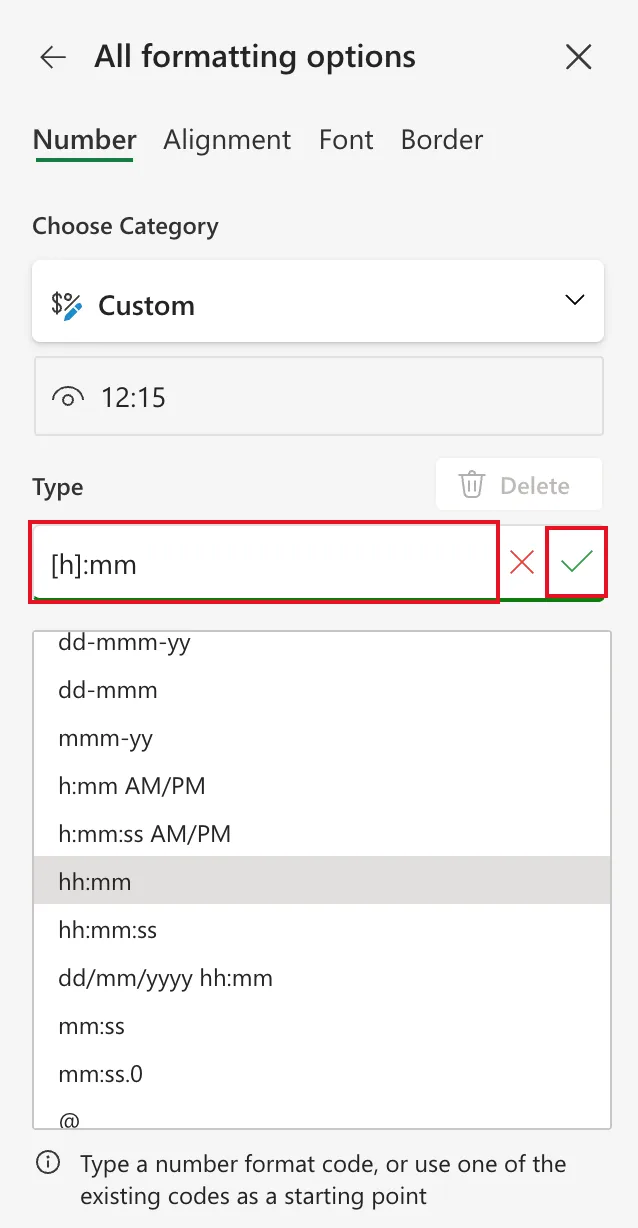
The preview only changes once you confirm. Excel also adds [h]:mm to the bottom of the custom list, ready to use again:
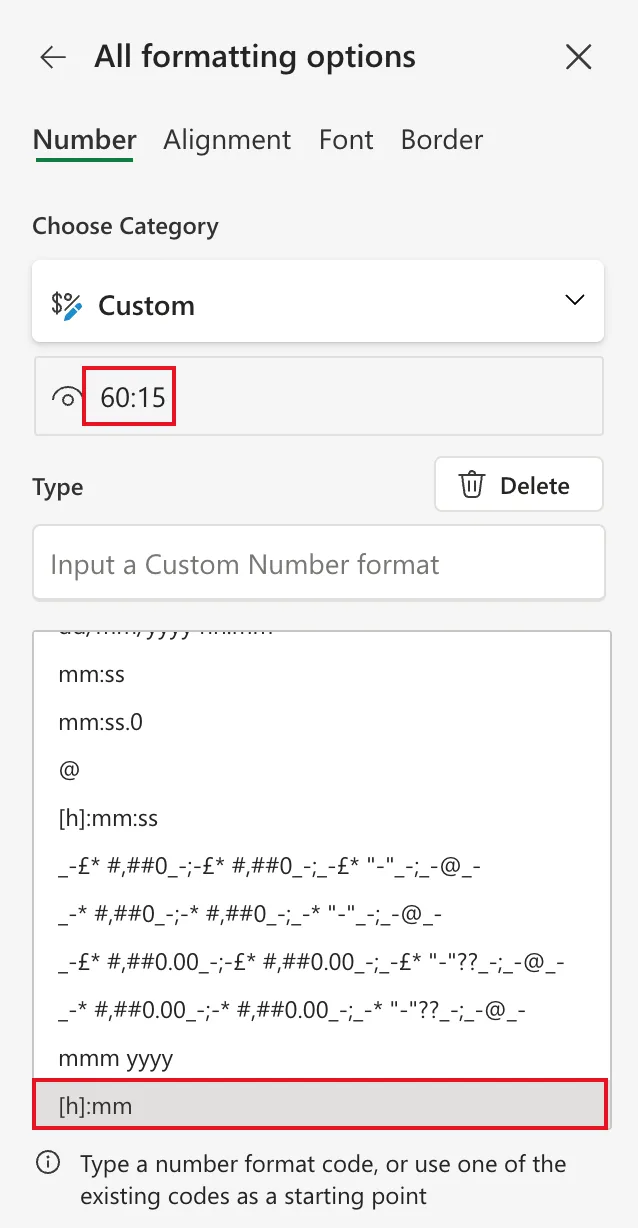
The list already has [h]:mm:ss, which also works if you want seconds.
Add or subtract time in Excel says you can add more than 24 hours in Excel for the web but can't apply a custom number format there, and Create a custom number format says you can't create custom formats in Excel for the web. In my Excel for the web, the All formatting options pane created and applied [h]:mm as shown above, and the workbook kept it.
After the Fix
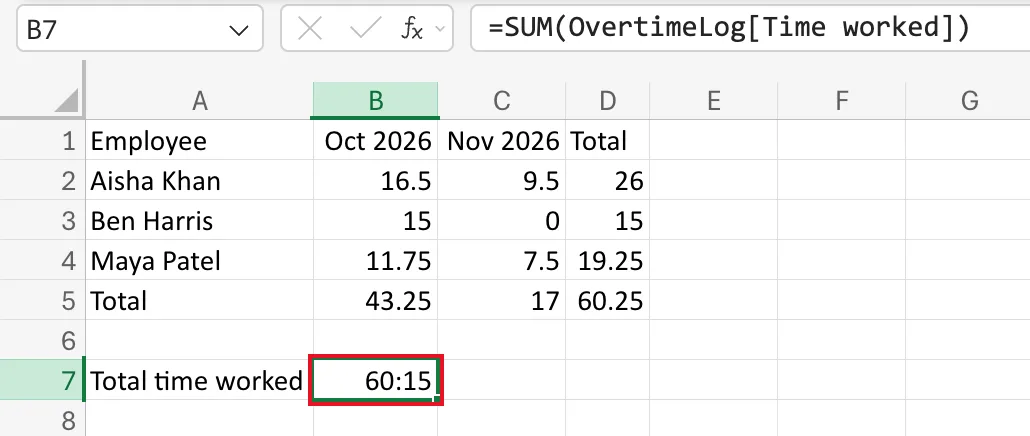
B7 shows 60:15, matching the 60.25 hours in D5:
Common Mistakes
| Mistake | What happens | Do this instead |
|---|---|---|
| Choosing Time from the Number Format list | It's another clock-time format and wraps at 24 hours too | Use a custom [h]:mm |
| Changing the formula | SUM was right; the problem is how the result is shown | Change the format |
Using [h]:mm on clock times such as Start | It's meant for amounts of time | Keep hh:mm for times of day |
Troubleshooting
| Symptom | Likely cause | Fix |
|---|---|---|
| A total of times is exactly 24, 48 or 72 hours short | hh:mm shows the hour of the day | Custom format [h]:mm |
| The preview doesn't change after typing the code | The code isn't applied until you confirm it | Select the tick next to Type |
| The total shows a date like 02/01/1900 | A date format turns 2.51 days into a date | Use [h]:mm |
FAQ
Does the format change the value?
No. The cell still holds 2.51 days. The format only decides how it's shown, so other formulas that use B7 get the same number either way.
How do I get the total in decimal hours instead?
Multiply by 24 and format the result as a number, as How to Convert Time to Decimal Hours in Excel does. The timesheet's Hours column works this way.
Does Excel for the web keep custom formats?
Yes. The format is saved with the workbook, and [h]:mm stays in the custom list for this workbook.
Conclusion
A total of times that's a whole number of days short is a format problem: hh:mm shows a time of day. Format totals with [h]:mm so every elapsed hour shows.
