Fixed: Excel Shows Hours as 12:00 or 00:00 After Multiplying by 24

To turn each shift's time worked into decimal hours, I multiplied it by 24. Excel showed 12:00, 00:00 and 18:00 instead of 3.5, 4 and 3.75. The numbers were right. The new column had picked up a time format, and switching it to Number fixed it.
What I Was Doing
The old overtime timesheet in Part 1 of the Overtime Timesheet series has a Time worked column with each shift's length as a time, such as 03:30. Payroll works in decimal hours, so I added an Hours column: I typed Hours in J1, and in J2:
=[@[Time worked]]*24
A time is a fraction of a day, so multiplying by 24 gives hours. How to Convert Time to Decimal Hours in Excel explains why.
What I Expected
3.5 for 03:30, 4 for 04:00 and 3.75 for 03:45.
What I Got
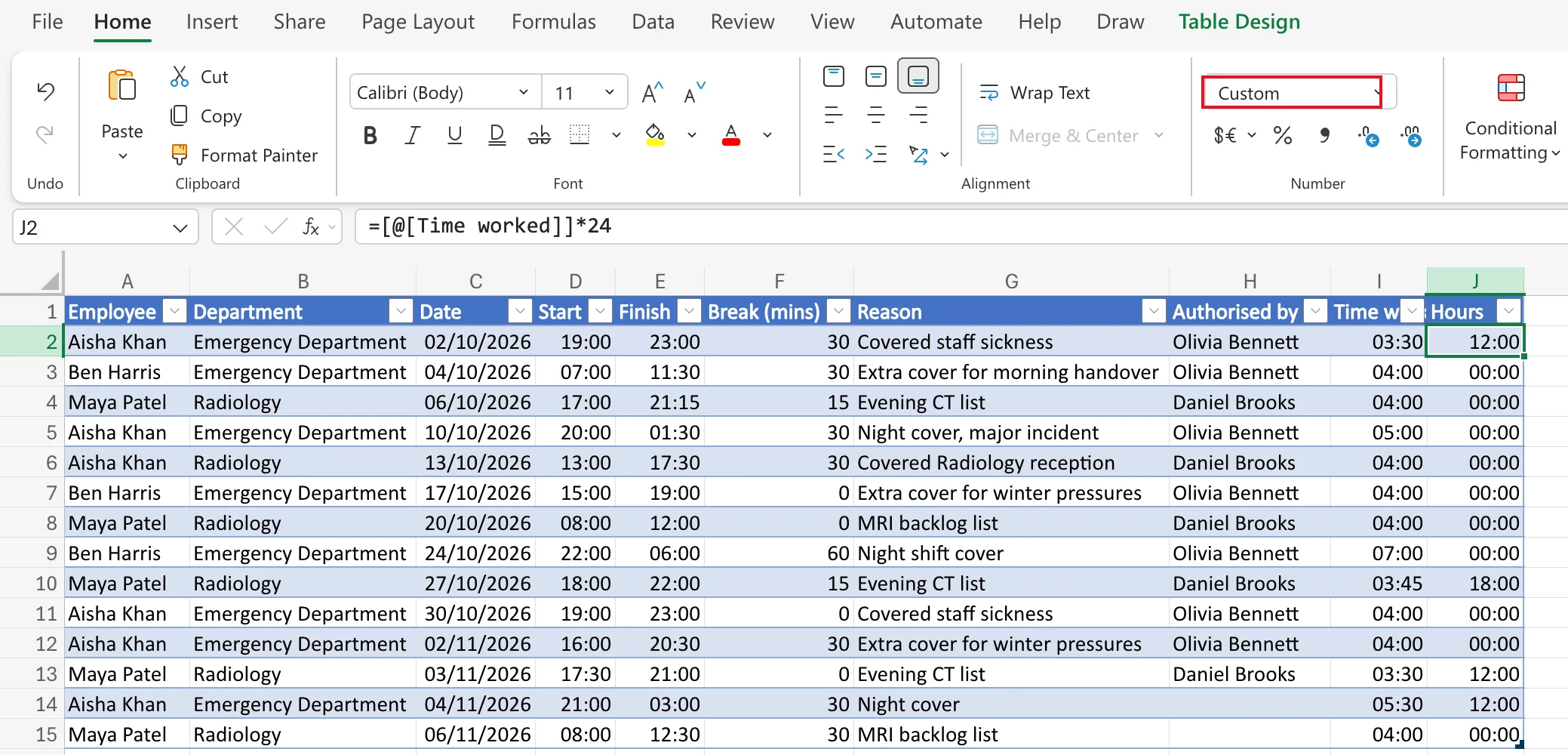
The Hours column showed 12:00 in the first row, 00:00 in most rows, and 18:00 and 12:00 in a few. With J2 selected, the Number Format box on the Home tab said Custom:
What I Checked
- The formula. The formula bar showed
=[@[Time worked]]*24, exactly what I typed. - The pattern. 03:30 is 0.1458 of a day, and 0.1458 × 24 is 3.5. Shown as a time, 3.5 means three and a half days, which is 84 hours, and a clock face shows 84 hours as 12:00. In the same way, 4 is four days, a whole number of days, so it shows as 00:00. And 3.75 is 90 hours, which shows as 18:00. Every value matched that pattern, so the numbers were correct and only the display was wrong.
- The cell's format. The Number Format box said Custom, the time format of the Time worked column. I hadn't formatted J at all. Excel had given the new column the same format as the time the formula started from.
- Microsoft's documentation. The TIME function page says a time is a decimal number, a fraction of a day: 12:00 PM is 0.5 because it's half a day. The SUM function page adds that because Excel calculates times as a fraction of a day, you multiply by 24 to get hours. So 3.5 is the right number, and it's the cell's time format that turns it back into a time of day.
Why It Happens
When a formula works on a cell that's formatted as a time, Excel often formats the result the same way, which is what you want when you add or subtract times. Multiplying by 24 is different: the result is a count of hours, not a time of day. Shown with a time format, a count of hours is read as a count of days and wrapped around a 24-hour clock.
The Fix
Show the column as a plain number:
- Select the Hours cells, J2 to J15.
- On the Home tab, open the Number Format list and select Number.
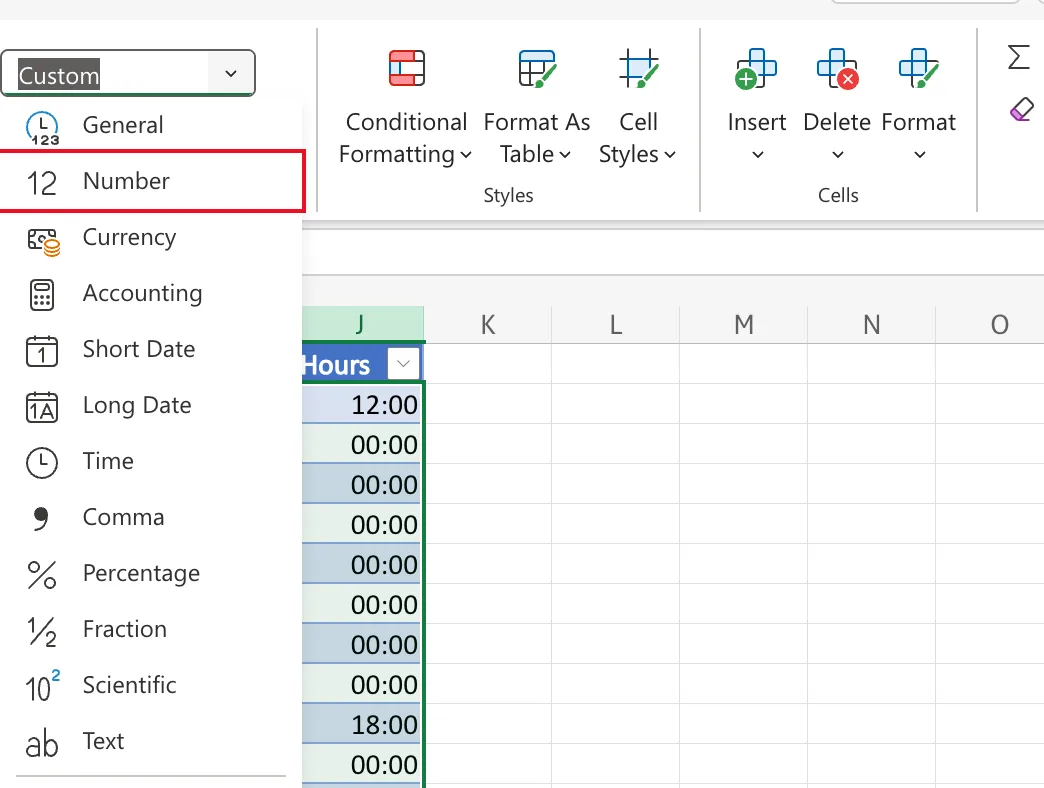
The formula stays the same. Only the way the cells are shown changes. How to Change a Cell's Number Format in Excel for the Web covers the list in more detail.
After the Fix
The Hours column shows decimal hours: 3.50, 4.00 and 5.00, with 7.00 for Ben Harris's night shift and 3.75 for Maya Patel's 03:45:
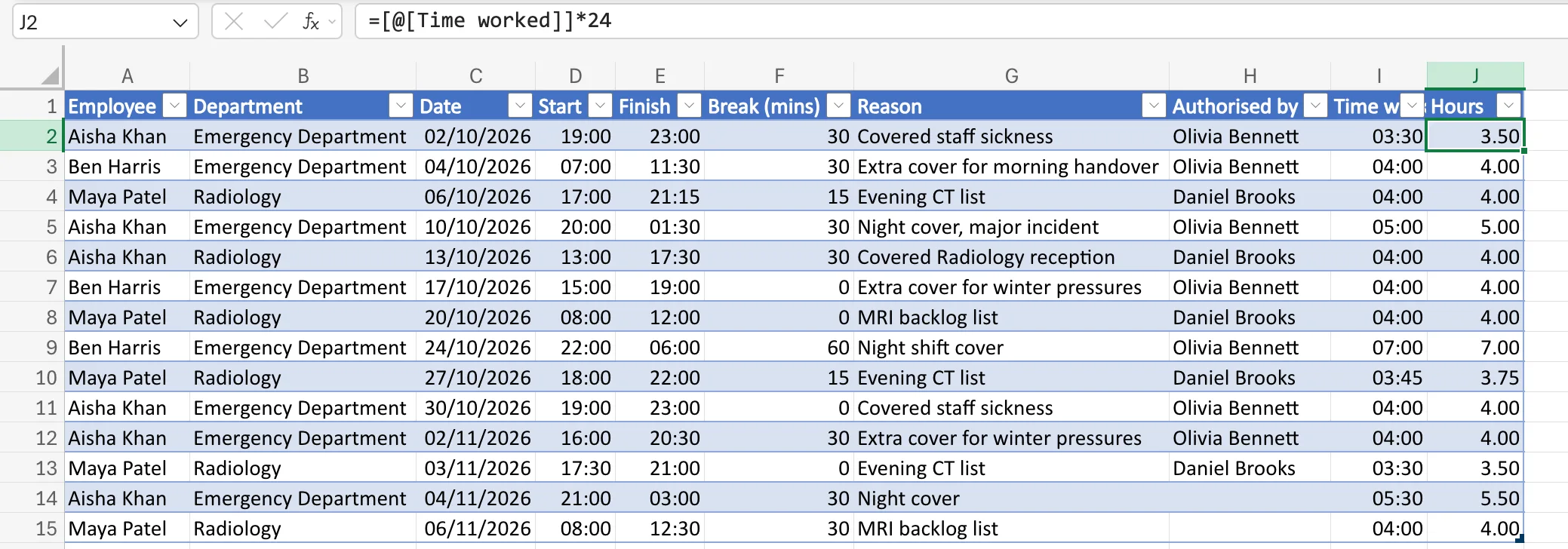
Number shows two decimal places. To show 3.5 instead of 3.50, use General.
Common Mistakes
| Mistake | What happens | Do this instead |
|---|---|---|
| Rewriting the formula | The result is the same, because the formula was right | Change the format, not the formula |
| Choosing Time | Hours are still read as days | Choose Number or General |
| Formatting one cell | The rest of the column still shows times | Select the whole column of results first |
Troubleshooting
| Symptom | Likely cause | Fix |
|---|---|---|
| 00:00 for every whole number of hours | A time format on a count of hours | Number Format → Number |
| 12:00 for every half-hour value | The same format: half a day shows as 12:00 | The same fix |
| Number Format says Custom but you didn't choose it | Excel copied the format from the time the formula uses | Pick the format you want |
FAQ
Why did Excel pick a time format at all?
The formula starts from a cell formatted as a time, so Excel assumed the result was a time too. For a count of hours, it isn't.
Does the format change the total?
No. A format only changes what you see. Totals and other formulas use the underlying number either way.
How do I keep it from happening in new rows?
In an Excel table, the column keeps the format you set, so new rows show numbers too.
Conclusion
When =Time*24 shows 12:00 or 00:00, the formula is fine and the format isn't. Set the column's Number Format to Number and the decimal hours appear.
