Fixed: Environment Variables Don't Show in Dynamic Content in Power Automate

My flow was in a solution, but its dynamic content had no Parameters group, and searching for the environment variable I needed said There are no results for your search. I had opened the flow from My flows. Opened from its solution, with Edit on the flow's own page, the same flow listed every environment variable.
What I Was Doing
I was building Import Old Overtime Timesheet, a flow of the Overtime Timesheet app that copies an old Excel timesheet into a SharePoint list. I'd created it inside the app's solution, Overtime Timesheet (How to Create an Instant Cloud Flow Inside a Solution in Power Automate), saved it, and opened it again later from My flows > the flow > Edit.
The solution has environment variables for the SharePoint site and its lists, so no flow has a fixed site address (How to Use Environment Variables in a Power Automate Flow). I added a SharePoint Get items action, chose Enter custom value in Site Address, and opened the dynamic content list to pick the variable Overtime Timesheet Site.
What I Expected
A group called Parameters in the dynamic content list, with the solution's environment variables in it, as in the flows I'd built in the same solution before.
What I Got
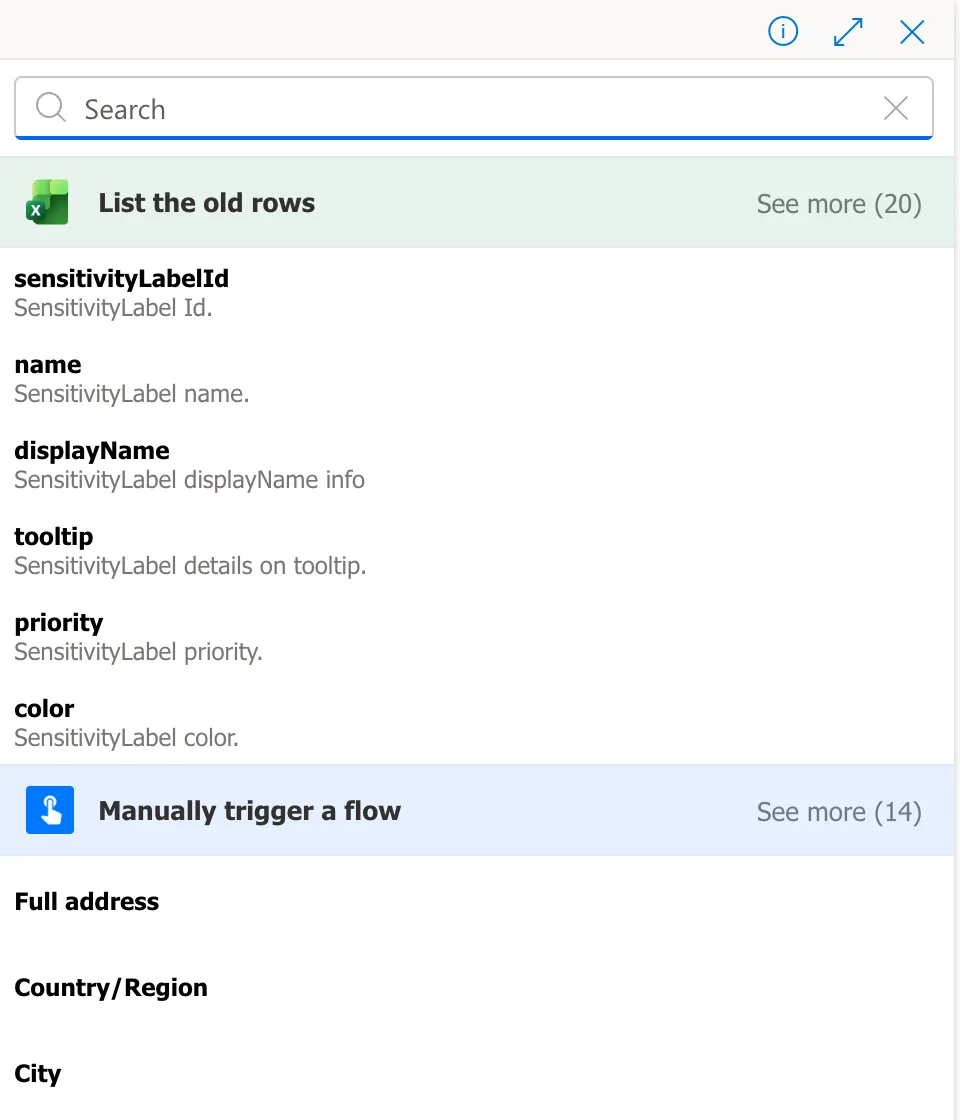
No Parameters group. Searching for the variable's name found nothing:

Without a search, the list had only the outputs of the flow's two earlier steps, the Excel action List the old rows and the trigger, Manually trigger a flow:
What I Checked
The flow was in the solution. The solution's Overview listed it under Recent items, as a cloud flow.
How I'd opened it. I'd opened the flow from My flows. The editor's address read …/solutions/~preferred/flows/<flow ID>: it wasn't the flow's own solution. Opened from the solution, a flow's address carries that solution's ID instead.
Microsoft's documentation. Use environment variables in Power Automate solution cloud flows starts with:
- Environment variables can be used in solution cloud flows since they're available in the dynamic content selector.
- Step 1: Edit or create a cloud flow in a solution.
Why It Happens
Microsoft's steps start in the solution, and the variables appeared when I followed them. My reading of the evidence: the editor I opened from My flows wasn't working in the flow's solution, so it had no solution's variables to offer, though the flow itself was in one.
The Fix
-
Leave the editor. Save first if you have changes you want to keep: leaving shows If you leave this page, you will lose all changes since your last save.
-
Open the solution. In Power Automate, select Solutions, then the solution, Overtime Timesheet here.
-
Open the flow from the solution. On the solution's Overview, select the flow's name under Recent items. Objects > Cloud flows lists it too:

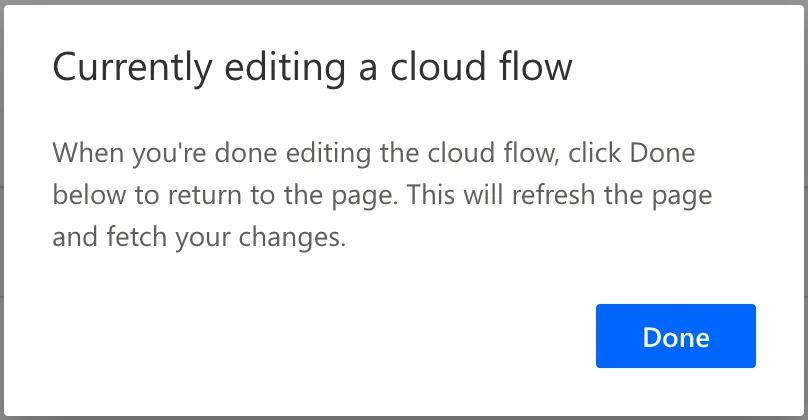
The flow's page opens in a new tab. The solution's tab waits with a message until you come back to it:
-
Select Edit on the command bar of the flow's page. The Edit link on the Details card opens a panel for the flow's name and description instead.

-
Pick the variable. In Site Address, choose Enter custom value, open the dynamic content list and search for the variable. The Parameters group is there:

-
Go back to the solution's tab when you've finished, and select Done.
After the Fix
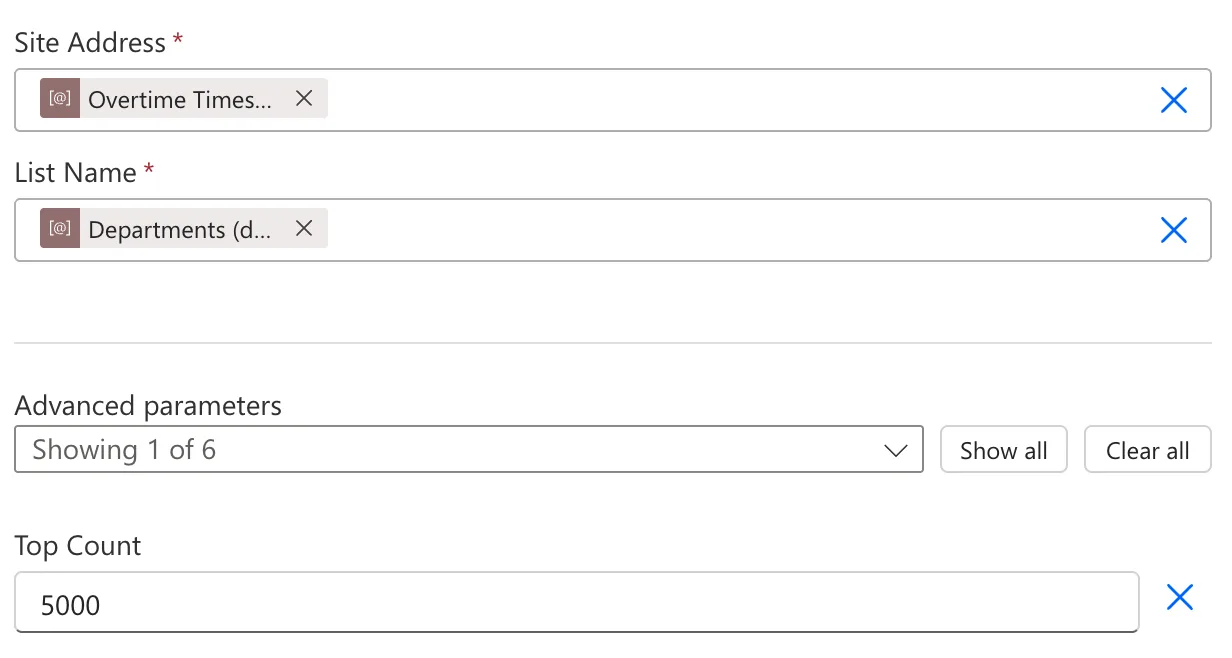
Site Address and List Name both took their environment variables, and the action read the right list:
The Same Symptom After Adding Variables
Later, in the editor opened from the solution, the Parameters group once listed only the two variables I'd just put into Get items, the site and Departments. A search for OvertimeEntries, the third list, found nothing.
The same page of Microsoft's documentation lists, under its limitations, that the variables in the selector are unfiltered, and that if an environment variable is added in another browser tab, the flow needs to be reopened in the flow designer to refresh the dynamic content selector. I hadn't added a variable anywhere, but reopening was the documented way to refresh the list: I selected Save draft and reloaded the editor. The Parameters group listed all the variables again. It happened once, and I couldn't make it happen again.
Common Mistakes
| Mistake | What happens | Do this instead |
|---|---|---|
| Opening a solution flow from My flows | No Parameters group in dynamic content | Open it from the solution, then Edit |
| The Edit link on the Details card | A panel for the name and description opens, not the editor | Edit on the command bar |
| Looking for variables in a drop-down | They're only in dynamic content | Enter custom value first |
| Leaving the editor without saving | You will lose all changes since your last save | Save draft first |
Troubleshooting
| Symptom | Likely cause | Fix |
|---|---|---|
| There are no results for your search for a variable's name | The flow was opened outside its solution | Open it from the solution |
| Only some variables listed | The list wasn't refreshed | Save draft, then reload the editor |
| Variables of other apps in the list | The list shows every variable in the environment | Search for the name you need |
| The flow isn't in Recent items | It was changed a while ago | Objects > Cloud flows |
FAQ
Is the flow outside the solution when I open it from My flows?
No: the solution still lists it, and it runs the same way. Only the editor I opened from My flows lacked the variables.
Do I need to open the flow from the solution every time?
Each time you need to pick an environment variable. Variables already in the flow stay in it however you open it.
Why does the list show variables from other solutions?
Microsoft's limitations note says the variables in the selector are unfiltered. In my environment, the Parameters group listed every environment variable, including other apps'. Searching for the name finds the one you need.
Conclusion
When a solution flow's dynamic content has no Parameters group, open the flow from its solution: Solutions > the solution > the flow > Edit on the command bar. The variables are listed there, and if the list ever looks short, saving the draft and reloading the editor refreshes it.
Additional Resources
- Use environment variables in Power Automate solution cloud flows: the steps and the limitations quoted above
- Environment variables overview
