Fixed: Microsoft Entra Admin Center Shows the Old Job Title After Saving

I changed someone's job title in the Microsoft Entra admin center, got Successfully updated, and the Properties tab still showed the old title. The save had worked; the page hadn't caught up. Reloading the browser page fixed it.
What I Was Doing
Part 10 of the Career Development Plan series tests a promotion: Aisha Khan's job title changes from Sales Engineer to Sales Manager, then back. I followed How to Set a User's Manager and Job Title in the Microsoft Entra Admin Center: Edit properties → Job Information → Job title → Save.
After the first change, I opened her Properties tab, and it showed Sales Manager. Then I changed the title back.
What I Expected
The same as the first time: Properties → Job Information shows the title I just saved, Sales Engineer.
What I Got
The portal's notifications said the save had worked:
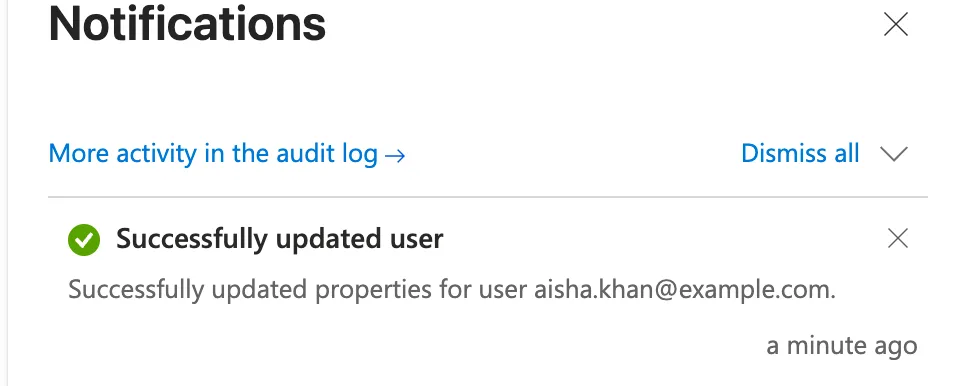
But Properties still showed the title from before the save. Refresh at the top of the profile didn't change it, even two minutes later:
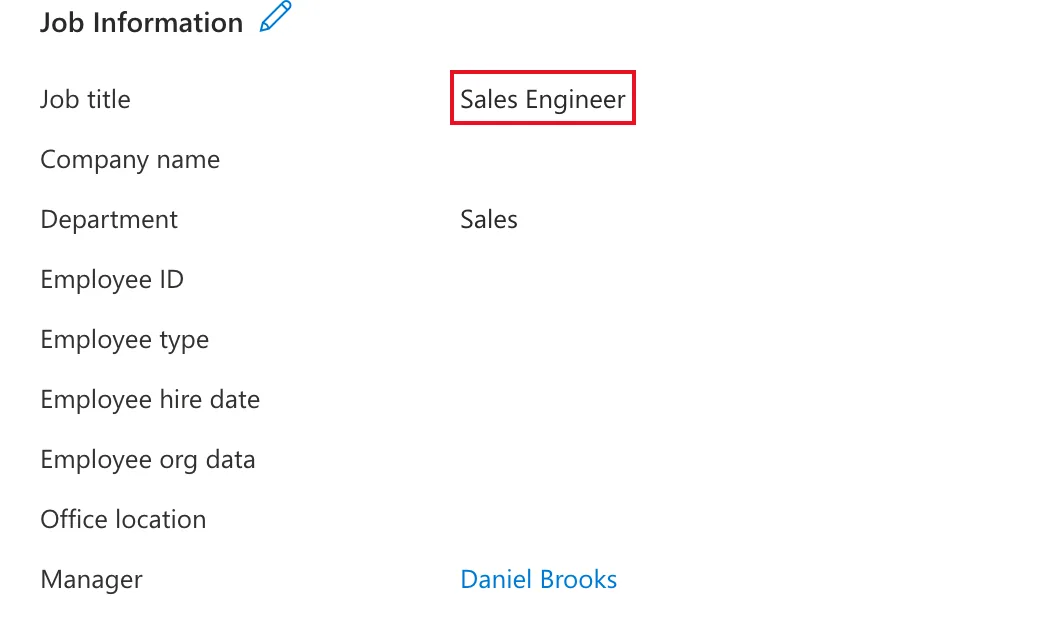
Both screenshots are from the reproduction described below, where the title I saved was Sales Manager.
What I Checked
- Whether the save had failed. That was my first thought, and it was wrong. I opened Edit properties again and typed the new title, ready to save it a second time. Save stayed greyed out. The editor only enables Save when something differs from what's stored, so the stored title was already the new one. I selected Cancel.
- What Microsoft 365 itself said. The Career Development Plan app reads the job title from the user's Microsoft 365 profile. When Aisha reopened the app about three minutes after the save, it showed the new title.
- Microsoft's documentation. Add or update a user's profile information and settings only says to select Save after making changes. It doesn't mention the Properties view keeping old values.
- Whether it happens again. I reproduced it with Properties already open: changed the title, saved, and looked again. Each time, Properties showed the old title until I reloaded the page. It happened all three times Properties was open when I saved. The very first change, when I only opened Properties after saving, showed the new title straight away.
Why It Happens
Microsoft's documentation doesn't explain it. From what I saw, the profile page keeps the values it loaded before the edit, its own Refresh doesn't re-read them, and a full reload of the browser page does.
The Fix
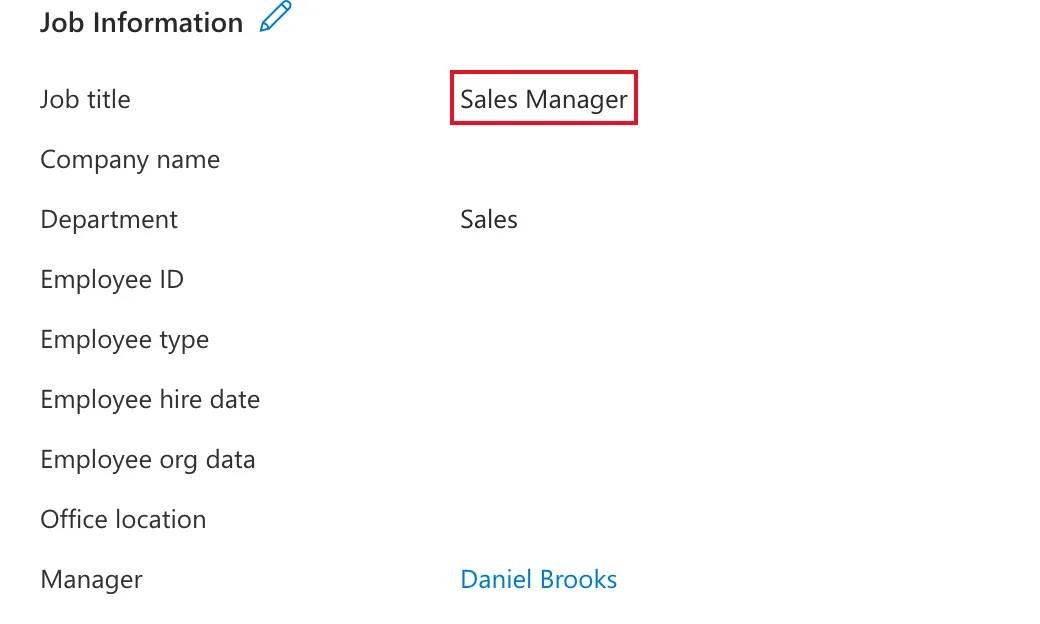
Reload the whole browser page (F5, or Ctrl+R on Windows and Cmd+R on a Mac), then open Properties again. It showed Sales Manager, the title I had just saved:
Then I changed the title back to Sales Engineer, reloaded the page, and Properties showed it.
Common Mistakes
| Mistake | What happens | Do this instead |
|---|---|---|
| Making the same change again | Save is greyed out, because nothing differs | Check the notification first |
| Trusting Refresh at the top of the profile | It kept the old value | Reload the browser page |
Troubleshooting
| Symptom | Likely cause | Fix |
|---|---|---|
| Save is greyed out after you type the new value | The stored value is already that | Cancel, then reload the page |
| An app still shows the old title | The app read the profile when it opened | Reopen the app |
FAQ
Did the change reach Microsoft 365?
Yes. The editor's greyed-out Save showed it was stored, and Aisha's app showed the new title when she reopened it about three minutes later.
Does this happen with other fields?
I only saw it with the job title, because that's what I changed. The same reload is the first thing to try for any field.
Conclusion
After saving a profile change in Microsoft Entra, check the notification, not the Properties tab you already had open. If it shows the old value, reload the browser page before deciding the save failed.
