Fixed: "Does Not Have ReadAccess Right(s) … of Entity Process" When Power Apps Runs a Flow

I shared a canvas app with two people, and when it ran its flow for them, Power Apps showed does not have ReadAccess right(s) for record with id … of entity Process. Sharing an app doesn't share the flows it calls. Adding the two people as the flow's run-only users fixed it.
What I Was Doing
The Overtime Timesheet app has a Waiting for Approval screen. When it opens, the app runs Get Waiting Approvals, a flow with the Power Apps (V2) trigger that lives in the app's solution (How to Create a Flow That Power Apps Can Run in Power Automate).
I had shared the app with two approvers, Olivia and Daniel, as User (How to Share a Canvas App with Specific People in Power Apps). Daniel opened it with Play from Apps > Shared with me, allowed the permissions it asked for, and selected Waiting for approval on the Home screen.
What I Expected
The flow to run for Daniel and the screen to list the overtime entries waiting for him. The flow ran for me, the app's owner.
What I Got
A red banner across the top of the app:

GetWaitingApprovals.Run failed: {"error":{"code":"0x80048306","message":"user with id 00000000-0000-0000-0000-000000000000 does not have ReadAccess right(s) for record with id 00000000-0000-0000-0000-000000000000 of entity Process. Consider assigning a role with the level BusinessUnitLevel to the user or team. For further troubleshooting, please work with a system administrator to use the Access Checker tool on this record: https://org00000000.crm.dynamics.com/main.aspx?forceUCI=1&pagetype=enti…
The banner closed by itself after a few seconds, and the screen stayed blank. That blank screen was a second problem, in my formula, which has its own post: Fixed: IfError Doesn't Catch a Flow's Run Failed Error in Power Apps.
What I Checked
The flow's run history. Daniel's attempts weren't there. The newest runs were mine, from before I shared the app, so the call failed before the flow started (How to See a Flow's Run History in Power Automate):

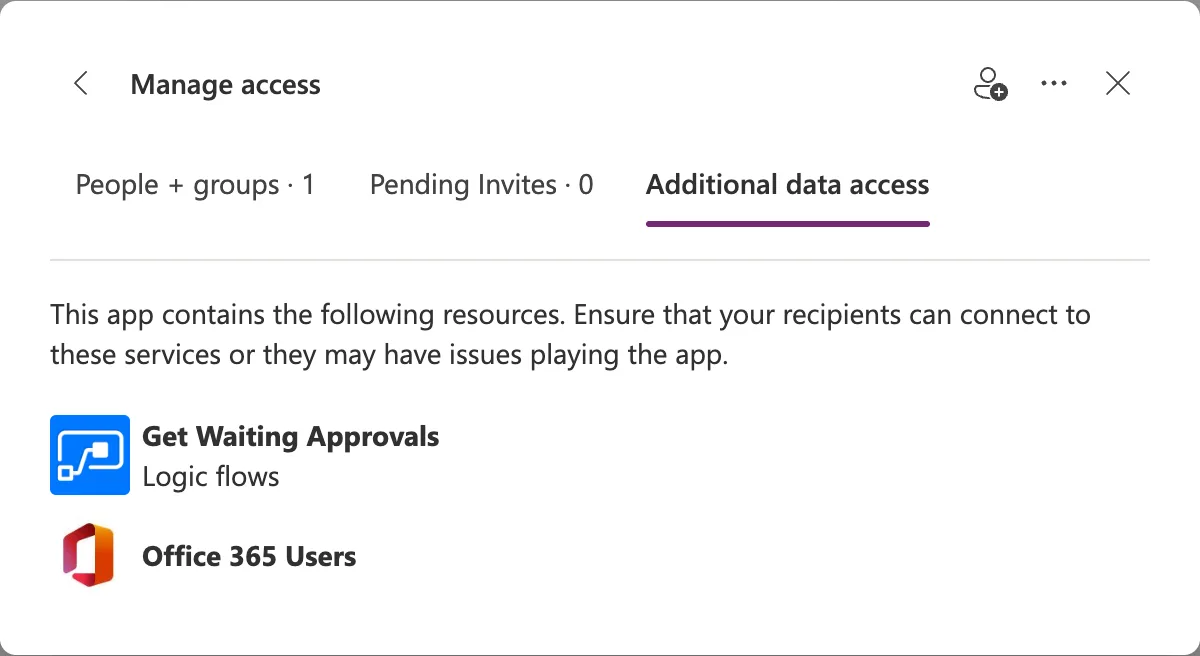
What the share told me. In the app's Manage access panel, the Additional data access tab lists the flow as Logic flows, with a warning to make sure the people I share with can connect to it:
What "entity Process" is. Work with cloud flows using code says cloud flows in solutions are stored in Dataverse's Process (Workflow) table, and the table's reference shows that its records are UserOwned. The record the error names is the flow itself.
Microsoft's documentation on access to flows. Share a canvas app with your organization warns that you might also need to share other resources on which the app depends, such as flows, gateways, or connections. Understand flow ownership and access says people get access to a flow as its owners, through run-only sharing, or through security roles on the workflow tables. Share a cloud flow says instant flows, the kind I created for Power Apps, are shared with run-only permissions, which let people trigger the flow and nothing else.
Why It Happens
The flow is a record in the Process table, and only its owner had access to it. Sharing the app gave Daniel the app. The permissions he allowed when he opened it were for connections, including the one the flow asks its runner for. Nothing gave him the flow itself, so Power Apps couldn't read its record to start it.
The Fix
Share the flow with the app's users as run-only users. On a real tenant, that's a change to who can run the flow, so I asked the app's owner first.
- Open the flow's details page in Power Automate. Its Run only users card said Your flow hasn't been shared with anyone. Select Edit.
- In Manage run-only permissions, on Users and groups, search for each person and select them. I added Olivia and Daniel.
- Under Connections Used, choose which connection each connector uses. I left Office 365 Users as Provided by run-only user, so the flow finds out who's running it, and SharePoint on my connection, so it can read the lists the approvers can't open (How to Choose the Connections Run-Only Users Use in Power Automate).
- Select Save.
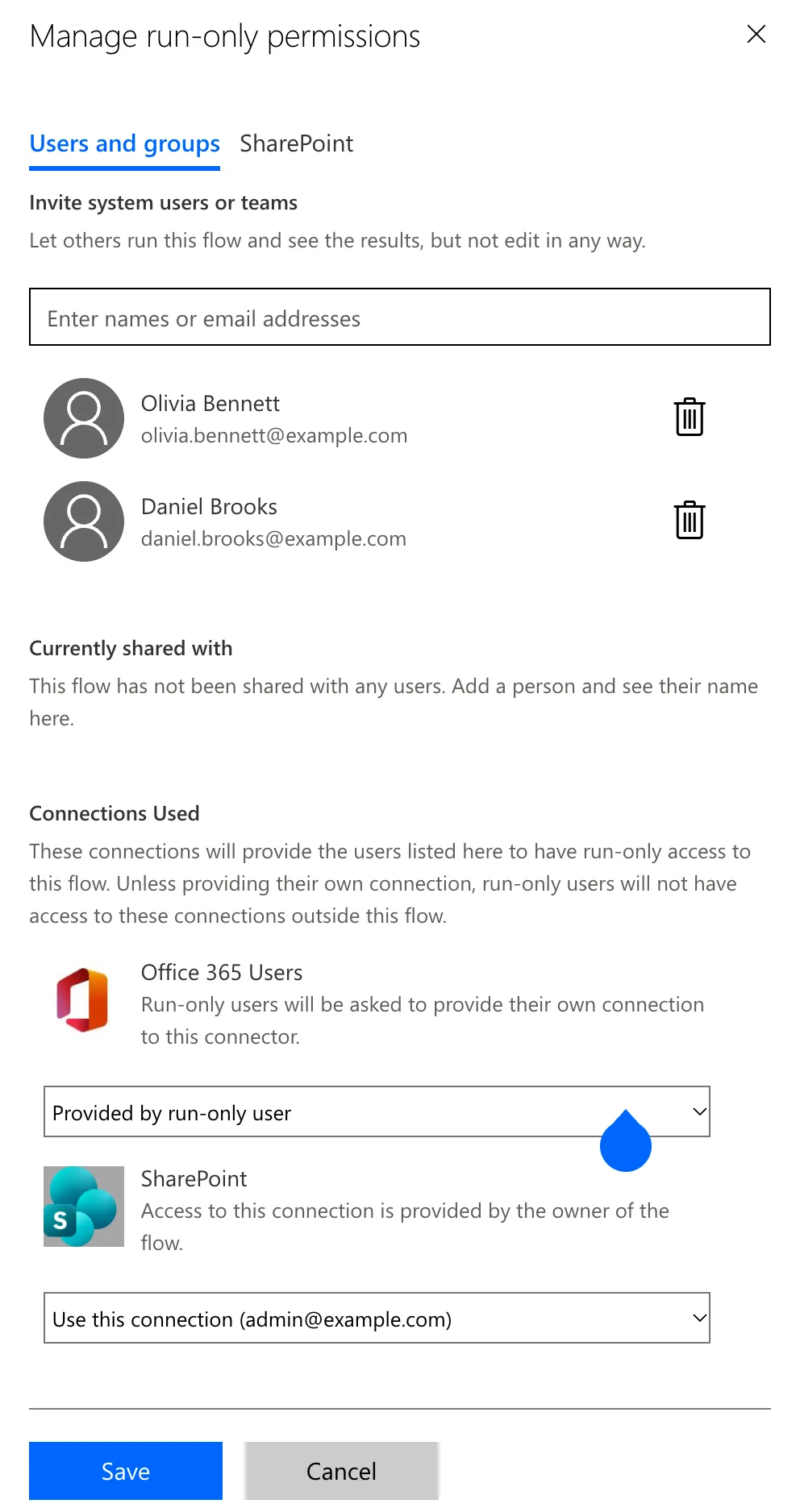
The steps, with every screen, are in How to Share a Flow with Run-Only Users in Power Automate. For a whole team, add a security group instead of people one by one.
After the Fix
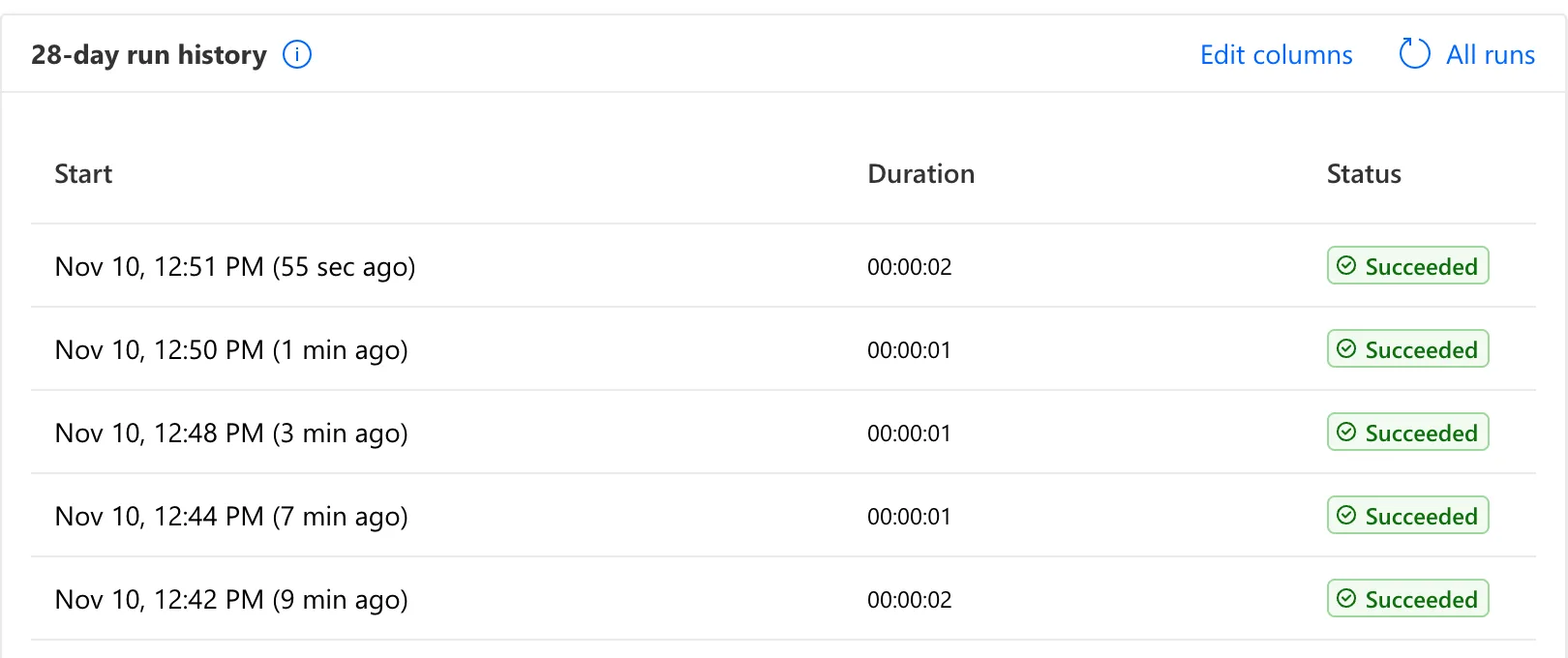
The app tab Daniel already had open kept failing. When he opened the app again from Shared with me, the flow ran. The run history now lists runs started from the approvers' sessions:
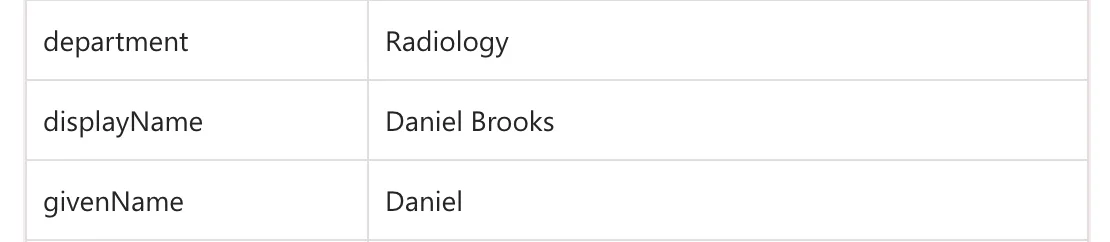
In a run started from Daniel's session, Get the caller, the flow's Get my profile (V2) action, returned his profile, so the flow ran as him:
Common Mistakes
| Mistake | What happens | Do this instead |
|---|---|---|
| Sharing the app and not its flows | The flow fails for everyone but its owners | Add the app's users as run-only users of each flow |
| Making app users co-owners of the flow | They can edit and delete the flow | Run-only users |
| Retrying in the same app tab | It kept failing after the share | Open the app again |
| Adding people one by one for a whole team | Every new joiner needs a change to the flow | A security group as the run-only user |
Troubleshooting
| Symptom | Likely cause | Fix |
|---|---|---|
| ReadAccess right(s) … of entity Process | The person has no access to the flow | Add them as run-only users |
| No run in the flow's history | The call failed before the flow started | Check the flow's sharing |
| Still failing after the share | The app session was open before it | Close the app and open it again |
| Runs start but SharePoint actions fail | The SharePoint connection is the user's | Set it to your connection in Connections Used |
FAQ
Can run-only users see the flow or its runs?
No. Microsoft's guide to cloud flow sharing says run-only users can't open the flow in the editor or see its run history. They can only start it, here through the app.
Why does the error suggest a security role?
Security roles on the workflow tables are another way to get access to flows. Understand flow ownership and access says users with full access to those tables can edit any flow and view any run history. Run-only sharing gives one flow, and only the right to start it.
Does the app's Share dialog warn about this?
Yes. The Additional data access tab lists every flow the app uses, with a note to make sure the people you share with can connect to it.
Conclusion
A canvas app's users need the flow as well as the app. When a flow from a solution fails with ReadAccess right(s) … of entity Process, add the app's users, ideally a security group, as the flow's run-only users, and open the app again.
Additional Resources
- Share a cloud flow with run-only permissions
- Understand flow ownership and access
- Work with cloud flows using code: Workflow table
- Process (Workflow) table reference
- Share canvas app resources
