Fixed: Delegation Warning. The Highlighted Part of This Formula Might Not Work Correctly on Large Data Sets

Power Apps put a squiggle under in and said: Delegation warning. The highlighted part of this formula might not work correctly on large data sets. SharePoint can't check whether someone is in a multi-person column, so Power Apps would only check the items it had downloaded, 500 by default. Letting SharePoint do the part it can, and the app the rest, removed the warning.
What I Was Doing
Part 5 of the Overtime Timesheet series works out whether the signed-in person approves overtime for any department. The SharePoint list Departments has a Yes/No column, IsActive, and a Person column that allows several people, Approvers (Part 2). The app's named formulas already had MyEmail, the person's email from their Microsoft 365 profile.
In App.Formulas, I wrote two more named formulas: the active departments whose Approvers include the person, and whether there are any:
MyApproverDepartments = Filter(Departments, IsActive = true, MyEmail in Approvers.Email);
IsApprover = !IsEmpty(MyApproverDepartments);
For each department, Approvers.Email is a table: the email address of every person in its Approvers column. in checks whether MyEmail is one of them.
What I Expected
A table of the departments the person approves, an IsApprover of true or false, and no warnings.
What I Got
A squiggle under in, and another under MyApproverDepartments in the second formula. Hovering over in showed:

Delegation warning. The highlighted part of this formula might not work correctly on large data sets.
View Problem (⌥F8)    No quick fixes available
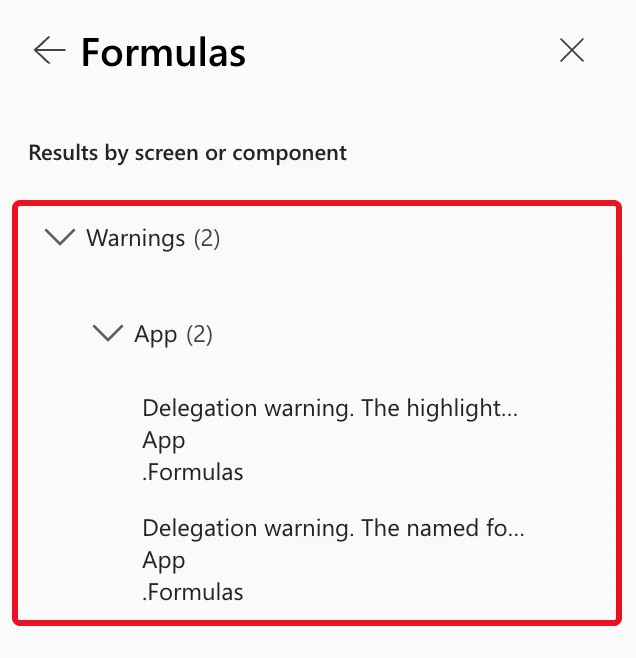
The App checker (stethoscope icon, right end of Studio's command bar) → Formulas listed two warnings, both on App → .Formulas:
The first one's Details:
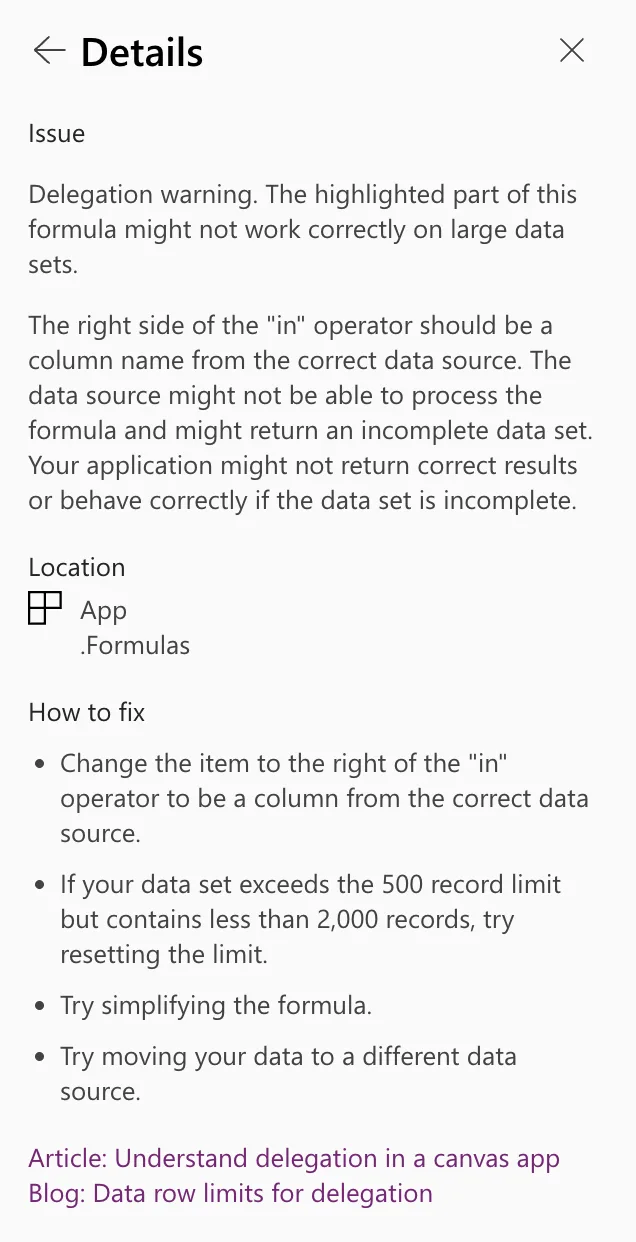
Issue
Delegation warning. The highlighted part of this formula might not work correctly on large data sets.

The right side of the "in" operator should be a column name from the correct data source. The data source might not be able to process the formula and might return an incomplete data set. Your application might not return correct results or behave correctly if the data set is incomplete.

Location
App
.Formulas

How to fix
- Change the item to the right of the "in" operator to be a column from the correct data source.
- If your data set exceeds the 500 record limit but contains less than 2,000 records, try resetting the limit.
- Try simplifying the formula.
- Try moving your data to a different data source.
The second warning is about the named formula: Fixed: Delegation Warning. The Named Formula Is Not Delegable So Its Usage in This Formula Might Not Work Correctly on Large Data Sets.
What I Checked
- What SharePoint can run. Microsoft's delegable operations for SharePoint table covers
=, the comparisons, Filter, LookUp, Sort, StartsWith and IsBlank. It has no row forin. Its notes add that only Email and DisplayName can be delegated on a Person column, so=onApprovers.Emailcould be, butincan't. - What happens to the rest. The delegation overview says that when part of a formula can't be delegated, Power Apps works only on the records it downloads: the Data row limit, 500 by default and up to 10,000.
- The four suggestions. The right side of
inis already a column of the list, the emails in Approvers, and SharePoint still can't runin. Raising the limit only moves the problem. Moving the data to another data source, such as Dataverse, would change the whole solution, which runs on SharePoint lists and standard licenses. That left simplifying the formula. - How to keep a step in the app. The same overview: When you use
With,UpdateContext, orSet, these functions create collections internally. Collections are a static in-memory list of records and can't participate in delegation. You don't see a delegation warning.
Why It Happens
Power Apps tries to send the whole filter to SharePoint, so SharePoint returns only the matching items. SharePoint can do IsActive = true, but it can't look inside a multi-person column for one email. When any part of a filter can't be delegated, Power Apps downloads items up to the data row limit and filters them in the app. A department beyond the first 500 items would never be found, and the warning points at the part responsible: in.
The Fix: Let SharePoint Filter First, Then Check in the App
Split the filter in two with With. SharePoint runs the delegable part and returns the active departments, With keeps them in the app, and in runs on that copy:
MyApproverDepartments = With(
    {ActiveDepartments: Filter(Departments, IsActive = true)},
    Filter(ActiveDepartments, MyEmail in Approvers.Email)
);
IsApprover = !IsEmpty(MyApproverDepartments);
Filter(Departments, IsActive = true)is delegated:=on a Yes/No column is in Microsoft's table.ActiveDepartmentsis a collection inside With, so the second Filter runs in the app and Studio doesn't warn.
The squiggle under in disappeared, and the App checker no longer listed the highlighted-part warning.
This is right for a list that stays small. Departments holds one item per department, far below the 500-item limit even for a large hospital, and the app downloads only the active ones. It's not a pattern for a list that keeps growing, such as overtime entries: there, the app would still check only the first 500 items, without a warning. How to Use the With Function in Power Apps explains With.
After the Fix
The named-formula warning was still there, now on the MyApproverDepartments inside IsApprover. Its post has the fix: return the department names as text instead of a table. With that, the formulas the app uses are:
MyApproverDepartments = With(
    {ActiveDepartments: Filter(Departments, IsActive = true)},
    Concat(Filter(ActiveDepartments, MyEmail in Approvers.Email), Department, ", ")
);
IsApprover = !IsBlank(MyApproverDepartments);
The App checker's Formulas category has no count:
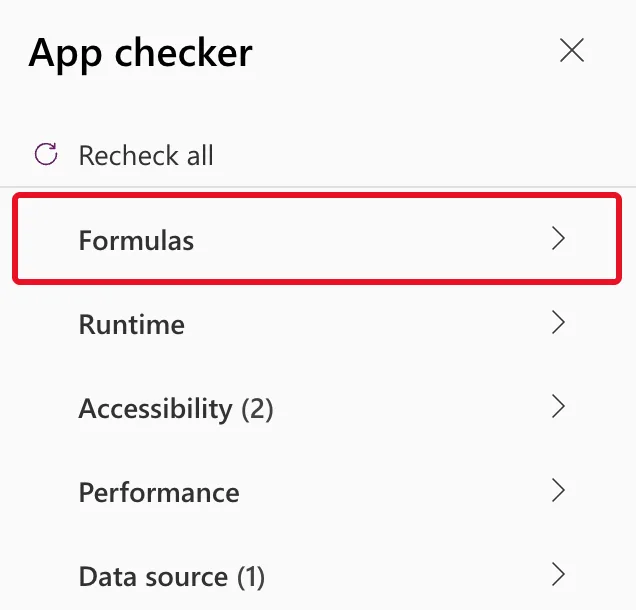
The Accessibility and Data source counts are about other things, the Home screen's heading and a list no formula uses yet, and Part 5 covers both. With the email of Olivia Bennett, the approver for the Emergency Department, MyApproverDepartments returns Emergency Department: How to Check If the Current User Is in a SharePoint Person Column in Power Apps.
Common Mistakes
| Mistake | What happens | Do this instead |
|---|---|---|
| Raising the data row limit to make the warning go away | The warning stays, and results go wrong again once the list passes the new limit | Change the formula |
| Using With on a list that keeps growing | The app checks only the first 500 items, and no warning says so | Keep this pattern for small lists, such as departments |
Putting the whole list inside With, as in With({All: Departments}, …) | Nothing is delegated, not even IsActive = true | Keep the delegable part in the inner Filter |
Troubleshooting
| Symptom | Likely cause | Fix |
|---|---|---|
The in warning is gone, but a named-formula warning remains | The named formula still returns a table built from the list | Return what the screens need, such as text: see the named-formula post above |
| An approver's department isn't found | The department's IsActive is No, or the person's email differs from MyEmail | Check IsActive, and compare the email in Approvers with the profile's |
in is still underlined after the change | Approvers.Email is still filtered on Departments, not on ActiveDepartments | Use the name from With in the second Filter |
FAQ
Can SharePoint ever run in?
Not according to Microsoft's table for SharePoint, which has no row for it. A Person column's Email can be compared with =, so a list with one item per department and approver, using a single-person column, could be filtered on SharePoint. The example's Departments list is small, so it doesn't need that.
Why does With remove the warning?
Microsoft's delegation overview says With creates a collection internally, and collections never delegate, so Studio has nothing to warn about. The collection holds only what SharePoint returned, at most the data row limit, which is why the pattern suits small lists only.
Is this warning an error?
No. The app runs, and on a small list it gives the right answer. The warning is about what happens once the list passes the data row limit.
Conclusion
The highlighted part of this formula might not work correctly on large data sets points at the part SharePoint can't run, here in on a multi-person column. Let SharePoint run what it can, IsActive = true, keep the result with With, and check membership in the app. That's right for small lists like departments, and not for lists that keep growing.
Additional Resources
- Understand delegation in a canvas app: the data row limit, and With, Set and UpdateContext creating collections.
- Power Apps delegable functions and operations for SharePoint: what SharePoint can run, including the Person column's notes.
- With function: the reference.
Related
- What Is Delegation in Power Apps? (With SharePoint Lists)
- Fixed: Delegation Warning. The "Filter" Part of This Formula Might Not Work Correctly on Large Data Sets
- Fixed: Delegation Warning. The Named Formula Is Not Delegable So Its Usage in This Formula Might Not Work Correctly on Large Data Sets
- How to Use the With Function in Power Apps
