Fixed: date: illegal option -- d on macOS

date -d @<seconds> turns a Unix timestamp into a date on Linux, and most answers online give that form. On a Mac, the same command stops with date: illegal option -- d and prints a usage message. macOS's date reads a timestamp with -r instead.
What I Was Doing
I was writing How to Convert a Unix Timestamp to a Date in the Terminal and needed the date for the timestamp 1800000000. On my Mac, in zsh, I ran the Linux form of the command:
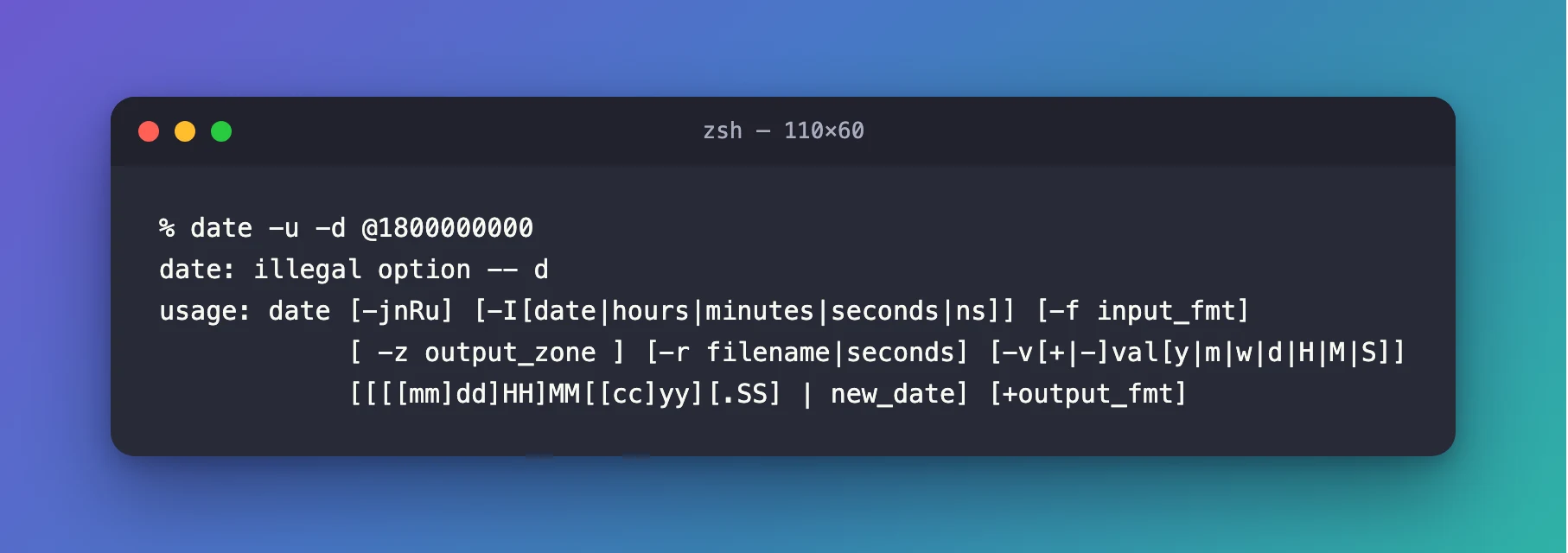
date -u -d @1800000000
What I Expected
The date, in UTC:
Fri Jan 15 08:00:00 UTC 2027
What I Got
date: illegal option -- d
usage: date [-jnRu] [-I[date|hours|minutes|seconds|ns]] [-f input_fmt]
            [ -z output_zone ] [-r filename|seconds] [-v[+|-]val[y|m|w|d|H|M|S]]
            [[[[mm]dd]HH]MM[[cc]yy][.SS] | new_date] [+output_fmt]
What I Checked
The usage message. It lists every option this date accepts: -j, -n, -R, -u, -I, -f, -z, -r and -v. There's no -d, but there is [-r filename|seconds].
The macOS manual. man date describes -r like this: "Print the date and time represented by seconds, where seconds is the number of seconds since the Epoch (00:00:00 UTC, January 1, 1970; see time(3)), and can be specified in decimal, octal, or hex."
Where -d @ comes from. It's the GNU date used on Linux. The GNU manual explains the @: "If you precede a number with '@', it represents an internal timestamp as a count of seconds."
Why It Happens
macOS ships the BSD version of date, and Linux distributions ship GNU's, or one that behaves like it. Both print dates with the same + format codes, but they read a timestamp differently: GNU takes -d @<seconds>, and BSD takes -r <seconds>. On macOS, -d isn't an option at all, so date stops before reading the number.
The Fix
Use -r and the number of seconds, without the @:
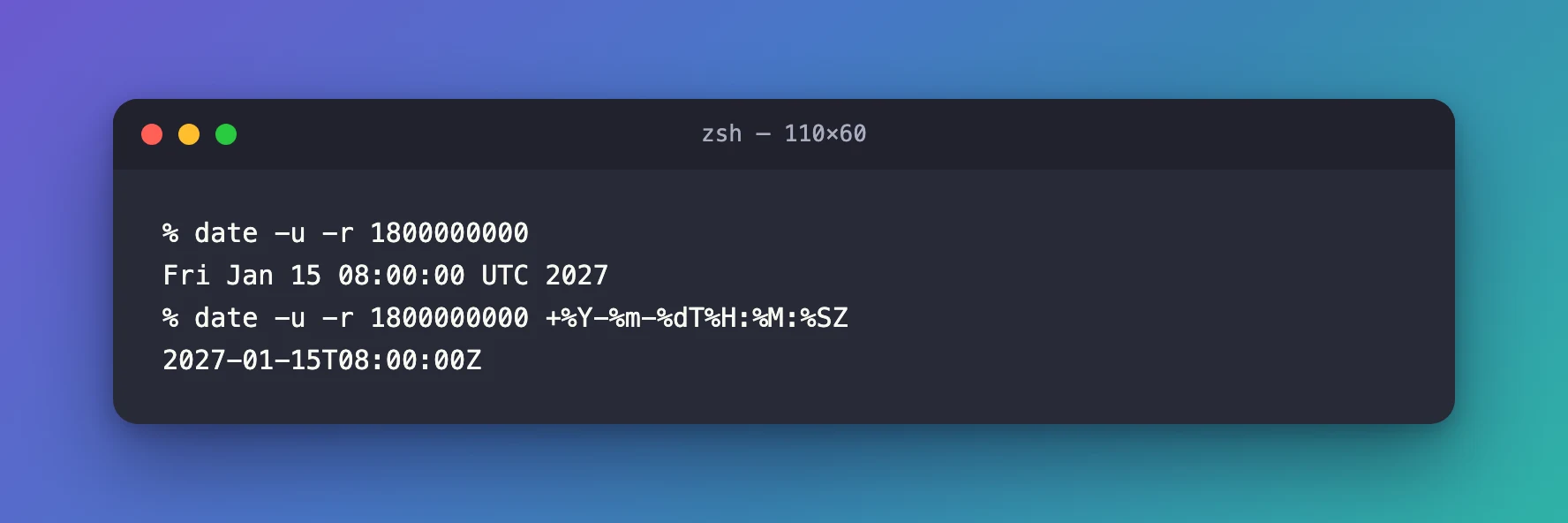
date -u -r 1800000000
The format codes work the same as on Linux, so ISO 8601 is the same + string:
date -u -r 1800000000 +%Y-%m-%dT%H:%M:%SZ
After the Fix
Fri Jan 15 08:00:00 UTC 2027
2027-01-15T08:00:00Z
Common Mistakes
| Mistake | What happens | Do this instead |
|---|---|---|
Keeping the @ with -r | -r expects the number on its own | date -u -r 1800000000 |
Leaving out -u | The date shows in your Mac's time zone | Add -u for UTC |
Writing one script for both systems with -d | It fails on every Mac | Check uname -s and use -r on Darwin, or run the script with GNU date |
Troubleshooting
| Symptom | Likely cause | Fix |
|---|---|---|
date: illegal option -- d | The Linux form on macOS's date | Use -r <seconds> |
The year is in the tens of thousands, such as 58870 | The timestamp is in milliseconds | Divide 13-digit values by 1,000 |
| The time is hours off | No -u, so it's local time | Add -u |
FAQ
Can I get GNU date on a Mac?
Yes. Homebrew's coreutils package installs GNU's tools with a g in front of the names macOS already uses, so GNU date becomes gdate and the built-in date keeps working.
Does -r do anything else?
Yes. Given a file name instead of a number, it prints the time the file was last changed. That's why the usage message says -r filename|seconds.
Conclusion
date: illegal option -- d means you ran the Linux form of date on a Mac. macOS's BSD date reads a Unix timestamp with -r <seconds>, without the @. Everything else, including -u and the + format codes, works the same.
Additional Resources
- Seconds since the Epoch — how GNU
datereads@<seconds>. - date, in the POSIX standard — the format codes both versions share.
