Fixed: New Control Lands Outside the Gallery Instead of Inside It in Power Apps

You select a gallery, insert a Text control, and it doesn't appear in the rows. It sits next to the gallery, outside it. With the gallery itself selected, Studio adds new controls beside it, not into its template. Select the template first.
The Problem
In the example, the Career Development Plan app's My Plan screen had a gallery, galMyPlanMPS, inside a vertical container, conBodyMPS. With the gallery selected, Insert → Display → Text added Text1, but at the same level as the gallery in Tree view, not under it:
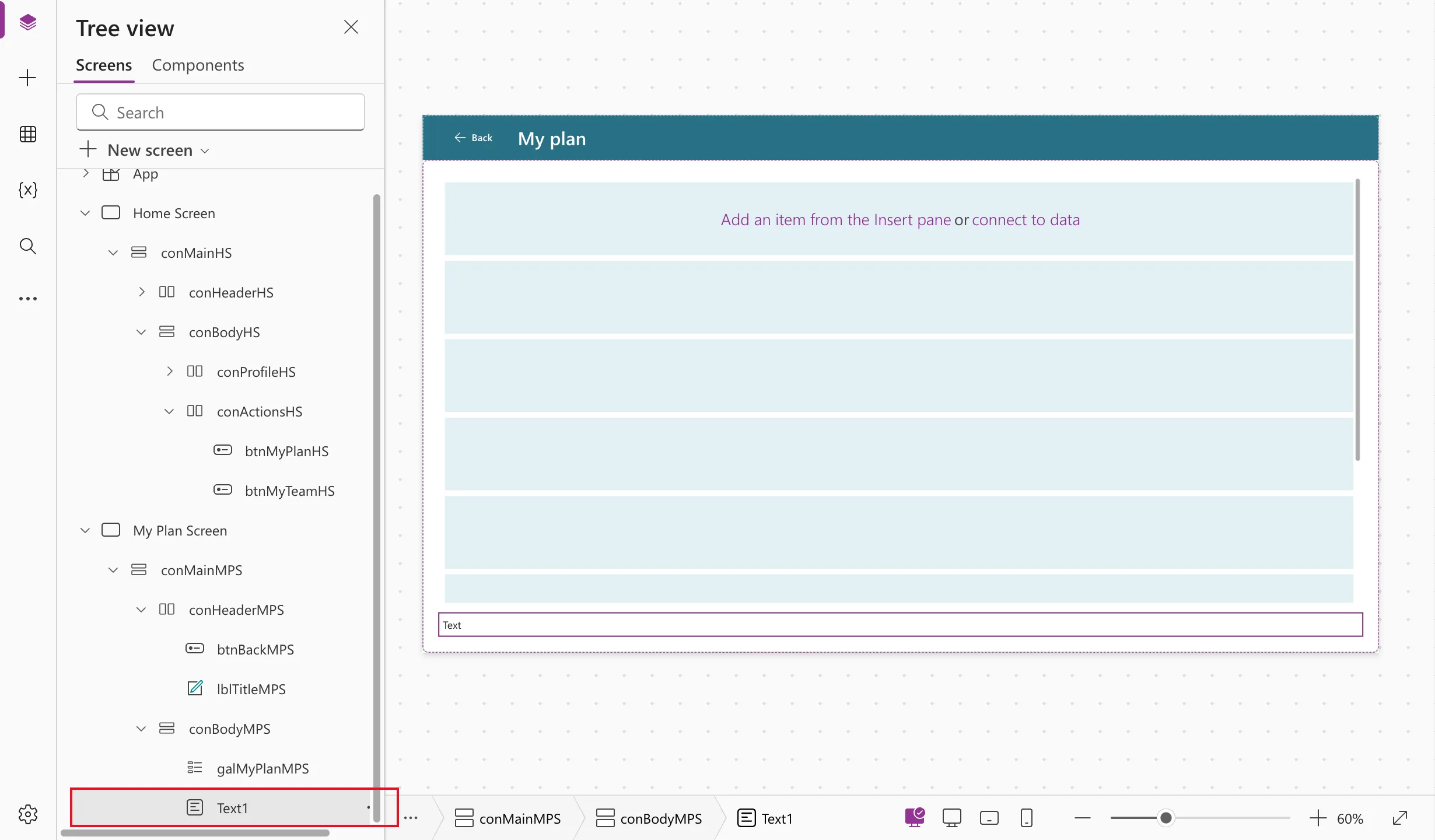
There's no error message. The signs:
- The new control isn't indented under the gallery in Tree view.
- It doesn't repeat on every row.
ThisItemgives an error in its formulas, because only controls inside the gallery can use it.
Why It Happens
Selecting a gallery selects the gallery control, not its template. A new control goes next to the selected control, in the same container. That's the same rule as elsewhere in Studio: insert with a control selected, and the new one lands in that control's parent. Microsoft's own tutorial warns to make sure you've selected the gallery's template, not the gallery itself, before inserting (Create a detail gallery).
The Fix: Select the Template, Then Insert
-
Undo the insert with Undo on the command bar, or Ctrl+Z.
-
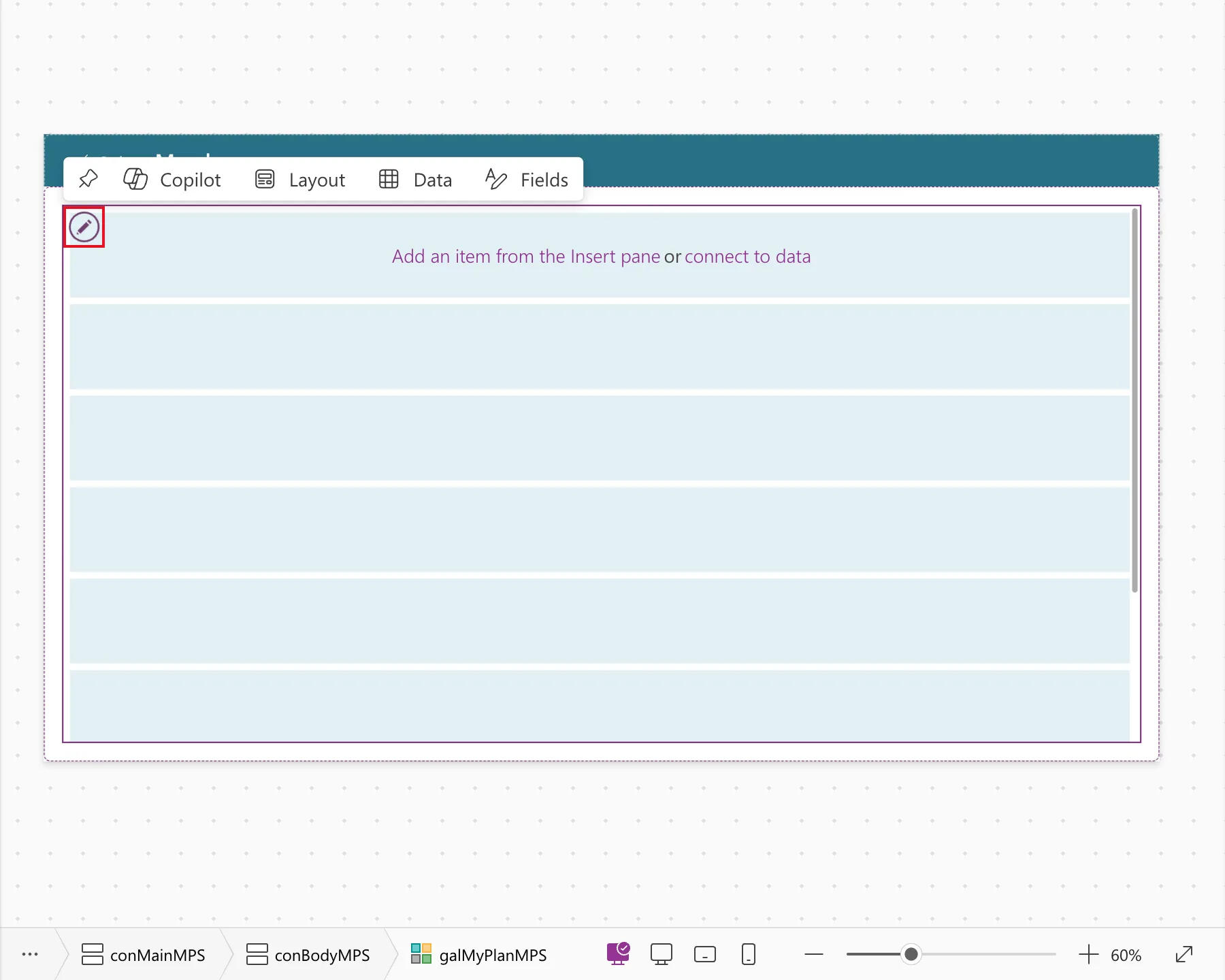
Select the gallery, then select the pencil icon at the top left of its first row, Edit gallery:
-
Insert the control again.
This time, it appeared under galMyPlanMPS in Tree view, and a copy showed on every row once its Text was set to ThisItem.Competency:
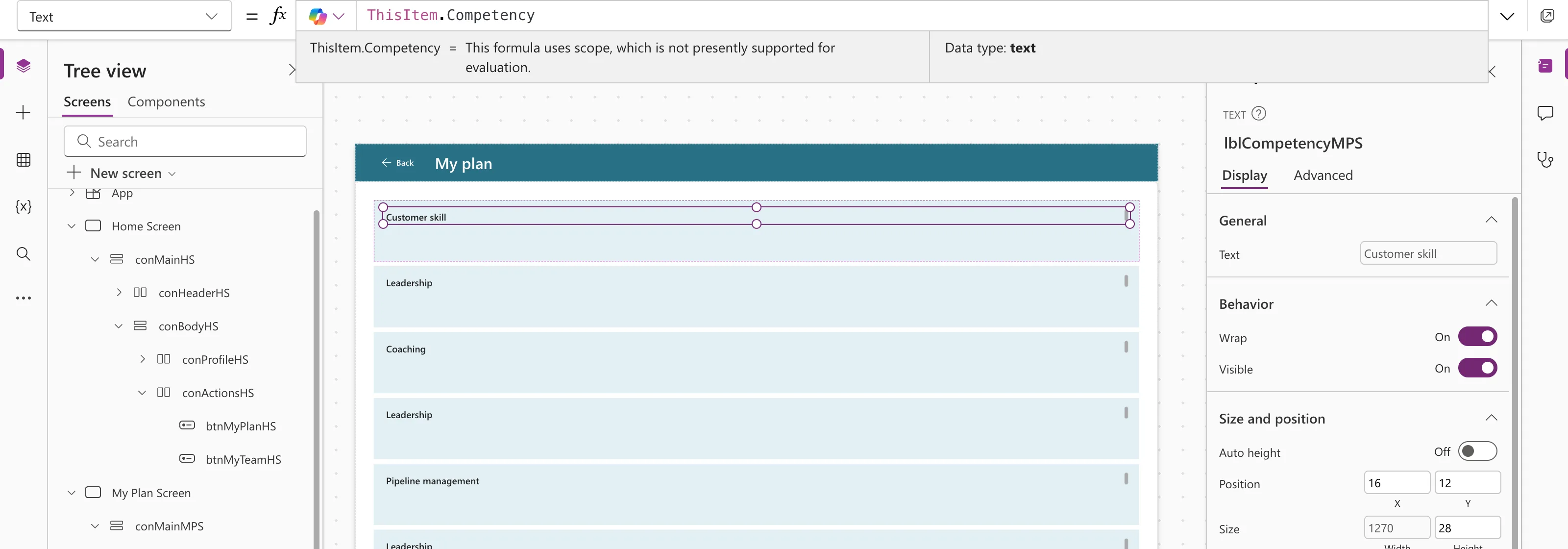
Once the template has a control, selecting that control and inserting also adds the new one to the template.
The Same Problem When You Paste
Paste follows the same rule. In Part 9, I copied the Review button from one gallery's rows to reuse it in another gallery, and chose ... → Paste on the second gallery. The copy, btnReviewTMS_1, appeared under the gallery instead of in its rows: in Tree view it sat next to galPlanTMS, not under it, and on the canvas it was one wide button below the list, with a red ⊗:
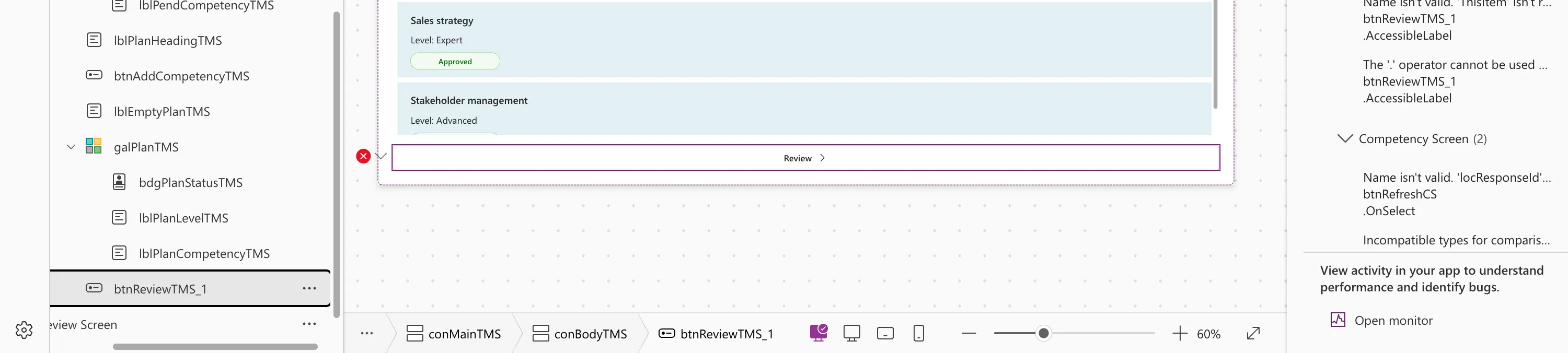
The App checker's errors were Name isn't valid. 'ThisItem' isn't recognized. and The '.' operator cannot be used on Error values., on its AccessibleLabel, "Review " & ThisItem.Competency. ThisItem only exists inside a gallery's template, so they confirmed the copy was outside it.
The fix is the same as for inserting: Undo, then paste on a control that's already in the template. I chose ... → Paste on lblPlanCompetencyTMS, one of the row's labels, and the copy landed under galPlanTMS, in every row.
Common Mistakes
| Mistake | What happens | Do this instead |
|---|---|---|
| Dragging the misplaced control onto the gallery | In a layout container, controls can't be dragged | Undo and insert again with the template selected |
| Copying the control into every row by hand | Separate controls that don't follow the data | One control in the template repeats itself |
Troubleshooting
| Symptom | Likely cause | Fix |
|---|---|---|
| No pencil icon | The gallery isn't selected | Select the gallery first |
| The control still lands outside | Something other than the template was selected | Select the pencil again, or a control inside the template |
| A pasted control lands outside | Paste was chosen on the gallery itself | Undo, then paste on a control inside the template |
FAQ
How do I know the template is selected?
Microsoft describes the selection as a bounding box slightly inside the gallery's edge and shorter than the gallery. Inserted controls then appear inside the gallery in Tree view.
What if I've already set up the misplaced control?
Undo is simplest. Otherwise, insert a new control with the template selected and set it up again.
Conclusion
A control inserted with the gallery selected lands next to the gallery. Undo, select the template with the Edit gallery pencil, and insert again; it then repeats on every row.
Additional Resources
- Show a list of items in canvas apps: the pencil icon and the template.
- Gallery control
