Fixed: Cannot See Repos in Azure DevOps with Stakeholder Access

You logged into Azure DevOps and noticed the Repos option is completely missing from the left sidebar. You cannot clone, push, or even browse any repository. This is most commonly caused by having Stakeholder access level, but there are other reasons too.
Why Repos Are Not Visible in Azure DevOps
There are three common reasons why you cannot see Repos in Azure DevOps:
- Stakeholder Access Level — By default, when a project admin adds a new team member, Azure DevOps assigns Stakeholder access. This access level does not include Repos, Pipelines, or Test Plans.
- Azure Repos Disabled at Project Level — An admin may have turned off Azure Repos for the project entirely.
- Insufficient Repository Permissions — You have Basic access but lack the required read permissions on the specific repository.
Let's go through each cause and its fix.
Fix 1: Upgrade Access Level from Stakeholder to Basic
This is the most common cause. When a project admin invites you to a project, Azure DevOps assigns Stakeholder access by default. Stakeholder access is free and allows access to Boards and basic features, but excludes Repos entirely.
How to Check Your Access Level
As a team member, you can verify your access level:
- Go to your Azure DevOps organization URL:
https://dev.azure.com/{your-org} - Click on User Settings (gear icon at the top right)
- Look for the banner message: "You have been assigned Stakeholder access and will experience limited features"
If you see this message, your access level needs to be upgraded by an Organization Admin.
Steps to Fix (For Admins)
Follow these steps to change a user's access level from Stakeholder to Basic:
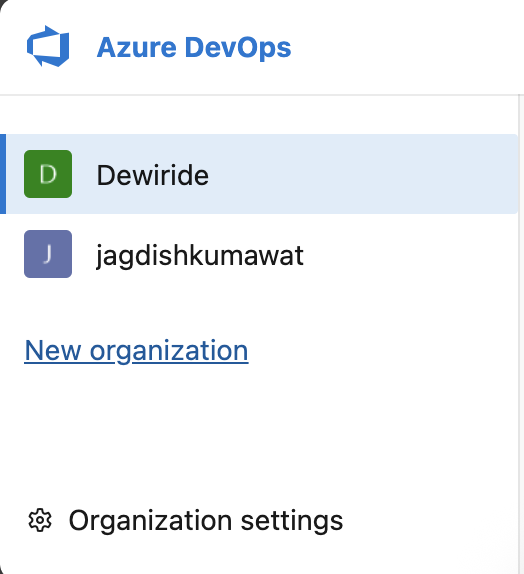
Step 1: Go to your Azure DevOps organization and click on Organization Settings at the bottom left of the sidebar.
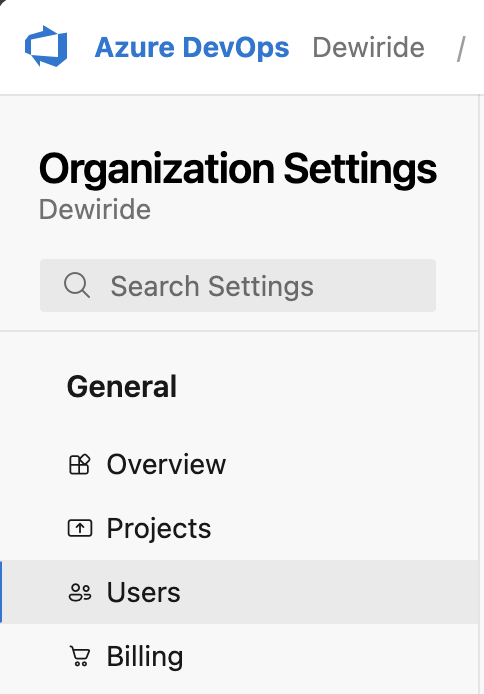
Step 2: Under the General section, click on Users.
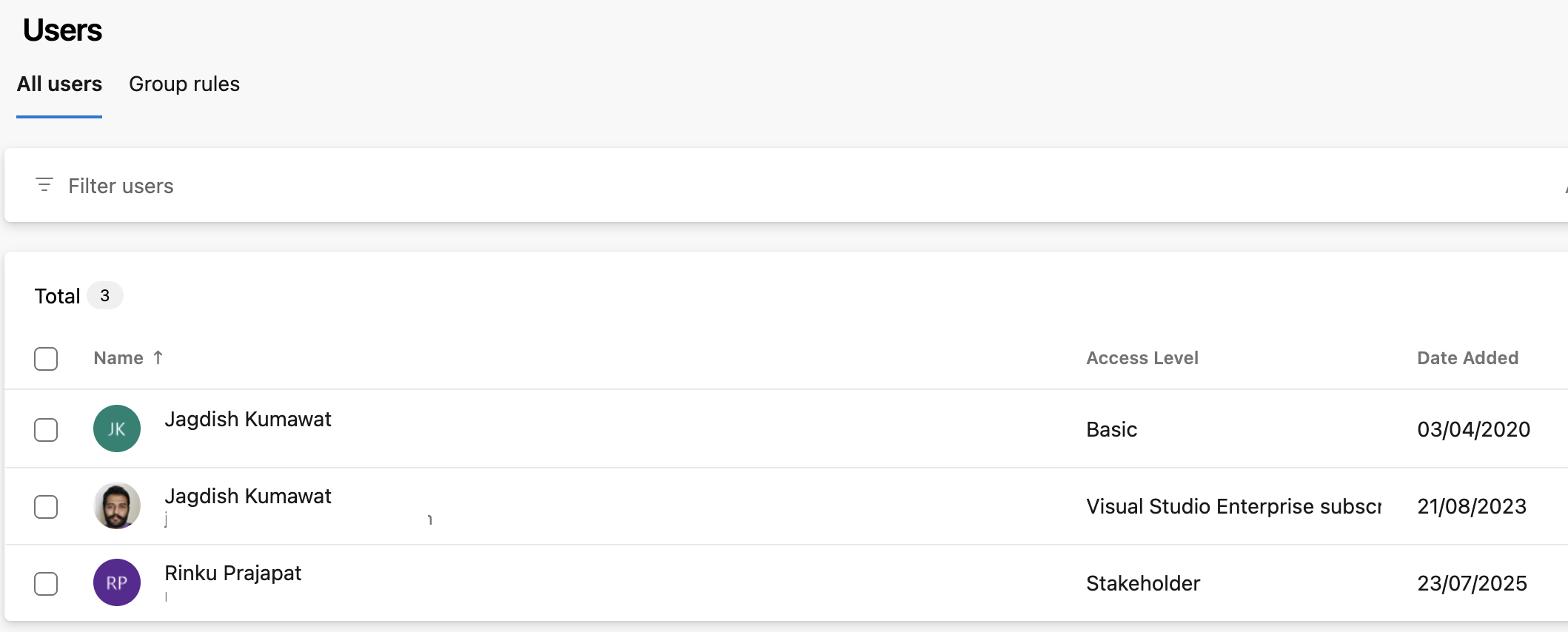
Step 3: Find the user whose access level you want to change. You will see their current access level listed as Stakeholder.
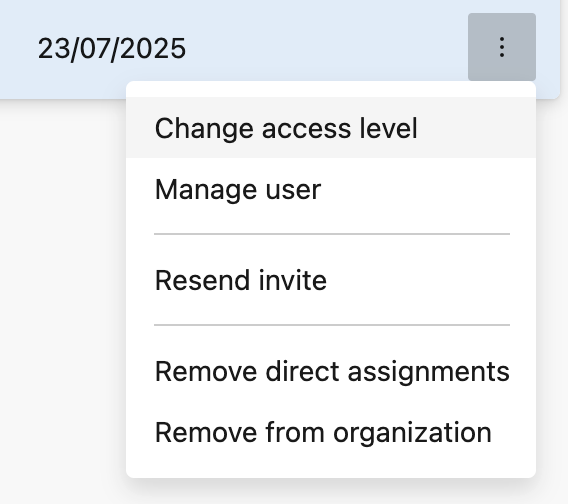
Step 4: Click on the three dots (⋯) to the right of the user's name and select Change access level.
Step 5: In the dialog that appears, change the access level from Stakeholder to Basic. You can also select Visual Studio Enterprise Subscriber if your organization has available licenses.
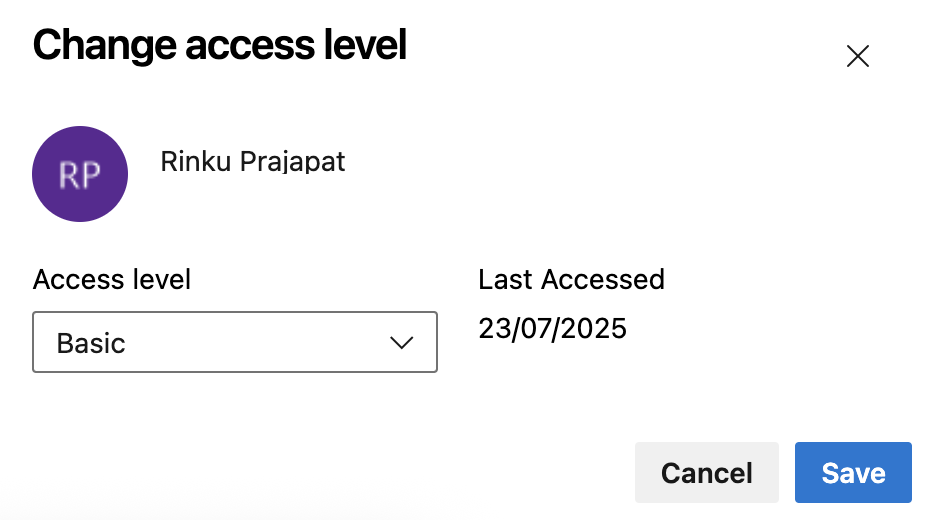
Step 6: Click Save to apply the changes.
After upgrading the access level, ask the team member to refresh their browser. The Repos option will now appear in the left sidebar.
Azure DevOps provides 5 free Basic access licenses per organization. If all free licenses are used, you will need to purchase additional licenses or set up billing.
Fix 2: Enable Azure Repos in Project Settings
Even with Basic access, the Repos menu will not appear if Azure Repos has been disabled at the project level. This can happen when an admin turns off unused services to simplify the project.
Steps to Fix
Step 1: Go to your project in Azure DevOps.
Step 2: Click on Project Settings at the bottom left of the sidebar.
Step 3: Under the Repos section (or Overview → Azure DevOps services), find the toggle for Azure Repos.
Step 4: Make sure the toggle is set to On.
After enabling Azure Repos, the Repos menu will appear in the sidebar for all users with Basic or higher access.
Fix 3: Check Repository Permissions
If your access level is Basic and Azure Repos is enabled, but you still cannot see a specific repository, the issue is likely with repository-level permissions.
Steps to Fix
Step 1: Ask a Project Admin to go to Project Settings → Repositories.
Step 2: Select the repository that is not visible to you.
Step 3: Click on the Security tab.
Step 4: Find your user or the group you belong to and check the following permissions:
| Permission | Required Setting |
|---|---|
| Read | ✅ Allow |
| Contribute | ✅ Allow (for push access) |
| Create branch | ✅ Allow (for branching) |
Step 5: If any of these permissions are set to Deny or Not set, change them to Allow.
If a Deny permission is inherited from a group, it will override any individual Allow setting. Check both user-level and group-level permissions.
Azure DevOps Access Levels Compared
Understanding what each access level includes helps prevent this issue in the future:
| Feature | Stakeholder (Free) | Basic (Free up to 5) | Basic + Test Plans | VS Enterprise |
|---|---|---|---|---|
| Boards (Work Items) | ✅ Limited | ✅ Full | ✅ Full | ✅ Full |
| Repos (Code) | ❌ | ✅ | ✅ | ✅ |
| Pipelines (CI/CD) | ⚠️ View and approve releases only | ✅ | ✅ | ✅ |
| Test Plans | ❌ | ❌ | ✅ | ✅ |
| Artifacts | ❌ | ✅ | ✅ | ✅ |
| Dashboards | ✅ Limited | ✅ Full | ✅ Full | ✅ Full |
As you can see, Stakeholder access does not include Repos or Artifacts, and its Pipelines access is limited to viewing and approving releases rather than authoring them. For most developers, Basic access is the minimum requirement.
Frequently Asked Questions
What platforms allow stakeholder access to live project views?
In Azure DevOps, this is exactly what the Stakeholder access level is for. It is a named, built-in tier, free for an unlimited number of users, designed so people who never touch code can still watch a project live.
A Stakeholder gets a genuinely live view — not an exported report or a screenshot pasted into a status email:
| View | What a Stakeholder can do |
|---|---|
| Boards and backlogs | Open them, add and modify work items, comment |
| Dashboards | View team and project dashboards as they update |
| Queries | Create and save their own queries |
| Release pipelines | View and approve releases |
| Wiki | Read wiki pages |
That covers most of what a manager, product owner, or client actually asks for. The two things it does not cover are Azure Repos and Azure Artifacts — which is the whole reason you landed on this page.
Assign it from Organization Settings → Users, the same screen covered in Fix 1 above — just set the access level to Stakeholder instead of Basic.
What can a Stakeholder actually see in Azure DevOps?
Work items, backlogs, boards, dashboards, and wiki pages. They can create and modify work items, save queries, and assign existing tags. They can also view and approve release pipelines, which is why Stakeholder access is common for approvers who never touch code.
They cannot see Azure Repos, and they cannot view the Markdown README files defined for repositories.
Can Stakeholders view dashboards and charts?
Dashboards, yes — but with limits. Stakeholders cannot view query charts from the Queries page, though they can see those same charts once someone adds them to a dashboard. They also cannot view code-related charts or reports, because those depend on Repos permissions they do not have.
Does Stakeholder behaviour differ between public and private projects?
Yes, and this matters. In public projects, Stakeholders get full work-tracking access. In private projects they are more restricted — they cannot reorder the backlog by drag-and-drop, assign items to an iteration, or view and create query charts.
Microsoft has retired public projects in Azure DevOps. Starting in 2027, existing public projects convert to private. If you rely on the more generous public-project Stakeholder behaviour, plan for it to change.
Why did my access drop to Stakeholder on its own?
Usually an expired licence rather than anything an admin did. If your Visual Studio subscription or GitHub Enterprise licence is no longer detected, Azure DevOps can fall back to Stakeholder access, which immediately cuts off Azure Repos and Azure Pipelines. Check the subscription's status before asking for an access-level change.
How many Stakeholders can I add?
As many as you want. Stakeholder access is free and has no seat limit, which is what makes it practical for managers, product owners, and clients who only need visibility.
Conclusion
If you cannot see Repos in Azure DevOps, the fix depends on the root cause:
- Stakeholder access → Ask your Organization Admin to upgrade your access to Basic
- Azure Repos disabled → Enable it in Project Settings
- Repository permissions → Ensure Read permission is set to Allow
The most common cause is the default Stakeholder access level that Azure DevOps assigns to newly added users. Upgrading to Basic access immediately unlocks Repos, Pipelines, and other essential developer features.
