Fixed: "Are You Sure You Want to Discard Changes?" When Adding a New Connection to an Environment Variable

You're creating a SharePoint environment variable in a Power Apps solution, you've typed its name, and you have no SharePoint connection yet. You choose + New connection, and Power Apps asks Are you sure you want to discard changes? Discarding throws your form away, and no connection page opens. The fix is to do things in a different order.
The Problem
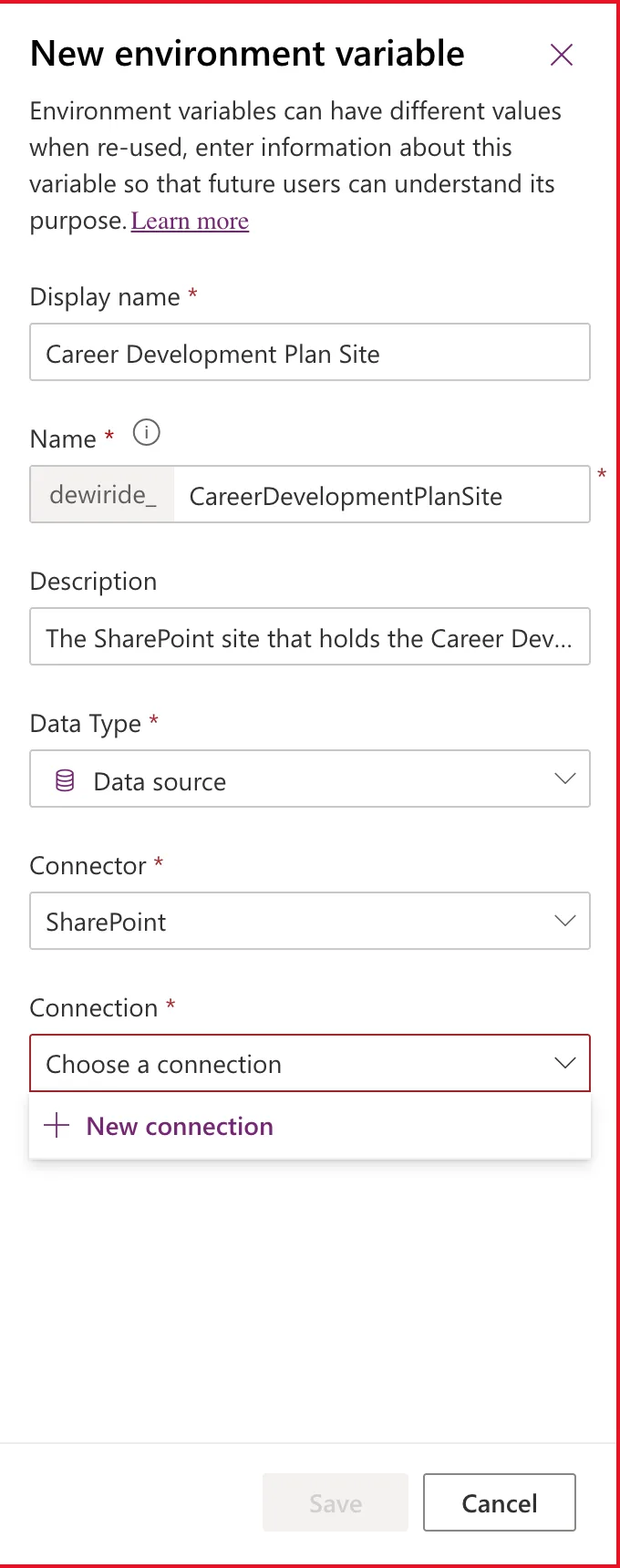
On New environment variable, with the display name and description already typed, Data Type set to Data source and Connector to SharePoint, the Connection dropdown offers only + New connection:
Selecting it shows this:
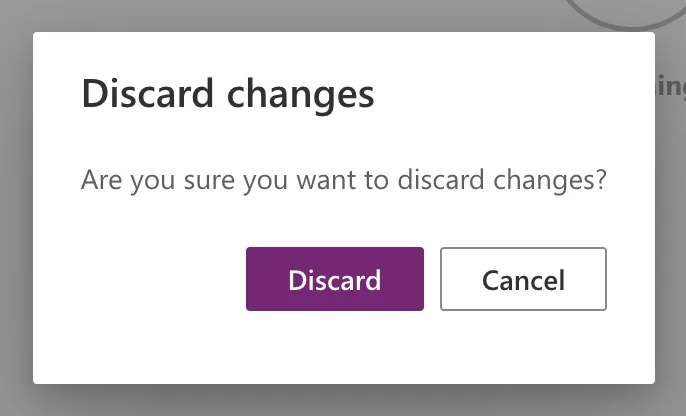
Discard changes
Are you sure you want to discard changes?
When I selected Discard, the panel closed, the typed values were gone, and no page for creating a connection opened. I was back on the solution with nothing to show for it.
Why It Happens
+ New connection sends you to Power Apps' Connections page in a new tab. With text already typed in the panel, Power Apps first offers to throw that text away, and in this case the connection page didn't open afterwards either. With nothing typed yet, there's no question: the new tab opens straight away, and the panel waits for you.
The Fix: Create the Connection Before You Type
- Start the environment variable again: New → More → Environment variable.
- Before typing anything, set Data Type to Data source and Connector to SharePoint.
- Open Connection and select + New connection straight away.
A new tab opens on Connect to SharePoint:
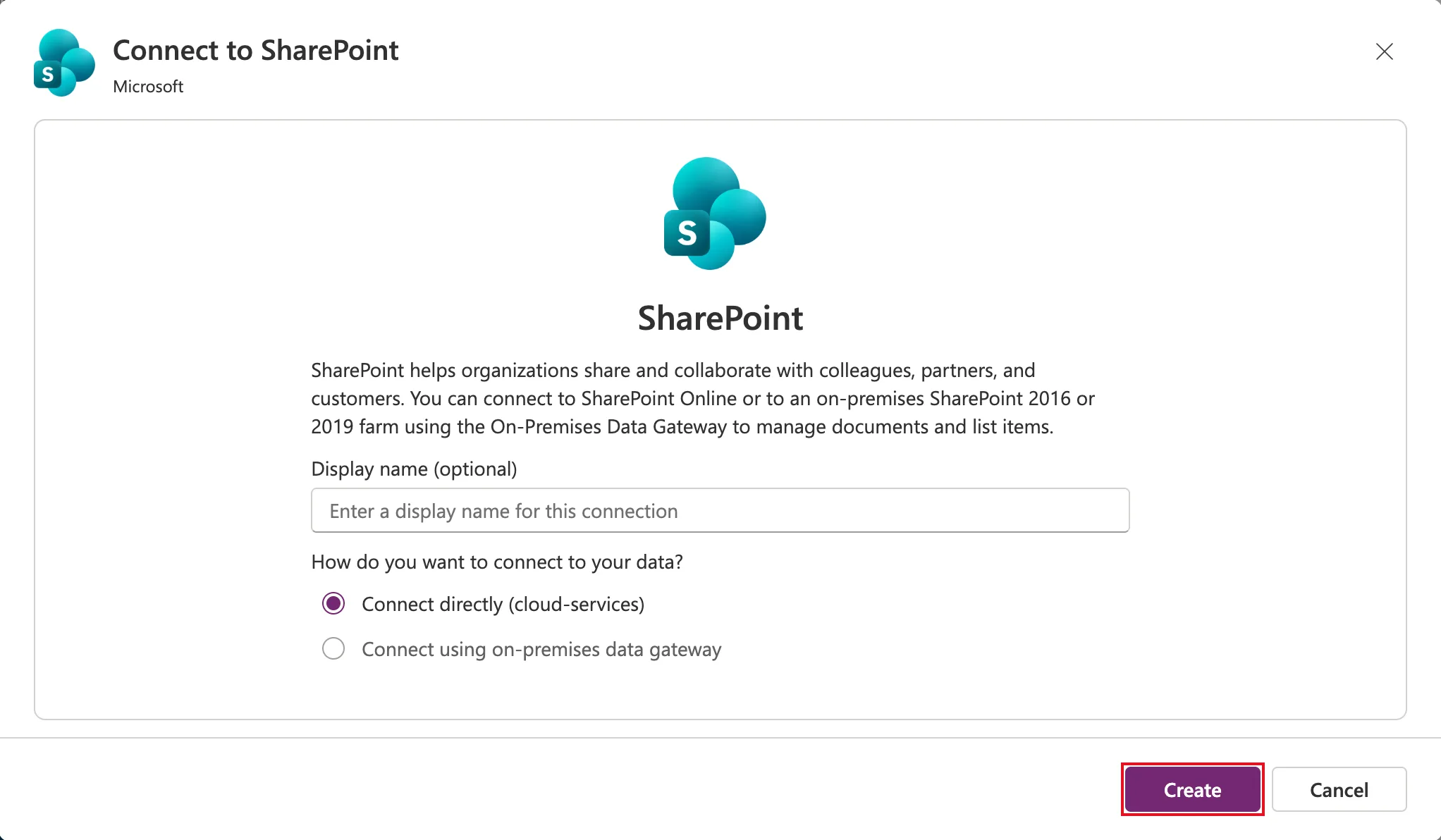
- Leave Connect directly (cloud-services) selected and select Create. When the Microsoft sign-in window asks, pick the account you're signed in with. The tab then shows the new connection as Connected. Close the tab.
- Back in the first tab, Power Apps shows Apply changes:
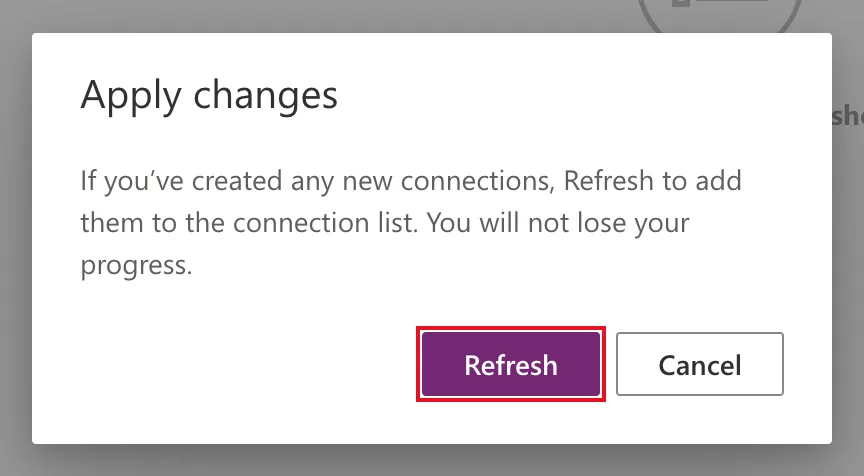
- Select Refresh. As the dialog promises, the panel keeps what you'd chosen, and Connection now shows your new connection.
- Now type the display name and description, and carry on.
If You Already Have a Connection
Once a SharePoint connection exists, it's listed under Connection. Choose it and no new tab is needed, so the order doesn't matter any more. That's why this only bites the first time.
Common Mistakes
| Mistake | What happens | Do this instead |
|---|---|---|
| Typing the names first | New connection asks to discard them | Choose the connection first |
| Selecting Discard to "get to" the connection page | The form is gone, and no connection page opens | Start again in the order above |
| Not selecting Refresh after creating the connection | The connection isn't listed | Select Refresh in Apply changes |
Troubleshooting
| Symptom | Likely cause | Fix |
|---|---|---|
| No Apply changes dialog | You're still on the connections tab | Close it and go back to the first tab |
| The new connection still isn't listed | The connection wasn't created | Check the connections tab showed Connected |
| A sign-in window asks for a password | You're not signed in with that account in this browser | Sign in, then select Create again |
FAQ
Is the connection stored in the environment variable?
No. Power Apps uses the connection only to list your sites and lists while you edit. Microsoft notes that it isn't stored as part of the variable.
Can I create the connection somewhere else first?
Yes. Connections live under Connections in Power Apps. The point is to have one before you type into the variable's panel.
Does this happen for other connectors?
I saw it with SharePoint. The same panel and + New connection option are used for every data source connector, so the same order is the safe one.
Conclusion
Are you sure you want to discard changes? appears because + New connection leaves a half-filled form. Choose Data source, the connector, and + New connection before you type anything; create the connection in the new tab; then select Refresh in Apply changes. Your progress is kept, and the connection is ready to pick.
Additional Resources
- Environment variables overview: creating data source environment variables.
- Add and manage connections: connections in Power Apps.
