Fixed: Apply Security Filter in Both Directions Is Missing in Power BI

I needed Apply security filter in both directions on a Power BI relationship, for a row-level security rule. The checkbox wasn't in the dialog: Power BI had made the relationship One to one (1:1), because the data at that moment had one row per value on both sides. Setting the cardinality to Many to one (*:1) made the checkbox appear.
What I Was Doing
I was building the semantic model of an overtime report in the Power BI service (Build an Overtime Timesheet App in Power Apps — Part 15: Build the Power BI Overtime Report). Its row-level security rule sits on Department approvers, a table with one row per department and approver, built from a SharePoint column that can hold several people. For the rule to reach Departments, and through it the overtime entries, the relationship from Department approvers (ID) to Departments (ID) needs security filters in both directions (How to Make a Relationship Filter in Both Directions in Power BI).
I created it with Manage relationships > New relationship: From table Department approvers, column ID; To table Departments, column ID.
What I Expected
Many to one (*:1), because a department can have several approvers, and an Apply security filter in both directions checkbox once Cross-filter direction is Both.
What I Got
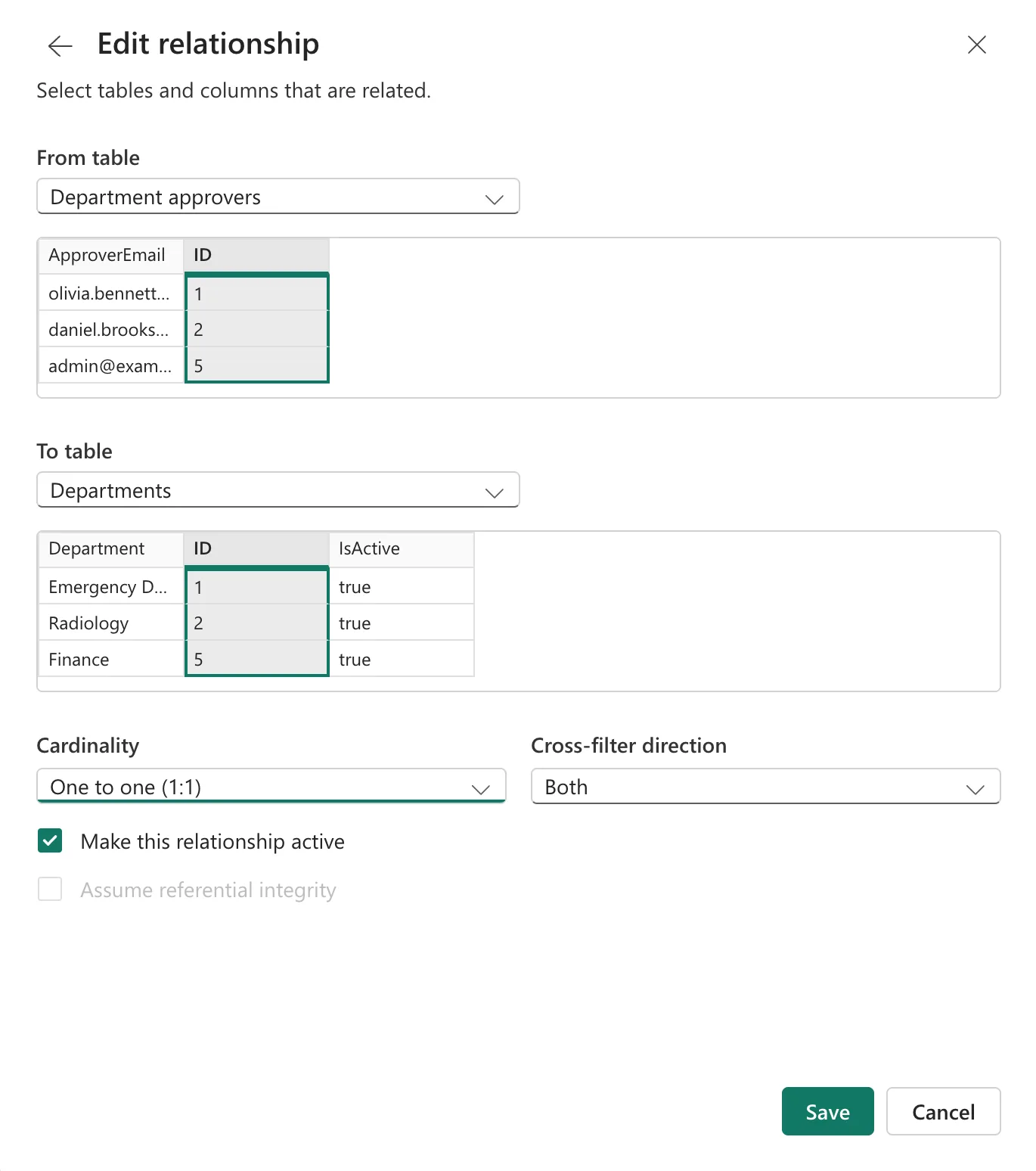
Power BI filled in One to one (1:1) and Both, and the checkbox wasn't there at all. The picture shows that state recreated after the fix: I opened the saved relationship, chose One to one (1:1) again, captured the dialog, and selected Cancel:
What I Checked
The data. At that moment, every department had exactly one approver, so each ID appeared once in Department approvers and once in Departments.
How Power BI chooses. Microsoft's Create and manage relationships shows an example where, with no repeated values, Power BI automatically sets Cardinality to One to one (1:1) and Cross filter direction to Both.
One-to-one and filtering. Microsoft's bi-directional relationship guidance says all one-to-one relationships must be bi-directional—it isn't possible to configure otherwise, and its row-level security article says security filters cross a relationship backwards only with Apply security filter in both directions ticked.
Why It Happens
Power BI sets the cardinality from the data it sees when the relationship is made. With one approver per department that day, ID was unique on both sides, so it chose One to one (1:1), which is always Both. With that cardinality, the dialog offered no security checkbox. The data will change: a second approver for a department makes the Department approvers side many.
The Fix
Set the cardinality the data will have, not the one it has today:
- Cardinality: Many to one (*:1).
- Cross-filter direction: Both.
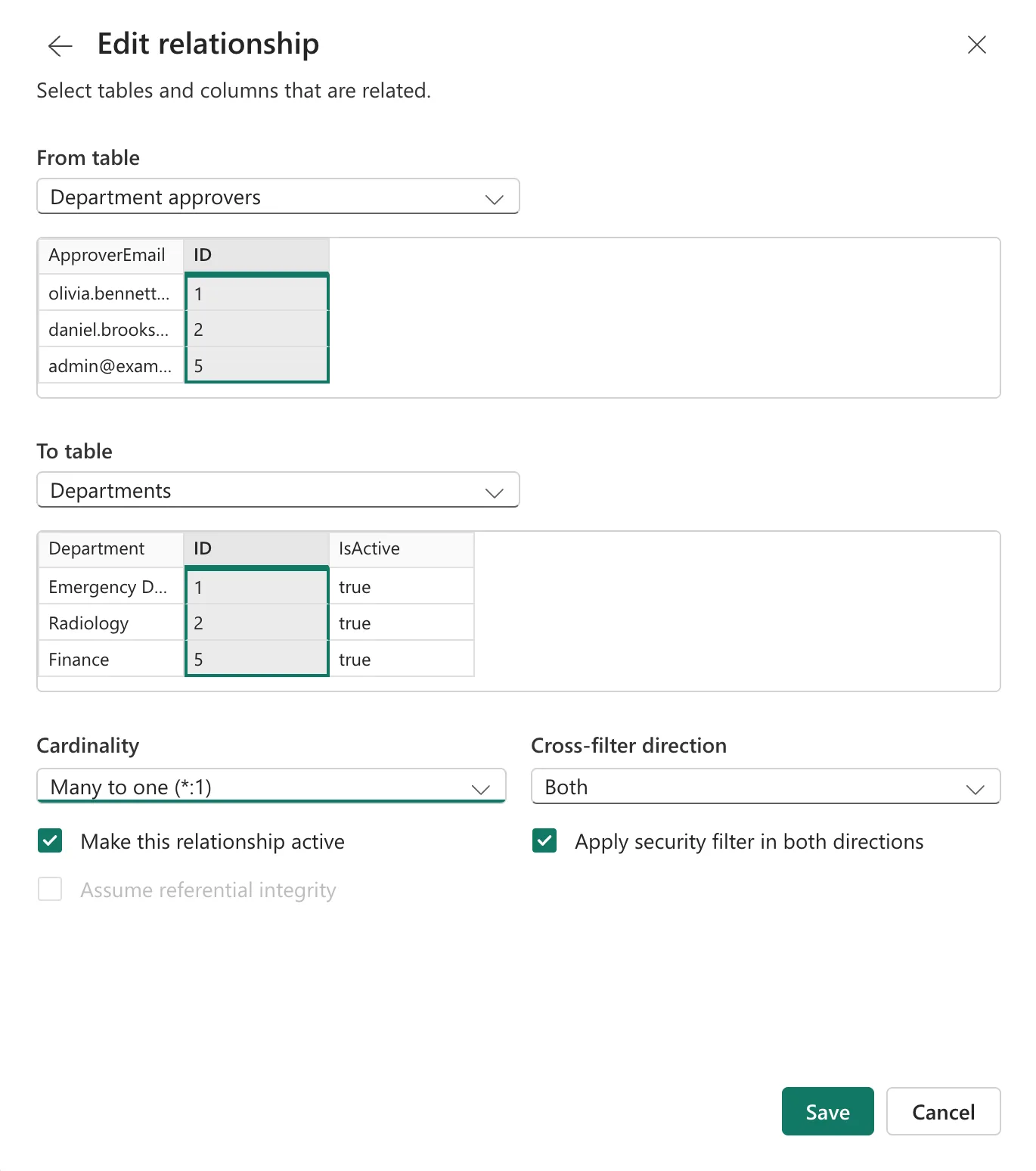
- Tick Apply security filter in both directions, which now appears.
- Save.
After the Fix
The dialog shows Many to one (*:1), Both, and the ticked checkbox:
Testing the role as each approver then showed each one only their own departments' overtime (How to Test Row-Level Security in Power BI).
Common Mistakes
| Mistake | What happens | Do this instead |
|---|---|---|
| Accepting the suggested cardinality | It reflects today's data, not the rule | Choose the cardinality the data will have |
| Leaving a one-to-one relationship for RLS | No security checkbox to tick | Many to one, Both, and tick it |
| Ticking Both and forgetting the checkbox | Security filters stay one-directional | Tick Apply security filter in both directions |
Troubleshooting
| Symptom | Likely cause | Fix |
|---|---|---|
| No security checkbox in the dialog | The relationship is One to one | Set Many to one |
| The checkbox is grey | Cross-filter direction is Single | Choose Both |
| The role filters nothing beyond its table | The checkbox isn't ticked | Tick it and save |
FAQ
Why not leave it One to one?
The dialog offers no security checkbox for it, and the table comes from a column that allows several approvers per department, so ID won't stay unique on that side.
Can I check this before data exists?
The suggestion depends on the data at the time. Whatever it suggests, set the cardinality yourself.
Conclusion
Power BI suggested One to one (1:1) because each department had one approver that day, and a one-to-one relationship has no Apply security filter in both directions checkbox. Setting Many to one (*:1) with Both brought the checkbox back, and the security rule reached the departments.
Additional Resources
- Create and manage relationships in Power BI Desktop
- Bi-directional relationship guidance
- Row-level security (RLS) with Power BI
