Fixed: AADSTS65001 - The User or Administrator Has Not Consented to Use the Application with ID

You added API permissions to an Azure app registration, requested a token, and got back AADSTS65001 instead. The token endpoint is telling you something simple: the permissions are configured, but nobody has actually consented to them yet.
The Error
When you call the Microsoft Entra ID token endpoint, the response looks like this:
{
    "error": "invalid_grant",
    "error_description": "AADSTS65001: The user or administrator has not consented to use the application with ID '' named 'testidtoken'. Send an interactive authorization request for this user and resource.\r\nTrace ID: dd0d4bcd-6177-4677-8816-fefd0f04b500\r\nCorrelation ID: b1758dd1-84fc-447e-a540-9dcf84377817\r\nTimestamp: 2021-07-19 19:14:13Z",
    "error_codes": [
        65001
    ],
    "timestamp": "2021-07-19 19:14:13Z",
    "trace_id": "dd0d4bcd-6177-4677-8816-fefd0f04b500",
    "correlation_id": "b1758dd1-84fc-447e-a540-9dcf84377817",
    "suberror": "consent_required"
}
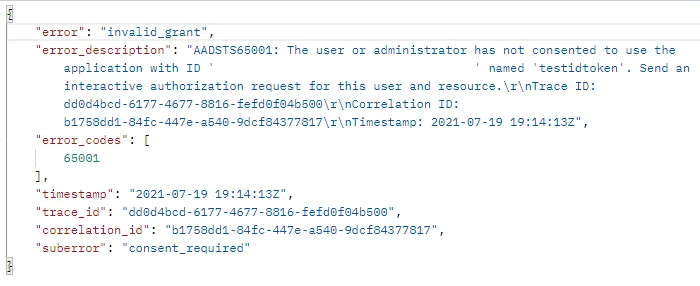
The important field is the last one: "suberror": "consent_required". Everything else is context.
What AADSTS65001 Actually Means
Adding a permission on the API permissions page of an app registration does not grant it. It only declares that your application would like it. Microsoft Entra ID keeps those two things deliberately separate:
| Stage | Where it happens | What it does |
|---|---|---|
| Request | App registration → API permissions | Records that the app wants User.Read.All, Mail.Send, etc. |
| Consent | A user clicks Accept, or an admin clicks Grant admin consent | Creates the actual grant on the enterprise application |
AADSTS65001 is thrown at the second stage. The permission is on the list, but there is no grant behind it — so the token service refuses to issue a token that would carry a scope nobody agreed to.
Some permissions can be consented to by an ordinary signed-in user the first time they use the app. Others are admin-restricted — things like Directory.ReadWrite.All, User.Read.All, or any application permission used by a daemon — and those can only ever be granted by an administrator. That is the case you hit most often.
Prerequisites
To work through the fixes below you need:
- An Azure app registration that is already created, and its Application (client) ID.
- Access to the Microsoft Entra admin center or the Azure portal.
- For the admin-consent fixes, an account with a role that is allowed to consent on behalf of the organization — see the roles table below. If you do not have one, you will need to ask someone who does.
- Optionally, the Azure CLI installed, if you would rather do this from a terminal:
az --version
If you do not have admin rights, do not spend time on the CLI section. Nothing in this article works without a consenting administrator somewhere in the loop — that is the whole point of the error. Jump to Fix 5 and send your admin a link instead.
Fix 1: Grant Admin Consent in the Portal
This resolves the overwhelming majority of AADSTS65001 errors.
Step 1: Sign in to the Microsoft Entra admin center with an administrator account.
Step 2: Go to Microsoft Entra ID → App registrations, and select the application named in the error message. If you cannot find it, switch the filter to All applications and search by the Application (client) ID from the error.
Step 3: In the left menu under Manage, select API permissions.
Step 4: Look at the Admin consent required column. Every row that says Yes and has a status of Not granted is a candidate for this error.
Step 5: Click Grant admin consent for <your tenant> and confirm.
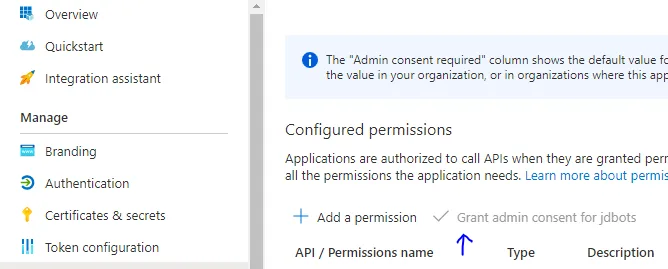
The button is greyed out for anyone who is not an administrator, which is exactly what the screenshot above shows. If it is disabled for you, that is not a bug — your account simply cannot consent, and you need to hand this to someone who can.
After consenting, the Status column changes to a green Granted for <tenant>. Request a fresh token and the error is gone.
Read the permission list before you click. Granting tenant-wide admin consent applies to every user in the organization and takes effect immediately, with no review step. Permissions like Mail.ReadWrite or Directory.ReadWrite.All are genuinely powerful. If you did not build the app yourself, make sure you know who did.
Granting tenant-wide consent can also replace permissions that were previously granted tenant-wide for that same application, so consent to the full set you need, not just the one that is failing.
Fix 2: Check You Are Using the Right Permission Type
This is the second most common cause, and it is easy to miss because the portal happily lets you configure the wrong thing.
Microsoft Entra ID has two kinds of API permission, and they are not interchangeable:
| Delegated permissions | Application permissions | |
|---|---|---|
| Also called | Scopes | App roles |
| Acts as | The signed-in user | The application itself |
| Used by | Web apps, SPAs, mobile apps | Daemons, background jobs, CLI tools |
| OAuth flow | Authorization code, device code | Client credentials |
| Token claim | scp | roles |
If your code uses the client credentials flow — a client ID and a client secret or certificate, with no user anywhere — then you need Application permissions. Configuring delegated permissions and then requesting a token with grant_type=client_credentials produces a consent error, because there is no user present to have consented.
To check: open API permissions and look at the Type column. It says either Delegated or Application for each row.
# Client credentials: this only works with Application permissions
curl -X POST "https://login.microsoftonline.com/<tenant-id>/oauth2/v2.0/token" \
  -d "client_id=<client-id>" \
  -d "client_secret=<client-secret>" \
  -d "scope=https://graph.microsoft.com/.default" \
  -d "grant_type=client_credentials"
Note the .default scope. With client credentials you never request individual scopes — you request .default, and Entra ID issues a token containing every application permission that has already been consented to. If nothing has been consented, .default has nothing to put in the token, and you are back to AADSTS65001.
Fix it by removing the delegated permissions, adding the equivalent application permissions, and granting admin consent as in Fix 1.
Fix 3: User Consent Is Disabled for the Tenant
Sometimes the permission is not admin-restricted, the user should have been able to consent on their own — and yet every user still hits the error. That usually means an administrator has turned user consent off tenant-wide.
Step 1: In the Microsoft Entra admin center, go to Microsoft Entra ID → Enterprise applications → Consent and permissions → User consent settings.
Step 2: Check which option is selected:
| Setting | Effect |
|---|---|
| Do not allow user consent | Every app triggers "Need admin approval". Admin consent is the only route. |
| Allow user consent for apps from verified publishers, for selected permissions | Users can consent, but only within a permission classification you define. |
| Allow user consent for apps | Users can consent to anything that is not admin-restricted. |
Step 3: If it is set to Do not allow user consent, either grant admin consent for this specific app, or set up an admin consent workflow so users can request approval rather than hitting a dead end.
Also check Enterprise applications → your app → Properties → Assignment required. If this is set to Yes, only explicitly assigned users and groups can sign in, and an unassigned user will keep running into consent and assignment errors regardless of what has been granted.
Fix 4: The App Has No Service Principal in the Tenant
Consent grants are stored on the service principal — the enterprise application object — not on the app registration. If the service principal does not exist in the tenant, there is nothing to attach a grant to.
This happens with multi-tenant applications. The app registration lives in the publisher's tenant; the customer's tenant only gets a service principal once someone in that tenant consents for the first time.
To check whether it exists, go to Enterprise applications, set Application type to All applications, and search for the client ID from the error message. If nothing comes back, the app was never provisioned in that tenant.
The fix is the admin consent URL in the next section, which creates the service principal and the grant in one step.
Fix 5: Send Your Admin an Admin Consent URL
If you cannot reach the portal — or you are the developer and someone else holds the admin role — you can hand over a URL that opens the consent prompt directly:
https://login.microsoftonline.com/{tenant-id}/v2.0/adminconsent?client_id={client-id}&scope=https://graph.microsoft.com/.default
Replace {tenant-id} with the directory ID (or the domain, such as contoso.onmicrosoft.com) and {client-id} with the Application (client) ID from the error. The admin opens the link, reviews the permission list, and clicks Accept.
This is also the cleanest fix for Fix 4, because visiting the URL provisions the service principal in the consenting tenant.
One more thing worth checking while you are here: if your sign-in request carries prompt=consent or prompt=admin_consent, remove it once consent has actually been granted. Leaving it in forces a consent round trip on every single sign-in, and can keep producing consent errors long after the underlying problem is fixed.
Do It with the Azure CLI
If you are automating app registration setup, or you just prefer a terminal, the whole thing is two commands.
First, see what the application is asking for:
az ad app permission list --id <application-client-id> -o table
Then grant admin consent for everything on that list:
az ad app permission admin-consent --id <application-client-id>
The command produces no output when it succeeds. Confirm it worked by listing the grants that now exist:
az ad app permission list-grants --id <application-client-id> -o table
To add a permission from the CLI before consenting — here, Microsoft Graph User.Read.All as an application permission:
az ad app permission add \
  --id <application-client-id> \
  --api 00000003-0000-0000-c000-000000000000 \
  --api-permissions df021288-bdef-4463-88db-98f22de89214=Role
00000003-0000-0000-c000-000000000000 is the well-known application ID of Microsoft Graph — it is the same in every tenant. The trailing =Role marks it as an application permission; use =Scope for a delegated one. That single letter of difference is precisely the distinction from Fix 2, so it is worth getting right the first time.
az ad app permission admin-consent grants everything currently on the app's permission list, immediately and without a confirmation prompt. Run az ad app permission list first and read it. Permissions granted programmatically are not subject to any review.
Which Roles Can Grant Admin Consent
Not every administrator can consent to every permission. This trips people up when an Application Administrator tries to consent to a Microsoft Graph application permission and the operation is refused.
| Role | Can consent to |
|---|---|
| Privileged Role Administrator | Any permission, for any API |
| Cloud Application Administrator | Any permission for any API, except Microsoft Graph app roles (application permissions) |
| Application Administrator | Same as Cloud Application Administrator |
| AI Administrator | Same as Cloud Application Administrator |
| Custom directory role | Whatever consent permissions the role definition includes |
If you are consenting to Microsoft Graph application permissions specifically, you need Privileged Role Administrator. Everything else is fair game for the application admin roles.
Common Mistakes
| Mistake | Why it fails |
|---|---|
| Adding permissions and stopping there | Adding is not granting. The Status column must show a green Granted. |
| Using delegated permissions with client credentials | No user is present, so no delegated scope can apply. Use application permissions. |
| Consenting in the wrong tenant | The grant lands in whichever directory you were signed into. Check the directory switcher first. |
| Consenting on the wrong app | Two app registrations with similar names are easy to confuse. Match the client ID against the error message. |
| Expecting an old token to start working | Consent applies to new tokens. Cached tokens keep their original claims until they expire. |
Leaving prompt=consent in the sign-in request | Forces a consent round trip on every sign-in, so the error appears to persist. |
| Requesting a scope not on the registration | You get AADSTS650057 (invalid resource), not 65001 — a different error with a different fix. |
Troubleshooting
| Symptom | Likely cause | What to do |
|---|---|---|
| Grant admin consent button is greyed out | Your account is not an administrator | Ask someone with one of the roles listed above |
| Consent granted, error persists | You are reusing a cached token | Clear the token cache and request a new token |
| Error only for some users | Assignment required is set to Yes | Assign those users, or set it to No |
| App not found in Enterprise applications | No service principal in this tenant | Use the admin consent URL |
AADSTS650056 instead of 65001 | App is misconfigured, or the client ID in the request does not match the registration | Verify the client ID and the declared permissions |
AADSTS90094 | Tenant policy blocks the user from granting this permission | Admin consent, or an admin consent workflow |
AADSTS500011 | The resource principal was not found in the tenant | The resource app is single-tenant, or the identifier is wrong |
| CLI reports insufficient privileges | Consenting to a Graph app role without Privileged Role Administrator | Use an account with that role |
Frequently Asked Questions
Is AADSTS65001 a problem with my code or my configuration?
Configuration, almost always. The token endpoint is not rejecting your request format or your credentials — the invalid_grant / consent_required pair means the request was well-formed and understood, and there was simply no consent record to back it. The one code-related exception is requesting the wrong grant type for the permission type you configured, which is Fix 2.
How do I know whether a permission needs admin consent?
The Admin consent required column on the API permissions page tells you per permission. As a rule of thumb: anything ending in .All, anything that writes to the directory, and every application permission requires an admin. Basic delegated scopes like User.Read, openid, profile, email, and offline_access do not.
Do I have to re-consent when I add a new permission?
Yes. Consent is recorded per permission, not per application. Adding an eighth permission to an app that already has seven granted leaves that eighth one ungranted, and requesting it produces this same error. Grant admin consent again after any change to the permission list.
Why does the error message show an empty application ID?
Because the value was blank in the request that produced it. In the sample above, the ID between the quotes is empty — a strong hint that the client ID was never populated, or was read from a config value that resolved to an empty string. Check how your app builds the request before you go hunting through the portal.
Does granting admin consent give every user access to the app?
It grants the permissions on behalf of the whole organization, and by default that also means every user can use the app. To narrow that down, set Assignment required to Yes on the enterprise application and assign only the users or groups that should have access. Consent and assignment are separate controls, and you generally want both.
How do I undo admin consent?
In Enterprise applications → your app → Permissions, review the granted permissions and revoke the ones you did not intend to grant. You can also block access entirely by disabling user sign-in for the application. Revoking consent takes effect for new tokens; tokens already issued remain valid until they expire.
What are the Trace ID and Correlation ID for?
They identify that specific failed request in Microsoft's logs. You do not need them to fix the problem yourself, but if you open a support case, include both — along with the timestamp — and support can look up exactly what happened.
Conclusion
AADSTS65001 is one of the more honest error messages Microsoft Entra ID produces: the user or administrator has not consented, and that is precisely the situation. Work through it in this order:
- Open the app registration's API permissions page and click Grant admin consent. This fixes most cases.
- If you are using the client credentials flow, confirm the permissions are typed Application, not Delegated.
- If the app is not listed under Enterprise applications, send an admin the consent URL to provision it.
- Check user consent settings and Assignment required if only some users are affected.
- Request a fresh token — a cached one will keep failing regardless.
There is nothing to clean up after this fix and nothing to pay for; consent is a configuration change, not a resource. Just remember that the button you clicked applies to everyone in the tenant, so re-read the permission list before you click it.
Additional Resources
- Troubleshoot consent issues in Microsoft Entra ID
- Grant tenant-wide admin consent to an application
- Overview of user and admin consent
- Microsoft Graph permissions reference
az ad app permissioncommand reference
