Fixed: "A Power Apps Per User Plan, Power Apps Per App Plan or Power Apps Pay-as-You-Go Plan Will Be Required During Playback"

Power Apps Studio attaches this note to an app's data sources: A Power Apps per user plan, Power Apps per app plan or Power Apps pay-as-you-go plan will be required during playback for apps with this connector. In the example, it was attached to SharePoint and Office 365 Users, which are standard connectors. The app's License designation said Standard, and a user with only a Microsoft 365 license ran it.
Where the Message Appears
In the Career Development Plan app, the Data pane lists three data sources: Office365Users and two SharePoint lists. While building the app in Part 3, I found the message attached to each of them:
A Power Apps per user plan, Power Apps per app plan or Power Apps pay-as-you-go plan will be required during playback for apps with this connector.
Looking closer, Studio doesn't show it on screen. The data sources have no icon next to them:
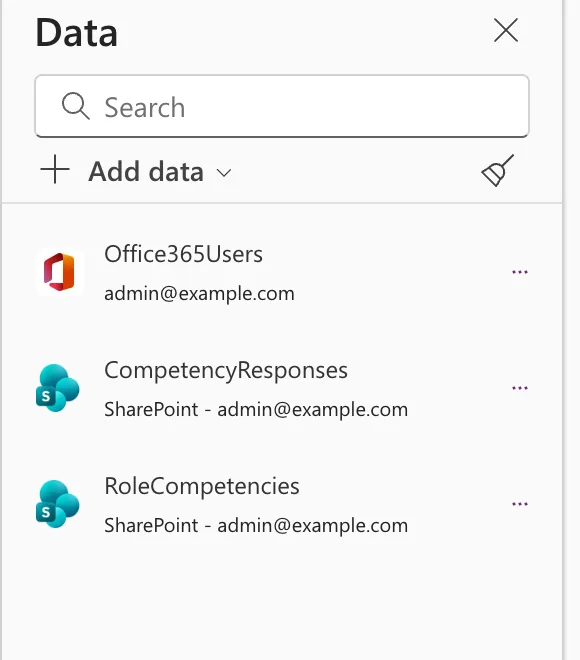
The text is attached to each item as a description for screen readers, so a screen reader announces it with the data source's name. It's also in the page text that tools read.
What a Real Premium Connector Looks Like
Compare it with a premium data source. In Add data, Dataverse tables have a diamond icon, and hovering it shows a Premium tooltip:
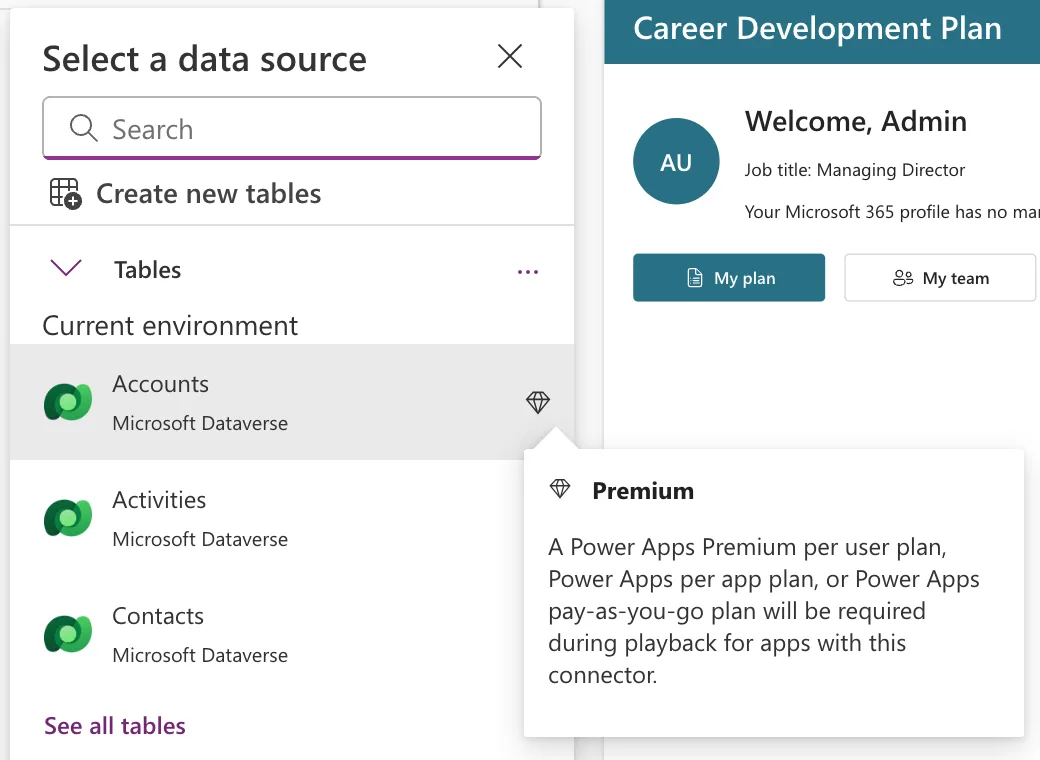
That tooltip names Power Apps Premium. The text on SharePoint and Office 365 Users doesn't, and they have no diamond.
How to Check What Your App Needs
Don't go by the Data pane. Power Apps works out a License designation for every app from what it uses. Open Apps, select the app and choose Details. In the example, it said Standard, and its information icon explained what that means (How to Check a Canvas App's License Designation in Power Apps):
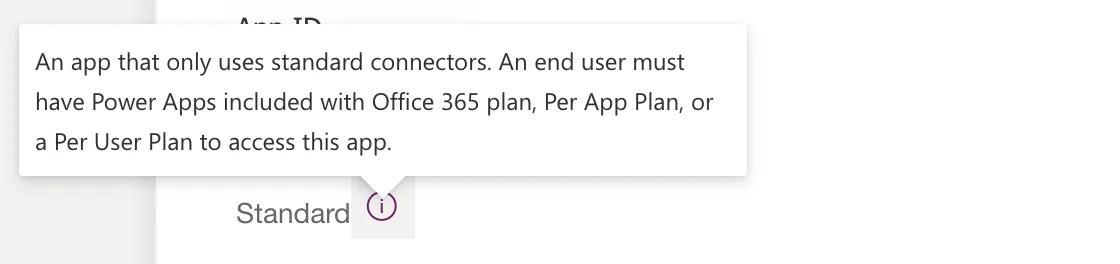
Microsoft's license designation article has the same table: a Standard app uses only standard connectors, and users can run it with a Power Apps for Office 365 plan, a per app plan or a per user plan. A Premium app uses at least one premium connector, a custom connector or an on-premises gateway, and needs a per app or per user plan.
The Proof: A User with Only Microsoft 365
In Part 7, the app was shared with the demo team. Olivia Bennett has a single license, Microsoft 365 E5 Developer, which includes Power Apps for Office 365 (Plan 3) (How to See a User's Licenses and Apps in the Microsoft 365 Admin Center):
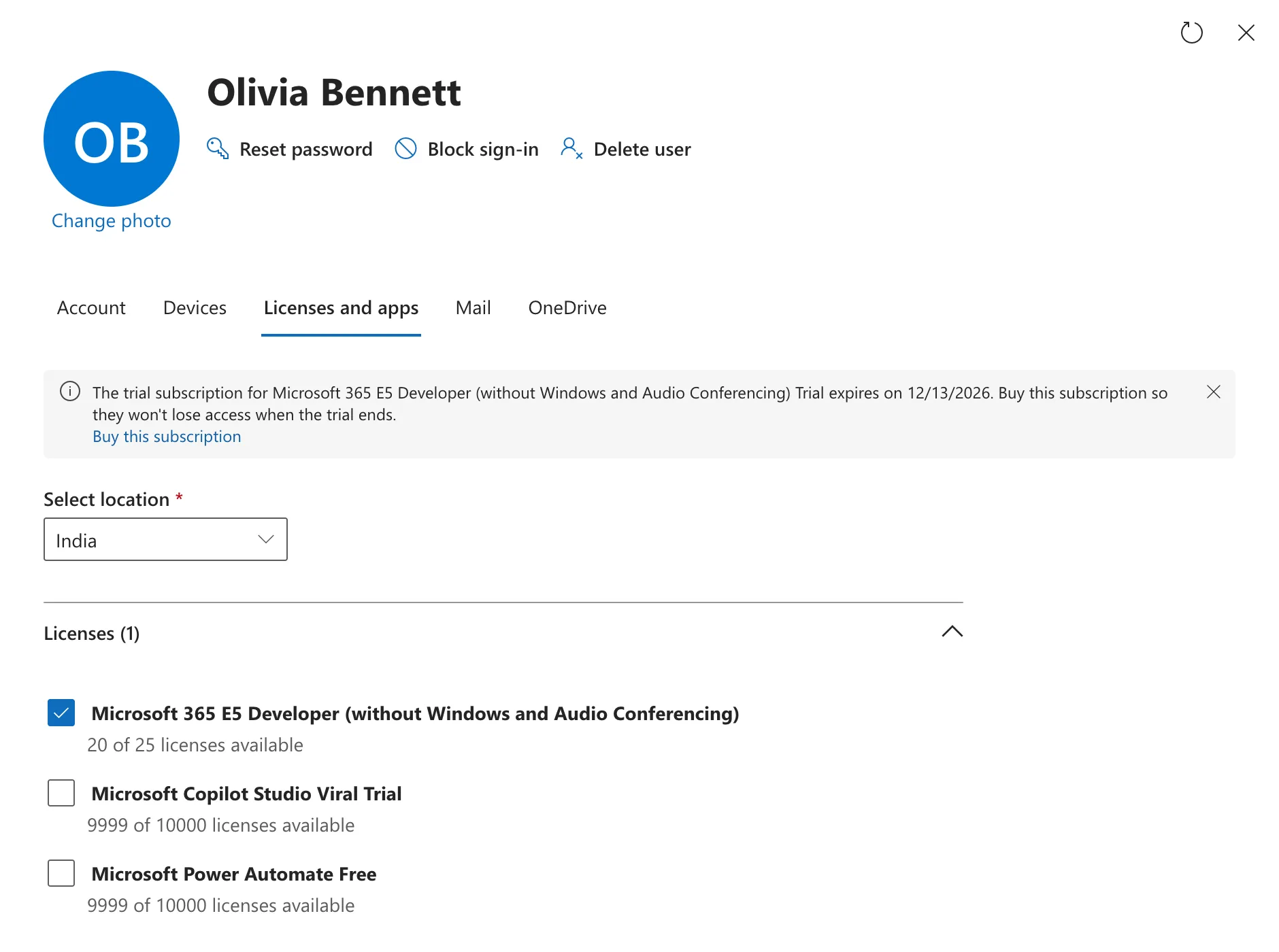
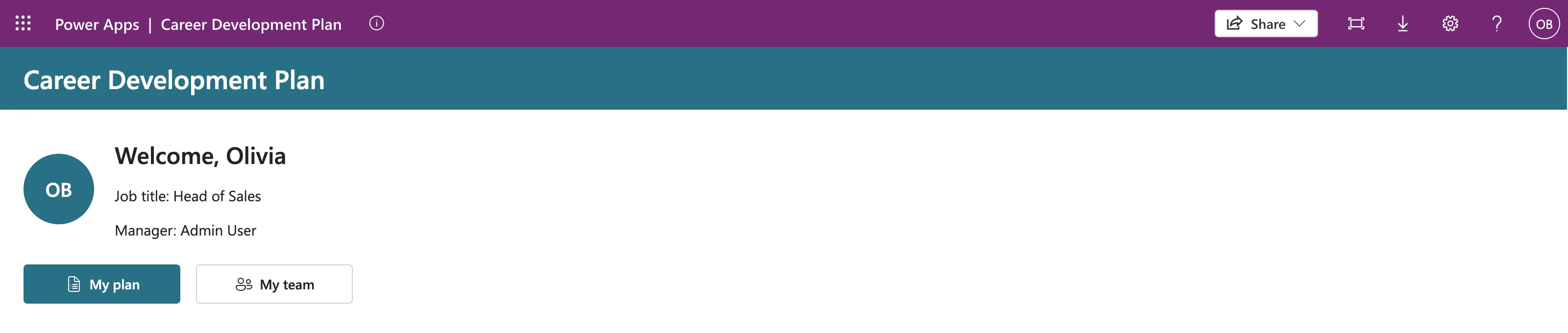
She opened the app, saw her plan and sent a response, with no license prompt:
When It Does Matter
The designation changes if the app starts using a premium connector, a custom connector or an on-premises gateway. Microsoft lists one known gap: a flow that uses a premium connector doesn't change the app's designation, even though users then need premium rights. And in a managed environment, every user needs a qualifying license, whatever the app uses (Licensing for managed environments).
Common Mistakes
| Mistake | What happens | Do this instead |
|---|---|---|
| Buying Power Apps licenses because of the note | Money spent on rights users already have | Check the app's License designation |
| Trusting Standard while a flow uses a premium connector | Users need premium rights anyway | Check the flows the app calls |
| Turning on Managed Environments | Every user needs a premium license | Leave it off for Microsoft 365-only users |
Troubleshooting
| Symptom | Likely cause | Fix |
|---|---|---|
| The designation says Premium | The app uses a premium or custom connector | Find it in the Data pane: it has a diamond |
| A user is asked for a license | The app is premium, or the environment is managed | Check the designation and the environment |
FAQ
Why does Studio attach the message to standard connectors?
Microsoft doesn't explain it. The visible signs, the missing diamond and the Standard designation, both say the app doesn't need a Power Apps plan, and a Microsoft 365 user ran it.
Which Microsoft 365 licenses include Power Apps for Office 365?
Many Microsoft 365 and Office 365 business and enterprise plans do. Check a user's Licenses and apps in the Microsoft 365 admin center for Power Apps for Office 365.
Conclusion
The note A Power Apps per user plan … will be required during playback on SharePoint and Office 365 Users isn't the license requirement. The app's License designation is. In the example it was Standard, and a user with only Microsoft 365 ran the app.
