Deploy a .NET App to Azure Container Apps — Part 6: Logs, Scaling, Cost and Cleanup

Getting an app deployed is the easy half. This final part covers what you actually do with a running app: read its logs, understand how it scales, know what it costs — and take it all down again.
This is Part 6 of a 6-part series.
- Part 1: Build the App
- Part 2: Containerize It with Docker
- Part 3: Resource Group and Container Registry
- Part 4: Push Your Image to the Registry
- Part 5: Deploy to Azure Container Apps
- Part 6: Logs, Scaling, Cost and Cleanup (you are here)
Step 1: Read the logs
Open your container app in the portal and choose Monitoring → Log stream in the left menu.
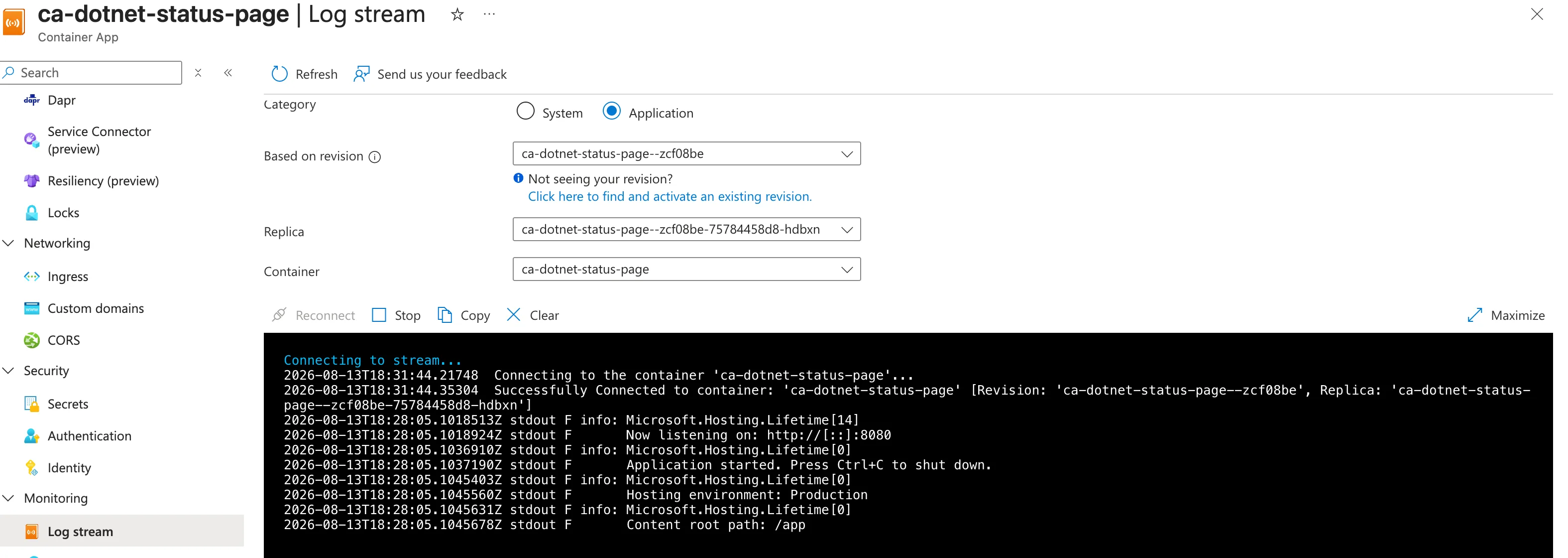
This is your app's console output, live:
Successfully Connected to container: 'ca-dotnet-status-page'
info: Microsoft.Hosting.Lifetime[14]
      Now listening on: http://[::]:8080
info: Microsoft.Hosting.Lifetime[0]
      Application started. Press Ctrl+C to shut down.
info: Microsoft.Hosting.Lifetime[0]
      Hosting environment: Production
info: Microsoft.Hosting.Lifetime[0]
      Content root path: /app
Two things worth noticing.
Now listening on: http://[::]:8080 is the confirmation that the target port you set in Part 5 was right. If you ever get a gateway error, this line tells you the port the app actually chose — compare it to your ingress setting.
Hosting environment: Production — ASP.NET Core defaults to Production in a container, so detailed error pages are off. That's the correct default; it also means a crash shows a blank error page in the browser and the real detail only here in the logs.
There are two log categories in the dropdown at the top: Application (your app's output) and System (Azure's own events — image pulls, replica starts, scaling decisions). When a container won't start at all, System is where the answer lives.
The app never opens a log file. It writes to standard output, and Container Apps collects that. This is the standard contract for containers.
Writing to files inside a container is a trap: the filesystem disappears when the replica does, replicas come and go constantly, and you end up with logs scattered across machines you can't reach. Print to the console and let the platform handle the rest.
Step 2: Understand revisions and replicas
Choose Application → Revisions and replicas.
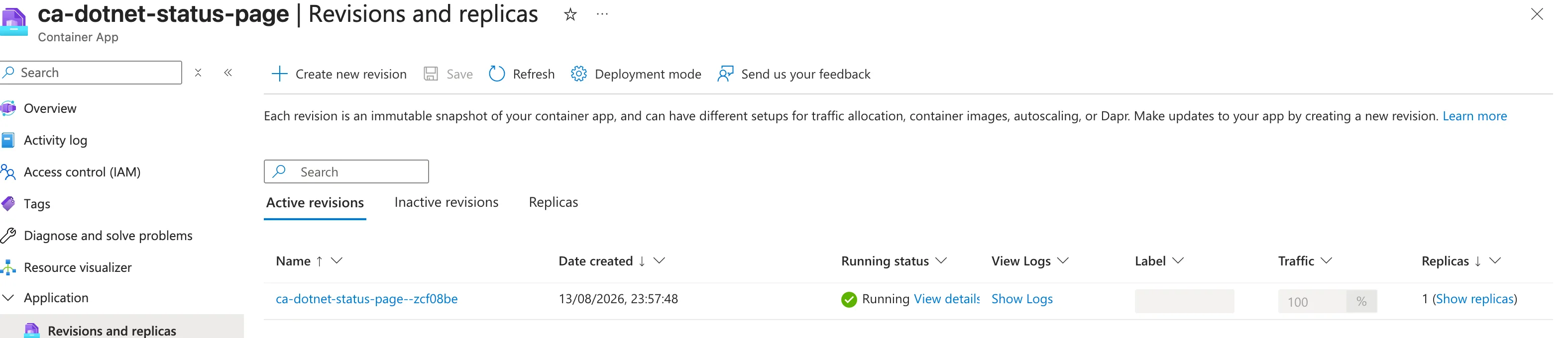
Two words that are easy to mix up:
- A revision is an immutable snapshot of your app's configuration — image tag, CPU, memory, environment variables. Change any of those and you get a new revision.
- A replica is a running copy of a revision. One revision can have zero, one, or many replicas.
Right now: one revision, 100% of traffic, one replica.
This is why Part 4 insisted on version tags. Deploy 1.0.1 and you get a second revision. You can send 10% of traffic to it, watch, and either shift the rest across or send traffic back to 1.0.0 — a rollback in one click. Deploy latest twice and both revisions claim the same tag, so you lose that.
Step 3: Understand scaling
Choose Application → Scale.
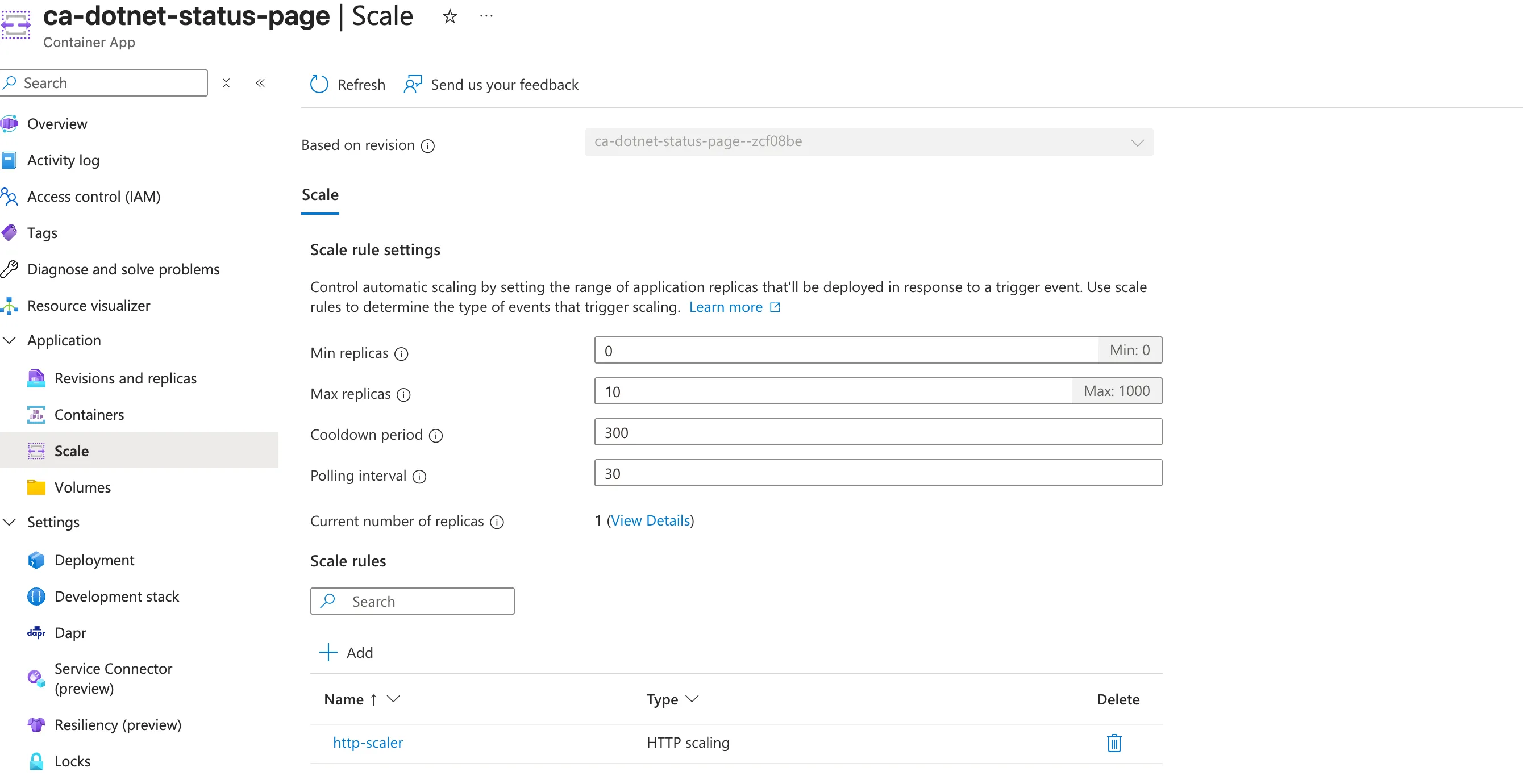
| Setting | Value | What it means |
|---|---|---|
| Min replicas | 0 | With no traffic, everything shuts down |
| Max replicas | 10 | Under load, up to 10 copies |
| Cooldown period | 300 | Wait 300s of quiet before scaling down |
| Polling interval | 30 | Check the scaling trigger every 30s |
| Scale rule | http-scaler | Scale on concurrent HTTP requests |
Min replicas 0 is the setting that makes this nearly free. No traffic, no running containers, no compute charges.
The trade-off is a cold start. When a request arrives at a scaled-to-zero app, Azure has to start a replica first — a few seconds. You can see it in the status page: after a quiet period, "Uptime" resets and "Requests served" goes back to 1, because it's a brand-new replica.
Scale-to-zero is excellent for demos, internal tools, and dev environments — things that are idle most of the day.
For anything a customer touches, set min replicas to 1. One always-warm replica removes the cold start entirely. It does mean you're billed continuously for that replica, and idle replicas at the minimum count bill at a reduced idle rate rather than the full active rate. Paying for one small warm replica is usually the right call for user-facing traffic.
Step 4: What this actually costs
Container Apps' Consumption plan gives every subscription, every calendar month:
- 180,000 vCPU-seconds
- 360,000 GiB-seconds
- 2 million HTTP requests
Our app is allocated 0.25 vCPU and 0.5 GiB. So one replica running continuously for a full 30-day month would use:
| Meter | Calculation | Monthly total | Free allowance |
|---|---|---|---|
| vCPU-seconds | 0.25 × 2,592,000s | 648,000 | 180,000 |
| GiB-seconds | 0.5 × 2,592,000s | 1,296,000 | 360,000 |
Running non-stop, you'd exceed the grant — you get roughly 8 days of continuous running free at this size. But with min replicas at 0, this app only consumes while it's serving requests. A demo you open a few times a day never gets close.
Here's the full picture for this series:
| Resource | Cost |
|---|---|
| Resource group | Free |
| Container Apps environment | Free (no charge unless you add a Dedicated workload profile) |
| Container app compute | Free within the monthly grant |
| Log Analytics ingestion | Pennies at this volume |
| Azure Container Registry (Basic) | ~$0.167/day — the only meaningful cost |
Which brings us to the important step.
Step 5: Clean up
Deleting the resource group deletes everything inside it in one action — the container app, the environment, the registry, the Log Analytics workspace.
It deletes every resource in the group, not just the ones from this series. Confirm the name is rg-dotnet-container-demo and that it contains nothing else you care about. There is no undo.
In the portal:
- Search for resource groups and open
rg-dotnet-container-demo. - Click Delete resource group in the toolbar.
- Type the resource group name to confirm.
- Click Delete.
Or from the terminal:
az group delete --name rg-dotnet-container-demo --yes --no-wait
Deletion takes a few minutes. Confirm it's gone:
az group exists --name rg-dotnet-container-demo
false
You can also tidy up locally:
docker stop status-page
docker rm status-page
docker rmi hello-container-app:1.0.0
The most common cause of a surprising cloud bill isn't expensive resources — it's forgotten ones. A registry costing 17 cents a day is nothing for an afternoon and about $60 if you find it two years later.
Two habits worth forming: put every experiment in its own resource group so cleanup is one action, and set a budget alert on the subscription so Azure emails you when spend crosses a threshold you chose.
Production Checklist
Everything the series covered, plus what you'd add before real users show up.
Covered in this series
| Practice | Where |
|---|---|
| Target the current LTS runtime | Part 1 |
| Multi-stage build — ship the runtime, not the SDK | Part 2 |
Pin base image tags, never :latest | Part 2 |
| Run as a non-root user | Part 2 |
.dockerignore to keep secrets out of the image | Part 2 |
| Order layers so dependency restore stays cached | Part 2 |
| Predictable resource naming | Part 3 |
| Leave the ACR admin user disabled | Part 3 |
| Build explicitly for the target CPU architecture | Part 4 |
| Version your image tags | Part 4 |
| Managed identity instead of stored credentials | Part 5 |
| Right-size CPU and memory | Part 5 |
| Let the platform terminate TLS | Part 5 |
| Log to stdout | Part 6 |
| Delete what you're not using | Part 6 |
Next steps before production
| Practice | Why |
|---|---|
| Add health probes | The app already exposes /health. Wire it up as a liveness and readiness probe so Azure restarts a wedged replica and holds traffic until a new one is genuinely ready. |
| Never bake secrets into images | Use Container Apps secrets or Azure Key Vault with a managed identity. Anything baked into an image is readable by anyone who can pull it. |
| Set min replicas to 1 | Removes cold starts for user-facing apps. |
| Automate the build and deploy | A GitHub Actions or Azure DevOps pipeline that builds, tags with the commit SHA, pushes and updates the app removes the human from the loop. |
| Add a budget alert | Get told about spend before the invoice does it for you. |
| Scan images for vulnerabilities | Microsoft Defender for Cloud, or docker scout, catch known CVEs in your base image. |
| Pin base images by digest | Guarantees byte-identical rebuilds. |
| Use a custom domain | Container Apps issues free managed certificates. |
Common Mistakes
| Mistake | Consequence | Fix |
|---|---|---|
| Leaving the registry running after finishing | ~$5/month indefinitely | Delete the resource group |
| Deleting individual resources one by one | Something gets missed | Delete the whole resource group |
| Min replicas 0 on a customer-facing app | Cold starts on first request | Set it to 1 |
Deploying :latest | No rollback, unclear what's running | Version every tag |
| Writing logs to a file in the container | Logs vanish with the replica | Write to stdout |
| Assuming the free grant covers everything | Registry and Log Analytics still bill | Know which meters are actually free |
Troubleshooting
| Problem | Cause | Fix |
|---|---|---|
| Log stream is empty | App hasn't printed anything since you connected | Load the page to generate output |
| No logs under Application | Environment set to "Don't save logs" | Live streaming still works; switch destination for history |
| First request takes several seconds | Cold start from zero | Expected. Set min replicas to 1 |
| Resource group won't delete | A resource lock, or a child resource still deleting | Check Locks; wait and retry |
| Uptime keeps resetting | The app scaled to zero and restarted | Expected with min replicas 0 |
FAQ
How do I deploy an update?
Build and push a new tag (1.0.1), then update the container app's image. Azure creates a new revision and moves traffic to it.
Can I roll back? Yes — that's what revisions are for. Activate the previous revision and shift traffic back.
Where do environment variables and secrets go? Environment variables on the Container tab; secrets under Security → Secrets, referenced by name. For anything sensitive, back them with Key Vault and a managed identity.
Does deleting the resource group delete my container image? Yes. The registry lives in that group, so the images go with it. Your local copy and source code are untouched.
What should I learn next? Custom domains, GitHub Actions for continuous deployment, and Key Vault integration are the natural three. Each builds directly on what you've deployed here.
Conclusion
Six parts ago you had an empty folder. Along the way you built a .NET app, packaged it into a container that runs anywhere, pushed it to a private registry, deployed it to a serverless platform with a real HTTPS URL, and then took it all down again.
The one detail that ties it together is that host name. MacBookPro, then b6a8ddec4d46, then ca-dotnet-status-page--zcf08be-75784458d8-hdbxn. Same code every time — only the machine underneath changed. That's the whole promise of containers, and you watched it happen rather than taking anyone's word for it.
Previous: ← Part 5: Deploy to Azure Container Apps
The full series:
- Build the App
- Containerize It with Docker
- Resource Group and Container Registry
- Push Your Image to the Registry
- Deploy to Azure Container Apps
- Logs, Scaling, Cost and Cleanup
