Deploy a .NET App to Azure Container Apps — Part 5: Deploy to Azure Container Apps

This is the part where it becomes real. Four tabs in the Azure portal and your container gets a public HTTPS address that anyone in the world can open.
This is Part 5 of a 6-part series.
- Part 1: Build the App
- Part 2: Containerize It with Docker
- Part 3: Resource Group and Container Registry
- Part 4: Push Your Image to the Registry
- Part 5: Deploy to Azure Container Apps (you are here)
- Part 6: Logs, Scaling, Cost and Cleanup
What you need before starting
Your image in the registry from Part 4, built for linux/amd64.
What Azure Container Apps is
It runs containers without you managing any servers. You hand it an image; it handles the machines, the load balancer, the HTTPS certificate, and scaling.
Two things make it a good fit here:
- It scales to zero. No traffic means no running containers and no compute charges.
- It has a real free allowance. Every subscription gets 180,000 vCPU-seconds, 360,000 GiB-seconds and 2 million HTTP requests free every calendar month. A demo app like this doesn't come close to that ceiling.
The compute in this part is, for practical purposes, free. The registry from Part 3 is the only thing on the meter.
Step 1: Start the wizard
In the portal search bar, type container apps, select it, then click + Create → Container App.
Basics tab
| Setting | Value |
|---|---|
| Subscription | The one holding your registry |
| Resource group | rg-dotnet-container-demo |
| Container app name | ca-dotnet-status-page |
| Optimize for Azure Functions | Leave unchecked |
| Deployment source | Container image |
| Region | Central India (same as everything else) |
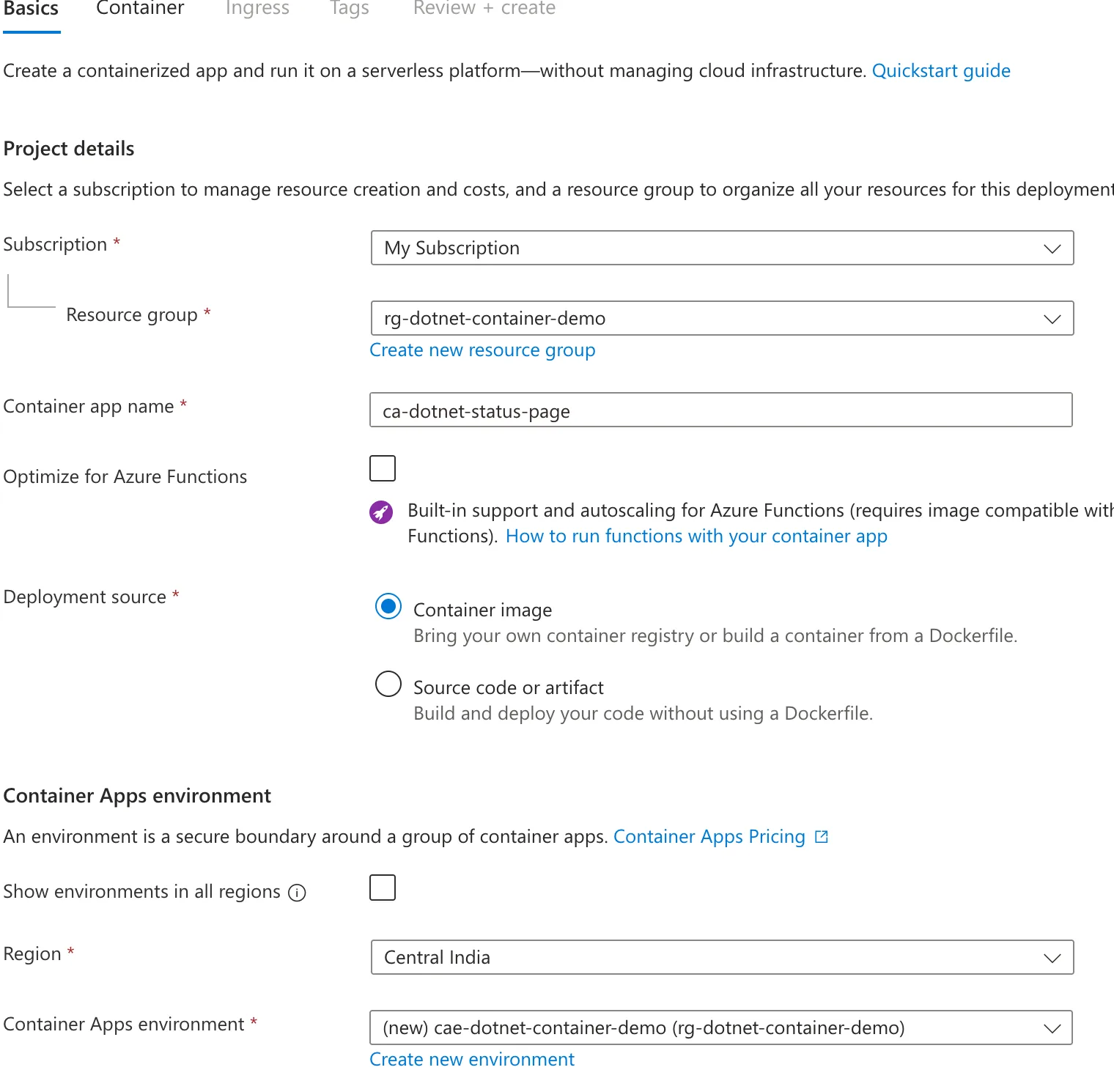
This wizard often opens with a different subscription and region preselected than you expect — whatever you last used. Changing the subscription resets the resource group and region below it, so set them in order, top to bottom, and glance back at the top before moving on.
Step 2: Create the environment
Under Container Apps environment, click Create new environment.
An environment is a secure boundary around one or more container apps. Apps in the same environment share a virtual network and a logging destination, and can talk to each other privately.
On the Basics tab of the new pane:
| Setting | Value |
|---|---|
| Environment name | cae-dotnet-container-demo |
| Zone redundancy | Disabled |
Then open the Monitoring tab, because it's the one cost decision here:
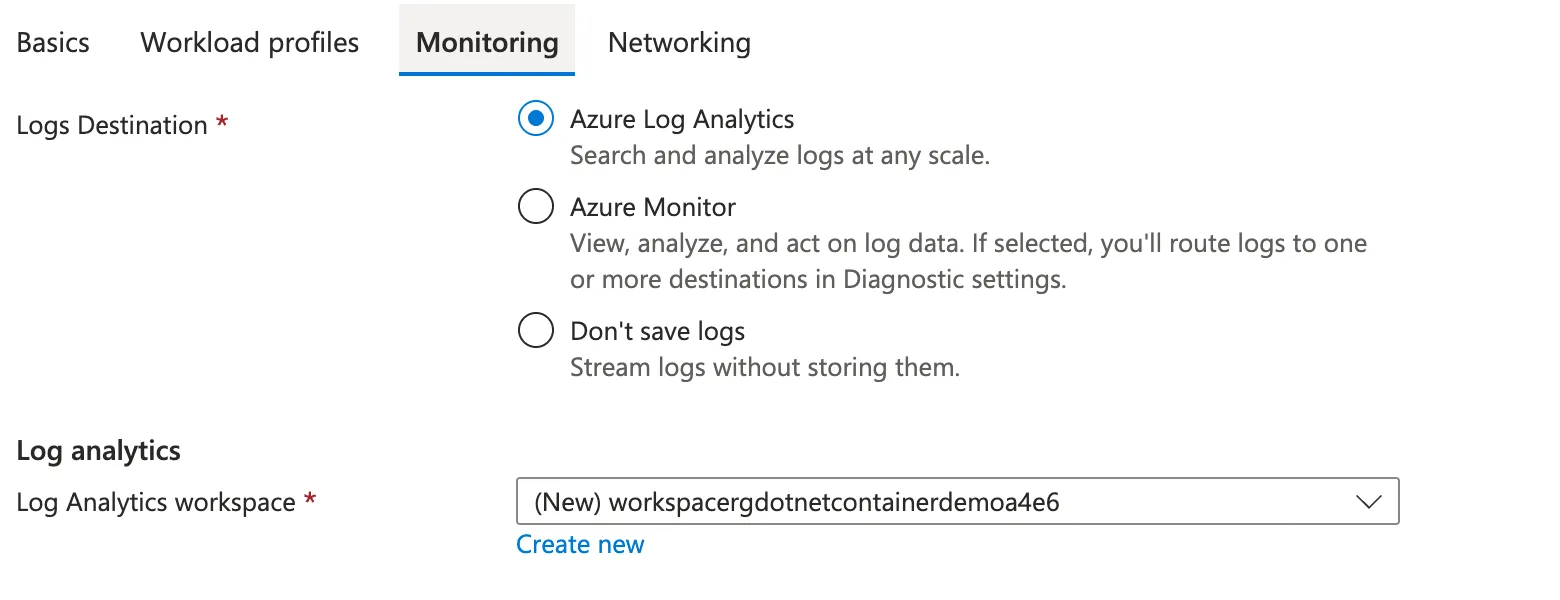
You get three choices:
- Azure Log Analytics — stores logs so you can query them later. Charged by volume ingested.
- Azure Monitor — routes logs elsewhere (storage, event hub, a partner tool).
- Don't save logs — stores nothing. Live log streaming still works.
Leave it on Azure Log Analytics. Part 6 uses it, and for an app this size the ingestion is a few megabytes — pennies at most.
Log Analytics is the right default because you cannot debug what you didn't record, and the moment you need logs is always after the incident.
But it is billed per gigabyte ingested, and a chatty application at scale can quietly become one of the larger lines on an Azure bill. Decide consciously: keep it on for anything you care about, set a retention period, and use Don't save logs for throwaway demos where live streaming is enough.
Click Create. The environment takes a minute or two to provision. When it's done you're back on Basics with it selected.
Click Next : Container.
Step 3: Point it at your image
Uncheck Use quickstart image first — that's the sample app, not yours.
| Setting | Value |
|---|---|
| Name | ca-dotnet-status-page |
| Image source | Azure Container Registry |
| Subscription | The one holding your registry |
| Registry | acrdotnetdemo2026.azurecr.io |
| Image | hello-container-app |
| Image tag | 1.0.0 |
| Authentication type | Managed identity |
| Managed identity | System assigned Identity (environment) |
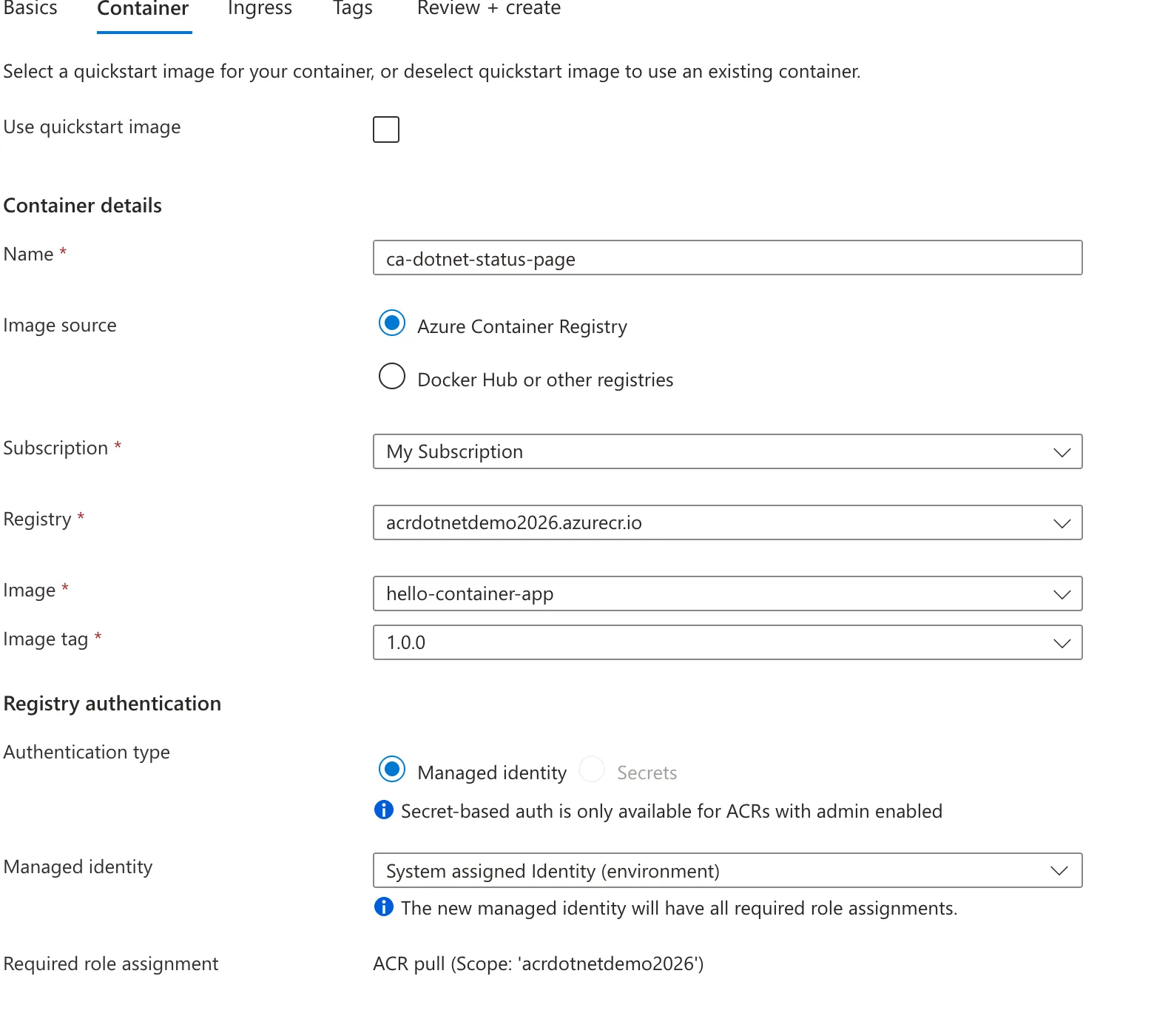
Notice what the portal tells you underneath:
- "Secret-based auth is only available for ACRs with admin enabled" — the consequence of leaving the admin user off in Part 3.
- "The new managed identity will have all required role assignments."
- Required role assignment: ACR pull (Scope: 'acrdotnetdemo2026')
A managed identity is an identity Azure creates and manages for your app. There is no password, anywhere. Azure rotates the underlying credentials on its own schedule, and access is granted through a role assignment you can see, audit, and revoke.
The alternative — a registry username and password stored as a secret — is a credential that must be created, stored, shared, and eventually rotated by a human. It works, and it is worse in every dimension that matters.
The portal will create the identity and grant it the AcrPull role on your registry automatically. That role is read-only: it can pull images and nothing else. Least privilege, no configuration required.
Right-size the container
Scroll down to Container resource allocation:
| Setting | Value |
|---|---|
| Workload profile | Consumption |
| CPU and memory | 0.25 CPU cores, 0.5 Gi memory |
The default is 0.5 cores / 1 Gi. Change it to 0.25 / 0.5.
Container Apps bills on allocated resources per second, not on what you actually use. Requesting double what you need doubles the cost and burns the free grant twice as fast, for zero benefit.
This app serves a small HTML page. 0.25 vCPU and 0.5 GiB is generous. Start small, watch the metrics, and increase only when you have evidence.
Click Next : Ingress.
Step 4: Open it to the internet
Ingress controls who can reach your app.
| Setting | Value |
|---|---|
| Ingress | Checked |
| Ingress traffic | Accepting traffic from anywhere |
| Ingress type | HTTP |
| Transport | Auto |
| Insecure connections | Unchecked |
| Target port | 8080 |
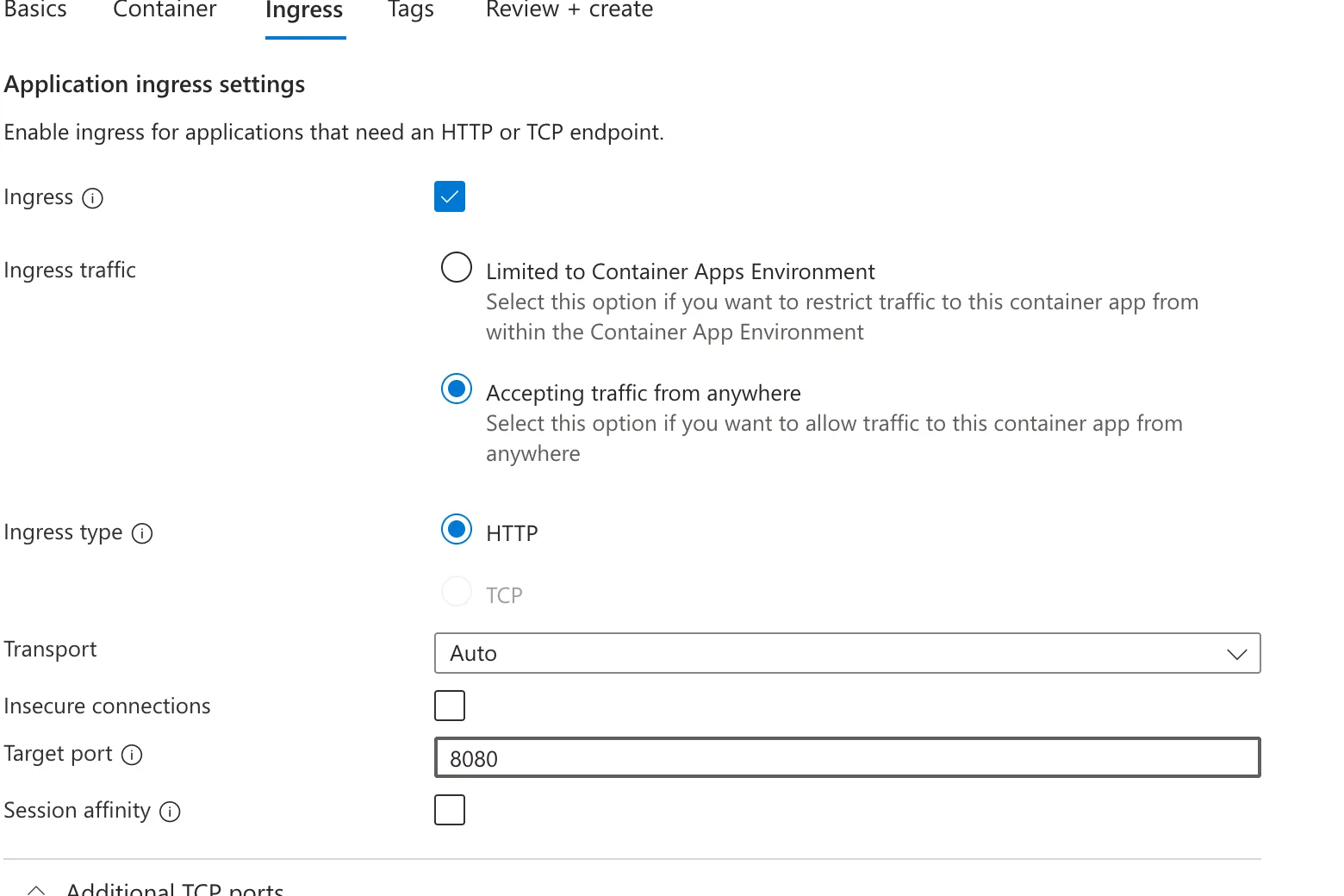
Target port 8080 is the setting people get wrong. It must match the port your app listens on inside the container. Since .NET 8, containerised ASP.NET Core listens on 8080 — the same number in EXPOSE 8080 back in Part 2. Enter 80 here and you'll get a gateway error with a perfectly healthy container behind it.
Your app has no certificate and no HTTPS configuration, yet the finished URL is https://. Container Apps terminates TLS at its ingress layer and forwards plain HTTP to your container on 8080.
That's the normal pattern for containers behind a managed platform. Don't add certificate handling inside the container — you'd be duplicating something the platform already does better, and it's a common source of redirect loops.
"Insecure connections" left unchecked means anyone arriving on http:// is redirected to https://. Leave it that way.
Click Review + create, then Create.
Deployment takes two or three minutes.
Step 5: Get your URL
When it finishes, click Go to resource. The Overview page has what you came for:
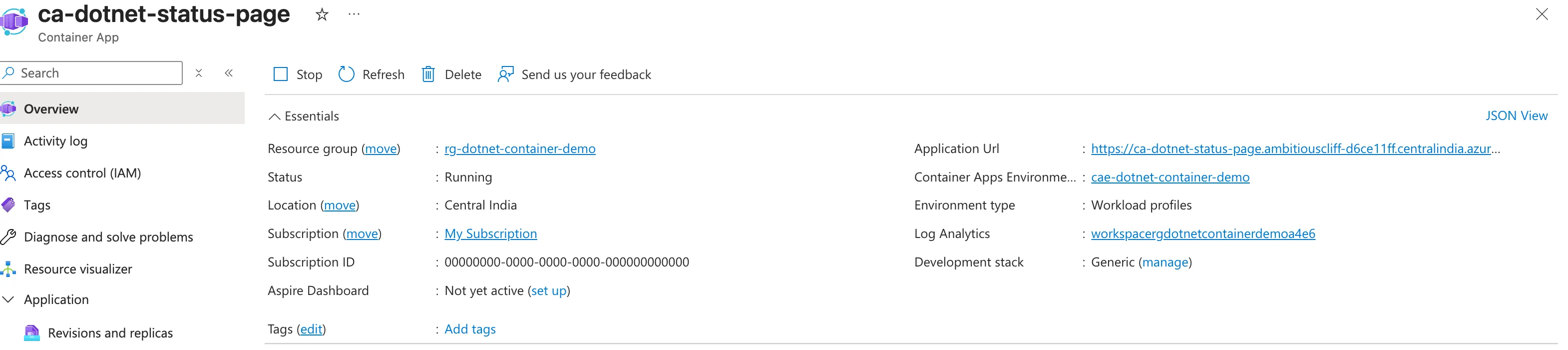
- Status: Running
- Application Url:
https://ca-dotnet-status-page.ambitiouscliff-d6ce11ff.centralindia.azurecontainerapps.io
That middle chunk is random and unique to your environment, so yours will differ.
Step 6: Open it
Click the Application Url.
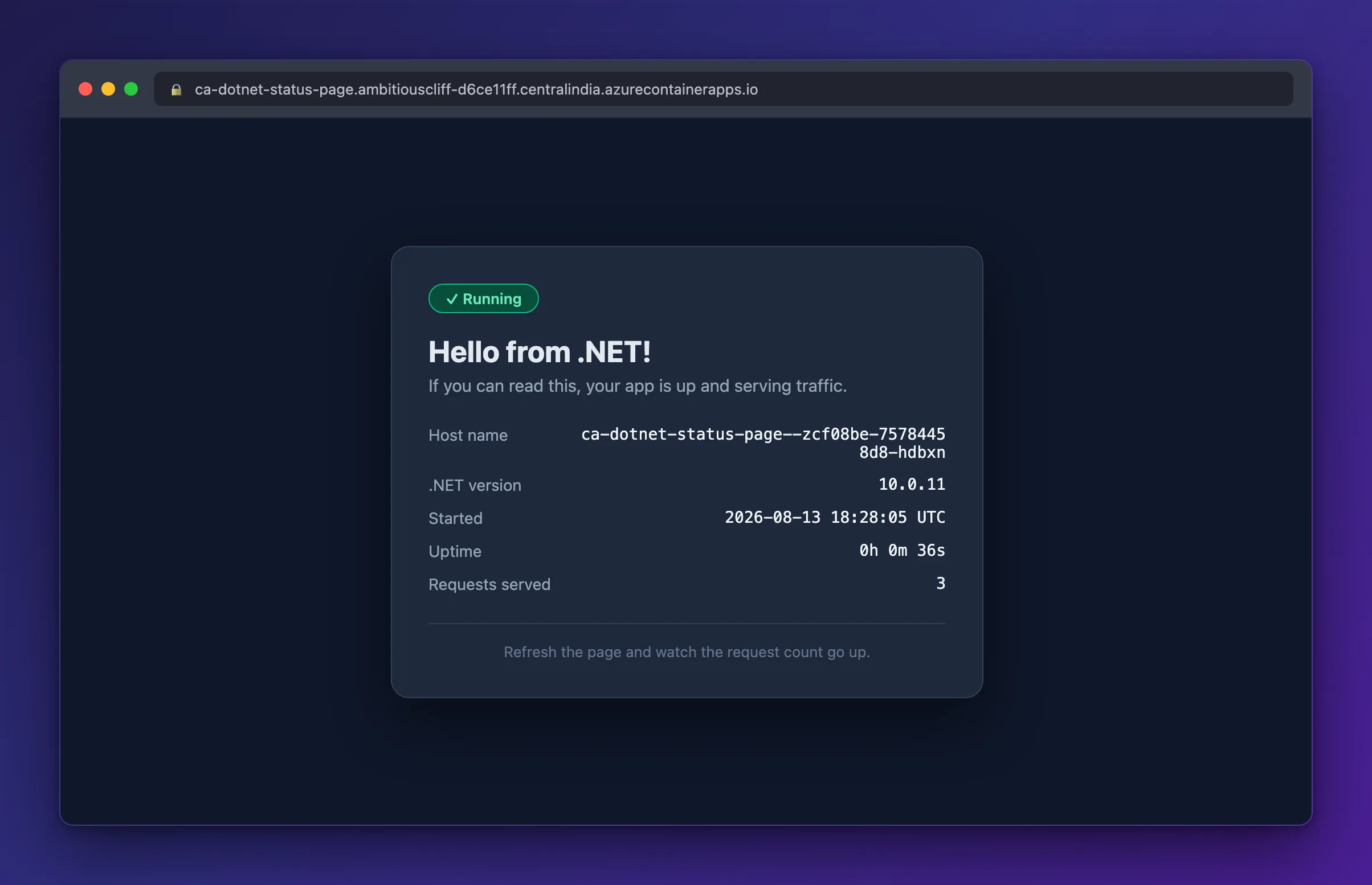
There it is — your app, on the public internet, over HTTPS, with a certificate you never had to think about.
And look at the Host name one more time:
| Where it ran | Host name |
|---|---|
| Part 1 — on your laptop | MacBookPro |
| Part 2 — in a local container | b6a8ddec4d46 |
| Part 5 — on Azure | ca-dotnet-status-page--zcf08be-75784458d8-hdbxn |
Three environments, same code, and the app told you the truth each time. That last name is the Azure replica running your container.
You can check the health endpoint too:
curl https://ca-dotnet-status-page.ambitiouscliff-d6ce11ff.centralindia.azurecontainerapps.io/health
"Healthy"
Do It with the Azure CLI
The same deployment in two commands:
# Add the containerapp extension if you don't have it
az extension add --name containerapp --upgrade

# Create the environment
az containerapp env create \
  --name cae-dotnet-container-demo \
  --resource-group rg-dotnet-container-demo \
  --location centralindia

# Create the app, pulling from ACR with a system-assigned managed identity
az containerapp create \
  --name ca-dotnet-status-page \
  --resource-group rg-dotnet-container-demo \
  --environment cae-dotnet-container-demo \
  --image acrdotnetdemo2026.azurecr.io/hello-container-app:1.0.0 \
  --registry-server acrdotnetdemo2026.azurecr.io \
  --registry-identity system \
  --target-port 8080 \
  --ingress external \
  --cpu 0.25 --memory 0.5Gi \
  --min-replicas 0 --max-replicas 10 \
  --query properties.configuration.ingress.fqdn
Common Mistakes
| Mistake | What you'll see | Fix |
|---|---|---|
| Target port 80 instead of 8080 | Gateway error, container looks healthy | Set target port to 8080 |
| Leaving "Use quickstart image" checked | Azure's sample page, not yours | Uncheck it on the Container tab |
| Ingress limited to the environment | No public URL | Choose "Accepting traffic from anywhere" |
| ARM image from Part 4 | exec format error in the logs | Rebuild with --platform linux/amd64 |
| Wrong subscription selected on Basics | Your registry doesn't appear in the list | Fix the subscription, then reselect below it |
| Accepting the default 0.5 CPU / 1 Gi | Twice the cost for no benefit | Set 0.25 / 0.5 |
Troubleshooting
| Problem | Cause | Fix |
|---|---|---|
No registries found | Wrong subscription on the Container tab | Select the subscription that owns the registry |
| Provisioning succeeds but the URL errors | App still starting, or wrong target port | Wait a minute, then check Log stream (Part 6) |
UNAUTHORIZED in the logs | Role assignment didn't apply | Assign AcrPull to the app's identity on the registry |
exec format error | Image built for the wrong CPU architecture | Rebuild with --platform linux/amd64 and redeploy |
| First request is slow | Scaled to zero; container cold-starting | Normal. Set min replicas to 1 to avoid it (Part 6) |
FAQ
Is this actually free? The compute effectively is, thanks to the monthly grant. The registry from Part 3 is about $0.167/day. Log Analytics ingestion for an app this size is pennies.
What if I don't want a random URL? Container Apps supports custom domains with free managed certificates, under Networking → Custom domains.
How do I deploy a code change?
Build and push a new tag (1.0.1), then update the container app to that tag. Azure creates a new revision and shifts traffic to it.
Can I run several apps in one environment? Yes — that's what environments are for. They share a network and logging, and can call each other by name.
Does it really cost nothing when idle? With min replicas at 0, no replicas run when there's no traffic, and you're not billed for compute. The trade-off is a cold start on the first request.
What's Next
Your app is live. Part 6 covers the parts that matter once something is actually running: reading logs, understanding scaling and cold starts, a production checklist, and how to delete everything so the meter stops.
Previous: ← Part 4: Push Your Image to the Registry Next: Part 6: Logs, Scaling, Cost and Cleanup →
