Convert Number or Integer to Text or String using Power Automate (Microsoft Flow)

Power Automate is strict about data types. If you try to concatenate a number into a message, save it into a text column, or pass it to a connector that expects text, the flow fails with a type mismatch. The fix is the built-in string() expression, which converts a number or integer into its text or string representation.
What You Will Build
In this guide you will create a small instant cloud flow that:
- Initializes an Integer variable.
- Prints the raw integer with a Compose action, so you can see it is a number.
- Converts that integer to a string using the
string()expression in a second Compose action. - Compares both raw outputs to confirm the data type actually changed.
Printing both values side by side is the quickest way to prove the conversion worked, because Power Automate shows strings wrapped in double quotes in raw output and numbers without them.
Prerequisites
Before you start, make sure that you have:
- A Microsoft account with access to Power Automate.
- Permission to create flows in your environment.
- No premium connector or license is required — everything here uses built-in actions.
Step 1: Create an Instant Cloud Flow
Sign in to Power Automate, go to My flows → New flow → Instant cloud flow, give the flow a meaningful name, and choose Manually trigger a flow as the trigger. A manual trigger is ideal for testing because you can run the flow on demand as many times as you like.
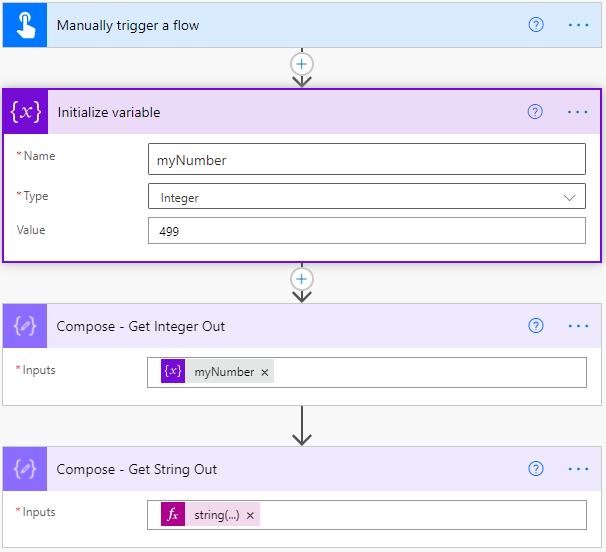
Step 2: Initialize an Integer Variable
Add a new step and search for the Initialize variable action. Fill it in as follows:
- Name —
myNumber - Type —
Integer - Value — any whole number you want to convert
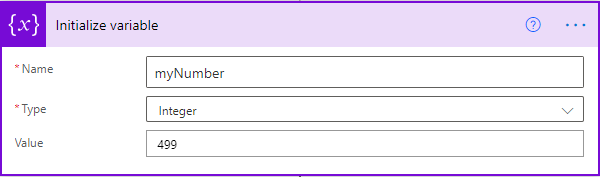
Selecting Integer as the type is what makes this a genuine number rather than text. That distinction is exactly what you are going to convert in a moment.
Keep variable names short and descriptive. You will type the name inside expressions later, and expressions are case sensitive.
Step 3: Add a Compose Action to Print the Integer
Add a Compose action and set its input to the myNumber variable. Pick the variable from the Dynamic content panel instead of typing it manually so Power Automate inserts the correct reference.

The Compose action does not transform anything on its own. It simply echoes whatever you pass into it, which makes it the perfect debugging tool for inspecting a value and its data type at any point in a flow.
Step 4: Run the Flow and Inspect the Raw Output
Save the flow and run it manually. Once the run completes, open the run history, expand the Compose action, and select Show raw outputs. You can inspect Show raw inputs too — for a Compose action both are identical.
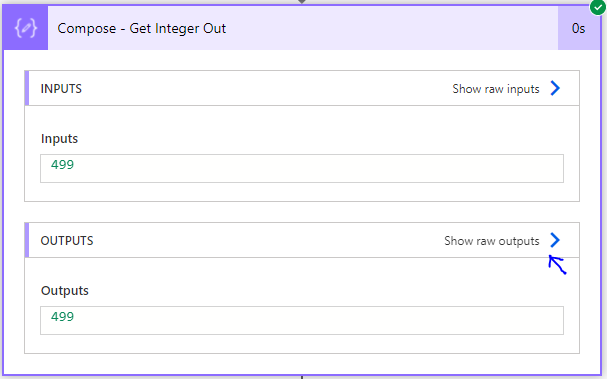
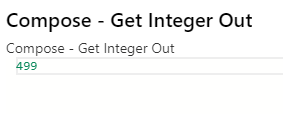
In the raw output, the value appears without surrounding double quotes. That is the JSON representation of a number, and it confirms the variable is still of the Integer data type.
Step 5: Convert the Integer to a String
Go back to Edit and add a second Compose action. This one will hold the converted value. Open the Expression tab and enter:
string(variables('myNumber'))
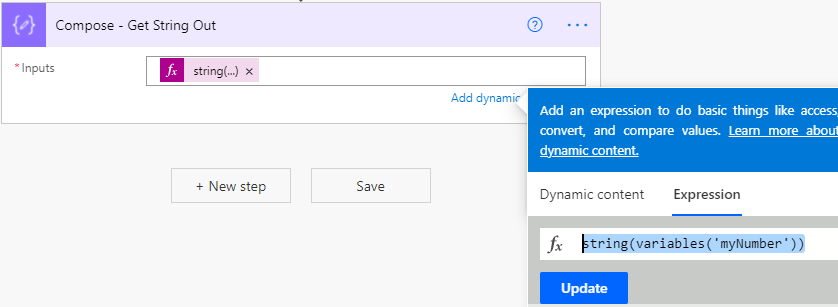
Here is what each part of the expression does:
| Part | Purpose |
|---|---|
variables('myNumber') | Reads the current value of the myNumber variable. |
string(...) | Converts the value it receives into its text or string representation. |
The string() function is not limited to integers. It also accepts floats, booleans, and objects, returning the string form of whatever you pass to it.
Expressions must be entered in the Expression tab, not typed as plain text in the input box. Also remember that the variable name inside variables() uses single quotes and is case sensitive — myNumber and mynumber are not the same.
Step 6: Review the Complete Flow
At this point your flow has four steps: the manual trigger, the Initialize variable action, the Compose action that prints the integer, and the Compose action that prints the converted string.
Step 7: Confirm the Value Is Now a String
Save the flow and run it again. Open the second Compose action in the run history and select Show raw outputs.
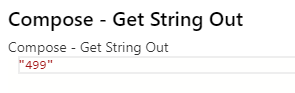
This time the number is wrapped in double quotes. In JSON, quotes mean text — so the conversion succeeded and the value is now a string you can safely concatenate, store in a text column, or send to another connector.
Other Ways to Convert a Number to Text
The string() expression is the clearest option, but a few alternatives are useful in specific situations.
Use concat() for Inline Conversion
When you are already building a message, concat() converts numbers to text implicitly:
concat('Order quantity: ', variables('myNumber'))
Use formatNumber() for Formatted Text
When the output is shown to a user, formatNumber() gives you control over decimals, currency, and separators:
formatNumber(variables('myNumber'), '#,##0')
Store the Result in a String Variable
If the converted value is needed in several later steps, add an Initialize variable action of type String and set its value with the expression, instead of repeating string() everywhere:
string(variables('myNumber'))
Troubleshooting Common Issues
InvalidTemplate— unable to process the expression — The variable name is misspelled or uses the wrong case. It must match the name in the Initialize variable action exactly.- The expression appears as literal text in the output — You typed it in the Dynamic content box instead of the Expression tab. Delete the value and re-enter it under Expression.
The variable 'myNumber' is not defined— The Initialize variable action runs after the action that uses it. Variables must be initialized before they are referenced, and initialization must happen at the top level of the flow, not inside a loop or condition.- The output still has no quotes — You are looking at the first Compose action. Open the second one, which contains the
string()expression. - Cannot select "Integer" as a type — The Initialize variable action allows only one type per action. Add a separate Initialize variable action for each variable.
Frequently Asked Questions
What is the expression to convert a number to a string in Power Automate?
Use string(variables('myNumber')), replacing myNumber with your own variable name. To convert a value coming from a previous action, pass the dynamic content reference into string() instead.
How can I tell whether a value is a number or a string?
Open the action in the flow run history and select Show raw outputs. Strings appear inside double quotes, while numbers do not.
Does string() work with decimals and floats?
Yes. The string() function converts floats, decimals, booleans, arrays, and objects into their text representations, not just integers.
Do I need a premium Power Automate license for this?
No. Initialize variable, Compose, and expression functions are built-in features available in every Power Automate plan.
Why do I need to convert a number to text at all?
Many destinations require text — SharePoint single-line-of-text columns, email subject lines, HTTP request bodies, file names, and string comparisons. Passing a number where text is expected causes the action to fail with a type mismatch.
How do I convert a string back to a number?
Use the int() function for whole numbers, for example int(variables('myText')), or float() when the text contains decimals.
Can I skip the Compose actions?
Yes. The Compose actions here exist only to show the values and prove the data type changed. In a real flow you would place the string() expression directly in the action that needs text.
Conclusion
Converting a number or integer to text or string in Power Automate comes down to one expression: string(). In this guide you initialized an Integer variable, printed it with a Compose action, converted it with string(variables('myNumber')), and verified the change by comparing raw outputs — no quotes for a number, quotes for a string.
Use the same pattern any time a connector, column, or message rejects a numeric value. And when you need the opposite conversion, reach for int() or float().
For the full list of available functions, see the official Workflow Definition Language expression reference.
Video Tutorial
Coming soon!
