Convert Number or Integer to Text or String using Power Apps

Power Apps keeps numbers the way a calculator does — 123456.789 — but the people using your app expect to read 123,456.79. The Text() function converts a number or integer to text and formats it in the same step, as long as you know the one situation where it silently does nothing.
What You Will Build
In this guide you will build a one-screen canvas app in Power Apps and use it to:
- See the difference between a number and text, using a data-type readout that Power Apps shows under the formula bar.
- Format a number with thousands separators and two decimal places.
- Format a number that someone types into a box — and meet the mistake that silently breaks it.
- Stop letters and half-typed numbers from causing errors.
- Show currency amounts without the currency symbol changing under you.
Every result in this post comes from the real formula bar or the running app. I built it in Power Apps Studio in September 2026, in a browser set to English (United Kingdom) — a detail that matters in Step 8.
Flows use expressions rather than Power Apps formulas, so the function is different. For the flow version, see Convert Number or Integer to Text or String using Power Automate (Microsoft Flow).
Prerequisites
Before you start, make sure that you have:
- A work or school account that can sign in to Power Apps. Personal addresses such as Outlook.com, Hotmail or Gmail can't sign in to Power Apps.
- Permission to create apps in a Power Apps environment — the container that holds your apps, flows and data. Power Apps opens in your organization's default environment, where people can normally create apps unless an admin has restricted it.
- A license that includes Power Apps. The app in this guide uses no connectors or data sources at all, so the Power Apps rights that come with most Microsoft 365 business and enterprise plans cover it, at no extra cost. If you have no license, the free Power Apps Developer Plan gives you your own environment for building and testing — though not for running apps in production — and Microsoft also offers a 30-day trial.
Step 1: Create a Blank Canvas App
Sign in to Power Apps and select Create in the left navigation. Under Start from design, select Create from blank — the card marked Canvas app.
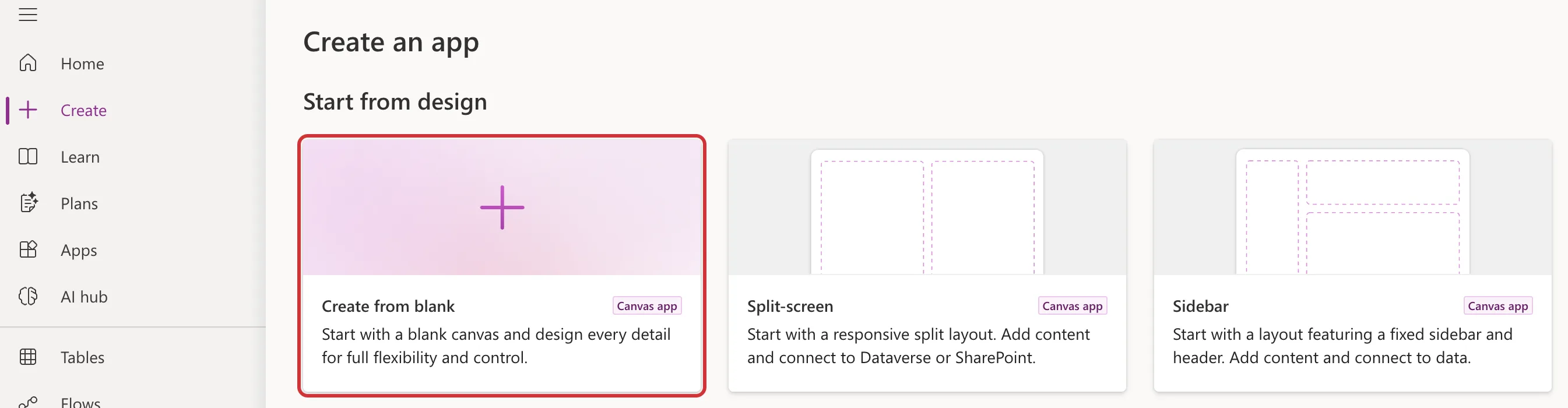
A canvas app is a Power Apps app where you place every control yourself on a blank screen, much like arranging text boxes on a slide. That makes it the quickest way to try formulas out.
Power Apps asks what size the app should be. Select Tablet.
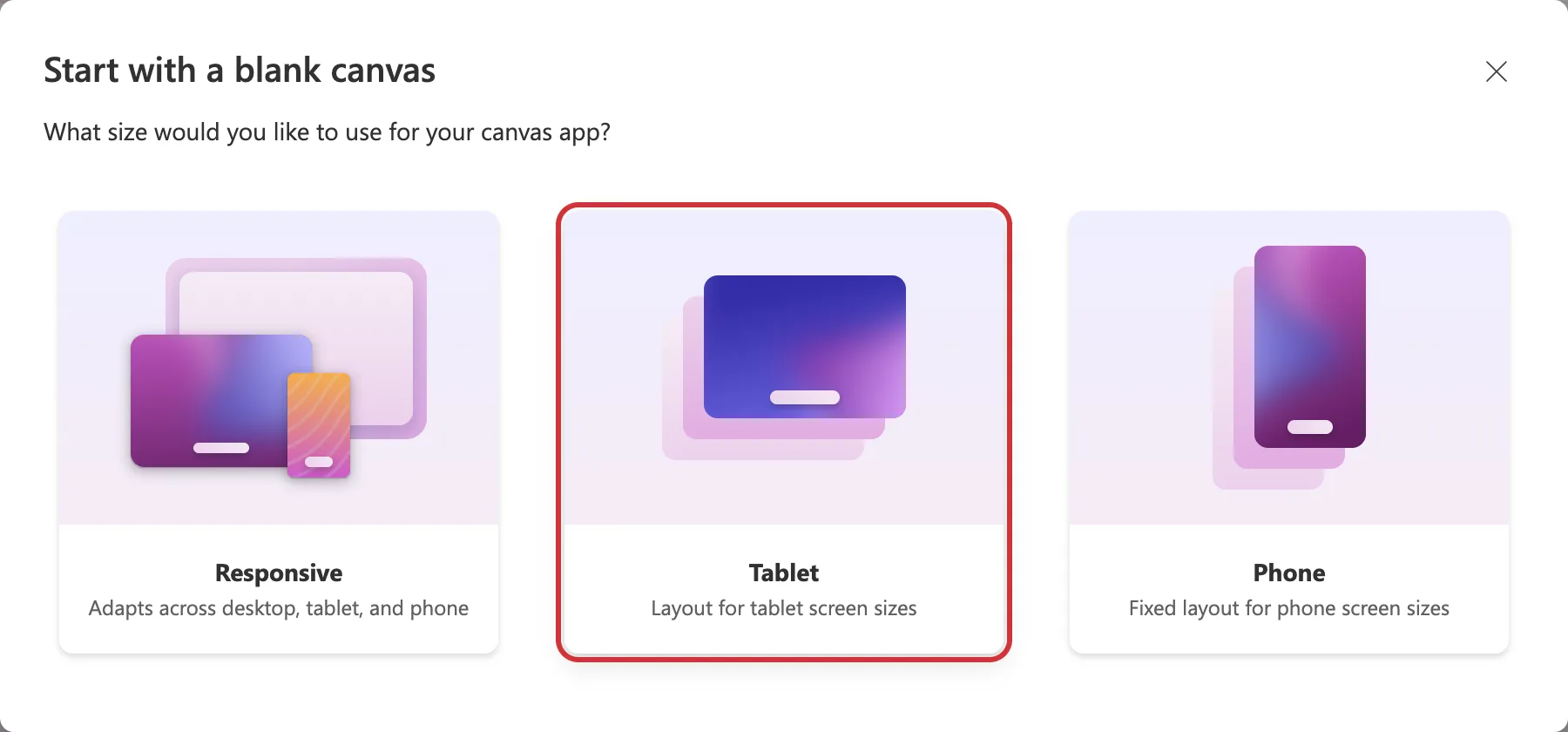
Tablet gives you a wide, fixed-size screen with plenty of room. Responsive, which adapts across desktop, tablet and phone, is what you would pick for a real app; for trying out formulas the size makes no difference.
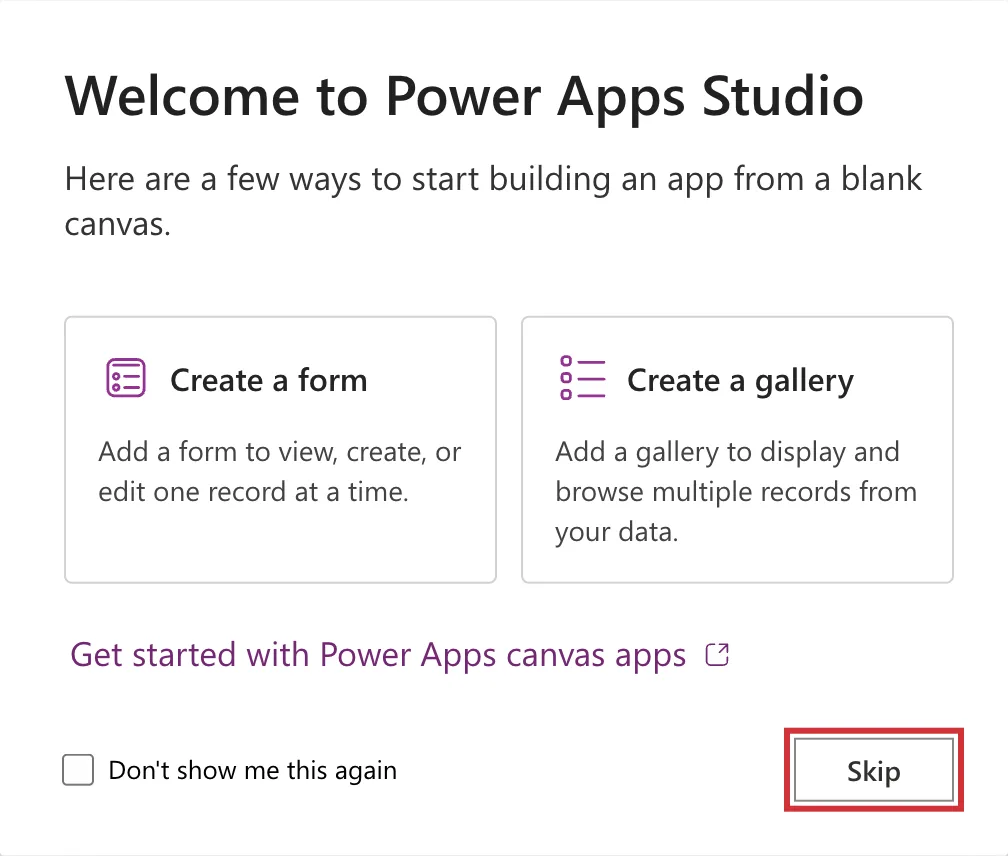
Power Apps Studio — the editor for canvas apps — opens with a Welcome to Power Apps Studio dialog that offers to build a form or a gallery for you. You want an empty screen, so select Skip.
Step 2: Add a Text Label
On the command bar at the top of Studio, select Insert, then Text label in the Popular list.
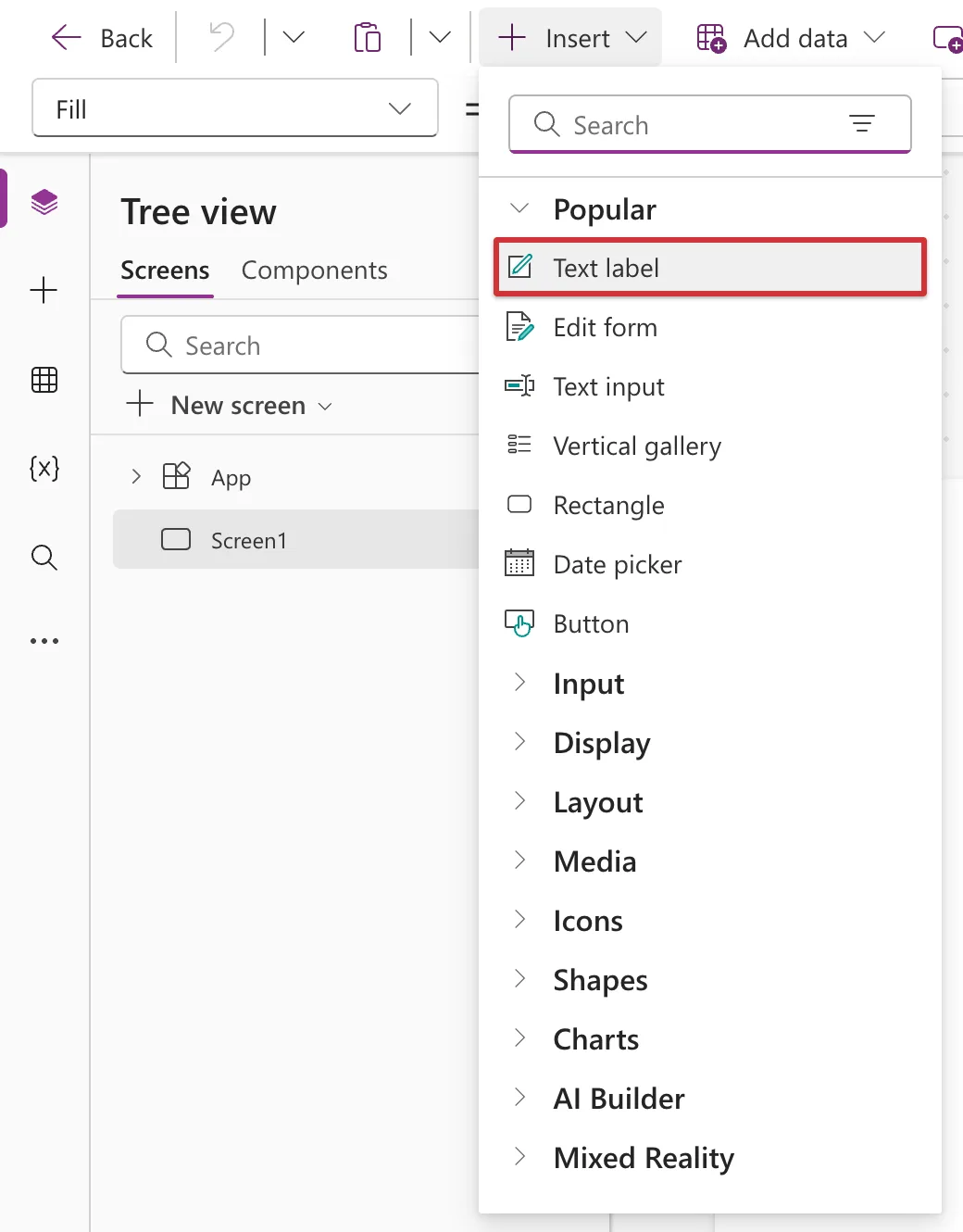
A label named Label1 appears at the top left of the screen, showing the word Text. It is also listed in the Tree view on the left, which lists every control in the app.
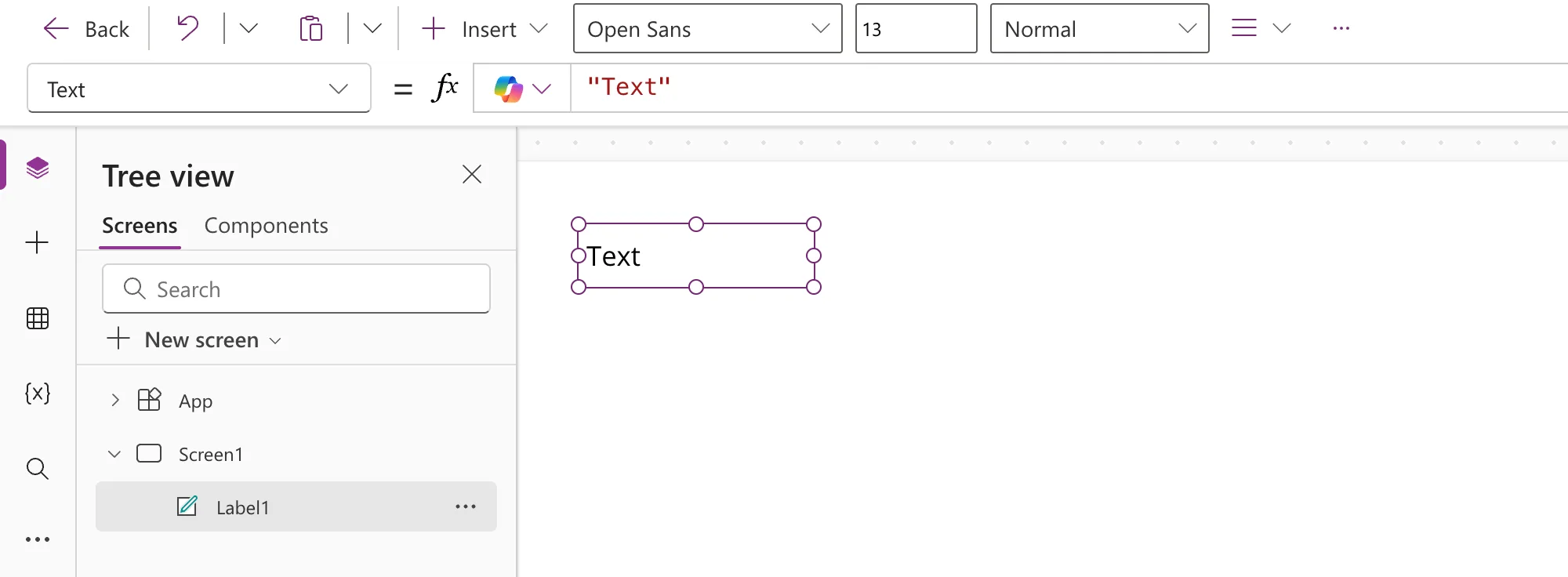
Now look at the bar above the screen — the formula bar. Everything in this guide happens there:
- The drop-down on the left is the property list. It shows Text, the property of the label you are editing. A label displays whatever its Text property works out to.
- To the right of fx is the formula for that property:
"Text", in double quotes. In Power Apps, anything inside double quotes is a piece of text.
The formula language is called Power Fx. If you have ever written a formula in Excel, you already know the idea: type an expression, and Power Apps keeps its result up to date.
The screenshots in this guide use 100% zoom. Use the + next to the zoom percentage at the bottom right of Studio to do the same. Zooming changes only your view, not the app.
Step 3: Convert a Number to Text with Text()
Before converting anything, see what a plain number looks like. With Label1 selected and Text in the property list, click in the formula bar, select everything in it, and type:
123
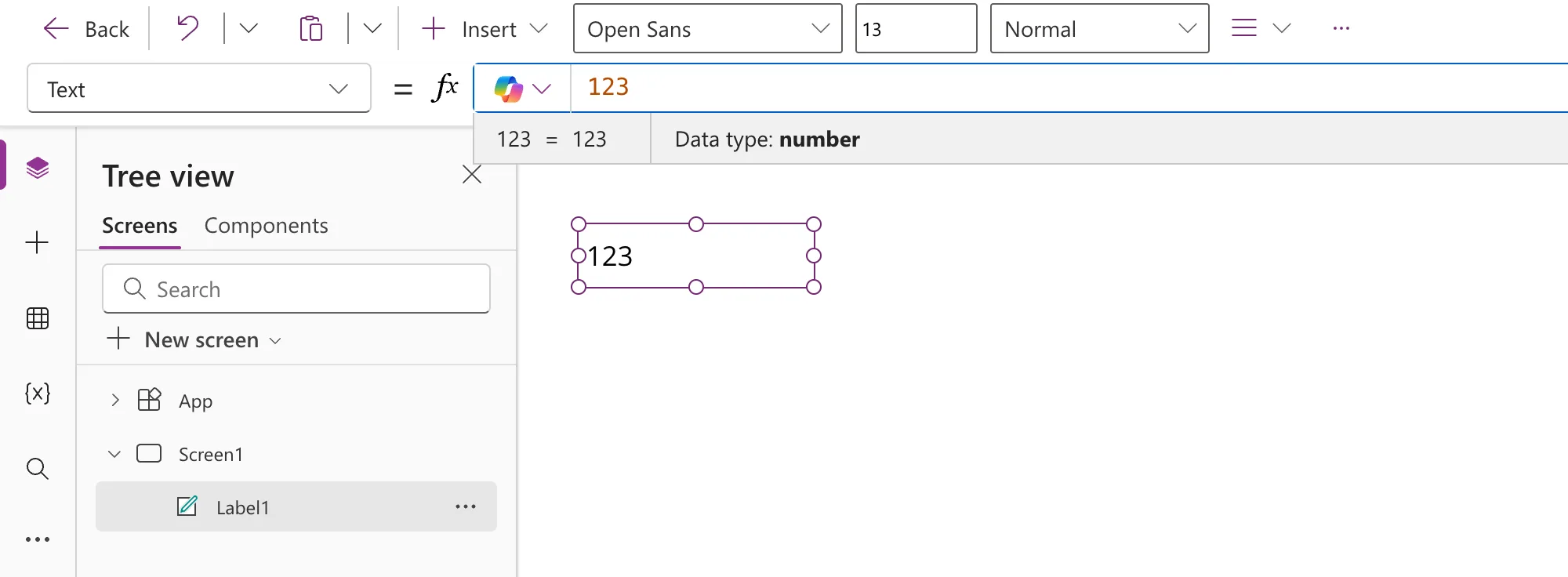
While you are editing a formula, Power Apps shows a strip under the formula bar with its result and its data type — the kind of value it is. Here the data type is number. The label still displays 123, because Power Apps converts a number for display on its own, which is exactly why the difference is so easy to miss.
Now convert it. Replace the formula with:
Text(123)
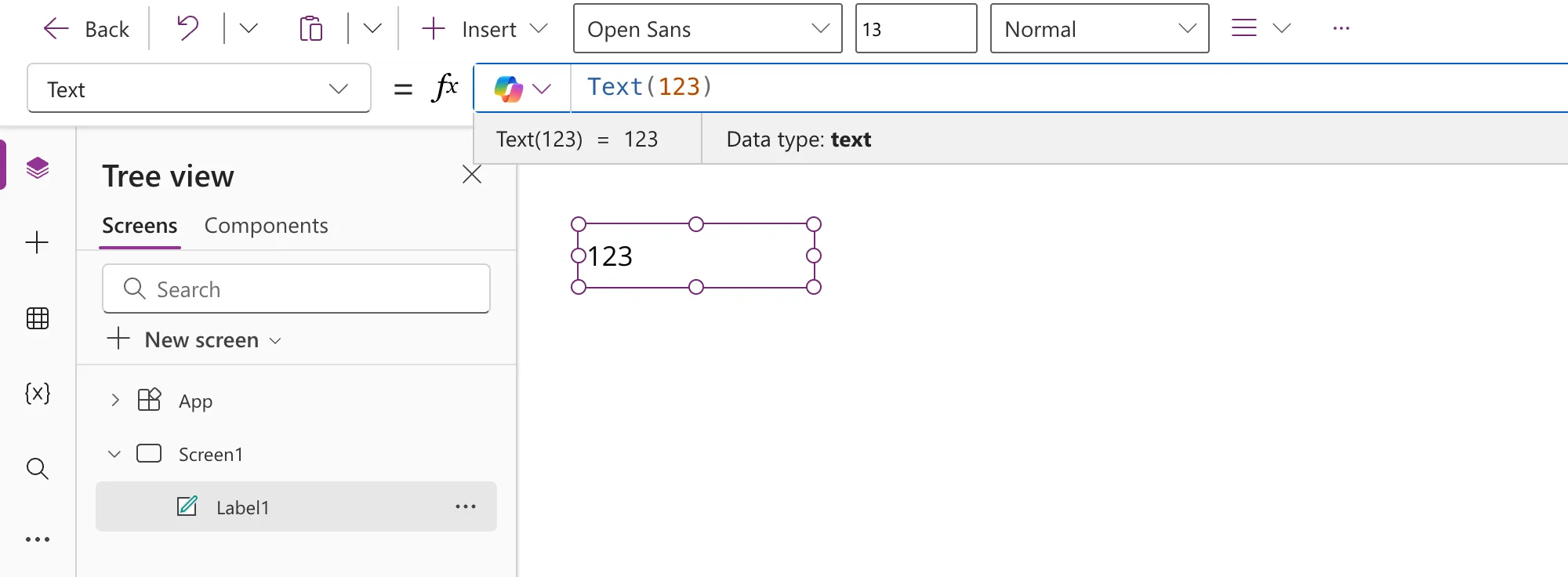
Nothing changed on the screen, but the strip now says Data type: text. That is the whole conversion: Text() takes a number and gives back its text form, and from here on the value behaves like any other text.
Do You Always Need Text()?
Not to display a number, and not to join one onto other text: the & operator, Power Fx's "join" symbol, converts for you. "Quantity: " & 5 shows Quantity: 5 with no Text() at all.
You need Text() when:
- You want to control how the number looks — separators, decimal places, currency, leading zeros. That is the rest of this guide.
- You compare a number with text. Power Apps does not convert for you there:
"5" = 5is false, with no error to warn you. Convert one side first —Value("5") = 5is true.Value()goes the other way, from text to number, and you will use it in Step 5.
Step 4: Add Thousands Separators and Decimal Places
Give Text() a second argument: a format, which is a pattern of placeholder characters in double quotes. Replace the formula with:
Text(123456.789, "#,##0.00")
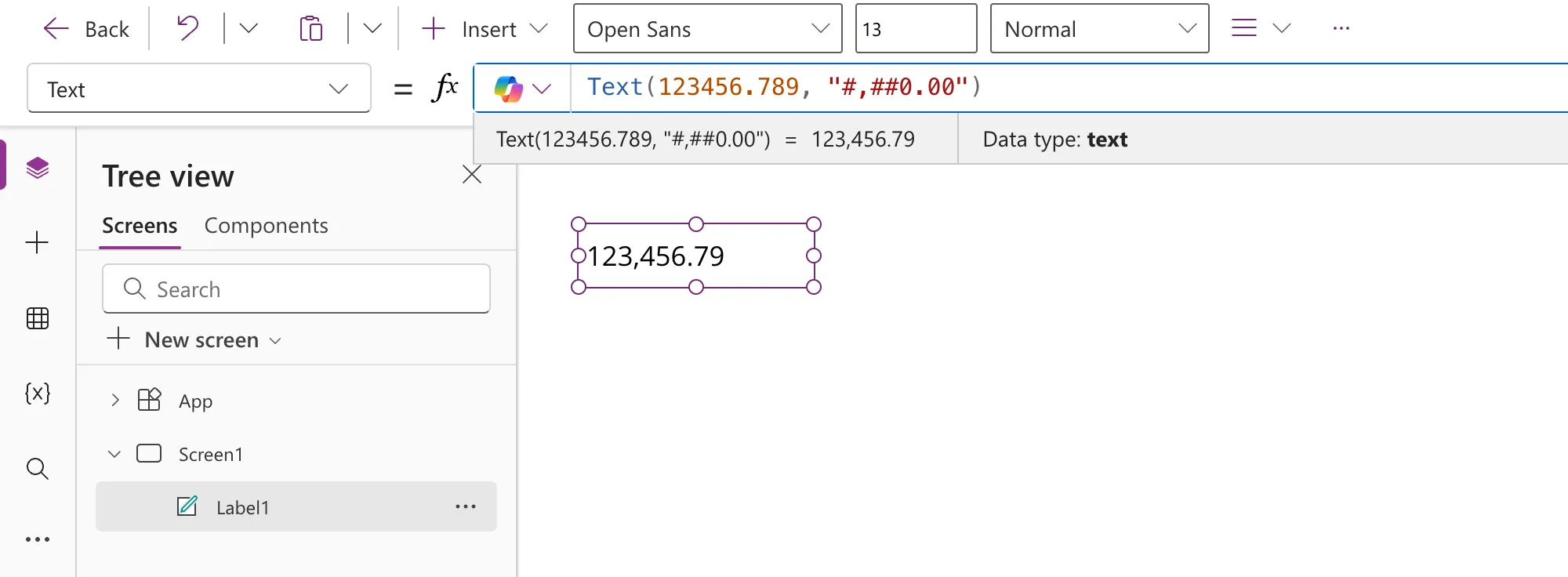
The label now reads 123,456.79 — a thousands separator and exactly two decimal places. Here is what each character in #,##0.00 does:
| Placeholder | What it means | Example | Result |
|---|---|---|---|
0 | A digit that is always shown, padded with a zero if needed | Text(42, "00000") | 00042 |
# | A digit that is shown only when the number has one | Text(8.9, "#.##") | 8.9 |
. | The decimal point | Text(0.5, "0.00") | 0.50 |
, | A thousands separator, when it sits between # or 0 symbols | Text(1234.5, "#,##0") | 1,235 |
Two details in that table are easy to trip over:
- Extra decimals are rounded, not cut off.
.789became.79above,Text(0.125, "0.00")gives0.13, andText(2.5, "0")gives3. - Put a
0, not a#, before the decimal point.Text(0.5, "#.00")gives.50, because#doesn't show a lone zero."0.00"gives0.50.
More Formats to Copy
Each of these was run in the same label:
| Formula | Result |
|---|---|
Text(1234567.891) | 1234567.891 |
Text(-1234.5, "#,##0.00") | -1,234.50 |
"INV-" & Text(42, "00000") | INV-00042 |
Text(1234.5, "€ #,##0.00") | € 1,234.50 |
Text(1234.5, "#,##0.00 €") | 1,234.50 € |
Text(0.256 * 100, "0.0") & "%" | 25.6% |
Text(1234567.89, "#,##0.00", "de-DE") | 1.234.567,89 |
Text(1234567.89, "#,##0.00", "fr-FR") | 1 234 567,89 |
The first row is Text() without a format: no separators, and every decimal kept. The last two add a third argument, a language tag — de-DE is German as written in Germany, fr-FR French as written in France — and the result follows that language's separators. You will meet the third argument again in Step 8.
In Excel, a % in a number format multiplies the value by 100. In Power Apps it doesn't: Text(0.256, "0.0%") gives 0.3% — the % comes out as a plain character, and the number is never multiplied. Multiply first and add the sign yourself: Text(0.256 * 100, "0.0") & "%" gives 25.6%.
Step 5: Format a Number Someone Types
In a real app, most numbers arrive from somewhere else — a data source, or a person typing into a box. The box is where people get stuck, so build one.
On the command bar, select Insert, then Text input.
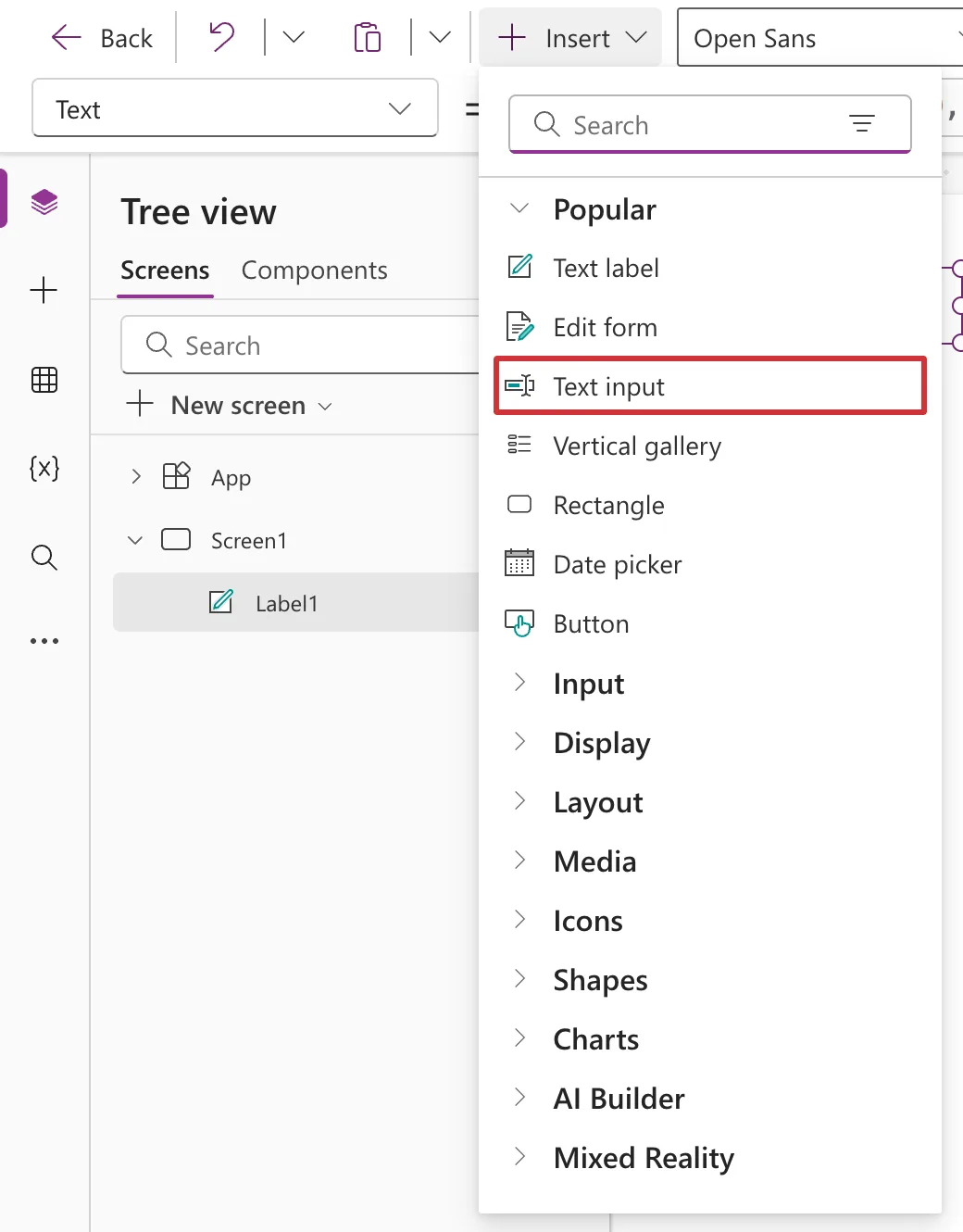
The new TextInput1 lands on top of the label. Drag it below Label1 — or type 40 and 100 into the two Position boxes (X and Y) in the Properties pane on the right.
With the text input selected, the property list shows Default: what the box contains when the app starts. Replace "Text input" with a starting number:
"1234567.891"
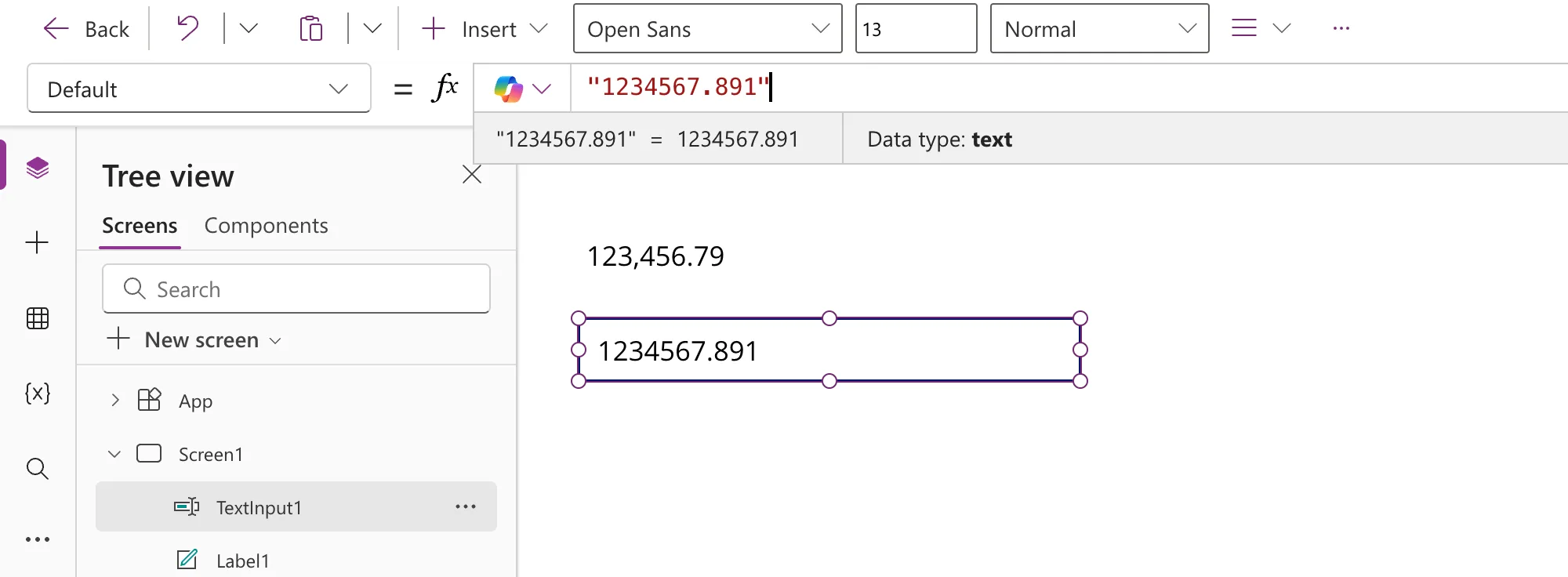
Look at the strip: Data type: text. Whatever someone types into a text input — even if it is only digits — reaches your formulas as text.
Now add a second label to show that value formatted. Select Insert → Text label again. The new label is Label2: drag it below the text input, and drag its right edge out until it is as wide as the box — or, in the Properties pane, set Position Y to 160 and Size Width to 320. Then give it the formula most people try first:
Text(TextInput1.Text, "#,##0.00")
TextInput1.Text means "whatever is in the TextInput1 box right now".
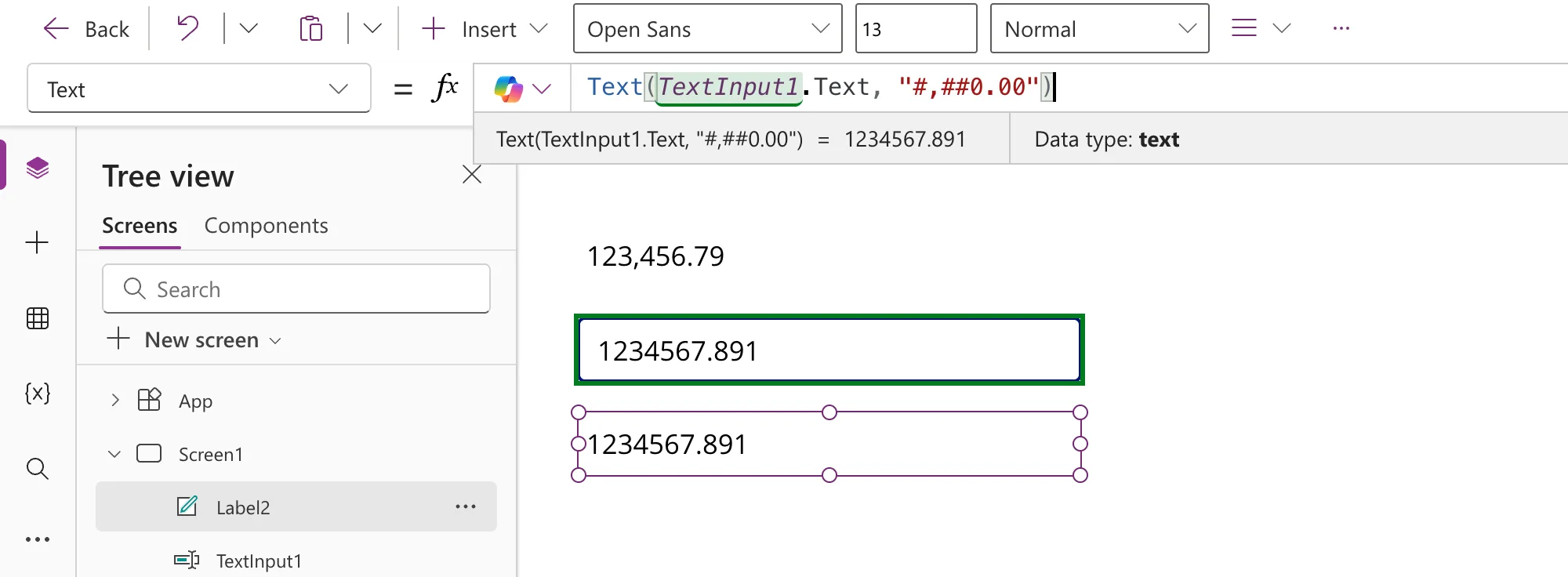
It doesn't work. Label2 shows 1234567.891 — no separators, no rounding, and no error to explain why. Text() formats numbers and dates; give it text and it hands the same text straight back, so the format is silently ignored.
The fix is to turn the text into a number first, with the Value() function:
Text(Value(TextInput1.Text), "#,##0.00")
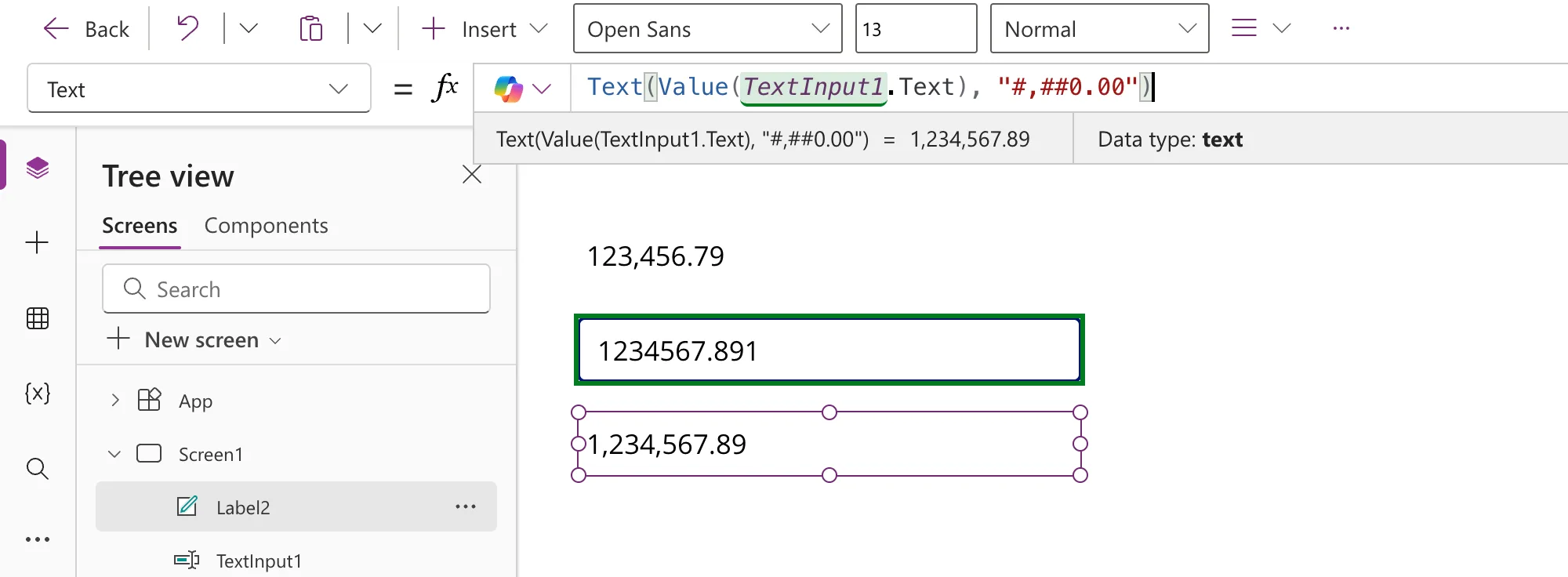
Now it reads 1,234,567.89. Read the formula from the inside out:
| Part | Gives you | Data type |
|---|---|---|
TextInput1.Text | "1234567.891" | text |
Value(TextInput1.Text) | 1234567.891 | number |
Text(…, "#,##0.00") | "1,234,567.89" | text |
Value() reads separators the way the user's language writes them, so Value("1,234.50") gives the number 1234.5.
Step 6: Test the App in Preview
So far you have been editing. To use the app the way its users will, select Preview the app — the play button near the top right — or press F5.

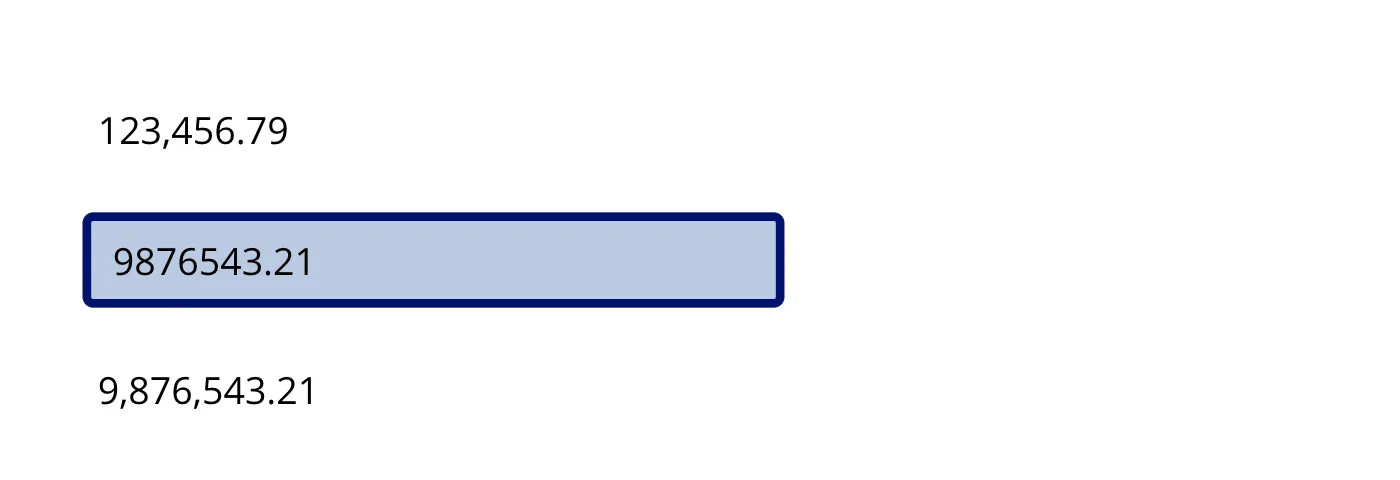
Click in the box, clear it, and type 9876543.21. Label2 updates with every key you press:
Now type something that isn't a number, such as abc:
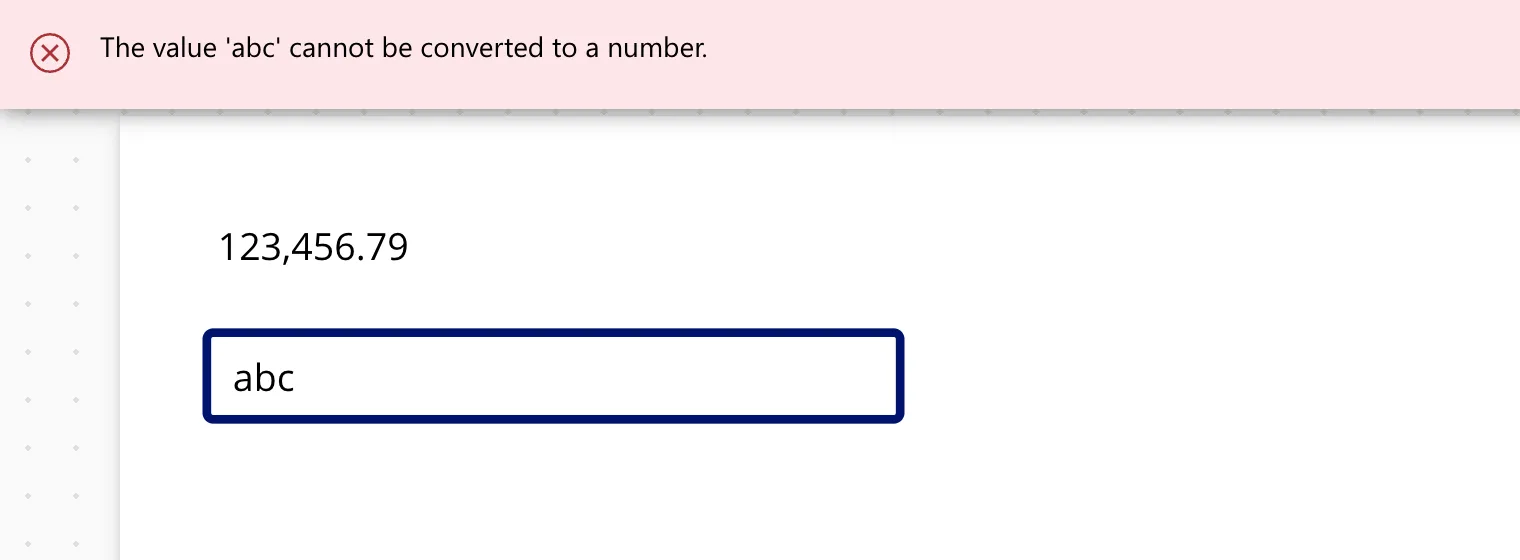
Label2 goes blank, and a red banner appears: The value 'abc' cannot be converted to a number. That is Value() failing — and the people using your app would see that banner too. Leave Preview with the X at the top right, or press Esc.
The first time you close Preview, a Did you know? tip may appear. Select Ok to dismiss it.
Step 7: Stop Letters Before They Cause Errors
A dependable fix has two layers: stop bad input at the box, and catch whatever still gets through. Guarding the input is always cheaper than explaining an error to a user.
Layer 1: accept only numbers. Select TextInput1. In the Properties pane, open Format and choose Number.
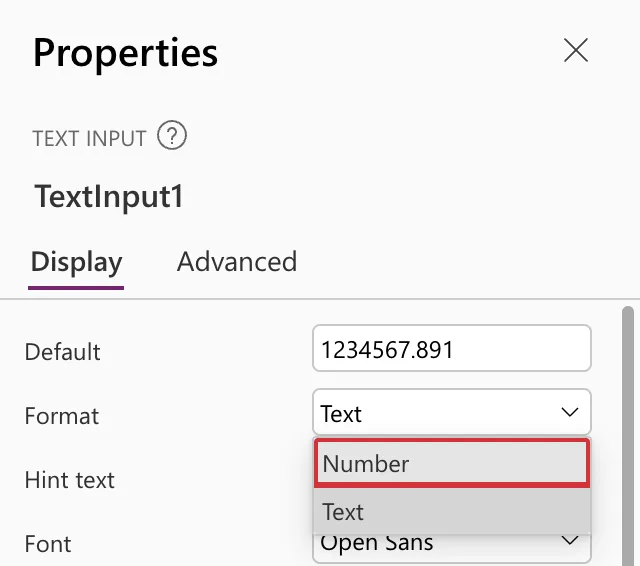
Now letters simply don't appear when someone types them, and phones and tablets can offer a number keypad for the box. In my test the box also dropped commas (1,234.5 became 1234.5) and a second decimal point (12.5.6 became 12.56), while a minus sign was allowed so negative numbers still work. Which symbols it accepts depends on the browser's language, so test it in yours.
Layer 2: a friendly fallback. A box that accepts only numbers can still hold something that isn't one yet. Start typing -25, and for a moment the box contains just - — which Value() can't convert, so the red banner flashes up again. Wrap the formula in IfError(), which shows its second argument whenever the first one fails:
IfError(Text(Value(TextInput1.Text), "#,##0.00"), "Enter a number")
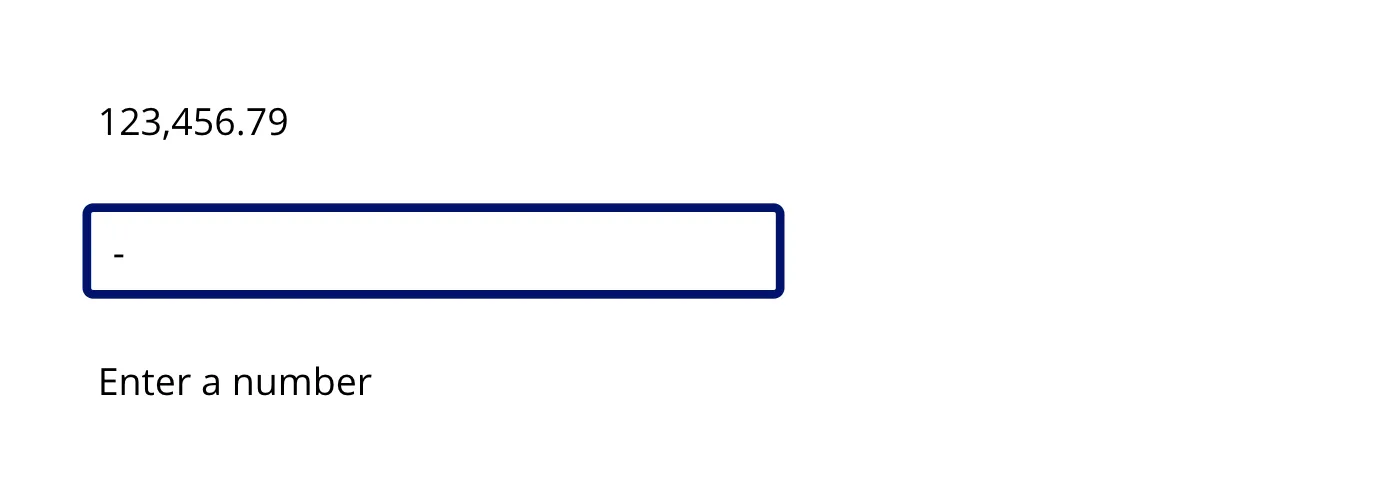
A half-typed - now shows Enter a number with no banner, and finishing it as -25 shows -25.00.
Step 8: Show Currency Symbols Correctly
Currency is where Text() surprises people. Select Label1 and give it a dollar format:
Text(1234.5, "$#,##0.00")
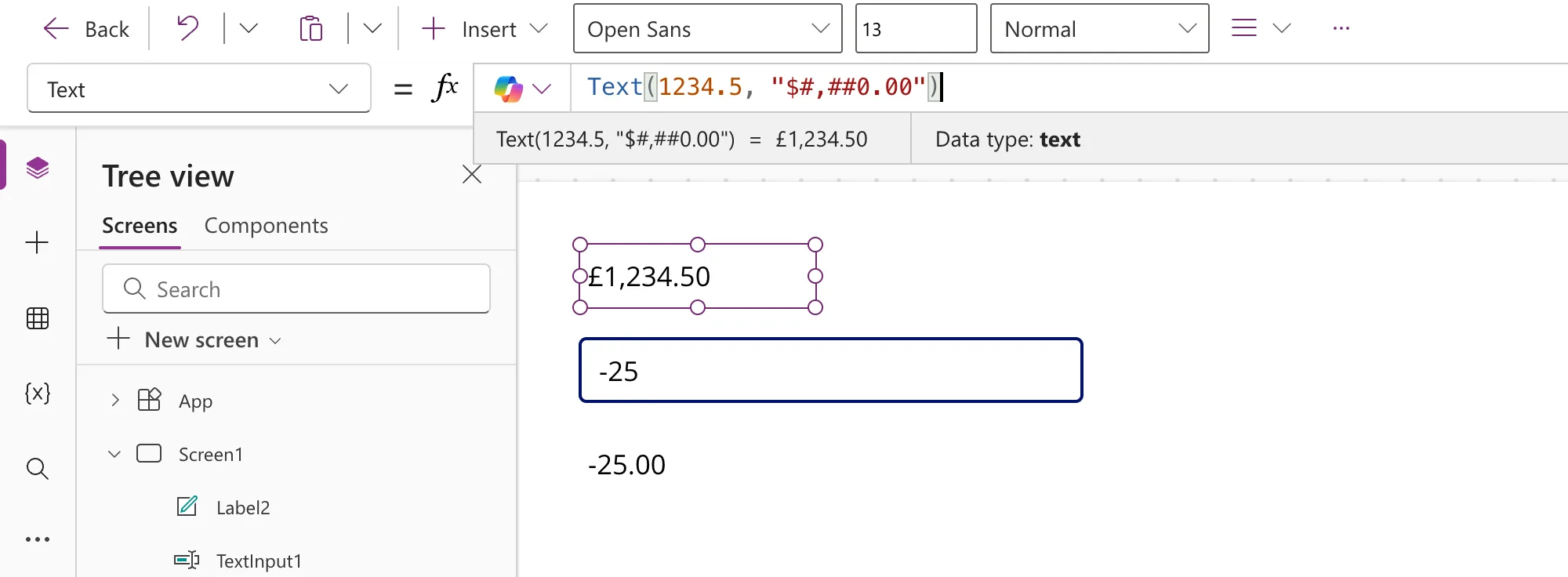
The label says £1,234.50 — a pound sign, from a formula that asks for a dollar. In a format, $ is not a dollar sign: it stands for the currency symbol of the user's language. In the web version of Power Apps that language comes from the browser, and mine is set to English (United Kingdom), so Power Apps wrote a pound sign. You can check your own with the Language() function, which returned en-GB for me. Microsoft's own examples show $ only because they assume a user in the United States.
The third argument shows what other people get, because it sets the language the result is written in:
| Formula | Result |
|---|---|
Text(1234.5, "$#,##0.00", "en-US") | $1,234.50 |
Text(1234.5, "$#,##0.00", "en-GB") | £1,234.50 |
Text(1234.5, "$#,##0.00", "de-DE") | €1.234,50 |
Text(1234.5, "$#,##0.00", "ja-JP") | ¥1,234.50 |
Only the symbol and the separators change — the amount is never converted. If your prices are in US dollars, a customer in the UK who sees £1,234.50 is looking at a wrong price. Choose the formula that matches your data.
One currency for everyone. Fix the result's language with the third argument, and everyone sees dollars with US separators:
Text(1234.5, "$#,##0.00", "en-US")
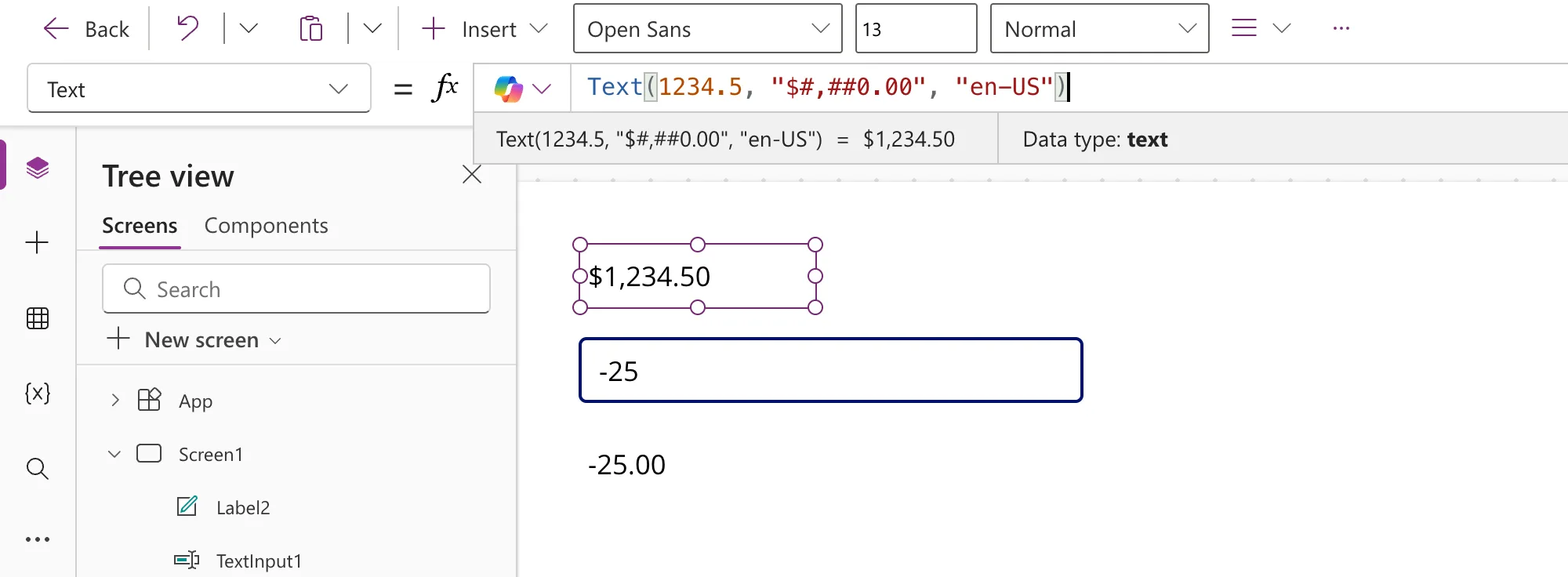
Dollars, with the separators each user expects. Join a literal $ onto a format that has no currency placeholder. A user whose language is German sees $1.234,50:
"$" & Text(1234.5, "#,##0.00")
Another fixed currency. A € is written exactly as you type it: Text(1234.5, "€ #,##0.00") gives € 1,234.50.
Each user's own currency. Keep "$#,##0.00" only when the amount really is in the currency of whoever is looking at it.
Microsoft's docs describe a language placeholder, [$-en-US], that you can put inside a format. It tells Power Apps how to read the format, not which language to write the result in: Text(1234.5, "[$-en-US]$#,##0.00") still gave me £1,234.50. To change the result, use the third argument.
Clean Up
Nothing has been saved yet, so the practice app isn't stored in your environment. To throw it away, select Back at the top left of Studio, then Don't save:
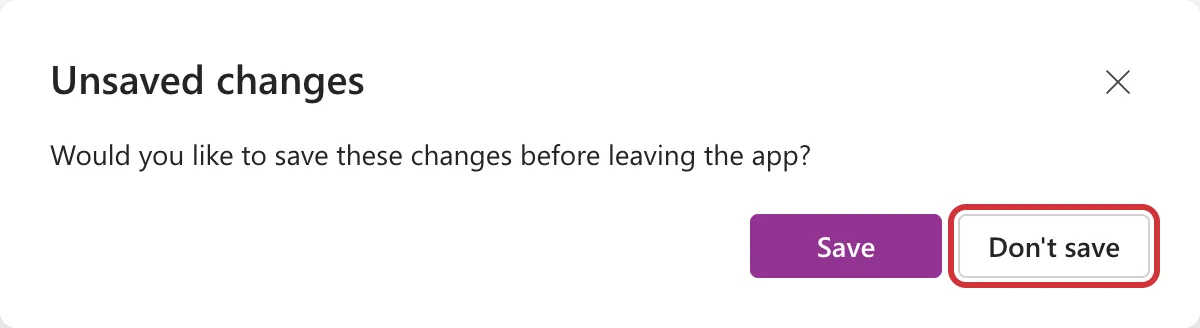
If you did save the app, it stays in your environment until you delete it. In Power Apps, select Apps in the left navigation, select the app, select Delete, and confirm with Delete from cloud. That removes the app for everyone you shared it with, too.
Text() Cheat Sheet
The formulas from this guide on one card, each with the result it gave in the app:
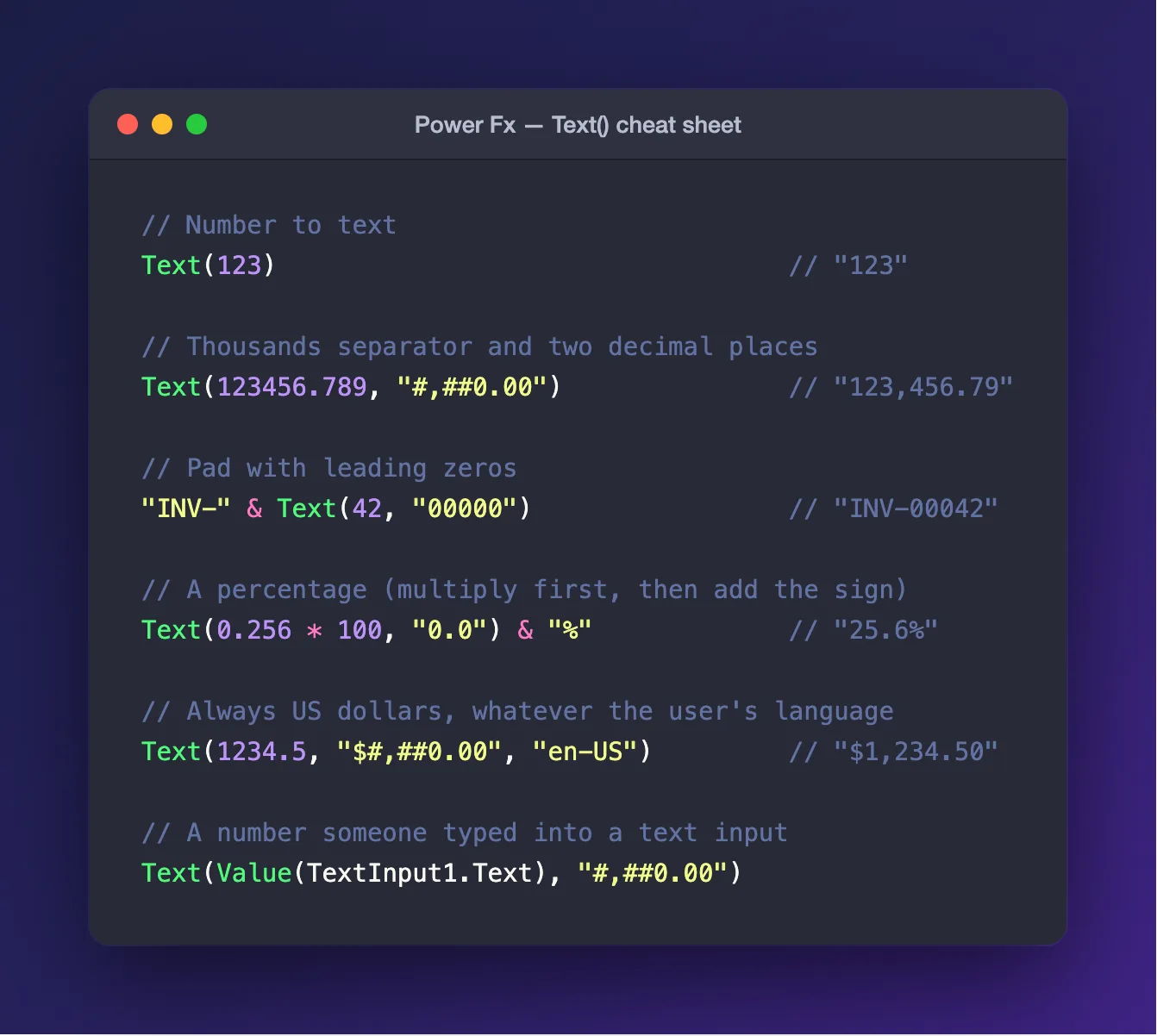
The same formulas, ready to copy:
// Number to text
Text(123)                                  // "123"

// Thousands separator and two decimal places
Text(123456.789, "#,##0.00")               // "123,456.79"

// Pad with leading zeros
"INV-" & Text(42, "00000")                 // "INV-00042"

// A percentage (multiply first, then add the sign)
Text(0.256 * 100, "0.0") & "%"             // "25.6%"

// Always US dollars, whatever the user's language
Text(1234.5, "$#,##0.00", "en-US")         // "$1,234.50"

// A number someone typed into a text input
Text(Value(TextInput1.Text), "#,##0.00")
Common Mistakes
| Mistake | What happens | Do this instead |
|---|---|---|
Formatting a text input directly: Text(TextInput1.Text, "#,##0.00") | The value comes back unformatted, with no error | Text(Value(TextInput1.Text), "#,##0.00") |
Using "$#,##0.00" for amounts in US dollars | Other users see their own symbol, such as £1,234.50, on the same amount | Text(x, "$#,##0.00", "en-US"), or "$" & Text(x, "#,##0.00") |
Using Excel's percent format, "0.0%" | 0.256 shows as 0.3% | Text(x * 100, "0.0") & "%" |
| Comparing text with a number | "5" = 5 is false, and no error tells you why | Convert the text first: Value("5") = 5 |
A # before the decimal point, as in "#.00" | 0.5 shows as .50 | Use "0.00" |
| Letting people type anything into a box meant for numbers | Letters raise a red error banner in the app | Set Format to Number, and wrap the formula in IfError() |
Troubleshooting
| Symptom | Likely cause | Fix |
|---|---|---|
The label shows the number unchanged, such as 1234567.891 | The value is text — typically from a text input — so Text() ignores the format | Wrap the value in Value(): Text(Value(TextInput1.Text), "#,##0.00") |
| A red banner: The value 'abc' cannot be converted to a number. | Value() was given something that isn't a number | Set Format to Number on the text input, and wrap the formula in IfError() |
| The label is empty | The box is empty — formatting an empty value gives an empty result — or Value() failed | Type a number; if a red banner appeared as well, see the row above |
| A £, € or ¥ sign appears instead of $ | $ in a format stands for the currency symbol of the user's language | Add "en-US" as the third argument, or join "$" & in front of a format without $ |
| A percentage is 100 times too small | % in a format doesn't multiply the number | Multiply by 100 before formatting, then add & "%" |
Formulas copied from this post fail, and yours use ; between arguments | Your browser's language writes decimals with a comma, so Power Apps separates arguments with ; | Use ; between arguments and , as the decimal point in numbers — Microsoft's global support article shows one formula written both ways |
FAQ
How do I convert a number to text in Power Apps?
Use the Text() function: Text(123) gives the text "123". Add a format as the second argument to control how it looks — Text(123456.789, "#,##0.00") gives "123,456.79".
How do I format a number with commas and two decimal places?
Use Text(YourNumber, "#,##0.00"). The comma adds thousands separators, and .00 forces exactly two decimal places.
Does Text() round or cut off extra decimals?
It rounds. Text(0.125, "0.00") gives 0.13, and Text(2.5, "0") gives 3.
How do I add leading zeros to a number?
Use one 0 for each digit you want: Text(42, "00000") gives 00042. Join a prefix with & for codes such as invoice numbers: "INV-" & Text(42, "00000") gives INV-00042.
How do I convert text back to a number?
Use Value(): Value("1,234.50") gives the number 1234.5. If the text isn't a number, Value() produces an error, so wrap it in IfError() as in Step 7.
Why does my dollar sign show as £ or €?
In a format, $ stands for the currency symbol of the user's language, which in the web version of Power Apps comes from the browser. Fix the language with a third argument, Text(x, "$#,##0.00", "en-US"), or join a literal sign in front: "$" & Text(x, "#,##0.00").
How do I show a percentage?
Multiply by 100 and add the sign yourself: Text(0.256 * 100, "0.0") & "%" gives 25.6%. The Excel-style format "0.0%" gives 0.3%.
Can Text() format dates as well?
Yes. Text(Date(2026, 9, 30), "dd mmm yyyy") gives 30 Sep 2026. Microsoft's Text function reference lists every date placeholder, along with ready-made formats such as DateTimeFormat.LongDate that adapt to each user's language.
What about the modern Number input control?
I didn't use it in this guide. According to Microsoft's documentation, its Value property is already a number, so you can format it with Text() directly and skip Value().
How do I do the same thing in Power Automate?
Flows use expressions instead of Power Fx: string() converts a number to text, and formatNumber() formats it. The Power Automate version of this guide walks through both.
Conclusion
Converting a number or integer to text in Power Apps comes down to one function, Text(). On its own it changes the data type — the formula bar's Data type readout proves it — and with a format such as "#,##0.00" it controls separators, decimal places and leading zeros in the same step.
The traps are all about what goes in. Text from a text input passes through Text() untouched until you convert it with Value(); a box set to Format → Number, plus an IfError() fallback, keeps letters and half-typed numbers from turning into errors; and a $ in a format follows each user's language unless you pin the result to "en-US" or join the symbol yourself. Get those three right, and your numbers read the way people expect, on every screen.
Additional Resources
- Text function — every number and date placeholder, and the language arguments.
- Decimal, Float, and Value functions — converting text back into numbers.
- IfError function — showing a fallback when a formula fails.
- Language function — the language tag your app is running in.
- Build global support into canvas apps — why separators and formula syntax change with the browser's language.
- Text input control — the Format property and the rest of the control's settings.
- Delete a canvas app — Microsoft's steps for removing an app you saved.
- Power Apps Developer Plan — a free environment for building and testing.
- Convert Number or Integer to Text or String using Power Automate (Microsoft Flow) — the same task in a flow, with
string(). - Search for users (V2) Example in Power Automate (Microsoft Flow) — another Power Platform walkthrough on this site.
