Build a Career Development Plan App in Power Apps — Part 9: Let Managers Manage Competencies

This part lets managers keep each job title's plan up to date: add a competency, change its level or remove it, from one Competency screen. Every change applies to everyone with that job title, so the screen says so, checks for duplicates, asks before removing, and tells reviewers when a plan changed under a response.
This is Part 9 of a 14-part series.
- Part 1: Plan the App and Set Up the Demo Organization
- Part 2: Create the SharePoint Site and Lists
- Part 3: Create the Solution, Environment Variables and Canvas App
- Part 4: Build the Home Screen
- Part 5: Build the My Plan Screen
- Part 6: Build the Response Screen
- Part 7: Share the App and Build the My Team Screens
- Part 8: Build the Review Screen for Manager Approvals
- Part 9: Let Managers Manage Competencies (you are here)
- Part 10: Test Every Role, Joiners and Leavers (coming soon)
- Part 11: Build a Setup Flow That Creates the SharePoint Lists (coming soon)
- Part 12: Run the Solution Checker and Export the Solutions (coming soon)
- Part 13: Install the App in a New Environment (coming soon)
- Part 14: Recap, Production Checklist and Next Steps (coming soon)
Until now, the competencies in each plan came from the eight items added to SharePoint in Part 2. This part gives managers the screen to change them, and tests every change with Olivia, the Head of Sales, in her own browser. Three problems came up on the way: text and buttons cut off on the narrowest phones, errors on a duplicated screen, and a pasted button that landed outside its gallery. Each is shown where it happened.
What You'll Build
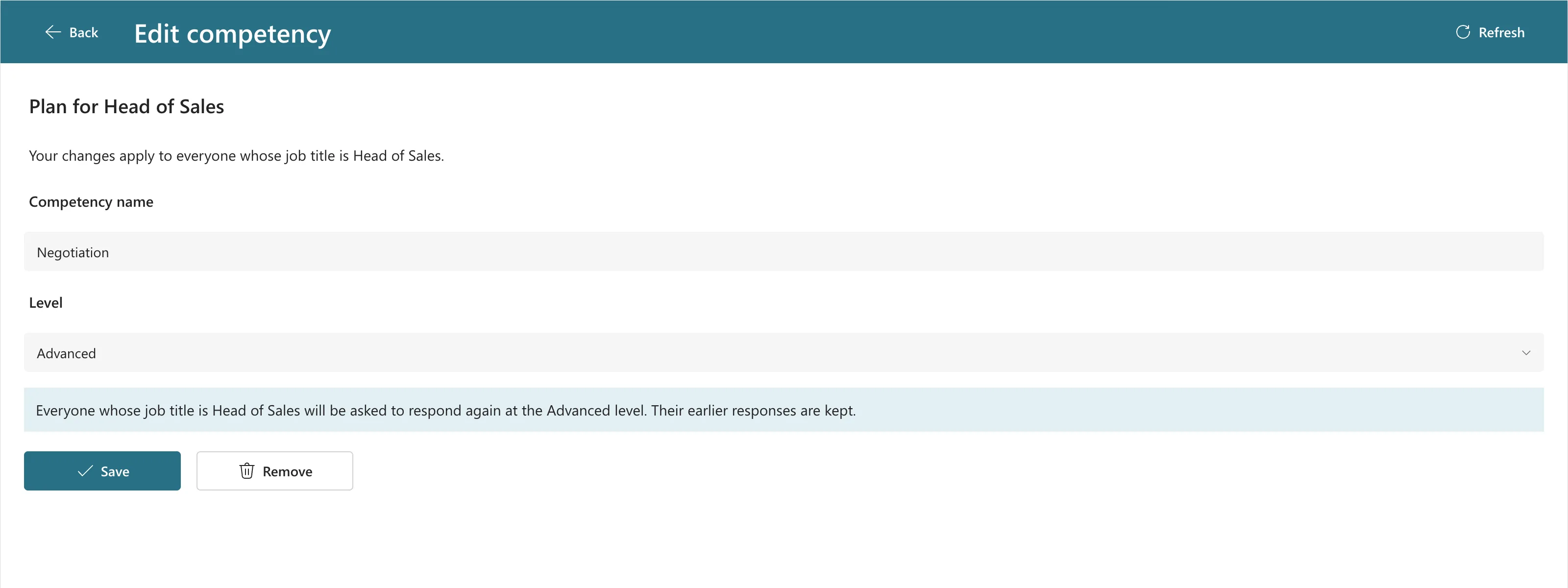
The Competency screen, here editing Negotiation after the manager picked a new level:
How it fits in:
- One screen adds and edits. It opens with a competency's ID to edit, or without one to add.
- Changes apply to a job title, so the screen says who's affected, and changing a level warns that people respond again.
- No duplicates, even with different capitalization.
- Remove doesn't delete. It asks first, then marks the competency inactive. Adding the same name again brings it back.
- The Review screen notes a changed plan, when a level changed or a competency was removed after the response was sent.
- Every list fits a 360-pixel phone.
Prerequisites
- Part 8 completed, with the app published.
- Olivia's account, to test as an employee. The admin is her manager.
- The guides this part relies on, by topic. Each step says which one to follow.
- Building the screen:
- Choosing a level:
- Saving and removing:
Step 1: Check the Lists at the Narrowest Phone Size
This part adds an Edit button to each row of the Team Member screen's plan list. A button beside the text leaves the text less room, so before adding it, I previewed the app at the narrowest phone in Studio's Phones list, the Samsung Galaxy A33 5G at 360 × 800 (How to Test on Phone and Tablet Sizes).
The app's existing screens had problems there. The Home title wrapped and was cut, its My team button ran off the screen, and the My team row showed only Olivia and Head of beside a wide Open button. The whole row was already clickable; the button is there for keyboard users, as Microsoft's gallery guidance asks. So the button stays, but on phones it shows only a chevron. Fixed: Text and Buttons Cut Off on Narrow Phones has the measurements and the evidence. These are the changes:
| Controls | Property | Formula |
|---|---|---|
btnOpenMTS, btnOpenMPS, btnReviewTMS | Icon | "ChevronRight" |
| Layout | If(App.ActiveScreen.Size = ScreenSize.Small, ButtonLayout.IconOnly, ButtonLayout.IconAfter) | |
| Width | If(App.ActiveScreen.Size = ScreenSize.Small, 40, 96) | |
| Tooltip | "Open", "Open", "Review" | |
lblNameMTS, lblJobTitleMTS | Width | Parent.TemplateWidth - btnOpenMTS.Width - 112 |
lblCompetencyMPS, lblLevelMPS | Width | Parent.TemplateWidth - btnOpenMPS.Width - 48 |
lblPendCompetencyTMS, lblPendLevelTMS, lblPendSentTMS | Width | Parent.TemplateWidth - btnReviewTMS.Width - 48 |
lblTitleHS, MPS, RS, MTS, TMS, RVS | Size | If(App.ActiveScreen.Size = ScreenSize.Small, 18, 20) |
btnMyPlanHS, btnMyTeamHS | Width | If(App.ActiveScreen.Size = ScreenSize.Small, (Parent.Width - Parent.LayoutGap) / 2, 160) |
On larger screens, the row buttons keep their text, with a chevron after it: Open ›. At 360 pixels, the My team row now shows the full name:
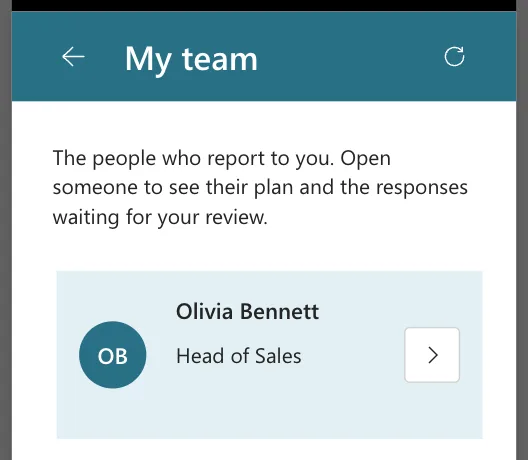
I tried the canvas's Small size for this too, at the bottom of the canvas. It changed the canvas to 600 pixels wide, but the buttons kept their text: Microsoft's responsive layout article says the authoring canvas doesn't respond to sizing formulas. Use the preview's Phones list, or the published app, to check them.
Step 2: Add the Level Options and the Name Limit
Two named formulas go at the end of App.Formulas (How to Use Named Formulas):
LevelOptions = Choices(RoleCompetencies.Level);
CompetencyMaxLength = 25;

LevelOptionsreads the levels from SharePoint's Level column, so the app never types them (How to Get the Options of a SharePoint Choice Column).CompetencyMaxLengthcaps names at 25 characters. After Step 1, the narrowest name label in the lists is about 216 pixels wide on a 360-pixel phone. The longest name from Part 2, Stakeholder management, has 22 characters and takes about 186 pixels, so about 25 characters fit on one line.
Step 3: Duplicate the Review Screen
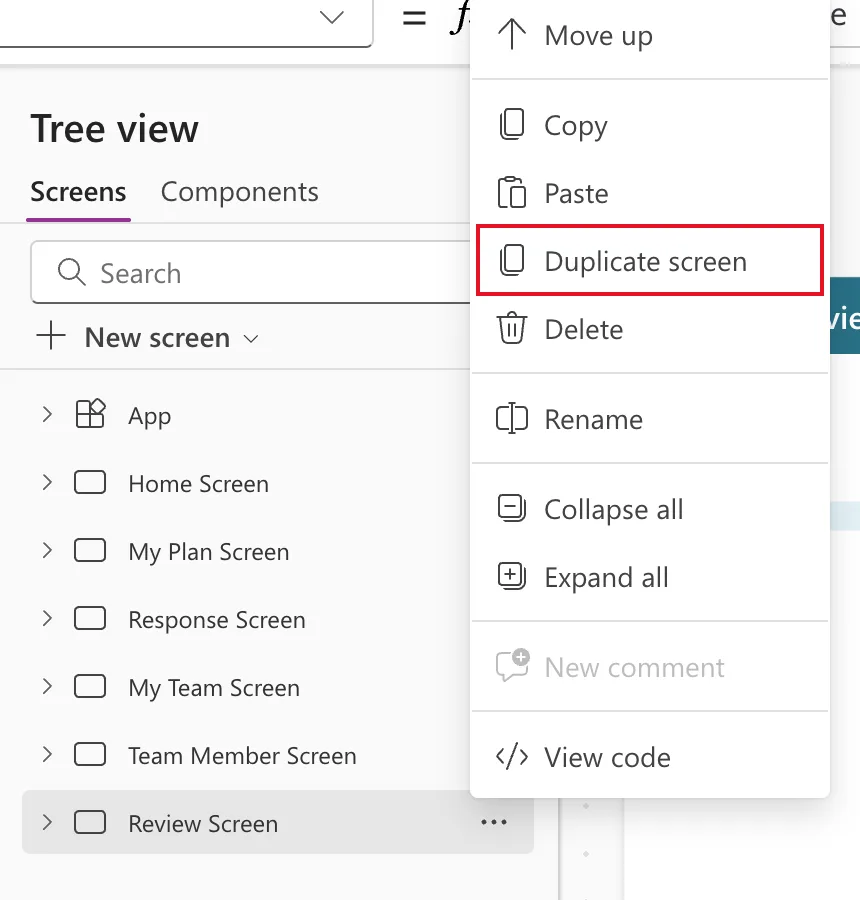
The Competency screen needs most of what the Review screen has: the header with Back, a title and Refresh, a scrolling body, a text box with a count and a row of two buttons. In Tree view, select ... on Review Screen → Duplicate screen (How to Duplicate a Screen):
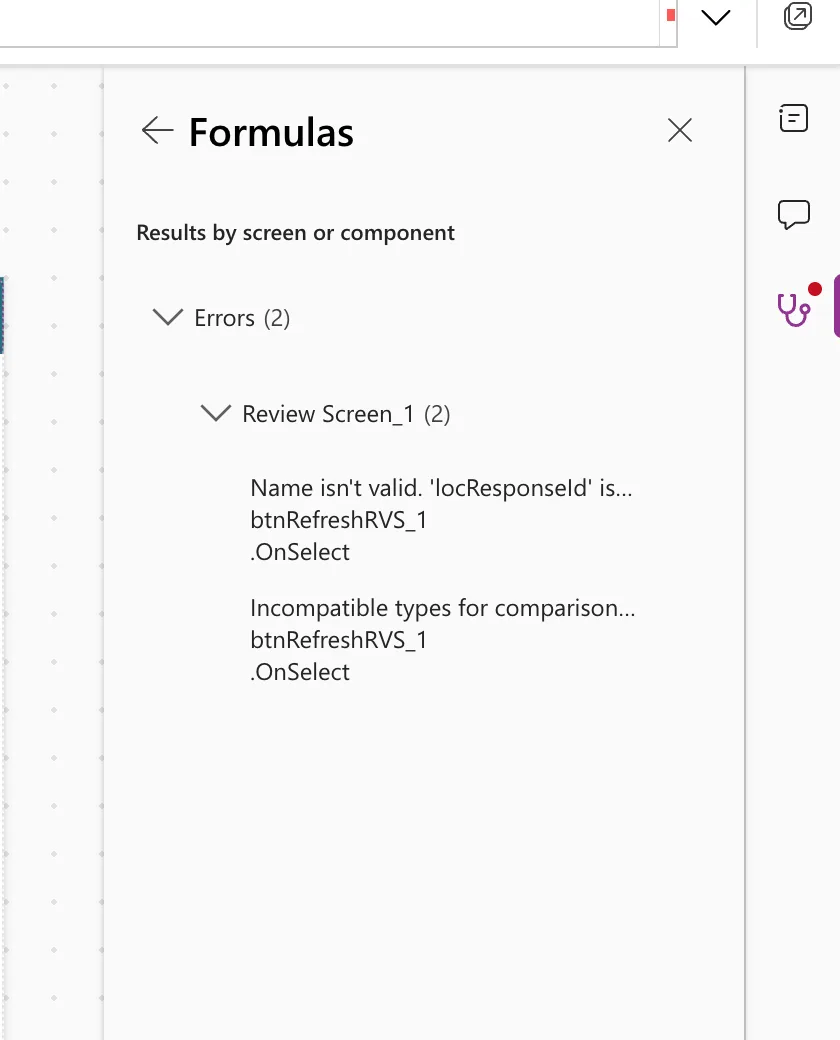
Review Screen_1 appeared, with _1 on every control, and with two errors on its Refresh button: Name isn't valid. 'locResponseId' isn't recognized. and Incompatible types for comparison. These types can't be compared: Number, Error. The copy still read locResponseId, which only the Review screen receives. Steps 4 and 5 fix it, as Fixed: "Incompatible Types for Comparison" explains.
Rename the screen Competency Screen and its controls with the suffix CS. Several copied labels take a new job:
| Copy | Renamed | Becomes |
|---|---|---|
conMainRVS_1, conHeaderRVS_1, btnBackRVS_1, lblTitleRVS_1, btnRefreshRVS_1, conBodyRVS_1, spnLoadingRVS_1, lblCountRVS_1, conActionsRVS_1 | Same names with CS | The same role |
lblCompetencyRVS_1 | lblPlanCS | Plan for Head of Sales |
lblLevelRVS_1 | lblNoteCS | The note about who's affected |
lblInfoRVS_1 | lblNameHintCS | The name's label |
lblCommentHintRVS_1 | lblLevelHintCS | The level's label |
txtCommentRVS_1 | txtNameCS | The name |
lblResponseRVS_1 | lblLevelChangeCS | The shaded level-change note |
btnApproveRVS_1, btnDeclineRVS_1 | btnSaveCS, btnRemoveCS | Save and Remove |
The screen's OnVisible followed the renames on its own: Select(btnRefreshCS). In my session, the body's controls also changed order during the renames, for a reason I didn't find. ... → Reorder → Move to end on each control, in this order, put them right: lblPlanCS, lblNoteCS, spnLoadingCS, lblNameHintCS, txtNameCS, lblCountCS, lblLevelHintCS, lblLevelChangeCS, conActionsCS (How to Reorder Controls in a Container).
Step 4: Open the Competency Screen from the Team Member Screen
The Navigate calls that open the screen come first, because they create its variables (Fixed: "Name Isn't Valid").
Edit from a plan row. Make the plan rows clickable (How to Open Another Screen When a Gallery Row Is Selected):
| Control | Property | Value |
|---|---|---|
galPlanTMS | Selectable | true |
| OnSelect | Navigate('Competency Screen', ScreenTransition.None, {locCompetencyId: ThisItem.ID, locJobTitle: locMemberJobTitle}) |
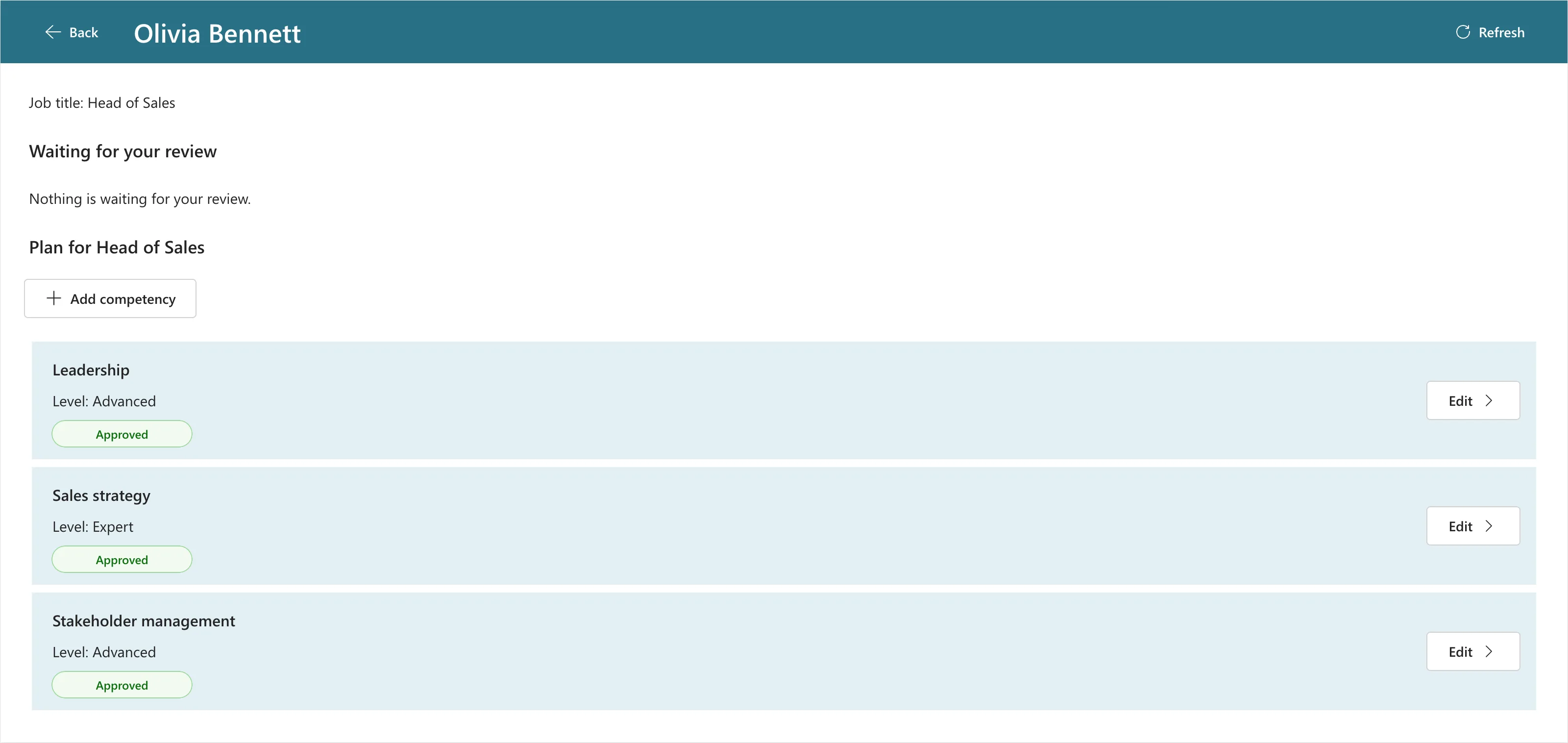
For keyboard users, each row needs a button. The waiting list's Review button from Part 8 already had everything, including Step 1's phone formulas, so I copied it. ... → Paste on galPlanTMS put the copy under the gallery instead of in its rows, with errors about ThisItem. Undo took it away, and pasting on lblPlanCompetencyTMS, a label inside the row, put it in the rows (Fixed: New Control Lands Outside the Gallery). Then:
| Control | Property | Value |
|---|---|---|
btnEditTMS (the copy) | Text | "Edit" |
| Tooltip | "Edit" | |
| AccessibleLabel | "Edit " & ThisItem.Competency | |
lblPlanCompetencyTMS, lblPlanLevelTMS | Width | Parent.TemplateWidth - btnEditTMS.Width - 48 |
Add from a button. Copy the Home screen's My team button, paste it on conBodyTMS, rename it btnAddCompetencyTMS and move it up twice, under the plan's heading:
| Property | Value |
|---|---|
| Text | "Add competency" |
| Icon | "Add" |
| Width | 176 |
| AlignInContainer | AlignInContainer.Start |
| Visible | !locIsLoading && !IsBlank(locMemberJobTitle) |
| OnSelect | Navigate('Competency Screen', ScreenTransition.None, {locCompetencyId: Blank(), locJobTitle: locMemberJobTitle}) |
| AccessibleLabel | "Add a competency to the plan for " & locMemberJobTitle |
AlignInContainer matters: the copy had SetByContainer, which would stretch it across the screen. The Team Member screen, previewed:
Step 5: Load the Competency
Replace the copied loader in the Refresh button (How to Add a Refresh Button to a Screen):
UpdateContext({locIsLoading: true, locIsSaving: false, locConfirmRemove: false});
Refresh(RoleCompetencies);
UpdateContext(
    {
        locCompetency: If(
            IsBlank(locCompetencyId),
            Blank(),
            LookUp(
                RoleCompetencies,
                ID = locCompetencyId
            )
        )
    }
);
Reset(txtNameCS);
Reset(cmbLevelCS);
UpdateContext({locIsLoading: false})
When adding, there's nothing to load. When editing, the competency is read by its ID (How to Get a SharePoint List Item by Its ID). Add Reset(cmbLevelCS) once Step 7 has created the combo box.
The two errors from Step 3 went away, and the App checker listed 45 new ones: every copied control that still read locReview, a variable the old loader had created. They're expected, and each goes away when its control gets its formula in the next steps.
Step 6: Set Up the Header, the Note and the Name
| Control | Property | Formula |
|---|---|---|
lblTitleCS | Text | If(IsBlank(locCompetencyId), "Add competency", "Edit competency") |
btnBackCS | AccessibleLabel | "Back" |
lblPlanCS | Text | "Plan for " & locJobTitle |
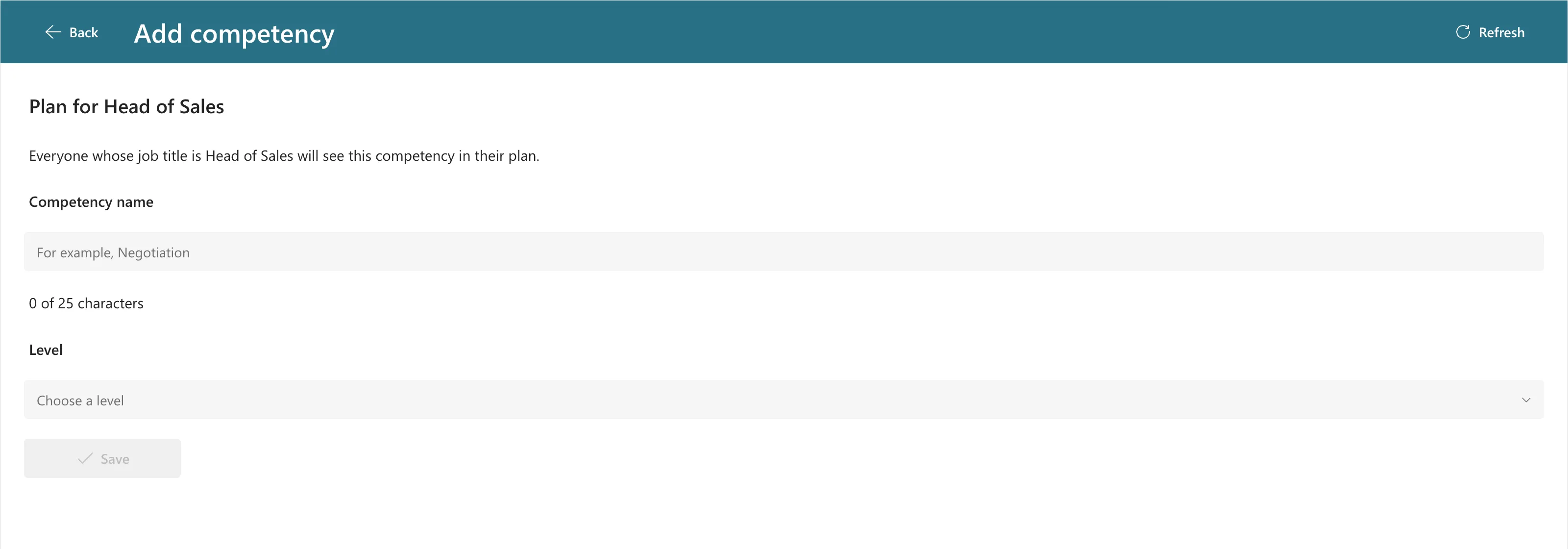
lblNoteCS | Text | If(IsBlank(locCompetencyId), "Everyone whose job title is " & locJobTitle & " will see this competency in their plan.", "Your changes apply to everyone whose job title is " & locJobTitle & ".") |
lblNameHintCS | Text | "Competency name" |
| FontWeight | FontWeight.Semibold | |
txtNameCS | Type | TextInputType.SingleLine |
| Default | locCompetency.Competency | |
| MaxLength | CompetencyMaxLength | |
| Placeholder | "For example, Negotiation" | |
| AccessibleLabel | "Competency name" | |
| Height | 40 | |
| Visible | !locIsLoading | |
| DisplayMode | If(locIsSaving, DisplayMode.Disabled, IsBlank(locCompetencyId), DisplayMode.Edit, DisplayMode.View) | |
lblCountCS | Text | Len(txtNameCS.Text) & " of " & CompetencyMaxLength & " characters" |
| Visible | !locIsLoading && IsBlank(locCompetencyId) | |
lblLevelHintCS | Text | "Level" |
conActionsCS | Visible | !locIsLoading |
The name can't change once the competency exists. Responses point at a competency by its ID, so a renamed competency would keep approvals that were given for something else. To rename, remove it and add the new name (How to Use One Screen to Add and Edit Items).
Opened from Add competency:
Step 7: Add the Level Combo Box
Select the body and insert Input → Combobox, rename it cmbLevelCS and move it up twice, under the Level label (How to Add a Combo Box):
| Property | Value |
|---|---|
| Items | LevelOptions |
| ItemDisplayText | ThisItem.Value |
| SelectMultiple | false |
| IsSearchable | false |
| DefaultSelectedItems | Filter(LevelOptions, Value = locCompetency.Level.Value) |
| InputTextPlaceholder | "Choose a level" |
| AccessibleLabel | "Level" |
| Height | 40 |
| Visible | !locIsLoading |
| DisplayMode | If(locIsSaving, DisplayMode.Disabled, DisplayMode.Edit) |
Opened, it lists the four levels from SharePoint:
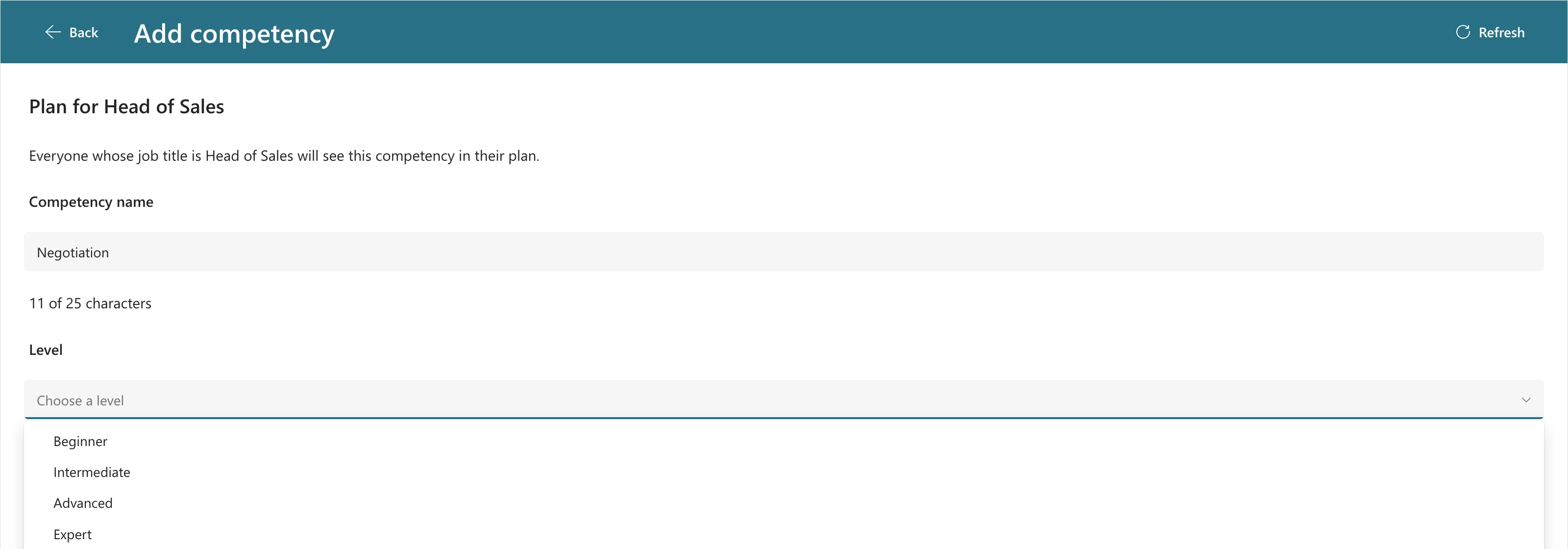
Responses are saved per level, so a new level means everyone with the job title responds again. The shaded lblLevelChangeCS says so when the manager picks a different level for an existing competency:
"Everyone whose job title is " & locJobTitle & " will be asked to respond again at the " & cmbLevelCS.Selected.Value & " level. Their earlier responses are kept."
!locIsLoading && !IsBlank(locCompetency) && !IsBlank(cmbLevelCS.Selected) && cmbLevelCS.Selected.Value <> locCompetency.Level.Value
Step 8: Save with a Duplicate Check
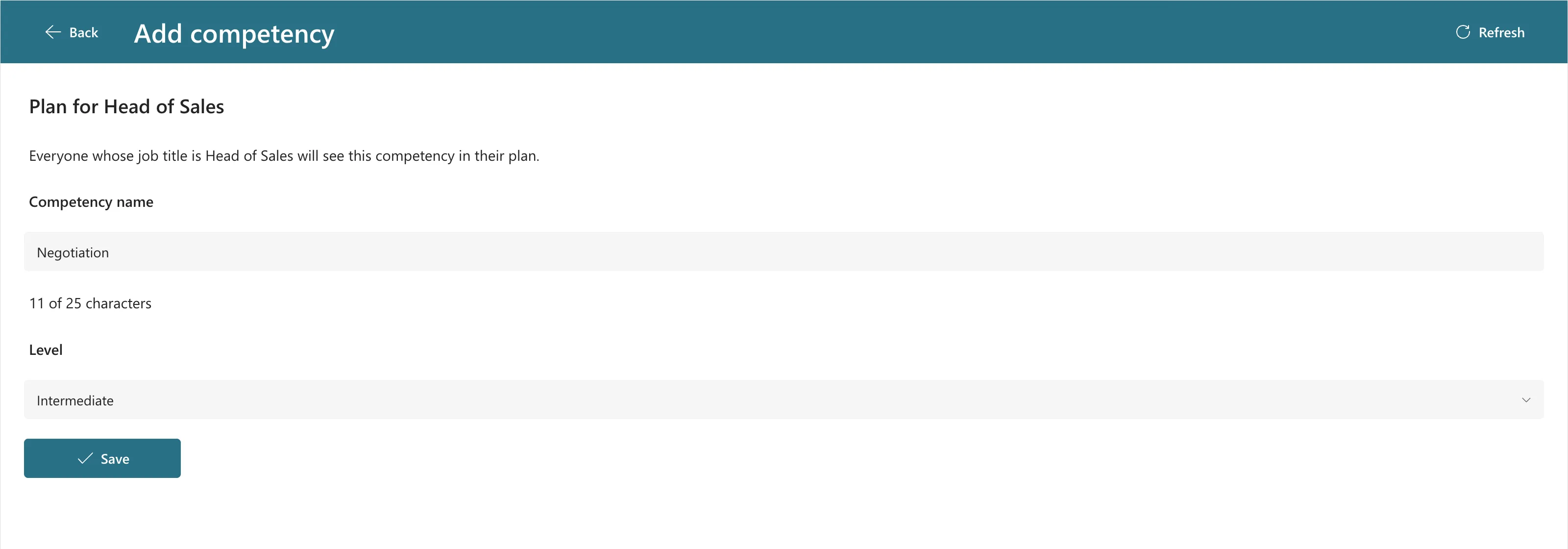
Save needs a name and a level:
If(locIsSaving || IsBlank(Trim(txtNameCS.Text)) || IsBlank(cmbLevelCS.Selected), DisplayMode.Disabled, DisplayMode.Edit)
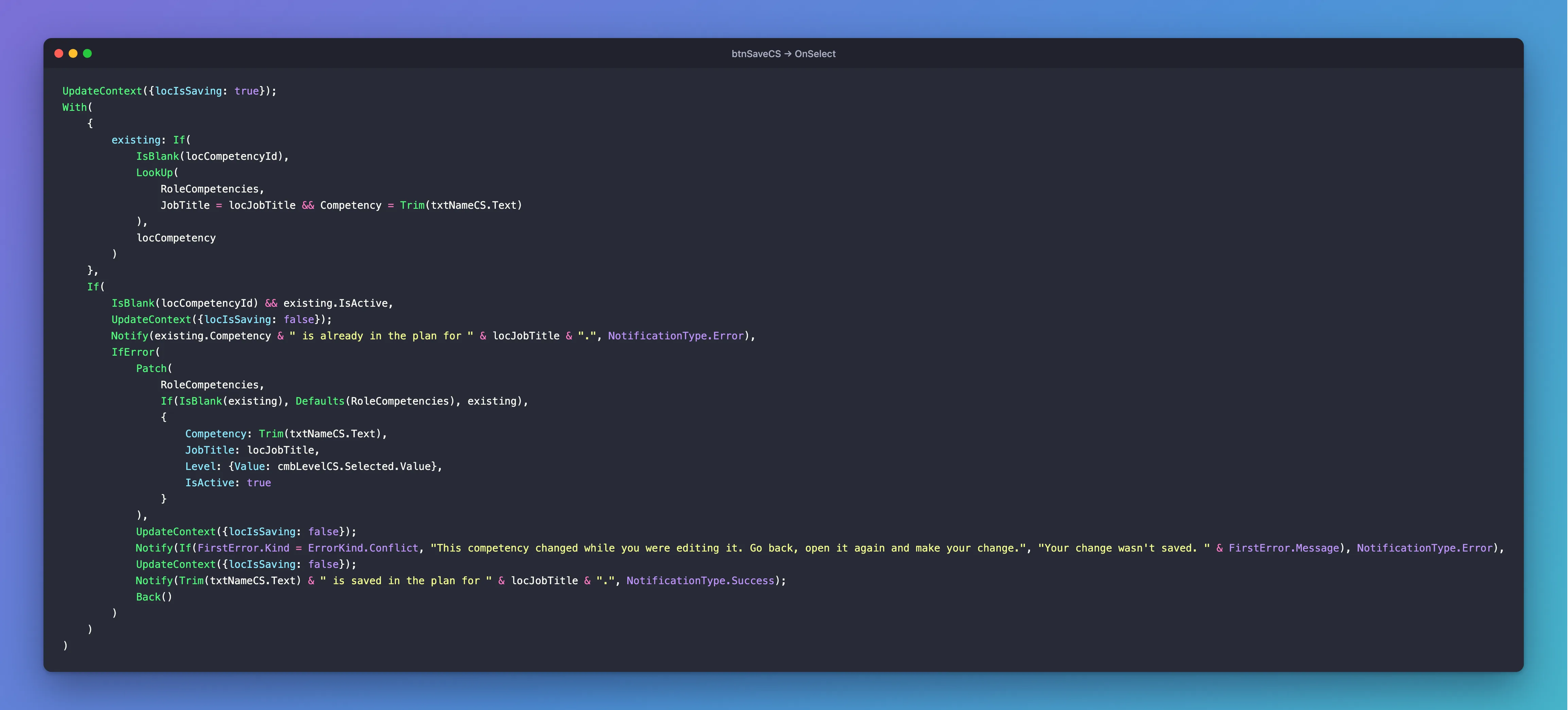
Its OnSelect finds the item to save once, with With (How to Use the With Function). When adding, that's any competency with the same job title and name, active or removed. When editing, it's the loaded competency. An active match stops the save with a message (How to Prevent Duplicate Items). Otherwise, one Patch creates the competency, updates it or turns a removed one back on:
UpdateContext({locIsSaving: true});
With(
    {
        existing: If(
            IsBlank(locCompetencyId),
            LookUp(
                RoleCompetencies,
                JobTitle = locJobTitle && Competency = Trim(txtNameCS.Text)
            ),
            locCompetency
        )
    },
    If(
        IsBlank(locCompetencyId) && existing.IsActive,
        UpdateContext({locIsSaving: false});
        Notify(existing.Competency & " is already in the plan for " & locJobTitle & ".", NotificationType.Error),
        IfError(
            Patch(
                RoleCompetencies,
                If(IsBlank(existing), Defaults(RoleCompetencies), existing),
                {
                    Competency: Trim(txtNameCS.Text),
                    JobTitle: locJobTitle,
                    Level: {Value: cmbLevelCS.Selected.Value},
                    IsActive: true
                }
            ),
            UpdateContext({locIsSaving: false});
            Notify(If(FirstError.Kind = ErrorKind.Conflict, "This competency changed while you were editing it. Go back, open it again and make your change.", "Your change wasn't saved. " & FirstError.Message), NotificationType.Error),
            UpdateContext({locIsSaving: false});
            Notify(Trim(txtNameCS.Text) & " is saved in the plan for " & locJobTitle & ".", NotificationType.Success);
            Back()
        )
    )
)
- Level is a Choice column, so it's patched as a record (How to Write to a SharePoint Choice Column with Patch).
- When editing, Patch sends the version the screen loaded, so a change someone else made in the meantime is caught (Fixed: ETAG Mismatch).
- The duplicate message uses
existing.Competency. My first version used the typed text, so typing leadership showed leadership is already in the plan. With the stored name, it shows Leadership.
With a name and a level, Save is enabled:
Step 9: Remove with a Confirmation
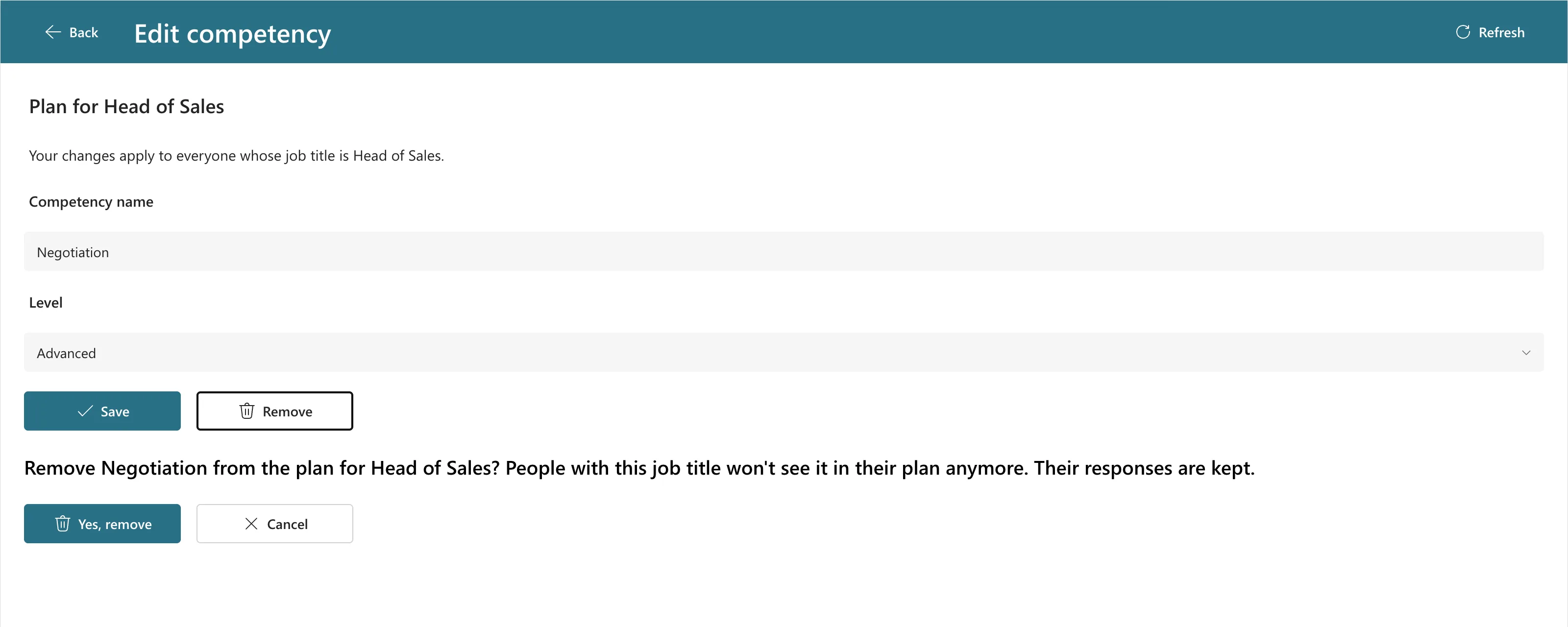
Removing takes a competency out of everyone's plan, so Remove only asks (How to Ask for Confirmation Before an Action):
| Control | Property | Value |
|---|---|---|
btnRemoveCS | Text | "Remove" |
| Icon | "Delete" | |
| OnSelect | UpdateContext({locConfirmRemove: true}) | |
| DisplayMode | If(locIsSaving, DisplayMode.Disabled, DisplayMode.Edit) | |
| Visible | !IsBlank(locCompetencyId) |
The question is a classic Text label, from Insert → search Text label → Classic, because only the classic Label can be a live region that screen readers announce (How to Make Screen Readers Announce a Message). It went in at the end of the body as lblConfirmCS:
| Property | Value |
|---|---|
| Text | If(locConfirmRemove, "Remove " & locCompetency.Competency & " from the plan for " & locJobTitle & "? People with this job title won't see it in their plan anymore. Their responses are kept.", "") |
| Live | Live.Polite |
| AutoHeight | true |
| Font | App.Theme.Font |
| Size | 12 |
| FontWeight | FontWeight.Semibold |
| PaddingLeft | 0 |
Its Visible stays true: Microsoft's live regions article warns that some screen readers miss live regions that appear and disappear. While building it, the App checker showed Unused variable (1) under Performance, because Remove set locConfirmRemove and nothing read it yet. This label cleared it.
For Yes and Cancel, copy conActionsCS, paste it on conBodyCS and rename the copy and its buttons:
| Control | Property | Value |
|---|---|---|
conConfirmCS | Visible | locConfirmRemove && !locIsLoading |
btnConfirmRemoveCS | Text | "Yes, remove" |
| Icon | "Delete" | |
| DisplayMode | If(locIsSaving, DisplayMode.Disabled, DisplayMode.Edit) | |
btnCancelRemoveCS | Text | "Cancel" |
| Icon | "Dismiss" | |
| OnSelect | UpdateContext({locConfirmRemove: false}) | |
| Visible | true |
Yes, remove marks the competency inactive instead of deleting it, so its history and the responses that point to it stay (How to Remove an Item Without Deleting It):
UpdateContext({locIsSaving: true});
IfError(
    Patch(RoleCompetencies, locCompetency, {IsActive: false}),
    UpdateContext({locIsSaving: false});
    Notify(If(FirstError.Kind = ErrorKind.Conflict, "This competency changed while you were editing it. Go back, open it again and try again.", "It wasn't removed. " & FirstError.Message), NotificationType.Error),
    UpdateContext({locIsSaving: false, locConfirmRemove: false});
    Notify(locCompetency.Competency & " is removed from the plan for " & locJobTitle & ".", NotificationType.Success);
    Back()
)
Every plan query already filters on IsActive, since Part 5, so a removed competency leaves every screen. The question, after Remove:
Step 10: Tell Reviewers When the Plan Changed
A response waiting for review keeps the level it was written for. If the manager changes the level or removes the competency first, the reviewer should know. The Review screen's loader reads the competency too:
UpdateContext({locIsLoading: true, locIsSaving: false});
Refresh(CompetencyResponses);
Refresh(RoleCompetencies);
UpdateContext(
    {
        locReview: LookUp(
            CompetencyResponses,
            ID = locResponseId
        )
    }
);
UpdateContext(
    {
        locPlanItem: LookUp(
            RoleCompetencies,
            ID = locReview.RoleCompetencyId
        )
    }
);
UpdateContext({locCanReview: locReview.Status.Value = StatusPending});
Reset(txtCommentRVS);
UpdateContext({locIsLoading: false})
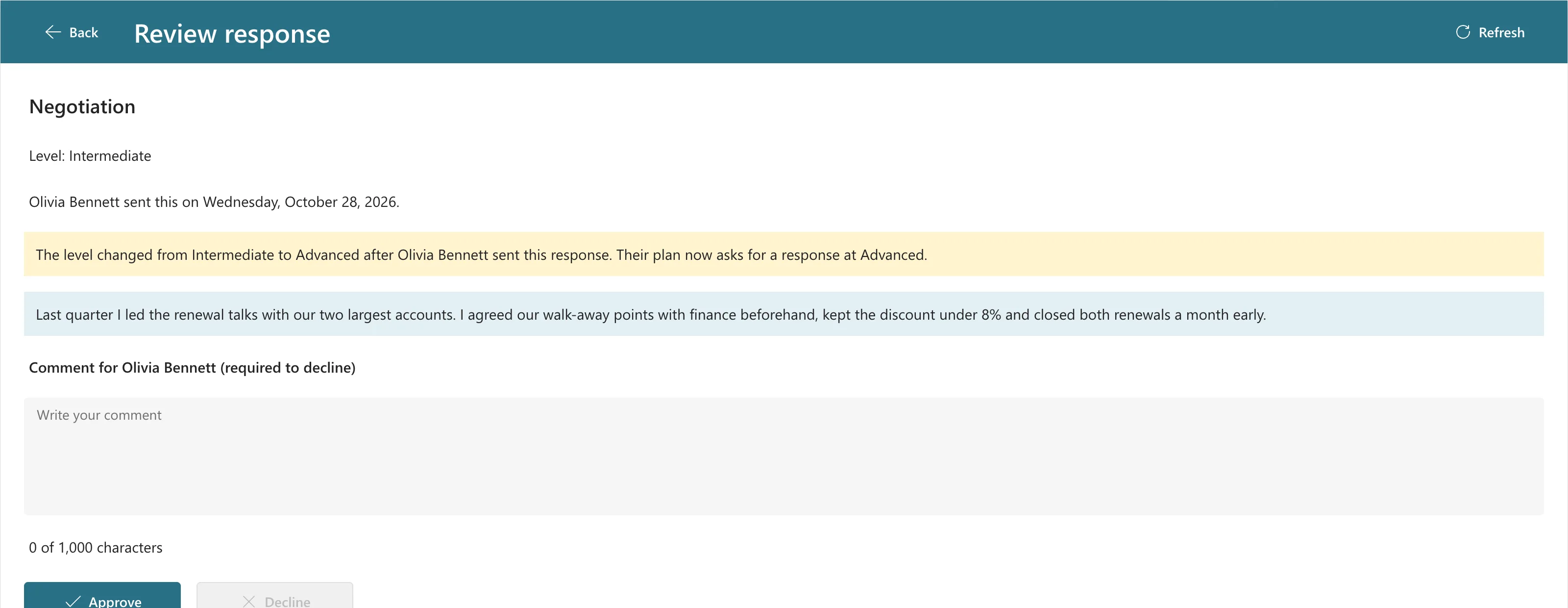
For the note, I reused the Response screen's yellow no-manager warning from Part 6: copy lblNoManagerRS, paste it on conBodyRVS, rename it lblPlanChangedRVS and move it up five times, under lblInfoRVS:
If(
    !locPlanItem.IsActive,
    "This competency was removed from the plan after " & locReview.EmployeeName & " sent this response. You can still approve or decline it.",
    "The level changed from " & locReview.Level & " to " & locPlanItem.Level.Value & " after " & locReview.EmployeeName & " sent this response. Their plan now asks for a response at " & locPlanItem.Level.Value & "."
)
!locIsLoading && locCanReview && (!locPlanItem.IsActive || locPlanItem.Level.Value <> locReview.Level)
The test below shows it.
Step 11: Make the Two-Button Rows Fit on Phones
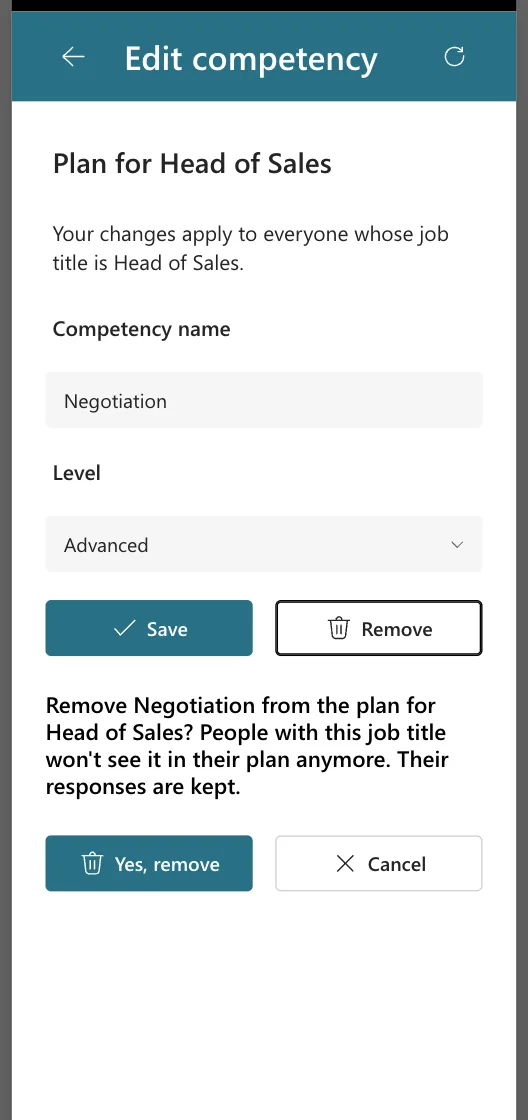
At 360 pixels, the new screen's Save and Remove, and its Yes, remove and Cancel, didn't fit side by side: two 160-pixel buttons and a 16-pixel gap need 336 pixels, and the row has about 310. Cancel lost its right edge. The Review screen's Approve and Decline row, which it was copied from, has the same layout. On all six buttons, the Home buttons' formula from Step 1:
If(App.ActiveScreen.Size = ScreenSize.Small, (Parent.Width - Parent.LayoutGap) / 2, 160)
The same on btnRemoveCS, btnConfirmRemoveCS, btnCancelRemoveCS, btnApproveRVS and btnDeclineRVS. At 360 pixels:
Step 12: Check, Publish and Test
The App checker's Formulas, Runtime, Performance and Data source sections were clear. Accessibility listed 12 results: Focus isn't showing and Missing tab stop on each of the six screen titles, the heading case explained in Fixed: "Missing Tab Stop". I saved and published (How to Publish a Canvas App). Then I tested as the admin, Olivia's manager, in Studio's preview, and as Olivia in her own browser.
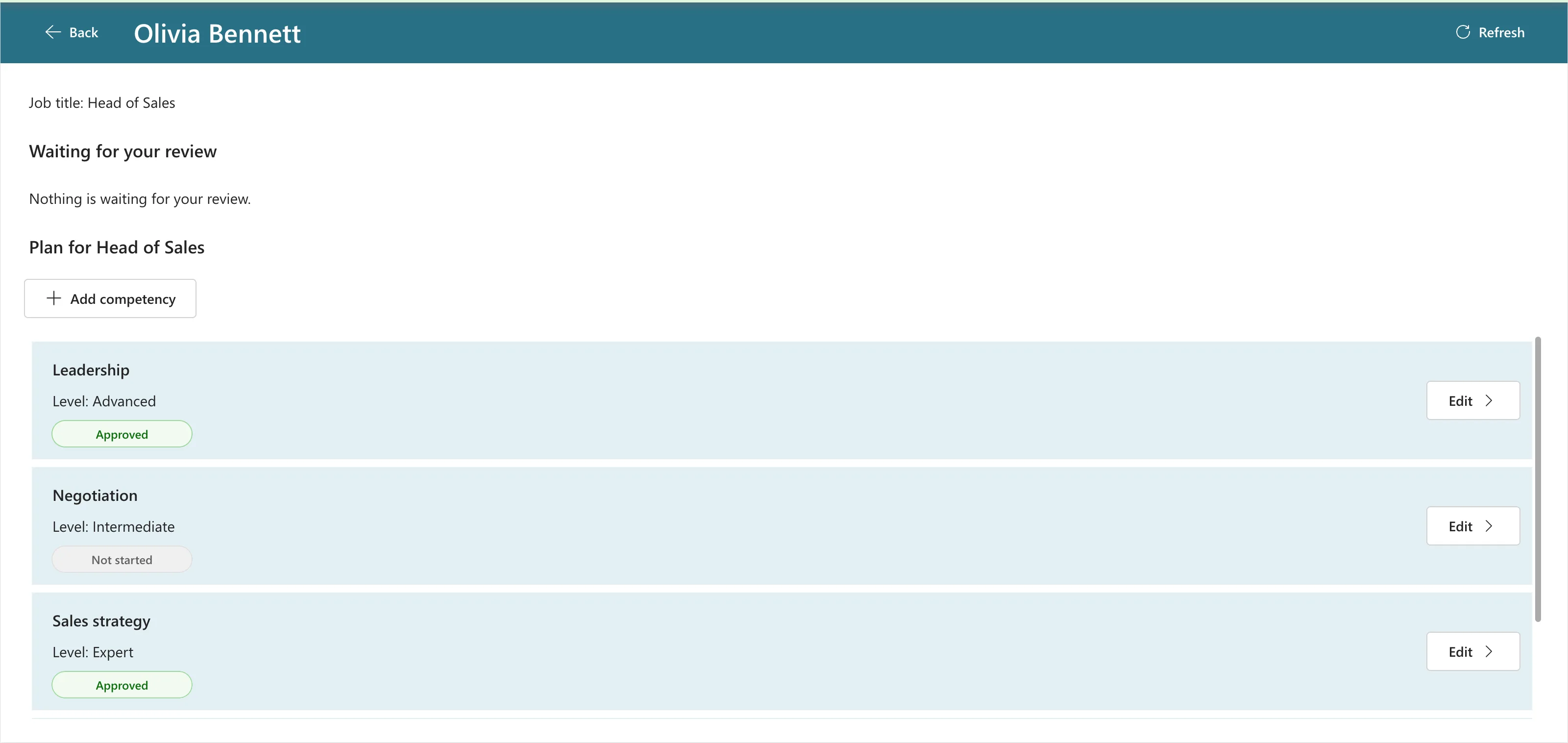
Adding. Negotiation at Intermediate saved with Negotiation is saved in the plan for Head of Sales., and the plan listed it as Not started, in alphabetical order:
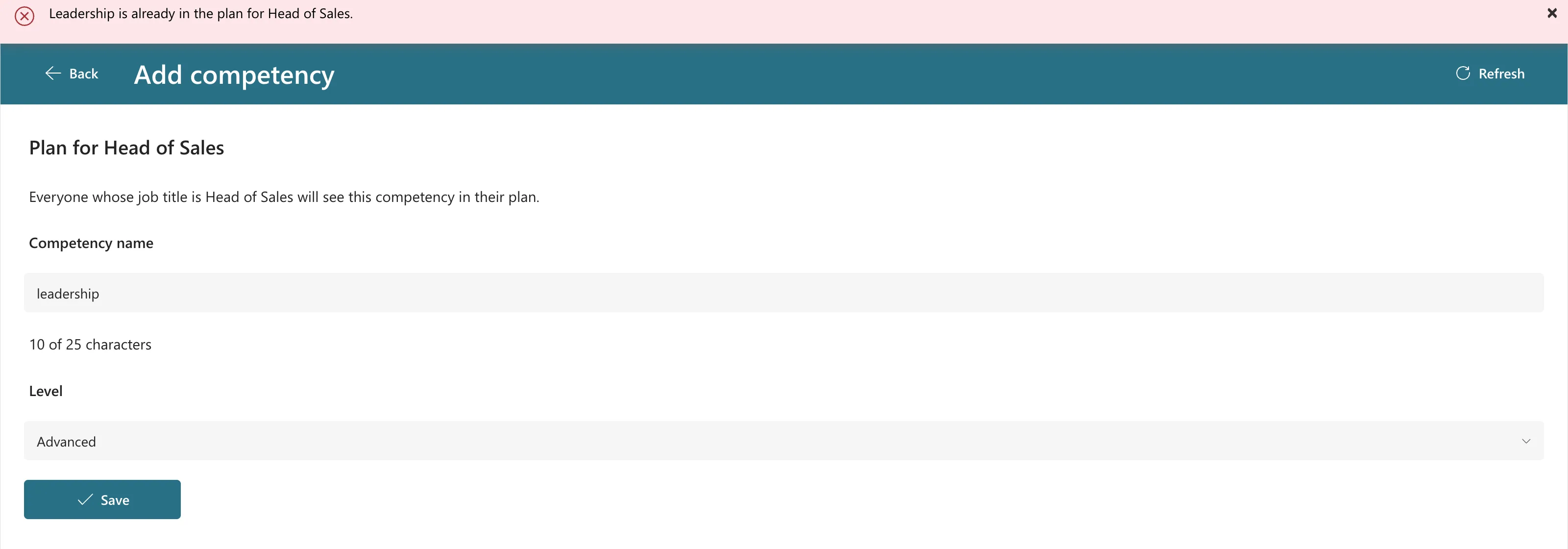
A duplicate. Adding Leadership, and then leadership in lowercase, both stopped with an error, and nothing was created:
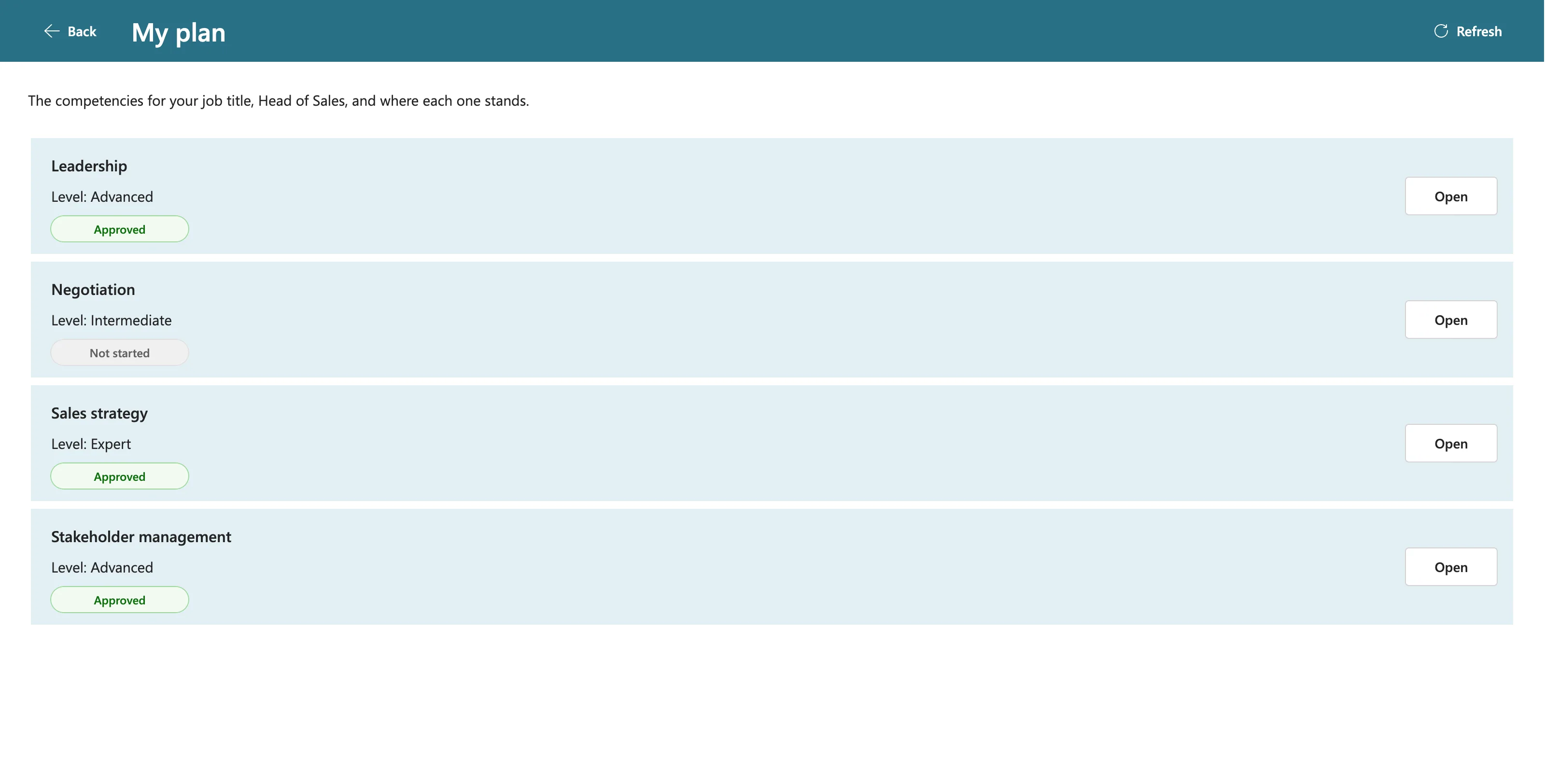
Olivia's plan. Her My plan, which refreshes when it opens, listed Negotiation at once. She wrote a response at Intermediate and sent it:
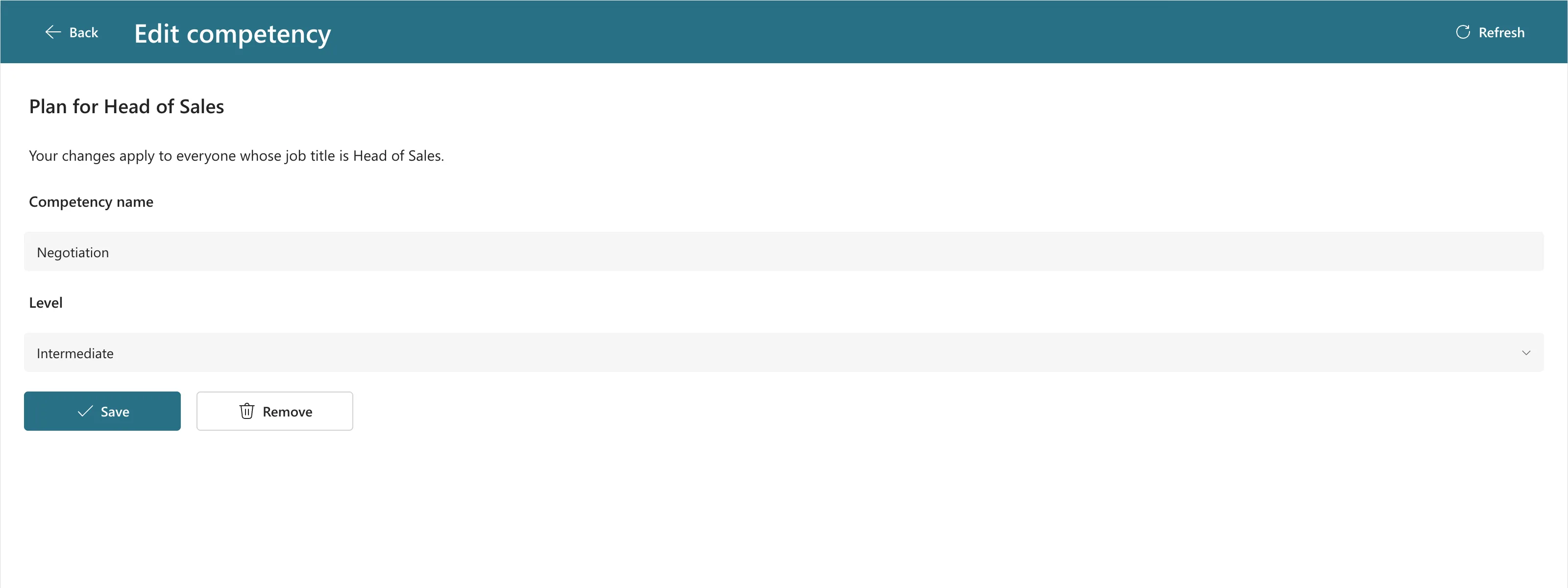
Changing the level while a response waits. On the Team Member screen, Edit on Negotiation opened it with the level selected and the name read-only:
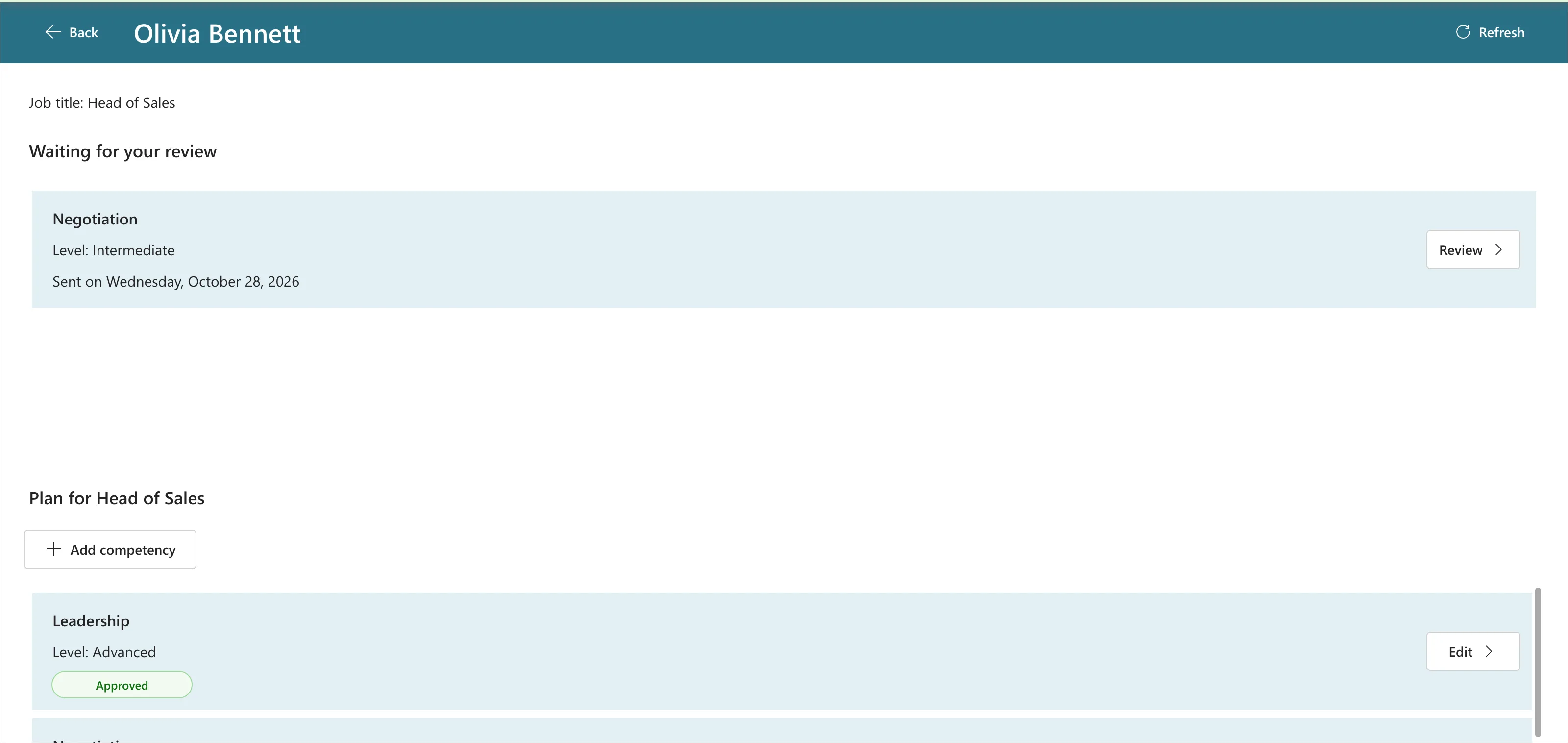
Choosing Advanced showed the level-change note, as in the picture at the top. After Save, the Team Member screen still listed Olivia's Intermediate response as waiting, and further down, her plan's Negotiation at Advanced, Not started:
Reviewing it. The Review screen showed Step 10's note:
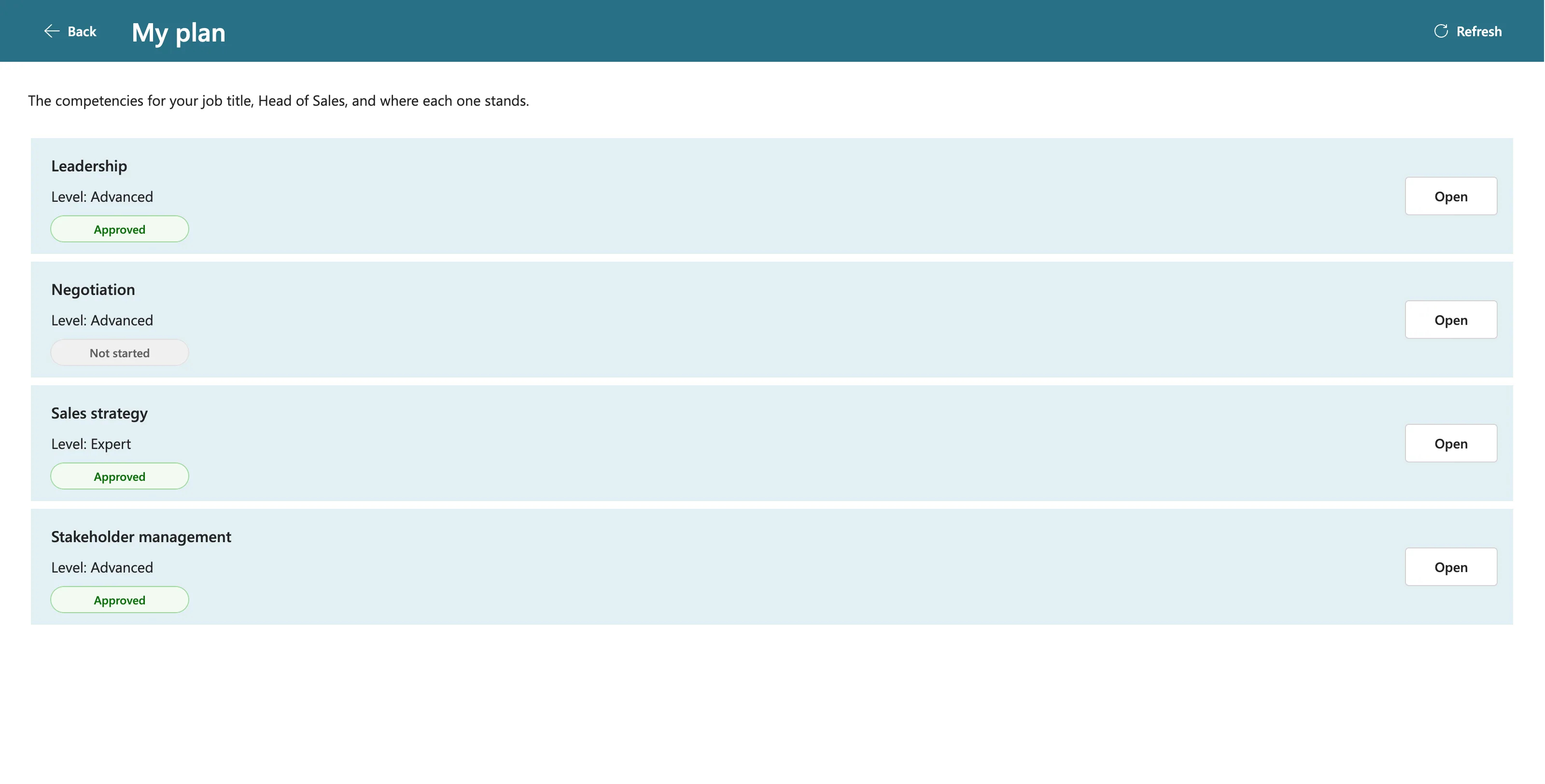
I declined it with Good example. Negotiation is now at Advanced level in your plan, so please answer it there. After Refresh, Olivia's plan showed Negotiation at Advanced, Not started:
Removing. Remove, then Cancel, hid the question and changed nothing. Remove and Yes, remove showed Negotiation is removed from the plan for Head of Sales.:

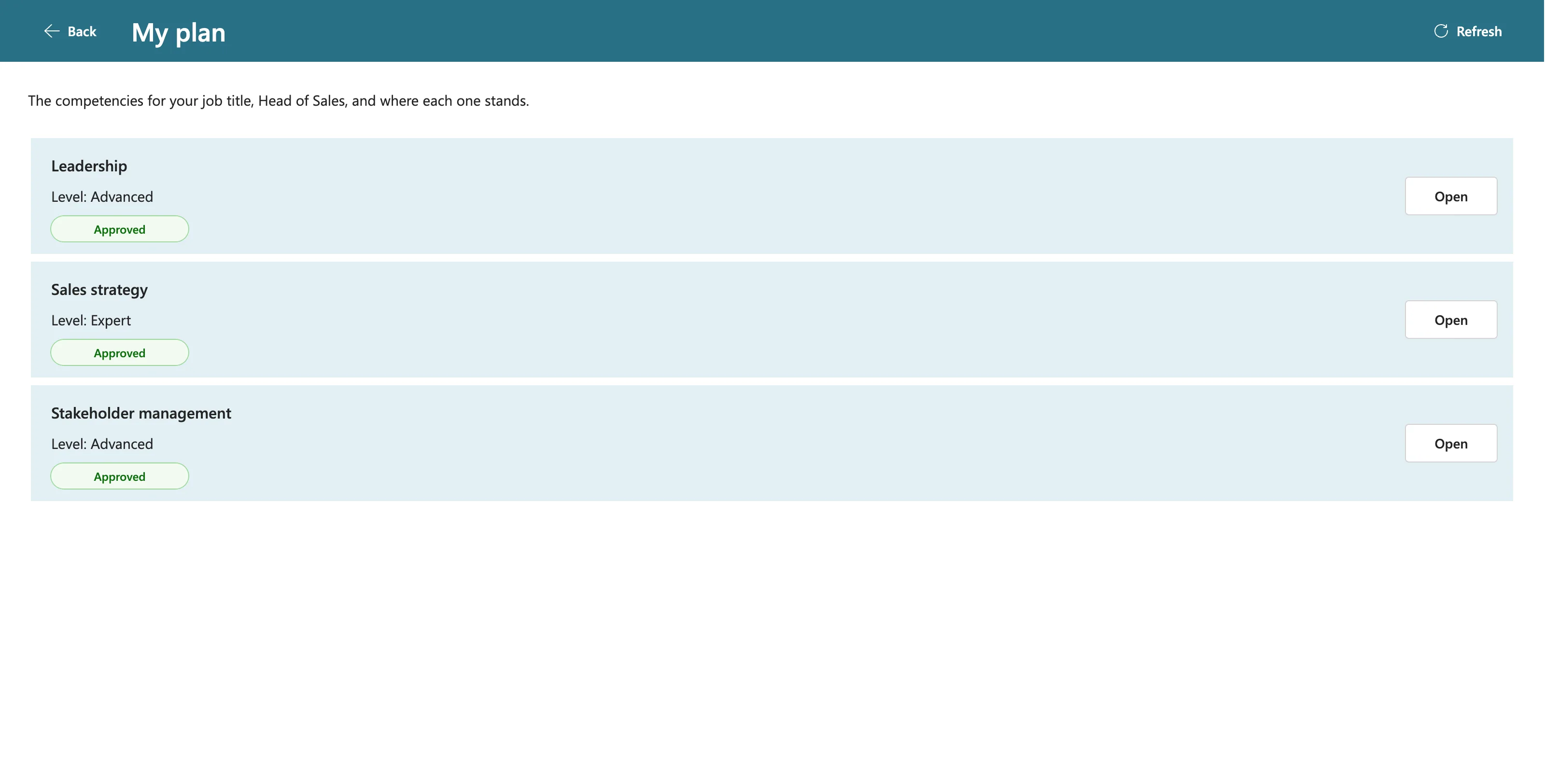
After Refresh, Negotiation was gone from Olivia's plan too:
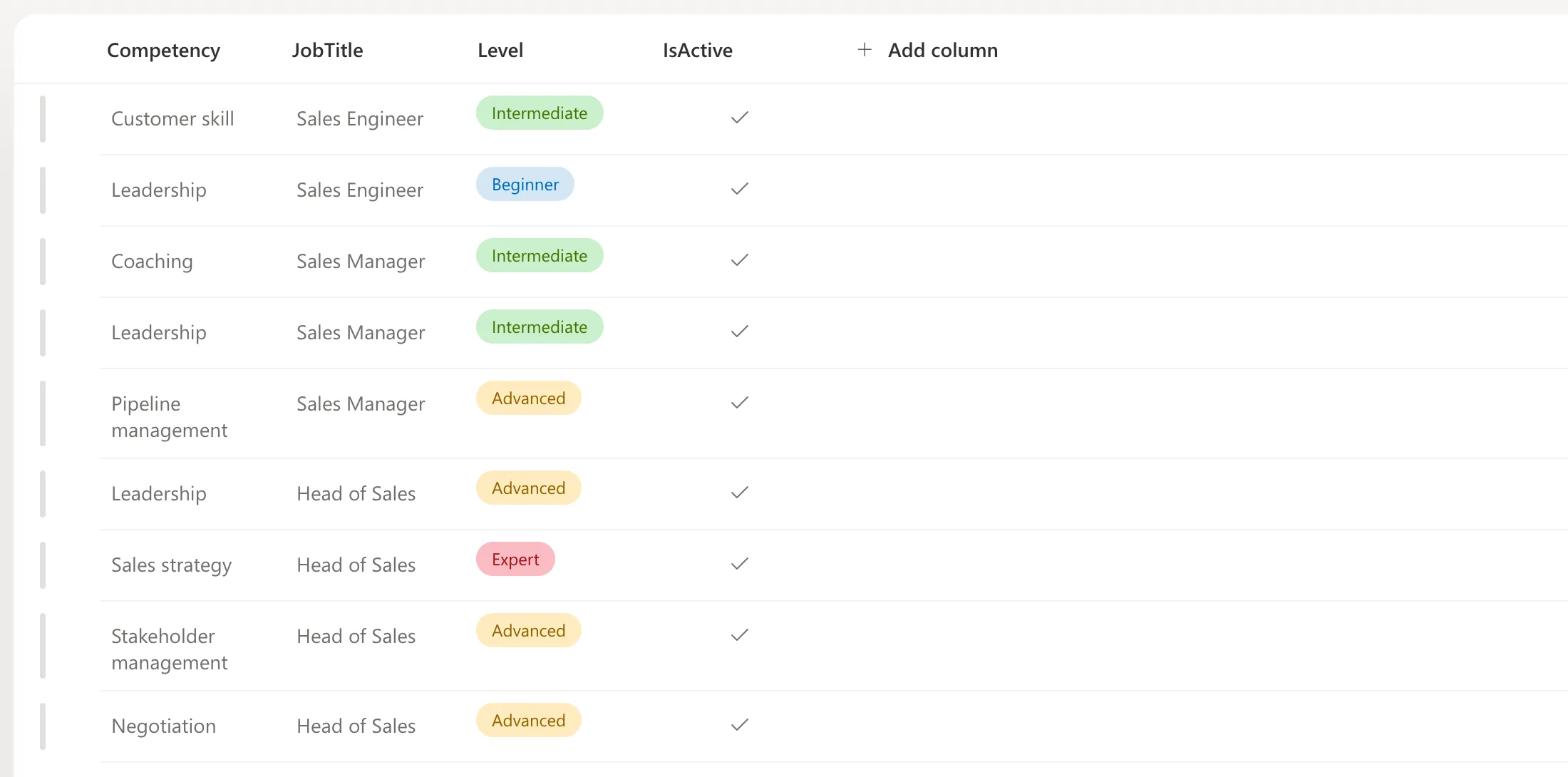
Adding it again. I added Negotiation at Advanced. The RoleCompetencies list in SharePoint still had nine items, the eight from Part 2 and one Negotiation, active: the save had turned the removed item back on instead of creating a second one:
Phones. The published app reached Olivia's browser on the second reload, about three and a half minutes after publishing (Fixed: Users Still See the Old Version). Narrowed to 360 × 800, her plan rows had the chevron and full names:
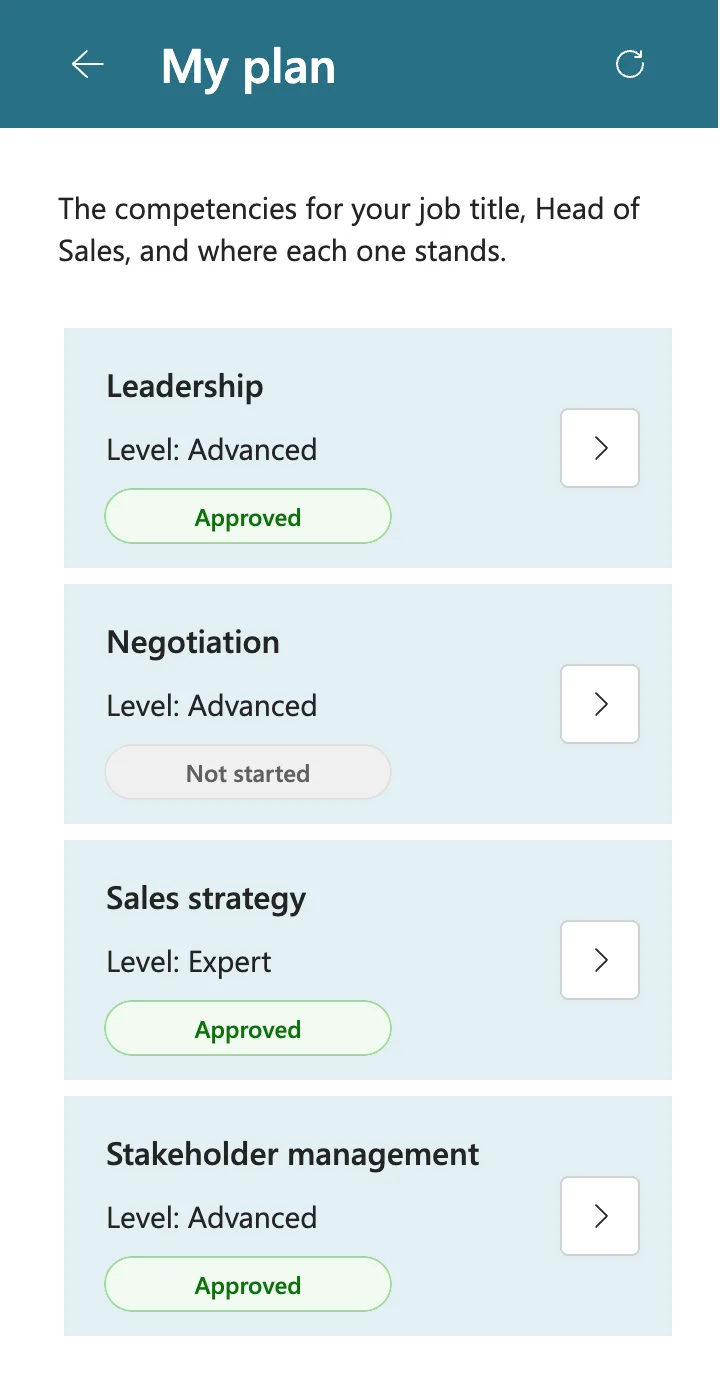
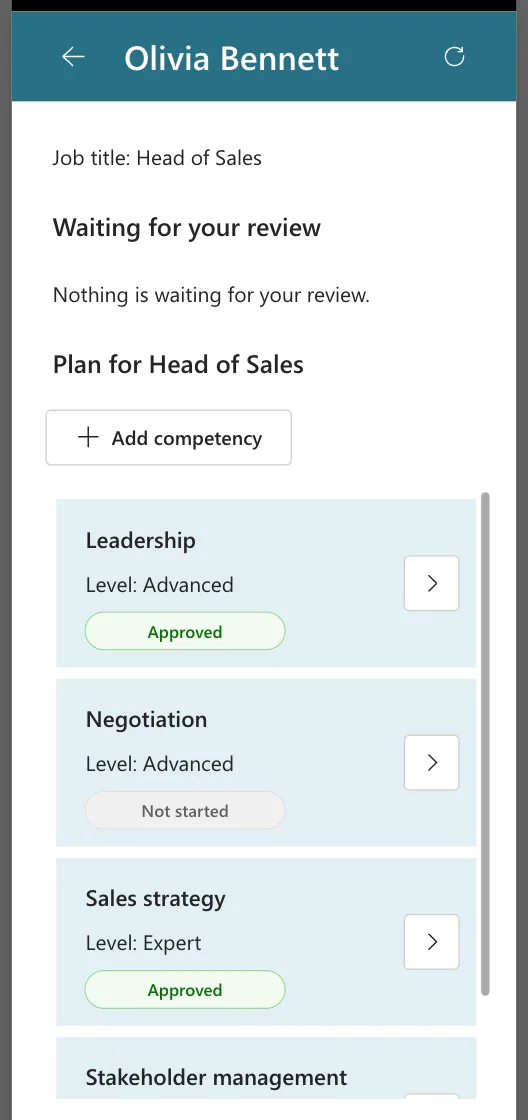
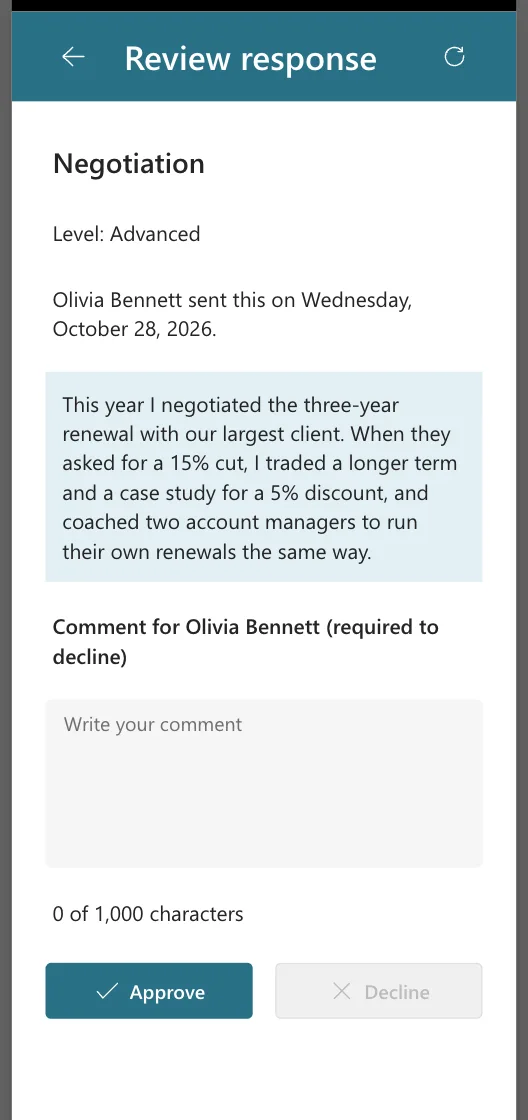
She sent her Negotiation response at Advanced from that width. In the phone preview, the manager's Team Member screen and the Review screen fit too, and I approved it there:
Common Mistakes
| Mistake | What happens | Do this instead |
|---|---|---|
| Writing the screen's formulas before its Navigate calls | Name isn't valid on locCompetencyId | Set up the Navigate calls first |
| Pasting a button on the gallery itself | It lands outside the rows | Paste on a control inside the row |
| Leaving a copied button's AlignInContainer on SetByContainer | It stretches across the screen | AlignInContainer.Start |
| Deleting competencies | Responses point at items that no longer exist | Set IsActive to No |
| Hiding the confirm question with Visible | Some screen readers miss it | Keep it visible and change its Text |
| Testing phone layouts on the canvas's Small size | Sizing formulas don't run on the canvas | Use the preview's Phones list or the published app |
Troubleshooting
| Symptom | Likely cause | Fix |
|---|---|---|
| Errors right after duplicating the Review screen | The copy reads locResponseId | Fixed: "Incompatible Types for Comparison" |
| X is already in the plan for a new name | A competency with that name exists, in any capitalization | Edit the existing one instead |
| Save stays disabled | The name is empty or no level is chosen | Type a name and choose a level |
| The employee still sees a removed competency | Their screen kept an older copy | Refresh, as in Part 8 |
| Text or buttons are cut off on a phone | Fixed sizes that don't fit 360 pixels | Fixed: Text and Buttons Cut Off on Narrow Phones |
FAQ
Who can change a plan?
Any manager whose direct report has that job title, through the app. Like the other lists, the SharePoint permission is the real boundary, as Part 1 explains, and SharePoint's version history records each change.
What happens to approved responses when a level changes?
They stay, for the old level. The employee's plan asks for a response at the new level, and if the level ever changes back, the old responses count again.
Why can't a competency be renamed?
Responses point at it by ID. A rename would carry its approvals over to a competency with a different meaning. Remove it and add the new name.
Conclusion
Managers can now keep their teams' plans current:
- one Competency screen, duplicated from the Review screen, adds and edits;
- a combo box reads the levels from SharePoint, and a note warns when a level change asks people to respond again;
- saving checks for duplicates, and removing asks first, then hides instead of deleting;
- the Review screen notes when a plan changed under a waiting response;
- every list and button row fits a 360-pixel phone.
On the way, a duplicated screen's errors, a paste that missed the gallery and layouts cut off on narrow phones each showed how to find the cause and fix it, starting from Microsoft's documentation.
← Previous: Part 8: Build the Review Screen for Manager Approvals
Next → Part 10: Test Every Role, Joiners and Leavers (coming soon). The app will be tested with a manager who's also an employee, a joiner and a leaver.
Additional Resources
- Choices function: the options of a choice column.
- Combo box modern control: single selection and defaults.
- With function: named values inside one formula.
- Announce dynamic changes with live regions: the Live property.
- Gallery control: accessibility guidelines: a button in clickable rows.
- Create responsive layouts in canvas apps: screen sizes and the canvas's limits.
- Understand variables in canvas apps: why a copied screen doesn't get the original's variables.
