Build a Career Development Plan App in Power Apps — Part 8: Build the Review Screen for Manager Approvals

This part builds the screen where a manager decides: approve a response, or decline it with a comment the employee sees. Then it tests the whole loop with a real employee in her own browser. That test found a bug: the employee didn't see her manager's decision. The fix, a Refresh button on every screen, ends the part.
This is Part 8 of a 14-part series.
- Part 1: Plan the App and Set Up the Demo Organization
- Part 2: Create the SharePoint Site and Lists
- Part 3: Create the Solution, Environment Variables and Canvas App
- Part 4: Build the Home Screen
- Part 5: Build the My Plan Screen
- Part 6: Build the Response Screen
- Part 7: Share the App and Build the My Team Screens
- Part 8: Build the Review Screen for Manager Approvals (you are here)
- Part 9: Let Managers Manage Competencies
- Part 10: Test Every Role, Joiners and Leavers (coming soon)
- Part 11: Build a Setup Flow That Creates the SharePoint Lists (coming soon)
- Part 12: Run the Solution Checker and Export the Solutions (coming soon)
- Part 13: Install the App in a New Environment (coming soon)
- Part 14: Recap, Production Checklist and Next Steps (coming soon)
Part 7 gave managers their team and each person's waiting responses. Those responses can't be opened yet. This part adds the Review screen, connects it, and runs every decision with Olivia, the Head of Sales, in her own browser. Four problems came up on the way: an error on a copied header, a failed paste, data that didn't update, and a header cut off on a phone. Each is shown where it happened, with how I found the cause and fixed it.
What You'll Build
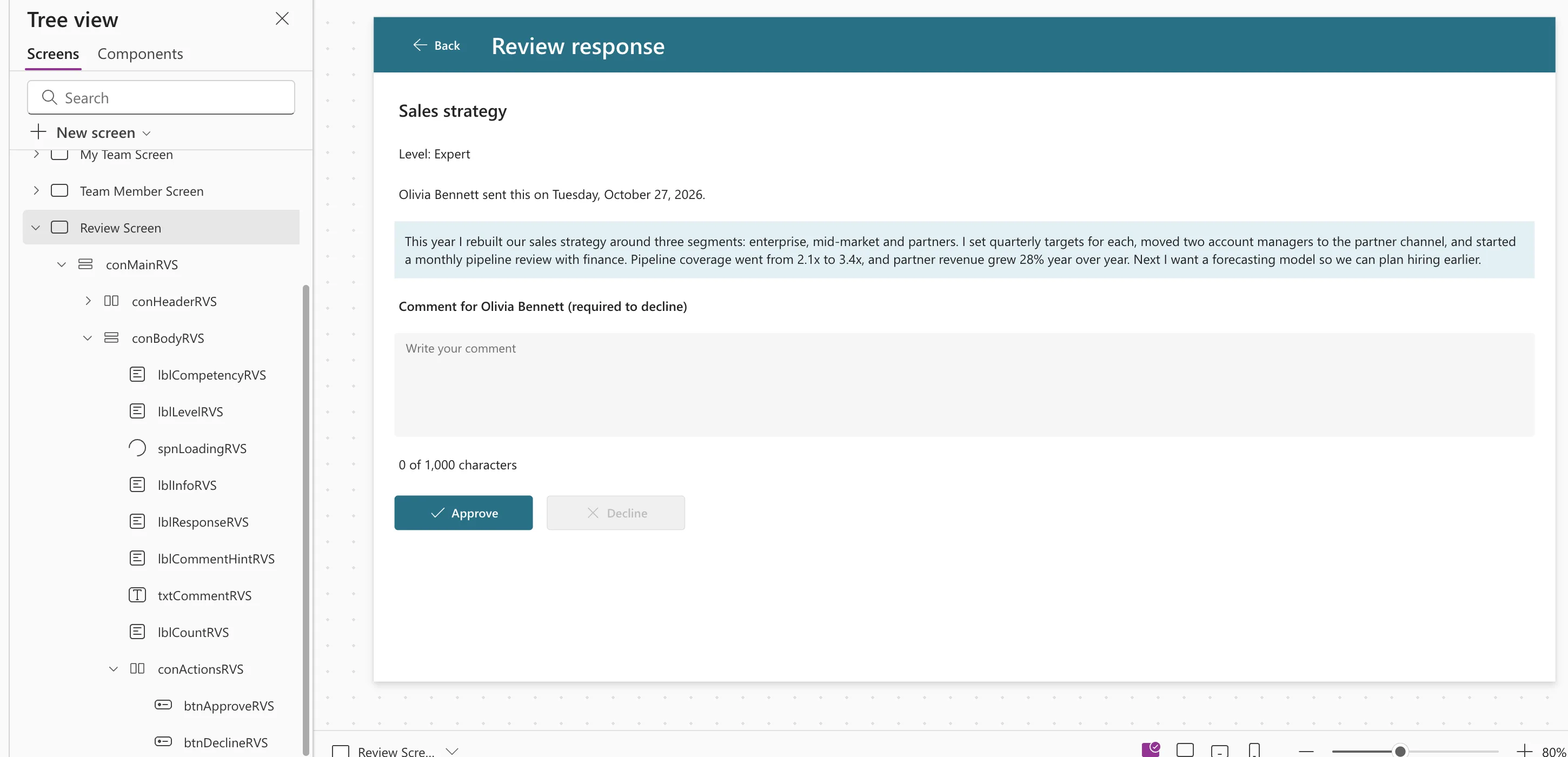
The Review screen, with the employee's response, a comment box and the two decisions:
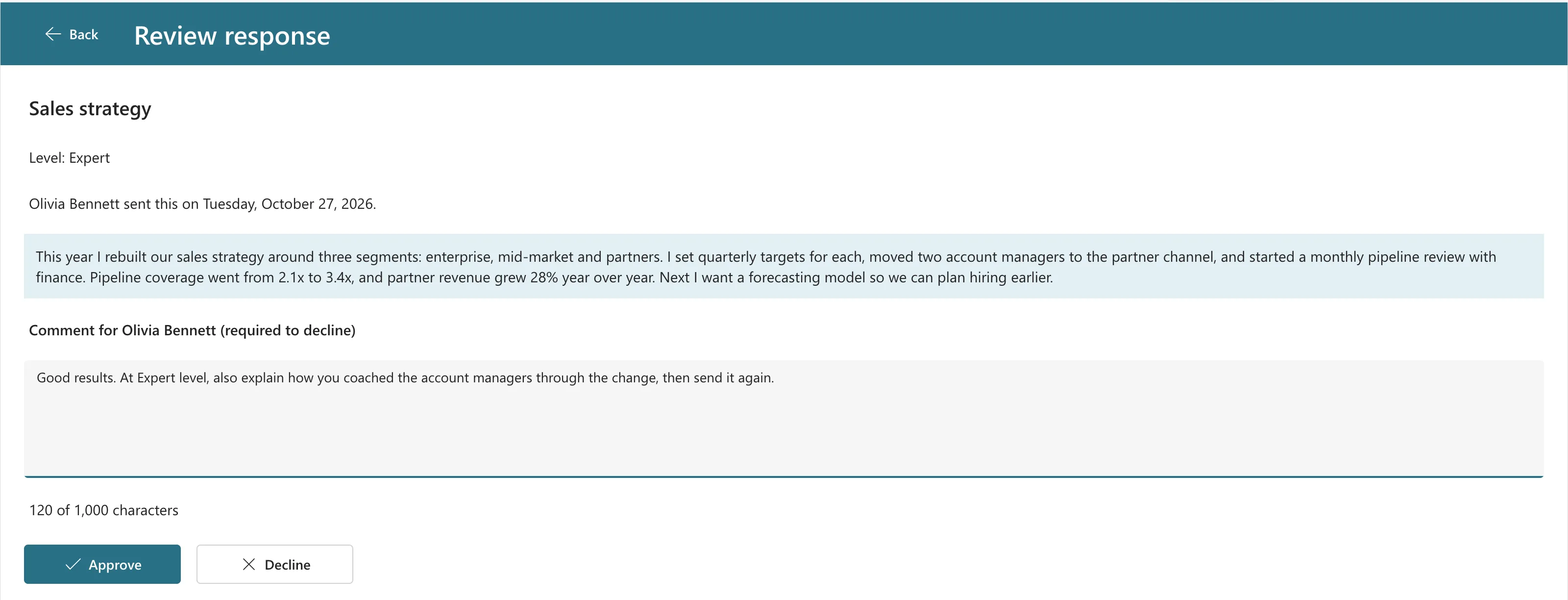
How it fits in:
- Each waiting response opens the Review screen, which reads the response again from SharePoint.
- Approve saves the decision, with an optional comment. Decline needs a comment.
- A change made at the same time is caught: if the employee edits the response while the manager reviews it, the decision isn't saved.
- Every screen has a Refresh button and refreshes when it opens, so people see each other's changes.
Prerequisites
-
Part 7 completed, with the app published and shared.
-
Olivia's waiting response from Part 7, and her password to sign in as her. The admin is her manager.
-
The guides this part relies on, by topic. Each step says which one to follow.
- Reading the response:
- Keeping data current:
The screen reuses the earlier parts' guides, from adding a screen to Patch, and each is linked where it's used.
Step 1: Add the Comment Limit to App.Formulas
Manager comments are capped at 1,000 characters. Like the response limit in Part 6, the number gets a name, used by the comment box and its character count (How to Use Named Formulas in Power Apps):
CommentMaxLength = 1000;

Step 2: Add the Review Screen and Its Layout
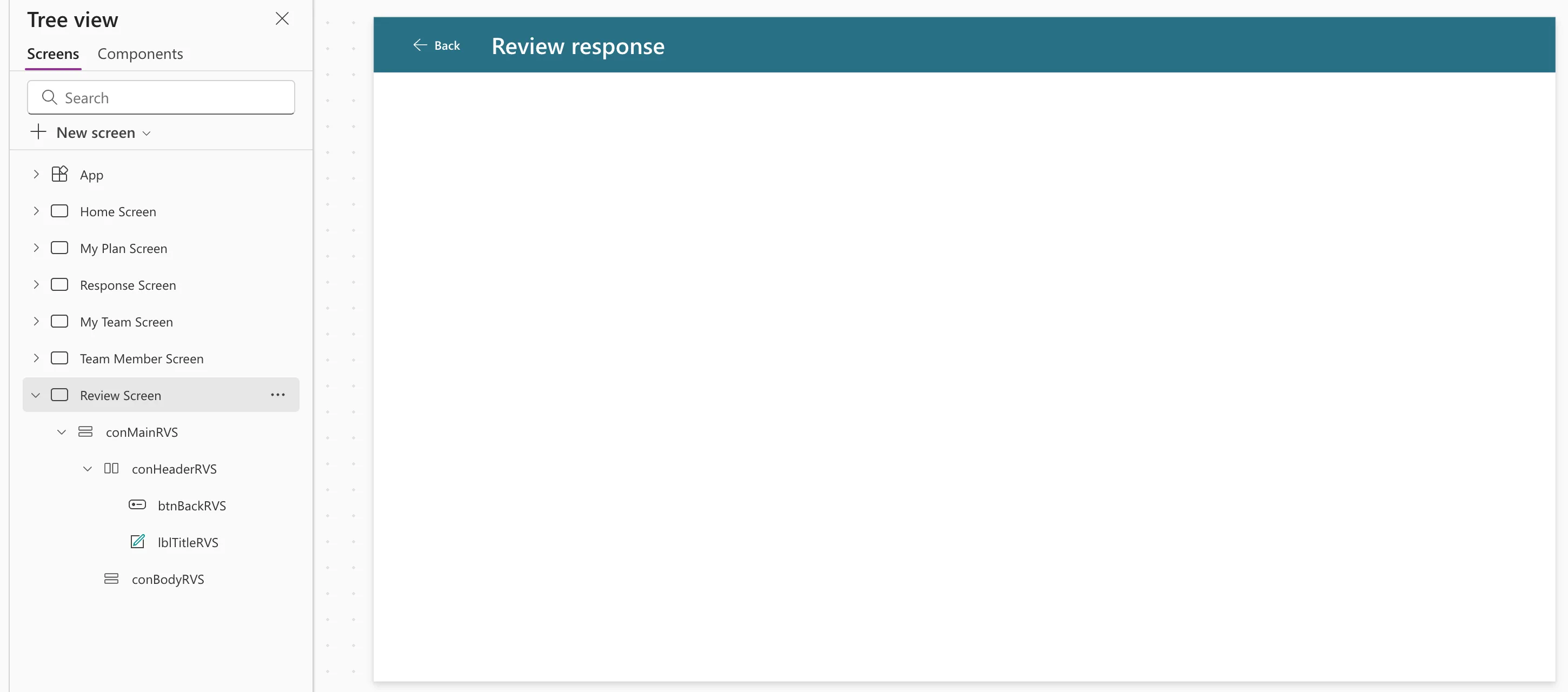
Select Team Member Screen and add a blank screen named Review Screen, so it lands after it (How to Add a New Screen in Power Apps). Its controls end in RVS. This is the structure Steps 2 to 7 build:
Review Screen
└── conMainRVS             vertical container, the whole screen
    ├── conHeaderRVS       copied from the Team Member screen
    │   ├── btnBackRVS
    │   └── lblTitleRVS
    └── conBodyRVS         vertical container, scrolls
        ├── lblCompetencyRVS
        ├── lblLevelRVS
        ├── spnLoadingRVS
        ├── lblInfoRVS
        ├── lblResponseRVS
        ├── lblCommentHintRVS
        ├── txtCommentRVS
        ├── lblCountRVS
        └── conActionsRVS  horizontal container
            ├── btnApproveRVS
            └── btnDeclineRVS
Insert a vertical container, conMainRVS, with the same values as conMainTMS: X 0, Y 0, Width Parent.Width, Height Parent.Height, LayoutAlignItems LayoutAlignItems.Stretch, and all paddings, DropShadow and radius values 0 or None.
The copied header's error
Then copy conHeaderTMS from the Team Member screen and paste it on conMainRVS (How to Copy and Paste Controls Between Screens). The pasted title showed a red ⊗, and its formula, locMember.displayName, was underlined:

View Problem listed a second problem first: Name isn't valid. 'locMember' isn't recognized. Microsoft's article on variables explains it: a context variable belongs to one screen. locMember exists on the Team Member screen, which receives it from Navigate, so on the Review screen it's an error, and the dot can't read a field from it (Fixed: "The '.' Operator Cannot Be Used on Error Values"). The fix is this screen's own title:
"Review response"
Rename the pasted controls conHeaderRVS, btnBackRVS and lblTitleRVS. The Back button keeps Back(). Its AccessibleLabel gets the person's name in Step 4.
Finally, insert a vertical container named conBodyRVS inside conMainRVS, with the values of Part 6's conBodyRS: LayoutAlignItems LayoutAlignItems.Stretch, LayoutGap 16, all paddings 24, DropShadow DropShadow.None, radius 0, and LayoutOverflowY LayoutOverflow.Scroll, so a long response scrolls on a phone.
Step 3: Make Waiting Responses Open the Review Screen
The Review screen will read the response by its ID, from a variable called locResponseId. Part 7's error taught the order: write the Navigate that creates the variable before anything uses it.
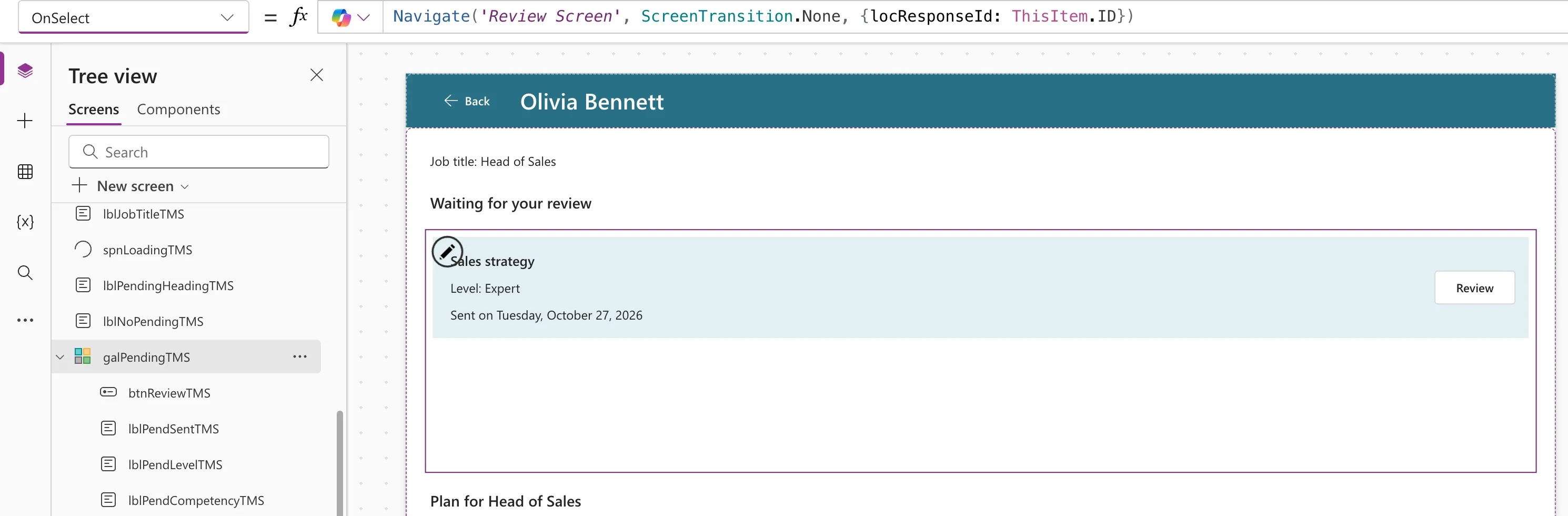
On the Team Member screen, the gallery of waiting responses was a plain list. Make it selectable and give it an OnSelect (How to Open Another Screen When a Gallery Row Is Selected):
| Property | Value |
|---|---|
| Selectable | true |
| OnSelect | Navigate('Review Screen', ScreenTransition.None, {locResponseId: ThisItem.ID}) |
Only the ID travels. The Review screen reads the response itself, so it always shows the version SharePoint has when it opens (How to Get a SharePoint List Item by Its ID).
A gallery is hidden in Studio while its variable is empty, so preview My team → Open on Olivia once to load her response. Then select the gallery's Edit gallery pencil and insert a Button, btnReviewTMS:
| Property | Value |
|---|---|
| Text, Appearance | "Review", ButtonAppearance.Secondary |
| Width, Height | 96, 40 |
| X | Parent.TemplateWidth - Self.Width - 16 |
| Y | (Parent.TemplateHeight - Self.Height) / 2 |
| AccessibleLabel | "Review " & ThisItem.Competency |
Its OnSelect is already Select(Parent), so it opens the row (How to Use the Select Function). To make room for it, change the Width of lblPendCompetencyTMS, lblPendLevelTMS and lblPendSentTMS to Parent.TemplateWidth - 144.
Part 9 makes Review a chevron icon on phones, and the row labels' Width Parent.TemplateWidth - btnReviewTMS.Width - 48 (Fixed: Text and Buttons Cut Off on Narrow Phones).
Step 4: Load the Response When the Screen Opens
Select Review Screen and set its OnVisible (How to Run a Formula When a Screen Opens):
UpdateContext({locIsLoading: true, locIsSaving: false});
UpdateContext(
    {
        locReview: LookUp(
            CompetencyResponses,
            ID = locResponseId
        )
    }
);
UpdateContext({locCanReview: locReview.Status.Value = StatusPending});
UpdateContext({locIsLoading: false})

- LookUp by ID is delegable to SharePoint, as long as it's
=: Microsoft's SharePoint delegation table says only=delegates on an ID field. Studio showed no warning. locCanReviewistrueonly while the response is Pending. If it was decided while the list was open, for example on another device, the screen shows the decision and no buttons.locCanReviewneeds its own UpdateContext. Inside one record, the other fields would still see the oldlocReview(How to Use Context Variables with UpdateContext).
Now that locReview exists, give the Back button a label that names the person:
"Back to " & locReview.EmployeeName
Step 5: Show the Response
Insert these into conBodyRVS, in order: two Text controls, a Spinner and two more Text controls (How to Add a Text Control, How to Add a Loading Spinner).
| Control | Property | Value |
|---|---|---|
lblCompetencyRVS | Text | locReview.Competency |
| Size, FontWeight | 20, FontWeight.Semibold | |
lblLevelRVS | Text | "Level: " & locReview.Level |
spnLoadingRVS | Label, Visible | "Loading the response", locIsLoading |
lblInfoRVS | Text | the formula below |
lblResponseRVS | Text | locReview.Response |
| Fill | App.Theme.Colors.Lighter80 | |
| PaddingTop, PaddingBottom, PaddingLeft, PaddingRight | 12 |
The four Text controls have AutoHeight true, AccessibleLabel Self.Text and Visible !locIsLoading. Level is a text snapshot in this list, so it has no .Value.
lblInfoRVS says who sent the response and when, or, if someone already decided it, what happened (How to Use the Switch Function, How to Format a Date with Text):
Switch(
    locReview.Status.Value,
    StatusPending, locReview.EmployeeName & " sent this on " & Text(locReview.SubmittedOn, DateTimeFormat.LongDate) & ".",
    StatusApproved, "This response was approved on " & Text(locReview.ReviewedOn, DateTimeFormat.LongDate) & ", so there's nothing left to review.",
    StatusDeclined, "This response was declined on " & Text(locReview.ReviewedOn, DateTimeFormat.LongDate) & ". You can review it again when " & locReview.EmployeeName & " sends a new version."
)
Step 6: Add the Comment Box
Insert a Text control, a Text input and another Text control into conBodyRVS (How to Add a Multi-Line Text Input):
| Control | Property | Value |
|---|---|---|
lblCommentHintRVS | Text | "Comment for " & locReview.EmployeeName & " (required to decline)" |
| FontWeight | FontWeight.Semibold | |
txtCommentRVS | Type | TextInputType.Multiline |
| Placeholder | "Write your comment" | |
| MaxLength, Height | CommentMaxLength, 120 | |
| AccessibleLabel | "Comment for " & locReview.EmployeeName | |
| DisplayMode | If(locIsSaving, DisplayMode.Disabled, DisplayMode.Edit) | |
lblCountRVS | Text | Len(txtCommentRVS.Text) & " of " & Text(CommentMaxLength, "#,##0") & " characters" |
All three have Visible !locIsLoading && locCanReview, and the two Text controls have AccessibleLabel Self.Text. The visible label tells everyone, before they try, that Decline needs a comment (How to Limit Text Length and Show a Character Count).
A text box keeps what someone typed until its Default changes, so last time's comment would still be there for the next response (Fixed: Power Apps Text Input Shows Old, Unsaved Text When a Screen Opens Again). Add Reset to OnVisible, just before its last line (How to Reset a Control):
Reset(txtCommentRVS);
Step 7: Add the Approve and Decline Buttons
Insert a Horizontal container, conActionsRVS, into conBodyRVS, with the Home screen's conActionsHS values: Flexible height off (FillPortions 0), Height 48, LayoutGap 16, LayoutAlignItems LayoutAlignItems.Center, padding 0, DropShadow None and radius 0 (How to Add a Horizontal Container). Its Visible is !locIsLoading && locCanReview.
Inside it, insert two Buttons (How to Add a Button, How to Add an Icon to a Button):
| Property | btnApproveRVS | btnDeclineRVS |
|---|---|---|
| Text | "Approve" | "Decline" |
| Icon | "Checkmark" | "Dismiss" |
| Appearance | Primary (the default) | ButtonAppearance.Secondary |
| Width, Height | 160, 40 | 160, 40 |
| AccessibleLabel | Self.Text | Self.Text |
| DisplayMode | If(locIsSaving, DisplayMode.Disabled, DisplayMode.Edit) | If(locIsSaving || IsBlank(Trim(txtCommentRVS.Text)), DisplayMode.Disabled, DisplayMode.Edit) |
Decline stays disabled until the comment has text that isn't only spaces (How to Disable a Button Until a Text Box Has Text).
One Patch per decision
Each button saves three columns of the response it read: the status as a Choice record, the trimmed comment, and the review time (How to Create or Update a SharePoint List Item with Patch, Write to a Choice Column, Now). IfError handles a failure the way Part 6 does, with a plain message when someone changed the response first (IfError, Notify):
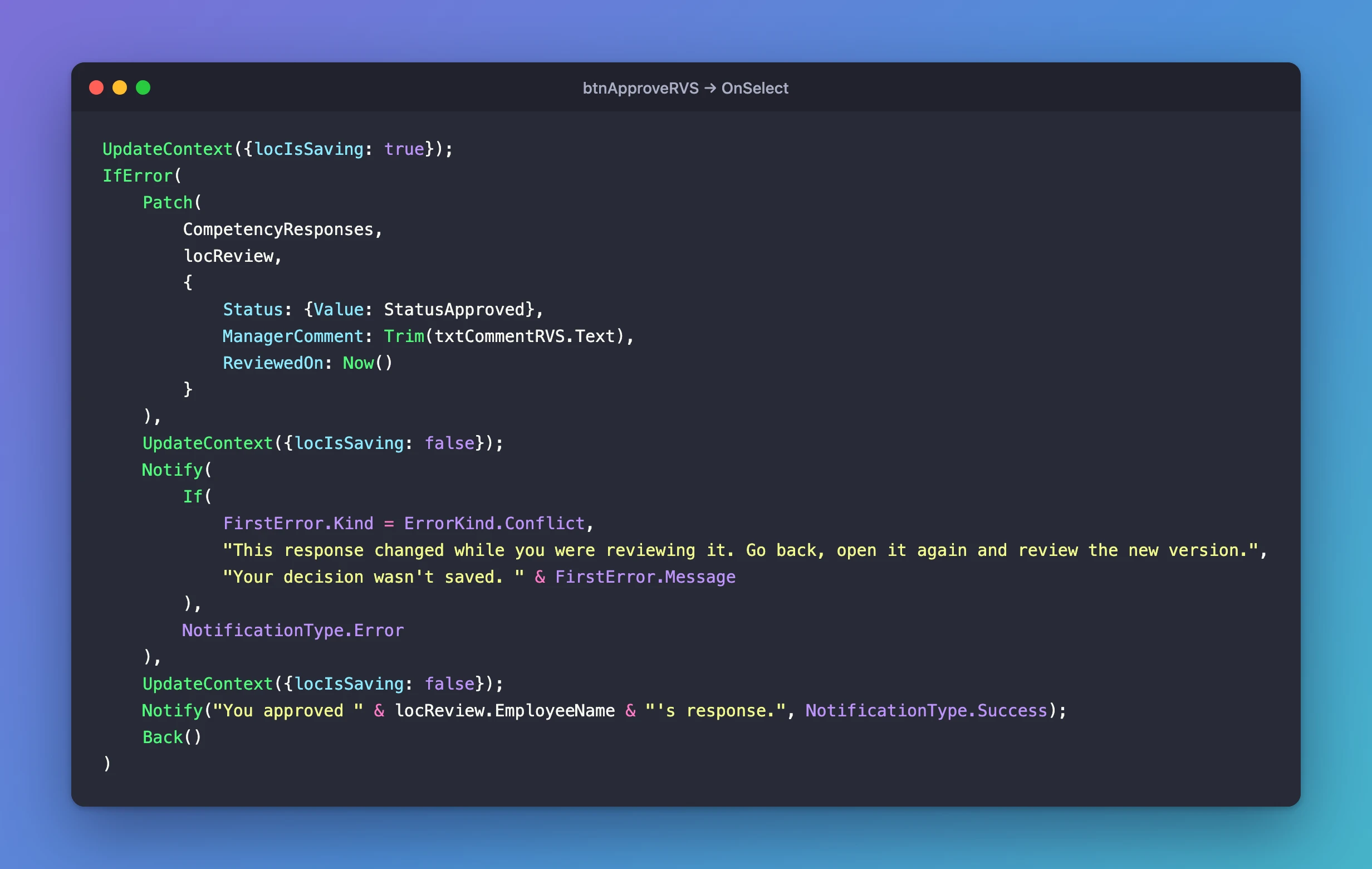
UpdateContext({locIsSaving: true});
IfError(
    Patch(
        CompetencyResponses,
        locReview,
        {
            Status: {Value: StatusApproved},
            ManagerComment: Trim(txtCommentRVS.Text),
            ReviewedOn: Now()
        }
    ),
    UpdateContext({locIsSaving: false});
    Notify(
        If(
            FirstError.Kind = ErrorKind.Conflict,
            "This response changed while you were reviewing it. Go back, open it again and review the new version.",
            "Your decision wasn't saved. " & FirstError.Message
        ),
        NotificationType.Error
    ),
    UpdateContext({locIsSaving: false});
    Notify("You approved " & locReview.EmployeeName & "'s response.", NotificationType.Success);
    Back()
)
Decline is the same formula with two changes:
Status: {Value: StatusDeclined},
Notify("You declined " & locReview.EmployeeName & "'s response and sent your comment.", NotificationType.Success);
Back() returns to the Team Member screen, whose OnVisible loads the person's responses again (How to Go Back with Back). The finished screen in Studio, after one preview to load data:
On 360-pixel phones, two 160-pixel buttons don't fit side by side. Part 9 sets both buttons' Width to If(App.ActiveScreen.Size = ScreenSize.Small, (Parent.Width - Parent.LayoutGap) / 2, 160), and every screen title's Size to If(App.ActiveScreen.Size = ScreenSize.Small, 18, 20).
Step 8: Decline a Response
Preview from the Home screen: My team → Open on Olivia → Review on Sales strategy. The comment box is empty, so Decline is disabled:
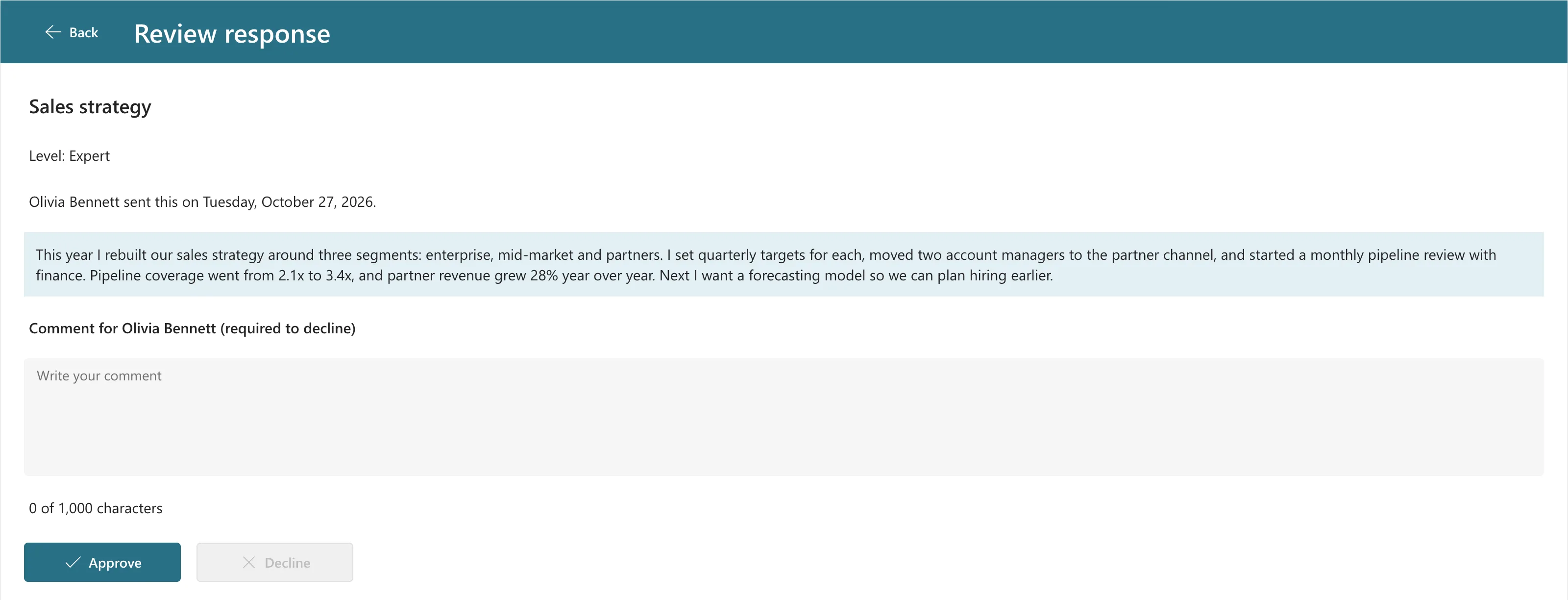
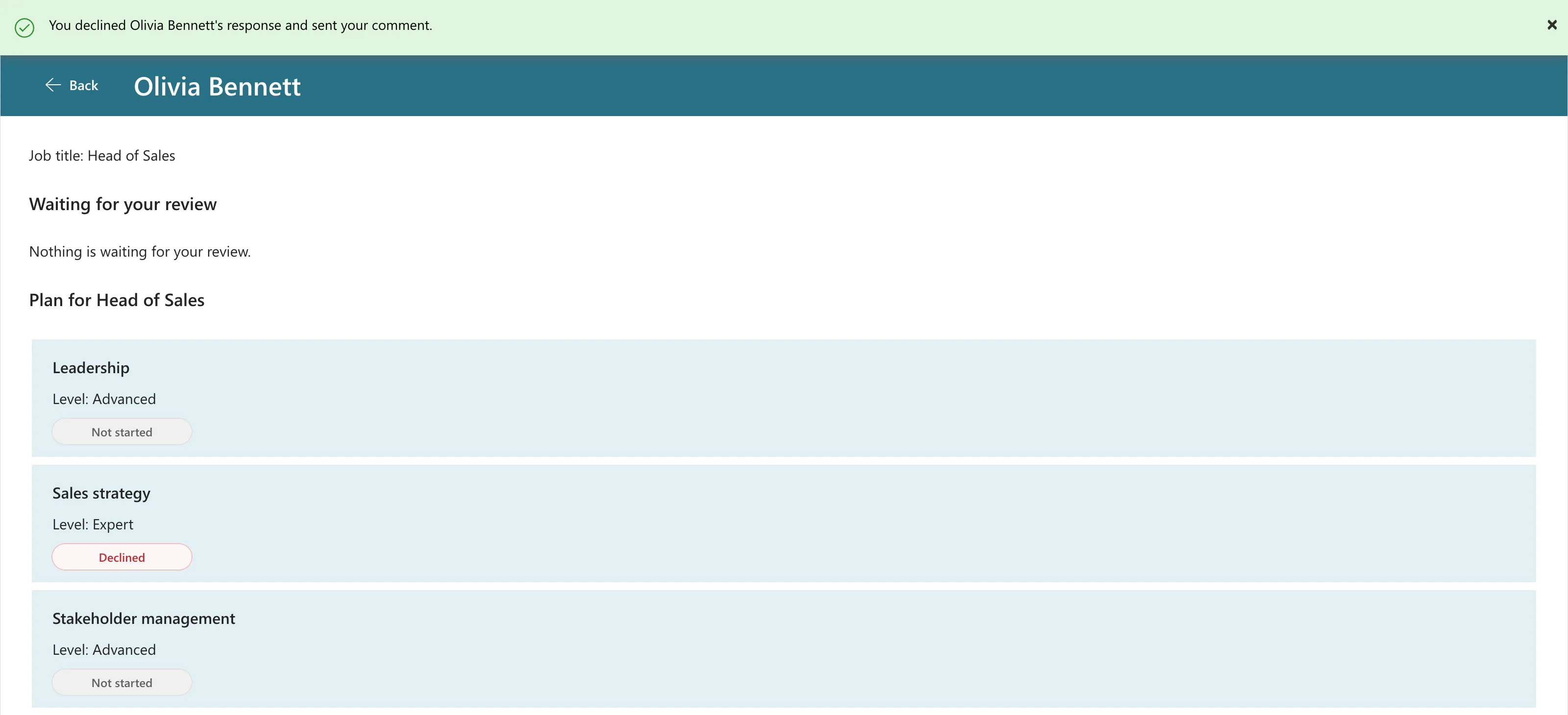
Type a comment, as at the top of this part, and Decline turns on. Select it. A green banner confirms it, the app goes back, and the Team Member screen has nothing waiting, with Sales strategy marked Declined:
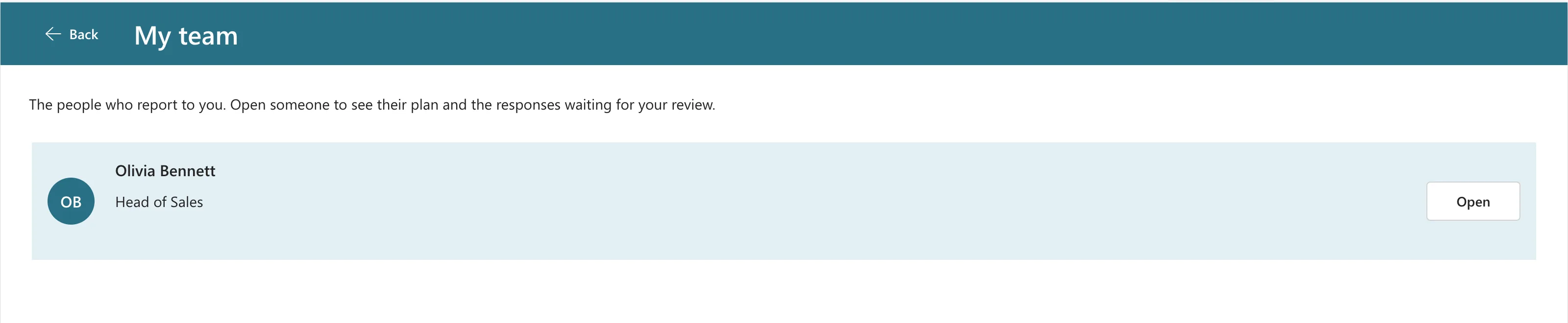
Back to My team: Olivia's badge is gone.
Step 9: See It as the Employee
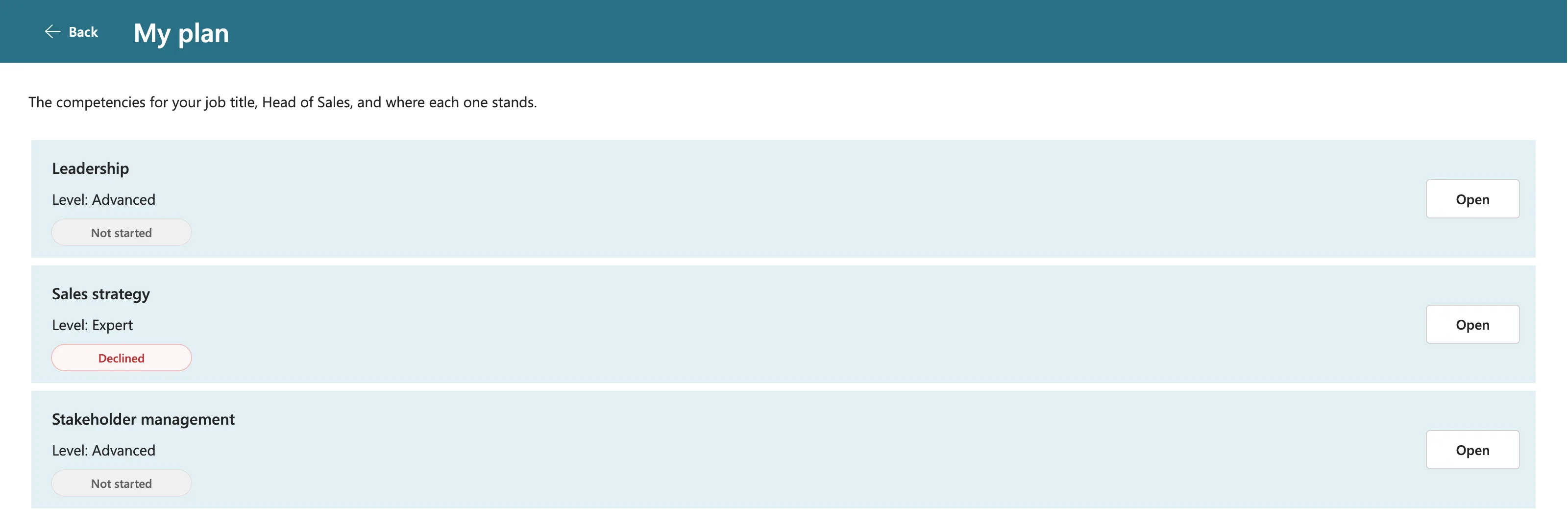
Olivia's screens haven't changed since Part 7, so the published version is enough. In her browser, open the app with its web link (How to Find the Web Link of a Canvas App). Her My plan shows the decision:
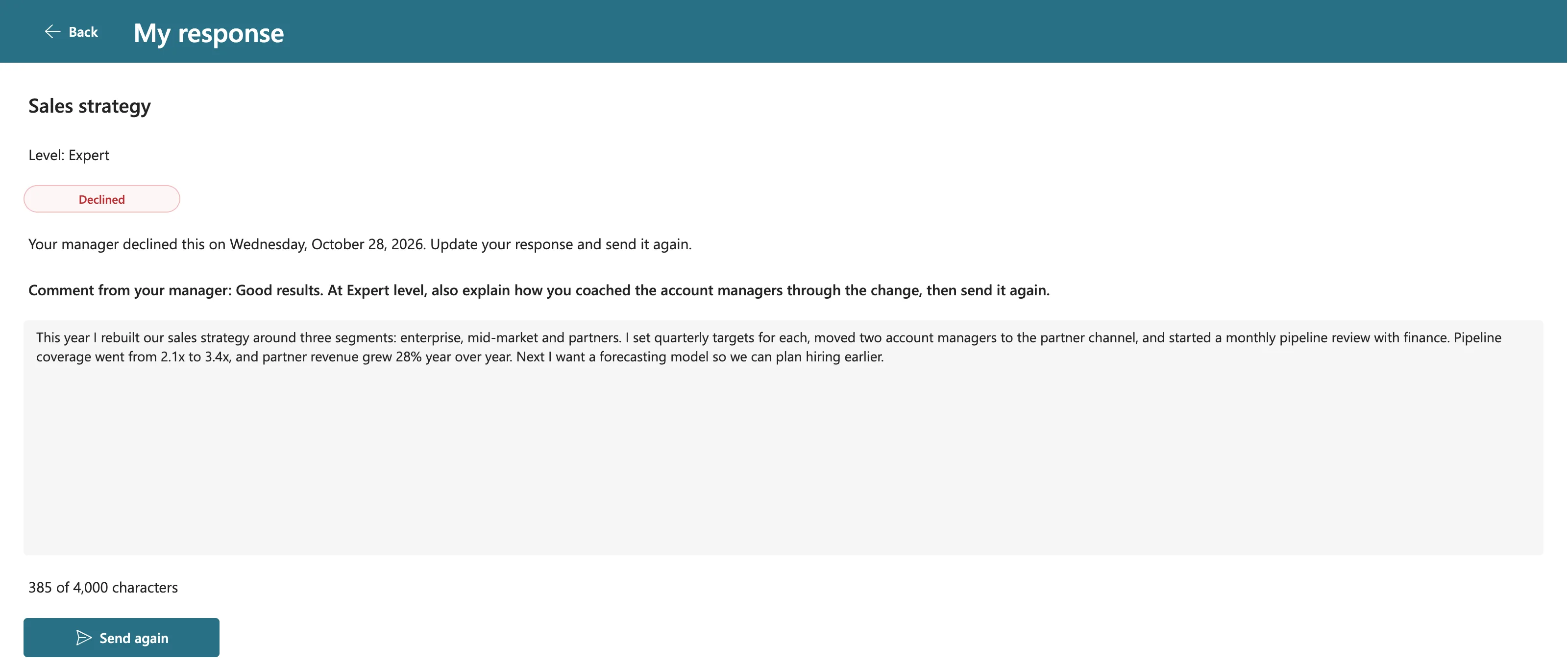
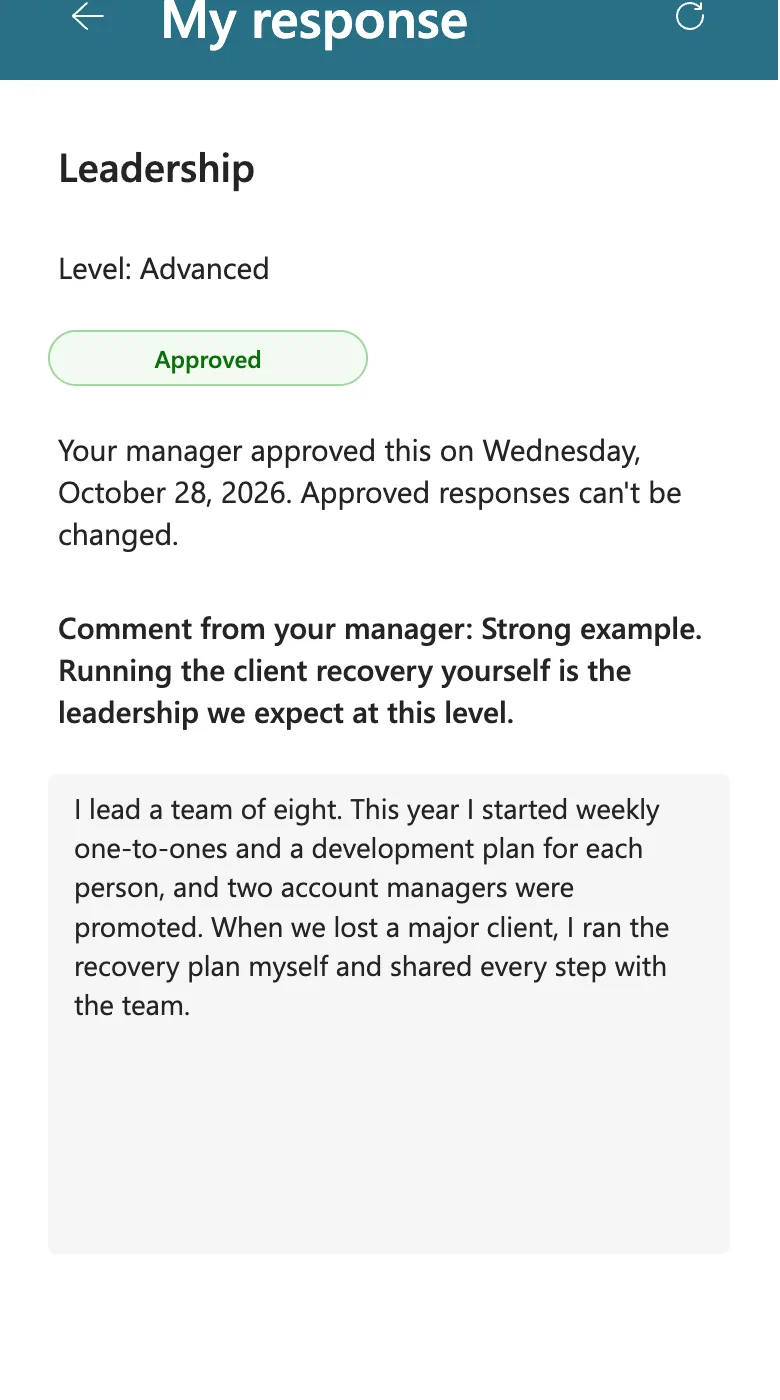
Opening it shows the date and her manager's comment, built in Part 6:
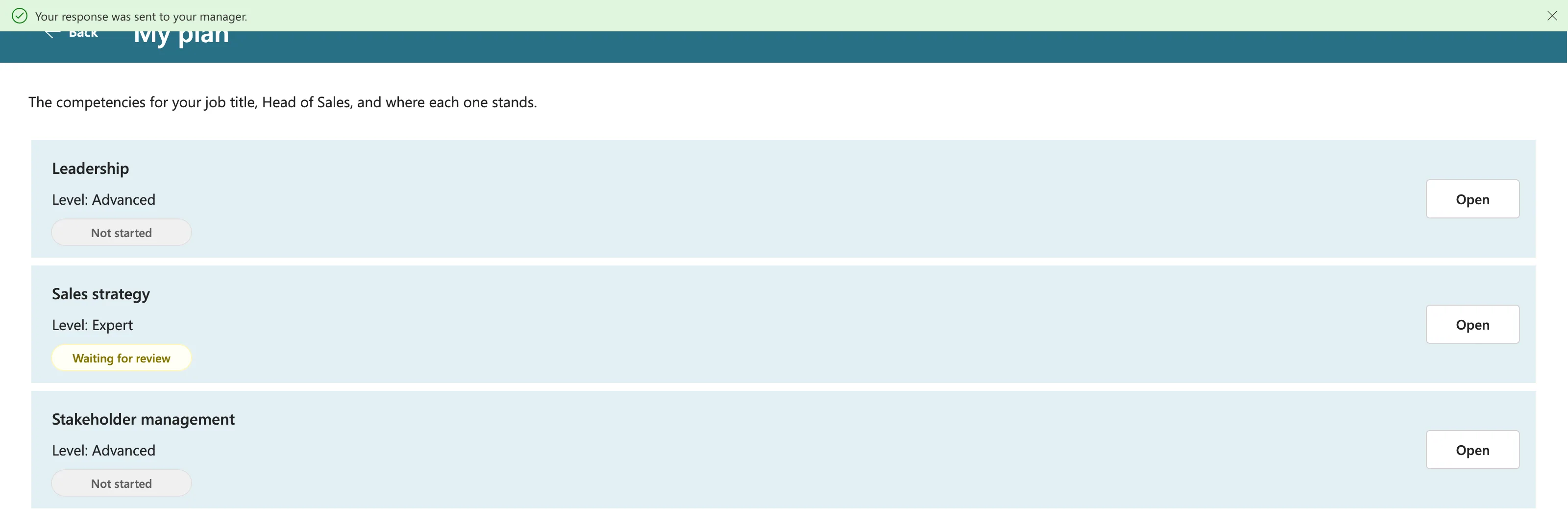
She adds how she coached the team and selects Send again. Her plan shows Waiting for review again:
Step 10: Approve, and Catch a Change Made at the Same Time
Back as the manager, open Olivia's response again. Before approving, test the risk this screen exists for: the employee edits the response while the manager is reading it.
With the Review screen open, Olivia added one more sentence in her browser and selected Update response. Then the manager selected Approve on the copy loaded before her change. SharePoint refused it, and the app said so:
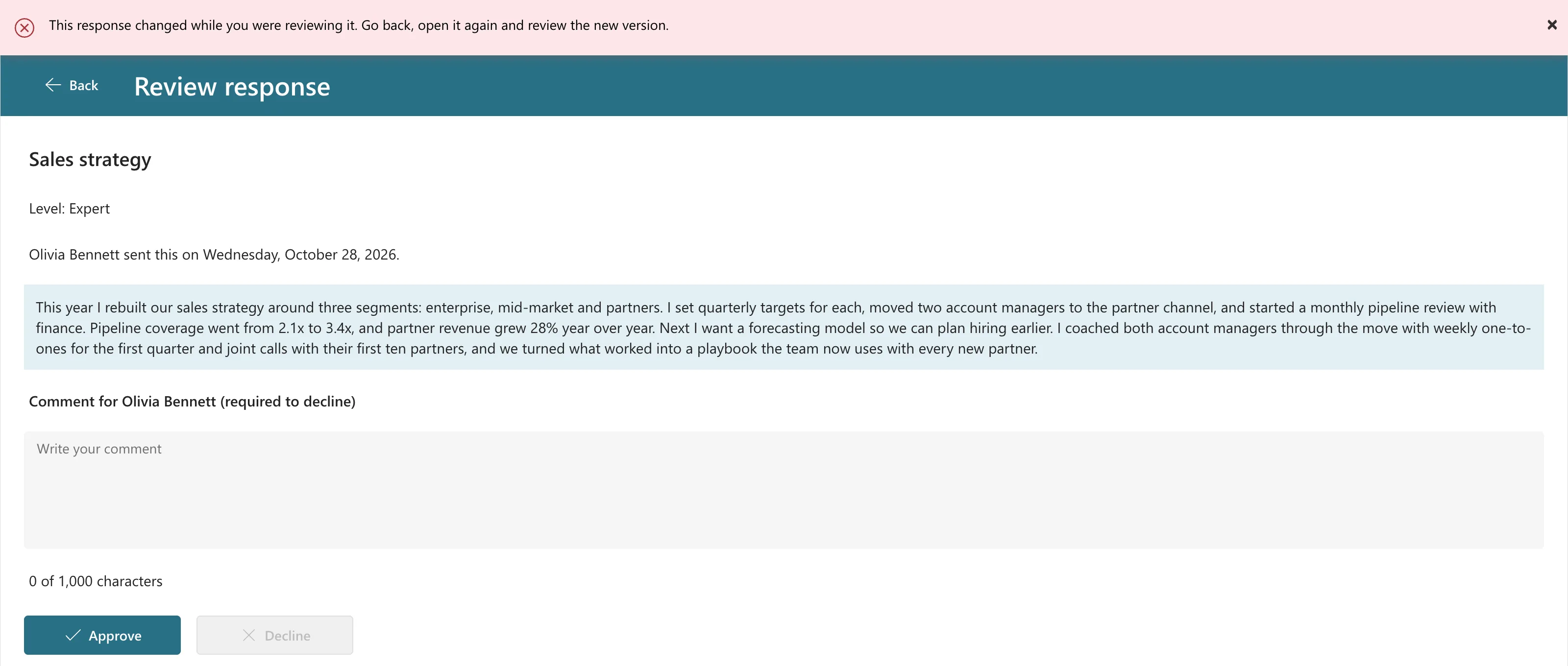
Nothing was approved. Patch sends the version of the item it read, and SharePoint rejects an update to an item that changed since then (Fixed: "Network Error When Using Patch Function: ETAG Mismatch"). Going back and opening it again read the new version, with Olivia's last sentence about onboarding:
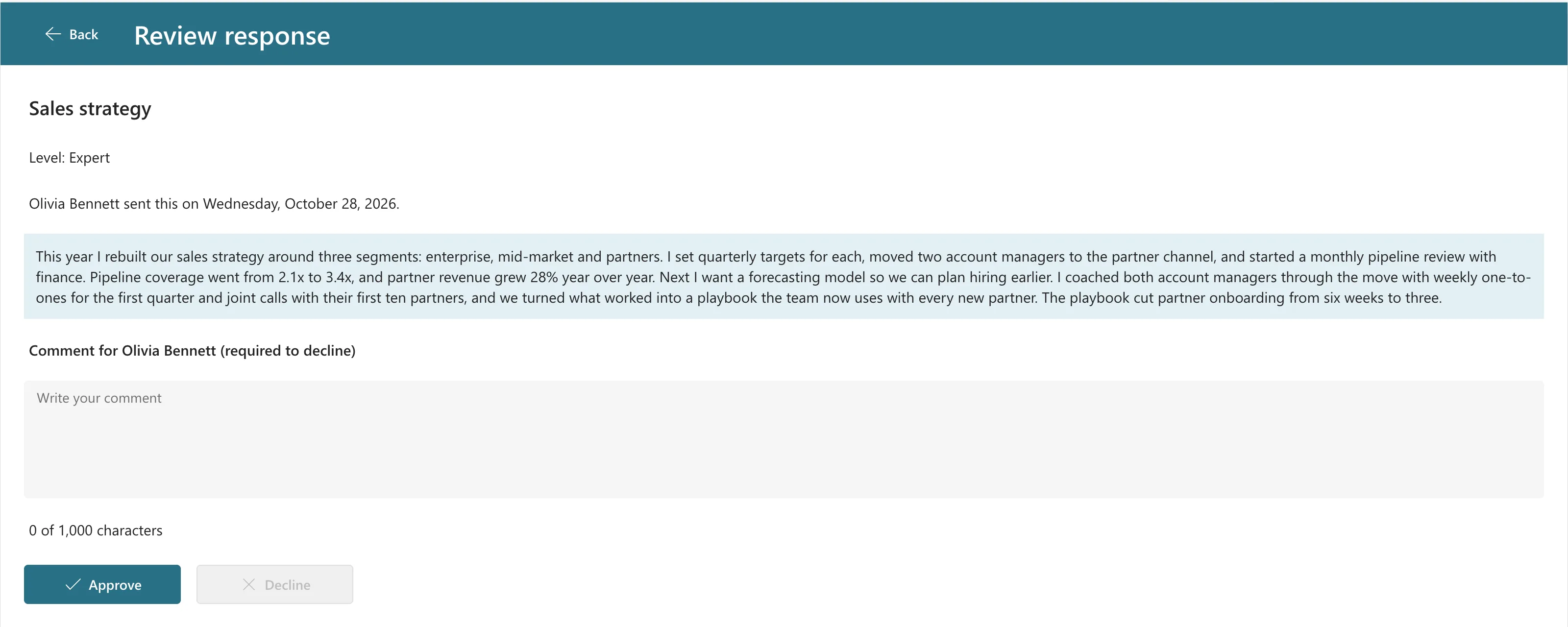
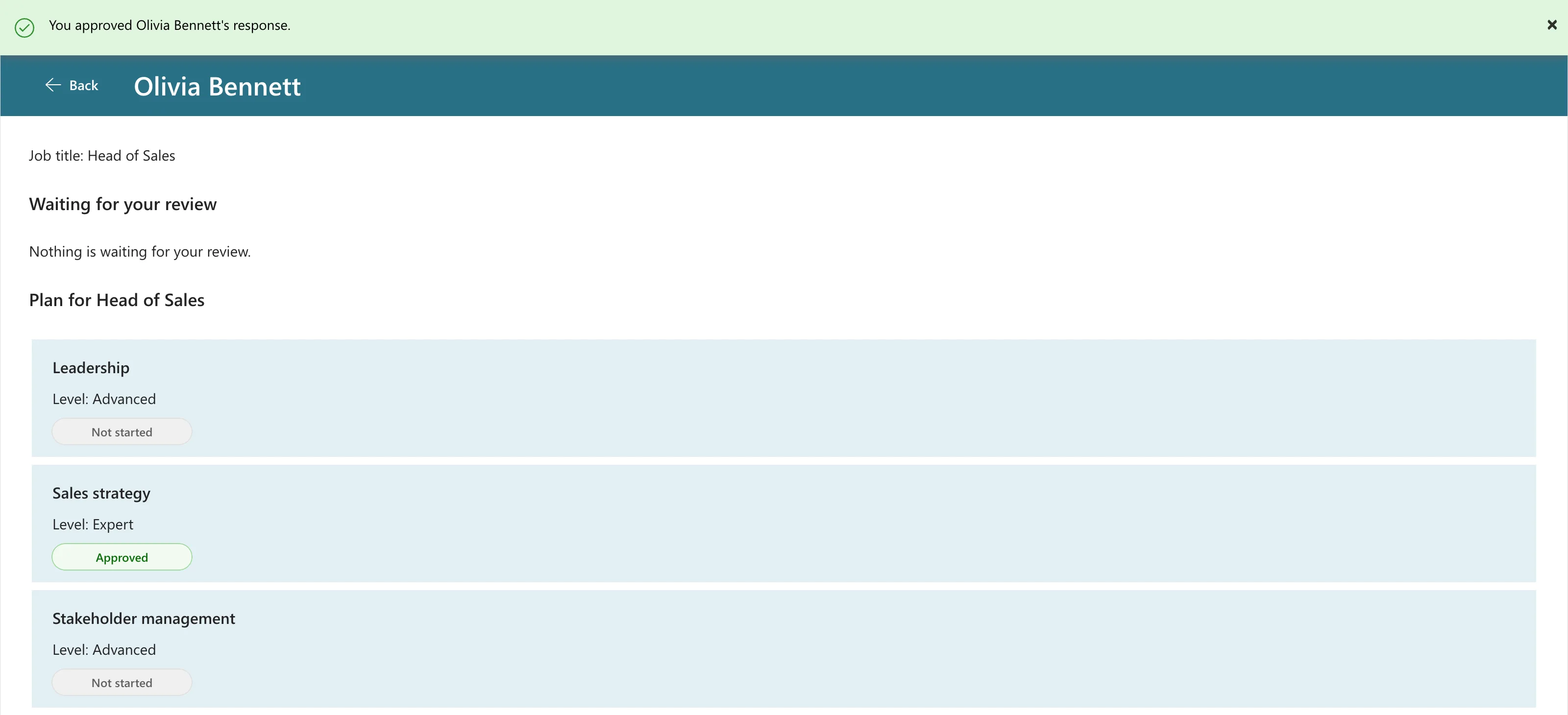
Select Approve, this time without a comment, because a comment is optional for approvals. The banner confirms it, and the plan shows Approved:
Step 11: The Bug: Olivia Didn't See the Approval
In Olivia's browser, I went back to the Home screen and opened My plan. Sales strategy still said Waiting for review:
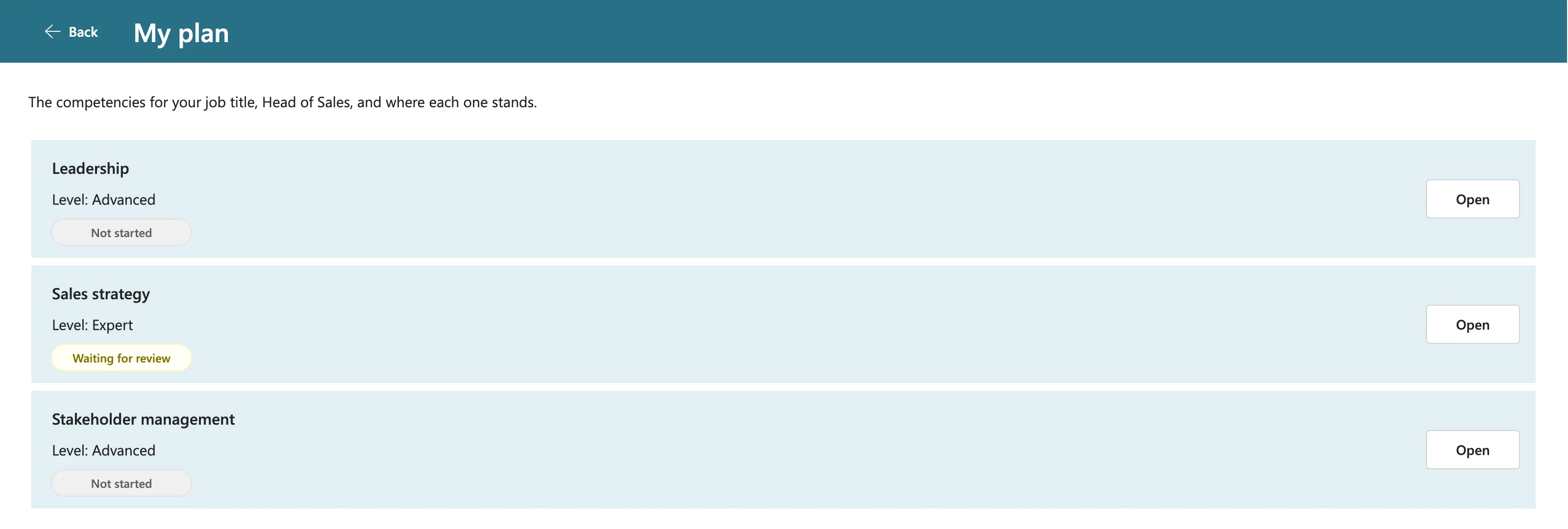
Opening the response itself showed Approved, so the decision was saved. I opened My plan again after 12 seconds, and once more six minutes later: still Waiting for review.
Part 6 never saw this, because there the change came from the app's own Patch, and the new status showed at once. This time someone else made the change. Microsoft documents the difference: a running app doesn't detect changes made outside it, and the Refresh function gets a fresh copy so you see changes other users made. The full investigation is in Fixed: Power Apps Doesn't Show Changes Other People Made.
Every screen that shows SharePoint data has the same weakness: an employee waits for decisions, and a manager waits for responses. So every one of them gets the fix.
Step 12: Add a Refresh Button to Every Screen
Each data screen gets two things (How to Refresh Data with the Refresh Function):
- It refreshes when it opens, for the case that failed.
- A Refresh button in its header, for someone who stays on the screen.
Both run one formula. It moves from the screen's OnVisible into the button's OnSelect, with Refresh added, and OnVisible selects the button (How to Add a Refresh Button to a Screen).
Build it once, on My plan
Select conHeaderMPS and insert a Button. It lands after the title, at the right edge. Name it btnRefreshMPS:
| Property | Value |
|---|---|
| Text | "Refresh" |
| Icon | "ArrowClockwise" |
| Width, Height | 112, 40 |
| AccessibleLabel | "Refresh this screen" |
Cut the My Plan screen's OnVisible formula from Part 5, paste it into the button's OnSelect, and add a Refresh line for each list it reads, after the first line:
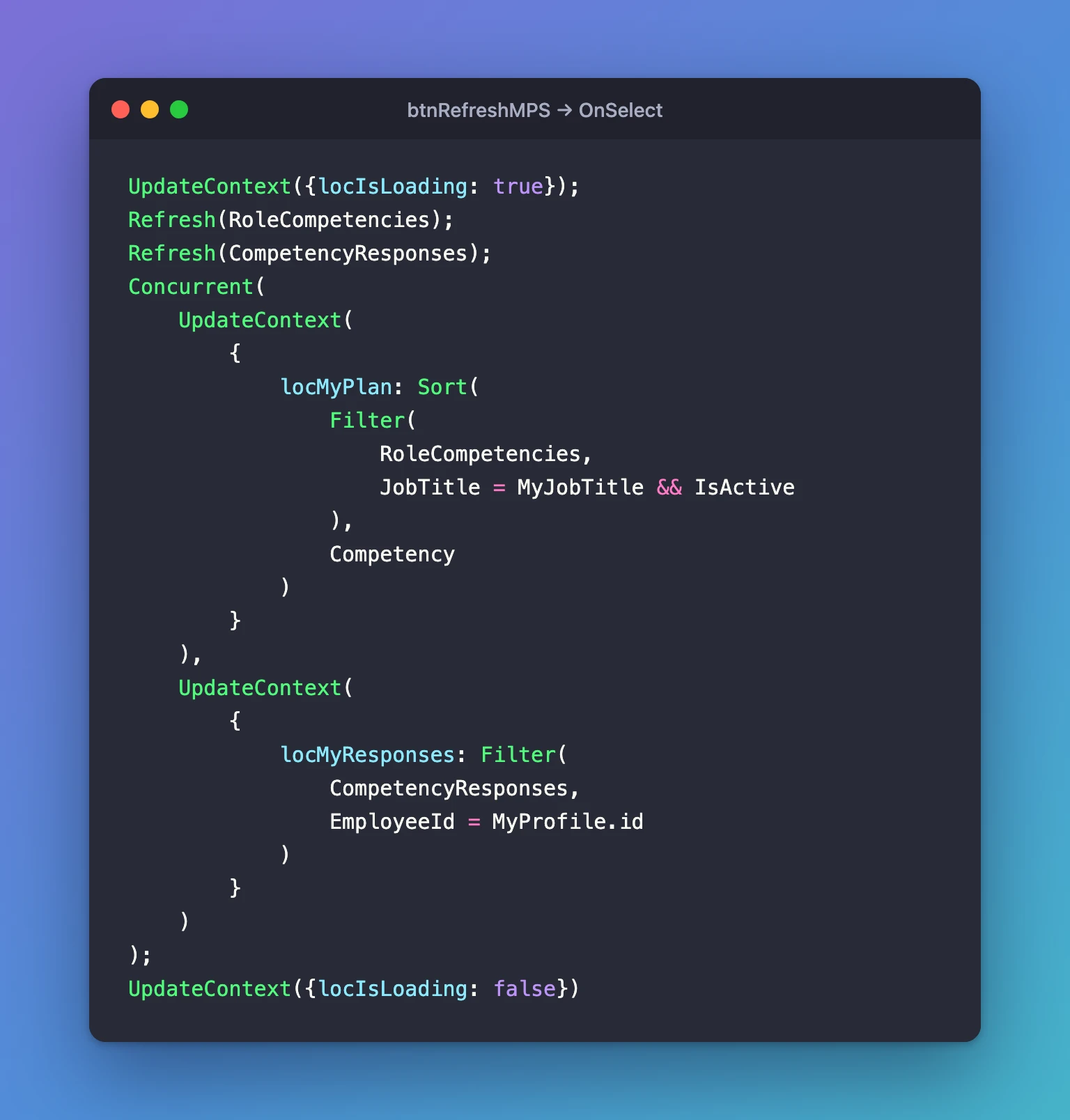
UpdateContext({locIsLoading: true});
Refresh(RoleCompetencies);
Refresh(CompetencyResponses);
Concurrent(
    UpdateContext(
        {
            locMyPlan: Sort(
                Filter(
                    RoleCompetencies,
                    JobTitle = MyJobTitle && IsActive
                ),
                Competency
            )
        }
    ),
    UpdateContext(
        {
            locMyResponses: Filter(
                CompetencyResponses,
                EmployeeId = MyProfile.id
            )
        }
    )
);
UpdateContext({locIsLoading: false})
Select(btnRefreshMPS)
Select runs the button's OnSelect as if someone selected it. Microsoft's reference allows it in OnVisible for a control on the same screen.
Copy it to the other screens
My first pass added the button to each screen from scratch. Building it once and copying it is faster, and keeps all five identical, so that's how I redid them. For each screen in the table: copy btnRefreshMPS, paste it on that screen's header container, rename the copy, put that screen's OnVisible formula in its OnSelect with the Refresh lines after the first line, and set the screen's OnVisible to Select() on it.
| Screen | Button | Refresh lines to add |
|---|---|---|
| Response Screen | btnRefreshRS | Refresh(CompetencyResponses); |
| My Team Screen | btnRefreshMTS | Refresh(CompetencyResponses); |
| Team Member Screen | btnRefreshTMS | Refresh(RoleCompetencies); and Refresh(CompetencyResponses); |
| Review Screen | btnRefreshRVS | Refresh(CompetencyResponses); |
The Home screen reads only Microsoft 365 profiles, so it has no button. For the Review screen, the result is:
UpdateContext({locIsLoading: true, locIsSaving: false});
Refresh(CompetencyResponses);
UpdateContext(
    {
        locReview: LookUp(
            CompetencyResponses,
            ID = locResponseId
        )
    }
);
UpdateContext({locCanReview: locReview.Status.Value = StatusPending});
Reset(txtCommentRVS);
UpdateContext({locIsLoading: false})
The second paste failed with There's something wrong with the pasted code. Copying a control puts its code on the clipboard, and I'd pasted the first screen's formula since, which replaced it. Copy the button again before each paste (Fixed: "There's Something Wrong with the Pasted Code").
Step 13: Fix the Header on Phones
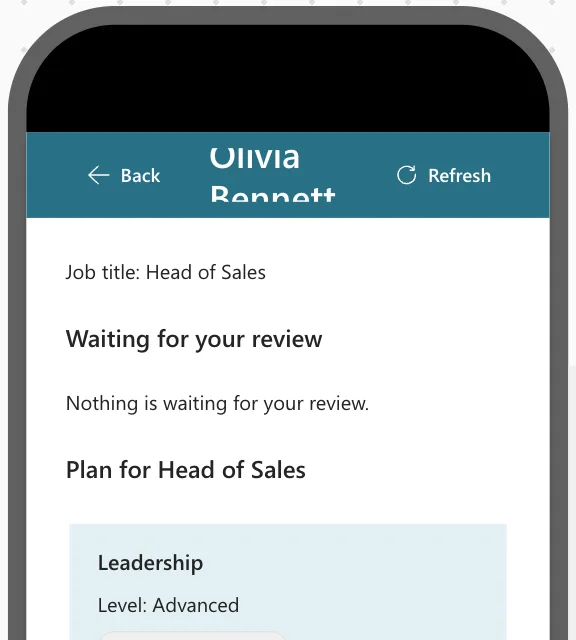
At Apple iPhone 12, 13, 14 size (How to Test on Phone and Tablet Sizes), the new button squeezed the title. Olivia Bennett wrapped onto two lines and was cut off:
Microsoft's Button reference has a Layout property whose ButtonLayout.IconOnly shows only the icon. My first attempt changed only the Refresh buttons, and the title still didn't fit. Both header buttons need it, so set these on every Back and Refresh button in the five headers (How to Show Only the Icon on a Button on Phones):
| Property | Back buttons | Refresh buttons |
|---|---|---|
| Layout | If(App.ActiveScreen.Size = ScreenSize.Small, ButtonLayout.IconOnly, ButtonLayout.IconBefore) | the same |
| Width | If(App.ActiveScreen.Size = ScreenSize.Small, 40, 96) | If(App.ActiveScreen.Size = ScreenSize.Small, 40, 112) |
| Tooltip | "Back" | "Refresh this screen" |
Their accessible labels already describe them, which Microsoft recommends for icon-only buttons. On a phone, the longest title fits:
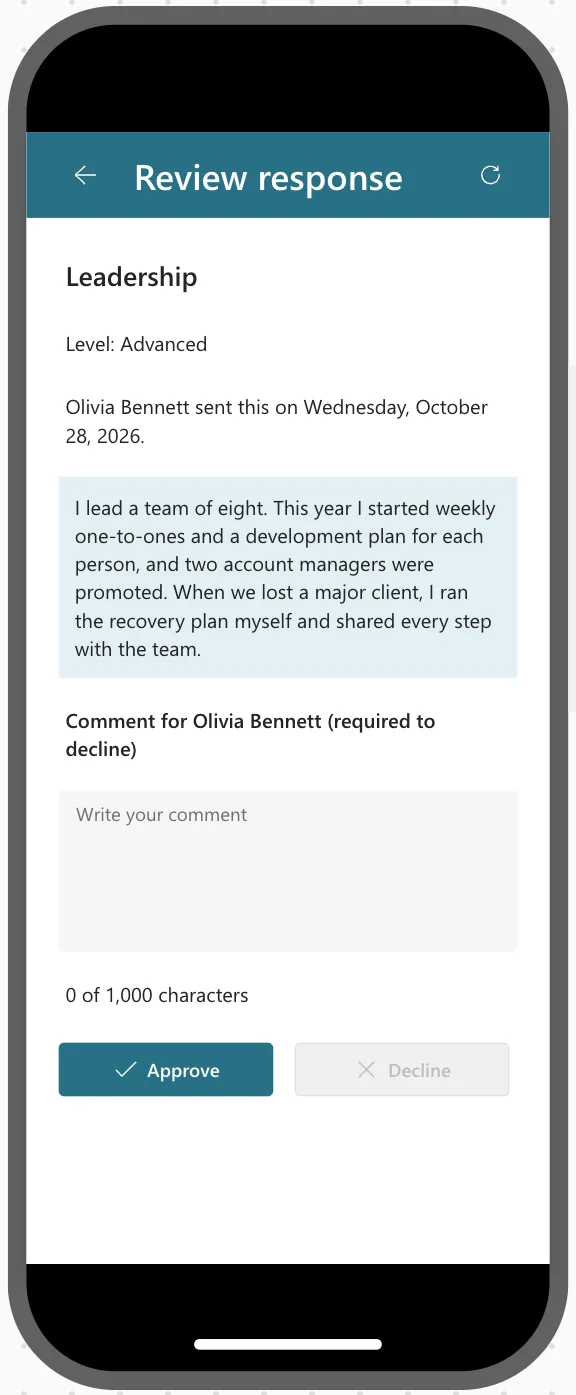
When I switched the preview size while a screen was already open, its buttons kept their text until I went to another screen and back. Microsoft's responsive layout article warns that the authoring canvas doesn't respond to sizing formulas, so Step 14 tests the published app. The whole story is in Fixed: Text Is Cut Off Inside a Container on Small Screens.
Step 14: Check, Publish and Test with Olivia
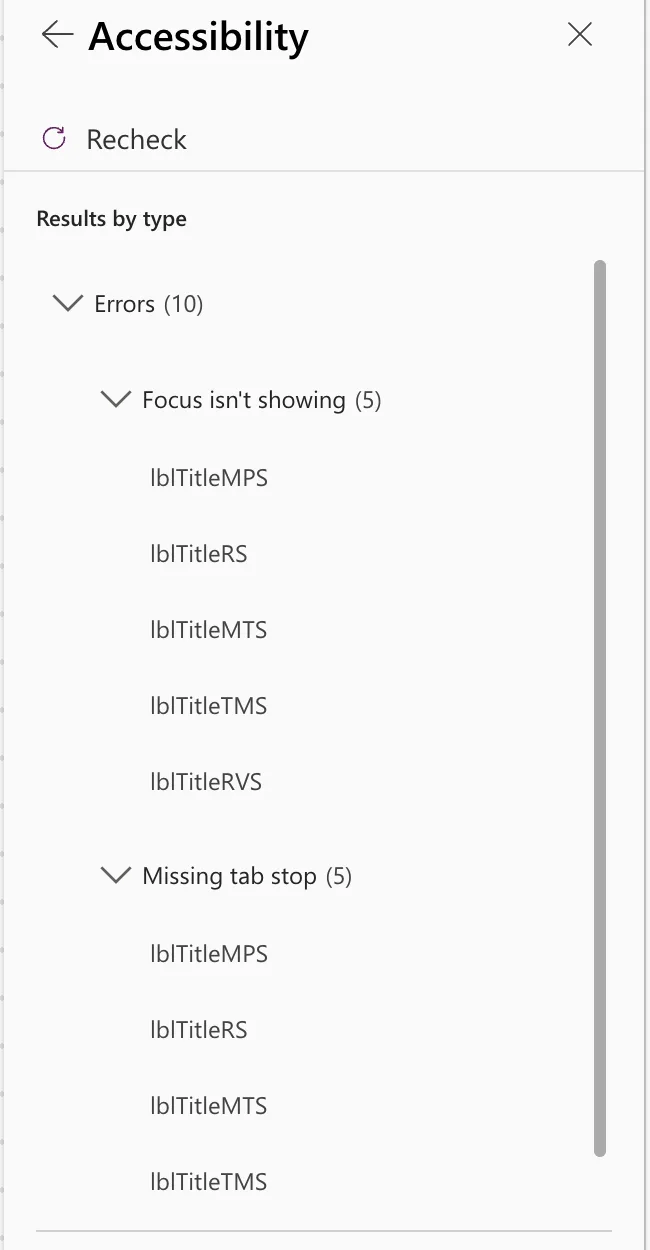
Open the App checker and select Recheck all. Accessibility (10) lists the five screen headings, each with Focus isn't showing and Missing tab stop, the case Part 5 explains (Fixed: "Focus Isn't Showing", Fixed: "Missing Tab Stop"). Everything else is clear:
Save, then Publish → Publish this version (How to Publish a Canvas App). In Olivia's browser, a reload three minutes later still opened the old version. A second, four minutes after publishing, had the Refresh buttons (Fixed: Users Still See the Old Version After You Publish).
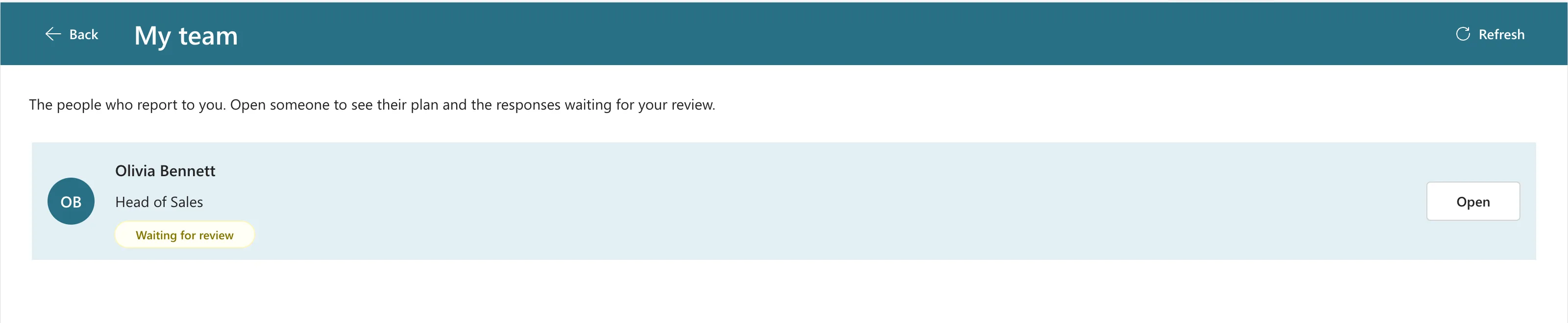
The header button. The manager's My team was open when Olivia sent her Leadership response, so it showed no badge. After Refresh, it did:
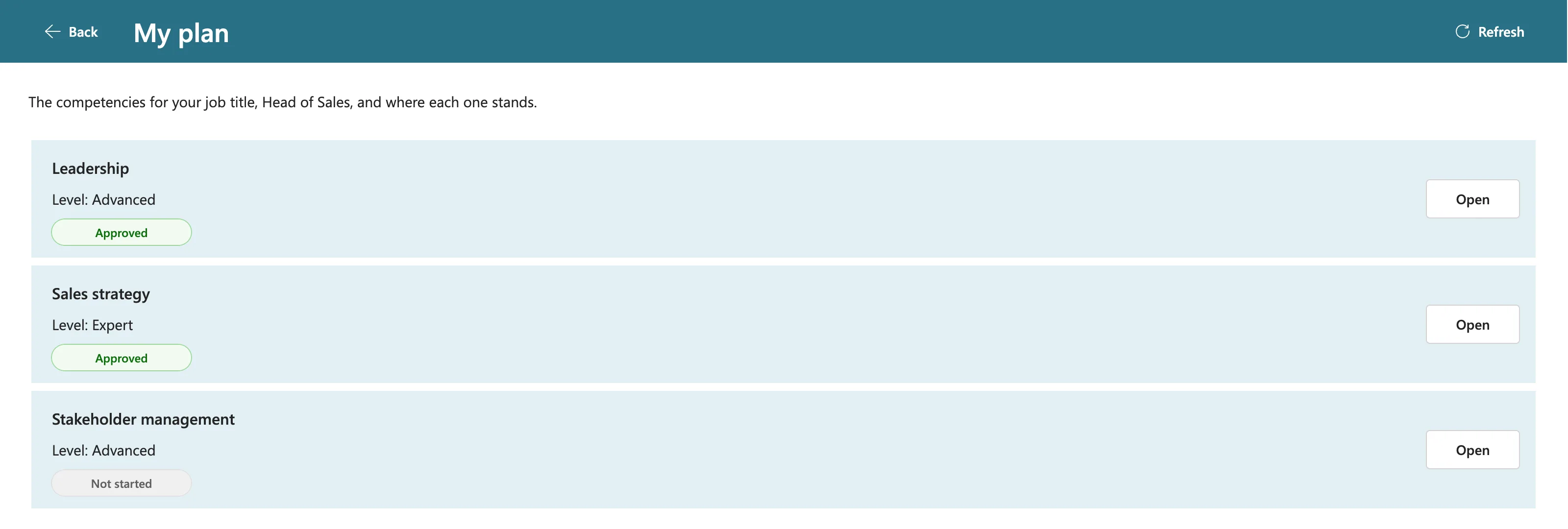
The manager approved it with a comment. Olivia's My plan, loaded before that, still said Waiting for review. After Refresh, it said Approved:
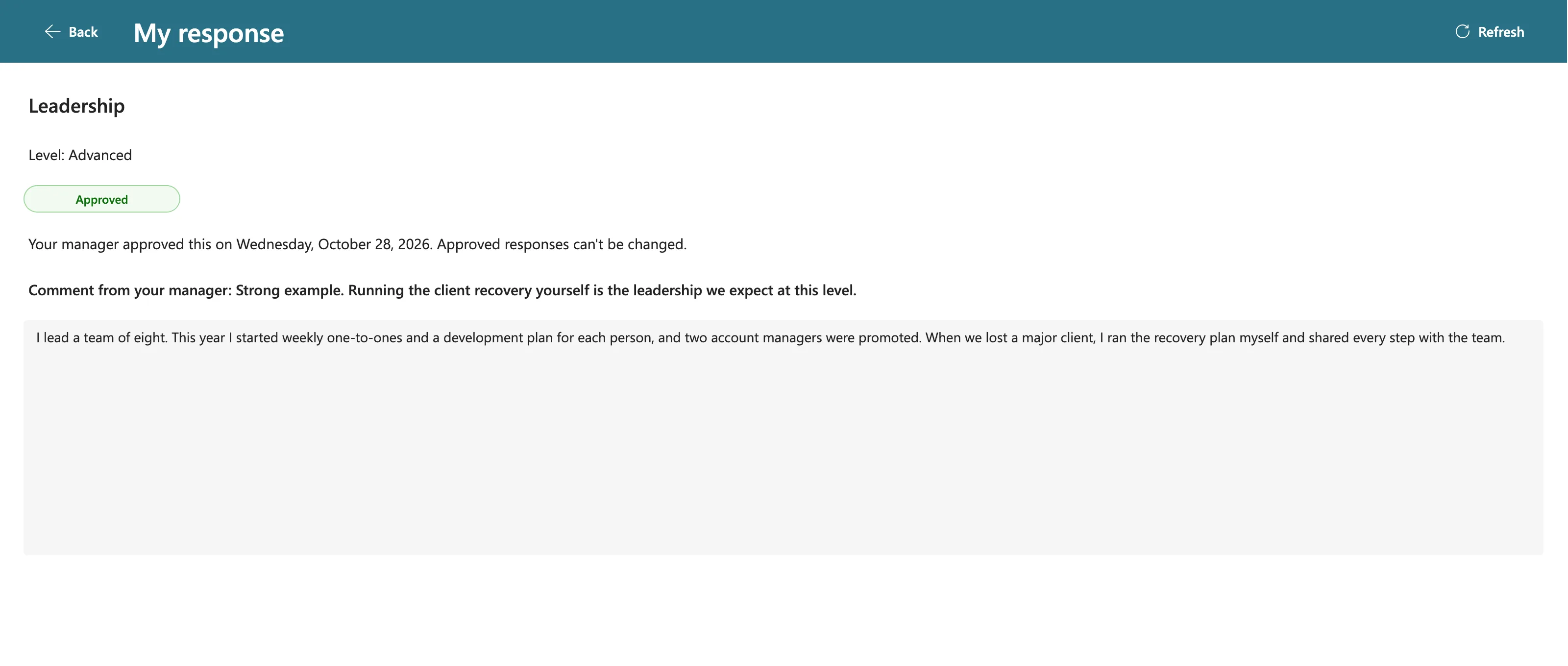
And opening it shows the manager's comment on an approval too:
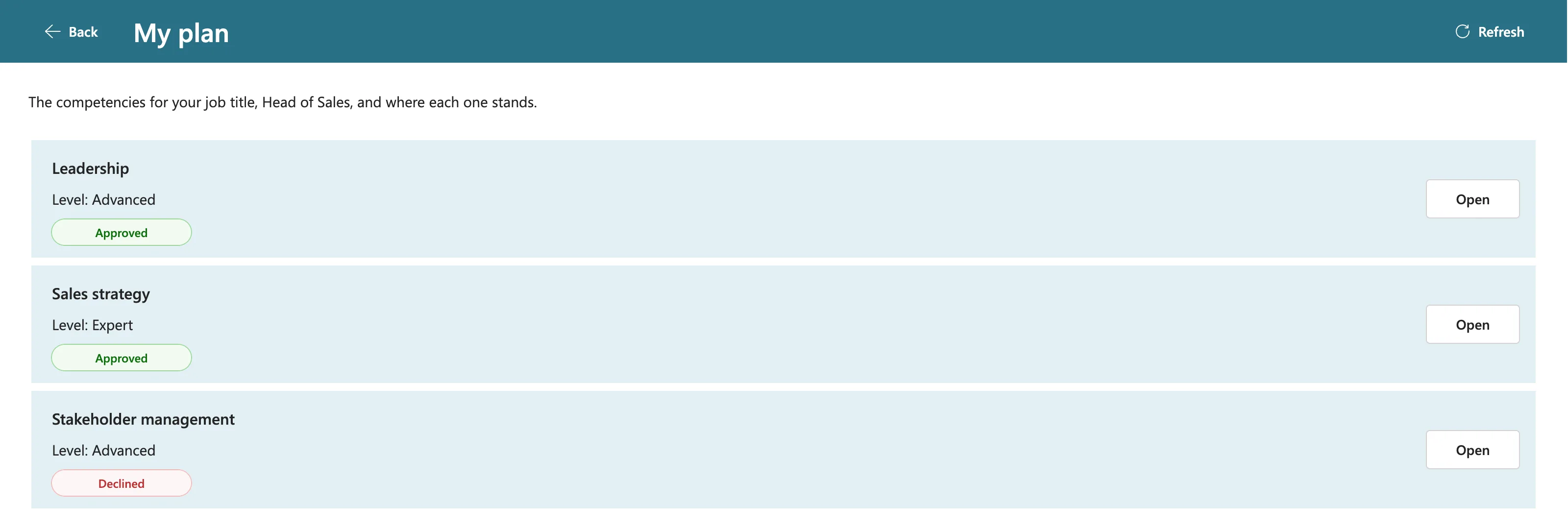
The path that failed. Olivia sent a third response and went to the Home screen, and her manager declined it. Seventeen seconds later, she opened My plan, without Refresh or a reload. It showed Declined:
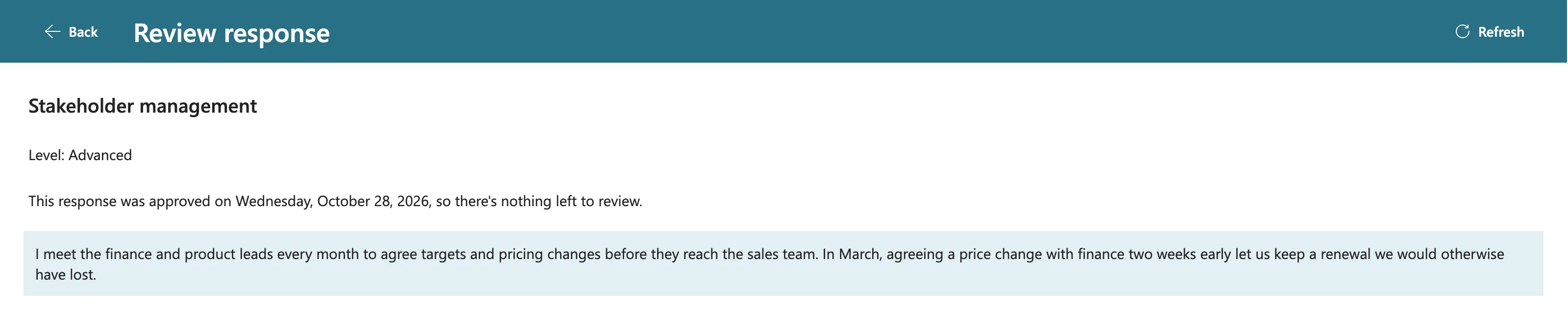
A response decided somewhere else. Olivia added an example to that response and sent it again. The manager had her screen open in one browser tab, with the response waiting, and approved it in a second tab. Back in the first tab, Review on the old row showed the decision instead of the comment box and buttons, because the Review screen reads the response when it opens:
The phone header, published. With Olivia's browser window narrowed to 390 × 844, the header showed icons only. Widened again, the button text came back at once:
Common Mistakes
| Mistake | What happens | Do this instead |
|---|---|---|
| Keeping a copied header's title formula | The '.' operator cannot be used on Error values | Give the title this screen's own text |
| Passing the whole record to the Review screen | The manager may decide on an old version | Pass the ID and read the response when the screen opens |
Setting locCanReview in the same UpdateContext as locReview | It reads the previous response | Use a separate UpdateContext |
| Testing with one account | Other people's changes never come up | Test with the employee in another browser |
Calling only Refresh(...) in the button | Screens keep their old variables | Run the screen's queries again after it |
| Pasting a formula between control pastes | There's something wrong with the pasted code | Copy the control again before each paste |
Troubleshooting
| Symptom | Likely cause | Fix |
|---|---|---|
| Decline stays disabled | The comment is empty or only spaces | Type a comment |
| This response changed while you were reviewing it | The employee changed it after the screen loaded it | Go back, open it again and review the new version |
| The employee doesn't see the decision | Their screen kept an older copy | Refresh in OnVisible and the header button (Fixed: Power Apps Doesn't Show Changes Other People Made) |
| The screen opens empty | locResponseId is blank, for example when previewing the Review screen directly | Open it from the Team Member screen |
| Header buttons keep their text on a phone preview | The preview size changed while the screen was open | Go to another screen and back, or test the published app |
| Users don't have the Refresh buttons | They still have the old version | Fixed: Users Still See the Old Version After You Publish |
FAQ
Who can approve a response?
The app shows the Review screen only for the manager's own direct reports, from Microsoft 365. As Part 1 explains, the SharePoint permission is the real boundary: anyone in the group could edit the list directly. SharePoint's version history records who changed what.
Why isn't the reviewer saved in the list?
The reviewer is always the employee's current manager in Microsoft 365, so the app doesn't store one. SharePoint's Modified By and version history record who made each decision.
Can a manager change a decision?
Not in the app. The Review screen shows its buttons only while a response is Pending. A declined response comes back when the employee sends it again, and an approved one is final.
Conclusion
Managers can now decide, and employees see the decisions:
- each waiting response opens the Review screen, which reads it by ID when it opens;
- Approve saves with an optional comment, Decline needs one, and a change made at the same time is caught instead of overwritten;
- every data screen refreshes when it opens and has a Refresh button, built once and copied, with icon-only header buttons on phones.
On the way, a copied header's error, a failed paste, a status that didn't update and a clipped phone header each showed how to find the cause and fix it, starting from Microsoft's documentation.
← Previous: Part 7: Share the App and Build the My Team Screens
Next → Part 9: Let Managers Manage Competencies. Managers add competencies to a job title, change their levels and remove them.
Additional Resources
- Patch function: updating an item with only the columns that change.
- Power Apps delegable functions and operations for SharePoint: the note on ID columns.
- Refresh function: seeing changes other users made.
- Select function: running a button's formula from OnVisible.
- Button modern control: Layout and icon-only buttons.
- Create responsive layouts in canvas apps: screen sizes.
- Use code view for canvas app controls: how copy and paste work.
