Build a Career Development Plan App in Power Apps — Part 7: Share the App and Build the My Team Screens

Until now, only the person building the app has used it. This part publishes it, shares it with the team, and opens it as a team member who has nothing but a Microsoft 365 license. Then it builds the manager's side: a My team screen with each direct report, and a screen per person showing what's waiting for review and where their plan stands.
This is Part 7 of a 14-part series.
- Part 1: Plan the App and Set Up the Demo Organization
- Part 2: Create the SharePoint Site and Lists
- Part 3: Create the Solution, Environment Variables and Canvas App
- Part 4: Build the Home Screen
- Part 5: Build the My Plan Screen
- Part 6: Build the Response Screen
- Part 7: Share the App and Build the My Team Screens (you are here)
- Part 8: Build the Review Screen for Manager Approvals
- Part 9: Let Managers Manage Competencies
- Part 10: Test Every Role, Joiners and Leavers (coming soon)
- Part 11: Build a Setup Flow That Creates the SharePoint Lists (coming soon)
- Part 12: Run the Solution Checker and Export the Solutions (coming soon)
- Part 13: Install the App in a New Environment (coming soon)
- Part 14: Recap, Production Checklist and Next Steps (coming soon)
Parts 4 to 6 built everything an employee needs: their profile, their plan and a screen to respond. The My team button on the Home screen has done nothing so far. This part connects it. Along the way, three things went wrong: a delegation warning, an unrecognized variable and text cut off on a phone. Each one is shown where it happened, with how it was found and fixed. As before, every generic task has its own short guide, and this part gives the exact values for this app.
What You'll Build
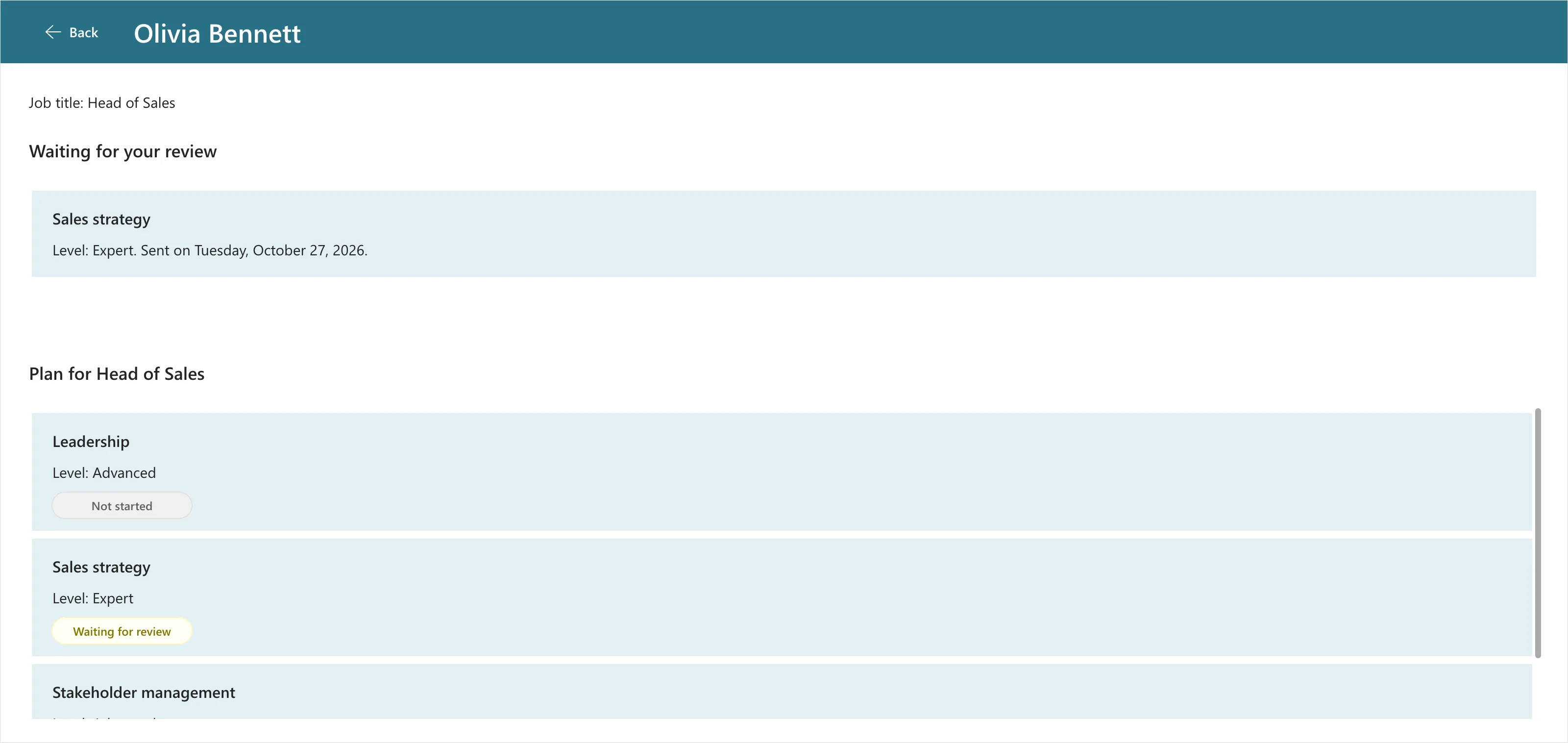
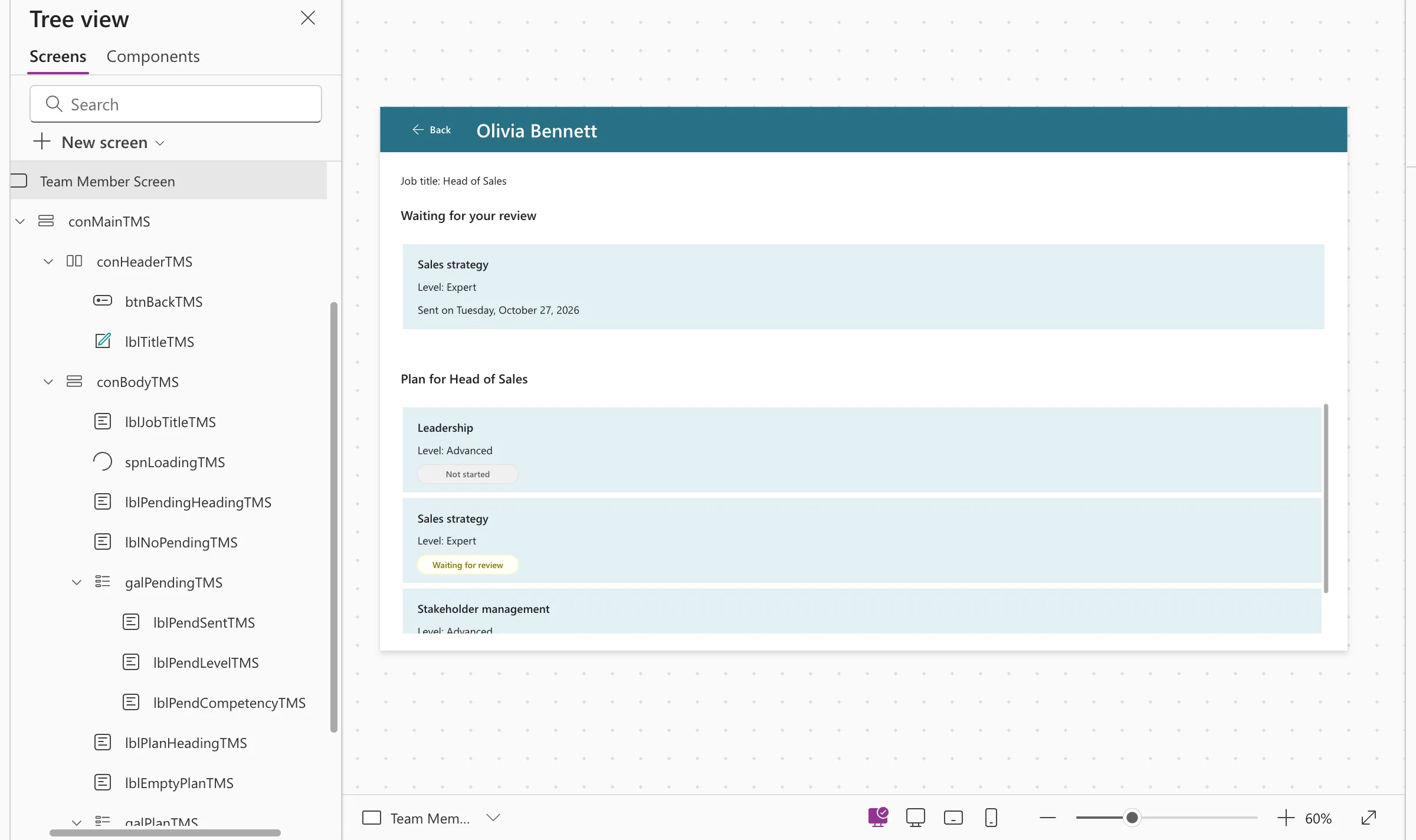
The manager's view of one team member, with the response waiting for review and their whole plan:
How the screens connect:
- The app is published and shared with the Career Development Plan Users group.
- A team member runs it with only a Microsoft 365 license, allows its connections once, and sends a response.
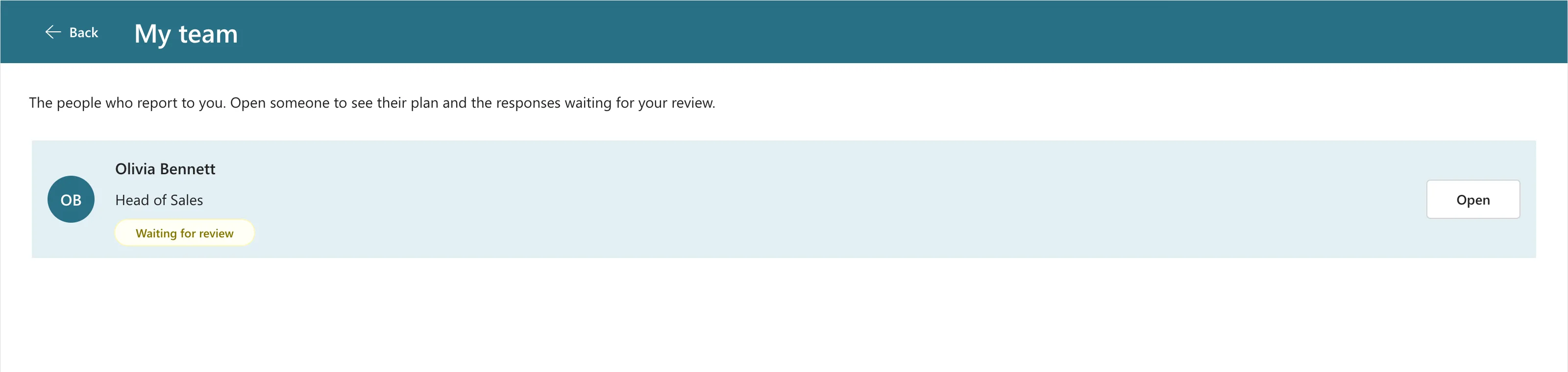
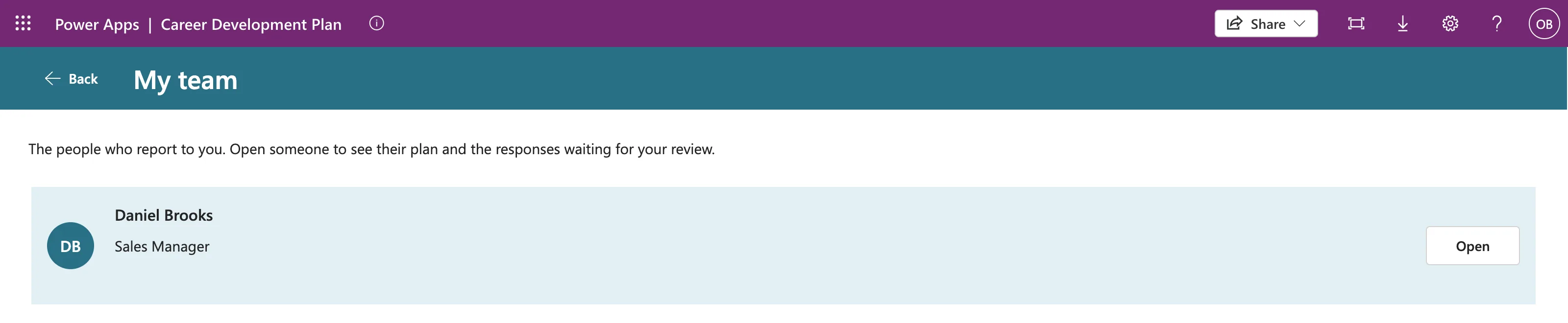
- My team lists the manager's direct reports, with a Waiting for review badge on anyone who has something to review.
- Each person's screen lists their responses waiting for review and their plan with the status of each competency.
Prerequisites
-
Part 6 completed: the Response screen, saved.
-
The demo organization from Part 1: Olivia Bennett reports to the admin, and Daniel Brooks reports to Olivia. You need Olivia's password to sign in as her.
-
The group's access from Part 2: Career Development Plan Users has Contribute on the site.
-
The guides this part relies on, by topic. Each step says which one to follow.
- Sharing the app:
- How to Publish a Canvas App in Power Apps
- How to Share a Canvas App with a Security Group in Power Apps
- How to Find the Web Link of a Canvas App in Power Apps
- How to Open a Shared Canvas App for the First Time in Power Apps
- How to Check a Canvas App's License Designation in Power Apps
- How to See a User's Licenses and Apps in the Microsoft 365 Admin Center
- Building the screens:
The layout reuses the earlier parts' guides, from adding a screen to galleries and badges, and each is linked where it's used.
- Sharing the app:
Step 1: Publish the App
Parts 4 to 6 only saved the app, and saving doesn't change what users see. Open it in Studio and select Publish → Publish this version (How to Publish a Canvas App):
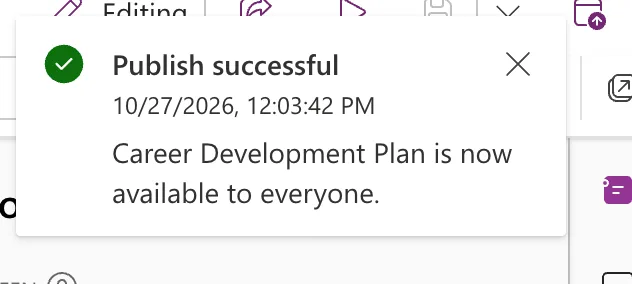
Available to everyone means everyone the app is shared with, which so far is nobody.
Step 2: Share It with the Team
In Power Apps, open Apps, select Career Development Plan and choose Share. Add the group Career Development Plan Users, keep the access at User, and select Share (How to Share a Canvas App with a Security Group). Manage access then lists the group:
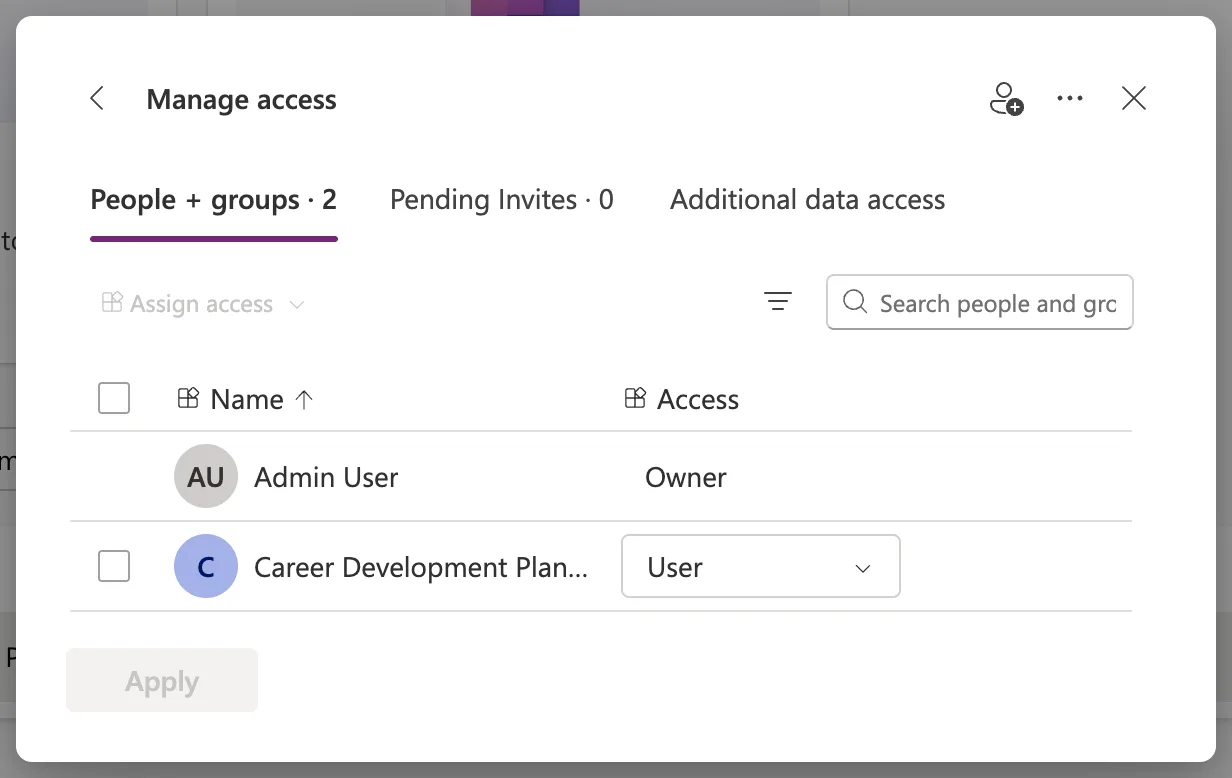
Two things the Share dialog doesn't do:
- It doesn't give access to the data. Its Additional data access list names the two SharePoint lists and Office 365 Users. The lists are covered by the group's Contribute permission from Part 2, and Office 365 Users reads each person's own profile.
- It doesn't tell anyone. The confirmation says They won't be notified automatically. Copy the link it offers and send it yourself (How to Find the Web Link of a Canvas App).
Step 3: Open the App as Olivia
Test as a real team member, not as yourself. Open the link in a separate browser profile or a private window, and sign in as Olivia Bennett, the Head of Sales.
The first time, Power Apps asks her to allow the app to use her own connections, and lists exactly what it will do with each (How to Open a Shared Canvas App for the First Time):
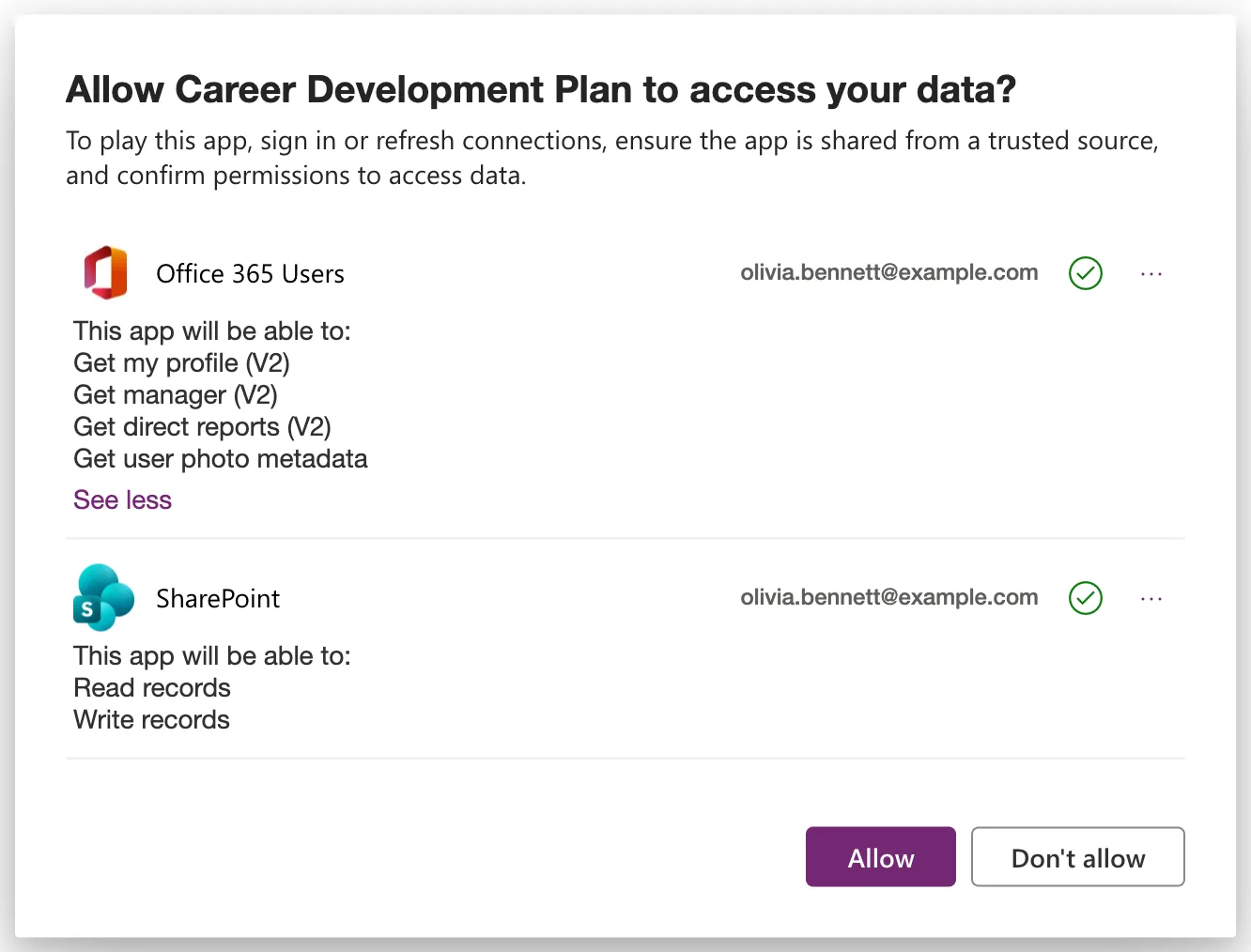
After Allow, the Home screen from Part 4 shows Olivia's own profile, and My team, because Daniel reports to her:
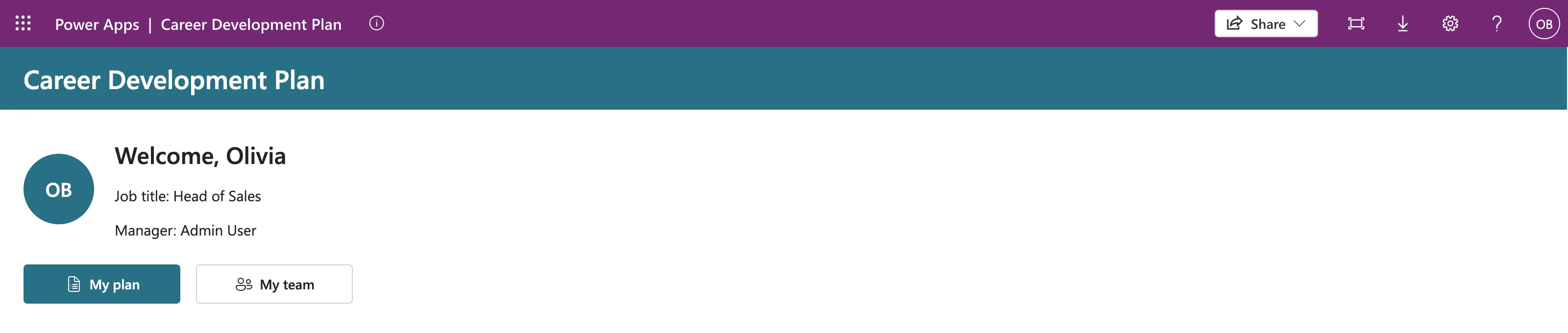
Olivia has a single license, Microsoft 365 E5 Developer, which includes Power Apps for Office 365 (How to See a User's Licenses and Apps). That's enough because the app's License designation is Standard: it uses only standard connectors (How to Check a Canvas App's License Designation). Part 3 noted that Studio attaches a paid-plan message to the data sources. This is the test it promised, and the message didn't apply (Fixed: "A Power Apps Per User Plan … Will Be Required During Playback").
The app also found its lists through the environment variables from Part 3, which are stored in Dataverse. Microsoft's documentation says the Default environment gives everyone who's added to Dataverse the Basic User and Environment Maker roles, and both include read access to environment variables. Part 13 handles this for other environments.
Step 4: Send a Response as Olivia
The manager screens need something to show. As Olivia, select My plan: her three Head of Sales competencies appear, all Not started:
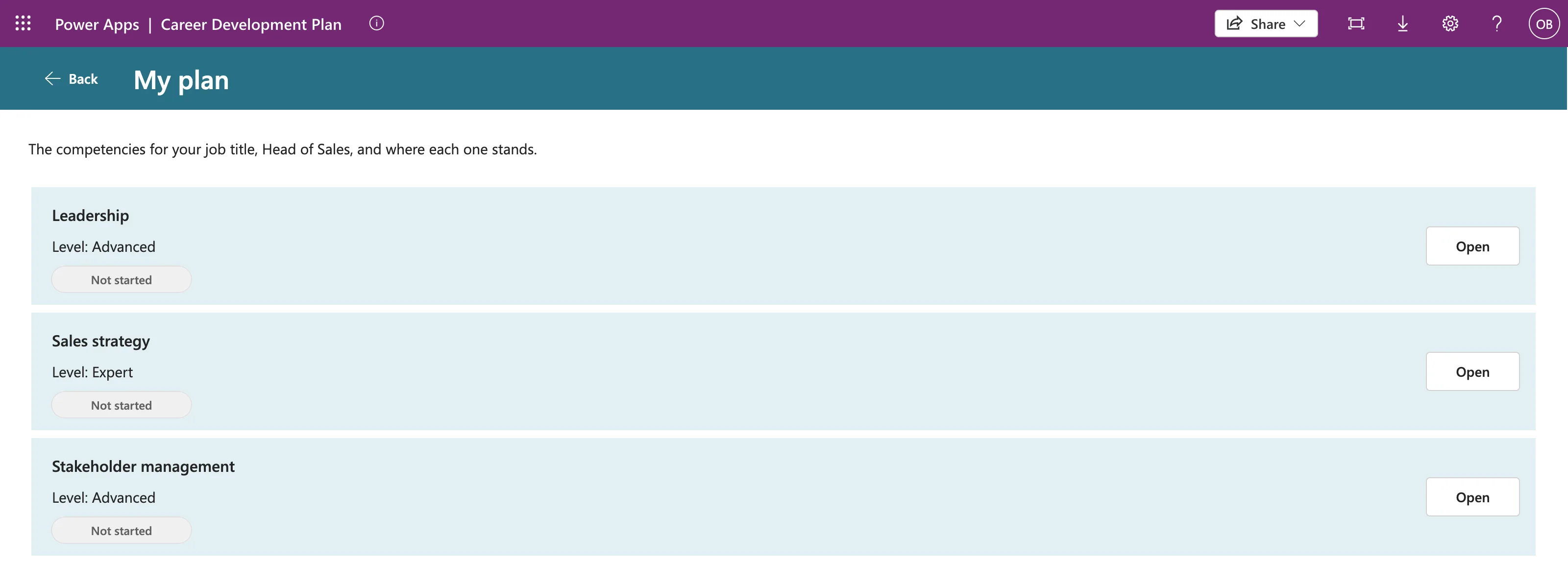
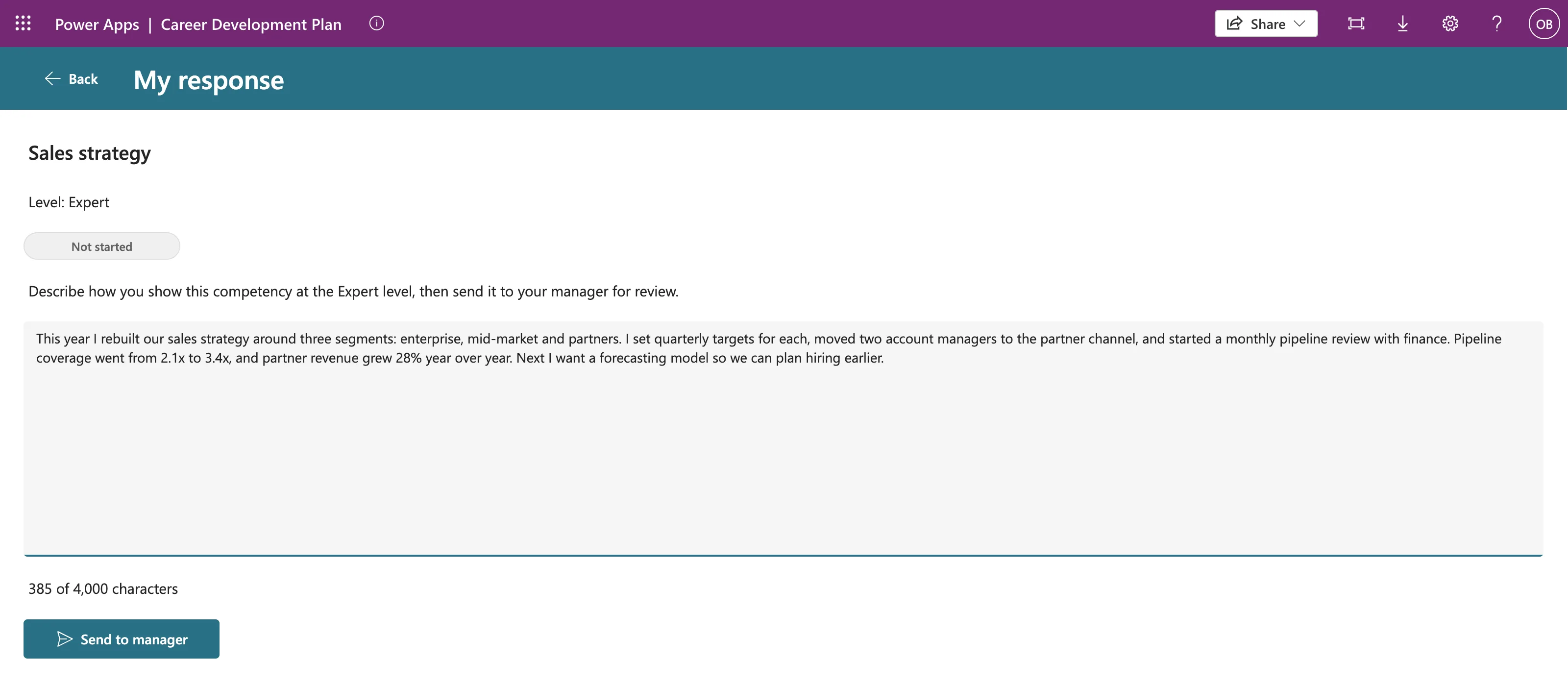
Open Sales strategy, write a response and select Send to manager (Part 6):
The app confirms it and the badge changes:
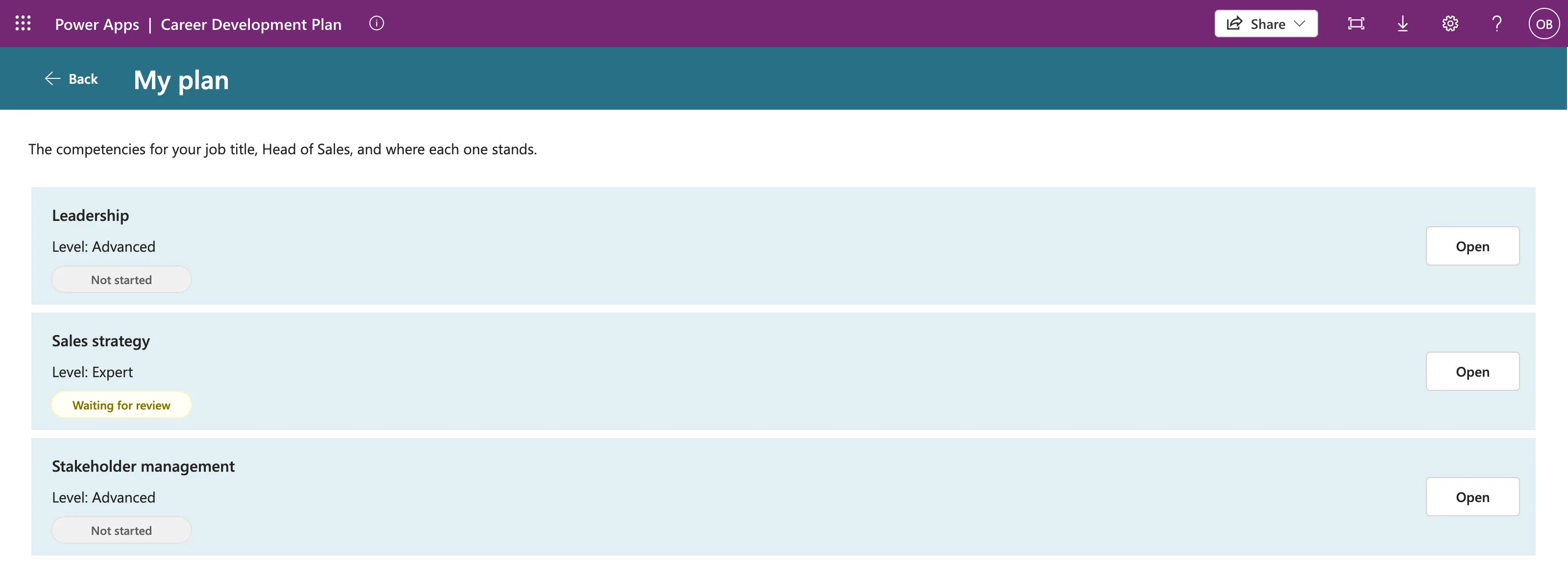
Olivia's manager is the admin, so you now have a real response to see on your own My team screen. Leave Olivia's window open; Step 12 comes back to it.
Step 5: Add the My Team Screen
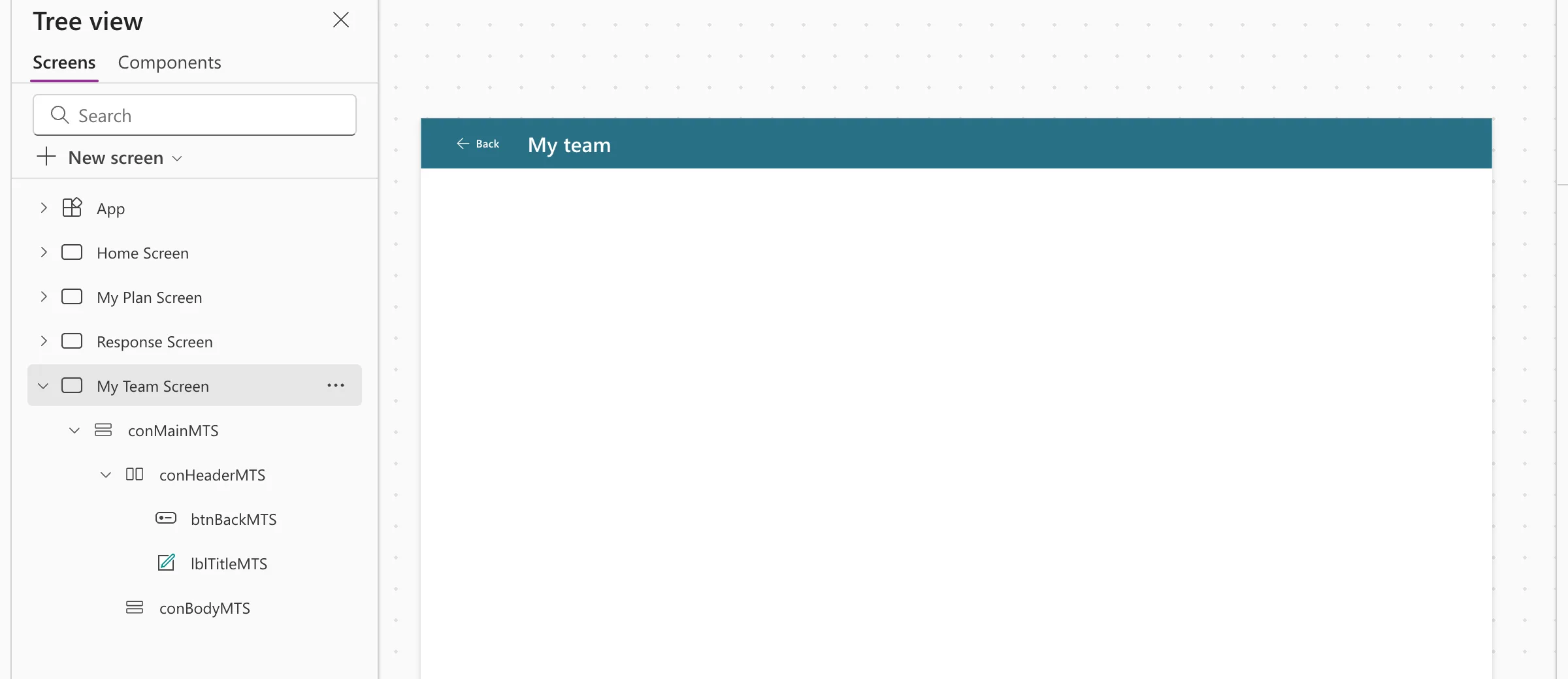
Back in Studio, add a blank screen named My Team Screen (How to Add a New Screen in Power Apps). Its controls end in MTS. This is the structure Steps 5 to 7 build:
My Team Screen
└── conMainMTS            vertical container, the whole screen
    ├── conHeaderMTS      copied from My Plan: Back button and title
    │   ├── btnBackMTS
    │   └── lblTitleMTS
    └── conBodyMTS        vertical container for the content
        ├── lblIntroMTS
        ├── spnLoadingMTS
        └── galMyTeamMTS  one row per direct report
            ├── avtMemberMTS
            ├── lblNameMTS
            ├── lblJobTitleMTS
            ├── bdgPendingMTS
            └── btnOpenMTS
Build the skeleton exactly as Part 6 did for the Response screen:
conMainMTS: a vertical container with the same values asconMainMPS.conHeaderMTS: copyconHeaderMPSand paste it onconMainMTS(How to Copy and Paste Controls Between Screens), then rename the copiesconHeaderMTS,btnBackMTSandlblTitleMTS. Set lblTitleMTS → Text to"My team". The Back button keepsBack()and its label Back to the Home screen.conBodyMTS: a vertical container with the same values asconBodyMPS.
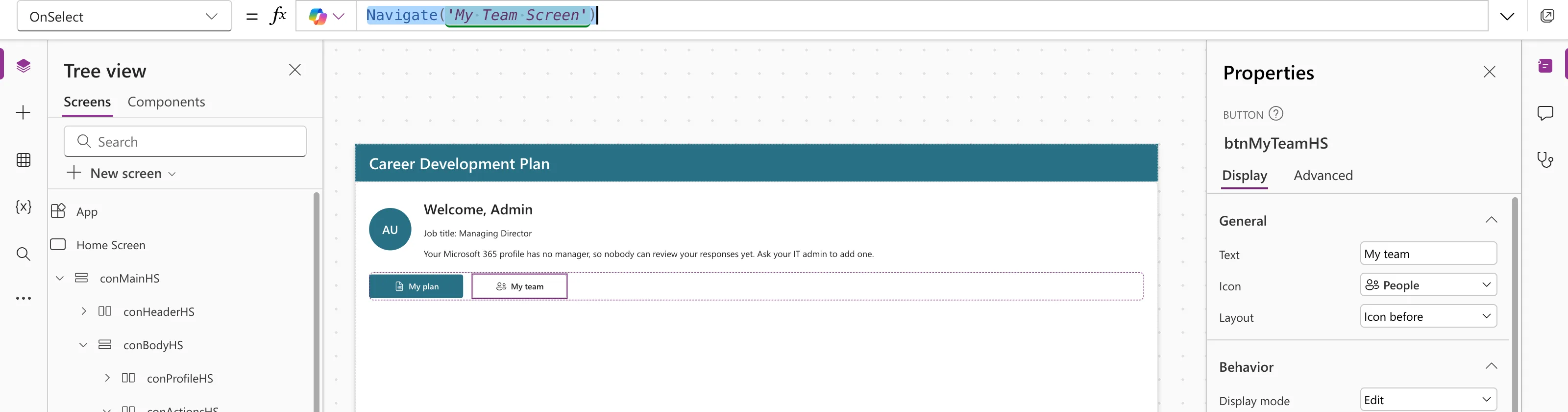
Then connect the Home screen's button, which Part 4 left as false (How to Go to Another Screen with Navigate):
Navigate('My Team Screen')
Step 6: Load the Team When the Screen Opens
The screen needs the manager's direct reports, which App.Formulas already has as MyDirectReports (Part 4), and for each person, whether they have a response waiting for review.
My first attempt, and the warning
My first formula counted each person's pending responses with CountRows:
UpdateContext({locIsLoading: true});
UpdateContext(
    {
        locMyTeam: AddColumns(
            MyDirectReports As member,
            PendingCount,
            CountRows(
                Filter(
                    CompetencyResponses,
                    EmployeeId = member.id && Status.Value = StatusPending
                )
            )
        )
    }
);
UpdateContext({locIsLoading: false})
Studio underlined CountRows with a delegation warning, and put a yellow triangle next to the screen:

What the documentation and Live monitor said
Microsoft's documentation is clear: SharePoint can't count, and when part of a query can't be delegated, Power Apps works on the first 500 items in the app (What Is Delegation in Power Apps?). CompetencyResponses gets an item per person and competency, so it will pass 500, and the counts would quietly go wrong.
Live monitor showed the same thing at run time (How to Use Live Monitor): a Delegation event for CountRows with Formula not delegated, next to a data call that requested 500 rows:

A common suggestion online is to wrap the query in With so the warning goes away. Microsoft's delegation article explains why it would: With keeps the result in memory, and you don't see delegation warnings for in-memory tables. The 500-item limit is still there, so it isn't a fix. The whole investigation is in Fixed: Delegation Warning. The "CountRows" Operation Is Not Supported by This Connector.
The fix: ask a question SharePoint can answer
The My Team screen doesn't need a number, only does this person have something waiting? LookUp answers that, and it's delegable (How to Check If a Record Exists). Select My Team Screen and set its OnVisible:
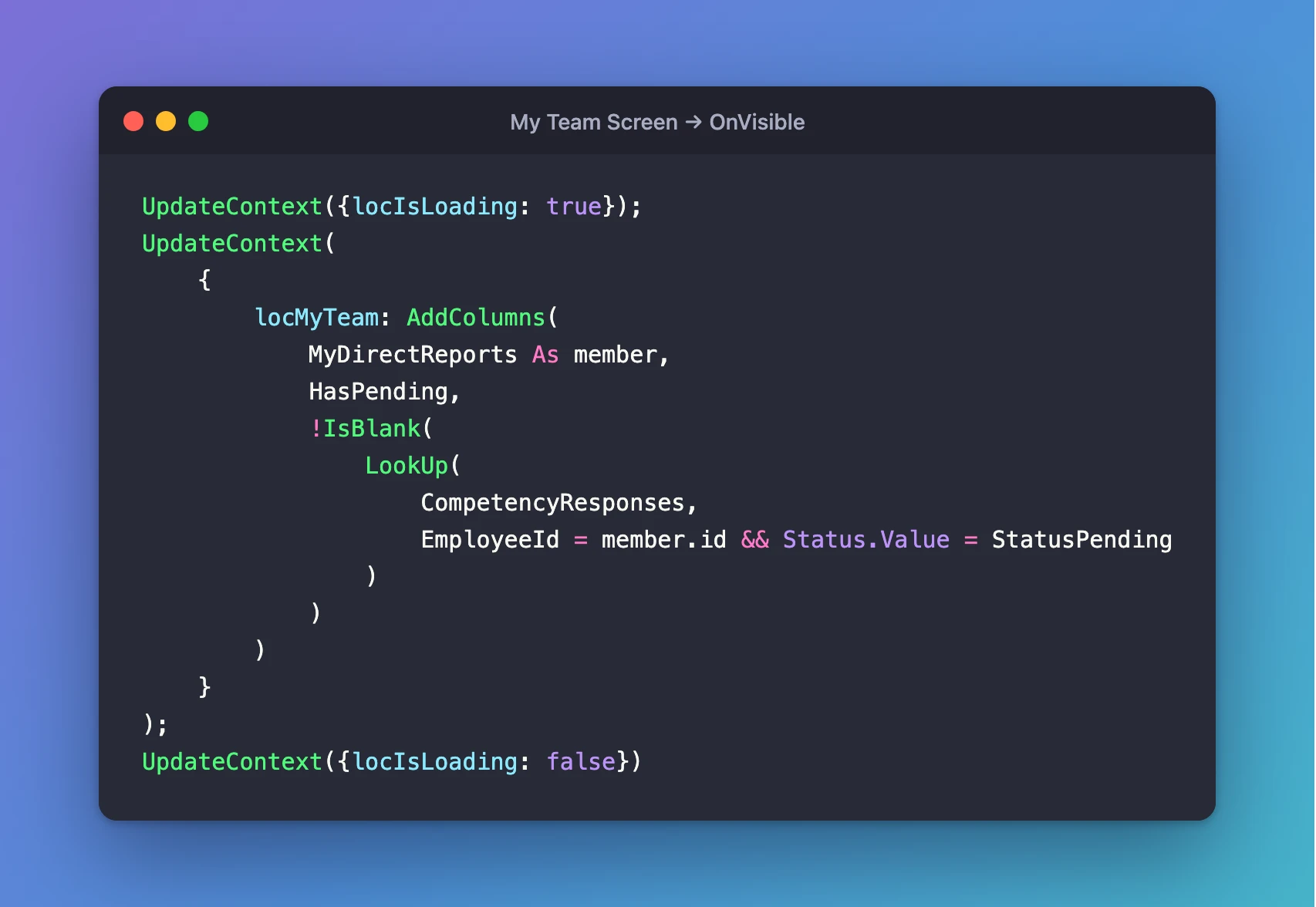
UpdateContext({locIsLoading: true});
UpdateContext(
    {
        locMyTeam: AddColumns(
            MyDirectReports As member,
            HasPending,
            !IsBlank(
                LookUp(
                    CompetencyResponses,
                    EmployeeId = member.id && Status.Value = StatusPending
                )
            )
        )
    }
);
UpdateContext({locIsLoading: false})
- AddColumns adds a
HasPendingcolumn to each direct report (How to Add a Column with AddColumns), andAs membernames the person, as Part 5 did withplanItem. - LookUp asks SharePoint for one of the person's responses with the status Pending. Text
=and a Choice column's.Value, joined with&&, are all delegable. !IsBlank(...)turns the result intotrueorfalse, after the query, so it doesn't affect delegation.
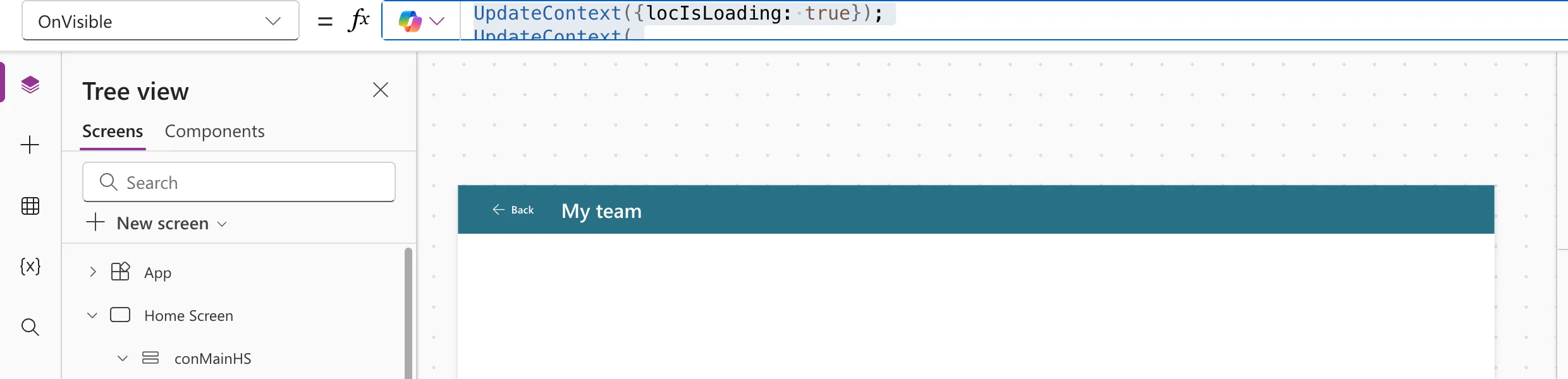
The underline and the triangle were gone:
Step 7: Show Each Person in a Gallery
Select conBodyMTS and insert Layout → Vertical gallery. Close the Select a data source flyout, set Layout to Blank and rename it galMyTeamMTS (How to Add a Vertical Gallery in Power Apps). Its values match the My Plan gallery:
| Property | Value |
|---|---|
| Items | locMyTeam |
| Flexible height | On, fill portions 1 |
| Align in container | Set by container |
| TemplateSize, TemplatePadding | 120, 8 |
| TemplateFill | App.Theme.Colors.Lighter80 |
| Selectable, TabIndex | true, 0 |
| Visible | !locIsLoading |
| AccessibleLabel | "Your direct reports" |
ThisItem.displayName & ", " & Coalesce(ThisItem.jobTitle, "no job title") & If(ThisItem.HasPending, ", responses waiting for your review", "")
Select the gallery's Edit gallery pencil so the next controls go into its template, and insert an Avatar, two Text controls, a Badge and a Button (How to Add an Avatar Control, How to Add a Badge Control):
| Control | Property | Value |
|---|---|---|
avtMemberMTS | Name | ThisItem.displayName |
| Image, Badge | Blank(), Blank() | |
| X, Y | 16, (Parent.TemplateHeight - Self.Height) / 2 | |
| Width, Height | 48, 48 | |
| AccessibleLabel | "Profile picture of " & ThisItem.displayName | |
lblNameMTS | Text | ThisItem.displayName |
| X, Y, Width, Height | 80, 12, Parent.TemplateWidth - 208, 32 | |
| Size, FontWeight | 16, FontWeight.Semibold | |
lblJobTitleMTS | Text | Coalesce(ThisItem.jobTitle, "No job title") |
| X, Y, Width, Height | 80, 44, Parent.TemplateWidth - 208, 32 | |
bdgPendingMTS | Content, Intent | "Waiting for review", BadgeIntent.Caution |
| X, Y, Width, Height | 84, 80, 144, 28 | |
| Visible | ThisItem.HasPending | |
| AccessibleLabel | "Responses waiting for your review" | |
btnOpenMTS | Text, Appearance | "Open", ButtonAppearance.Secondary |
| Width, Height | 96, 40 | |
| X, Y | Parent.TemplateWidth - Self.Width - 16, (Parent.TemplateHeight - Self.Height) / 2 | |
| AccessibleLabel | "Open " & ThisItem.displayName |
Both Text controls get AccessibleLabel Self.Text. The Avatar's defaults point at the signed-in user, User().Image and User().FullName, so they must change. Microsoft's Avatar reference says it falls back to initials from Name when there's no image, and that a blank Badge hides the presence dot. The Button's OnSelect is already Select(Parent); Step 8 gives the gallery its own OnSelect.
Finally, with the gallery selected, insert a Text control, lblIntroMTS, and a Spinner, spnLoadingMTS. Then move the gallery below them: ... on galMyTeamMTS → Reorder → Move to end (How to Reorder Controls in a Container).
| Property | lblIntroMTS | spnLoadingMTS |
|---|---|---|
| Text / Label | "The people who report to you. Open someone to see their plan and the responses waiting for your review." | "Loading your team" |
| Auto height | On | |
| Visible | !locIsLoading | locIsLoading |
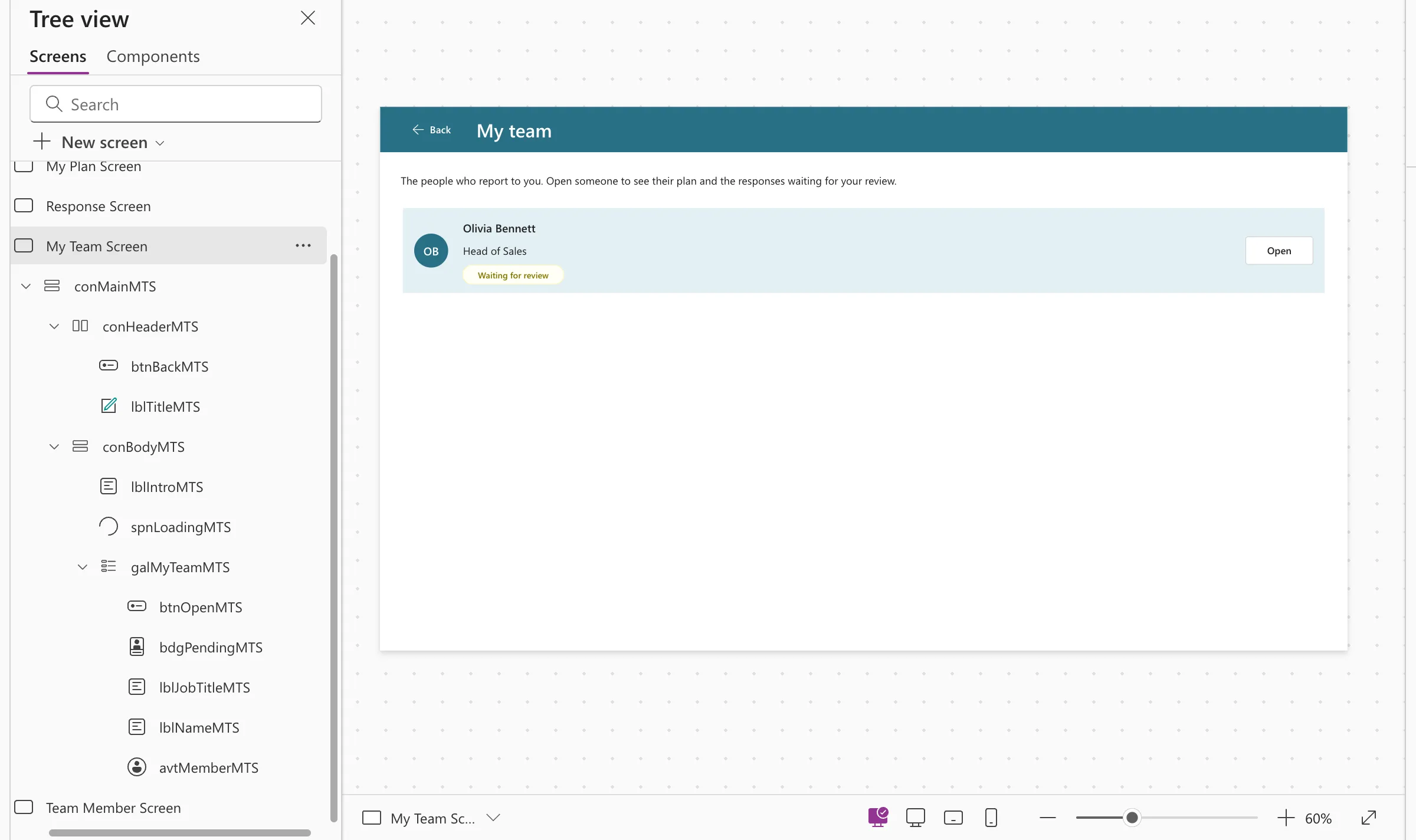
The row already shows Olivia, because the screen ran once in preview and the variable kept its value.
Part 9 makes Open a chevron icon on phones, and the name and job title's Width Parent.TemplateWidth - btnOpenMTS.Width - 112, so they fit on 360-pixel screens (Fixed: Text and Buttons Cut Off on Narrow Phones).
Step 8: Add the Team Member Screen
Add a blank screen named Team Member Screen, with controls ending in TMS. Give it conMainTMS and conBodyTMS like the My Team screen, and copy conHeaderMTS into it as conHeaderTMS, btnBackTMS and lblTitleTMS. Set btnBackTMS → AccessibleLabel to "Back to My team".
The title is the person's name. The person will arrive in a context variable called locMember, so I set:
locMember.displayName
The error
Studio rejected it:
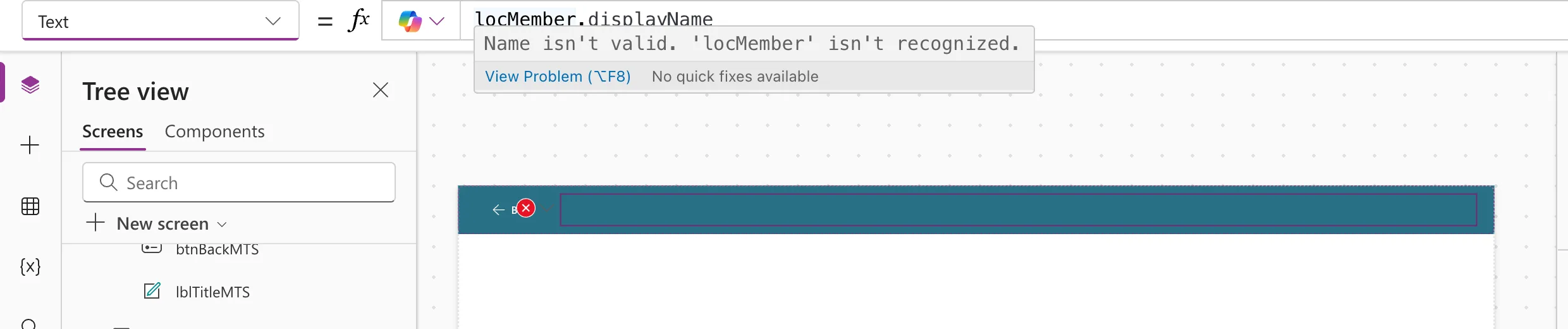
The spelling was right. Microsoft's article on variables explains the cause: a variable exists only once a Set, UpdateContext or Navigate formula in the app mentions it. I'd built this screen before the formula that opens it, so nothing created locMember yet (Fixed: "Name Isn't Valid. 'locMember' Isn't Recognized").
The fix
Write that formula. On the My Team screen, make each row open this screen with its person (How to Open Another Screen When a Gallery Row Is Selected):
Navigate('Team Member Screen', ScreenTransition.None, {locMember: ThisItem})
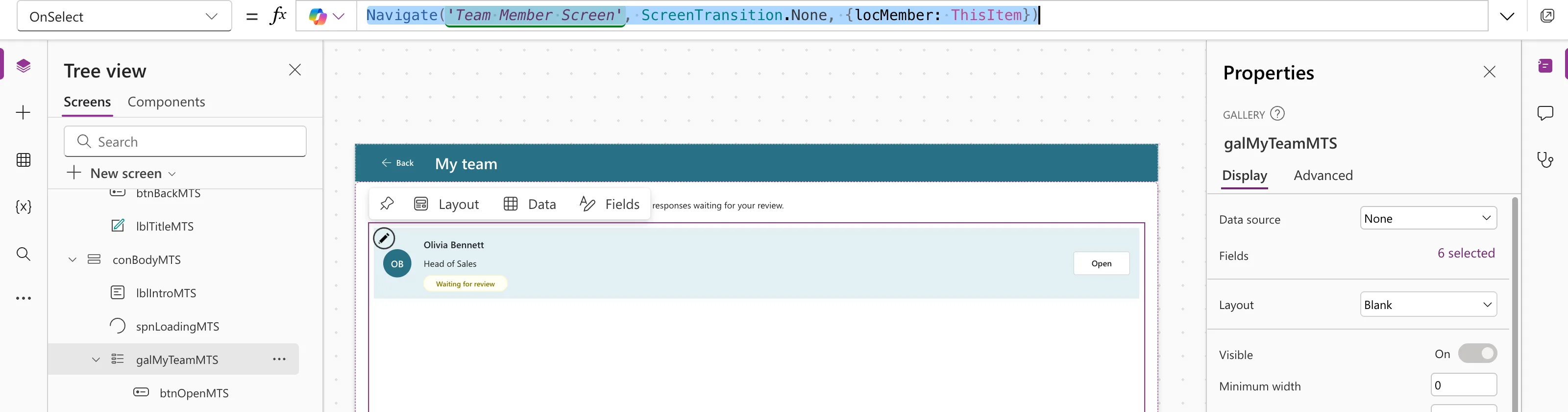
The title's error disappeared at once. locMember holds the selected row from MyDirectReports: the person's id, displayName, jobTitle and the HasPending column.
Step 9: Load the Person's Plan and Responses
Select Team Member Screen and set its OnVisible. It follows the My Plan screen from Part 5, for someone else's job title and ID:
UpdateContext(
    {
        locIsLoading: true,
        locMemberJobTitle: Trim(locMember.jobTitle)
    }
);
Concurrent(
    UpdateContext(
        {
            locMemberPlan: Sort(
                Filter(
                    RoleCompetencies,
                    JobTitle = locMemberJobTitle && IsActive
                ),
                Competency
            )
        }
    ),
    UpdateContext(
        {
            locMemberResponses: Filter(
                CompetencyResponses,
                EmployeeId = locMember.id
            )
        }
    )
);
UpdateContext(
    {
        locMemberPending: Sort(
            Filter(
                locMemberResponses,
                Status.Value = StatusPending
            ),
            SubmittedOn
        )
    }
);
UpdateContext({locIsLoading: false})

locMemberJobTitleis the person's trimmed job title, set first so both queries can use it.- Concurrent loads the plan for that job title and the person's responses at the same time (How to Load Data Faster with Concurrent). Both queries are the delegable ones from Part 5, with a variable in place of
MyJobTitleandMyProfile.id. locMemberPendingpicks the pending responses out oflocMemberResponses, oldest first. That table is already in the app, so this Filter needs no delegation.
Studio showed no warnings.
Part 8 moves this formula and the My Team screen's into a Refresh button in each header, with Refresh on the lists first, so the screens also show changes other people make.
Step 10: Show What's Waiting and the Plan
The body holds two lists, each with a heading and an empty message. This is its structure:
conBodyTMS
├── lblJobTitleTMS
├── spnLoadingTMS
├── lblPendingHeadingTMS   "Waiting for your review"
├── lblNoPendingTMS        when nothing is waiting
├── galPendingTMS          one row per pending response
│   ├── lblPendCompetencyTMS
│   ├── lblPendLevelTMS
│   └── lblPendSentTMS
├── lblPlanHeadingTMS      "Plan for" and the job title
├── lblEmptyPlanTMS        when the job title has no plan
└── galPlanTMS             one row per competency
    ├── lblPlanCompetencyTMS
    ├── lblPlanLevelTMS
    └── bdgPlanStatusTMS
Select conBodyTMS and insert the controls in that order. The Text controls landed at the end of the container, but both galleries landed right after lblJobTitleTMS. I fixed the order with Reorder → Move to end on galPendingTMS, lblPlanHeadingTMS, lblEmptyPlanTMS and galPlanTMS, in that order.
The labels:
| Control | Text | Visible |
|---|---|---|
lblJobTitleTMS | If(IsBlank(locMemberJobTitle), "No job title in Microsoft 365", "Job title: " & locMemberJobTitle) | |
lblPendingHeadingTMS | "Waiting for your review" | !locIsLoading |
lblNoPendingTMS | "Nothing is waiting for your review." | !locIsLoading && IsEmpty(locMemberPending) |
lblPlanHeadingTMS | If(IsBlank(locMemberJobTitle), "Plan", "Plan for " & locMemberJobTitle) | !locIsLoading |
The two headings have Size 18 and FontWeight FontWeight.Semibold. All four have Auto height On and AccessibleLabel Self.Text. The spinner's Label is "Loading the plan" and its Visible is locIsLoading. The empty plan message covers a person without a job title:
If(
    IsBlank(locMemberJobTitle),
    locMember.displayName & " has no job title in Microsoft 365, so there's no plan yet.",
    "There's no plan for " & locMemberJobTitle & " yet."
)
Its Visible is !locIsLoading && IsEmpty(locMemberPlan).
Two galleries, one screen
Both galleries are Blank vertical galleries with the My Plan values: TemplatePadding 8, TemplateFill App.Theme.Colors.Lighter80, Align in container Set by container, TabIndex 0, and Selectable false for now. Parts 8 and 9 make their rows open screens. To share the space, both have Flexible height On, with different Fill portions:
| Property | galPendingTMS | galPlanTMS |
|---|---|---|
| Items | locMemberPending | the same AddColumns formula as galMyPlanMPS, with locMemberPlan and locMemberResponses |
| TemplateSize | 120 | 120 |
| Fill portions | 1 | 2 |
| Visible | !locIsLoading && !IsEmpty(locMemberPending) | !locIsLoading && !IsEmpty(locMemberPlan) |
| AccessibleLabel | "Responses waiting for your review" | "Competencies for this job title" |
Microsoft's container reference describes Fill portions with exactly this case: a control with 1 gets one third of the spare space and a control with 2 gets two thirds. Each gallery scrolls on its own when its share fills up, and a hidden gallery gives its space to the other.
ThisItem.Competency & ", level " & ThisItem.Level & ", sent on " & Text(ThisItem.SubmittedOn, DateTimeFormat.LongDate)
galPlanTMS uses Part 5's ItemAccessibleLabel, ThisItem.Competency & ", level " & ThisItem.Level.Value & ", " & ThisItem.StatusText.
The rows
A gallery is hidden while its variable is empty, so I opened the screen once in preview (My team → Open on Olivia) to give the variables data, and then designed the rows with real responses.
| Control | Text | X, Y |
|---|---|---|
lblPendCompetencyTMS | ThisItem.Competency | 16, 12 |
lblPendLevelTMS | "Level: " & ThisItem.Level | 16, 44 |
lblPendSentTMS | "Sent on " & Text(ThisItem.SubmittedOn, DateTimeFormat.LongDate) | 16, 76 |
lblPlanCompetencyTMS | ThisItem.Competency | 16, 12 |
lblPlanLevelTMS | "Level: " & ThisItem.Level.Value | 16, 44 |
Each is Parent.TemplateWidth - 32 wide and 32 high, with AccessibleLabel Self.Text. The two competency names have Size 16 and FontWeight FontWeight.Semibold. In the responses list, Level is a text snapshot, so it has no .Value. In the plan it's a Choice column. The badge bdgPlanStatusTMS is a copy of Part 5's bdgStatusMPS: Content ThisItem.StatusText, the same Intent formula, 20, 80, 144 × 28.
Step 11: Test It in Preview
Preview from the Home screen and select My team. Olivia has her Waiting for review badge:
Open shows her screen, as at the top of this part, with Sales strategy waiting and her whole plan. Back returns to My team.
A mistake the phone found
Then I previewed at a phone size, Apple iPhone 12, 13, 14 (How to Test on Phone and Tablet Sizes). My first version of the pending row had one line for the details, Level: Expert. Sent on Tuesday, October 27, 2026., in a template 88 high. On the phone, the line wrapped and the date was cut off:
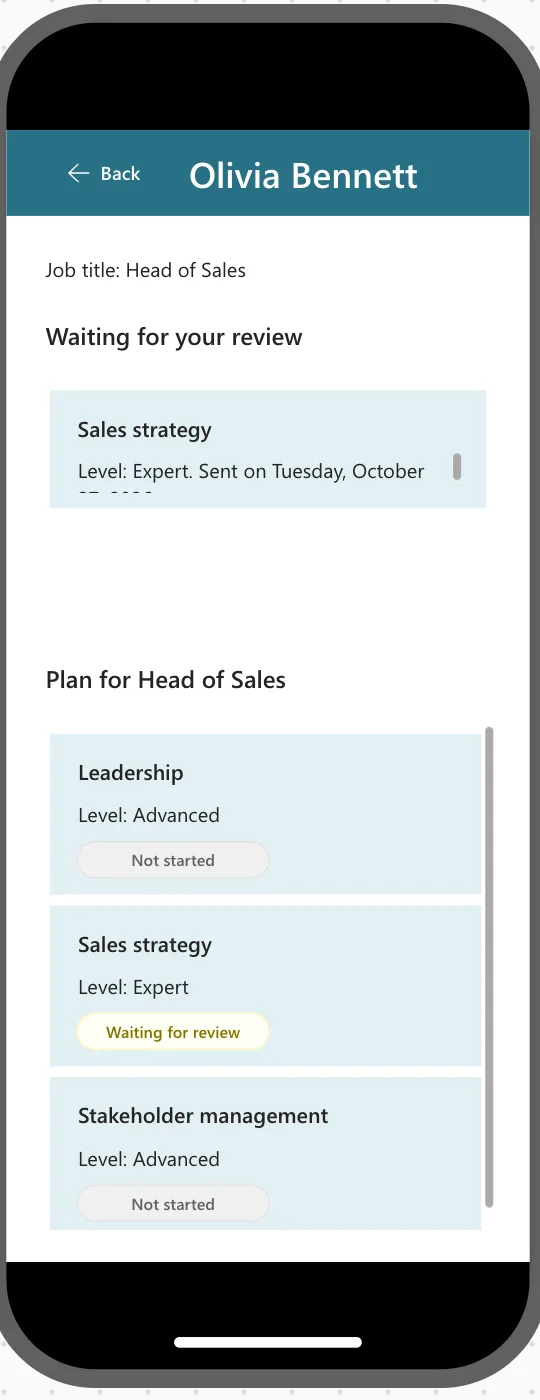
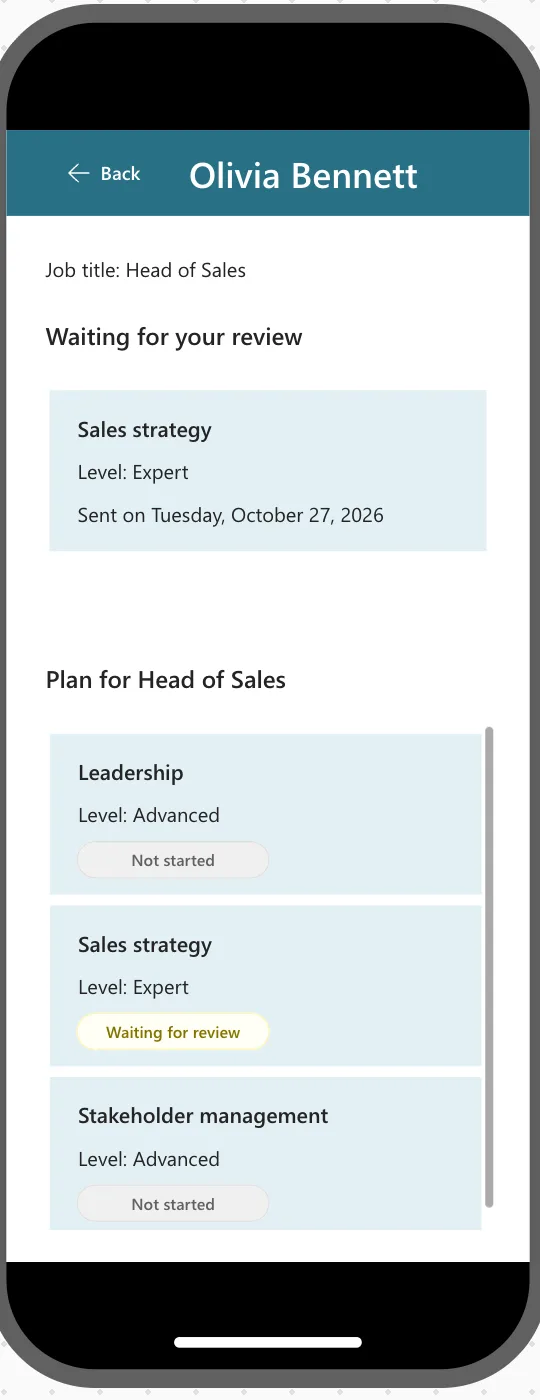
A row can't grow past its TemplateSize, so I split the line into the two labels in Step 10's table and raised TemplateSize to 120, like the other rows. On the phone, all three lines now fit:
The full write-up of this kind of cut-off text is in Fixed: Text Is Cut Off Inside a Container on Small Screens.
Step 12: Check, Save and Publish Again
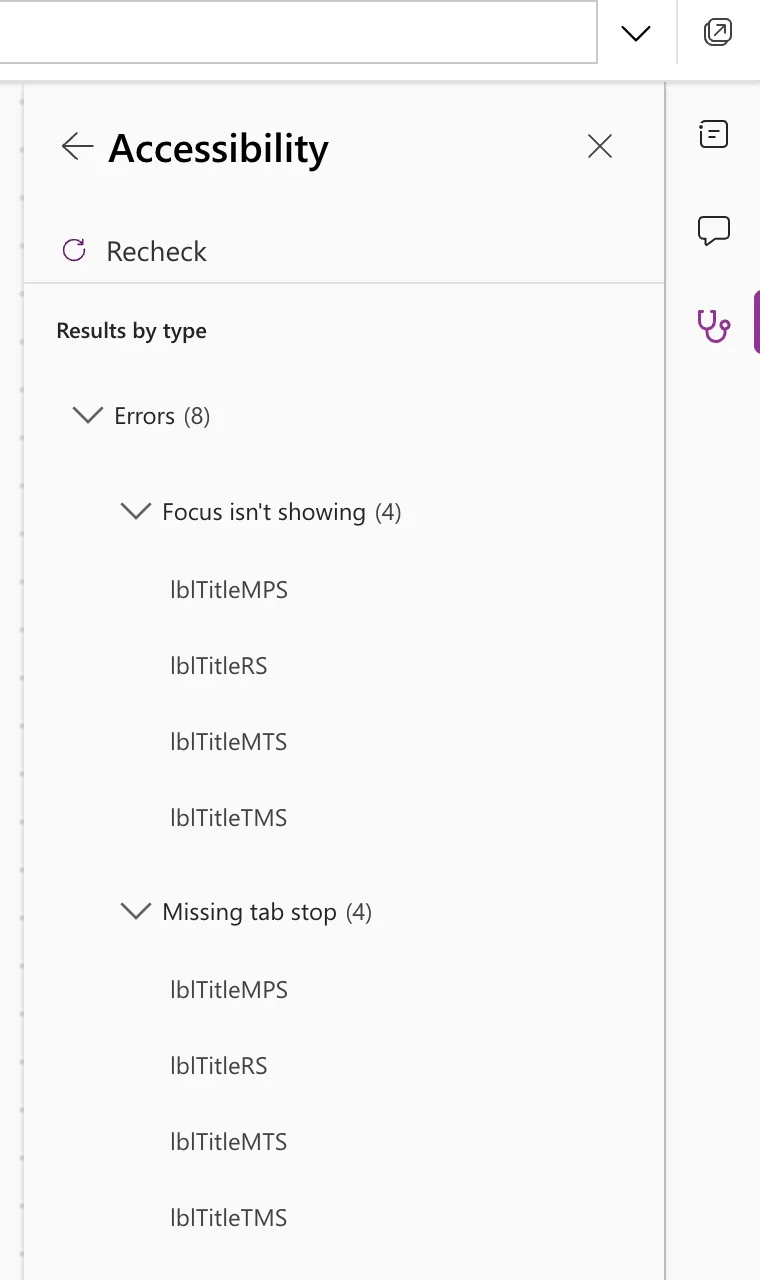
Open the App checker and select Recheck all. Formulas, Runtime, Performance and Data source are clear. Accessibility (8) lists the four screen headings, each with Focus isn't showing and Missing tab stop, the case Part 5 explains:
Select Save, then Publish → Publish this version.
Now go back to Olivia's window. Microsoft says users who have the app open get a notice about the new version. In my test, none appeared within three minutes, and the first reload still opened the old version, where My team did nothing. A second reload, a few minutes later, had the new screens (Fixed: Users Still See the Old Version After You Publish). Olivia's My team lists Daniel, with no badge, because he hasn't sent anything:
Open shows his screen: nothing waiting, and the Sales Manager plan:
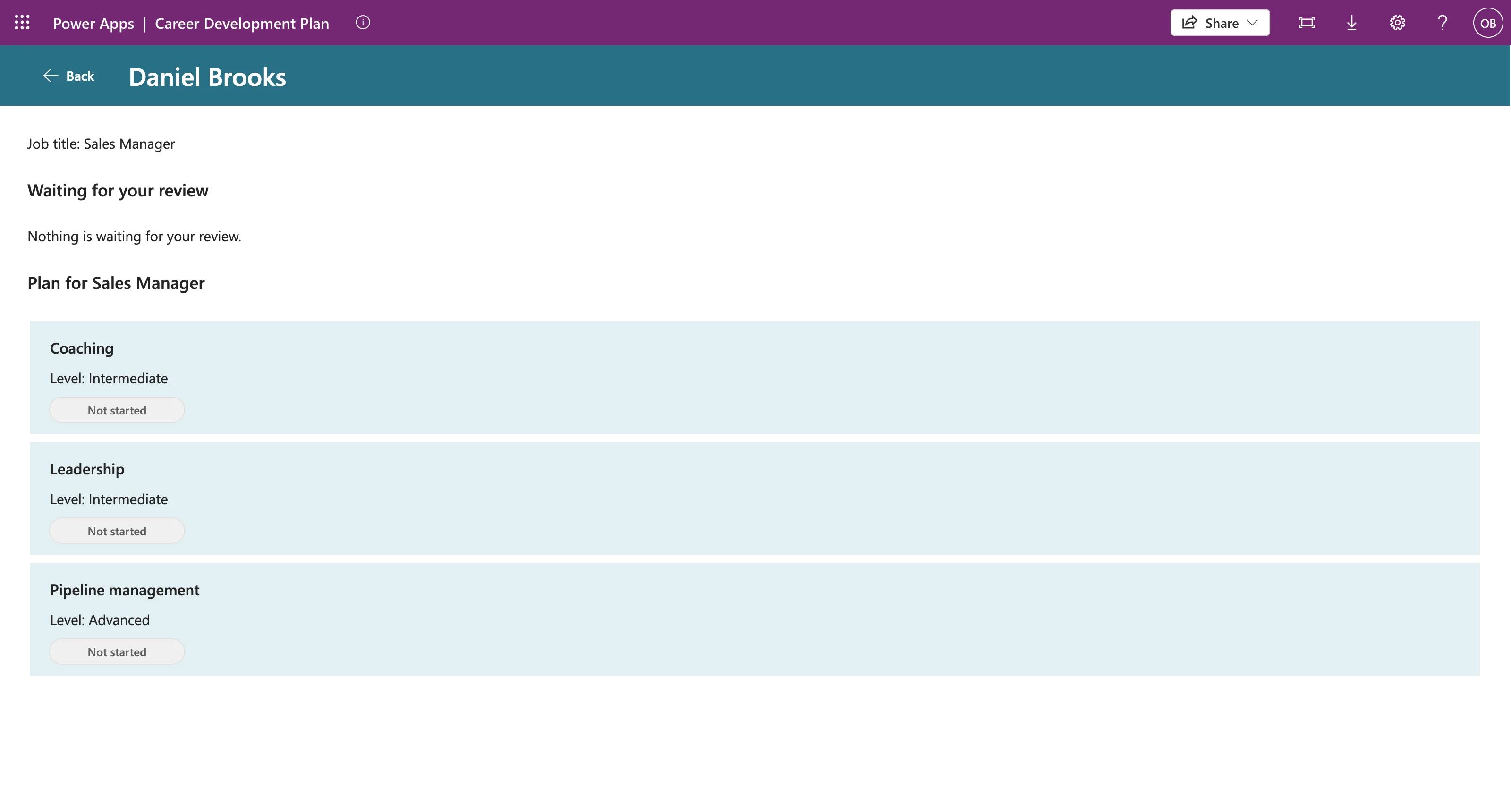
With nothing pending, the plan gallery takes all the space.
Common Mistakes
| Mistake | What happens | Do this instead |
|---|---|---|
| Testing the shared app in your own browser | You see it as the owner | Use a separate profile as a team member |
| Counting SharePoint items with CountRows | Delegation warning; wrong once the list passes 500 items | !IsBlank(LookUp(...)) |
| Hiding that warning with With | The limit stays, unseen | Use a delegable query |
Using locMember before any Navigate passes it | Name isn't valid. 'locMember' isn't recognized | Write the gallery's OnSelect |
| Leaving the Avatar's defaults | Every row shows the manager | Name ThisItem.displayName, Image Blank() |
| Two lines of details in one 32-high label | Cut off on a phone | One line per label, taller template |
Troubleshooting
| Symptom | Likely cause | Fix |
|---|---|---|
| A team member's lists don't load | The group has no access to the SharePoint site | Part 2's Contribute permission |
| The "CountRows" operation is not supported by this connector | Counting SharePoint items | Fixed: CountRows Delegation Warning |
| Name isn't valid. 'locMember' isn't recognized | No Navigate passes locMember yet | Fixed: "Name Isn't Valid" |
| A paid-plan message on the data sources | A note Studio attaches to standard connectors | Fixed: "A Power Apps Per User Plan … Will Be Required" |
| Users still see the old version | Not reloaded, or the new version hasn't reached them | Fixed: Users Still See the Old Version |
| A gallery is empty in Studio | Its variable is empty until the screen runs | Open the screen once in preview |
| My team isn't on someone's Home screen | Nobody reports to them in Microsoft 365 | Set their reports' manager (Part 1) |
FAQ
Can a manager see other managers' teams?
Not in the app: My team shows only the signed-in person's direct reports from Microsoft 365. As Part 1 explains, the SharePoint permission is the real boundary, so anyone in the group could open the lists directly.
Why does My team show a badge instead of a number?
SharePoint can't count for the app. A yes/no LookUp is delegable, and the exact list is one tap away.
Why aren't the rows on the Team Member screen clickable yet?
Part 8 makes the pending responses open the Review screen, and Part 9 makes plan rows open the competency editor. Until then they're lists, so Selectable is false.
Do disabled accounts appear on My team?
No. MyDirectReports already keeps only enabled accounts (Part 4). Part 10 tests it with a leaver.
Conclusion
The app now has real users and a manager's view:
- it's published and shared with the Career Development Plan Users group, and a team member with only Microsoft 365 runs it after allowing its connections once;
- My team lists the manager's direct reports, with a delegable check for responses waiting for review;
- each person's screen lists what's waiting and their whole plan, sharing the space with Fill portions.
On the way, Studio's delegation warning, an unrecognized variable and a phone-size layout bug each showed how to read the problem and fix its cause.
← Previous: Part 6: Build the Response Screen
Next → Part 8: Build the Review Screen for Manager Approvals. You'll open a pending response, approve it, or decline it with a comment the employee sees.
Additional Resources
- Share a canvas app with your organization: sharing, groups and data access.
- Overview of connectors for canvas apps: connection consent dialog: what users see the first time.
- How to check license designation for an app: Standard and Premium apps.
- Understand delegation in a canvas app: why CountRows isn't delegated, and what With hides.
- Understand variables in canvas apps: how variables are created.
- Horizontal container control: Fill portions.
- Avatar modern control: Name, Image and Badge.
