Build a Career Development Plan App in Power Apps — Part 6: Build the Response Screen

A plan only matters once people act on it. This part builds the screen where they do: each competency on My plan opens a screen where the person writes how they show it and sends it to their manager. The same screen shows what happened next: waiting for review, a comment to act on when it's declined, and a locked response once it's approved.
This is Part 6 of a 14-part series.
- Part 1: Plan the App and Set Up the Demo Organization
- Part 2: Create the SharePoint Site and Lists
- Part 3: Create the Solution, Environment Variables and Canvas App
- Part 4: Build the Home Screen
- Part 5: Build the My Plan Screen
- Part 6: Build the Response Screen (you are here)
- Part 7: Share the App and Build the My Team Screens
- Part 8: Build the Review Screen for Manager Approvals
- Part 9: Let Managers Manage Competencies
- Part 10: Test Every Role, Joiners and Leavers (coming soon)
- Part 11: Build a Setup Flow That Creates the SharePoint Lists (coming soon)
- Part 12: Run the Solution Checker and Export the Solutions (coming soon)
- Part 13: Install the App in a New Environment (coming soon)
- Part 14: Recap, Production Checklist and Next Steps (coming soon)
Part 5 built My plan, a list of the competencies for the person's job title, each with a status badge that always said Not started. Now each row opens a screen with a text box and a Send button, and the badges start to change. The screen saves to the CompetencyResponses list from Part 2 with a single Patch, which creates the item the first time and updates it after that. As before, each generic task has its own short guide, and this part gives the exact values for this app.
What You'll Build
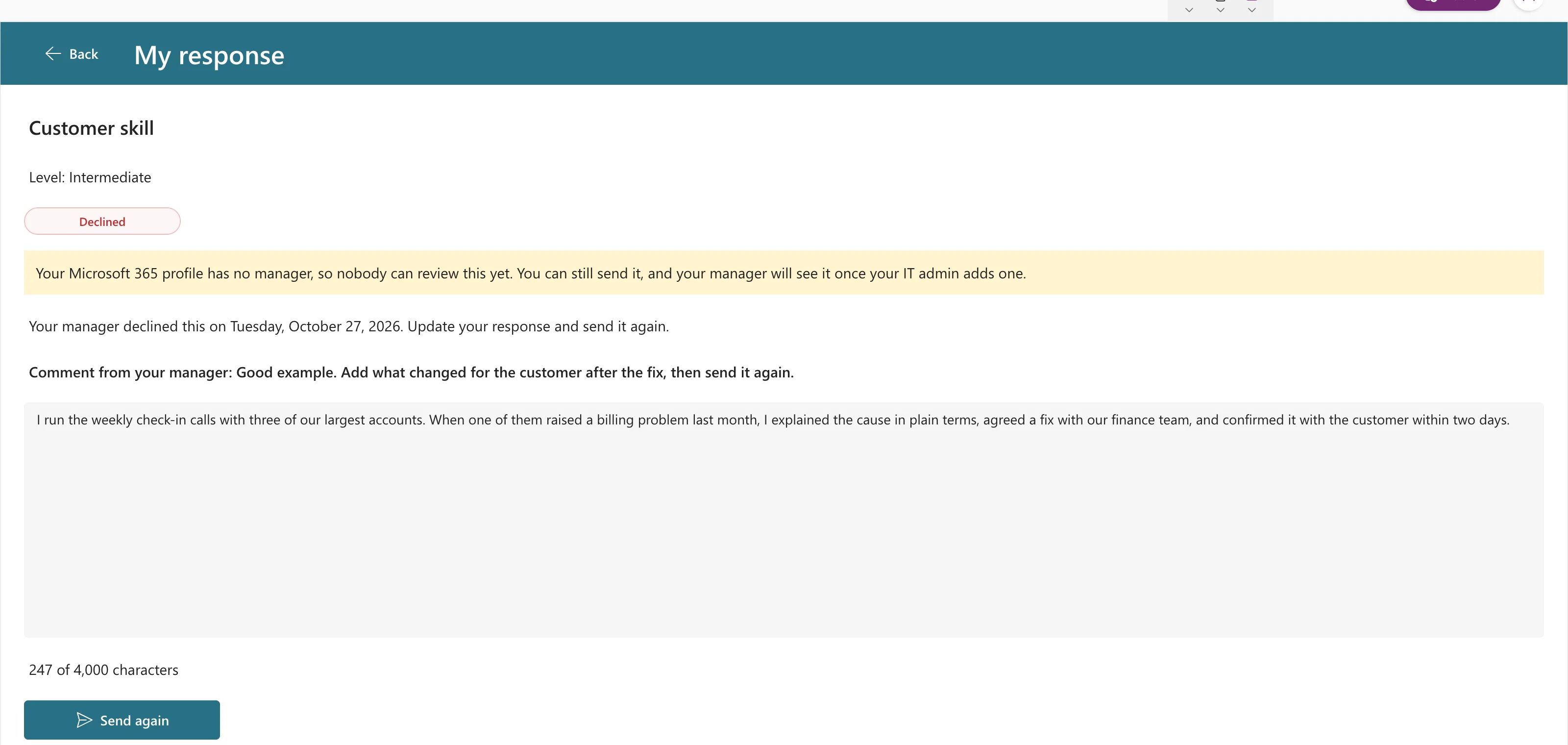
The Response screen for a response the manager declined, with the manager's comment and a Send again button:
How the pieces connect:
- Every plan row opens the Response screen, with a button for keyboard users.
- The screen loads the person's saved response for that competency and level, if there is one.
- One Patch creates the response the first time and updates it afterwards.
- Four states: Not started, Waiting for review (still editable), Declined (comment shown, send again) and Approved (read-only).
- A 4,000-character limit with a live count, a disabled button until there's text, and a clear message if someone else changed the response first.
Prerequisites
-
Part 5 completed: the My Plan screen with its gallery and status badges.
-
The lists from Part 2: CompetencyResponses is still empty; this part writes its first item.
-
The guides this part relies on, by topic. Each step says which one to follow.
- Opening the screen:
- Loading and showing the response:
- Writing the response:
- Saving it:
- How to Create or Update a SharePoint List Item with Patch in Power Apps
- How to Use the Defaults Function in Power Apps
- How to Write to a SharePoint Choice Column with Patch in Power Apps
- How to Clear a Column with Patch and Blank in Power Apps
- How to Get the Current Date and Time in Power Apps with Now
- How to Show a Notification in Power Apps with Notify
- Testing:
The screen's layout uses Part 5's guides again, from adding a screen to copying the header, and each Power Fx function in the formulas has its own guide, linked where it's used.
Step 1: Add the Response Limit to App.Formulas
Responses are capped at 4,000 characters. The number is used twice, by the text box and by the character count, so it gets a name below Part 5's formulas (How to Use Named Formulas in Power Apps):
ResponseMaxLength = 4000;

Step 2: Add the Response Screen and Its Layout
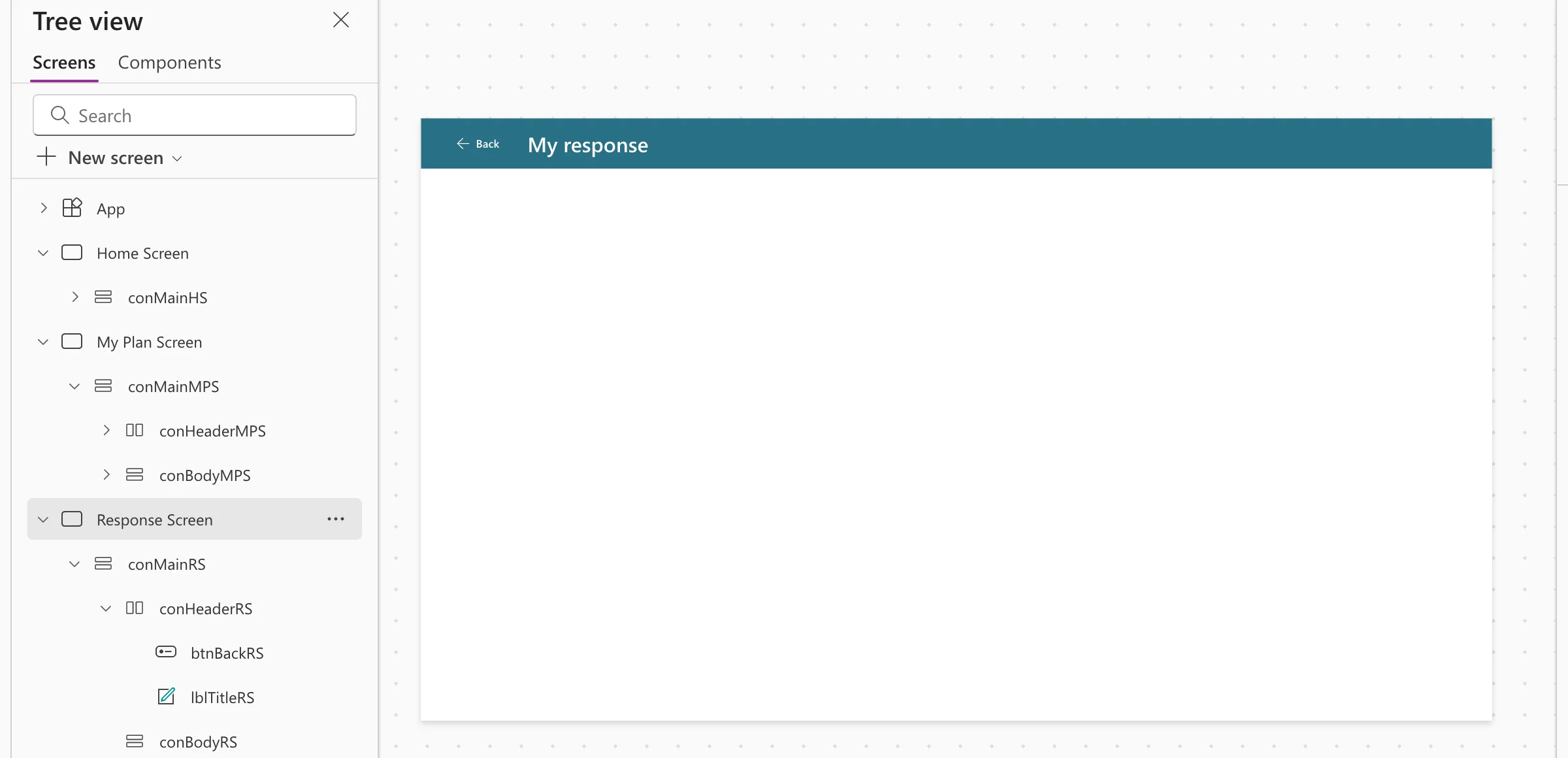
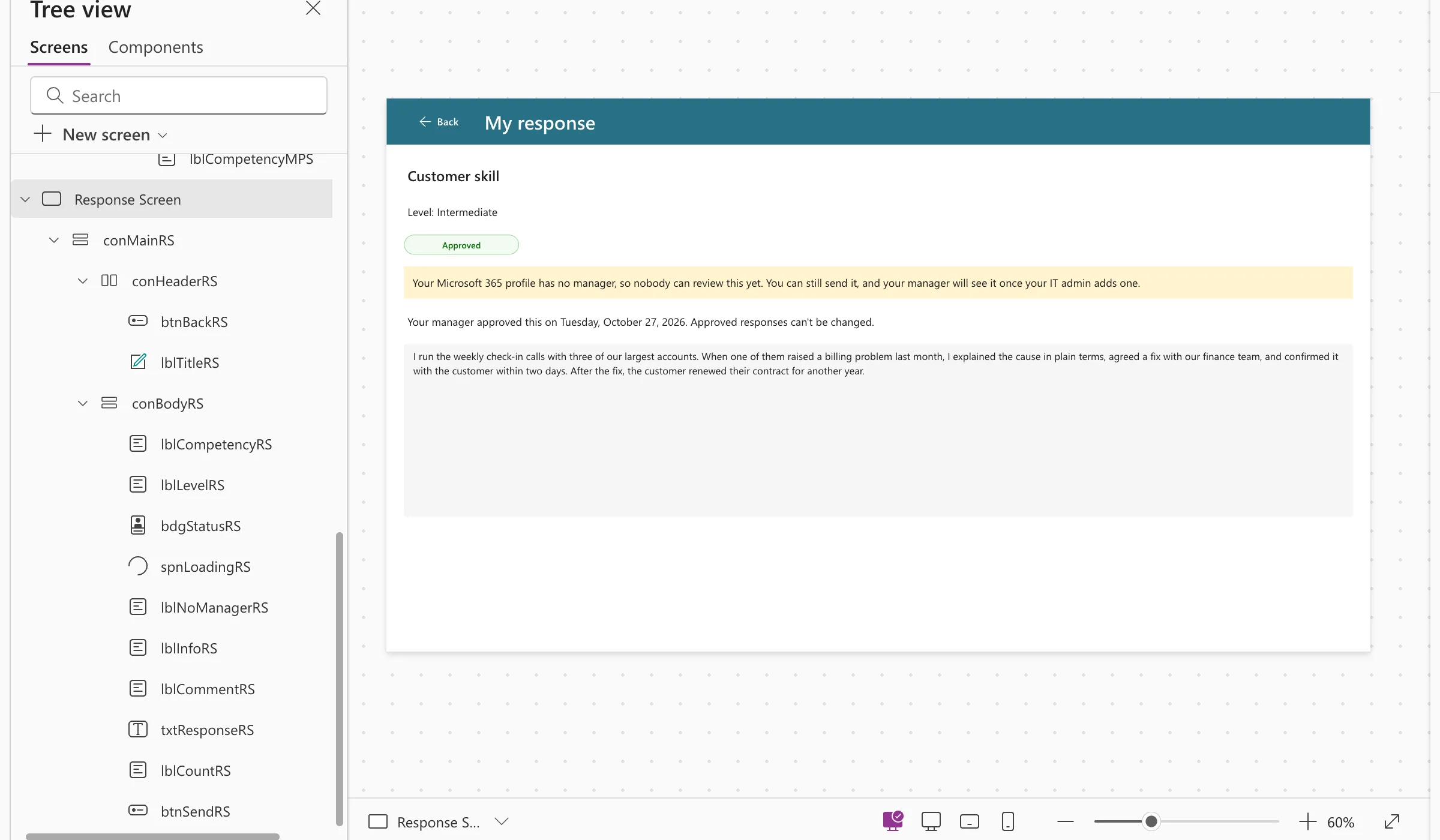
Add a blank screen named Response Screen (How to Add a New Screen in Power Apps). Its controls end in RS. This is the structure Steps 2 to 9 build:
Response Screen
└── conMainRS            vertical container, the whole screen
    ├── conHeaderRS      copied from My Plan: Back button and title
    │   ├── btnBackRS
    │   └── lblTitleRS
    └── conBodyRS        vertical container for the content
        ├── lblCompetencyRS
        ├── lblLevelRS
        ├── bdgStatusRS
        ├── spnLoadingRS
        ├── lblNoManagerRS
        ├── lblInfoRS
        ├── lblCommentRS
        ├── txtResponseRS
        ├── lblCountRS
        └── btnSendRS
Insert a vertical container on the screen, rename it conMainRS, and give it the same values as Part 5's conMainMPS: X 0, Y 0, Width Parent.Width, Height Parent.Height, LayoutAlignItems LayoutAlignItems.Stretch, all four paddings 0, DropShadow DropShadow.None and all four radius properties 0.
Copy conHeaderMPS from the My Plan screen and paste it on conMainRS (How to Copy and Paste Controls Between Screens). Rename the pasted controls conHeaderRS, btnBackRS and lblTitleRS (How to Rename a Screen or Control), then set:
"My response"
"Back to My plan"
The Back button keeps its OnSelect, Back().
Then insert a second vertical container inside conMainRS, below the header, named conBodyRS:
| Property | Value |
|---|---|
| LayoutAlignItems | LayoutAlignItems.Stretch |
| LayoutGap | 16 |
| PaddingTop, PaddingBottom, PaddingLeft, PaddingRight | 24 |
| DropShadow | DropShadow.None |
| RadiusTopLeft, RadiusTopRight, RadiusBottomLeft, RadiusBottomRight | 0 |
| FillPortions | 1 |
| AlignInContainer | AlignInContainer.Stretch |
| LayoutOverflowY | LayoutOverflow.Scroll |
These match conBodyMPS, except the last: this screen holds more, so on a small phone the body scrolls instead of cutting off the Send button.
Step 3: Give Yourself a Plan to Test With
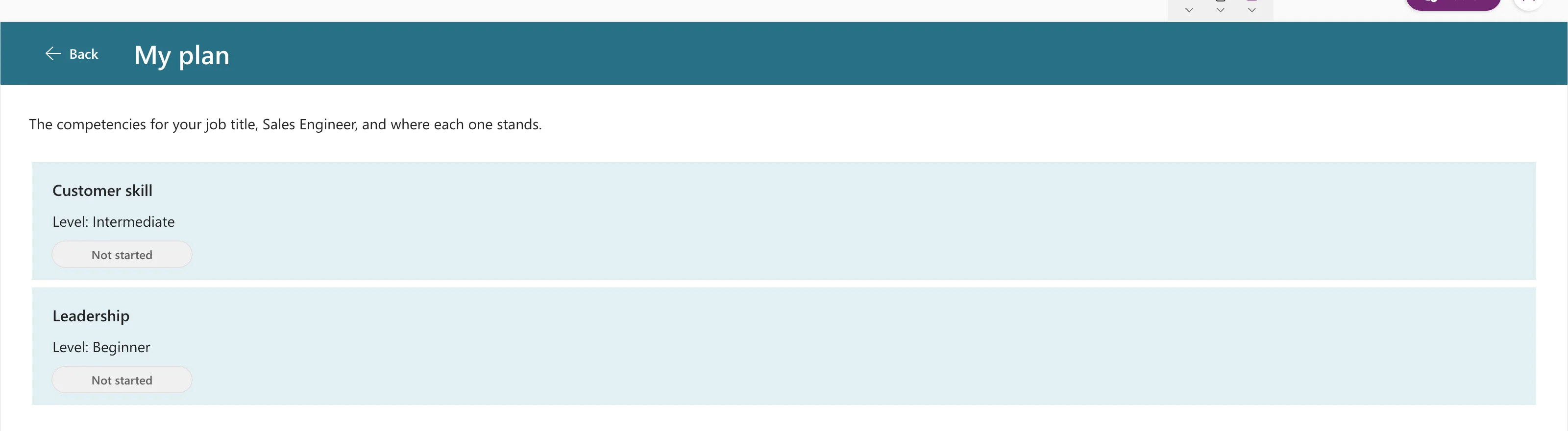
You'll test this screen in Studio as yourself. In the demo organization, the admin is the Managing Director, whose job title has no competencies (Part 2), so My plan is empty and there's nothing to open. For testing, point MyJobTitle at a job title that has a plan. In App.Formulas, change one line:
MyJobTitle = "Sales Engineer";

Preview from the Home screen and select My plan: the two Sales Engineer competencies appear.
This is for testing only. Step 12 puts the real formula back, MyJobTitle = Trim(MyProfile.jobTitle);. Responses you send while testing are real items in CompetencyResponses, saved under your name.
Step 4: Make Each Plan Row Open the Response Screen
Follow How to Open Another Screen When a Gallery Row Is Selected. On the My Plan screen, set two properties of galMyPlanMPS:
true
Navigate('Response Screen', ScreenTransition.None, {locPlanItem: ThisItem})
locPlanItem carries the selected competency to the Response screen: its name, level and ID.
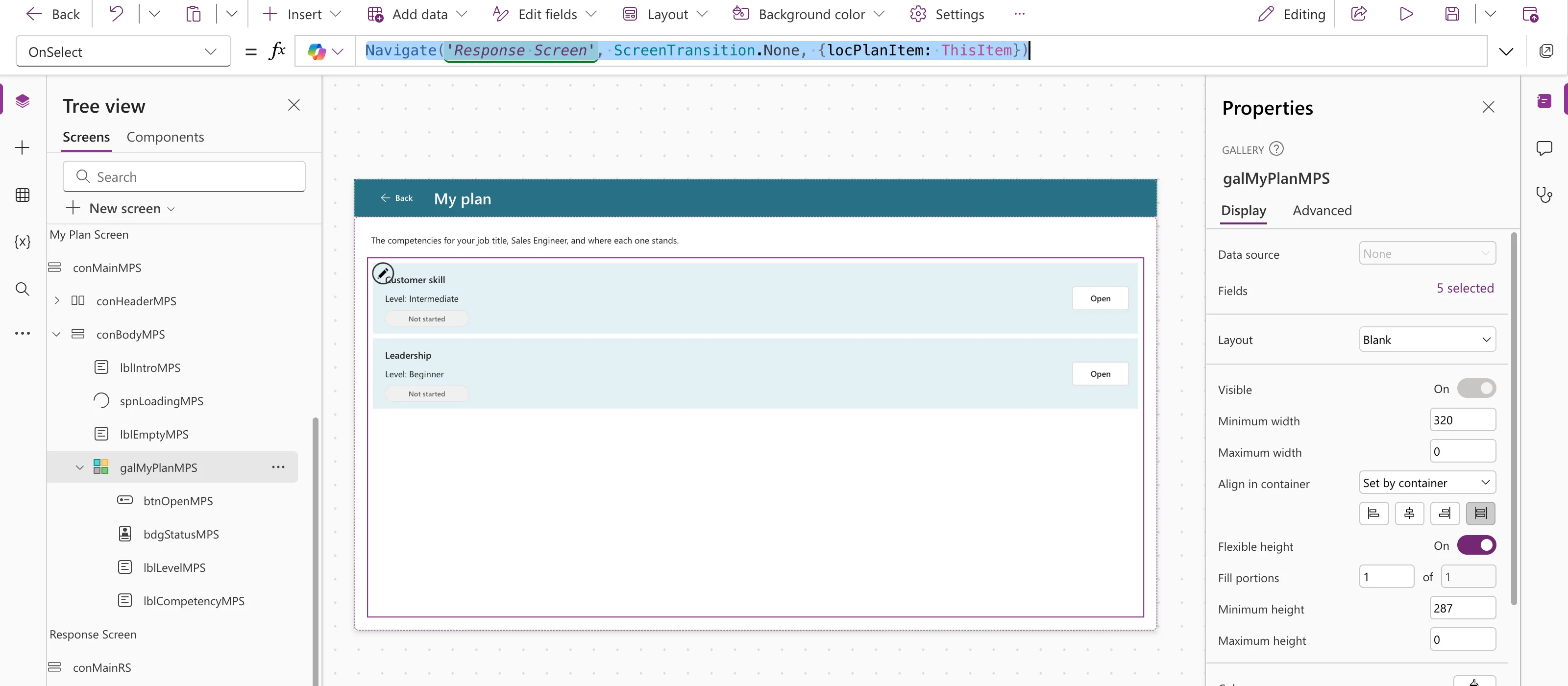
Then add a button to the row for keyboard users: select lblCompetencyMPS, so the button goes into the row, and insert Input → Button. Its OnSelect is already Select(Parent), which runs the gallery's OnSelect (How to Use the Select Function).
| Property | Value |
|---|---|
| Name | btnOpenMPS |
| Text | "Open" |
| AccessibleLabel | "Open " & ThisItem.Competency |
| Appearance | ButtonAppearance.Secondary |
| Width, Height | 96, 40 |
| X | Parent.TemplateWidth - Self.Width - 16 |
| Y | (Parent.TemplateHeight - Self.Height) / 2 |
Make room for it by setting the Width of lblCompetencyMPS and lblLevelMPS to Parent.TemplateWidth - 144.
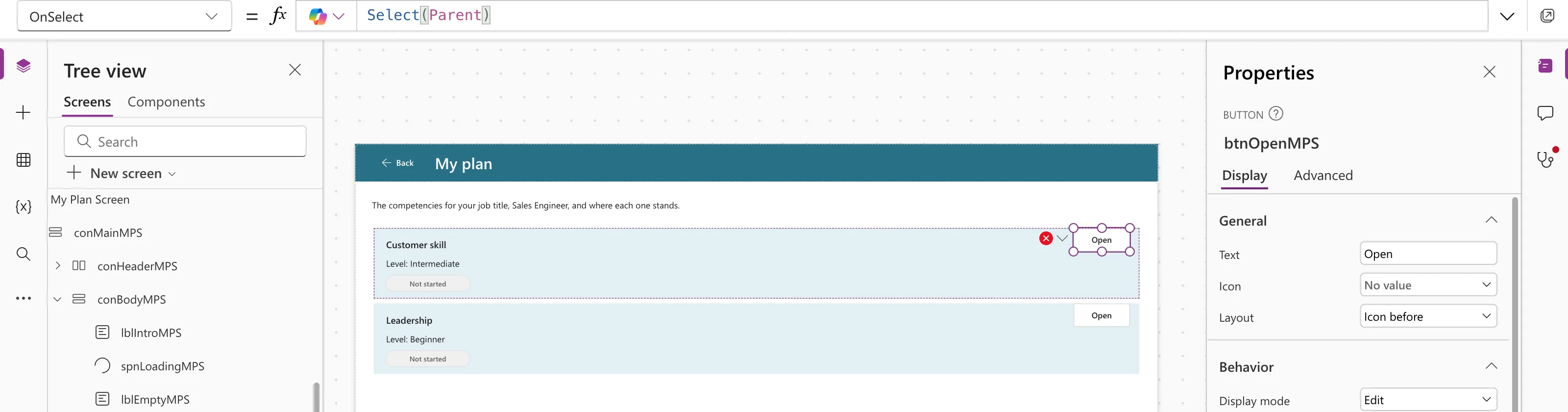
The screen opens now, but it's still empty. The next steps fill it.
Part 9 makes Open a chevron icon on phones, and the labels' Width Parent.TemplateWidth - btnOpenMPS.Width - 48, so names fit on 360-pixel screens (Fixed: Text and Buttons Cut Off on Narrow Phones).
Step 5: Load the Response When the Screen Opens
Select Response Screen and set its OnVisible (How to Run a Formula When a Screen Opens). Here it is in four parts.
Start loading, and clear any leftover saving flag:
UpdateContext({locIsLoading: true, locIsSaving: false});
Find the person's response to this competency at this level with LookUp (How to Find a Record in Power Apps with LookUp). It's blank if they haven't answered yet:
UpdateContext(
    {
        locResponse: LookUp(
            CompetencyResponses,
            EmployeeId = MyProfile.id &&
            RoleCompetencyId = locPlanItem.ID &&
            Level = locPlanItem.Level.Value
        )
    }
);
All three conditions are = on text and number columns, so SharePoint does the search, starting from the indexed EmployeeId (What Is Delegation in Power Apps?). Studio showed no delegation warning. Matching on the level too means that if a manager later changes the level, the person starts a new response instead of reusing an old approval.
Work out the status text once, with the same words as My Plan's badges (How to Use the Switch Function):
UpdateContext(
    {
        locStatusText: Switch(
            locResponse.Status.Value,
            StatusPending, "Waiting for review",
            StatusApproved, "Approved",
            StatusDeclined, "Declined",
            "Not started"
        )
    }
);
Reset the text box to the saved response, then finish loading:
Reset(txtResponseRS);
UpdateContext({locIsLoading: false})
Without the Reset, the box kept text that had been typed but never saved when the screen opened again, because a text box only refreshes itself when its Default changes (Fixed: Text Input Shows Old, Unsaved Text). Write the reset in now even though txtResponseRS comes in Step 8; Studio flags it until the control exists.
The complete formula:
UpdateContext({locIsLoading: true, locIsSaving: false});
UpdateContext(
    {
        locResponse: LookUp(
            CompetencyResponses,
            EmployeeId = MyProfile.id &&
            RoleCompetencyId = locPlanItem.ID &&
            Level = locPlanItem.Level.Value
        )
    }
);
UpdateContext(
    {
        locStatusText: Switch(
            locResponse.Status.Value,
            StatusPending, "Waiting for review",
            StatusApproved, "Approved",
            StatusDeclined, "Declined",
            "Not started"
        )
    }
);
Reset(txtResponseRS);
UpdateContext({locIsLoading: false})
Part 8 moves this formula into a Refresh button in the header, with Refresh on the list first, so the screen also shows a manager's decision made while it was open.
Step 6: Show the Competency, Level and Status
Insert these into conBodyRS, in this order: two Text controls, a Badge and a Spinner (How to Add a Text Control, How to Add a Badge Control, How to Add a Loading Spinner).
| Control | Property | Value |
|---|---|---|
lblCompetencyRS | Text | locPlanItem.Competency |
| Size, FontWeight | 20, FontWeight.Semibold | |
| AutoHeight | true | |
| AccessibleLabel | Self.Text | |
lblLevelRS | Text | "Level: " & locPlanItem.Level.Value |
| AutoHeight, AccessibleLabel | true, Self.Text | |
bdgStatusRS | Content | locStatusText |
| Intent | Switch(locStatusText, "Waiting for review", BadgeIntent.Caution, "Approved", BadgeIntent.Positive, "Declined", BadgeIntent.Critical, BadgeIntent.Informative) | |
| AccessibleLabel | "Status: " & locStatusText | |
| AlignInContainer | AlignInContainer.Start | |
| Width, Height | 160, 28 | |
| Visible | !locIsLoading | |
spnLoadingRS | Label | "Loading your response" |
| Visible | locIsLoading |
AlignInContainer Start keeps the badge its own size; in a container that stretches its children, it would otherwise run the full width.
Step 7: Add the Messages
Three Text controls explain where things stand.
lblNoManagerRS warns people who have no manager in Microsoft 365, the same case the Home screen points out (Part 4). They can still send; the response waits for whoever becomes their manager:
"Your Microsoft 365 profile has no manager, so nobody can review this yet. You can still send it, and your manager will see it once your IT admin adds one."
| Property | Value |
|---|---|
| Visible | IsBlank(MyManager) |
| Fill | RGBA(255, 244, 206, 1) |
| PaddingTop, PaddingBottom, PaddingLeft, PaddingRight | 12 |
| AutoHeight, AccessibleLabel | true, Self.Text |
lblInfoRS says what the status means and what to do, with dates in words (How to Format a Date with Text):
Switch(
    locResponse.Status.Value,
    StatusPending, "You sent this on " & Text(locResponse.SubmittedOn, DateTimeFormat.LongDate) & ". Your manager hasn't reviewed it yet, so you can still change it.",
    StatusApproved, "Your manager approved this on " & Text(locResponse.ReviewedOn, DateTimeFormat.LongDate) & ". Approved responses can't be changed.",
    StatusDeclined, "Your manager declined this on " & Text(locResponse.ReviewedOn, DateTimeFormat.LongDate) & ". Update your response and send it again.",
    "Describe how you show this competency at the " & locPlanItem.Level.Value & " level, then send it to your manager for review."
)
Its AutoHeight is true, Visible !locIsLoading and AccessibleLabel Self.Text.
lblCommentRS shows the manager's comment, in FontWeight FontWeight.Semibold, with AutoHeight true and AccessibleLabel Self.Text:
"Comment from your manager: " & locResponse.ManagerComment
!locIsLoading && !IsBlank(locResponse.ManagerComment)
Step 8: Add the Response Box and the Character Count
Insert Input → Text input into conBodyRS and name it txtResponseRS (How to Add a Multi-Line Text Input):
| Property | Value |
|---|---|
| Type | TextInputType.Multiline |
| Default | locResponse.Response |
| MaxLength | ResponseMaxLength |
| Placeholder | "Write your response" |
| Height | 240 |
| AccessibleLabel | "Your response for " & locPlanItem.Competency |
| Visible | !locIsLoading |
Its DisplayMode makes it read-only once the response is approved, and greys it out while saving (How to Make a Control Read-Only with DisplayMode):
If(
    locResponse.Status.Value = StatusApproved, DisplayMode.View,
    locIsSaving, DisplayMode.Disabled,
    DisplayMode.Edit
)
Under it, a Text control lblCountRS counts the characters (How to Limit Text Length and Show a Character Count), with AccessibleLabel Self.Text:
Len(txtResponseRS.Text) & " of " & Text(ResponseMaxLength, "#,##0") & " characters"
!locIsLoading && locResponse.Status.Value <> StatusApproved
Step 9: Send the Response with One Patch
Insert Input → Button into conBodyRS, name it btnSendRS, and set its look first:
| Property | Value |
|---|---|
| Text | If(locIsSaving, "Sending...", IsBlank(locResponse), "Send to manager", locResponse.Status.Value = StatusDeclined, "Send again", "Update response") |
| Icon | "Send" |
| AccessibleLabel | Self.Text |
| AlignInContainer | AlignInContainer.Start |
| Width, Height | 200, 40 |
| Visible | !locIsLoading && locResponse.Status.Value <> StatusApproved |
| DisplayMode | If(locIsSaving || IsBlank(Trim(txtResponseRS.Text)), DisplayMode.Disabled, DisplayMode.Edit) |
The button's words follow the state, it disappears once a response is approved, and it stays disabled while the box is empty or a save is running (How to Disable a Button Until a Text Box Has Text).
Now its OnSelect. Follow How to Create or Update a SharePoint List Item with Patch; these are this app's values.
The base record: Defaults(CompetencyResponses) when there's no response yet, so Patch creates one; otherwise the loaded locResponse, so it updates that item (Defaults).
The columns: the competency, job title and level are saved as they are now, so the response still makes sense if the plan changes later (Part 2's design). The status goes back to Pending on every send, as a Choice record (Write to a Choice Column). Sending again after a decline clears the manager's comment and review date (Clear a Column with Blank), and SubmittedOn records the moment (Now).
The result: IfError reports a failure, with a plain message when someone else changed the response first; otherwise Notify confirms and Back returns to the plan (IfError, Notify).
The whole formula:
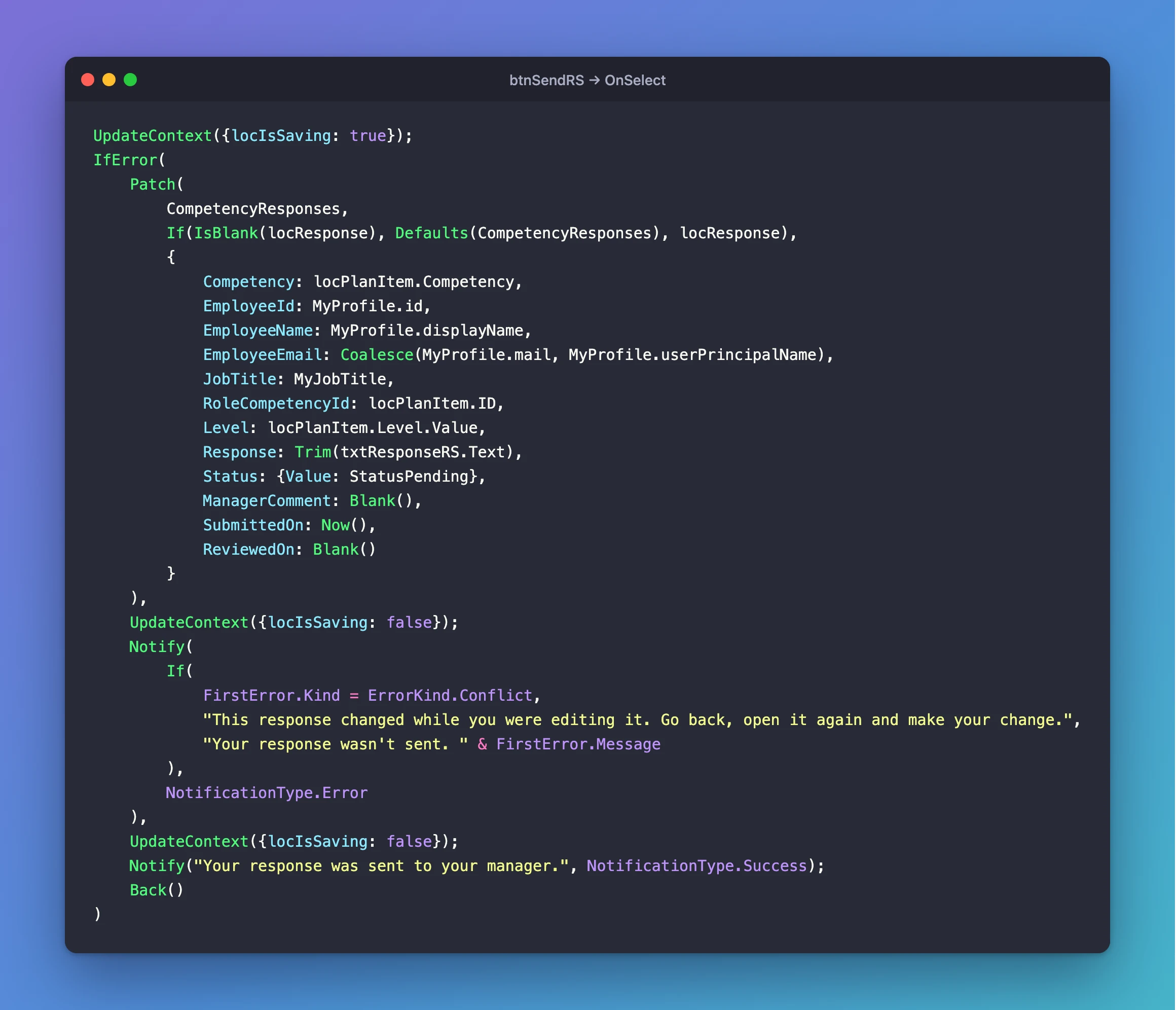
UpdateContext({locIsSaving: true});
IfError(
    Patch(
        CompetencyResponses,
        If(IsBlank(locResponse), Defaults(CompetencyResponses), locResponse),
        {
            Competency: locPlanItem.Competency,
            EmployeeId: MyProfile.id,
            EmployeeName: MyProfile.displayName,
            EmployeeEmail: Coalesce(MyProfile.mail, MyProfile.userPrincipalName),
            JobTitle: MyJobTitle,
            RoleCompetencyId: locPlanItem.ID,
            Level: locPlanItem.Level.Value,
            Response: Trim(txtResponseRS.Text),
            Status: {Value: StatusPending},
            ManagerComment: Blank(),
            SubmittedOn: Now(),
            ReviewedOn: Blank()
        }
    ),
    UpdateContext({locIsSaving: false});
    Notify(
        If(
            FirstError.Kind = ErrorKind.Conflict,
            "This response changed while you were editing it. Go back, open it again and make your change.",
            "Your response wasn't sent. " & FirstError.Message
        ),
        NotificationType.Error
    ),
    UpdateContext({locIsSaving: false});
    Notify("Your response was sent to your manager.", NotificationType.Success);
    Back()
)
EmployeeEmail uses Coalesce because some accounts have no mail value; the user principal name stands in (How to Replace Blank Values with Coalesce). The list's hidden Title column isn't required, so the formula leaves it out.
The finished screen in Studio, before any data is loaded:
Step 10: Send a First Response
Select Home Screen, preview, select My plan, then Open on Customer skill. A new response looks like this:
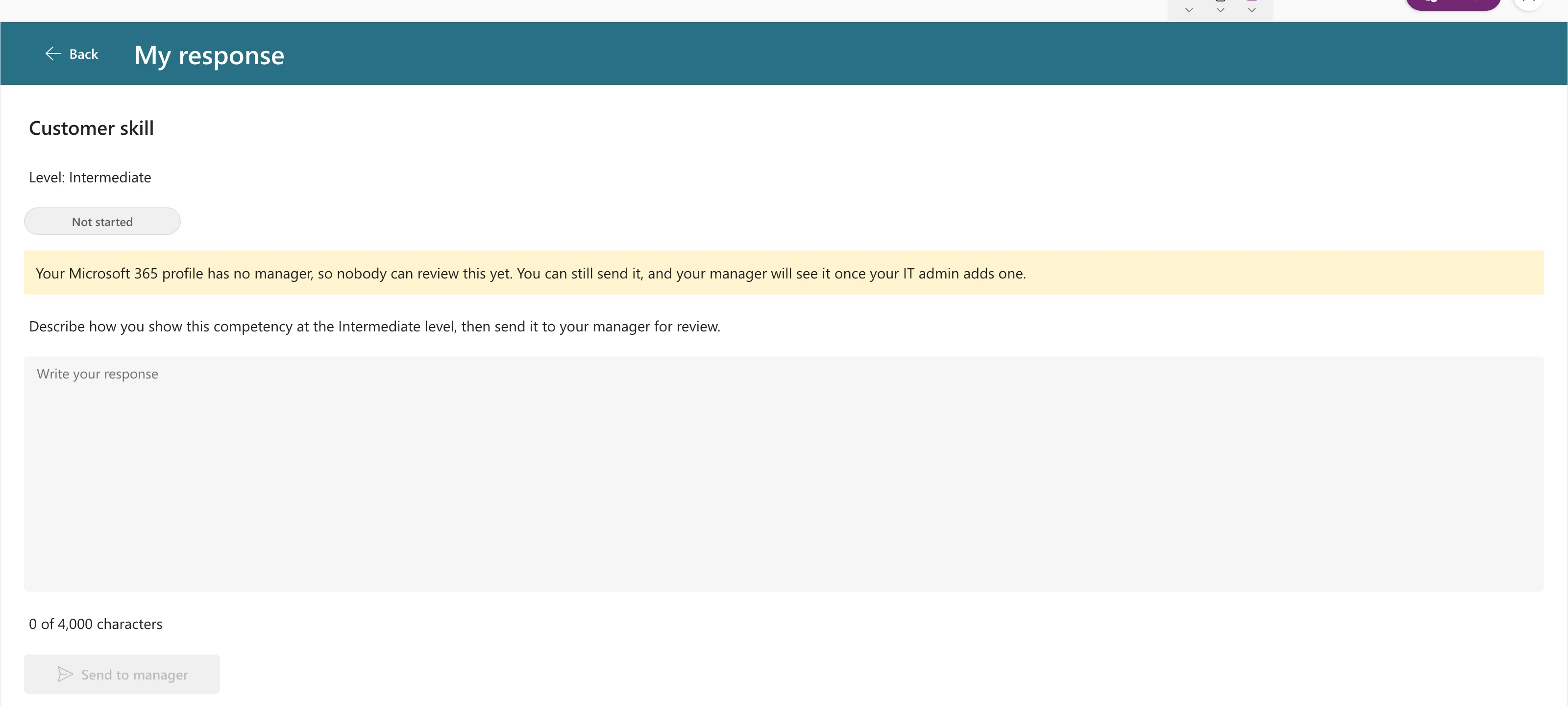
The admin sees the yellow note because they have no manager; people with a manager don't. Type a response. The count follows each key and the button turns on:
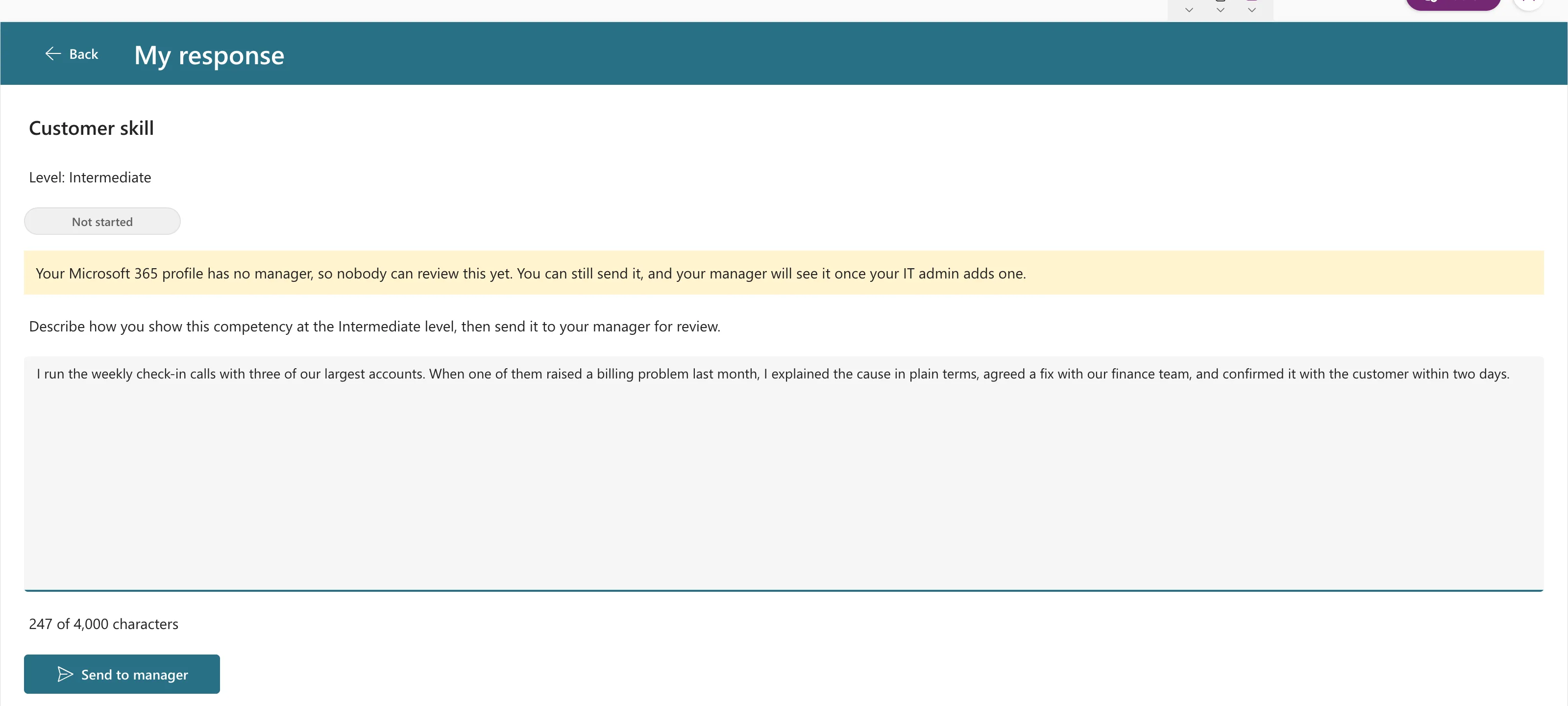
Select Send to manager. A green banner confirms it, the app goes back to My plan, and the badge already says Waiting for review:
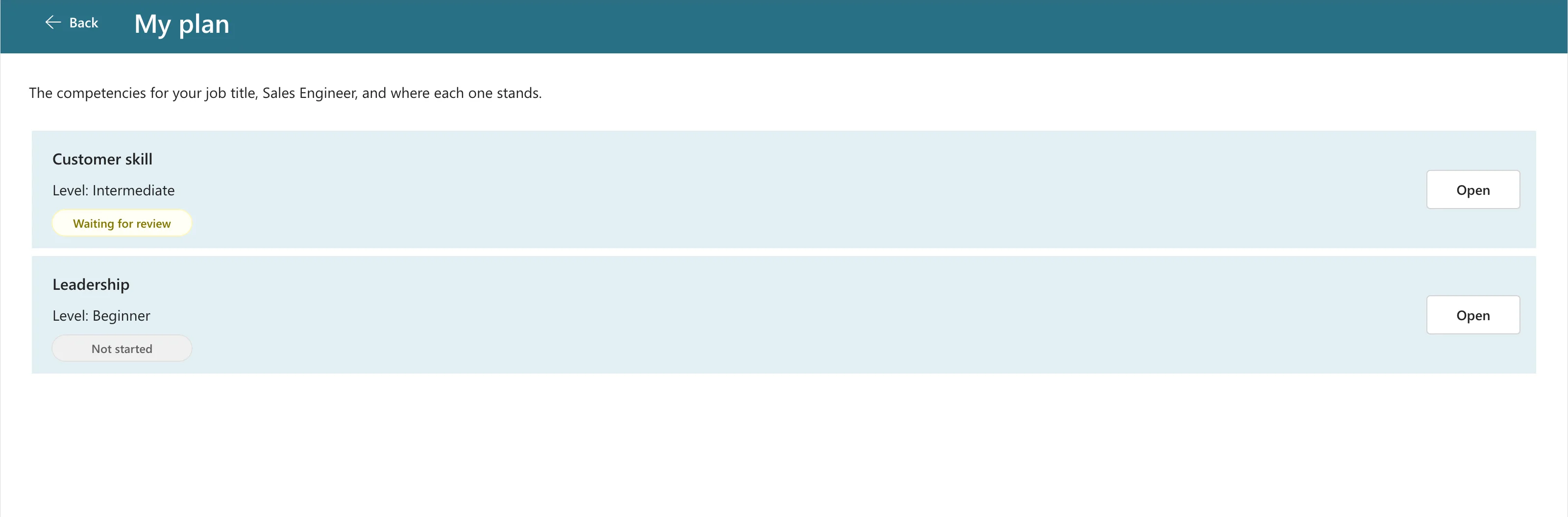
Going back runs My Plan's OnVisible again, and its query returned the new item straight away: the app's own Patch updates its copy of the list. Changes other people make are different. A running app doesn't pick those up by itself, so Part 8 adds Refresh to every screen (Fixed: Power Apps Doesn't Show Changes Other People Made).
In SharePoint, CompetencyResponses now has its first item, with every column the formula set:
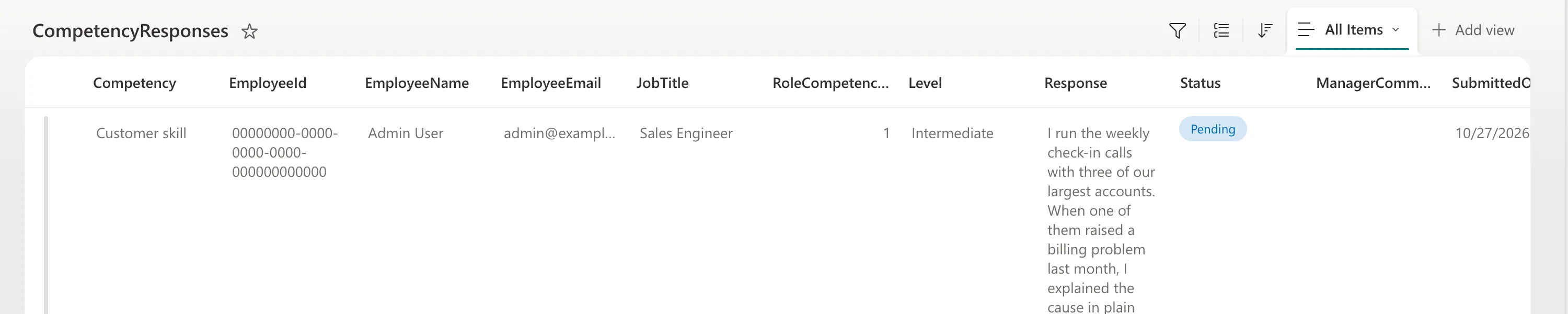
Open it again: the date in words, the saved text, and Update response instead of Send to manager:
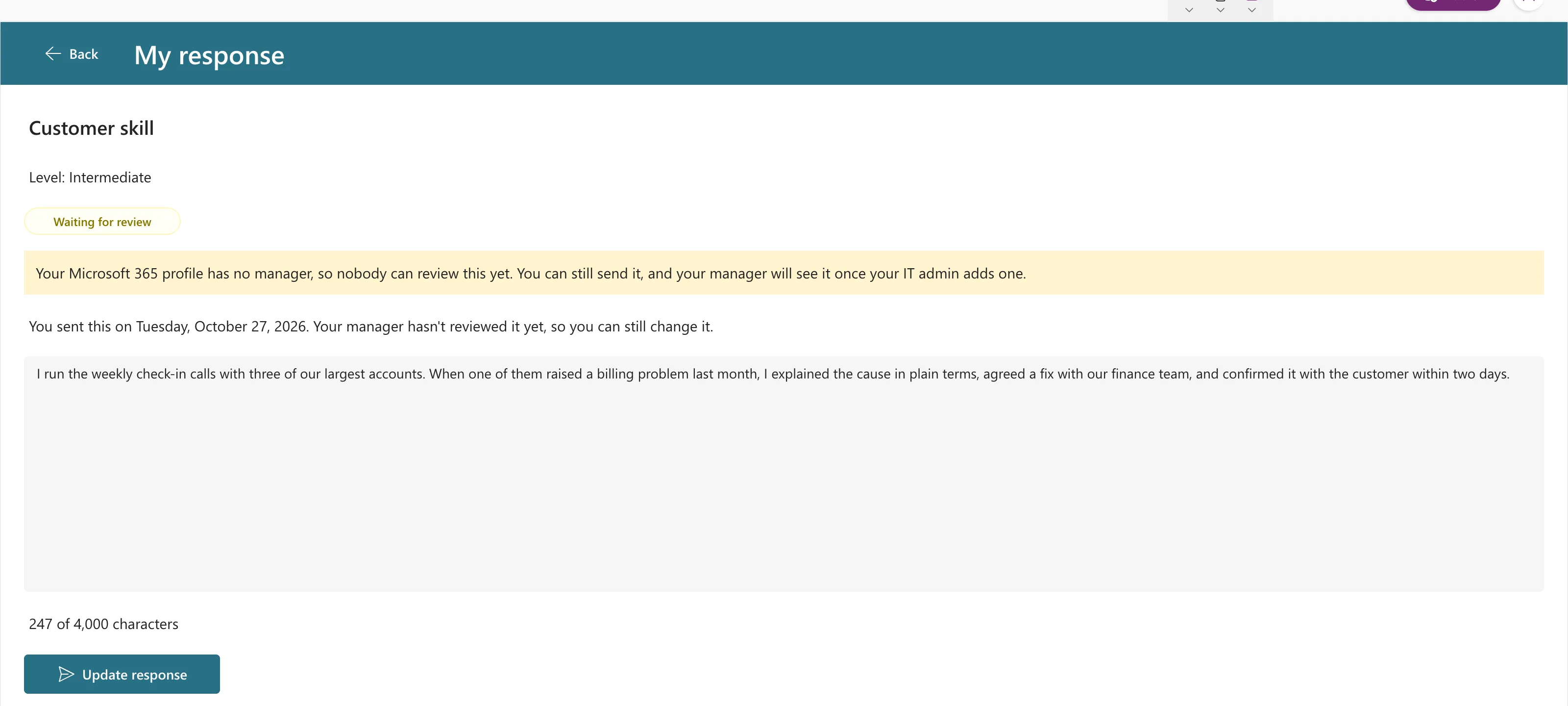
That's the whole round trip for one response: written, sent, saved and opened again.
Step 11: Test the Manager's Decisions
Managers get their own Review screen in Part 8. Until then, play the manager in SharePoint: open CompetencyResponses, edit the item, and change its Status, ManagerComment and ReviewedOn (How to Edit an Item in a SharePoint List).
A declined response
Set Status to Declined, add a comment and a review date, and Save:
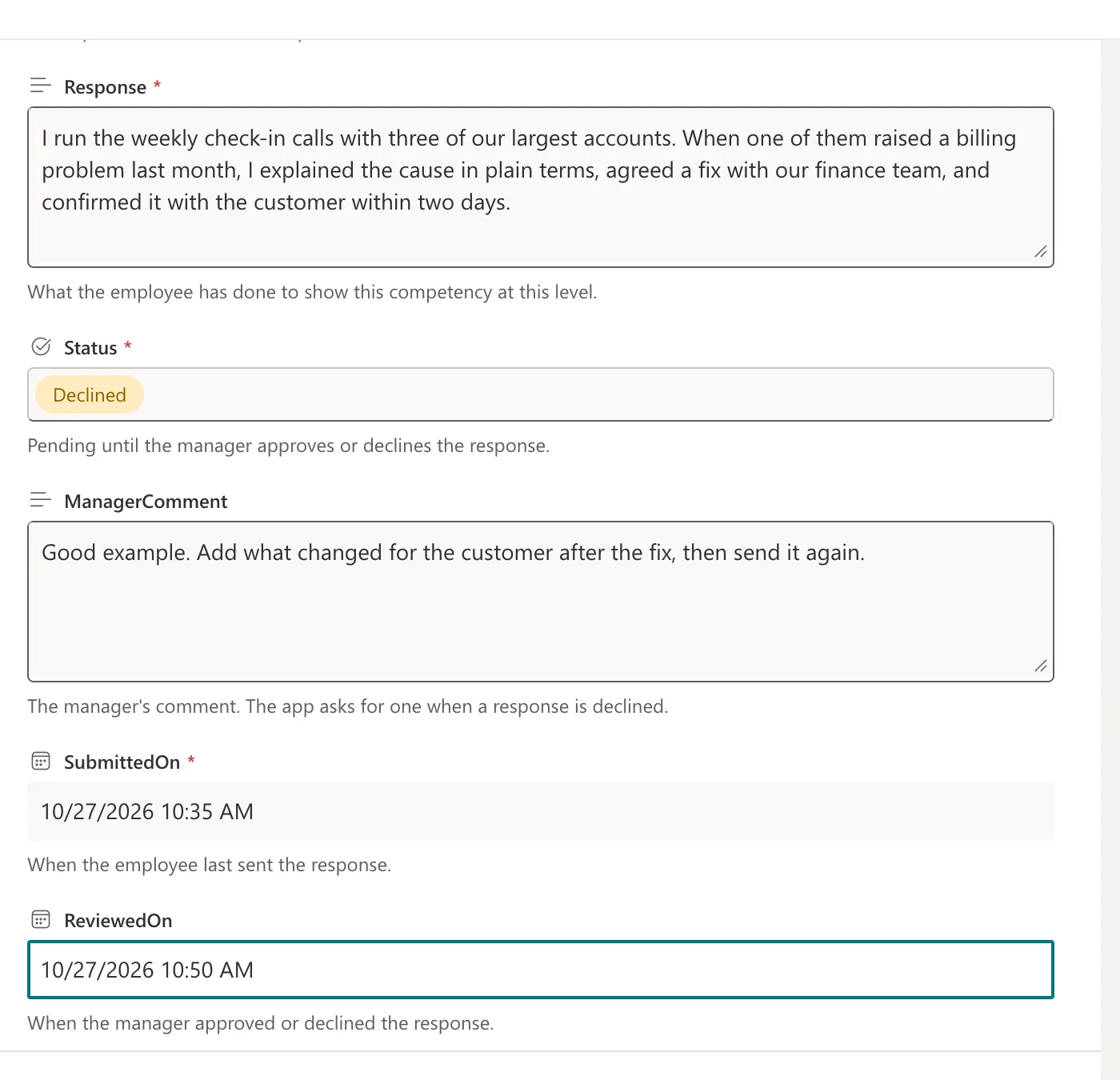
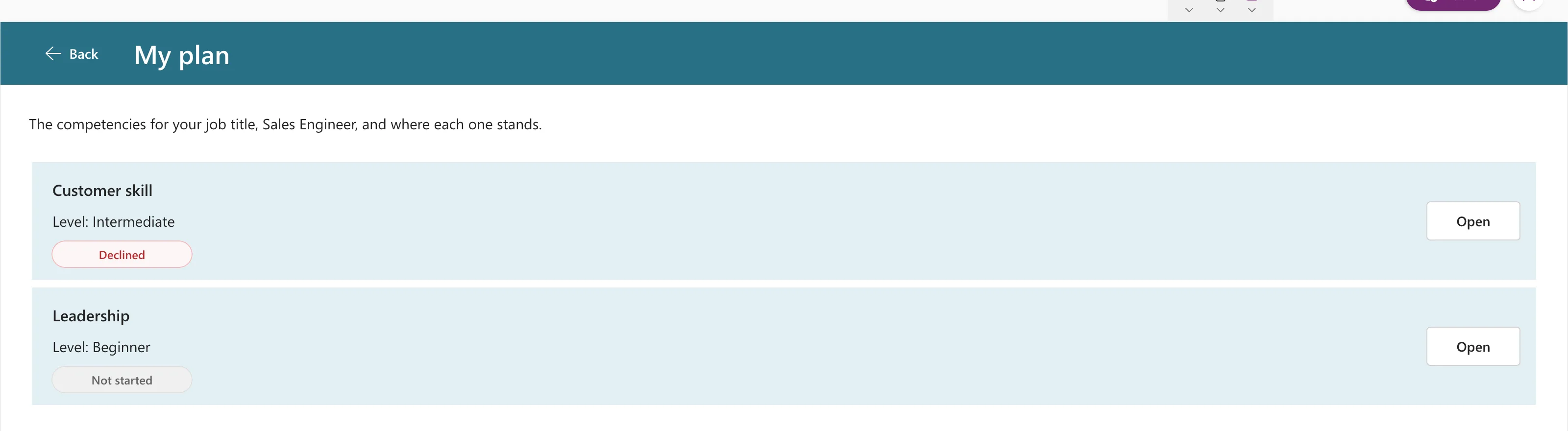
Back in the app, open My plan again. In my test, it showed a red Declined badge. An edit made in SharePoint is a change from outside the app, which a running app isn't guaranteed to show until it refreshes its data; Part 8 adds that. If your badge hasn't changed, refresh CompetencyResponses in Studio's Data pane (... → Refresh) and open My plan again:
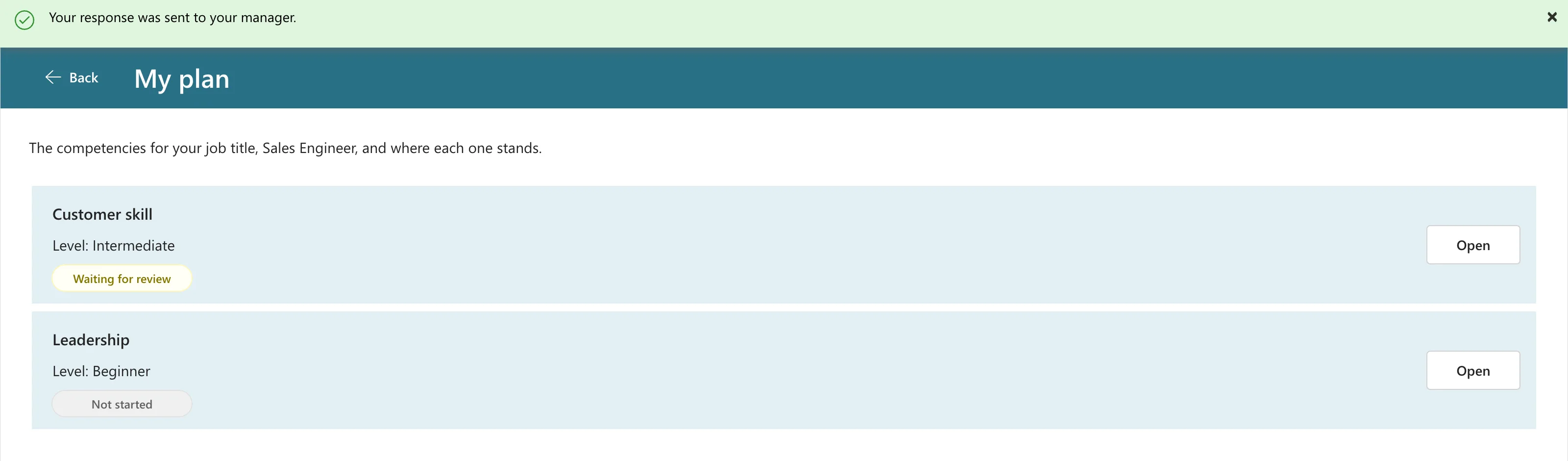
Open it: the decline date, the comment in bold, the text still editable, and Send again (the picture at the top of this part). Add the result the manager asked for and send it again. The banner confirms it, and the badge is back to Waiting for review:
The item's version history shows what the send did: version 2.0 is the decline, and version 3.0 the new send, with the comment and review date cleared:

An approved response
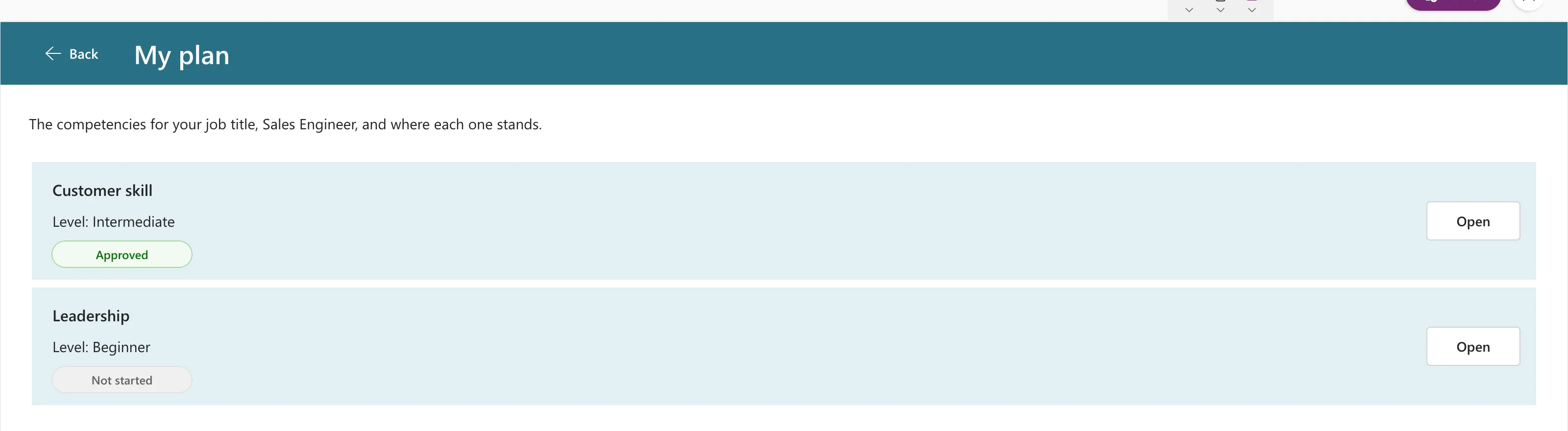
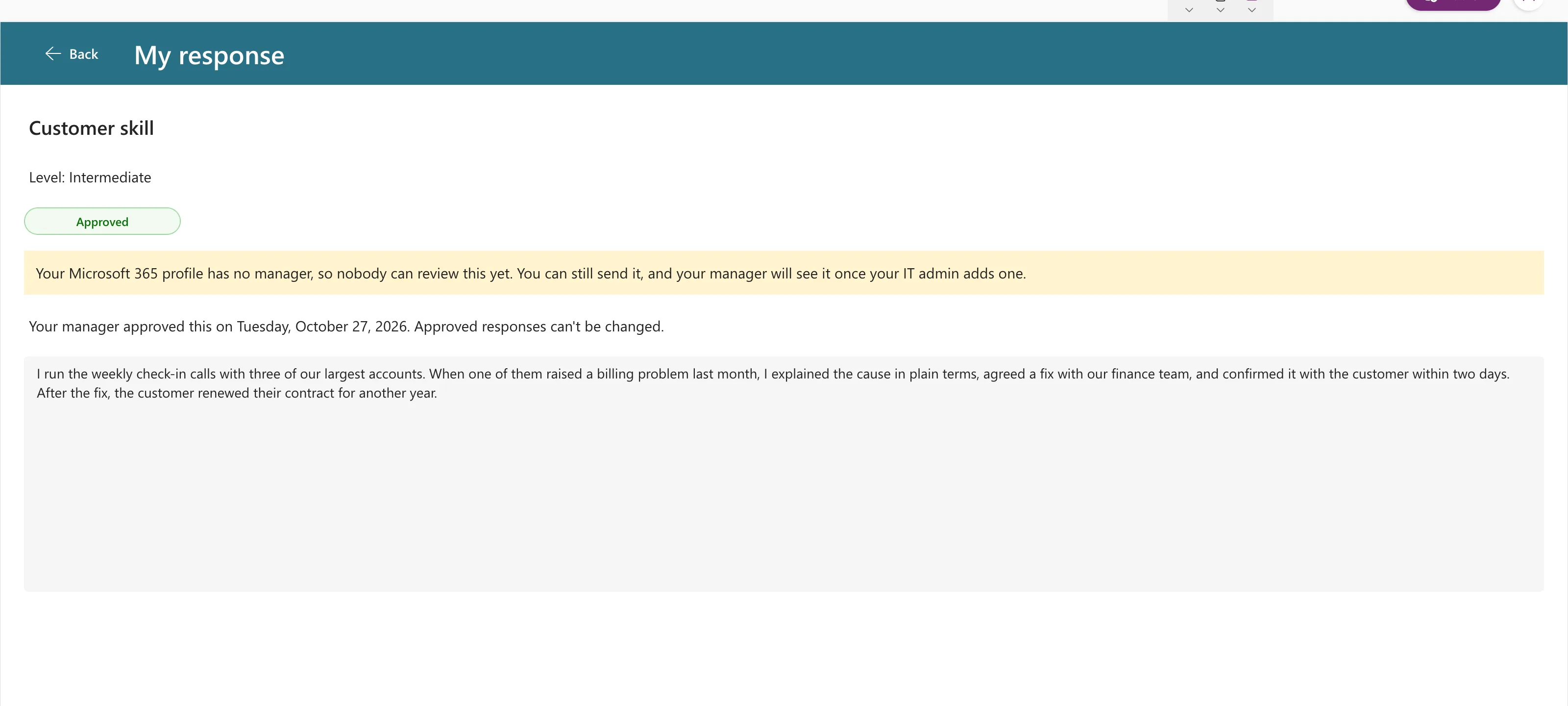
Set Status to Approved with a review date. My plan shows a green badge:
And the response is read-only, with no count and no button:
A change made at the same time
What if the manager approves while the employee is still editing? Test it: set the item back to Pending in SharePoint, open it in the app, then approve it in SharePoint while the app still shows the old copy. Change the text in the app and select Update response:

SharePoint refused the update, because the item had changed since the app read it, and the item stayed Approved. Without that check the employee's edit would have quietly undone the approval. The raw error and why it happens are in Fixed: "Network Error When Using Patch Function: ETAG Mismatch".
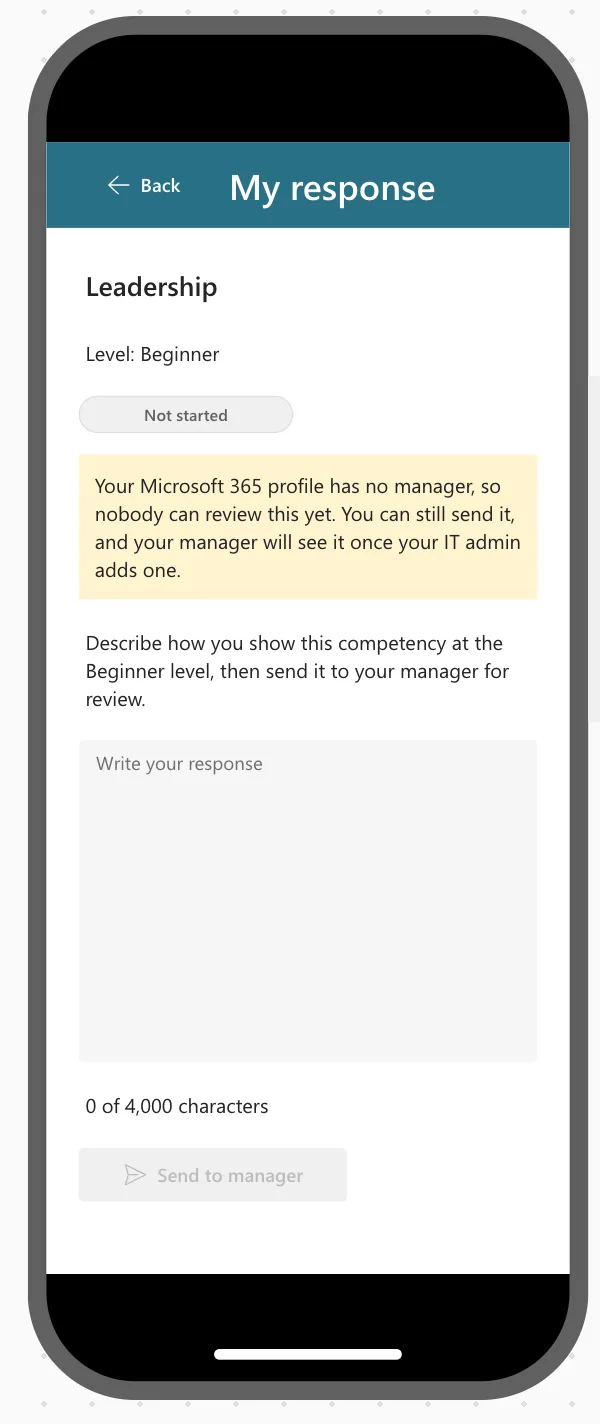
On a phone
At a phone size (Phones → Apple iPhone 12, 13, 14, How to Test on Phone and Tablet Sizes), the messages wrap and everything fits:
Step 12: Put Your Job Title Back, Check and Save
Put the real formula back in App.Formulas:
MyJobTitle = Trim(MyProfile.jobTitle);
Preview again: the Home screen says Job title: Managing Director and My plan shows the empty state from Part 5. Your test response stays in CompetencyResponses; the app doesn't show it to anyone, because it doesn't match your real job title. Delete it from the list if you'd rather not keep it.
Open the App checker and select Recheck all. Formulas, Runtime, Performance and Data source are clear. Accessibility (4) lists the two headings, lblTitleMPS and lblTitleRS, each with Focus isn't showing and Missing tab stop:
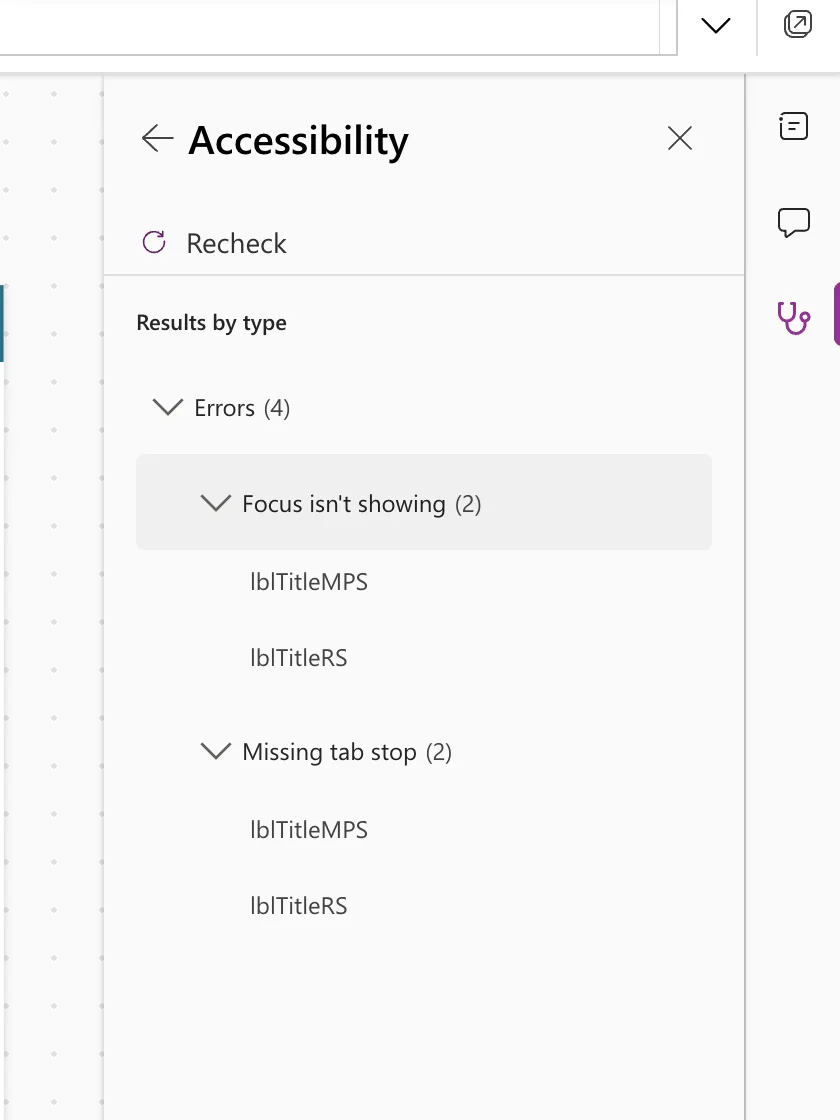
They stay for the reason Part 5 explains: a heading that does nothing keeps TabIndex -1, as Microsoft's guidance says, and making it a tab stop would make screen readers call it a button. The new screen's heading was copied from My Plan, so it carries the same two items.
Select Save. Don't publish yet: Part 7 publishes the app and shares it.
The complete App.Formulas after this part:
AppTitle = "Career Development Plan";
MyProfile = Office365Users.MyProfileV2({'$select': "id,displayName,givenName,mail,userPrincipalName,jobTitle"});
MyJobTitle = Trim(MyProfile.jobTitle);
MyManager = IfError(
    Office365Users.ManagerV2(
        MyProfile.id,
        {'$select': "id,displayName,mail,jobTitle"}
    ),
    Blank()
);
MyDirectReports = Sort(
    Filter(
        Office365Users.DirectReportsV2(
            MyProfile.id,
            {'$select': "id,displayName,mail,userPrincipalName,jobTitle,accountEnabled"}
        ).value,
        accountEnabled
    ),
    displayName
);
IsManager = !IsEmpty(MyDirectReports);
StatusPending = "Pending";
StatusApproved = "Approved";
StatusDeclined = "Declined";
ResponseMaxLength = 4000;
Common Mistakes
| Mistake | What happens | Do this instead |
|---|---|---|
Passing Self.Selected to the Response screen | Incompatible type on the gallery | Pass ThisItem |
| Inserting the Open button with the gallery selected | It lands next to the gallery | Select lblCompetencyMPS first |
| No Reset in OnVisible | Unsent text shows when a response is opened again | Reset(txtResponseRS) after loading |
Status: "Pending" | The Choice column needs a record | Status: {Value: StatusPending} |
| Leaving out ManagerComment and ReviewedOn | A resent response keeps the old decline | Set them to Blank() |
Forgetting to restore MyJobTitle | Everyone sees the Sales Engineer plan | Put Trim(MyProfile.jobTitle) back |
Troubleshooting
| Symptom | Likely cause | Fix |
|---|---|---|
| Incompatible type … context variable types are incompatible | Self.Selected stored in a variable | Fixed: "Incompatible Type" |
| Unexpected characters on a control | A stray character, such as an extra bracket | Fixed: "Unexpected Characters" |
| Can't rename. This name is already being used | Another control has that name | Fixed: "Can't Rename" |
| Network error when using Patch function: … ETAG mismatch | The item changed after the app read it | Fixed: ETAG Mismatch |
| The box shows text that was never saved | No Reset when the screen opens | Fixed: Text Input Shows Old Text |
| The screen is empty in Studio | It was opened from the tree, so locPlanItem is blank | Preview from the Home screen |
| My plan has no rows to open | Your job title has no competencies | Step 3 |
FAQ
Why does the admin see the no-manager note?
Because the admin is at the top of the demo organization, with no manager. Everyone else has one, so they don't see it. The response can still be sent; it waits for whoever becomes the manager.
Why does sending again set the status back to Pending?
A changed response needs a fresh review. That's also why the manager's old comment and review date are cleared.
Can people change a response after sending it?
Yes, until the manager decides. Waiting for review responses can be updated; approved ones are locked.
Why not use an Edit form and SubmitForm?
Patch fits a custom screen like this one: it sets exactly the columns the app needs, including snapshots the person never types. Microsoft's guidance suggests Patch for a custom save experience without a form control.
Is the read-only state secure?
It's the app's rule, not a permission. People with access to the list could still edit it there. Part 1 explains the security model: SharePoint permissions protect the data.
Conclusion
The app now records responses. Each competency on My plan opens the Response Screen, which:
- loads the person's saved response for that competency and level;
- saves it with one Patch that creates or updates the item, always as Pending;
- shows the manager's decision: a comment to act on, or a read-only approved response;
- counts characters, disables Send until there's text, and explains conflicts and failures in plain words.
← Previous: Part 5: Build the My Plan Screen
Next → Part 7: Share the App and Build the My Team Screens. You'll publish the app, share it with the team, and build the screens where managers see their direct reports.
Additional Resources
- Patch function: creating and updating records, and common errors.
- Gallery control: accessibility guidelines: selectable rows and keyboard access.
- Text Input modern control: multi-line text, MaxLength and DisplayMode.
- Error handling: IfError, FirstError and error kinds.
- Connect to SharePoint from a canvas app: SharePoint column types in Power Apps.
