Build a Career Development Plan App in Power Apps — Part 5: Build the My Plan Screen

People open the Career Development Plan app to see what's expected of them. This part builds that screen: My plan lists the competencies for the person's job title, each with its level and a badge saying where their response stands. It also explains how the app asks SharePoint for exactly those items, and nothing more.
This is Part 5 of a 14-part series.
- Part 1: Plan the App and Set Up the Demo Organization
- Part 2: Create the SharePoint Site and Lists
- Part 3: Create the Solution, Environment Variables and Canvas App
- Part 4: Build the Home Screen
- Part 5: Build the My Plan Screen (you are here)
- Part 6: Build the Response Screen
- Part 7: Share the App and Build the My Team Screens
- Part 8: Build the Review Screen for Manager Approvals
- Part 9: Let Managers Manage Competencies
- Part 10: Test Every Role, Joiners and Leavers (coming soon)
- Part 11: Build a Setup Flow That Creates the SharePoint Lists (coming soon)
- Part 12: Run the Solution Checker and Export the Solutions (coming soon)
- Part 13: Install the App in a New Environment (coming soon)
- Part 14: Recap, Production Checklist and Next Steps (coming soon)
Part 4 built the Home screen and its My plan button. Now the button gets a screen to open. The screen reuses the Home screen's header, adds a gallery of the person's competencies, and loads its data when it opens, with a spinner while it waits and a clear message when there's nothing to show. As before, each generic task has its own short guide, and this part gives the exact values for this app.
What You'll Build
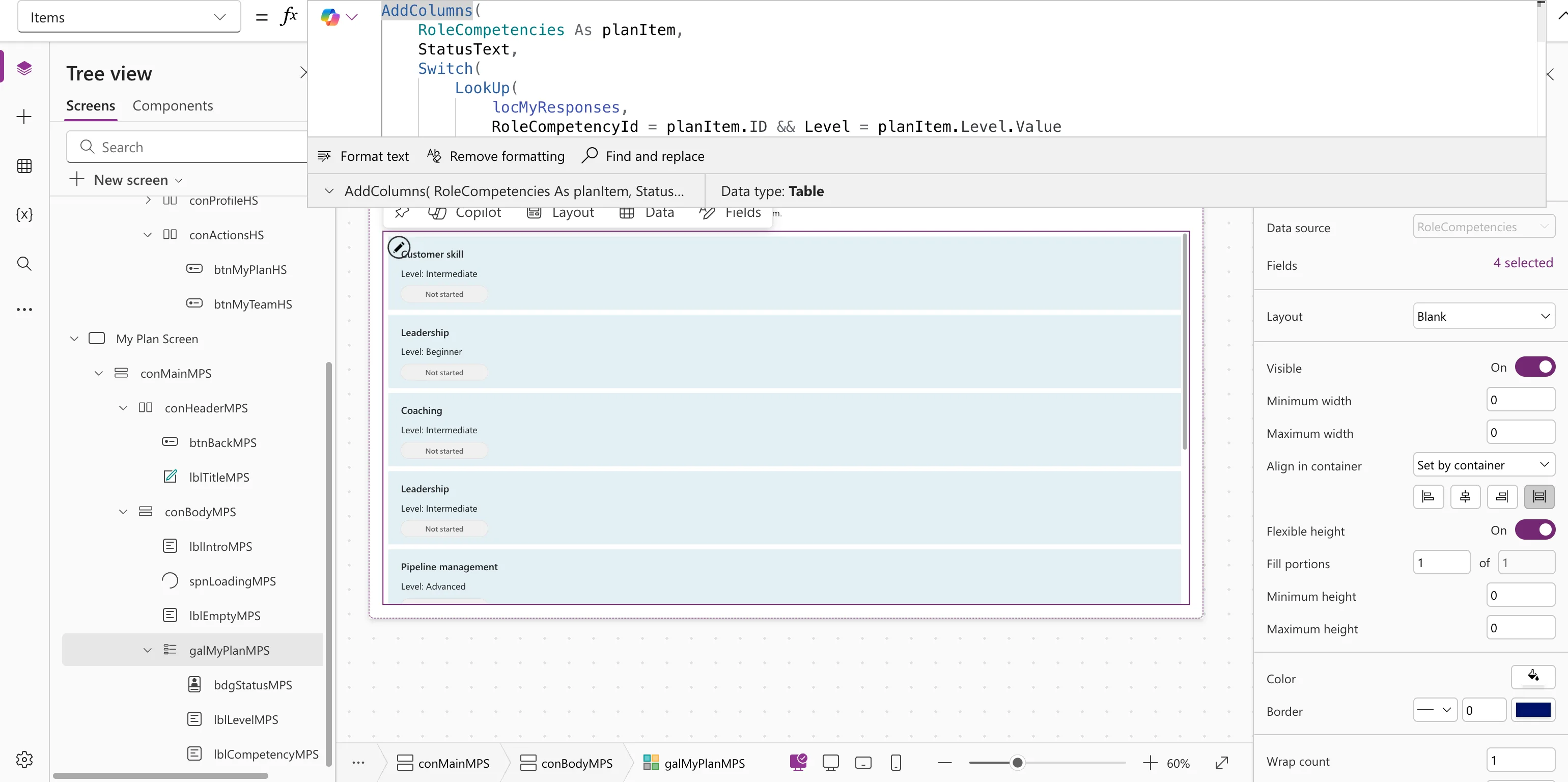
The My Plan screen's rows, with the competency, its level and a status badge on each. This is how they looked while the screen was being built, showing every competency in the list:
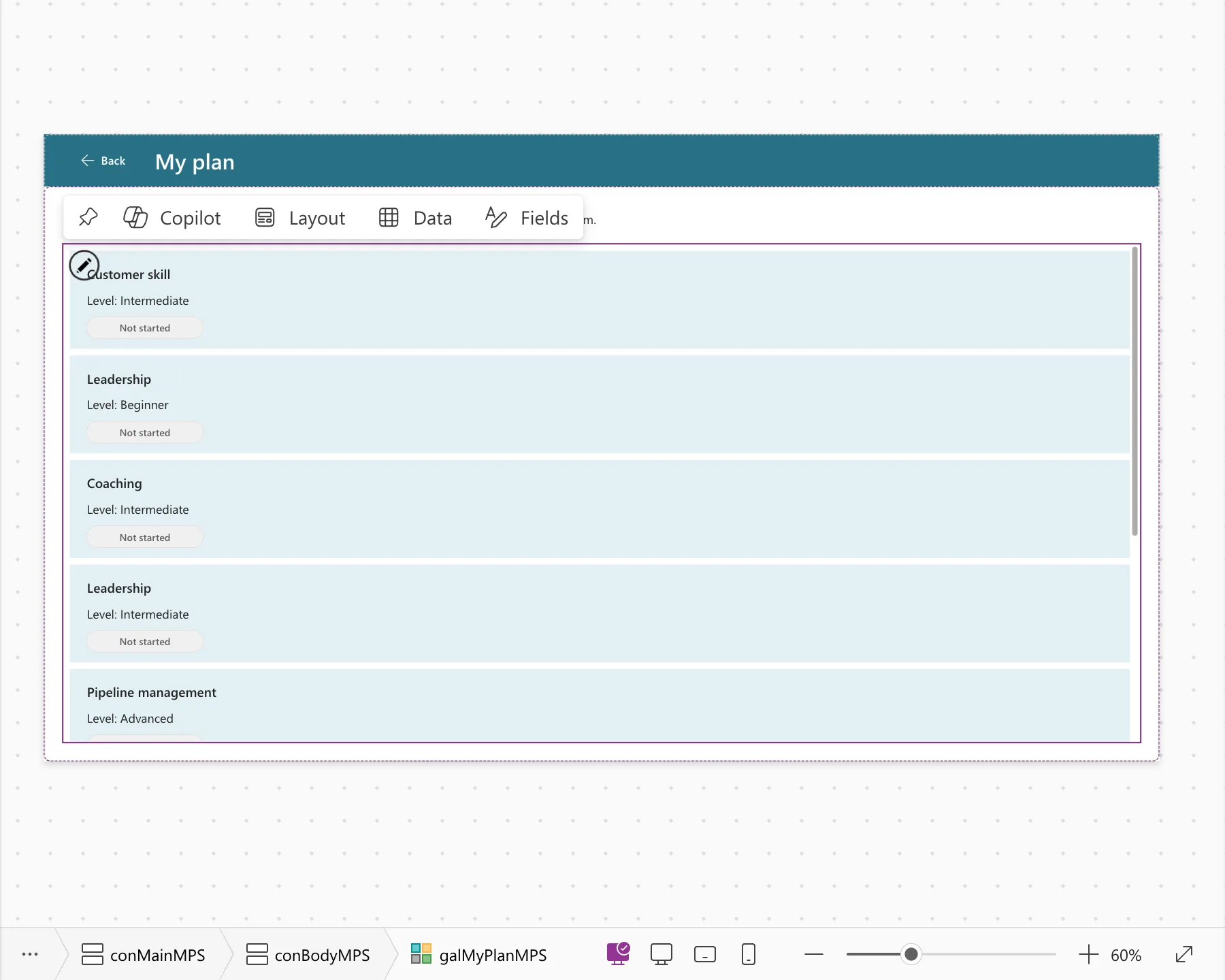
In the finished screen, each person sees only the competencies for their own job title:
- A new screen, My Plan Screen, opened from My plan and left with Back.
- A gallery of the competencies for the person's job title, sorted by name.
- A status badge on each row, from the person's response to that competency.
- Delegable SharePoint queries, so SharePoint does the filtering however long the lists get.
- A loading spinner and an empty state that says why there's no plan yet.
Prerequisites
-
Part 4 completed: the Home screen with its named formulas,
MyProfile,MyJobTitleand the rest. -
The demo data from Part 2: eight competencies for three job titles, and none for Managing Director. The screenshots are taken as the admin, the Managing Director, so the finished screen shows the empty state.
-
The guides this part relies on, by topic. Each step says which one to follow.
- Screens and navigation:
- The gallery and its controls:
- How to Add a Vertical Gallery in Power Apps
- How to Use ThisItem in a Power Apps Gallery
- How to Show a SharePoint Choice Column's Value in Power Apps
- How to Add a Badge Control in Power Apps
- How to Add a Loading Spinner in Power Apps
- How to Show a Message When a Gallery Is Empty in Power Apps
- How to Use Self and Parent in Power Apps
- Loading the data:
Each Power Fx function in the formulas has its own guide too, linked where it's used.
Step 1: Add the Response Statuses to App.Formulas
A response's status is stored as Pending, Approved or Declined (Part 2). Several screens will compare against these words, so they get names in App.Formulas, below Part 4's six formulas (How to Use Named Formulas in Power Apps):
StatusPending = "Pending";
StatusApproved = "Approved";
StatusDeclined = "Declined";
A typo in a named formula is caught once, in one place. A typo in a quoted word inside a formula would simply never match.

Step 2: Add the My Plan Screen
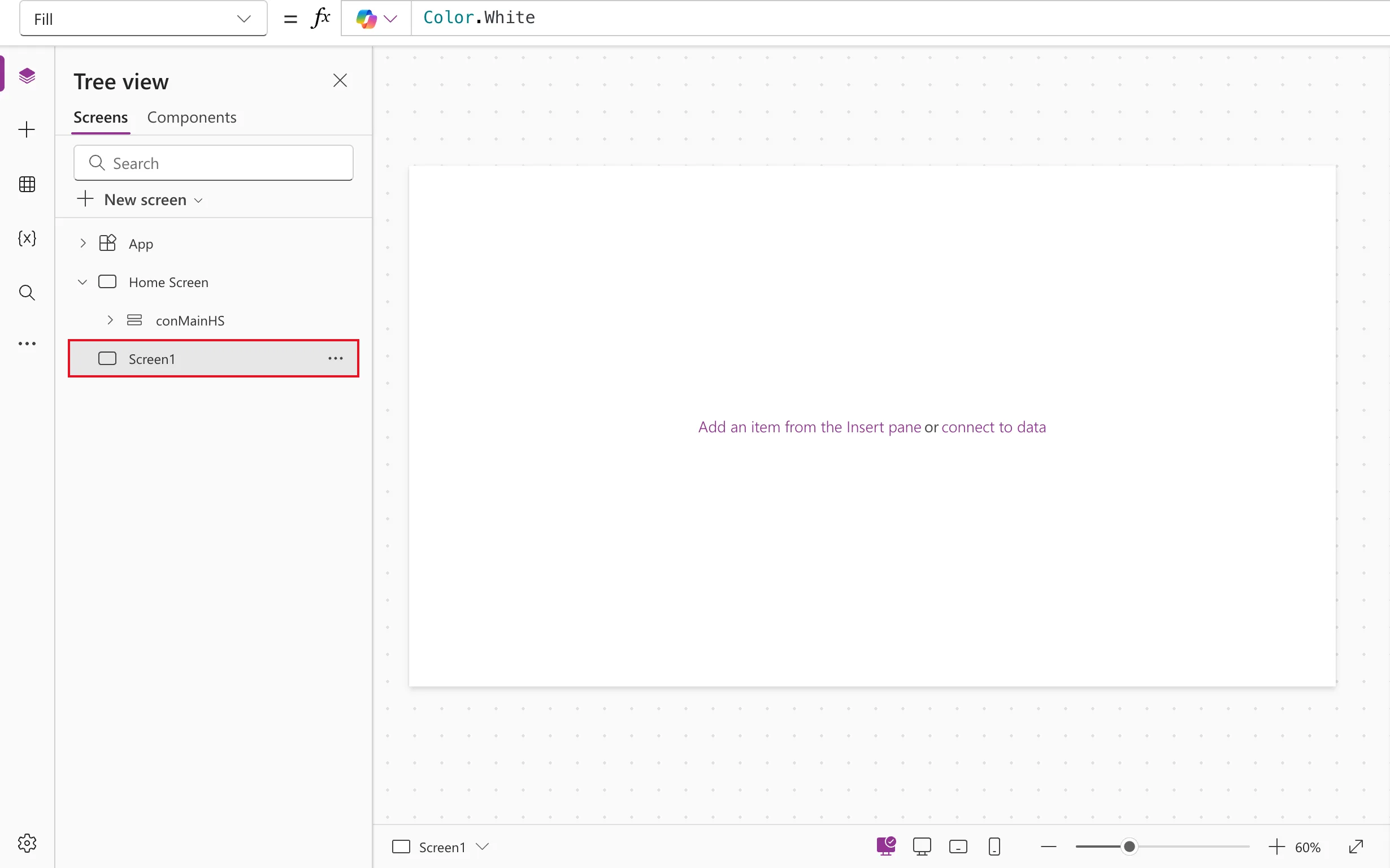
Follow How to Add a New Screen in Power Apps: New screen → Blank. Rename the new screen My Plan Screen. Controls on it end in MPS, as the Home screen's end in HS.
Step 3: Add the Screen Container and Copy the Header
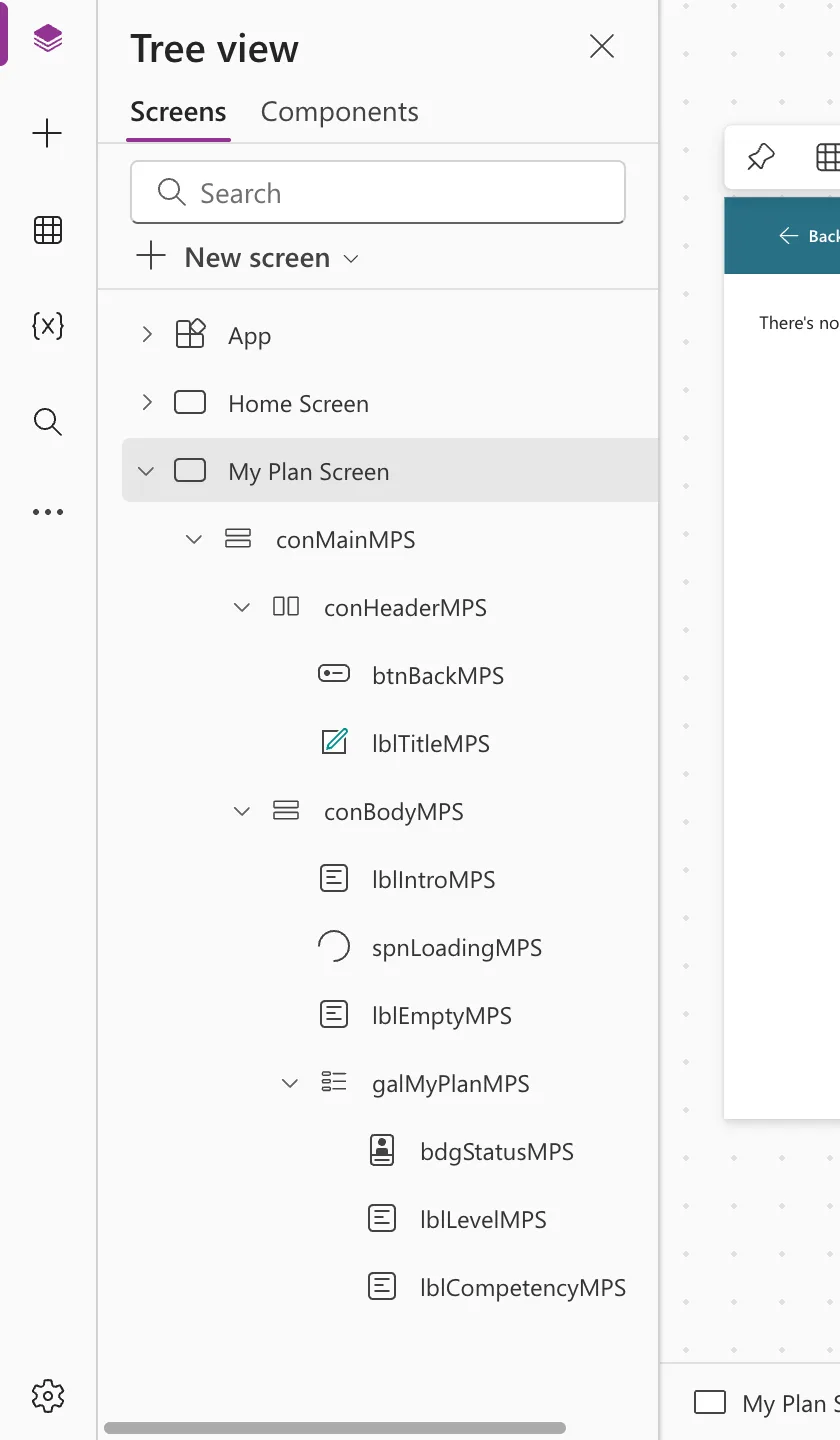
The screen follows the Home screen's layout. This is the structure Steps 3 to 10 build:
My Plan Screen
└─ conMainMPS               vertical: fills the screen
   ├─ conHeaderMPS          horizontal: the header
   │  ├─ btnBackMPS         back to the previous screen
   │  └─ lblTitleMPS        "My plan", the screen's main heading
   └─ conBodyMPS            vertical: everything below the header
      ├─ lblIntroMPS        what the list shows
      ├─ spnLoadingMPS      while loading
      ├─ lblEmptyMPS        when there's no plan
      └─ galMyPlanMPS       one row per competency
         ├─ lblCompetencyMPS
         ├─ lblLevelMPS
         └─ bdgStatusMPS
Insert a Vertical container on the screen, rename it conMainMPS, and give it the same settings as conMainHS in Part 4 (How to Add a Vertical Container in Power Apps):
| Property | Value |
|---|---|
| X, Y | 0, 0 |
| Width, Height | Parent.Width, Parent.Height |
| Align (horizontal) | Stretch |
| Padding | 0 |
| Drop shadow | None |
| Border radius | 0 |
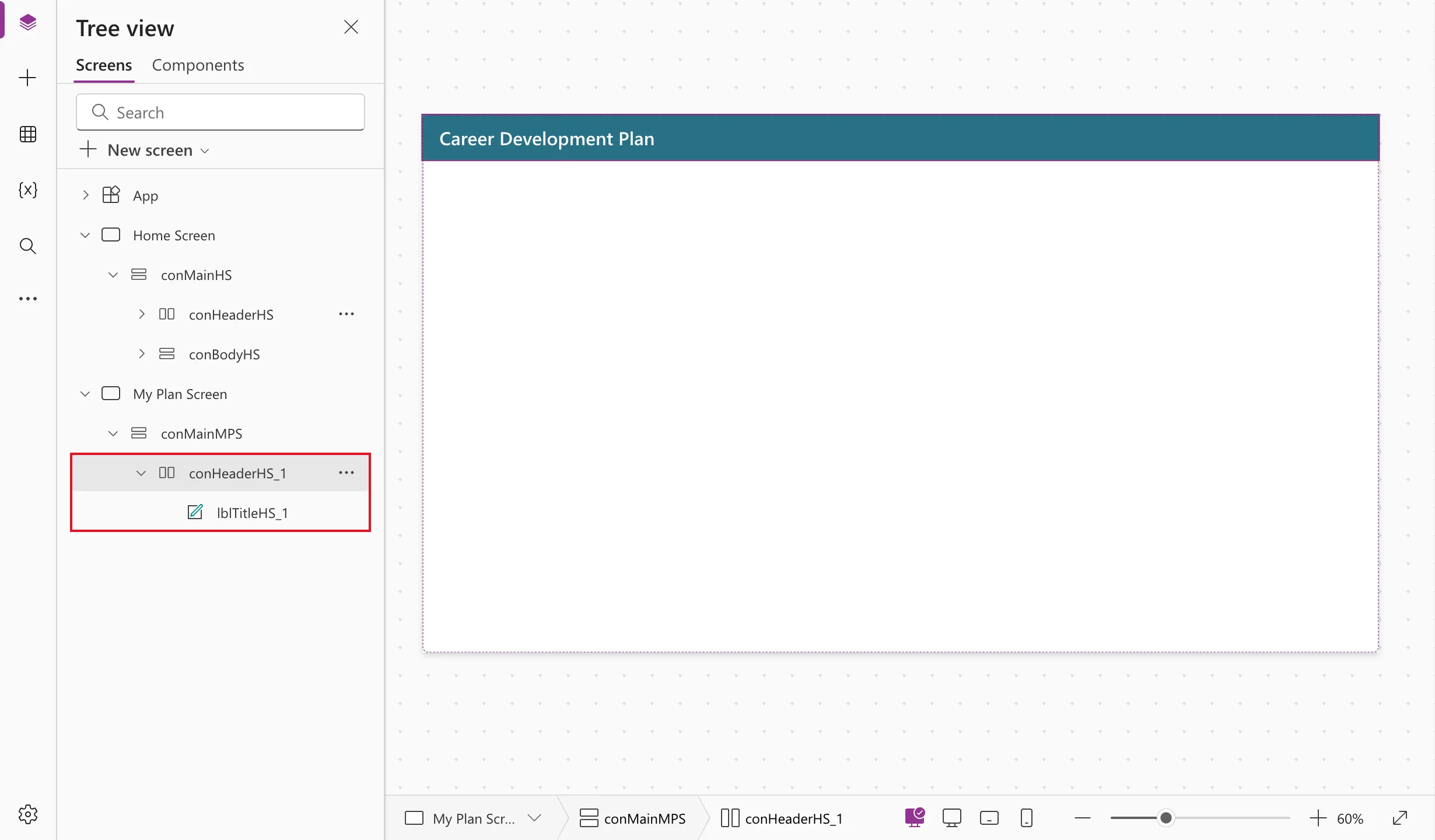
Then copy the header from the Home screen (How to Copy and Paste Controls Between Screens): Copy on conHeaderHS, Paste on conMainMPS. Rename the copies:
| Copy | Rename to | Change |
|---|---|---|
conHeaderHS_1 | conHeaderMPS | Gap 16, for space between the button and the title |
lblTitleHS_1 | lblTitleMPS | Text "My plan" |
Everything else comes along: the theme color, the height of 64, the padding, and the title's heading Role. Each screen has its own main heading, so screen readers announce My plan here.
Step 4: Add the Back Button
Select conHeaderMPS and insert Input → Button (How to Add a Button in Power Apps). Rename it btnBackMPS. It lands after the title, so open ... → Reorder → Move to start (How to Reorder Controls in a Container).
| Property | Value |
|---|---|
| Text | "Back" |
| Icon | "ArrowLeft" |
| Width, Height | 96, 40 |
| OnSelect | Back() |
| AccessibleLabel | "Back to the Home screen" |
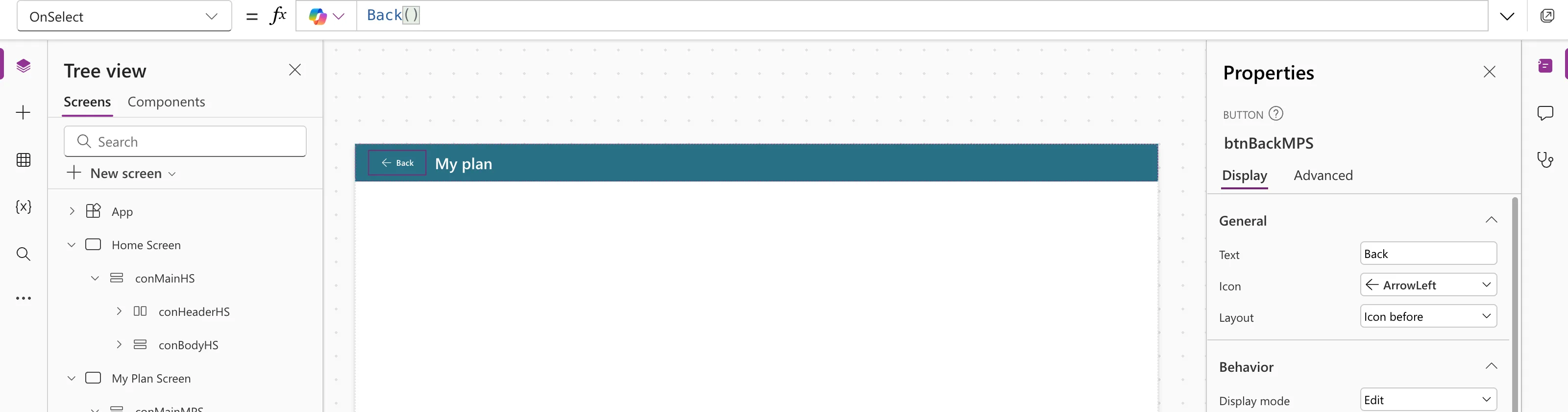
Back returns to whichever screen opened this one (How to Go Back with Back). The accessible label starts with the visible word, so voice-control users can say Back. On the teal header, the default Primary button blends in as a white arrow and text:
Step 5: Connect the My Plan Button
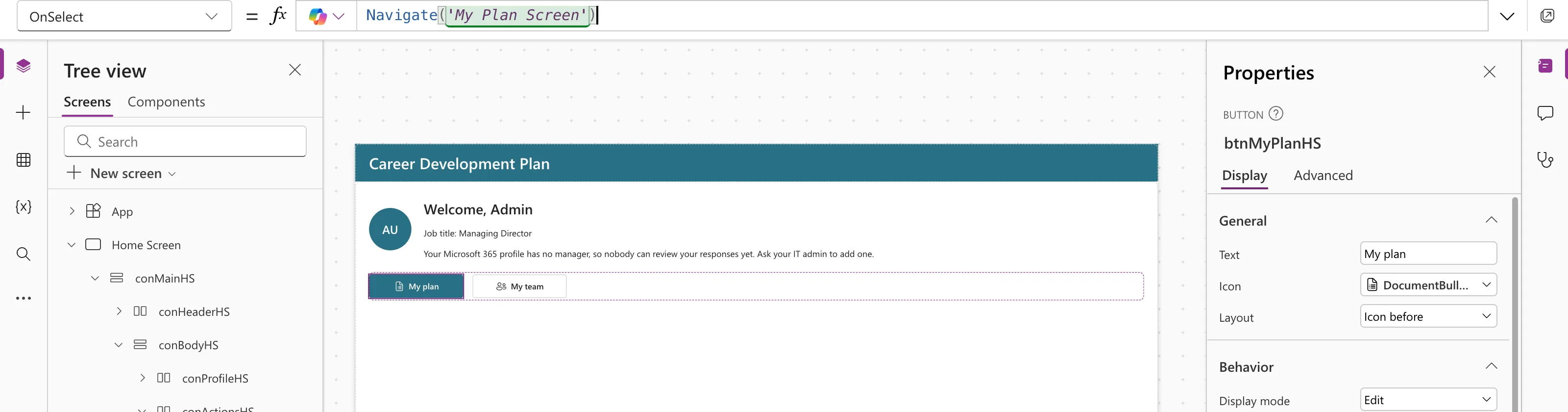
On the Home screen, set the OnSelect that Part 4 left as false (How to Go to Another Screen with Navigate):
Navigate('My Plan Screen')
The screen name has spaces, so it's in single quotes.
Step 6: Add the Body and the Gallery
Select conMainMPS and insert a Vertical container, conBodyMPS, with the same settings as the Home screen's body:
| Property | Value |
|---|---|
| Flexible height | On (the default) |
| Align (horizontal) | Stretch |
| Gap | 16 |
| Padding | 24 on all four sides |
| Drop shadow | None |
| Border radius | 0 |
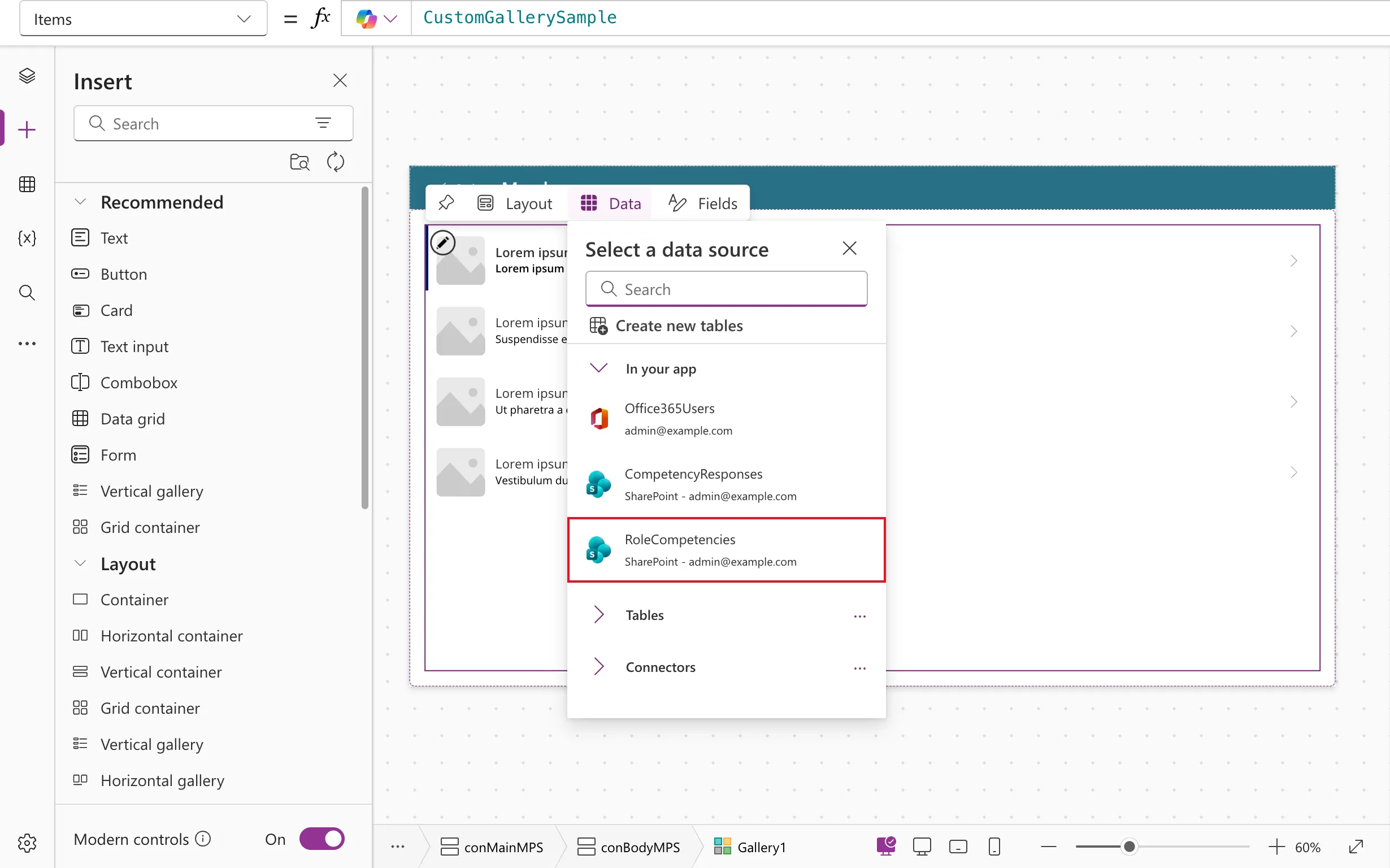
With conBodyMPS selected, insert Layout → Vertical gallery and choose RoleCompetencies in the Select a data source flyout. Switch its Layout to Blank and rename it galMyPlanMPS (How to Add a Vertical Gallery in Power Apps):
| Property | Value |
|---|---|
| Items | RoleCompetencies for now; Step 10 replaces it |
| Flexible height | On, fill portions 1 |
| Align in container | Set by container |
| TemplateSize | 120 |
| TemplatePadding | 8 |
| TemplateFill | App.Theme.Colors.Lighter80 |
| AccessibleLabel | "Competencies for your job title" |
| Selectable | false |
| TabIndex | 0 |
For now, Items shows the whole list, so there are rows to design with. Selectable is false because rows don't do anything yet (Part 6 makes them open the Response screen), and TabIndex 0 lets keyboard users reach the list; without it, the App checker reports Missing tab stop.
Step 7: Show the Competency and Level in Each Row
Select the gallery and its Edit gallery pencil, so new controls go into the template. With the gallery itself selected, they land next to it instead (Fixed: New Control Lands Outside the Gallery). Insert Display → Text twice (How to Add a Text Control in Power Apps):
| Property | lblCompetencyMPS | lblLevelMPS |
|---|---|---|
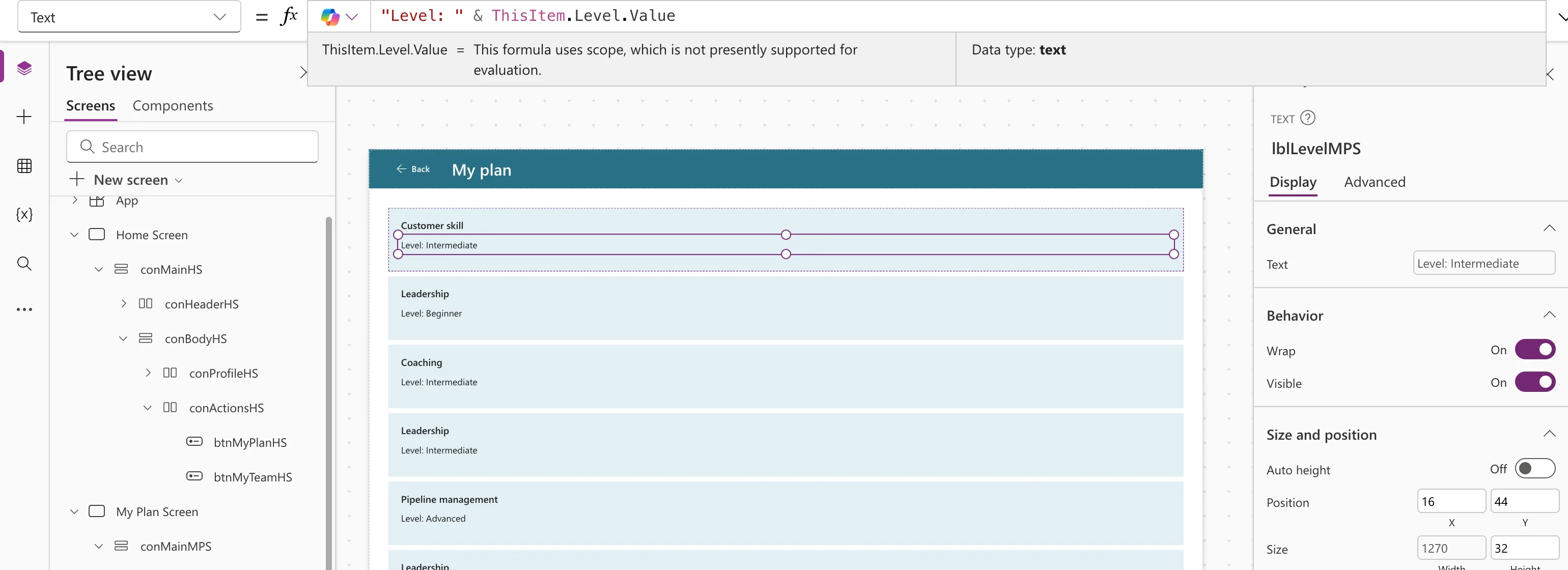
| Text | ThisItem.Competency | "Level: " & ThisItem.Level.Value |
| X, Y | 16, 12 | 16, 44 |
| Width | Parent.TemplateWidth - 32 | Parent.TemplateWidth - 32 |
| Height | 32 | 32 |
| Size, FontWeight | 16, FontWeight.Semibold | the defaults |
| AccessibleLabel | Self.Text | Self.Text |
ThisItem is the row's competency (How to Use ThisItem), and Parent.TemplateWidth is the width of one row, so the text fits on any screen (How to Use Self and Parent).
Level is a Choice column, so its text is in .Value. Without it, Studio reports Expected Text value (How to Show a SharePoint Choice Column's Value). Each row now shows its competency and level:
Step 8: Load the Plan When the Screen Opens
The screen needs two things: the competencies for the person's job title, and the person's responses. It loads them in its OnVisible, which runs every time the screen is shown (How to Run a Formula When a Screen Opens). Select My Plan Screen and choose OnVisible. Build it in three pieces.
Mark the start of loading
UpdateContext({locIsLoading: true});
locIsLoading is a context variable: a value that belongs to this screen (How to Use Context Variables). Step 10's spinner shows while it's true.
Load both lists at once
Concurrent(
    UpdateContext(
        {
            locMyPlan: Sort(
                Filter(
                    RoleCompetencies,
                    JobTitle = MyJobTitle && IsActive
                ),
                Competency
            )
        }
    ),
    UpdateContext(
        {
            locMyResponses: Filter(
                CompetencyResponses,
                EmployeeId = MyProfile.id
            )
        }
    )
);
locMyPlanholds the competencies for the person's job title that haven't been removed, sorted by name (Filter, Sort, And).locMyResponsesholds the person's own responses, matched by their Microsoft 365 ID.- Concurrent runs the two loads at the same time, because neither needs the other (How to Load Data Faster with Concurrent).
Mark the end
UpdateContext({locIsLoading: false})
It comes after Concurrent, so it runs only when both loads have finished. Here's the whole property, laid out with Format text:
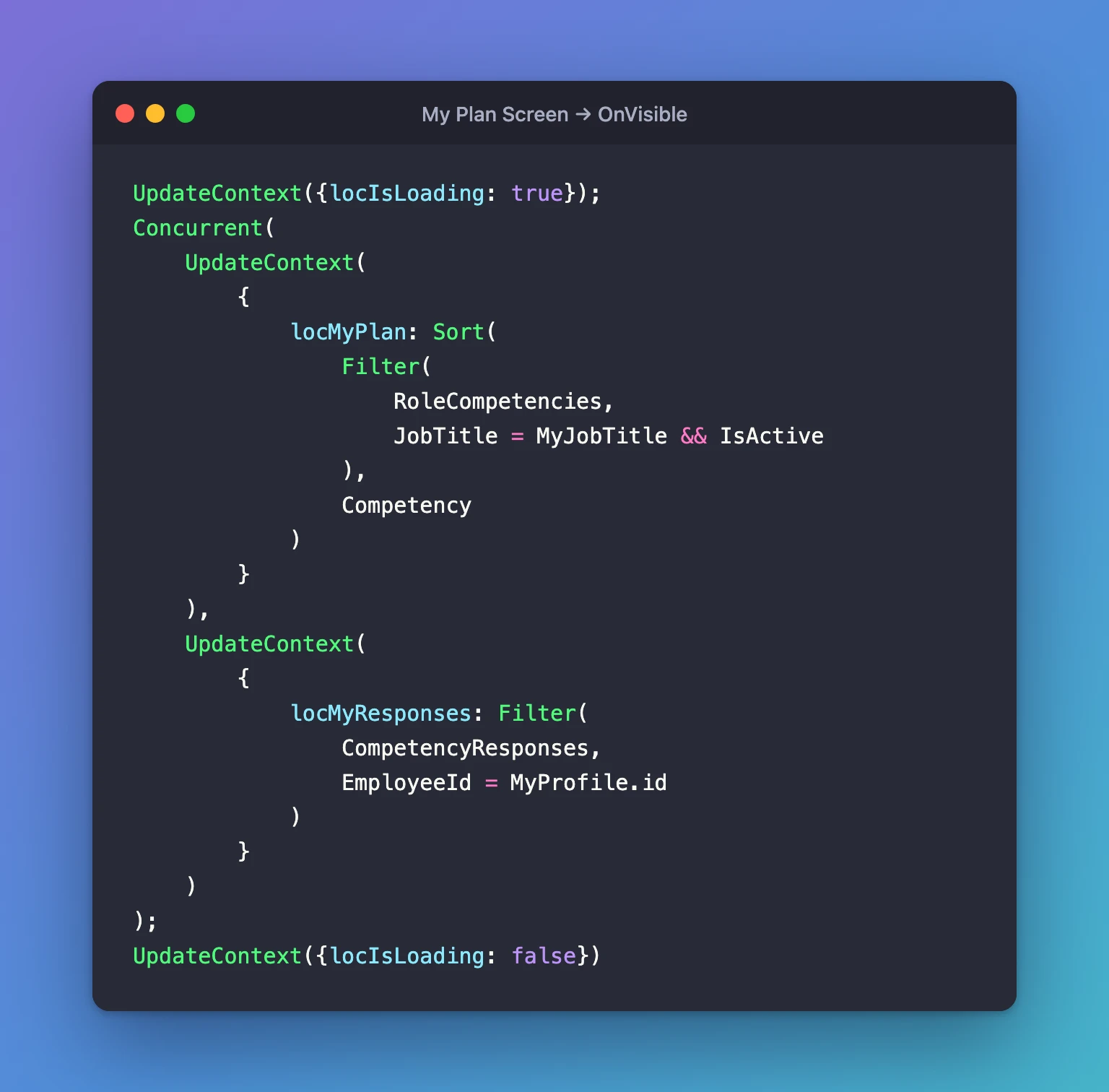
UpdateContext({locIsLoading: true});
Concurrent(
    UpdateContext(
        {
            locMyPlan: Sort(
                Filter(
                    RoleCompetencies,
                    JobTitle = MyJobTitle && IsActive
                ),
                Competency
            )
        }
    ),
    UpdateContext(
        {
            locMyResponses: Filter(
                CompetencyResponses,
                EmployeeId = MyProfile.id
            )
        }
    )
);
UpdateContext({locIsLoading: false})
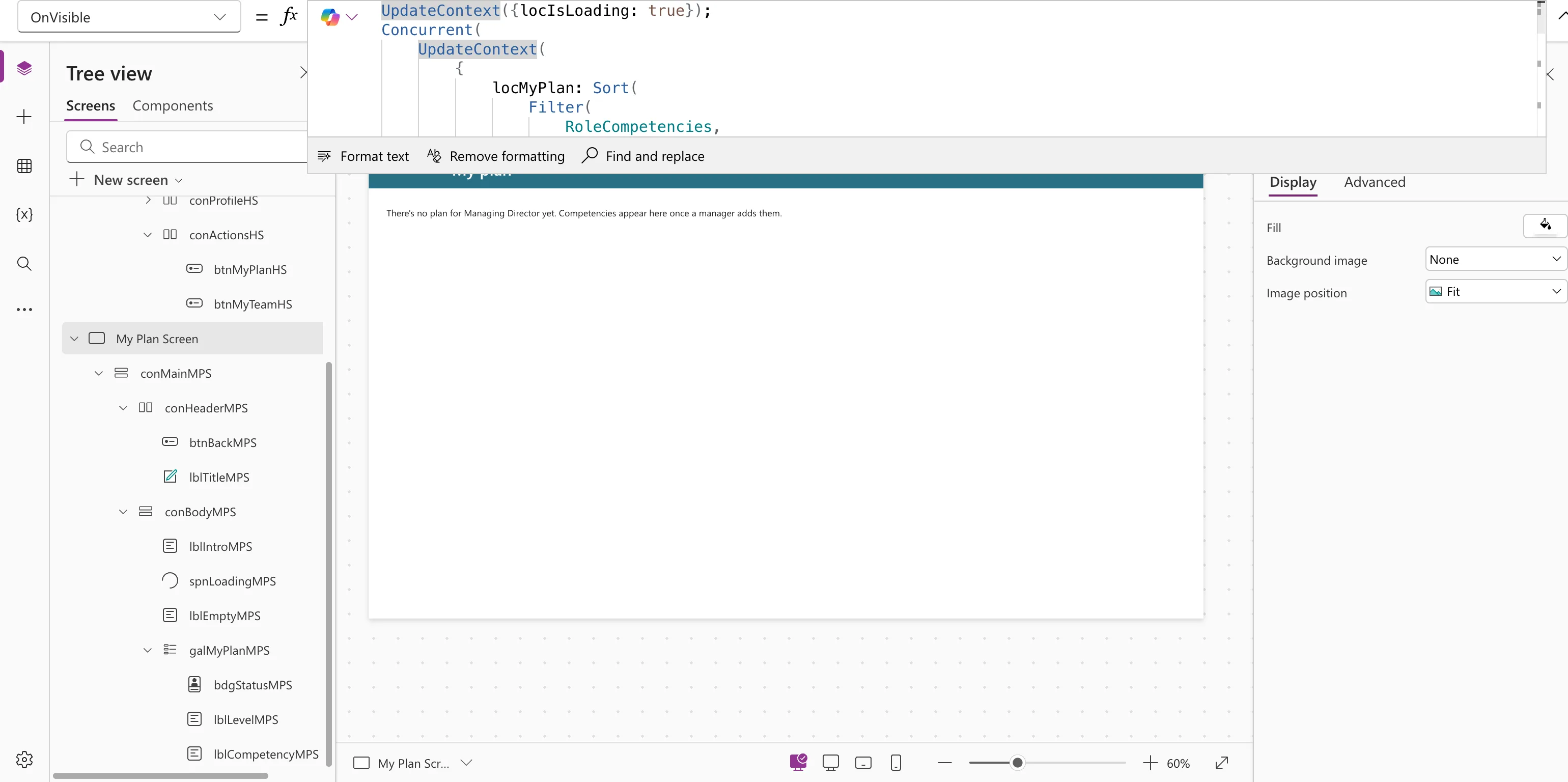
Part 8 moves this formula into a Refresh button in the header, with Refresh on both lists first, so the screen also shows decisions a manager makes while the app is open.
Why SharePoint does the filtering
Part 2 promised to explain delegation, and this is where it matters. Power Apps delegates a query when SharePoint can run all of it; SharePoint then sends back only the matching items. When any part can't run on SharePoint, Power Apps downloads only the first 500 items (the app's Data row limit from Part 3) and filters those, so items beyond that are silently missed (What Is Delegation in Power Apps?).
Both queries here use only what SharePoint can run (SharePoint delegation):
| Query part | Column type | Delegable on SharePoint |
|---|---|---|
JobTitle = MyJobTitle | Text | Yes: = on text |
IsActive | Yes/No | Yes: Studio shows no warning for it |
&& | Yes: And joins delegable parts | |
Sort(..., Competency) | Text | Yes: sorting by text |
EmployeeId = MyProfile.id | Text | Yes: = on text |
MyJobTitle and MyProfile.id are the same for every item, so they're sent to SharePoint as fixed values. Each query also starts with the column Part 2 indexed, JobTitle or EmployeeId, which keeps SharePoint fast as the lists grow. Studio shows no delegation warning on either. A filter that SharePoint can't run, such as !IsActive, gets Delegation warning. The "Filter" part of this formula might not work correctly on large data sets.
Why variables, not collections
The first version of this screen used ClearCollect to load two collections (How to Create a Collection with ClearCollect). The App checker warned Collection is initialized but never updated: collections are for data the app changes, and this screen only reads. Context variables hold the same rows without that overhead.
Step 9: Add the Status Badge
Each row shows the status of the person's response to that competency. The status is worked out once per row as a new column of the gallery's Items, so the badge's text, its color and the row's accessible label all use the same value (How to Add a Column with AddColumns). While you're still designing, keep RoleCompetencies inside it so the rows stay visible:
AddColumns(
    RoleCompetencies As planItem,
    StatusText,
    Switch(
        LookUp(
            locMyResponses,
            RoleCompetencyId = planItem.ID && Level = planItem.Level.Value
        ).Status.Value,
        StatusPending, "Waiting for review",
        StatusApproved, "Approved",
        StatusDeclined, "Declined",
        "Not started"
    )
)
Read it from the inside out:
- LookUp finds the person's response to this competency, at this level (How to Find a Record with LookUp). A response belongs to a competency and a level, so if a manager changes the level, the old response doesn't count for the new one.
.Status.Valueis the response's status; Status is a Choice column too.- Switch turns it into the words people see, and gives Not started when there's no response (How to Use the Switch Function).
As planItemnames the competency, so inside the LookUpplanItem.Levelis the competency's level andLevelis the response's (How to Use the As Operator).
With the template selected, insert Display → Badge and rename it bdgStatusMPS (How to Add a Badge Control):
| Property | Value |
|---|---|
| X, Y | 20, 80 |
| Width, Height | 144, 28 |
| Content | ThisItem.StatusText |
| AccessibleLabel | "Status: " & ThisItem.StatusText |
And its color, by meaning:
Switch(
    ThisItem.StatusText,
    "Waiting for review", BadgeIntent.Caution,
    "Approved", BadgeIntent.Positive,
    "Declined", BadgeIntent.Critical,
    BadgeIntent.Informative
)
Base Intent on ThisItem.StatusText, not on Self.Content: the badge's own text can't be read back (Fixed: "Name Isn't Valid. 'Content' Isn't Recognized"). Finally, give the gallery a summary of each row for screen readers:
ThisItem.Competency & ", level " & ThisItem.Level.Value & ", " & ThisItem.StatusText
Nobody has responded yet (responses arrive in Part 6), so every row says Not started, in grey:
Step 10: Add the Intro, the Spinner and the Empty Message
Select galMyPlanMPS and insert three controls; with the gallery selected they go into conBodyMPS, after it:
| Control | Insert | Name |
|---|---|---|
| Intro | Display → Text | lblIntroMPS |
| Spinner | Display → Spinner | spnLoadingMPS |
| Empty message | Display → Text | lblEmptyMPS |
Then move the gallery below them: ... on galMyPlanMPS → Reorder → Move to end.
The intro says what the list is:
| Property | lblIntroMPS |
|---|---|
| Text | "The competencies for your job title, " & MyJobTitle & ", and where each one stands." |
| Auto height | On |
| Visible | !locIsLoading && !IsEmpty(locMyPlan) |
| AccessibleLabel | Self.Text |
The spinner shows while the screen loads (How to Add a Loading Spinner):
| Property | spnLoadingMPS |
|---|---|
| Label | "Loading your plan" |
| Visible | locIsLoading |
The message explains an empty plan, in the same way the Home screen explains a missing job title (How to Show a Message When a Gallery Is Empty):
If(
    IsBlank(MyJobTitle),
    "Your Microsoft 365 profile has no job title, so there's no plan to show yet. Ask your IT admin to add one.",
    "There's no plan for " & MyJobTitle & " yet. Competencies appear here once a manager adds them."
)
| Property | lblEmptyMPS |
|---|---|
| Auto height | On |
| Visible | !locIsLoading && IsEmpty(locMyPlan) |
| AccessibleLabel | Self.Text |
Now point the gallery at the person's plan instead of the whole list, and hide it while loading or empty:
AddColumns(
    locMyPlan As planItem,
    StatusText,
    Switch(
        LookUp(
            locMyResponses,
            RoleCompetencyId = planItem.ID && Level = planItem.Level.Value
        ).Status.Value,
        StatusPending, "Waiting for review",
        StatusApproved, "Approved",
        StatusDeclined, "Declined",
        "Not started"
    )
)
!locIsLoading && !IsEmpty(locMyPlan)
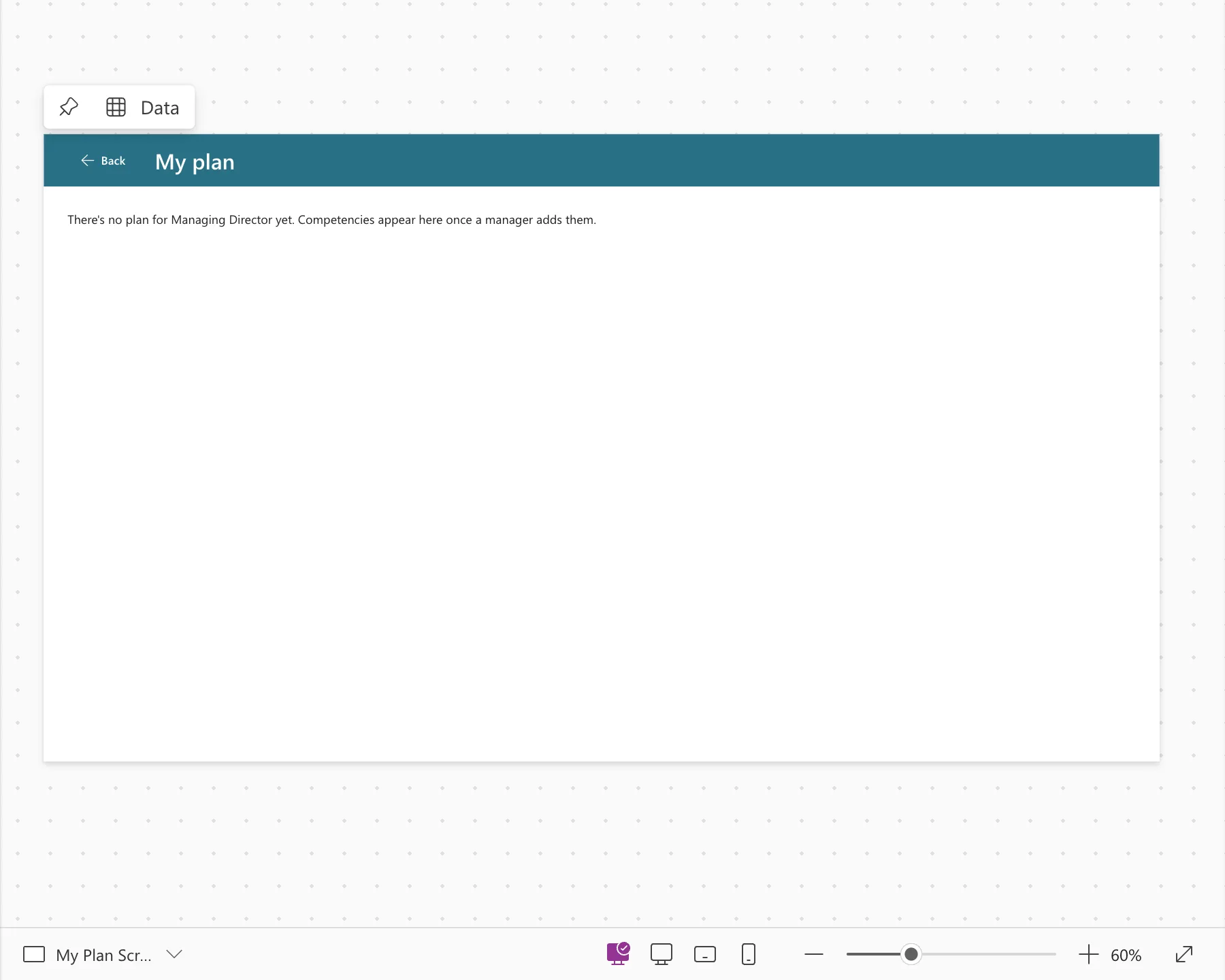
In Studio, locMyPlan is empty until OnVisible has run, so the canvas shows the message:
Step 11: Test the Screen
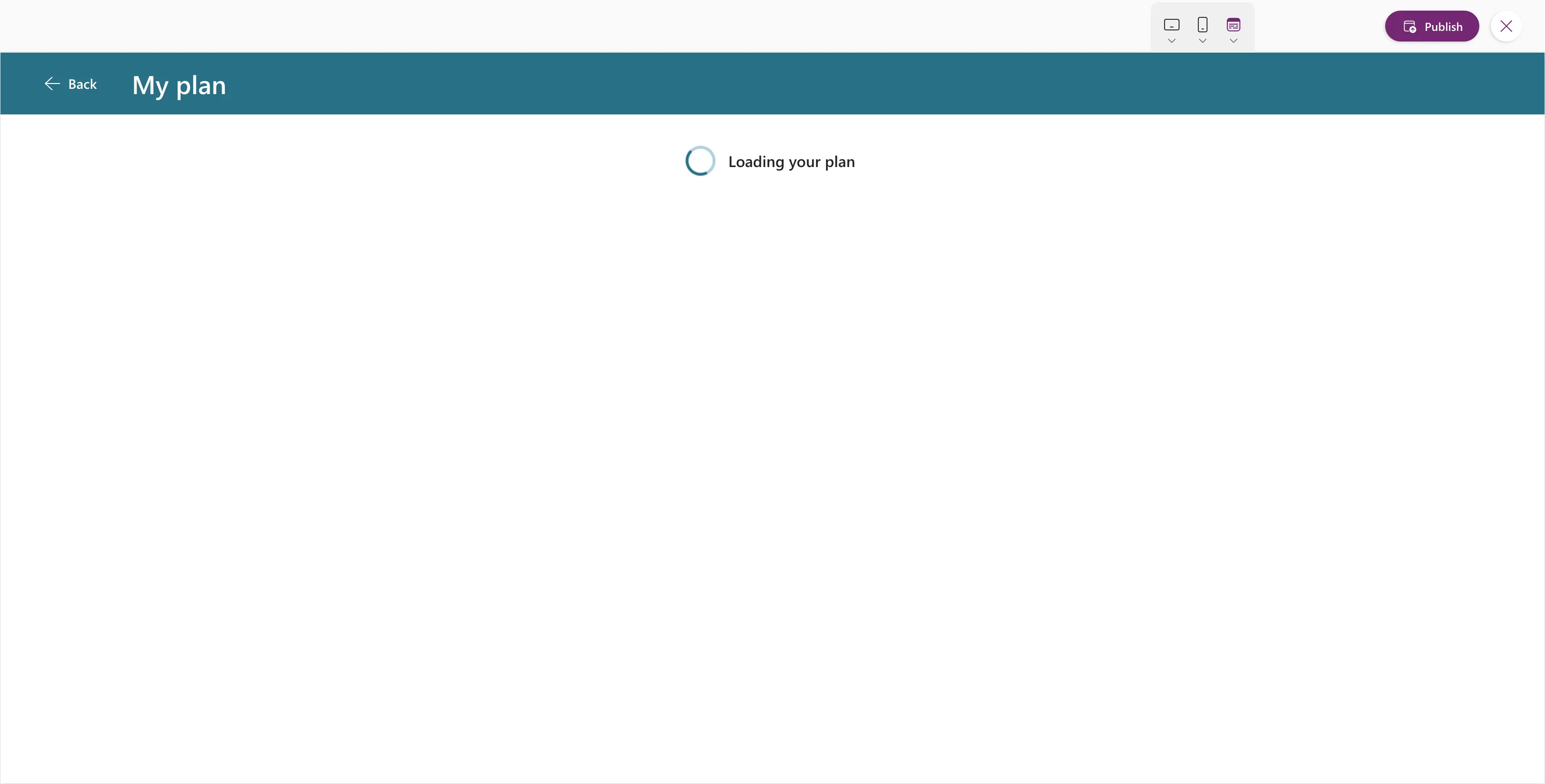
Select Home Screen, preview with F5 (How to Preview a Canvas App), and select My plan. The spinner shows for a moment:
Then, for the admin, the empty state. The Managing Director has no competencies, on purpose (Part 2), so this is the right result:
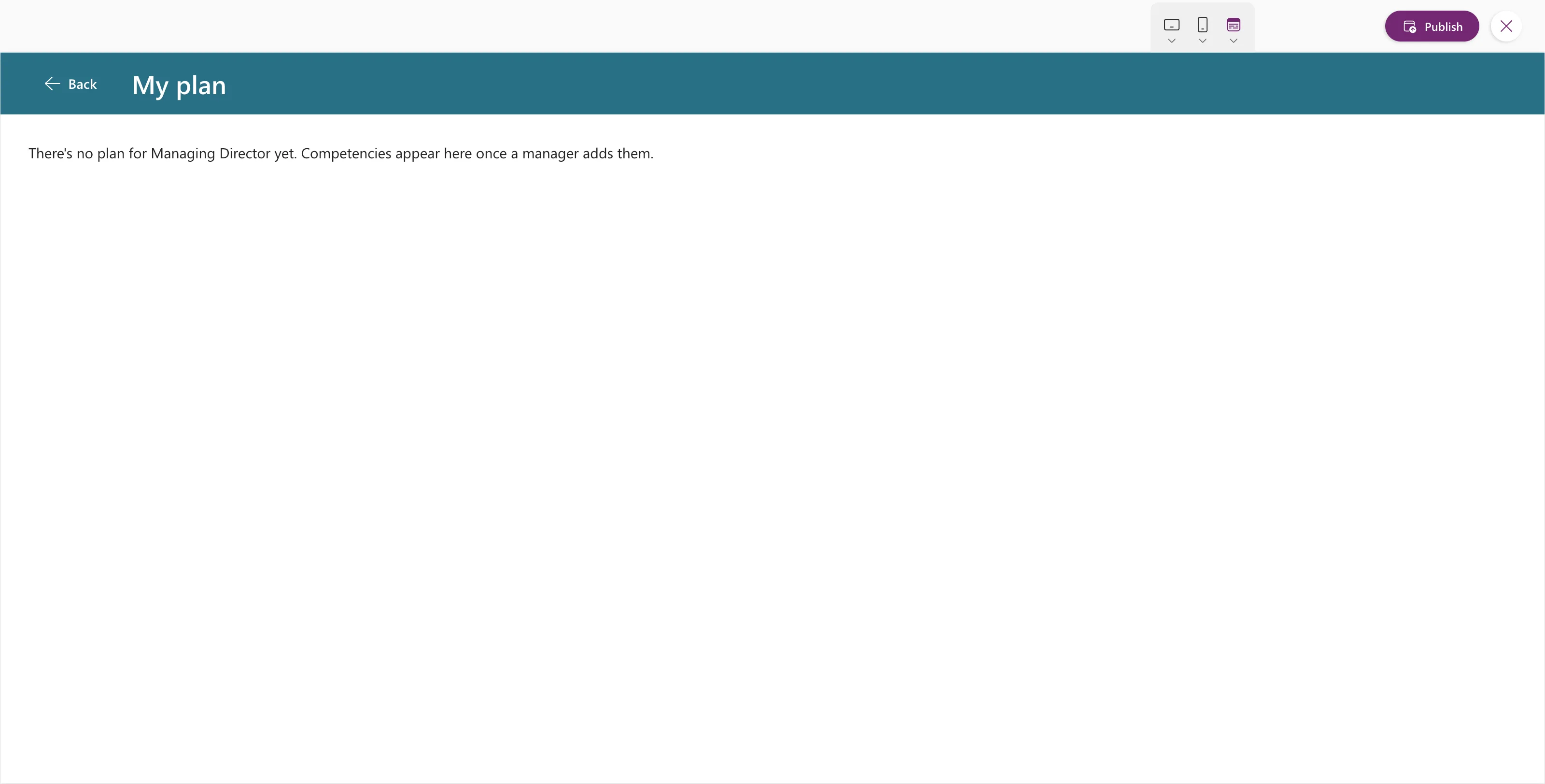
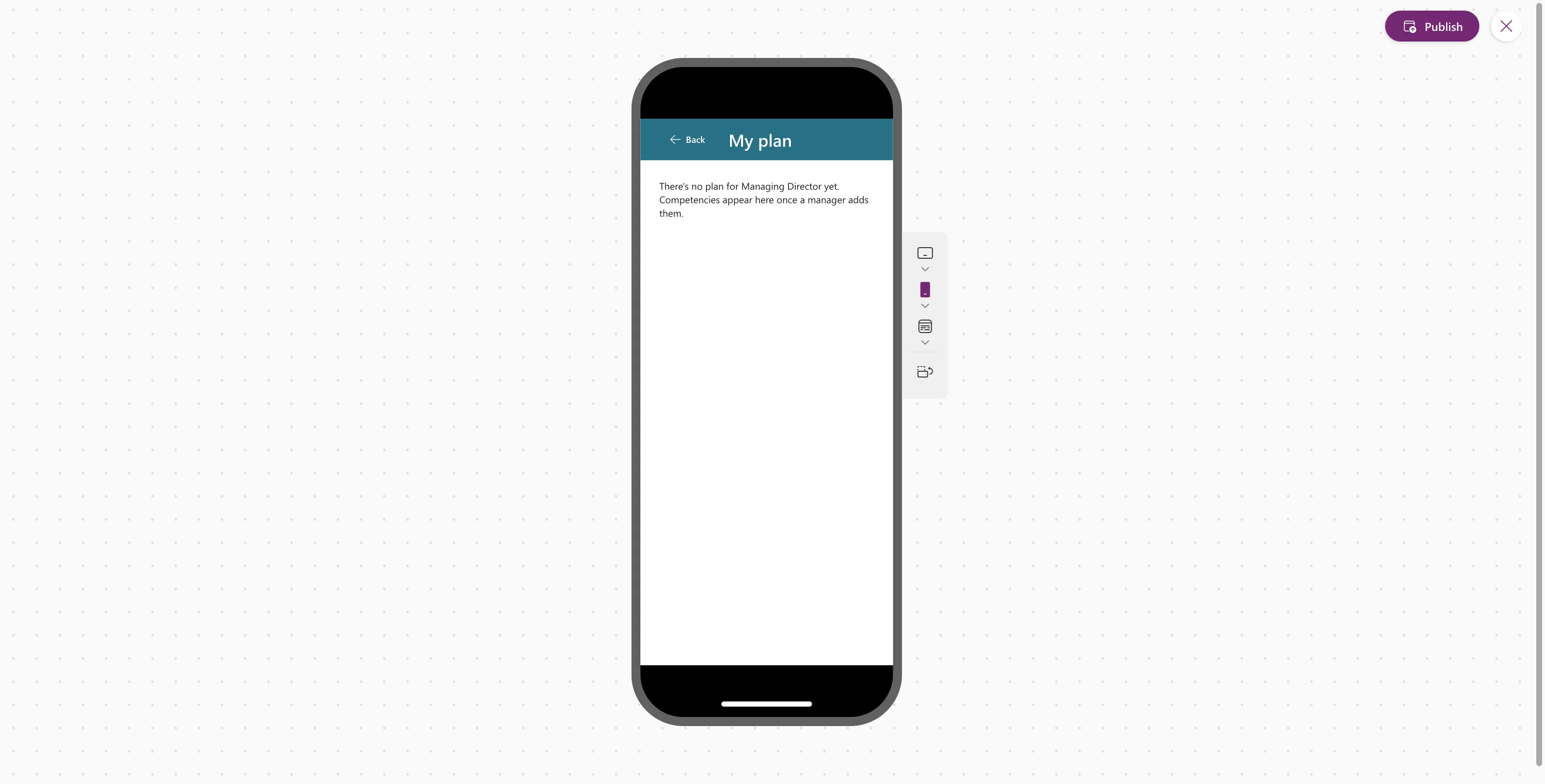
Select Back, and the Home screen returns. At a phone size (Phones → Apple iPhone 12, 13, 14, How to Test on Phone and Tablet Sizes) the message wraps onto three lines:
People whose job title has competencies see them listed with a badge each. Part 7 shares the app and opens it as Olivia Bennett, the Head of Sales.
Step 12: Check the App Checker
Open the App checker and select Recheck all.
- Data source: the warning from Part 4, Unused data sources, is gone, because OnVisible now reads both lists.
- Performance: no count, because the screen uses variables rather than collections.
- Accessibility (2): Focus isn't showing and Missing tab stop, both on
lblTitleMPS.
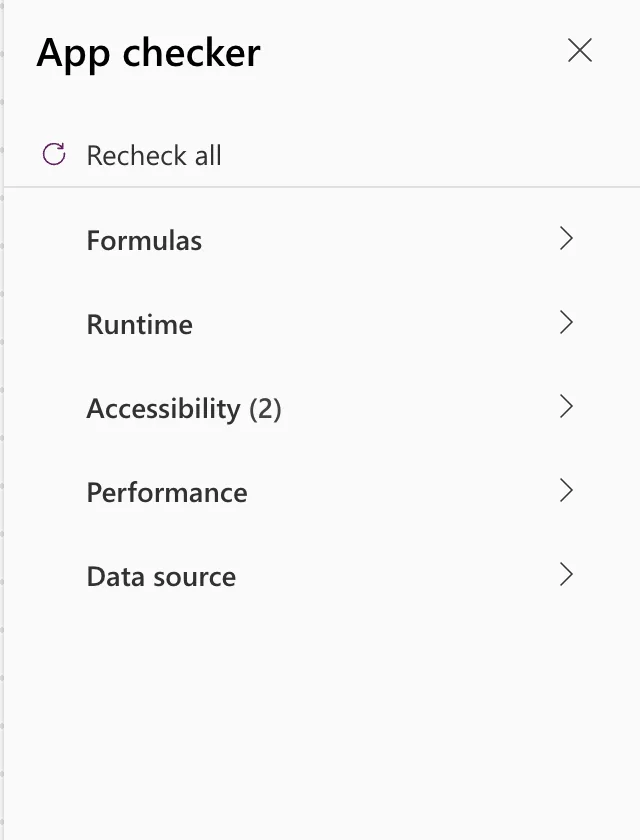
The two remaining items stay. lblTitleMPS is the screen's heading and does nothing when selected. Microsoft's guidance is to keep TabIndex -1 on text that isn't interactive, and it notes that screen readers announce a label with TabIndex 0 as a button. Making the heading a tab stop would do more harm than the warning, and the checker's documentation says to ignore suggestions like that. The Home screen's heading has the same settings and isn't listed. Both fixes posts explain the reasoning.
Step 13: Save the App
Select Save. Don't publish yet: Part 7 publishes the app and shares it.
The finished screen's controls in Tree view, matching the layout from Step 3:
The complete App.Formulas after this part:
AppTitle = "Career Development Plan";
MyProfile = Office365Users.MyProfileV2({'$select': "id,displayName,givenName,mail,userPrincipalName,jobTitle"});
MyJobTitle = Trim(MyProfile.jobTitle);
MyManager = IfError(
    Office365Users.ManagerV2(
        MyProfile.id,
        {'$select': "id,displayName,mail,jobTitle"}
    ),
    Blank()
);
MyDirectReports = Sort(
    Filter(
        Office365Users.DirectReportsV2(
            MyProfile.id,
            {'$select': "id,displayName,mail,userPrincipalName,jobTitle,accountEnabled"}
        ).value,
        accountEnabled
    ),
    displayName
);
IsManager = !IsEmpty(MyDirectReports);
StatusPending = "Pending";
StatusApproved = "Approved";
StatusDeclined = "Declined";
Common Mistakes
| Mistake | What happens | Do this instead |
|---|---|---|
| Inserting the row's controls with the gallery selected | They land next to the gallery, not in each row | Select the template with the Edit gallery pencil |
ThisItem.Level without .Value | Expected Text value | ThisItem.Level.Value |
!IsActive in the filter | A delegation warning, and missed items on big lists | IsActive or IsActive = false |
Leaving Items as RoleCompetencies | Everyone sees every job title's competencies | Use the Step 10 formula with locMyPlan |
| Writing AddColumns before OnVisible | locMyResponses isn't recognized yet | Write OnVisible (Step 8) first |
| Removing the lists because of Part 4's warning | Nothing to load | Keep them; the warning clears now |
Troubleshooting
| Symptom | Likely cause | Fix |
|---|---|---|
| Expected Text value on the level | A Choice column used as text | Fixed: "Expected Text Value" |
| Name isn't valid. 'Content' isn't recognized | Self.Content on the badge | Fixed: "Name Isn't Valid" |
| A Text control appears beside the gallery | The gallery, not its template, was selected | Fixed: New Control Lands Outside the Gallery |
| A yellow triangle on the gallery | Part of the filter can't run on SharePoint | Fixed: Delegation Warning |
| Collection is initialized but never updated | ClearCollect used for read-only data | Fixed: "Collection Is Initialized but Never Updated" |
| Missing tab stop on the gallery | TabIndex still -1 | Fixed: "Missing Tab Stop" |
| The screen is empty in Studio | OnVisible runs only when the screen is shown | Preview from the Home screen and select My plan |
| The spinner never goes away | locIsLoading isn't set back to false | Check the end of OnVisible |
FAQ
Why is my plan empty?
In the demo organization, the admin is the Managing Director, and Part 2 gave that job title no competencies on purpose. Anyone whose job title has competencies sees them. If you follow along with your own job title, add a few competencies for it in RoleCompetencies, and the list fills in.
Why does every competency say "Not started"?
Nobody has responded yet. Part 6 builds the screen where people write and send their responses, and the badges change to Waiting for review.
Why load the data in OnVisible and not in App.Formulas?
The screen shows a spinner while loading, and its empty message only once it knows there's nothing to show. OnVisible gives a clear start and end for that. Fixed: "Collection Is Initialized but Never Updated" compares the two options.
Will it work with thousands of competencies?
Yes. Both queries are delegated, so SharePoint filters the lists and returns only one person's competencies and responses, starting from indexed columns.
Why is the heading still listed in the App checker?
Because the fix the checker suggests would make screen readers announce the heading as a button. Step 12 and the two fixes posts explain why it's left as it is.
Conclusion
The app now has its second screen. My plan on the Home screen opens My Plan Screen, which:
- loads the competencies for the person's job title and their responses when it opens, with delegable SharePoint queries;
- lists the competencies with their level and a status badge;
- shows a spinner while loading, and explains an empty plan;
- returns with Back, fits a phone, and has accessible labels throughout.
← Previous: Part 4: Build the Home Screen
Next → Part 6: Build the Response Screen. You'll make each competency open a screen where the person writes their response and sends it to their manager.
Additional Resources
- Gallery control: properties and accessibility guidelines.
- Back and Navigate functions: moving between screens.
- Understand delegation in a canvas app: what's delegated and why it matters.
- Power Apps delegable functions and operations for SharePoint
- Badge modern control and Spinner modern control
