Build a Career Development Plan App in Power Apps — Part 4: Build the Home Screen

The Career Development Plan app gets its first screen. When someone opens the app, the Home screen greets them by name and shows their job title and manager. Everyone sees a My plan button, and managers also see My team. Behind it are the app's named formulas, which every later screen reuses.
This is Part 4 of a 14-part series.
- Part 1: Plan the App and Set Up the Demo Organization
- Part 2: Create the SharePoint Site and Lists
- Part 3: Create the Solution, Environment Variables and Canvas App
- Part 4: Build the Home Screen (you are here)
- Part 5: Build the My Plan Screen
- Part 6: Build the Response Screen
- Part 7: Share the App and Build the My Team Screens
- Part 8: Build the Review Screen for Manager Approvals
- Part 9: Let Managers Manage Competencies
- Part 10: Test Every Role, Joiners and Leavers (coming soon)
- Part 11: Build a Setup Flow That Creates the SharePoint Lists (coming soon)
- Part 12: Run the Solution Checker and Export the Solutions (coming soon)
- Part 13: Install the App in a New Environment (coming soon)
- Part 14: Recap, Production Checklist and Next Steps (coming soon)
Part 3 created the solution and the canvas app, connected to Office 365 Users and the two SharePoint lists. This part writes the formulas that know who's using the app, and builds the Home screen from containers so that it fits a phone as well as a monitor. As before, each generic task has its own short guide, and this part gives you the exact values for this app. Every step ends with a picture of where things stand.
What You'll Build
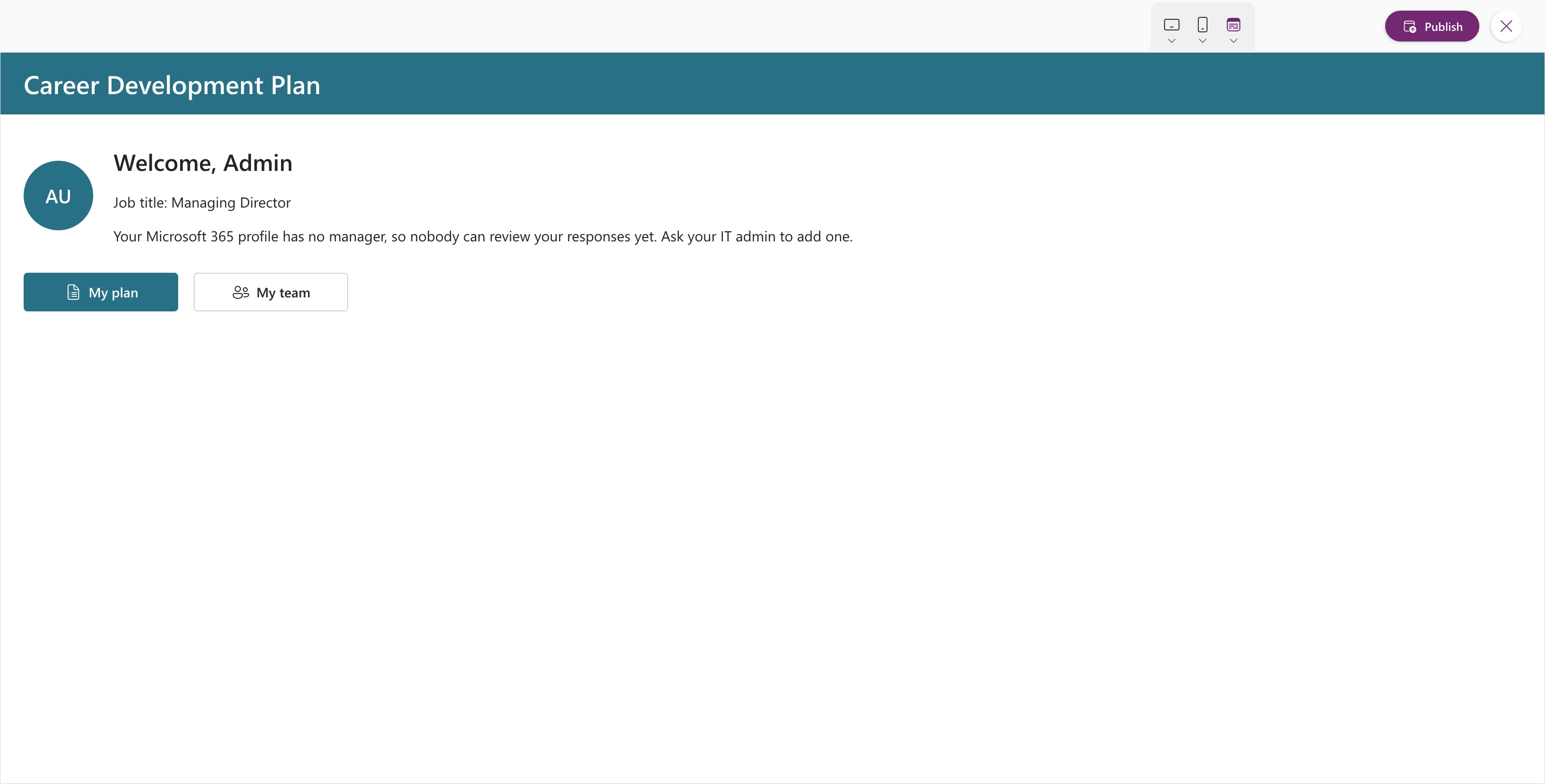
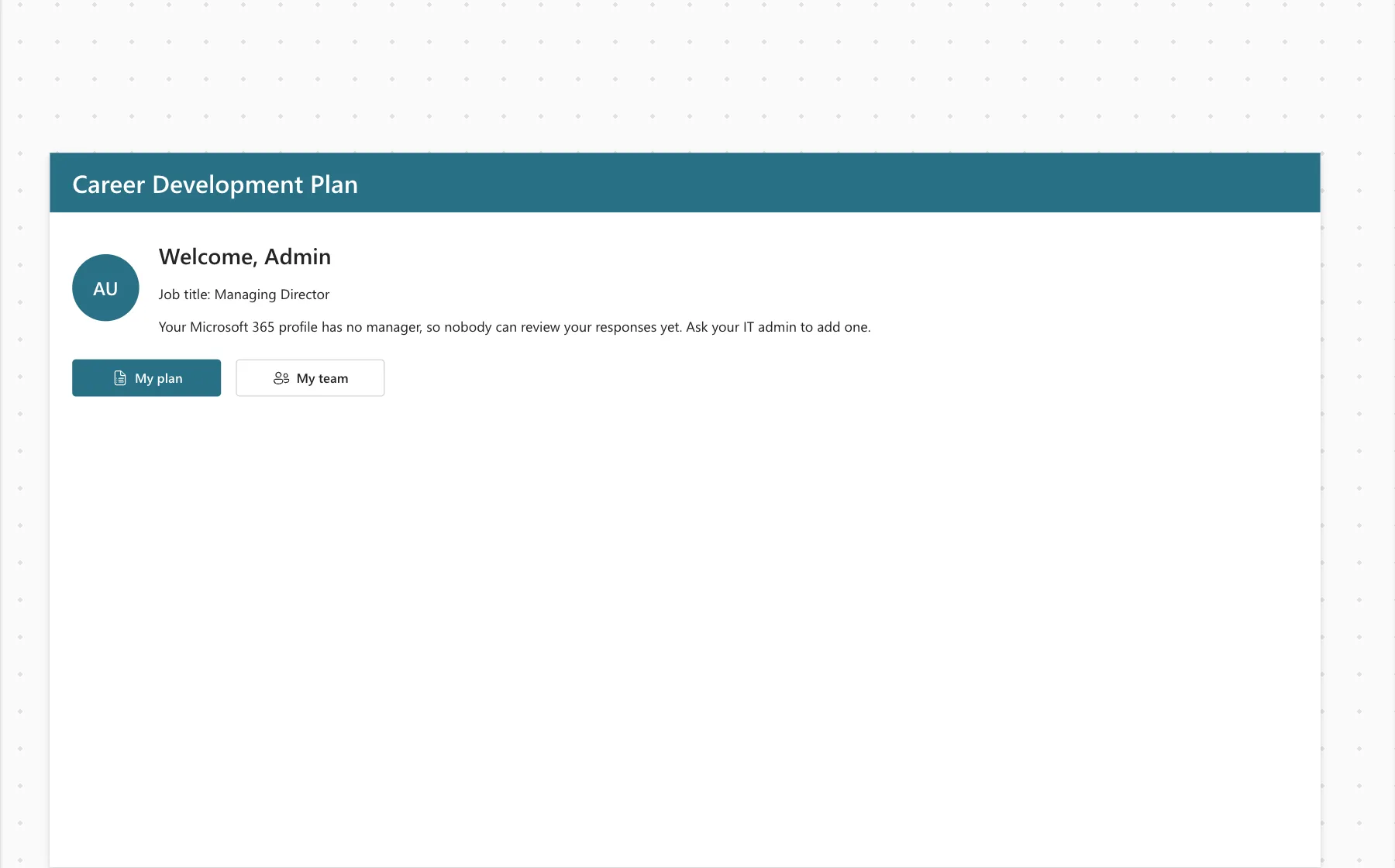
By the end of this part, the Home screen looks like this for the admin, the Managing Director at the top of the demo organization:
- Modern controls and the Steel theme.
- Six named formulas: the app's title, the signed-in person's profile and job title, their manager, their direct reports, and whether they're a manager.
- The Home Screen, set as the start screen: a header with the app's name, the person's photo or initials, a welcome, their job title and manager, and two buttons.
- A layout built from containers, checked at a phone size.
- An accessible label on every control.
Prerequisites
-
Part 3 completed: the Career Development Plan app in its solution, with the data sources Office365Users, RoleCompetencies and CompetencyResponses.
-
The demo organization from Part 1. The screenshots are taken as the admin, the Managing Director: Olivia Bennett reports to them, and they have no manager.
-
The guides this part relies on, by topic. Each step says which one to follow.
- Settings and theme:
- Named formulas and the signed-in person:
- How to Use Named Formulas in Power Apps (App.Formulas)
- How to Get the Current User in Power Apps with the User Function
- How to Get the Current User's Profile and Job Title in Power Apps (MyProfileV2)
- How to Get a User's Manager in Power Apps (ManagerV2)
- How to Get a User's Direct Reports in Power Apps (DirectReportsV2)
- Screens and layout:
- Controls:
- Testing:
Each Power Fx function in the formulas has its own guide too, linked where it's used.
Step 1: Turn On Modern Controls
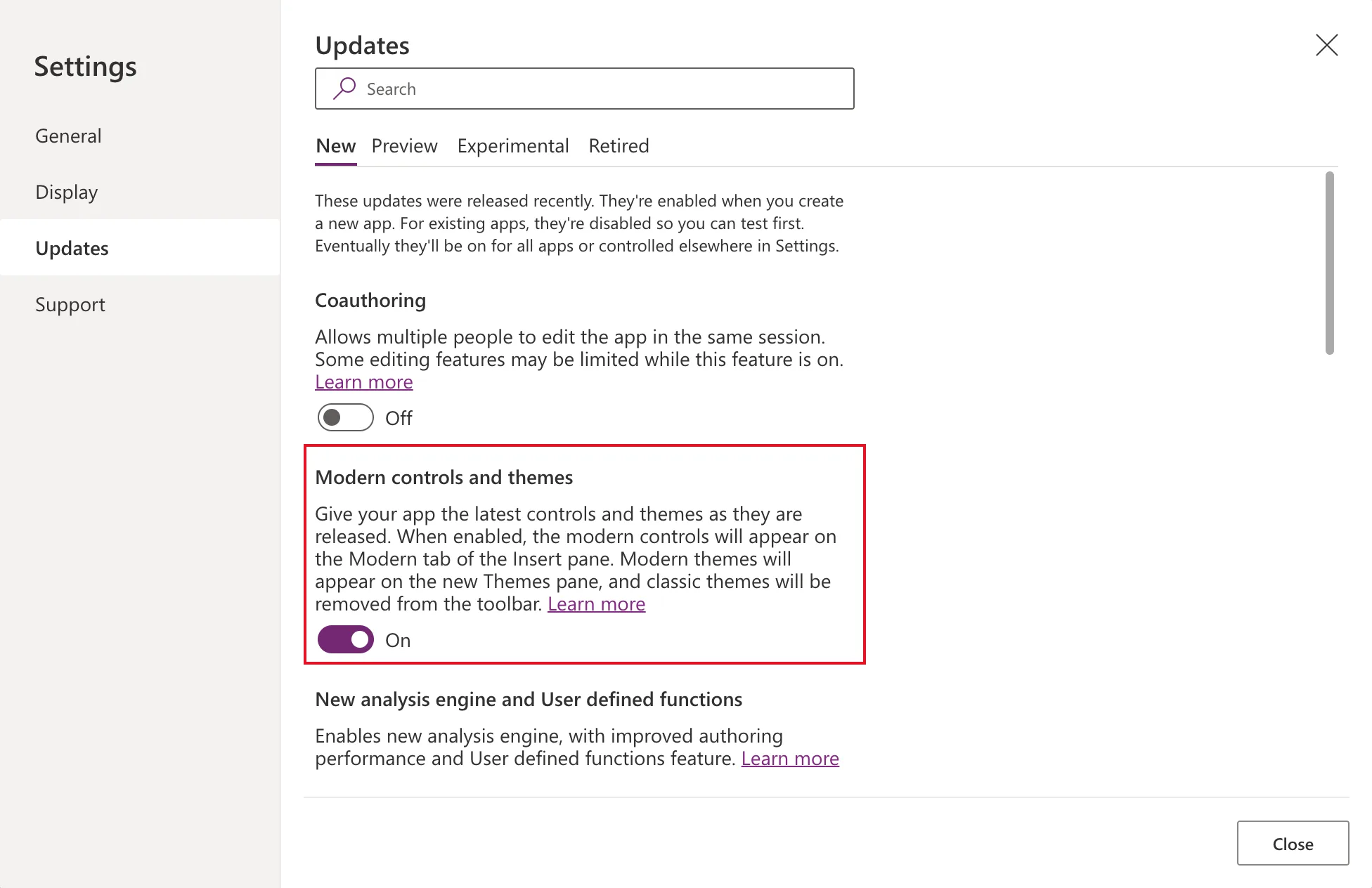
Follow How to Turn On Modern Controls and Themes in Power Apps:
| Where | Setting | Value |
|---|---|---|
| Settings → Updates → New | Modern controls and themes | On |
| Settings → General | Enable App.OnStart property | On (leave the default) |
| App | OnStart | Empty |
In the example app, Modern controls and themes was Off. This series uses the modern Text, Avatar and Button controls, which follow the app's theme.
OnStart stays empty. The app works out its data with named formulas (Step 2) and chooses its first screen with StartScreen (Step 3). Studio itself warns that OnStart can cause delays when loading an app. What the Enable App.OnStart Property Setting Does explains why the switch can stay at its default.
Step 2: Write the Named Formulas
A named formula gives a name to a value that the whole app can use. Select App in the tree view and choose Formulas in the property list, as in How to Use Named Formulas in Power Apps. Build it up a few lines at a time.
The app's title
AppTitle = "Career Development Plan";
The header shows it in Step 5. If the app is renamed, this is the only place to change.
The signed-in person
MyProfile = Office365Users.MyProfileV2({'$select': "id,displayName,givenName,mail,userPrincipalName,jobTitle"});
MyJobTitle = Trim(MyProfile.jobTitle);
MyProfileis the person's Microsoft 365 profile.'$select'asks for the six fields the app uses, and any other field comes back blank. User() has the person's name, email and photo, but not their job title, so the app asks Office 365 Users.MyJobTitleis the job title without stray spaces. Trim removes spaces at both ends and doubled spaces in between (How to Remove Extra Spaces in Power Apps with Trim and TrimEnds). The job title decides which competencies a person sees: Part 5 will match it against the JobTitle column, and a stray space would stop it matching.
Their manager
MyManager = IfError(
    Office365Users.ManagerV2(
        MyProfile.id,
        {'$select': "id,displayName,mail,jobTitle"}
    ),
    Blank()
);
ManagerV2 returns the person's manager (How to Get a User's Manager in Power Apps). For someone without a manager, such as the Managing Director, it fails with Resource 'manager' does not exist. IfError turns that failure into a blank (How to Handle Errors in Power Apps with IfError), and Step 7 shows a message in its place.
Their direct reports
MyDirectReports = Sort(
    Filter(
        Office365Users.DirectReportsV2(
            MyProfile.id,
            {'$select': "id,displayName,mail,userPrincipalName,jobTitle,accountEnabled"}
        ).value,
        accountEnabled
    ),
    displayName
);
IsManager = !IsEmpty(MyDirectReports);
Read MyDirectReports from the inside out:
- DirectReportsV2 returns the people who report to this person. The table is in its
.value(How to Get a User's Direct Reports in Power Apps). - Filter keeps only the accounts that are enabled (How to Filter a Table in Power Apps with Filter). When someone leaves and their sign-in is blocked, they drop off the list. Part 10 will test that.
- Sort puts them in name order (How to Sort a Table in Power Apps with Sort).
IsManager is true when that list has anyone in it. IsEmpty checks for an empty table, and ! turns its answer around (IsBlank vs IsEmpty in Power Apps, How to Use Not in Power Apps).
Named formulas hold values only. A Set or Navigate in App.Formulas gives Behavior function in a non-behavior property.
The complete App.Formulas
Here's the whole property. After pasting it, expand the formula bar and select Format text to lay it out like this:
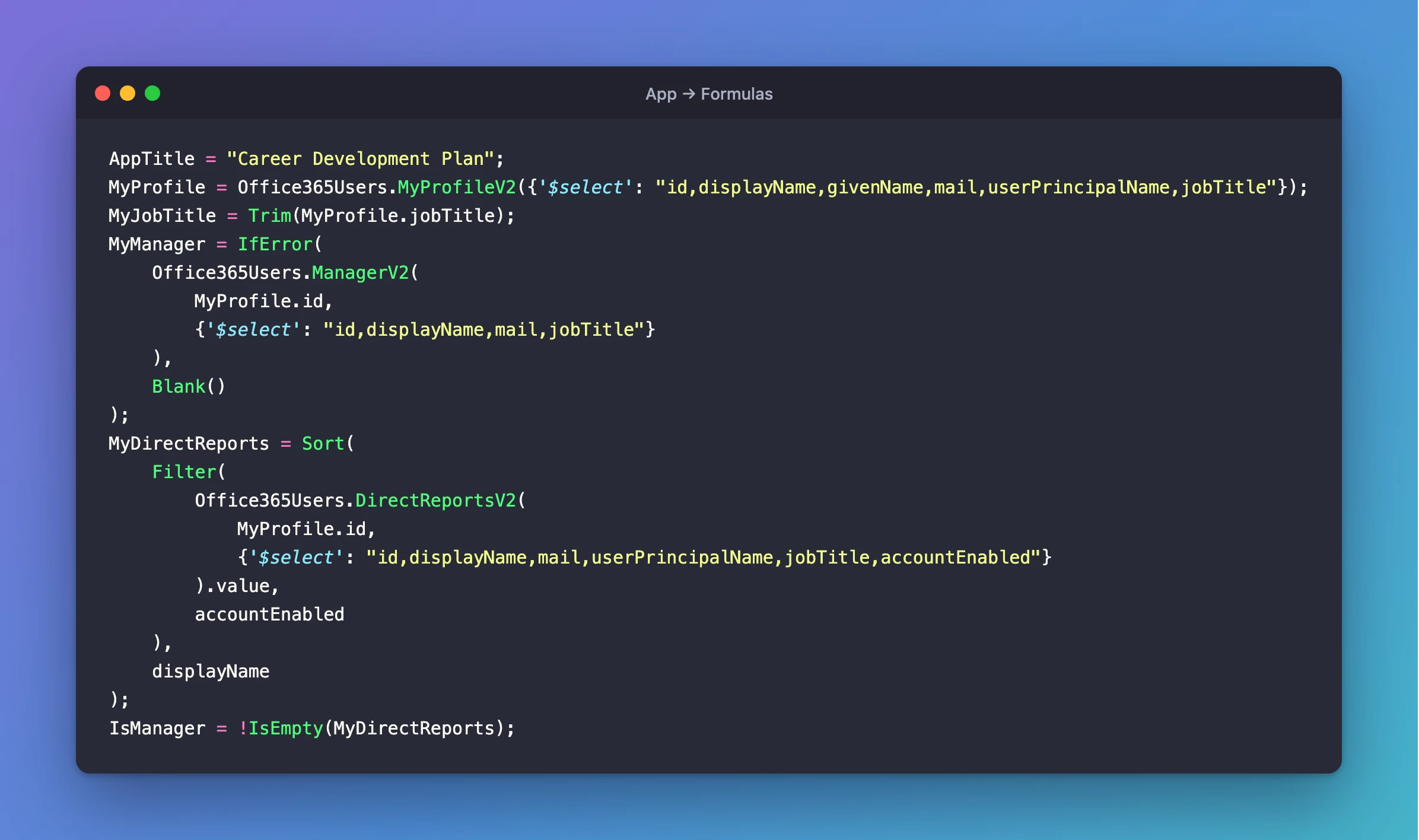
AppTitle = "Career Development Plan";
MyProfile = Office365Users.MyProfileV2({'$select': "id,displayName,givenName,mail,userPrincipalName,jobTitle"});
MyJobTitle = Trim(MyProfile.jobTitle);
MyManager = IfError(
    Office365Users.ManagerV2(
        MyProfile.id,
        {'$select': "id,displayName,mail,jobTitle"}
    ),
    Blank()
);
MyDirectReports = Sort(
    Filter(
        Office365Users.DirectReportsV2(
            MyProfile.id,
            {'$select': "id,displayName,mail,userPrincipalName,jobTitle,accountEnabled"}
        ).value,
        accountEnabled
    ),
    displayName
);
IsManager = !IsEmpty(MyDirectReports);
Later parts add more named formulas as their screens need them.
To see the values, open Variables (the {x} icon on the left) and expand Named formulas:
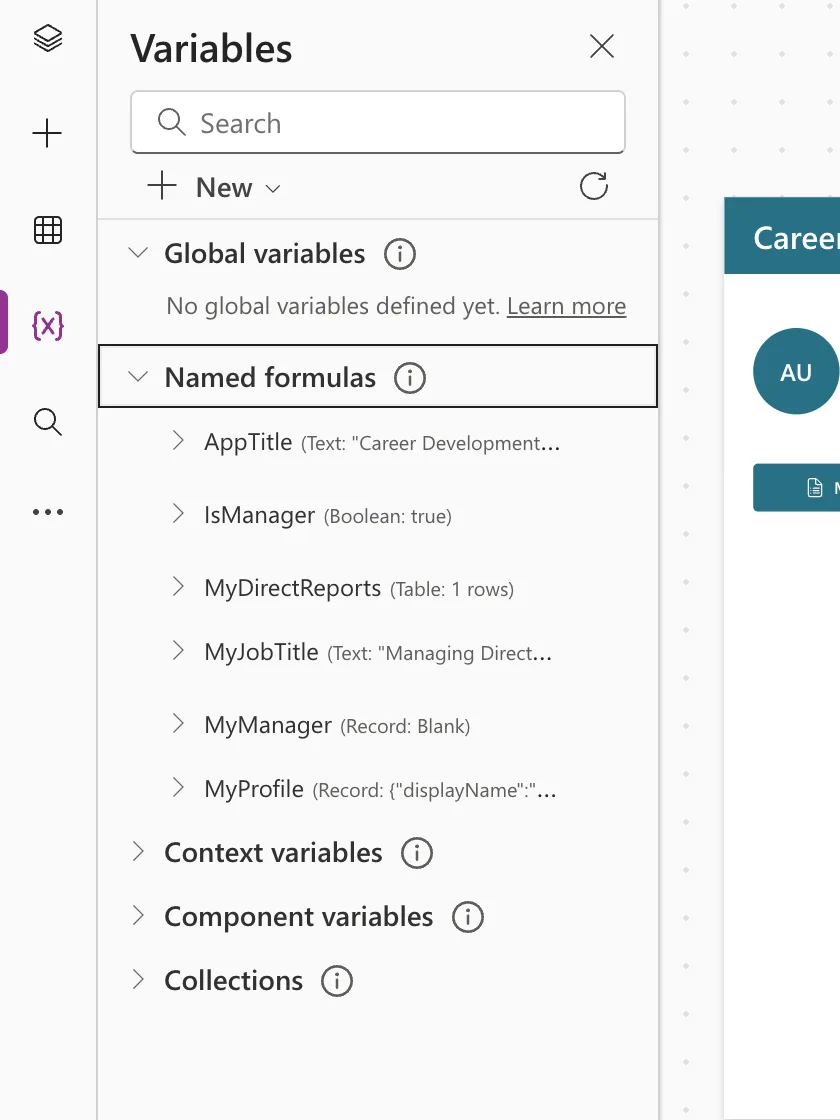
For the admin, IsManager is true because Olivia reports to them, and MyManager is blank because the Managing Director has no manager.
Step 3: Rename the Screen and Set the Start Screen
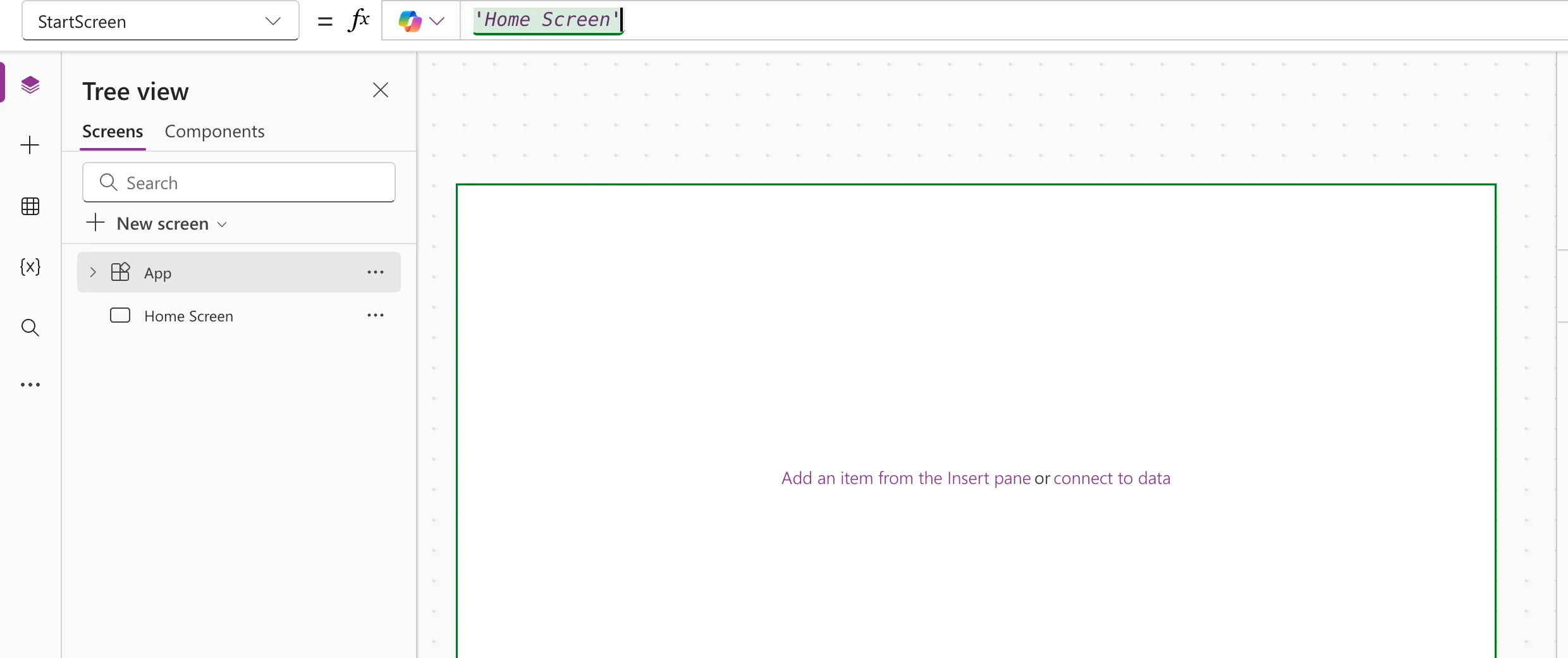
Follow How to Rename a Screen or Control in Power Apps and How to Set the Start Screen in Power Apps with App.StartScreen:
| Item | Value |
|---|---|
| Screen1 | Rename to Home Screen |
| App → StartScreen | 'Home Screen' |
Names in this series follow Power Apps Naming Conventions for Screens, Controls and Formulas. Screens are named in words ending in Screen. Each control starts with a short prefix for its type and ends with the code of its screen, HS for Home Screen. Later screens can then have their own title label without a clash.
| Prefix | Control type |
|---|---|
con | Container |
lbl | Text or Text label |
avt | Avatar |
btn | Button |
StartScreen makes the first screen a deliberate choice. Without it, the app opens on whichever screen is first in the tree view.
Step 4: Add the Screen Container
Containers arrange the controls inside them and resize with the window, which is what makes the screen fit a phone. This is the structure that Steps 4 to 8 build:
Home Screen
└─ conMainHS                vertical: fills the screen
   ├─ conHeaderHS           horizontal: the header
   │  └─ lblTitleHS         the app's name, the screen's main heading
   └─ conBodyHS             vertical: everything below the header
      ├─ conProfileHS       horizontal: the profile row
      │  ├─ avtMeHS         photo or initials
      │  └─ conProfileTextHS    vertical: three lines of text
      │     ├─ lblWelcomeHS
      │     ├─ lblJobTitleHS
      │     └─ lblManagerHS
      └─ conActionsHS       horizontal: the buttons
         ├─ btnMyPlanHS
         └─ btnMyTeamHS
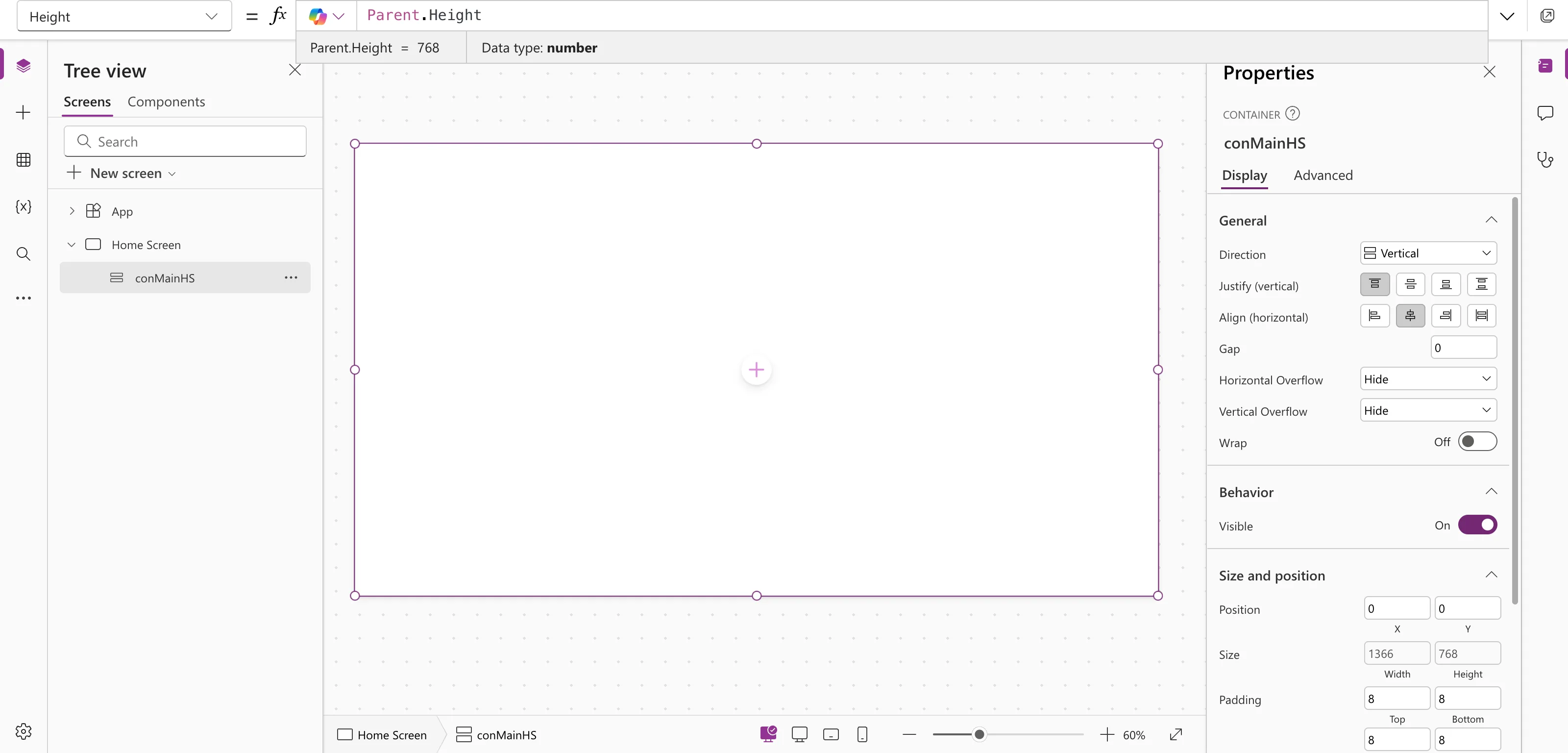
Follow How to Add a Vertical Container in Power Apps. With Home Screen selected, insert Layout → Vertical container, rename it conMainHS, and set:
| Property | Value |
|---|---|
| X, Y | 0, 0 |
| Width | Parent.Width |
| Height | Parent.Height |
| Align (horizontal) | Stretch |
| Padding | 0 on all four sides |
| Drop shadow | None |
| Border radius | 0 on all four corners |
Parent.Width and Parent.Height make the container as big as the screen, whatever size the screen is. Stretch makes everything inside it as wide as the container.
Step 5: Add the Header and Its Heading
Follow How to Add a Horizontal Container in Power Apps. Select conMainHS, insert Layout → Horizontal container, and rename it conHeaderHS:
| Property | Value |
|---|---|
| Flexible height | Off |
| Height | 64 |
| Fill | App.Theme.Colors.Primary |
| Padding | Left and right 24, top and bottom 0 |
| Drop shadow | None |
| Border radius | 0 |
App.Theme.Colors.Primary is the main color of the app's theme (How to Use Theme Colors and Fonts in Power Apps Formulas), so the header follows the theme you choose in Step 9.
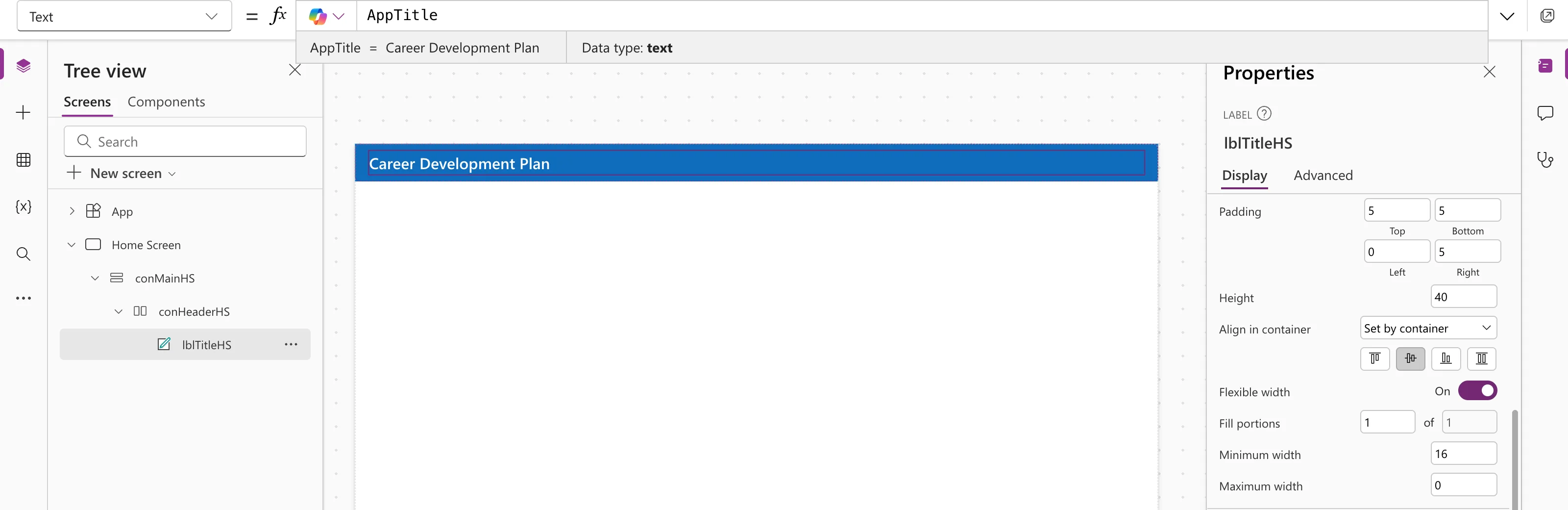
Inside conHeaderHS, insert Classic → Text label and rename it lblTitleHS. It's a classic control on purpose: only the classic label has a Role, which tells screen readers that this is the screen's main heading (How to Add a Heading for Screen Readers in Power Apps).
| Property | Value |
|---|---|
| Text | AppTitle |
| Role | TextRole.Heading1 |
| Color | Color.White |
| Font | App.Theme.Font |
| Size | 20 |
| FontWeight | FontWeight.Semibold |
| Flexible width | On, fill portions 1 |
| Height | 40 |
| PaddingLeft | 0 |
Set Role in the formula bar, because it isn't on the label's Display tab. The header now shows the app's name, still in the blue of the default Power Apps theme:
Step 6: Add the Profile Row and the Avatar
Select conMainHS again and insert a Vertical container for the rest of the screen. Rename it conBodyHS:
| Property | Value |
|---|---|
| Flexible height | On (the default), so it fills the space below the header |
| Align (horizontal) | Stretch |
| Gap | 16 |
| Padding | 24 on all four sides |
| Vertical overflow | Scroll |
| Drop shadow | None |
| Border radius | 0 |
Scroll lets the body scroll when it doesn't fit, instead of hiding what's at the bottom.
Inside conBodyHS, insert a Horizontal container for the profile row, conProfileHS:
| Property | Value |
|---|---|
| Flexible height | Off |
| Height | 120 for now; Step 10 replaces it with a formula |
| Gap | 16 |
| Align (vertical) | Center |
| Padding | 0 |
| Drop shadow | None |
| Border radius | 0 |
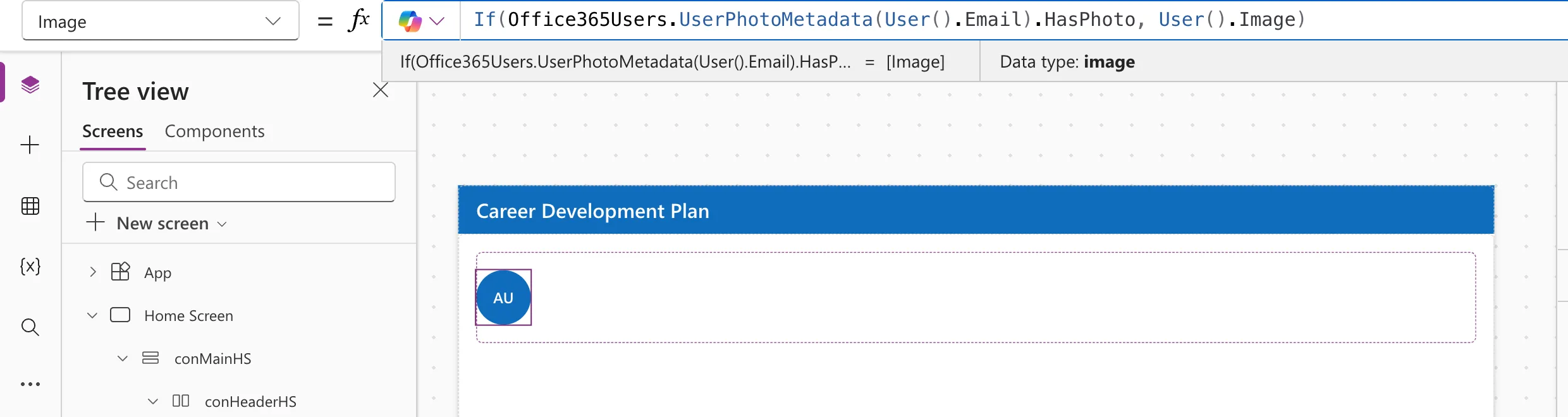
Inside conProfileHS, insert Display → Avatar and rename it avtMeHS (How to Add an Avatar Control in Power Apps):
| Property | Value |
|---|---|
| Image | If(Office365Users.UserPhotoMetadata(User().Email).HasPhoto, User().Image) |
| Name | User().FullName (the default) |
| Badge | Blank() |
| Width, Height | 72, 72 |
With the default Image, User().Image, someone without a photo gets a grey person icon instead of their initials. The formula uses the photo only when there is one. Badge starts as a fixed Available dot that says nothing about the person's real status, so it's removed.
Last, select conProfileHS and insert a Vertical container, conProfileTextHS, for the three lines of text next to the avatar:
| Property | Value |
|---|---|
| Flexible width | On, fill portions 1 |
| Gap | 4 |
| Align (horizontal) | Stretch |
| Justify (vertical) | Center |
| Align in container | Stretch |
| Padding | 0 |
| Drop shadow | None |
| Border radius | 0 |
The profile row now shows the admin's initials, AU, in the theme's color:
Step 7: Add the Welcome, Job Title and Manager
Select conProfileTextHS and insert Display → Text three times (How to Add a Text Control in Power Apps). Rename them lblWelcomeHS, lblJobTitleHS and lblManagerHS, and turn Auto height on for all three, so each one grows when its text wraps.
The welcome:
"Welcome, " & Coalesce(MyProfile.givenName, MyProfile.displayName)
& joins pieces of text (How to Join Text in Power Apps with & and String Interpolation). Coalesce returns the first value that isn't blank (How to Replace Blank Values in Power Apps with Coalesce): the first name, or the full display name for a profile without one. Set Size to 24 and FontWeight to FontWeight.Semibold.
The job title and the manager:
If(
    IsBlank(MyJobTitle),
    "Your Microsoft 365 profile has no job title, so there's no plan to show yet. Ask your IT admin to add one.",
    "Job title: " & MyJobTitle
)
If(
    IsBlank(MyManager),
    "Your Microsoft 365 profile has no manager, so nobody can review your responses yet. Ask your IT admin to add one.",
    "Manager: " & MyManager.displayName
)
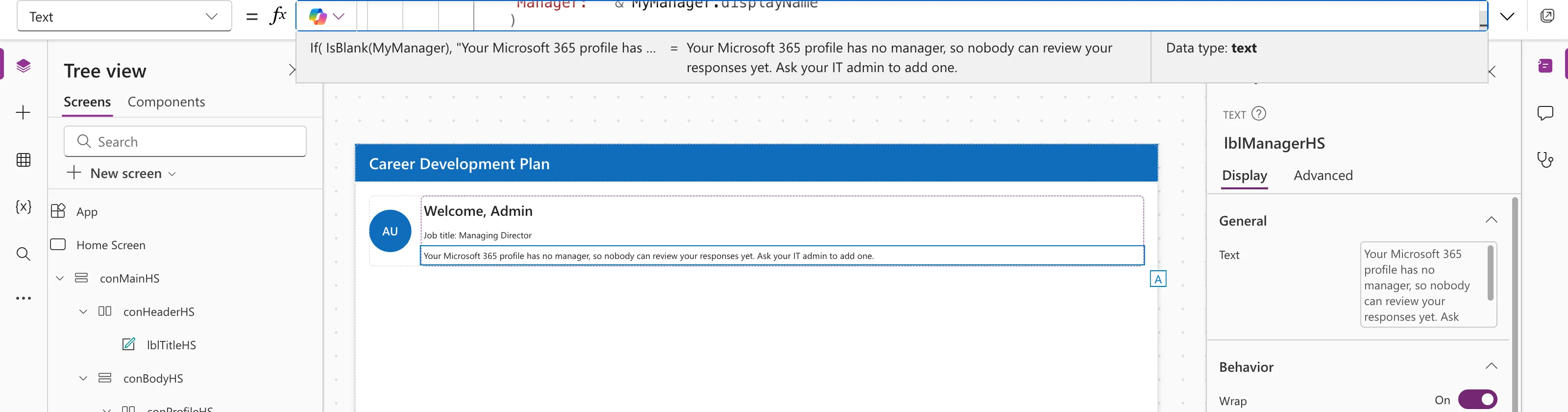
If picks one of two texts (How to Use the If Function in Power Apps), and IsBlank checks for a missing value. Instead of an empty line, people see what's missing and who can fix it: a plan needs a job title, and a review needs a manager. For the admin, the manager line shows the message:
Step 8: Add the My Plan and My Team Buttons
Select conBodyHS and insert a Horizontal container, conActionsHS, below the profile row:
| Property | Value |
|---|---|
| Flexible height | Off |
| Height | 48 |
| Gap | 16 |
| Align (vertical) | Center |
| Padding | 0 |
| Drop shadow | None |
| Border radius | 0 |
Inside it, insert Input → Button and rename it btnMyPlanHS (How to Add a Button in Power Apps). Then, with btnMyPlanHS selected, insert a second Button: it goes into the same container, next to the first. Rename it btnMyTeamHS.
| Property | btnMyPlanHS | btnMyTeamHS |
|---|---|---|
| Text | "My plan" | "My team" |
| Icon | "DocumentBulletList" | "People" |
| Appearance | Primary (the default) | ButtonAppearance.Secondary |
| Width, Height | 160, 40 | 160, 40 |
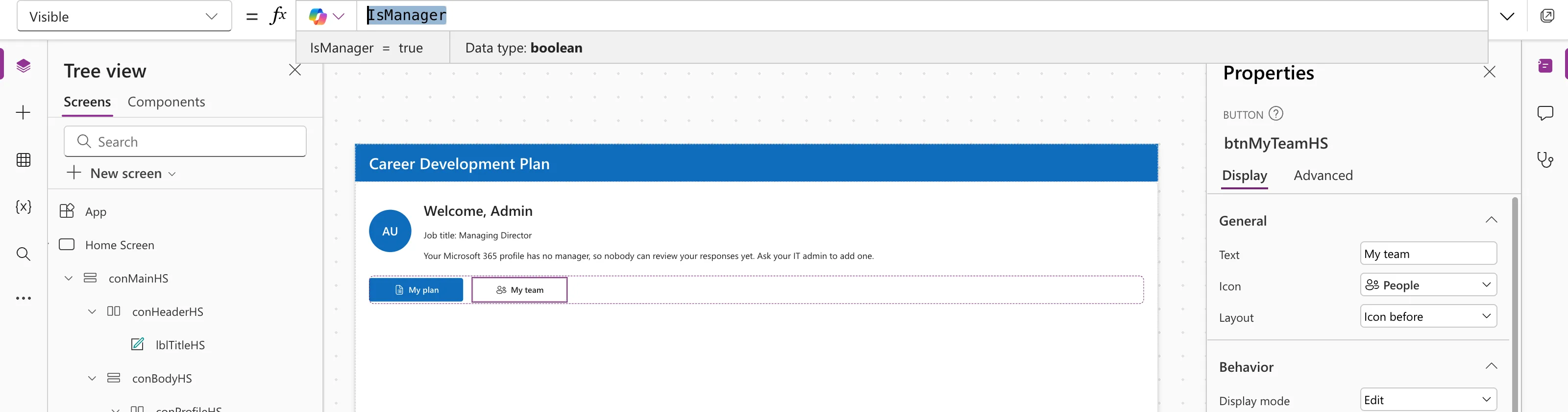
| Visible | true (the default) | IsManager |
The icons come from the button's icon list (How to Add an Icon to a Button in Power Apps). My team is visible only when IsManager is true (How to Show or Hide a Control in Power Apps with Visible), so people without direct reports never see it. OnSelect stays false on both for now: Part 5 connects My plan, and Part 7 My team.
Both buttons show for the admin, because IsManager is true:
Part 9 adjusts this screen for the narrowest phones, 360 pixels wide: the title's Size becomes If(App.ActiveScreen.Size = ScreenSize.Small, 18, 20), and both buttons' Width becomes If(App.ActiveScreen.Size = ScreenSize.Small, (Parent.Width - Parent.LayoutGap) / 2, 160), so they share the row (Fixed: Text and Buttons Cut Off on Narrow Phones).
Step 9: Apply the Steel Theme
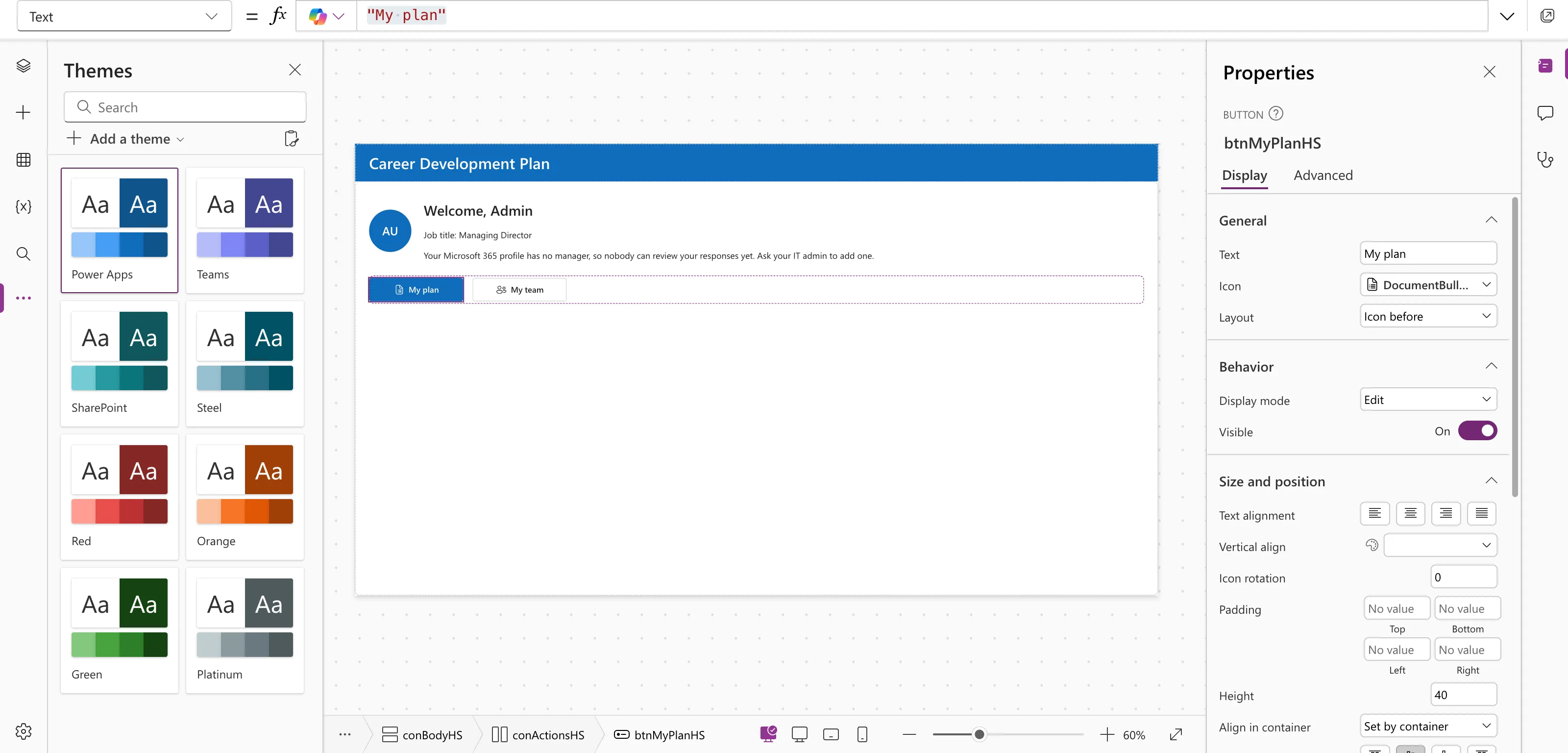
Follow How to Apply a Modern Theme in Power Apps: open More (…) on the left, then Themes. Before, the screen is in the default Power Apps theme:
Select Steel. When Studio asks whether to Apply to classic controls, select Cancel: the only classic control, lblTitleHS, already takes its color and font from Step 5. The header, the avatar and the My plan button change together, because their colors come from the theme:
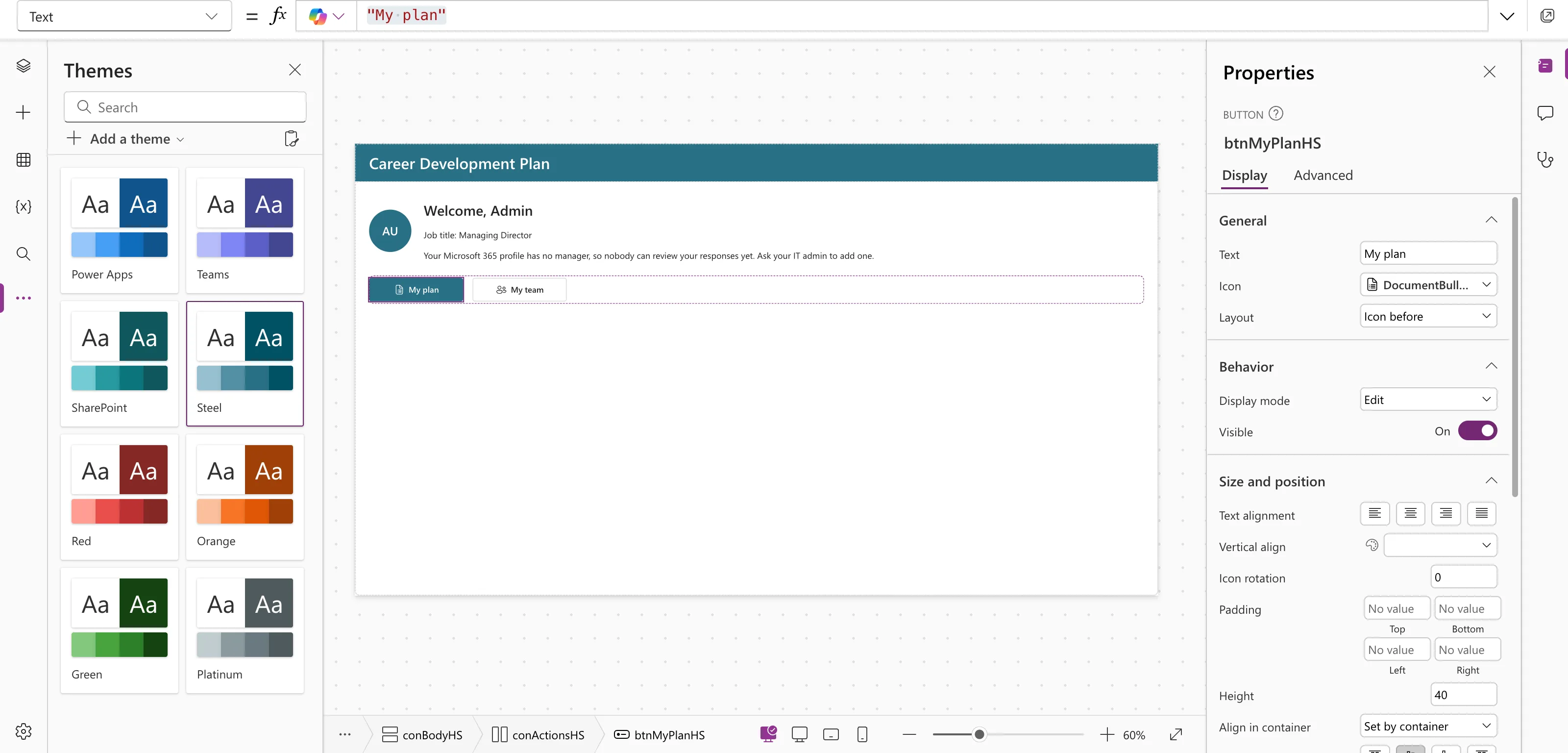
App.Theme is now SteelTheme. Steel is the example's choice; any theme works the same way.
Step 10: Test the Screen at a Phone Size
Preview the app with F5 (How to Preview a Canvas App in Power Apps Studio) and choose Phones → Apple iPhone 12, 13, 14 (How to Test a Power Apps Canvas App on Phone and Tablet Sizes). In the example, the profile row was cut off:
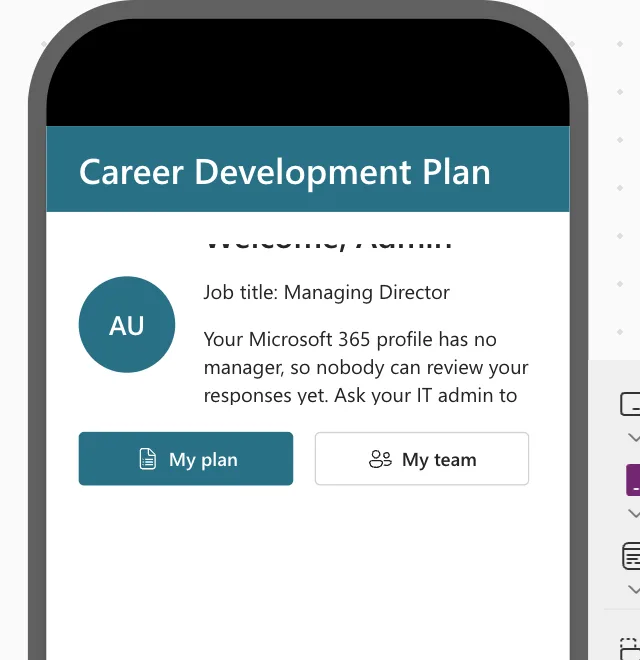
On the narrow screen the text wraps onto more lines, and the Text controls grow, but conProfileHS stays 120 high and clips them (Fixed: Text Is Cut Off Inside a Container on Small Screens). Close the preview with Esc and give conProfileHS a Height that follows its content:
Max(
    avtMeHS.Height,
    lblWelcomeHS.Height + lblJobTitleHS.Height + lblManagerHS.Height + 2 * conProfileTextHS.LayoutGap
)
Max returns the larger of two numbers (How to Get the Largest Value in Power Apps with Max): the avatar's height, or the text column's height, which is the three Text controls plus the two gaps between them. At the default canvas size it comes to 114. On a phone, it grows with the text:
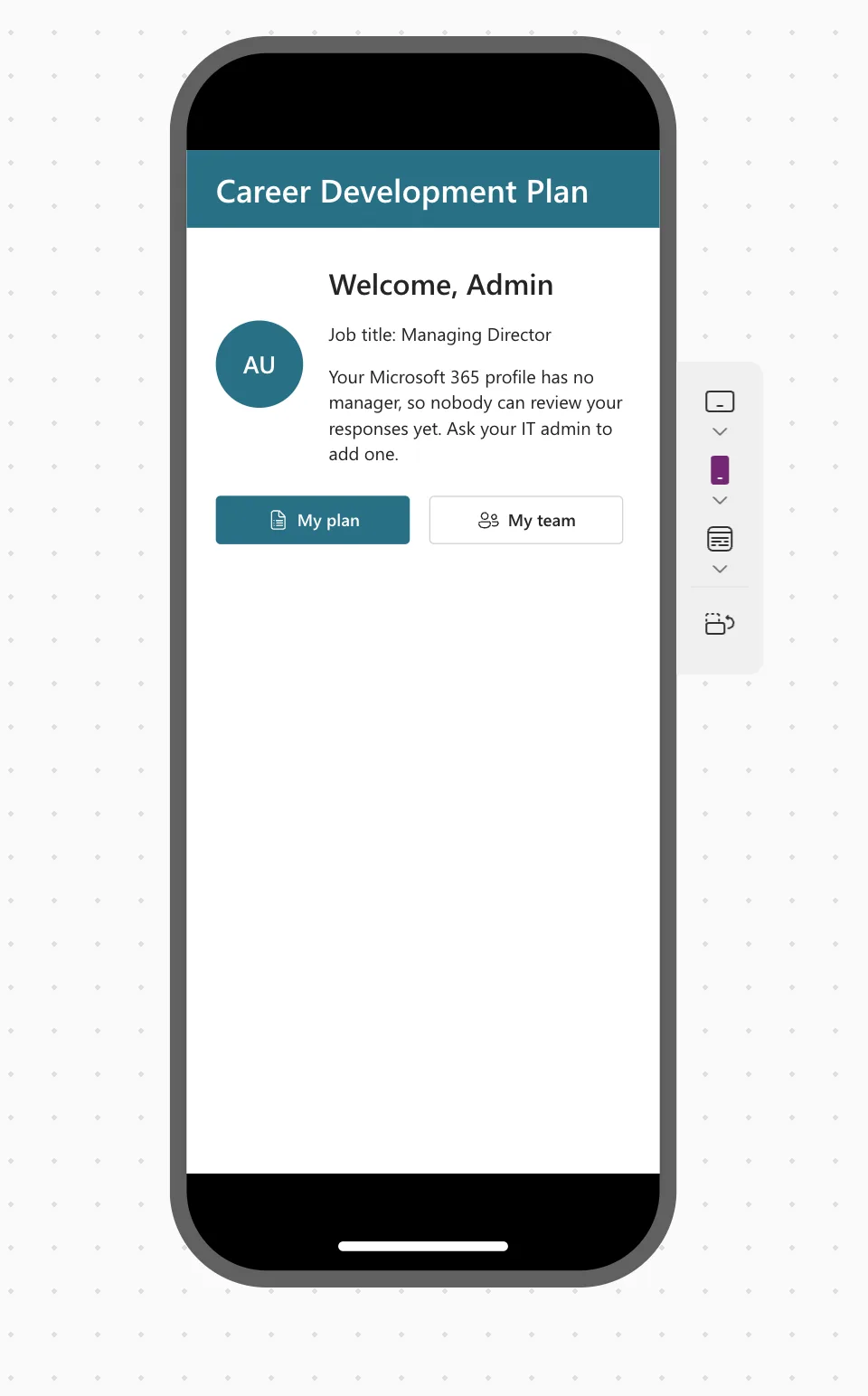
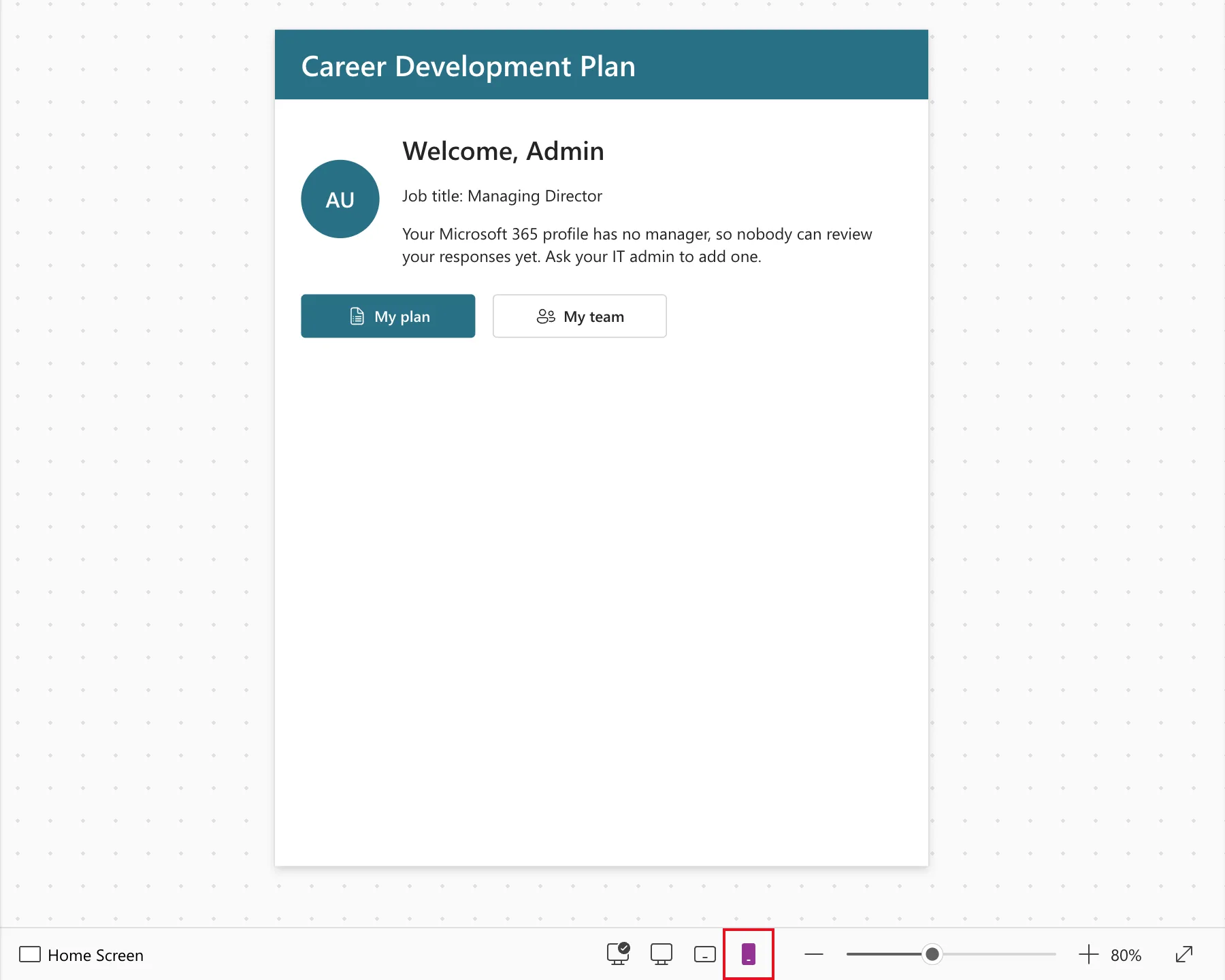
Back in Studio, the Small size at the bottom of the canvas, 600 pixels wide, shows the same:
Step 11: Give Every Control an Accessible Label
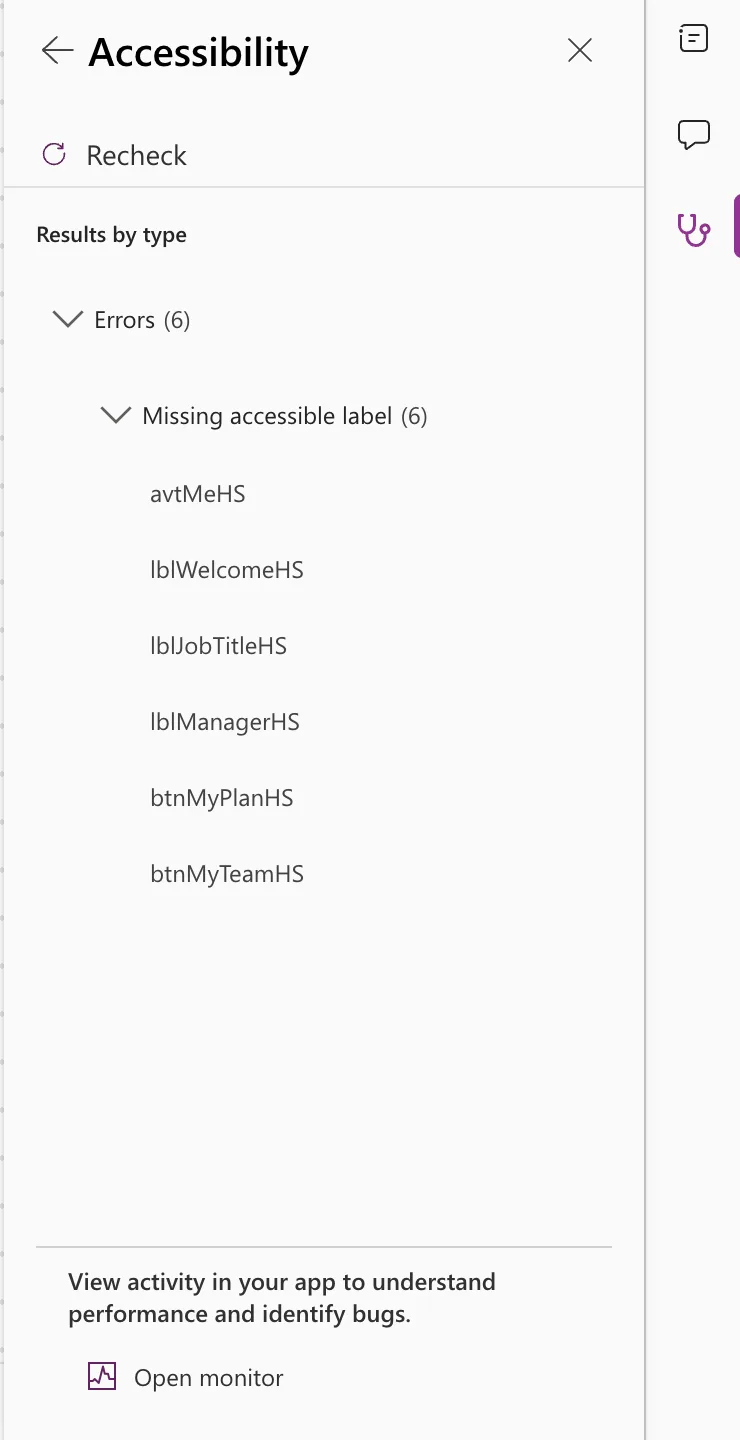
Open the App checker, the stethoscope icon on the right edge of Studio, and select Accessibility. It lists six Missing accessible label errors:
Set AccessibleLabel on each control. Fixed: "Missing Accessible Label" explains each choice:
| Control | AccessibleLabel |
|---|---|
avtMeHS | "Profile picture of " & User().FullName |
lblWelcomeHS, lblJobTitleHS, lblManagerHS | Self.Text |
btnMyPlanHS | "My plan: the competencies for your job title" |
btnMyTeamHS | "My team: your direct reports and their responses" |
Select Recheck all. Accessibility no longer shows a count:
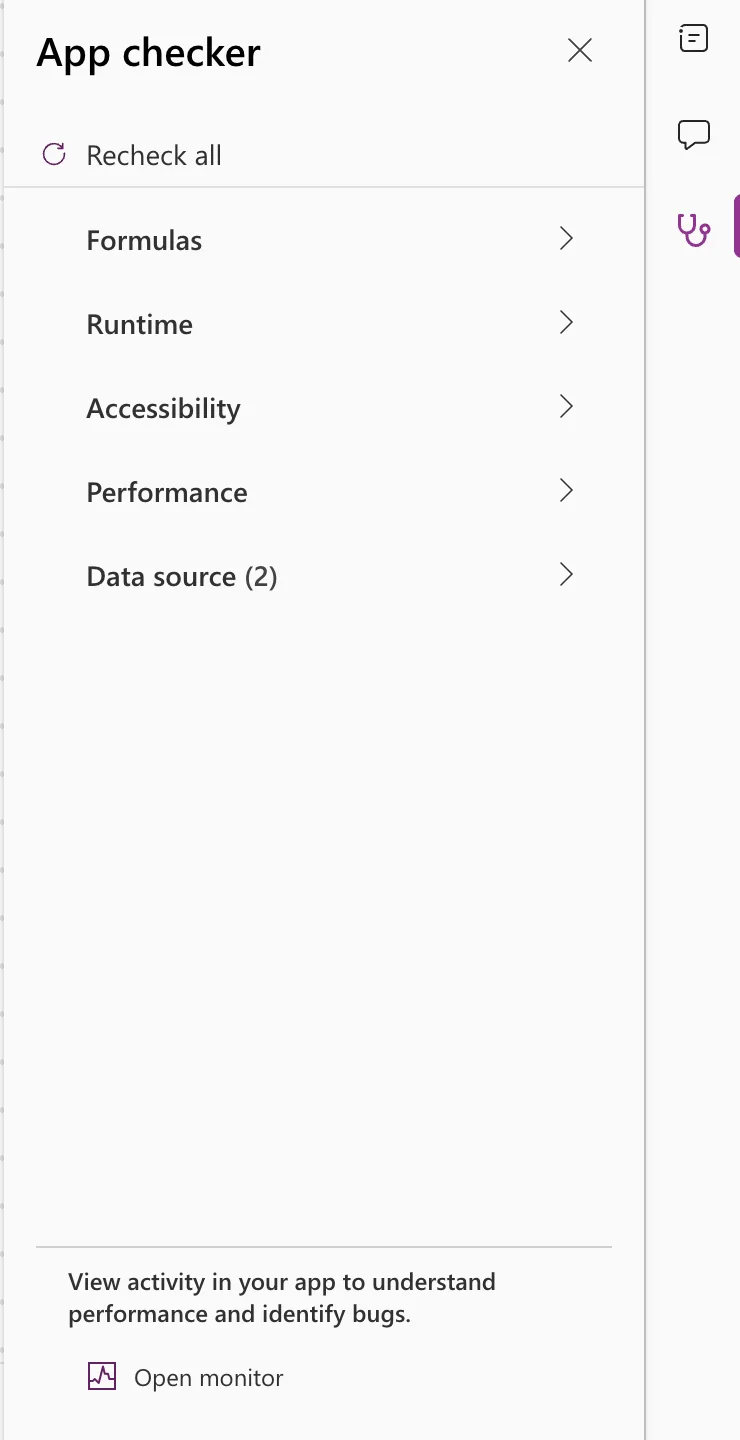
Data source (2) is expected. It warns that RoleCompetencies and CompetencyResponses aren't used yet (Fixed: "Unused Data Sources"):
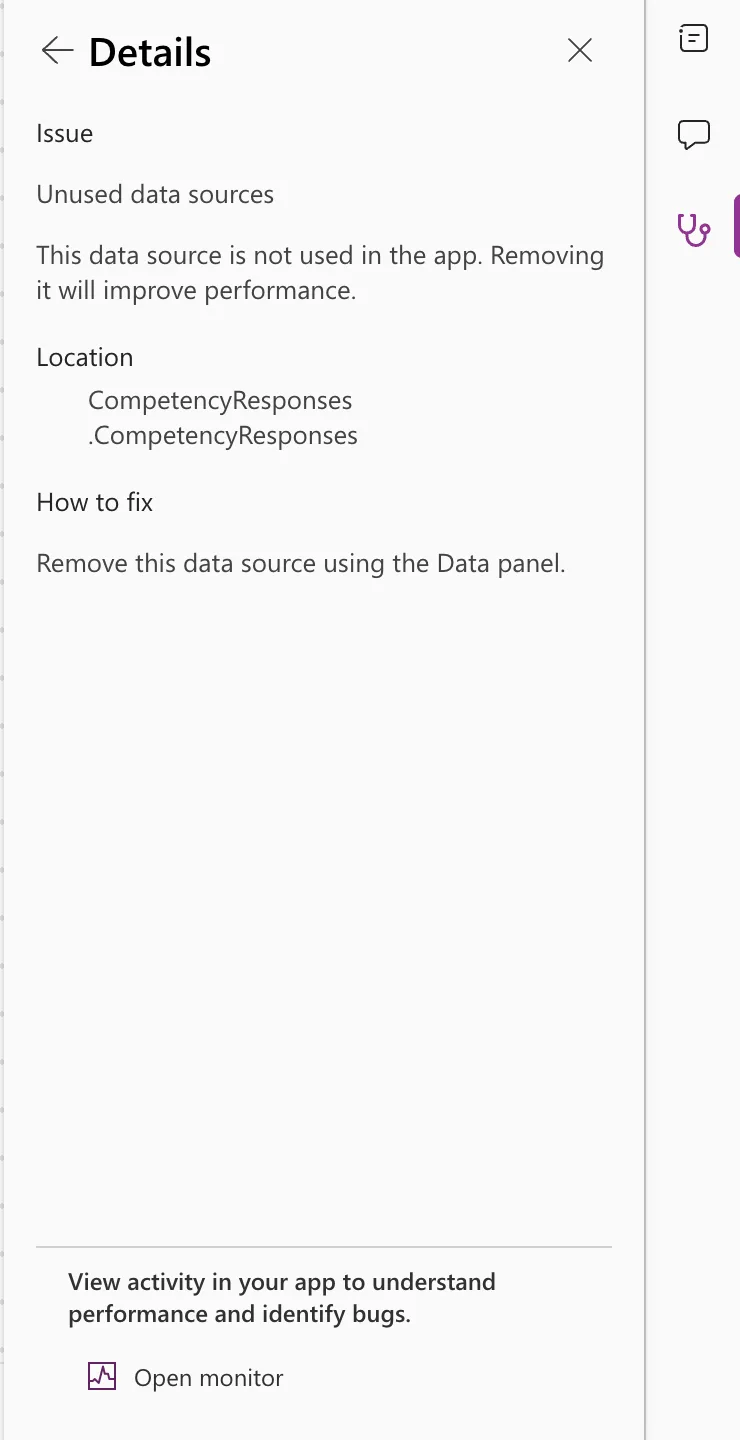
Don't remove them, whatever the advice says: Part 5 uses both lists, and the warning clears.
Step 12: Save the App
Select Save. Don't publish yet: Part 7 publishes the app and shares it with the team.
Here's the finished Home screen on the canvas:
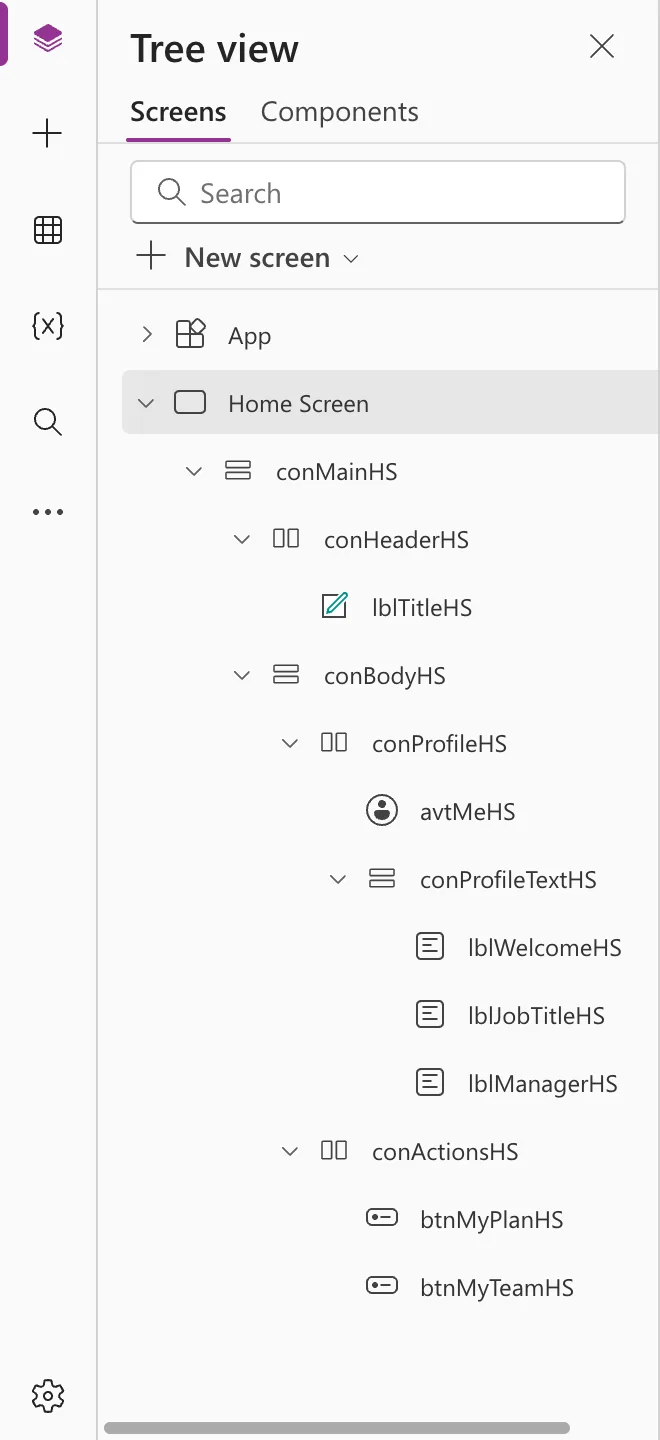
And its controls in the tree view, matching the layout from Step 4:
Common Mistakes
| Mistake | What happens | Do this instead |
|---|---|---|
| Inserting a control while another control is selected | It lands in that control's container, such as the header | Select the container you want first |
Leaving out jobTitle from '$select' | MyJobTitle is blank, and everyone sees the "no job title" message | Keep all six fields in MyProfile |
Leaving Image at User().Image | People without a photo get a grey icon instead of initials | Use the HasPhoto formula |
Leaving conProfileHS at a fixed height | Text is cut off on phones | Use the Max formula from Step 10 |
| Selecting Enable in Apply to classic controls | The title's color and font formulas are replaced | Select Cancel |
| Removing the unused data sources | Part 5 has no lists to read | Keep them |
Troubleshooting
| Symptom | Likely cause | Fix |
|---|---|---|
| A red banner: Office365Users.ManagerV2 failed | ManagerV2 without IfError, for someone with no manager | Fixed: Resource 'manager' Does Not Exist |
| Behavior function in a non-behavior property in App.Formulas | A Set or Navigate in a named formula | Fixed: Behavior Function in a Non-Behavior Property |
| A grey person icon instead of initials | Image is User().Image | Fixed: Avatar Shows a Grey Person Icon |
| Text cut off on a phone | conProfileHS has a fixed height | Fixed: Text Is Cut Off Inside a Container |
| Missing accessible label in the App checker | AccessibleLabel is empty | Fixed: "Missing Accessible Label" |
| Studio opens (Read-only) | Another session of yours holds the app, for example after a page reload | Fixed: "This App Is Read-Only…" |
| My team missing for a manager | IsManager is false | Check MyDirectReports in Variables, and that their reports' accounts are enabled |
FAQ
Why named formulas and not OnStart?
A named formula is always up to date, can't be overwritten by accident, and is worked out only when something needs it. How to Use Named Formulas in Power Apps compares the two.
Why does the admin see "no manager"?
In the demo organization, the admin is the Managing Director, at the top, so Microsoft 365 has no manager for them. Olivia and the others do, and later parts run the app as them.
What do the buttons do?
Nothing yet. Part 5 makes My plan open the My Plan screen, and Part 7 connects My team.
Why is the title a classic control when everything else is modern?
Because Role, which marks it as the screen's main heading for screen readers, is only on the classic Text label.
Will the screen work on a phone?
Yes. The app's layout is Responsive (Part 3), the containers resize with the window, and Step 10 checked it at an iPhone size.
Conclusion
The app now has its first screen. Home Screen is the start screen, and App.Formulas holds six named formulas: AppTitle, MyProfile, MyJobTitle, MyManager, MyDirectReports and IsManager. The screen:
- greets the signed-in person by name, with their photo or initials;
- shows their job title and manager, or says what's missing and who can fix it;
- offers My plan to everyone and My team only to managers;
- fits a phone, follows the Steel theme, and has an accessible label on every control.
← Previous: Part 3: Create the Solution, Environment Variables and Canvas App
Next → Part 5: Build the My Plan Screen. You'll list the competencies for your job title from RoleCompetencies, show where each one stands, and connect the My plan button.
Additional Resources
- App object: Formulas property: named formulas.
- App object: StartScreen property: choosing the first screen.
- Office 365 Users connector: MyProfileV2, ManagerV2, DirectReportsV2 and UserPhotoMetadata.
- Building responsive canvas apps: auto-layout containers.
- Use modern themes in canvas apps: themes and
App.Theme. - Create accessible canvas apps: headings, labels and screen readers.
