Build a Career Development Plan App in Power Apps — Part 3: Create the Solution, Environment Variables and Canvas App

The app gets its home in this part: a Power Apps solution that holds the canvas app and three environment variables, which tell the app where its SharePoint data is. By the end, the app is created, connected to both lists and to Microsoft 365 user profiles, and ready for its first screen.
This is Part 3 of a 14-part series.
- Part 1: Plan the App and Set Up the Demo Organization
- Part 2: Create the SharePoint Site and Lists
- Part 3: Create the Solution, Environment Variables and Canvas App (you are here)
- Part 4: Build the Home Screen
- Part 5: Build the My Plan Screen
- Part 6: Build the Response Screen
- Part 7: Share the App and Build the My Team Screens
- Part 8: Build the Review Screen for Manager Approvals
- Part 9: Let Managers Manage Competencies
- Part 10: Test Every Role, Joiners and Leavers (coming soon)
- Part 11: Build a Setup Flow That Creates the SharePoint Lists (coming soon)
- Part 12: Run the Solution Checker and Export the Solutions (coming soon)
- Part 13: Install the App in a New Environment (coming soon)
- Part 14: Recap, Production Checklist and Next Steps (coming soon)
Part 2 built the SharePoint site and lists. This part adds Dataverse to your Default environment so it can hold solutions, then creates the solution, its environment variables and the canvas app. As before, each generic task has its own short guide. This part gives you the exact values for this app, and why.
What You'll Set Up
- Dataverse in the Default environment, so it can store solutions.
- The System Administrator role for you in that environment.
- A publisher and a solution: Dewiride, and Career Development Plan.
- Three environment variables: one for the site and one for each list.
- The canvas app, a responsive tablet app, with three data sources: the two lists, through the variables, and Office 365 Users.
Prerequisites
- Part 2 completed: the Career Development Plan site with its two lists.
- The admin account from Part 1, with the Global Administrator or Power Platform Administrator role.
- The guides this part relies on. Each step says which one to follow:
- How to Add a Dataverse Database to the Default Power Platform Environment
- How to Make Yourself System Administrator of a Power Platform Environment
- How to Create a Solution and Publisher in Power Apps
- How to Create Environment Variables for a SharePoint Site and List in Power Apps
- How to Create a Canvas App Inside a Solution in Power Apps
Step 1: Add Dataverse to the Default Environment
Follow How to Add a Dataverse Database to the Default Power Platform Environment:
| Setting | Value |
|---|---|
| Environment | Your Default environment |
| Language | English (United States) |
| Currency | Your organization's. The example tenant is in India, so the panel suggested INR |
| Deploy sample apps and data | No |
Part 1 explains why the app lives here: it's the one environment with free included Dataverse storage. The app keeps its data in SharePoint, so Dataverse only stores the solution and its parts, and the currency is never used.
Adding Dataverse can't be undone. In the example tenant it was ready in about a minute. The Environment Maker role, which Microsoft assigns automatically in the Default environment, arrived about ten minutes later. Until it did, Power Apps showed We couldn't load your data on Solutions.
Step 2: Make Yourself System Administrator
Follow How to Make Yourself System Administrator of a Power Platform Environment for the Default environment.
Environment Maker is enough to build the app, but in this series the same admin also exports the solution in Part 12 and installs it in Part 13. With Environment Maker alone, the solution also says one or more commands are unavailable due to your current privileges. System Administrator is full control of the environment, so it's for the admin only. Anyone else who helps build the app needs nothing more than Environment Maker.
Step 3: Create the Publisher and the Solution
Follow How to Create a Solution and Publisher in Power Apps:
| Item | Field | Value |
|---|---|---|
| Publisher | Display name | Dewiride |
| Publisher | Name | Dewiride |
| Publisher | Description | Publisher of Dewiride solutions for Microsoft Power Platform. |
| Publisher | Prefix | dewiride |
| Publisher | Choice value prefix | Filled in for you (38699 here) |
| Solution | Display name | Career Development Plan |
| Solution | Name | CareerDevelopmentPlan |
| Solution | Version | 0.1.0.0 |
| Solution | Set as your preferred solution | Ticked |
| Solution | Description | Career Development Plan canvas app and its environment variables. Employees respond to the competencies for their job title; managers approve or decline. |
Use your own name for the publisher if you're building this for your organization.
Why these values:
- An own publisher, not the default one. Its prefix goes into every internal name in the solution, such as
dewiride_RoleCompetenciesList. Anyone who finds a component knows where it came from. - Version 0.1.0.0. Below 1 while the app is being built. Part 12 sets 1.0.0.0 for the first release, the version a buyer installs.
- The preferred solution. If you create something outside the solution by accident, it lands in this solution instead of the environment's default one.
Step 4: Create the Environment Variables
Follow How to Create Environment Variables for a SharePoint Site and List in Power Apps. It also creates your SharePoint connection on the way.
| Display name | Name | Parameter type | Site | Current value | Description |
|---|---|---|---|---|---|
| Career Development Plan Site | dewiride_CareerDevelopmentPlanSite | Site | — | https://<your-organization>.sharepoint.com/sites/CareerDevelopmentPlan | The SharePoint site that holds the Career Development Plan lists. |
| RoleCompetencies | dewiride_RoleCompetenciesList | List | Career Development Plan Site | RoleCompetencies | The SharePoint list of competencies and levels for each job title. |
| CompetencyResponses | dewiride_CompetencyResponsesList | List | Career Development Plan Site | CompetencyResponses | The SharePoint list of employees' responses and their managers' reviews. |
Leave Default Value empty on all three.
Why these values:
- The list variables are named exactly like the lists. The app's data sources take the variable's display name, so these give the app data sources called
RoleCompetenciesandCompetencyResponses: the same PascalCase names the lists have, and the names every formula in this series uses. - The Name ends in
List. Inside the solution, that tells the variables apart from anything else called RoleCompetencies. - No default values. A buyer who installs the solution in Part 13 has no site at that address. With no value in the solution, Power Apps asks them for their own site and lists during the install.
To change a list variable later, see Fixed: "We Are Unable to Find the List".
Step 5: Create the Canvas App
Follow How to Create a Canvas App Inside a Solution in Power Apps:
| Field | Value |
|---|---|
| App name | Career Development Plan |
| Format | Tablet |
Save it once, as the guide shows. Tablet gives the widest canvas, and Microsoft recommends it for apps that should adapt to phone, tablet and web sizes. The next step makes the layout responsive, so the screens can adapt to the window they run in.
Step 6: Change the App's Settings
In Power Apps Studio, open Settings with the gear at the bottom left.
| Tab | Setting | Value |
|---|---|---|
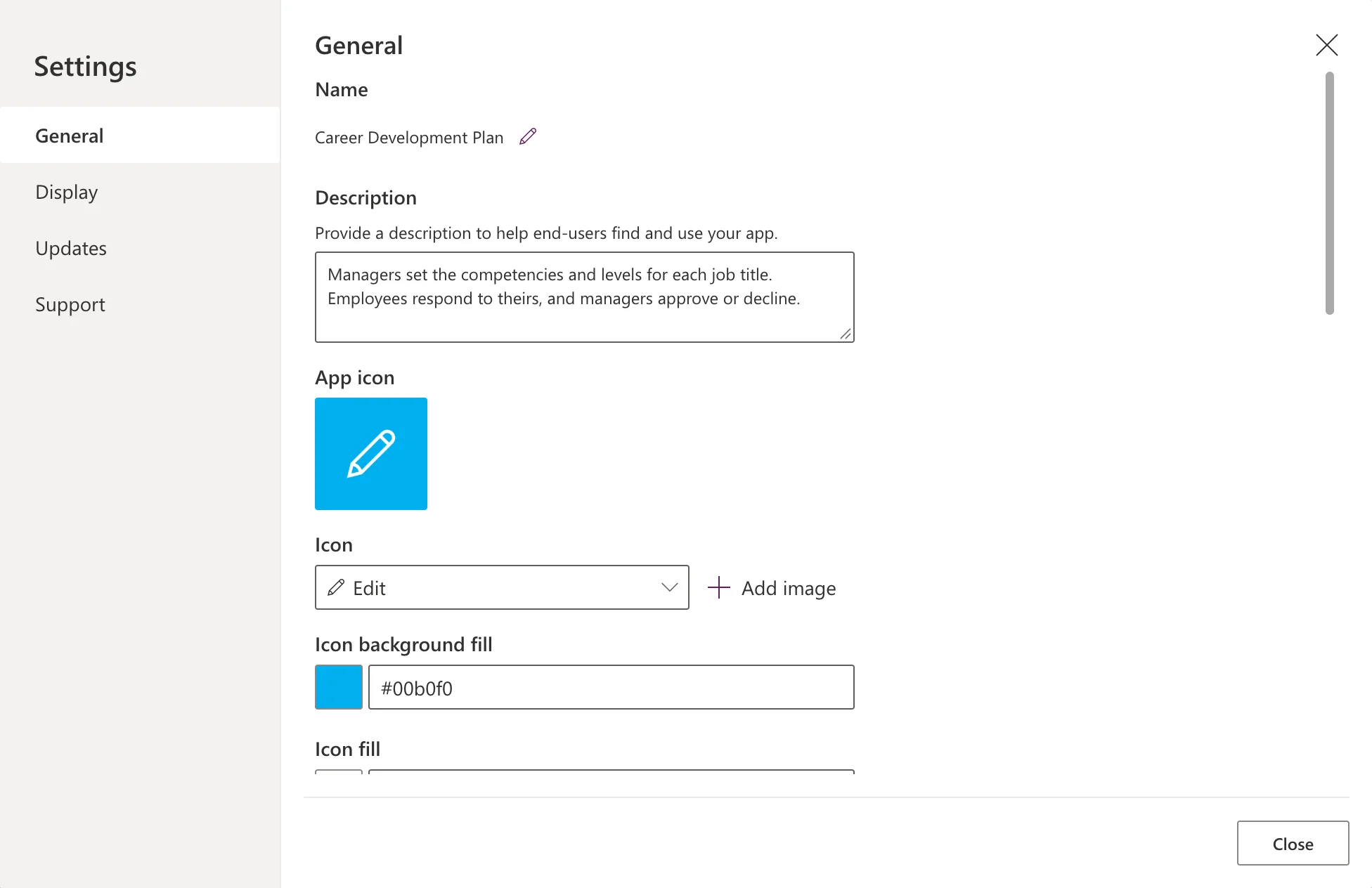
| General | Description | Managers set the competencies and levels for each job title. Employees respond to theirs, and managers approve or decline. |
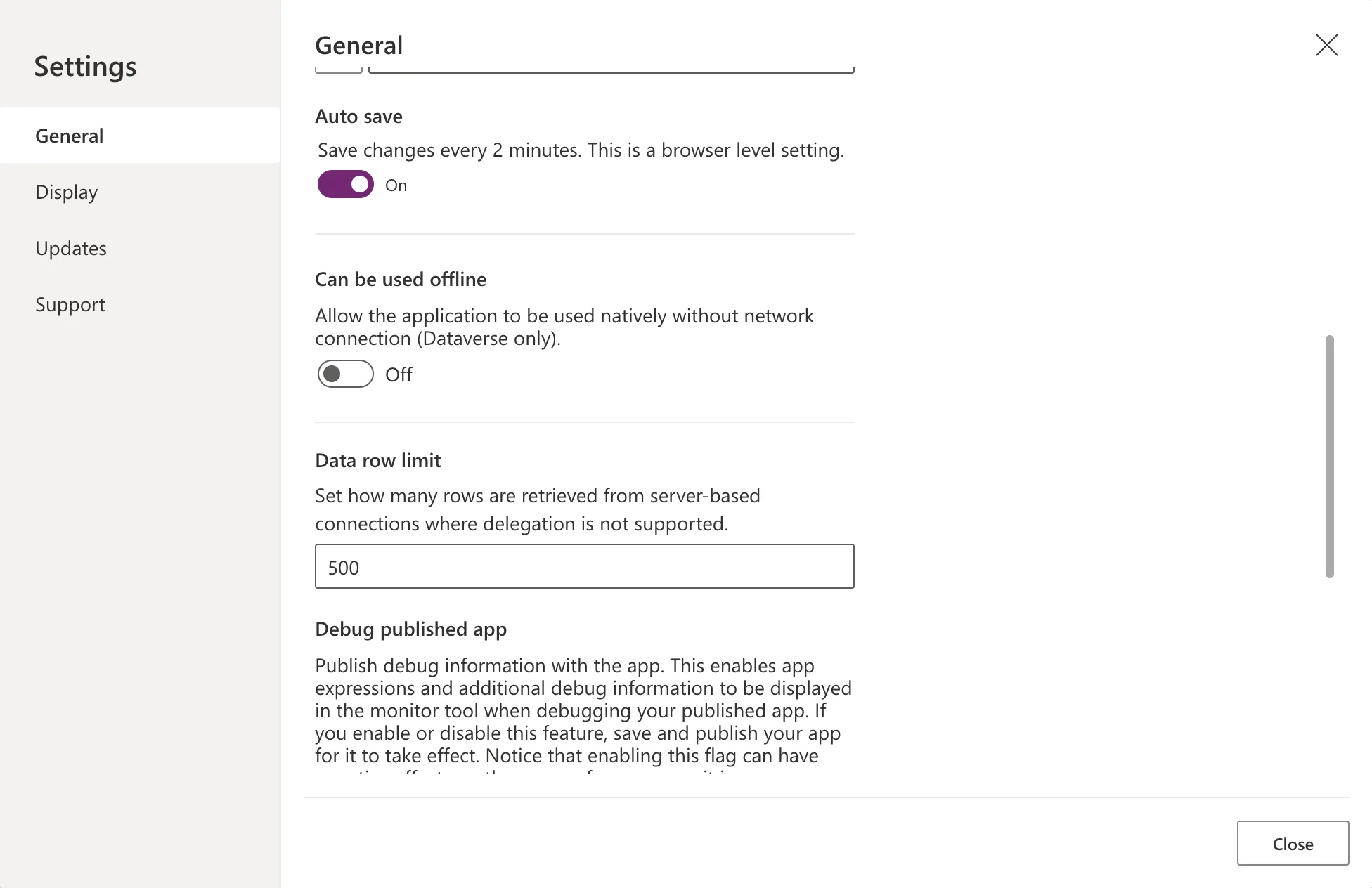
| General | Data row limit | 500 (the default) |
| General | Automatically create environment variables when adding data sources | Off (the default) |
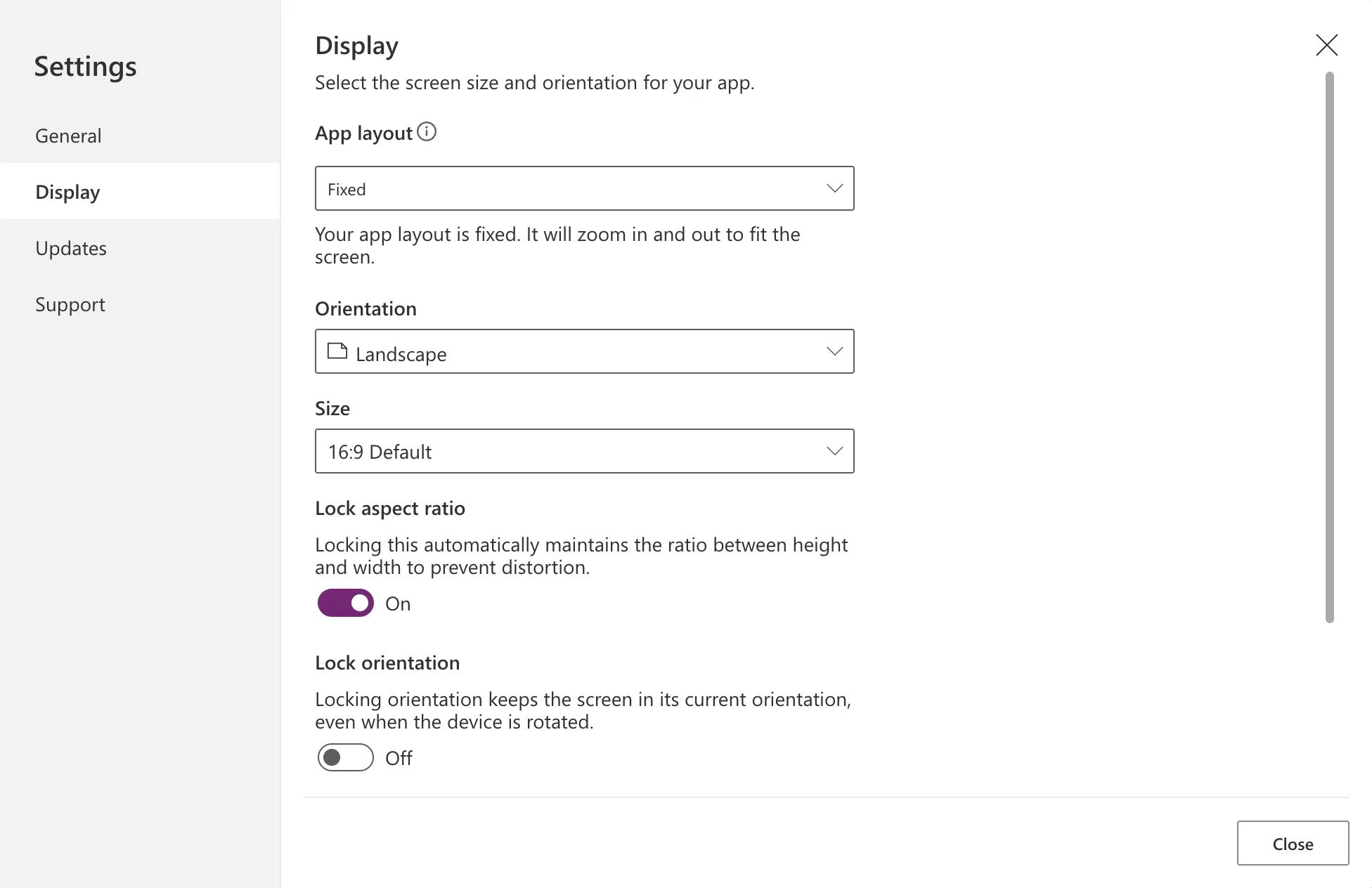
| Display | App layout | Responsive |
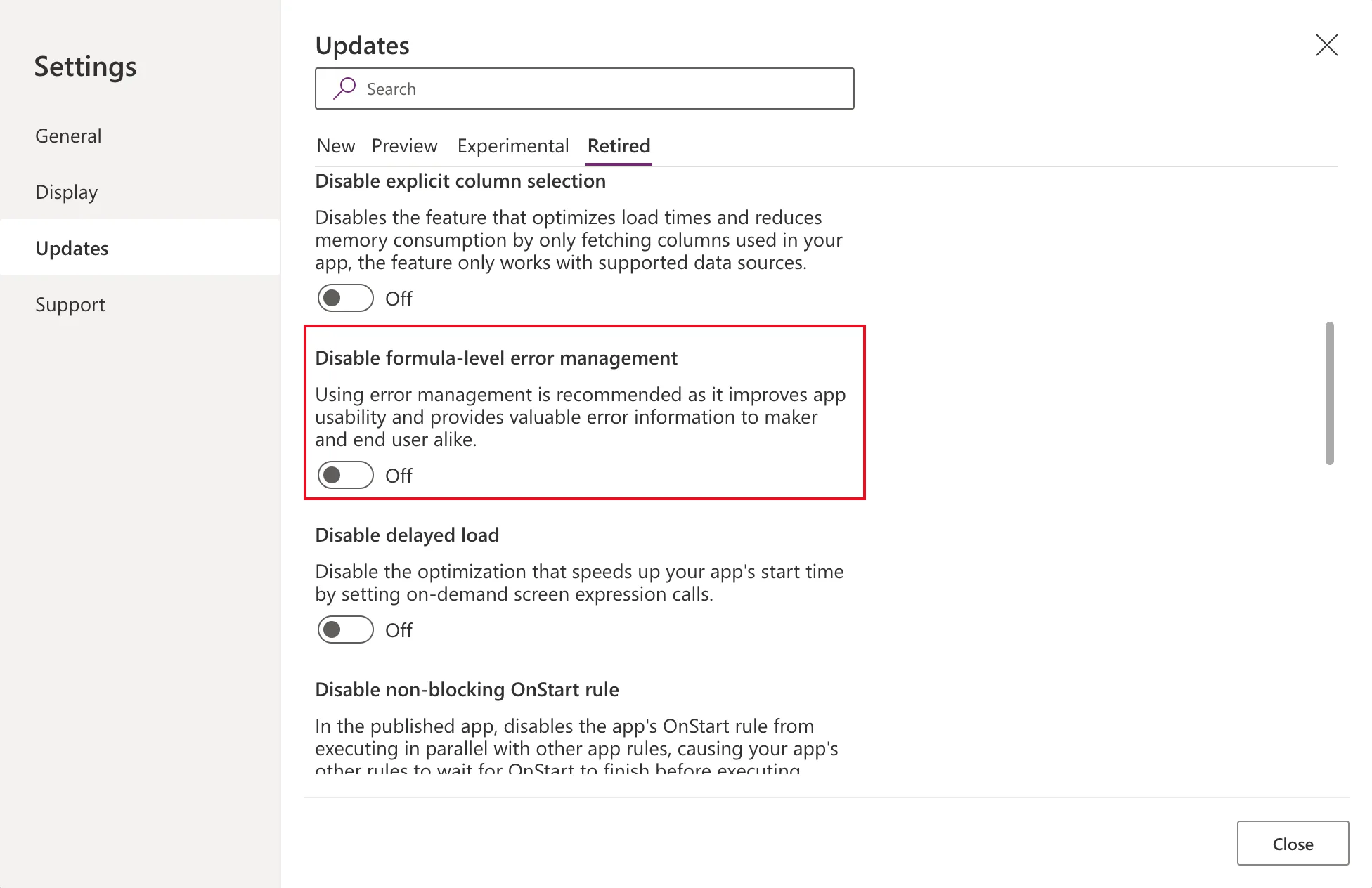
| Updates → Retired | Disable formula-level error management | Off (the default) |
On General, type the description. It appears with the app for the people who use it.
Further down the same tab, Data row limit is 500: the most rows Power Apps fetches when a query can't be handed to SharePoint. Every query in this app can be handed over, as Part 5 explains, so the limit is only a safety net. Leave Automatically create environment variables off, because you created the variables yourself, with the names you want.
On Display, App layout starts as Fixed, which zooms the whole app in or out to fit the screen:
Change it to Responsive. The screens now resize to the window instead, and Lock aspect ratio and Lock orientation switch off:
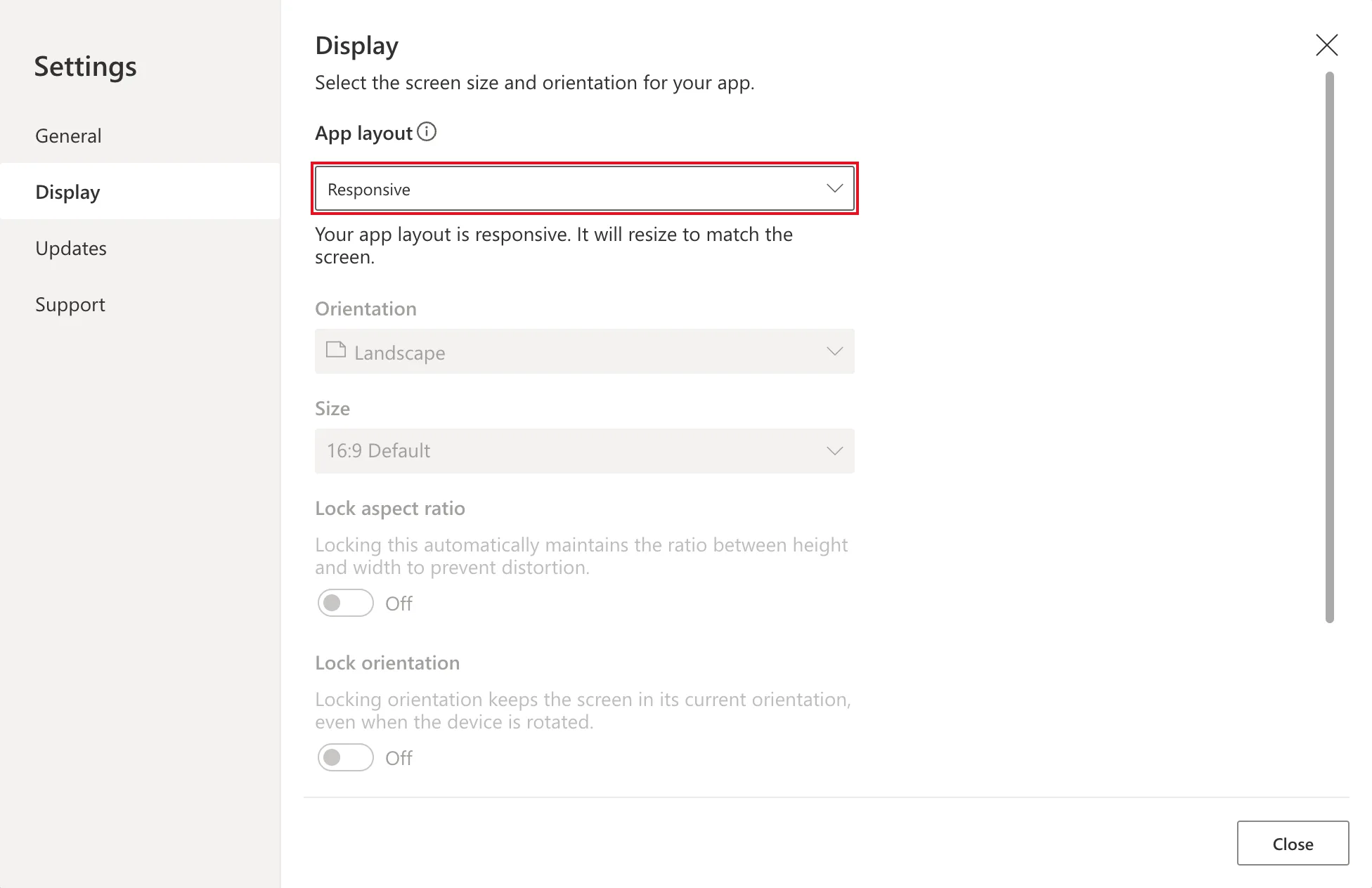
Microsoft's documentation still calls this choice turning off Scale to fit; the current Studio shows it as App layout. From Part 4 on, the screens are built from containers that make use of the extra space.
On Updates → Retired, check that Disable formula-level error management is Off. It's off for new apps. Formula-level error management lets the app catch and report errors, such as a failed save, which Part 6 relies on.
Close Settings.
Step 7: Connect the Data
Office 365 Users gives the app each person's profile, manager and direct reports. Select Add data, search for Office 365 Users, select it, and then Connect:
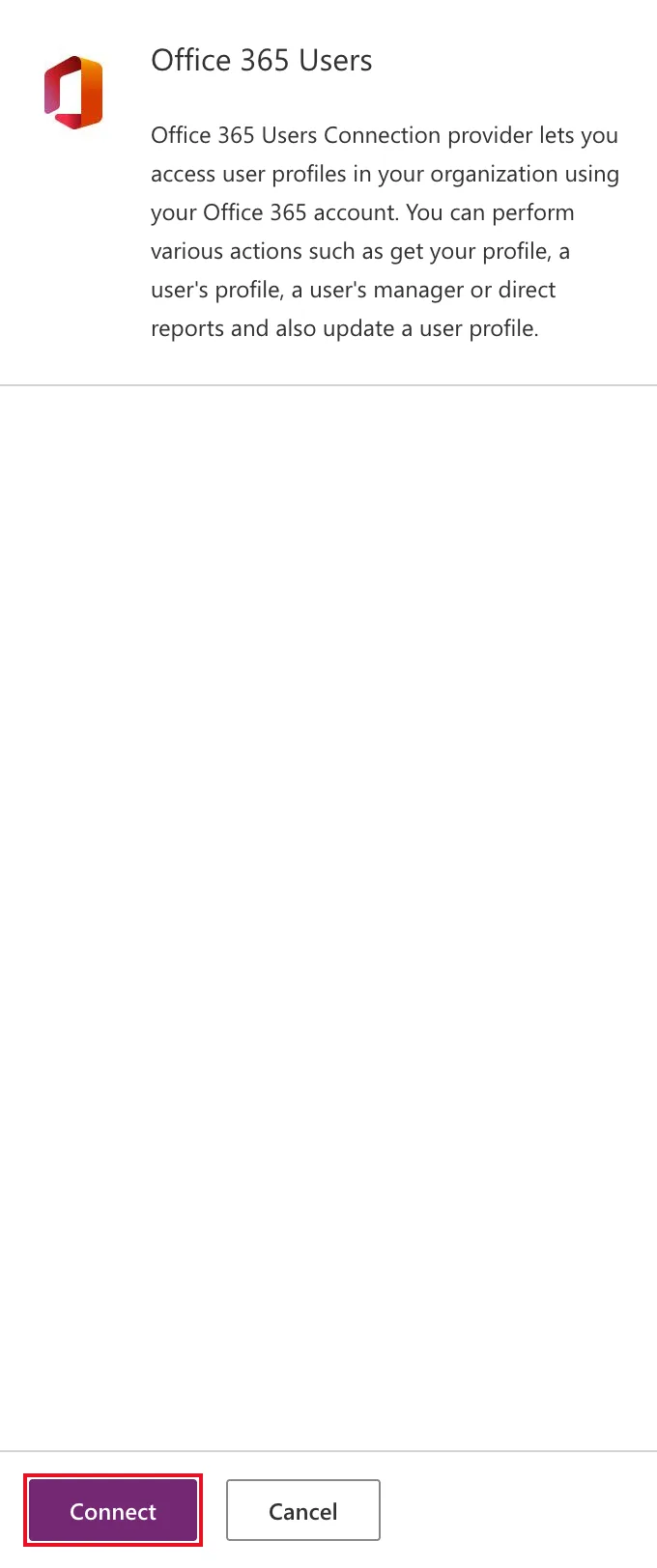
The data source is called Office365Users.
The two lists come next, through the environment variables:
-
Select Add data, search for
SharePoint, select it, and choose your SharePoint connection: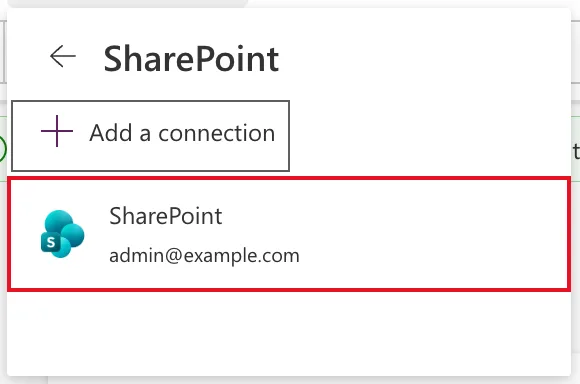
-
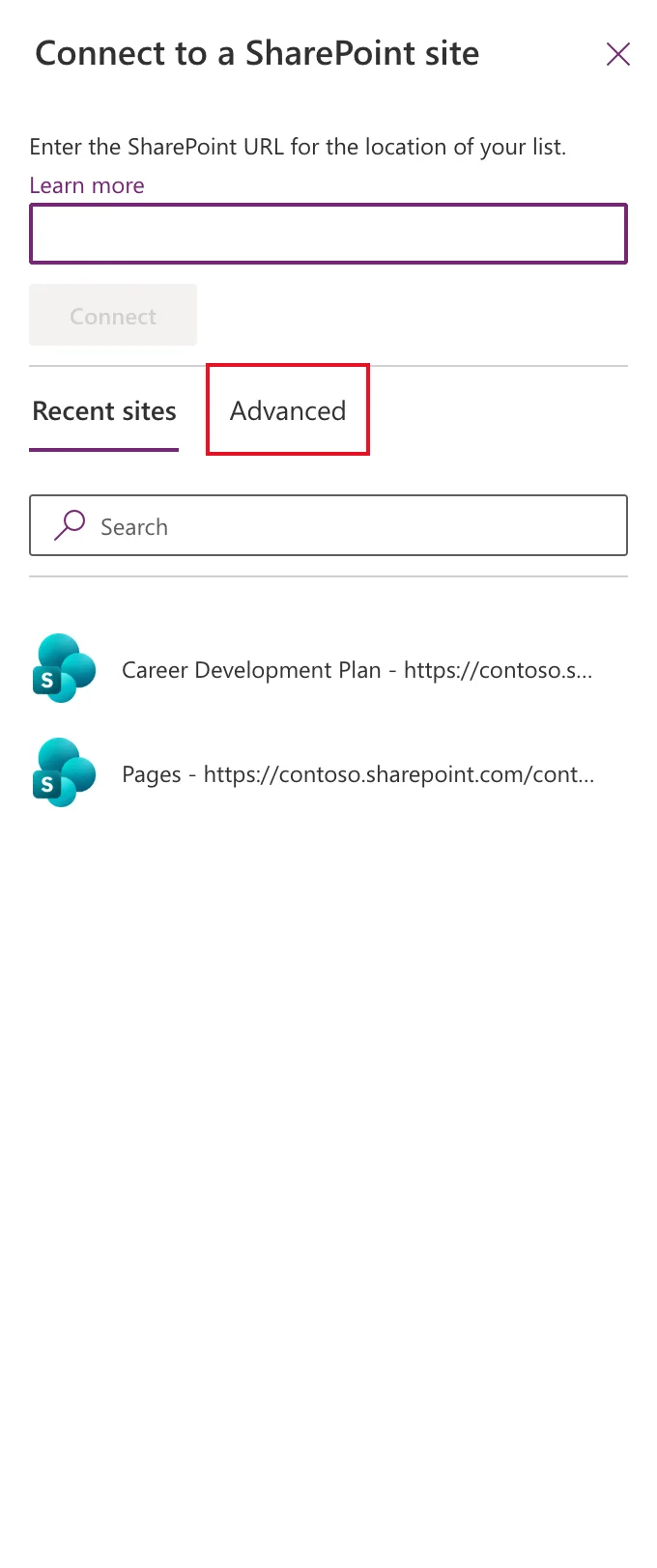
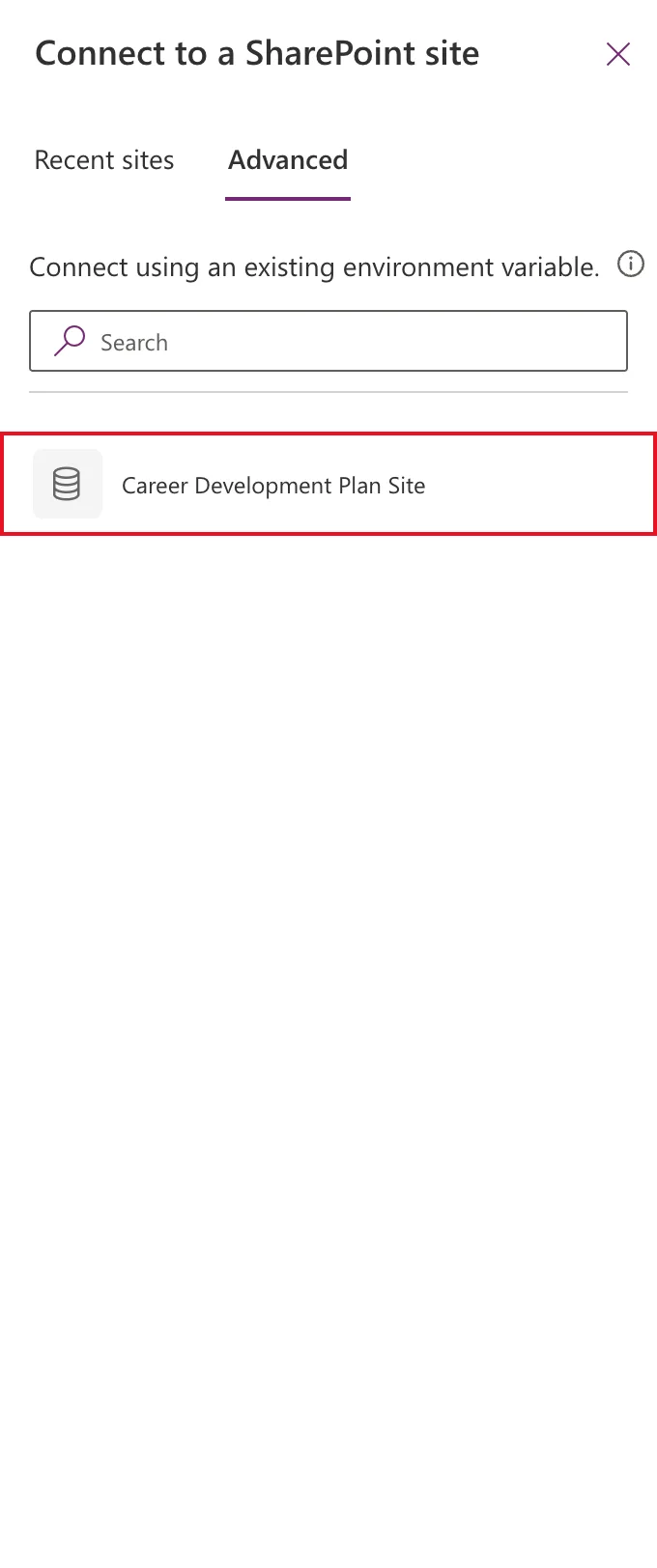
Connect to a SharePoint site opens on Recent sites, which lists your actual sites. Don't pick one there. Select the Advanced tab:
-
Advanced says Connect using an existing environment variable and lists the site variable. Select Career Development Plan Site:
-
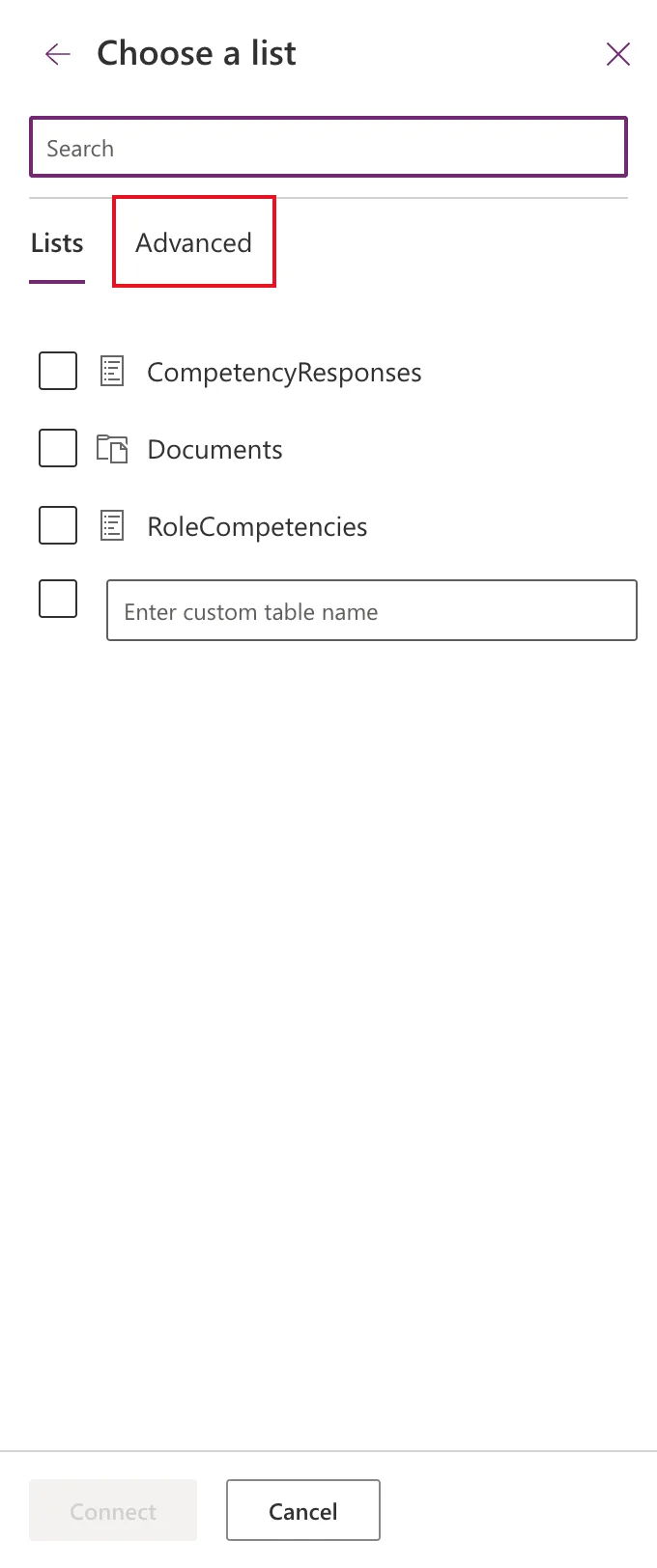
Choose a list opens on Lists. Select its Advanced tab too:
-
Tick RoleCompetencies and CompetencyResponses, the two list variables, and select Connect:
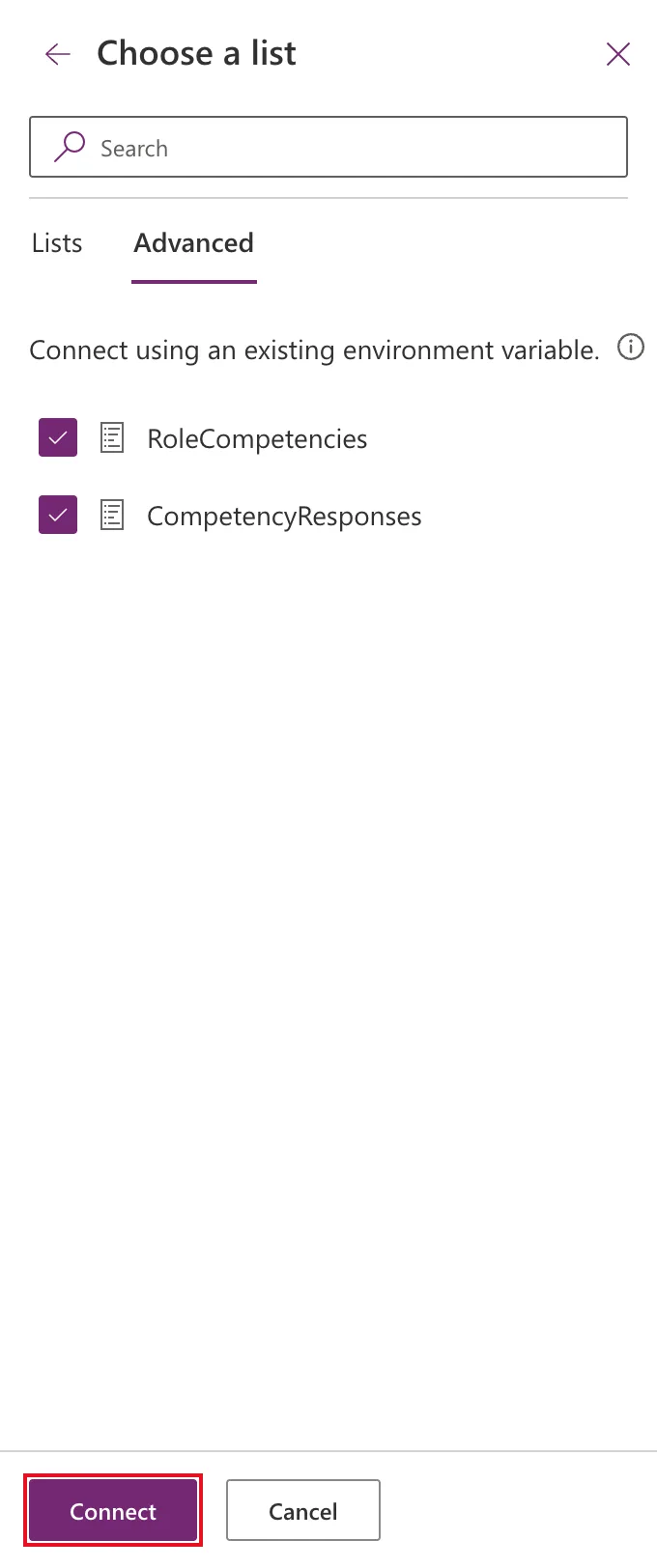
Choosing a site on Recent sites would tie the app to this one site's address. Going through Advanced ties it to the variables instead, so the installer in Part 13 can point the app at their own site without opening it.
Open the Data pane to see all three data sources:
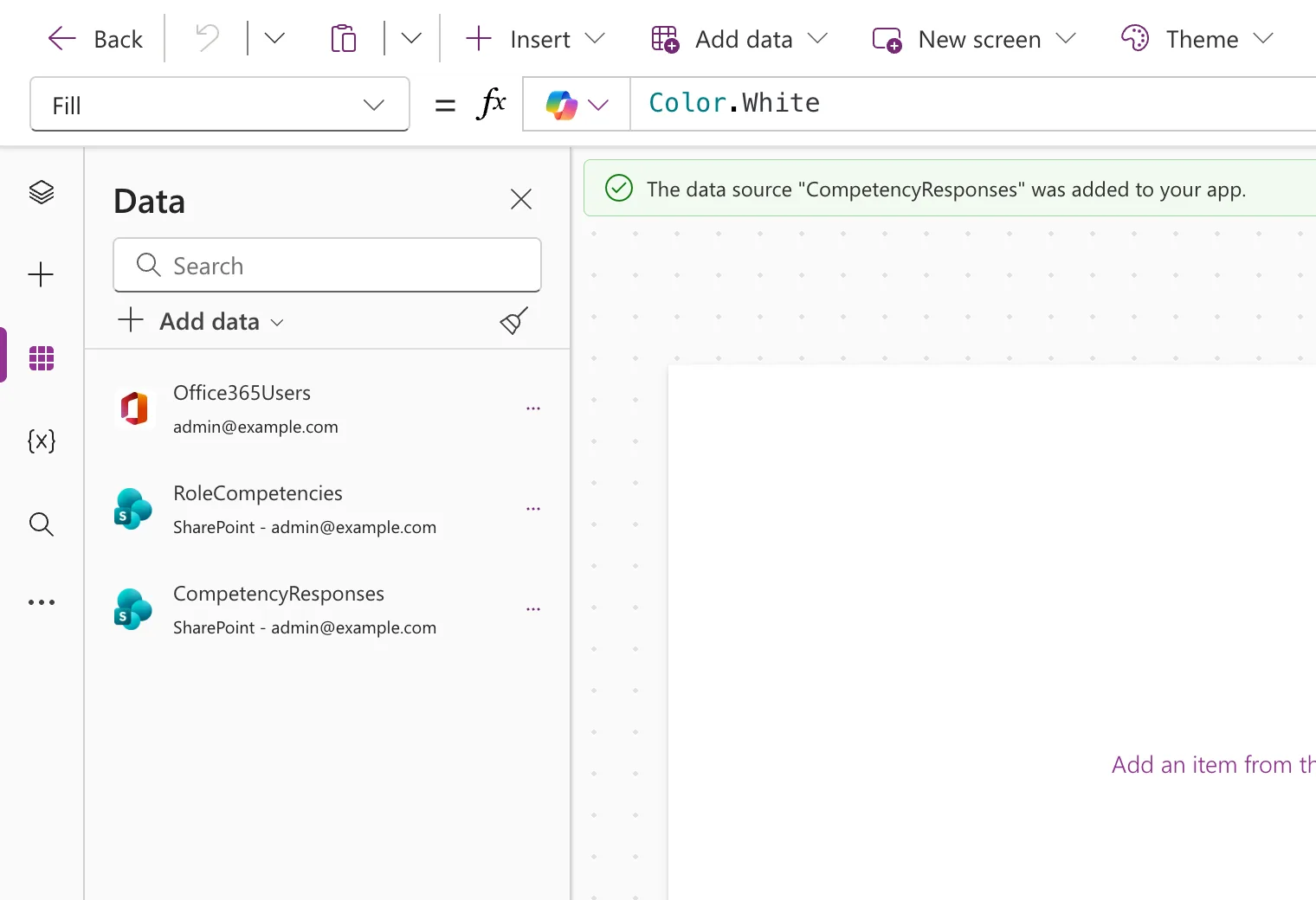
Studio also attaches a message to each data source, read out by screen readers but not shown on screen: A Power Apps per user plan, Power Apps per app plan or Power Apps pay-as-you-go plan will be required during playback for apps with this connector. There's no premium icon next to these data sources. SharePoint and Office 365 Users are standard connectors, and Step 8 shows what Power Apps itself decides about the app's license. Part 7 confirms it by running the app as a user who has only Microsoft 365 (Fixed: "A Power Apps Per User Plan … Will Be Required During Playback").
Select Save.
Step 8: Check the Solution and the App's License
Back in the solution, All shows four objects: the canvas app and the three environment variables.
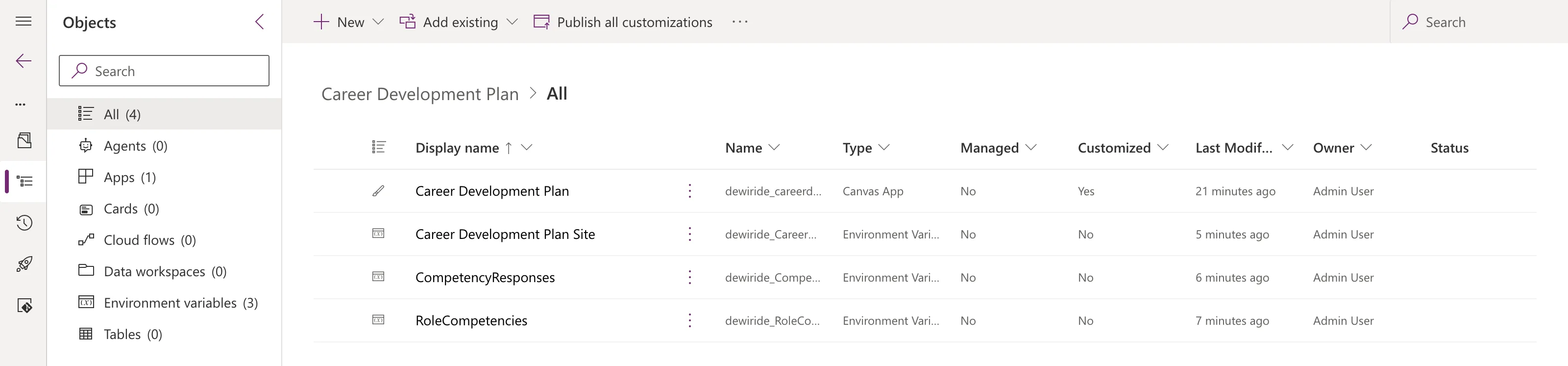
There are no connection references, and that's expected. Microsoft documents that canvas apps use connection references only for connections that are shared implicitly, and SharePoint and Office 365 Users aren't: each person signs in with their own account. The first time someone opens the app, Power Apps asks them to allow it to use their own connections. Part 7 shows that.
To see the app's license, go to Apps in Power Apps, select the app, and open Details:
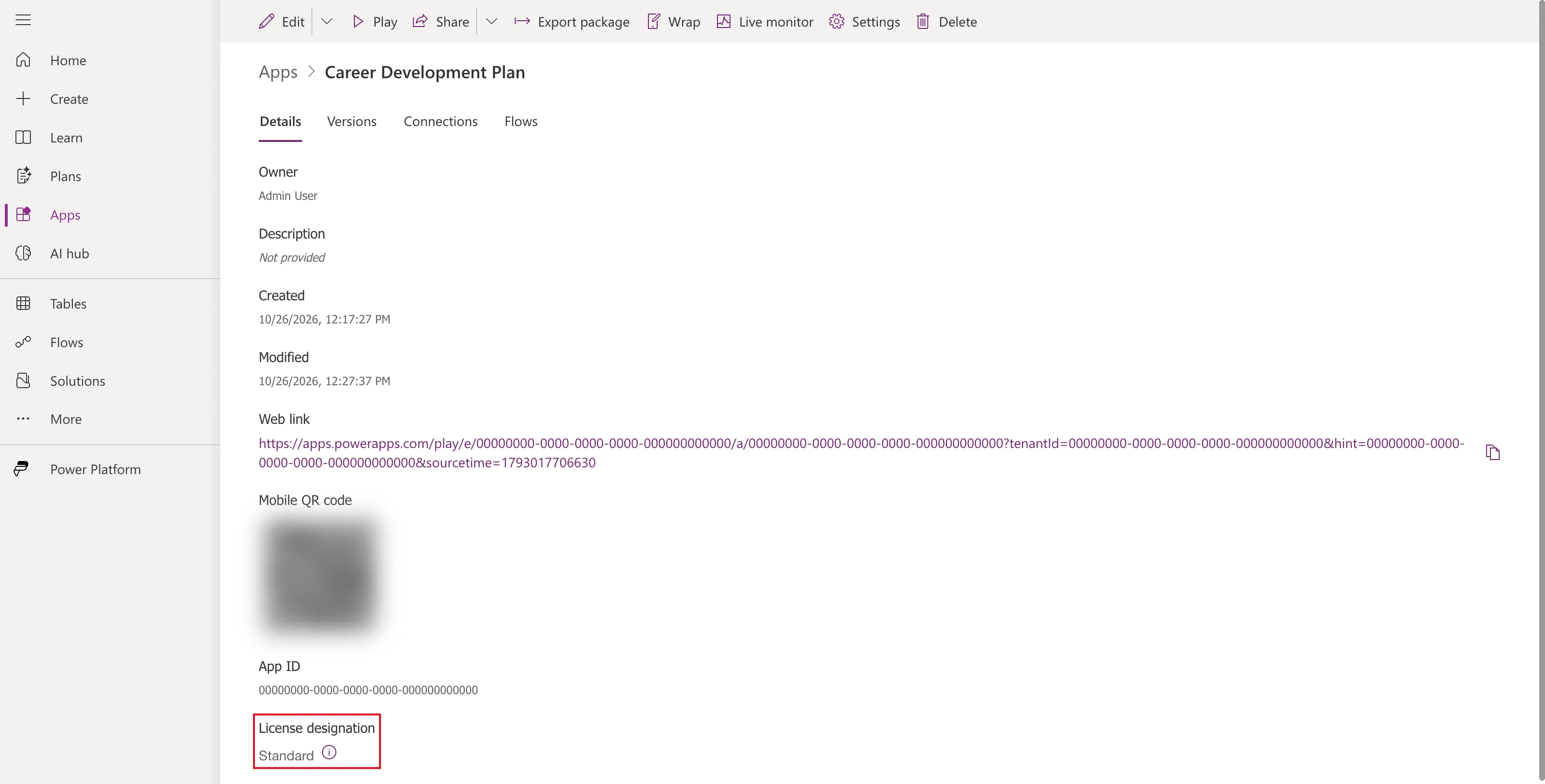
License designation is Standard: the app uses only standard connectors. Anyone with a Power Apps for Office 365 plan can run it, and that plan comes with Microsoft 365 plans such as E5.
Common Mistakes
| Mistake | What happens | Do this instead |
|---|---|---|
| Naming the list variables RoleCompetencies List | The data sources become 'RoleCompetencies List' | Name them exactly like the lists |
| Choosing the site on Recent sites | The app ignores the environment variables | Use the Advanced tabs |
| Filling in Default Value | Your site travels in the solution; installers aren't asked | Leave it empty |
| Creating the app from Apps | It isn't in the solution | Create it from the solution |
| Leaving App layout on Fixed | The app zooms instead of using the space | Set it to Responsive |
Troubleshooting
| Symptom | Likely cause | Fix |
|---|---|---|
| Solutions says We couldn't load your data | Your Environment Maker role hasn't arrived | Fixed: "We Couldn't Load Your Data" |
| A yellow bar says commands are unavailable | You're Environment Maker, not System Administrator | Step 2 |
| New connection asks to discard your changes | You typed before creating the connection | Fixed: "Are You Sure You Want to Discard Changes?" |
| The Advanced tab lists no variables | The variables aren't in this environment, or the app isn't in the solution | Create the variables (Step 4) and open the app from the solution |
| A data source has the wrong name | It was added through a variable with a different display name | Rename the variable, remove the data source, and add it again |
FAQ
Why not let Studio create the environment variables automatically?
Studio can, with Automatically create environment variables when adding data sources. Creating them yourself gives you the names you choose, the descriptions, and no surprises in the data source names.
Why are there no connection references in the solution?
Because SharePoint and Office 365 Users connect as the person using the app. Microsoft documents that canvas apps use connection references only for connections shared implicitly. Each user's own connection is created when they first open the app.
Why does Studio say a per user plan will be required?
It attaches that message to these data sources, but the app's License designation is Standard, and that's what decides who can run it. Part 7 runs the app as a demo user who has only a Microsoft 365 license.
Can I change the app layout back later?
Yes, under Settings → Display. The screens in this series are built for Responsive, so they'd need rework for Fixed.
What's in the solution so far?
The canvas app and three environment variables. The SharePoint site and lists aren't in it: they live in SharePoint, and Part 11 builds a setup flow that creates them for buyers.
Conclusion
The Default environment now has Dataverse, and you're its System Administrator. The Career Development Plan solution, from your own publisher, holds:
- a site variable and two list variables, named like the lists;
- a responsive tablet canvas app, with formula-level error management on;
- three data sources in the app: Office365Users, RoleCompetencies and CompetencyResponses, the lists coming through the variables.
The app's license designation is Standard.
← Previous: Part 2: Create the SharePoint Site and Lists
Next → Part 4: Build the Home Screen. You'll turn on modern controls and a theme, write the app's named formulas for the signed-in person, their manager and their direct reports, and build the first screen.
Additional Resources
- How to Add a Dataverse Database to the Default Power Platform Environment
- How to Make Yourself System Administrator of a Power Platform Environment
- How to Create a Solution and Publisher in Power Apps
- How to Create Environment Variables for a SharePoint Site and List in Power Apps
- How to Create a Canvas App Inside a Solution in Power Apps
- Use data source environment variables in canvas apps: the Advanced tab and how canvas apps use the variables.
- Use a connection reference in a solution: when canvas apps use connection references.
- How to check license designation for an app: Standard and Premium apps.
- Change screen size and orientation of canvas apps: the display settings, described as Scale to fit.
- Error handling: formula-level error management.
