Build a Career Development Plan App in Power Apps — Part 2: Create the SharePoint Site and Lists

Every screen of the Career Development Plan app reads from or writes to two SharePoint lists. This part builds them, and the site they live on, column by column and setting by setting, exactly as the app will expect them.
This is Part 2 of a 14-part series.
- Part 1: Plan the App and Set Up the Demo Organization
- Part 2: Create the SharePoint Site and Lists (you are here)
- Part 3: Create the Solution, Environment Variables and Canvas App (coming soon)
- Part 4: Build the Home Screen (coming soon)
- Part 5: Build the My Plan Screen (coming soon)
- Part 6: Build the Response Screen (coming soon)
- Part 7: Share the App and Build the My Team Screens (coming soon)
- Part 8: Build the Review Screen for Manager Approvals (coming soon)
- Part 9: Let Managers Manage Competencies (coming soon)
- Part 10: Test Every Role, Joiners and Leavers (coming soon)
- Part 11: Build a Setup Flow That Creates the SharePoint Lists (coming soon)
- Part 12: Run the Solution Checker and Export the Solutions (coming soon)
- Part 13: Install the App in a New Environment (coming soon)
- Part 14: Recap, Production Checklist and Next Steps (coming soon)
Part 1 planned the app and set up the demo team. This part creates the app's storage: a dedicated SharePoint site, access for the app's users, and the two lists with every column, setting and index the app relies on. Each generic task has its own short guide. This part gives you the exact values, and explains why each one is what it is.
What You'll Set Up
- A communication site, Career Development Plan, that exists only to hold the app's data.
- Contribute access for the Career Development Plan Users group: enough to add and edit items, not enough to change the lists.
- RoleCompetencies: one row per job title and competency, such as Sales Engineer – Customer skill – Intermediate.
- CompetencyResponses: one row per person, competency and level, holding what they wrote and their manager's review.
- Indexes on the two columns every query of the app starts with.
- Eight competencies for the demo team's job titles.
Prerequisites
- Part 1 completed: the demo team, with job titles and managers, and the Career Development Plan Users group.
- The SharePoint guides this part relies on. Each step below says which one to follow and gives the values to use:
- An account that can create SharePoint sites, such as the admin account from Part 1. As the site's creator, you become its owner.
Step 1: Create the Site
Follow How to Create a SharePoint Communication Site with these values:
| Setting | Value |
|---|---|
| Site type | Communication site |
| Template | Blank |
| Site name | Career Development Plan |
| Site description | Lists for the Career Development Plan app: competencies by job title and employee responses. |
| Site address | CareerDevelopmentPlan |
| Language | English |
| Time zone | Your organization's. This series uses (UTC) Coordinated Universal Time |

A dedicated site keeps the app's data apart from everything else, with permissions that are only about the app. The site's address goes into the app's settings in Part 3, so note it down: https://<your-organization>.sharepoint.com/sites/CareerDevelopmentPlan.
Step 2: Give the App's Users Access
Follow How to Give a Security Group Access to a SharePoint Site:
| Setting | Value |
|---|---|
| Group | Career Development Plan Users |
| Permission level | Contribute |
| Send an email invitation | Cleared |
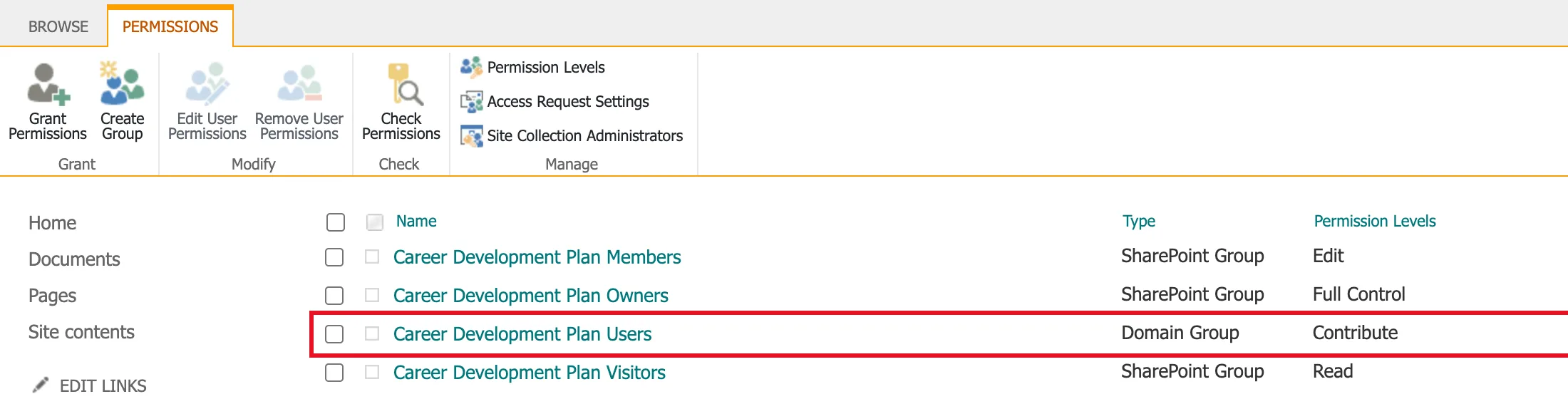
A canvas app connects to SharePoint as the person using it, so every user needs permission on the lists. Contribute lets them add and update items, which is all the app does. It doesn't let them create or delete lists, or change columns. The site's Members group has Edit, which would. Part 7 shares the app itself with the same group.
Step 3: Create the RoleCompetencies List
Follow How to Create a List and Add Columns in SharePoint Online. Name the list RoleCompetencies and give it these columns, in this order:
| Column | Type | Required | Settings | Description |
|---|---|---|---|---|
| Competency | Single line of text | Yes | — | The name of the competency, such as Customer skill or Leadership. |
| JobTitle | Single line of text | Yes | Indexed in Step 6 | The job title this competency is for. Must match the job title in Microsoft 365 exactly. |
| Level | Choice | Yes | Choices Beginner, Intermediate, Advanced, Expert; no default; Can add values manually off; one selection | The level a person in this job title is expected to reach. |
| IsActive | Yes/No | Yes | Default Yes | Yes: part of the plan. No: removed from the plan (the row is kept for history). |
Then hide the built-in Title column from both the view and the item form, as the guide's "Replace the Title column" step shows. The app doesn't use it.
Why the list looks like this:
- Names without spaces. Each column's internal name then matches its display name exactly. The app's formulas, Part 11's setup flow and anything else that reads the list can use the same names. The list names,
RoleCompetenciesandCompetencyResponses, follow Microsoft's Power Apps coding guidelines, which use PascalCase for data sources. - Competency instead of a renamed Title. Renaming Title only changes the name SharePoint shows; the column's own name stays Title. A real Competency column is a real name everywhere.
- JobTitle is plain text. The app compares it with the job title Microsoft 365 holds for each person, letter for letter. Part 1 explains why the job title decides the plan.
- Level is a Choice column. The four levels are defined once, in the column, and Part 4 reads them straight from it. To add a level later, add a choice here.
- IsActive instead of deleting. When a manager removes a competency in the app, the app sets IsActive to No. People's responses still point at the row, its history stays in version history, and the change can be undone.
- No uniqueness rule in SharePoint. A competency should appear once per job title, but SharePoint's Enforce unique values works on one column at a time, not on a pair. The app checks for duplicates before saving, in Part 9.
Step 4: Create the CompetencyResponses List
Create a second list, CompetencyResponses, the same way, with these columns:
| Column | Type | Required | Settings | Description |
|---|---|---|---|---|
| Competency | Single line of text | Yes | — | The competency name, copied from RoleCompetencies when the response is sent. |
| EmployeeId | Single line of text | Yes | Indexed in Step 6 | The employee's Microsoft Entra object ID. The app finds a person's responses with it. |
| EmployeeName | Single line of text | Yes | — | The employee's display name when the response was sent. |
| EmployeeEmail | Single line of text | Yes | — | The employee's email address when the response was sent. |
| JobTitle | Single line of text | Yes | — | The employee's job title when the response was sent. |
| RoleCompetencyId | Number | Yes | 0 decimal places; thousands separator off | The ID of the RoleCompetencies row this response is for. |
| Level | Single line of text | Yes | — | The expected level when the response was sent. |
| Response | Multiple lines of text | Yes | Enhanced rich text off | What the employee has done to show this competency at this level. |
| Status | Choice | Yes | Choices Pending, Approved, Declined; default Pending | Pending until the manager approves or declines the response. |
| ManagerComment | Multiple lines of text | No | Enhanced rich text off | The manager's comment. The app asks for one when a response is declined. |
| SubmittedOn | Date and time | Yes | Include Time on | When the employee last sent the response. |
| ReviewedOn | Date and time | No | Include Time on | When the manager approved or declined the response. |
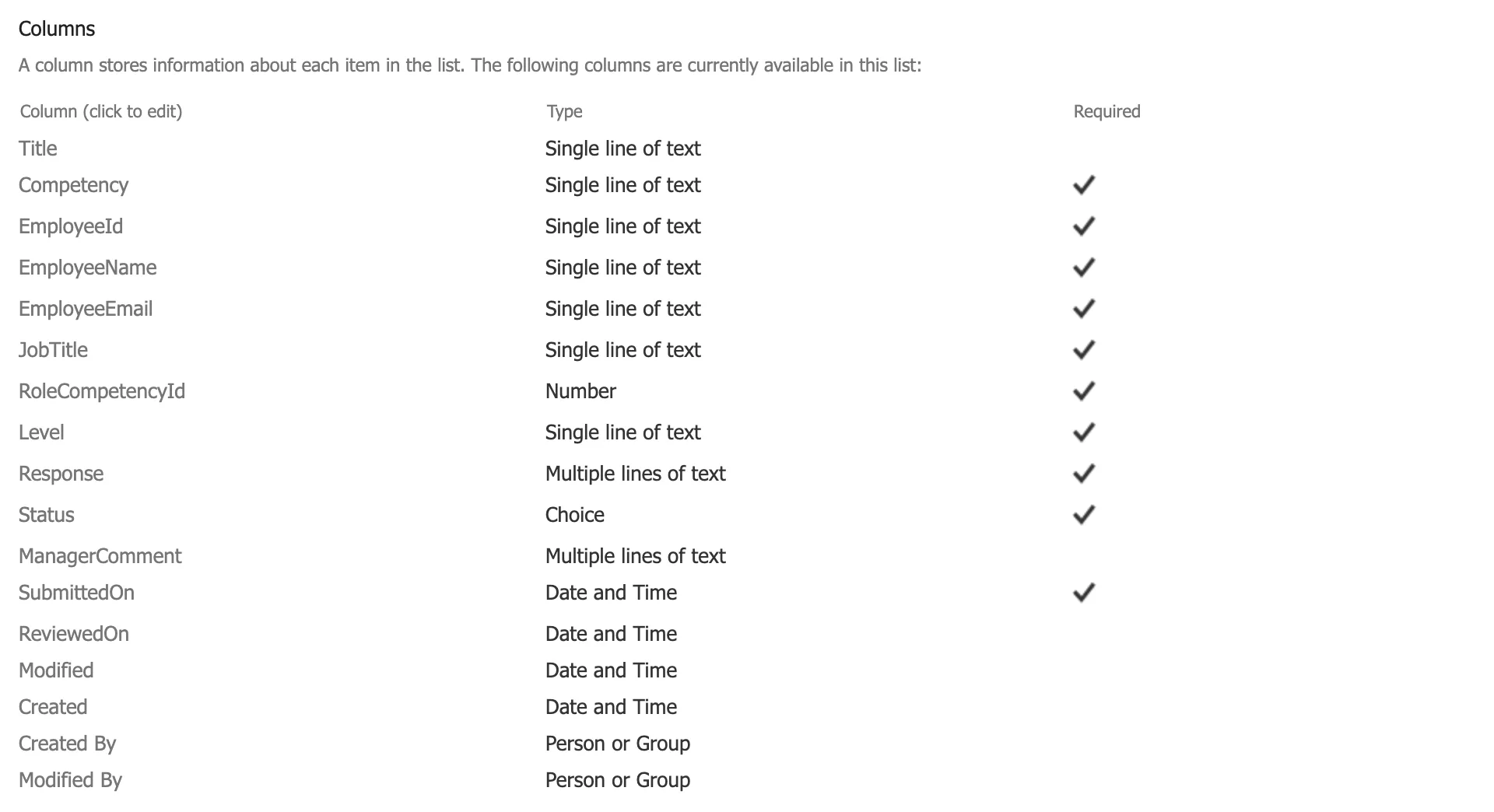
Hide Title here too, from the view and from the form. When you're done, the list's Columns section in List settings looks like this:
Why the list looks like this:
- One row per person, competency and level. Together, EmployeeId, RoleCompetencyId and Level identify a response. If a manager raises the expected level, the person starts a fresh response for the new level, and the old approval stays as history.
- EmployeeId instead of a Person column. The Office 365 Users connector gives the app each person's Microsoft Entra object ID, which never changes, even when a name or email address does. A plain text column holding it is quick to filter on. A Person column is a complex type in Power Apps: Microsoft documents only its Email and DisplayName parts as delegable to SharePoint.
- Copies of the name, job title, competency and level. These record what was true when the response was sent. If a competency is renamed or removed, or the person changes job, the response still says what it was about.
- RoleCompetencyId is a Number, not a Lookup. A lookup column is another complex type, and Microsoft notes that indexing one doesn't stop a list from hitting the list view threshold. A number is simple to store and filter on.
- No manager column. The person who reviews a response is the employee's current manager in Microsoft 365, looked up live. When someone gets a new manager, their pending responses move to the new manager without any change to the data.
- Plain text for Response and ManagerComment. With enhanced rich text on, the column would store HTML. The app reads and writes plain paragraphs.
- Status starts at Pending. That's the default, so every new response starts out waiting for review. ReviewedOn stays empty until the manager acts.
Step 5: Change Both Lists' Settings
Follow How to Turn Off Attachments and Hide a SharePoint List from Search for each list:
| Setting | RoleCompetencies | CompetencyResponses |
|---|---|---|
| Description | Competencies and expected levels for each job title. Used by the Career Development Plan app. | Employees' responses to their competencies, and their managers' reviews. Used by the Career Development Plan app. |
| Version history | On, 50 versions (the default) | On, 50 versions (the default) |
| Attachments | Disabled | Disabled |
| Allow items to appear in search results | Yes (the default) | No |
The app never uses attachments, so neither list accepts them. Search is the one difference between the two lists. Competencies aren't personal, so they can stay searchable. Responses are people's own words about their work, so they stay out of search, even for colleagues who have access to the list. That doesn't make them private. As Part 1 explains, SharePoint permissions are the real boundary, and anyone with Contribute on the site can still open the list.
Step 6: Index the Columns the App Filters On
Follow How to Index a Column in a SharePoint List to add one index to each list:
| List | Indexed column |
|---|---|
| RoleCompetencies | JobTitle |
| CompetencyResponses | EmployeeId |
These are the columns every query in the app starts with:
| Where in the app | What it asks SharePoint for | First filter |
|---|---|---|
| My Plan (Part 5) | The competencies for my job title | JobTitle |
| My Plan and Response (Parts 5–6) | My responses | EmployeeId |
| My Team and Team Member (Part 7) | A team member's responses, and how many are pending | EmployeeId |
Power Apps can delegate a filter to SharePoint, which means SharePoint does the filtering and sends back only the matching items. Comparing a column with = is delegable for text, number and Yes/No columns, so these queries qualify. SharePoint, in turn, blocks any query that has to look through more than about 5,000 items, and an index on the first column filtered is what keeps it well under that as the lists grow. The lists are empty or nearly empty now, which is the right time to add the indexes. Part 5 explains delegation properly.
Step 7: Add the First Competencies
Add these eight items to RoleCompetencies with + New, as in the "Add your first item" step of the list guide. IsActive is Yes on every item, by default.
| Competency | JobTitle | Level |
|---|---|---|
| Customer skill | Sales Engineer | Intermediate |
| Leadership | Sales Engineer | Beginner |
| Coaching | Sales Manager | Intermediate |
| Leadership | Sales Manager | Intermediate |
| Pipeline management | Sales Manager | Advanced |
| Leadership | Head of Sales | Advanced |
| Sales strategy | Head of Sales | Expert |
| Stakeholder management | Head of Sales | Advanced |
The first two come straight from the brief. Type each job title exactly as it is in Microsoft 365 (Part 1's table), because the app matches them letter for letter. Managing Director gets no competencies on purpose. The admin account has that title, so Part 5 can show what the app does for someone whose role has no plan yet.
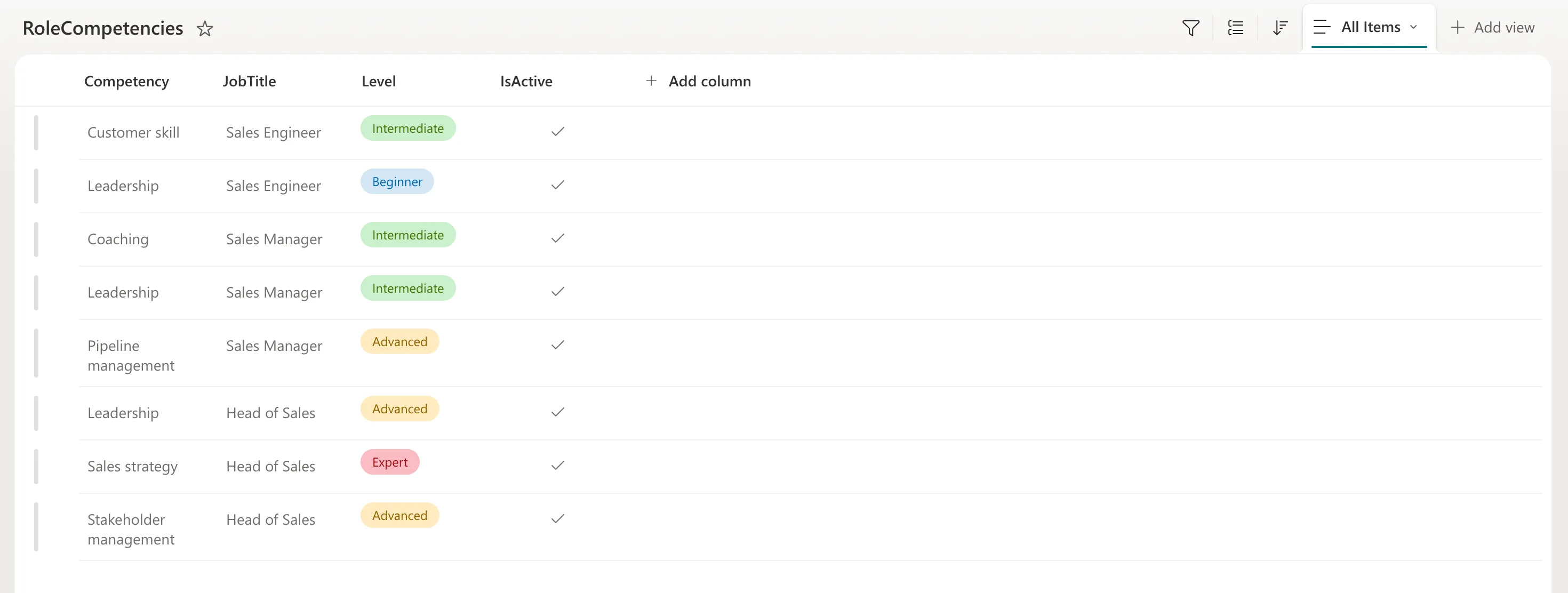
CompetencyResponses stays empty. Only the app writes to it, from Part 6 on.
The Finished Lists
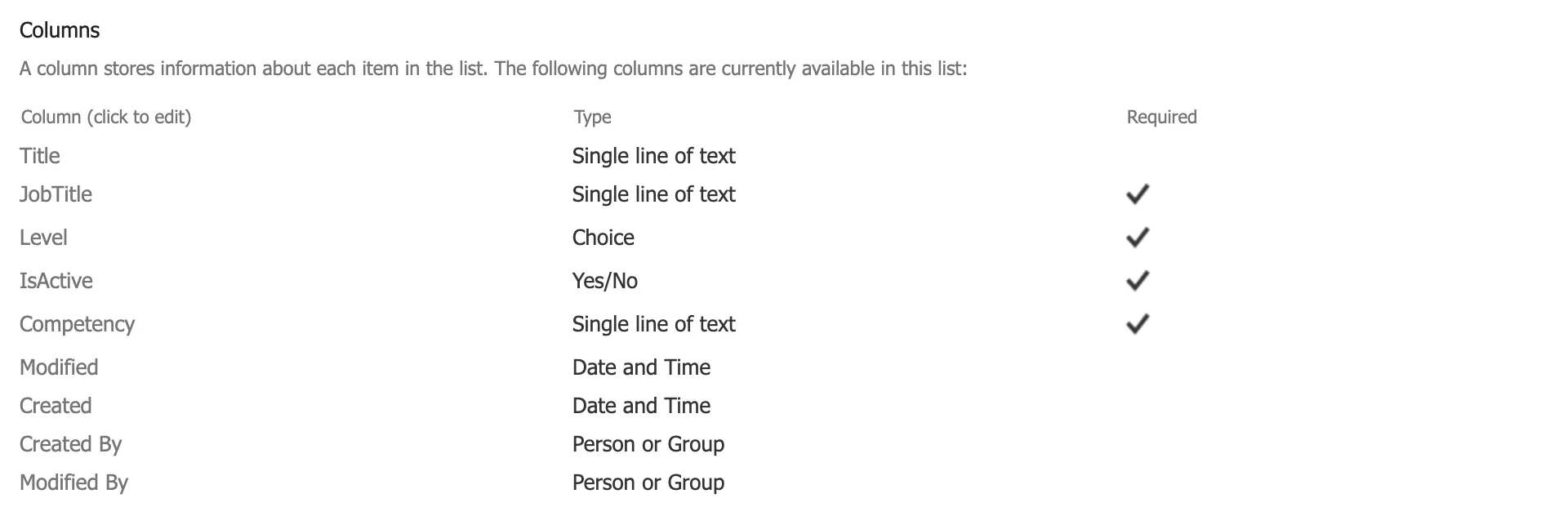
In List settings, the Columns section of RoleCompetencies shows each column's type, with ticks for the required ones. Title is there too, unticked: hidden, not required and unused.
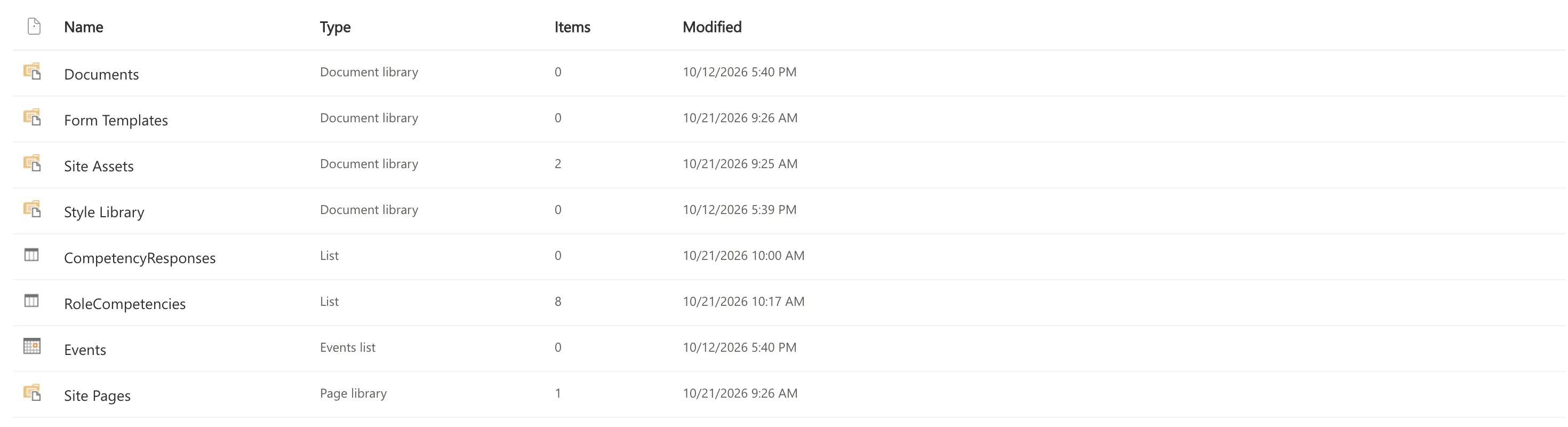
Site contents shows both lists next to the libraries every site starts with: RoleCompetencies with 8 items, and CompetencyResponses with none.
Common Mistakes
| Mistake | What happens | Do this instead |
|---|---|---|
| Renaming Title to Competency | The app and the setup flow would still see a column called Title | Add a Competency column and hide Title |
Creating Job Title with a space | Its internal name is Job_x0020_Title, and formulas get messy | Create every column without spaces |
| Giving the group the site's Members permission | Users can delete the lists or their columns | Grant Contribute directly |
Typing Sales engineer in RoleCompetencies | Sales Engineers see no plan | Copy job titles exactly from Microsoft 365 |
| Leaving the indexes for later | Past 20,000 items, SharePoint can't add them | Index JobTitle and EmployeeId now |
| Leaving responses searchable | People's responses appear in colleagues' searches | Set CompetencyResponses to stay out of search |
Troubleshooting
| Symptom | Likely cause | Fix |
|---|---|---|
A column's internal name contains _x0020_ | It was created with a space | Create it again without the space and delete the wrong one; internal names can't be changed |
| An item won't save | A required column is empty | Fill in every field marked with an asterisk |
| Title appears in the form | It was only hidden from the view | Hide it with Edit form → Edit columns too |
| The group isn't on the site's Permissions page | The share went to Members, or wasn't saved | Repeat Step 2, choosing Contribute under SHOW OPTIONS |
| Contribute isn't offered | You used Share site | Use Advanced permissions settings → Grant Permissions |
FAQ
Why two lists and not one?
They hold different things. RoleCompetencies is the plan, one row per job title and competency, maintained by managers. CompetencyResponses is what people wrote, one row per person, competency and level. Keeping them apart means a change to the plan never rewrites anyone's response.
Why not use Person and Lookup columns?
Both are complex column types in Power Apps, with extra rules for filtering, and a lookup's index doesn't protect against the list view threshold. Plain text and number columns are simpler, fast to filter on, and easy for a flow to create in Part 11.
Why is there no Manager column?
Because the reviewer should always be the employee's current manager. The app asks Microsoft 365 for it each time, so a change of manager needs no change to the data.
Can people with Contribute change these lists' columns?
No. Adding, changing or deleting columns needs the right to manage lists, which starts at Edit. Contribute only allows working with items.
Can I add another level, such as Master?
Yes: add it as a choice in the Level column. Part 4 reads the levels from this column rather than typing them into the app, so no formula has to change.
Do I have to build these lists by hand in every organization?
No. This part builds them by hand so you see every setting. Part 11 builds a setup flow that creates both lists, exactly like this, on any site.
Conclusion
The app's data now has a home:
- a dedicated site;
- Contribute access for the app's users and nobody else;
- RoleCompetencies, with eight competencies for three job titles;
- an empty CompetencyResponses, ready for the app's first response.
Every column is named without spaces, typed for how the app uses it and described for the next admin. The two columns every query starts with are indexed. Responses stay out of search, and neither list accepts attachments.
← Previous: Part 1: Plan the App and Set Up the Demo Organization
Next → Part 3: Create the Solution, Environment Variables and Canvas App (coming soon). You'll add Dataverse to the Default environment, create the solution and the environment variables that point at this site and these lists, and create the canvas app.
Additional Resources
- How to Create a SharePoint Communication Site
- How to Give a Security Group Access to a SharePoint Site
- How to Create a List and Add Columns in SharePoint Online
- How to Turn Off Attachments and Hide a SharePoint List from Search
- How to Index a Column in a SharePoint List
- Connect to SharePoint from a canvas app: which filters Power Apps can delegate to SharePoint, for each column type.
- Understand delegation in a canvas app: what delegation is and why it matters for growing lists.
- Code readability in the Power Apps coding guidelines: the naming conventions this series follows.
