Build a Career Development Plan App in Power Apps — Part 14: Recap, Production Checklist and Next Steps

Thirteen parts planned, built, packaged and installed the Career Development Plan app. This last part walks through the finished app as an employee and as a manager, then gives you a checklist for running it for real, what it doesn't do, and every guide the series produced.
This is Part 14 of a 14-part series.
- Part 1: Plan the App and Set Up the Demo Organization
- Part 2: Create the SharePoint Site and Lists
- Part 3: Create the Solution, Environment Variables and Canvas App
- Part 4: Build the Home Screen
- Part 5: Build the My Plan Screen
- Part 6: Build the Response Screen
- Part 7: Share the App and Build the My Team Screens
- Part 8: Build the Review Screen for Manager Approvals
- Part 9: Let Managers Manage Competencies
- Part 10: Test Every Role, Joiners and Leavers
- Part 11: Build a Setup Flow That Creates the SharePoint Lists
- Part 12: Run the Solution Checker and Export the Solutions
- Part 13: Install the App in a New Environment
- Part 14: Recap, Production Checklist and Next Steps (you are here)
Nothing new is built in this part. The tour below was recorded in the development environment from Part 3, with the demo organization from Part 1. Aisha Khan, a Sales Engineer, sends a response, and her manager, Daniel Brooks, approves it.
Get the Source Code
Get the complete source code of Career Development Plan for Power Apps on Dewiride Store →
Use it to install the finished app right away, or to compare it with yours. Every part of the series stays free.
What You Built
| Piece | What it is |
|---|---|
| Career Development Plan app | A canvas app with seven screens, for employees and managers, that needs only Microsoft 365 licenses |
RoleCompetencies and CompetencyResponses | Two SharePoint lists on a dedicated site: what each job title needs, and everyone's responses with their review status |
| Career Development Plan solution | The app and three environment variables for the site and the two lists |
| Career Development Plan Setup solution | A flow that creates both lists on any SharePoint site, and its connection reference |
| Release files | Both solutions, managed and unmanaged, at version 1.0.0.0, without this tenant's environment variable values |
| A tested install | The release installed in a new environment on a new site, and used by a manager and an employee |
A Tour of the Finished App
Aisha, an Employee
When Aisha opens the app, Home greets her and shows her job title and her manager, both read from Microsoft 365 as the app opens. There's only a My plan button, because nobody reports to her:

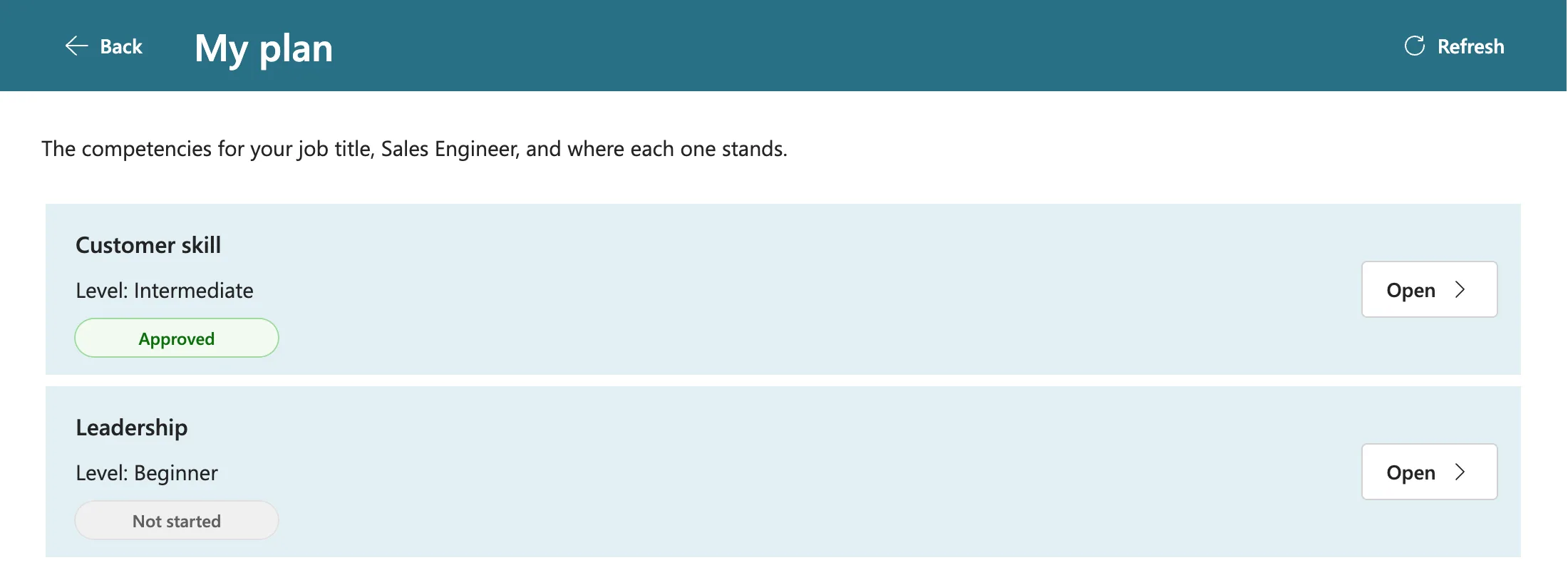
My plan lists the competencies for her job title and where each one stands. Customer skill was approved in Part 10; Leadership hasn't been started:
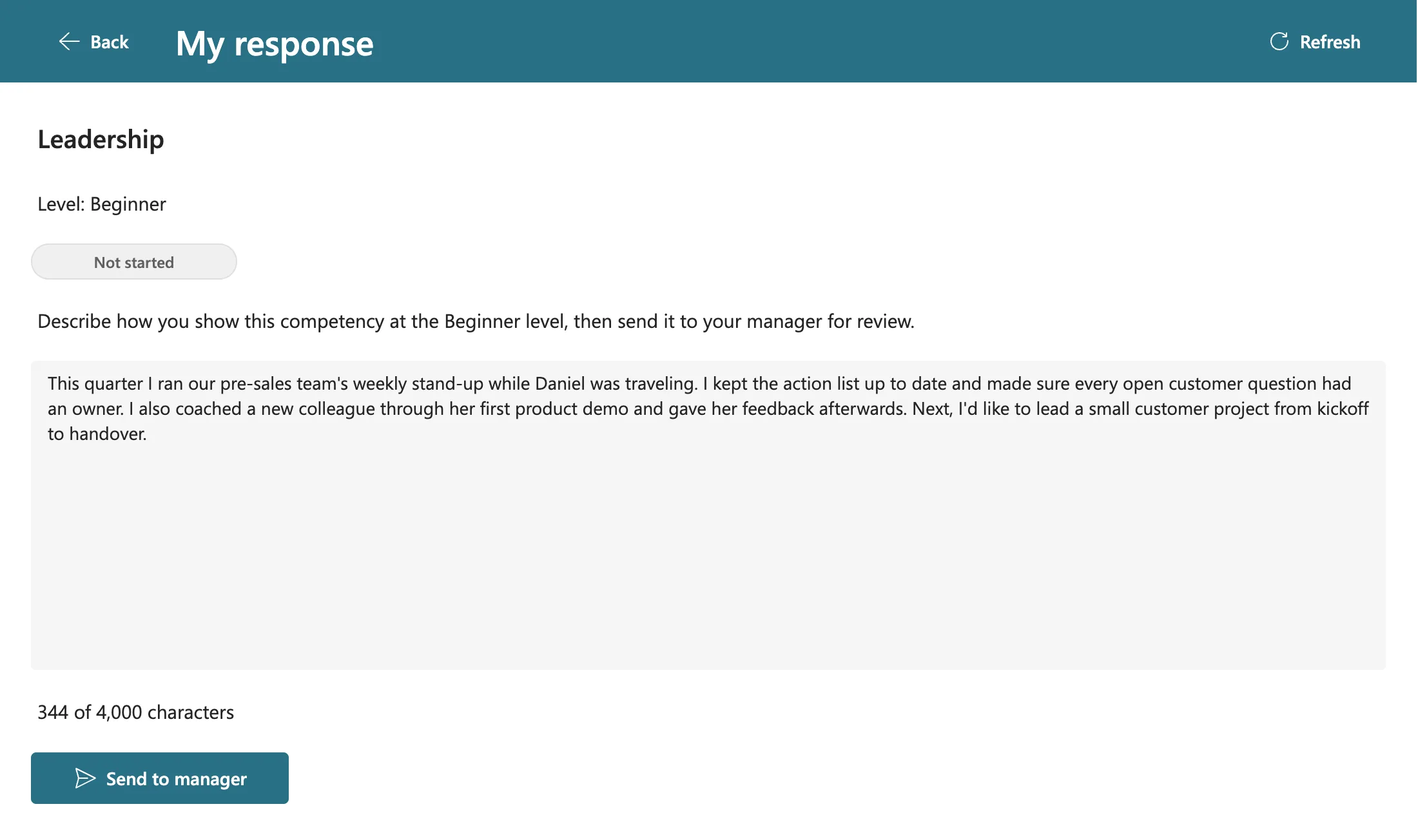
She opens Leadership, describes what she's done at that level, and selects Send to manager. The counter keeps her within 4,000 characters:
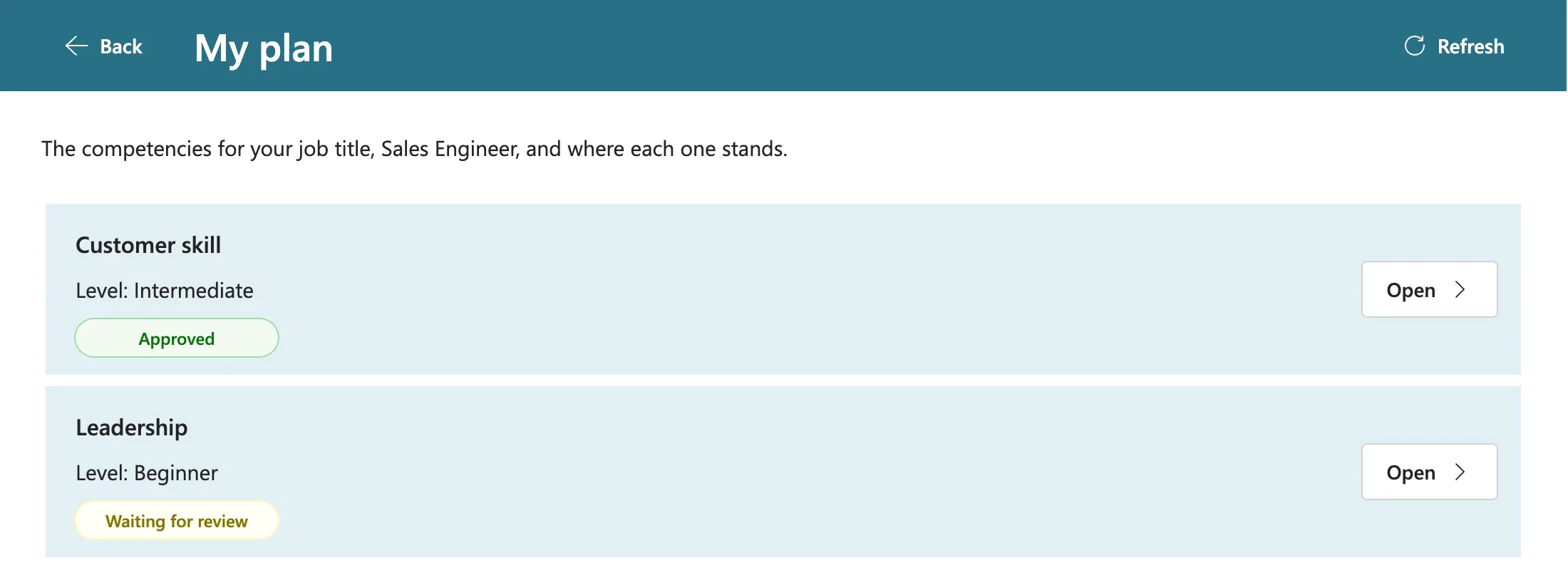
The app confirms Your response was sent to your manager. and takes her back to her plan, where Leadership is now Waiting for review:
Daniel, Her Manager
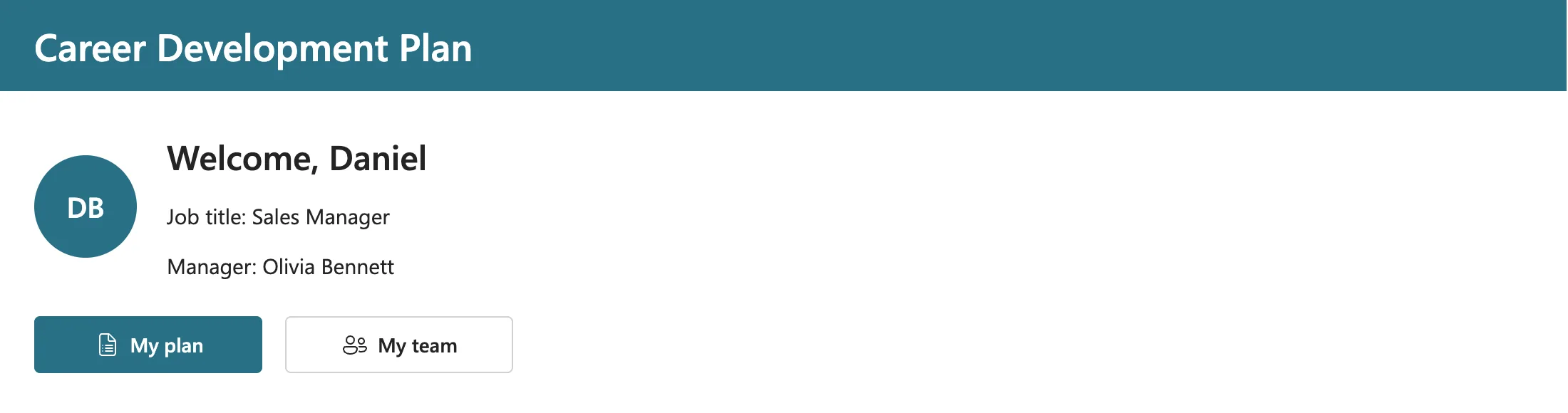
Daniel is a Sales Manager with people reporting to him, so his Home has My team as well:
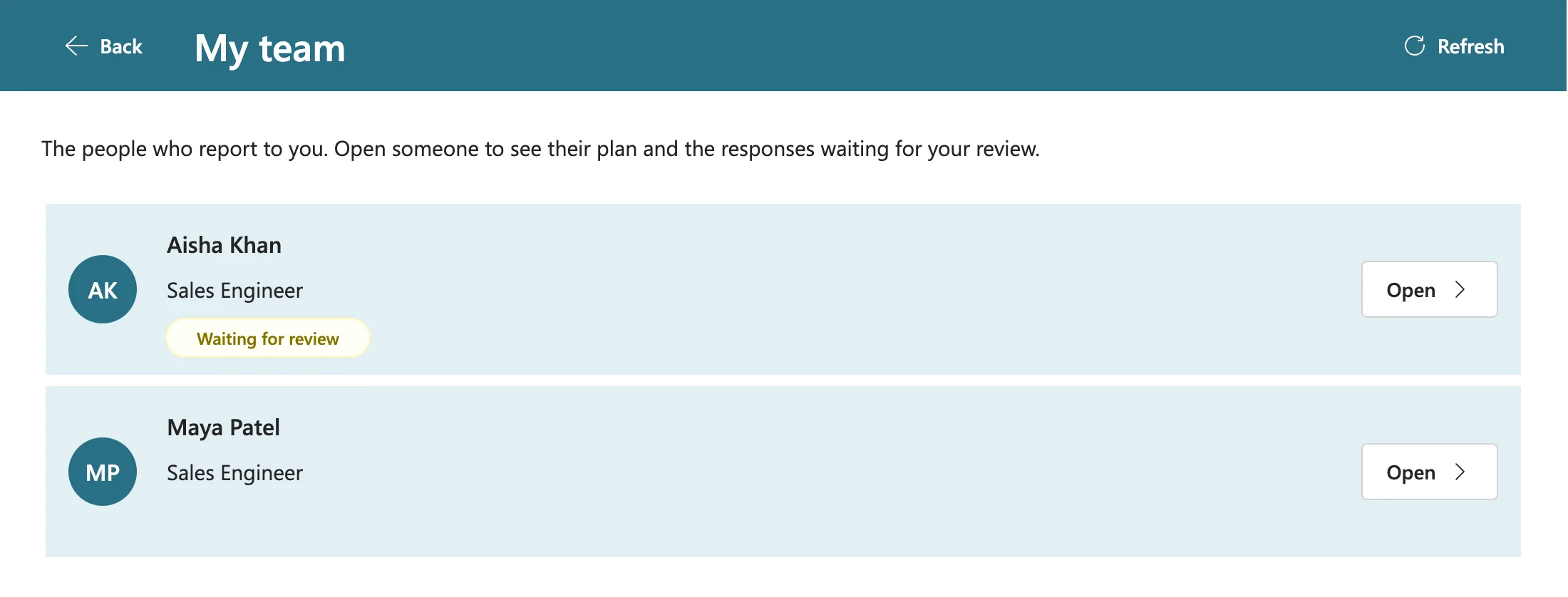
My team lists his direct reports from Microsoft 365, and Aisha's row says Waiting for review. Leo Martin, who left in Part 10, isn't listed: his account is blocked, and the app leaves out disabled accounts:
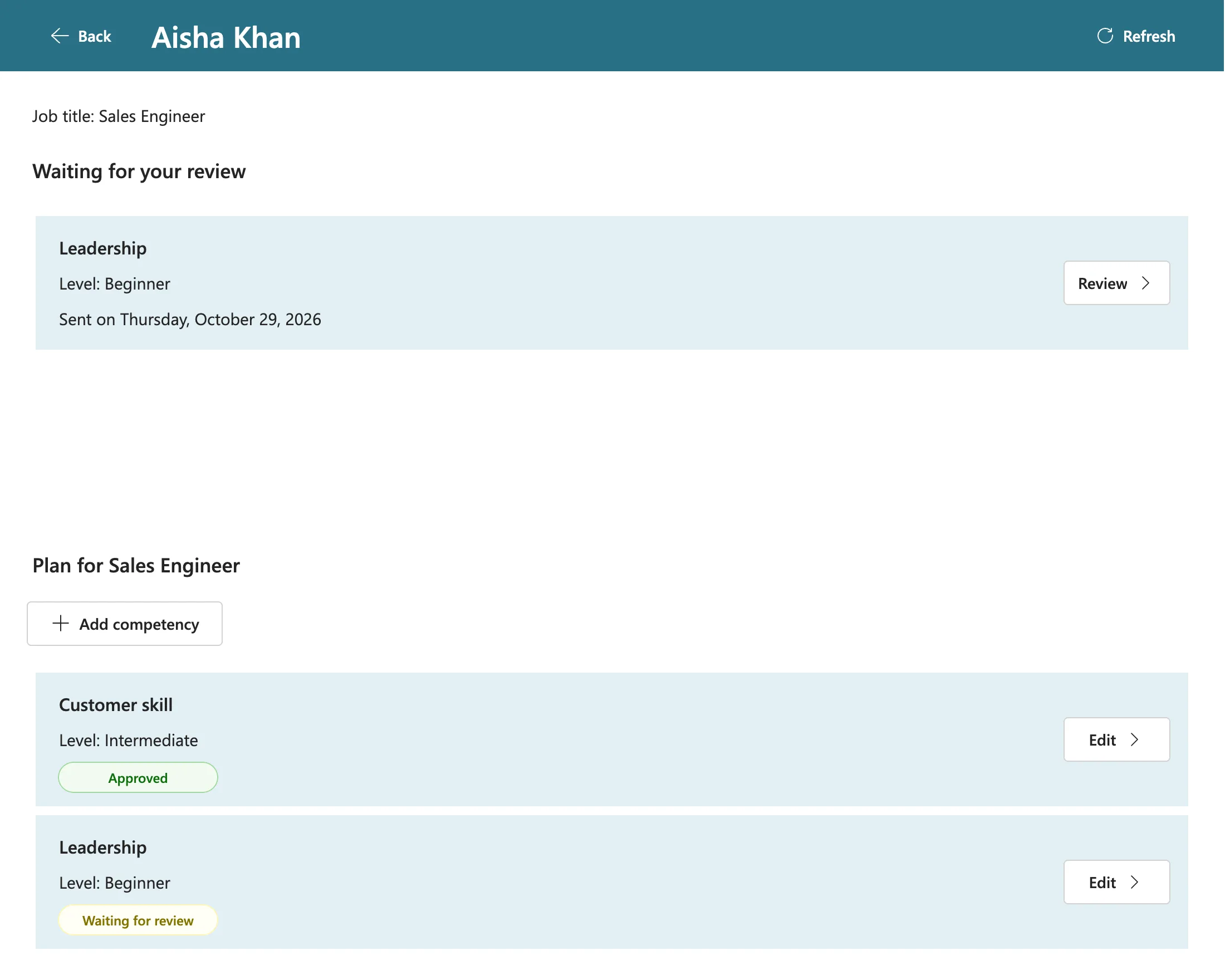
Opening Aisha shows what's waiting for his review, then her whole plan. Add competency and Edit change the plan for everyone with her job title:
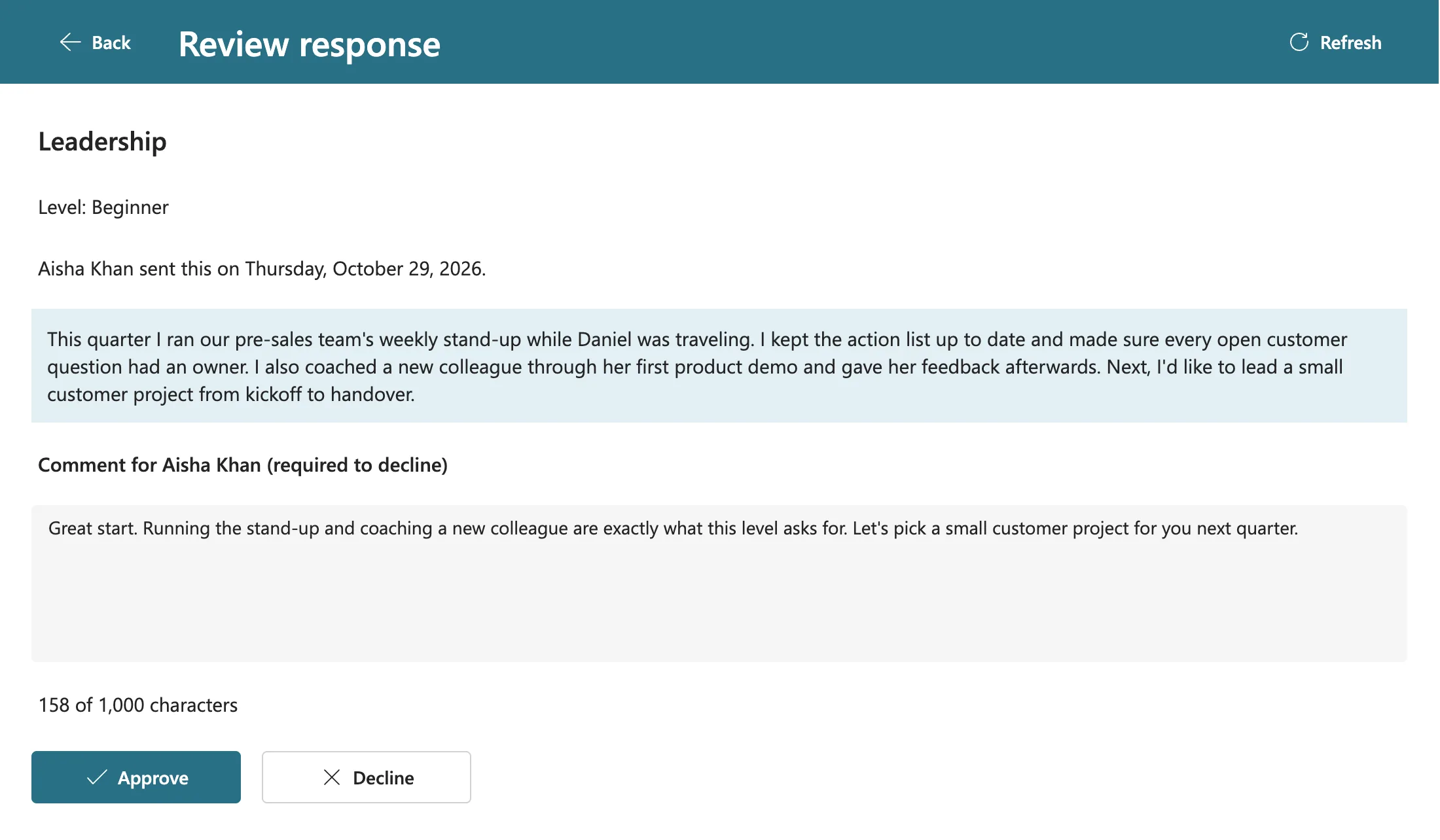
Review opens her response. Daniel can approve it, or decline it, and a decline needs a comment so Aisha knows what to change:
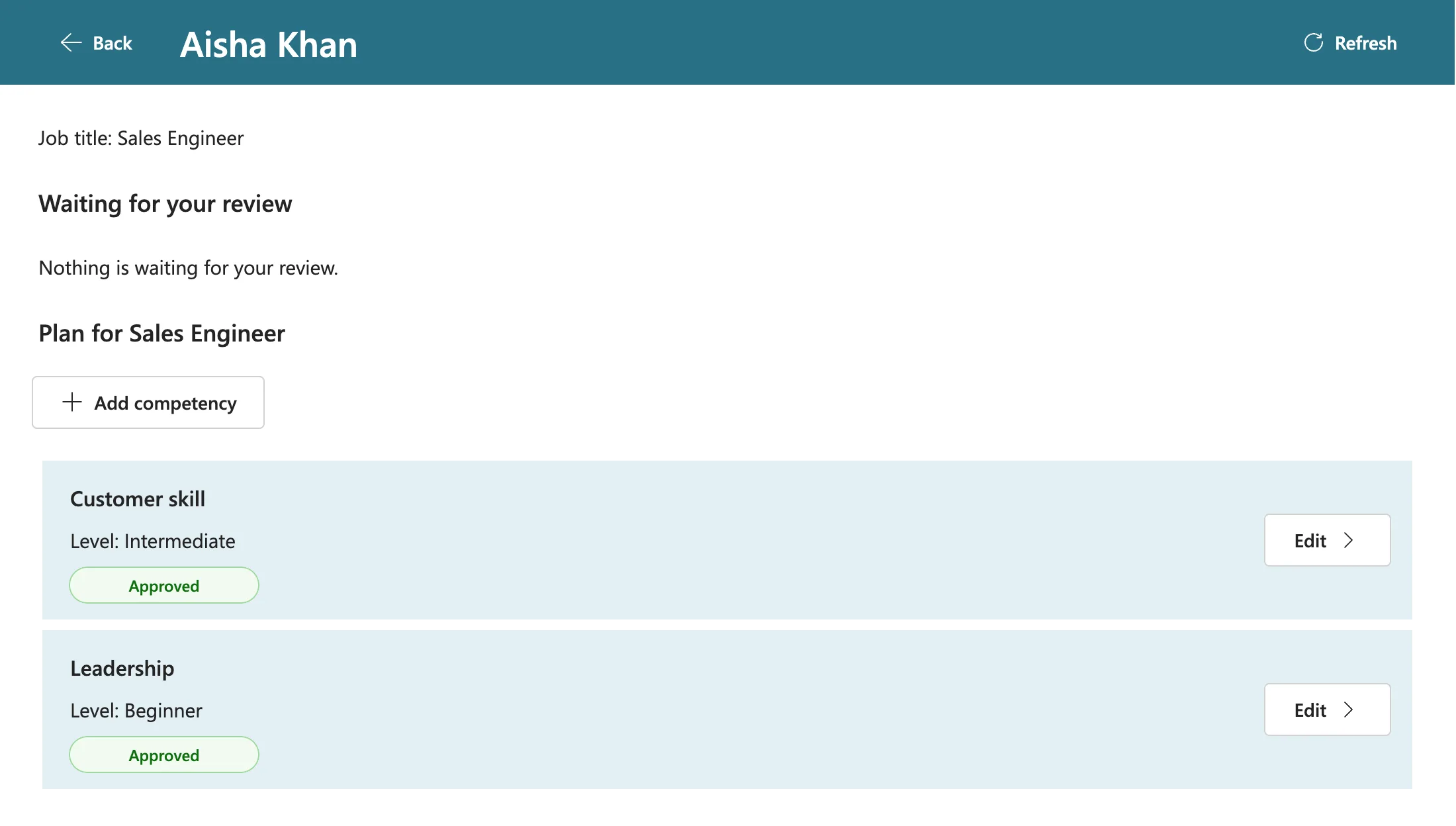
He approves it with a comment. The app confirms You approved Aisha Khan's response., nothing is left waiting, and both competencies are approved:
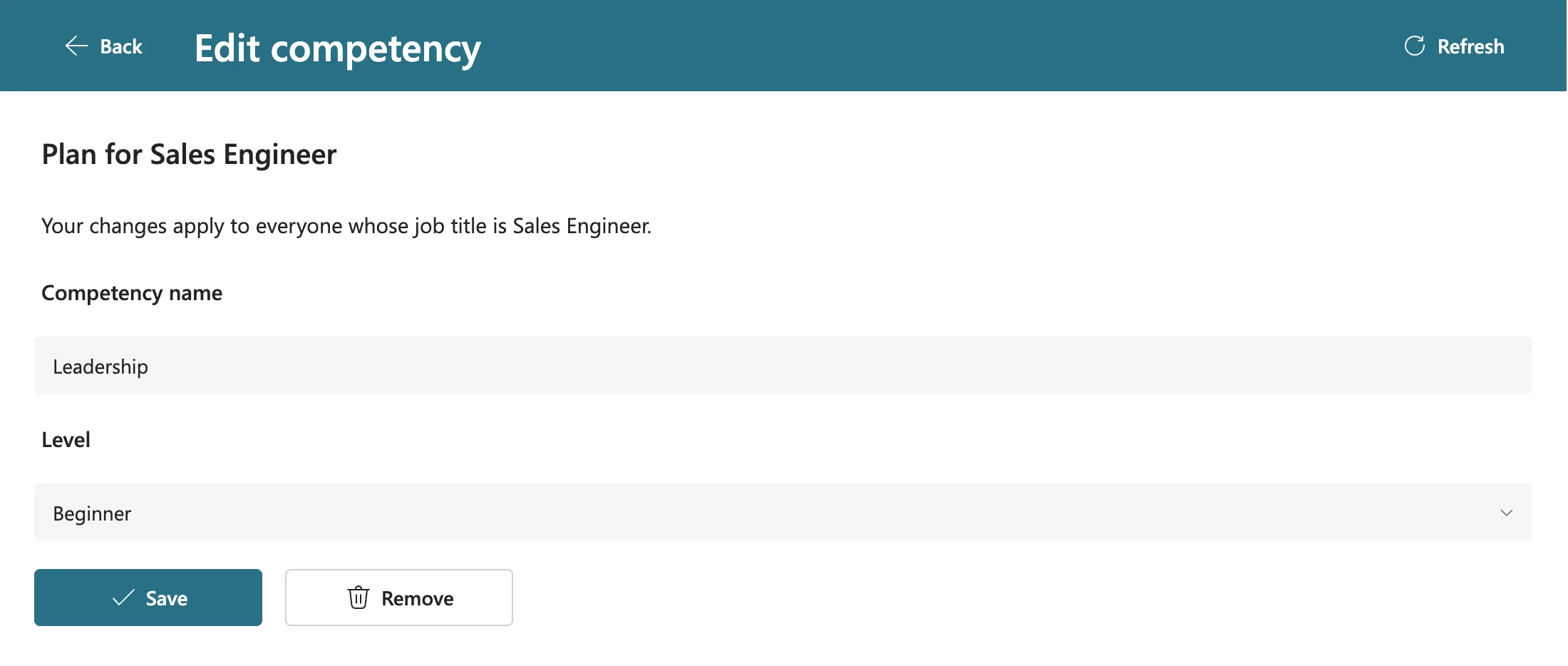
Edit on a competency opens the screen where a manager changes its level or removes it, with a reminder of who the change affects. I only looked; nothing was saved:
Aisha Sees the Decision
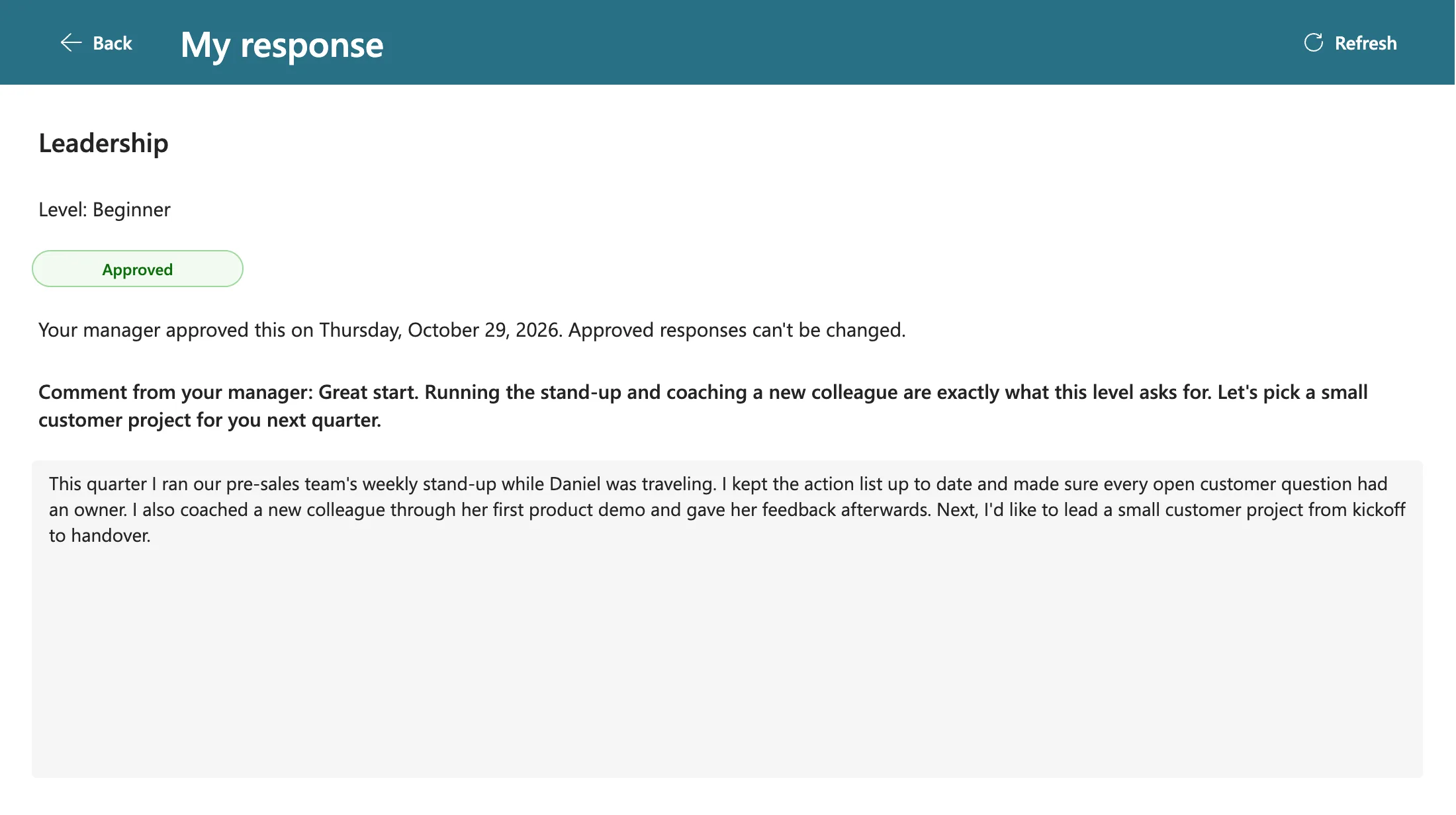
Aisha's app was still open on My plan, so she selected Refresh to see Daniel's decision: an open app doesn't notice other people's changes by itself (Part 8 explains why). Leadership said Approved, and opening it showed her response as read-only, with Daniel's comment above it:
On a Phone
This is the same app in a browser window the size of a small phone, 360 by 800 pixels. The header buttons shrink to icons, each row's button becomes an arrow, and the text wraps. Parts 8 and 9 built this layout:
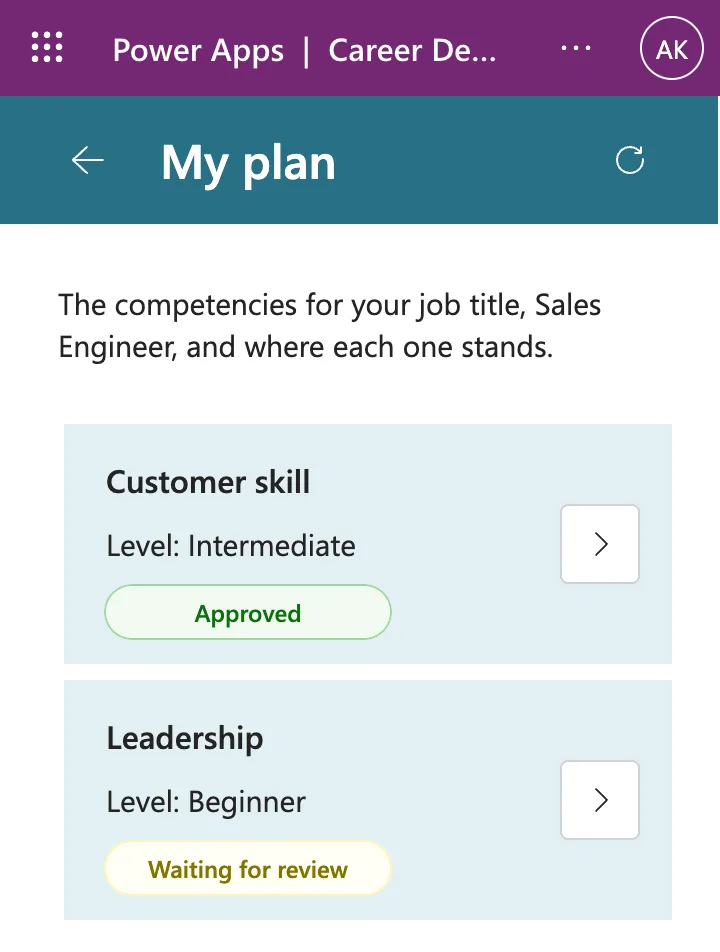
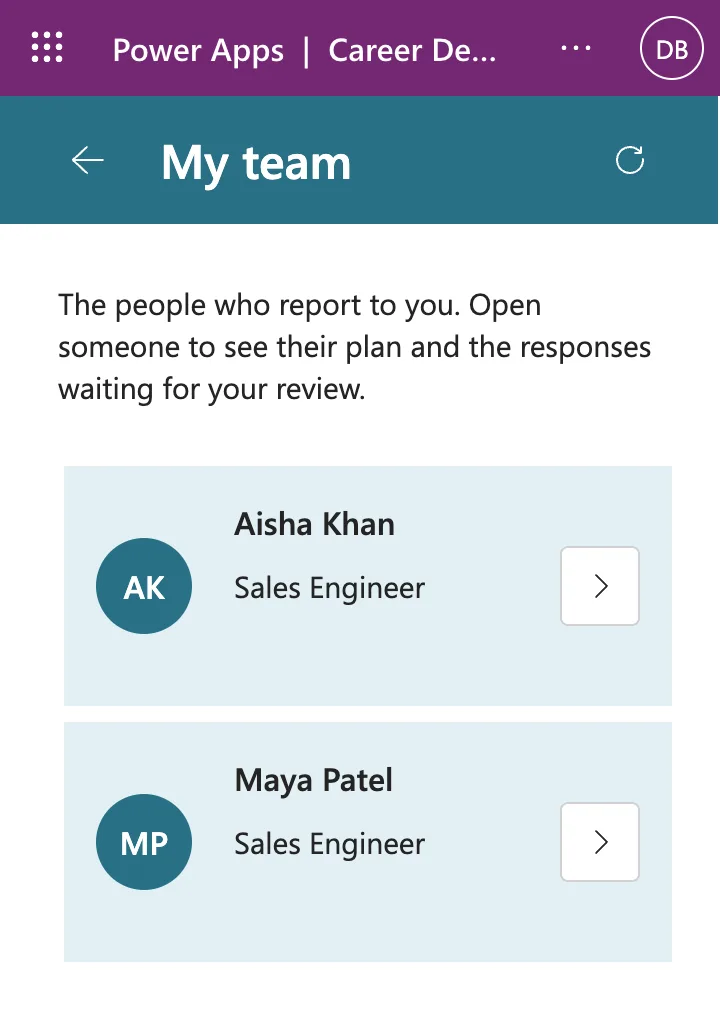
Every screen works the same way on a phone; only the layout changes.
The Series, Part by Part
| Part | What it did |
|---|---|
| 1: Plan the App | Turned the brief into a design that needs no premium licenses, and set up five people with job titles, managers and a security group |
| 2: SharePoint Site and Lists | Created the site and both lists column by column, indexed the filtered columns, gave the group Contribute, and added the first competencies |
| 3: Solution and Canvas App | Added Dataverse to the Default environment, created the publisher, the solution, three environment variables and the app |
| 4: Home Screen | Turned on modern controls and a theme, and read the signed-in person, their manager and their direct reports with named formulas |
| 5: My Plan Screen | Showed the plan for the person's job title with a status for each competency, using only delegable queries |
| 6: Response Screen | Wrote, updated and resent responses with one Patch, with error handling and a read-only approved state |
| 7: Share the App | Published and shared the app, opened it as a manager for the first time, and built My team and the Team Member screen |
| 8: Review Screen | Let managers approve or decline with a comment, and added Refresh to every data screen |
| 9: Manage Competencies | Let managers add, change or remove competencies, with a duplicate check, an accessible confirmation and a phone layout |
| 10: Test Every Role | Tested every role, a decline and resend, a promotion, a leaver and a joiner, with no change to the app |
| 11: Setup Flow | Built a flow that creates both lists on any site with SharePoint's REST API, safe to run again |
| 12: Checker and Export | Ran the solution checker, set version 1.0.0.0, exported four zips and took this tenant's values out with the Power Platform CLI |
| 13: Install | Installed the release in a new trial environment on a new site, the way a buyer would, and used it |
| 14: Recap | This part |
Production Checklist
The demo ran in a test tenant. To run the app for real, work through this list. Each item links to the part or guide that did it, or to Microsoft's documentation where the series didn't.
Before You Install
- Choose the environment. Microsoft describes the Default environment as designed for personal productivity, and recommends moving important apps out of it with solutions (Manage the default environment). For production, use a production environment with Dataverse. Creating one needs at least 1 GB of available Dataverse capacity (Create an environment with a database), and the Default environment's included storage doesn't count toward it (Environments overview). Microsoft's article moves apps into managed environments, which Part 1 avoids because, from February 2027, they need premium licenses for every user. A trial environment is only for testing: it's deleted after 30 days (How to Create a Free Trial Environment).
- Check your data policies. The app uses two connectors, SharePoint and Office 365 Users. If your admins use data policies, both must be in the same group, because connectors in different groups can't be used together in one app (Connector classification).
- Check licenses. Everyone needs a Microsoft 365 license that includes Power Apps for Office 365, because the app's license designation is Standard (How to Check a Canvas App's License Designation, How to See a User's Licenses and Apps).
- Check job titles and managers in Microsoft 365. The plan comes from the job title and the review goes to the manager, so a job title spelled differently from the one in
RoleCompetenciesgets an empty plan (How to Set a User's Manager and Job Title). - Create a security group for everyone who uses the app (How to Create a Security Group).
Install
Part 13 did these in this order:
- Create the site and give the group Contribute (How to Create a SharePoint Communication Site, How to Give a Security Group Access to a SharePoint Site).
- Import the managed Setup solution and run its flow with the site's address (How to Import a Solution, How to Run an Instant Cloud Flow).
- Import the managed app solution and pick the site and both lists (How to Set Environment Variable Values When Importing a Solution).
- Outside the Default environment, give the group Basic User with a group team, so the app can read its environment variables (How to Assign a Dataverse Security Role to a Microsoft Entra Group). The role needs a second Save (Fixed: Security Role Isn't Assigned).
- Share the app with the group (How to Share a Canvas App with a Security Group).
- In a trial environment, add people to the environment before you send the link (How to Add a User to a Power Platform Environment).
- Send the link. Everyone allows the app's connections the first time (How to Open a Shared Canvas App for the First Time).
Security
- Decide whether SharePoint permissions are enough. The app shows people only their own plan and their own team, but everyone in the group can open both lists in SharePoint. Hiding other people's responses at the data level needs Dataverse tables and premium licenses (Part 1).
- Keep the group at Contribute. The site's Members group can also change the lists themselves (Part 2).
- Keep responses out of search, with version history on. The setup flow sets both on new lists (Part 11).
Day to Day
- Ask people to reopen the app after their job title or manager changes. An open app keeps what it read from Microsoft 365 when it started (Part 10).
- For leavers, sign them out of all sessions, then block sign-in. The app then leaves them out of their manager's team (How to Block Sign-In for a User).
- For joiners, set a job title and a manager. Their plan appears with no change to the app (Part 10).
- Tell managers what a level change does. Everyone with that job title starts that competency again at Not started, and the earlier approval stays in the list (Part 9).
- Show people the Refresh button. It's how an open app picks up someone else's change (How to Add a Refresh Button to a Screen).
Releasing a New Version
- Change the unmanaged solution in your development environment and publish the app (How to Publish a Canvas App).
- Raise the version when you export, for example from 1.0.0.0 to 1.0.1.0. Microsoft's rule is that an update must have a higher version number than the installed one (Upgrade or update a solution).
- Run the solution checker. The 12 medium findings on the screen headings are expected, and Part 12 explains why they stay.
- Export managed and unmanaged, then remove the environment variable values from both zips, every time. The Export value setting doesn't keep them out (How to Keep Environment Variable Values Out of an Exported Solution).
- Test the new zips in a trial environment (Part 13).
- Import the managed zip where the app runs. Microsoft's import recognizes it as an update to the installed solution, and Upgrade is the default action (Apply the upgrade). Variables that already have a value in that environment show it, labeled as the target environment's value, so you don't pick the site and lists again (Enter new values while importing solutions).
The series released only version 1.0.0.0, so it never imported an update. The last two items follow Microsoft's articles; try them in a trial environment before you rely on them.
What the App Doesn't Do
These are the limits of the app as built, all deliberate or stated in the part that met them:
- No email or Teams notifications. Managers see what's waiting when they open My team; employees see decisions in My plan.
- One level of managers. Managers see their direct reports, not the people further down.
- One site per environment. Each environment holds one value per variable, so one installation reads one site's lists (Part 13).
- SharePoint is the security boundary, as described under Security.
- Microsoft 365 changes arrive when the app opens, not while it's open.
- Fixed lengths. Competency names stop at 25 characters, so they fit on a phone; responses at 4,000; manager comments at 1,000.
- The current job title only. After a promotion, My plan shows the new job title's competencies. Earlier responses stay in the list and come back if the title changes back (Part 10).
Next Steps
Ideas for building on the app. None of them is part of this series:
- Email managers when a response arrives. A Power Automate flow that starts when an item in
CompetencyResponsesis created or modified, and emails the manager, uses only the standard SharePoint and Office 365 Outlook connectors, which Microsoft 365 licenses include (Power Automate seeded licenses). - Open the app in Microsoft Teams. Power Apps can add a canvas app to Teams as a personal app (Embed a canvas app as a personal app in Teams).
- Move the data into Dataverse if people mustn't be able to read each other's responses, and budget for the premium licenses that needs.
Every Guide in the Series
Every part linked the guides it relied on, and the problems met along the way got posts of their own. Here they all are by topic, in the order they were written:
Microsoft 365, Microsoft Entra ID and SharePoint (12)
- How to Add a User and Assign a License in the Microsoft 365 Admin Center
- How to Set a User's Manager and Job Title in the Microsoft Entra Admin Center
- How to Create a Security Group in the Microsoft Entra Admin Center
- How to Create a SharePoint Communication Site
- How to Give a Security Group Access to a SharePoint Site
- How to Create a List and Add Columns in SharePoint Online
- How to Turn Off Attachments and Hide a SharePoint List from Search
- How to Index a Column in a SharePoint List
- How to Edit an Item in a SharePoint List
- How to See a User's Licenses and Apps in the Microsoft 365 Admin Center
- How to Block Sign-In for a User in Microsoft 365
- How to Add Members to a Security Group in the Microsoft Entra Admin Center
Power Platform admin center and CLI (7)
- How to Add a Dataverse Database to the Default Power Platform Environment
- How to Make Yourself System Administrator of a Power Platform Environment
- How to Sign In to the Power Platform CLI with pac auth create
- How to Create a Free Trial Environment in Power Platform
- How to Assign a Dataverse Security Role to a Microsoft Entra Group
- How to Add a User to a Power Platform Environment
- How to Run User Diagnostics in the Power Platform Admin Center
Power Apps: solutions, sharing and releases (18)
- How to Create a Solution and Publisher in Power Apps
- How to Create Environment Variables for a SharePoint Site and List in Power Apps
- How to Create a Canvas App Inside a Solution in Power Apps
- How to Publish a Canvas App in Power Apps
- How to Share a Canvas App with a Security Group in Power Apps
- How to Find the Web Link of a Canvas App in Power Apps
- How to Check a Canvas App's License Designation in Power Apps
- How to Open a Shared Canvas App for the First Time in Power Apps
- How to Create a Connection Reference in a Solution in Power Apps
- How to Remove an Object from a Solution Without Deleting It in Power Apps
- How to See What's Inside a Power Platform Solution Zip File
- How to Run the Solution Checker in Power Apps
- How to Export a Solution in Power Apps (Managed or Unmanaged)
- How to Keep Environment Variable Values Out of an Exported Solution
- How to Start a Free 30-Day Power Apps Trial
- How to Switch Environments in Power Apps
- How to Import a Solution in Power Apps
- How to Set Environment Variable Values When Importing a Solution
Power Apps Studio: screens and controls (38)
- How to Turn On Modern Controls and Themes in Power Apps
- How to Apply a Modern Theme in Power Apps
- How to Use Theme Colors and Fonts in Power Apps Formulas
- What the Enable App.OnStart Property Setting Does in Power Apps
- How to Set the Start Screen in Power Apps with App.StartScreen
- How to Rename a Screen or Control in Power Apps
- Power Apps Naming Conventions for Screens, Controls and Formulas
- How to Add a Vertical Container in Power Apps
- How to Add a Horizontal Container in Power Apps
- How to Add a Heading for Screen Readers in Power Apps
- How to Add a Text Control in Power Apps
- How to Add an Avatar Control in Power Apps
- How to Add a Button in Power Apps
- How to Add an Icon to a Button in Power Apps
- How to Show or Hide a Control in Power Apps with Visible
- How to Preview a Canvas App in Power Apps Studio
- How to Test a Power Apps Canvas App on Phone and Tablet Sizes
- How to Add a New Screen in Power Apps
- How to Copy and Paste Controls Between Screens in Power Apps
- How to Reorder Controls in a Container in Power Apps
- How to Add a Vertical Gallery in Power Apps and Connect It to a SharePoint List
- How to Add a Badge Control in Power Apps
- How to Add a Loading Spinner in Power Apps
- How to Show a Message When a Gallery Is Empty in Power Apps
- How to Open Another Screen When a Gallery Row Is Selected in Power Apps
- How to Set a Custom Color in Power Apps with RGBA
- How to Add a Multi-Line Text Input in Power Apps
- How to Limit Text Length and Show a Character Count in Power Apps
- How to Disable a Button Until a Text Box Has Text in Power Apps
- How to Make a Control Read-Only in Power Apps with DisplayMode
- How to Use Live Monitor in Power Apps
- How to Add a Refresh Button to a Screen in Power Apps
- How to Show Only the Icon on a Button on Phones in Power Apps
- How to Duplicate a Screen in Power Apps
- How to Add a Combo Box That Allows One Choice in Power Apps
- How to Make Screen Readers Announce a Message in Power Apps
- How to Ask for Confirmation Before an Action in Power Apps
- How to Use One Screen to Add and Edit Items in Power Apps
Power Apps: SharePoint data (12)
- How to Show a SharePoint Choice Column's Value in Power Apps
- What Is Delegation in Power Apps? (With SharePoint Lists)
- How to Create or Update a SharePoint List Item with Patch in Power Apps
- How to Use the Defaults Function in Power Apps
- How to Write to a SharePoint Choice Column with Patch in Power Apps
- How to Clear a Column with Patch and Blank in Power Apps
- How to Check If a Record Exists in Power Apps
- How to Get a SharePoint List Item by Its ID in Power Apps
- How to Refresh Data in Power Apps with the Refresh Function
- How to Get the Options of a SharePoint Choice Column in Power Apps with Choices
- How to Prevent Duplicate Items in a SharePoint List from Power Apps
- How to Remove an Item Without Deleting It in Power Apps (Soft Delete)
Power Apps: Power Fx formulas (36)
- How to Use Named Formulas in Power Apps (App.Formulas)
- How to Get the Current User in Power Apps with the User Function
- How to Get the Current User's Profile and Job Title in Power Apps (MyProfileV2)
- How to Get a User's Manager in Power Apps (ManagerV2)
- How to Get a User's Direct Reports in Power Apps (DirectReportsV2)
- How to Remove Extra Spaces in Power Apps with Trim and TrimEnds
- How to Count Characters in Power Apps with Len
- How to Handle Errors in Power Apps with IfError
- IsBlank vs IsEmpty in Power Apps (and the Blank Function)
- How to Use the If Function in Power Apps
- How to Filter a Table in Power Apps with Filter
- How to Sort a Table in Power Apps with Sort
- How to Join Table Values into Text in Power Apps with Concat
- How to Join Text in Power Apps with & and String Interpolation
- How to Replace Blank Values in Power Apps with Coalesce
- How to Use Not in Power Apps (Not and !)
- How to Get the Largest Value in Power Apps with Max
- How to Go to Another Screen in Power Apps with Navigate
- How to Go Back to the Previous Screen in Power Apps with Back
- How to Use ThisItem in a Power Apps Gallery
- How to Use the Switch Function in Power Apps
- How to Find a Record in Power Apps with LookUp
- How to Add a Column to a Table in Power Apps with AddColumns
- How to Use the As Operator in Power Apps
- How to Create a Collection in Power Apps with ClearCollect
- How to Use Context Variables in Power Apps with UpdateContext
- How to Load Data Faster in Power Apps with Concurrent
- How to Run a Formula When a Screen Opens in Power Apps (OnVisible)
- How to Use Self and Parent in Power Apps
- How to Combine Conditions in Power Apps with And and Or
- How to Use the Select Function in Power Apps
- How to Reset a Control to Its Default Value in Power Apps with Reset
- How to Format a Date in Power Apps with Text
- How to Get the Current Date and Time in Power Apps with Now
- How to Show a Notification in Power Apps with Notify
- How to Use the With Function in Power Apps
Power Automate (20)
- How to Create an Instant Cloud Flow Inside a Solution in Power Automate
- How to Add a Text Input to a Manually Triggered Flow in Power Automate
- How to Test a Cloud Flow Manually in Power Automate
- How to Use the Compose Action in Power Automate
- How to Use Send an HTTP Request to SharePoint in Power Automate
- How to Loop Through an Array with Apply to Each in Power Automate
- How to Copy and Paste an Action in Power Automate
- How to Add an Expression in Power Automate
- How to Use the items() Function in Power Automate
- How to Use the body() Function in Power Automate
- How to Check Whether an Array Is Empty with empty() in Power Automate
- How to Add a Condition in Power Automate
- How to Use the if() Function in Power Automate
- How to Check Whether an Array Contains a Value with contains() in Power Automate
- How to Check Whether a SharePoint List Exists in Power Automate
- How to Create a SharePoint List with the REST API in Power Automate
- How to Change SharePoint List Settings with the REST API in Power Automate
- How to Add a Column to a SharePoint List with CreateFieldAsXml in Power Automate
- How to Hide the Title Column of a SharePoint List with the REST API
- How to Run an Instant Cloud Flow in Power Automate
Fixes for the problems met on the way (43)
Power Apps
- Fixed: "We Couldn't Load Your Data" on the Power Apps Solutions Page
- Fixed: One or More Commands Are Unavailable Due to Your Current Privileges for This Environment
- Fixed: "Are You Sure You Want to Discard Changes?" When Adding a New Connection to an Environment Variable
- Fixed: "We Are Unable to Find the List" When Editing a SharePoint Environment Variable
- Fixed: "Behavior Function in a Non-Behavior Property" in Power Apps
- Fixed: Office365Users.ManagerV2 Failed: Resource 'manager' Does Not Exist
- Fixed: Power Apps Avatar Shows a Grey Person Icon Instead of Initials
- Fixed: Text Is Cut Off Inside a Container on Small Screens in Power Apps
- Fixed: "Missing Accessible Label" in the Power Apps App Checker
- Fixed: "This App Is Read-Only Because You Already Have Editing Control Elsewhere" in Power Apps
- Fixed: "Expected Text Value" for a SharePoint Choice Column in Power Apps
- Fixed: "Name Isn't Valid. 'Content' Isn't Recognized" on a Power Apps Badge
- Fixed: New Control Lands Outside the Gallery Instead of Inside It in Power Apps
- Fixed: Delegation Warning. The "Filter" Part of This Formula Might Not Work Correctly on Large Data Sets
- Fixed: "Unused Data Sources" in the Power Apps App Checker
- Fixed: "Collection Is Initialized but Never Updated" in the Power Apps App Checker
- Fixed: "Missing Tab Stop" in the Power Apps App Checker
- Fixed: "Focus Isn't Showing" in the Power Apps App Checker
- Fixed: "Incompatible Type. We Can't Evaluate Your Formula Because the Context Variable Types Are Incompatible" in Power Apps
- Fixed: "Unexpected Characters. Characters Are Used in the Formula in an Unexpected Way" in Power Apps
- Fixed: "Can't Rename. This Name Is Already Being Used" in Power Apps
- Fixed: "Network Error When Using Patch Function: ETAG Mismatch" in Power Apps
- Fixed: Power Apps Text Input Shows Old, Unsaved Text When a Screen Opens Again
- Fixed: "Name Isn't Valid. 'locMember' Isn't Recognized" in Power Apps
- Fixed: Delegation Warning. The "CountRows" Operation Is Not Supported by This Connector
- Fixed: "A Power Apps Per User Plan, Power Apps Per App Plan or Power Apps Pay-as-You-Go Plan Will Be Required During Playback"
- Fixed: Users Still See the Old Version After You Publish a Canvas App in Power Apps
- Fixed: "The '.' Operator Cannot Be Used on Error Values" in Power Apps
- Fixed: "There's Something Wrong with the Pasted Code" in Power Apps Studio
- Fixed: Power Apps Doesn't Show Changes Other People Made
- Fixed: "Incompatible Types for Comparison. These Types Can't Be Compared: Number, Error" in Power Apps
- Fixed: Text and Buttons Cut Off on Narrow Phones in Power Apps
- Fixed: Environment Variable Export Value Switches Back to Yes in Power Apps
- Fixed: "You Can't Open Apps in This Environment. You Are Not a Member of the Environment's Security Group" in Power Apps
Power Automate
- Fixed: A New Cloud Flow Shows Up in Two Solutions in Power Automate
- Fixed: "No Additional Information Is Needed for This Step" and "Not Connected" After Saving a Flow
- Fixed: "This Expression Has a Problem" for a Valid Expression in Power Automate
- Fixed: "Invalid JSON. A Token Was Not Recognized in the JSON Content" from Send an HTTP Request to SharePoint
- Fixed: "Invalid Field Name" BadGateway When Removing a Column from a SharePoint View in Power Automate
Power Platform admin center and CLI
- Fixed: "No Active Environment Set for the Current Auth Profile" in Power Platform CLI
- Fixed: Security Role Isn't Assigned After You Create a Team in the Power Platform Admin Center
Microsoft 365 and Microsoft Entra ID
Clean Up
If you followed the series in a test tenant, these are left over:
- The trial environment from Part 13: Microsoft deletes it 30 days after it's created, or delete it sooner (Part 13: Clean Up).
- The test site from Part 11 and the demo site from Part 13 (Part 11: Clean Up the Test Site).
- The demo people and group from Part 1, once you don't need them for testing.
The Default environment keeps its Dataverse database: Microsoft documents no way to remove it (How to Add a Dataverse Database to the Default Environment).
Common Mistakes
| Mistake | What happens | Do this instead |
|---|---|---|
| Keeping the production app in the Default environment | It sits where everyone in the organization makes their own apps | Install it in a production environment |
| Sharing a release with this tenant's values in it | The import fills in your site and lists instead of asking for theirs | Remove the value files from every release |
| Sending the link before adding people to a trial environment | Their first try fails | Add them first |
| Giving the group the site's Members permission | They can change the lists, not just the items | Give the group Contribute |
| Changing a job title and expecting an open app to follow | The app reads Microsoft 365 when it opens | Reopen the app |
Troubleshooting
| Symptom | Likely cause | Fix |
|---|---|---|
| You can't open apps in this environment for a member of the group | Trial environments don't add people automatically | Fixed: "You Can't Open Apps in This Environment" |
| A plan is empty | No competencies for that job title, or the title is spelled differently | Compare the title in Microsoft 365 with RoleCompetencies |
| Someone's decision doesn't show | The app was already open | Refresh (Fixed: Power Apps Doesn't Show Changes Other People Made) |
| People still see the old app after you publish | Their app was open, or loaded the old version | Reopen it (Fixed: Users Still See the Old Version After You Publish) |
| The import didn't ask for a site and lists | The zip still holds values | Fixed: Environment Variable Export Value Switches Back to Yes |
FAQ
Which licenses does everyone need?
A Microsoft 365 plan that includes Power Apps for Office 365, such as E5. The app uses only standard connectors, and Daniel and Aisha used it with nothing else.
Where is the data stored?
In the two SharePoint lists on your site. Dataverse holds the solutions: the app, the flow and the three variables.
What happens to a leaver's responses?
They stay in CompetencyResponses. The app never deletes responses, and once the leaver's account is blocked, they no longer appear in their manager's team.
Can I change the app?
Yes. Change it in your development environment and release a new version with the checklist above. The unmanaged zip from Part 12 is for anyone who wants their own copy to change.
Conclusion
Over 14 parts you planned, built, packaged and installed a Power Apps app that:
- shows each person the competencies their Microsoft 365 job title needs;
- sends their responses to their current manager to approve or decline;
- lets managers change the plan for a job title;
- copes with joiners, leavers and promotions with no change to the app;
- runs on SharePoint with Microsoft 365 licenses only;
- installs in another environment from its release files.
Every step was done live, and the problems met along the way are written up with their fixes. When you take it to production, start with the checklist above.
If you'd rather start from the finished app, or want a clean copy to compare with yours, Career Development Plan for Power Apps is available on Dewiride Store, with the release files that Part 13 installs.
← Previous: Part 13: Install the App in a New Environment
Back to the start: Part 1: Plan the App and Set Up the Demo Organization, or see every part on the series page.
Additional Resources
- Manage the default environment: what it's for, and moving apps out of it.
- Upgrade or update a solution: version numbers and the import options.
- Environment variables overview: values during import and updates.
- Connector classification: which connectors can be used together.
- Embed a canvas app as a personal app in Teams: adding the app to Teams.
