Build a Career Development Plan App in Power Apps — Part 13: Install the App in a New Environment

Part 12 produced the release files. This part installs the two managed ones the way a buyer would: in a new environment, on a new SharePoint site, with nothing carried over from where the app was built. Then a manager and an employee use it.
This is Part 13 of a 14-part series.
- Part 1: Plan the App and Set Up the Demo Organization
- Part 2: Create the SharePoint Site and Lists
- Part 3: Create the Solution, Environment Variables and Canvas App
- Part 4: Build the Home Screen
- Part 5: Build the My Plan Screen
- Part 6: Build the Response Screen
- Part 7: Share the App and Build the My Team Screens
- Part 8: Build the Review Screen for Manager Approvals
- Part 9: Let Managers Manage Competencies
- Part 10: Test Every Role, Joiners and Leavers
- Part 11: Build a Setup Flow That Creates the SharePoint Lists
- Part 12: Run the Solution Checker and Export the Solutions
- Part 13: Install the App in a New Environment (you are here)
- Part 14: Recap, Production Checklist and Next Steps
This is the real test of Parts 11 and 12. The setup flow has to create the lists on a site it has never seen, and the app's import has to ask for a site and lists, because Part 12 took this tenant's values out of the zip. If either had failed, the app couldn't be installed anywhere else.
Both worked. Two things didn't go as planned on the way: a team's security role that wasn't saved, and a manager the new environment turned away on his first try. You'll see both, and their fixes.
Get the Source Code
Get the complete source code of Career Development Plan for Power Apps on Dewiride Store →
It holds the four solution files this part installs, so you can follow along with exactly the same files. Every step is still shown here, for free.
What You'll Have
| Piece | What it is |
|---|---|
| Career Development Plan Demo | A trial environment with Dataverse, open only to the Career Development Plan Users group |
| A group team | Gives everyone in that group the Basic User role there |
/sites/CareerDevelopmentPlanDemo | A new SharePoint site, where the group has Contribute |
| Career Development Plan Setup | Installed, and its flow run once to create the two lists on the new site |
| Career Development Plan | The app, installed and pointed at the new site's lists during the import |
| The test | A manager adds a competency, an employee responds, the manager approves |
Cost. Nothing. The Power Apps trial and the trial environment are free for 30 days, and the people who use the app need only their Microsoft 365 licenses. The environment is deleted after 30 days, so it's a test, not a place to keep the app (About trial environments).
Prerequisites
- Part 12 completed: the two managed zips in the
releasefolder. - Admin access: a Global or Power Platform admin, for the environment and its users.
- The guides this part relies on, by topic:
- The environment:
- SharePoint:
- Solutions and the flow:
- Sharing and the first run:
Step 1: Start a Power Apps Trial
A buyer needs an environment with Dataverse. A real one would be a production environment; here it's a free trial environment. Microsoft only lets an account with a Power Apps plan or trial create one, admins included, and the admin account in this tenant has only Microsoft 365, so the trial comes first.
Start it from https://apps.powerapps.com/trial → Start a 30-day trial → your country → Start my trial. Afterwards, Settings → Plan(s) still listed only Power Apps for Office 365, and no admin page showed a Power Apps trial either. The next step, creating the trial environment, worked all the same. How to Start a Free 30-Day Power Apps Trial has the pages and what Microsoft says about where trials show up.
Step 2: Create the Trial Environment
In the Power Platform admin center, create the environment with these values (How to Create a Free Trial Environment):
| Setting | Value |
|---|---|
| Type | Trial |
| Region | India - Default: the tenant's region |
| Name | Career Development Plan Demo |
| Make this a Managed Environment | No: it would need premium licenses for the app's users |
| Add a Dataverse data store? | Yes |
| Language / Currency | English (United States) / INR (₹) |
| Security group | Career Development Plan Users |
It was ready about two minutes after Save:
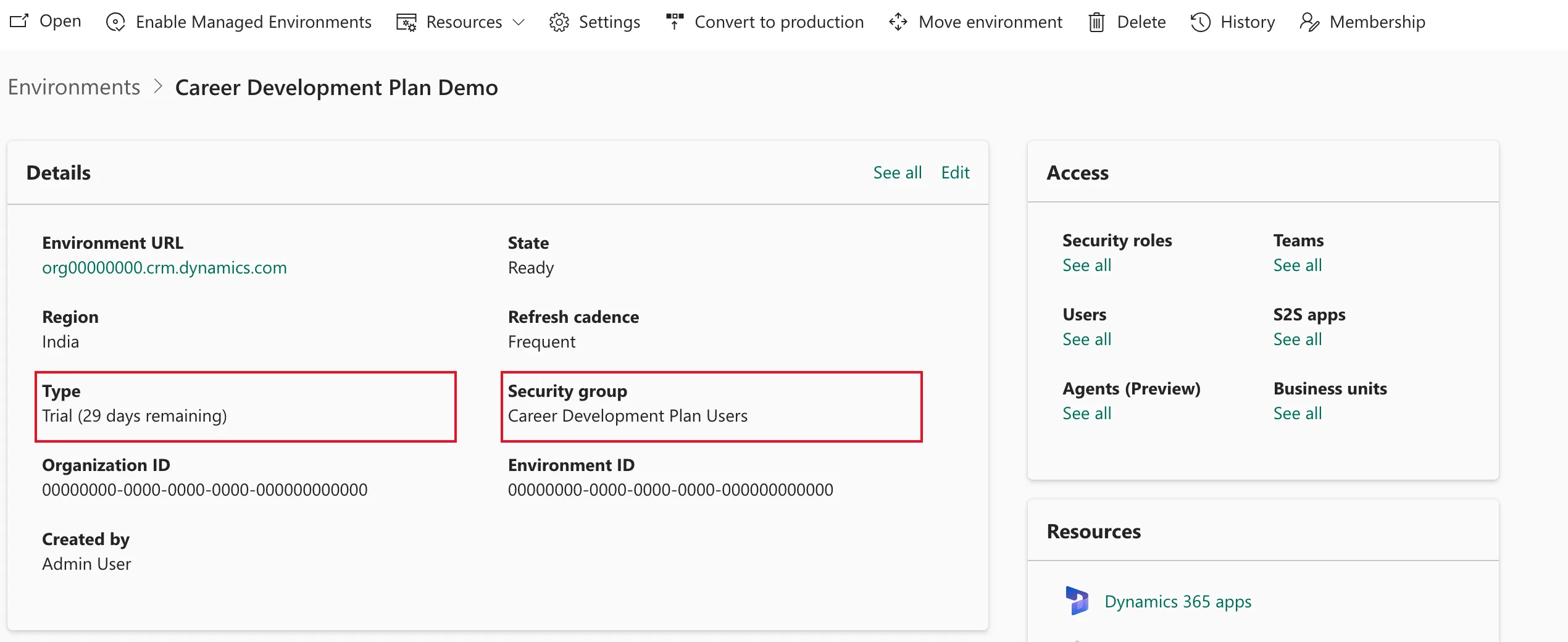
Limiting it to the group keeps everyone else in the organization out, and it's the same group that Part 2 gave access to the lists and Part 7 shared the app with.
Step 3: Give the Group Basic User
The app reads its site and lists from environment variables, and Microsoft says people need privileges on the variables, which the Basic User role includes. In the Default environment everyone got that role automatically (Part 7); in a new environment nobody has it.
So give it to the group once, with a team (How to Assign a Dataverse Security Role to a Microsoft Entra Group):
| Field | Value |
|---|---|
| Team name | Career Development Plan Users |
| Team type | Microsoft Entra ID Security Group |
| Group name | Career Development Plan Users |
| Membership type | Members |
| Security role | Basic User |
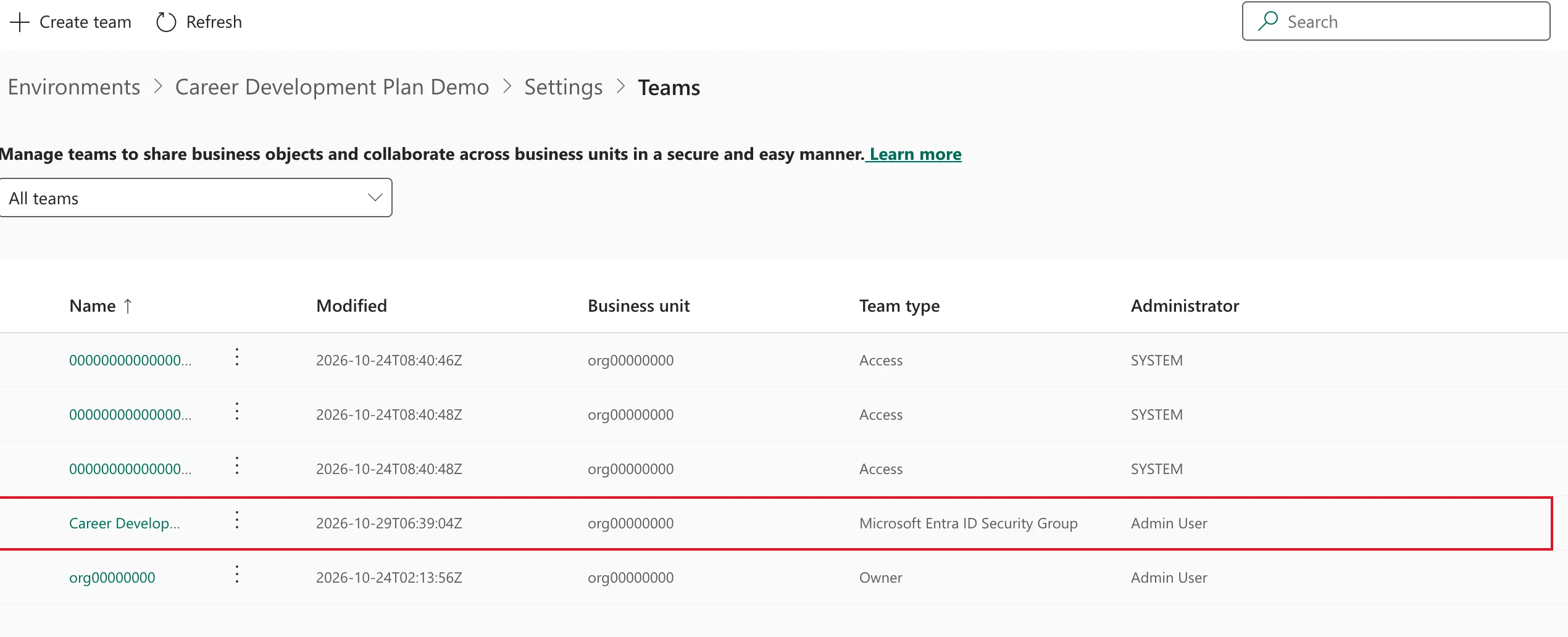
The first problem. I ticked Basic User, selected Save, and got Create of team Career Development Plan Users completed successfully. When I opened the team's roles to check, nothing was ticked. The roles pane's Save opens a Role assignment confirmation, and only its own Save assigns the role: Microsoft's article says to select Save twice. Fixed: Security Role Isn't Assigned After You Create a Team has the whole story. Check the team's roles before you go on.
Step 4: Create the Demo Site
Every buyer brings their own site. Create a communication site with the Blank template (How to Create a SharePoint Communication Site):
| Setting | Value |
|---|---|
| Site name | Career Development Plan Demo |
| Site description | Demo site where the Career Development Plan app is installed from its release files. |
| Site address | /sites/CareerDevelopmentPlanDemo |
| Language | English |
| Time zone | (UTC) Coordinated Universal Time: it came up in Pacific Time |
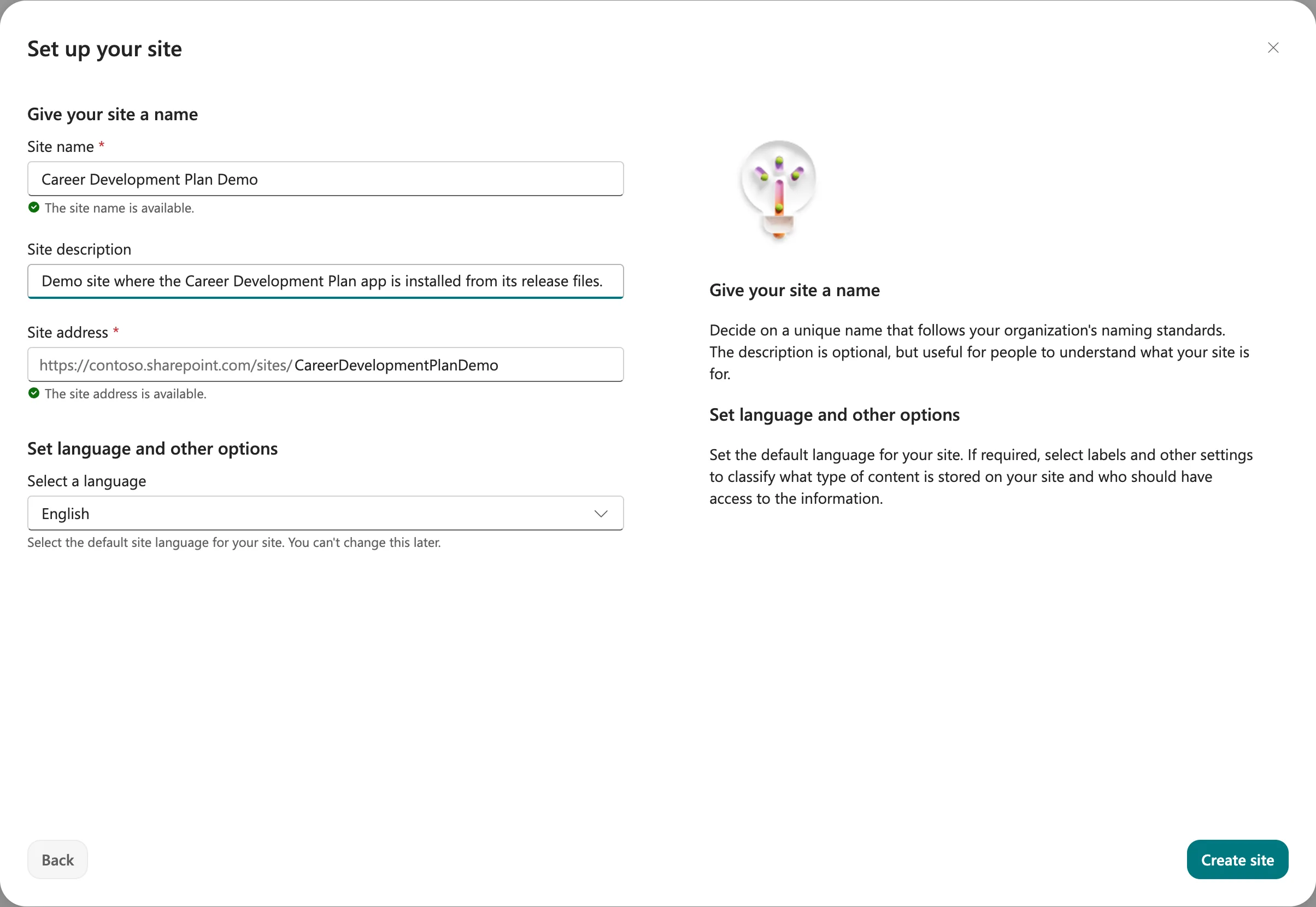
Then give the group Contribute, without an email invitation (How to Give a Security Group Access to a SharePoint Site):
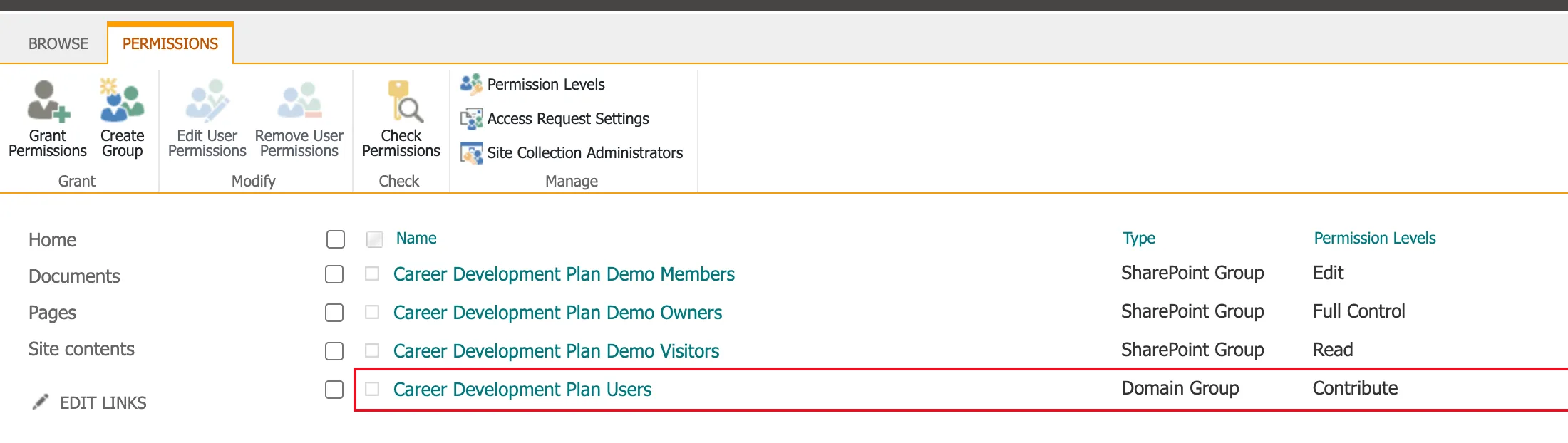
The site has no lists yet. The setup flow creates them in Step 6.
Step 5: Import the Setup Solution
Switch Power Apps to Career Development Plan Demo (How to Switch Environments), then import CareerDevelopmentPlanSetup_1_0_0_0_managed.zip (How to Import a Solution):
- Details: CareerDevelopmentPlanSetup, Managed, Dewiride, 1.0.0.0. Leave Enable Plugin steps and flows included in the solution ticked.
- Connections: the flow's SharePoint connection reference got a green check by itself, with a connection under my account.
- Import: about a minute.
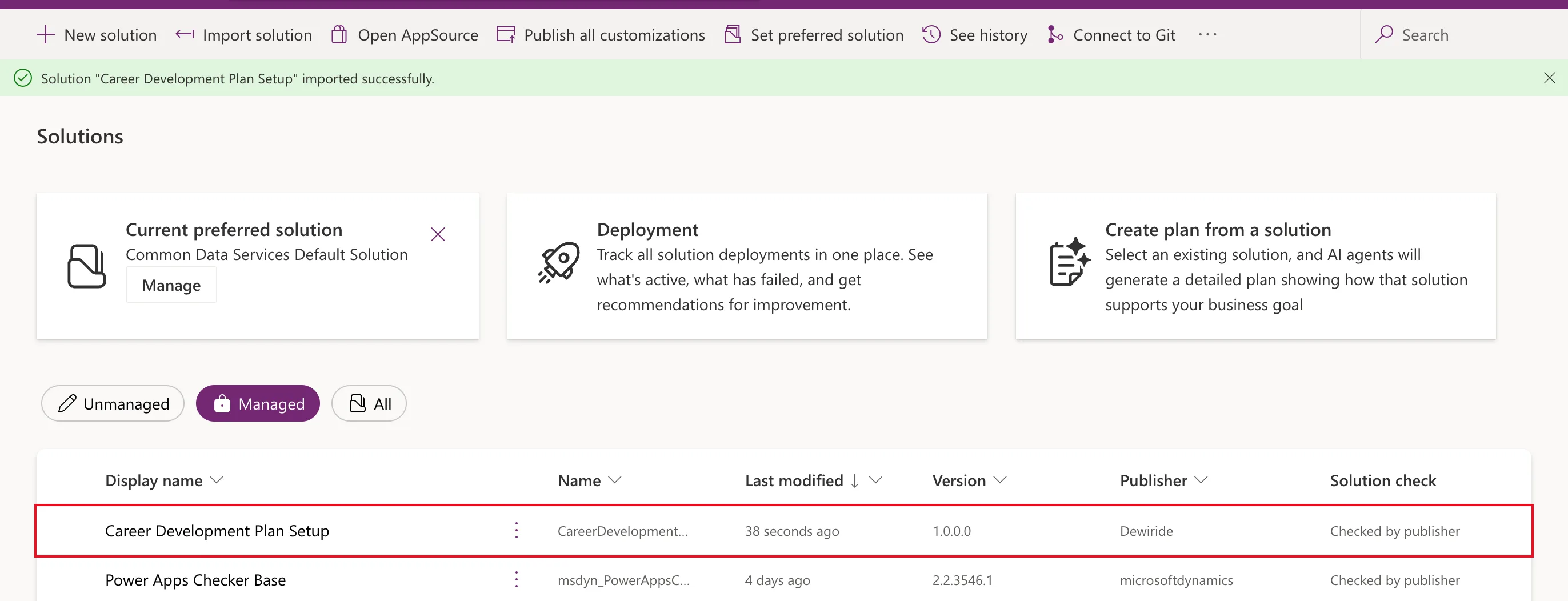
Import the Setup solution first: the app's import needs the lists, and the flow is what creates them.
Step 6: Run the Setup Flow on the Demo Site
Open the solution, and next to Create Career Development Plan Lists select ... → Details. Don't use Edit: it's a managed flow, and the run doesn't need the designer. Select Run, Continue, and type the site's address in Site URL (How to Run an Instant Cloud Flow):
https://contoso.sharepoint.com/sites/CareerDevelopmentPlanDemo
Use your own tenant's name in place of contoso. Select Run flow. The run Succeeded in 12 seconds, and the site's Site contents now lists both lists, with nothing in them:
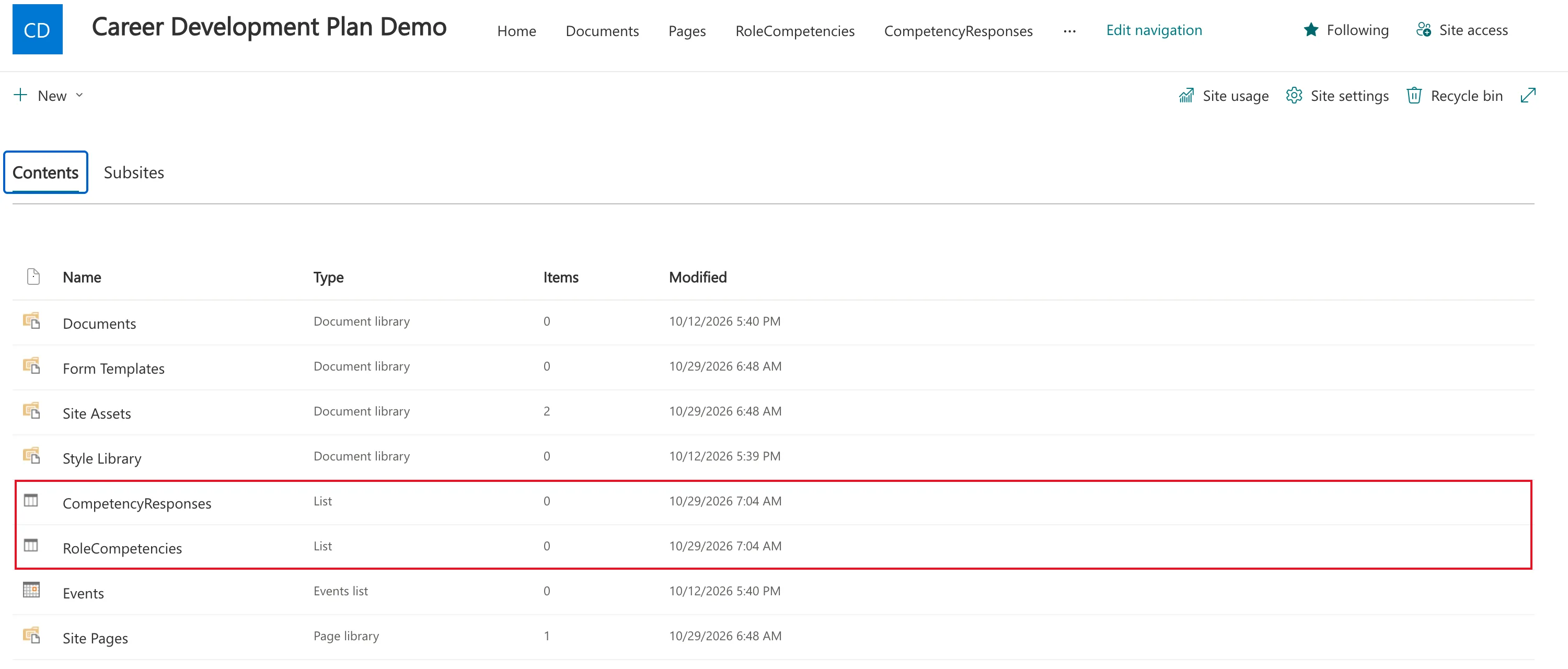
That's Part 11's flow working on a site it had never seen.
Step 7: Import the App Solution
Import CareerDevelopmentPlan_1_0_0_0_managed.zip, the one Part 12 packed without values. After Details, the import asks for a SharePoint connection, Required for Environment Variables of type Data source SharePoint, which already had a green check. Then comes the step Part 12 was for:
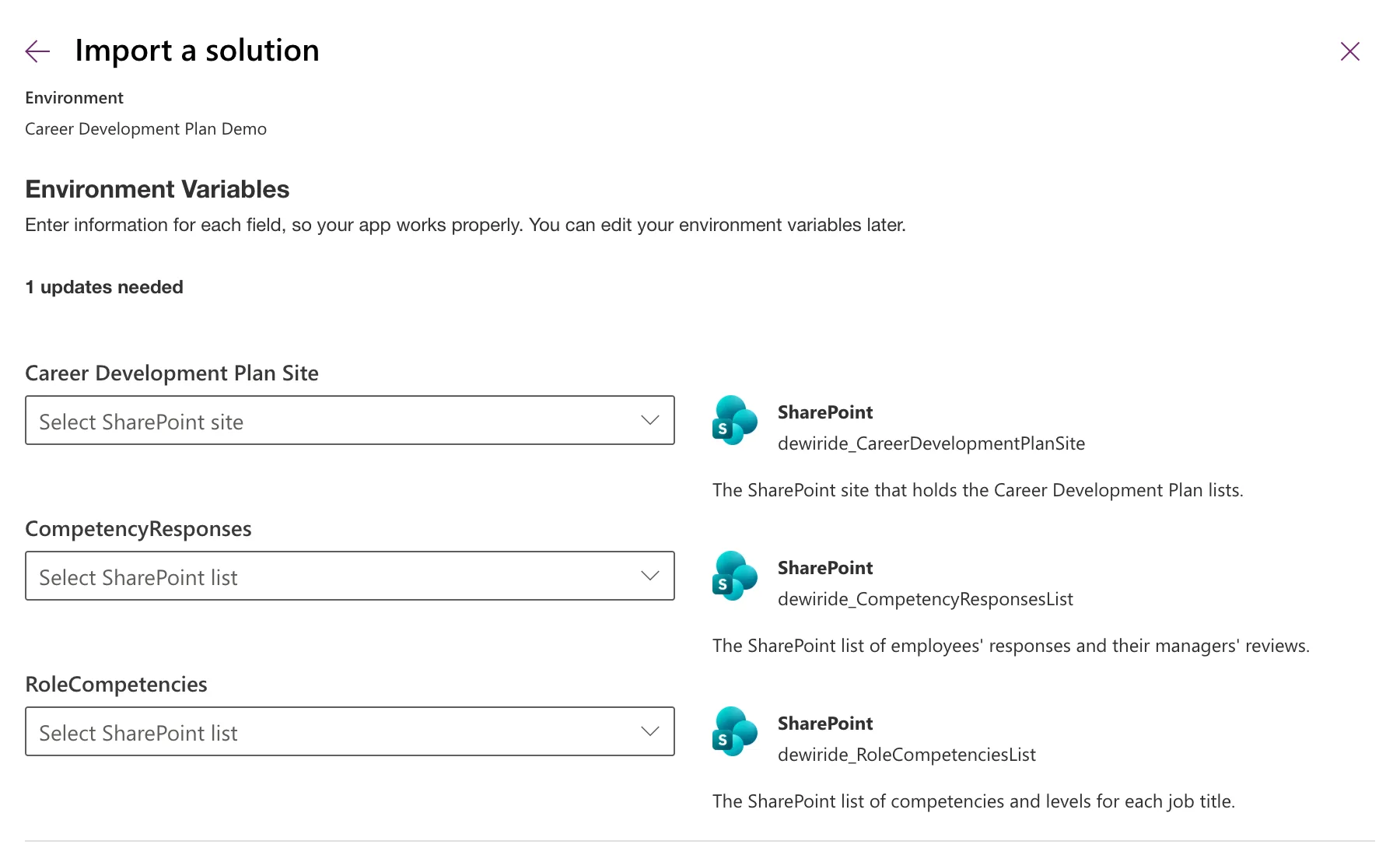
All three variables were empty, so the import asked for each. Pick the new site first, then its lists (How to Set Environment Variable Values When Importing a Solution):
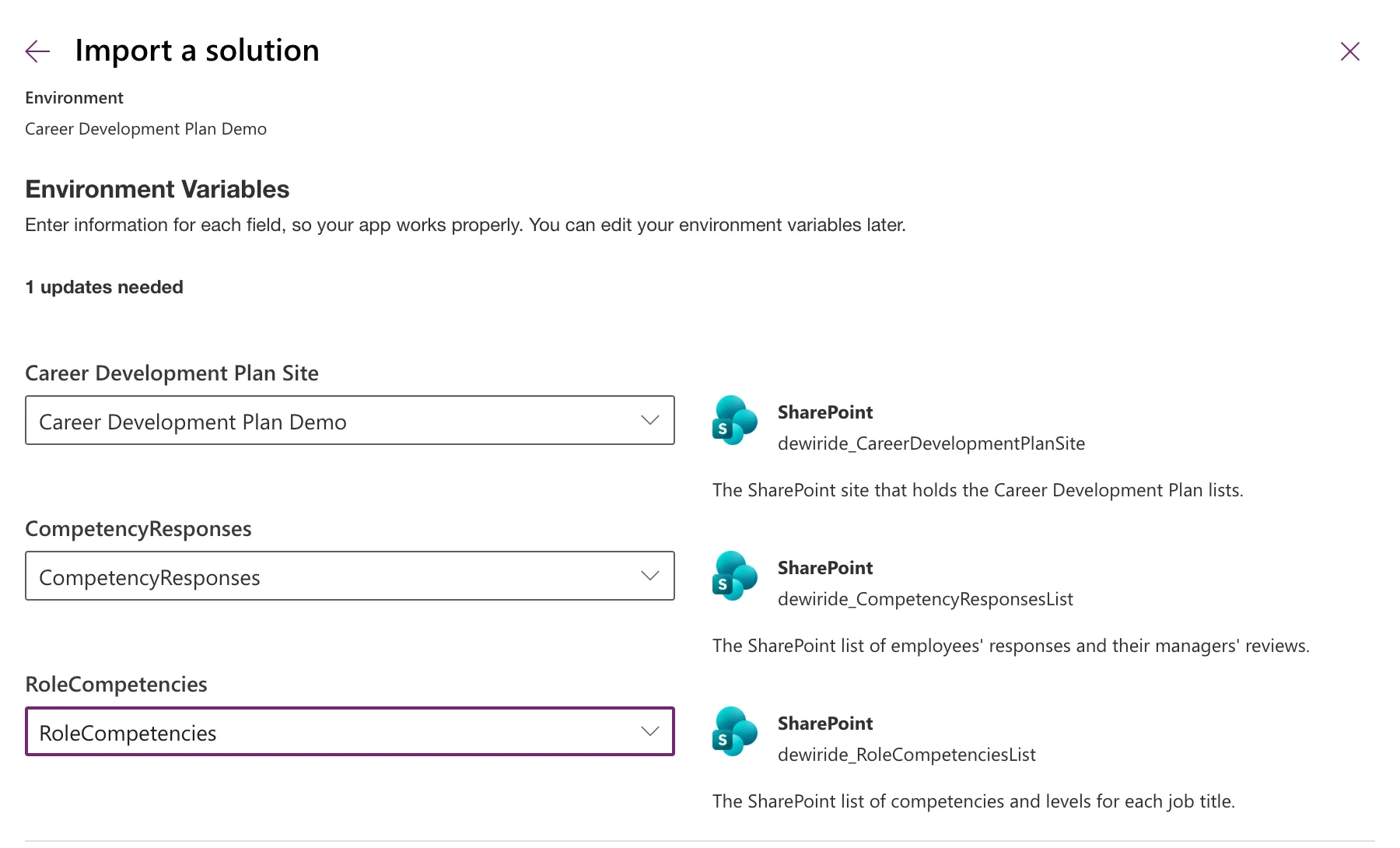
The site list also offered Career Development Plan, the development site, because it's in the same tenant. A buyer won't have it; here, picking it by mistake would have pointed the new install at the development data.
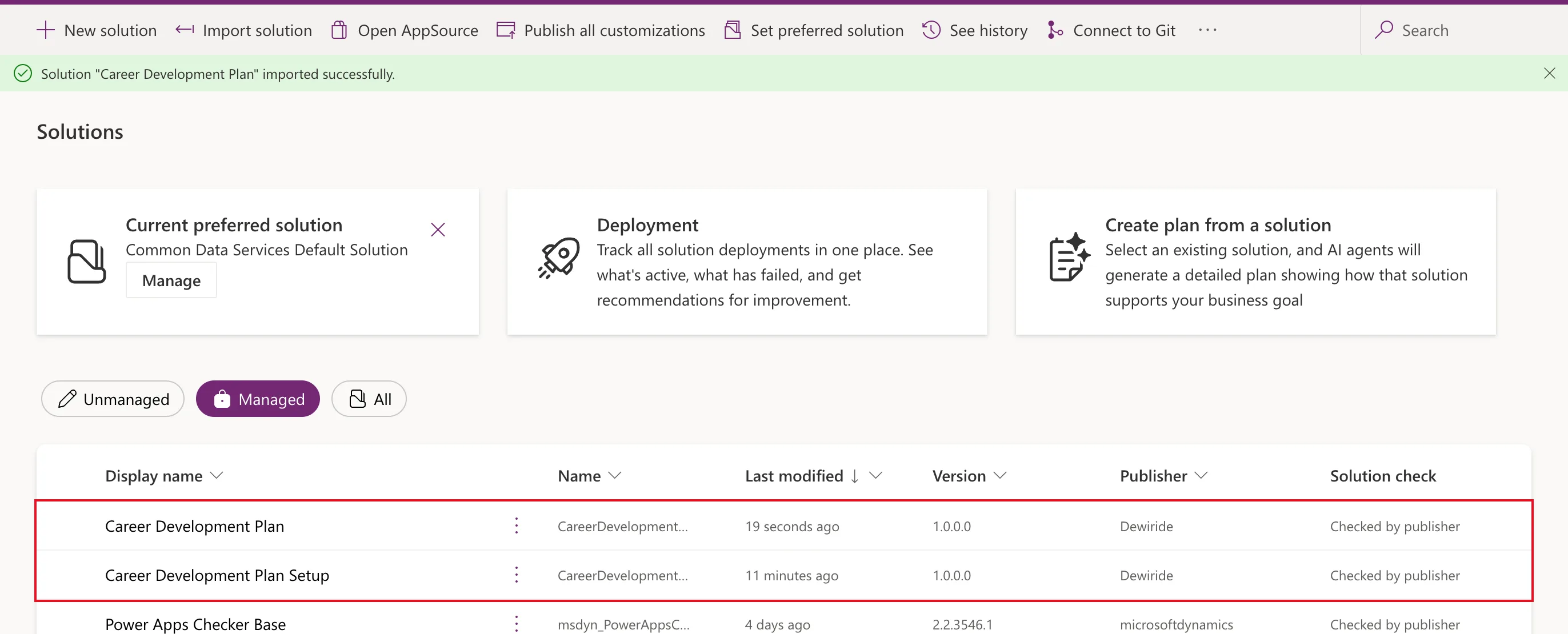
Select Import. It took 36 seconds:
Step 8: Share the App with the Group
In Apps, share Career Development Plan with Career Development Plan Users (How to Share a Canvas App with a Security Group). The dialog confirmed it, and as in Part 7, nobody is notified: send people the app's link yourself (How to Find the Web Link of a Canvas App).
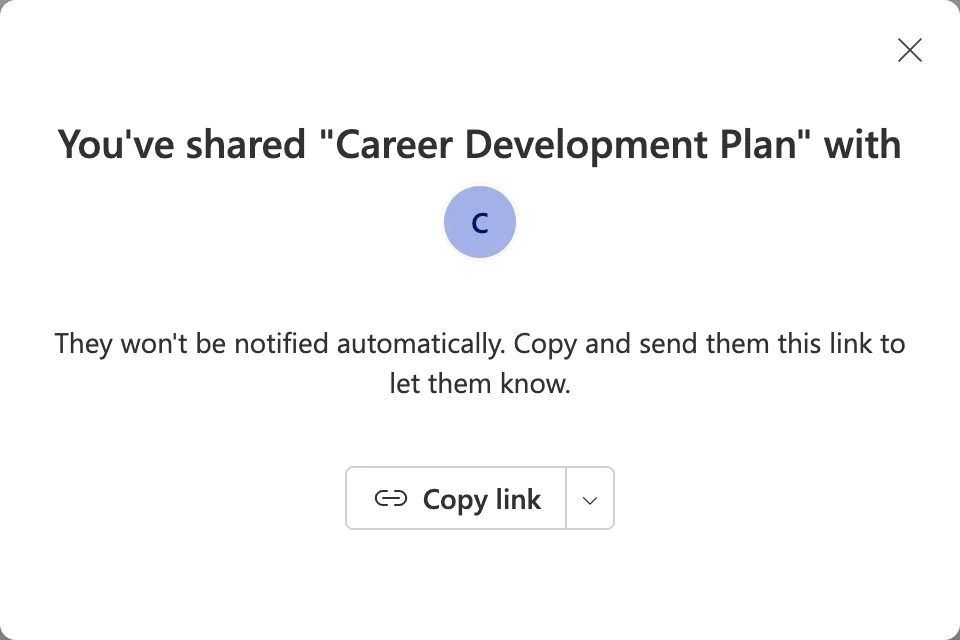
One thing in the share dialog looks wrong and isn't. Its Review data access requirements lists the app's resources: Office 365 Users, RoleCompetencies and CompetencyResponses. Right after the import, those two lists' links pointed at the development site, which matches the data source information saved inside the app that Part 12 noted. Microsoft's troubleshooting article describes this: SharePoint data source information in the target environment can keep pointing at the source, so don't rely on it, because the running app uses the correct values. Step 10 shows exactly that: the app's data going into the new site's lists.
Step 9: Add the People to the Environment
The second problem. I sent Daniel the link before doing this step. He's a member of the group, but the app didn't open for him:
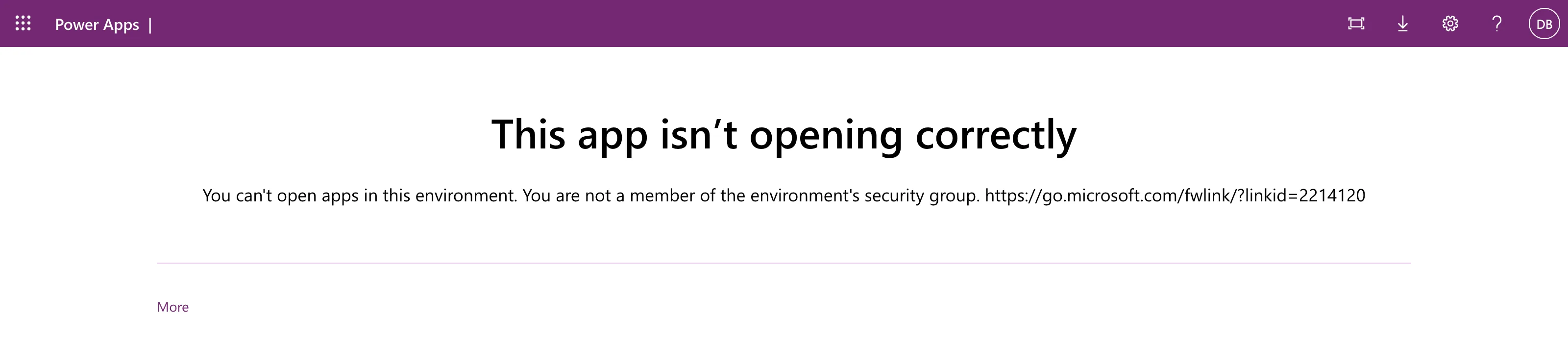
The message's link leads to Microsoft's page on security groups, which also says that automatic user assignment to an environment isn't supported for trial environments. For trial environments, users must be assigned manually. A minute later, Daniel was on the environment's Users page, and Run diagnostics said he was a member of the environment's group. He opened the link again three minutes later, and it worked. Fixed: "You Can't Open Apps in This Environment" has the investigation.
So in a trial environment, add the people before they open the app. For Aisha, the next tester, I did: environment → Users → Add user → Add (How to Add a User to a Power Platform Environment). Leave her without a direct role: the group team gives her Basic User.
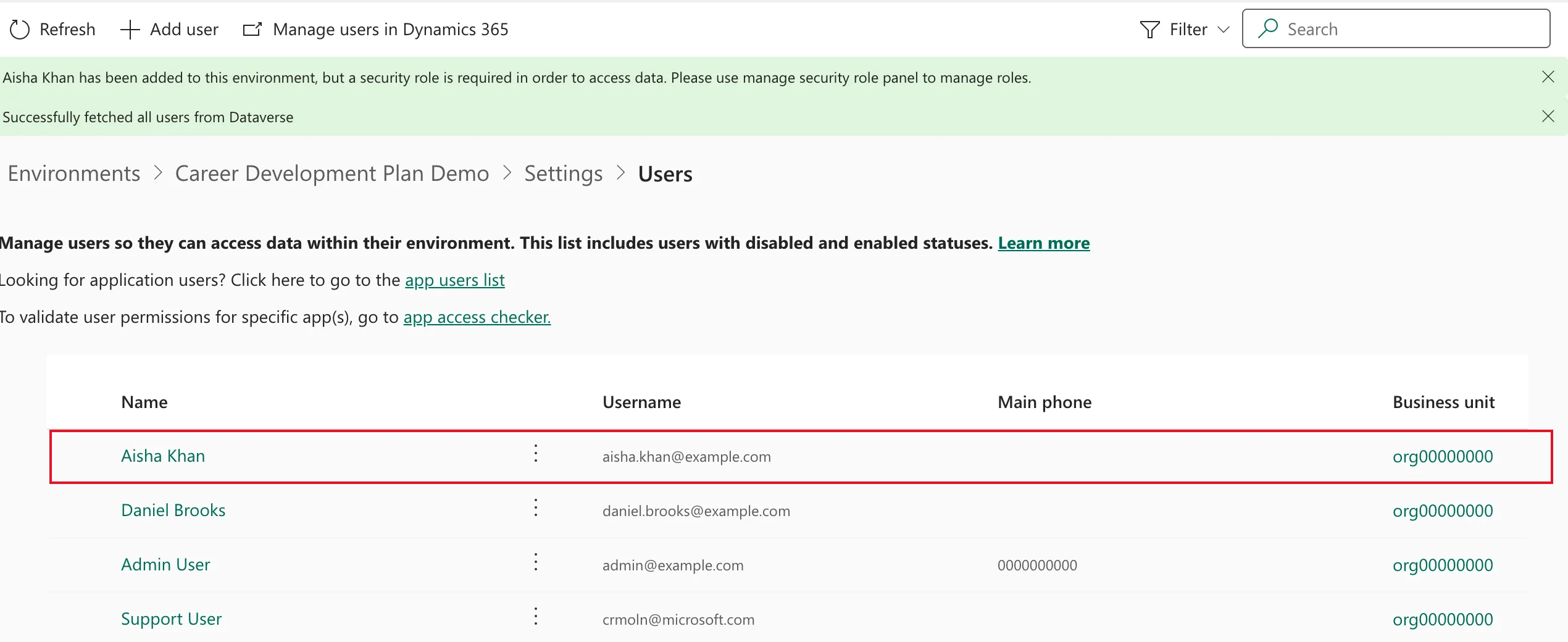
Her first try opened the app.
Step 10: Test as a Manager and an Employee
Daniel opens the app
Daniel is a sales manager with two active reports, Aisha and Maya. On his first run, Power Apps asked him to allow the app's two connections, Office 365 Users and SharePoint, as in Part 7, and he selected Allow. The Home screen read his profile and manager from Microsoft 365:
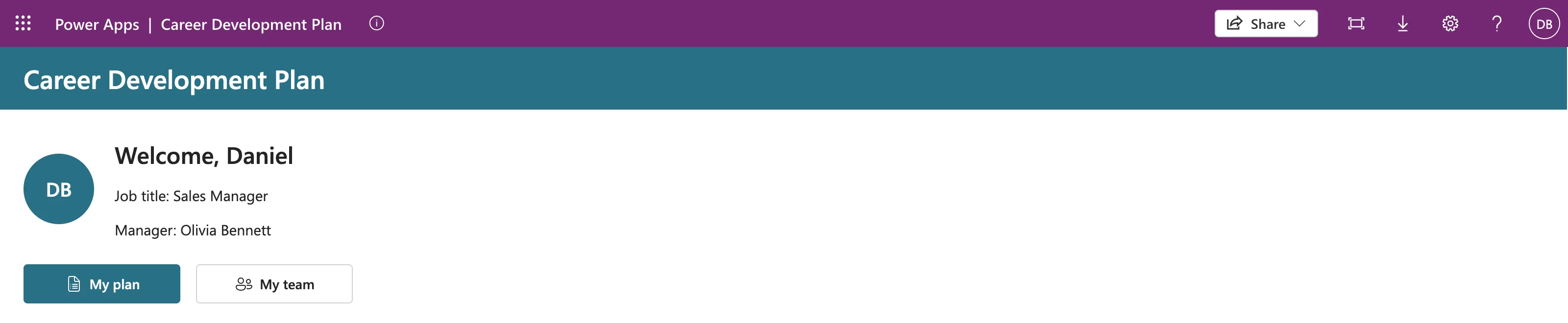
My plan said There's no plan for Sales Manager yet. That's right for the new site's empty lists, and it's the first sign the import worked: the development site's list has three competencies for Sales Manager.

Daniel adds a competency for his team
My team listed Aisha and Maya, both Sales Engineers; Leo, blocked in Part 10, stays hidden. Daniel opened Aisha, selected Add competency and added Customer skill at Intermediate, the competency from the original brief:
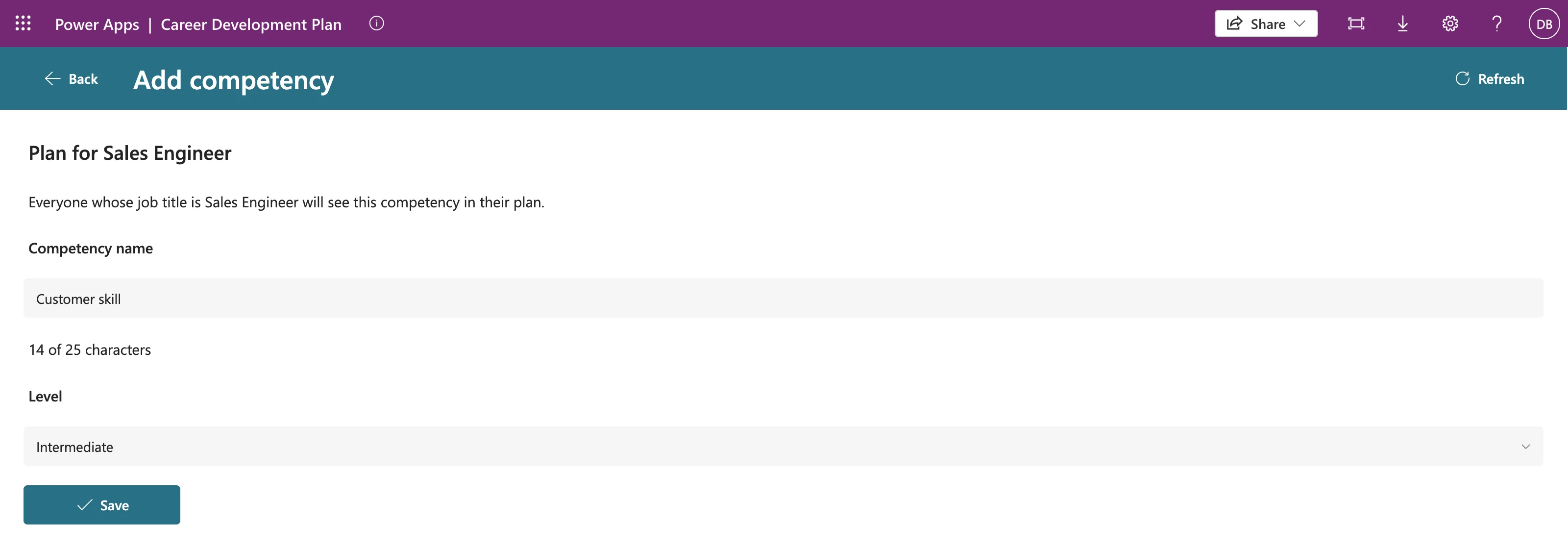
The Level list offered Beginner, Intermediate, Advanced and Expert: the choices the setup flow created, read with Choices() (Part 9). Save said Customer skill is saved in the plan for Sales Engineer, and the new site's list had it:
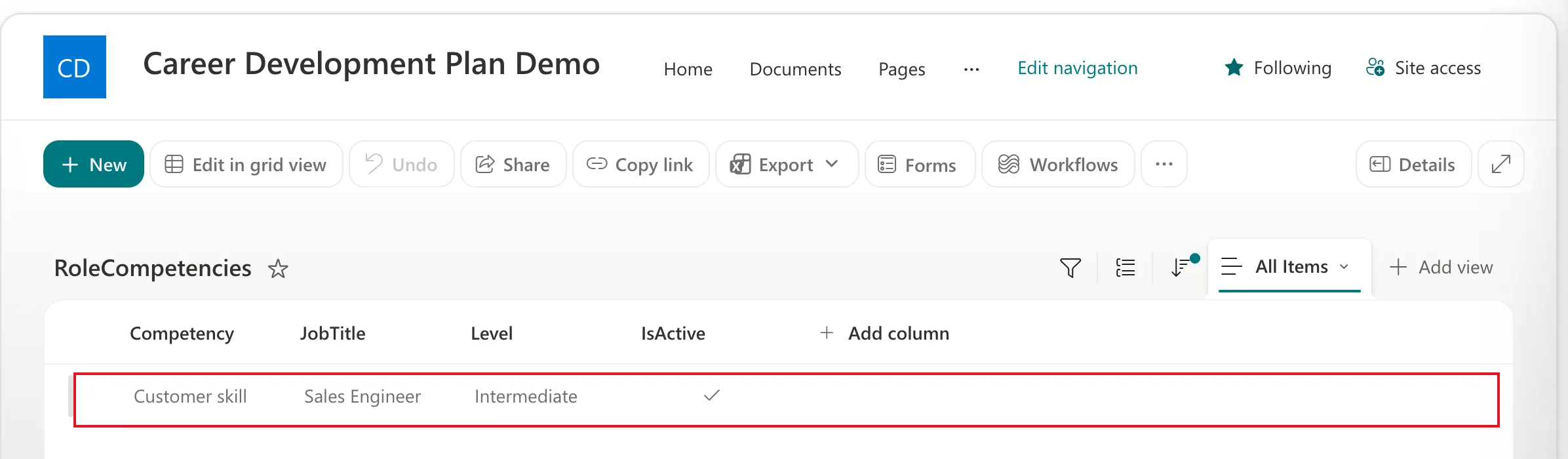
That settles where the app writes: the list chosen during the import.
Aisha responds
Aisha's My plan showed Customer skill, Not started. She opened it, wrote how she shows the competency, and selected Send to manager:
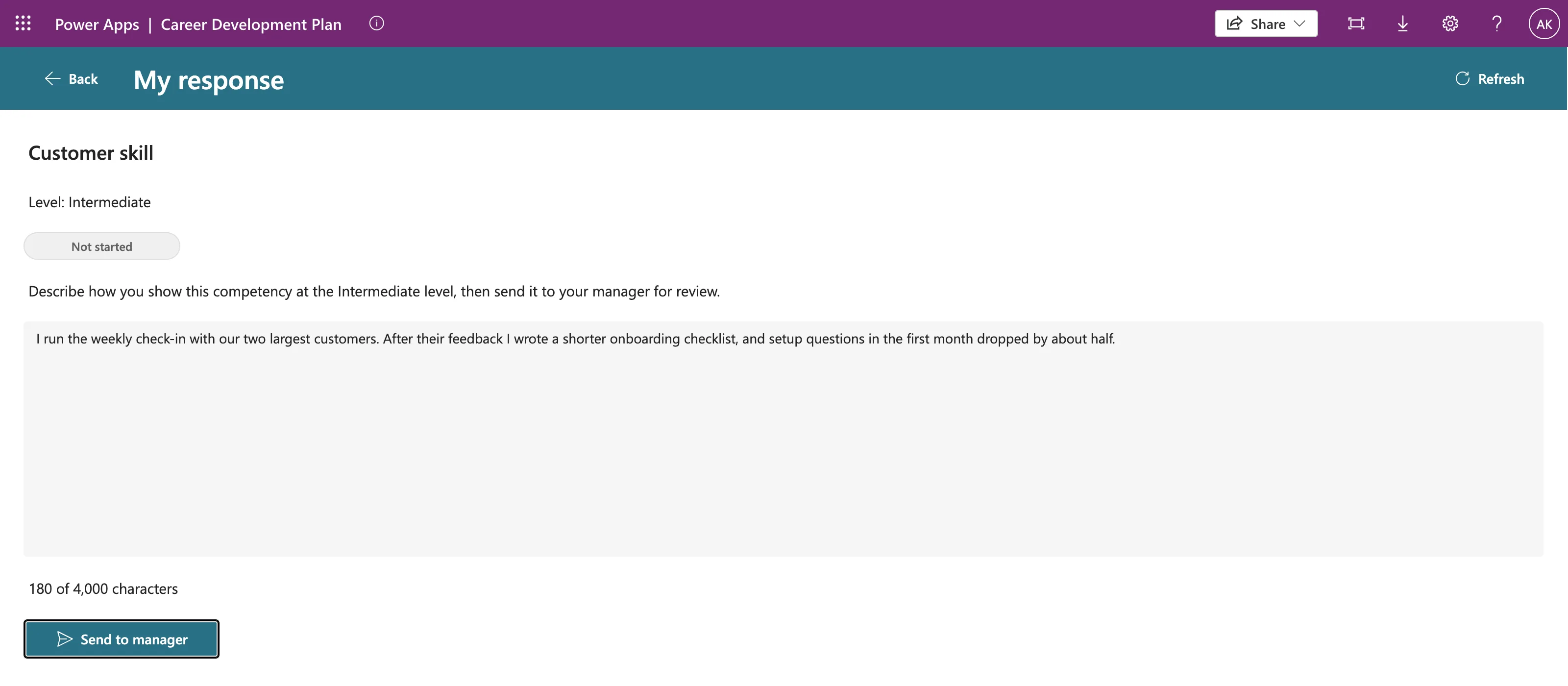
Your response was sent to your manager, and her plan said Waiting for review.
Daniel approves
On My team, after Refresh, Aisha had a Waiting for review badge. Daniel opened her response, added a comment and selected Approve:
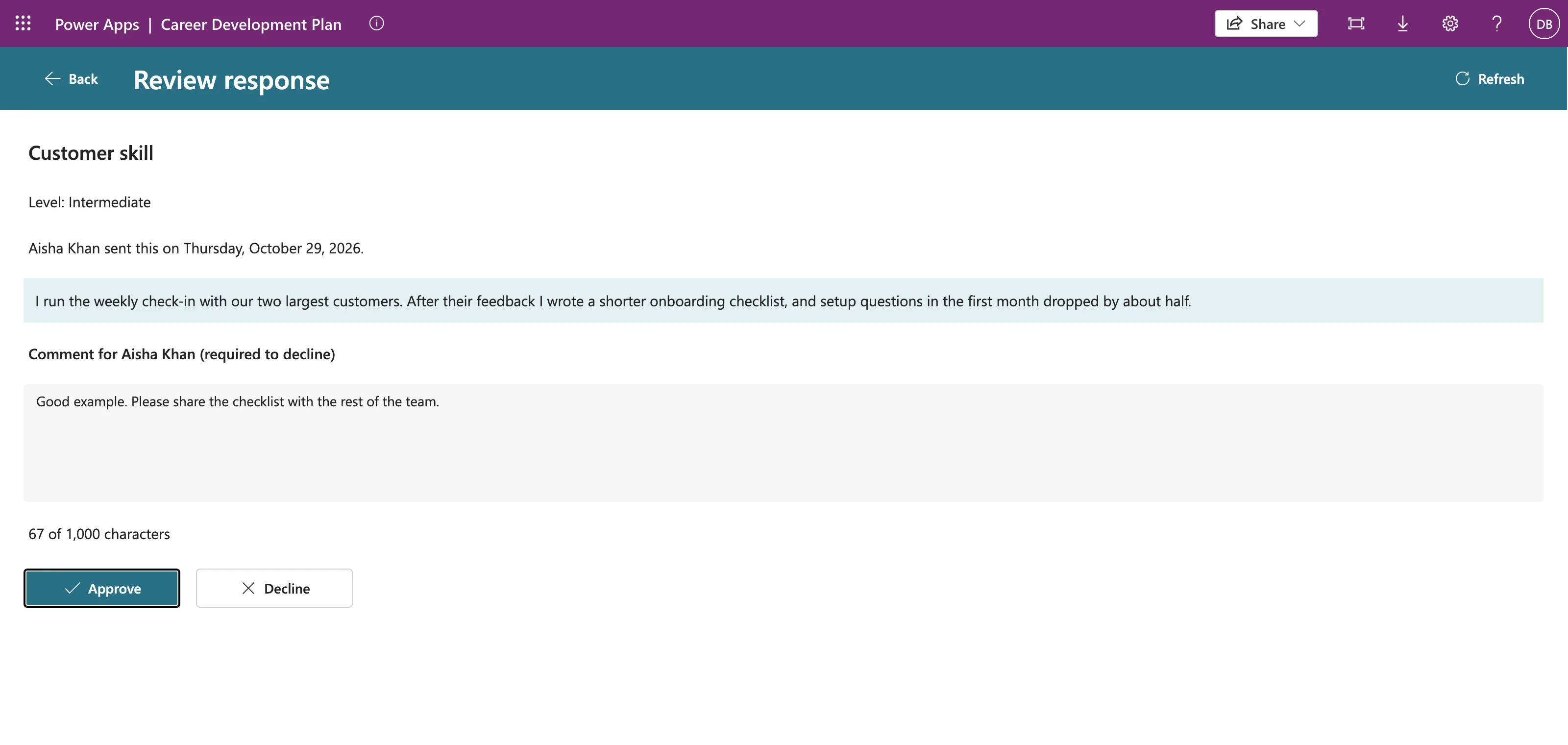
You approved Aisha Khan's response. Aisha's plan said Approved after a refresh, and the new site's CompetencyResponses list held the whole exchange:
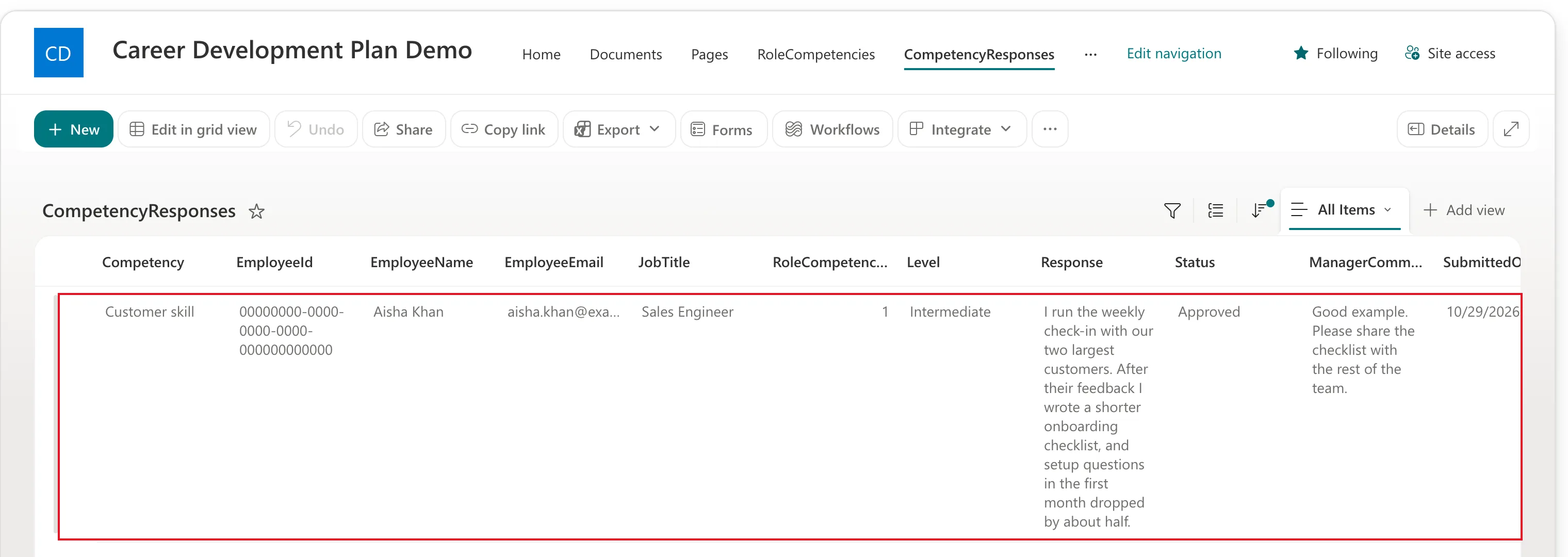
Every column the app writes was there, in the lists the flow had created, so Part 11's columns match what the app expects.
Do It with the CLI
Both imports can also run from the Power Platform CLI. Because the CLI can't ask for the site and lists, the app's import takes them from a settings file made with pac solution create-settings, then pac solution import --settings-file (How to Set Environment Variable Values When Importing a Solution). I ran the app's import that way too, after the portal import: Solution Imported successfully in 35 seconds, and Daniel's app kept working. Power Apps then told him a new version of the app was coming, since importing the solution again had updated the app (Fixed: Users Still See the Old Version After You Publish).
The Install, in Order
| # | Where | What |
|---|---|---|
| 1 | Power Platform admin center | An environment with Dataverse, limited to the app's group |
| 2 | Same | A group team for the group, with Basic User (two Saves) |
| 3 | SharePoint | A site, with Contribute for the group |
| 4 | Power Apps | Import the Setup solution |
| 5 | Power Apps | Run the setup flow with the site's address |
| 6 | Power Apps | Import the app solution, and pick the site and lists |
| 7 | Power Apps | Share the app with the group, and send the link |
| 8 | Admin center | In a trial environment, add each person first |
Step 1 of this part, the Power Apps trial, is only for creating a trial environment.
The Problems I Hit
| Problem | What I saw | Fix |
|---|---|---|
| The team was created without its role | Basic User unticked when I reopened the team's roles | Select Save in the Role assignment confirmation too |
| A group member couldn't open the app | You can't open apps in this environment. You are not a member of the environment's security group. | Open it again; add people to trial environments first |
| The trial didn't show in Plan(s) | Only Power Apps for Office 365, an hour later too | None needed: the trial environment was created anyway |
Clean Up
Microsoft deletes the trial environment by itself 30 days after it's created, with everything in it: the solutions, the team and the users' records. To remove things sooner, an admin can:
- Delete the environment: in the Power Platform admin center, select the environment, then Delete in the command bar. Microsoft says a trial environment can only be created and deleted, never backed up or restored, so export anything you want first.
- Delete the Demo site: in the SharePoint admin center, under Active sites (Delete a site). Its two lists and their items go with it.
The Power Apps trial ends by itself after 30 days. The release zips stay where they are, in release.
Common Mistakes
| Mistake | What happens | Do this instead |
|---|---|---|
| Importing the app before running the setup flow | No lists to pick for its variables | Setup first, then the flow, then the app |
| Picking the development site in the import | The new install uses the development data | Pick the site made for this environment |
| Skipping the group team | People can't read the app's environment variables | Give the group Basic User first |
| Sending the link before adding people to a trial environment | Their first try fails | Add them first |
| Keeping real data in a trial environment | It's deleted after 30 days | Use a production environment for real use |
Troubleshooting
| Symptom | Likely cause | Fix |
|---|---|---|
| The import doesn't ask for the site and lists | The zip still has values | Use the release zip from Part 12 |
| The list pickers are empty | The flow hasn't run, or ran on another site | Run it with this site's address |
| You can't open apps in this environment | Trial environments don't add people automatically | Open it again, or add people first |
| My plan shows the development site's competencies | The import's values point at the development site | Change the variables' values to the new site |
FAQ
Do the app's users need a Power Apps license here?
No. The app uses only standard connectors (Part 7 checked its license designation), and Daniel and Aisha ran it here with only their Microsoft 365 licenses. The Power Apps trial was only for creating the environment.
What does a buyer do differently?
They use their own production environment, so they skip the trial and its 30-day limit, and they bring their own site and security group. The order stays the same.
Can the same environment hold the app for two sites?
Not with these solutions: each environment has one value per variable, so one installation reads one site's lists.
Why didn't I add Daniel before his first try?
Because I didn't know trial environments need it. Microsoft's page says so, and the error message links to it, which is how I found out.
Conclusion
The release files from Part 12 install cleanly in a brand-new environment:
- the setup flow created both lists on a site it had never seen, in 12 seconds;
- the app's import asked for the site and lists, because the zip carried none;
- a manager added a competency, an employee responded, and the manager approved, all in the new site's lists;
- two problems turned up on the way, a team's role that needs a second Save and trial environments that don't add people by themselves, and each has its fix.
← Previous: Part 12: Run the Solution Checker and Export the Solutions
Next → Part 14: Recap, Production Checklist and Next Steps. A tour of the finished app, a checklist for taking it to production, and links to every part and guide.
Additional Resources
- Import solutions: the import pane, step by step.
- Environment variables overview: values during import, and privileges.
- About trial environments: how long they last and how to keep them.
- Control user access to environments: security groups, and adding people to trial environments.
