Build a Career Development Plan App in Power Apps — Part 12: Run the Solution Checker and Export the Solutions

The app and its setup flow both work. This part turns them into four files anyone can install: both solutions, checked, at version 1.0.0.0, as managed and unmanaged zips, and without this tenant's SharePoint site and lists inside them.
This is Part 12 of a 14-part series.
- Part 1: Plan the App and Set Up the Demo Organization
- Part 2: Create the SharePoint Site and Lists
- Part 3: Create the Solution, Environment Variables and Canvas App
- Part 4: Build the Home Screen
- Part 5: Build the My Plan Screen
- Part 6: Build the Response Screen
- Part 7: Share the App and Build the My Team Screens
- Part 8: Build the Review Screen for Manager Approvals
- Part 9: Let Managers Manage Competencies
- Part 10: Test Every Role, Joiners and Leavers
- Part 11: Build a Setup Flow That Creates the SharePoint Lists
- Part 12: Run the Solution Checker and Export the Solutions (you are here)
- Part 13: Install the App in a New Environment
- Part 14: Recap, Production Checklist and Next Steps
Everything so far lives in one environment, in two solutions: Career Development Plan, with the app and its three environment variables, and Career Development Plan Setup, with the flow that creates the SharePoint lists. Another organization installs the app by importing those solutions, so this part checks them, gives them their first release number and exports them.
One step didn't go as Power Apps says. The environment variables' Export value switch, set to keep this tenant's site and lists out of the exported file, didn't keep them out. You'll see how the zip showed it, and how the Power Platform CLI fixed it.
Get the Source Code
Get the complete source code of Career Development Plan for Power Apps on Dewiride Store →
Use it to skip ahead, or to compare your app with the finished one. Every list, screen and formula is still built step by step in this series, for free.
What You'll Have
| File | What's in it | Who it's for |
|---|---|---|
CareerDevelopmentPlanSetup_1_0_0_0_managed.zip | The setup flow and its SharePoint connection reference | Anyone installing the app, first |
CareerDevelopmentPlan_1_0_0_0_managed.zip | The canvas app and its three environment variables, without values | Anyone installing the app, second |
CareerDevelopmentPlanSetup_1_0_0_0.zip | The same as the managed Setup zip, unmanaged | You, as the source, or anyone who wants to change it |
CareerDevelopmentPlan_1_0_0_0.zip | The same as the managed app zip, unmanaged | You, as the source, or anyone who wants to change it |
Nothing here costs money. The solution checker is part of Power Apps, and the Power Platform CLI is a free download from Microsoft.
Prerequisites
- Part 11 completed: both solutions exist, and the app from Parts 3 to 10 is finished.
- The Power Platform CLI, installed and signed in, for the last two steps.
- The guides this part relies on, by topic:
- Solutions:
- The Power Platform CLI and environment variable values:
Step 1: Make the App's Solution Preferred Again
Part 11 made Career Development Plan Setup your preferred solution, so that the flow landed only there. Anything you create now would land in it too. In Solutions, select Set preferred solution and choose Career Development Plan (dewiride):
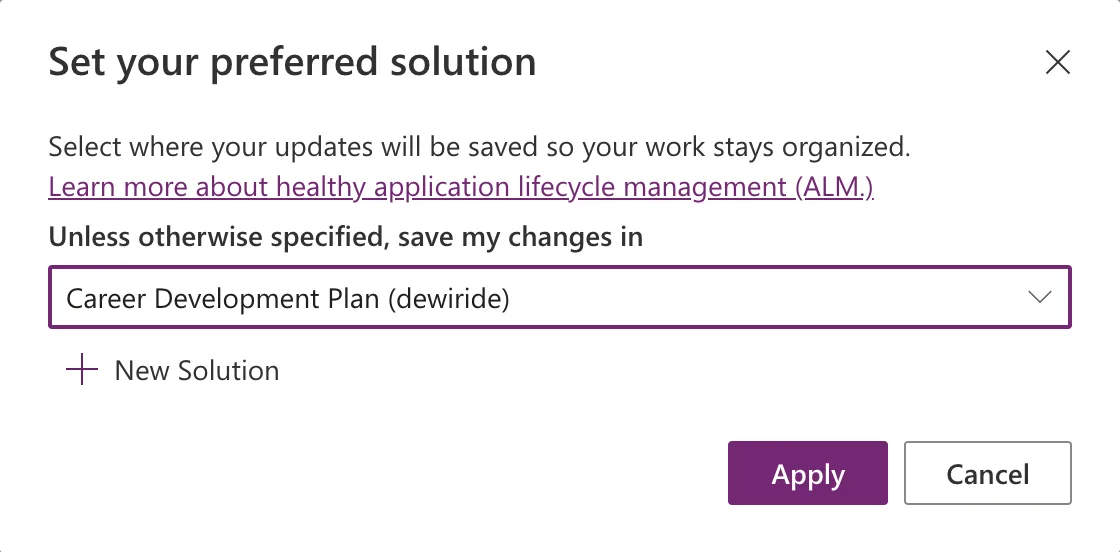
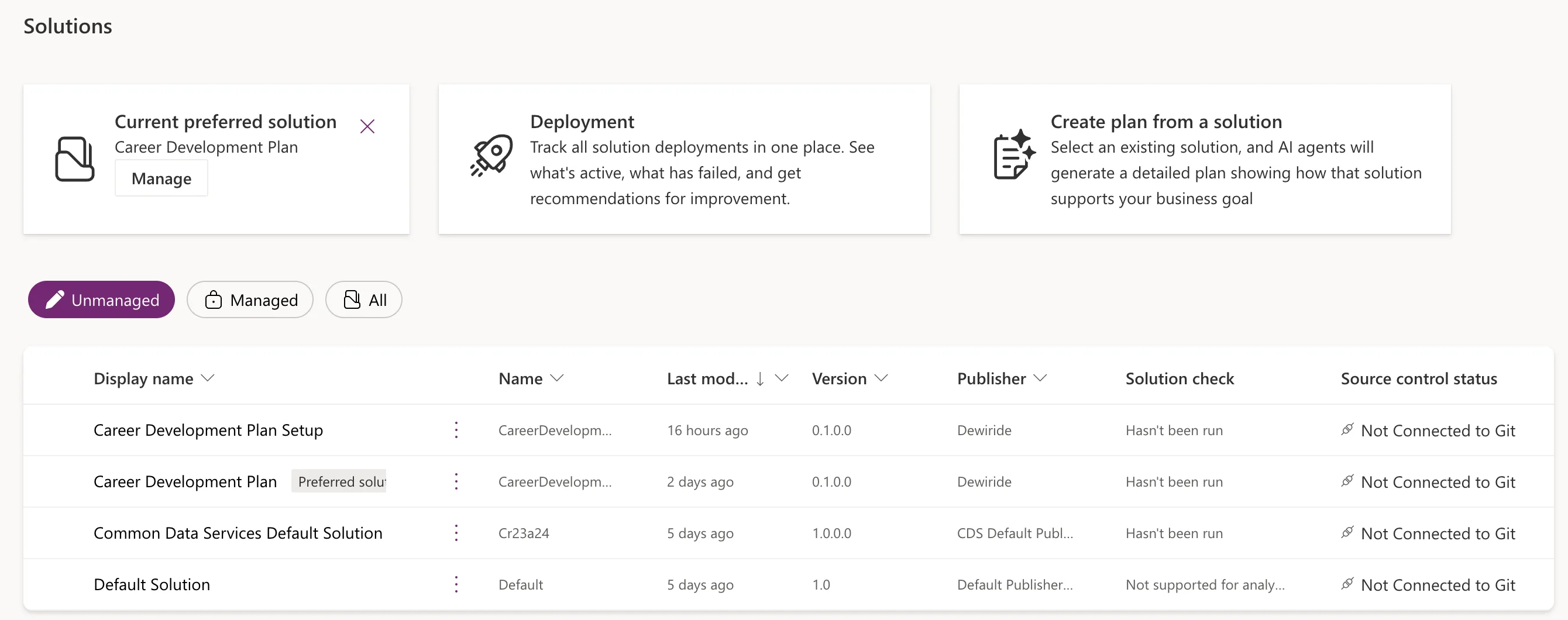
Select Apply. The Current preferred solution card shows Career Development Plan, and both solutions are still at the version they were built with, never checked:
Step 2: Check What Each Solution Holds
A solution takes all its objects with it, so look before you export. Open Career Development Plan → Objects:
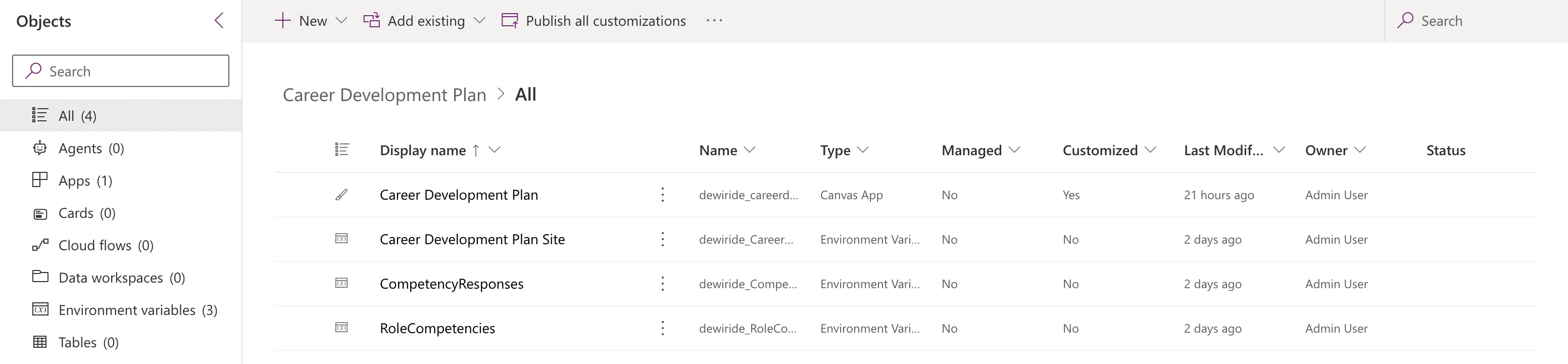
Four objects: the app and its three variables, and Cloud flows (0). In Part 11 the setup flow briefly ended up in this solution too (Fixed: A New Cloud Flow Shows Up in Two Solutions), and this is where you'd see it.
Career Development Plan Setup holds the flow and its connection reference, as Part 11 left it:

Step 3: Run the Solution Checker on Both
Run the checker on each solution, as How to Run the Solution Checker shows. Each check took a little over a minute.
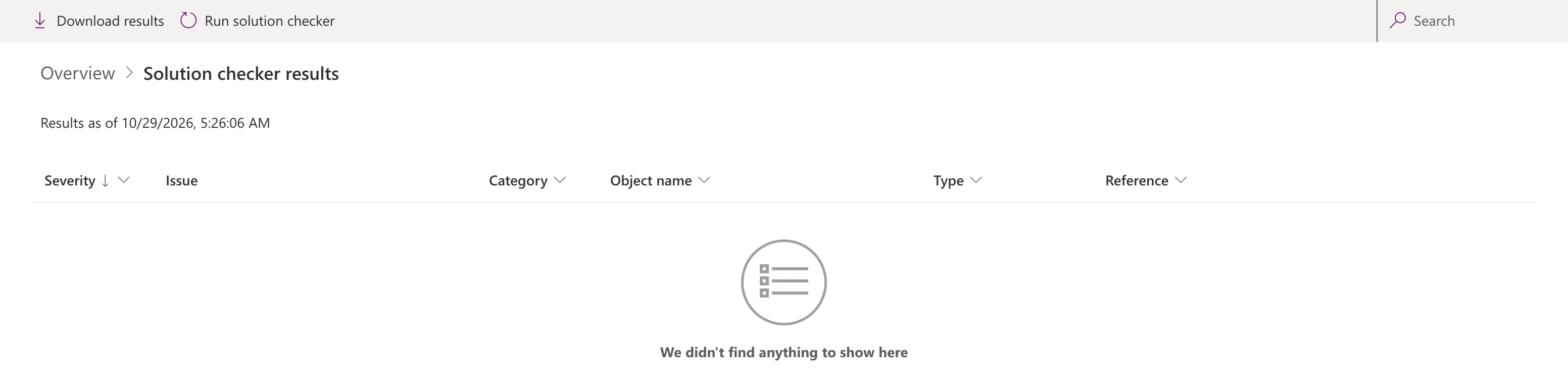
Career Development Plan Setup came back clean:
Career Development Plan had twelve Medium issues from two rules: Set TabIndex to 0 or greater to ensure that interactive elements have a tab stop and Change the FocusedBorderThickness property to be more than 0. The portal only names the app file, so I ran the same check with the CLI, whose result file names each control:
| Screen | Control | Properties flagged |
|---|---|---|
| My Plan Screen | lblTitleMPS | TabIndex, FocusedBorderThickness |
| Response Screen | lblTitleRS | TabIndex, FocusedBorderThickness |
| My Team Screen | lblTitleMTS | TabIndex, FocusedBorderThickness |
| Team Member Screen | lblTitleTMS | TabIndex, FocusedBorderThickness |
| Review Screen | lblTitleRVS | TabIndex, FocusedBorderThickness |
| Competency Screen | lblTitleCS | TabIndex, FocusedBorderThickness |
All twelve are the screens' headings: the title labels built in Parts 5 to 9. Studio's App checker flagged the same headings while they were built, and they keep TabIndex -1 on purpose. A label with TabIndex 0 or more is read out as a button by screen readers, and Microsoft's guidance gives labels that do nothing when selected TabIndex -1 (Fixed: "Missing Tab Stop", Fixed: "Focus Isn't Showing"). A focus border shows only while the keyboard is on a control, and with TabIndex -1 the keyboard never lands on these headings. So the app ships with these twelve findings, and with this table to explain them.
Step 4: Export Both Solutions as 1.0.0.0
Export each solution twice, managed and unmanaged, with the same version, as How to Export a Solution in Power Apps shows:
| Setting | Value |
|---|---|
| Publish all changes | Publish, on the first export (about 20 seconds) |
| Version number | 1.0.0.0 for all four exports, whatever Power Apps proposes |
| Export as | Managed once, Unmanaged once, for each solution |
| Run solution checker on export | Off: Step 3 has just run it |
Version 1.0.0.0 is the first release: Part 3 set 0.1.0.0 while the app was being built. Each export took between 18 and 49 seconds, and each Download saved one zip:
CareerDevelopmentPlan_1_0_0_0_managed.zip       149,378 bytes
CareerDevelopmentPlan_1_0_0_0.zip               149,378 bytes
CareerDevelopmentPlanSetup_1_0_0_0_managed.zip    6,095 bytes
CareerDevelopmentPlanSetup_1_0_0_0.zip            6,094 bytes
After a reload, the list shows both solutions at 1.0.0.0, each with its check's results:

Step 5: Find This Tenant's Values in the App's Zips
The app's solution has three environment variables: the site, and one for each list (Part 3). Their current values point at this tenant's site and lists. Those values mustn't travel: Microsoft's FAQ says not to include them, and with no value in the solution, the import asks the installer for their own site and lists.
In Part 3, each variable's Advanced → Export value was set to No, whose own description is The current value will be removed from the exported solution file. Before exporting, I opened the site variable to check: it said Yes. I set No again, saved, and opened it once more: Yes.
Listing the exported app zip settled it (How to See What's Inside a Power Platform Solution Zip File):
$ unzip -l exported/CareerDevelopmentPlan_1_0_0_0.zip | grep environmentvariablevalues
      170  10-29-2026 05:33   environmentvariabledefinitions/dewiride_RoleCompetenciesList/environmentvariablevalues.json
      197  10-29-2026 05:33   environmentvariabledefinitions/dewiride_CareerDevelopmentPlanSite/environmentvariablevalues.json
      170  10-29-2026 05:33   environmentvariabledefinitions/dewiride_CompetencyResponsesList/environmentvariablevalues.json
All three values were inside, in both app zips: the site's address and the two lists' IDs. Microsoft's documented way to remove a value, ... → Remove from this solution under Current Value, isn't in the current panel, and nothing else in the solution acts on a value alone. Fixed: Environment Variable Export Value Switches Back to Yes has the whole investigation.
Step 6: Take the Values Out with the CLI
Microsoft's article says the values travel as separate JSON files in the zip, which can be edited offline. So the fix works on the exported files, with the Power Platform CLI (How to Keep Environment Variable Values Out of an Exported Solution):
- Put both app zips in a folder called
exported. - Unpack them together into
sourcewith--packagetype Both. - Delete the three
environmentvariablevalues.jsonfiles. - Pack both zips again into
release.
The Setup solution has no environment variables, so its two zips are shared as exported.
The new app zips have no value files, the same version, and the same app inside, byte for byte. The values in this environment aren't touched, so the app keeps working here.
Check the Four Release Files
The release folder now holds the four files to share:
| File | Size | Managed | Value files |
|---|---|---|---|
CareerDevelopmentPlan_1_0_0_0_managed.zip | 147,987 bytes | 1 | 0 |
CareerDevelopmentPlan_1_0_0_0.zip | 147,986 bytes | 0 | 0 |
CareerDevelopmentPlanSetup_1_0_0_0_managed.zip | 6,095 bytes | 1 | none in this solution |
CareerDevelopmentPlanSetup_1_0_0_0.zip | 6,094 bytes | 0 | none in this solution |
I also ran the solution checker on the new unmanaged app zip with the CLI: the same twelve Medium issues, so packing changed nothing it checks.
Which File Goes Where
- Installing the app in another environment takes the two managed zips, Setup first. A managed solution can't be imported into the environment that holds its unmanaged original, so it can't be installed back here (Solution concepts).
- The unmanaged zips are the source: keep them, for example in source control, and give them to anyone who'll change the app in their own development environment.
Part 13 installs the managed zips in a brand-new environment. That's the real test of everything so far: the Setup flow creates the lists on a new site, and the app is pointed at them during the import.
The Problems I Hit
| Problem | What I saw | Fix |
|---|---|---|
| The Export value switch didn't keep the values out | Yes after saving No, and all three values in the zip | Removed the value files with the CLI |
| The CLI's first command failed after signing in | No active environment set for the current auth profile | Selected the environment with pac env select |
Clean Up
Nothing in this part creates anything in your tenant, so there's nothing to remove there. On your computer:
- The CLI keeps its sign-in until you run
pac auth clear. Clear it when you've finished with the CLI. sourceandexportedare working folders. Keeprelease: it holds the four files.
Common Mistakes
| Mistake | What happens | Do this instead |
|---|---|---|
| Exporting with Setup still the preferred solution | Anything you create next lands in the wrong solution | Make Career Development Plan preferred first |
| Trusting Export value: No | Your site and lists ship inside the app's zips | Check the zip, and remove the value files |
| Accepting the proposed version on the second export | The managed and unmanaged zips have different versions | Type 1.0.0.0 every time |
Sharing the files from exported | They still hold the values | Share the files from release |
Troubleshooting
| Symptom | Likely cause | Fix |
|---|---|---|
| Twelve Medium issues on the app | The six screen headings, kept as labels | Expected; see Step 3 |
| The app solution shows a cloud flow | The flow was added to it while it was preferred | Remove it with Remove from this solution |
| The list still shows 0.1.0.0 after exporting | The page hasn't refreshed | Reload Solutions |
| A release zip still has value files | Step 6 ran on different files | Check the folder you packed from, and pack again |
FAQ
Why export unmanaged zips at all?
They're the source of the app. A managed solution can't be exported again or edited where it's installed, so the unmanaged zips are what you'd keep developing from.
Will an installer see this tenant's site anywhere?
Not as a value: the variables in the release zips have none, so the import asks for theirs. The app's own data source information in customizations.xml still records the site it was built with. In Part 13, that showed in one place: right after the import, the share dialog's data access list linked to this tenant's site. The running app read and wrote the installer's lists, as Microsoft's troubleshooting article says it will: it warns that SharePoint data source information can keep pointing at the source environment, and that the runtime uses the correct values.
Do I need to fix the twelve checker issues before selling the app?
No, and changing them would make the app worse for screen reader users. Step 3's table is the answer to give anyone who runs the checker on it.
What changes for the next release?
Raise the version, for example to 1.0.1.0, export both solutions again, and remove the value files again.
Conclusion
Both solutions are ready to ship:
- the app's solution is preferred again, and each solution holds exactly what it should;
- the solution checker found nothing in the Setup solution, and twelve explained heading issues in the app;
- both solutions are at 1.0.0.0, exported as managed and unmanaged;
- the app's zips carry no values from this tenant, thanks to the Power Platform CLI, because the Export value switch didn't do it.
← Previous: Part 11: Build a Setup Flow That Creates the SharePoint Lists
Next → Part 13: Install the App in a New Environment. The managed zips go into a new environment, the setup flow creates the lists on a new site, and a manager runs the app there.
Additional Resources
- Improve solution performance, stability and reliability: the solution checker.
- Export solutions: versions, managed and unmanaged.
- Environment variables for Power Platform overview: values and imports.
- SolutionPackager tool: unpacking and packing solutions.
