Build a Career Development Plan App in Power Apps — Part 11: Build a Setup Flow That Creates the SharePoint Lists

The app needs two SharePoint lists with exact column names, and so far they exist only because Part 2 made them by hand. This part builds a Power Automate flow that creates both lists, their settings and all 16 columns on any site, and that can run again without changing anything.
This is Part 11 of a 14-part series.
- Part 1: Plan the App and Set Up the Demo Organization
- Part 2: Create the SharePoint Site and Lists
- Part 3: Create the Solution, Environment Variables and Canvas App
- Part 4: Build the Home Screen
- Part 5: Build the My Plan Screen
- Part 6: Build the Response Screen
- Part 7: Share the App and Build the My Team Screens
- Part 8: Build the Review Screen for Manager Approvals
- Part 9: Let Managers Manage Competencies
- Part 10: Test Every Role, Joiners and Leavers
- Part 11: Build a Setup Flow That Creates the SharePoint Lists (you are here)
- Part 12: Run the Solution Checker and Export the Solutions
- Part 13: Install the App in a New Environment
- Part 14: Recap, Production Checklist and Next Steps
Anyone who installs the app needs the same two lists on their own site. Microsoft's environment variables article says that for SharePoint lists, each column's display name and logical name must match between the original lists and the ones the app moves to, and it warns that lists recreated by hand may not match. So the lists come from a flow: Create Career Development Plan Lists, in a small solution of its own, Career Development Plan Setup. You run it once with a site's address, and it creates whatever is missing.
I built it live and tested it on a new, empty site. Five things went wrong on the way, from a flow that landed in two solutions to a second run that waited half an hour before failing. Each is shown where it happened, and each has its own fixes post.
Get the Source Code
Get the complete source code of Career Development Plan for Power Apps on Dewiride Store →
Use it to skip ahead, or to compare your app with the finished one. Every list, screen and formula is still built step by step in this series, for free.
What You'll Build
The flow's steps, in order:
- Manually trigger a flow, with a Site URL input
- List definitions (Compose): both lists and their columns, as JSON
- Check the site: stops the run if the address is wrong
- For each list (Apply to each):
- Find the list, then If the list is missing, with Create the list in its True branch
- Update the list settings
- Make Title optional, Hide Title in new forms, Hide Title in edit forms and Hide Title in display forms
- Find Title in the view, then If Title is in the view, with Remove Title from the view in its True branch
- For each column (Apply to each): Find the column, then If the column is missing, with Create the column in its True branch
Every SharePoint step is a Send an HTTP request to SharePoint action from the standard SharePoint connector. Compose, Apply to each and Condition are built-in actions. Nothing here needs a premium license: Microsoft 365 licenses include creating and running cloud flows with standard connectors (Power Automate seeded licenses).
Every step that creates or removes something checks first, so a second run finds everything in place and changes nothing.
Prerequisites
- Part 3 completed: the Dewiride publisher, Dataverse in the environment, and a SharePoint connection. The flow doesn't touch the app, so this part doesn't depend on Parts 4 to 10.
- Part 2's lists, as the model the flow reproduces.
- Permission to create a SharePoint site, for the test site.
- The guides this part relies on, by topic:
- The test site:
- The solution and the flow:
- Building blocks:
- Expressions:
- SharePoint's REST API:
Step 1: Create an Empty Test Site
Test the flow on a site of its own, not on the app's site from Part 2. The flow creates and changes lists, and an empty site is exactly what a new installation starts from. Create a communication site with the Blank template (How to Create a SharePoint Communication Site):
| Setting | Value |
|---|---|
| Site name | Career Development Plan Test |
| Site description | Test site for the Career Development Plan setup flow. |
| Site address | /sites/CareerDevelopmentPlanTest |
| Language | English |
| Time zone | (UTC) Coordinated Universal Time |
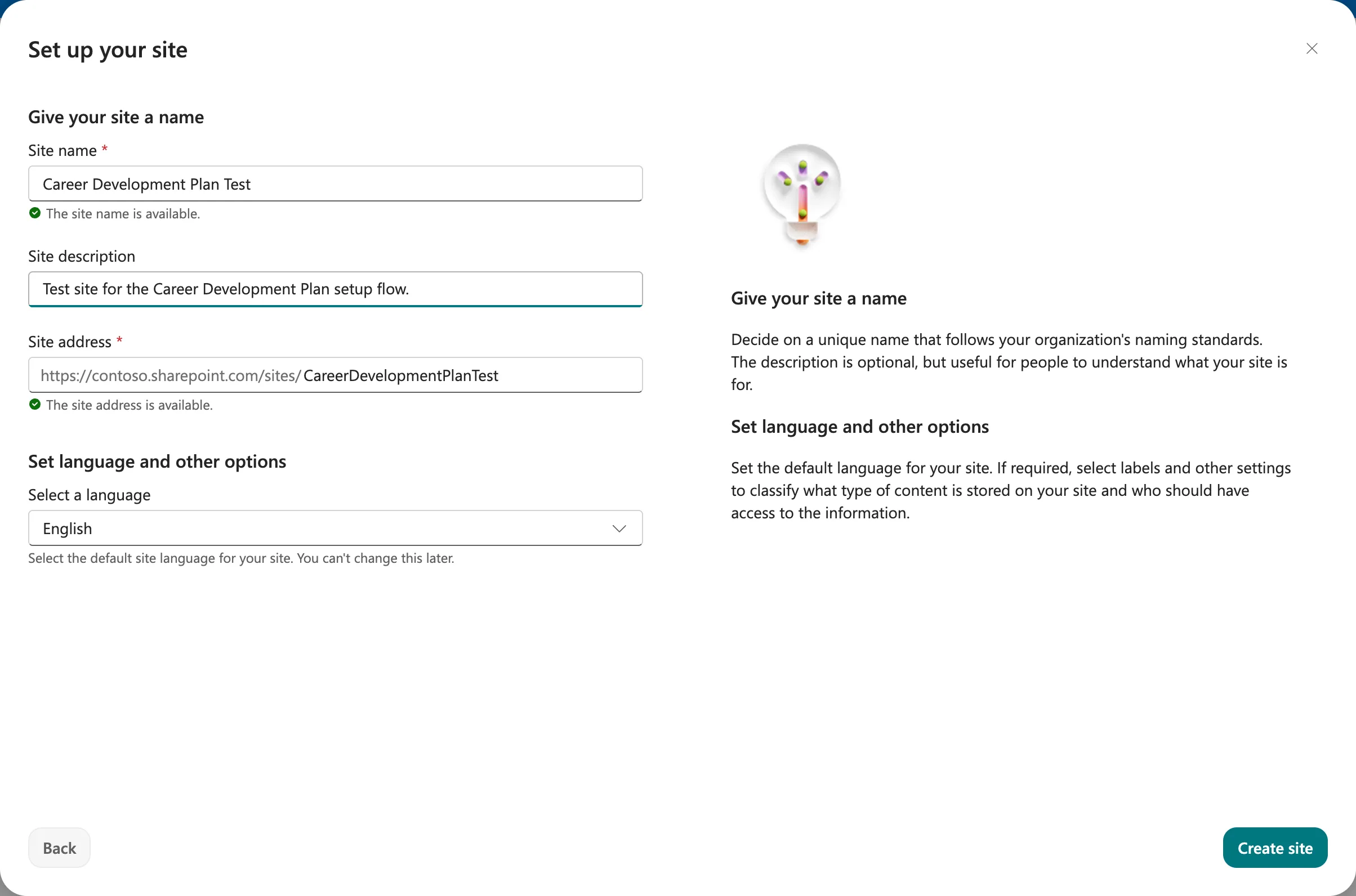
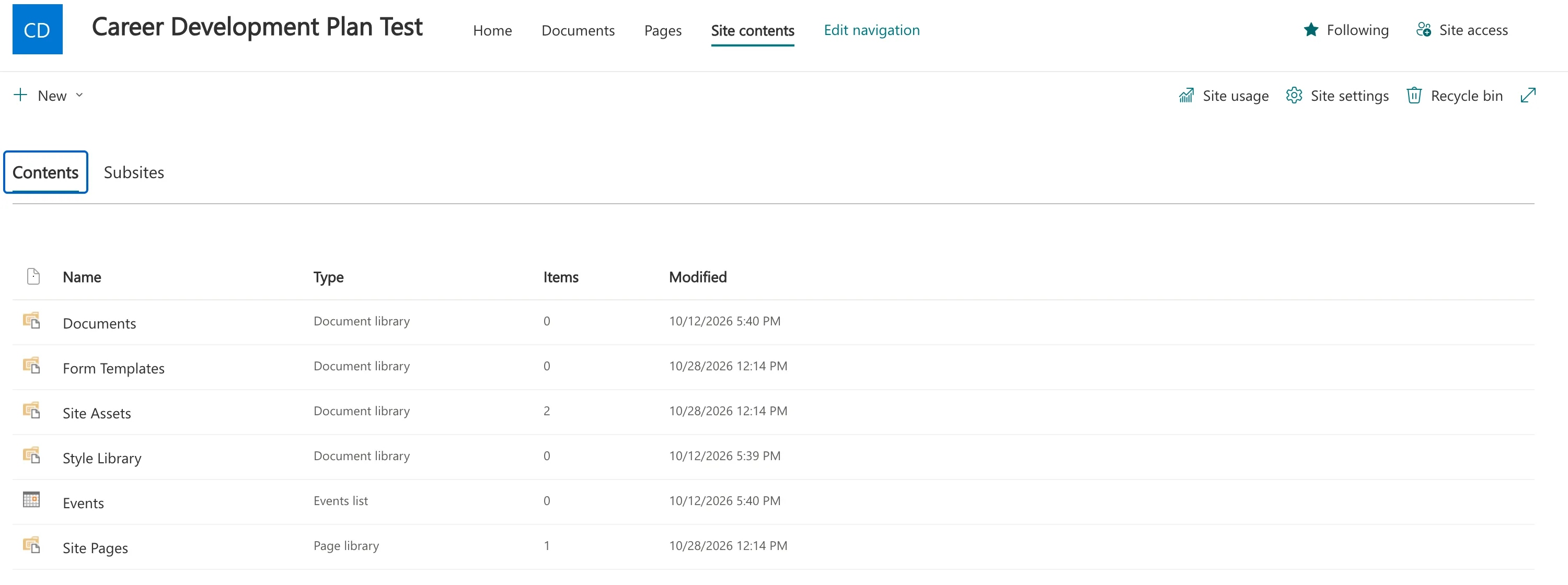
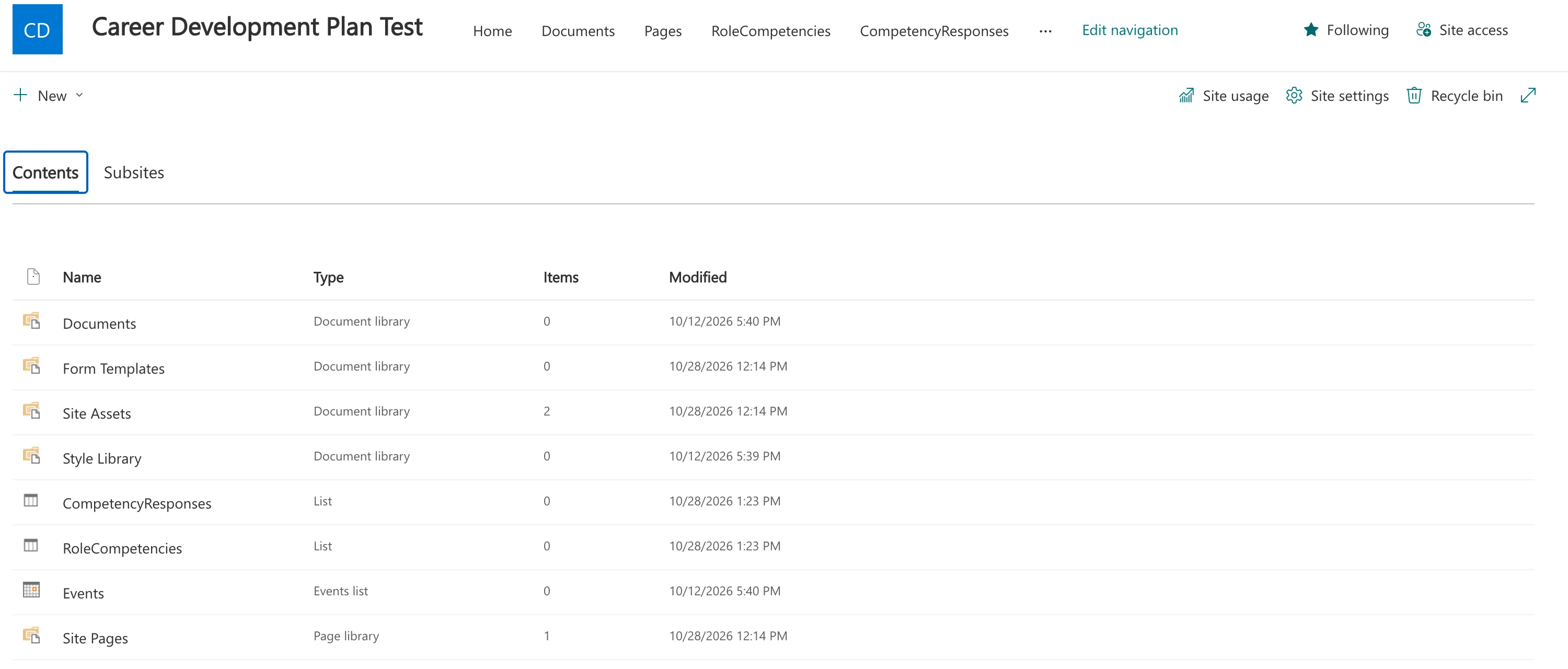
The new site came up in Pacific Time, as the guide warns, so I set it to UTC like the app's site. Its Site contents had only what SharePoint creates with every site:
Step 2: Create the Solution, Connection Reference and Flow
The solution
The flow gets a solution of its own because it runs before the app is installed: the app's environment variables point at lists, and the lists have to exist first. In Power Apps, create a second solution with the publisher from Part 3 (How to Create a Solution and Publisher):
| Field | Value |
|---|---|
| Display name | Career Development Plan Setup |
| Name | CareerDevelopmentPlanSetup |
| Publisher | Dewiride (Dewiride) |
| Version | 0.1.0.0 |
| Set as your preferred solution | Ticked |
| Description | Creates the SharePoint lists for the Career Development Plan app on any site. Run its flow once, before you install the app. |
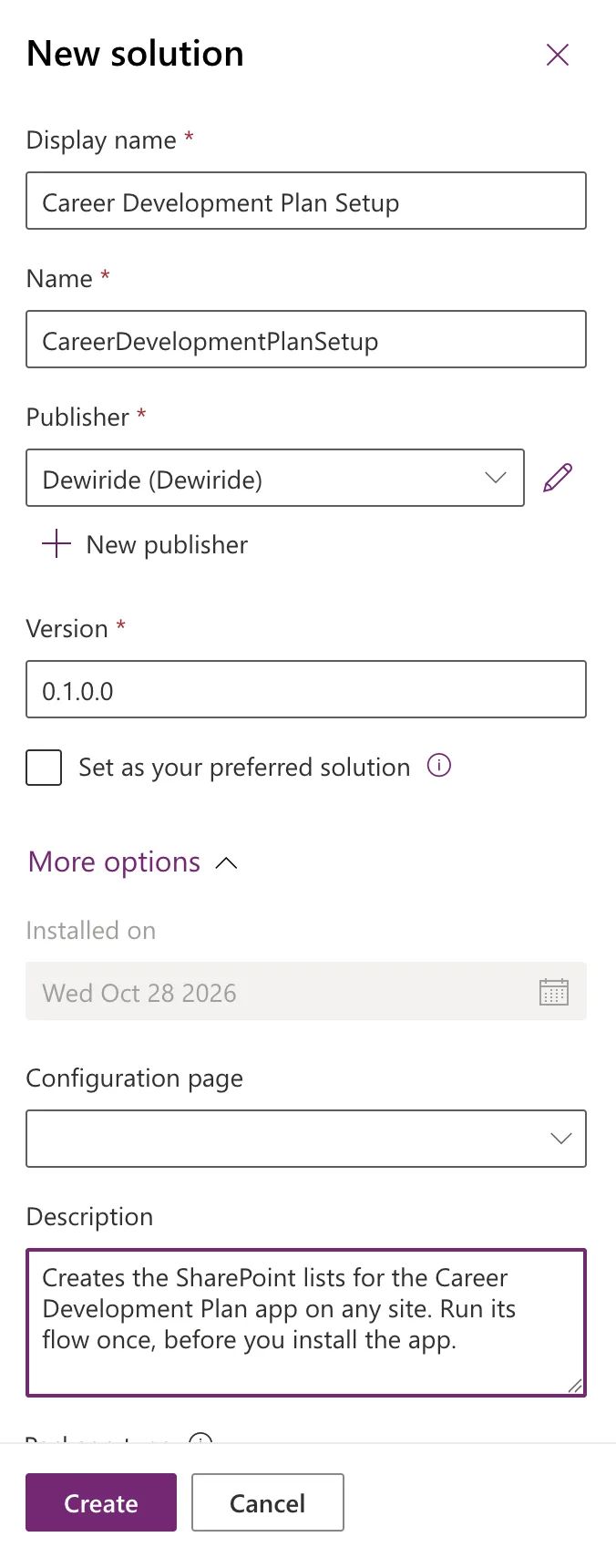
:::warning Tick Set as your preferred solution
The screenshot shows my mistake: I left it unticked. The app's solution was still my preferred one, so the flow I created next was added to both solutions. Fixed: A New Cloud Flow Shows Up in Two Solutions shows how I found it and moved the flow without deleting anything.
:::
The connection reference
In the new solution, select New → More → Connection Reference (How to Create a Connection Reference in a Solution):
| Field | Value |
|---|---|
| Display name | Career Development Plan Setup SharePoint |
| Name | dewiride_CareerDevelopmentPlanSetupSharePoint |
| Description | SharePoint connection for the flow that creates the Career Development Plan lists. |
| Connector | SharePoint |
| Connection | Your SharePoint connection from Part 3 |
Every SharePoint action in the flow connects through it, and whoever imports the solution picks their own connection for it.
The flow
Create an instant flow in the same solution (How to Create an Instant Cloud Flow Inside a Solution), and give its trigger a text input (How to Add a Text Input):
| Setting | Value |
|---|---|
| Flow name | Create Career Development Plan Lists |
| Trigger | Manually trigger a flow |
| Input type | Text |
| Input name | Site URL |
| Input description | The address of the SharePoint site, for example https://contoso.sharepoint.com/sites/CareerDevelopmentPlan |
Created from the solution, the flow opened in the classic designer. I built the first two steps there, saved, and did the rest in the new designer, opened from My flows → Edit, as the guide explains.
Step 3: Describe the Lists in List Definitions
Add a Compose action under the trigger and rename it List definitions (How to Use the Compose Action). It holds everything the flow creates, as JSON, and every later step reads from it, so the lists are described in one place.
The JSON is an array with one object per list:
| Property | What it holds |
|---|---|
title | The list's name |
description | The list's description |
noCrawl | true to keep the list out of search results |
columns | One entry per column: name, its internal name, and schemaXml, its definition |
A column's schemaXml is the XML SharePoint uses to define a column, its Field element. Here's JobTitle in RoleCompetencies:
<Field Type='Text' Name='JobTitle' StaticName='JobTitle' DisplayName='JobTitle' Description='The job title this competency is for. Must match the job title in Microsoft 365 exactly.' Required='TRUE' MaxLength='255' Indexed='TRUE' />
Name and StaticName are the internal name, DisplayName is the name people see, and Indexed='TRUE' indexes the column, as Part 2 did for JobTitle and EmployeeId. How to Add a Column with CreateFieldAsXml explains each attribute, with an example of every column type the app uses.
I wrote the XML from Part 2's lists: I read their columns through SharePoint's REST API, and checked every description, choice, default and the column order against them before pasting. This is the complete value of Inputs:
[
{
"title": "RoleCompetencies",
"description": "Competencies and expected levels for each job title. Used by the Career Development Plan app.",
"noCrawl": false,
"columns": [
{
"name": "Competency",
"schemaXml": "<Field Type='Text' Name='Competency' StaticName='Competency' DisplayName='Competency' Description='The name of the competency, such as Customer skill or Leadership.' Required='TRUE' MaxLength='255' />"
},
{
"name": "JobTitle",
"schemaXml": "<Field Type='Text' Name='JobTitle' StaticName='JobTitle' DisplayName='JobTitle' Description='The job title this competency is for. Must match the job title in Microsoft 365 exactly.' Required='TRUE' MaxLength='255' Indexed='TRUE' />"
},
{
"name": "Level",
"schemaXml": "<Field Type='Choice' Name='Level' StaticName='Level' DisplayName='Level' Description='The level a person in this job title is expected to reach.' Required='TRUE' Format='Dropdown' FillInChoice='FALSE'><CHOICES><CHOICE>Beginner</CHOICE><CHOICE>Intermediate</CHOICE><CHOICE>Advanced</CHOICE><CHOICE>Expert</CHOICE></CHOICES></Field>"
},
{
"name": "IsActive",
"schemaXml": "<Field Type='Boolean' Name='IsActive' StaticName='IsActive' DisplayName='IsActive' Description='Yes: part of the plan. No: removed from the plan (the row is kept for history).' Required='TRUE'><Default>1</Default></Field>"
}
]
},
{
"title": "CompetencyResponses",
"description": "Employees' responses to their competencies, and their managers' reviews. Used by the Career Development Plan app.",
"noCrawl": true,
"columns": [
{
"name": "Competency",
"schemaXml": "<Field Type='Text' Name='Competency' StaticName='Competency' DisplayName='Competency' Description='The competency name, copied from RoleCompetencies when the response is sent.' Required='TRUE' MaxLength='255' />"
},
{
"name": "EmployeeId",
"schemaXml": "<Field Type='Text' Name='EmployeeId' StaticName='EmployeeId' DisplayName='EmployeeId' Description='The employee's Microsoft Entra object ID. The app finds a person's responses with it.' Required='TRUE' MaxLength='255' Indexed='TRUE' />"
},
{
"name": "EmployeeName",
"schemaXml": "<Field Type='Text' Name='EmployeeName' StaticName='EmployeeName' DisplayName='EmployeeName' Description='The employee's display name when the response was sent.' Required='TRUE' MaxLength='255' />"
},
{
"name": "EmployeeEmail",
"schemaXml": "<Field Type='Text' Name='EmployeeEmail' StaticName='EmployeeEmail' DisplayName='EmployeeEmail' Description='The employee's email address when the response was sent.' Required='TRUE' MaxLength='255' />"
},
{
"name": "JobTitle",
"schemaXml": "<Field Type='Text' Name='JobTitle' StaticName='JobTitle' DisplayName='JobTitle' Description='The employee's job title when the response was sent.' Required='TRUE' MaxLength='255' />"
},
{
"name": "RoleCompetencyId",
"schemaXml": "<Field Type='Number' Name='RoleCompetencyId' StaticName='RoleCompetencyId' DisplayName='RoleCompetencyId' Description='The ID of the RoleCompetencies row this response is for.' Required='TRUE' Decimals='0' CommaSeparator='FALSE' />"
},
{
"name": "Level",
"schemaXml": "<Field Type='Text' Name='Level' StaticName='Level' DisplayName='Level' Description='The expected level when the response was sent.' Required='TRUE' MaxLength='255' />"
},
{
"name": "Response",
"schemaXml": "<Field Type='Note' Name='Response' StaticName='Response' DisplayName='Response' Description='What the employee has done to show this competency at this level.' Required='TRUE' RichText='FALSE' />"
},
{
"name": "Status",
"schemaXml": "<Field Type='Choice' Name='Status' StaticName='Status' DisplayName='Status' Description='Pending until the manager approves or declines the response.' Required='TRUE' Format='Dropdown' FillInChoice='FALSE'><CHOICES><CHOICE>Pending</CHOICE><CHOICE>Approved</CHOICE><CHOICE>Declined</CHOICE></CHOICES><Default>Pending</Default></Field>"
},
{
"name": "ManagerComment",
"schemaXml": "<Field Type='Note' Name='ManagerComment' StaticName='ManagerComment' DisplayName='ManagerComment' Description='The manager's comment. The app asks for one when a response is declined.' RichText='FALSE' />"
},
{
"name": "SubmittedOn",
"schemaXml": "<Field Type='DateTime' Name='SubmittedOn' StaticName='SubmittedOn' DisplayName='SubmittedOn' Description='When the employee last sent the response.' Required='TRUE' Format='DateTime' FriendlyDisplayFormat='Disabled' />"
},
{
"name": "ReviewedOn",
"schemaXml": "<Field Type='DateTime' Name='ReviewedOn' StaticName='ReviewedOn' DisplayName='ReviewedOn' Description='When the manager approved or declined the response.' Format='DateTime' FriendlyDisplayFormat='Disabled' />"
}
]
}
]
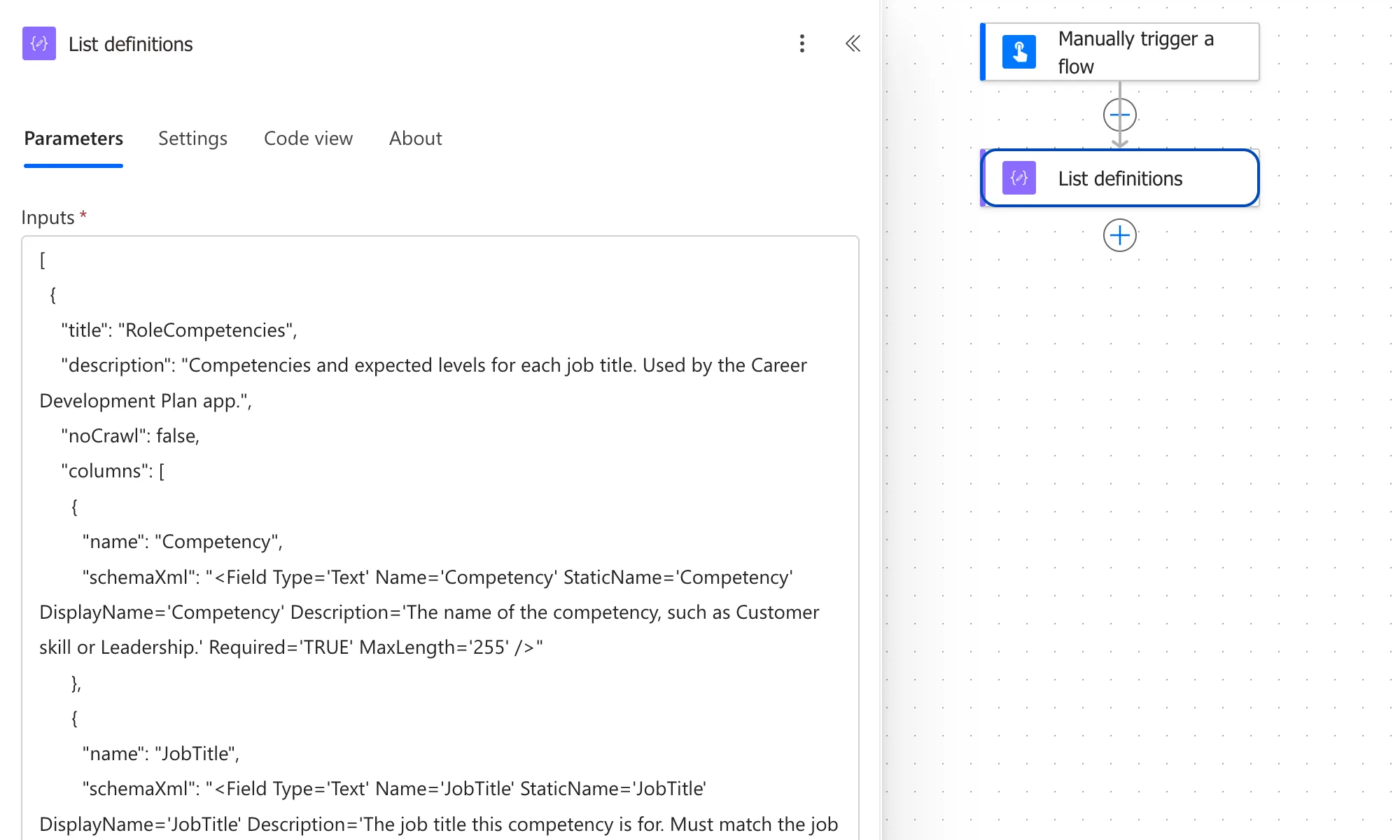
Two details keep it valid JSON: the XML uses single quotes, because the JSON string around it uses double quotes, and an apostrophe inside a description is written ', as in employee's.
Step 4: Check the Site
Add Send an HTTP request to SharePoint under List definitions and name it Check the site (How to Use Send an HTTP Request to SharePoint). Its pane says Connected to Career Development Plan Setup SharePoint: the connection reference from Step 2.
| Field | Value |
|---|---|
| Site Address | Enter custom value, then the trigger's Site URL |
| Method | GET |
| Uri | _api/web?$select=Title |
| Headers | Accept: application/json;odata=nometadata |
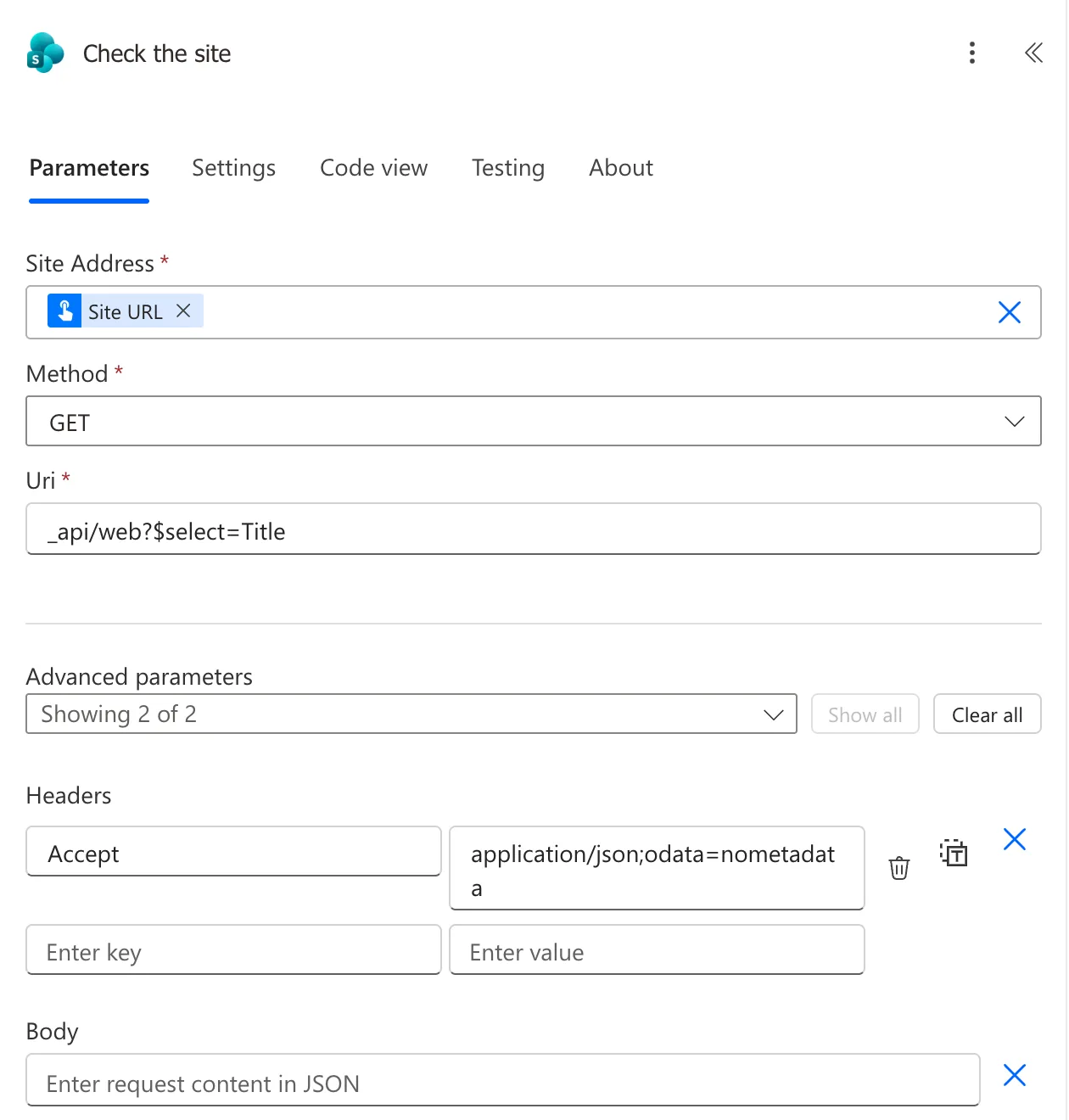
If the address is wrong, this request fails and nothing after it runs. Every SharePoint step after it uses the same Site Address.
Right after I saved, this action's pane showed No additional information is needed for this step and Not connected., with an empty Code view. Nothing was lost, as Fixed: "No Additional Information Is Needed for This Step" and "Not Connected" explains.
Step 5: Loop Over the Lists
Add Apply to each under Check the site, name it For each list, and set Select an output from previous steps to Outputs under List definitions (How to Loop Through an Array with Apply to Each):
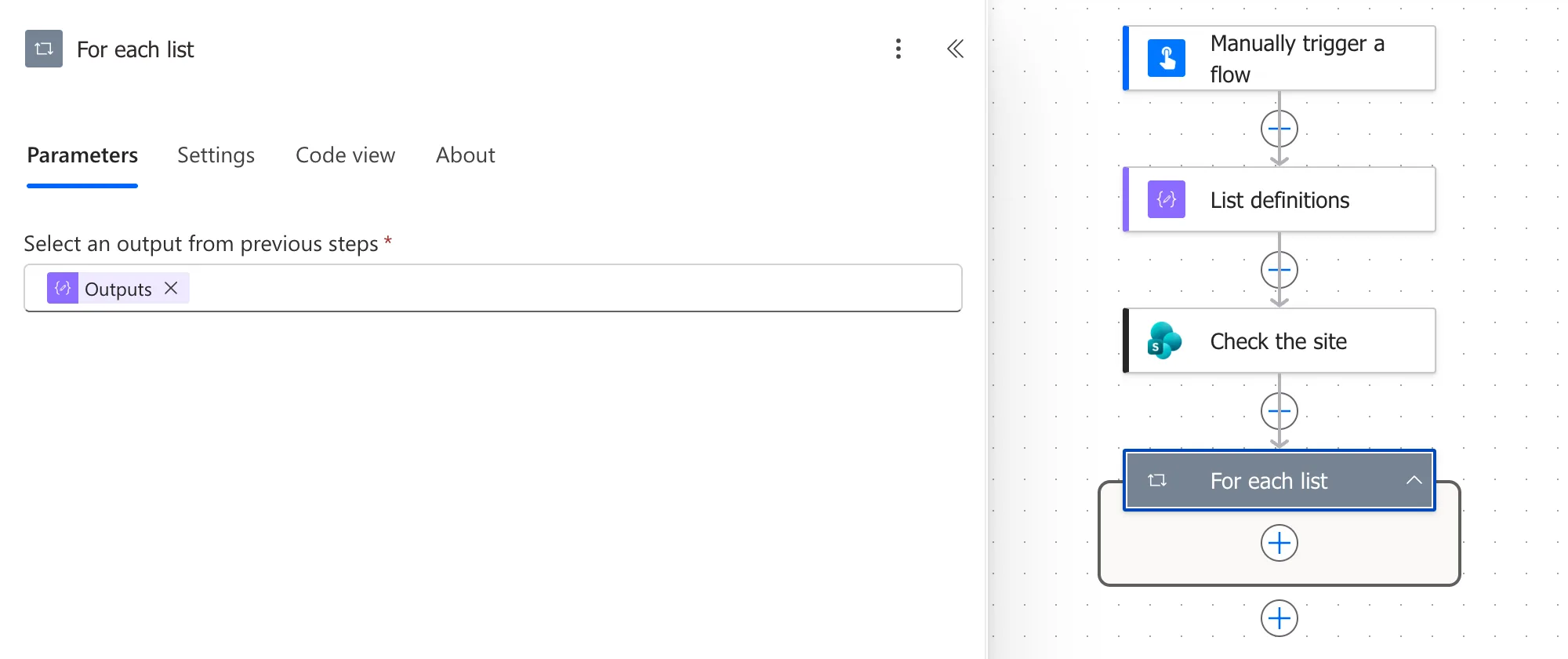
Inside the loop, this expression is the current list's title (How to Use the items() Function):
items('For_each_list')?['title']
Expressions go into a field through the expression editor (How to Add an Expression). Its Add button often needed two or three tries, and it said This expression has a problem about expressions that were correct. Fixed: "This Expression Has a Problem" covers both, and the one time the message was right.
Steps 6 to 9 all go inside this loop, so they run once for RoleCompetencies and once for CompetencyResponses.
Step 6: Create Each List Only When It's Missing
I built most of the flow's requests by copying one that was close and changing what differed (How to Copy and Paste an Action). Three steps go first in the loop.
Find the list asks SharePoint for a list with the current title (How to Check Whether a SharePoint List Exists). It's a GET with the Accept header:
_api/web/lists?$filter=Title eq '@{items('For_each_list')?['title']}'&$select=Id
If the list is missing is a Condition (How to Add a Condition) that compares this expression with the expression true. empty() is true when SharePoint found no list (How to Check Whether an Array Is Empty):
empty(body('Find_the_list')?['value'])
In its True branch, Create the list creates a custom list with that title (How to Create a SharePoint List with the REST API):
| Field | Value |
|---|---|
| Method | POST |
| Uri | _api/web/lists |
| Headers | Accept: application/json;odata=nometadata |
Content-Type: application/json;odata=verbose |
{
  "__metadata": { "type": "SP.List" },
  "BaseTemplate": 100,
  "Title": "@{items('For_each_list')?['title']}"
}
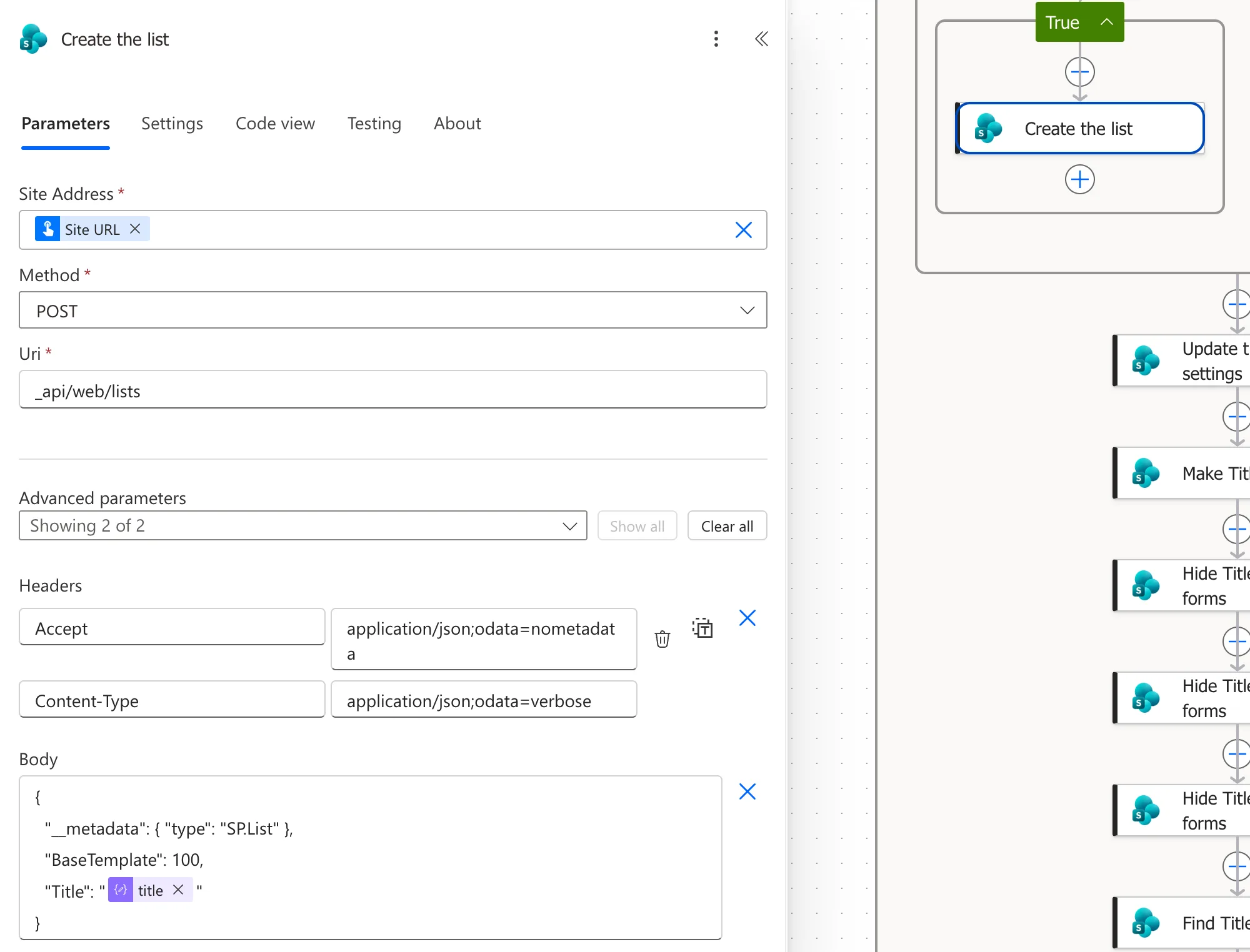
The False branch stays empty: when the list exists, there's nothing to create.
Step 7: Apply the List Settings
After the condition, still inside the loop, Update the list settings sets what Part 2 set by hand (How to Change SharePoint List Settings with the REST API). It runs for new and existing lists alike, and every run sets the same values again.
| Field | Value |
|---|---|
| Method | POST |
| Uri | _api/web/lists/getbytitle('@{items('For_each_list')?['title']}') |
| Headers | Accept: application/json;odata=nometadata |
Content-Type: application/json;odata=verbose | |
IF-MATCH: * | |
X-HTTP-Method: MERGE |
{
  "__metadata": { "type": "SP.List" },
  "Description": "@{items('For_each_list')?['description']}",
  "EnableAttachments": false,
  "EnableVersioning": true,
  "MajorVersionLimit": 50,
  "OnQuickLaunch": true,
  "NoCrawl": @{if(items('For_each_list')?['noCrawl'], 'true', 'false')}
}
That's the description, attachments off, version history with 50 versions, a link in the site's navigation, and CompetencyResponses kept out of search, as in Part 2 (How to Turn Off Attachments and Hide a SharePoint List from Search).
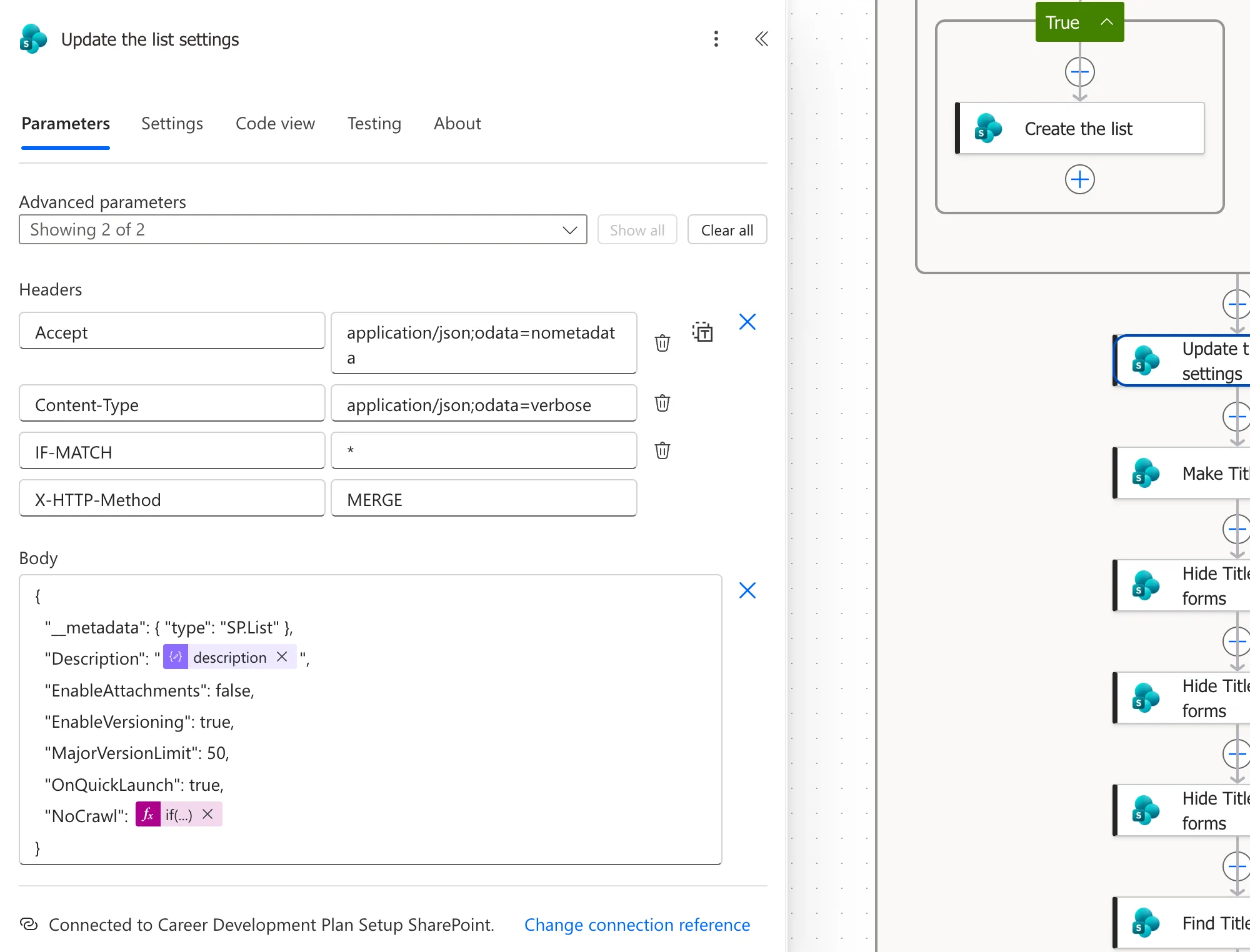
My first version wrote NoCrawl as @{items('For_each_list')?['noCrawl']}. That sends False with a capital F, which isn't JSON, and the run failed with Invalid JSON. A token was not recognized in the JSON content. The if() expression writes it in lowercase (How to Use the if() Function). The whole story is in Fixed: "Invalid JSON. A Token Was Not Recognized in the JSON Content".
Step 8: Hide the Title Column
Every list has a Title column, and a list created with the REST API starts with it required and as the only column in its view. The app uses its own Competency column, so these steps hide Title, as Part 2 did (How to Hide the Title Column with the REST API). Every Uri starts with the current list:
_api/web/lists/getbytitle('@{items('For_each_list')?['title']}')
| Action | Method | The Uri goes on with |
|---|---|---|
| Make Title optional | POST | /fields/getbyinternalnameortitle('Title') |
| Hide Title in new forms | POST | /fields/getbyinternalnameortitle('Title')/setshowinnewform(false) |
| Hide Title in edit forms | POST | /fields/getbyinternalnameortitle('Title')/setshowineditform(false) |
| Hide Title in display forms | POST | /fields/getbyinternalnameortitle('Title')/setshowindisplayform(false) |
| Find Title in the view | GET | /defaultview/viewfields |
| Remove Title from the view | POST | /defaultview/viewfields/removeviewfield('LinkTitle') |
Make Title optional sends the same four headers as Update the list settings, with this body. The other five send only the Accept header, and no body.
{
  "__metadata": { "type": "SP.Field" },
  "Required": false
}
Remove Title from the view goes in the True branch of a Condition, If Title is in the view, which compares this expression with true (How to Check Whether an Array Contains a Value). In a view, Title is called LinkTitle:
contains(body('Find_Title_in_the_view')?['Items'], 'LinkTitle')
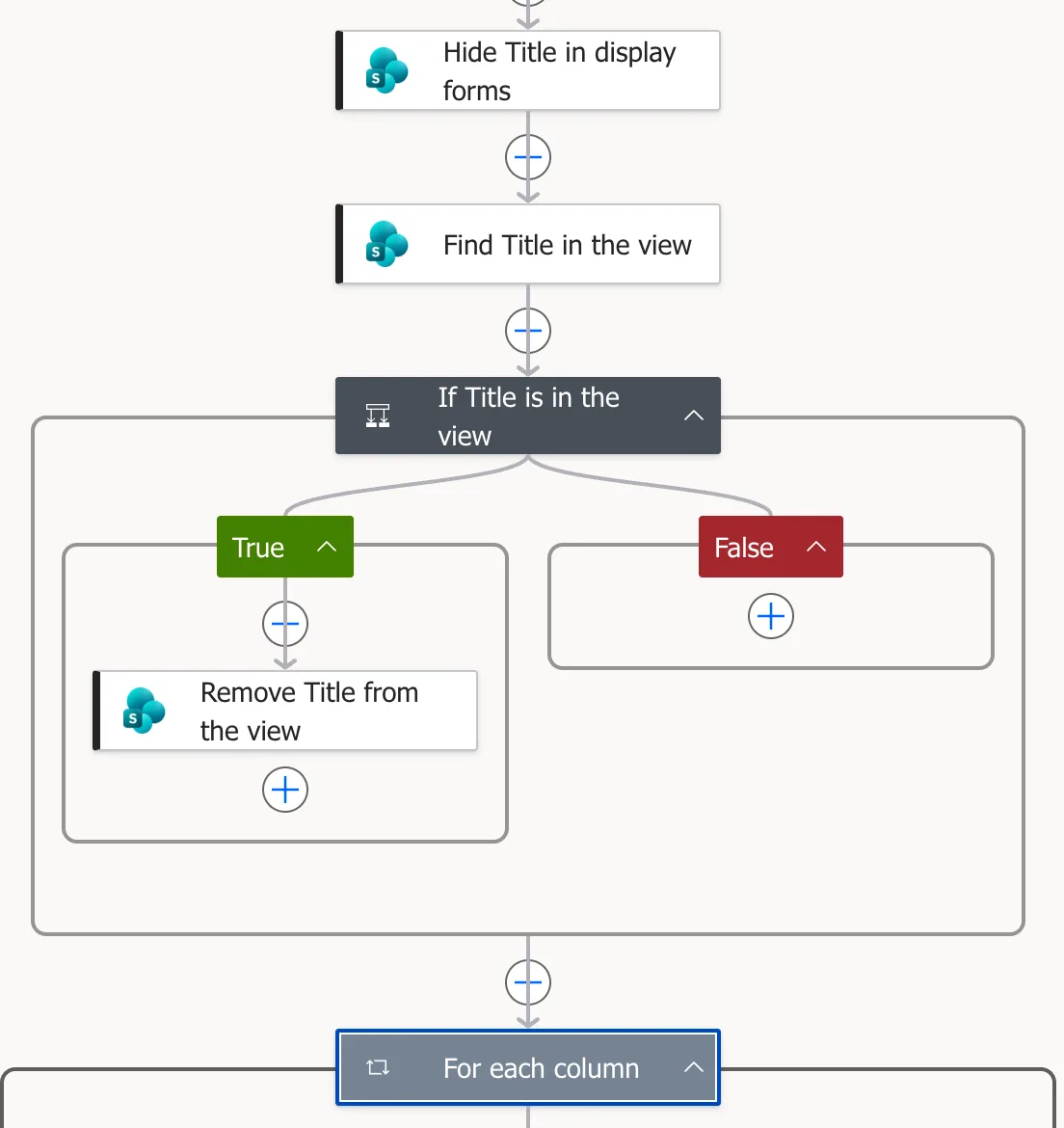
The check wasn't in my first version. Removing a column that isn't in the view fails, and I found that out on the second run, in Step 11.
Step 9: Add the Columns
The last step in For each list is a loop of its own, over the current list's columns. Add Apply to each, name it For each column, and give it this expression (Nest a Loop):
items('For_each_list')?['columns']
Inside it, the same check comes before the create. Find the column is a GET with the Accept header:
_api/web/lists/getbytitle('@{items('For_each_list')?['title']}')/fields?$filter=InternalName eq '@{items('For_each_column')?['name']}'&$select=InternalName
If the column is missing compares this with true:
empty(body('Find_the_column')?['value'])
In its True branch, Create the column sends the column's XML to SharePoint (How to Add a Column with CreateFieldAsXml):
| Field | Value |
|---|---|
| Method | POST |
| Uri | _api/web/lists/getbytitle('@{items('For_each_list')?['title']}')/fields/createfieldasxml |
| Headers | Accept: application/json;odata=nometadata |
Content-Type: application/json;odata=verbose |
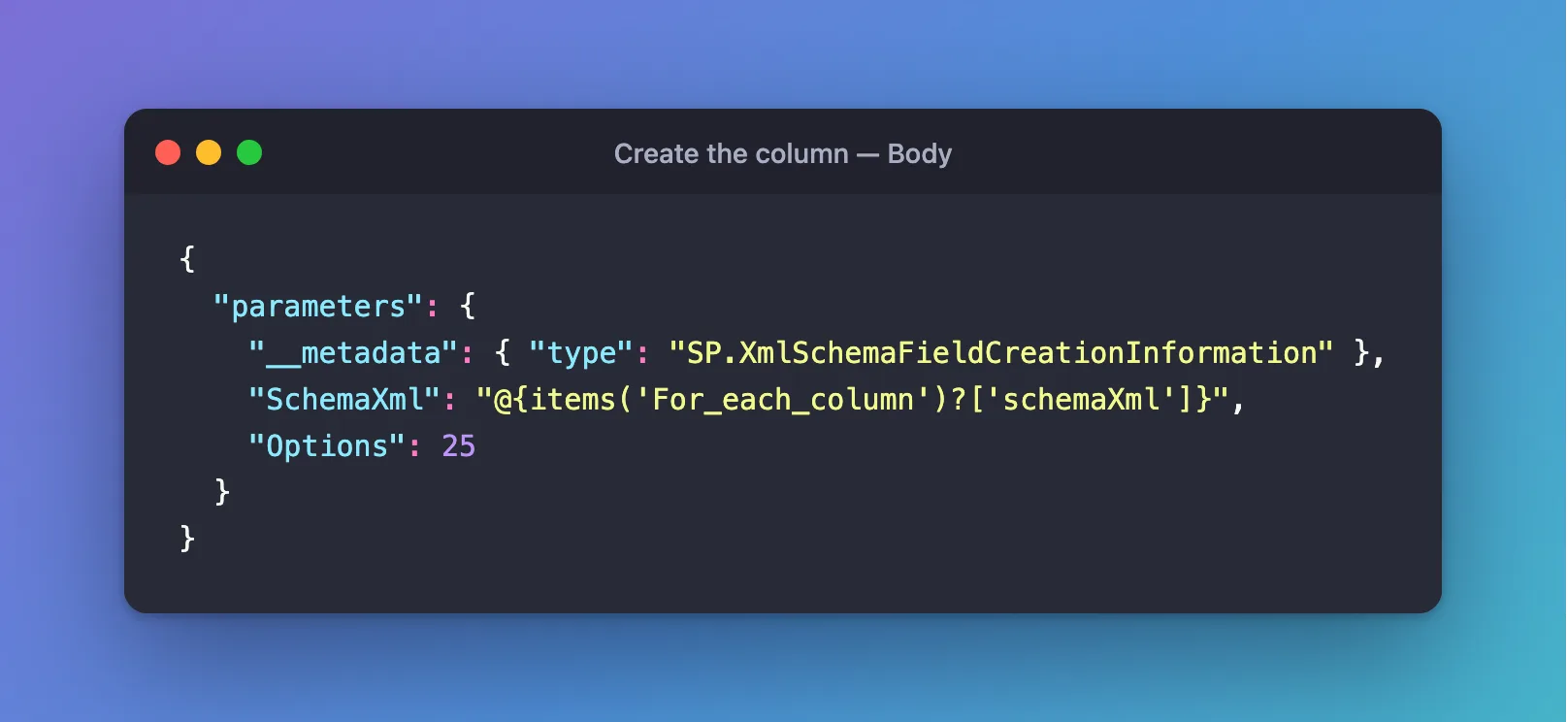
{
  "parameters": {
    "__metadata": { "type": "SP.XmlSchemaFieldCreationInformation" },
    "SchemaXml": "@{items('For_each_column')?['schemaXml']}",
    "Options": 25
  }
}
SchemaXml is the current column's XML from List definitions. Options adds up three values from Microsoft's AddFieldOptions: 1 puts the column in the forms, 8 makes the XML's Name its internal name, and 16 shows it in the default view (What Options 25 Means). The 8 is what keeps the internal names identical to Part 2's.
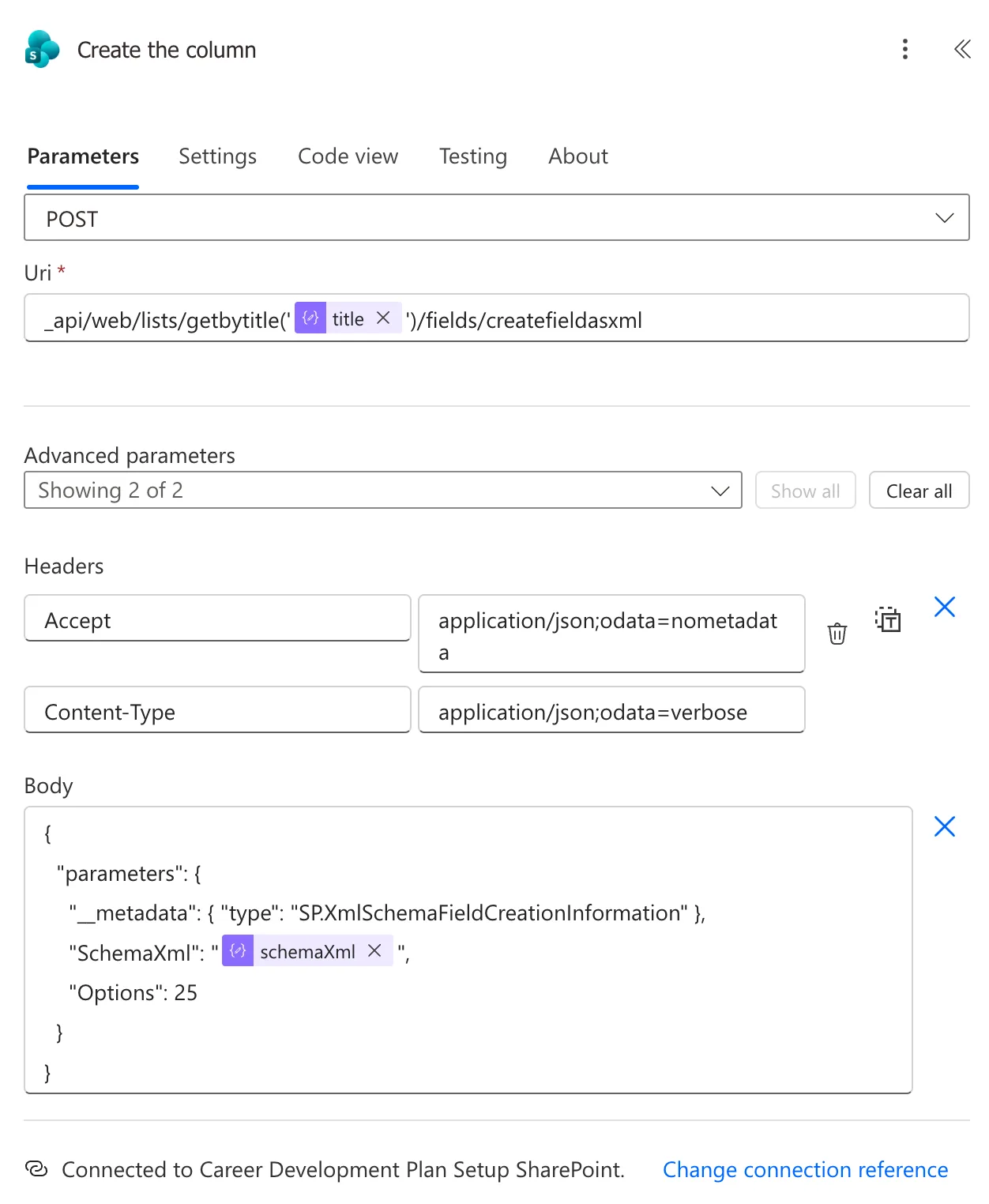
Save the flow. Every step is in place.
Step 10: Run It on the Empty Test Site
Select Test, choose Manually, then Test, and Continue. Type the test site's address into Site URL, such as https://contoso.sharepoint.com/sites/CareerDevelopmentPlanTest with your own tenant's name, and select Run flow (How to Test a Cloud Flow Manually).
I tested after each group of steps rather than once at the end. These were the runs on the empty site:
| Run | What the flow had by then | Result |
|---|---|---|
| 12:57 PM | Check the site | Succeeded: the site's title came back |
| 1:23 PM | The list steps and Update the list settings | Created RoleCompetencies, then failed on Update the list settings with Invalid JSON |
| 1:28 PM | The if() fix | Succeeded: both lists, with their settings |
| 1:45 PM | The Title steps and For each column | Succeeded in 16 seconds: Title hidden and all 16 columns added |
Afterwards, the test site's Site contents listed both lists, and both had a link in the site's navigation:
RoleCompetencies showed its four columns, and no Title:

Its New item form asked for those four, each with its description, with IsActive already set to Yes:
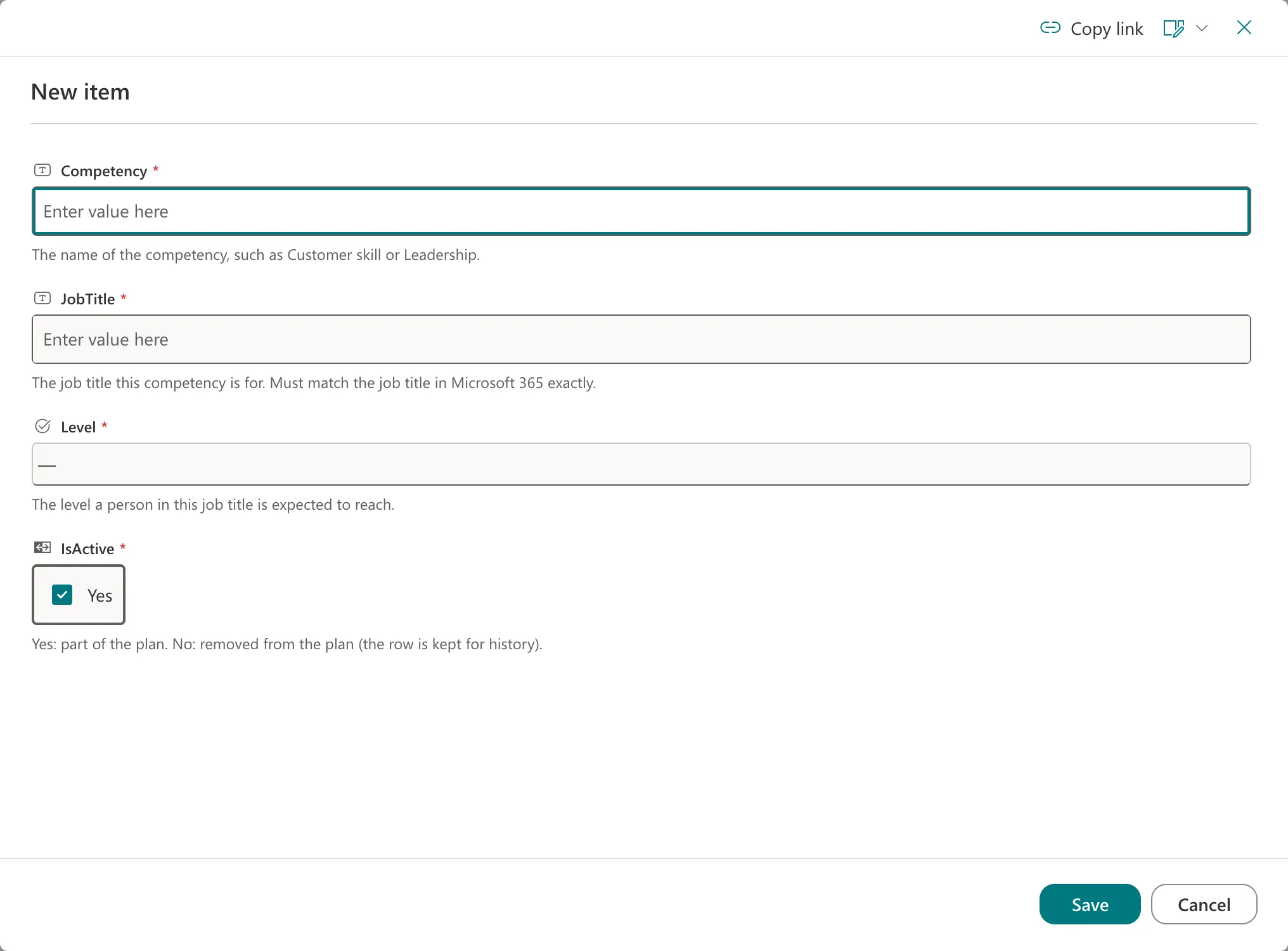
Then I compared both lists with Part 2's through SharePoint's REST API. The list settings matched, and so did every column's internal name, type, required setting, length, index, choices, default and description. One thing differs under the hood: Part 2 hid Title through the list's content type, in SharePoint's settings pages, while the flow uses the column's own settings. The forms and views look the same.
Step 11: Run It Again
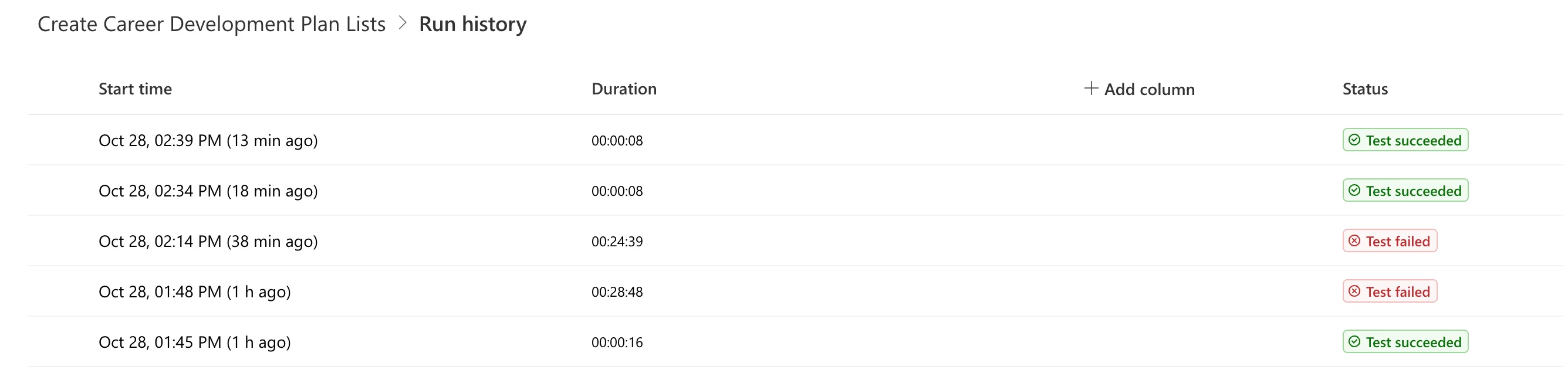
A setup flow is only safe if a second run changes nothing. My first repeat run, at 1:48 PM, didn't finish in seconds. It showed Waiting for half an hour, then failed with Action 'Remove_Title_from_the_view' failed: BadGateway.
Inside the error was SharePoint's Invalid field name. The 1:45 PM run had already taken Title out of the view, so removing it again was an error. Power Automate retried that error twice, minutes apart, for each list, and Cancel didn't stop the run. A second attempt at 2:14 PM, before I knew the cause, failed the same way. Fixed: "Invalid Field Name" BadGateway When Removing a Column from a SharePoint View has the whole investigation.
The fix is the check in Step 8: Find Title in the view and If Title is in the view. With it, the next run on the same site took 8 seconds, and every Create step was skipped:
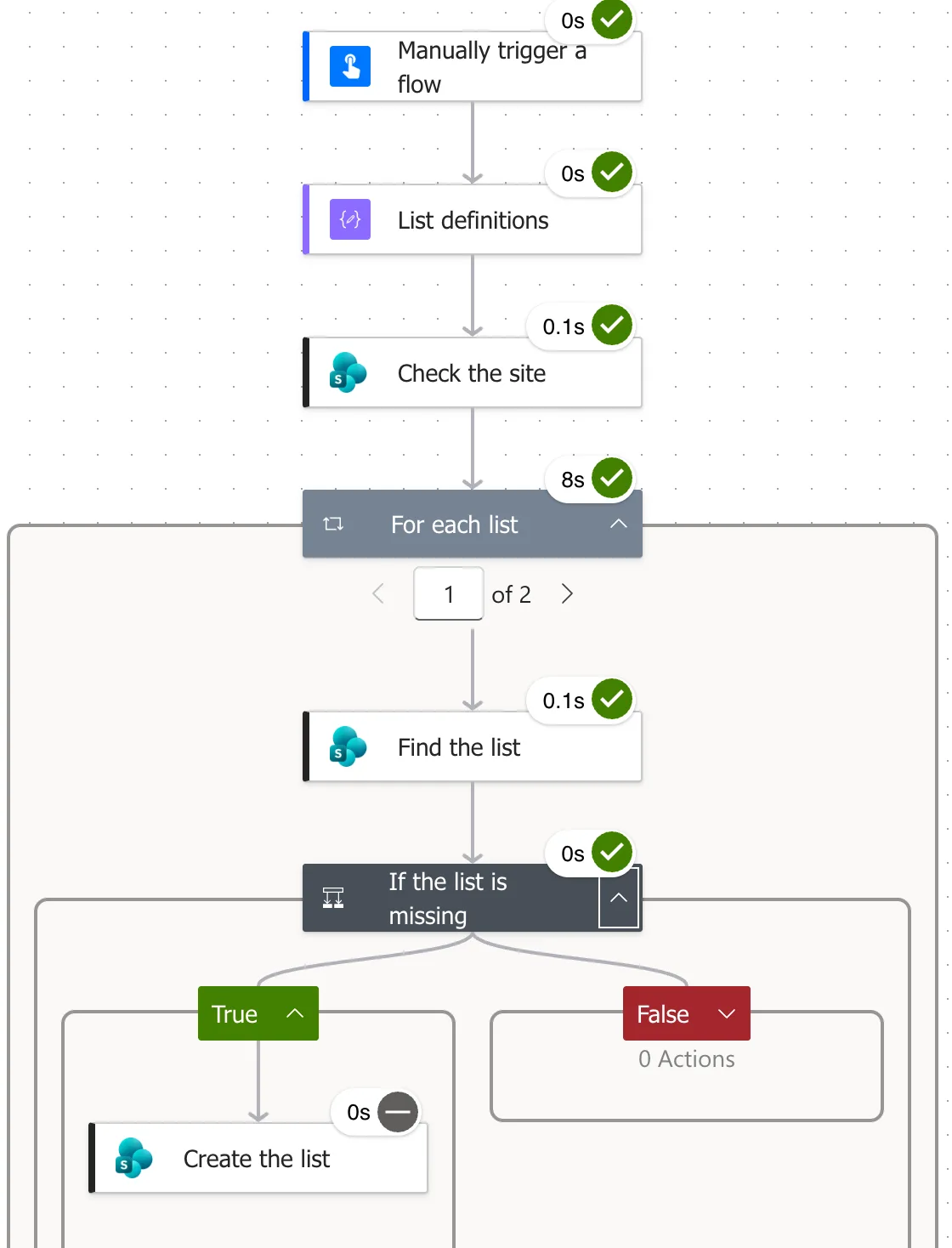
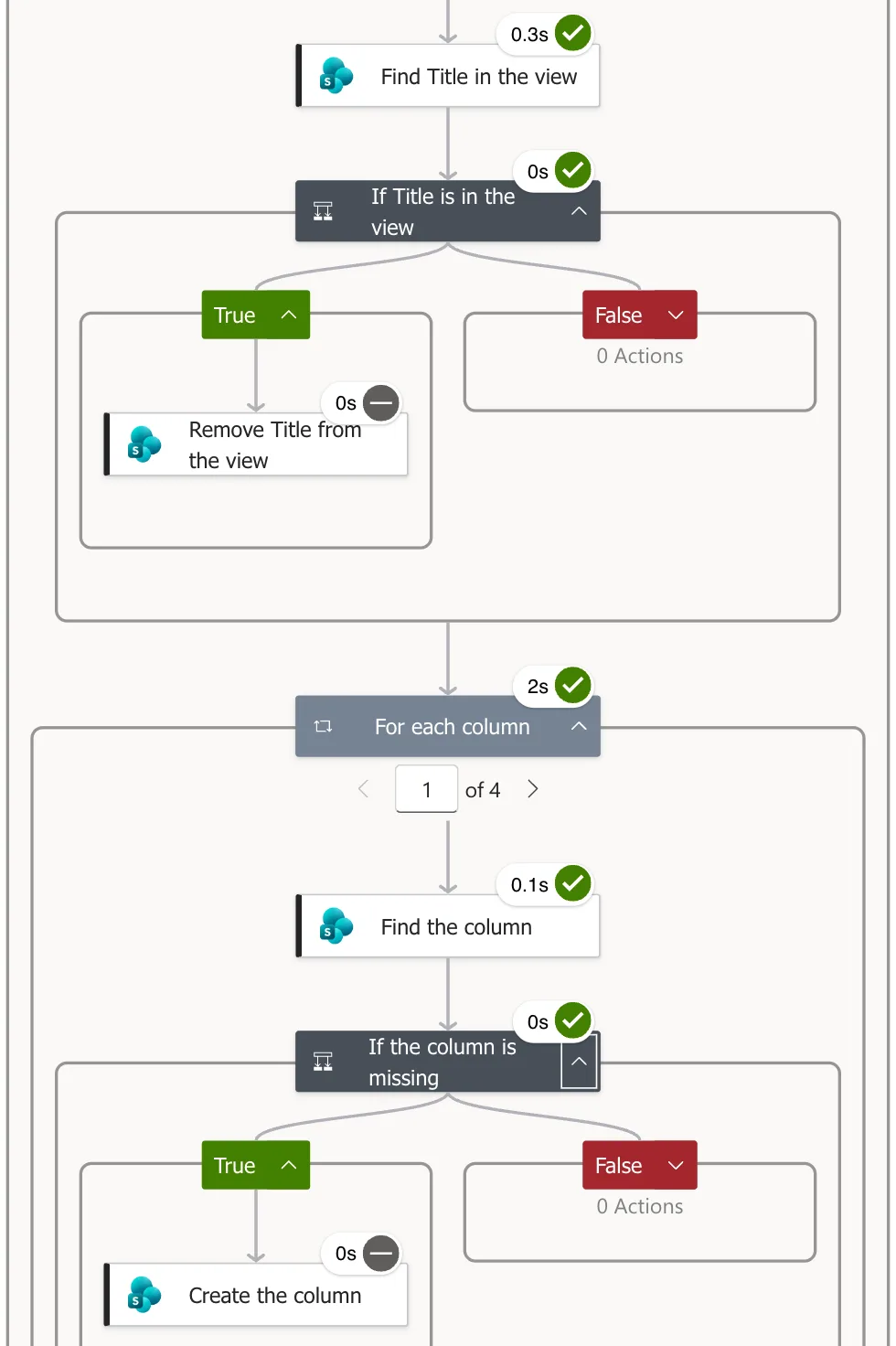
To test the other branch, I put Title back into the test list's view with SharePoint's Show or hide columns and ran the flow again. It took 8 seconds, and Title was out of the view afterwards. The run history shows the whole day:
After the repeat runs, the lists still had exactly their 4 and 12 columns, with no duplicates.
The Problems I Hit
| Problem | Where | The fixes post |
|---|---|---|
| The new flow was in two solutions | Step 2 | A New Cloud Flow Shows Up in Two Solutions |
| An action showed Not connected after saving | Step 4 | "No Additional Information Is Needed for This Step" |
| A correct expression was flagged | Steps 5 to 9 | "This Expression Has a Problem" |
| Invalid JSON from the list settings | Step 7 | "Invalid JSON. A Token Was Not Recognized" |
| The second run waited half an hour, then failed | Step 11 | "Invalid Field Name" BadGateway |
Clean Up the Test Site
The test site has done its job: Part 13 runs the flow on a new site in another environment. Keep it while you work through the series if you want to test changes to the flow, and delete it when you're done.
A SharePoint Administrator deletes a communication site from Active sites in the SharePoint admin center: select the site, then Delete (Delete a site). Microsoft keeps a deleted site for 93 days, so it can be restored in that time.
Common Mistakes
| Mistake | What happens | Do this instead |
|---|---|---|
| Creating the flow while another solution is preferred | The flow lands in both solutions | Make the Setup solution your preferred one first |
| Editing the flow from inside the solution | It opens in the classic designer, with no New designer toggle | Open it from My flows → Edit |
| Testing on the app's own site | The flow changes the lists the app uses | Test on an empty site |
Writing a true-or-false value as @{...} | Invalid JSON | Use if(value, 'true', 'false') |
| Removing Title from the view without checking | The second run waits half an hour, then fails | Check Items for LinkTitle first |
Leaving 8 out of Options | Columns may get different internal names | Use 25 |
Troubleshooting
| Symptom | Likely cause | Fix |
|---|---|---|
| Check the site fails | Site URL is wrong, or the connection's account can't open the site | Copy the address from the site itself, and check that the account can open it |
| A loop shows Waiting for many minutes | A step inside it is being retried | Wait for the run to end, then read that step's Retry history |
| The flow is in two solutions | Your preferred solution was a different one | Remove it from the wrong solution with Remove from this solution |
| A column has an unexpected internal name | The XML's Name wasn't used | Check Options is 25 |
FAQ
Can I run the flow on the site from Part 2?
It's built for a new site, and I only ran it on the test site. Part 2's lists already exist, with Title hidden a different way, so there's nothing for the flow to create there, and I haven't tested what its settings steps would change on them.
Does it add any data?
No. It creates the lists empty. Managers add their competencies in the app (Part 9).
How do I change a column later?
Change its schemaXml in List definitions for new installations. The flow skips columns that already exist, so on an existing site, change the column in SharePoint as well.
Why does the flow check the site first?
If Site URL is wrong, the run stops at the first request, before anything else is tried.
How long does it take?
16 seconds for the first full run, and 8 seconds when everything already exists.
Conclusion
The setup flow is finished and tested:
- it lives in its own solution, Career Development Plan Setup, with a SharePoint connection reference;
- one JSON value, List definitions, describes both lists and all 16 columns;
- on an empty site it creates both lists, applies Part 2's settings, hides Title and adds every column, with the same internal names as Part 2's lists;
- every step that creates or removes something checks first, so a second run takes 8 seconds and changes nothing.
Your preferred solution is now Career Development Plan Setup. Before you change the app again, make Career Development Plan your preferred solution (Change the Preferred Solution Later).
← Previous: Part 10: Test Every Role, Joiners and Leavers
Next → Part 12: Run the Solution Checker and Export the Solutions. Both solutions will be checked, given a release version and exported, ready to install anywhere.
Additional Resources
- Create a cloud flow in a solution: solution-aware flows.
- Working with the SharePoint Send HTTP Request flow action: the action behind every SharePoint step.
- Working with lists and list items with REST: creating and changing lists and fields.
- Field element (List): the XML that defines a column.
- Environment variables for Power Platform overview: why the column names must match.
- Limits of automated, scheduled, and instant flows: the retry policy behind the half-hour wait.
