Build a Career Development Plan App in Power Apps — Part 10: Test Every Role, Joiners and Leavers

The app is built. This part tests it the way the brief describes it, as each person in the demo sales team: a manager who's also an employee, a response that's declined and sent again, a promotion, someone who leaves and someone who joins. There are no new screens, only real accounts, real data and three findings.
This is Part 10 of a 14-part series.
- Part 1: Plan the App and Set Up the Demo Organization
- Part 2: Create the SharePoint Site and Lists
- Part 3: Create the Solution, Environment Variables and Canvas App
- Part 4: Build the Home Screen
- Part 5: Build the My Plan Screen
- Part 6: Build the Response Screen
- Part 7: Share the App and Build the My Team Screens
- Part 8: Build the Review Screen for Manager Approvals
- Part 9: Let Managers Manage Competencies
- Part 10: Test Every Role, Joiners and Leavers (you are here)
- Part 11: Build a Setup Flow That Creates the SharePoint Lists (coming soon)
- Part 12: Run the Solution Checker and Export the Solutions (coming soon)
- Part 13: Install the App in a New Environment (coming soon)
- Part 14: Recap, Production Checklist and Next Steps (coming soon)
Every test runs in the published app, with each person in their own browser window, and every change to people happens in the Microsoft 365 and Microsoft Entra admin centers, the way IT would make it. Three things came up on the way: an open app keeps the profile it read when it started, the Microsoft 365 admin center hides Sign out of all sessions once a user is blocked, and Microsoft Entra can show an old job title after saving a new one. Each is shown where it happened.
What You'll Test
| Test | Who | Brief requirement |
|---|---|---|
| A manager's Home shows both plan and team | Daniel Brooks | Managers are employees too |
| An employee's Home shows only their plan | Aisha Khan | Employees see only their own competencies |
| A manager's own response goes to his manager | Daniel and Olivia Bennett | Responses are sent to the manager, who approves or declines |
| A manager sees only direct reports | Olivia | Each manager sees only their own direct reports |
| A decline with a comment, then a resend | Aisha and Daniel | Managers approve or decline |
| A promotion switches the plan | Aisha | Competencies are based on the position |
| A leaver drops off the team | Leo Martin | A leaver's role is taken by someone new |
| A joiner gets the plan with no setup | Maya Patel | A new joiner appears in the manager's team |
Prerequisites
- Part 9 completed, with the app published.
- The demo organization from Part 1, and the temporary passwords for Daniel, Aisha and Leo.
- A separate browser window for each person. Use a separate browser profile or a private window, so you aren't signed in as yourself, as Part 7 did for Olivia.
- The guides this part relies on, by topic:
- Opening the app:
- Changing people:
Step 1: Open the App as Daniel and Aisha
Open the app's link in Daniel's window and in Aisha's. Neither had signed in before, so each signed in with their temporary password from Part 1 and went through Microsoft's first sign-in (How to Add a User and Assign a License explains it). Then Power Apps showed the same permissions dialog Olivia saw in Part 7, and each of them selected Allow.
Daniel, the Sales Manager, gets both buttons, because Aisha and Leo report to him:

Aisha, a Sales Engineer, gets only My plan. Nobody reports to her, so IsManager from Part 4 is false and My team stays hidden:

Step 2: Send a Response as Daniel
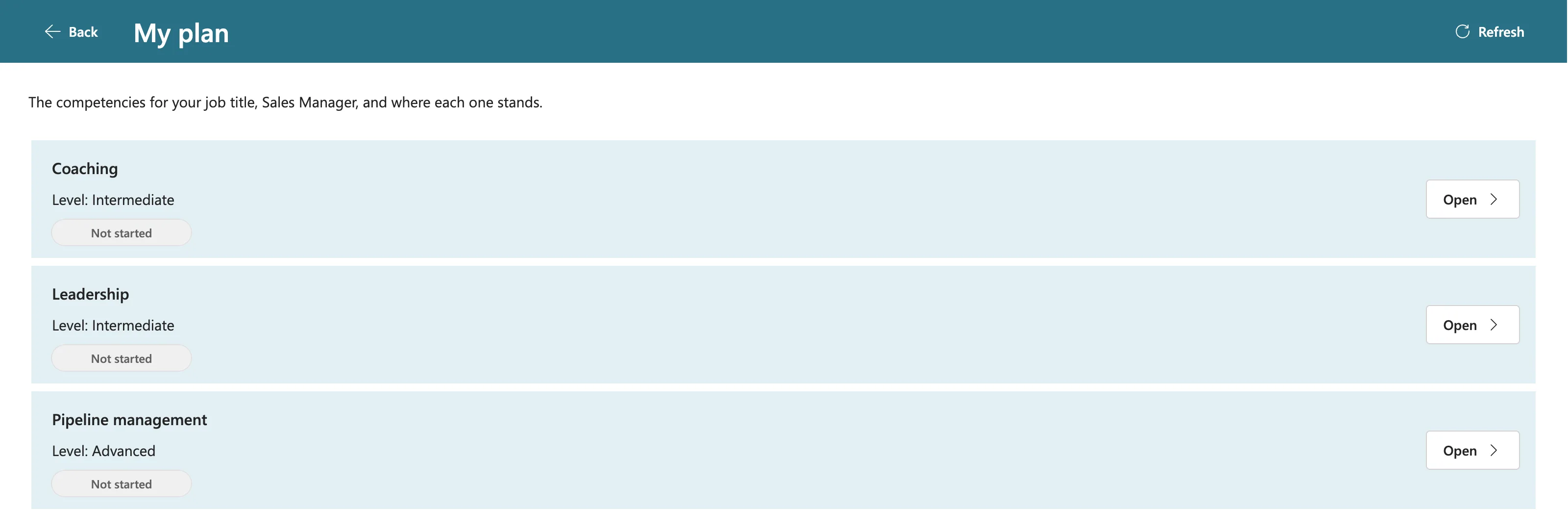
Daniel is an employee too. His My plan shows the three Sales Manager competencies from Part 2:
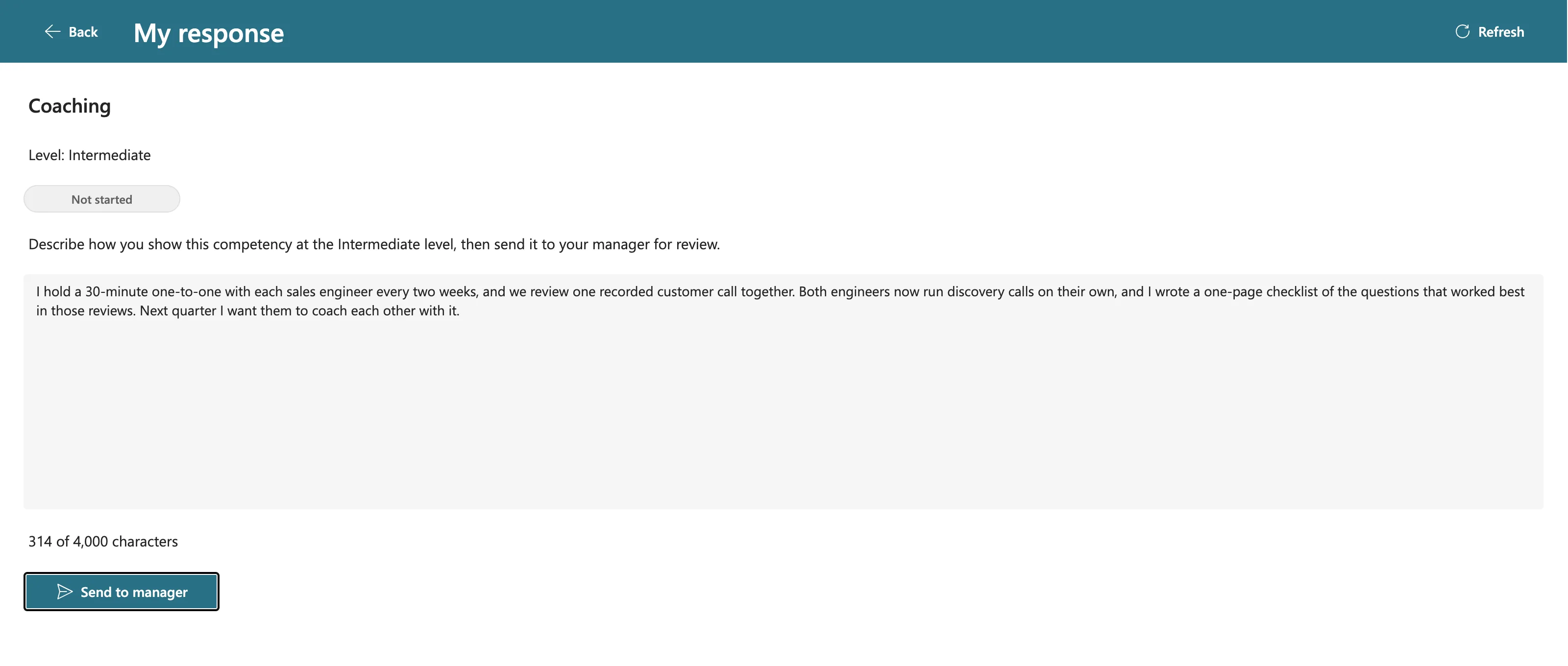
Open Coaching, write a response and select Send to manager:
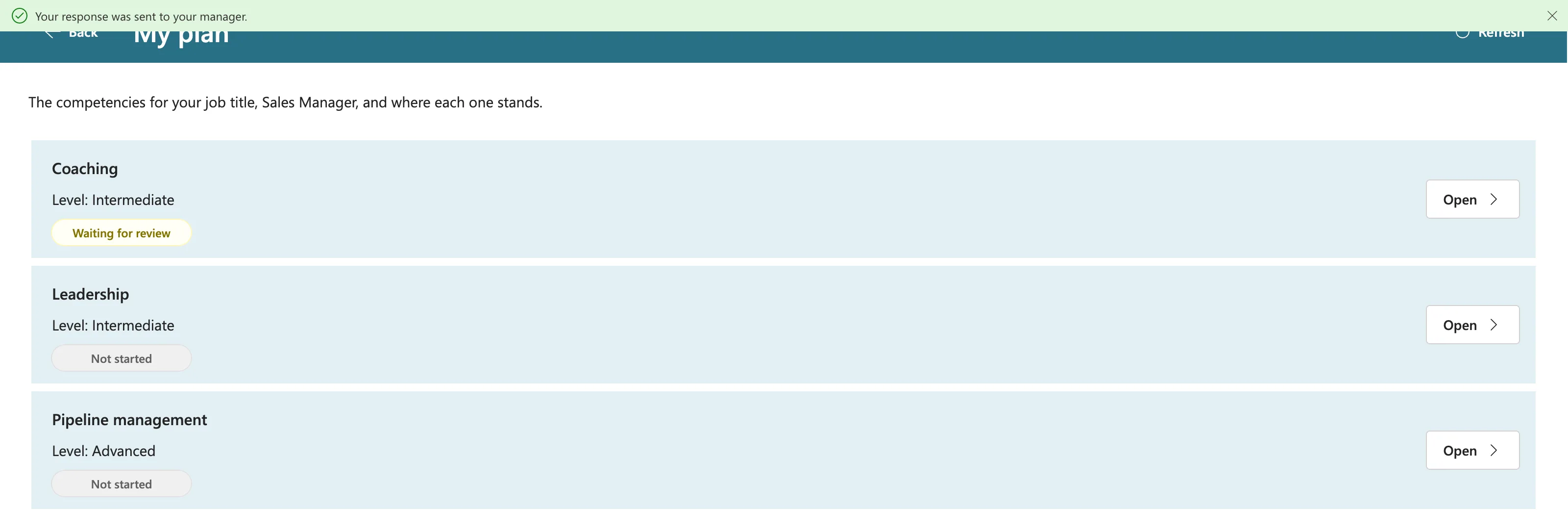
The app confirms it, and Coaching changes to Waiting for review:
Step 3: Review It as Olivia
Daniel's manager is Olivia, so his response waits on her My team. Her team is only Daniel. Aisha and Leo report to Daniel, not to her, so they don't appear: each manager sees only their own direct reports.

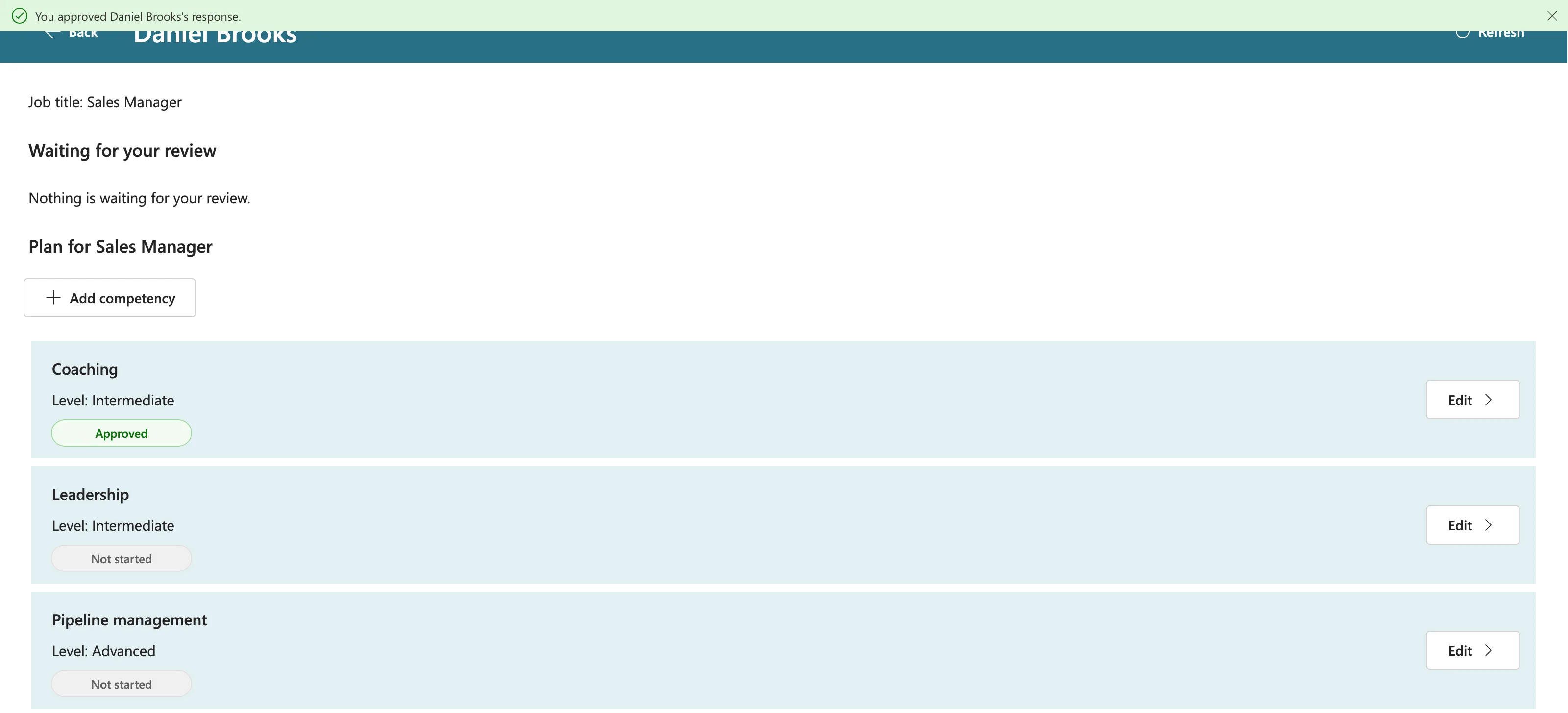
Open Daniel Brooks, select Review on Coaching, and approve it. A comment is optional when approving:
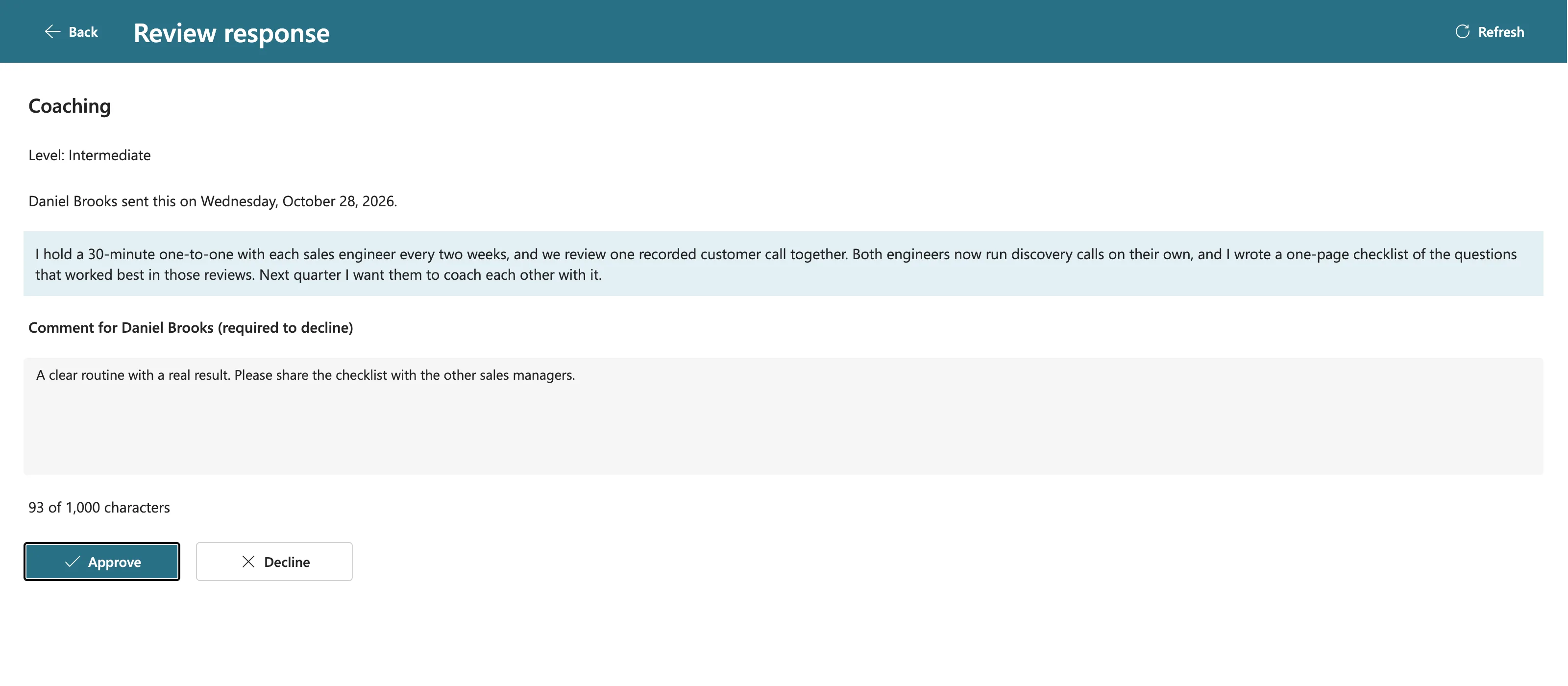
The app confirms You approved Daniel Brooks's response., nothing is waiting any more, and his plan shows Coaching as Approved:
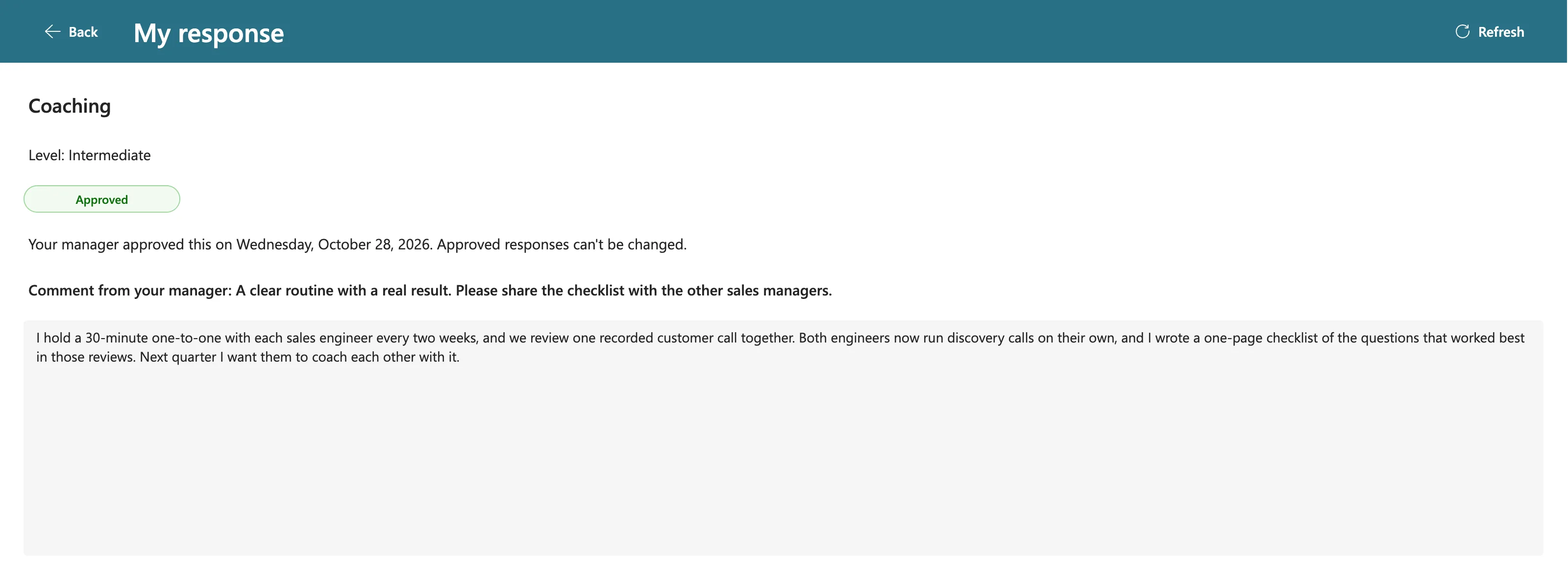
Back in Daniel's window, his Coaching response shows the decision and Olivia's comment, and it can't be changed any more:
Step 4: Send a Response as Aisha
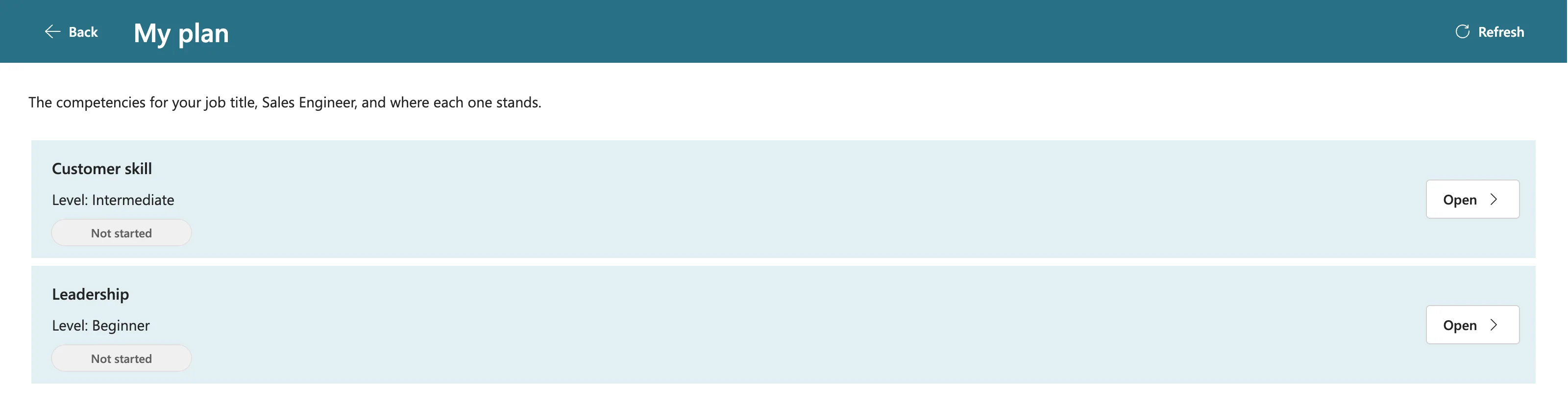
Aisha's My plan has the two Sales Engineer competencies:
Her first response to Customer skill is short on purpose, so her manager has a reason to decline it:
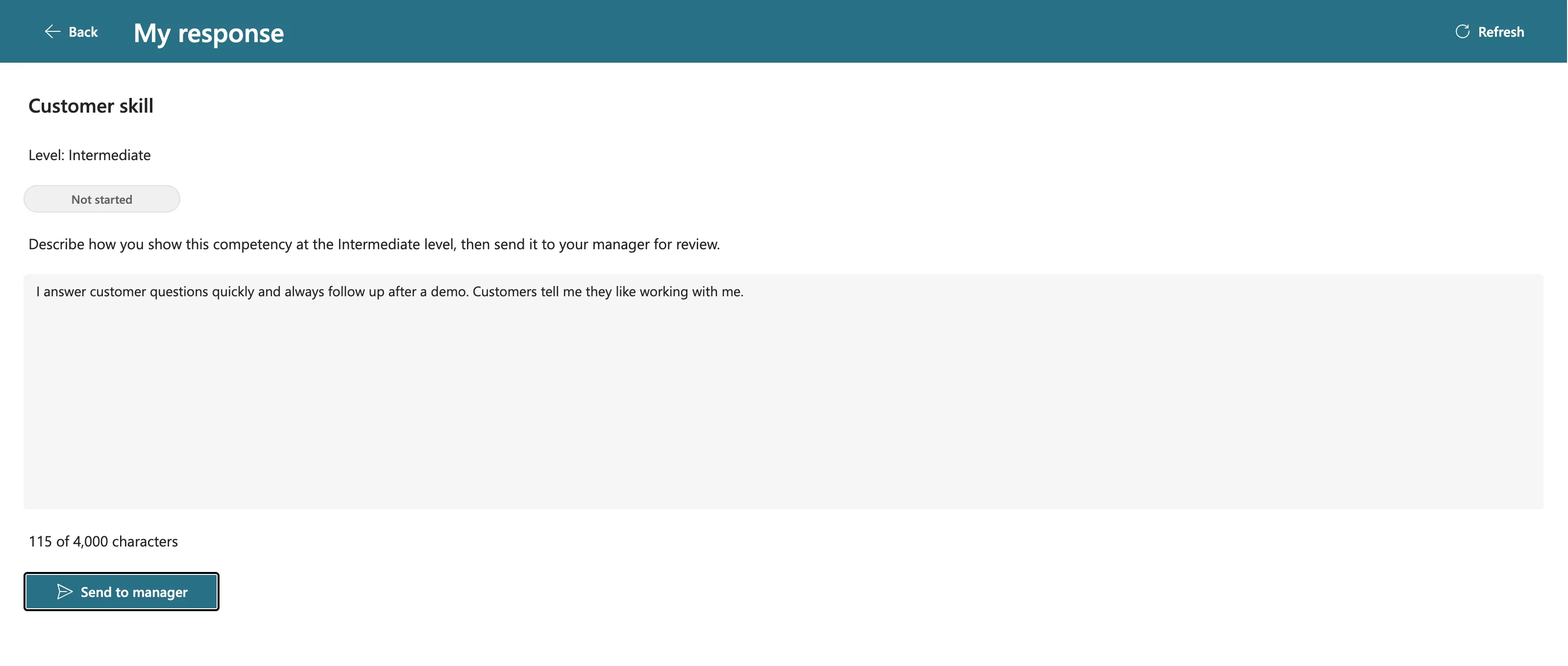
Select Send to manager. Customer skill changes to Waiting for review.
Step 5: Decline It as Daniel
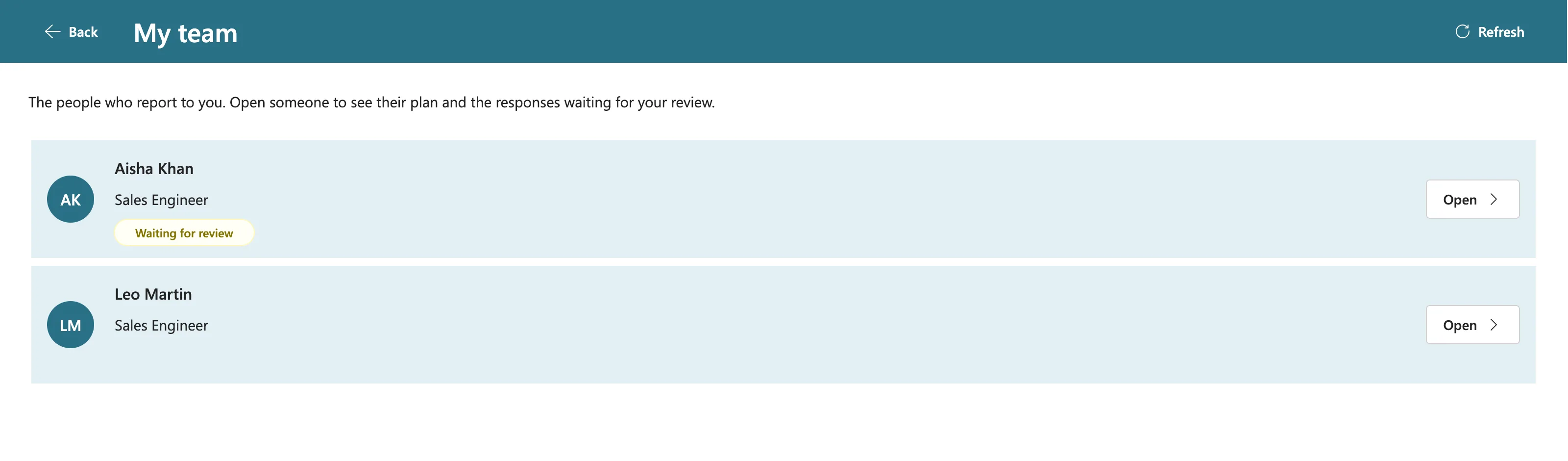
Now Daniel is the manager. His My team lists his two Sales Engineers, with Aisha waiting:
Open Aisha Khan, select Review on Customer skill, write what's missing and select Decline. The comment is required to decline:
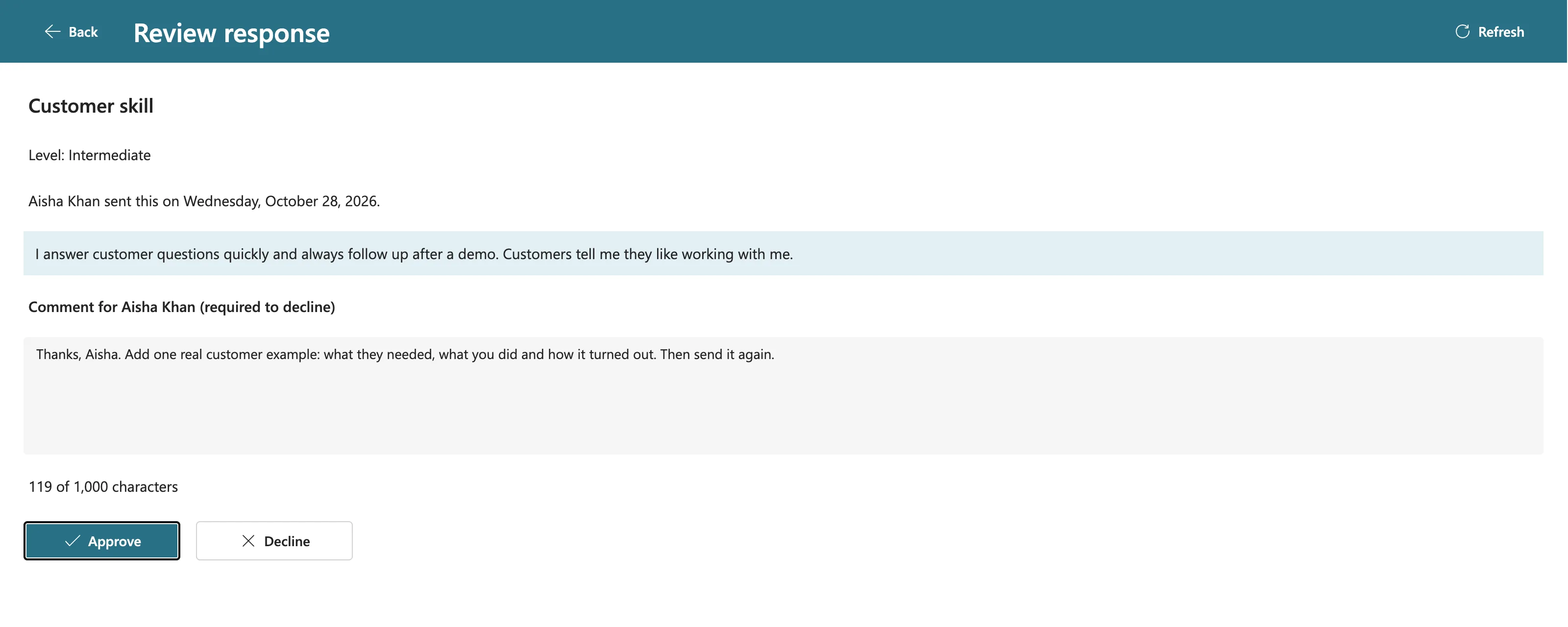
The app confirms You declined Aisha Khan's response and sent your comment.
Step 6: Update and Send It Again as Aisha
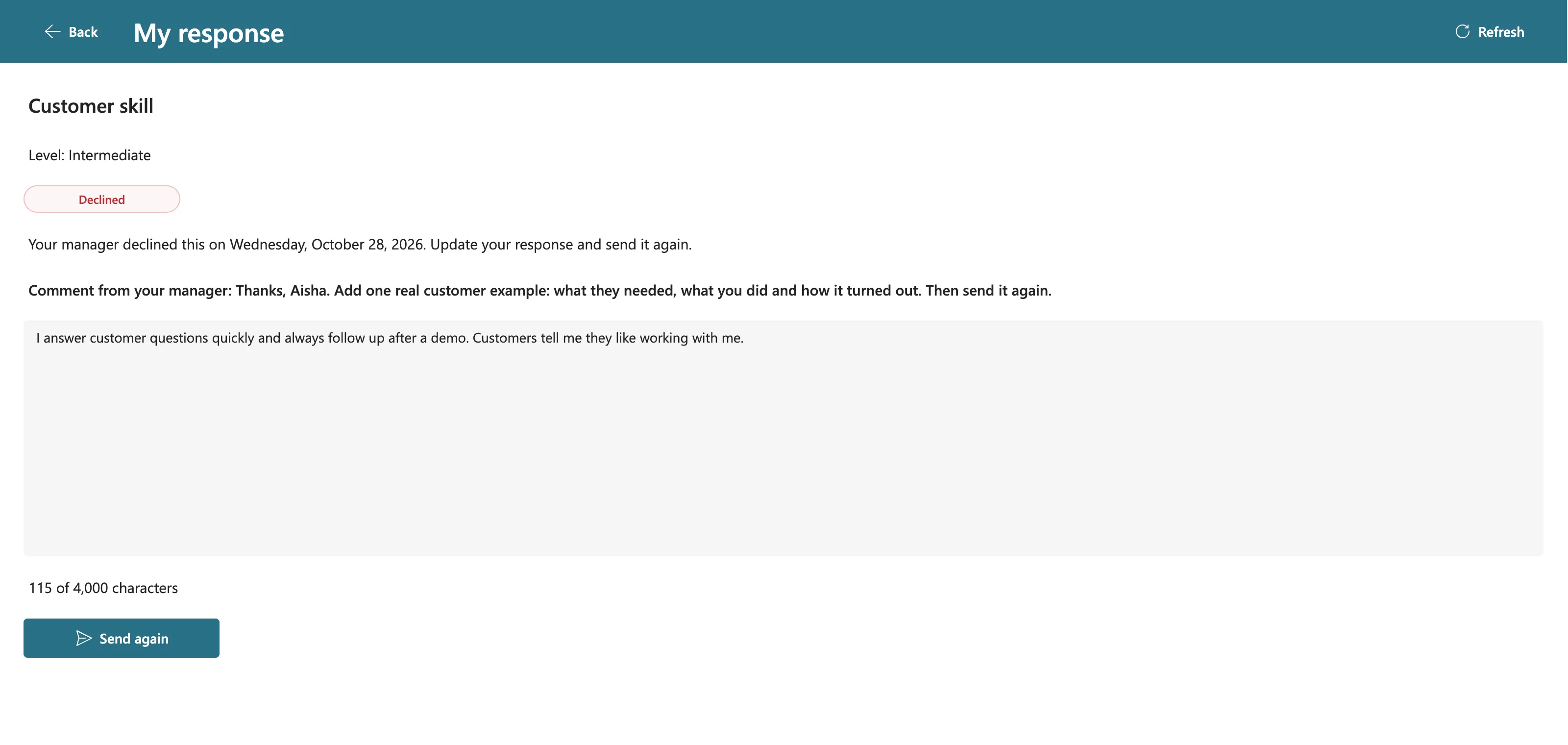
Aisha selects Refresh on My plan, and Customer skill is Declined. Opening it shows when, and why, and the button now says Send again:
She adds the example Daniel asked for and selects Send again:
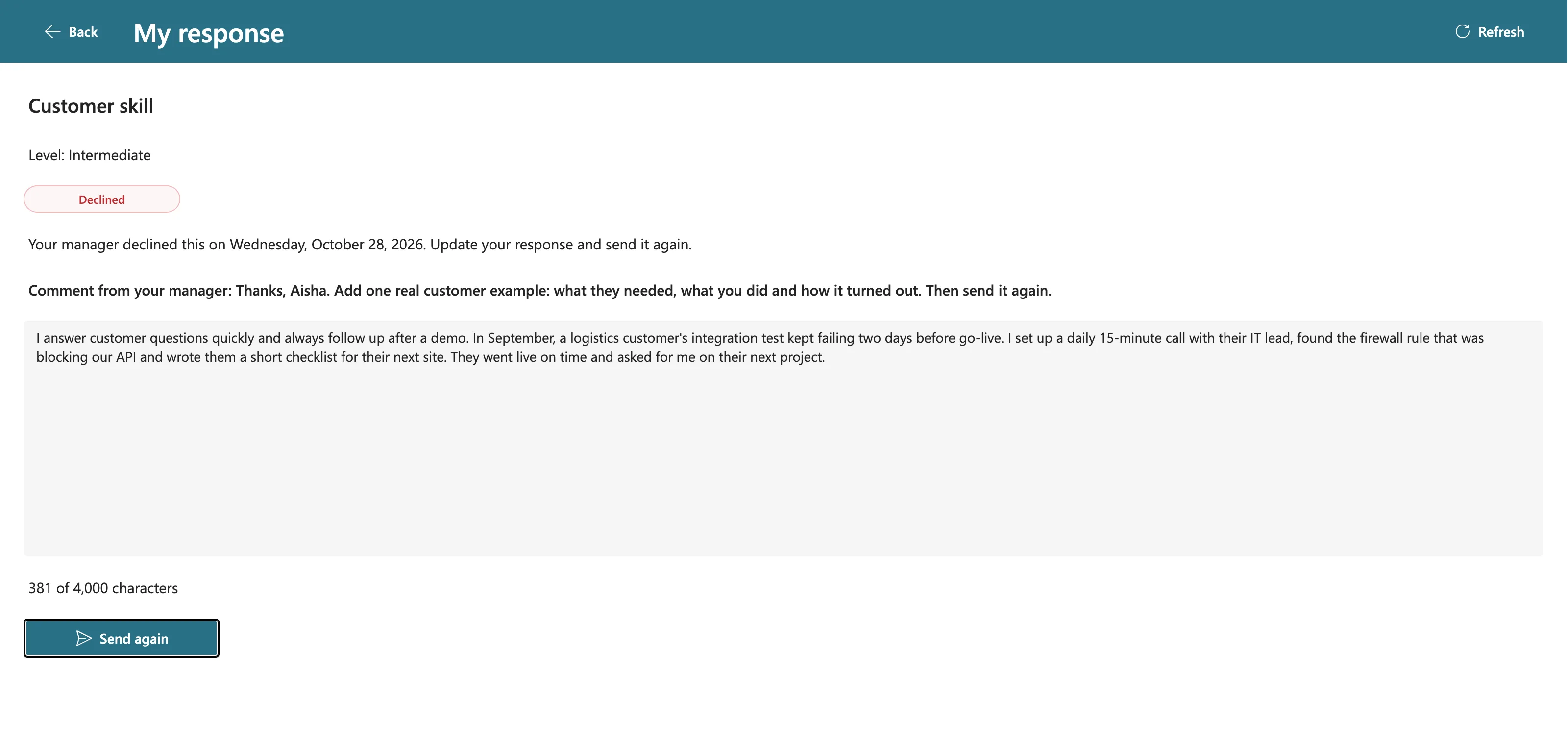
Customer skill is Waiting for review again.
Step 7: Approve the New Version as Daniel
Daniel selects Refresh on Aisha's screen, and her response is waiting again. The Review screen shows the new text, with an empty comment box ready for a new decision. Decline stays disabled until he writes a comment. Resending also cleared his earlier comment from the response itself, as Part 6 designed it.
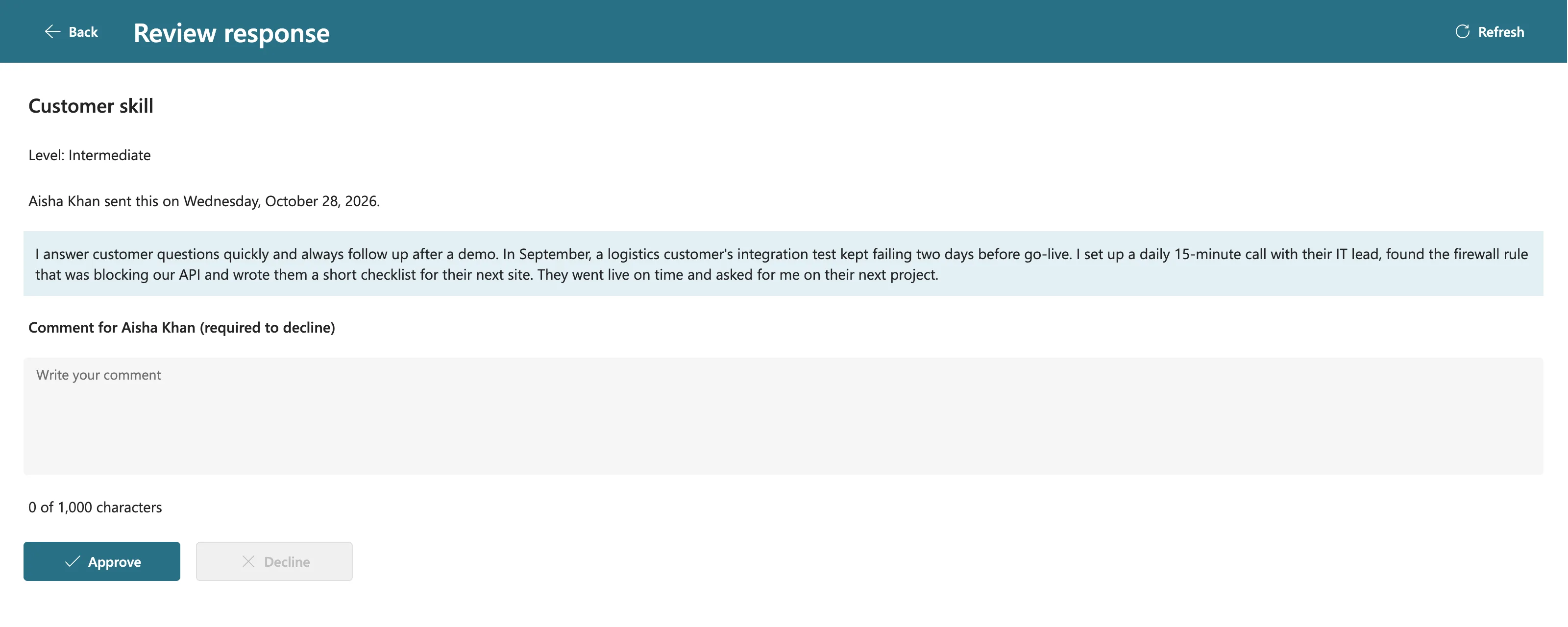
He selects Approve. In Aisha's window, after Refresh, the response is Approved and read-only:
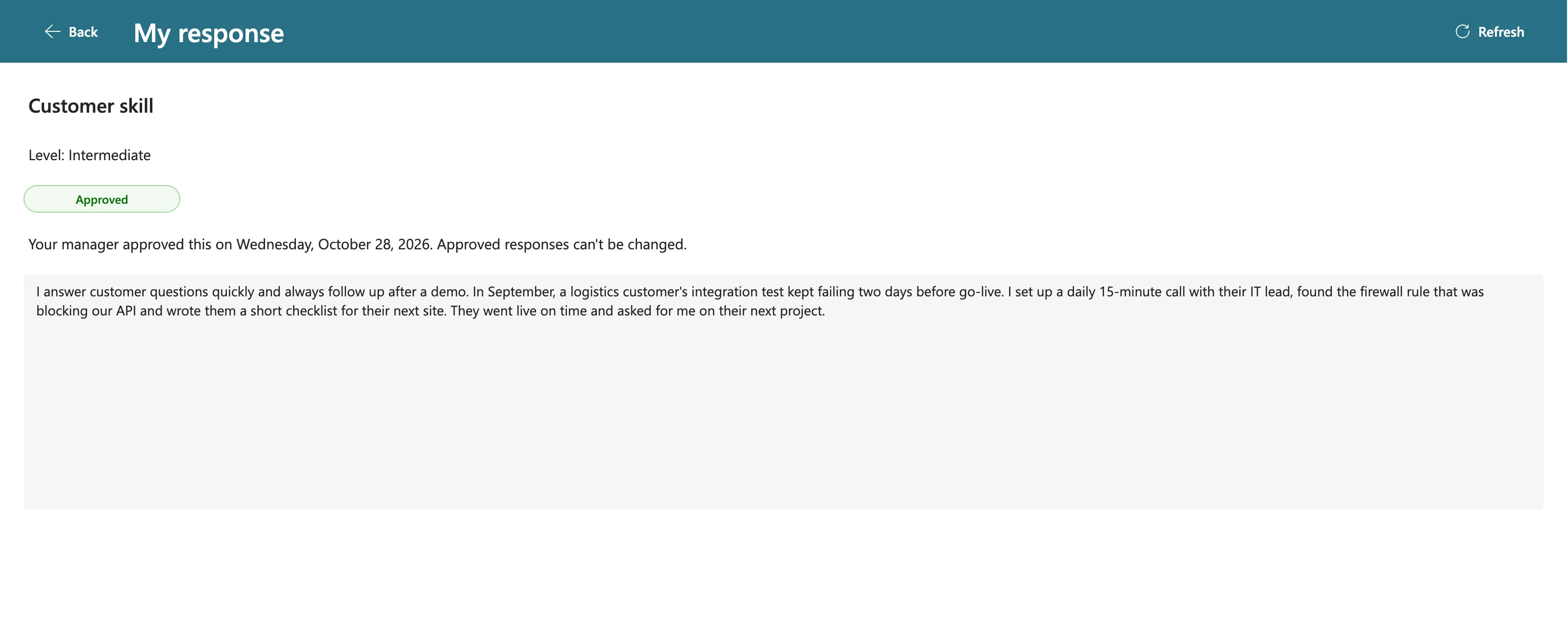
That's the whole review cycle, and the manager-who's-also-an-employee case, working between three real people.
Step 8: A Promotion: Aisha Becomes a Sales Manager
Part 1 promised that someone who changes role switches to their new role's plan. To test it, change Aisha's Job title to Sales Manager in the Microsoft Entra admin center (How to Set a User's Manager and Job Title):
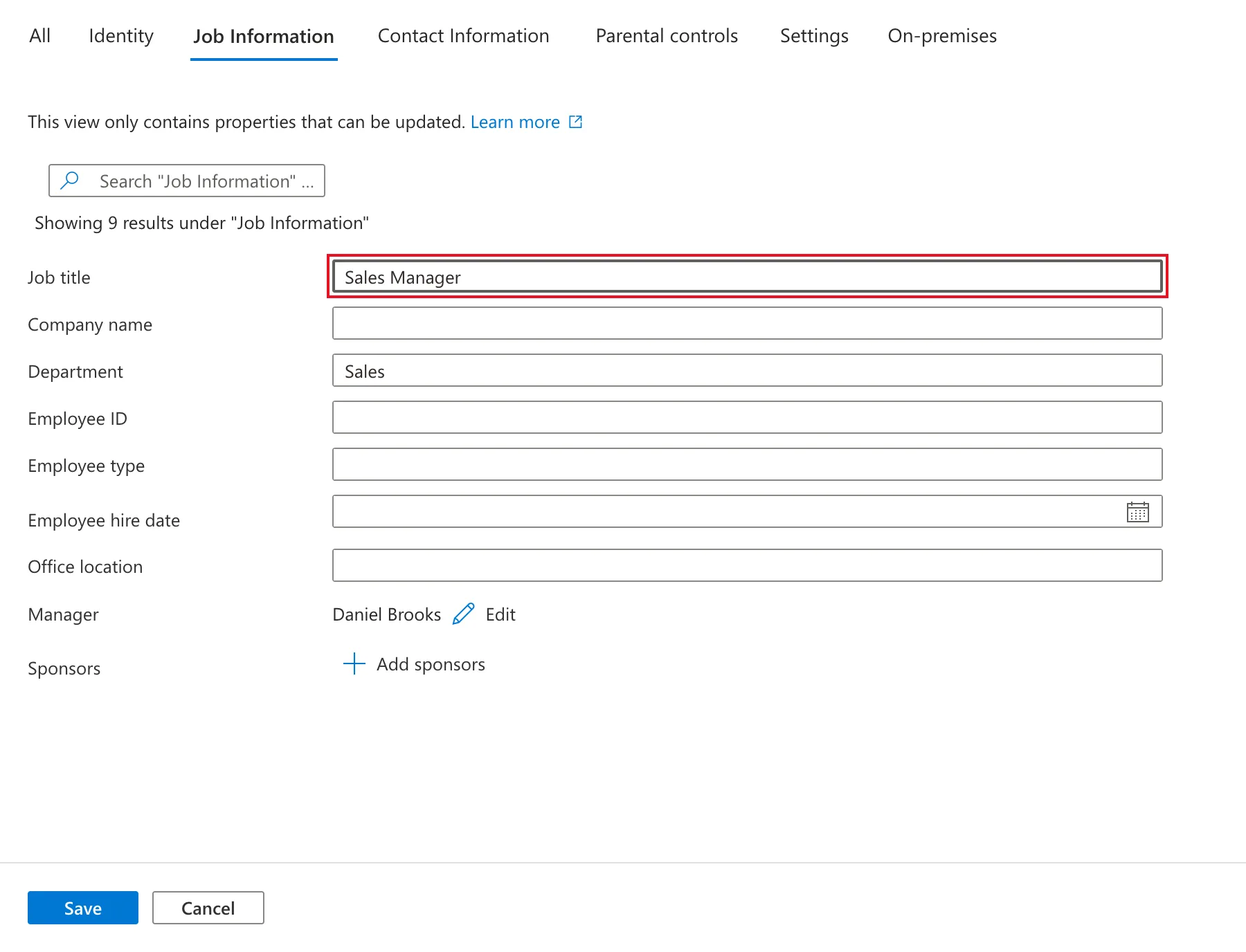
The first finding. A minute after saving, Aisha's app, which had been open all along, still said Job title: Sales Engineer, even after Refresh on My plan. Daniel's open app still listed her as a Sales Engineer. Both had read the profile and the team when they started:
- The profile and the team come from named formulas,
MyProfileandMyDirectReports, which call Office 365 Users (Part 4). Microsoft says a named formula recalculates when something it depends on changes. Nothing inside the app changes when IT edits someone's profile. - The Refresh buttons re-read the SharePoint lists (How to Add a Refresh Button to a Screen), not the profile.
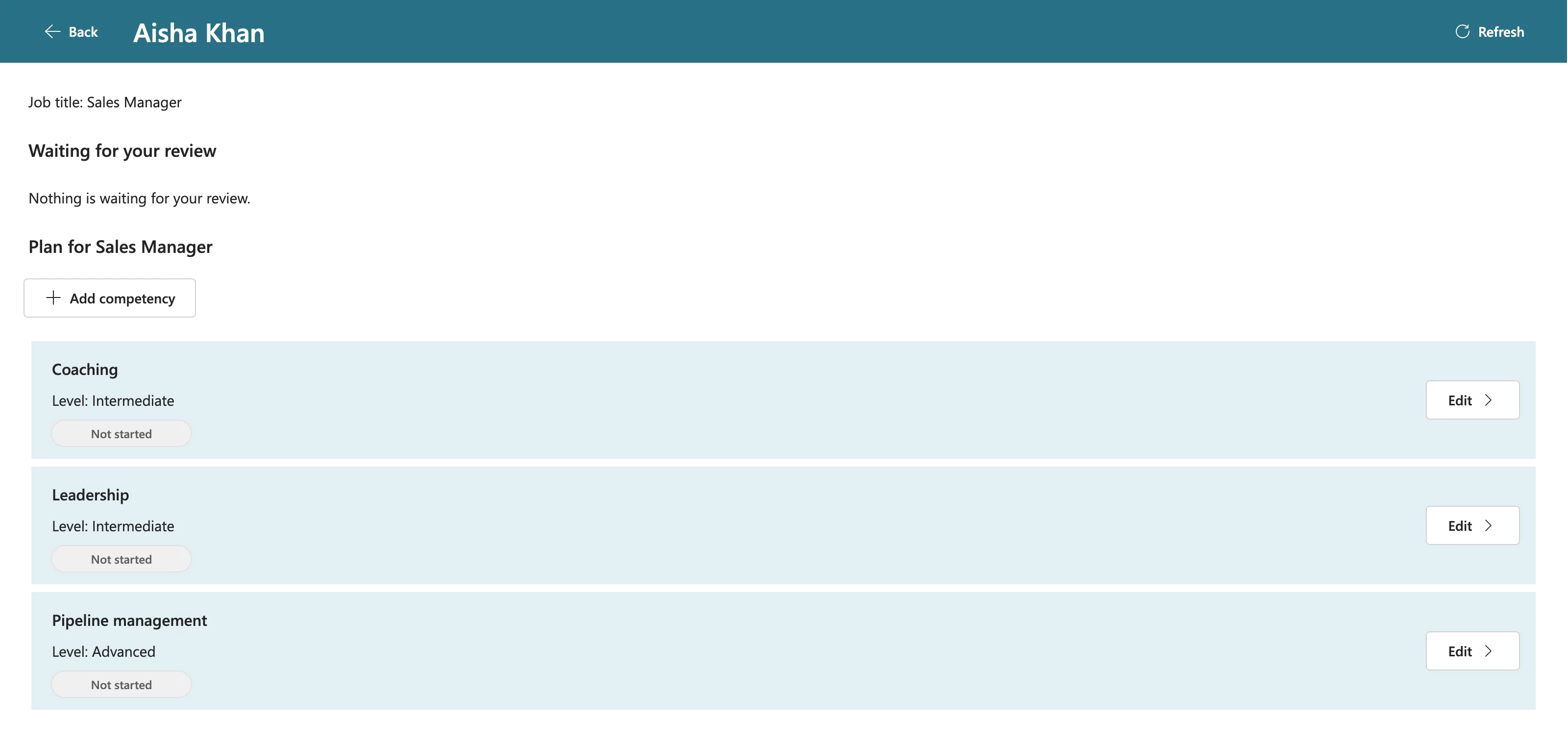
So Microsoft 365 changes reach the app the next time it opens. When Aisha reloaded the page, her Home said Job title: Sales Manager, and My plan switched to the Sales Manager plan:
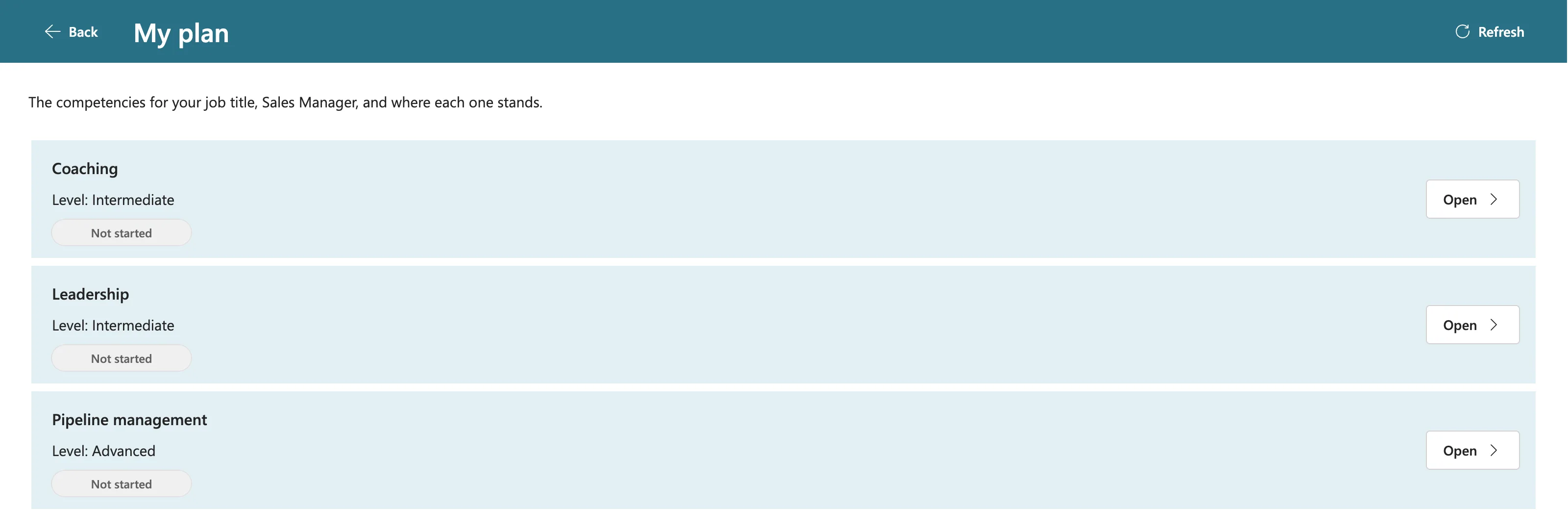
When Daniel reopened his app, her row said Sales Manager, and her page showed the plan for Sales Manager:
Then change her title back to Sales Engineer. The second finding was here: the save worked, but the Properties tab I already had open kept showing Sales Manager, even after its Refresh. I thought the save had failed and nearly made it twice. Reloading the browser page showed the right title (Fixed: Microsoft Entra Admin Center Shows the Old Job Title After Saving).
After reopening the app, Aisha's Sales Engineer plan was back, with her approved response:
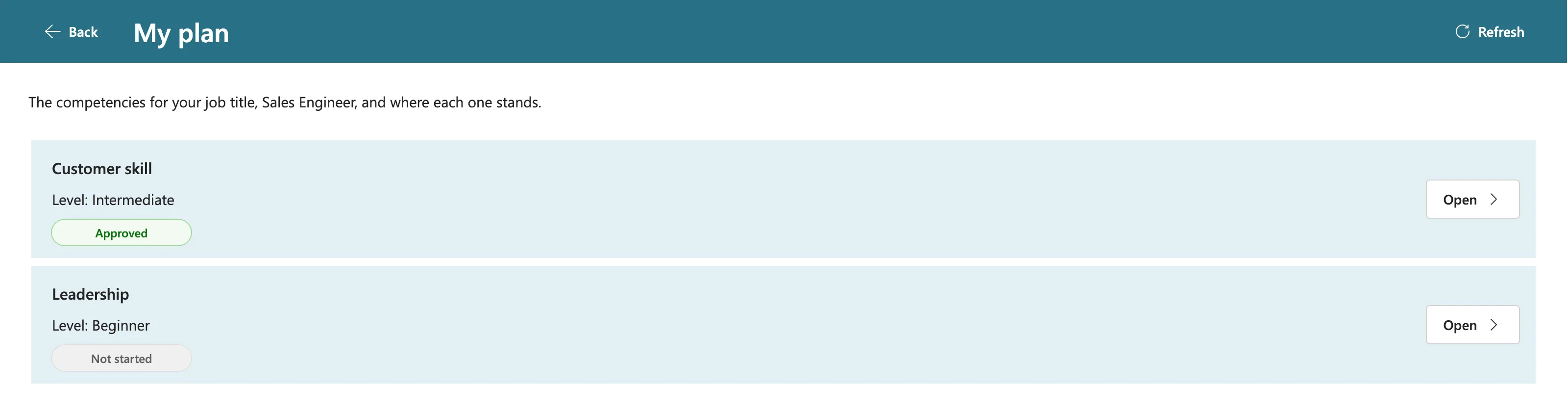
Nothing was lost. Her response points at the Sales Engineer competency by its ID; My plan simply shows the competencies of her current job title.
Step 9: A Leaver: Leo Leaves
Leo Martin leaves the company. Block his sign-in in the Microsoft 365 admin center (How to Block Sign-In for a User in Microsoft 365):
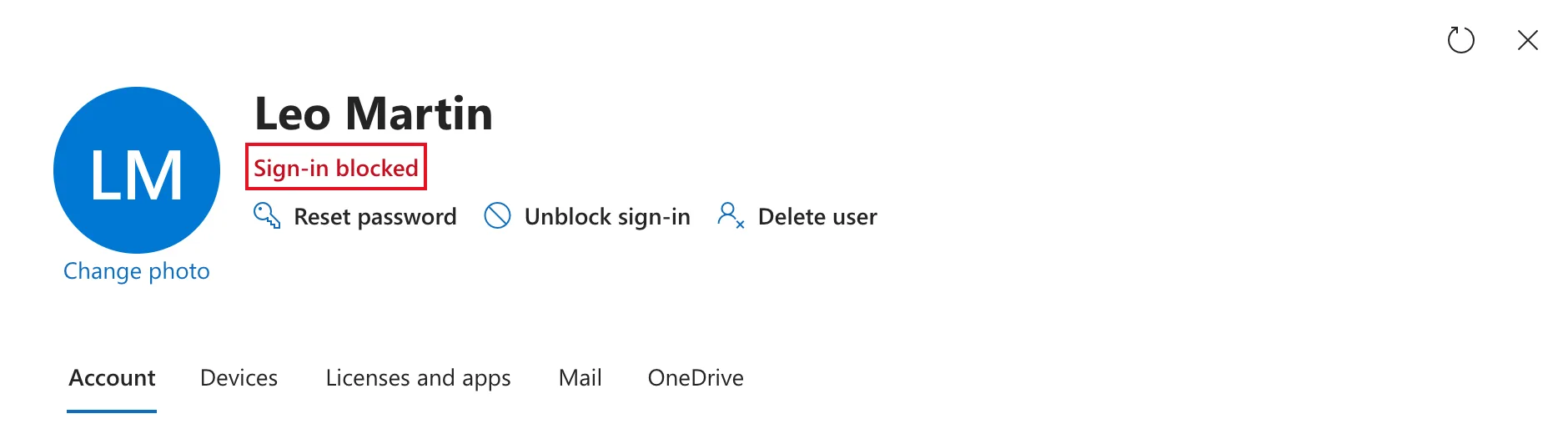
The third finding. Microsoft's offboarding article signs a leaver out of all sessions before blocking them. I blocked first, and the admin center then stopped offering Sign out of all sessions. Microsoft Entra's Revoke sessions did it instead (Fixed: "Sign Out of All Sessions" Missing After Blocking a User).
When Leo tried to sign in about an hour later, Microsoft refused:
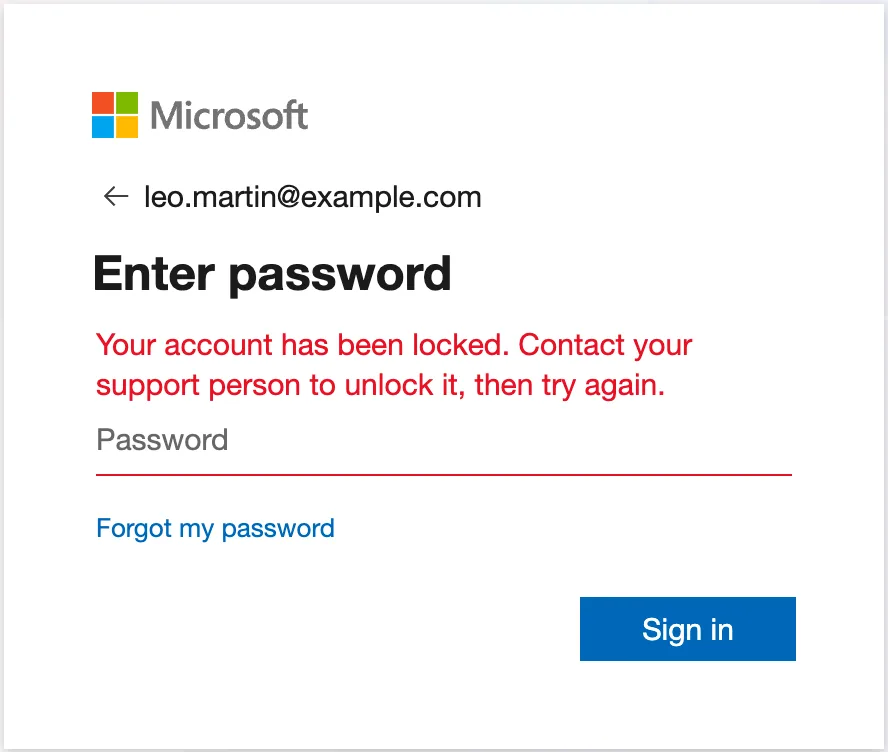
Nothing in the app needs to change for a leaver. This is the formula from Part 4 that builds Daniel's team:
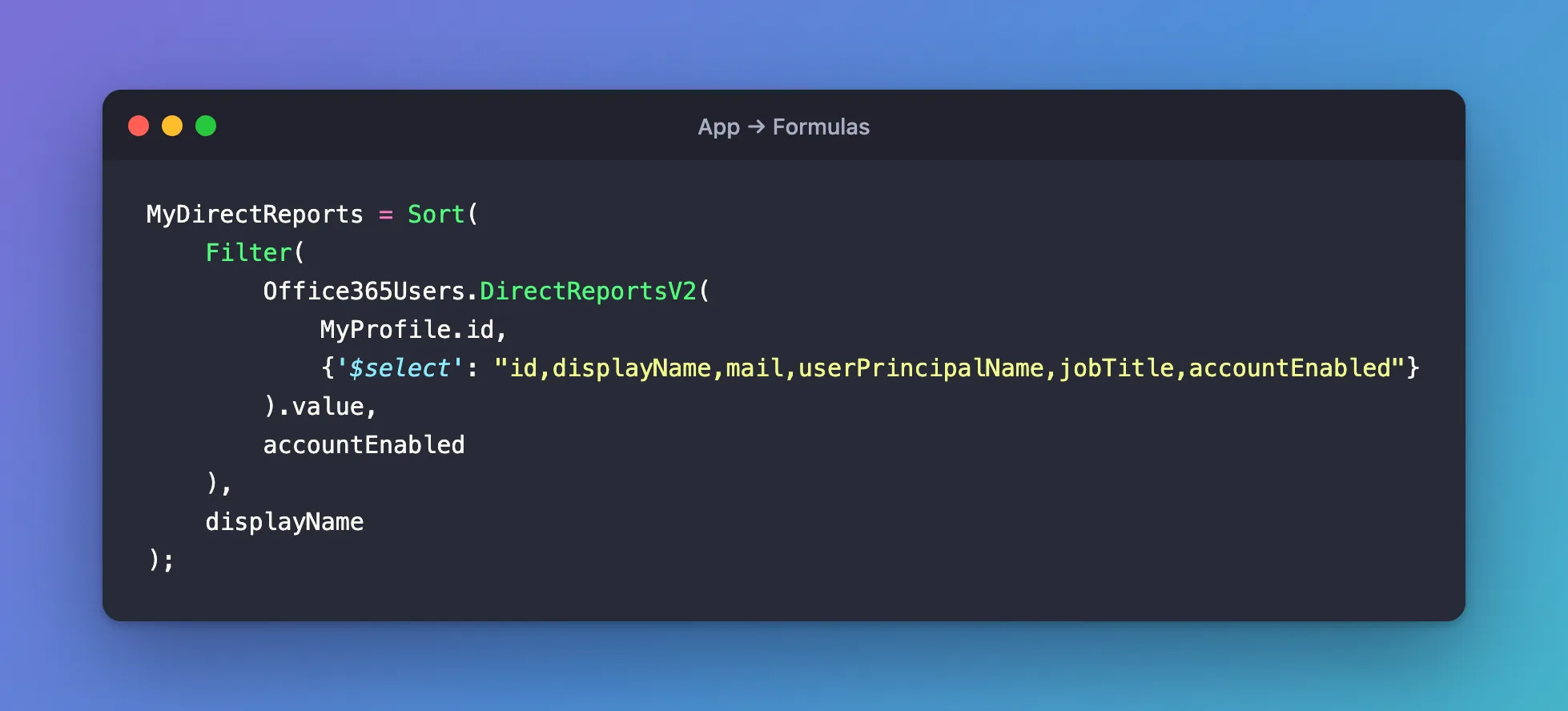
MyDirectReports = Sort(
    Filter(
        Office365Users.DirectReportsV2(
            MyProfile.id,
            {'$select': "id,displayName,mail,userPrincipalName,jobTitle,accountEnabled"}
        ).value,
        accountEnabled
    ),
    displayName
);
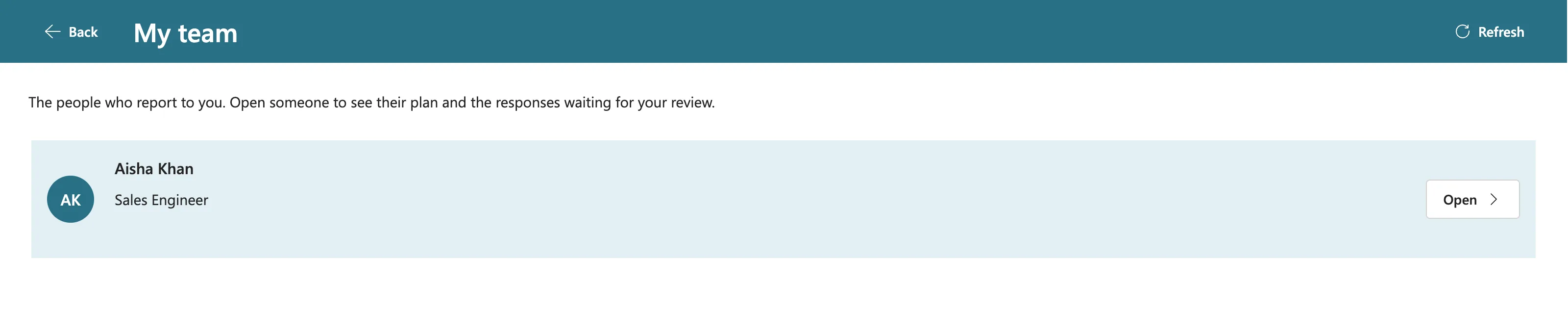
Blocking sign-in turns off Leo's Account enabled setting, so Filter(…, accountEnabled) leaves him out (How to Get a User's Direct Reports). Daniel's open app still listed him. When Daniel reopened it, five minutes after the block, his team was only Aisha:
Leo's account, license and group membership are untouched, and any responses he had sent would stay in the CompetencyResponses list. He had sent none.
Step 10: A Joiner: Maya Joins
Maya Patel joins as Leo's replacement, a Sales Engineer reporting to Daniel. IT does three things, each with its own guide:
-
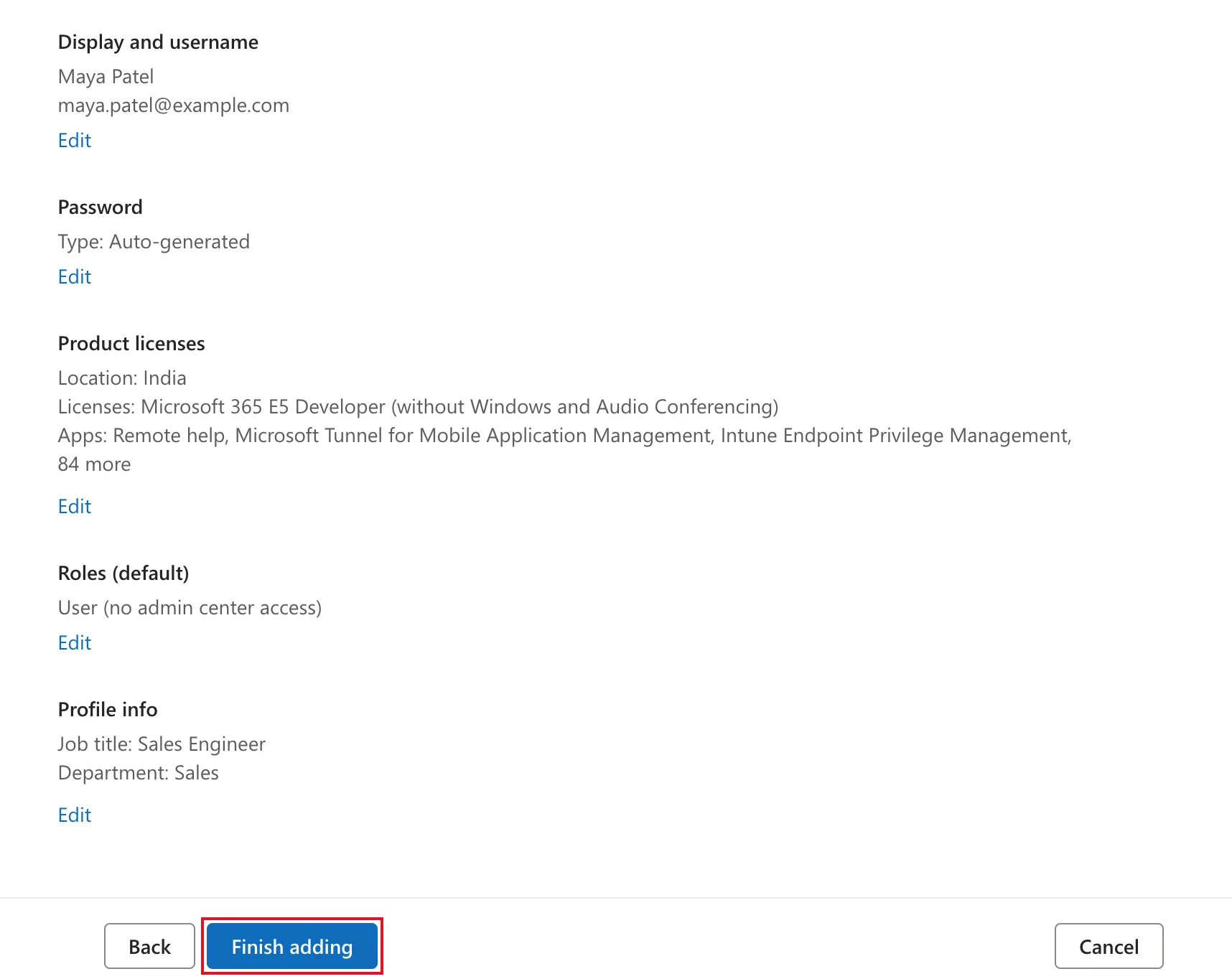
Add her account with a license, and her job title and department under Profile info (How to Add a User and Assign a License):
-
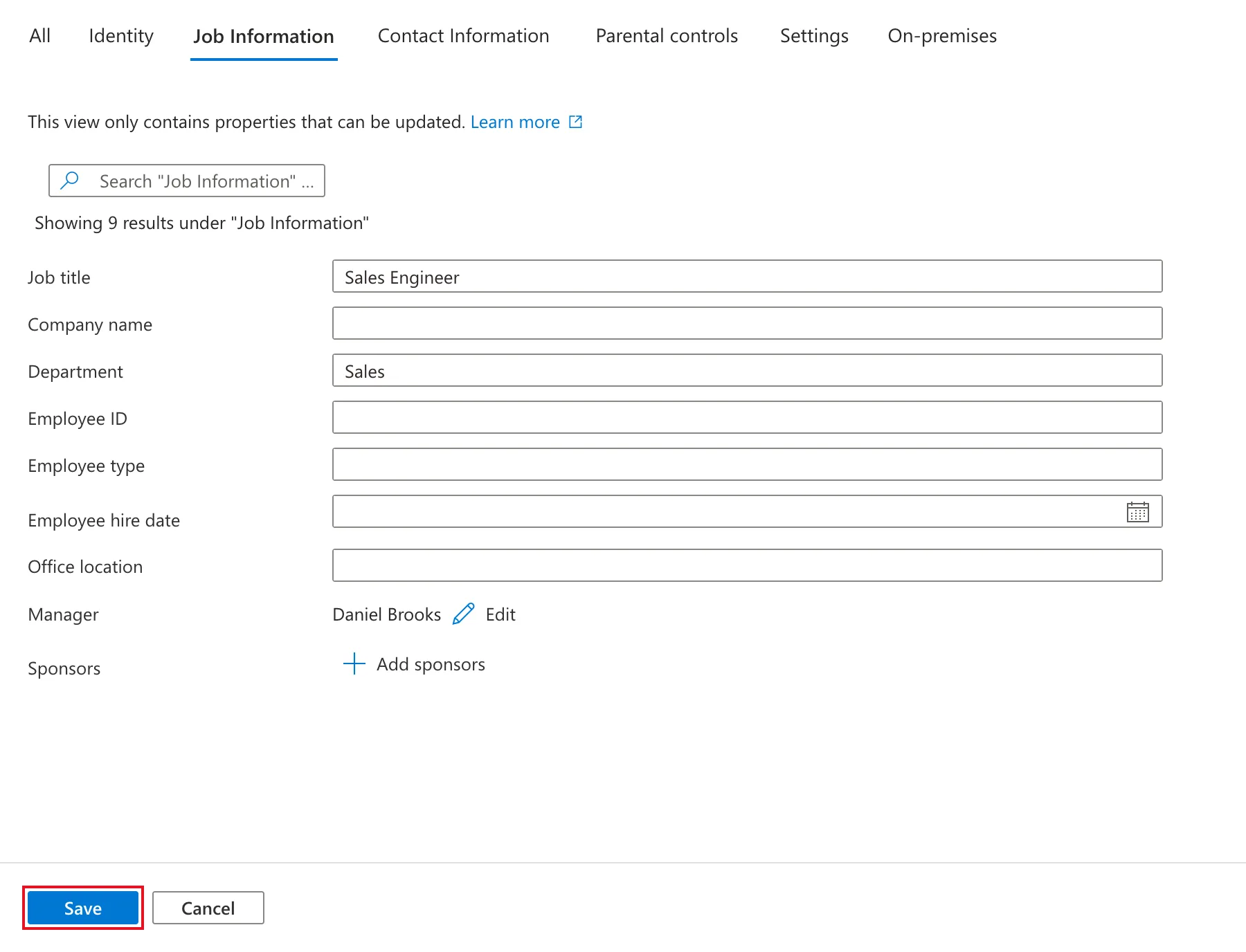
Set her manager to Daniel Brooks (How to Set a User's Manager and Job Title):
-
Add her to Career Development Plan Users, the group the app and the SharePoint site are shared with (How to Add Members to a Security Group):
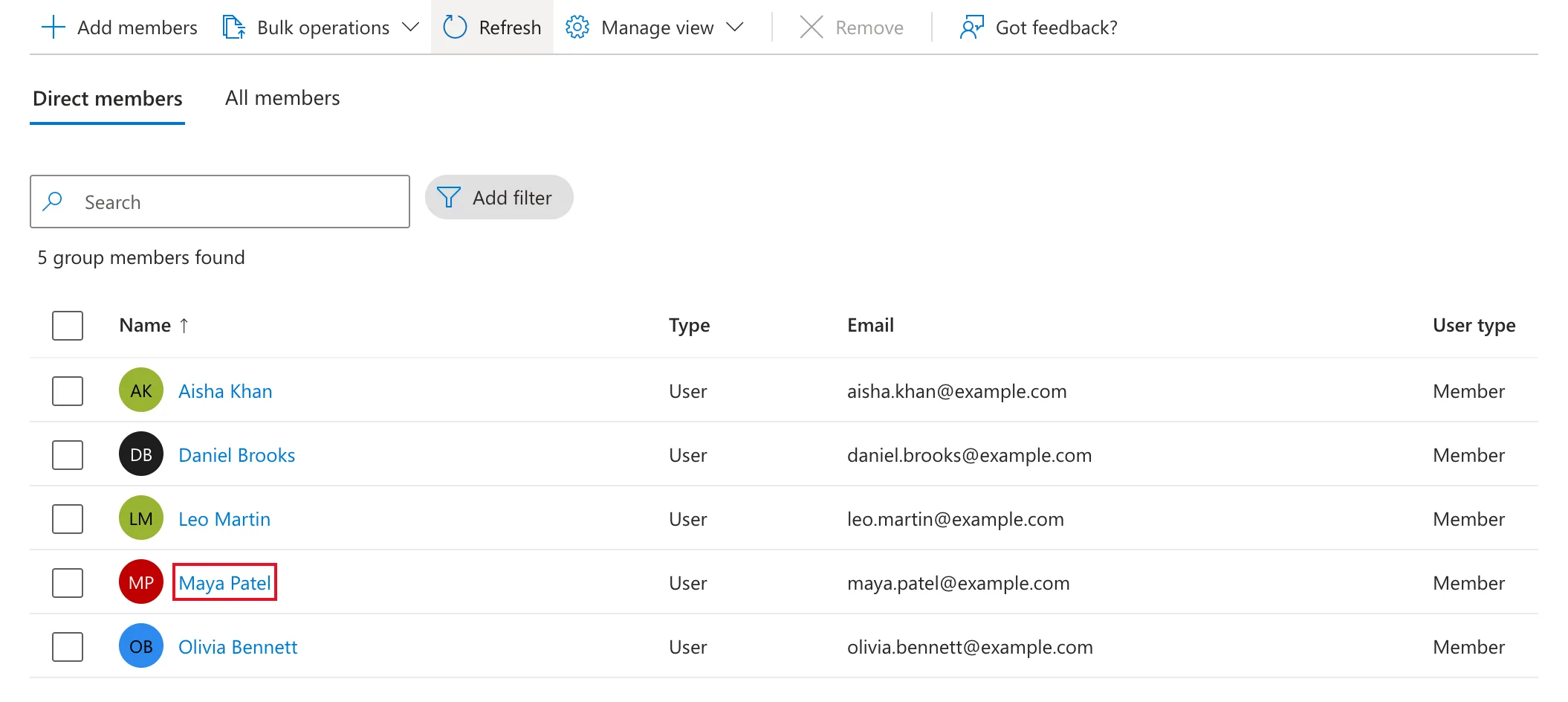
Nobody touches the app or the lists. Maya signed in for the first time with her temporary password and opened the app link. After Allow, the Home screen knew her:

Her My plan is the Sales Engineer plan, the same one Leo had:
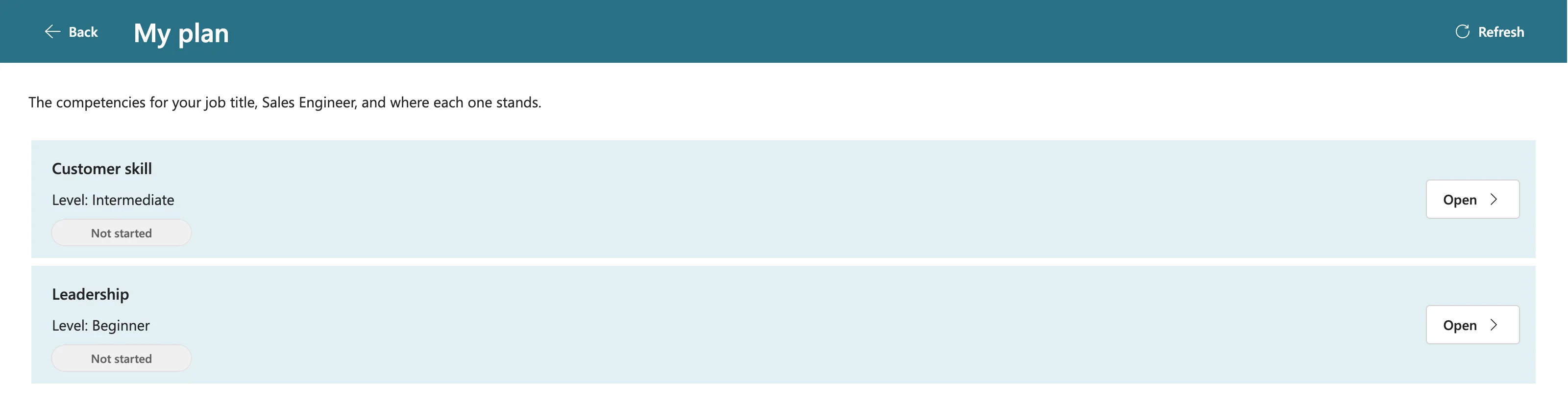
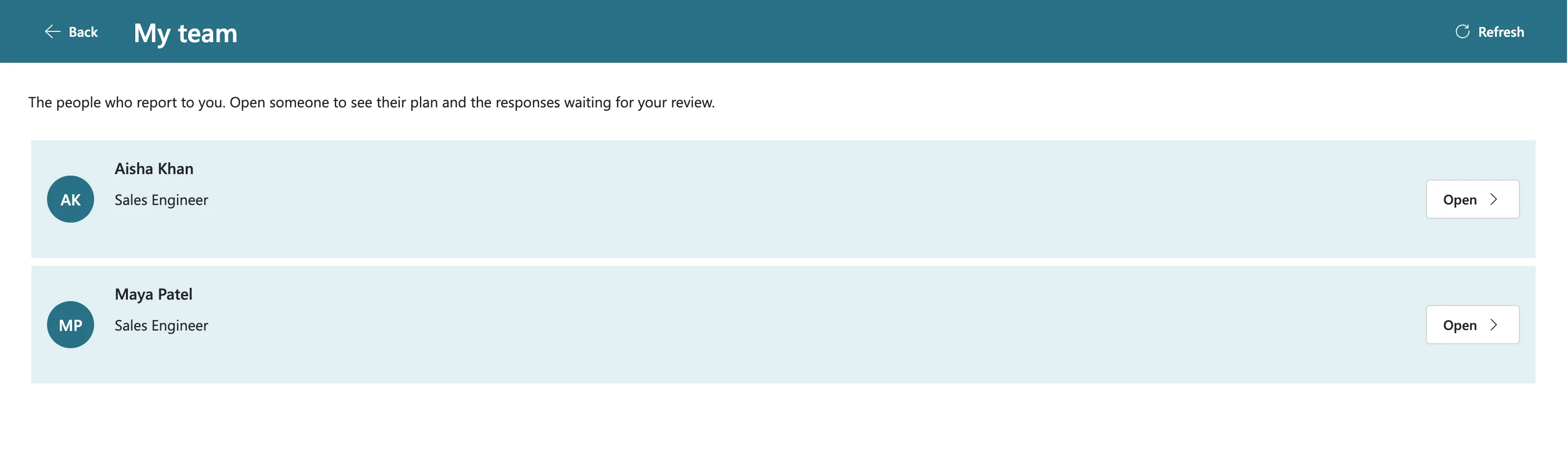
From creating her account at 10:58 UTC to Maya using the app at 11:22 took 24 minutes, including her manager, her group and her first sign-in. When Daniel reopened his app, his team was Aisha and Maya:
The Results
| Brief requirement | What happened | Result |
|---|---|---|
| Managers see their direct reports | Daniel saw Aisha and Leo; Olivia saw only Daniel | ✓ |
| Managers are employees too | Daniel sent a response; Olivia approved it | ✓ |
| Employees see only their own competencies | Aisha saw her plan and no team | ✓ |
| Managers approve or decline | Daniel declined with a comment, Aisha resent, Daniel approved | ✓ |
| Competencies are based on the position | Aisha's promotion switched her plan; her approval returned when she moved back | ✓, after reopening the app |
| A leaver's role is taken by someone new | Leo dropped off Daniel's team | ✓, after reopening the app |
| A new joiner appears in the manager's team | Maya got the Sales Engineer plan with no setup and appeared in Daniel's team | ✓, after reopening the app |
Common Mistakes
| Mistake | What happens | Do this instead |
|---|---|---|
| Testing everything as yourself | You only ever see the admin's view | Use a separate browser profile or private window per person |
| Expecting an open app to show Microsoft 365 changes | It shows the profile and team it read when it started | Reopen the app |
| Typing a joiner's job title differently | Sales engineer has no plan | Use the exact title, Sales Engineer |
| Forgetting the group for a joiner | They can't open the app or reach the lists | Add them to Career Development Plan Users |
| Blocking a leaver before signing them out | The admin center hides Sign out of all sessions | Sign out first, or use Revoke sessions in Microsoft Entra |
Troubleshooting
| Symptom | Likely cause | Fix |
|---|---|---|
| A leaver still appears on My team | The app was open before the block | Reopen the app |
| Someone still sees their old plan after a job title change | Same: the app read their profile when it started | Reopen the app |
| Entra's Properties tab still shows the old job title | The page shows the values it loaded before the edit | Reload the browser page |
| Sign out of all sessions is missing | The user is already blocked | Use Revoke sessions in Microsoft Entra |
| A joiner has no plan | Their job title has no competencies, or is typed differently | Check the title; a manager can add competencies (Part 9) |
FAQ
Does the app need any change when people join or leave?
No. Everything in this part was done in the admin centers. The app reads people, managers and job titles from Microsoft 365 each time it opens.
What happens to a leaver's responses?
They stay in the CompetencyResponses list. The app never deletes responses, and the reviewer is always the employee's current manager, so a leaver's responses simply stop appearing anywhere in the app.
Why did Aisha's approval disappear while she was a Sales Manager?
It didn't. My plan shows the competencies of your current job title, and her response belongs to a Sales Engineer competency. It reappeared as soon as her title changed back.
Could the app pick up Microsoft 365 changes without reopening?
Not as built. The profile and team come from named formulas, and the Refresh buttons re-read the SharePoint lists. For a development plan, reading people when the app opens is enough.
Conclusion
Every role the brief describes works with real accounts:
- a manager who's also an employee sent a response and had it approved;
- a manager declined a response with a comment, and approved the resent version;
- managers only ever saw their own direct reports;
- a promotion switched the plan, and nothing was lost when it was undone;
- a leaver dropped off his manager's team, and a joiner got her plan with no setup.
People changes reach the app the next time it opens. On the way, two admin center surprises got their own fixes posts: a missing Sign out of all sessions and an out-of-date Properties tab.
← Previous: Part 9: Let Managers Manage Competencies
Next → Part 11: Build a Setup Flow That Creates the SharePoint Lists (coming soon). A Power Automate flow will create both lists, with every column, on any SharePoint site.
Additional Resources
- App object: Formulas property: how named formulas stay up to date.
- Office 365 Users connector reference: the profile, manager and direct-reports operations the app uses.
- Share a canvas app: sharing with a security group.
- Step 1 - Prevent user sign-in and block access to Microsoft 365: Microsoft's offboarding order.
- Revoke user access in Microsoft Entra ID: disabling an account and revoking its sessions.
