Build a Career Development Plan App in Power Apps — Part 1: Plan the App and Set Up the Demo Organization

Plenty of teams still track career development in spreadsheets: which skills each role needs, how far each person has got, and who has signed it off. This series replaces that with a Power Apps app. Each person sees the competencies their role expects and writes a short response for each one. Their manager then approves or declines it, all on SharePoint and the Microsoft 365 licenses you already have.
This is Part 1 of a 14-part series.
- Part 1: Plan the App and Set Up the Demo Organization (you are here)
- Part 2: Create the SharePoint Site and Lists (coming soon)
- Part 3: Create the Solution, Environment Variables and Canvas App (coming soon)
- Part 4: Build the Home Screen (coming soon)
- Part 5: Build the My Plan Screen (coming soon)
- Part 6: Build the Response Screen (coming soon)
- Part 7: Share the App and Build the My Team Screens (coming soon)
- Part 8: Build the Review Screen for Manager Approvals (coming soon)
- Part 9: Let Managers Manage Competencies (coming soon)
- Part 10: Test Every Role, Joiners and Leavers (coming soon)
- Part 11: Build a Setup Flow That Creates the SharePoint Lists (coming soon)
- Part 12: Run the Solution Checker and Export the Solutions (coming soon)
- Part 13: Install the App in a New Environment (coming soon)
- Part 14: Recap, Production Checklist and Next Steps (coming soon)
This part explains what you're building, how it's designed and why, and what it costs. It also sets up the small fictional company the app runs on. Building starts in Part 2.
What You Will Build
By the end of the series you will have Career Development Plan, a Power Apps canvas app that employees and managers use in the browser:
- Every employee sees the competencies and levels expected for their role, such as Customer skill (Intermediate) and Leadership (Beginner) for a Sales Engineer. They write a short response for each one, a paragraph describing what they've done, and send it to their manager.
- Every manager sees their own direct reports, straight from Microsoft 365. They see which responses are waiting for review and approve or decline each one with a comment. They also decide which competencies and levels each role needs.
- Managers are employees too. A sales manager has a development plan of their own, which their manager reviews.
- Joiners and leavers take care of themselves. A new Sales Engineer gets the Sales Engineer plan the moment they appear in Microsoft 365 with that job title. Their replacement after someone leaves gets exactly the same plan.
The app is packaged as a Power Platform solution, a single file you can export from one environment and import into another. A second small solution holds a setup flow that creates the app's SharePoint lists on any site. Together, they let you install the whole thing in a different organization, which Part 13 does from start to finish.
The Brief, Requirement by Requirement
The app is built from a short brief. Here is each requirement and how the app meets it:
| Requirement | How the app meets it |
|---|---|
| Managers see their direct reports, using the Office 365 Users connector | The My Team screen lists the people whose manager is you in Microsoft 365, read live with the Office 365 Users connector |
| Each manager sees only their own direct reports | Lists and reviews only ever cover your current direct reports |
| Each role has its own competencies and levels; some have more than two | Competencies are defined per job title, with as many as a role needs |
| Managers can add and remove competencies and levels | A manager can add a competency, change its level or remove it for any job title in their team |
| A new joiner appears in their manager's team, who can add their competencies | Joiners appear automatically. If their job title has no competencies yet, the manager adds them |
| Managers are employees too | Managers see both My plan and My team |
| Employees see only their own competencies and levels | My plan shows only yours |
| Employees submit a response for each competency and level, sent to their manager | You write a response; it waits as Pending in your manager's review list |
| Managers approve or decline responses | The Review screen approves or declines, with a comment |
| A leaver's role is taken by a new person with the same competencies | The new person has the same job title, so they get the same competencies |
| Neat, easy-to-understand names and multiple screens | Lists, screens and controls follow Microsoft's naming guidelines, across seven screens |
Notice what isn't on the list: no email notifications, no dashboards, no extra features. The app does what the brief asks and stays small. That makes it easy to understand, and easy to extend later.
Meet the Demo Organization
The series uses a small fictional sales team so that every screen has real people in it:
| Person | Job title | Manager | Plays the part of |
|---|---|---|---|
| Admin User (the person building the app) | Managing Director | — | The app maker, who also sees Olivia as a direct report |
| Olivia Bennett | Head of Sales | Admin User | A manager who is also an employee |
| Daniel Brooks | Sales Manager | Olivia Bennett | A manager who is also an employee, the brief's key case |
| Aisha Khan | Sales Engineer | Daniel Brooks | An employee who submits, gets declined and resubmits |
| Leo Martin | Sales Engineer | Daniel Brooks | An employee who leaves in Part 10 |
| Maya Patel | Sales Engineer | Daniel Brooks | A new joiner, added in Part 10 |
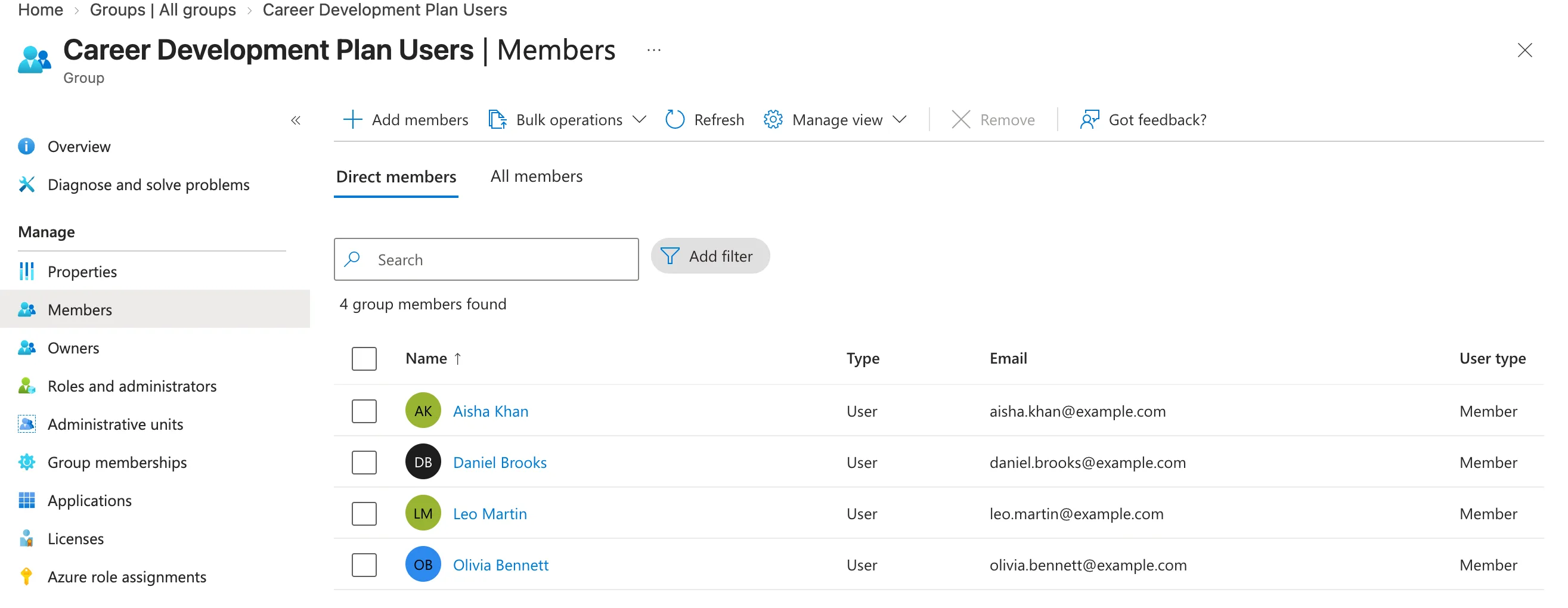
Everyone is in one security group, Career Development Plan Users, which later parts use to share the app and its SharePoint site. You'll set all of this up at the end of this part.
How the App Works
There are four moving parts:
- The canvas app is what people use. A canvas app is a Power Apps app where you place every control yourself, a bit like designing slides.
- Office 365 Users is the Power Apps connector that reads people from Microsoft 365. It tells the app who you are, your job title, your manager and your direct reports. Nothing about the organization is copied into the app: it always asks Microsoft 365, so it's never out of date.
- SharePoint holds the app's own data in two lists: which competencies each job title needs, and everyone's responses with their review status.
- Environment variables hold the SharePoint site and list addresses outside the app. Moving the app to another organization means changing those values, not editing the app. They live inside the solution with the app.
The setup flow is a Power Automate flow in its own small solution. It creates the two lists on any SharePoint site, with exactly the right columns. SharePoint lists can't travel inside a Power Platform solution, so the flow is how they get to a new organization.
The screens
| Screen | Who uses it | What it does |
|---|---|---|
| Home Screen | Everyone | Shows your job title and manager, with buttons to your plan and, for managers, your team |
| My Plan Screen | Everyone | Your competencies and levels, each with its status: Not started, Waiting for review, Approved or Declined |
| Response Screen | Everyone | Write or update your response for one competency |
| My Team Screen | Managers | Your direct reports, with how many responses each has waiting |
| Team Member Screen | Managers | One person's competencies, statuses and pending responses |
| Competency Screen | Managers | Add, change the level of, or remove a competency for a job title |
| Review Screen | Managers | Approve or decline a response, with a comment |
The data
| List | One row per | Holds |
|---|---|---|
RoleCompetencies | job title and competency | The competency, the job title it belongs to, the expected level (Beginner, Intermediate, Advanced or Expert) and whether it's still in use |
CompetencyResponses | person, competency and level | The person's response, its status (Pending, Approved or Declined), the manager's comment and the dates |
Part 2 builds both lists column by column.
Why the Job Title Decides the Plan
The brief says competencies and levels are "based on their position", and that a leaver's role "will be occupied by new user who will have same competencies and levels". So the app ties competencies to the role, and the role is the person's job title in Microsoft 365: the same field Outlook and Teams show on their profile card.
That one decision makes most of the brief work without any extra effort:
- Joiners: IT creates the account with a job title, and the person immediately has the plan for that title.
- Leavers: the replacement has the same job title, so they get the same competencies.
- Movers: someone promoted to Sales Manager switches to the Sales Manager plan. Their old responses stay as history.
It has consequences you should know about:
- Job titles have to be consistent.
Sales EngineerandSales engineerwould be two different roles. The app trims stray spaces, but it can't guess intent. - Competencies belong to the title, not the person. When a manager changes the competencies for Sales Engineer, it changes for every Sales Engineer, including ones in other teams. The app says so on screen before saving.
- Someone with no job title has no plan. The app tells them to ask IT, because only an admin can set a job title.
If your organization's job titles are messy, the alternative is to let managers assign a role in the app. That's a bigger app, and this series keeps to the brief.
What It Costs
Nothing extra, if you have Microsoft 365. Power Apps decides an app's license needs from the connectors it uses:
- An app that uses only standard connectors is a Standard app. Anyone with a Power Apps for Office 365 plan can use it, and that plan is included in Microsoft 365 business and enterprise plans such as E5.
- This app uses only two connectors, SharePoint and Office 365 Users. Both are standard.
The solution and its environment variables are stored in Dataverse, Power Platform's database. Microsoft's FAQ is explicit that using solutions and environment variables doesn't require premium licenses: Dataverse is needed for them, premium connectors aren't. In Part 3 you'll add Dataverse to your organization's default Power Platform environment. That environment comes with its own included storage (3 GB of database capacity), so that doesn't cost anything either.
To stay on the free side, the series deliberately avoids the premium features:
- Dataverse tables for the app's data. They would give finer security, but every user would need a premium license.
- Premium connectors.
- Managed Environments. From February 2027 they require every user, including users of standard apps, to have a premium license.
This series was built in a Microsoft 365 Developer Program sandbox, which includes 25 Microsoft 365 E5 Developer licenses. Nothing was bought.
Where the App Lives
Power Platform keeps apps, flows and data in environments: separate spaces, each with its own apps and its own Dataverse database. Every organization has a Default environment that everyone can use.
This series builds the app in the Default environment, for two reasons:
-
It's the one environment every Microsoft 365 organization has, and the only one with free included Dataverse storage. A new production or sandbox environment needs at least 1 GB of Dataverse capacity that you would have to buy.
-
Developer environments are on their way out. Microsoft has deprecated unmanaged developer environments, including the ones the free Power Apps Developer Plan creates:
- from November 15, 2026, new ones can't be created;
- from December 15, 2026, existing ones are suspended;
- from January 15, 2027, they're deleted.
The managed developer environments that replace them need premium licenses to run apps.
Be aware that Microsoft describes the Default environment as a place for personal productivity, and recommends moving important business apps into dedicated environments. That's exactly why the app is a solution. Part 13 installs it into a separate environment, the way a customer would install it in their own production environment.
How Secure Is It?
Here is the honest version.
- The app controls what people see. It only shows you your own plan, and only shows managers their own direct reports.
- SharePoint controls what people can reach. Power Apps connects to SharePoint as the signed-in person. So everyone who uses the app needs permission to read and write both lists, and with that permission they could open the lists directly in SharePoint.
The series keeps that sensible in a few ways:
- The lists live on a dedicated SharePoint site that only the app's users can reach.
- Access is given to the Career Development Plan Users security group with SharePoint's Contribute permission. That's less than the site's default member permission, which can also change the lists themselves.
- Responses are hidden from SharePoint search, so they don't turn up when people search the organization.
- Version history records who changed what and when.
True row-level security, where SharePoint itself hides other people's responses, needs Dataverse and premium licenses. For a development plan app that's a reasonable trade-off for many teams. Decide what's right for yours, and Part 14 comes back to it in the production checklist.
Prerequisites
To follow the whole series, you need:
- A Microsoft 365 organization you can administer, ideally a test one. A Microsoft 365 Developer Program sandbox is ideal if you can get one, and it's what this series uses.
- Licenses that include Power Apps and SharePoint for every person who will use the app. Microsoft 365 E5 includes both. In a business plan, check that Power Apps and SharePoint are among its services.
- Admin rights for the setup parts: the User Administrator role (or Global Administrator) for users and groups, and, for Part 3, the right to add a Dataverse database to your Default environment (Power Platform Administrator or Global Administrator).
- A modern browser. The series was built in Chromium, set to English (United States).
You don't need any coding experience. Every formula is explained line by line when it appears.
Set Up the Demo Organization
The app reads people, job titles and managers from Microsoft 365, so the demo team has to exist there first. This part doesn't repeat those steps: each one has its own guide. Complete them in this order, using the values in the table below:
- Add the users and their licenses: How to Add a User and Assign a License in the Microsoft 365 Admin Center. Add Olivia Bennett, Daniel Brooks, Aisha Khan and Leo Martin, each with a license that includes Power Apps and SharePoint.
- Set job titles and managers: How to Set a User's Manager and Job Title in the Microsoft Entra Admin Center. Give everyone, including your own admin account, the job title and manager below.
- Create the group: How to Create a Security Group in the Microsoft Entra Admin Center. Create Career Development Plan Users, with you as owner and the four people as members.
| Person | Username (use your domain) | Job title | Department | Manager | Group member |
|---|---|---|---|---|---|
| You (admin) | your admin account | Managing Director | Management | — | owner only |
| Olivia Bennett | olivia.bennett@ | Head of Sales | Sales | you | ✓ |
| Daniel Brooks | daniel.brooks@ | Sales Manager | Sales | Olivia Bennett | ✓ |
| Aisha Khan | aisha.khan@ | Sales Engineer | Sales | Daniel Brooks | ✓ |
| Leo Martin | leo.martin@ | Sales Engineer | Sales | Daniel Brooks | ✓ |
Type the job titles exactly as shown. Part 2 adds competencies for these titles, and the app matches them letter for letter.
When you've finished, the group's Members page lists all four people:
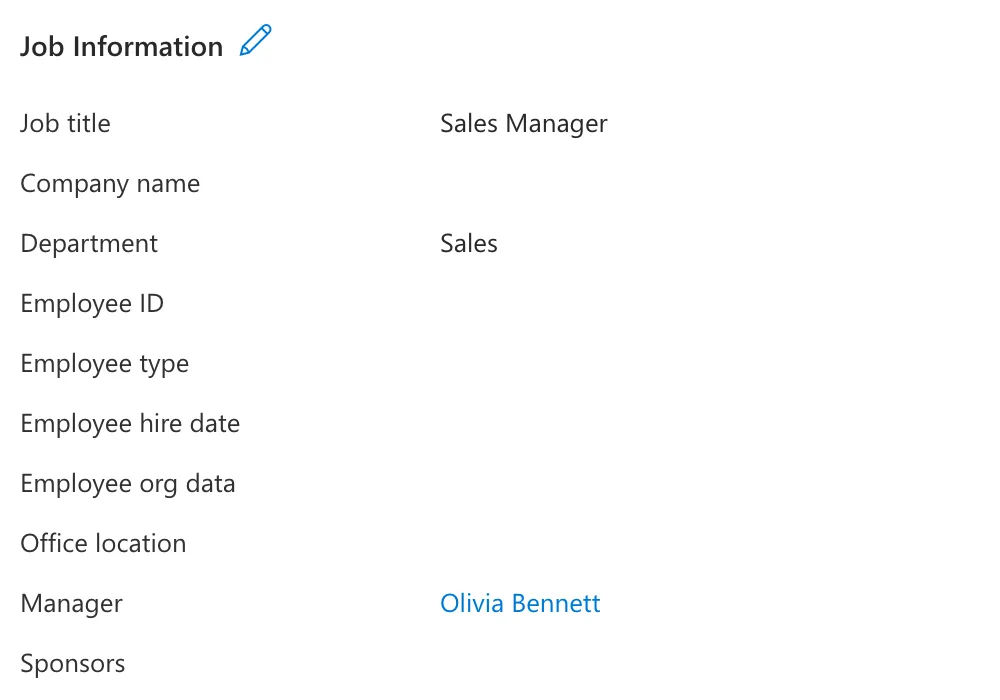
Each person's Job Information shows their title and manager. Here's Daniel Brooks:
Maya Patel, the new joiner, isn't added yet. She joins in Part 10, to show that a newcomer gets her plan without anyone setting it up.
Common Mistakes
| Mistake | What happens | Do this instead |
|---|---|---|
| Skipping the managers | My Team is empty and nobody can review anything | Set a manager on every employee before Part 7 |
| Typing job titles inconsistently | People with the "same" role get different plans, or none | Use exactly the titles in the table above |
| Leaving users unlicensed | They can't open the app | Assign a license that includes Power Apps and SharePoint |
| Creating a Microsoft 365 group instead of a security group | You get a mailbox and site you don't need | Create a Security group |
| Building in a developer environment | It's suspended from December 15, 2026 | Use your Default environment, as Part 3 does |
Troubleshooting
| Symptom | Likely cause | Fix |
|---|---|---|
| A manager has no direct reports when you check them | The Manager field was set on the wrong person | Managers are set on each employee, not on the manager; see the manager guide |
| A new person doesn't show up in Outlook or Teams search | Microsoft 365 search takes a while to pick up new accounts | Wait; the account works straight away |
| The admin centers say you don't have permission | Your account lacks the needed admin role | Ask a Global Administrator for User Administrator (and Groups Administrator for groups) |
FAQ
Do I need a premium Power Apps license?
No. The app only uses standard connectors, SharePoint and Office 365 Users, so the Power Apps rights included with Microsoft 365 cover everyone who uses it.
Why SharePoint instead of Dataverse tables?
Because storing data in Dataverse tables would make the app premium, so every user would need a paid license. SharePoint lists are included with Microsoft 365. The trade-off is security, covered above.
Why not Dataverse for Teams?
It's deprecated. Microsoft stops creating Dataverse for Teams environments on November 15, 2026, and existing ones are suspended in September 2027.
Can I use my real colleagues instead of the demo team?
Yes, in a real organization where everyone already has job titles and managers. Use a test tenant while you follow along, though: you'll be creating lists, sharing an app and changing data.
Can I install the finished app in another organization?
Yes. That's what the solution packaging is for. Part 12 exports it, and Part 13 installs it into a fresh environment step by step, the way a customer would.
Does it work on phones?
The screens use Power Apps' responsive containers, so they adapt to the size of the window. The series builds and tests the app in the browser.
Conclusion
You now know the whole design:
- a canvas app with seven screens;
- two SharePoint lists;
- live people data from Office 365 Users;
- competencies tied to Microsoft 365 job titles, so joiners, leavers and movers work by themselves.
It costs nothing beyond Microsoft 365, it lives in a solution so it can move between organizations, and its security model is stated plainly rather than overpromised.
The demo organization is in place too: five people with job titles and managers, and a security group for sharing.
Next → Part 2: Create the SharePoint Site and Lists (coming soon). You'll create the dedicated SharePoint site, build both lists column by column, give the group access, and add the first competencies for each job title.
Additional Resources
- How to Add a User and Assign a License in the Microsoft 365 Admin Center
- How to Set a User's Manager and Job Title in the Microsoft Entra Admin Center
- How to Create a Security Group in the Microsoft Entra Admin Center
- License designation for canvas apps: how Power Apps decides whether an app is Standard or Premium.
- Office 365 Users connector reference: the profile, manager and direct-reports operations the app uses.
- Environment variables overview: how solutions carry settings, including the FAQ on licensing.
- Important changes coming in Power Platform: the deprecation of unmanaged developer environments and Dataverse for Teams.
- Manage the default environment: Microsoft's guidance on what belongs in the Default environment.
