Part 7: Build a Streaming Chat Page with the AG-UI Client
Part 6 gave the chat app a safe way to reach the agent. Now it gets the page your colleagues will actually use: type a question, watch the answer appear word by word, stop it halfway, start a new conversation. The page uses the same AG-UI client library as the route — and it still talks to nothing but that route.
This is Part 7 of a 22-part series.
- Part 1: Overview, Architecture and Azure Setup
- Part 2: Create a Production-Grade .NET Solution
- Part 3: Your First Agent API with Microsoft Foundry
- Part 4: Multi-Turn Conversations with Sessions
- Part 5: Create a Next.js Chat App for Your Agent
- Part 6: Stream the Agent Through a Trusted Next.js Route Handler
- Part 7: Build a Streaming Chat Page with the AG-UI Client (you are here)
- Part 8: Secure the API with Microsoft Entra ID (coming soon)
- Part 9: Give the Agent Enterprise Tools (coming soon)
- Part 10: Create Tickets and Test Your Tools (coming soon)
- Part 11: Connect an MCP Server (coming soon)
- Part 12: Human Approval for Sensitive Actions (coming soon)
- Part 13: Approval Cards in the Chat UI (coming soon)
- Part 14: Persistent Conversations (coming soon)
- Part 15: Memory That Knows the Employee (coming soon)
- Part 16: Guardrails — Keep Secrets Out of the Model (coming soon)
- Part 17: Audit Logs and Observability (coming soon)
- Part 18: Ticket Triage Workflow (coming soon)
- Part 19: Manager Approvals and Checkpoints (coming soon)
- Part 20: Agent Harness — Weekly Problem Report (coming soon)
- Part 21: Deploy to Azure Container Apps (coming soon)
- Part 22: Bring It to Microsoft Teams (coming soon)
By the end of this part the Dewiride Service Desk has a working chat page: multi-turn conversations with answers that stream in, Markdown lists and links rendered safely, a Stop button, a New chat button, a friendly message when the agent is down, and a layout that works on a phone and in dark mode. You will build it for production and point the same build at a different name without rebuilding. Every step works in VS Code and in Visual Studio; where they differ, the page shows a tab for each. Every output and screenshot on this page is real, captured while building the project.
What You Will Build
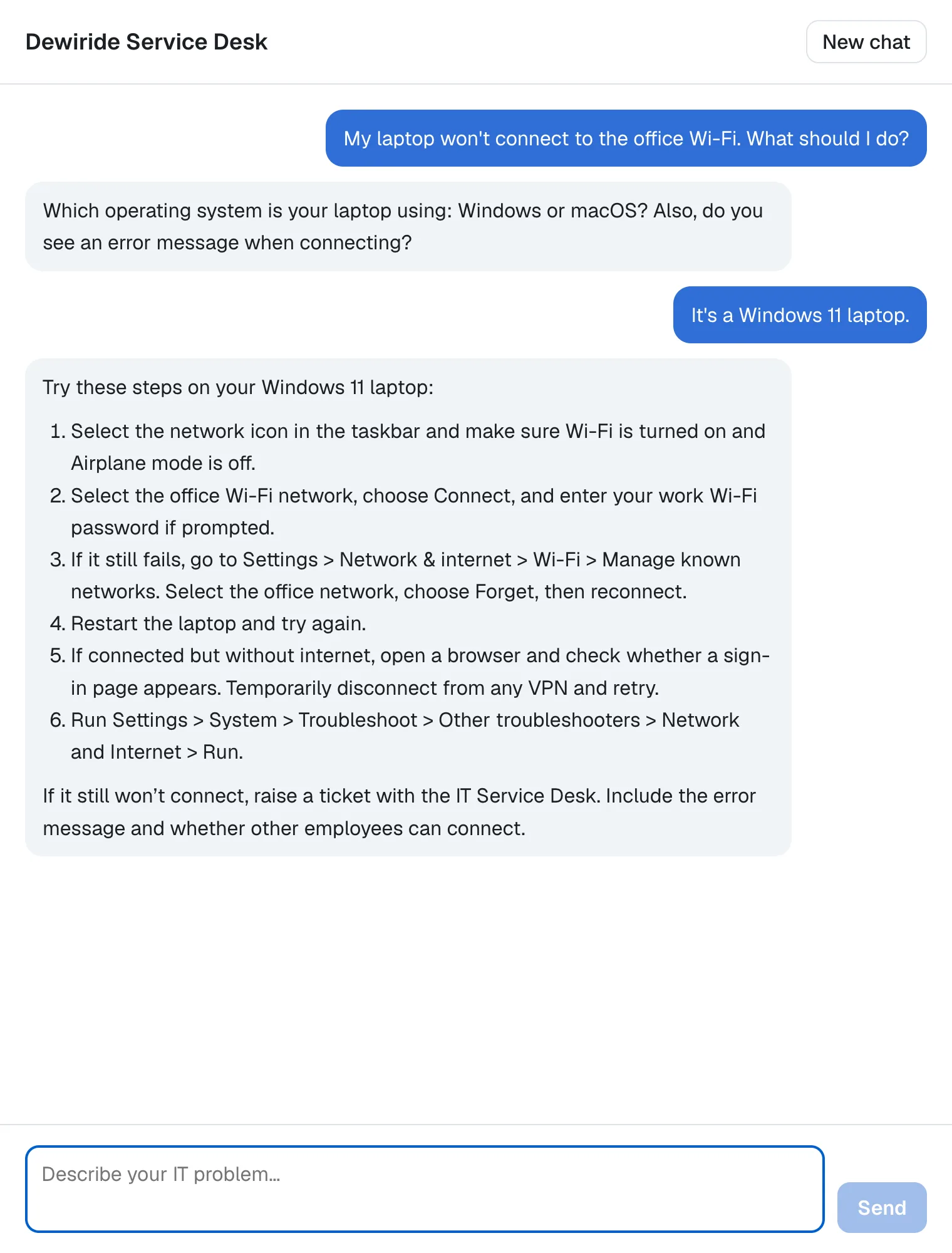
One page with three areas: a header with the agent's name and a New chat button, the conversation, and a box to type in. Behind it are three new files and one changed one:
| File | What it does |
|---|---|
lib/chat-agent.ts | An AG-UI agent for the browser that sends only what the route from Part 6 accepts |
app/chat.tsx | The chat itself: the messages, the streaming answer, Stop and New chat |
app/chat.module.css | The chat's styles |
app/page.tsx | Changed: shows the chat instead of Part 5's welcome page |
How the page reaches the agent
The page uses HttpAgent from @ag-ui/client — the same class the route uses. In the route, it calls the agent's API. In the browser, it calls the route. So the page gets the same typed events the route sees, and the library does the work of turning them into messages: it reads the stream, adds each piece of text to the right message and tells the page when something changed.
What This Part Costs
Only model usage, as in Parts 4 and 6. Each question you send is one agent run. The first question in Part 6 used 254 input and 59 output tokens — about a hundredth of a cent at the prices from Part 1. Longer answers cost more, but a whole afternoon of testing stays well under a dollar. The chat app runs on your machine for free.
Prerequisites
- The chat app from Parts 5 and 6, in
web/agent-chat-ui, and the API from Part 4, in the same solution. - Node.js 26 and npm 12, and your editor from Part 2 — VS Code with the C# Dev Kit and REST Client extensions, or Visual Studio 2026 (see Part 2's prerequisites).
- Signed in with
az login, as in Part 3: the API calls Foundry with your Azure CLI sign-in.
Step 1: Install the Markdown Packages
The agent writes its answers in Markdown: numbered steps, bullet points, bold text and links, like the Windows steps in Part 6. Shown as plain text, a list would be lines that start with numbers and stars. Two packages turn it into real lists and links. Open a terminal in web/agent-chat-ui and install them:
npm install react-markdown@10.1.0 remark-gfm@4.0.1
added 100 packages, and audited 145 packages in 7s

94 packages are looking for funding
  run `npm fund` for details

found 0 vulnerabilities
| Package | What it does |
|---|---|
react-markdown | Turns Markdown into React elements. Its documentation calls it safe by default (no dangerouslySetInnerHTML or XSS attacks): HTML inside the Markdown is shown as plain text, never run, and unsafe link addresses are removed |
remark-gfm | Adds the Markdown extras GitHub supports: tables, strikethrough, task lists and links written as plain addresses |
The safety matters. The agent's answers come from a model, and a model can be talked into writing anything — including HTML with a script in it. Microsoft's AG-UI security guidance warns: Never pass raw user messages directly to UI rendering without proper HTML escaping. With react-markdown, nothing the agent writes can run as code in the page (How to Render Markdown Safely in React with react-markdown).
Step 2: Create the Browser's AG-UI Agent
HttpAgent sends the whole AG-UI request to its address: every message of the conversation, the tools, the state. The route from Part 6 refuses exactly that shape with 400 Bad Request — it accepts four values and nothing else. So the browser needs an HttpAgent that sends only those four.
Create the file lib/chat-agent.ts. It starts with the class:
import { HttpAgent, type RunAgentInput } from "@ag-ui/client";

// An AG-UI agent for the browser. It talks to this app's own /api/chat
// route, never to the agent itself, and sends only what that route accepts:
// the conversation, the run, the run it continues, and the newest text.
export class ChatAgent extends HttpAgent {
  private previousRunId: string | undefined;

  constructor() {
    super({ url: "/api/chat" });
  }
/api/chat is a relative address: the browser sends it to the server the page came from, the chat app itself. The agent's real address, AGENT_URL, never reaches the browser.
HttpAgent builds each request in a method named requestInit, and its documentation says to override it to customize the request. ChatAgent replaces the body:
  protected requestInit(input: RunAgentInput): RequestInit {
    const newest = input.messages.at(-1);
    const body = {
      threadId: input.threadId,
      runId: input.runId,
      parentRunId: this.previousRunId,
      message: typeof newest?.content === "string" ? newest.content : "",
    };
    this.previousRunId = input.runId;

    return {
      method: "POST",
      headers: {
        "Content-Type": "application/json",
        Accept: "text/event-stream",
      },
      body: JSON.stringify(body),
      signal: this.abortController.signal,
    };
  }
}
| Code | What it does |
|---|---|
input | The full AG-UI request the library prepared: the conversation's threadId, a new runId, every message, tools and state |
input.messages.at(-1) | The last message: the one the user just typed |
parentRunId: this.previousRunId | The run this one continues. The library doesn't send a parentRunId, so the class remembers the previous runId itself. The first run has none |
message | The text. A message can also hold other kinds of content, such as images; this chat only ever adds text |
signal: this.abortController.signal | Connects the request to HttpAgent's own abort controller, so the Stop button can cancel it |
Everything the route accepts, and nothing more (How to Customize the Request an AG-UI HttpAgent Sends). The complete file:
import { HttpAgent, type RunAgentInput } from "@ag-ui/client";

// An AG-UI agent for the browser. It talks to this app's own /api/chat
// route, never to the agent itself, and sends only what that route accepts:
// the conversation, the run, the run it continues, and the newest text.
export class ChatAgent extends HttpAgent {
  private previousRunId: string | undefined;

  constructor() {
    super({ url: "/api/chat" });
  }

  protected requestInit(input: RunAgentInput): RequestInit {
    const newest = input.messages.at(-1);
    const body = {
      threadId: input.threadId,
      runId: input.runId,
      parentRunId: this.previousRunId,
      message: typeof newest?.content === "string" ? newest.content : "",
    };
    this.previousRunId = input.runId;

    return {
      method: "POST",
      headers: {
        "Content-Type": "application/json",
        Accept: "text/event-stream",
      },
      body: JSON.stringify(body),
      signal: this.abortController.signal,
    };
  }
}
Step 3: Build the Chat Component
The chat reacts to typing and clicks, so it runs in the browser. In Next.js that makes it a Client Component, marked by "use client" at the top of its file. The page stays a Server Component: it reads the settings on the server, as in Part 5, and hands the chat only the name and the welcome text.
Create app/chat.tsx. It is the longest file of the chat app, so it comes in pieces.
The component and what it remembers
"use client";

import { type Message, randomUUID } from "@ag-ui/client";
import {
  type FormEvent,
  type KeyboardEvent,
  useEffect,
  useRef,
  useState,
} from "react";
import Markdown from "react-markdown";
import remarkGfm from "remark-gfm";
import { ChatAgent } from "@/lib/chat-agent";
import styles from "./chat.module.css";

type ChatProps = {
  agentName: string;
  welcome: string;
};

export function Chat({ agentName, welcome }: ChatProps) {
  const agentRef = useRef<ChatAgent | null>(null);
  const endRef = useRef<HTMLDivElement>(null);
  const [messages, setMessages] = useState<Message[]>([]);
  const [draft, setDraft] = useState("");
  const [isRunning, setIsRunning] = useState(false);
  const [error, setError] = useState<string | null>(null);
| Name | What it holds |
|---|---|
agentRef | The ChatAgent of the current conversation. A ref keeps it across redraws without causing one |
endRef | An empty element at the end of the conversation, used for scrolling |
messages | The messages on screen |
draft | The text in the box |
isRunning | true while the agent is answering |
error | The error to show, if any |
randomUUID comes from @ag-ui/client: it makes random IDs in any browser, including on addresses where the browser's own crypto.randomUUID isn't available.
Keep the newest words in view
  // Keep the newest words, or an error, in view while an answer streams in.
  useEffect(() => {
    if (messages.length > 0 || error) {
      endRef.current?.scrollIntoView({ block: "end" });
    }
  }, [messages, error]);
Every time the messages change — and while an answer streams in, they change with every few words — the conversation scrolls to its end. An error counts too, so a message that appears below the visible area doesn't go unnoticed (How to Keep a Chat Scrolled to the Newest Message in React).
Send a message and stream the answer
  async function send(text: string) {
    agentRef.current ??= new ChatAgent();
    const agent = agentRef.current;
    agent.addMessage({ id: randomUUID(), role: "user", content: text });
    setMessages([...agent.messages]);
    setDraft("");
    setError(null);
    setIsRunning(true);
The first message creates the conversation's ChatAgent; ??= creates it only if there isn't one yet. The agent gets a new random threadId the first time it is read — that is the conversation's ID, and every later message reuses it. addMessage adds the user's message to the agent's own list. It changes that list in place, so the page copies it into a new array: React redraws only when it is handed a new array. Then the box is emptied and the run begins:
    try {
      await agent.runAgent(
        {},
        {
          onMessagesChanged: ({ messages }) => setMessages([...messages]),
          onRunErrorEvent: ({ event }) => {
            // Stop ends the run with the client's own "abort" event: not an error.
            if (event.code !== "abort") {
              setError(event.message);
            }
          },
        },
      );
runAgent does the whole run: it prepares the AG-UI request (which requestInit turns into the route's four values), sends it, reads the events as they stream in and builds the agent's answer from them. The second argument lists the moments the page wants to hear about:
| Callback | When it runs | What the page does |
|---|---|---|
onMessagesChanged | Every time the messages change — for each piece of streamed text | Shows the new messages |
onRunErrorEvent | When a RUN_ERROR event arrives, such as Part 6's The agent isn't available right now | Shows its message — unless it is the Stop button's own event |
That exception is a mistake I made while building this page. When you press Stop, the library ends the run with a RUN_ERROR event of its own, with the code abort. The first version showed every RUN_ERROR, so pressing Stop put the browser's text for a cancelled request, signal is aborted without reason, on screen in red. Pressing Stop isn't an error, so the page now ignores events with that code (Fixed: signal is aborted without reason After Stopping an AG-UI Run).
Some failures never become a RUN_ERROR event — for example when the route can't be reached at all. runAgent throws them instead:
    } catch {
      if (!agent.abortController.signal.aborted) {
        setError(
          (current) =>
            current ?? "The chat couldn't reach the agent. Please try again.",
        );
      }
    } finally {
      setIsRunning(false);
    }
  }
If the run wasn't stopped on purpose, the page shows a message of its own — unless a RUN_ERROR already put one on screen, which is what current ?? keeps. finally runs either way: the run is over, so the Stop button turns back into Send.
Stop an answer, start a new chat
  function stop() {
    agentRef.current?.abortRun();
  }

  function newChat() {
    agentRef.current?.abortRun();
    agentRef.current = null;
    setMessages([]);
    setDraft("");
    setError(null);
  }
abortRun cancels the request to the route. The route sees its own request end, and the signal you passed on in Part 6 cancels its call to the agent too — the whole chain stops (How to Add a Stop Button to an AG-UI Chat). New chat stops any answer and forgets the ChatAgent, so the next message creates a new one with a new threadId: a conversation the agent has never seen.
Send with Enter, new line with Shift+Enter
  function onSubmit(event: FormEvent<HTMLFormElement>) {
    event.preventDefault();
    const text = draft.trim();
    if (text && !isRunning) {
      void send(text);
    }
  }

  // Enter sends the message. Shift+Enter starts a new line.
  function onKeyDown(event: KeyboardEvent<HTMLTextAreaElement>) {
    if (
      event.key === "Enter" &&
      !event.shiftKey &&
      !event.nativeEvent.isComposing
    ) {
      event.preventDefault();
      event.currentTarget.form?.requestSubmit();
    }
  }
onSubmit runs when the form is sent — by the Send button or by Enter. preventDefault stops the browser from reloading the page, the default for a form. Empty text, or a message while the agent is still answering, is ignored.
In a text box, Enter normally starts a new line. onKeyDown makes Enter send instead, and leaves Shift+Enter for new lines. isComposing is true while someone types with an input method — for example Japanese or Chinese — where Enter confirms the characters rather than sending. requestSubmit sends the form the same way the Send button does (How to Send a Message with Enter and Add a New Line with Shift+Enter in React).
What the page shows
  const waitingForAnswer = isRunning && messages.at(-1)?.role === "user";

  return (
    <div className={styles.chat}>
      <header className={styles.header}>
        <h1>{agentName}</h1>
        <button
          type="button"
          onClick={newChat}
          disabled={messages.length === 0}
        >
          New chat
        </button>
      </header>

      <div
        className={styles.messages}
        role="log"
        aria-live="polite"
        aria-busy={isRunning}
        aria-label={`Conversation with ${agentName}`}
      >
        {messages.length === 0 && <p className={styles.welcome}>{welcome}</p>}
        {messages.map((message) => (
          <ChatMessage key={message.id} message={message} />
        ))}
        {waitingForAnswer && (
          <p className={styles.typing}>{agentName} is typing…</p>
        )}
        {error && (
          <p className={styles.error} role="alert">
            {error}
          </p>
        )}
        <div ref={endRef} />
      </div>

      <form className={styles.composer} onSubmit={onSubmit}>
        <textarea
          aria-label={`Message ${agentName}`}
          placeholder="Describe your IT problem…"
          value={draft}
          onChange={(event) => setDraft(event.target.value)}
          onKeyDown={onKeyDown}
          maxLength={4000}
          rows={2}
        />
        {isRunning ? (
          <button type="button" onClick={stop}>
            Stop
          </button>
        ) : (
          <button type="submit" disabled={!draft.trim()}>
            Send
          </button>
        )}
      </form>
    </div>
  );
}
| Part | What it does |
|---|---|
waitingForAnswer | true from the moment you send until the first words arrive: the time to show … is typing… |
| New chat | Disabled while there is nothing to clear |
role="log" and aria-live="polite" | Tell screen readers this area is a conversation, and to read out new messages when the user pauses |
aria-busy, aria-label | Say that an answer is still arriving, and whose conversation this is |
| The welcome text | Shown until the first message. It is only for the screen: the agent never sees it |
role="alert" | Screen readers announce an error at once |
maxLength={4000} | The same limit the route checks |
| Stop or Send | One button that changes with isRunning |
One message
The last piece draws a single message:
function ChatMessage({ message }: { message: Message }) {
  if (message.role === "user" && typeof message.content === "string") {
    return <p className={styles.user}>{message.content}</p>;
  }
  if (message.role === "assistant" && message.content) {
    return (
      <div className={styles.assistant}>
        <Markdown
          remarkPlugins={[remarkGfm]}
          components={{
            a: ({ node: _node, ...props }) => (
              <a {...props} target="_blank" rel="noreferrer" />
            ),
          }}
        >
          {message.content}
        </Markdown>
      </div>
    );
  }
  return null;
}
Your own messages are shown as plain text. React escapes text it renders, so even typed HTML appears as characters on the screen. The agent's messages go through Markdown with remark-gfm, so its lists and links become real lists and links.
The components option replaces how one kind of element is drawn — here, links. Every link the agent writes opens in a new tab, so the conversation stays open, and rel="noreferrer" stops the opened page from reaching back into the chat or learning its address. react-markdown also passes each element's place in the Markdown, node, to the replacement; taking it out of props keeps it from being written into the HTML as an attribute (How to Open Markdown Links in a New Tab with react-markdown). Any other kind of message — this chat has none yet — draws nothing.
The complete file:
"use client";

import { type Message, randomUUID } from "@ag-ui/client";
import {
  type FormEvent,
  type KeyboardEvent,
  useEffect,
  useRef,
  useState,
} from "react";
import Markdown from "react-markdown";
import remarkGfm from "remark-gfm";
import { ChatAgent } from "@/lib/chat-agent";
import styles from "./chat.module.css";

type ChatProps = {
  agentName: string;
  welcome: string;
};

export function Chat({ agentName, welcome }: ChatProps) {
  const agentRef = useRef<ChatAgent | null>(null);
  const endRef = useRef<HTMLDivElement>(null);
  const [messages, setMessages] = useState<Message[]>([]);
  const [draft, setDraft] = useState("");
  const [isRunning, setIsRunning] = useState(false);
  const [error, setError] = useState<string | null>(null);

  // Keep the newest words, or an error, in view while an answer streams in.
  useEffect(() => {
    if (messages.length > 0 || error) {
      endRef.current?.scrollIntoView({ block: "end" });
    }
  }, [messages, error]);

  async function send(text: string) {
    agentRef.current ??= new ChatAgent();
    const agent = agentRef.current;
    agent.addMessage({ id: randomUUID(), role: "user", content: text });
    setMessages([...agent.messages]);
    setDraft("");
    setError(null);
    setIsRunning(true);

    try {
      await agent.runAgent(
        {},
        {
          onMessagesChanged: ({ messages }) => setMessages([...messages]),
          onRunErrorEvent: ({ event }) => {
            // Stop ends the run with the client's own "abort" event: not an error.
            if (event.code !== "abort") {
              setError(event.message);
            }
          },
        },
      );
    } catch {
      if (!agent.abortController.signal.aborted) {
        setError(
          (current) =>
            current ?? "The chat couldn't reach the agent. Please try again.",
        );
      }
    } finally {
      setIsRunning(false);
    }
  }

  function stop() {
    agentRef.current?.abortRun();
  }

  function newChat() {
    agentRef.current?.abortRun();
    agentRef.current = null;
    setMessages([]);
    setDraft("");
    setError(null);
  }

  function onSubmit(event: FormEvent<HTMLFormElement>) {
    event.preventDefault();
    const text = draft.trim();
    if (text && !isRunning) {
      void send(text);
    }
  }

  // Enter sends the message. Shift+Enter starts a new line.
  function onKeyDown(event: KeyboardEvent<HTMLTextAreaElement>) {
    if (
      event.key === "Enter" &&
      !event.shiftKey &&
      !event.nativeEvent.isComposing
    ) {
      event.preventDefault();
      event.currentTarget.form?.requestSubmit();
    }
  }

  const waitingForAnswer = isRunning && messages.at(-1)?.role === "user";

  return (
    <div className={styles.chat}>
      <header className={styles.header}>
        <h1>{agentName}</h1>
        <button
          type="button"
          onClick={newChat}
          disabled={messages.length === 0}
        >
          New chat
        </button>
      </header>

      <div
        className={styles.messages}
        role="log"
        aria-live="polite"
        aria-busy={isRunning}
        aria-label={`Conversation with ${agentName}`}
      >
        {messages.length === 0 && <p className={styles.welcome}>{welcome}</p>}
        {messages.map((message) => (
          <ChatMessage key={message.id} message={message} />
        ))}
        {waitingForAnswer && (
          <p className={styles.typing}>{agentName} is typing…</p>
        )}
        {error && (
          <p className={styles.error} role="alert">
            {error}
          </p>
        )}
        <div ref={endRef} />
      </div>

      <form className={styles.composer} onSubmit={onSubmit}>
        <textarea
          aria-label={`Message ${agentName}`}
          placeholder="Describe your IT problem…"
          value={draft}
          onChange={(event) => setDraft(event.target.value)}
          onKeyDown={onKeyDown}
          maxLength={4000}
          rows={2}
        />
        {isRunning ? (
          <button type="button" onClick={stop}>
            Stop
          </button>
        ) : (
          <button type="submit" disabled={!draft.trim()}>
            Send
          </button>
        )}
      </form>
    </div>
  );
}

function ChatMessage({ message }: { message: Message }) {
  if (message.role === "user" && typeof message.content === "string") {
    return <p className={styles.user}>{message.content}</p>;
  }
  if (message.role === "assistant" && message.content) {
    return (
      <div className={styles.assistant}>
        <Markdown
          remarkPlugins={[remarkGfm]}
          components={{
            a: ({ node: _node, ...props }) => (
              <a {...props} target="_blank" rel="noreferrer" />
            ),
          }}
        >
          {message.content}
        </Markdown>
      </div>
    );
  }
  return null;
}
Step 4: Style the Chat
Create app/chat.module.css:
.chat {
  display: flex;
  flex-direction: column;
  width: 100%;
  max-width: 760px;
  height: 100dvh;
  margin: 0 auto;
}

.header {
  display: flex;
  align-items: center;
  justify-content: space-between;
  gap: 16px;
  padding: 16px 20px;
  border-bottom: 1px solid var(--border);
}

.header h1 {
  font-size: 1.125rem;
  font-weight: 600;
}

.messages {
  flex: 1;
  display: flex;
  flex-direction: column;
  gap: 12px;
  padding: 20px;
  overflow-y: auto;
}

.welcome {
  margin: auto 0;
  color: var(--muted);
  text-align: center;
  line-height: 1.6;
}

.user,
.assistant {
  max-width: 85%;
  padding: 10px 14px;
  border-radius: 14px;
  line-height: 1.6;
  overflow-wrap: anywhere;
}

.user {
  align-self: flex-end;
  background: var(--accent);
  color: var(--on-accent);
  white-space: pre-wrap;
}

.assistant {
  align-self: flex-start;
  background: var(--surface);
}

.assistant > * + * {
  margin-top: 0.6em;
}

.assistant ul,
.assistant ol {
  padding-left: 1.4em;
}

.assistant code {
  font-family: var(--font-geist-mono), monospace;
  font-size: 0.9em;
}

.assistant a {
  color: var(--link);
  text-decoration: underline;
}

.typing {
  color: var(--muted);
  font-style: italic;
}

.error {
  align-self: stretch;
  padding: 10px 14px;
  border-radius: 10px;
  background: var(--error-surface);
  color: var(--error);
}

.composer {
  display: flex;
  align-items: flex-end;
  gap: 10px;
  padding: 16px 20px;
  border-top: 1px solid var(--border);
}

.composer textarea {
  flex: 1;
  resize: none;
  padding: 10px 12px;
  border: 1px solid var(--border);
  border-radius: 10px;
  background: var(--background);
  color: inherit;
  font: inherit;
  line-height: 1.5;
}

.chat button {
  padding: 10px 16px;
  border: 0;
  border-radius: 10px;
  background: var(--accent);
  color: var(--on-accent);
  font: inherit;
  font-weight: 600;
  cursor: pointer;
}

.header button {
  padding: 6px 12px;
  border: 1px solid var(--border);
  background: transparent;
  color: inherit;
  font-weight: 500;
}

.chat button:disabled {
  opacity: 0.45;
  cursor: default;
}
| Rule | What it does |
|---|---|
.chat | A column as tall as the screen and at most 760 pixels wide. 100dvh is the visible height, which on phones changes as the browser's address bar slides away |
.messages | Takes the space between the header and the box, and scrolls on its own |
.welcome | margin: auto 0 centers the welcome text in the empty conversation |
.user, .assistant | Your messages on the right in the accent color, the agent's on the left. pre-wrap keeps the line breaks you typed with Shift+Enter |
.assistant > * + * | Space between paragraphs and lists inside an answer |
.error | The error, in the colors Part 5 set for errors |
Every color is one of the variables from Part 5's globals.css, and each has a dark-mode value there. The chat follows the computer's light or dark setting without a line of extra code (How to Support Light and Dark Mode with CSS Variables).
Step 5: Show the Chat on the Page
Open app/page.tsx. Part 5's AgentWelcome component showed the name and welcome text; now the chat does. Replace the component:
// Reads the settings on every request, so one build can talk to any agent.
async function ChatWithSettings() {
  await connection();
  const { name, welcome } = getAgentSettings();
  return <Chat agentName={name} welcome={welcome} />;
}
It still waits for a request with await connection() and reads the settings on the server. Only the two values the chat shows cross over to the browser. The complete file:
import type { Metadata } from "next";
import { connection } from "next/server";
import { Suspense } from "react";
import { getAgentSettings } from "@/lib/agent-settings";
import { Chat } from "./chat";

export async function generateMetadata(): Promise<Metadata> {
  await connection();
  return { title: getAgentSettings().name };
}

export default function Home() {
  return (
    <Suspense>
      <ChatWithSettings />
    </Suspense>
  );
}

// Reads the settings on every request, so one build can talk to any agent.
async function ChatWithSettings() {
  await connection();
  const { name, welcome } = getAgentSettings();
  return <Chat agentName={name} welcome={welcome} />;
}
The page no longer imports page.module.css, and the chat has its own styles, so delete it:
- macOS / Linux
- Windows (PowerShell)
rm app/page.module.css
Remove-Item app/page.module.css
Let Biome check the project, and npm the packages:
npm run lint
npm notice run agent-chat-ui@0.1.0 lint
npm notice run biome check
Checked 14 files in 7ms. No fixes applied.
npm audit
found 0 vulnerabilities
Step 6: Run the API and the Chat App
Start both, each in its own terminal, exactly as in Part 6. First the API:
- VS Code
- Visual Studio
In VS Code's terminal, from the solution root, run:
dotnet run --project src/Dewiride.ServiceDesk.Api
Make sure http is selected in the drop-down list next to the green Start button (▶), with Dewiride.ServiceDesk.Api as the startup project, and press Ctrl+F5 (Debug → Start Without Debugging).
Then the chat app, in a second terminal:
cd web/agent-chat-ui
npm run dev
The output of both is the same as in Part 6: the API listens on port 5180, the chat app on port 3000.
Step 7: Chat with the Agent
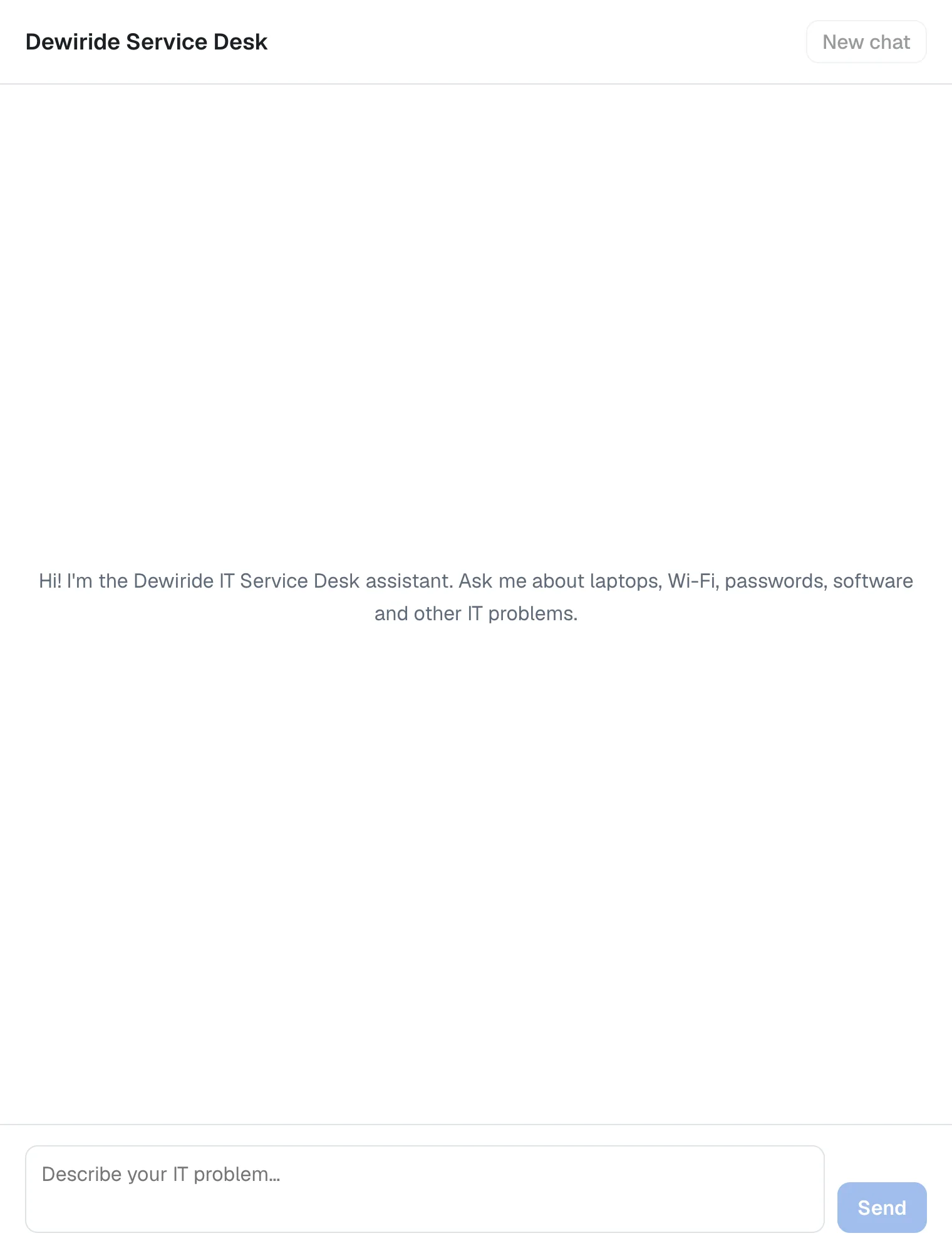
Open http://localhost:3000. The chat is empty, with the welcome text in the middle. New chat and Send are dimmed: there is nothing to clear and nothing to send yet.
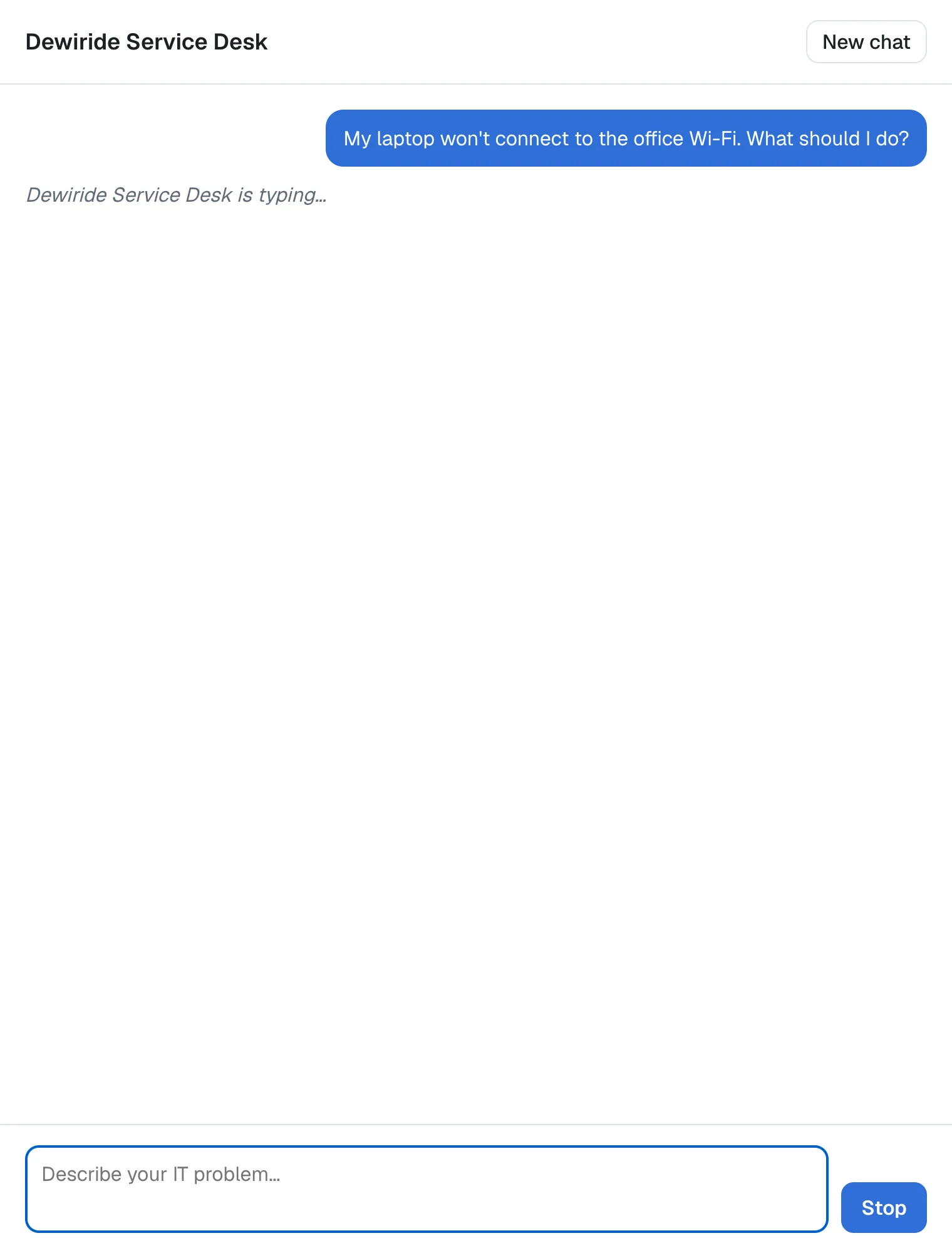
Type My laptop won't connect to the office Wi-Fi. What should I do? and press Enter. Your message appears on the right, Dewiride Service Desk is typing… appears below it, and Send has become Stop:
A moment later the answer streams in. As in Part 6, the agent first asks which system the laptop runs — in its own words this time, because the model words every answer afresh:
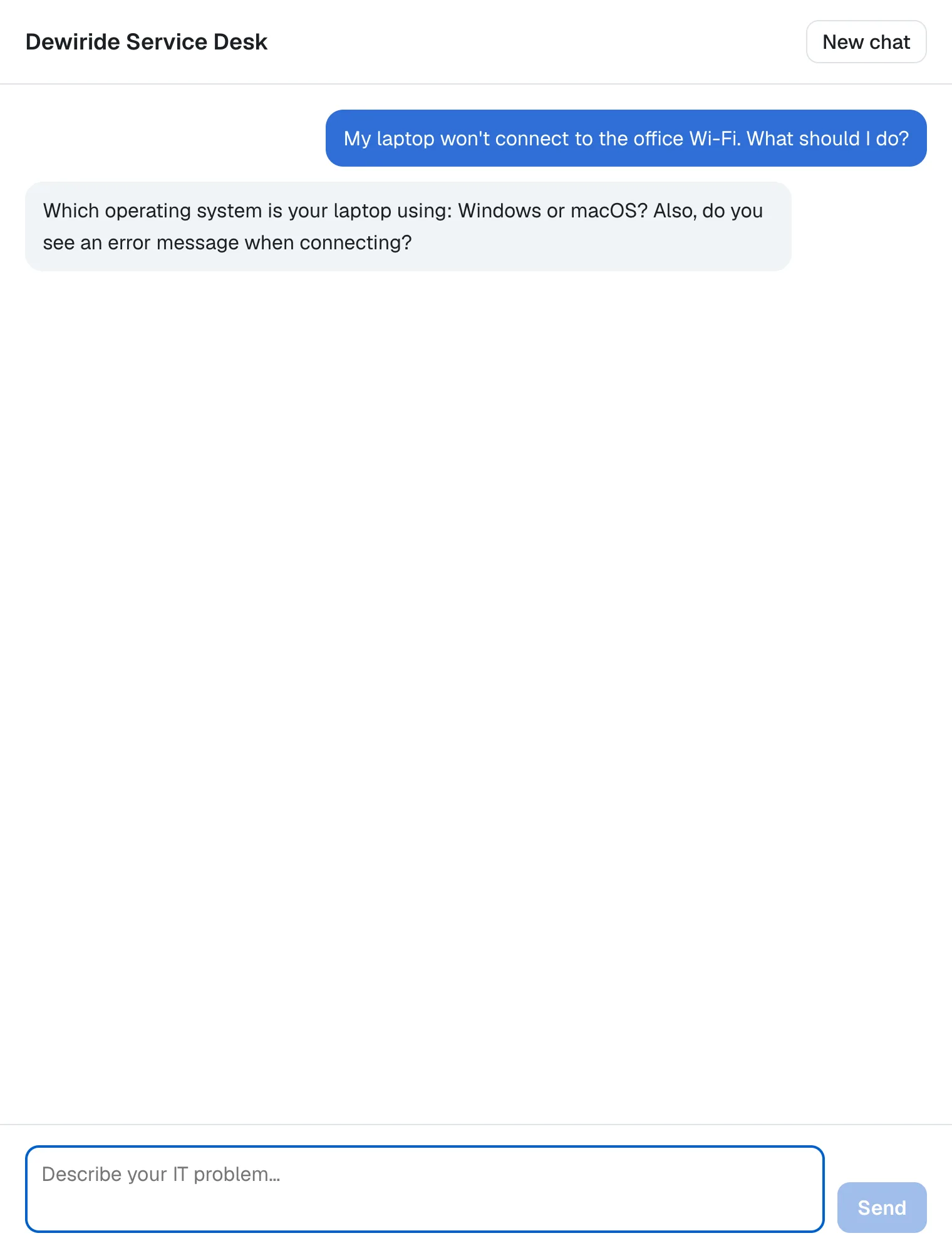
Reply It's a Windows 11 laptop. The answer arrives a few words at a time, and react-markdown turns it into a real numbered list as it grows. The finished conversation is the one in the picture at the top of this page: the agent remembered the first question, because the page sent the same threadId and the previous run as parentRunId.
The chat app's terminal shows what happened:
 GET / 200 in 260ms (next.js: 76ms, application-code: 184ms)
 POST /api/chat 200 in 2.7s (next.js: 1.4ms, application-code: 2.7s)
 POST /api/chat 200 in 3.4s (next.js: 1.5ms, application-code: 3.4s)
One GET for the page, and one POST /api/chat per message. The browser never called the API on port 5180 — every message went through the trusted route.
Step 8: Stop an Answer and Start Over
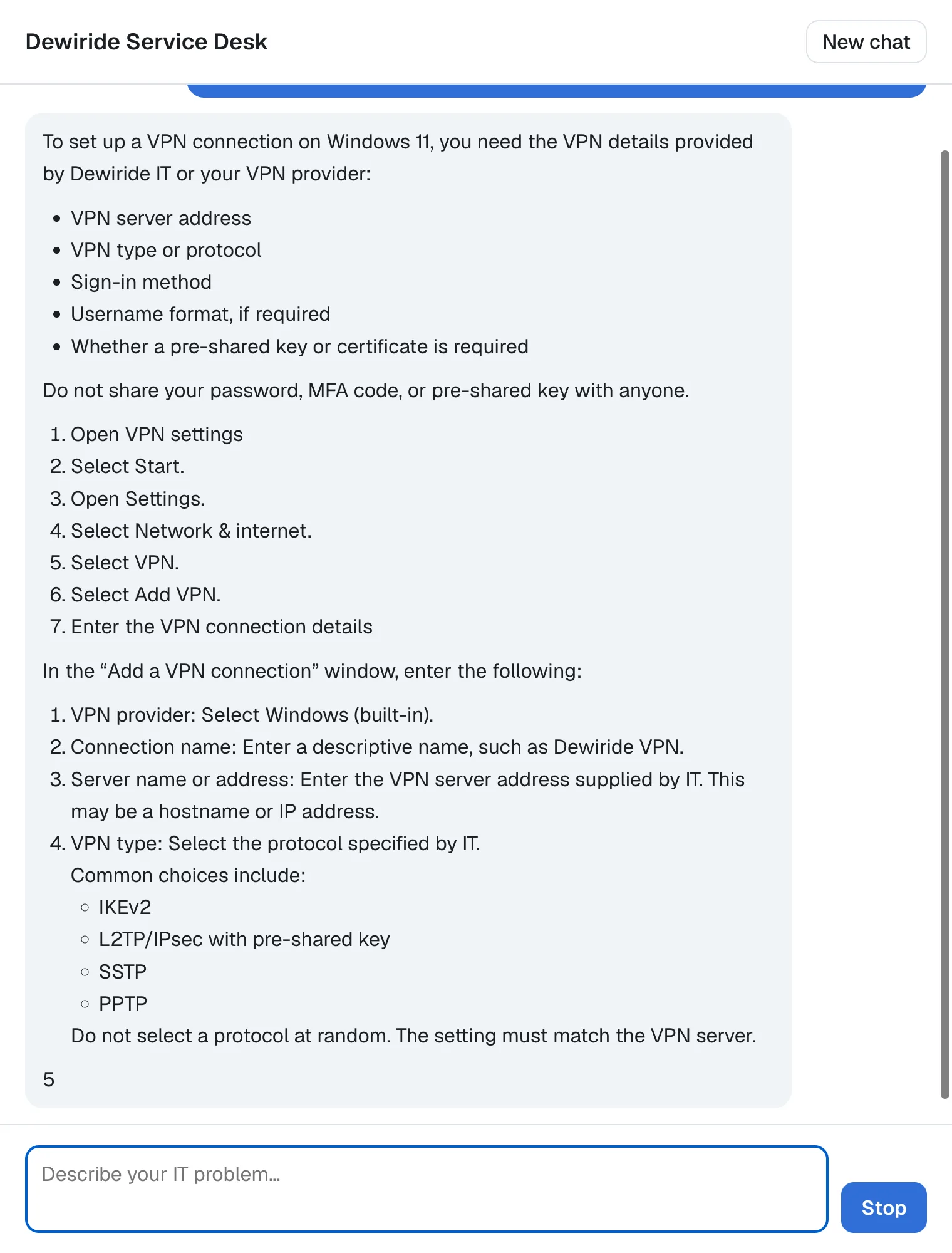
Ask for something long: Explain step by step how to set up a VPN connection on Windows 11, in detail. While the answer is still arriving, the button next to the text box says Stop:
Press Stop. The answer ends where it was, mid-sentence, and Send is back. No error appears:
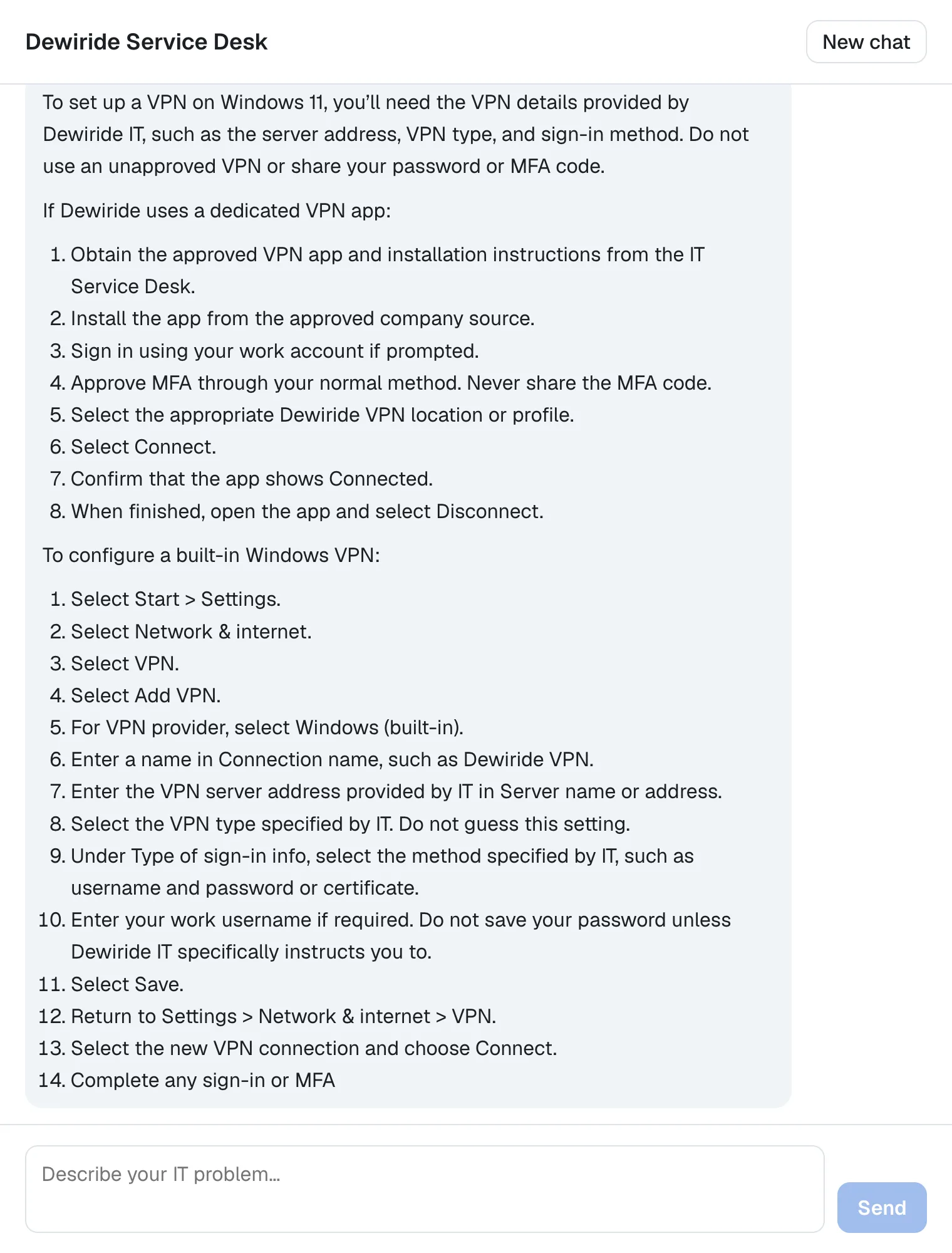
The two screenshots come from two separate runs, so the wording of the answer differs. Stop doesn't just make the page stop listening: the route's call to the API ends at the same moment (Part 6), so the API stops working on an answer nobody will read.
Now select New chat. The page is empty again, with the welcome text in the middle, exactly as in Step 7's first screenshot. Your next message starts a new conversation with a new threadId, and the agent knows nothing about the Wi-Fi or the VPN.
Step 9: Build the App for Production
npm run dev is for building the app: it compiles each page when it is first opened and adds developer tools to the page. For real use, Next.js builds the app once, ahead of time. Stop the chat app with Ctrl+C — keep the API running — and build it:
npm run build
npm notice run agent-chat-ui@0.1.0 build
npm notice run next build
▲ Next.js 16.4.6 (Turbopack)
- Environments: .env.local
✓ Running next.config.ts took 67ms
- Cache Components enabled
- Partial Prefetching enabled

  Creating an optimized production build ...
✓ Compiled successfully in 1764ms
✓ Finished TypeScript in 455ms
✓ Collecting page data using 6 workers in 263ms
✓ Generating static pages using 6 workers (5/5) in 315ms
✓ Finalizing page optimization in 4ms

Route (app)
┌ ◐ /
├ ○ /_not-found
└ ƒ /api/chat


○  (Static)             prerendered as static content
◐  (Partial Prerender)  prerendered as static HTML with dynamic server-streamed content
ƒ  (Dynamic)            server-rendered on demand
| Route | Symbol | What it means |
|---|---|---|
/ | ◐ Partial Prerender | The page's frame was built ahead of time. The chat, which needs the settings, is rendered for each request — the Suspense and connection() from Part 5 at work |
/_not-found | ○ Static | Next.js's built-in page not found page |
/api/chat | ƒ Dynamic | The trusted route runs for every request, as it must |
✓ Finished TypeScript means the whole app passed TypeScript's checks. Start the built app:
npm start
npm notice run agent-chat-ui@0.1.0 start
npm notice run next start
▲ Next.js 16.4.6
- Local:         http://localhost:3000
- Network:       http://192.168.1.10:3000
✓ Ready in 96ms
✓ Running next.config.ts took 24ms
It answers on the same address, http://localhost:3000, and reads the same .env.local.
Step 10: Check the Page on a Phone and in Dark Mode
Many of your colleagues will ask the service desk from a phone. Make the browser window narrow, or use your browser's device view — in Chrome and Edge, press F12 and select Toggle device toolbar. Here the same question on a phone-sized screen, 390 pixels wide:
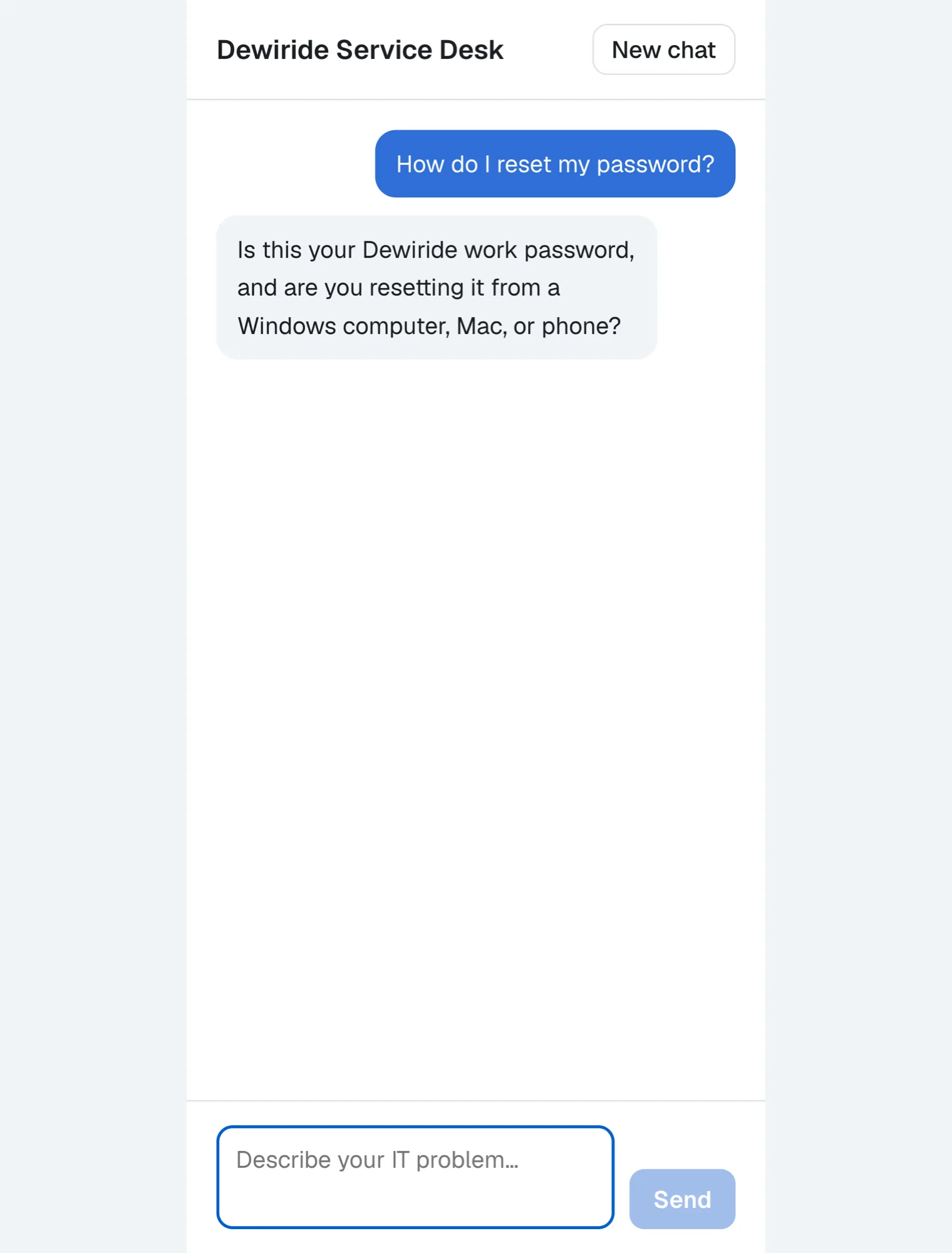
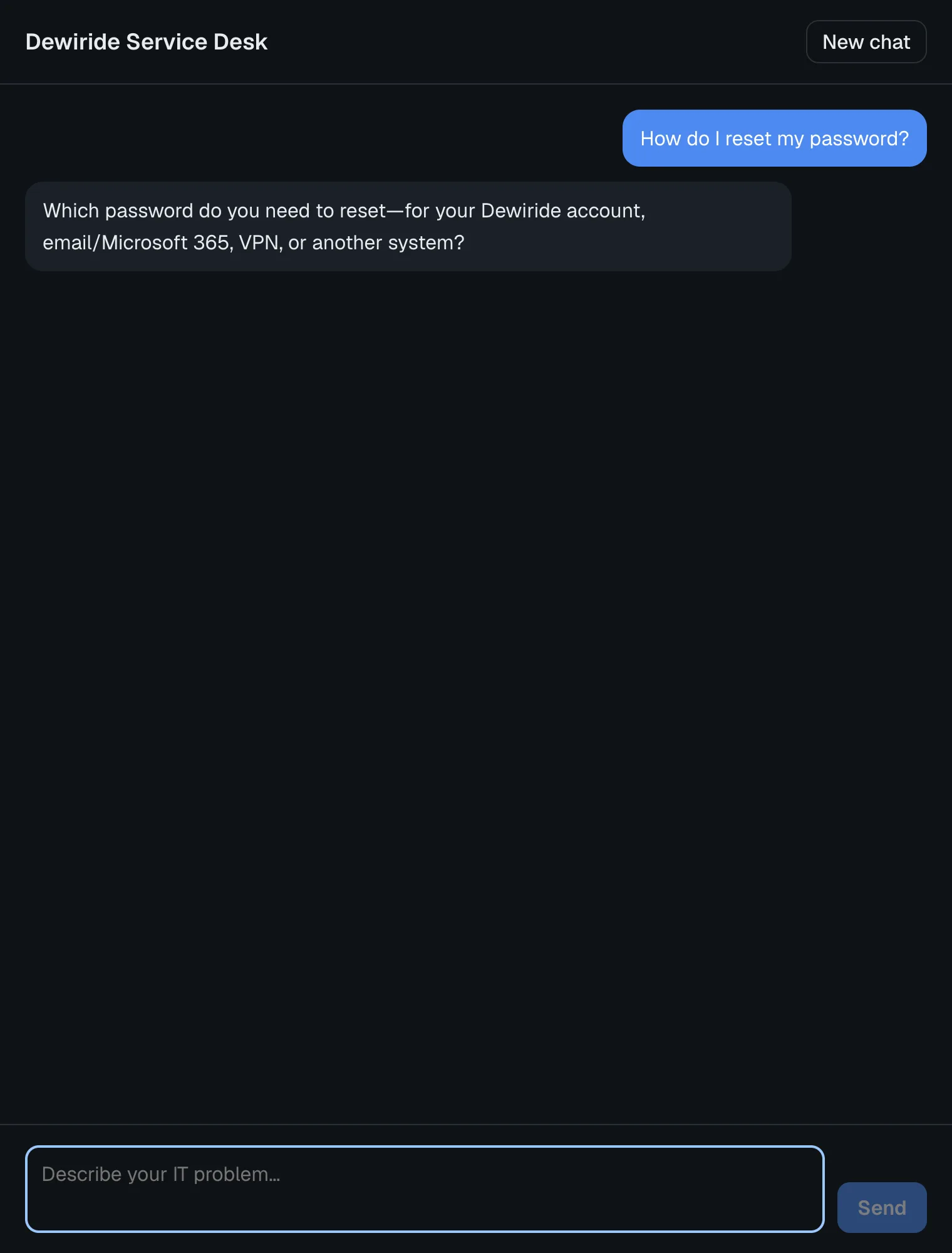
The column fills the screen and the box stays at the bottom. Switch your computer to dark mode — or, in Chrome's or Edge's developer tools, open the Rendering panel (⋮ → More tools → Rendering) and set Emulate CSS media feature prefers-color-scheme to prefers-color-scheme: dark — and the page follows:
Step 11: See What Happens When the Agent Is Down
Stop the API with Ctrl+C in its terminal (in Visual Studio, close its console window) and send a message:
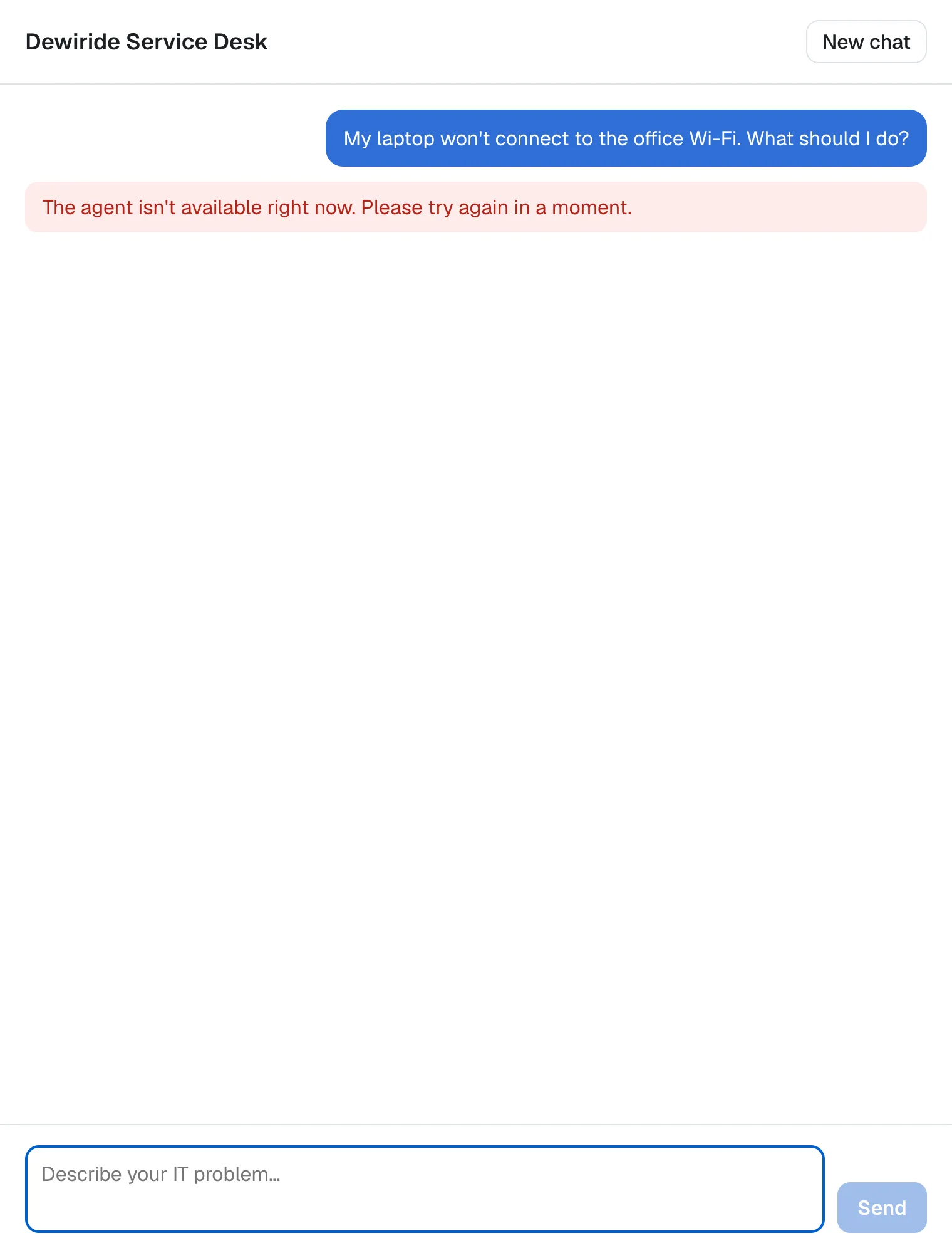
The page shows the friendly message the route from Part 6 sends, and nothing about how the app is built. The real cause is in the chat app's terminal, where the person running the app can see it:
Agent run f29b479e-d056-49b8-a7a1-2c015e21d2a3 in thread d2fcaa03-ca19-493e-b3ba-3535e54ca9e4 failed. [TypeError: fetch failed] {
  [cause]: AggregateError:
      at ignore-listed frames {
    code: 'ECONNREFUSED',
    [errors]: [
      Error: connect ECONNREFUSED ::1:5180
          at ignore-listed frames {
        errno: -61,
        code: 'ECONNREFUSED',
        syscall: 'connect',
        address: '::1',
        port: 5180
      },
      Error: connect ECONNREFUSED 127.0.0.1:5180
          at ignore-listed frames {
        errno: -61,
        code: 'ECONNREFUSED',
        syscall: 'connect',
        address: '127.0.0.1',
        port: 5180
      }
    ]
  }
}
ECONNREFUSED means nothing is listening on port 5180, on either of the two addresses localhost stands for. The run and thread IDs in the first line let you match the log entry to a conversation.
Step 12: Reuse the Same Build for Another Agent
Part 5 promised that the same build can serve any AG-UI agent, because its settings are read while it runs. Prove it: stop the chat app with Ctrl+C, and start the same build again with a different name and welcome text — no npm run build in between:
- macOS / Linux
- Windows (PowerShell)
AGENT_NAME='IT Help Desk' AGENT_WELCOME='Hi! Ask me about your laptop, your accounts or the office network.' npm start
The two settings in front of the command apply to this one run of npm start only.
$env:AGENT_NAME = 'IT Help Desk'
$env:AGENT_WELCOME = 'Hi! Ask me about your laptop, your accounts or the office network.'
npm start
$env: sets the two settings for this PowerShell window until you close it.
npm notice run agent-chat-ui@0.1.0 start
npm notice run next start
▲ Next.js 16.4.6
- Local:         http://localhost:3000
- Network:       http://192.168.1.10:3000
✓ Ready in 115ms
✓ Running next.config.ts took 23ms
Open http://localhost:3000 again:
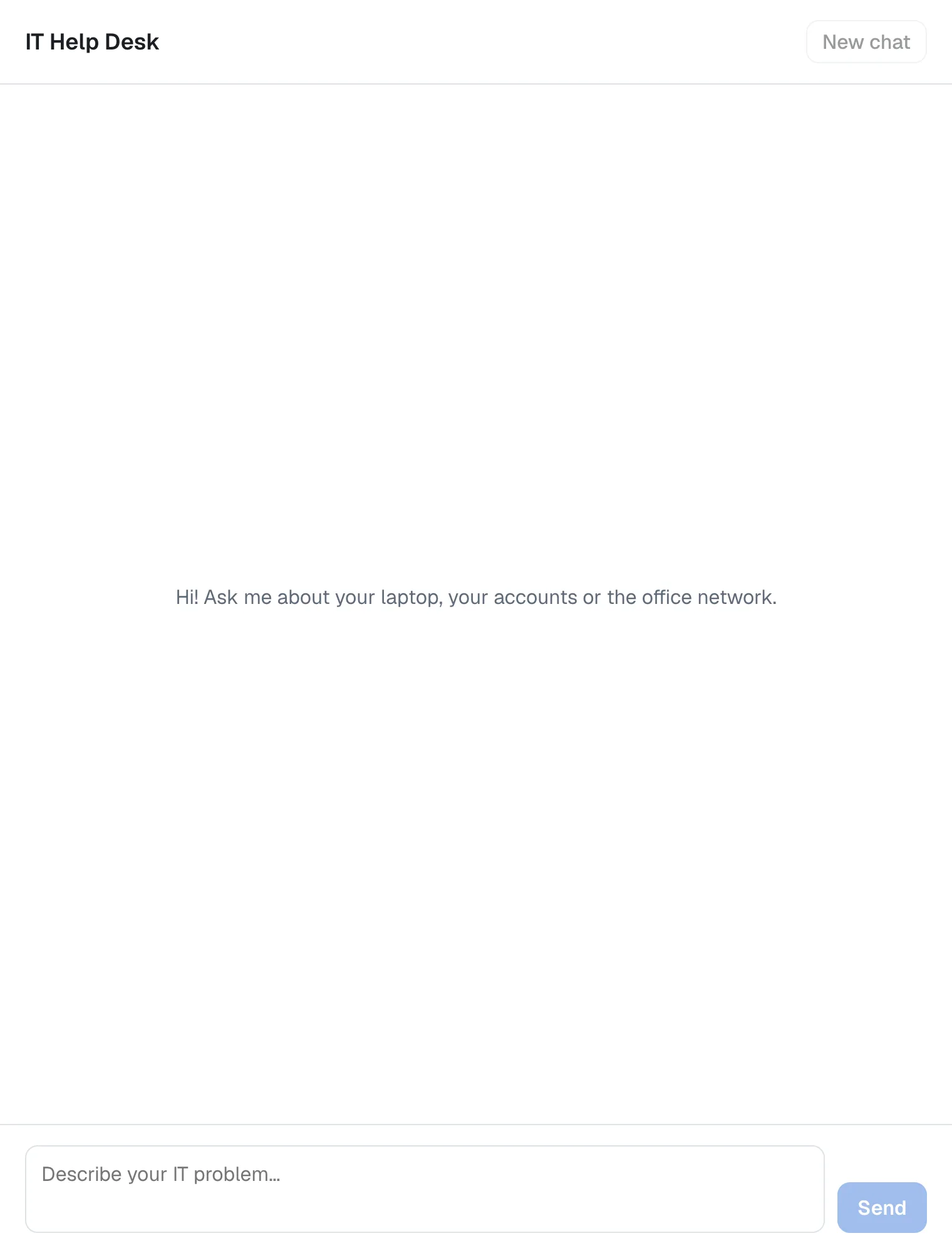
Settings that are already set when the app starts win over the ones in .env.local — that is Next.js's documented order. With AGENT_URL set the same way, this exact build chats with a different AG-UI agent: for a team that runs several agents, one chat app serves them all.
Stop the chat app with Ctrl+C. In PowerShell, close the window too, so the two settings don't stay behind.
Your Solution Now Looks Like This
DewirideServiceDesk/
├── src/
│   ├── Dewiride.ServiceDesk.Agent/                   unchanged
│   └── Dewiride.ServiceDesk.Api/                     unchanged
└── web/
    └── agent-chat-ui/
        ├── app/
        │   ├── api/
        │   │   └── chat/
        │   │       └── route.ts                      the trusted route (Part 6)
        │   ├── chat.module.css                       new: the chat's styles
        │   ├── chat.tsx                              new: the chat
        │   ├── globals.css
        │   ├── layout.tsx
        │   └── page.tsx                              shows the chat
        ├── lib/
        │   ├── agent-settings.ts
        │   └── chat-agent.ts                         new: the browser's AG-UI agent
        ├── instrumentation.ts
        └── package.json                              + react-markdown 10.1.0, remark-gfm 4.0.1
page.module.css is gone. npm run build also created a .next folder with the built app; like node_modules, it stays out of source control.
Common Mistakes
| Mistake | What happens | Do this instead |
|---|---|---|
Using HttpAgent in the browser without overriding requestInit | It sends the whole conversation, and the route answers 400 Bad Request | Send only the four values, as ChatAgent does |
| Pointing the browser at the agent's API | The browser bypasses the trusted route, and the API's address is out in the open | The browser only ever calls /api/chat |
Rendering the agent's answer as HTML with dangerouslySetInnerHTML | Anything the model writes, scripts included, runs in the page | Use react-markdown |
Showing every RUN_ERROR | Pressing Stop shows signal is aborted without reason | Skip events with the code abort |
Passing agent.messages itself to setMessages | addMessage changes that array in place, so React may not redraw | Pass a copy: [...agent.messages] |
Keeping the same ChatAgent for New chat | The agent remembers the old conversation | Create a new ChatAgent: it gets a new threadId |
Troubleshooting
| Symptom | Likely cause | Fix |
|---|---|---|
| The agent isn't available right now. Please try again in a moment. | The API isn't running, or AGENT_URL is wrong | Start the API; the chat app's terminal shows the real cause |
| The chat couldn't reach the agent. Please try again. | The page couldn't use the route: the chat app stopped, or the route answered with an error such as 400 | Check that the chat app is running, and look at its terminal |
| Pressing Stop shows signal is aborted without reason | The abort event isn't skipped | Check onRunErrorEvent against Step 3 (Fixed) |
Right after Stop, the API logs fail: LoggingAgent with AzureCliCredential authentication failed: A task was canceled. | You pressed Stop while the API was still getting its Azure token for that run, so the cancellation surfaced inside the credential | Nothing to fix: the run was stopped on purpose |
| Send stays dimmed | The box is empty or holds only spaces | Type a question |
An answer shows ** and 1. as characters | The answer isn't going through Markdown | Check ChatMessage against Step 3 |
| The renamed page still shows the old name | The settings were set after the app started, or in a different terminal | Set them in the same command or window that runs npm start |
Frequently Asked Questions
Why use the AG-UI client instead of plain fetch?
Because it already does the hard parts: it reads the Server-Sent Events stream, checks every event against the protocol, joins the pieces of text into messages, keeps track of the conversation and cancels cleanly. With plain fetch, you would write all of that yourself.
Does a page reload keep the conversation?
No. A reload starts a new ChatAgent, with a new threadId. The API still holds the old conversation in memory until it restarts, but nothing leads the page back to it. Part 14 makes conversations persistent.
Can this page talk to an agent that isn't built with Microsoft Agent Framework?
Yes, if the agent speaks AG-UI over HTTP and keeps each conversation's history itself, by threadId, the way the API from Part 4 does. The route sends only the newest message, so an agent that expects the whole history in every request would forget earlier turns.
Is the chat accessible?
The basics are in place: the conversation is a log that screen readers follow, errors are announced as alerts, the text box and buttons have names, and everything works from the keyboard — Enter to send, Shift+Enter for a new line and Tab to reach the buttons.
Why does the welcome text disappear after the first message?
It is only there to tell people what to ask. It isn't part of the conversation, and the agent never sees it.
Conclusion
Parts 5 to 7 built the Dewiride Service Desk a complete chat app. A Next.js project with its settings outside the code, a trusted route that decides exactly what reaches the agent and what comes back, and now a page that streams answers word by word, renders Markdown safely, stops on request and starts fresh conversations. It works on a phone and in dark mode, it shows a friendly message when the agent is down, and one production build serves any AG-UI agent through three environment variables.
One thing is still missing: anyone who can open the page can use the agent, and the API itself is open on your network. Next: Part 8: Secure the API with Microsoft Entra ID (coming soon) — sign-in for the chat, and an API that answers only signed-in users.
Additional Resources
- Security Considerations for AG-UI — trusted frontend servers and safe rendering.
- AG-UI on GitHub — the protocol and its TypeScript client.
- react-markdown on GitHub — options, custom components and its security notes.
- remark-gfm on GitHub — the GitHub Markdown extras.
- Next.js: Server and Client Components — when a component runs in the browser.
- Next.js: Environment variables — the order in which settings are looked up.
- MDN: ARIA log role — how screen readers treat a conversation.
