Part 4: Multi-Turn Conversations with Sessions
At the end of Part 3, the agent asked which operating system your laptop runs — and then could never hear your answer. In this part it learns to remember: one small change in the API, and the agent follows a conversation from the first question to the last.
This is Part 4 of a 20-part series.
- Part 1: Overview, Architecture and Azure Setup
- Part 2: Create a Production-Grade .NET Solution
- Part 3: Your First Agent API with Microsoft Foundry
- Part 4: Multi-Turn Conversations with Sessions (you are here)
- Part 5: A Plug-and-Play Next.js Chat UI (coming soon)
- Part 6: Secure the API with Microsoft Entra ID (coming soon)
- Part 7: Give the Agent Enterprise Tools (coming soon)
- Part 8: Create Tickets and Test Your Tools (coming soon)
- Part 9: Connect an MCP Server (coming soon)
- Part 10: Human Approval for Sensitive Actions (coming soon)
- Part 11: Approval Cards in the Chat UI (coming soon)
- Part 12: Persistent Conversations (coming soon)
- Part 13: Memory That Knows the Employee (coming soon)
- Part 14: Guardrails — Keep Secrets Out of the Model (coming soon)
- Part 15: Audit Logs and Observability (coming soon)
- Part 16: Ticket Triage Workflow (coming soon)
- Part 17: Manager Approvals and Checkpoints (coming soon)
- Part 18: Agent Harness — Weekly Problem Report (coming soon)
- Part 19: Deploy to Azure Container Apps (coming soon)
- Part 20: Bring It to Microsoft Teams (coming soon)
By the end of this part you will hold a three-turn conversation with the agent from your .http file — a Wi-Fi problem, your answer to its question, and a follow-up — and you will know where that conversation is stored. Every step works in VS Code and in Visual Studio — where the two differ, the page shows a tab for each. Every output on this page is real, captured while building the project.
What You Will Build
Only two files change, both in the API:
Program.csgets a session store — in Development only — so the API remembers each conversation between requests.Dewiride.ServiceDesk.Api.httpgets two follow-up requests that continue the Wi-Fi conversation from Part 3.
This is the journey of a follow-up message once you are done:
The library — the brain from Part 3 — does not change at all. Remembering conversations is a job for the host.
How Conversations Work
Three ideas carry this part. Each gets a few plain sentences here, and each has a standalone guide with the full story.
Threads and runs
AG-UI talks about threads and runs. A thread is one conversation, and its threadId names it. A run is one turn: you send a message, the agent answers. Every run has its own runId, and a follow-up run names the run it continues in parentRunId. A conversation with three turns is one thread with three runs:
| Turn | threadId | runId | parentRunId | You send |
|---|---|---|---|---|
| 1 | thread-2 | run-1 | — | The Wi-Fi question |
| 2 | thread-2 | run-2 | run-1 | "It's a Windows 11 laptop." |
| 3 | thread-2 | run-3 | run-2 | "I tried all of that, and it still won't connect." |
Each request carries only the new message. The server, not the client, remembers what was said before. How to Continue an AG-UI Conversation with threadId and parentRunId explains every field.
Sessions and the session store
In Microsoft Agent Framework, the state of one conversation is an agent session (AgentSession). For every request, MapAGUIServer asks a session store for the session that belongs to the request's threadId — or a new one, if there is none — runs the agent with it, and saves it back once the answer has finished streaming.
Part 3 registered no store, so every request got a brand-new session. That is why the agent could never use your answer. This part registers the simplest store there is, which keeps sessions in the API's memory. How to Keep Conversation History in a Microsoft Agent Framework AG-UI Server covers stores in depth.
Where the history lives
The session does not hold the conversation itself. Foundry's Responses API stores every answer — for 30 days by default — under an ID such as resp_0be46b1a…. The session holds the ID of the latest answer rather than the messages. On the next turn, the agent sends Foundry the new message together with that ID, and Foundry puts the conversation back together.
You will see the proof in Step 5. After the second turn, I asked Foundry which input it had used for that answer. The API had sent a single message — It's a Windows 11 laptop. — yet Foundry's list holds the whole conversation:
Item       Role       Text
---------  ---------  --------------------------------------------------------------
message    user       My laptop won't connect to the office Wi-Fi. What should I do?
reasoning
message    assistant  Which operating system is your laptop using: Windows or macOS?
message    user       It's a Windows 11 laptop.
The reasoning row is the model's private thinking from the first turn, kept so it can build on it. How to See the Conversation History Microsoft Foundry Stored for a Response shows how to ask Foundry for this list.
What This Part Costs
Only model usage. No Azure resources are created.
A conversation costs a little more with every turn, because the model reads everything that came before. The three turns in Steps 5 and 6 used 254, 327 and 600 input tokens. At gpt-5.6-luna's Global Standard prices of $0.20 per million input tokens and $1.20 per million output tokens, the whole three-turn conversation cost about $0.0007, and every request on this page together about a tenth of a cent.
Prerequisites
- The solution from Part 3, with its
.httpfile. If you skipped it, follow Part 3 first — this part changes its files. - The Azure CLI, signed in to the account with the Foundry User role (Part 3, Step 1).
- Your editor from Part 2 — VS Code with the C# Dev Kit and REST Client extensions, or Visual Studio 2026 (see Part 2's prerequisites).
This part puts four techniques to work. Each has its own guide, if you want the details:
- How to Keep Conversation History in a Microsoft Agent Framework AG-UI Server
- How to Continue an AG-UI Conversation with threadId and parentRunId
- How to Run Code Only in Development in ASP.NET Core
- How to See the Conversation History Microsoft Foundry Stored for a Response
Every command on this page works exactly as shown in Terminal on macOS, in any Linux shell, in PowerShell on Windows and in your editor's terminal. Run them from the solution root — the DewirideServiceDesk folder.
Step 1: Watch the Agent Forget
Before you change anything, see the problem for yourself. Start the API from Part 3, exactly as before:
- VS Code
- Visual Studio
In VS Code's terminal, from the solution root, run:
dotnet run --project src/Dewiride.ServiceDesk.Api
Make sure http is selected in the drop-down list next to the green Start button (▶), with Dewiride.ServiceDesk.Api as the startup project, and press Ctrl+F5 (Debug → Start Without Debugging).
Open src/Dewiride.ServiceDesk.Api/Dewiride.ServiceDesk.Api.http and find the Wi-Fi request from Part 3 — the one with "threadId": "thread-2". Add this request directly below it, above the pizza request:
# Answer the agent's question in the same conversation: the same threadId, a new runId,
# and parentRunId set to the run it continues. Send only the new message.
POST {{baseUrl}}/api/agents/service-desk
Content-Type: application/json
Accept: text/event-stream

{
  "threadId": "thread-2",
  "runId": "run-2",
  "parentRunId": "run-1",
  "messages": [
    {
      "id": "message-2",
      "role": "user",
      "content": "It's a Windows 11 laptop."
    }
  ]
}

###
Compared with the Wi-Fi request above it:
| Part | Value | Why |
|---|---|---|
"threadId" | thread-2, the same | It is the same conversation |
"runId" | run-2, new | This is the second turn |
"parentRunId" | run-1 | The turn this one follows |
"messages" | only message-2 | Just the new message — nothing from the first turn |
Now send the two requests, in order: first the Wi-Fi request, then the new one.
- VS Code
- Visual Studio
Select the Send Request link above each request's POST line. Wait for the first response before you send the second.
Select the Send request link above each request's POST line. Wait for the first response before you send the second.
The Wi-Fi request answers with the clarifying question you met in Part 3:
Which operating system is your laptop using—Windows or macOS?
Here is the response to the new request, shortened as in Part 3 — long messageId values cut short, each rawEvent replaced with {…}, most of the middle left out:
HTTP/1.1 200 OK
Content-Type: text/event-stream
Date: Thu, 29 Oct 2026 16:15:44 GMT
Server: Kestrel
Cache-Control: no-cache,no-store
Content-Encoding: identity
Pragma: no-cache
Transfer-Encoding: chunked

data: {"type":"RUN_STARTED","threadId":"thread-2","runId":"run-2","parentRunId":"run-1"}

data: {"type":"REASONING_ENCRYPTED_VALUE","subtype":"message","entityId":"msg_U9vQL9Y8k2NcVH32Gfa1tcg9","encryptedValue":"gAAAAABq…","rawEvent":{…}}

data: {"type":"TEXT_MESSAGE_START","messageId":"msg_0594a82f…","role":"assistant","name":"service-desk","rawEvent":{…}}

data: {"type":"TEXT_MESSAGE_CONTENT","messageId":"msg_0594a82f…","delta":"What","rawEvent":{…}}

data: {"type":"TEXT_MESSAGE_CONTENT","messageId":"msg_0594a82f…","delta":" issue","rawEvent":{…}}

data: {"type":"TEXT_MESSAGE_CONTENT","messageId":"msg_0594a82f…","delta":" are","rawEvent":{…}}

… 8 more TEXT_MESSAGE_CONTENT events …

data: {"type":"TEXT_MESSAGE_CONTENT","messageId":"msg_0594a82f…","delta":"?","rawEvent":{…}}

data: {"type":"TEXT_MESSAGE_END","messageId":"msg_0594a82f…"}

data: {"type":"RUN_FINISHED","threadId":"thread-2","runId":"run-2","outcome":{"type":"success"},"usage":[{"model":"gpt-5.6-luna-2026-07-09","inputTokens":246,"outputTokens":37,"totalTokens":283,"reasoningTokens":19,"cachedInputTokens":0}]}
Put together, the answer is:
What issue are you having with the Windows 11 laptop?
The agent has forgotten the Wi-Fi problem. Two values in the response show why:
RUN_STARTEDrepeats"parentRunId":"run-1". The API read your request correctly — the request is not the problem.RUN_FINISHEDreports"inputTokens":246— fewer than the 254 of the Wi-Fi question. The model received the instructions and your five words, and nothing else. In Part 3's API, every request starts a brand-new session.
Stop the API: press Ctrl+C in VS Code's terminal, or in Visual Studio's console window.
Step 2: Add a Session Store for Development
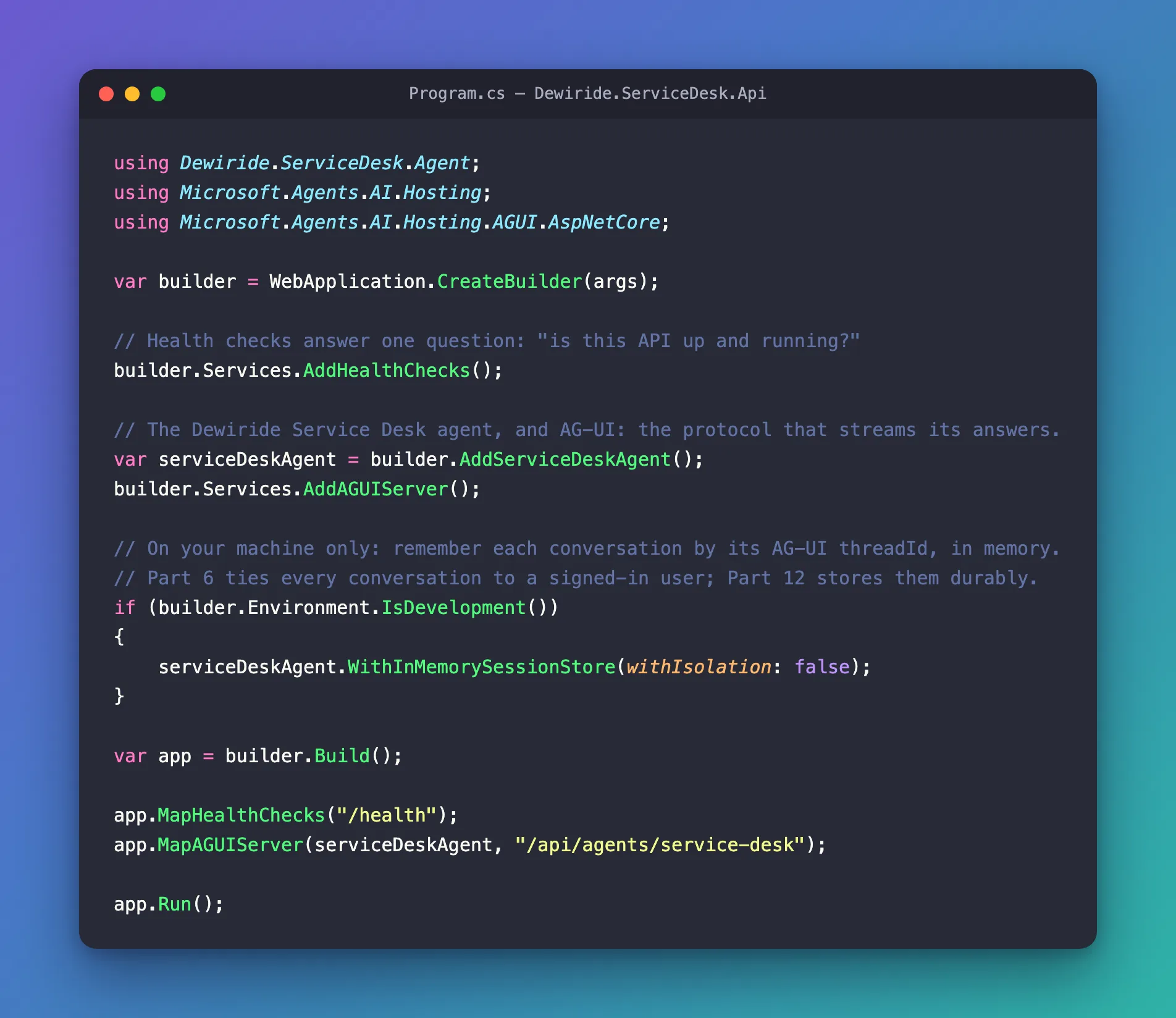
Open src/Dewiride.ServiceDesk.Api/Program.cs — the file from Part 3. The technique comes from How to Keep Conversation History in a Microsoft Agent Framework AG-UI Server; here is what it looks like in this API.
1. Add one using line below the first one, using Dewiride.ServiceDesk.Agent;:
using Microsoft.Agents.AI.Hosting;
It brings in WithInMemorySessionStore, which comes with the hosting package you installed in Part 3.
2. Register the store. Below the builder.Services.AddAGUIServer(); line, add:
// On your machine only: remember each conversation by its AG-UI threadId, in memory.
// Part 6 ties every conversation to a signed-in user; Part 12 stores them durably.
if (builder.Environment.IsDevelopment())
{
    serviceDeskAgent.WithInMemorySessionStore(withIsolation: false);
}
| Code | What it does |
|---|---|
builder.Environment.IsDevelopment() | true only when the API runs in the Development environment — on your machine, where the launch profile from Part 2 sets ASPNETCORE_ENVIRONMENT to Development. See How to Run Code Only in Development in ASP.NET Core |
serviceDeskAgent | The handle that AddServiceDeskAgent() returned in Part 3. As Part 3 promised, conversation storage attaches here |
WithInMemorySessionStore(...) | Gives this agent a session store that keeps sessions in the API's memory. MapAGUIServer finds it by itself and uses it for every request |
withIsolation: false | Turns off isolation, explained next |
Isolation keeps one user's conversations away from everyone else's. With isolation on, the store files each session under the caller's identity as well as the threadId, so two users who pick the same threadId never see each other's conversation. For that, the API must know who the caller is — and it has no sign-in yet. With isolation on, every request fails with Agent isolation key is required but was not provided by the configured AgentIsolationKeyProvider (Fixed: Agent Isolation Key Is Required but Was Not Provided). On your own machine there is exactly one user — you — and Microsoft's own sample turns isolation off for development, and only there.
The complete file:
using Dewiride.ServiceDesk.Agent;
using Microsoft.Agents.AI.Hosting;
using Microsoft.Agents.AI.Hosting.AGUI.AspNetCore;

var builder = WebApplication.CreateBuilder(args);

// Health checks answer one question: "is this API up and running?"
builder.Services.AddHealthChecks();

// The Dewiride Service Desk agent, and AG-UI: the protocol that streams its answers.
var serviceDeskAgent = builder.AddServiceDeskAgent();
builder.Services.AddAGUIServer();

// On your machine only: remember each conversation by its AG-UI threadId, in memory.
// Part 6 ties every conversation to a signed-in user; Part 12 stores them durably.
if (builder.Environment.IsDevelopment())
{
    serviceDeskAgent.WithInMemorySessionStore(withIsolation: false);
}

var app = builder.Build();

app.MapHealthChecks("/health");
app.MapAGUIServer(serviceDeskAgent, "/api/agents/service-desk");

app.Run();
One using line and one if block, and the API remembers:
Outside Development, this API keeps no sessions yet: every request is a new conversation, exactly as in Part 3. That is deliberate. The in-memory store loses everything when the API stops, cannot be shared by two copies of the API, and — with isolation off — lets anyone who knows a threadId continue that conversation. Part 6 adds Microsoft Entra ID sign-in and turns isolation on; Part 12 replaces the in-memory store with durable storage.
Step 3: Build the Solution
dotnet build
Restore complete (0.4s)
  Dewiride.ServiceDesk.Agent net10.0 succeeded (0.1s) → src/Dewiride.ServiceDesk.Agent/bin/Debug/net10.0/Dewiride.ServiceDesk.Agent.dll
  Dewiride.ServiceDesk.Api net10.0 succeeded (0.2s) → src/Dewiride.ServiceDesk.Api/bin/Debug/net10.0/Dewiride.ServiceDesk.Api.dll

Build succeeded in 0.8s
Still not a single warning. If your output looks different — Build succeeded., then 0 Warning(s) and 0 Error(s) on separate lines — your terminal is showing the older build output, and the build is just as good (Fixed: dotnet build Shows the Old Output Instead of Terminal Logger).
Step 4: Run the API
Start the API exactly as in Step 1:
- VS Code
- Visual Studio
dotnet run --project src/Dewiride.ServiceDesk.Api
Press Ctrl+F5 (Debug → Start Without Debugging) with the http profile selected.
Using launch settings from src/Dewiride.ServiceDesk.Api/Properties/launchSettings.json...
Building...
info: Microsoft.Hosting.Lifetime[14]
      Now listening on: http://localhost:5180
info: Microsoft.Hosting.Lifetime[0]
      Application started. Press Ctrl+C to shut down.
info: Microsoft.Hosting.Lifetime[0]
      Hosting environment: Development
info: Microsoft.Hosting.Lifetime[0]
      Content root path: /Users/you/source/DewirideServiceDesk/src/Dewiride.ServiceDesk.Api
The same log as in Part 3 — the store is created quietly. One line matters more than before: Hosting environment: Development. That is what makes IsDevelopment() return true, so the session store is on. Leave the API running.
Step 5: Continue the Conversation
Send the same two requests as in Step 1: first the Wi-Fi request, then the run-2 request. Nothing in them has changed — only the API has.
The first answer is the same kind of clarifying question:
Which operating system is your laptop using: Windows or macOS?
And the response to run-2, shortened:
HTTP/1.1 200 OK
Content-Type: text/event-stream
Date: Thu, 29 Oct 2026 16:15:58 GMT
Server: Kestrel
Cache-Control: no-cache,no-store
Content-Encoding: identity
Pragma: no-cache
Transfer-Encoding: chunked

data: {"type":"RUN_STARTED","threadId":"thread-2","runId":"run-2","parentRunId":"run-1"}

data: {"type":"REASONING_ENCRYPTED_VALUE","subtype":"message","entityId":"msg_7uwPDaOflXROKYMciD4wAmXR","encryptedValue":"gAAAAABq…","rawEvent":{…}}

data: {"type":"TEXT_MESSAGE_START","messageId":"msg_07c08057…","role":"assistant","name":"service-desk","rawEvent":{…}}

data: {"type":"TEXT_MESSAGE_CONTENT","messageId":"msg_07c08057…","delta":"Try","rawEvent":{…}}

data: {"type":"TEXT_MESSAGE_CONTENT","messageId":"msg_07c08057…","delta":" these","rawEvent":{…}}

data: {"type":"TEXT_MESSAGE_CONTENT","messageId":"msg_07c08057…","delta":" steps","rawEvent":{…}}

… 50 more TEXT_MESSAGE_CONTENT events …

data: {"type":"TEXT_MESSAGE_CONTENT","messageId":"msg_07c08057…","delta":" devices can connect.","rawEvent":{…}}

data: {"type":"TEXT_MESSAGE_END","messageId":"msg_07c08057…"}

data: {"type":"RUN_FINISHED","threadId":"thread-2","runId":"run-2","outcome":{"type":"success"},"usage":[{"model":"gpt-5.6-luna-2026-07-09","inputTokens":327,"outputTokens":255,"totalTokens":582,"reasoningTokens":50,"cachedInputTokens":0}]}
Put together:
Try these steps on your Windows 11 laptop:

1. Make sure Wi-Fi is enabled:
   - Select the network, sound, or battery icon on the taskbar.
   - Confirm Wi-Fi is on and Airplane mode is off.

2. Select the office Wi-Fi network and choose Connect. Enter your normal work sign-in details if prompted. Do not share your password.

3. If it still fails, forget and reconnect:
   - Settings > Network & internet > Wi-Fi > Manage known networks.
   - Select the office network > Forget.
   - Reconnect to it from the Wi-Fi list.

4. Restart the laptop and try again. If possible, check whether nearby colleagues can connect.

5. If you connect but have no internet, temporarily disconnect from any VPN and try opening a website.

6. If the problem continues, raise a ticket with the IT Service Desk. Include the Wi-Fi network name, the exact error message, and whether other devices can connect.
The very same request as in Step 1 — and this time the agent knew what "It's a Windows 11 laptop" answered. It gave Windows 11 steps for the office Wi-Fi, warned you not to share your password, and ended with a ticket and what to put in it, just as its instructions ask.
Compare "inputTokens":327 with the 246 of Step 1. The 81 extra tokens are the first turn, which Foundry put back into the conversation from its stored answers — the list you saw in Where the history lives.
Step 6: Add a Third Turn
One more turn shows the pattern. Add this request below the run-2 request:
# Keep the conversation going: run-3 continues run-2.
POST {{baseUrl}}/api/agents/service-desk
Content-Type: application/json
Accept: text/event-stream

{
  "threadId": "thread-2",
  "runId": "run-3",
  "parentRunId": "run-2",
  "messages": [
    {
      "id": "message-3",
      "role": "user",
      "content": "I tried all of that, and it still won't connect."
    }
  ]
}

###
The threadId stays thread-2. Two values move one step along: runId becomes run-3, and parentRunId becomes run-2, the turn this one follows. The message gets a new id too.
Send it. Its RUN_STARTED event names the chain, and RUN_FINISHED shows the conversation growing:
data: {"type":"RUN_STARTED","threadId":"thread-2","runId":"run-3","parentRunId":"run-2"}

data: {"type":"RUN_FINISHED","threadId":"thread-2","runId":"run-3","outcome":{"type":"success"},"usage":[{"model":"gpt-5.6-luna-2026-07-09","inputTokens":600,"outputTokens":108,"totalTokens":708,"reasoningTokens":0,"cachedInputTokens":0}]}
Put together:
Since the basic fixes didn’t work, the issue may require checking your laptop’s Wi-Fi driver, account access, or the office network.

Please raise a ticket with the IT Service Desk and include:

1. Your Windows 11 laptop name or asset number, if known.
2. The office Wi-Fi network name.
3. The exact error message.
4. Whether other colleagues can connect.
5. Whether your laptop can connect to another Wi-Fi network or phone hotspot.

Do not include your password or MFA codes.
"All of that" only makes sense if the agent remembers the six steps it gave you — and it does. It knows the basic fixes are done, names what could still be wrong — the Wi-Fi driver, your account or the office network — and tells you to raise a ticket, with the details the service desk will need.
The model writes new words every time, so your answers will not match mine word for word — but they should follow the conversation the same way. The complete .http file:
@baseUrl = http://localhost:5180

# Is the API up and running?
GET {{baseUrl}}/health

###

# Say hello to the service desk agent. The answer streams back as AG-UI events.
POST {{baseUrl}}/api/agents/service-desk
Content-Type: application/json
Accept: text/event-stream

{
  "threadId": "thread-1",
  "runId": "run-1",
  "messages": [
    {
      "id": "message-1",
      "role": "user",
      "content": "Hi! What can you help me with?"
    }
  ]
}

###

# Ask for help with a real IT problem.
POST {{baseUrl}}/api/agents/service-desk
Content-Type: application/json
Accept: text/event-stream

{
  "threadId": "thread-2",
  "runId": "run-1",
  "messages": [
    {
      "id": "message-1",
      "role": "user",
      "content": "My laptop won't connect to the office Wi-Fi. What should I do?"
    }
  ]
}

###

# Answer the agent's question in the same conversation: the same threadId, a new runId,
# and parentRunId set to the run it continues. Send only the new message.
POST {{baseUrl}}/api/agents/service-desk
Content-Type: application/json
Accept: text/event-stream

{
  "threadId": "thread-2",
  "runId": "run-2",
  "parentRunId": "run-1",
  "messages": [
    {
      "id": "message-2",
      "role": "user",
      "content": "It's a Windows 11 laptop."
    }
  ]
}

###

# Keep the conversation going: run-3 continues run-2.
POST {{baseUrl}}/api/agents/service-desk
Content-Type: application/json
Accept: text/event-stream

{
  "threadId": "thread-2",
  "runId": "run-3",
  "parentRunId": "run-2",
  "messages": [
    {
      "id": "message-3",
      "role": "user",
      "content": "I tried all of that, and it still won't connect."
    }
  ]
}

###

# Ask something that is not about IT. The agent should politely decline.
POST {{baseUrl}}/api/agents/service-desk
Content-Type: application/json
Accept: text/event-stream

{
  "threadId": "thread-3",
  "runId": "run-1",
  "messages": [
    {
      "id": "message-1",
      "role": "user",
      "content": "Can you write me a short poem about pizza?"
    }
  ]
}

###
Sending a request again adds another turn to its conversation. Want to start the Wi-Fi conversation over? Restart the API — the next step shows why that works.
Step 7: See What the In-Memory Store Forgets
Stop the API (Ctrl+C) and start it again, as in Step 4. Then send only the run-2 request — "It's a Windows 11 laptop." — without the Wi-Fi request before it. Put together, the answer is:
What would you like help with on your Windows 11 laptop?
The conversation is gone, and RUN_FINISHED says so: "inputTokens":246 again, no history at all. The in-memory store lived inside the API process, so stopping the API emptied it. The new API found no session for thread-2 and started a fresh one. Foundry still holds the old answers for 30 days, but nothing points to them any more.
On your machine, that is fine — even handy, because a restart gives you a clean slate. For real users it is not, and that is exactly why Part 12 replaces this store with durable storage. Stop the API when you are done.
Your Solution Now Looks Like This
DewirideServiceDesk/
├── .gitignore
├── DewirideServiceDesk.slnx
├── Directory.Build.props
├── Directory.Packages.props
├── global.json
└── src/
    ├── Dewiride.ServiceDesk.Agent/
    │   ├── Dewiride.ServiceDesk.Agent.csproj
    │   ├── FoundryOptions.cs
    │   ├── ServiceDeskAgentExtensions.cs
    │   └── ServiceDeskInstructions.cs
    └── Dewiride.ServiceDesk.Api/
        ├── Properties/
        │   └── launchSettings.json
        ├── appsettings.Development.json
        ├── appsettings.json
        ├── Dewiride.ServiceDesk.Api.csproj
        ├── Dewiride.ServiceDesk.Api.http   two follow-up requests (changed)
        └── Program.cs                      the session store (changed)
No new files and no new packages: WithInMemorySessionStore was already in the hosting package from Part 3.
Common Mistakes
| Mistake | What happens | Fix |
|---|---|---|
Putting the whole conversation in messages | The agent receives the earlier turns twice — Foundry already has them — and every turn costs more | Send only the new message (Fixed: AG-UI Agent Receives the Conversation Twice) |
Calling WithInMemorySessionStore() without withIsolation: false | Every request fails with 500 Internal Server Error | Add withIsolation: false, as in Step 2 (Fixed: Agent Isolation Key Is Required) |
Moving the store outside the IsDevelopment() block | A deployed API would let anyone who guesses a threadId read and continue that conversation | Keep it inside the block. Production waits for Parts 6 and 12 |
Changing the threadId for a follow-up | The follow-up starts a new conversation and the agent forgets | Keep the threadId of the conversation you continue |
| Sending a follow-up after restarting the API | The agent has forgotten the earlier turns | Send the conversation's first request again, then the follow-ups |
Troubleshooting
| Symptom | Cause | Fix |
|---|---|---|
Response: 500 Internal Server Error with Agent isolation key is required but was not provided by the configured AgentIsolationKeyProvider | The store was registered with isolation on, and the API has no sign-in | Use WithInMemorySessionStore(withIsolation: false), as in Step 2 |
| The agent forgets on every request, even right after the first one | The API is not running in Development, so the store is never registered | Check the log for Hosting environment: Development, and start the API with its launch profile, as in Step 4 |
You ran dotnet run -e Production to try another environment, and the log still says Hosting environment: Development | -e sets an environment variable, so it needs the variable's name | Use -e ASPNETCORE_ENVIRONMENT=Production (Fixed: dotnet run -e Staging Still Starts the App in Development) |
| The agent forgot the conversation after you restarted the API | The in-memory store empties when the API stops | Expected — send the first request of the conversation again |
Answers repeat themselves and inputTokens jumps more than expected | The client resent earlier messages | Send only the new message |
Frequently Asked Questions
Is the threadId a password?
No — and it must never be treated as one. With isolation off, anyone who knows a threadId can continue that conversation, which is acceptable only because the API listens on your own machine. Microsoft's AG-UI guidance calls the thread ID a continuation identifier, not proof of identity. Part 6 adds sign-in and turns isolation on, so each conversation belongs to the user who started it.
How long does Foundry keep the conversation?
By default, the Responses API keeps stored answers for 30 days. The sessions that point to them live in the API's memory in this part, so a restart forgets them long before that. Part 12 comes back to this when conversations are stored durably.
Do I have to send parentRunId?
Send it. Microsoft's AG-UI guide asks for the same threadId plus the previous runId as parentRunId on every follow-up. In this version of the framework, the session is chosen by threadId alone; parentRunId is passed through to RUN_STARTED and to tracing, where it records which turn each run continued.
Why doesn't the client simply send the whole conversation every time?
Without a session store, it could — that is how a stateless AG-UI server works. But then the client controls the history, and Microsoft's AG-UI security guidance warns that an untrusted client can slip fake assistant or system messages into it. In this series the server keeps the history, and the trusted server in Part 5 sends only the newest user message.
Does the agent remember me in a new conversation?
No. A session belongs to one thread, so a new threadId starts with a blank page. Remembering facts about an employee across conversations — their laptop, their location — comes in Part 13.
What happens in Production right now?
No session store is registered outside Development, so every request is a new conversation, as in Part 3. Nothing is deployed until Part 19, and by then Parts 6 and 12 have added sign-in and durable storage.
Conclusion
The agent can finally hold a conversation:
- a session store — in memory, in Development only — that keeps each conversation's session between requests,
- follow-up requests that keep the
threadId, take a newrunId, name theirparentRunIdand carry only the new message, - the knowledge of where the history lives: in Foundry's stored answers, with the session pointing at the latest one,
- and the limits of the in-memory store — lost on restart, isolation off — that later parts remove.
Next: Part 5: A Plug-and-Play Next.js Chat UI (coming soon) — a real chat page that streams the agent's answers word by word, with a trusted server route that sends only the newest message.
Additional Resources
- Getting Started with AG-UI: Conversation continuity —
threadId,parentRunIdand sending only the new messages. - Self-host Agent Framework applications: Persist hosted sessions — session stores and isolation.
- Conversation storage — local and service-managed history.
- Security considerations for AG-UI — trusted servers and thread IDs.
- Use the Azure OpenAI Responses API — stored responses, chaining and the 30-day retention.
- ASP.NET Core runtime environments — Development, Staging and Production.
- Part 3: Your First Agent API with Microsoft Foundry — the API this part builds on.
