Part 3: Your First Agent API with Microsoft Foundry
In Part 2 you built an empty house. In this part the brain moves in: you connect the Dewiride Service Desk agent to your AI model in Microsoft Foundry — without a single API key — and the API starts streaming the agent's answers over AG-UI, the protocol the chat page in Part 5 speaks.
This is Part 3 of a 20-part series.
- Part 1: Overview, Architecture and Azure Setup
- Part 2: Create a Production-Grade .NET Solution
- Part 3: Your First Agent API with Microsoft Foundry (you are here)
- Part 4: Multi-Turn Conversations with Sessions
- Part 5: A Plug-and-Play Next.js Chat UI (coming soon)
- Part 6: Secure the API with Microsoft Entra ID (coming soon)
- Part 7: Give the Agent Enterprise Tools (coming soon)
- Part 8: Create Tickets and Test Your Tools (coming soon)
- Part 9: Connect an MCP Server (coming soon)
- Part 10: Human Approval for Sensitive Actions (coming soon)
- Part 11: Approval Cards in the Chat UI (coming soon)
- Part 12: Persistent Conversations (coming soon)
- Part 13: Memory That Knows the Employee (coming soon)
- Part 14: Guardrails — Keep Secrets Out of the Model (coming soon)
- Part 15: Audit Logs and Observability (coming soon)
- Part 16: Ticket Triage Workflow (coming soon)
- Part 17: Manager Approvals and Checkpoints (coming soon)
- Part 18: Agent Harness — Weekly Problem Report (coming soon)
- Part 19: Deploy to Azure Container Apps (coming soon)
- Part 20: Bring It to Microsoft Teams (coming soon)
By the end of this part you will send the agent a question from an .http file and watch it answer as the Dewiride IT Service Desk assistant. Every step works in VS Code and in Visual Studio — where the two differ, the page shows a tab for each. Every output on this page is real, captured while building the project.
What You Will Build
Two projects change in this part:
- The class library (the brain) gets the agent: its settings, its instructions, and one method —
AddServiceDeskAgent()— that any host can call. - The API (the host) calls that method and serves the agent at
POST /api/agents/service-desk.
This is the journey of one question once you are done:
Three new files appear in the library, and four files change in the API:
src/
├── Dewiride.ServiceDesk.Agent/
│   ├── FoundryOptions.cs                where the model lives (new)
│   ├── ServiceDeskInstructions.cs       who the agent is (new)
│   └── ServiceDeskAgentExtensions.cs    AddServiceDeskAgent() (new)
└── Dewiride.ServiceDesk.Api/
    ├── Properties/launchSettings.json   how to sign in on your machine
    ├── appsettings.json                 the Foundry settings
    ├── Dewiride.ServiceDesk.Api.http    three questions for the agent
    └── Program.cs                       serves the agent over AG-UI
How the Pieces Fit
Four ideas carry this whole part. Each gets a few plain sentences here, and a full explanation when you write its code.
The agent
In Microsoft Agent Framework, an agent is an object of type AIAgent. You give it instructions — who it is and which rules it follows — and a model to think with. You send it a message; it sends back an answer. Here, the model is your gpt-5.6-luna deployment in Microsoft Foundry, and one call creates the agent: AsAIAgent(...). The agent runs inside your API. Nothing is created in Foundry, and the instructions live in your code, where they are reviewed and versioned like any other code.
The hosting library
The Microsoft.Agents.AI.Hosting package registers the agent in the API's dependency injection — the builder.Services list you met in Part 2 — under a name, service-desk. Any part of the app can then ask for the agent by that name, and later parts attach tools and conversation storage to it in one place. This is step 7 of Microsoft's Agent Framework tutorial, Host Your Agent, done the production way.
AG-UI
AG-UI (the Agent–User Interaction protocol) is an open standard for how a front end talks to an agent. The front end sends one HTTP POST with the user's message. The agent answers with a stream of small events — "run started", "here are the next few words", "run finished" — sent as server-sent events (SSE): one HTTP response that stays open while the server keeps writing to it. Because the answer streams, a chat page can show it word by word. One package, Microsoft.Agents.AI.Hosting.AGUI.AspNetCore, turns your agent into an AG-UI endpoint with a single line of code. The same protocol later carries the approval requests of Parts 10 and 11.
Signing in without keys
Foundry only answers callers that prove who they are. Instead of an API key, the API signs in with Microsoft Entra ID: on your machine it borrows your Azure CLI sign-in (az login); in Azure (Part 19) it uses a managed identity. The DefaultAzureCredential class from the Azure.Identity package handles both, and one environment variable — AZURE_TOKEN_CREDENTIALS — tells it exactly which way to sign in.
What This Part Costs
Only model usage. No Azure resources are created.
Each answer reports its own token counts (you will see them in Step 13). The first question in this part used 248 input tokens — the instructions plus the question — and 60 output tokens. At gpt-5.6-luna's Global Standard prices of $0.20 per million input tokens and $1.20 per million output tokens, that is about $0.00012. All the requests on this page together cost well under a tenth of a cent.
Prerequisites
- The solution from Part 2. If you skipped it, follow Part 2 first — this part changes its files.
- The Azure setup from Part 1: your Foundry project endpoint and model deployment name (from Write Down These Values), and the Foundry User role on your Foundry resource (Part 1, Step 6).
- The Azure CLI, signed in to the same account (Part 1, Step 1).
- Your editor from Part 2 — VS Code with the C# Dev Kit and REST Client extensions, or Visual Studio 2026 (see Part 2's prerequisites).
Every command on this page works exactly as shown in Terminal on macOS, in any Linux shell, in PowerShell on Windows and in your editor's terminal. Run them from the solution root — the DewirideServiceDesk folder.
Step 1: Check Your Azure Sign-In
The agent signs in to Foundry as you, through the Azure CLI. Check that the CLI is still signed in:
az account show --query user.name --output tsv
user@example.com
You should see the account you used in Part 1 — the one with the Foundry User role. If the command prints ERROR: Please run 'az login' to setup account. instead, run az login and sign in again.
| Part of the command | What it does |
|---|---|
az account show | Shows the account and subscription the Azure CLI is using |
--query user.name | Picks just the signed-in user's name out of the result |
--output tsv | Prints it as plain text |
Step 2: Add the Agent Framework Packages
The brain needs three NuGet packages. Run these three commands:
dotnet add src/Dewiride.ServiceDesk.Agent package Microsoft.Agents.AI.Foundry --version 1.26.0-preview.261023.1
dotnet add src/Dewiride.ServiceDesk.Agent package Microsoft.Agents.AI.Hosting --version 1.26.0-preview.261023.1
dotnet add src/Dewiride.ServiceDesk.Agent package Azure.Identity --version 1.21.0
Each command prints a few lines. These are the important ones from the first command:
info : X.509 certificate chain validation will use the fallback certificate bundle at '/usr/local/share/dotnet/sdk/10.0.403/trustedroots/codesignctl.pem'.
info : X.509 certificate chain validation will use the fallback certificate bundle at '/usr/local/share/dotnet/sdk/10.0.403/trustedroots/timestampctl.pem'.
info : Adding PackageReference for package 'Microsoft.Agents.AI.Foundry' into project '/Users/you/source/DewirideServiceDesk/src/Dewiride.ServiceDesk.Agent/Dewiride.ServiceDesk.Agent.csproj'.
info : Restoring packages for /Users/you/source/DewirideServiceDesk/src/Dewiride.ServiceDesk.Agent/Dewiride.ServiceDesk.Agent.csproj...
info : PackageReference for package 'Microsoft.Agents.AI.Foundry' added to '/Users/you/source/DewirideServiceDesk/src/Dewiride.ServiceDesk.Agent/Dewiride.ServiceDesk.Agent.csproj' and PackageVersion added to central package management file '/Users/you/source/DewirideServiceDesk/Directory.Packages.props'.
info : PackageReference for package 'Microsoft.Agents.AI.Foundry' version '1.26.0-preview.261023.1' added to file '/Users/you/source/DewirideServiceDesk/Directory.Packages.props'.
log  : Restored /Users/you/source/DewirideServiceDesk/src/Dewiride.ServiceDesk.Agent/Dewiride.ServiceDesk.Agent.csproj (in 5.9 sec).
Your output has more lines in between — NuGet also lists what it downloaded — and the other two commands follow the same pattern. On macOS and Linux, the first two lines only say that NuGet checks package signatures with certificate bundles that come with the .NET SDK; on Windows it uses the system's own certificate store instead (NuGet signed-package verification). Now notice the line that ends in Directory.Packages.props: the package name went into the project, and its version into Directory.Packages.props. That is central package management from Part 2 at work.
| Package | What it gives the brain |
|---|---|
Microsoft.Agents.AI.Foundry | AsAIAgent, which turns your Foundry project into an agent. It also brings in Microsoft Agent Framework itself and the Foundry client library |
Microsoft.Agents.AI.Hosting | AddAIAgent, which registers the agent in dependency injection |
Azure.Identity | DefaultAzureCredential — signing in to Azure without keys |
Why the exact --version? Microsoft Agent Framework itself is generally available (version 1.26.0), but the Foundry and hosting packages are still previews — their versions end in -preview…. Without --version, dotnet add package only considers stable releases. For the hosting packages there is none, so the command stops with an error. For the Foundry package it is worse: it quietly installs an old stable release, 1.5.0 — far behind the rest of the framework. Pinning the exact version keeps all four packages in step, and your project matches this page line for line.
Now the API's one package — the AG-UI endpoint:
dotnet add src/Dewiride.ServiceDesk.Api package Microsoft.Agents.AI.Hosting.AGUI.AspNetCore --version 1.26.0-preview.261023.1
It prints the same kind of lines, ending in log : Restored .../Dewiride.ServiceDesk.Api.csproj. This package gives the API AddAGUIServer and MapAGUIServer. It belongs in the API, not in the library: AG-UI is how this particular host talks to the outside world. The background job of Part 18 and the Teams bot of Part 20 use the same brain without it.
Step 3: See Where the Versions Went
Open Directory.Packages.props. dotnet add package wrote all four versions here, just as Part 2 promised:
<Project>
  <PropertyGroup>
    <!-- Enable central package management, https://learn.microsoft.com/en-us/nuget/consume-packages/Central-Package-Management -->
    <ManagePackageVersionsCentrally>true</ManagePackageVersionsCentrally>
  </PropertyGroup>
  <ItemGroup>
  </ItemGroup>
  <ItemGroup>
    <PackageVersion Include="Azure.Identity" Version="1.21.0" />
    <PackageVersion Include="Microsoft.Agents.AI.Foundry" Version="1.26.0-preview.261023.1" />
    <PackageVersion Include="Microsoft.Agents.AI.Hosting" Version="1.26.0-preview.261023.1" />
    <PackageVersion Include="Microsoft.Agents.AI.Hosting.AGUI.AspNetCore" Version="1.26.0-preview.261023.1" />
  </ItemGroup>
</Project>
The CLI added a new <ItemGroup> for the versions and left the template's empty one above it. Delete the two lines of the empty group — <ItemGroup> and </ItemGroup> — to keep the file tidy. It changes nothing for the build. The complete file:
<Project>
  <PropertyGroup>
    <!-- Enable central package management, https://learn.microsoft.com/en-us/nuget/consume-packages/Central-Package-Management -->
    <ManagePackageVersionsCentrally>true</ManagePackageVersionsCentrally>
  </PropertyGroup>
  <ItemGroup>
    <PackageVersion Include="Azure.Identity" Version="1.21.0" />
    <PackageVersion Include="Microsoft.Agents.AI.Foundry" Version="1.26.0-preview.261023.1" />
    <PackageVersion Include="Microsoft.Agents.AI.Hosting" Version="1.26.0-preview.261023.1" />
    <PackageVersion Include="Microsoft.Agents.AI.Hosting.AGUI.AspNetCore" Version="1.26.0-preview.261023.1" />
  </ItemGroup>
</Project>
The project files list names only. The library's:
<Project Sdk="Microsoft.NET.Sdk">
  <ItemGroup>
    <PackageReference Include="Azure.Identity" />
    <PackageReference Include="Microsoft.Agents.AI.Foundry" />
    <PackageReference Include="Microsoft.Agents.AI.Hosting" />
  </ItemGroup>
</Project>
And the API's, with the new package below the project reference from Part 2:
<Project Sdk="Microsoft.NET.Sdk.Web">

  <ItemGroup>
    <ProjectReference Include="..\Dewiride.ServiceDesk.Agent\Dewiride.ServiceDesk.Agent.csproj" />
  </ItemGroup>

  <ItemGroup>
    <PackageReference Include="Microsoft.Agents.AI.Hosting.AGUI.AspNetCore" />
  </ItemGroup>

</Project>
When a new version of Microsoft Agent Framework comes out, you change the version numbers in Directory.Packages.props — one file — and every project moves together.
Step 4: Add the Foundry Settings
The agent needs the two values you wrote down in Part 1: your Foundry project endpoint and your model's deployment name. Neither is a secret — knowing them gives nobody access, because every call must also sign in — so they go in appsettings.json with the API's other settings.
Open src/Dewiride.ServiceDesk.Api/appsettings.json. Put a comma at the end of the "AllowedHosts": "*" line, then add a Foundry section below it:
  "Foundry": {
    "ProjectEndpoint": "https://foundry-devblogs-exp.services.ai.azure.com/api/projects/proj-devblogs-exp",
    "ModelDeployment": "gpt-5.6-luna"
  }
The endpoint above is mine. Replace it with the project endpoint you wrote down in Part 1, and replace gpt-5.6-luna if your deployment has a different name. Everything else on this page you can copy exactly as shown.
The complete file:
{
  "Logging": {
    "LogLevel": {
      "Default": "Information",
      "Microsoft.AspNetCore": "Warning"
    }
  },
  "AllowedHosts": "*",
  "Foundry": {
    "ProjectEndpoint": "https://foundry-devblogs-exp.services.ai.azure.com/api/projects/proj-devblogs-exp",
    "ModelDeployment": "gpt-5.6-luna"
  }
}
Why does this go in the API, not in the library? Settings belong to the app that runs. The API has its own appsettings.json; the background job and the Teams bot will have theirs — and each could point the same brain at a different model. In Azure (Part 19), the same values can come from environment variables instead, such as Foundry__ModelDeployment. The double underscore stands for the : between a section and its key.
Step 5: Create the Settings Class
Code should not read loose strings like "Foundry:ProjectEndpoint" in many places. The options pattern — standard in ASP.NET Core — copies a settings section into a small class once, checks it, and hands it to whoever needs it.
Create a file named FoundryOptions.cs in the src/Dewiride.ServiceDesk.Agent folder:
- VS Code
- Visual Studio
In the Explorer, right-click the Dewiride.ServiceDesk.Agent folder (inside src), select New File… and type FoundryOptions.cs. VS Code creates an empty file and opens it.
In Solution Explorer, right-click the Dewiride.ServiceDesk.Agent project and select Add → Class…. Type FoundryOptions.cs as the name and select Add. Visual Studio fills the new file with an empty class — you replace it in a moment.
Replace everything in the file with:
namespace Dewiride.ServiceDesk.Agent;

/// <summary>
/// Where the agent's AI model lives. Filled from the "Foundry" section of the app's settings.
/// </summary>
public sealed class FoundryOptions
{
    public const string SectionName = "Foundry";

    /// <summary>The Foundry project endpoint, ending in /api/projects/your-project-name.</summary>
    public string ProjectEndpoint { get; set; } = string.Empty;

    /// <summary>The name of the model deployment, for example gpt-5.6-luna.</summary>
    public string ModelDeployment { get; set; } = string.Empty;
}
| Code | What it means |
|---|---|
namespace Dewiride.ServiceDesk.Agent; | The namespace matches the project name, so every class in the brain is easy to find |
public sealed class | public, so the hosts can use it. sealed, because nothing should inherit from a settings class |
SectionName = "Foundry" | The section's name in appsettings.json, written once |
ProjectEndpoint, ModelDeployment | One property per setting. The names match the JSON keys exactly — that is how .NET knows which value goes where |
= string.Empty | Start empty instead of null. Step 7 refuses to start the app if a value stays empty |
/// <summary> | A documentation comment. Your editor shows it when you hover over the name |
Step 6: Write the Agent's Instructions
The instructions — often called the system prompt — are the most important text in any agent. The model reads them with every question. They decide who the agent is, what it helps with, how it answers and which lines it never crosses.
Create ServiceDeskInstructions.cs in the same folder, the same way, and replace its content with:
namespace Dewiride.ServiceDesk.Agent;

/// <summary>
/// The agent's instructions: who it is, what it helps with and the rules it always follows.
/// The model receives them with every request.
/// </summary>
internal static class ServiceDeskInstructions
{
    public const string Text = """
        You are the Dewiride IT Service Desk assistant. You help Dewiride employees with IT questions:
        laptops and phones, software, sign-in and passwords, email and Microsoft Teams, Wi-Fi and VPN,
        printers, and security.

        How you answer:
        - Be friendly, clear and brief.
        - Give fixes as short numbered steps.
        - If a request is unclear, ask one clarifying question first, such as which device or operating system.
        - If you are not sure, say so. Never invent Dewiride policies, ticket numbers or contact details.
        - Write plain text. Do not use Markdown formatting such as ** or #.

        Rules you always follow:
        - Help only with IT topics. Politely decline anything else and say what you can help with.
        - Never ask for passwords, MFA codes or other secrets. If someone shares one, tell them to change it right away.
        - You have no access to Dewiride's systems, so you cannot look up tickets, devices or accounts, or change anything.
          When a problem needs hands-on help, tell the employee to raise a ticket with the IT Service Desk.
        """;
}
The text has three parts:
| Part | Why it is there |
|---|---|
| The first paragraph | Who the agent is and what it covers. The model stays inside this list |
| How you answer | The style: brief, numbered steps, one clarifying question when a request is vague, honesty when unsure, and plain text, so answers look right on any screen |
| Rules you always follow | The guardrails: stay on IT topics, never ask for secrets, and be honest about what it cannot do yet. It gets access to Dewiride's systems — through tools — in Part 7 |
And the C# around the text:
internal static class—internalmeans only the library can see this class. The instructions are part of the brain; no host should change them.staticbecause there is nothing to create — it only holds text."""…"""— a raw string literal. Everything between the triple quotes is taken exactly as written, line breaks included, without escaping any quotes. The spaces in front of the closing"""are removed from every line, so the text can be indented neatly in the code.
Write them like a short brief for a new colleague: who you are, what you do, how you answer and what you never do. Specific rules ("ask one clarifying question first") work far better than vague ones ("be helpful"). You will see these rules at work in Step 14.
Step 7: Add the Agent to Any Host
Now the heart of this part: one method that adds the agent to any .NET host. The API calls it in the next step; the background job in Part 18 and the Teams bot in Part 20 will call the very same method.
Create ServiceDeskAgentExtensions.cs in the same folder, the same way. You build it up in four pieces.
1. The outline. Replace everything in the new file with:
using Azure.AI.Projects;
using Azure.Core;
using Azure.Identity;
using Microsoft.Agents.AI;
using Microsoft.Agents.AI.Hosting;
using Microsoft.Extensions.DependencyInjection;
using Microsoft.Extensions.Hosting;
using Microsoft.Extensions.Options;

namespace Dewiride.ServiceDesk.Agent;

/// <summary>
/// Adds the Dewiride Service Desk agent to any .NET host: the API today, a background job and a Teams bot later.
/// </summary>
public static class ServiceDeskAgentExtensions
{
    /// <summary>The name the agent is registered under.</summary>
    public const string AgentName = "service-desk";

    public static IHostedAgentBuilder AddServiceDeskAgent(this IHostApplicationBuilder builder)
    {
    }
}
| Code | What it means |
|---|---|
The using lines | The namespaces of the packages from Step 2. The pieces below use every one of them |
this IHostApplicationBuilder builder | Makes AddServiceDeskAgent an extension method: it appears on the builder of any .NET host, so the API can simply write builder.AddServiceDeskAgent() |
AgentName = "service-desk" | The name the agent is registered under |
IHostedAgentBuilder | What the method gives back: a handle to the registered agent. The API uses it to create the AG-UI endpoint; Part 4 uses it to add conversation storage |
Your editor underlines AddServiceDeskAgent in red for now, because the method does not return anything yet. The last piece fixes that.
2. Read and check the settings. Inside the method's curly braces, add:
        // 1. Read the "Foundry" settings, and refuse to start if one is missing.
        builder.Services.AddOptions<FoundryOptions>()
            .Bind(builder.Configuration.GetSection(FoundryOptions.SectionName))
            .Validate(foundry => Uri.TryCreate(foundry.ProjectEndpoint, UriKind.Absolute, out _),
                "Set Foundry:ProjectEndpoint to your Foundry project endpoint.")
            .Validate(foundry => !string.IsNullOrWhiteSpace(foundry.ModelDeployment),
                "Set Foundry:ModelDeployment to your model deployment name.")
            .ValidateOnStart();
| Code | What it does |
|---|---|
AddOptions<FoundryOptions>() | Registers FoundryOptions as settings the app can ask for |
.Bind(...GetSection("Foundry")) | Copies the Foundry section of the settings into the class |
.Validate(rule, "message") | A rule, and the message to show when it is broken. The endpoint must be a complete web address; the deployment name must not be empty |
.ValidateOnStart() | Checks the rules when the app starts, not when the first question arrives. A typo stops the API at once, with your message — not later, in front of a user |
3. Sign in without keys. Below the settings, add:
        // 2. Sign in with Microsoft Entra ID - no API keys. The AZURE_TOKEN_CREDENTIALS
        //    environment variable decides how: your Azure CLI sign-in on your machine,
        //    a managed identity in Azure.
        builder.Services.AddSingleton<TokenCredential>(_ =>
            new DefaultAzureCredential(DefaultAzureCredential.DefaultEnvironmentVariableName));
TokenCredentialis the Azure SDK's name for "something that can get a sign-in token". Registering one as a singleton — a single shared instance — lets every Azure client in the app reuse it, and the tokens it already has.DefaultAzureCredentialknows many ways to sign in: the Azure CLI, Visual Studio, a managed identity and more.DefaultAzureCredential.DefaultEnvironmentVariableNameis simply the textAZURE_TOKEN_CREDENTIALS. Passing it tells the credential to read that environment variable and use only the sign-in method named there. If the variable is missing, the API stops at startup with a clear error instead of guessing. Step 9 sets it.- Why not let it try every method? Trying one method after another is slow — on some networks, probing for a managed identity on a laptop alone takes minutes — and it can sign in as an account you did not expect. Microsoft's guidance is to use one specific, predictable credential in production; this series names one on your machine too, for the same reasons. In Azure, the variable will say
ManagedIdentityCredential, and the same line of code signs in as the app's own identity.
4. Register the agent. Below the credential, add the last piece:
        // 3. Register the agent. It talks to your model through the Foundry project,
        //    and logs every run that fails, so the API's console shows you why.
        return builder.AddAIAgent(AgentName, (services, name) =>
        {
            FoundryOptions foundry = services.GetRequiredService<IOptions<FoundryOptions>>().Value;
            TokenCredential credential = services.GetRequiredService<TokenCredential>();

            AIProjectClient projectClient = new(new Uri(foundry.ProjectEndpoint), credential);

            return projectClient
                .AsAIAgent(
                    model: foundry.ModelDeployment,
                    instructions: ServiceDeskInstructions.Text,
                    name: name)
                .AsBuilder()
                .UseLogging()
                .Build(services);
        });
| Code | What it does |
|---|---|
builder.AddAIAgent(AgentName, (services, name) => …) | Registers the agent under the name service-desk. The code after => is a factory: the hosting library runs it once and shares the agent it returns |
GetRequiredService<IOptions<FoundryOptions>>().Value | Gets the checked settings from piece 2 |
GetRequiredService<TokenCredential>() | Gets the credential from piece 3 |
new AIProjectClient(endpoint, credential) | A client for your Foundry project, signed in with that credential |
.AsAIAgent(model, instructions, name) | Turns the project into an agent that uses your deployment and your instructions, through Foundry's Responses API — the same API you called in Part 1 |
.AsBuilder().UseLogging().Build(services) | Wraps the agent in a logging layer. When a question fails — say, the Azure CLI is signed out — the reason appears in the API's console. Without it, the caller only gets "An error occurred" and the console stays silent |
At the normal log levels, UseLogging writes failures, not conversations. Message text is logged only at the most detailed level, Trace, which is off by default — and must stay off in production, because conversations can contain personal data.
The complete file:
using Azure.AI.Projects;
using Azure.Core;
using Azure.Identity;
using Microsoft.Agents.AI;
using Microsoft.Agents.AI.Hosting;
using Microsoft.Extensions.DependencyInjection;
using Microsoft.Extensions.Hosting;
using Microsoft.Extensions.Options;

namespace Dewiride.ServiceDesk.Agent;

/// <summary>
/// Adds the Dewiride Service Desk agent to any .NET host: the API today, a background job and a Teams bot later.
/// </summary>
public static class ServiceDeskAgentExtensions
{
    /// <summary>The name the agent is registered under.</summary>
    public const string AgentName = "service-desk";

    public static IHostedAgentBuilder AddServiceDeskAgent(this IHostApplicationBuilder builder)
    {
        // 1. Read the "Foundry" settings, and refuse to start if one is missing.
        builder.Services.AddOptions<FoundryOptions>()
            .Bind(builder.Configuration.GetSection(FoundryOptions.SectionName))
            .Validate(foundry => Uri.TryCreate(foundry.ProjectEndpoint, UriKind.Absolute, out _),
                "Set Foundry:ProjectEndpoint to your Foundry project endpoint.")
            .Validate(foundry => !string.IsNullOrWhiteSpace(foundry.ModelDeployment),
                "Set Foundry:ModelDeployment to your model deployment name.")
            .ValidateOnStart();

        // 2. Sign in with Microsoft Entra ID - no API keys. The AZURE_TOKEN_CREDENTIALS
        //    environment variable decides how: your Azure CLI sign-in on your machine,
        //    a managed identity in Azure.
        builder.Services.AddSingleton<TokenCredential>(_ =>
            new DefaultAzureCredential(DefaultAzureCredential.DefaultEnvironmentVariableName));

        // 3. Register the agent. It talks to your model through the Foundry project,
        //    and logs every run that fails, so the API's console shows you why.
        return builder.AddAIAgent(AgentName, (services, name) =>
        {
            FoundryOptions foundry = services.GetRequiredService<IOptions<FoundryOptions>>().Value;
            TokenCredential credential = services.GetRequiredService<TokenCredential>();

            AIProjectClient projectClient = new(new Uri(foundry.ProjectEndpoint), credential);

            return projectClient
                .AsAIAgent(
                    model: foundry.ModelDeployment,
                    instructions: ServiceDeskInstructions.Text,
                    name: name)
                .AsBuilder()
                .UseLogging()
                .Build(services);
        });
    }
}
The brain is complete. Notice what it does not contain: no web code, no endpoint and no secrets. Any host that calls AddServiceDeskAgent() gets the same agent.
Step 8: Serve the Agent over AG-UI
Open src/Dewiride.ServiceDesk.Api/Program.cs — the health-check API from Part 2.
1. Add two using lines at the very top of the file:
using Dewiride.ServiceDesk.Agent;
using Microsoft.Agents.AI.Hosting.AGUI.AspNetCore;
The first makes AddServiceDeskAgent available — it lives in the library's namespace. The second brings in MapAGUIServer.
2. Register the agent and AG-UI. Below the AddHealthChecks() line, add:
// The Dewiride Service Desk agent, and AG-UI: the protocol that streams its answers.
var serviceDeskAgent = builder.AddServiceDeskAgent();
builder.Services.AddAGUIServer();
builder.AddServiceDeskAgent() is your method from Step 7; the handle it returns is kept in serviceDeskAgent. AddAGUIServer() registers what AG-UI needs behind the scenes, such as reading and writing its JSON.
3. Create the endpoint. Below app.MapHealthChecks("/health");, add:
app.MapAGUIServer(serviceDeskAgent, "/api/agents/service-desk");
This single line creates the endpoint POST /api/agents/service-desk. It reads an AG-UI request, runs the agent and streams the answer back as AG-UI events. The path follows a simple pattern — /api/agents/ plus the agent's name — that leaves room for more agents later.
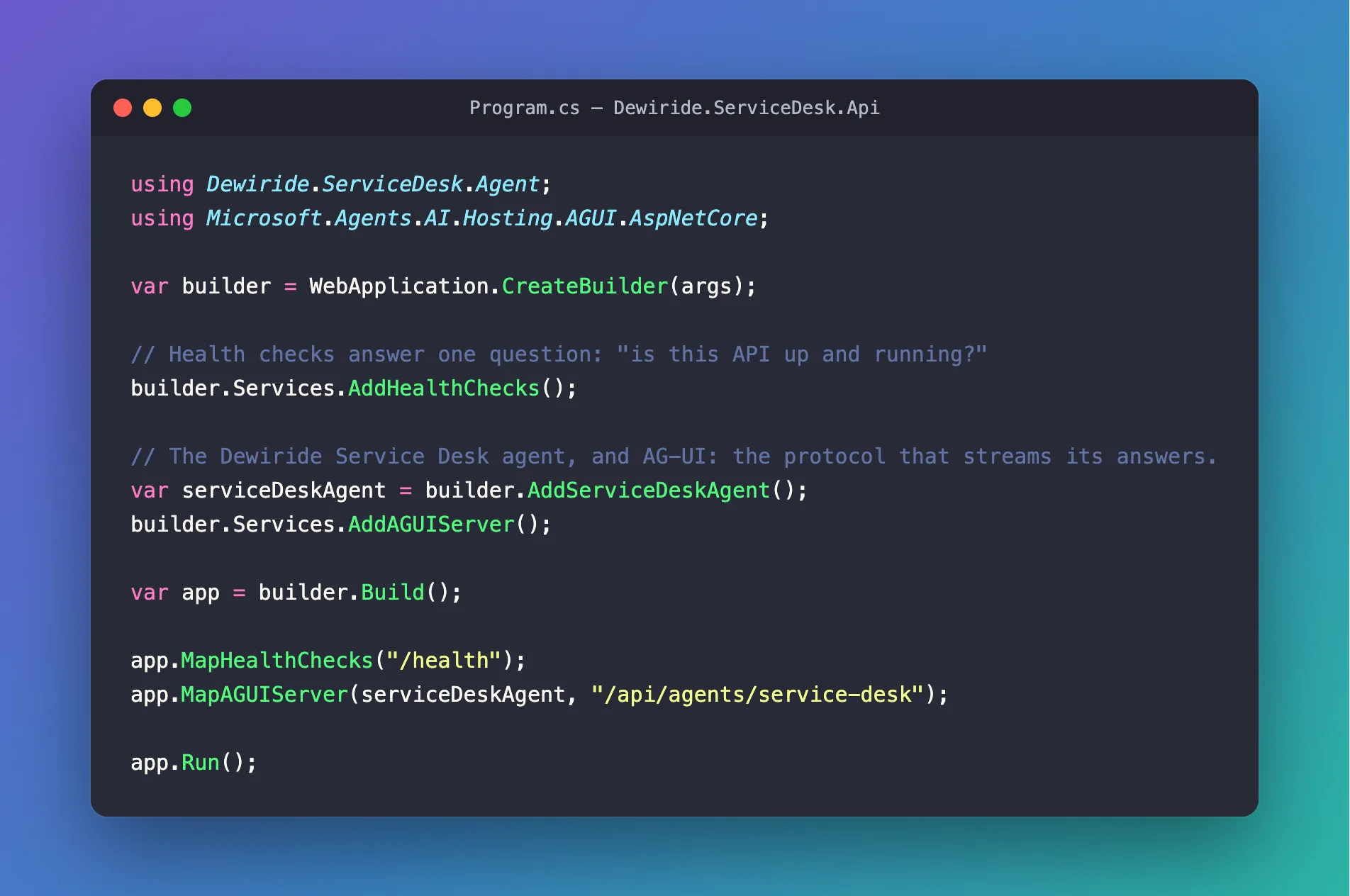
The complete file:
using Dewiride.ServiceDesk.Agent;
using Microsoft.Agents.AI.Hosting.AGUI.AspNetCore;

var builder = WebApplication.CreateBuilder(args);

// Health checks answer one question: "is this API up and running?"
builder.Services.AddHealthChecks();

// The Dewiride Service Desk agent, and AG-UI: the protocol that streams its answers.
var serviceDeskAgent = builder.AddServiceDeskAgent();
builder.Services.AddAGUIServer();

var app = builder.Build();

app.MapHealthChecks("/health");
app.MapAGUIServer(serviceDeskAgent, "/api/agents/service-desk");

app.Run();
Three new lines of real work, and the health-check API from Part 2 has become an agent API:
Anyone who can reach this endpoint can talk to the agent. On your machine that is fine — the API only listens on localhost. Never deploy it like this. Part 5 puts a trusted server in front of it (Microsoft's guidance is to never expose an AG-UI endpoint directly to browsers), and Part 6 protects it with Microsoft Entra ID.
Step 9: Tell the API How to Sign In
The credential from Step 7 reads the AZURE_TOKEN_CREDENTIALS environment variable. On your machine, the launch profile sets it — launchSettings.json from Part 2.
Open src/Dewiride.ServiceDesk.Api/Properties/launchSettings.json. In both profiles, inside environmentVariables, put a comma at the end of the ASPNETCORE_ENVIRONMENT line and add a new line below it:
        "ASPNETCORE_ENVIRONMENT": "Development",
        "AZURE_TOKEN_CREDENTIALS": "AzureCliCredential"
AzureCliCredential means: sign in as whoever is signed in to the Azure CLI — the account you checked in Step 1, which holds the Foundry User role. Visual Studio reads this file too, so the API signs in exactly the same way whichever editor starts it.
The complete file:
{
  "$schema": "https://json.schemastore.org/launchsettings.json",
  "profiles": {
    "http": {
      "commandName": "Project",
      "dotnetRunMessages": true,
      "launchBrowser": true,
      "launchUrl": "health",
      "applicationUrl": "http://localhost:5180",
      "environmentVariables": {
        "ASPNETCORE_ENVIRONMENT": "Development",
        "AZURE_TOKEN_CREDENTIALS": "AzureCliCredential"
      }
    },
    "https": {
      "commandName": "Project",
      "dotnetRunMessages": true,
      "launchBrowser": true,
      "launchUrl": "health",
      "applicationUrl": "https://localhost:7180;http://localhost:5180",
      "environmentVariables": {
        "ASPNETCORE_ENVIRONMENT": "Development",
        "AZURE_TOKEN_CREDENTIALS": "AzureCliCredential"
      }
    }
  }
}
Remember from Part 2 that launchSettings.json is only used on developer machines. In Azure, Part 19 sets the same variable to ManagedIdentityCredential — no code changes.
Step 10: Build the Solution
dotnet build
Restore complete (1.5s)
  Dewiride.ServiceDesk.Agent net10.0 succeeded (0.4s) → src/Dewiride.ServiceDesk.Agent/bin/Debug/net10.0/Dewiride.ServiceDesk.Agent.dll
  Dewiride.ServiceDesk.Api net10.0 succeeded (0.3s) → src/Dewiride.ServiceDesk.Api/bin/Debug/net10.0/Dewiride.ServiceDesk.Api.dll

Build succeeded in 2.4s
Both projects build without a single warning. If you see a red error instead, compare the file it names with the complete version on this page — a missing using line or semicolon is the usual cause.
Step 11: Run the API
Start the API exactly as in Part 2:
- VS Code
- Visual Studio
In VS Code's terminal, from the solution root, run:
dotnet run --project src/Dewiride.ServiceDesk.Api
Make sure http is selected in the drop-down list next to the green Start button (▶), with Dewiride.ServiceDesk.Api as the startup project, and press Ctrl+F5 (Debug → Start Without Debugging). Visual Studio also opens your browser at the health page.
Using launch settings from src/Dewiride.ServiceDesk.Api/Properties/launchSettings.json...
Building...
info: Microsoft.Hosting.Lifetime[14]
      Now listening on: http://localhost:5180
info: Microsoft.Hosting.Lifetime[0]
      Application started. Press Ctrl+C to shut down.
info: Microsoft.Hosting.Lifetime[0]
      Hosting environment: Development
info: Microsoft.Hosting.Lifetime[0]
      Content root path: /Users/you/source/DewirideServiceDesk/src/Dewiride.ServiceDesk.Api
The same log as in Part 2 — and that quiet start already tells you something. MapAGUIServer creates the agent while the API starts, so a missing setting or a missing AZURE_TOKEN_CREDENTIALS would have stopped the API right here, with a clear message (see Troubleshooting). Leave the API running.
Step 12: Ask the Agent Its First Question
Open src/Dewiride.ServiceDesk.Api/Dewiride.ServiceDesk.Api.http from Part 2 and add this request below its last line, the ###:
# Say hello to the service desk agent. The answer streams back as AG-UI events.
POST {{baseUrl}}/api/agents/service-desk
Content-Type: application/json
Accept: text/event-stream

{
  "threadId": "thread-1",
  "runId": "run-1",
  "messages": [
    {
      "id": "message-1",
      "role": "user",
      "content": "Hi! What can you help me with?"
    }
  ]
}

###
| Part | What it means |
|---|---|
POST {{baseUrl}}/api/agents/service-desk | The AG-UI endpoint from Step 8. {{baseUrl}} is the variable at the top of the file |
Content-Type: application/json | The body is JSON. Without this header the API refuses the request |
Accept: text/event-stream | "Send me a stream of events" |
| The empty line | Separates the headers from the body. It must be there |
"threadId" | Names the conversation. Part 4 uses it to continue a conversation; for now any text works |
"runId" | Names this run — one question and its answer |
"messages" | What the user says. Each AG-UI message has an id, a role (user for a person) and its content |
Now send it:
- VS Code
- Visual Studio
Select the Send Request link that REST Client shows above the POST line. The response opens in a tab beside your file.
Select the Send request link above the POST line. The response appears in the Response pane.
After a second or two, the response arrives. It is long, so here it is shortened — I cut the long messageId values short, replaced each rawEvent with {…} and left out most of the middle:
HTTP/1.1 200 OK
Content-Type: text/event-stream
Date: Thu, 29 Oct 2026 16:10:53 GMT
Server: Kestrel
Cache-Control: no-cache,no-store
Content-Encoding: identity
Pragma: no-cache
Transfer-Encoding: chunked

data: {"type":"RUN_STARTED","threadId":"thread-1","runId":"run-1"}

data: {"type":"TEXT_MESSAGE_START","messageId":"msg_040b9175…","role":"assistant","name":"service-desk","rawEvent":{…}}

data: {"type":"TEXT_MESSAGE_CONTENT","messageId":"msg_040b9175…","delta":"Hi","rawEvent":{…}}

data: {"type":"TEXT_MESSAGE_CONTENT","messageId":"msg_040b9175…","delta":"!","rawEvent":{…}}

data: {"type":"TEXT_MESSAGE_CONTENT","messageId":"msg_040b9175…","delta":" I","rawEvent":{…}}

data: {"type":"TEXT_MESSAGE_CONTENT","messageId":"msg_040b9175…","delta":" can","rawEvent":{…}}

data: {"type":"TEXT_MESSAGE_CONTENT","messageId":"msg_040b9175…","delta":" help","rawEvent":{…}}

… 25 more TEXT_MESSAGE_CONTENT events …

data: {"type":"TEXT_MESSAGE_CONTENT","messageId":"msg_040b9175…","delta":" need help with?","rawEvent":{…}}

data: {"type":"TEXT_MESSAGE_END","messageId":"msg_040b9175…"}

data: {"type":"RUN_FINISHED","threadId":"thread-1","runId":"run-1","outcome":{"type":"success"},"usage":[{"model":"gpt-5.6-luna-2026-07-09","inputTokens":248,"outputTokens":60,"totalTokens":308,"reasoningTokens":0,"cachedInputTokens":0}]}
200 OK with Content-Type: text/event-stream: your agent answered, as a stream. The next step reads it line by line.
Step 13: Read the AG-UI Events
Every data: line is one AG-UI event — a small JSON object with a type. This response holds five kinds:
| Event | What it means |
|---|---|
RUN_STARTED | The agent started work on run run-1 of conversation thread-1 |
TEXT_MESSAGE_START | The agent began a message. "role":"assistant" says the agent is speaking; "name" is the name it is registered under |
TEXT_MESSAGE_CONTENT | The next piece of the answer, in delta — usually a word or part of one. There were 31 of these |
TEXT_MESSAGE_END | The message is complete |
RUN_FINISHED | The run succeeded. usage reports how many tokens it used |
Put all the delta values together, in order, and you get the answer:
Hi! I can help with Dewiride IT issues, including:

- Laptops and phones
- Software
- Sign-in and passwords
- Email and Microsoft Teams
- Wi-Fi and VPN
- Printers
- Security questions

What do you need help with?
The agent introduces itself as Dewiride's IT help and lists exactly the topics from its instructions. A chat page does this joining for you — word by word, as the events arrive. You build one in Part 5.
What is rawEvent? Each event also carries the original update that Microsoft Agent Framework produced, which is useful for debugging and for advanced clients. Here is one TEXT_MESSAGE_CONTENT event in full:
{
    "type": "TEXT_MESSAGE_CONTENT",
    "messageId": "msg_040b9175287a14b2006ae3700dd020819583c301086c271c54",
    "delta": "!",
    "rawEvent": {
        "authorName": "service-desk",
        "role": "assistant",
        "contents": [
            {
                "$type": "text",
                "text": "!",
                "annotations": null,
                "additionalProperties": null
            }
        ],
        "additionalProperties": null,
        "responseId": "resp_040b9175287a14b2006ae3700d4ce08195875f9e4774afb100",
        "messageId": "msg_040b9175287a14b2006ae3700dd020819583c301086c271c54",
        "conversationId": "resp_040b9175287a14b2006ae3700d4ce08195875f9e4774afb100",
        "createdAt": "2026-10-29T16:10:53+00:00",
        "finishReason": null,
        "modelId": "gpt-5.6-luna-2026-07-09",
        "continuationToken": null
    }
}
The responseId comes from Foundry's Responses API, and modelId names the exact model version that answered. A chat client only needs delta; everything else is there if you want it.
Tokens and cost. RUN_FINISHED reported "inputTokens":248 — your instructions plus the question — and "outputTokens":60. At $0.20 and $1.20 per million tokens, this answer cost about $0.00012. The instructions are sent with every question, so short, focused instructions also keep every answer cheaper.
Step 14: Put the Instructions to the Test
A greeting is easy. Two more questions show whether the instructions really work: a real IT problem, and a question that has nothing to do with IT. Add both requests at the end of the .http file:
# Ask for help with a real IT problem.
POST {{baseUrl}}/api/agents/service-desk
Content-Type: application/json
Accept: text/event-stream

{
  "threadId": "thread-2",
  "runId": "run-1",
  "messages": [
    {
      "id": "message-1",
      "role": "user",
      "content": "My laptop won't connect to the office Wi-Fi. What should I do?"
    }
  ]
}

###

# Ask something that is not about IT. The agent should politely decline.
POST {{baseUrl}}/api/agents/service-desk
Content-Type: application/json
Accept: text/event-stream

{
  "threadId": "thread-3",
  "runId": "run-1",
  "messages": [
    {
      "id": "message-1",
      "role": "user",
      "content": "Can you write me a short poem about pizza?"
    }
  ]
}

###
Each request has its own threadId, because each one is a separate conversation.
Send the Wi-Fi request. Its response starts with an event you have not seen yet:
data: {"type":"RUN_STARTED","threadId":"thread-2","runId":"run-1"}

data: {"type":"REASONING_ENCRYPTED_VALUE","subtype":"message","entityId":"msg_YLpYVIdD6BNfQYmqkQvAKmh6","encryptedValue":"gAAAAABq…","rawEvent":{…}}

data: {"type":"TEXT_MESSAGE_START","messageId":"msg_0d10ec55…","role":"assistant","name":"service-desk","rawEvent":{…}}

data: {"type":"TEXT_MESSAGE_CONTENT","messageId":"msg_0d10ec55…","delta":"Which","rawEvent":{…}}
gpt-5.6-luna is a reasoning model: before answering, it can think. Foundry keeps that thinking private and returns it only in encrypted form, which REASONING_ENCRYPTED_VALUE passes along — about 3 KB of unreadable text. Clients do not show it, and you can ignore it. RUN_FINISHED counted the thinking as "reasoningTokens":30.
Put together, the answer is:
Which operating system is your laptop using: Windows or macOS?
No list of ten generic fixes — one clarifying question, exactly as the instructions ask ("If a request is unclear, ask one clarifying question first, such as which device or operating system"). The agent cannot use your reply yet, though: every request is a brand-new conversation until Part 4 adds sessions.
Send the pizza request. Put together:
I can help with Dewiride IT questions, but I can’t write poems. I can help with laptops, software, email, Teams, Wi-Fi, VPN, printers, or security.
A polite no, plus what it can help with — the first of the rules it always follows.
The complete .http file:
@baseUrl = http://localhost:5180

# Is the API up and running?
GET {{baseUrl}}/health

###

# Say hello to the service desk agent. The answer streams back as AG-UI events.
POST {{baseUrl}}/api/agents/service-desk
Content-Type: application/json
Accept: text/event-stream

{
  "threadId": "thread-1",
  "runId": "run-1",
  "messages": [
    {
      "id": "message-1",
      "role": "user",
      "content": "Hi! What can you help me with?"
    }
  ]
}

###

# Ask for help with a real IT problem.
POST {{baseUrl}}/api/agents/service-desk
Content-Type: application/json
Accept: text/event-stream

{
  "threadId": "thread-2",
  "runId": "run-1",
  "messages": [
    {
      "id": "message-1",
      "role": "user",
      "content": "My laptop won't connect to the office Wi-Fi. What should I do?"
    }
  ]
}

###

# Ask something that is not about IT. The agent should politely decline.
POST {{baseUrl}}/api/agents/service-desk
Content-Type: application/json
Accept: text/event-stream

{
  "threadId": "thread-3",
  "runId": "run-1",
  "messages": [
    {
      "id": "message-1",
      "role": "user",
      "content": "Can you write me a short poem about pizza?"
    }
  ]
}

###
The model writes new words every time, so your answers will not match mine word for word — but they should behave the same way. Stop the API when you are done: press Ctrl+C in VS Code's terminal, or in Visual Studio's console window. The log ends with:
info: Microsoft.Hosting.Lifetime[0]
      Application is shutting down...
Your Solution Now Looks Like This
DewirideServiceDesk/
├── .gitignore
├── DewirideServiceDesk.slnx
├── Directory.Build.props
├── Directory.Packages.props               four package versions
├── global.json
└── src/
    ├── Dewiride.ServiceDesk.Agent/
    │   ├── Dewiride.ServiceDesk.Agent.csproj
    │   ├── FoundryOptions.cs
    │   ├── ServiceDeskAgentExtensions.cs
    │   └── ServiceDeskInstructions.cs
    └── Dewiride.ServiceDesk.Api/
        ├── Properties/
        │   └── launchSettings.json
        ├── appsettings.Development.json
        ├── appsettings.json
        ├── Dewiride.ServiceDesk.Api.csproj
        ├── Dewiride.ServiceDesk.Api.http
        └── Program.cs
As before, each project also has bin and obj folders with build output. appsettings.Development.json is still the untouched template.
Common Mistakes
| Mistake | What happens | Fix |
|---|---|---|
Keeping my endpoint in appsettings.json | Every question fails — your account has no access to my Foundry project | Paste your own project endpoint from Part 1 |
Adding a hosting package without --version | error: There are no stable versions available | Copy the commands from Step 2 exactly |
Adding Microsoft.Agents.AI.Foundry without --version | No error at all — but Directory.Packages.props says Version="1.5.0", an old release | Change that version to 1.26.0-preview.261023.1 |
| Adding the AG-UI package to the library | The brain now depends on web code that the background job and the Teams bot do not need | Add it to Dewiride.ServiceDesk.Api, as in Step 2 |
Forgetting the comma after "AllowedHosts": "*" | The API stops at startup: Failed to load configuration from file '.../appsettings.json' | Add the comma, as in Step 4 |
Setting AZURE_TOKEN_CREDENTIALS in only one profile | The API works with the http profile but stops at startup with the other | Add the line to both profiles, as in Step 9 |
| Using the Foundry resource endpoint instead of the project endpoint | The agent still answers, but its calls skip your project — and with it the project's tracing, monitoring and project-level tools | Use the endpoint that ends in /api/projects/ plus your project name |
| Expecting the agent to remember the previous request | Every request is a new conversation, so it asks the same question again | That is exactly what Part 4 adds |
Troubleshooting
When something goes wrong while the agent runs, the response is still 200 OK, but it contains a single event: RUN_ERROR with "An error occurred while streaming the agent response." The API's console tells you the real reason in a block that starts with fail: LoggingAgent — that is the logging layer from Step 7. Match its message in this table:
| Symptom | Cause | Fix |
|---|---|---|
The API stops at startup: Environment variable 'AZURE_TOKEN_CREDENTIALS' is not set or is empty. | The launch profile does not set the variable, or the API was started without a launch profile | Do Step 9 for both profiles, and start the API as in Step 11 |
The API stops at startup: OptionsValidationException: Set Foundry:ModelDeployment to your model deployment name. (or the same for ProjectEndpoint) | The Foundry section is missing, misspelled or empty | Check Step 4 — the key names must match exactly |
Console: AzureCliCredential authentication failed: Please run 'az login' to set up account | The Azure CLI is signed out | Run az login, restart the API and send the request again |
Console: HTTP 404 (invalid_request_error: DeploymentNotFound) | ModelDeployment does not match a deployment in your project | Copy the exact deployment name from Part 1, Step 6 |
| Console: an HTTP 401 or 403 error | Your account lacks the Foundry User role on the Foundry resource | Assign it as described in Part 1, Step 6, then wait a few minutes |
Response: 415 Unsupported Media Type | The request has no Content-Type: application/json header | Add the header directly below the POST line |
Response: 405 Method Not Allowed | The request used GET | AG-UI endpoints take POST |
Response: 404 Not Found | A typo in the path | Use /api/agents/service-desk |
The API stops at startup: address already in use | The API is already running | Stop the other copy, or keep using it |
Frequently Asked Questions
Why does the agent forget what I said in the previous request?
Because each request is a separate conversation for now. The server keeps nothing between requests, so the Wi-Fi question in Step 14 could only ask which operating system you use — it could never receive your reply. Part 4 adds sessions: the server remembers each conversation by its threadId, and you send only the new message.
Is anything created in my Foundry project?
No agent is created in Foundry. AsAIAgent builds the agent inside your API, from your code and your instructions. Foundry only sees the model calls — the same Responses API calls you made in Part 1 — and counts their tokens.
Why AG-UI instead of a plain JSON endpoint?
Three reasons. The answer streams, so users see it appear instead of waiting for the whole text. The events are a standard, so existing AG-UI clients can talk to your agent — Part 5 uses the official AG-UI client library instead of custom code. And the same protocol later carries approval requests, when the agent must ask a human before doing something risky (Parts 10 and 11).
Why AzureCliCredential and not dev?
dev would also work, but it tries several developer sign-ins in turn, starting with Visual Studio's. If Visual Studio is signed in with a different account than the Azure CLI, the API could sign in as that account and get permission errors you would not expect. Naming one method — the Azure CLI, which you checked in Step 1 — makes the sign-in predictable in both editors.
Can I use a different model?
Yes. Any chat model deployment in your Foundry project that supports the Responses API works. Change ModelDeployment in appsettings.json and restart the API — no code changes.
Why is the answer plain text with dashes instead of formatted Markdown?
The instructions ask for plain text, so answers look right anywhere — in the .http response today, in the chat page in Part 5, in Teams in Part 20. The dashes and line breaks are ordinary characters, not formatting.
Conclusion
The empty house from Part 2 now has a brain, and the API serves it:
- the Microsoft Agent Framework packages, pinned in one place with central package management,
- validated settings that stop the API at startup if something is missing,
- instructions that give the agent its identity, its style and its rules,
- one method,
AddServiceDeskAgent(), that adds the agent to any .NET host — with keyless sign-in and failure logging built in, - an AG-UI endpoint that streams answers as events, tested from an
.httpfile in VS Code or Visual Studio.
Next: Part 4: Multi-Turn Conversations with Sessions — the agent learns to remember the conversation, so it can finally use the answer to its own question.
Additional Resources
- Step 7: Host Your Agent — Microsoft's tutorial step that this part builds on.
- Self-host Agent Framework applications —
AddAIAgent, hosted agents and session storage. - Getting Started with AG-UI —
MapAGUIServerand the event stream. - Security considerations for AG-UI — why AG-UI should sit behind a trusted server.
- Microsoft Foundry model provider —
AsAIAgentand the Responses API. - Credential chains in the Azure Identity library for .NET —
DefaultAzureCredentialandAZURE_TOKEN_CREDENTIALS. - Options pattern in ASP.NET Core — binding and validating settings.
- AG-UI protocol documentation — every event type, from the protocol's authors.
- Part 2: Create a Production-Grade .NET Solution — the solution this part builds on.
