Part 2: Create a Production-Grade .NET Solution
Before an agent can answer a single question, it needs a home. In this part you build that home the way production teams do: one solution, a pinned .NET SDK, shared build settings, every package version in one file, and two projects — a class library for the agent's "brain" and an ASP.NET Core API that will host it.
This is Part 2 of a 20-part series.
- Part 1: Overview, Architecture and Azure Setup
- Part 2: Create a Production-Grade .NET Solution (you are here)
- Part 3: Your First Agent API with Microsoft Foundry
- Part 4: Multi-Turn Conversations with Sessions
- Part 5: A Plug-and-Play Next.js Chat UI (coming soon)
- Part 6: Secure the API with Microsoft Entra ID (coming soon)
- Part 7: Give the Agent Enterprise Tools (coming soon)
- Part 8: Create Tickets and Test Your Tools (coming soon)
- Part 9: Connect an MCP Server (coming soon)
- Part 10: Human Approval for Sensitive Actions (coming soon)
- Part 11: Approval Cards in the Chat UI (coming soon)
- Part 12: Persistent Conversations (coming soon)
- Part 13: Memory That Knows the Employee (coming soon)
- Part 14: Guardrails — Keep Secrets Out of the Model (coming soon)
- Part 15: Audit Logs and Observability (coming soon)
- Part 16: Ticket Triage Workflow (coming soon)
- Part 17: Manager Approvals and Checkpoints (coming soon)
- Part 18: Agent Harness — Weekly Problem Report (coming soon)
- Part 19: Deploy to Azure Container Apps (coming soon)
- Part 20: Bring It to Microsoft Teams (coming soon)
There is no AI in this part yet — and that is on purpose. Everything the later parts add (the agent, its tools, sign-in, the chat page) plugs into the structure you create today, so it is worth getting right. Every step works in VS Code and in Visual Studio; where the two differ, the page shows a tab for each. Every output on this page is real, captured while building the project.
🎥 Detailed Video
What You Will Build
By the end of this part you will have this solution on your machine:
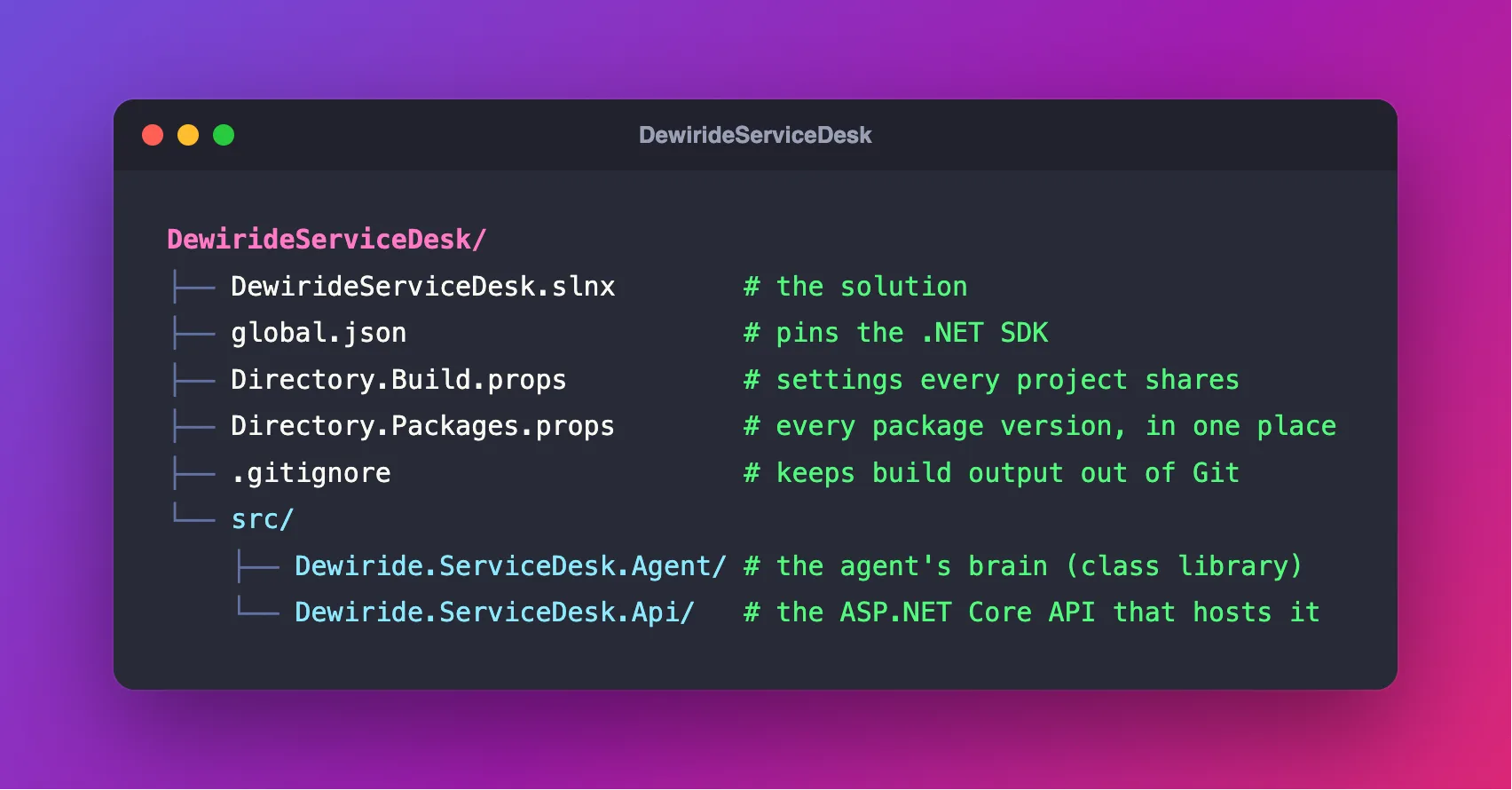
DewirideServiceDesk/
├── DewirideServiceDesk.slnx        the solution: lists every project
├── global.json                     pins the .NET SDK version
├── Directory.Build.props           build settings every project shares
├── Directory.Packages.props        every NuGet package version, in one place
├── .gitignore                      keeps build output out of Git
└── src/
    ├── Dewiride.ServiceDesk.Agent/  the agent's "brain" (class library)
    └── Dewiride.ServiceDesk.Api/    the ASP.NET Core API that hosts it
And a running API that answers Healthy at http://localhost:5180/health.
Why a Production-Grade Structure?
You could put everything in one project and start coding. It would work — until the second developer joins, the third project arrives, or a package update breaks one project but not the others. Each piece below solves one of those problems:
| Piece | What it does | Why it matters in production |
|---|---|---|
Solution file (.slnx) | Groups all projects so you can build, run and open them together | One command builds everything; Visual Studio and VS Code open the whole system at once |
global.json | Picks which .NET SDK builds the code | Every developer and every build server uses the same .NET version |
Directory.Build.props | Holds settings shared by every project | Upgrading .NET later is a one-line change, not one change per project |
Directory.Packages.props | Holds every NuGet package version | No two projects can quietly use different versions of the same package |
src/ folder | Keeps source projects together | Tests (tests/) and the web page (web/) get their own folders later |
| Class library + API | Splits the agent from the thing that hosts it | The same agent is reused by the API now, and by a background job and a Teams bot later |
The last row is the "one brain, many hosts" idea from Part 1. The class library is the brain; the API is the first host.
What This Part Costs
Nothing. This part only uses free tools on your own machine — no Azure resources are created or called.
Prerequisites
The .NET 10 SDK. Install it from the .NET download page (choose the SDK, not just the runtime). Check what you have:
dotnet --list-sdks
10.0.403 [/usr/local/share/dotnet/sdk]
You need at least one line starting with 10.0. Having several is normal — the next steps make sure the right one is used.
A code editor. Pick one tab — the choice is remembered for every tab on this page:
- VS Code
- Visual Studio
- Visual Studio Code on Windows, macOS or Linux.
- The C# Dev Kit extension. It adds a Solution Explorer, IntelliSense and run and debug support for .NET.
- The REST Client extension. It sends the test requests in Step 14.
To install an extension, open the Extensions view (Ctrl+Shift+X, or Cmd+Shift+X on macOS), search for its name and select Install.
- Visual Studio 2026 on Windows — any edition, including the free Community edition. Visual Studio 2022 cannot target .NET 10.
- The ASP.NET and web development workload. If you are not sure you have it, open the Visual Studio Installer, select Modify next to Visual Studio 2026, tick the workload and select Modify again.
Visual Studio has everything else built in, including the .http file editor used in Step 14.
A terminal. You run a few short commands with the .NET command line (CLI) — in Terminal on macOS, PowerShell on Windows, any Linux shell, or the terminal inside your editor. Every command works exactly as shown in all of them, so you can copy and paste without changing anything. The one place where macOS / Linux and Windows differ (Step 14) has a tab for each.
This part does not touch Azure. You need the Azure setup from Part 1 in Part 3, when the agent connects to its AI model.
Step 1: Create the Solution Folder and Solution File
Open a terminal in the folder where you keep your code — for example a source folder in your home folder. Then create a folder for the solution, move into it, and create the solution file:
mkdir DewirideServiceDesk
cd DewirideServiceDesk
dotnet new sln --name DewirideServiceDesk
The template "Solution File" was created successfully.
| Part of the command | What it does |
|---|---|
dotnet new | Creates something from a template — a ready-made starting point |
sln | The template for a solution file |
--name DewirideServiceDesk | The file name. Without it, .NET uses the folder name — the same here, but explicit is clearer |
The folder now contains one file, DewirideServiceDesk.slnx:
<Solution>
</Solution>
That is the whole file — an empty list of projects. .slnx is the new XML solution format that .NET 10 creates by default. It replaces the older .sln format, which was hard to read and full of generated IDs. Visual Studio 2026 and the C# Dev Kit both open it.
From now on, run every command from inside this DewirideServiceDesk folder — the solution root. All paths on this page are relative to it.
Step 2: Open the Solution in Your Editor
Open the solution now, so you can watch each file appear as you create it:
- VS Code
- Visual Studio
In the same terminal, run:
code .
The . means "this folder", so VS Code opens the DewirideServiceDesk folder. If your terminal says code is not recognized, open VS Code yourself and use File → Open Folder… to pick the DewirideServiceDesk folder. (On macOS you can also enable the command: open the Command Palette with Cmd+Shift+P and run Shell Command: Install 'code' command in PATH.)
Then open VS Code's own terminal with Terminal → New Terminal. It starts in the DewirideServiceDesk folder. Run the rest of this part's commands there.
- Start Visual Studio 2026 and select Open a project or solution.
- Browse to the
DewirideServiceDeskfolder, selectDewirideServiceDesk.slnxand select Open. Solution Explorer shows the (still empty) solution. - Open Visual Studio's terminal with View → Terminal. It is a Developer PowerShell that starts in the solution folder. Run the rest of this part's commands there.
When a command changes the solution while it is open, Visual Studio notices. If it asks whether to reload the solution, choose Reload.
Step 3: Pin the .NET SDK with global.json
Your machine can have several .NET SDKs installed side by side. When you run dotnet, it normally picks the newest one — so the day you install a preview of .NET 11, every project would quietly start building with it. A global.json file stops that:
dotnet new globaljson --sdk-version 10.0.100 --roll-forward latestFeature
The template "global.json file" was created successfully.
{
  "sdk": {
    "rollForward": "latestFeature",
    "version": "10.0.100"
  }
}
| Setting | What it means |
|---|---|
"version": "10.0.100" | The lowest SDK allowed: the first .NET 10 SDK |
"rollForward": "latestFeature" | Use the newest installed .NET 10 SDK (10.0.1xx, 2xx, 3xx and so on) — but never jump to .NET 11 |
See which SDK the solution now uses:
dotnet --version
10.0.403
global.json accepts any .NET 10 SDK from 10.0.100 up and picks the newest one installed — on my machine, 10.0.403. Yours may print a different 10.0 number — any is fine. Visual Studio respects this file too.
Step 4: Add a .gitignore
Building a .NET project creates bin and obj folders full of generated files. Editors add their own settings folders. None of that belongs in source control. The .NET SDK ships a ready-made ignore list:
dotnet new gitignore
The template "dotnet gitignore file" was created successfully.
The new .gitignore file has a few hundred lines that cover Visual Studio, VS Code, Rider, build output and more. It also ignores .env files, which matters in Part 5 when the chat page gets its own settings file.
If you track your code with Git, this is a good moment to run git init. This series does not require Git, so the rest of the page does not depend on it.
Step 5: Create the Shared Build Files
Two more files sit at the solution root and affect every project. Create both now:
dotnet new buildprops
dotnet new packagesprops
The template "MSBuild Directory.Build.props file" was created successfully.
The template "MSBuild Directory.Packages.props file" was created successfully.
Directory.Build.props is where shared build settings live. The template starts empty:
<Project>
  <!-- See https://aka.ms/dotnet/msbuild/customize for more details on customizing your build -->
  <PropertyGroup>


  </PropertyGroup>
</Project>
MSBuild — the engine behind dotnet build and Visual Studio — automatically reads a file with exactly this name for every project in this folder and all folders below it. You will fill it in Step 8.
Directory.Packages.props turns on Central Package Management:
<Project>
  <PropertyGroup>
    <!-- Enable central package management, https://learn.microsoft.com/en-us/nuget/consume-packages/Central-Package-Management -->
    <ManagePackageVersionsCentrally>true</ManagePackageVersionsCentrally>
  </PropertyGroup>
  <ItemGroup>
  </ItemGroup>
</Project>
With ManagePackageVersionsCentrally set to true, a project file only says which NuGet packages it uses. The version of each package lives here, in one list. This solution has no packages yet; in Part 3, dotnet add package writes the first versions into this file for you.
This matters more than it looks. Microsoft Agent Framework ships new versions almost every week, and this series pins exact versions. With central package management, moving the whole solution to a new version means changing one line.
Step 6: Create the Two Projects
First, the class library — the agent's brain. A class library is code that other projects use; it does not run on its own:
dotnet new classlib --name Dewiride.ServiceDesk.Agent --output src/Dewiride.ServiceDesk.Agent
The template "Class Library" was created successfully.

Processing post-creation actions...
Restoring /Users/you/source/DewirideServiceDesk/src/Dewiride.ServiceDesk.Agent/Dewiride.ServiceDesk.Agent.csproj:
Restore succeeded.
Next, the API — the host. The ASP.NET Core Empty template (web) gives a working web app with nothing extra in it:
dotnet new web --name Dewiride.ServiceDesk.Api --output src/Dewiride.ServiceDesk.Api
The template "ASP.NET Core Empty" was created successfully.

Processing post-creation actions...
Restoring /Users/you/source/DewirideServiceDesk/src/Dewiride.ServiceDesk.Api/Dewiride.ServiceDesk.Api.csproj:
Restore succeeded.
Your paths will be different — on Windows they start with something like C:\Users\you\source\. "Restore" means .NET checked which packages each project needs (none yet).
| Option | What it does |
|---|---|
--name | The project name. It also becomes the default namespace in the code |
--output src/... | Where to create the project. Keeping projects under src/ leaves room for tests/ and web/ later |
The names follow Microsoft's .NET naming guideline for namespaces: Company.Product.Feature. Dewiride is the company, ServiceDesk the product, and Agent or Api the part. Later projects follow the same pattern.
Why the Empty template rather than the Web API template? The Web API template adds a sample weather forecast and extra packages that you would delete straight away. Starting empty means every line in the project is one you added on purpose.
The class library template adds a placeholder file, Class1.cs, that you do not need. Delete it — right-click it in your editor and choose Delete, or run:
rm src/Dewiride.ServiceDesk.Agent/Class1.cs
(rm works in PowerShell too.) The library is now empty. That is fine: it compiles, and Part 3 fills it with the agent.
Step 7: Add the Projects to the Solution
The projects exist on disk, but the solution does not know about them yet. Add both:
dotnet sln add src/Dewiride.ServiceDesk.Agent src/Dewiride.ServiceDesk.Api
Project `src/Dewiride.ServiceDesk.Agent/Dewiride.ServiceDesk.Agent.csproj` added to the solution.
Project `src/Dewiride.ServiceDesk.Api/Dewiride.ServiceDesk.Api.csproj` added to the solution.
Now tell the API that it uses the class library. This is called a project reference:
dotnet add src/Dewiride.ServiceDesk.Api reference src/Dewiride.ServiceDesk.Agent
Reference `..\Dewiride.ServiceDesk.Agent\Dewiride.ServiceDesk.Agent.csproj` added to the project.
Read the command as "add to the API a reference to the Agent library". The direction matters: the API depends on the brain, never the other way round. That keeps the brain free of any web code, so a background job or a Teams bot can use it later without dragging an API along.
Open DewirideServiceDesk.slnx again. The CLI filled it in:
<Solution>
  <Folder Name="/src/">
    <Project Path="src/Dewiride.ServiceDesk.Agent/Dewiride.ServiceDesk.Agent.csproj" />
    <Project Path="src/Dewiride.ServiceDesk.Api/Dewiride.ServiceDesk.Api.csproj" />
  </Folder>
</Solution>
Because the projects live under src/, the CLI also created a solution folder called src. Solution Explorer — in both editors — now shows a src folder containing the two projects.
Step 8: Move Shared Settings into Directory.Build.props
Open both project files. They contain the same three settings. The library's project file:
<Project Sdk="Microsoft.NET.Sdk">

  <PropertyGroup>
    <TargetFramework>net10.0</TargetFramework>
    <ImplicitUsings>enable</ImplicitUsings>
    <Nullable>enable</Nullable>
  </PropertyGroup>

</Project>
And the API's, which now also has the project reference from Step 7:
<Project Sdk="Microsoft.NET.Sdk.Web">

  <ItemGroup>
    <ProjectReference Include="..\Dewiride.ServiceDesk.Agent\Dewiride.ServiceDesk.Agent.csproj" />
  </ItemGroup>

  <PropertyGroup>
    <TargetFramework>net10.0</TargetFramework>
    <Nullable>enable</Nullable>
    <ImplicitUsings>enable</ImplicitUsings>
  </PropertyGroup>

</Project>
Two copies of the same settings will drift apart sooner or later. Give them one home instead.
To open the project files: in VS Code, select them in the Explorer. In Visual Studio, double-click a project in Solution Explorer to open its .csproj. To open Directory.Build.props in Visual Studio for now, use File → Open → File… — Step 9 makes it appear in Solution Explorer.
1. Add the three settings to Directory.Build.props. Put them inside the empty <PropertyGroup>:
    <TargetFramework>net10.0</TargetFramework>
    <ImplicitUsings>enable</ImplicitUsings>
    <Nullable>enable</Nullable>
| Setting | What it means |
|---|---|
TargetFramework | Which .NET the code runs on. net10.0 is .NET 10, a long-term support (LTS) release |
ImplicitUsings | Adds the most common using lines (such as System and System.Linq) to every file for you |
Nullable | Makes the compiler warn you when a value might be null — it catches a whole class of crashes before they happen |
The complete file:
<Project>
  <!-- See https://aka.ms/dotnet/msbuild/customize for more details on customizing your build -->
  <PropertyGroup>
    <TargetFramework>net10.0</TargetFramework>
    <ImplicitUsings>enable</ImplicitUsings>
    <Nullable>enable</Nullable>
  </PropertyGroup>
</Project>
2. Remove the duplicates from the project files. Replace the whole content of the library's project file with:
<Project Sdk="Microsoft.NET.Sdk">

</Project>
And the API's with:
<Project Sdk="Microsoft.NET.Sdk.Web">

  <ItemGroup>
    <ProjectReference Include="..\Dewiride.ServiceDesk.Agent\Dewiride.ServiceDesk.Agent.csproj" />
  </ItemGroup>

</Project>
The library's project file really is almost empty now. Everything it needs comes from Directory.Build.props. What is left in each file is what makes it different:
Sdk="Microsoft.NET.Sdk"— an ordinary .NET project.Sdk="Microsoft.NET.Sdk.Web"— a web project. It brings in ASP.NET Core and the web server.- The
ProjectReference— only the API uses the library.
When you move to a newer .NET version one day, you change net10.0 once here (and the SDK in global.json), and every project follows.
Step 9: Show the Shared Files in Solution Explorer
global.json, .gitignore and the two Directory.*.props files affect the whole solution, but Visual Studio's Solution Explorer only lists what the solution file mentions — so these files stay hidden there. The standard fix is a solution folder, by convention called Solution Items, that lists them. VS Code's normal Explorer already shows every file, but adding the folder keeps the solution complete for anyone on your team who opens it in Visual Studio:
- VS Code
- Visual Studio
Open DewirideServiceDesk.slnx from the Explorer and add a Solution Items folder as the first entry inside <Solution>:
  <Folder Name="/Solution Items/">
    <File Path=".gitignore" />
    <File Path="Directory.Build.props" />
    <File Path="Directory.Packages.props" />
    <File Path="global.json" />
  </Folder>
Save the file.
- In Solution Explorer, right-click the solution (the top line) and select Add → New Solution Folder. Name it
Solution Items. - Right-click the new Solution Items folder and select Add → Existing Item….
- In the solution root, select
.gitignore,Directory.Build.props,Directory.Packages.propsandglobal.json, then select Add. - Save with Ctrl+Shift+S (File → Save All).
Visual Studio writes the folder into DewirideServiceDesk.slnx for you.
Either way, the complete solution file now reads:
<Solution>
  <Folder Name="/Solution Items/">
    <File Path=".gitignore" />
    <File Path="Directory.Build.props" />
    <File Path="Directory.Packages.props" />
    <File Path="global.json" />
  </Folder>
  <Folder Name="/src/">
    <Project Path="src/Dewiride.ServiceDesk.Agent/Dewiride.ServiceDesk.Agent.csproj" />
    <Project Path="src/Dewiride.ServiceDesk.Api/Dewiride.ServiceDesk.Api.csproj" />
  </Folder>
</Solution>
A solution folder is only a label in Solution Explorer. Nothing moves on disk, and the build ignores the files listed there.
Step 10: Add a Health Endpoint
Open src/Dewiride.ServiceDesk.Api/Program.cs. This file starts the API. The template wrote four lines:
var builder = WebApplication.CreateBuilder(args);
var app = builder.Build();

app.MapGet("/", () => "Hello World!");

app.Run();
| Line | What it does |
|---|---|
WebApplication.CreateBuilder(args) | Prepares the app: reads settings, sets up logging, and gives you a place to register services |
builder.Build() | Turns that preparation into a runnable app |
app.MapGet("/", ...) | Answers web requests to / with the text Hello World! |
app.Run() | Starts the web server and waits for requests until you stop it |
Every production API needs a way to answer one question: "are you up and running?" In Part 19, Azure Container Apps asks exactly that, many times a minute, to decide whether to send traffic to the API or restart it. ASP.NET Core has this built in, as health checks.
1. Register the health check service. Below the first line, add:
// Health checks answer one question: "is this API up and running?"
builder.Services.AddHealthChecks();
builder.Services is the app's list of services — a pattern called dependency injection that the rest of the series uses all the time. AddHealthChecks() adds the service that runs the checks.
2. Replace the Hello World line with a health endpoint:
app.MapHealthChecks("/health");
MapHealthChecks("/health") answers requests to /health with Healthy while the API works. An API does not need a home page, so the Hello World line goes.
The complete file:
var builder = WebApplication.CreateBuilder(args);

// Health checks answer one question: "is this API up and running?"
builder.Services.AddHealthChecks();

var app = builder.Build();

app.MapHealthChecks("/health");

app.Run();
Step 11: Give the API a Fixed Address
Open src/Dewiride.ServiceDesk.Api/Properties/launchSettings.json. It tells dotnet run, VS Code and Visual Studio how to start the API on your machine:
{
  "$schema": "https://json.schemastore.org/launchsettings.json",
  "profiles": {
    "http": {
      "commandName": "Project",
      "dotnetRunMessages": true,
      "launchBrowser": true,
      "applicationUrl": "http://localhost:5029",
      "environmentVariables": {
        "ASPNETCORE_ENVIRONMENT": "Development"
      }
    },
    "https": {
      "commandName": "Project",
      "dotnetRunMessages": true,
      "launchBrowser": true,
      "applicationUrl": "https://localhost:7059;http://localhost:5029",
      "environmentVariables": {
        "ASPNETCORE_ENVIRONMENT": "Development"
      }
    }
  }
}
The template picked random port numbers — yours will be different from 5029 and 7059. The rest of the series (the test requests, the chat page in Part 5) needs to know where the API lives, so give it a fixed address that everybody shares.
| Setting | What it means |
|---|---|
profiles | Named ways to start the app. http comes first, so dotnet run uses it unless you choose another one |
commandName: "Project" | Run the project itself on the built-in Kestrel web server |
dotnetRunMessages | Show the Building... message when you start the app with dotnet run |
launchBrowser | Open a browser when the app starts. Visual Studio does this; dotnet run ignores it |
applicationUrl | The address the API listens on |
ASPNETCORE_ENVIRONMENT | Marks this as the Development environment. Later parts switch on developer-only settings with it |
1. Fix the ports. In the http profile, change applicationUrl to:
"applicationUrl": "http://localhost:5180",
and in the https profile:
"applicationUrl": "https://localhost:7180;http://localhost:5180",
2. Open the health page when the browser launches. Add a launchUrl line below launchBrowser in both profiles:
"launchUrl": "health",
The complete file:
{
  "$schema": "https://json.schemastore.org/launchsettings.json",
  "profiles": {
    "http": {
      "commandName": "Project",
      "dotnetRunMessages": true,
      "launchBrowser": true,
      "launchUrl": "health",
      "applicationUrl": "http://localhost:5180",
      "environmentVariables": {
        "ASPNETCORE_ENVIRONMENT": "Development"
      }
    },
    "https": {
      "commandName": "Project",
      "dotnetRunMessages": true,
      "launchBrowser": true,
      "launchUrl": "health",
      "applicationUrl": "https://localhost:7180;http://localhost:5180",
      "environmentVariables": {
        "ASPNETCORE_ENVIRONMENT": "Development"
      }
    }
  }
}
launchSettings.json is only used on your machine — it is never published or deployed. In Azure (Part 19), the platform decides the address and handles HTTPS for you.
Step 12: Build the Solution
Build everything once, from the solution root:
dotnet build
Restore complete (0.7s)
  Dewiride.ServiceDesk.Agent net10.0 succeeded (1.6s) → src/Dewiride.ServiceDesk.Agent/bin/Debug/net10.0/Dewiride.ServiceDesk.Agent.dll
  Dewiride.ServiceDesk.Api net10.0 succeeded (0.7s) → src/Dewiride.ServiceDesk.Api/bin/Debug/net10.0/Dewiride.ServiceDesk.Api.dll

Build succeeded in 3.2s
dotnet build found the .slnx file in the folder and built both projects — the library first, because the API depends on it. Both say net10.0, which comes from Directory.Build.props. There are no warnings. The times on your machine will differ.
In Visual Studio you can also use Build → Build Solution (Ctrl+Shift+B); the result appears in the Output window.
Step 13: Run the API
- VS Code
- Visual Studio
In VS Code's terminal, from the solution root, run:
dotnet run --project src/Dewiride.ServiceDesk.Api
--project says which project to start — the solution has two, and only the API can run.
- In the toolbar, open the drop-down list next to the green Start button (▶) and choose http. If Dewiride.ServiceDesk.Api is not shown as the startup project, right-click it in Solution Explorer and select Set as Startup Project first.
- Press Ctrl+F5 (Debug → Start Without Debugging).
Visual Studio builds the solution, opens a console window with the log lines below, and opens your browser at http://localhost:5180/health — the launchUrl from Step 11 — which shows Healthy.
The API starts and writes this log:
Using launch settings from src/Dewiride.ServiceDesk.Api/Properties/launchSettings.json...
Building...
info: Microsoft.Hosting.Lifetime[14]
      Now listening on: http://localhost:5180
info: Microsoft.Hosting.Lifetime[0]
      Application started. Press Ctrl+C to shut down.
info: Microsoft.Hosting.Lifetime[0]
      Hosting environment: Development
info: Microsoft.Hosting.Lifetime[0]
      Content root path: /Users/you/source/DewirideServiceDesk/src/Dewiride.ServiceDesk.Api
| Log line | What it tells you |
|---|---|
Using launch settings from ... | dotnet run used the http profile from Step 11 |
Now listening on: http://localhost:5180 | The fixed address works |
Hosting environment: Development | ASPNETCORE_ENVIRONMENT came through from the launch profile |
Content root path | The folder the API reads its settings files from |
Leave the API running for the next step.
Step 14: Call the API from an .http File
An .http file is a plain text file of web requests that your editor can send for you. It lives next to the code, so the whole team shares the same test requests — and you will add to this one in almost every part of the series.
Create a file named Dewiride.ServiceDesk.Api.http in the src/Dewiride.ServiceDesk.Api folder:
- VS Code
- Visual Studio
In the Explorer, right-click the Dewiride.ServiceDesk.Api folder (inside src), select New File… and type Dewiride.ServiceDesk.Api.http.
In Solution Explorer, right-click the Dewiride.ServiceDesk.Api project and select Add → New Item…. Search for HTTP File, set the name to Dewiride.ServiceDesk.Api.http and select Add.
Put this in the file:
@baseUrl = http://localhost:5180

# Is the API up and running?
GET {{baseUrl}}/health

###
| Line | What it does |
|---|---|
@baseUrl = http://localhost:5180 | A variable for the API's address, so it is written in one place |
# Is the API up and running? | A comment |
GET {{baseUrl}}/health | The request: a GET to /health. {{baseUrl}} is replaced by the variable's value |
### | Marks the end of a request. Later parts add more requests below it |
Now send the request:
- VS Code
- Visual Studio
The REST Client extension adds a small Send Request link above the GET line. Select it. The response opens in a new tab beside your file.
Visual Studio adds a Send request link above the GET line. Select it. The response appears in the Response pane next to the file.
HTTP/1.1 200 OK
Content-Type: text/plain
Date: Thu, 29 Oct 2026 16:08:39 GMT
Server: Kestrel
Cache-Control: no-store, no-cache
Expires: Thu, 01 Jan 1970 00:00:00 GMT
Pragma: no-cache
Transfer-Encoding: chunked

Healthy
200 OK with the word Healthy: your API is up. Notice the Cache-Control: no-store, no-cache header — health checks are never cached, so a monitor always sees the current state. (Each tool lays out the headers a little differently, but the content is the same.)
Prefer the terminal? Send the same request with curl:
- macOS / Linux
- Windows (PowerShell)
curl -i http://localhost:5180/health
curl.exe -i http://localhost:5180/health
In Windows PowerShell, curl on its own can run a different, built-in command (Invoke-WebRequest). curl.exe always runs the real curl that ships with Windows 10 and 11.
Stop the API when you are done. In VS Code's terminal, press Ctrl+C. In Visual Studio, press Ctrl+C in the console window, or close it. The log ends with:
info: Microsoft.Hosting.Lifetime[0]
      Application is shutting down...
Your Solution Now Looks Like This
DewirideServiceDesk/
├── .gitignore
├── DewirideServiceDesk.slnx
├── Directory.Build.props
├── Directory.Packages.props
├── global.json
└── src/
    ├── Dewiride.ServiceDesk.Agent/
    │   └── Dewiride.ServiceDesk.Agent.csproj
    └── Dewiride.ServiceDesk.Api/
        ├── Properties/
        │   └── launchSettings.json
        ├── appsettings.Development.json
        ├── appsettings.json
        ├── Dewiride.ServiceDesk.Api.csproj
        ├── Dewiride.ServiceDesk.Api.http
        └── Program.cs
You will also see bin and obj folders inside each project. They are build output, recreated by every build, and .gitignore keeps them out of source control. The two appsettings files are untouched templates for now; Part 3 puts the agent's settings in appsettings.json.
Common Mistakes
| Mistake | What happens | Fix |
|---|---|---|
| Running a command outside the solution root | error MSB1003: Specify a project or solution file | cd into the DewirideServiceDesk folder first |
Forgetting --project with dotnet run | Couldn't find a project to run. — the solution root holds a solution, not a runnable project | Use dotnet run --project src/Dewiride.ServiceDesk.Api |
| Leaving the three settings in the project files after Step 8 | Nothing breaks today, but the copies drift apart later | Keep each setting only in Directory.Build.props |
Adding Version="..." to a package in a .csproj | error NU1008 — versions belong in Directory.Packages.props | Let dotnet add package write the version, or move it by hand |
Opening the folder in Visual Studio instead of the .slnx file | Visual Studio shows plain files instead of projects | Use Open a project or solution and pick DewirideServiceDesk.slnx |
| Using Visual Studio 2022 | It cannot target .NET 10 | Use Visual Studio 2026 |
Sending the .http request before starting the API | The request fails with a connection error | Start the API (Step 13), then send the request again |
| Starting the API twice | The second copy fails because the port is taken | Stop the first copy, or use the one that is already running |
Troubleshooting
| Symptom | Cause | Fix |
|---|---|---|
A compatible .NET SDK was not found. with Requested SDK version: 10.0.100 | No .NET 10 SDK is installed, so global.json cannot be satisfied | Install the .NET 10 SDK, then open a new terminal |
MSBUILD : error MSB1003: Specify a project or solution file. The current working directory does not contain a project or solution file. | The terminal is in the wrong folder | cd into DewirideServiceDesk, or pass the path, as in dotnet build DewirideServiceDesk.slnx |
Failed to bind to address http://127.0.0.1:5180: address already in use. | Another copy of the API — or another app — already uses port 5180 | Stop the other copy (Ctrl+C in its terminal). If another app needs 5180, pick a new port in launchSettings.json and in the .http file |
error NU1008: The following PackageReference items cannot define a value for Version | A project file names a package version while central package management is on | Remove Version="..." from the .csproj and put the version in Directory.Packages.props |
| No Send Request link in VS Code | The REST Client extension is missing, or the file does not end in .http | Install REST Client; check the file name |
code is not recognized | VS Code's command-line launcher is not on your PATH | Use File → Open Folder…, or install the code command as shown in Step 2 |
| Visual Studio does not load the projects | An older Visual Studio, or the ASP.NET workload is missing | Use Visual Studio 2026 with the ASP.NET and web development workload |
Frequently Asked Questions
Why create a class library that is empty?
Because the structure is the point of this part. The library is where the agent lives from Part 3 on. Creating it now — and wiring the reference in the right direction — means the API never grows agent code that would later have to be moved out.
Can I use a .sln file instead of .slnx?
Yes. dotnet new sln --format sln creates the older format, and every command on this page works with it. .slnx is the default in .NET 10 because it is short, readable XML that merges cleanly in Git.
Why not use the Web API template?
The Web API template includes a sample weather forecast endpoint and an OpenAPI package. Neither is needed here, and deleting sample code is a poor start for a production project. The Empty template gives you a clean API to build up step by step.
Do I need HTTPS on my machine?
No. The http profile is the default, and everything in this series works with it locally. When the API is deployed in Part 19, Azure provides HTTPS in front of it. The https profile is still there if you want it: dotnet run --project src/Dewiride.ServiceDesk.Api --launch-profile https (you may first need to trust the development certificate with dotnet dev-certs https --trust).
Why is there no Swagger or OpenAPI page?
The API's main endpoint arrives in Part 3 and speaks AG-UI, a streaming protocol built for chat front ends rather than a classic request/response API. You test it with the .http file and, from Part 5, with the chat page. An OpenAPI description can be added later for the regular endpoints that come with the workflows.
Should I commit launchSettings.json?
Yes. It holds no secrets — only how to start the API on a developer machine — and sharing it means everyone uses the same port. Secrets never go in this file; this series keeps them in Azure Key Vault.
Where is the AI?
In Part 3. You now have a solid, empty house; next you move the brain in.
Conclusion
You built the foundation of the whole series, the way a production team would:
- a
.slnxsolution withsrc/projects and a Solution Items folder, - a pinned .NET 10 SDK in
global.json, - shared build settings in
Directory.Build.props, - central package management ready for its first package,
- an empty class library for the agent, referenced by an ASP.NET Core API,
- a
/healthendpoint on a fixed address, tested from an.httpfile in VS Code or Visual Studio.
Next: Part 3: Your First Agent API with Microsoft Foundry — you will add Microsoft Agent Framework, connect the brain to your Foundry model without any API keys, and stream the agent's first answers through the API.
Additional Resources
- global.json overview — every option for choosing an SDK version.
- Customize your build — how
Directory.Build.propsis found and imported. - Central Package Management — the full guide to
Directory.Packages.props. dotnet new slndefaults to the SLNX format — why .NET 10 changed the solution format.- Health checks in ASP.NET Core — custom checks, response formats and probes.
- Use .http files in Visual Studio — the
.httpsyntax and Visual Studio's editor. - Names of namespaces — the Company.Product.Feature naming guideline.
- Part 1: Overview, Architecture and Azure Setup — the architecture this solution implements.
