Part 15: Persistent Conversations
Until now, the API has kept every conversation in memory. Stop the API, and every conversation is gone: the agent no longer knows what the employee told it, and a password reset waiting for approval can't be approved any more. In this part the conversations move to Azure Cosmos DB. They survive restarts, every copy of the API sees the same ones, and each employee still sees only their own.
This is Part 15 of a 23-part series.
- Part 1: Overview, Architecture and Azure Setup
- Part 2: Create a Production-Grade .NET Solution
- Part 3: Your First Agent API with Microsoft Foundry
- Part 4: Multi-Turn Conversations with Sessions
- Part 5: Create a Next.js Chat App for Your Agent
- Part 6: Stream the Agent Through a Trusted Next.js Route Handler
- Part 7: Build a Streaming Chat Page with the AG-UI Client
- Part 8: Secure the Agent API with Microsoft Entra ID
- Part 9: Add Microsoft Entra ID Sign-In to the Next.js Chat App
- Part 10: Give the Agent Enterprise Tools
- Part 11: Let the Agent Create Tickets
- Part 12: Connect an MCP Server
- Part 13: Human Approval for Sensitive Actions
- Part 14: Approval Cards in the Chat UI
- Part 15: Persistent Conversations (you are here)
- Part 16: Memory That Knows the Employee (coming soon)
- Part 17: Guardrails — Keep Secrets Out of the Model (coming soon)
- Part 18: Audit Logs and Observability (coming soon)
- Part 19: Ticket Triage Workflow (coming soon)
- Part 20: Manager Approvals and Checkpoints (coming soon)
- Part 21: Agent Harness — Weekly Problem Report (coming soon)
- Part 22: Deploy to Azure Container Apps (coming soon)
- Part 23: Bring It to Microsoft Teams (coming soon)
What You Will Build
An employee tells the agent where they work this week and asks about their devices. Then the API restarts, as it will whenever you deploy a new version. The employee asks a follow-up in the same chat, and the agent still knows:
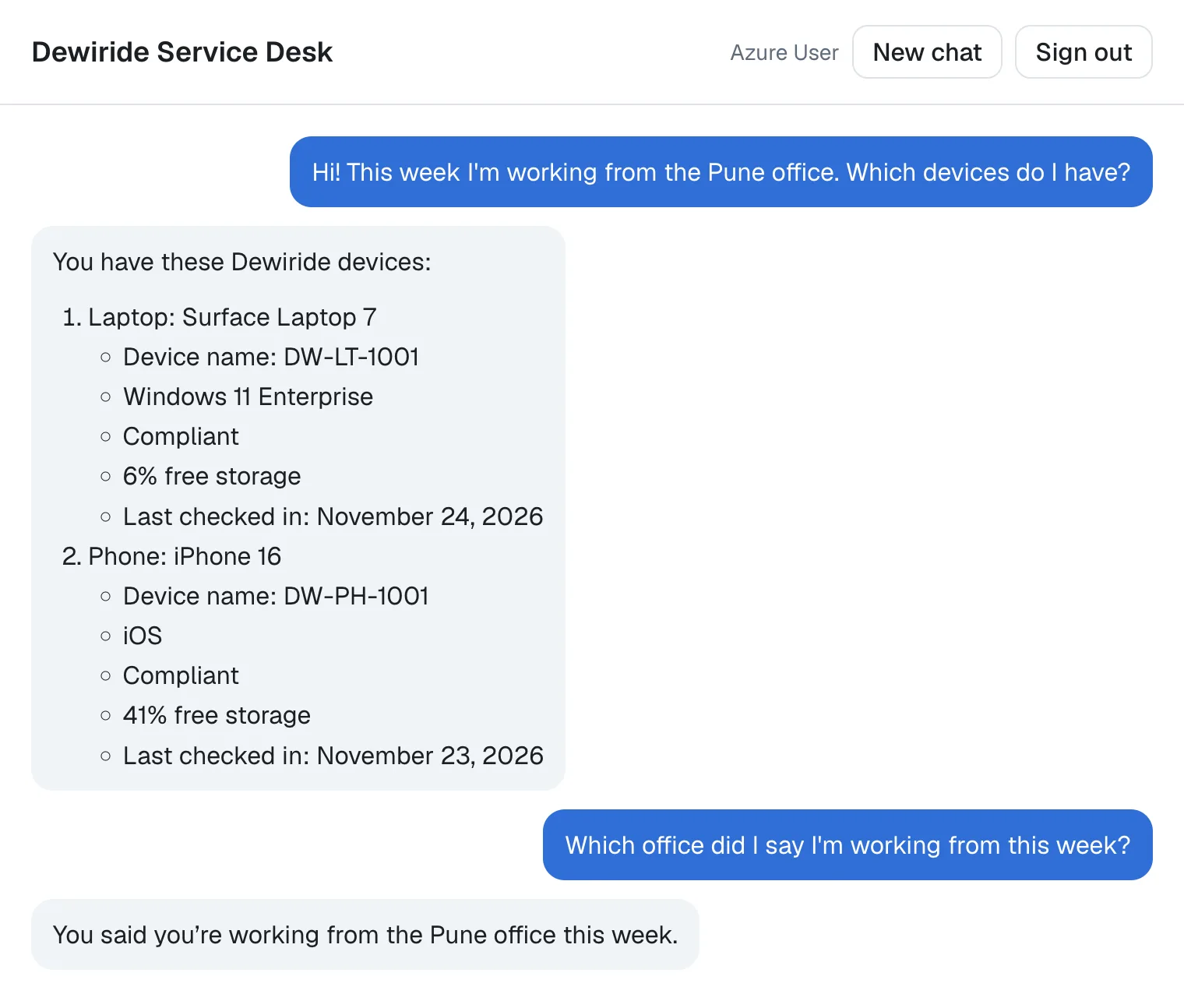
By the end of this part, the solution has:
- An Azure Cosmos DB account in serverless mode, with key-based authentication turned off: only Microsoft Entra ID identities can read or write its data.
- A
sessionscontainer that keeps one item per conversation and deletes it 30 days after the conversation's last message. - A session store,
CosmosAgentSessionStore, that Agent Framework calls to load a conversation before each run and save it after. - A fixed ID for the agent, without which saved conversations can't be found after a restart.
The chat app doesn't change. It already sends the same threadId for every message of a conversation; the API now finds that conversation in Cosmos DB instead of in its memory.
How Persistence Works
What a session holds
In Agent Framework, a conversation's state is an AgentSession. Microsoft's self-hosting documentation lists what it can hold: a service-managed conversation ID, framework-managed chat history, memory or context-provider state, queued messages, pending approvals, and other state that must survive across runs.
For this agent, the list is short. The conversation's messages already live in Microsoft Foundry: as Part 4 showed, each run continues from the ID of the previous response, so the session only needs that ID. A request waiting for approval is the one other thing in it. Here is the item of a conversation whose password reset waits for an answer, as Cosmos DB stores it:
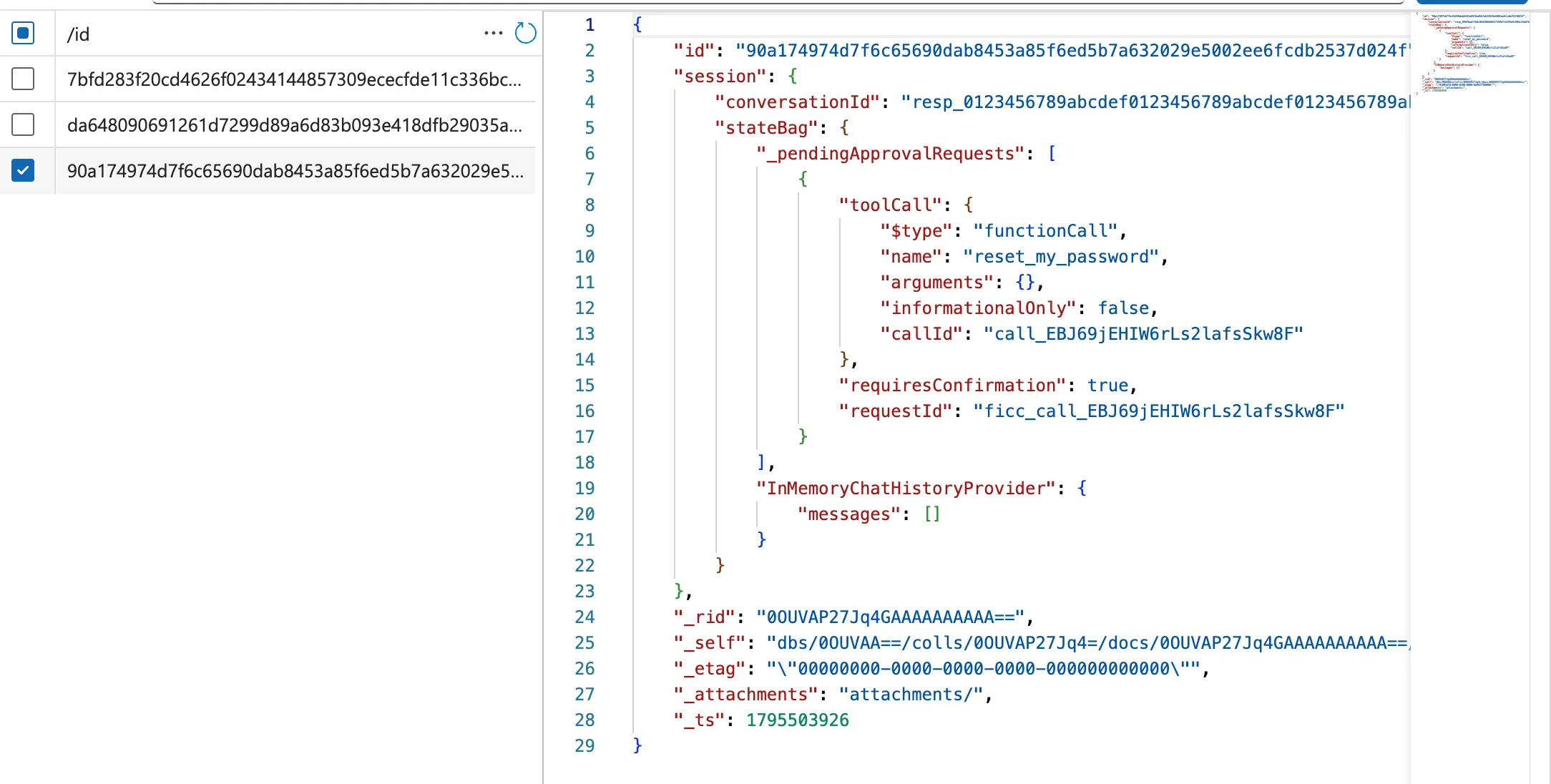
That is why the reset from Part 14 could not be approved after a restart: the waiting call lived only in the API's memory. Once the session is stored, the call waits in Cosmos DB, and Approve works whenever it comes.
Who saves it
Agent Framework's hosting layer does the saving. For every AG-UI request, it asks a session store for the conversation's session, runs the agent with it, and gives the session back to the store when the run ends. Until now, that store was WithInMemorySessionStore(). Microsoft's documentation is direct about what comes next: MAF doesn't include a general-purpose durable session store. For production, provide an AgentSessionStore implementation backed by storage appropriate for your application.
An AgentSessionStore has three methods to write:
| Method | When it runs | What it does |
|---|---|---|
GetSessionAsync | Before a run | Returns the stored session, or null when the conversation is new |
SaveSessionAsync | After a run | Stores the session |
DeleteSessionAsync | When a host deletes a conversation | Deletes the session, and does nothing if there isn't one |
Each method gets the agent and an AgentSessionStoreKey. The key has a SessionId, which for AG-UI is the chat's threadId, and Partitions: extra names and values that are part of the key too. One of them is the signed-in employee. Since Part 8, the API isolates conversations by the employee's object ID, and WithSessionStore keeps that isolation on: before your store sees a key, Agent Framework adds the employee to it. Two employees who send the same threadId get two different conversations.
Where it goes
A conversation item is small, and the API only ever reads one item by its key, writes it back, and lets old ones expire. Azure Cosmos DB for NoSQL fits that well:
- Serverless: no capacity to plan and no minimum charge; you pay for the work each request does.
- Microsoft Entra ID only: with key-based authentication turned off, the API signs in with the same identity it already uses for Foundry. On your machine that's your Azure CLI sign-in; in Azure it will be a managed identity.
- Time to live: Cosmos DB deletes an item a set time after it was last written, with no job of your own.
What This Part Costs
Azure Cosmos DB in serverless mode charges for request units (RUs), the work each request does, and for storage. In East US 2, on the day I wrote this, the retail price was $0.25 per million request units and $0.25 per GB per month of storage, with no minimum.
I measured one conversation's item: 424 bytes. Reading it cost 1 RU and writing it 10.67 RU. The API reads the conversation before each run and writes it after, so a message costs about 12 RU: a million request units cover more than 80,000 messages, for $0.25. A gigabyte holds over two million conversations of that size. Testing this whole part costs less than a cent.
Cosmos DB also has a free tier, but it is currently not available for serverless accounts, and a subscription can have only one free-tier account. Serverless is simpler for a workload that is idle most of the day.
Prerequisites
- The solution and the chat app from Part 14: Approval Cards in the Chat UI.
Step 1: Create an Azure Cosmos DB Account
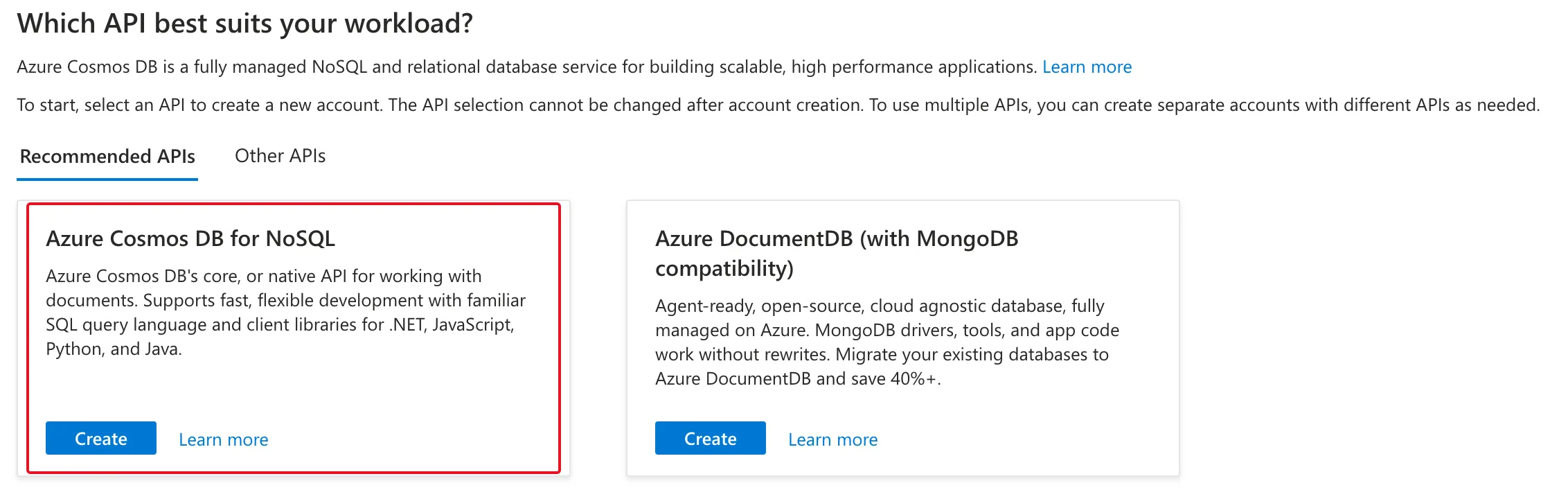
In the Azure portal, search for Azure Cosmos DB, open it and select Create. The portal asks which API you want. Each Cosmos DB account speaks one API, and you can't change it later. Select Create under Azure Cosmos DB for NoSQL, the service's native API, which the .NET SDK uses:
On the Basics tab, fill in these values and leave the rest as they are:
| Setting | Value | Why |
|---|---|---|
| Workload Type | Development / Testing | The account is for building and testing. The choice only sets starting defaults, and every setting can still be changed |
| Subscription | Your subscription | |
| Resource Group | rg-maf-servicedesk | The series' resource group from Part 1 |
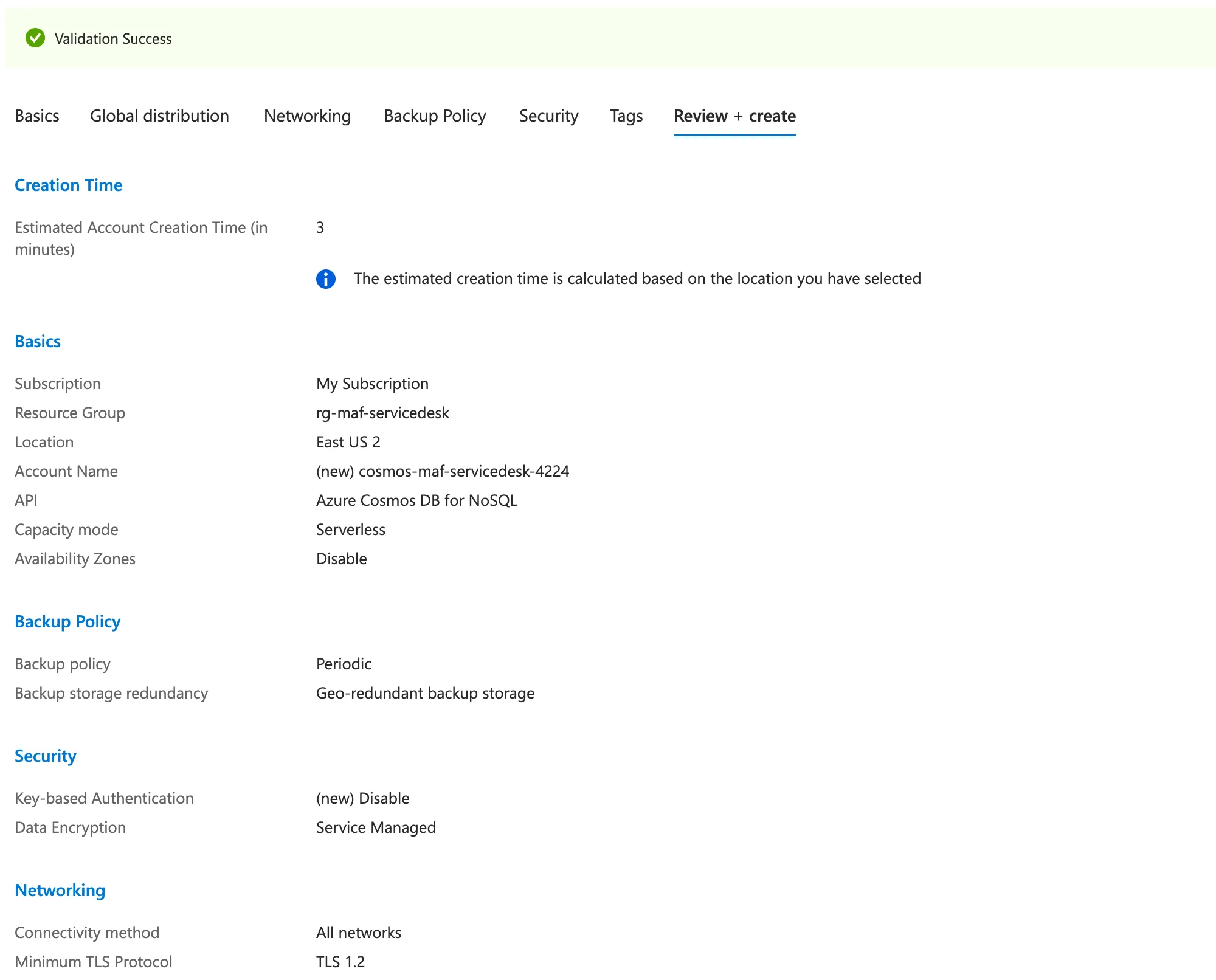
| Account Name | cosmos-maf-servicedesk- and a suffix of your own | The name becomes part of the account's address, so it must be unique in all of Azure. I used the same suffix as my Key Vault: cosmos-maf-servicedesk-4224 |
| Location | (US) East US 2 | The region of the series' other resources |
| Capacity mode | Serverless | Pay per request, no minimum |
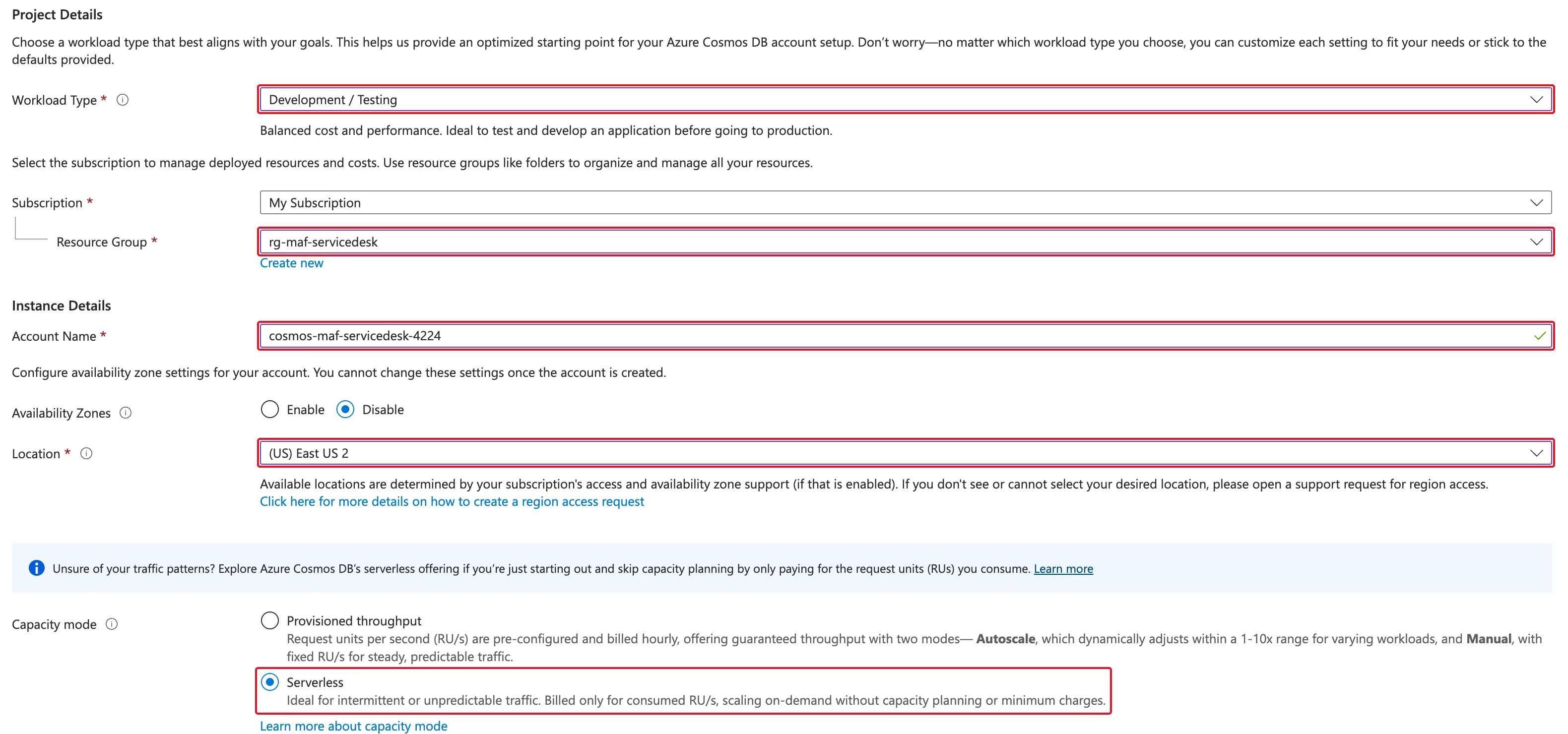
East US 2 wasn't under Recommended Locations for my subscription; it was further down the list, under the other locations. Some regions were greyed out: as the form says, the available locations depend on your subscription's access. If yours is greyed out, choose another region near your users.
The Global distribution, Networking and Backup Policy tabs can keep their defaults: serverless accounts live in one region, All networks can reach the account (only signed-in identities with a role can read its data, which Step 3 sets up), and backups are periodic. Open the Security tab and set Key-based Authentication to Disable:
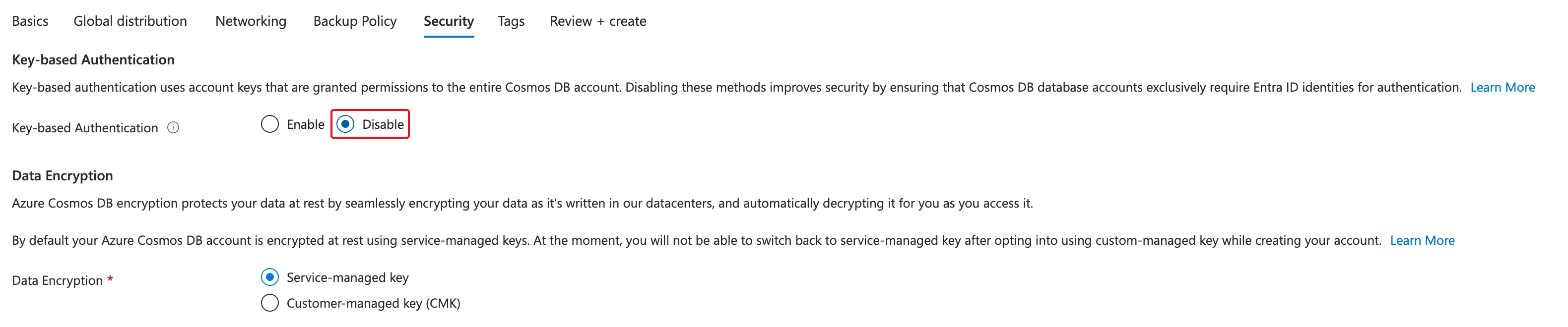
An account key opens every database in the account, and anyone who copies it has it. With keys off, the account accepts only Microsoft Entra ID identities, and each one gets exactly the role you give it.
Select Review + create. Wait for Validation Success and check the summary:
Select Create. Mine was ready in under two minutes:
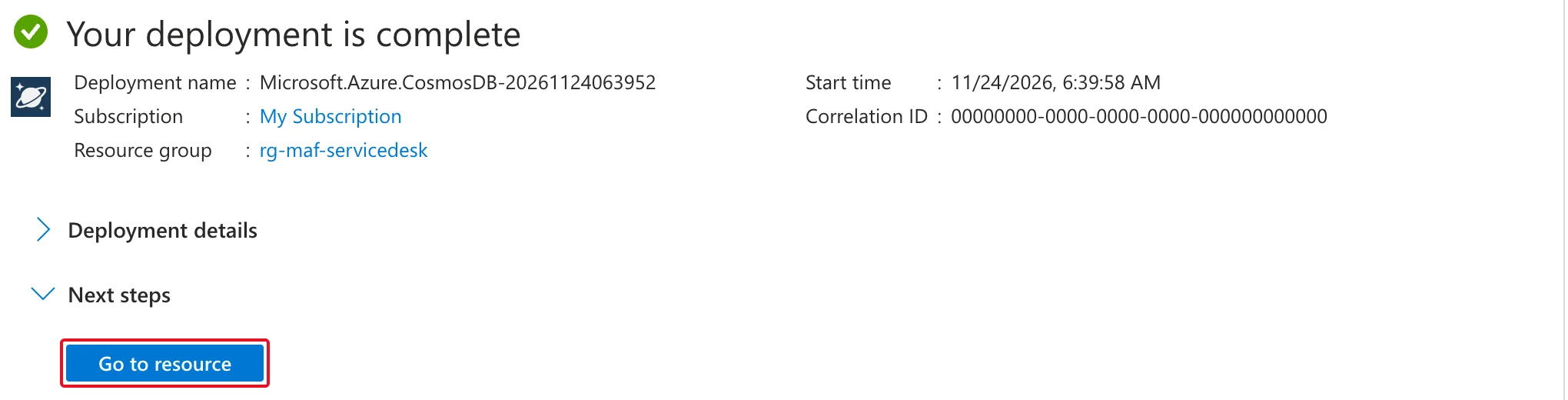
Select Go to resource. On the account's Overview, copy the URI: the API needs it in Step 5.

Step 2: Create the Database and the Container
A Cosmos DB account holds databases, a database holds containers, and a container holds items. The API needs one container, with one item per conversation.
In the account's menu, select Data Explorer. If a Welcome dialog opens, close it. Select New..., then New Container, and fill in:
| Field | Value | Why |
|---|---|---|
| Database id | Create new, servicedesk | Later parts keep more of the service desk's data here |
| Container id | sessions | |
| Partition key | /id | Every read and write names the item by its ID, so the ID is the natural partition key, and the items spread evenly |
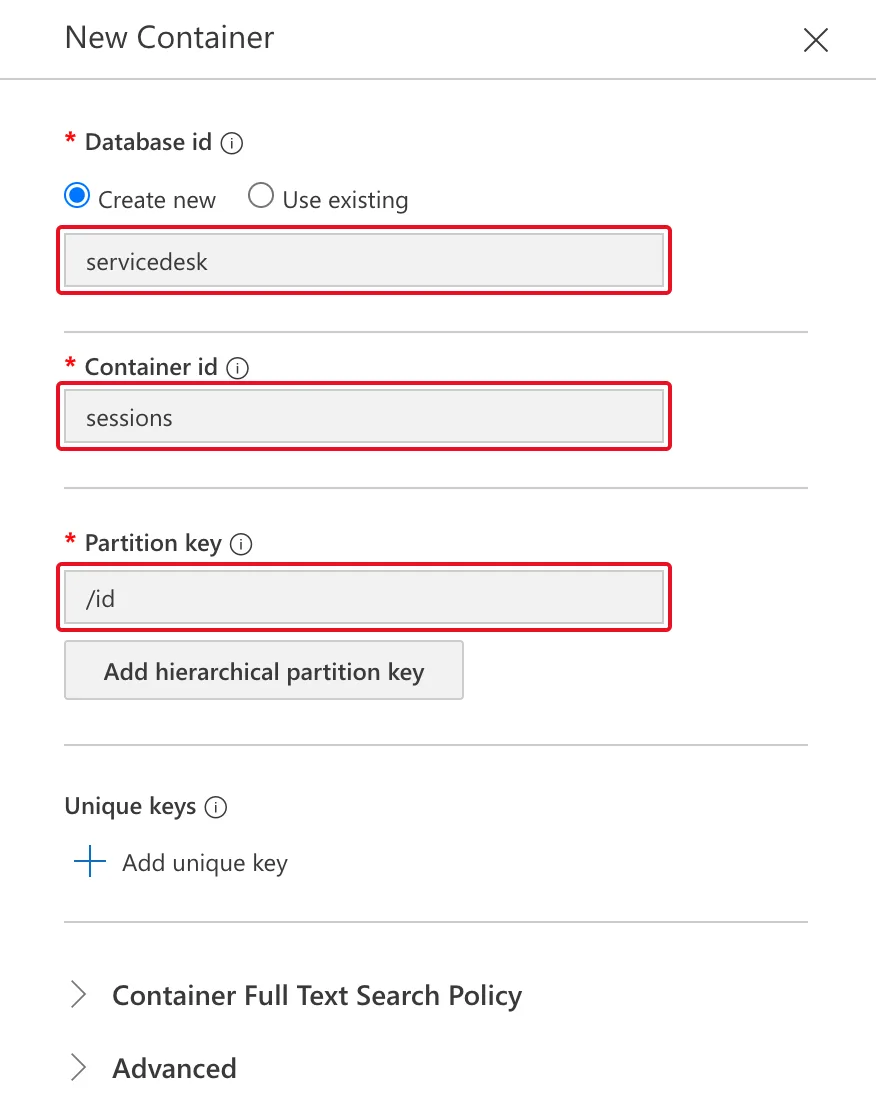
Leave Advanced as it is (its only option is for very old SDKs) and select OK. The tree on the left now shows servicedesk and, under it, sessions.
The panel has no field for a time to live, so set it next. Expand sessions, select Settings, and under Time to Live select On with 2592000 seconds, which is 30 days. Then select Save in the toolbar:
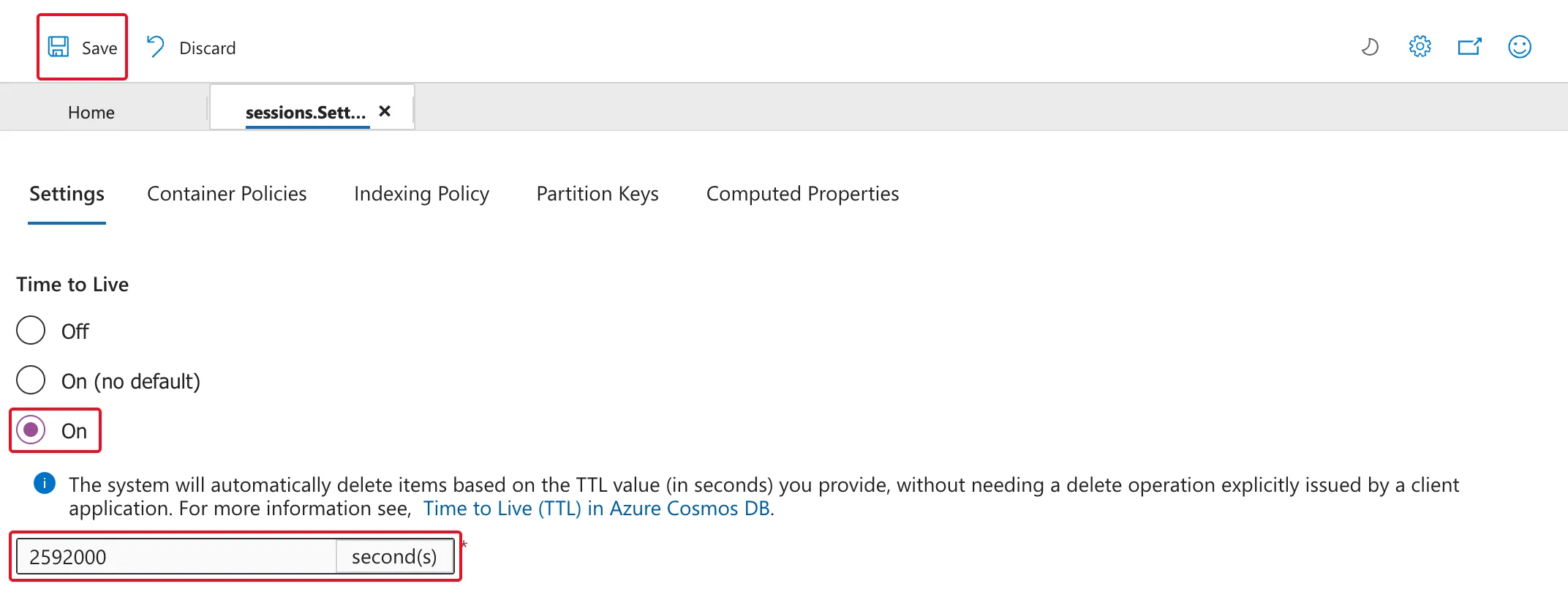
Cosmos DB now deletes an item 30 days after it was last written. Every message writes the conversation's item again, so a conversation lives 30 days after its last message. The number isn't arbitrary: Foundry keeps a stored response for 30 days by default, so a conversation idle longer than that couldn't continue from Foundry's side anyway.
If the bar at the bottom of Data Explorer says Error while reading container sessions, you're seeing Step 3's reason. With keys off, Data Explorer reads data as you, and your account has no role on the data yet. Creating the database and container worked because those are management operations, which your role on the subscription allows. The full message, Request blocked by Auth … does not have required RBAC permissions to perform action [Microsoft.DocumentDB/databaseAccounts/readMetadata], goes away after Step 3 (Fixed).
Step 3: Give Yourself Access to the Data
Azure has two separate kinds of access to a Cosmos DB account. Control-plane roles, such as Owner or Contributor on the subscription, manage the account: create it, create containers, change settings. Data-plane roles read and write the items. Being an Owner of the subscription gives you no data-plane access at all, and the portal can't assign a data-plane role: Microsoft's documentation says Managing data plane role-based access control isn't supported in the Azure portal. So this step uses the Azure CLI.
First, see the roles the account has built in:
- bash / zsh
- PowerShell
az cosmosdb sql role definition list \
    --resource-group rg-maf-servicedesk \
    --account-name cosmos-maf-servicedesk-4224 \
    --query "[].{roleName:roleName, roleDefinitionId:name}" \
    --output table
az cosmosdb sql role definition list `
    --resource-group rg-maf-servicedesk `
    --account-name cosmos-maf-servicedesk-4224 `
    --query "[].{roleName:roleName, roleDefinitionId:name}" `
    --output table
Use your own account name. --query keeps two fields of each role, its name and its ID, and --output table prints them as columns:
RoleName                             RoleDefinitionId
-----------------------------------  ------------------------------------
Cosmos DB Built-in Data Reader       00000000-0000-0000-0000-000000000001
Cosmos DB Built-in Data Contributor  00000000-0000-0000-0000-000000000002
The API reads and writes items, so it needs Cosmos DB Built-in Data Contributor, whose ID is 00000000-0000-0000-0000-000000000002 in every account. Assign it to yourself, because on your machine the API signs in as you:
- bash / zsh
- PowerShell
az cosmosdb sql role assignment create \
    --resource-group rg-maf-servicedesk \
    --account-name cosmos-maf-servicedesk-4224 \
    --role-definition-id 00000000-0000-0000-0000-000000000002 \
    --principal-id "$(az ad signed-in-user show --query id --output tsv)" \
    --scope "/dbs/servicedesk/colls/sessions"
az cosmosdb sql role assignment create `
    --resource-group rg-maf-servicedesk `
    --account-name cosmos-maf-servicedesk-4224 `
    --role-definition-id 00000000-0000-0000-0000-000000000002 `
    --principal-id "$(az ad signed-in-user show --query id --output tsv)" `
    --scope "/dbs/servicedesk/colls/sessions"
--role-definition-idis the Data Contributor role.--principal-idis who gets it.az ad signed-in-user show --query id --output tsvprints your own object ID, and the command puts it here.--scopelimits the role to thesessionscontainer:/dbs/<database>/colls/<container>./would give it access to every database in the account. The API needs only this container, so that's all it gets.
{
  "id": "…/databaseAccounts/cosmos-maf-servicedesk-4224/sqlRoleAssignments/00000000-0000-0000-0000-000000000000",
  "name": "00000000-0000-0000-0000-000000000000",
  "principalId": "00000000-0000-0000-0000-000000000000",
  "resourceGroup": "rg-maf-servicedesk",
  "roleDefinitionId": "…/databaseAccounts/cosmos-maf-servicedesk-4224/sqlRoleDefinitions/00000000-0000-0000-0000-000000000002",
  "scope": "…/databaseAccounts/cosmos-maf-servicedesk-4224/dbs/servicedesk/colls/sessions",
  "systemData": null,
  "type": "Microsoft.DocumentDB/databaseAccounts/sqlRoleAssignments"
}
The scope ends in dbs/servicedesk/colls/sessions. When you deploy the API to Azure in Part 22, its managed identity gets the same role in the same way.
Step 4: Add the Cosmos DB SDK
The store lives in the agent project, Dewiride.ServiceDesk.Agent, next to the agent it stores conversations for; every host that runs the agent can use it. From the DewirideServiceDesk folder, add the Azure Cosmos DB SDK:
dotnet add src/Dewiride.ServiceDesk.Agent package Microsoft.Azure.Cosmos --version 3.64.0
info : PackageReference for package 'Microsoft.Azure.Cosmos' added to '/Users/you/source/DewirideServiceDesk/src/Dewiride.ServiceDesk.Agent/Dewiride.ServiceDesk.Agent.csproj' and PackageVersion added to central package management file '/Users/you/source/DewirideServiceDesk/Directory.Packages.props'.
info : PackageReference for package 'Microsoft.Azure.Cosmos' version '3.64.0' added to file '/Users/you/source/DewirideServiceDesk/Directory.Packages.props'.
log  : Restored /Users/you/source/DewirideServiceDesk/src/Dewiride.ServiceDesk.Agent/Dewiride.ServiceDesk.Agent.csproj (in 2.55 sec).
As in earlier parts, the version goes into Directory.Packages.props and the reference into the project. The SDK needs one more package, which it doesn't bring itself. Build now and you get this:
/Users/you/.nuget/packages/microsoft.azure.cosmos/3.64.0/buildTransitive/netstandard2.0/Microsoft.Azure.Cosmos.targets(72,9): error The Newtonsoft.Json package must be explicitly referenced with version >= 10.0.2. Please add a reference to Newtonsoft.Json or set the 'AzureCosmosDisableNewtonsoftJsonCheck' property to 'true' to bypass this check.
The SDK uses Newtonsoft.Json inside, even when your own items use System.Text.Json, and Microsoft's guidance for applications is to reference it directly, at version 13.0.4 for this SDK (Fixed):
dotnet add src/Dewiride.ServiceDesk.Agent package Newtonsoft.Json --version 13.0.4
Step 5: Add the Settings
The API needs three values: the account's URI, the database and the container. Create a folder Sessions in the agent project, and in it CosmosDbOptions.cs, the same kind of class as FoundryOptions from Part 3:
namespace Dewiride.ServiceDesk.Agent.Sessions;

/// <summary>
/// Where conversations are kept. Filled from the "CosmosDb" section of the app's settings.
/// </summary>
public sealed class CosmosDbOptions
{
    public const string SectionName = "CosmosDb";

    /// <summary>The account's URI, for example https://your-account.documents.azure.com:443/.</summary>
    public string AccountEndpoint { get; set; } = string.Empty;

    /// <summary>The database that holds the containers, for example servicedesk.</summary>
    public string DatabaseName { get; set; } = string.Empty;

    /// <summary>The container that holds one item per conversation, for example sessions.</summary>
    public string SessionsContainerName { get; set; } = string.Empty;
}
Then add a CosmosDb section to the API's settings, with your own URI from Step 1:
{
  "Logging": {
    "LogLevel": {
      "Default": "Information",
      "Microsoft.AspNetCore": "Warning",
      "Microsoft.Identity": "Warning"
    }
  },
  "AllowedHosts": "*",
  "AzureAd": {
    "Instance": "https://login.microsoftonline.com/",
    "TenantId": "11111111-1111-1111-1111-111111111111",
    "ClientId": "22222222-2222-2222-2222-222222222222"
  },
  "Foundry": {
    "ProjectEndpoint": "https://foundry-devblogs-exp.services.ai.azure.com/api/projects/proj-devblogs-exp",
    "ModelDeployment": "gpt-5.6-luna"
  },
  "MicrosoftLearn": {
    "McpEndpoint": "https://learn.microsoft.com/api/mcp?maxTokenBudget=2000",
    "ProtocolVersion": "2025-06-18"
  },
  "CosmosDb": {
    "AccountEndpoint": "https://cosmos-maf-servicedesk-4224.documents.azure.com:443/",
    "DatabaseName": "servicedesk",
    "SessionsContainerName": "sessions"
  }
}
None of these values is a secret: without a role, the URI opens nothing.
Step 6: Write the Session Store
Create CosmosAgentSessionStore.cs in the Sessions folder. It takes the sessions container and implements the three methods. First, the class and saving:
public sealed class CosmosAgentSessionStore(Container container) : AgentSessionStore
{
    public override async ValueTask SaveSessionAsync(
        AIAgent agent, AgentSessionStoreKey key, AgentSession session, CancellationToken cancellationToken = default)
    {
        // The agent turns the session into JSON: the Foundry conversation ID, plus any state its providers keep.
        JsonElement state = await agent.SerializeSessionAsync(session, cancellationToken: cancellationToken);

        string id = ItemId(agent, key);
        await container.UpsertItemAsync(new SessionItem(id, state), new PartitionKey(id), cancellationToken: cancellationToken);
    }
Container containeris thesessionscontainer. A primary constructor keeps it for every method.agent.SerializeSessionAsyncturns the session into JSON. The store doesn't need to know what's in it: the agent that made the session knows how to write it, and how to read it back. The Fundamentals tutorial Sessions saves a session to a file this way in a small console app, and continues the conversation after a restart.UpsertItemAsynccreates the item the first time and replaces it after that. The partition key is the item's ID, as the container's partition key path/idsays.
Reading it back:
    public override async ValueTask<AgentSession?> GetSessionAsync(
        AIAgent agent, AgentSessionStoreKey key, CancellationToken cancellationToken = default)
    {
        string id = ItemId(agent, key);
        try
        {
            ItemResponse<SessionItem> item = await container.ReadItemAsync<SessionItem>(
                id, new PartitionKey(id), cancellationToken: cancellationToken);

            // A new, independent session object on every read, as the hosting layer requires.
            return await agent.DeserializeSessionAsync(item.Resource.Session, cancellationToken: cancellationToken);
        }
        catch (CosmosException e) when (e.StatusCode == HttpStatusCode.NotFound)
        {
            // Nothing stored for this conversation yet: the hosting layer starts a new session.
            return null;
        }
    }
ReadItemAsync with the ID and the partition key is a point read: Cosmos DB fetches one item by its key, without a query. It cost 1 RU in my test. A new conversation has no item yet, so Cosmos DB answers Not Found, and the store returns null. Agent Framework then creates a new session itself. Every other error still throws, so a wrong setting or a missing role fails loudly.
Deleting works the same way, and a missing item is not an error:
    public override async ValueTask DeleteSessionAsync(
        AIAgent agent, AgentSessionStoreKey key, CancellationToken cancellationToken = default)
    {
        string id = ItemId(agent, key);
        try
        {
            await container.DeleteItemAsync<SessionItem>(id, new PartitionKey(id), cancellationToken: cancellationToken);
        }
        catch (CosmosException e) when (e.StatusCode == HttpStatusCode.NotFound)
        {
            // Already gone.
        }
    }
Now the item's ID. Microsoft's guidance is to Key records by both agent.Id and the opaque sessionStoreId, and the key's documentation adds that Every partition is part of the identity and must be honored. So the ID is built from all of them:
    private static string ItemId(AIAgent agent, AgentSessionStoreKey key)
    {
        StringBuilder text = new();
        void Add(string part) => text.Append(part.Length).Append(':').Append(part);

        Add(agent.Id);
        Add(key.SessionId);
        foreach (KeyValuePair<string, string> partition in
                 key.Partitions?.OrderBy(p => p.Key, StringComparer.Ordinal) ?? Enumerable.Empty<KeyValuePair<string, string>>())
        {
            Add(partition.Key);
            Add(partition.Value);
        }

        return Convert.ToHexStringLower(SHA256.HashData(Encoding.UTF8.GetBytes(text.ToString())));
    }
- Each part is written as its length, a colon and its text. Without the lengths, the parts
ab+canda+bcwould give the same text. - The partitions are sorted by name, because their order doesn't change the key:
OrderBywithStringComparer.Ordinalcompares the names the same way on every machine. - The result is hashed with SHA-256 and written as 64 hex characters. Cosmos DB limits an ID to 1,023 bytes, doesn't accept
/,\,?or#in it, and recommends letters and digits only, while the parts can hold anything. The hash is always 64 letters and digits. It also keeps the employee's object ID, which is one of the partitions, out of the item.
Last, the item itself, as a record:
    private sealed record SessionItem(
        [property: JsonPropertyName("id")] string Id,
        [property: JsonPropertyName("session")] JsonElement Session);
}
Cosmos DB needs the ID in a property named exactly id, so JsonPropertyName names both properties.
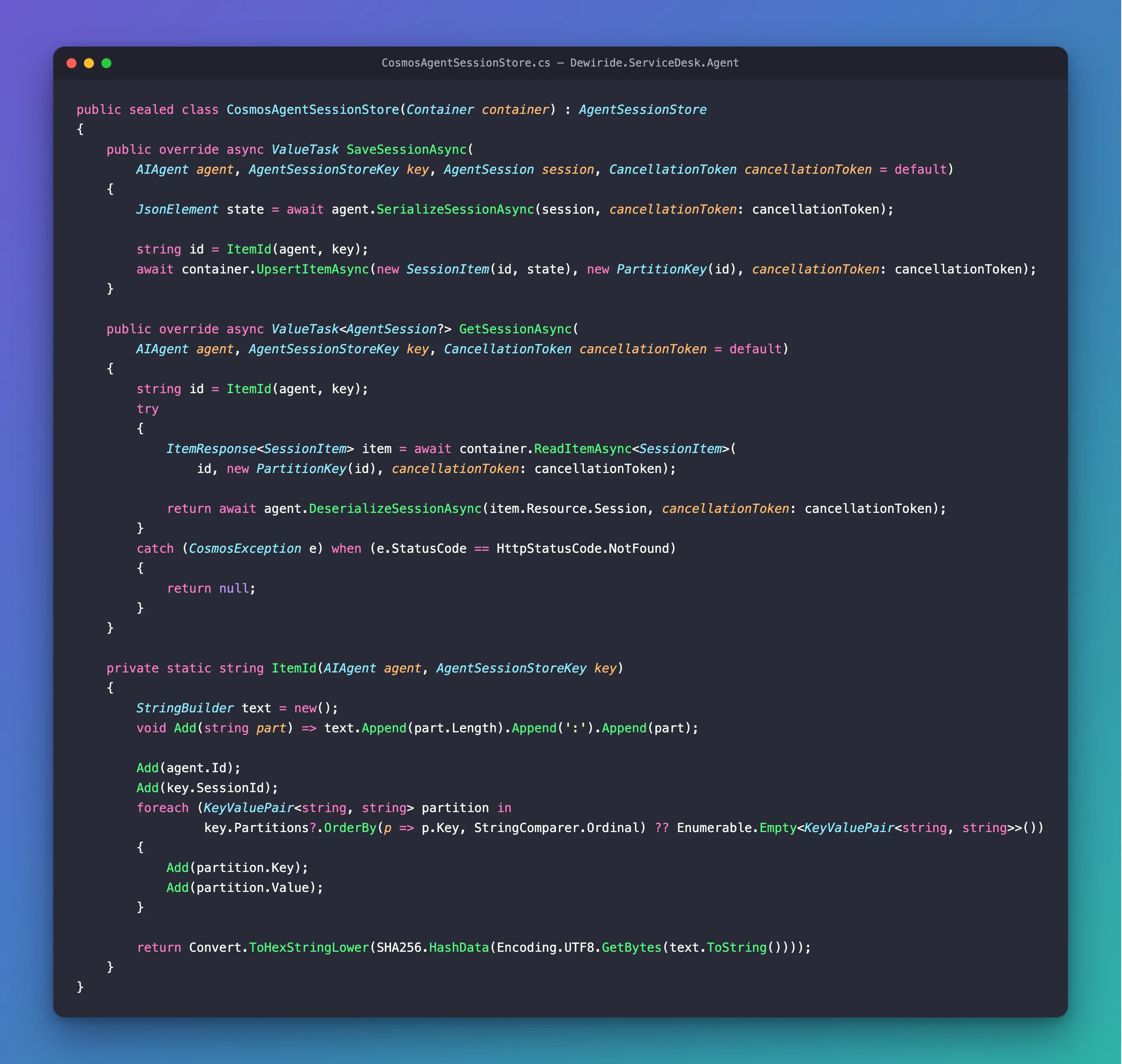
Build now, and the compiler stops at the class:
error MAAI001: 'Microsoft.Agents.AI.AgentSessionStore' is for evaluation purposes only and is subject to change or removal in future updates. Suppress this diagnostic to proceed.
In Agent Framework 1.28, AgentSessionStore and AgentSessionStoreKey are experimental, and using an experimental API is a compile error until you agree to it. There is no other way to give the hosting layer a durable store, so this file agrees, and only this file. Other experimental Agent Framework APIs report MAAI001 too, so suppressing it for the whole project would agree to all of them at once (Fixed).
The complete file:
// AgentSessionStore and AgentSessionStoreKey are experimental in Agent Framework 1.28 (diagnostic MAAI001):
// a later version can change them. This file is the only place the app uses them, so the consent stays here.
#pragma warning disable MAAI001

using System.Net;
using System.Security.Cryptography;
using System.Text;
using System.Text.Json;
using System.Text.Json.Serialization;
using Microsoft.Agents.AI;
using Microsoft.Azure.Cosmos;

namespace Dewiride.ServiceDesk.Agent.Sessions;

/// <summary>
/// Keeps each conversation's <see cref="AgentSession"/> in an Azure Cosmos DB container: one item per
/// conversation. Conversations survive restarts, and every copy of the API sees the same ones.
/// </summary>
public sealed class CosmosAgentSessionStore(Container container) : AgentSessionStore
{
    public override async ValueTask SaveSessionAsync(
        AIAgent agent, AgentSessionStoreKey key, AgentSession session, CancellationToken cancellationToken = default)
    {
        // The agent turns the session into JSON: the Foundry conversation ID, plus any state its providers keep.
        JsonElement state = await agent.SerializeSessionAsync(session, cancellationToken: cancellationToken);

        string id = ItemId(agent, key);
        await container.UpsertItemAsync(new SessionItem(id, state), new PartitionKey(id), cancellationToken: cancellationToken);
    }

    public override async ValueTask<AgentSession?> GetSessionAsync(
        AIAgent agent, AgentSessionStoreKey key, CancellationToken cancellationToken = default)
    {
        string id = ItemId(agent, key);
        try
        {
            ItemResponse<SessionItem> item = await container.ReadItemAsync<SessionItem>(
                id, new PartitionKey(id), cancellationToken: cancellationToken);

            // A new, independent session object on every read, as the hosting layer requires.
            return await agent.DeserializeSessionAsync(item.Resource.Session, cancellationToken: cancellationToken);
        }
        catch (CosmosException e) when (e.StatusCode == HttpStatusCode.NotFound)
        {
            // Nothing stored for this conversation yet: the hosting layer starts a new session.
            return null;
        }
    }

    public override async ValueTask DeleteSessionAsync(
        AIAgent agent, AgentSessionStoreKey key, CancellationToken cancellationToken = default)
    {
        string id = ItemId(agent, key);
        try
        {
            await container.DeleteItemAsync<SessionItem>(id, new PartitionKey(id), cancellationToken: cancellationToken);
        }
        catch (CosmosException e) when (e.StatusCode == HttpStatusCode.NotFound)
        {
            // Already gone.
        }
    }

    /// <summary>
    /// One item ID per agent and conversation: the agent's ID, the session ID and every partition of the key
    /// (with isolation on, that includes the signed-in user). Each part is written as its length, a colon and
    /// its text, so two different keys never produce the same text, and the result is hashed, so the ID fits
    /// Cosmos DB's rules whatever characters the parts contain.
    /// </summary>
    private static string ItemId(AIAgent agent, AgentSessionStoreKey key)
    {
        StringBuilder text = new();
        void Add(string part) => text.Append(part.Length).Append(':').Append(part);

        Add(agent.Id);
        Add(key.SessionId);
        foreach (KeyValuePair<string, string> partition in
                 key.Partitions?.OrderBy(p => p.Key, StringComparer.Ordinal) ?? Enumerable.Empty<KeyValuePair<string, string>>())
        {
            Add(partition.Key);
            Add(partition.Value);
        }

        return Convert.ToHexStringLower(SHA256.HashData(Encoding.UTF8.GetBytes(text.ToString())));
    }

    /// <summary>The item in the container: its ID (also the partition key) and the session's JSON.</summary>
    private sealed record SessionItem(
        [property: JsonPropertyName("id")] string Id,
        [property: JsonPropertyName("session")] JsonElement Session);
}
Step 7: Register the Store
The store needs a CosmosClient, and the client needs the settings and a credential. One extension method puts it all together. Create CosmosSessionStoreExtensions.cs in the Sessions folder:
using System.Text.Json;
using Azure.Core;
using Microsoft.Agents.AI.Hosting;
using Microsoft.Azure.Cosmos;
using Microsoft.Extensions.DependencyInjection;
using Microsoft.Extensions.DependencyInjection.Extensions;
using Microsoft.Extensions.Options;

namespace Dewiride.ServiceDesk.Agent.Sessions;

/// <summary>
/// Keeps the agent's conversations in Azure Cosmos DB, for any host that runs the agent.
/// </summary>
public static class CosmosSessionStoreExtensions
{
    public static IHostedAgentBuilder WithCosmosDbSessionStore(this IHostedAgentBuilder agent)
    {
        // 1. Read the "CosmosDb" settings, and refuse to start if one is missing.
        agent.ServiceCollection.AddOptions<CosmosDbOptions>()
            .BindConfiguration(CosmosDbOptions.SectionName)
            .Validate(cosmos => Uri.TryCreate(cosmos.AccountEndpoint, UriKind.Absolute, out Uri? endpoint)
                    && endpoint.Scheme == Uri.UriSchemeHttps,
                "Set CosmosDb:AccountEndpoint to the URI of your Azure Cosmos DB account.")
            .Validate(cosmos => !string.IsNullOrWhiteSpace(cosmos.DatabaseName),
                "Set CosmosDb:DatabaseName to the name of your database.")
            .Validate(cosmos => !string.IsNullOrWhiteSpace(cosmos.SessionsContainerName),
                "Set CosmosDb:SessionsContainerName to the name of the container that keeps conversations.")
            .ValidateOnStart();

        // 2. One Cosmos DB client for the whole app. It signs in with the same Microsoft Entra ID credential
        //    as the agent - no keys - and stores items with System.Text.Json.
        agent.ServiceCollection.TryAddSingleton(services =>
        {
            CosmosDbOptions cosmos = services.GetRequiredService<IOptions<CosmosDbOptions>>().Value;
            TokenCredential credential = services.GetRequiredService<TokenCredential>();

            return new CosmosClient(cosmos.AccountEndpoint, credential, new CosmosClientOptions
            {
                ApplicationName = "Dewiride.ServiceDesk",
                UseSystemTextJsonSerializerWithOptions = JsonSerializerOptions.Default,
            });
        });

        // 3. The store itself. WithSessionStore keeps isolation on: the hosting layer adds the signed-in
        //    user to every session key before the store sees it.
        return agent.WithSessionStore((services, _) =>
        {
            CosmosDbOptions cosmos = services.GetRequiredService<IOptions<CosmosDbOptions>>().Value;
            Container sessions = services.GetRequiredService<CosmosClient>()
                .GetContainer(cosmos.DatabaseName, cosmos.SessionsContainerName);

            return new CosmosAgentSessionStore(sessions);
        });
    }
}
- The settings are checked when the app starts, as the Foundry settings are: a missing or wrong value stops the API with a clear message, instead of failing at the first message.
- One
CosmosClientfor the whole app. The SDK's guidance is to use a single client for the app's lifetime: each client manages its own connections and caches the addresses it talks to. It signs in with theTokenCredentialthe agent already uses, so on your machine that's your Azure CLI sign-in, fromAZURE_TOKEN_CREDENTIALSin the launch profile.UseSystemTextJsonSerializerWithOptionsstores items with System.Text.Json, the serializer the session JSON comes from. WithSessionStoregives the store to the hosted agent. Its isolation is on by default, so every key reaches the store with the signed-in employee added.
Now use it in the API. In Program.cs, replace the in-memory store from Part 8:
// The Dewiride Service Desk agent, and AG-UI: the protocol that streams its answers.
var serviceDeskAgent = builder.AddServiceDeskAgent();
builder.Services.AddAGUIServer();

// On your machine only: remember each conversation in memory, separately for each user.
// Part 15 stores them durably.
if (builder.Environment.IsDevelopment())
{
    serviceDeskAgent.WithInMemorySessionStore();
}
// The Dewiride Service Desk agent, and AG-UI: the protocol that streams its answers.
// Every conversation is kept in Azure Cosmos DB, separately for each user, so it
// survives restarts and every copy of the API sees it.
var serviceDeskAgent = builder.AddServiceDeskAgent()
    .WithCosmosDbSessionStore();
builder.Services.AddAGUIServer();
The store now works in every environment, not only on your machine: in Azure, the API had no session store at all until now. Add using Dewiride.ServiceDesk.Agent.Sessions; at the top. The complete file:
using Dewiride.ServiceDesk.Agent;
using Dewiride.ServiceDesk.Agent.Sessions;
using Dewiride.ServiceDesk.Api;
using Microsoft.Agents.AI.Hosting;
using Microsoft.Agents.AI.Hosting.AGUI.AspNetCore;
using Microsoft.AspNetCore.Authentication.JwtBearer;
using Microsoft.Identity.Web;

var builder = WebApplication.CreateBuilder(args);

// Health checks answer one question: "is this API up and running?"
builder.Services.AddHealthChecks();

// Sign-in: accept only access tokens that Microsoft Entra ID issued for this API.
builder.Services.AddAuthentication(JwtBearerDefaults.AuthenticationScheme)
    .AddMicrosoftIdentityWebApi(builder.Configuration.GetSection("AzureAd"));

// Permission: the token must also carry the access_as_user scope.
builder.Services.AddAuthorization(options =>
    options.AddPolicy("ServiceDeskUser", policy => policy.RequireScope("access_as_user")));

// Every conversation belongs to the person who signed in: their object ID (the oid claim)
// becomes part of each conversation's key in the session store.
builder.Services.AddHttpContextAccessor();
builder.Services.UseClaimsBasedAgentIsolation(new ClaimsIdentityAgentIsolationKeyProviderOptions
{
    ClaimType = ClaimConstants.ObjectId,
});

// The agent's tools look up the signed-in employee's own records, by the same object ID.
builder.Services.AddSingleton<ICurrentEmployee, SignedInEmployee>();

// The Dewiride Service Desk agent, and AG-UI: the protocol that streams its answers.
// Every conversation is kept in Azure Cosmos DB, separately for each user, so it
// survives restarts and every copy of the API sees it.
var serviceDeskAgent = builder.AddServiceDeskAgent()
    .WithCosmosDbSessionStore();
builder.Services.AddAGUIServer();

var app = builder.Build();

app.MapHealthChecks("/health");
app.MapAGUIServer(serviceDeskAgent, "/api/agents/service-desk")
    .RequireAuthorization("ServiceDeskUser");

app.Run();
Step 8: Give the Agent a Fixed ID
The store keys every conversation by agent.Id, and until now the agent had no ID of its own. Microsoft's reference for AIAgent.Id says: For in-memory agents, this defaults to a randomly-generated ID, and an ID only has to remain stable for the lifetime of the agent instance. The agent from AsAIAgent is such an agent, so every start of the API gives it a new ID.
I found that the hard way. With the store from Step 7 and nothing else, the agent remembered the office while the API ran. After a restart it answered I don't have access to your messages outside this chat, and you haven't mentioned an office here. Data Explorer showed why: one conversation, two items, one written before the restart and one after. The thread and the employee hadn't changed, so the agent's ID had (Fixed).
In ServiceDeskAgentExtensions.cs, give the agent its registered name as its ID:
            return projectClient
                .AsAIAgent(new ChatClientAgentOptions
                {
                    // A fixed ID. Without one, every start gets a new random ID, and the session store,
                    // which keeps each conversation under the agent's ID, can't find yesterday's conversations.
                    Id = name,
                    Name = name,
                    ChatOptions = new ChatOptions
                    {
                        ModelId = foundry.ModelDeployment,
                        Instructions = ServiceDeskInstructions.Text,
                        Tools = tools.AsAITools(),
                    },
                    AIContextProviders = [microsoftLearnTools],
                })
                .AsBuilder()
                .UseLogging()
                .Build(services);
name is service-desk, the name the agent is registered under, so the ID is the same on every start and on every copy of the API. The logging wrapper from Part 3 passes its inner agent's ID through, so the store gets the same ID on every start too.
Step 9: Build and Run
Build the solution from the DewirideServiceDesk folder:
dotnet build
Restore complete (0.4s)
  Dewiride.ServiceDesk.Agent net10.0 succeeded (1.3s) → src/Dewiride.ServiceDesk.Agent/bin/Debug/net10.0/Dewiride.ServiceDesk.Agent.dll
  Dewiride.ServiceDesk.Api net10.0 succeeded (0.1s) → src/Dewiride.ServiceDesk.Api/bin/Debug/net10.0/Dewiride.ServiceDesk.Api.dll
Build succeeded in 1.9s
Start the API and the chat app as in Part 14:
- VS Code
- Visual Studio
In a terminal, in the src/Dewiride.ServiceDesk.Api folder, run:
dotnet run
Make sure http is selected in the drop-down list next to the green Start button (▶), with Dewiride.ServiceDesk.Api as the startup project, and press Ctrl+F5 (Debug → Start Without Debugging).
In a second terminal, in the web/agent-chat-ui folder, run npm run dev, then open http://localhost:3000 and sign in.
Step 10: Continue a Conversation After a Restart
Send Hi! This week I'm working from the Pune office. Which devices do I have? The agent lists your devices, as in Part 10.
Now restart the API: press Ctrl+C in its terminal and run dotnet run again (in Visual Studio, stop it and press Ctrl+F5). Leave the chat page open, so it keeps the same threadId. Then ask Which office did I say I'm working from this week?
The API loaded the conversation from Cosmos DB, and the agent continued it from Foundry. The first answer after a restart takes a few seconds longer: 17.7 seconds in my test, against 11.7 for the first question. A fresh API process gets its first token for Foundry and opens its connection to the Microsoft Learn MCP server before it answers.
Step 11: Approve a Reset After a Restart
Select New chat and send I forgot my password and I'm locked out. Can you reset it? The approval card from Part 14 appears:
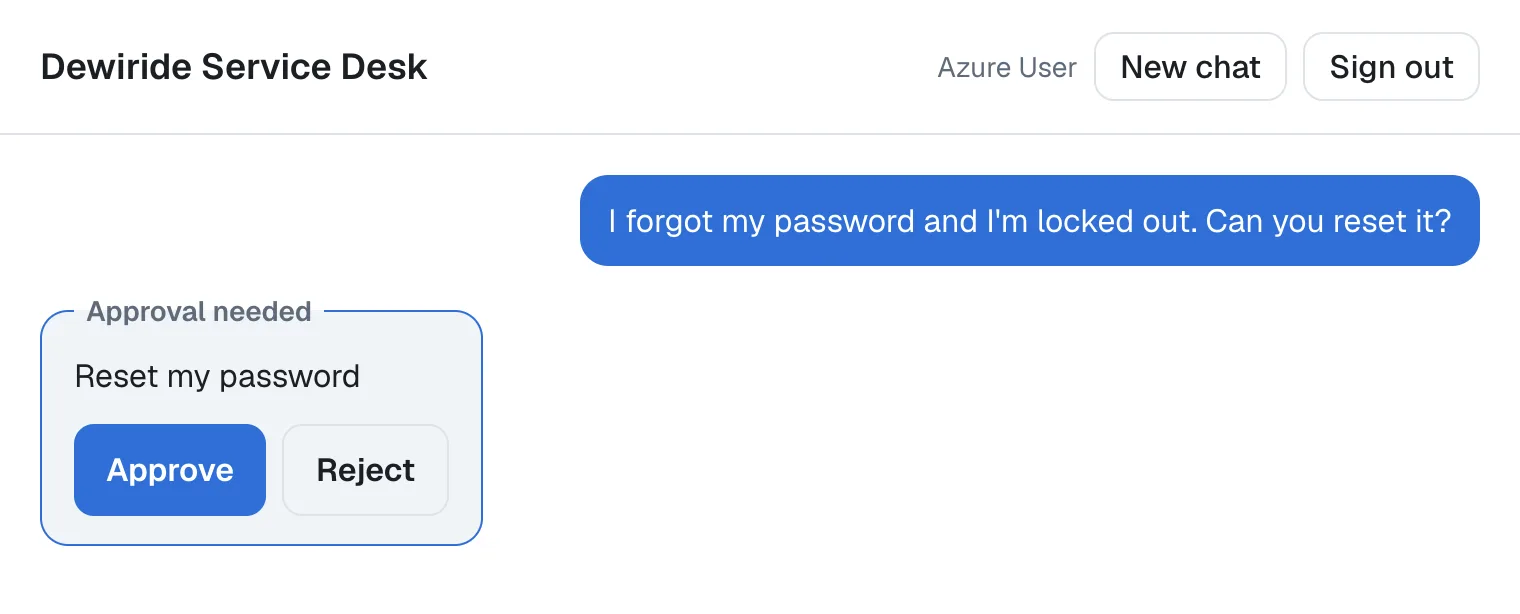
Restart the API while the card waits, then select Approve:
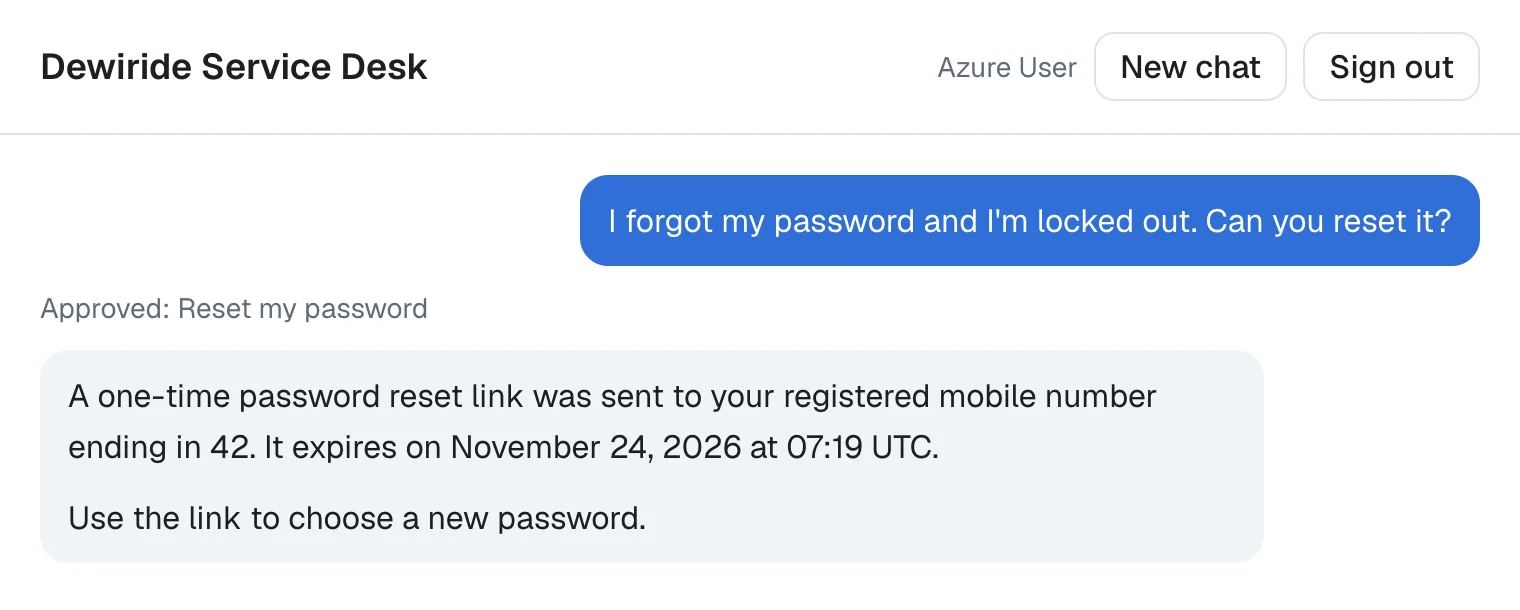
In Part 14, the same steps ended in an error: the restarted API had forgotten the waiting call. Now the call waited in the conversation's item, in _pendingApprovalRequests, and the API found it there.
Step 12: See What the Store Keeps
In the portal, open Data Explorer, expand sessions and select Items. Each conversation is one item, named by its hash. Select one to see it:
session.conversationId: the ID of the conversation's last response in Foundry. It changes after every message, because the next run continues from it.session.stateBag: the state of the agent's providers._pendingApprovalRequestsappears while a card waits and goes away when it's answered.InMemoryChatHistoryProviderstays empty, because Foundry keeps the messages._ts: when the item was last written, in seconds since 1970. The 30 days of the time to live count from here._rid,_self,_etagand_attachmentsare Cosmos DB's own system properties.
The messages themselves aren't in Cosmos DB, so the item stays the same size however long the conversation gets.
Do It with the CLI
The portal steps of Steps 1 and 2 are also Azure CLI commands. To capture their output, I created a second account with the same settings, then deleted it.
Create the account. --capabilities EnableServerless makes it serverless, and --disable-local-auth true turns key-based authentication off:
- bash / zsh
- PowerShell
az cosmosdb create \
    --name cosmos-maf-servicedesk-cli-4224 \
    --resource-group rg-maf-servicedesk \
    --locations regionName=eastus2 failoverPriority=0 isZoneRedundant=False \
    --capabilities EnableServerless \
    --disable-local-auth true \
    --query "{name:name, endpoint:documentEndpoint, keyBasedAuthDisabled:disableLocalAuth, capabilities:capabilities[].name}"
az cosmosdb create `
    --name cosmos-maf-servicedesk-cli-4224 `
    --resource-group rg-maf-servicedesk `
    --locations regionName=eastus2 failoverPriority=0 isZoneRedundant=False `
    --capabilities EnableServerless `
    --disable-local-auth true `
    --query "{name:name, endpoint:documentEndpoint, keyBasedAuthDisabled:disableLocalAuth, capabilities:capabilities[].name}"
{
  "capabilities": [
    "EnableServerless"
  ],
  "endpoint": "https://cosmos-maf-servicedesk-cli-4224.documents.azure.com:443/",
  "keyBasedAuthDisabled": true,
  "name": "cosmos-maf-servicedesk-cli-4224"
}
--locations names the one region, and --query keeps the output to the fields that matter here. Then the database and the container, with the partition key and the time to live:
- bash / zsh
- PowerShell
az cosmosdb sql database create \
    --account-name cosmos-maf-servicedesk-cli-4224 \
    --resource-group rg-maf-servicedesk \
    --name servicedesk \
    --query "{database:name}"

az cosmosdb sql container create \
    --account-name cosmos-maf-servicedesk-cli-4224 \
    --resource-group rg-maf-servicedesk \
    --database-name servicedesk \
    --name sessions \
    --partition-key-path /id \
    --ttl 2592000 \
    --query "{container:name, partitionKey:resource.partitionKey.paths, defaultTtl:resource.defaultTtl}"
az cosmosdb sql database create `
    --account-name cosmos-maf-servicedesk-cli-4224 `
    --resource-group rg-maf-servicedesk `
    --name servicedesk `
    --query "{database:name}"

az cosmosdb sql container create `
    --account-name cosmos-maf-servicedesk-cli-4224 `
    --resource-group rg-maf-servicedesk `
    --database-name servicedesk `
    --name sessions `
    --partition-key-path /id `
    --ttl 2592000 `
    --query "{container:name, partitionKey:resource.partitionKey.paths, defaultTtl:resource.defaultTtl}"
{
  "database": "servicedesk"
}
{
  "container": "sessions",
  "defaultTtl": 2592000,
  "partitionKey": [
    "/id"
  ]
}
The help of az cosmosdb sql database create says its throughput defaults to 400 RU/s, which a serverless account can't have, but without --throughput the command sent none and worked. The role assignment is the command from Step 3.
Your Solution Now Looks Like This
DewirideServiceDesk/
├── Directory.Packages.props                      ← Microsoft.Azure.Cosmos, Newtonsoft.Json
├── src/
│   ├── Dewiride.ServiceDesk.Agent/
│   │   ├── Sessions/
│   │   │   ├── CosmosAgentSessionStore.cs        ← one item per conversation
│   │   │   ├── CosmosDbOptions.cs                ← the account, database and container
│   │   │   └── CosmosSessionStoreExtensions.cs   ← WithCosmosDbSessionStore
│   │   └── ServiceDeskAgentExtensions.cs         ← the agent's fixed ID
│   └── Dewiride.ServiceDesk.Api/
│       ├── appsettings.json                      ← the CosmosDb section
│       └── Program.cs                            ← the durable store, in every environment
└── web/
    └── agent-chat-ui/
Cleanup (Only If You Stop Here)
Later parts keep using this account. If you are stopping here, delete it, with its database, its container and its role assignment:
az cosmosdb delete --name cosmos-maf-servicedesk-4224 --resource-group rg-maf-servicedesk --yes
--yes skips the confirmation. Deleting my CLI test account took 750 seconds, about 12 minutes, and the command waits until it's done. The cleanup from Part 9 still applies too.
Common Mistakes
| Mistake | What happens | Do this instead |
|---|---|---|
| Keeping the default agent ID | Each start gets a new random ID, and the store can't find any conversation saved before the restart | Set Id in ChatClientAgentOptions, as Step 8 does |
| Assuming that Owner of the subscription can read the data | With keys off, every read and write needs a data-plane role, and the account answers Request blocked by Auth | Assign Cosmos DB Built-in Data Contributor with az cosmosdb sql role assignment create |
Giving the role the scope / | The API can read and write every container in the account | Scope it to /dbs/servicedesk/colls/sessions |
| Using the conversation's key as the item ID as it is | Keys can hold characters Cosmos DB doesn't allow in IDs, and the employee's object ID ends up in the item | Hash the parts, as ItemId does |
| Leaving out the partitions when building the ID | Two employees with the same threadId share one conversation | Include every partition, sorted by name |
Suppressing MAAI001 for the whole project | You agree to every Agent Framework API that reports MAAI001, not only the store | Suppress it in the store's file |
| Setting the time to live longer than Foundry keeps responses | The item outlives the conversation it points to | Keep it at 30 days or less |
Naming a --query column id with --output table | The column disappears | Use another name, such as roleDefinitionId (Fixed) |
Troubleshooting
| Symptom | Likely cause | Fix |
|---|---|---|
| The build fails with The Newtonsoft.Json package must be explicitly referenced with version >= 10.0.2 | The Cosmos DB SDK needs Newtonsoft.Json, and doesn't bring it | Add Newtonsoft.Json 13.0.4 (Fixed) |
| The build fails with error MAAI001: 'Microsoft.Agents.AI.AgentSessionStore' is for evaluation purposes only | The store uses an experimental API | Add #pragma warning disable MAAI001 at the top of the store's file (Fixed) |
| Data Explorer says Error while reading container sessions … does not have required RBAC permissions to perform action [Microsoft.DocumentDB/databaseAccounts/readMetadata] | Your account has no data-plane role | Step 3 (Fixed) |
The chat fails, and the API's console shows CosmosException … Forbidden (403); Substatus: 5301 … on resource [dbs/servicedesk/colls/…] | No role on that container: either the role is missing, or a setting names another container, which the role's scope doesn't cover | Check CosmosDb:DatabaseName and CosmosDb:SessionsContainerName, then the role assignment |
| The agent forgets the conversation after a restart, and Data Explorer shows a new item for the same conversation | The agent's ID changes on every start | Step 8 (Fixed) |
| The API stops at startup with Set CosmosDb:AccountEndpoint to the URI of your Azure Cosmos DB account. | The CosmosDb section is missing or the URI isn't an https address | Add the section from Step 5 |
Frequently Asked Questions
Why not keep the whole chat history in Cosmos DB?
Agent Framework has a provider for that, CosmosChatHistoryProvider, in the Microsoft.Agents.AI.CosmosNoSql package. Its documentation says a chat history provider is only relevant for scenarios where the underlying AI service that the agent is using does not use in-service chat history storage. Foundry keeps the conversation: each run continues from the previous response's ID, so the session only needs that ID.
Can two copies of the API serve one conversation?
Yes. Each request reads the conversation from Cosmos DB before the run and writes it after, so any copy can take the next message. If two requests ran on the same conversation at the same moment, the one that finished last would win. The chat sends one message at a time, so that doesn't happen.
Is the conversation still private to the employee?
Yes. The employee's object ID is part of every key, as it was with the in-memory store, so another employee who sends the same threadId gets their own conversation. The item's ID is a hash, so the object ID isn't stored in plain text.
What happens to a conversation after 30 days?
Cosmos DB deletes its item, and the next message with that threadId starts a new conversation. Foundry's stored responses expire after 30 days by default too, so the item and what it points to go together.
Conclusion
The API now keeps its conversations in Azure Cosmos DB. A serverless account with key-based authentication off holds one item per conversation, which expires 30 days after the conversation's last message. CosmosAgentSessionStore writes each AgentSession as JSON under a hash of the agent's ID, the conversation's ID and the signed-in employee. It signs in with Microsoft Entra ID through a data-plane role scoped to one container, and WithSessionStore keeps each employee's conversations apart. With a fixed ID, the agent finds its conversations after a restart, and a password reset waiting for approval can be approved whenever the employee comes back.
The agent remembers what was said in a conversation, but nothing about the employee from one conversation to the next. Next: Part 16: Memory That Knows the Employee (coming soon) — the agent remembers the employee across conversations.
Additional Resources
- Self-host Agent Framework applications: Persist hosted sessions — what a session holds, writing an
AgentSessionStore, and isolation. - Connect to Azure Cosmos DB for NoSQL using role-based access control and Microsoft Entra ID — turning keys off and assigning data-plane roles.
- Azure Cosmos DB serverless — how serverless accounts are billed, and their limits.
- Time to live in Azure Cosmos DB — how items expire.
- Best practices for the Azure Cosmos DB .NET SDK — one client per app, and the Newtonsoft.Json dependency.
- Use the Azure OpenAI Responses API — how long stored responses are kept.
