Part 12: Connect an MCP Server
The agent knows Dewiride's own systems. Now it learns from someone else's. In this part it connects to the Microsoft Learn MCP server, so it can answer questions about Microsoft products from Microsoft's own documentation, with a link to the page it used. MCP, the Model Context Protocol, is the open standard that makes this possible: the tools come from a server, not from your code.
This is Part 12 of a 23-part series.
- Part 1: Overview, Architecture and Azure Setup
- Part 2: Create a Production-Grade .NET Solution
- Part 3: Your First Agent API with Microsoft Foundry
- Part 4: Multi-Turn Conversations with Sessions
- Part 5: Create a Next.js Chat App for Your Agent
- Part 6: Stream the Agent Through a Trusted Next.js Route Handler
- Part 7: Build a Streaming Chat Page with the AG-UI Client
- Part 8: Secure the Agent API with Microsoft Entra ID
- Part 9: Add Microsoft Entra ID Sign-In to the Next.js Chat App
- Part 10: Give the Agent Enterprise Tools
- Part 11: Let the Agent Create Tickets
- Part 12: Connect an MCP Server (you are here)
- Part 13: Human Approval for Sensitive Actions
- Part 14: Approval Cards in the Chat UI
- Part 15: Persistent Conversations (coming soon)
- Part 16: Memory That Knows the Employee (coming soon)
- Part 17: Guardrails — Keep Secrets Out of the Model (coming soon)
- Part 18: Audit Logs and Observability (coming soon)
- Part 19: Ticket Triage Workflow (coming soon)
- Part 20: Manager Approvals and Checkpoints (coming soon)
- Part 21: Agent Harness — Weekly Problem Report (coming soon)
- Part 22: Deploy to Azure Container Apps (coming soon)
- Part 23: Bring It to Microsoft Teams (coming soon)
By the end of this part, an employee who asks how to move Microsoft Authenticator to a new phone gets Microsoft's own steps and a link to the page they came from. Dewiride's knowledge base still comes first, the searches the agent sends to Microsoft never name the employee, and when Microsoft Learn can't be reached, the agent keeps answering with its own tools. Every step works in VS Code and in Visual Studio; where they differ, the page shows a tab for each. Every output and screenshot on this page is real, captured while building the project.
What You Will Build
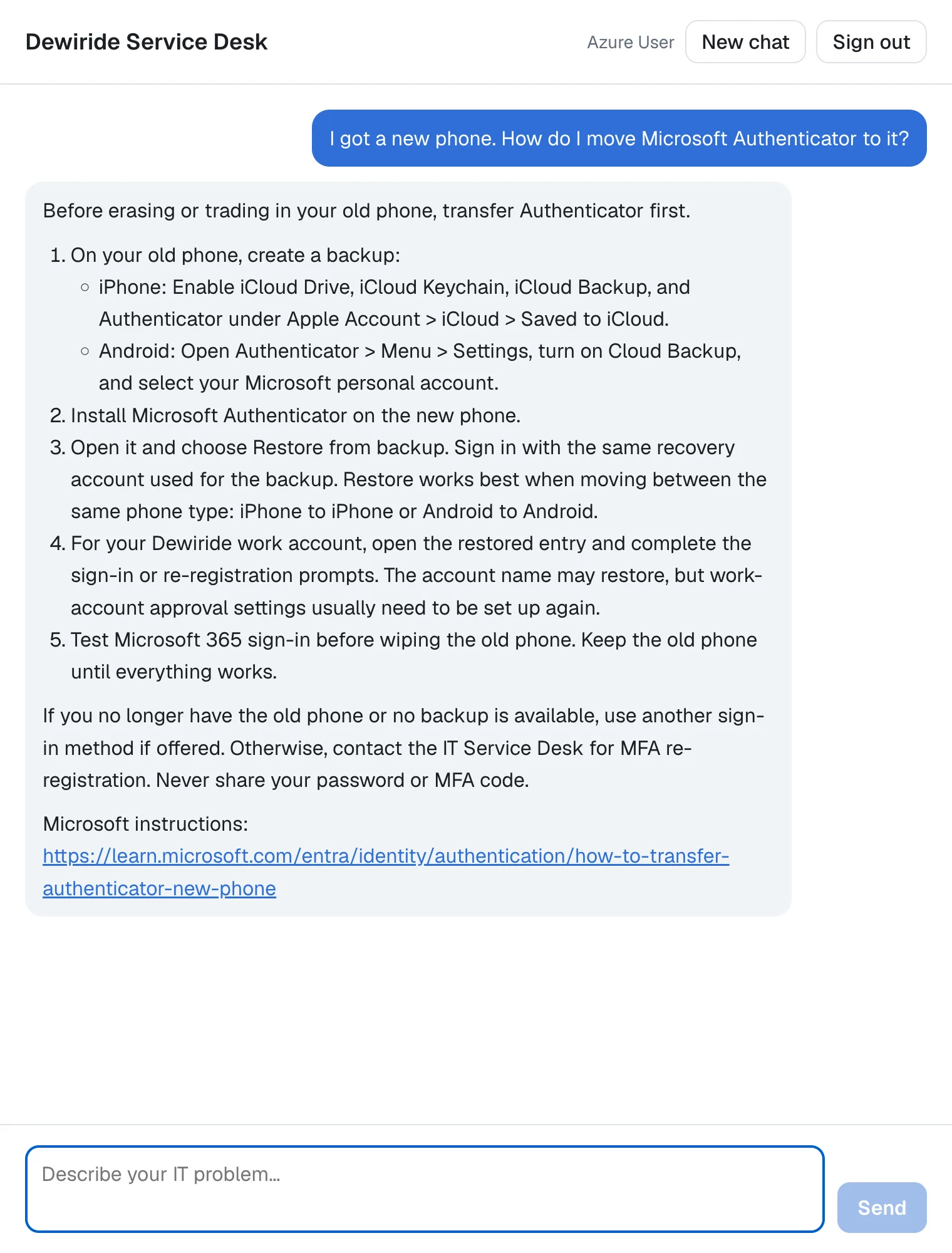
The knowledge base has no article about Authenticator, so the agent searched Microsoft Learn, read the page it found and answered from it. This is how that question travels:
The model decides which tools to call, as in Part 10. What's new is where three of them live: on a server that Microsoft runs, which your API reaches over HTTPS. These are the changes, all in the agent's brain, the API's settings and the .http file:
| Where | What changes |
|---|---|
Directory.Packages.props, Dewiride.ServiceDesk.Agent.csproj | The official MCP C# SDK, ModelContextProtocol.Core 2.4.0 |
Dewiride.ServiceDesk.Agent/MicrosoftLearnOptions.cs (new) | Where the server is, and which protocol version to speak with it |
Dewiride.ServiceDesk.Agent/MicrosoftLearnTools.cs (new) | Connects to the server and gives the agent its read-only tools on every run |
Dewiride.ServiceDesk.Agent/ServiceDeskAgentExtensions.cs | Reads the new settings and attaches the Microsoft Learn tools to the agent |
Dewiride.ServiceDesk.Agent/ServiceDeskInstructions.cs | When to search Microsoft Learn, and what never goes into a search |
Dewiride.ServiceDesk.Api/appsettings.json | The MicrosoftLearn settings |
Dewiride.ServiceDesk.Api.http | Three new requests |
The API's Program.cs and the chat app don't change.
How MCP Works
Tools that come from a server
Microsoft's Agent Framework documentation describes MCP in one sentence: Model Context Protocol is an open standard that defines how applications provide tools and contextual data to large language models (LLMs). An MCP server offers tools. An MCP client, here your API, asks the server which tools it has (a tools/list request) and runs one when the model asks for it (a tools/call request).
To the model, an MCP tool looks exactly like the tools from Part 10: a name, a description and the parameters it can fill in. The difference is what runs when the model calls it. A tool from Part 10 is a C# method inside your API. An MCP tool sends the call over the network to the server, which runs it and sends back the result. The server's owner writes and updates the tools, and every MCP client can use them without writing a line of tool code.
MCP clients reach servers in two standard ways. A stdio server is a program the client starts on the same machine and talks to through its input and output. A Streamable HTTP server is a web service, and the MCP C# SDK's documentation calls it the recommended transport for remote servers. Microsoft Learn's server is a remote one.
The Microsoft Learn MCP server
Microsoft runs an MCP server for its documentation at https://learn.microsoft.com/api/mcp. It has been generally available since 7 November 2025, and its overview page settles the practical questions:
- There's no authentication required to access the Microsoft Learn MCP Server.
- There's no charge to use the MCP server.
- The MCP server contains publicly available documentation, not training or user profile information.
It offers three tools: microsoft_docs_search searches Microsoft's documentation and returns up to ten excerpts, microsoft_docs_fetch returns a whole page, and microsoft_code_sample_search searches code samples. The results come from Microsoft Learn's documentation and also from Microsoft Q&A, the questions and answers on learn.microsoft.com/answers.
One line in the server's developer reference shapes the code in this part: Although the Learn MCP Server provides a public endpoint, it is not an Application Programming Interface (API) in the traditional sense. […] the interface may change dynamically including tools, and their request and response formats. So the API asks the server for its tools every time it connects, instead of copying their names and parameters into C#.
Your API runs the tools, not Foundry
Agent Framework gives you two ways to use an MCP server. Its tools overview names them: hosted MCP tools are MCP servers invoked by the provider runtime, where Microsoft Foundry calls the server for you, and local MCP tools are MCP servers running locally or on custom hosts, where your own code is the client.
This part uses local MCP tools. Your API connects with the official MCP C# SDK, so every call to Microsoft Learn passes through the same code as the tools from Part 10, and the API can choose which tools the agent gets and log what it sends. It also matters for Part 13: Agent Framework's tool approval works with providers whose clients invoke tools locally; service-side hosted tools follow the provider's own approval behavior. In C#, Microsoft's hosted MCP sample also needs an agent that is created and stored in Foundry, while this series creates its agent in code.
What leaves Dewiride
Every search the agent makes is sent to Microsoft. Agent Framework's MCP page warns about MCP servers in general: When you connect to a non-Microsoft service, some of your data (such as prompt content) is passed to the non-Microsoft service, and it recommends that you review all data that's shared with remote MCP servers. The Learn server is Microsoft's own, but the words in a search still leave Dewiride, and the model writes them. So the instructions in Step 5 tell the model to describe problems in general words and never to put names, email addresses, device names or ticket numbers in a search. Step 6 shows a search for a question that names the employee's laptop.
Connected on the first run
The agent from Part 3 is created once, when the API starts, by a method that can't wait for anything. Connecting to an MCP server takes a network call, and a network call can fail. If the API connected while it started, an outage at Microsoft Learn would stop the whole service desk, including the tools that have nothing to do with Microsoft Learn.
Agent Framework has a better place for this: a context provider. It's a class the agent calls at the start of every run, and its documentation says what it's for: Use custom context providers when you need to inject dynamic instructions/messages/tools or extract state after runs. The context provider in this part connects on the first run, keeps the connection for every run after it, and adds the server's tools to the agent's own. When the server can't be reached, it adds nothing: the run goes on with the agent's own tools, and a run a minute later tries again.
That gives the API one simple rule. Wrong settings stop the API when it starts; a server that can't be reached doesn't.
What This Part Costs
No new Azure resources, and the Microsoft Learn MCP server is free. The cost is in tokens. The three tools' names, descriptions and parameters go to the model with every request, like your own tools: Hi! What can you help me with? took 726 input tokens in Part 11 and takes 1,504 now.
A question answered from Microsoft Learn costs more, because the search results and the page the agent reads go to the model too. The Authenticator question in Step 6 took four trips to the model and 18,198 input tokens, 10,004 of them cached, plus 378 output tokens. At the full input price from Part 1, $0.20 per million input tokens and $1.20 per million output tokens, that's about $0.0041. Cached tokens cost a tenth of the input price, so the real cost was closer to $0.0023.
Two things keep that number down. The settings in Step 2 ask the server to cap the size of each search result, and the agent only searches Microsoft Learn when Dewiride's own knowledge base has no answer.
Prerequisites
- The solution and the chat app from Part 11: Let the Agent Create Tickets.
Step 1: Add the MCP C# SDK
The official MCP C# SDK comes in several NuGet packages. Its Getting Started guide explains which one to pick, and for a project that only connects to servers, the first row is the one:
| Package | Use when... |
|---|---|
ModelContextProtocol.Core | You only need the client or low-level server APIs and want the minimum set of dependencies. |
ModelContextProtocol | You're building a client or a stdio-based server and want hosting, dependency injection, and attribute-based tool/prompt/resource discovery. |
ModelContextProtocol.AspNetCore | You're building an HTTP-based MCP server hosted in ASP.NET Core. |
The agent's brain is a client and nothing else, so it gets ModelContextProtocol.Core. Version 2.4.0 is the newest stable release. From the solution root, run:
dotnet add src/Dewiride.ServiceDesk.Agent package ModelContextProtocol.Core --version 2.4.0
dotnet add … package adds a package to a project and downloads it. The important lines of the output:
info : Adding PackageReference for package 'ModelContextProtocol.Core' into project '/Users/you/source/DewirideServiceDesk/src/Dewiride.ServiceDesk.Agent/Dewiride.ServiceDesk.Agent.csproj'.
info : Installed ModelContextProtocol.Core 2.4.0 from https://api.nuget.org/v3/index.json to /Users/you/.nuget/packages/modelcontextprotocol.core/2.4.0 with content hash q98pZMlcxhsh0LpGXcT2ow7sGNveCPhDlJT3zJ7Cz5nNyPmPkm8P57dUIUpzv1w6qWbdSZcR/Z+RbZtNYjEmXQ==.
info : Package 'ModelContextProtocol.Core' is compatible with all the specified frameworks in project '/Users/you/source/DewirideServiceDesk/src/Dewiride.ServiceDesk.Agent/Dewiride.ServiceDesk.Agent.csproj'.
info : PackageReference for package 'ModelContextProtocol.Core' added to '/Users/you/source/DewirideServiceDesk/src/Dewiride.ServiceDesk.Agent/Dewiride.ServiceDesk.Agent.csproj' and PackageVersion added to central package management file '/Users/you/source/DewirideServiceDesk/Directory.Packages.props'.
log  : Restored /Users/you/source/DewirideServiceDesk/src/Dewiride.ServiceDesk.Agent/Dewiride.ServiceDesk.Agent.csproj (in 1.64 sec).
As with every package since Part 2, the version goes into Directory.Packages.props and the project file only names the package. The two new lines:
<PackageVersion Include="ModelContextProtocol.Core" Version="2.4.0" />
<PackageReference Include="ModelContextProtocol.Core" />
The SDK depends on Microsoft.Extensions.AI.Abstractions 10.11.0, the same version Agent Framework 1.28.0 uses, so the two fit together without a conflict.
Step 2: Say Where the Server Is
The API needs two settings: the server's address and the version of the protocol to speak with it. Create MicrosoftLearnOptions.cs in the Dewiride.ServiceDesk.Agent project, next to FoundryOptions.cs (VS Code: right-click the project folder and select New File…; Visual Studio: right-click the project and select Add → Class…), and replace everything in it with:
namespace Dewiride.ServiceDesk.Agent;

/// <summary>
/// Where the Microsoft Learn MCP server is, and which version of the protocol to speak with it.
/// Filled from the "MicrosoftLearn" section of the app's settings.
/// </summary>
public sealed class MicrosoftLearnOptions
{
    public const string SectionName = "MicrosoftLearn";

    /// <summary>The server's MCP endpoint, https://learn.microsoft.com/api/mcp, with optional query settings.</summary>
    public string McpEndpoint { get; set; } = string.Empty;

    /// <summary>The MCP protocol version the server supports, such as 2025-06-18.</summary>
    public string ProtocolVersion { get; set; } = string.Empty;
}
It works like FoundryOptions from Part 3: ASP.NET Core fills the properties from the section of appsettings.json with the same name. Add that section to the end of src/Dewiride.ServiceDesk.Api/appsettings.json. The complete file, with your own IDs where these show 11111111-… and 22222222-…:
{
  "Logging": {
    "LogLevel": {
      "Default": "Information",
      "Microsoft.AspNetCore": "Warning",
      "Microsoft.Identity": "Warning"
    }
  },
  "AllowedHosts": "*",
  "AzureAd": {
    "Instance": "https://login.microsoftonline.com/",
    "TenantId": "11111111-1111-1111-1111-111111111111",
    "ClientId": "22222222-2222-2222-2222-222222222222"
  },
  "Foundry": {
    "ProjectEndpoint": "https://foundry-devblogs-exp.services.ai.azure.com/api/projects/proj-devblogs-exp",
    "ModelDeployment": "gpt-5.6-luna"
  },
  "MicrosoftLearn": {
    "McpEndpoint": "https://learn.microsoft.com/api/mcp?maxTokenBudget=2000",
    "ProtocolVersion": "2025-06-18"
  }
}
Both values are deliberate.
?maxTokenBudget=2000comes from Microsoft's best practices for the Learn server: Append maxTokenBudget to the endpoint URL to cap the token count in search responses. […] Useful when running in agentic loops where each tool call eats into your context window or billing. It shortens search results only; fetch always returns the full page. The server keeps every result's title and link, and leaves out the excerpts that don't fit. In my tests the same search about Authenticator returned 24,847 characters without the budget and 11,632 with it.2025-06-18is the version of the MCP protocol the Learn server speaks today. Without a version, the SDK first tries the newest protocol revision,2026-07-28, by sending aserver/discoverrequest. The Learn server doesn't know that request, so the SDK falls back to the older handshake and logs a warning every time the API connects: Fixed: Request failed for method 'server/discover': Method 'server/discover' is not available (-32601) tells the whole story. With the version set, the SDK skips that probe. The SDK's documentation is clear about the price: the version you set is both the requested version and the minimum the client will accept. If Microsoft ever stops supporting2025-06-18, the connection fails with a clear message in the log, and you update this one setting.
Step 3: Write the Context Provider
Now the class that does the work. Create MicrosoftLearnTools.cs in the Dewiride.ServiceDesk.Agent project, the same way as in Step 2. It's the longest file in this part, so here it is in pieces first, and complete at the end of the step.
A context provider that can be disposed
public sealed class MicrosoftLearnTools(
    IOptions<MicrosoftLearnOptions> options,
    TimeProvider timeProvider,
    ILoggerFactory loggerFactory) : AIContextProvider, IAsyncDisposable
AIContextProvideris Agent Framework's base class for context providers. The agent calls it at the start of every run.IAsyncDisposablelets the class close its connection when the API stops. The API creates one instance and disposes it on shutdown, as Step 4 shows.- The constructor takes three things the API already has: the settings from Step 2, a
TimeProvider(the clock, registered in Part 10) and anILoggerFactory, which creates loggers for this class and for the SDK.
Microsoft's documentation adds one rule for context providers: An AIContextProvider instance is attached to an agent and the same instance would be used for all sessions. This means that the AIContextProvider should not store any session specific state in the provider instance. This one keeps only the connection and the server's tools, which are the same for every employee.
What it keeps
    private static readonly TimeSpan ConnectTimeout = TimeSpan.FromSeconds(10);
    private static readonly TimeSpan RetryDelay = TimeSpan.FromMinutes(1);

    private readonly ILogger logger = loggerFactory.CreateLogger<MicrosoftLearnTools>();
    private readonly SemaphoreSlim connectLock = new(1, 1);

    // One HttpClient for as long as the agent lives. Renewing its connections every two minutes
    // lets it notice when the server's address changes.
    private readonly HttpClient httpClient = new(new SocketsHttpHandler
    {
        PooledConnectionLifetime = TimeSpan.FromMinutes(2),
    });

    private McpClient? client;
    private IReadOnlyList<AITool> tools = [];
    private DateTimeOffset nextAttempt = DateTimeOffset.MinValue;
ConnectTimeoutandRetryDelay. A run waits at most 10 seconds for the server. After a failure, runs don't try again for a minute, so an outage doesn't slow down every message.connectLock. When the first two messages arrive at the same moment, aSemaphoreSlimwith one slot lets only one of them connect. The other waits and then uses that connection.httpClient. The connection lives as long as the API, which can be days. Microsoft's guidelines forHttpClientcover exactly this case: Use astaticor singletonHttpClientinstance withPooledConnectionLifetimeset to the desired interval, such as 2 minutes, depending on expected DNS changes. AnHttpClientonly looks up a server's address when it opens a connection, so renewing connections lets it follow the server if its address changes.client,toolsandnextAttempt. The connection once it exists, the tools the agent gets, and the earliest time to try again after a failure.
Tools at the start of every run
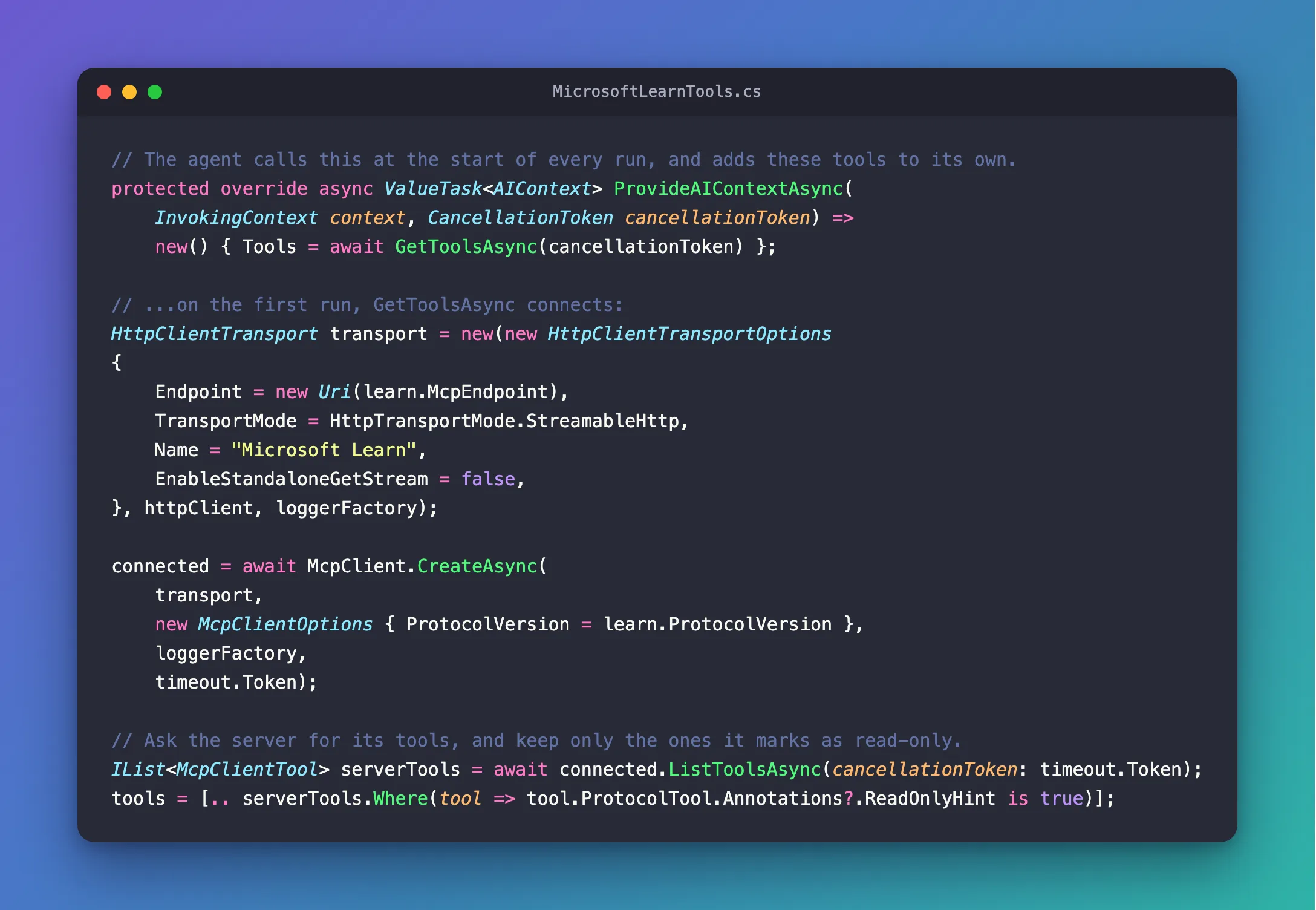
    // The agent calls this at the start of every run, and adds these tools to its own.
    protected override async ValueTask<AIContext> ProvideAIContextAsync(
        InvokingContext context, CancellationToken cancellationToken) =>
        new() { Tools = await GetToolsAsync(cancellationToken) };
ProvideAIContextAsync is the method Agent Framework calls before each run. It returns an AIContext, which can carry instructions, messages and tools; this one carries tools only. Microsoft's documentation describes what happens next: the agent merges the messages, tools and instructions returned by ProvideAIContextAsync with the existing ones, and Messages, tools and instructions are appended to existing ones. So the model sees the four tools from Parts 10 and 11 plus the server's tools, and the tools from Learn don't stay in the conversation: they're added again on every run.
    private async Task<IReadOnlyList<AITool>> GetToolsAsync(CancellationToken cancellationToken)
    {
        await connectLock.WaitAsync(cancellationToken);
        try
        {
            if (client is null && timeProvider.GetUtcNow() >= nextAttempt)
            {
                await ConnectAsync(cancellationToken);
            }

            return tools;
        }
        finally
        {
            connectLock.Release();
        }
    }
Every run takes the lock for a moment. If there's no connection yet, and no failure in the last minute, it connects. Then it returns whatever tools there are: the server's, or none.
Connect, and keep only the read-only tools
            HttpClientTransport transport = new(new HttpClientTransportOptions
            {
                Endpoint = new Uri(learn.McpEndpoint),
                TransportMode = HttpTransportMode.StreamableHttp,
                Name = "Microsoft Learn",

                // The agent only calls tools, so it needs no stream for messages the server sends on its own.
                EnableStandaloneGetStream = false,
            }, httpClient, loggerFactory);

            connected = await McpClient.CreateAsync(
                transport,
                new McpClientOptions { ProtocolVersion = learn.ProtocolVersion },
                loggerFactory,
                timeout.Token);
HttpClientTransportis how the SDK talks to a server over HTTP.TransportMode = HttpTransportMode.StreamableHttpsays which kind of HTTP; without it, the SDK tries Streamable HTTP first and falls back to an older style.Nameappears in the SDK's log lines.EnableStandaloneGetStream = false. By default, the client also keeps a long-running request open so the server can send messages on its own. The SDK's documentation says when to turn it off: Set this tofalsefor servers where the client does not need unsolicited server-to-client messages. The agent only asks and gets answers.- The
HttpClientfrom the field, which the transport borrows. It doesn't own it, so a failed attempt never disposes it, and the next attempt can use it again. McpClient.CreateAsyncconnects: it sends the protocol's first request, agrees on the version, and returns a client.ProtocolVersioncomes from Step 2.timeout.Tokencancels the attempt after the 10 seconds fromConnectTimeout.
            // Ask the server for its tools, and keep only the ones it marks as read-only:
            // a tool that changes something never reaches the agent without a code change.
            IList<McpClientTool> serverTools = await connected.ListToolsAsync(cancellationToken: timeout.Token);
            tools = [.. serverTools.Where(tool => tool.ProtocolTool.Annotations?.ReadOnlyHint is true)];
            client = connected;
ListToolsAsync sends tools/list and returns each tool as an McpClientTool. The SDK's guide explains why that's all the agent needs: McpClientTool inherits from AIFunction, the same type as the tools from Part 10, so the model can call it like any other tool.
The Where is least privilege, the rule from Part 10, applied to someone else's tools. A server can describe each tool with annotations, and readOnlyHint means, in the protocol's own words, If true, the tool does not modify its environment. Microsoft Learn marks all three of its tools as read-only today. If the server ever adds a tool that changes something, or one that says nothing about itself (the default is false), the agent doesn't get it until you decide otherwise.
Annotations are only as trustworthy as the server. The MCP specification says so plainly: For trust & safety and security, clients MUST consider tool annotations to be untrusted unless they come from trusted servers. The SDK's reference goes further: annotations are hints and should not be relied upon for security decisions. So the filter is a safety net, not a wall. It catches a tool that changes something when a server you trust adds one and says so. The wall is the list of servers you connect to, and here that's one: Microsoft's own documentation server.
Log the connection, and survive a failure
            // The server describes itself only if it wants to, so ServerInfo can be null.
            logger.LogInformation(
                "Connected to {Server} over MCP {ProtocolVersion}. Read-only tools: {Tools}.",
                connected.ServerInfo is { } server ? $"{server.Name} {server.Version}" : learn.McpEndpoint,
                connected.NegotiatedProtocolVersion,
                string.Join(", ", tools.Select(tool => tool.Name)));
One line in the API's console says which server answered, which protocol version the two sides agreed on, and which tools the agent got. My first version used connected.ServerInfo.Name directly, and the build warned CS8602: Dereference of a possibly null reference: the SDK declares ServerInfo as nullable, because a server may leave that description out. Fixed: warning CS8602: Dereference of a possibly null reference on McpClient.ServerInfo explains it. The is { } server pattern uses the description when it's there and the endpoint when it isn't.
        catch (Exception exception) when (!cancellationToken.IsCancellationRequested)
        {
            if (connected is not null)
            {
                await connected.DisposeAsync();
            }

            nextAttempt = timeProvider.GetUtcNow() + RetryDelay;
            logger.LogWarning(
                exception,
                "Can't connect to the Microsoft Learn MCP server at {Endpoint}. The agent answers without its tools and tries again in {RetryDelay}.",
                learn.McpEndpoint,
                RetryDelay);
        }
Anything that goes wrong while connecting ends up here: the server is down, the network is gone, the 10 seconds ran out. The when filter leaves out one case. When the employee's own request is canceled, for example because they pressed Stop in the chat, that cancellation isn't a failure of the server, so it goes on to the agent unchanged.
If the client connected but listing its tools failed, DisposeAsync closes it. Then the provider notes when to try again and logs a warning, and GetToolsAsync returns no tools for this run.
Close the connection when the API stops
    public async ValueTask DisposeAsync()
    {
        if (client is not null)
        {
            await client.DisposeAsync();
        }

        httpClient.Dispose();
        connectLock.Dispose();
    }
Disposing the McpClient ends the session with the server. Then the HttpClient and the lock go too.
The complete file
using Microsoft.Agents.AI;
using Microsoft.Extensions.AI;
using Microsoft.Extensions.Logging;
using Microsoft.Extensions.Options;
using ModelContextProtocol.Client;

namespace Dewiride.ServiceDesk.Agent;

/// <summary>
/// Gives the agent the read-only tools of the Microsoft Learn MCP server, on every run.
/// It connects on the first run and keeps the connection. While the server can't be reached,
/// the agent answers without these tools, and a run a minute later tries again.
/// </summary>
public sealed class MicrosoftLearnTools(
    IOptions<MicrosoftLearnOptions> options,
    TimeProvider timeProvider,
    ILoggerFactory loggerFactory) : AIContextProvider, IAsyncDisposable
{
    private static readonly TimeSpan ConnectTimeout = TimeSpan.FromSeconds(10);
    private static readonly TimeSpan RetryDelay = TimeSpan.FromMinutes(1);

    private readonly ILogger logger = loggerFactory.CreateLogger<MicrosoftLearnTools>();
    private readonly SemaphoreSlim connectLock = new(1, 1);

    // One HttpClient for as long as the agent lives. Renewing its connections every two minutes
    // lets it notice when the server's address changes.
    private readonly HttpClient httpClient = new(new SocketsHttpHandler
    {
        PooledConnectionLifetime = TimeSpan.FromMinutes(2),
    });

    private McpClient? client;
    private IReadOnlyList<AITool> tools = [];
    private DateTimeOffset nextAttempt = DateTimeOffset.MinValue;

    // The agent calls this at the start of every run, and adds these tools to its own.
    protected override async ValueTask<AIContext> ProvideAIContextAsync(
        InvokingContext context, CancellationToken cancellationToken) =>
        new() { Tools = await GetToolsAsync(cancellationToken) };

    private async Task<IReadOnlyList<AITool>> GetToolsAsync(CancellationToken cancellationToken)
    {
        await connectLock.WaitAsync(cancellationToken);
        try
        {
            if (client is null && timeProvider.GetUtcNow() >= nextAttempt)
            {
                await ConnectAsync(cancellationToken);
            }

            return tools;
        }
        finally
        {
            connectLock.Release();
        }
    }

    private async Task ConnectAsync(CancellationToken cancellationToken)
    {
        MicrosoftLearnOptions learn = options.Value;
        using CancellationTokenSource timeout = CancellationTokenSource.CreateLinkedTokenSource(cancellationToken);
        timeout.CancelAfter(ConnectTimeout);

        McpClient? connected = null;
        try
        {
            HttpClientTransport transport = new(new HttpClientTransportOptions
            {
                Endpoint = new Uri(learn.McpEndpoint),
                TransportMode = HttpTransportMode.StreamableHttp,
                Name = "Microsoft Learn",

                // The agent only calls tools, so it needs no stream for messages the server sends on its own.
                EnableStandaloneGetStream = false,
            }, httpClient, loggerFactory);

            connected = await McpClient.CreateAsync(
                transport,
                new McpClientOptions { ProtocolVersion = learn.ProtocolVersion },
                loggerFactory,
                timeout.Token);

            // Ask the server for its tools, and keep only the ones it marks as read-only:
            // a tool that changes something never reaches the agent without a code change.
            IList<McpClientTool> serverTools = await connected.ListToolsAsync(cancellationToken: timeout.Token);
            tools = [.. serverTools.Where(tool => tool.ProtocolTool.Annotations?.ReadOnlyHint is true)];
            client = connected;

            // The server describes itself only if it wants to, so ServerInfo can be null.
            logger.LogInformation(
                "Connected to {Server} over MCP {ProtocolVersion}. Read-only tools: {Tools}.",
                connected.ServerInfo is { } server ? $"{server.Name} {server.Version}" : learn.McpEndpoint,
                connected.NegotiatedProtocolVersion,
                string.Join(", ", tools.Select(tool => tool.Name)));
        }
        catch (Exception exception) when (!cancellationToken.IsCancellationRequested)
        {
            if (connected is not null)
            {
                await connected.DisposeAsync();
            }

            nextAttempt = timeProvider.GetUtcNow() + RetryDelay;
            logger.LogWarning(
                exception,
                "Can't connect to the Microsoft Learn MCP server at {Endpoint}. The agent answers without its tools and tries again in {RetryDelay}.",
                learn.McpEndpoint,
                RetryDelay);
        }
    }

    public async ValueTask DisposeAsync()
    {
        if (client is not null)
        {
            await client.DisposeAsync();
        }

        httpClient.Dispose();
        connectLock.Dispose();
    }
}
Step 4: Give the Agent the Microsoft Learn Tools
Open ServiceDeskAgentExtensions.cs in the Dewiride.ServiceDesk.Agent project. Three things change.
First, after the Foundry settings, read the new settings the same way:
        // 2. Read the "MicrosoftLearn" settings the same way. Wrong settings stop the API here;
        //    a server that can't be reached doesn't (see MicrosoftLearnTools).
        builder.Services.AddOptions<MicrosoftLearnOptions>()
            .Bind(builder.Configuration.GetSection(MicrosoftLearnOptions.SectionName))
            .Validate(learn => Uri.TryCreate(learn.McpEndpoint, UriKind.Absolute, out Uri? endpoint)
                    && endpoint.Scheme == Uri.UriSchemeHttps,
                "Set MicrosoftLearn:McpEndpoint to the https address of the Microsoft Learn MCP server.")
            .Validate(learn => !string.IsNullOrWhiteSpace(learn.ProtocolVersion),
                "Set MicrosoftLearn:ProtocolVersion to the MCP protocol version the server supports, such as 2025-06-18.")
            .ValidateOnStart();
ValidateOnStart checks the settings when the API starts, so a missing or wrong value stops it with a message that says what to fix. The endpoint must be a full https address: an http one fails here, before anything is sent.
Second, register the context provider, after the line that registers ServiceDeskTools:
        // 5. The tools of the Microsoft Learn MCP server. One instance for the whole app, so every
        //    run shares one connection; the app disposes it when it stops.
        builder.Services.AddSingleton<MicrosoftLearnTools>();
A singleton is created once and shared by every request. Because the API created it, the API also disposes it when it stops, which calls DisposeAsync from Step 3.
Third, the agent itself. Until now it was created with named arguments such as model: and tools:. That form has no place for context providers, so the agent is now created from a ChatClientAgentOptions object instead:
            return projectClient
                .AsAIAgent(new ChatClientAgentOptions
                {
                    Name = name,
                    ChatOptions = new ChatOptions
                    {
                        ModelId = foundry.ModelDeployment,
                        Instructions = ServiceDeskInstructions.Text,
                        Tools = tools.AsAITools(),
                    },
                    AIContextProviders = [microsoftLearnTools],
                })
                .AsBuilder()
                .UseLogging()
                .Build(services);
The same three things move into the options: the model (ModelId, which this form requires), the instructions and the agent's own four tools. AIContextProviders is the new part: the list of context providers the agent calls at the start of every run. ChatOptions comes from Microsoft.Extensions.AI, so add using Microsoft.Extensions.AI; at the top. The complete file, with the numbered comments renumbered:
using Azure.AI.Projects;
using Azure.Core;
using Azure.Identity;
using Dewiride.ServiceDesk.Agent.Systems;
using Microsoft.Agents.AI;
using Microsoft.Agents.AI.Hosting;
using Microsoft.Extensions.AI;
using Microsoft.Extensions.DependencyInjection;
using Microsoft.Extensions.DependencyInjection.Extensions;
using Microsoft.Extensions.Hosting;
using Microsoft.Extensions.Options;

namespace Dewiride.ServiceDesk.Agent;

/// <summary>
/// Adds the Dewiride Service Desk agent to any .NET host: the API today, a background job and a Teams bot later.
/// The host also registers <see cref="ICurrentEmployee"/>, so the agent's tools know who is signed in.
/// </summary>
public static class ServiceDeskAgentExtensions
{
    /// <summary>The name the agent is registered under.</summary>
    public const string AgentName = "service-desk";

    public static IHostedAgentBuilder AddServiceDeskAgent(this IHostApplicationBuilder builder)
    {
        // 1. Read the "Foundry" settings, and refuse to start if one is missing.
        builder.Services.AddOptions<FoundryOptions>()
            .Bind(builder.Configuration.GetSection(FoundryOptions.SectionName))
            .Validate(foundry => Uri.TryCreate(foundry.ProjectEndpoint, UriKind.Absolute, out _),
                "Set Foundry:ProjectEndpoint to your Foundry project endpoint.")
            .Validate(foundry => !string.IsNullOrWhiteSpace(foundry.ModelDeployment),
                "Set Foundry:ModelDeployment to your model deployment name.")
            .ValidateOnStart();

        // 2. Read the "MicrosoftLearn" settings the same way. Wrong settings stop the API here;
        //    a server that can't be reached doesn't (see MicrosoftLearnTools).
        builder.Services.AddOptions<MicrosoftLearnOptions>()
            .Bind(builder.Configuration.GetSection(MicrosoftLearnOptions.SectionName))
            .Validate(learn => Uri.TryCreate(learn.McpEndpoint, UriKind.Absolute, out Uri? endpoint)
                    && endpoint.Scheme == Uri.UriSchemeHttps,
                "Set MicrosoftLearn:McpEndpoint to the https address of the Microsoft Learn MCP server.")
            .Validate(learn => !string.IsNullOrWhiteSpace(learn.ProtocolVersion),
                "Set MicrosoftLearn:ProtocolVersion to the MCP protocol version the server supports, such as 2025-06-18.")
            .ValidateOnStart();

        // 3. Sign in with Microsoft Entra ID - no API keys. The AZURE_TOKEN_CREDENTIALS
        //    environment variable decides how: your Azure CLI sign-in on your machine,
        //    a managed identity in Azure.
        builder.Services.AddSingleton<TokenCredential>(_ =>
            new DefaultAzureCredential(DefaultAzureCredential.DefaultEnvironmentVariableName));

        // 4. The company's IT systems that the tools read from. These are in-memory samples;
        //    a host that has the real systems registers its own versions first, and those win.
        builder.Services.TryAddSingleton(TimeProvider.System);
        builder.Services.TryAddSingleton<IDeviceInventory, SampleDeviceInventory>();
        builder.Services.TryAddSingleton<ITicketSystem, SampleTicketSystem>();
        builder.Services.TryAddSingleton<IKnowledgeBase, SampleKnowledgeBase>();
        builder.Services.AddSingleton<ServiceDeskTools>();

        // 5. The tools of the Microsoft Learn MCP server. One instance for the whole app, so every
        //    run shares one connection; the app disposes it when it stops.
        builder.Services.AddSingleton<MicrosoftLearnTools>();

        // 6. Register the agent with its tools. It talks to your model through the Foundry project,
        //    gets the Microsoft Learn tools at the start of every run, and logs every run that
        //    fails, so the API's console shows you why.
        return builder.AddAIAgent(AgentName, (services, name) =>
        {
            FoundryOptions foundry = services.GetRequiredService<IOptions<FoundryOptions>>().Value;
            TokenCredential credential = services.GetRequiredService<TokenCredential>();
            ServiceDeskTools tools = services.GetRequiredService<ServiceDeskTools>();
            MicrosoftLearnTools microsoftLearnTools = services.GetRequiredService<MicrosoftLearnTools>();

            AIProjectClient projectClient = new(new Uri(foundry.ProjectEndpoint), credential);

            return projectClient
                .AsAIAgent(new ChatClientAgentOptions
                {
                    Name = name,
                    ChatOptions = new ChatOptions
                    {
                        ModelId = foundry.ModelDeployment,
                        Instructions = ServiceDeskInstructions.Text,
                        Tools = tools.AsAITools(),
                    },
                    AIContextProviders = [microsoftLearnTools],
                })
                .AsBuilder()
                .UseLogging()
                .Build(services);
        });
    }
}
Step 5: Tell the Agent When to Search Microsoft Learn
The tools give the agent the ability. The instructions say when to use it. Open ServiceDeskInstructions.cs and add two lines to the What you can look up and do section, right after the line about knowledge base articles. The complete file:
namespace Dewiride.ServiceDesk.Agent;

/// <summary>
/// The agent's instructions: who it is, what it helps with and the rules it always follows.
/// The model receives them with every request.
/// </summary>
internal static class ServiceDeskInstructions
{
    public const string Text = """
        You are the Dewiride IT Service Desk assistant. You help Dewiride employees with IT questions:
        laptops and phones, software, sign-in and passwords, email and Microsoft Teams, Wi-Fi and VPN,
        printers, and security.

        How you answer:
        - Be friendly, clear and brief.
        - Give fixes as short numbered steps.
        - If a request is unclear, ask one clarifying question first, such as which device or operating system.
        - If you are not sure, say so. Never invent Dewiride policies, ticket numbers or contact details.
        - Write plain text. Do not use Markdown formatting such as ** or #.

        What you can look up and do:
        - Use your tools to look up the employee's own devices and open tickets, and to search the IT knowledge base.
          Look things up instead of guessing, and base your answers on what the tools return.
        - You can only see the records of the employee you are chatting with. If someone asks about another
          person's devices or tickets, explain that you can only see their own.
        - When a knowledge base article fits the problem, follow its steps and mention its number, such as KB0001.
        - For questions about Microsoft products, such as Windows, Microsoft 365, Outlook, Teams, OneDrive and
          Microsoft Authenticator, that the knowledge base doesn't answer, search Microsoft Learn with your
          Microsoft Learn tools. Base your answer on what you find, and give the link to the page you used.
        - Searches of Microsoft Learn leave Dewiride. Describe the problem in general words only: never put names,
          email addresses, device names, ticket numbers or other details about the employee in them.
        - You can raise tickets for the employee you are chatting with. Raise one only when they ask for it or agree
          when you offer it. First check their open tickets: if one already covers the problem, give them its number
          instead of raising another.
        - Write the ticket's title and description from what the employee told you and what your tools found.
          Never invent details. After raising it, give the employee the new ticket's number.

        Rules you always follow:
        - Help only with IT topics. Politely decline anything else and say what you can help with.
        - Never ask for passwords, MFA codes or other secrets. If someone shares one, tell them to change it right away.
        - You can look things up and raise tickets, but you cannot change, close or reassign tickets, or change
          anything else. When a problem needs hands-on help, offer to raise a ticket.
        """;
}
- that the knowledge base doesn't answer keeps Dewiride first. The IT team's own article knows things Microsoft's documentation can't, such as the name of the office Wi-Fi.
- give the link to the page you used lets the employee check the answer, and read more than the agent's summary.
- Describe the problem in general words only is the rule from What leaves Dewiride. It's an instruction, which the model follows well but not with a guarantee. Part 17 adds checks in code.
The instructions don't name the three tools. The server describes them itself, and Microsoft's best practices say not to hardcode them: Fetch the tool list at runtime, pass descriptions to your model, and let it route.
Step 6: Build and Ask from the .http File
From the solution root:
dotnet build
Restore complete (0.7s)
  Dewiride.ServiceDesk.Agent net10.0 succeeded (0.7s) → src/Dewiride.ServiceDesk.Agent/bin/Debug/net10.0/Dewiride.ServiceDesk.Agent.dll
  Dewiride.ServiceDesk.Api net10.0 succeeded (0.2s) → src/Dewiride.ServiceDesk.Api/bin/Debug/net10.0/Dewiride.ServiceDesk.Api.dll

Build succeeded in 1.9s
In Visual Studio, select Build → Build Solution. Then add three requests to Dewiride.ServiceDesk.Api.http, after the requests from Part 11 and before the requests to the chat app's route:
###

# A question about a Microsoft product that the IT knowledge base doesn't answer. The agent searches
# Microsoft Learn: look for TOOL_CALL_START with microsoft_docs_search in the stream.
POST {{baseUrl}}/api/agents/service-desk
Authorization: Bearer {{$dotenv AGENT_API_TOKEN}}
Content-Type: application/json
Accept: text/event-stream

{
  "threadId": "thread-10",
  "runId": "run-1",
  "messages": [
    {
      "id": "message-1",
      "role": "user",
      "content": "I got a new phone. How do I move Microsoft Authenticator to it?"
    }
  ]
}

###

# A problem that the IT knowledge base answers. Dewiride's own article comes first, so the agent
# calls search_knowledge_base and doesn't search Microsoft Learn.
POST {{baseUrl}}/api/agents/service-desk
Authorization: Bearer {{$dotenv AGENT_API_TOKEN}}
Content-Type: application/json
Accept: text/event-stream

{
  "threadId": "thread-11",
  "runId": "run-1",
  "messages": [
    {
      "id": "message-1",
      "role": "user",
      "content": "The office printer shows as offline on my Windows 11 laptop. What should I do?"
    }
  ]
}

###

# A question that names the employee's laptop. The search the agent sends to Microsoft Learn
# describes the problem in general words: look at TOOL_CALL_ARGS of microsoft_docs_search.
POST {{baseUrl}}/api/agents/service-desk
Authorization: Bearer {{$dotenv AGENT_API_TOKEN}}
Content-Type: application/json
Accept: text/event-stream

{
  "threadId": "thread-12",
  "runId": "run-1",
  "messages": [
    {
      "id": "message-1",
      "role": "user",
      "content": "My laptop DW-LT-1001 asks for a BitLocker recovery key after an update. What do I do?"
    }
  ]
}
Get a fresh token into .env with Part 8's commands if yours is older than about an hour. Then start the API:
- VS Code
- Visual Studio
In VS Code's terminal, from the solution root, run:
dotnet run --project src/Dewiride.ServiceDesk.Api
Make sure http is selected in the drop-down list next to the green Start button (▶), with Dewiride.ServiceDesk.Api as the startup project, and press Ctrl+F5 (Debug → Start Without Debugging).
The API starts as before, and nothing about Microsoft Learn appears yet: the provider connects on the first run.
The first run connects
Send the hello request with your token, the second request in the file: Send Request above its POST line in VS Code, Send request in Visual Studio. The answer looks as it did in Part 11. The API's console shows what happened behind it:
info: ModelContextProtocol.Client.McpClient[1434756563]
      Client (Dewiride.ServiceDesk.Api 1.0.0.0) client received server '{"name":"Microsoft Learn MCP Server","version":"1.0.0"}' capabilities: '{"logging":{},"prompts":{"listChanged":true},"resources":{"listChanged":true},"tools":{"listChanged":true}}'.
info: ModelContextProtocol.Client.McpClient[1017245113]
      Client (Dewiride.ServiceDesk.Api 1.0.0.0) client created and connected.
info: Dewiride.ServiceDesk.Agent.MicrosoftLearnTools[0]
      Connected to Microsoft Learn MCP Server 1.0.0 over MCP 2025-06-18. Read-only tools: microsoft_docs_search, microsoft_code_sample_search, microsoft_docs_fetch.
The first two entries come from the SDK, the third from your provider. The server introduced itself as Microsoft Learn MCP Server 1.0.0, the two sides agreed on 2025-06-18, and all three tools passed the read-only check. No warning about server/discover: the version from Step 2 skipped that probe.
A question for Microsoft Learn
Send the first new request, about Microsoft Authenticator. The response, shortened as in Parts 10 and 11: each rawEvent is replaced with {…}, the long results are cut after their first characters, and most text events are replaced with one line:
data: {"type":"RUN_STARTED","threadId":"thread-10","runId":"run-1"}

data: {"type":"REASONING_ENCRYPTED_VALUE","subtype":"message","entityId":"msg_MxJr4flk7m2vCaw4PgamqhJz","encryptedValue":"gAAAAABr…","rawEvent":{…}}

data: {"type":"TOOL_CALL_START","toolCallId":"call_bgsGajGkaSD36B8jrd5uqZ86","toolCallName":"search_knowledge_base","rawEvent":{…}}

data: {"type":"TOOL_CALL_ARGS","toolCallId":"call_bgsGajGkaSD36B8jrd5uqZ86","delta":"{\"query\":\"move Microsoft Authenticator to a new phone\"}","rawEvent":{…}}

data: {"type":"TOOL_CALL_END","toolCallId":"call_bgsGajGkaSD36B8jrd5uqZ86","rawEvent":{…}}

data: {"type":"TOOL_CALL_RESULT","messageId":"call_bgsGajGkaSD36B8jrd5uqZ86","toolCallId":"call_bgsGajGkaSD36B8jrd5uqZ86","content":"[]","rawEvent":{…}}

data: {"type":"REASONING_ENCRYPTED_VALUE","subtype":"message","entityId":"msg_G4uAPAbPmNZjyCde5VzmfAX2","encryptedValue":"gAAAAABr…","rawEvent":{…}}

data: {"type":"TOOL_CALL_START","toolCallId":"call_KodxeFIUDdFSTK1XHxPOuKks","toolCallName":"microsoft_docs_search","rawEvent":{…}}

data: {"type":"TOOL_CALL_ARGS","toolCallId":"call_KodxeFIUDdFSTK1XHxPOuKks","delta":"{\"query\":\"Microsoft Authenticator back up and recover account credentials new phone transfer\"}","rawEvent":{…}}

data: {"type":"TOOL_CALL_END","toolCallId":"call_KodxeFIUDdFSTK1XHxPOuKks","rawEvent":{…}}

data: {"type":"TOOL_CALL_RESULT","messageId":"call_KodxeFIUDdFSTK1XHxPOuKks","toolCallId":"call_KodxeFIUDdFSTK1XHxPOuKks","content":"{\"content\":[{\"type\":\"text\",\"text\":\"{\\u0022results\\u0022:[{\\u0022title\\u0022:\\u0022Transfer Microsoft Authenticator account entries to a new phone…","rawEvent":{…}}

data: {"type":"REASONING_ENCRYPTED_VALUE","subtype":"message","entityId":"msg_FgiL84luTNLfYeNNXCwwu2fF","encryptedValue":"gAAAAABr…","rawEvent":{…}}

data: {"type":"TOOL_CALL_START","toolCallId":"call_A2wp9OYQcD5V11nyaGLb1FzQ","toolCallName":"microsoft_docs_fetch","rawEvent":{…}}

data: {"type":"TOOL_CALL_ARGS","toolCallId":"call_A2wp9OYQcD5V11nyaGLb1FzQ","delta":"{\"url\":\"https://learn.microsoft.com/entra/identity/authentication/how-to-transfer-authenticator-new-phone\"}","rawEvent":{…}}

data: {"type":"TOOL_CALL_END","toolCallId":"call_A2wp9OYQcD5V11nyaGLb1FzQ","rawEvent":{…}}

data: {"type":"TOOL_CALL_RESULT","messageId":"call_A2wp9OYQcD5V11nyaGLb1FzQ","toolCallId":"call_A2wp9OYQcD5V11nyaGLb1FzQ","content":"{\"text\":\"# Transfer Microsoft Authenticator account entries to a new phone\\r\\n\\r\\nMicrosoft Authenticator helps make sign-in more secure and convenien…","rawEvent":{…}}

data: {"type":"TEXT_MESSAGE_START","messageId":"msg_0aac8883…","role":"assistant","name":"service-desk","rawEvent":{…}}

data: {"type":"TEXT_MESSAGE_CONTENT","messageId":"msg_0aac8883…","delta":"Keep","rawEvent":{…}}

data: {"type":"TEXT_MESSAGE_CONTENT","messageId":"msg_0aac8883…","delta":" your","rawEvent":{…}}

data: {"type":"TEXT_MESSAGE_CONTENT","messageId":"msg_0aac8883…","delta":" old","rawEvent":{…}}

… 53 more TEXT_MESSAGE_CONTENT events …

data: {"type":"TEXT_MESSAGE_CONTENT","messageId":"msg_0aac8883…","delta":"-new-phone","rawEvent":{…}}

data: {"type":"TEXT_MESSAGE_END","messageId":"msg_0aac8883…"}

data: {"type":"RUN_FINISHED","threadId":"thread-10","runId":"run-1","outcome":{"type":"success"},"usage":[{"model":"gpt-5.6-luna-2026-07-09","inputTokens":18198,"outputTokens":378,"totalTokens":18576,"reasoningTokens":48,"cachedInputTokens":10004}]}
The agent worked in three rounds:
- It searched Dewiride's knowledge base first, as the instructions ask. The result
[]means no article. - It searched Microsoft Learn.
TOOL_CALL_ARGSshows the words the model chose, in general terms. The result is shortened here: the full one held ten search results, three of them parts of the page Transfer Microsoft Authenticator account entries to a new phone. - It fetched that page with
microsoft_docs_fetchand answered from it.
For AG-UI, an MCP tool is a tool like any other: the same TOOL_CALL_START, TOOL_CALL_ARGS, TOOL_CALL_END and TOOL_CALL_RESULT events as in Part 10. The answer, put together:
Keep your old phone until the new one works.

1. On the old phone, back up Authenticator:
   - iPhone: Enable iCloud Drive, iCloud Keychain, iCloud Backup, and Authenticator under Apple Account > iCloud > Saved to iCloud.
   - Android: Open Authenticator > Settings, turn on Cloud Backup, select the Microsoft personal account for the backup, and tap OK.

2. Install Microsoft Authenticator on the new phone.

3. Open it and choose the option to restore from backup. Use the same recovery account and the same phone type where possible.

4. For your Dewiride work account, open the restored account and sign in again. Seeing “Sign in to add your account” is expected.

5. Test sign-in to email and other work resources before wiping the old phone.

If you cannot restore the backup, or you no longer have the old phone, you may need IT to reset your Authenticator registration. I can raise a ticket if you want.

Microsoft’s guide: https://learn.microsoft.com/entra/identity/authentication/how-to-transfer-authenticator-new-phone
The steps are Microsoft's, the link points to the page they came from, and the offer to raise a ticket is Dewiride's.
Look again at the start of the search result: {"content":[{"type":"text","text":"{"results…. The MCP C# SDK hands the model the server's whole answer. Microsoft Learn returns its results twice in that answer, once as text and once as structured content, which the MCP specification allows: For backwards compatibility, a tool that returns structured content SHOULD also return the serialized JSON in a TextContent block. In this run each copy was about 11,700 characters, so the model read the same ten results twice. That's a large part of the 18,198 input tokens, and the reason for the budget in Step 2.
A question for Dewiride's knowledge base
Send the second new request, about the office printer. This time the stream has one tool call, and it isn't Microsoft Learn's:
data: {"type":"TOOL_CALL_START","toolCallId":"call_JZNjJFlz2DPiJMNBd5xzgNeJ","toolCallName":"search_knowledge_base","rawEvent":{…}}

data: {"type":"TOOL_CALL_ARGS","toolCallId":"call_JZNjJFlz2DPiJMNBd5xzgNeJ","delta":"{\"query\":\"office printer shows offline Windows 11\"}","rawEvent":{…}}

data: {"type":"TOOL_CALL_RESULT","messageId":"call_JZNjJFlz2DPiJMNBd5xzgNeJ","toolCallId":"call_JZNjJFlz2DPiJMNBd5xzgNeJ","content":"[\n  {\n    \"number\": \"KB0005\",\n    \"title\": \"Fix a printer that shows as offline\",\n    \"steps\": [\n      \"Check that the printer is switched on and show…","rawEvent":{…}}
The knowledge base had KB0005, so the agent answered from it and didn't search Microsoft Learn: Try the steps in KB0005, followed by the article's steps. It took 3,403 input tokens, 3,080 of them cached, against more than 18,000 for the question that needed Microsoft Learn.
My first try at this request said only My printer shows as offline. What should I do?, and the agent answered with a question: Are you using a Windows computer, a Mac, or a phone/tablet? The instructions allow one clarifying question for an unclear request, so I named the laptop's operating system in the request.
A question that names the laptop
Send the third new request. The employee wrote My laptop DW-LT-1001 asks for a BitLocker recovery key after an update. The agent called five tools. These are the first two events of each call:
data: {"type":"TOOL_CALL_START","toolCallId":"call_lfpIY4ku3AlTdLmt8wCWkylQ","toolCallName":"get_my_devices","rawEvent":{…}}

data: {"type":"TOOL_CALL_ARGS","toolCallId":"call_lfpIY4ku3AlTdLmt8wCWkylQ","delta":"{}","rawEvent":{…}}

data: {"type":"TOOL_CALL_START","toolCallId":"call_gvEi6qXIJL2zzvXvR0pfq7ou","toolCallName":"get_my_tickets","rawEvent":{…}}

data: {"type":"TOOL_CALL_ARGS","toolCallId":"call_gvEi6qXIJL2zzvXvR0pfq7ou","delta":"{}","rawEvent":{…}}

data: {"type":"TOOL_CALL_START","toolCallId":"call_5tocN3iaqBqmMA3Invb19uhI","toolCallName":"search_knowledge_base","rawEvent":{…}}

data: {"type":"TOOL_CALL_ARGS","toolCallId":"call_5tocN3iaqBqmMA3Invb19uhI","delta":"{\"query\":\"BitLocker recovery key after Windows update\"}","rawEvent":{…}}

data: {"type":"TOOL_CALL_START","toolCallId":"call_UNNSlNhaBirOB8hFV5LoVfnm","toolCallName":"microsoft_docs_search","rawEvent":{…}}

data: {"type":"TOOL_CALL_ARGS","toolCallId":"call_UNNSlNhaBirOB8hFV5LoVfnm","delta":"{\"query\":\"Windows BitLocker recovery key after update find recovery key work or school account\"}","rawEvent":{…}}

data: {"type":"TOOL_CALL_START","toolCallId":"call_AdY0eMkwAXMpv3KdFh0SWs9p","toolCallName":"microsoft_docs_fetch","rawEvent":{…}}

data: {"type":"TOOL_CALL_ARGS","toolCallId":"call_AdY0eMkwAXMpv3KdFh0SWs9p","delta":"{\"url\":\"https://learn.microsoft.com/intune/user-help/security/collect-recovery-key-windows\"}","rawEvent":{…}}
The device name stayed inside Dewiride: the agent used it with its own tools, and the search it sent to Microsoft says Windows BitLocker recovery key after update find recovery key work or school account. The page it fetched is Microsoft's help for getting a BitLocker recovery key from the Intune Company Portal, and the answer named the laptop and gave the Company Portal steps.
Stop the API with Ctrl+C in VS Code's terminal, or close its console window in Visual Studio. In VS Code's terminal, the last lines show the provider closing its connection:
info: Microsoft.Hosting.Lifetime[0]
      Application is shutting down...
info: ModelContextProtocol.Client.McpClient[2103773711]
      Microsoft Learn message processing canceled.
Step 7: Ask in the Chat
Start the API again, start the chat app with npm run dev in web/agent-chat-ui, open http://localhost:3000 and sign in. The chat app doesn't change in this part. Its route from Part 6 still forwards only text and run events, so the calls to Microsoft Learn stay on the server.
Ask I got a new phone. How do I move Microsoft Authenticator to it? The answer at the top of this page arrived after 19 seconds, with the steps and a link the employee can open. The chat shows links as links, which Part 7 set up.
Then select New chat and ask about BitLocker in an employee's own words, without the laptop's name:
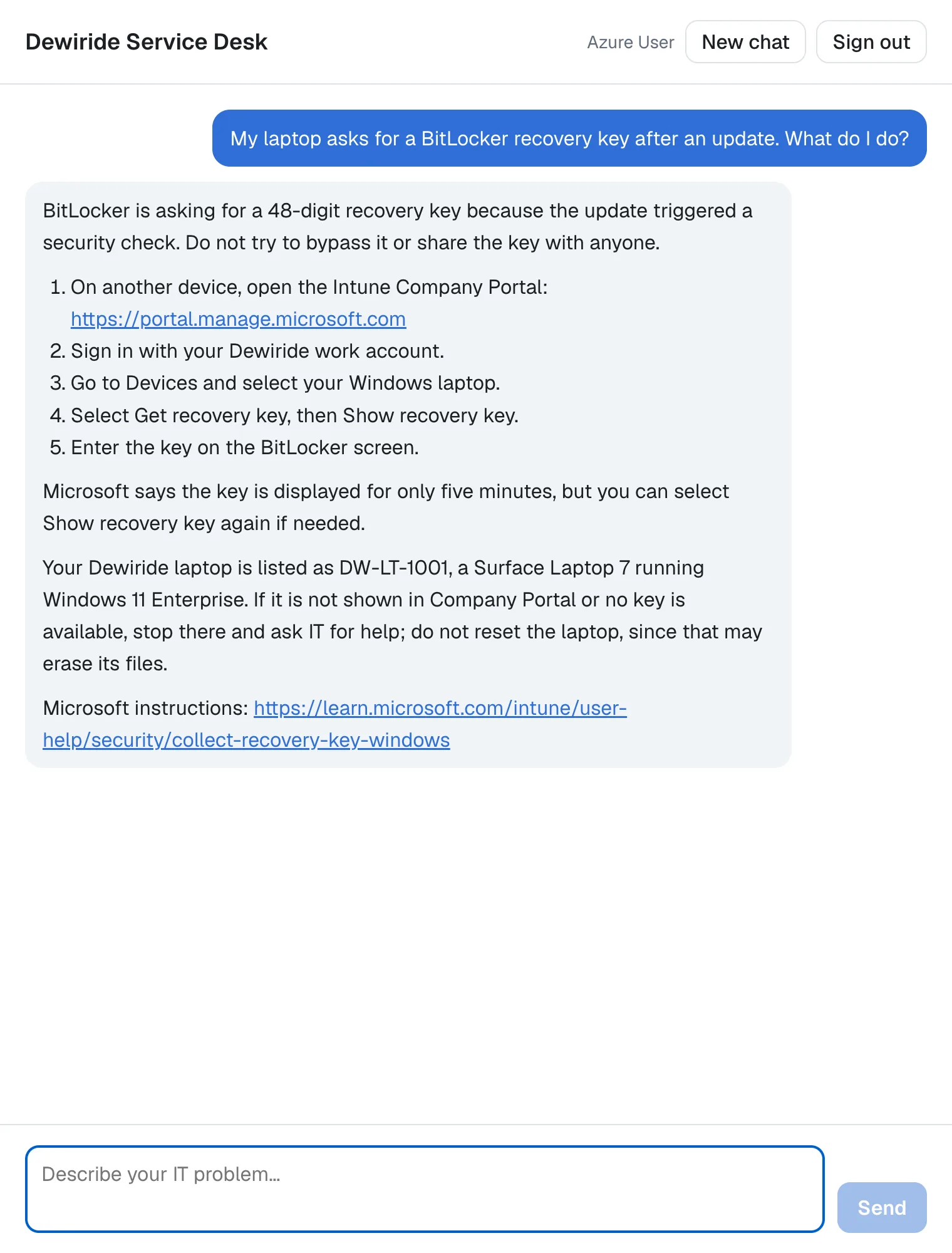
The answer joins both worlds. The steps and the link come from Microsoft Learn, and Your Dewiride laptop is listed as DW-LT-1001, a Surface Laptop 7 comes from get_my_devices. The model wrote it differently from the .http run, as it does every time. To check which tools ran in the chat, where the events don't reach the browser, I started the API with the SDK's log level at Debug for a moment: its console showed two tools/call requests to Microsoft Learn for this question.
Your Solution Now Looks Like This
DewirideServiceDesk/
├── Directory.Packages.props                          + ModelContextProtocol.Core 2.4.0
├── src/
│   ├── Dewiride.ServiceDesk.Agent/
│   │   ├── Systems/                                  unchanged
│   │   ├── CreateTicketResult.cs
│   │   ├── Dewiride.ServiceDesk.Agent.csproj         + ModelContextProtocol.Core
│   │   ├── FoundryOptions.cs
│   │   ├── ICurrentEmployee.cs
│   │   ├── MicrosoftLearnOptions.cs                  new: the server's address and protocol version
│   │   ├── MicrosoftLearnTools.cs                    new: the server's read-only tools, on every run
│   │   ├── ServiceDeskAgentExtensions.cs             the new settings, the provider, the options form
│   │   ├── ServiceDeskInstructions.cs                when to search Microsoft Learn
│   │   └── ServiceDeskTools.cs
│   └── Dewiride.ServiceDesk.Api/
│       ├── appsettings.json                          + MicrosoftLearn
│       ├── Dewiride.ServiceDesk.Api.http             + three requests
│       ├── Program.cs
│       └── SignedInEmployee.cs
└── web/
    └── agent-chat-ui/                                unchanged
Cleanup (Only If You Stop Here)
Continuing to Part 13? Keep everything.
This part created nothing in Azure, and the Microsoft Learn MCP server needs no account, so there is nothing to delete for it. If you are stopping, the cleanup from Part 9 still applies.
Common Mistakes
| Mistake | What happens | Do this instead |
|---|---|---|
| Connecting to the MCP server while the API starts | An outage at the server stops the whole API, including tools that don't need it | Connect on the first run, in a context provider, and go on without the tools when it fails |
Leaving ProtocolVersion empty | Every connection first sends server/discover and logs a warning when the server doesn't support it | Set the version the server speaks, 2025-06-18 for Microsoft Learn today |
| Giving the agent every tool the server lists | A tool that changes something reaches the model as soon as the server adds it | Keep only the tools you mean to allow, here the ones marked read-only |
| Treating the read-only filter as a security boundary | readOnlyHint is the server's own claim, and a bad server can make any claim | Connect only servers you trust; the filter is a safety net on top of that |
| Copying the server's tool names into the instructions or the code | The tools break or vanish when the server renames them | List the tools when you connect, and let their descriptions guide the model |
Using the transport's own HttpClient for a connection that lives for days | It never renews its connections, so it never notices when the server's address changes | Pass one HttpClient with PooledConnectionLifetime set, as Step 3 does |
Using connected.ServerInfo.Name without a check | warning CS8602: Dereference of a possibly null reference | Check for null, as is { } server does |
Troubleshooting
| Symptom | Likely cause | Fix |
|---|---|---|
warn: … request failed for method 'server/discover': Method 'server/discover' is not available. (-32601). when the API connects | ProtocolVersion is missing, so the SDK probes the newest protocol revision first | Set MicrosoftLearn:ProtocolVersion (Fixed) |
OptionsValidationException: Set MicrosoftLearn:McpEndpoint to the https address of the Microsoft Learn MCP server. at startup | The MicrosoftLearn section is missing, or the endpoint isn't a full https address | Add the section from Step 2 |
warn: … Can't connect to the Microsoft Learn MCP server at … | The server can't be reached from your machine, or the endpoint has a typo | Check the address and your network; the agent keeps answering and tries again a minute later |
warning CS8602: Dereference of a possibly null reference in MicrosoftLearnTools.cs | ServerInfo is used without a null check | Step 3 (Fixed) |
No microsoft_docs_search in the stream for a Microsoft question | The knowledge base answered it, the agent asked a clarifying question first, or the server couldn't be reached | Read the answer and the API's console; ask a question the knowledge base doesn't cover |
The .http requests answer 401 Unauthorized | The token in .env expired | Get a fresh one with Part 8's commands |
Frequently Asked Questions
What happens when Microsoft Learn is down?
The agent keeps working without it. To see it, I started the API with the endpoint set to a wrong address. The first run logged the SDK's error and the provider's warning, and still answered:
fail: ModelContextProtocol.Client.McpClient[1155727496]
      Client (Dewiride.ServiceDesk.Api 1.0.0.0) client initialization error.
      System.Net.Http.HttpRequestException: Response status code does not indicate success: 405 (Method Not Allowed). Response body: Method Not Allowed
warn: Dewiride.ServiceDesk.Agent.MicrosoftLearnTools[0]
      Can't connect to the Microsoft Learn MCP server at https://learn.microsoft.com/api/mcp-missing. The agent answers without its tools and tries again in 00:01:00.
A run six seconds later didn't try to connect at all, and the agent answered the Authenticator question with a clarifying question instead of a search. A run after the minute tried again and logged the warning again, because the address was still wrong. When the server can be reached again, that same retry connects, and the tools come back without a restart.
Why doesn't the API connect when it starts?
Because the agent doesn't need Microsoft Learn to do most of its work. Connecting at startup would turn an outage at Microsoft into an outage of the whole service desk, tickets included. Settings are different: a wrong setting is a mistake you can fix, so ValidateOnStart stops the API with a message. The first message after a start waits for the connection: about a second and a half in a small test program I wrote before building this part.
Why pin the protocol version instead of letting the SDK choose?
Two reasons. Without a version, every connection starts with a request the Learn server doesn't understand and a warning in the log. And with a version, the protocol only changes when you change the setting, like the package versions in Directory.Packages.props. The price is that the connection fails if Microsoft drops that version; the warning in the log then says why, and you set a newer one.
Can the agent call Microsoft Learn's tools with anything it likes?
It can only call the tools the provider passed on, with the parameters those tools accept: a search, a page, a code sample search, all of them reading public documentation. That's why least privilege is about which tools you allow, and the read-only filter and the instructions are about what leaves Dewiride.
Can I connect other MCP servers?
Yes, the same way: one context provider per server, each with its own settings and the tools you allow. Review a server before you connect it. Agent Framework's documentation recommends that you rely on servers hosted by trusted service providers themselves rather than proxies, and that you log the data you share with them. A server that needs a key or a token takes it in headers, which HttpClientTransportOptions has a property for; keep such secrets in Azure Key Vault, as Part 1 set up.
Why not let Foundry call the MCP server?
Foundry can, as hosted MCP tools, but then the calls happen inside Foundry instead of your API. In C#, Microsoft's sample also creates an agent that is stored in Foundry, while this series creates its agent in code. Local MCP tools keep every call to the server inside your API, where the approvals of Part 13 and the guardrails of Part 17 can see them.
Conclusion
The agent now uses tools it didn't write. The official MCP C# SDK connects the API to the Microsoft Learn MCP server over Streamable HTTP, and a context provider hands the server's read-only tools to the agent at the start of every run. It connects on the first run, keeps one connection and one HttpClient, and when the server can't be reached it steps aside: the agent answers with its own tools, and a run a minute later tries again. Wrong settings still stop the API at startup. The instructions keep Dewiride's knowledge base first and keep the employee's details out of searches, and the answers come with a link to Microsoft's page.
So far, everything the agent does is safe to do on its own. Next: Part 13: Human Approval for Sensitive Actions — a tool that can do real harm, such as resetting access, and a person who has to approve each call before it runs.
Additional Resources
- Using MCP tools with Agents — local MCP tools in Agent Framework, and the considerations for third-party servers.
- Tools Overview — hosted and local MCP tools, and which tools tool approval works with.
- Context Providers —
AIContextProvider,ProvideAIContextAsyncand how its tools are merged. - Microsoft Learn MCP Server overview — the endpoint, availability and pricing.
- Best practices for using the Microsoft Learn MCP Server — listing tools at runtime, and
maxTokenBudget. - MCP C# SDK: Getting Started — which package to choose, and clients that list and call tools.
- Guidelines for using HttpClient — long-lived clients and
PooledConnectionLifetime. - MCP specification: Tools — tool annotations, and structured content next to text.
