Part 9: Universal Actions: Adaptive Cards That Update
Part 5's cards answered with new messages: every button press added a message to the chat, and the card stayed as it was. In Teams, a card can do more. Its button can get an answer that replaces the card in place, the same card can show each person a different view, and the agent can bring everyone's copy up to date. Microsoft calls this Universal Actions for Adaptive Cards.
This is Part 9 of the Microsoft 365 Agents SDK Fundamentals, a 26-part series.
- Part 1: Activities and the Activity Protocol
- Part 2: Route Activities with AgentApplication
- Part 3: Turn Events, Error Handling and Middleware
- Part 4: Conversation, User and Turn State
- Part 5: Send Adaptive Cards and Handle Their Actions
- Part 6: Send Proactive Messages
- Part 7: Stream Responses and Show Progress
- Part 8: Run Your Agent in Microsoft Teams
- Part 9: Universal Actions: Adaptive Cards That Update (you are here)
- Part 10: Teams Dialogs (coming soon)
- Part 11: Commands, Suggested Actions and Targeted Messages (coming soon)
- Part 12: Mentions, Rosters and Team Events (coming soon)
- Part 13: Meeting Events (coming soon)
- Part 14: Send and Receive Files (coming soon)
- Part 15: Sign People In with SSO and OAuth (coming soon)
- Part 16: Message Extensions and Link Unfurling (coming soon)
- Part 17: AI Labels, Citations and Feedback (coming soon)
- Part 18: Bring Your Agent to Microsoft 365 Copilot (coming soon)
- Part 19: Store State in Azure Blob Storage and Cosmos DB (coming soon)
- Part 20: Telemetry with OpenTelemetry (coming soon)
- Part 21: Web Chat and Direct Line (coming soon)
- Part 22: Reach People in Slack (coming soon)
- Part 23: Call a Copilot Studio Agent (coming soon)
- Part 24: Agent-to-Agent Communication (coming soon)
- Part 25: Keep Conversation Transcripts (coming soon)
- Part 26: Deploy Your Agent to Azure (coming soon)
By the end of this part you'll know the three ways a card changes in Teams, what Teams sends your agent when someone selects an Action.Execute button, and what your agent can send back. You'll build a poll for a group chat where every person sees their own view of one card, the counts stay current for everyone, and the poll's creator closes it for all.
What Universal Actions Are
Microsoft's overview puts it in one sentence: Universal Actions for Adaptive Cards bring the bot as the common backend for handling actions and introduces a new action type, Action.Execute, which works across apps, such as Teams and Outlook.
Action.Execute is a button like Part 5's Action.Submit: it sends the card's inputs and the button's data to your agent. What differs is how it arrives and what your agent can do with it:
Action.Submit (Part 5) | Action.Execute | |
|---|---|---|
| Arrives as | A message activity, with the values in value | An invoke activity named adaptiveCard/action |
| Route | AdaptiveCards.OnActionSubmit | AdaptiveCards.OnActionExecute |
| The agent answers with | New messages in the chat | An answer to this click: a card that replaces this one, a short message, or an error |
| Who sees the answer | Everyone in the chat | Only the person who selected the button |
What the Agent Gets and What It Sends Back
The invoke's value holds a copy of the button and a trigger:
"value": {
  "action": {
    "type": "Action.Execute",
    "title": "Cake",
    "verb": "vote",
    "data": { "pollId": "0bc158ae", "choice": "Cake" }
  },
  "trigger": "manual"
}
verbis the route's key, as Part 5'sverbwas.AdaptiveCards.OnActionExecute("vote", ...)matches it exactly.datais the button'sdata, plus the card's inputs, if it has any.triggerismanualwhen a person selected the button, andautomaticwhen Teams ran the card's refresh by itself.
Your handler returns an AdaptiveCardInvokeResponse, and the SDK sends it back as the answer to the invoke. Microsoft's Universal Action model lists what the answer can be:
statusCode | type | What the client does |
|---|---|---|
| 200 | application/vnd.microsoft.card.adaptive | Displays the card in place of the current one |
| 200 | application/vnd.microsoft.activity.message | Displays the message |
| 400 | application/vnd.microsoft.error | The request was invalid |
| 401 | application/vnd.microsoft.activity.loginRequest | Asks the person to sign in, which Part 15 covers |
| 500 | application/vnd.microsoft.error | An unexpected error occurred |
You don't build these by hand. AdaptiveCardInvokeResponseFactory has a method for each: AdaptiveCard(json), Message(text), BadRequest(text), InternalError(text) and Login(card).
Three Ways a Card Changes
Universal Actions give a card three ways to change, and a real app uses all three:
| How | Who sees the new card | What starts it |
|---|---|---|
| The answer to a click | Only the person who selected the button | An Action.Execute button |
| A refresh | Only the person the refresh ran for | Teams, automatically, for the people the card lists in refresh.userIds, or anyone, by hand |
| A message update | Everyone, and Teams refreshes it again for the people in userIds | Your agent, with UpdateActivityAsync |
The middle one is how a single message shows each person a different card. A card's refresh property holds an Action.Execute and a list of user IDs. When someone in that list sees the card, Teams invokes that action for them, and shows them the card your agent sends back. Microsoft calls these user-specific views. Everyone not in the list sees the card in the message, the base card.
The last one keeps everyone current. Microsoft's guide to up-to-date cards: This bot message edit triggers an adaptiveCard/action invoke request for all automatic refresh users, to which the bot can respond with the updated user specific card.
Here's one vote in the poll you'll build, from Maya's click to Leo's card catching up:
The Example: Treat Poll
The agent for this part is Treat Poll, and it lives in a Teams group chat. Mention it with poll, and it posts a card: Friday treat, with three buttons, Pizza, Cake and Fruit. Each person sees something different on that one card:
| Who | What their card shows |
|---|---|
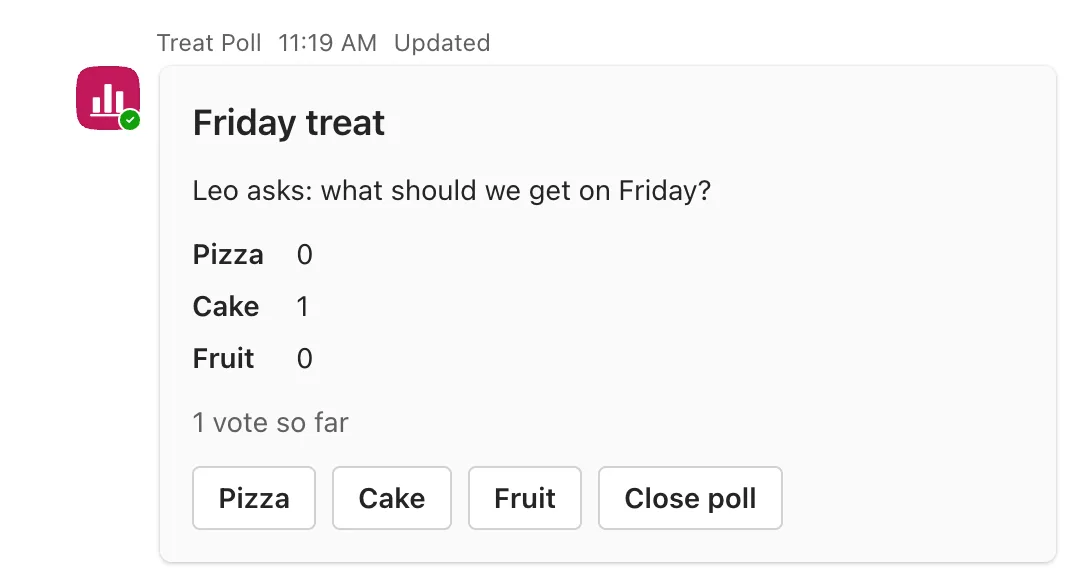
| The person who started the poll | The results so far, the vote buttons, and Close poll |
| Someone who voted | You picked Cake., the count, and the buttons, to change their vote |
| Everyone else | The question, the count and the buttons: the base card |
| Everyone, after Close poll | The winner and the results, with no buttons |
In this page, Leo Martin starts the poll and Maya Patel votes, in a group chat called Friday Treats that also has Olivia Bennett in it. You'll write the code first, in steps, and then run it in Teams and watch each of the three mechanisms happen:
| Step | You add | What you'll see |
|---|---|---|
| 1 | The project, set up like Part 8's | It builds |
| 2 | The poll in conversation state | |
| 3 | The cards: one builder for every view | |
| 4 | The Action.Execute routes | |
| 5 | A tunnel, a bot and an app package | Treat Poll registered in Teams |
| 6–7 | Nothing: run it, and add it to a group chat | A welcome message |
| 8 | Nothing | A poll: Leo's own view, and the base card for Maya |
| 9 | Nothing | Votes: Maya's card replaced, Leo's refreshed, a message answer |
| 10–11 | Nothing | Close poll for everyone, and a refresh by hand |
| 12 | Nothing | An error answer |
Prerequisites
- Part 8, Run Your Agent in Microsoft Teams. This part reuses its setup: a dev tunnel, a Teams-managed bot, the agent's identity, token validation, the outbound host validator, a tenant filter and an app package.
- Two colleagues in your organization, or two test accounts. A group chat needs you and at least two others, and to see a second view of the card, a second person has to open it. This page used three accounts in a developer tenant.
- The Teams developer CLI, signed in, to register the bot in one command.
teams statusshows whether you're signed in. Part 8's Developer Portal route works too.
Cost: nothing in this part needs an Azure subscription, as in Part 8.
Step 1: Create the Project
Create the project the way Part 8 did, with the hosting package and the MSAL package for the agent's identity:
dotnet new web -o TreatPoll
cd TreatPoll
dotnet add package Microsoft.Agents.Hosting.AspNetCore --version 1.9.205
dotnet add package Microsoft.Agents.Authentication.Msal --version 1.9.205
dotnet user-secrets init
The template "ASP.NET Core Empty" was created successfully.
...
info : PackageReference for package 'Microsoft.Agents.Hosting.AspNetCore' version '1.9.205' added to file '/Users/you/source/TreatPoll/TreatPoll.csproj'.
...
info : PackageReference for package 'Microsoft.Agents.Authentication.Msal' version '1.9.205' added to file '/Users/you/source/TreatPoll/TreatPoll.csproj'.
...
Set UserSecretsId to '00000000-0000-0000-0000-000000000000' for MSBuild project '/Users/you/source/TreatPoll/TreatPoll.csproj'.
Then bring over three things from Lunch Picker, unchanged except for the namespace:
AspNetExtensions.cs, the token validation code from Part 8, Step 5.TenantFilterMiddleware.cs, from Part 8, Step 10. Change its first line tonamespace TreatPoll;.appsettings.json, with itsAllowedTenants,TokenValidation,Connections,ConnectionsMapandOutboundHostValidatorsections. Treat Poll doesn't need a typing indicator, so set"StartTypingTimer": false.
Set the two applicationUrl lines in Properties/launchSettings.json to port 3978, as before, and replace Program.cs:
using Microsoft.Agents.Hosting.AspNetCore;
using Microsoft.Agents.Storage;
using TreatPoll;

var builder = WebApplication.CreateBuilder(args);

string[] allowedTenants = builder.Configuration.GetSection("AllowedTenants").Get<string[]>() ?? [];
if (allowedTenants.Length == 0)
{
    throw new InvalidOperationException("Add your Microsoft Entra tenant ID to AllowedTenants in appsettings.json.");
}

builder.AddAgentDefaults()
    .AddAgent<PollAgent>()
    .AddAgentMiddleware(new TenantFilterMiddleware(allowedTenants))
    .AddAgentAuthorization(b => b.AddAgentAspNetAuthentication(), forceEnable: true);
builder.Services.AddSingleton<IStorage, MemoryStorage>();

var app = builder.Build();

app.UseAgents();
app.MapDefaultAgentEndpoints();

app.Run();
It's Part 8's Program.cs with one change: the agent class is PollAgent, which Step 4 writes.
Step 2: Keep the Poll in Conversation State
A poll belongs to the chat it's in, so it goes in conversation state, which Part 4 introduced: in a group chat, everyone's turns share it. Create Poll.cs:
namespace TreatPoll;

// One Friday treat poll. Conversation state keeps every poll in the chat, by its ID.
public class Poll
{
    public string Id { get; set; } = "";

    // The Teams user ID and first name of the person who started the poll.
    public string CreatorId { get; set; } = "";
    public string CreatorName { get; set; } = "";

    // The ID of the chat message that holds the poll's card, so the agent can update it.
    public string? MessageId { get; set; }

    public bool IsClosed { get; set; }

    // Who picked what: a Teams user ID for each person, and the treat they picked.
    public Dictionary<string, string> Votes { get; set; } = [];
}
CreatorIdand the keys ofVotesare Teams user IDs:turnContext.Activity.From.Id, a string that starts with29:. Each person's ID is the same in every turn, so it's how the poll knows who's who, and it's the kind of ID a card'srefresh.userIdslists.Voteskeeps one choice per person, so voting again replaces their earlier vote.
The buttons send small objects in their data. Create PollActions.cs with a record for each shape:
namespace TreatPoll;

// What the card's buttons send back in their data.
public record VoteData(string? PollId, string? Choice);

public record PollData(string? PollId);
As in Part 5, the properties are nullable strings: a card's data is text, and nothing stops an old or hand-made request from leaving a value out.
Step 3: Build the Cards
Every view of the poll comes from one method, given the person it's for. Create PollCards.cs:
using System.Text.Json.Nodes;

namespace TreatPoll;

// Builds every version of the poll's card: the one everyone sees, and the one each person sees.
public static class PollCards
{
    public static readonly string[] Choices = ["Pizza", "Cake", "Fruit"];

    // Teams refreshes a card by itself for at most 60 people.
    private const int MaxAutoRefreshUsers = 60;

    // viewerId is the Teams user ID of the person the card is for, or null for the card everyone sees.
    public static JsonObject PollCard(Poll poll, string? viewerId)
    {
        if (poll.IsClosed)
        {
            return ClosedCard(poll);
        }

        bool isCreator = viewerId == poll.CreatorId;
        string? picked = viewerId is null ? null : poll.Votes.GetValueOrDefault(viewerId);

        JsonArray body = new()
        {
            Text("Friday treat", size: "Large", bold: true),
            Text($"{poll.CreatorName} asks: what should we get on Friday?"),
        };

        if (picked is not null)
        {
            body.Add(Text($"You picked **{picked}**."));
        }

        if (isCreator)
        {
            body.Add(Results(poll));
        }

        body.Add(Text(VoteCount(poll), subtle: true));

        JsonArray actions = new();
        foreach (string choice in Choices)
        {
            actions.Add(Execute(choice, "vote", new JsonObject { ["pollId"] = poll.Id, ["choice"] = choice }));
        }

        if (isCreator)
        {
            actions.Add(Execute("Close poll", "close", new JsonObject { ["pollId"] = poll.Id }));
        }

        return new JsonObject
        {
            ["type"] = "AdaptiveCard",
            ["version"] = "1.5",
            ["refresh"] = new JsonObject
            {
                ["action"] = Execute("Refresh", "refresh", new JsonObject { ["pollId"] = poll.Id }),
                ["userIds"] = RefreshUserIds(poll),
            },
            ["body"] = body,
            ["actions"] = actions,
        };
    }

    private static JsonObject ClosedCard(Poll poll)
    {
        return new JsonObject
        {
            ["type"] = "AdaptiveCard",
            ["version"] = "1.5",
            ["body"] = new JsonArray
            {
                Text("Friday treat: closed", size: "Large", bold: true),
                Text(Winner(poll)),
                Results(poll),
            },
        };
    }

    // The people whose card Teams refreshes by itself: the poll's creator, then everyone who voted.
    private static JsonArray RefreshUserIds(Poll poll)
    {
        JsonArray userIds = new() { poll.CreatorId };
        foreach (string voterId in poll.Votes.Keys)
        {
            if (voterId != poll.CreatorId && userIds.Count < MaxAutoRefreshUsers)
            {
                userIds.Add(voterId);
            }
        }

        return userIds;
    }

    private static JsonObject Results(Poll poll)
    {
        JsonArray facts = new();
        foreach (string choice in Choices)
        {
            facts.Add(new JsonObject { ["title"] = choice, ["value"] = Count(poll, choice).ToString() });
        }

        return new JsonObject { ["type"] = "FactSet", ["facts"] = facts };
    }

    private static string Winner(Poll poll)
    {
        if (poll.Votes.Count == 0)
        {
            return "Nobody voted this time.";
        }

        int most = Choices.Max(choice => Count(poll, choice));
        string[] winners = Choices.Where(choice => Count(poll, choice) == most).ToArray();

        return winners.Length == 1
            ? $"**{winners[0]}** wins with {most} of {poll.Votes.Count} votes."
            : $"It's a tie between {string.Join(" and ", winners)}.";
    }

    private static int Count(Poll poll, string choice) => poll.Votes.Values.Count(picked => picked == choice);

    private static string VoteCount(Poll poll) => poll.Votes.Count == 1 ? "1 vote so far" : $"{poll.Votes.Count} votes so far";

    private static JsonObject Execute(string title, string verb, JsonObject data)
        => new() { ["type"] = "Action.Execute", ["title"] = title, ["verb"] = verb, ["data"] = data };

    private static JsonObject Text(string text, string? size = null, bool bold = false, bool subtle = false)
    {
        JsonObject block = new() { ["type"] = "TextBlock", ["text"] = text, ["wrap"] = true };

        if (size is not null)
        {
            block["size"] = size;
        }

        if (bold)
        {
            block["weight"] = "Bolder";
        }

        if (subtle)
        {
            block["isSubtle"] = true;
        }

        return block;
    }
}
Reading it from the top:
PollCard(poll, viewerId)builds every view. WithviewerId: null, it's the base card, the one the message holds. With a person's ID, it adds what's theirs: You picked … if they voted, and the results and Close poll if they started the poll.- Every button is an
Action.Execute. The vote buttons share the verbvoteand differ only in theirdata, so one route handles all three, and thepollIdin the data says which poll a vote is for. A chat can have several polls at once. refreshis what makes user-specific views work. Itsactionis one moreAction.Execute, with the verbrefresh, and itsuserIdslists the poll's creator and everyone who voted. Those are the people Teams asks your agent about, automatically, whenever they see the card.MaxAutoRefreshUsers: Microsoft's guide says to includeuserIdswith a maximum of 60 (sixty) user MRIs, an MRI being the29:user ID. Past 60, the 61st voter and later still get their own view when they vote, and can refresh by hand.versionis1.5. Microsoft's Teams guide: Universal Actions for Adaptive Cards are introduced in the Adaptive Cards schema version 1.5. To use Adaptive Card effectively, theversionproperty of your Adaptive Card must be set to 1.5.ClosedCardhas norefreshand no buttons: once the poll is closed, everyone sees the same result.
JsonObject and JsonArray build the card in code, as Part 5's confirmation card did, so votes and names can't break its JSON.
Step 4: Handle the Buttons
Create PollAgent.cs. Start with the routes and the two message handlers:
using Microsoft.Agents.Builder;
using Microsoft.Agents.Builder.App;
using Microsoft.Agents.Builder.App.AdaptiveCards;
using Microsoft.Agents.Builder.State;
using Microsoft.Agents.Core.Models;
using Microsoft.Agents.Core.Serialization;

namespace TreatPoll;

public class PollAgent : AgentApplication
{
    private const string PollsKey = "polls";

    private readonly ILogger<PollAgent> _logger;

    public PollAgent(AgentApplicationOptions options, ILogger<PollAgent> logger) : base(options)
    {
        _logger = logger;

        OnConversationUpdate(ConversationUpdateEvents.MembersAdded, WelcomeAsync);
        OnMessage("poll", StartPollAsync);
        AdaptiveCards.OnActionExecute("vote", VoteAsync);
        AdaptiveCards.OnActionExecute("refresh", RefreshAsync);
        AdaptiveCards.OnActionExecute("close", ClosePollAsync);
        OnActivity(ActivityTypes.Message, HelpAsync, rank: RouteRank.Last);
    }

    // When someone adds Treat Poll to a chat, the agent itself is among the members added.
    private async Task WelcomeAsync(ITurnContext turnContext, ITurnState turnState, CancellationToken cancellationToken)
    {
        if (turnContext.Activity.MembersAdded.Any(member => member.Id == turnContext.Activity.Recipient.Id))
        {
            await turnContext.SendActivityAsync(
                "Hi everyone! Mention me with **poll** to start a Friday treat poll.",
                cancellationToken: cancellationToken);
        }
    }

    private async Task StartPollAsync(ITurnContext turnContext, ITurnState turnState, CancellationToken cancellationToken)
    {
        Poll poll = new()
        {
            Id = Guid.NewGuid().ToString("N")[..8],
            CreatorId = turnContext.Activity.From.Id,
            CreatorName = FirstName(turnContext.Activity.From.Name),
        };

        // Everyone in the chat gets the same card: the one with no viewer.
        await turnContext.SendActivityAsync(PollMessage(poll, viewerId: null), cancellationToken);
        SavePoll(turnState, poll);
    }
AdaptiveCards.OnActionExecute(verb, handler)registers a route foradaptiveCard/actioninvokes whose verb matches. The three verbs,vote,refreshandclose, get a handler each.OnMessage("poll", ...)works in a group chat, even though people type@Treat Poll poll. In a group chat, Teams sends your agent only the messages that @mention it, and the text arrives as<at>Treat Poll</at> poll.AgentApplicationremoves the mention of the agent before routing, because itsRemoveRecipientMentionoption istrueunless you turn it off. Part 12 covers mentions.- The welcome goes out when the agent itself is among the members added, which is how a group chat tells your agent it was added.
StartPollAsyncsends the base card and keeps the poll. The creator's own view isn't sent here: Teams asks for it, with a refresh, as soon as the card appears.
Now the vote:
    private async Task<AdaptiveCardInvokeResponse> VoteAsync(ITurnContext turnContext, ITurnState turnState, object data, CancellationToken cancellationToken)
    {
        VoteData vote = ProtocolJsonSerializer.ToObject<VoteData>(data);
        Poll? poll = FindPoll(turnState, vote.PollId);

        if (poll is null)
        {
            return AdaptiveCardInvokeResponseFactory.BadRequest("I can't find this poll anymore.");
        }

        string voterId = turnContext.Activity.From.Id;
        _logger.LogInformation("Vote in poll {PollId} ({Trigger}).", poll.Id, Trigger(turnContext));

        // A closed poll answers every old card with the result.
        if (poll.IsClosed)
        {
            return CardFor(poll, voterId);
        }

        if (vote.Choice is null || !PollCards.Choices.Contains(vote.Choice))
        {
            return AdaptiveCardInvokeResponseFactory.BadRequest("Pick Pizza, Cake or Fruit.");
        }

        if (poll.Votes.GetValueOrDefault(voterId) == vote.Choice)
        {
            return AdaptiveCardInvokeResponseFactory.Message($"You already picked {vote.Choice}.");
        }

        poll.Votes[voterId] = vote.Choice;
        SavePoll(turnState, poll);

        // Update the card everyone shares, so the count is right for everyone.
        await UpdateSharedCardAsync(turnContext, poll, cancellationToken);

        // Replace the voter's own card with their view.
        return CardFor(poll, voterId);
    }
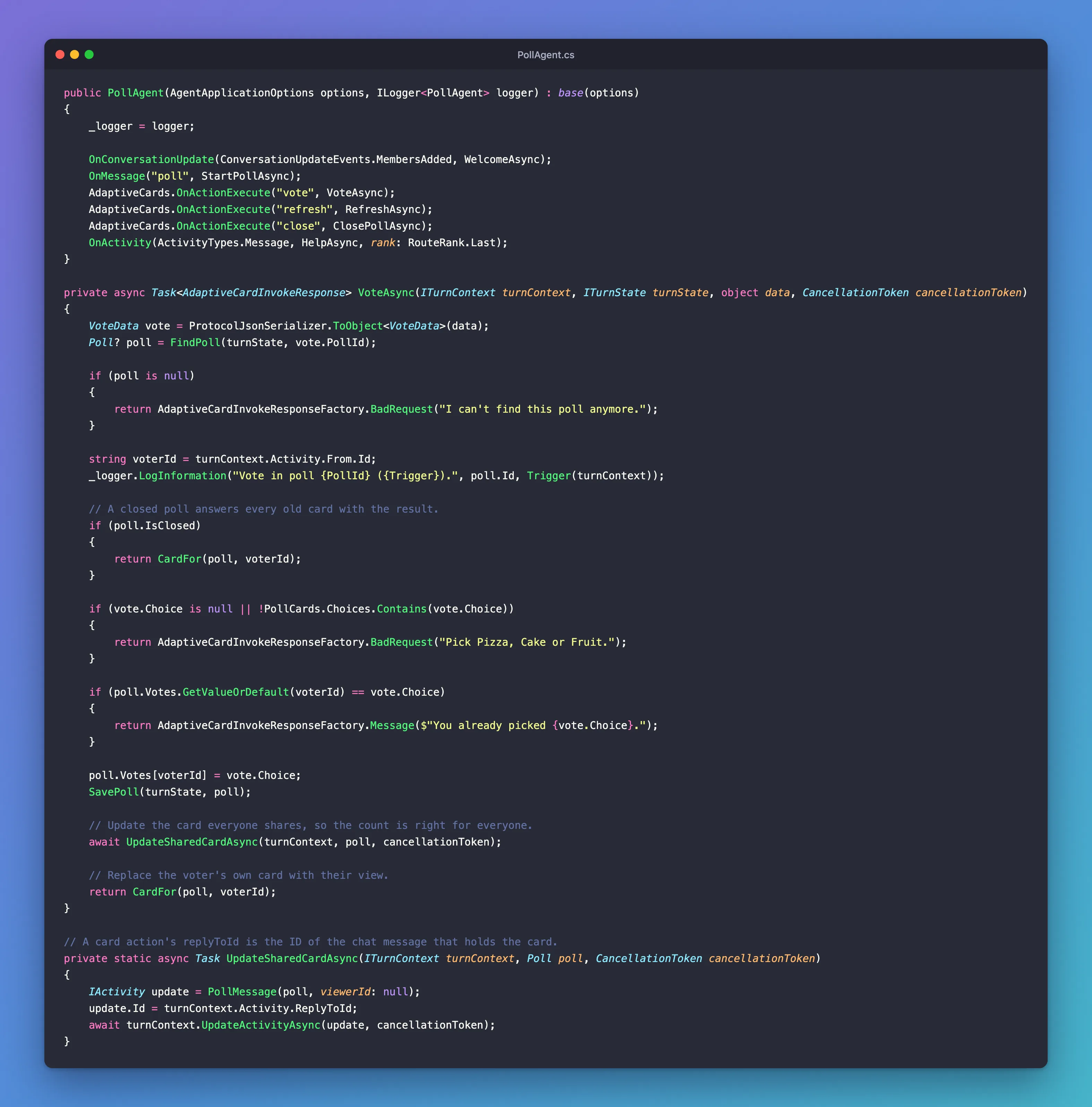
The handler returns its answer instead of sending messages, and each return is one of the answers from the table above:
BadRequestfor a poll the agent doesn't know, or a choice that isn't on the card. The agent checks the choice itself, as Part 5's agent checked its values: a request can be old or made by hand.CardFor(poll, voterId)for a closed poll: an old card someone still had open gets the result.Messagewhen someone picks what they already picked. The card stays as it is.- After a real vote, two things happen.
UpdateSharedCardAsyncchanges the message itself, so everyone gets the new count, and thereturnreplaces the voter's own card with their view.
The other two handlers answer with the person's view of the card:
    private Task<AdaptiveCardInvokeResponse> RefreshAsync(ITurnContext turnContext, ITurnState turnState, object data, CancellationToken cancellationToken)
    {
        PollData request = ProtocolJsonSerializer.ToObject<PollData>(data);
        Poll? poll = FindPoll(turnState, request.PollId);

        if (poll is null)
        {
            return Task.FromResult(AdaptiveCardInvokeResponseFactory.BadRequest("I can't find this poll anymore."));
        }

        string viewerId = turnContext.Activity.From.Id;
        _logger.LogInformation("Refresh of poll {PollId} for {Viewer} ({Trigger}).", poll.Id, Role(poll, viewerId), Trigger(turnContext));

        return Task.FromResult(CardFor(poll, viewerId));
    }

    private async Task<AdaptiveCardInvokeResponse> ClosePollAsync(ITurnContext turnContext, ITurnState turnState, object data, CancellationToken cancellationToken)
    {
        PollData request = ProtocolJsonSerializer.ToObject<PollData>(data);
        Poll? poll = FindPoll(turnState, request.PollId);

        if (poll is null)
        {
            return AdaptiveCardInvokeResponseFactory.BadRequest("I can't find this poll anymore.");
        }

        string viewerId = turnContext.Activity.From.Id;
        _logger.LogInformation("Close of poll {PollId} by {Viewer} ({Trigger}).", poll.Id, Role(poll, viewerId), Trigger(turnContext));

        if (viewerId != poll.CreatorId)
        {
            return AdaptiveCardInvokeResponseFactory.BadRequest("Only the person who started the poll can close it.");
        }

        poll.IsClosed = true;
        SavePoll(turnState, poll);
        await UpdateSharedCardAsync(turnContext, poll, cancellationToken);

        return CardFor(poll, viewerId);
    }
RefreshAsyncchanges nothing: it answers with the card for whoever Teams asked about, whether that's the creator, a voter, or someone else.ClosePollAsyncchecks that the person closing is the creator. Only the creator's card has the button, but the agent doesn't rely on that. Then it closes the poll, updates the message for everyone, and answers with the closed card.
Last, the helpers:
    private Task HelpAsync(ITurnContext turnContext, ITurnState turnState, CancellationToken cancellationToken)
        => turnContext.SendActivityAsync("Mention me with **poll** to start a Friday treat poll.", cancellationToken: cancellationToken);

    // A card action's replyToId is the ID of the chat message that holds the card.
    private static async Task UpdateSharedCardAsync(ITurnContext turnContext, Poll poll, CancellationToken cancellationToken)
    {
        IActivity update = PollMessage(poll, viewerId: null);
        update.Id = turnContext.Activity.ReplyToId;
        await turnContext.UpdateActivityAsync(update, cancellationToken);
    }

    private static IActivity PollMessage(Poll poll, string? viewerId)
        => MessageFactory.Attachment(new Attachment { ContentType = ContentTypes.AdaptiveCard, Content = PollCards.PollCard(poll, viewerId) });

    private static AdaptiveCardInvokeResponse CardFor(Poll poll, string viewerId)
        => AdaptiveCardInvokeResponseFactory.AdaptiveCard(PollCards.PollCard(poll, viewerId).ToJsonString());

    private static Dictionary<string, Poll> Polls(ITurnState turnState)
        => turnState.Conversation.GetValue<Dictionary<string, Poll>>(PollsKey, () => []);

    private static Poll? FindPoll(ITurnState turnState, string? pollId)
        => pollId is not null && Polls(turnState).TryGetValue(pollId, out Poll? poll) ? poll : null;

    private static void SavePoll(ITurnState turnState, Poll poll)
    {
        Dictionary<string, Poll> polls = Polls(turnState);
        polls[poll.Id] = poll;
        turnState.Conversation.SetValue(PollsKey, polls);
    }

    // "manual" when someone selected a button, "automatic" when Teams refreshed the card by itself.
    private static string? Trigger(ITurnContext turnContext)
        => ProtocolJsonSerializer.ToObject<AdaptiveCardInvokeValue>(turnContext.Activity.Value)?.Trigger;

    private static string Role(Poll poll, string viewerId)
        => viewerId == poll.CreatorId ? "the creator" : poll.Votes.ContainsKey(viewerId) ? "a voter" : "someone who hasn't voted";

    // Teams sends the person's display name, such as "Leo Martin"; use the first word.
    private static string FirstName(string? name)
        => string.IsNullOrWhiteSpace(name) ? "Someone" : name.Split(' ', StringSplitOptions.RemoveEmptyEntries)[0];
}
UpdateSharedCardAsyncis the message update. An invoke from a card carries the ID of the message that holds the card in itsreplyToId, so the update takes that ID, andUpdateActivityAsyncfills in the rest of the address from the turn.CardForwraps a card in the answer withAdaptiveCardInvokeResponseFactory.AdaptiveCard, which takes the card's JSON as a string.Triggerreads the invoke'striggerfor the log, so you can see which invokes people started and which Teams started.
Build it:
dotnet build
Restore complete (0.3s)
  TreatPoll net10.0 succeeded (0.2s) → bin/Debug/net10.0/TreatPoll.dll

Build succeeded in 0.9s
Step 5: Register Treat Poll in Teams
Treat Poll needs the same three things Lunch Picker got in Part 8: a public address, a bot registration and an app package.
A dev tunnel that keeps its address, as in Part 8, Step 2. In a second terminal:
devtunnel create treat-poll --allow-anonymous
devtunnel port create treat-poll -p 3978
devtunnel host treat-poll
Connection to host tunnel relay restored.
Hosting port: 3978
Connect via browser: https://fgct6gfs-3978.inc1.devtunnels.ms
Inspect network activity: https://fgct6gfs-3978-inspect.inc1.devtunnels.ms

Ready to accept connections for tunnel: treat-poll.inc1
A bot, registered with the Teams developer CLI in a third terminal, the route from How to Register a Bot with the Teams Developer CLI. Use your tunnel's address, and keep the credentials in a file outside the project:
teams app create --name "Treat Poll" --endpoint "https://fgct6gfs-3978.inc1.devtunnels.ms/api/messages" --env ./treatpoll.json --color-icon color.png --outline-icon outline.png
- Acquiring tokens...
✔ Tokens acquired
- Creating Azure AD app...
✔ Created Azure AD app (00000000-0000-0000-0000-000000000000)
- Generating client secret...
✔ Generated client secret
- Creating Teams app...
✔ Created Teams app (00000000-0000-0000-0000-000000000000)
- Registering bot...
✔ Bot registered

App created successfully!
Name: Treat Poll
Teams App ID: 00000000-0000-0000-0000-000000000000
Bot ID: 00000000-0000-0000-0000-000000000000
Endpoint: https://fgct6gfs-3978.inc1.devtunnels.ms/api/messages

  ▸ Install in Teams    → https://teams.microsoft.com/l/app/00000000-0000-0000-0000-000000000000?installAppPackage=true&appTenantId=11111111-1111-1111-1111-111111111111
  ▸ Developer Portal    → https://dev.teams.microsoft.com/apps/00000000-0000-0000-0000-000000000000
Credentials written to ./treatpoll.json
The file holds a Teams section with ClientId, ClientSecret and TenantId. The CLI used one ID for everything: the bot ID, the Teams app ID and the Entra app's client ID are the same.
The agent's identity. This page kept every value in user secrets, not only the client secret as Part 8 did, so appsettings.json keeps its placeholders. Back in Terminal 1, with the values from the file:
dotnet user-secrets set "Connections:ServiceConnection:Settings:ClientId" "<bot ID>"
dotnet user-secrets set "Connections:ServiceConnection:Settings:ClientSecret" "<client secret>"
dotnet user-secrets set "Connections:ServiceConnection:Settings:AuthorityEndpoint" "https://login.microsoftonline.com/<tenant ID>"
dotnet user-secrets set "TokenValidation:Audiences:0" "<bot ID>"
dotnet user-secrets set "TokenValidation:TenantId" "<tenant ID>"
dotnet user-secrets set "AllowedTenants:0" "<tenant ID>"
Then delete treatpoll.json: the secret shouldn't sit in a file.
An app package with the bot ID in two places. Two things differ from Lunch Picker's manifest: the name, and the bot's scopes, which are only groupChat:
{
  "$schema": "https://developer.microsoft.com/json-schemas/teams/v1.30/MicrosoftTeams.schema.json",
  "manifestVersion": "1.30",
  "version": "1.0.0",
  "id": "22222222-2222-2222-2222-222222222222",
  "developer": {
    "name": "Contoso",
    "websiteUrl": "https://www.example.com",
    "privacyUrl": "https://www.example.com/privacy",
    "termsOfUseUrl": "https://www.example.com/terms"
  },
  "name": {
    "short": "Treat Poll",
    "full": "Treat Poll"
  },
  "description": {
    "short": "Votes on the team's Friday treat.",
    "full": "Mention Treat Poll with poll in a group chat, and everyone votes on the Friday treat on one card that updates as they vote. A sample agent built with the Microsoft 365 Agents SDK."
  },
  "icons": {
    "color": "color.png",
    "outline": "outline.png"
  },
  "accentColor": "#C2185B",
  "bots": [
    {
      "botId": "22222222-2222-2222-2222-222222222222",
      "scopes": [
        "groupChat"
      ],
      "supportsFiles": false,
      "isNotificationOnly": false
    }
  ]
}
Put your bot ID in id and botId, add a 192×192 color.png and a 32×32 outline.png, and zip the three files, as in How to Create a Teams App Package for a Bot.
Step 6: Run the Agent
In Terminal 1:
dotnet run
Using launch settings from /Users/you/source/TreatPoll/Properties/launchSettings.json...
info: Microsoft.Agents.Authentication.ConfigurationConnections[0]
      No assembly name given in config for connection `ServiceConnection`.  Using default assembly lib: `Microsoft.Agents.Authentication.Msal`
info: Microsoft.Agents.Authentication.ConfigurationConnections[0]
      No type name given in config for connection `ServiceConnection`.  Using default type name: `MsalAuth`
info: Microsoft.Agents.Hosting.AspNetCore.BackgroundQueue.HostedActivityService[0]
      Queued Hosted Service is running.
info: Microsoft.Agents.Hosting.AspNetCore.BackgroundQueue.HostedTaskService[0]
      Queued Hosted Service is running.
info: Microsoft.Hosting.Lifetime[14]
      Now listening on: http://localhost:3978
info: Microsoft.Hosting.Lifetime[0]
      Application started. Press Ctrl+C to shut down.
info: Microsoft.Hosting.Lifetime[0]
      Hosting environment: Development
info: Microsoft.Hosting.Lifetime[0]
      Content root path: /Users/you/source/TreatPoll
Step 7: Add Treat Poll to a Group Chat
Treat Poll needs a group chat with you and at least two others. How to Create a Group Chat in Microsoft Teams shows how. Leo created Friday Treats with Maya and Olivia. With a group name and only one other person, Send does nothing, the problem in Fixed: Teams Send Does Nothing in a New Named Group Chat with One Person.
Then upload the package as a custom app, as in How to Upload a Custom App in Microsoft Teams: Store, the settings icon for Manage your apps, Upload an app, Upload a custom app. Teams shows Treat Poll's details:
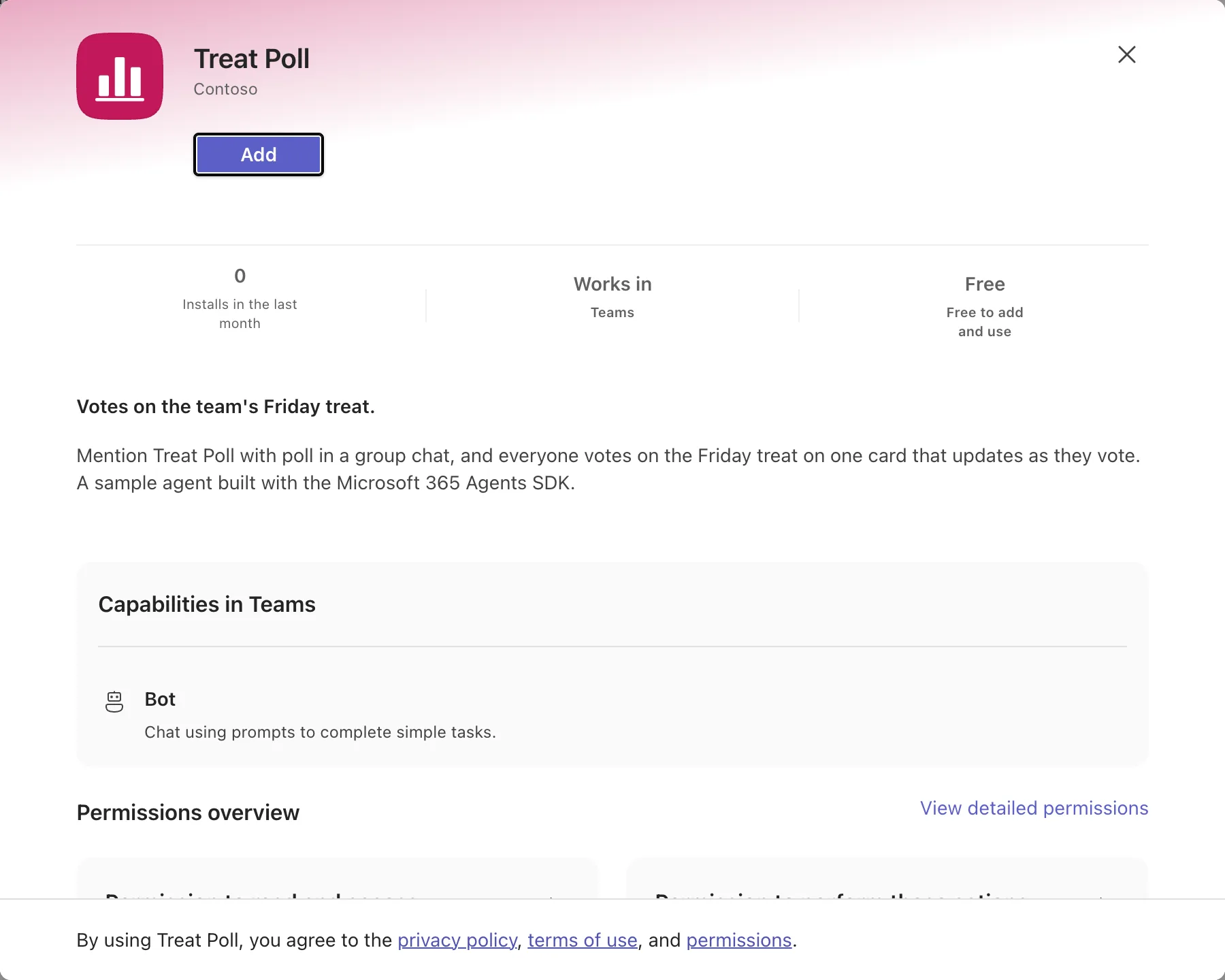
Select Add. Treat Poll works only in group chats, so Teams asks where to use it right away. Select the chat, then Go:
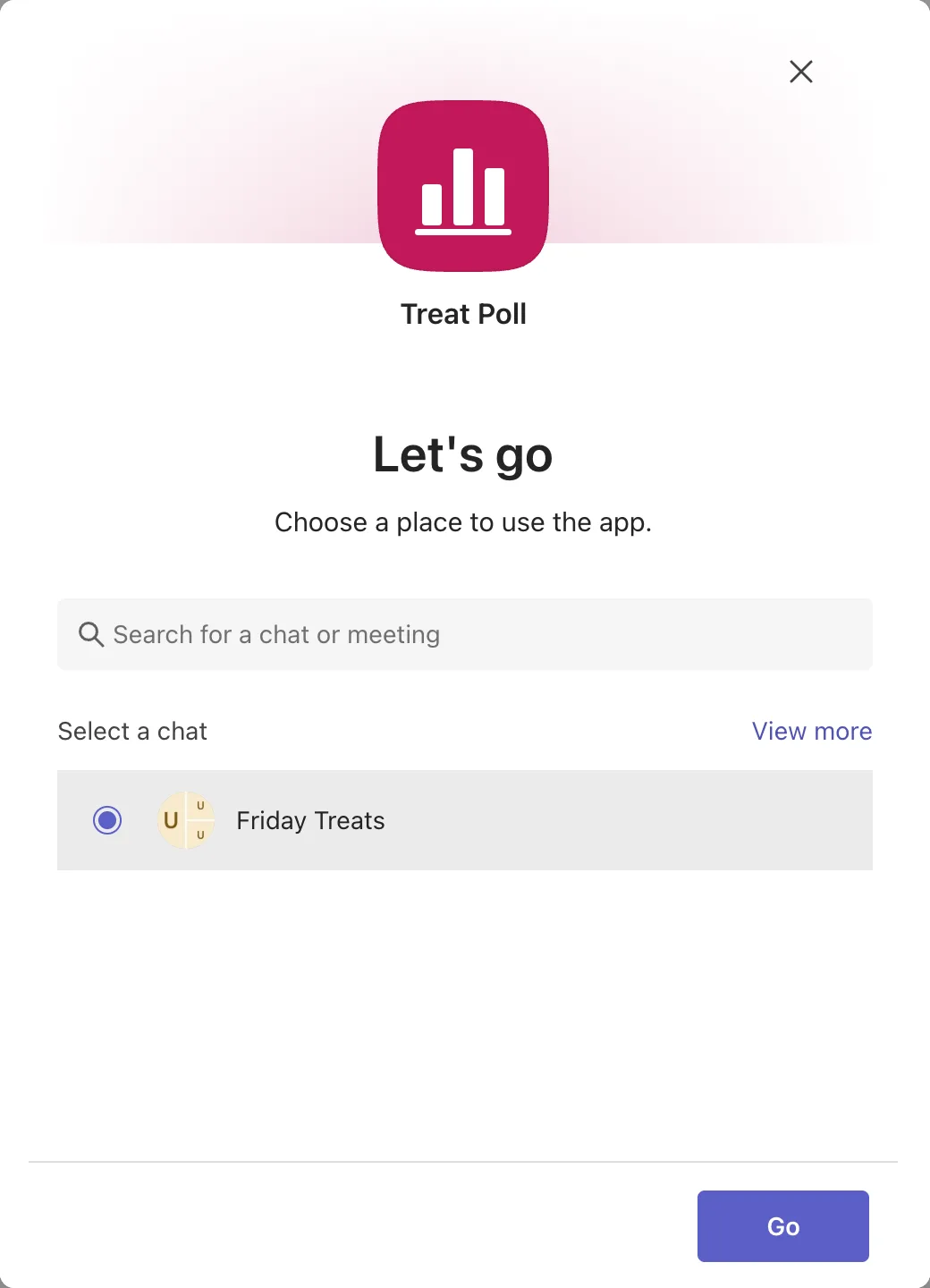
How to Add an App to a Group Chat in Microsoft Teams shows the same dialog for an app that also works one to one. A moment later, Treat Poll says hello in the chat:

Step 8: Start a Poll
In the message box, type @Treat, and pick Treat Poll from the list:
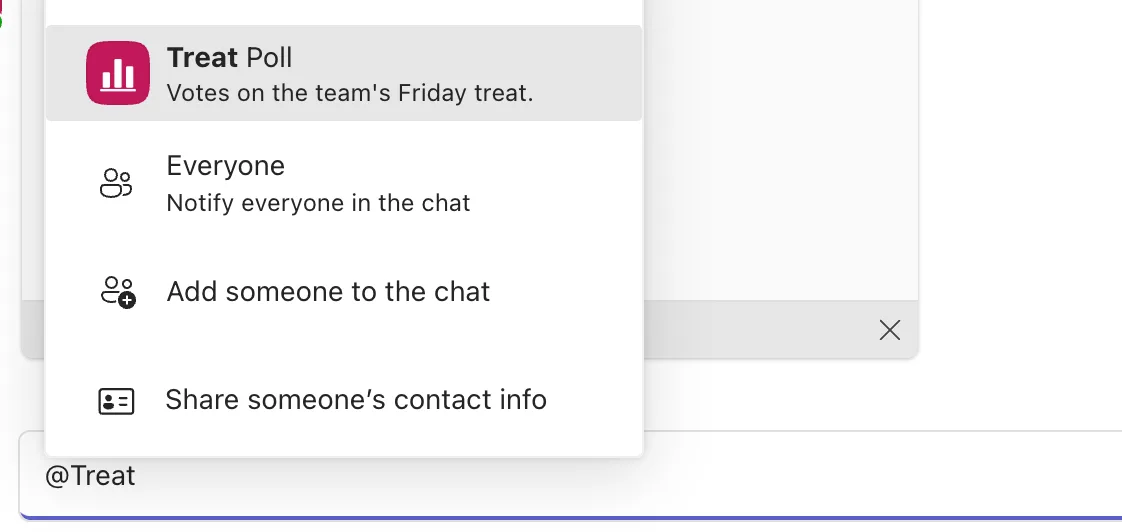
Then type poll after it, and send:

Here's what Leo saw:
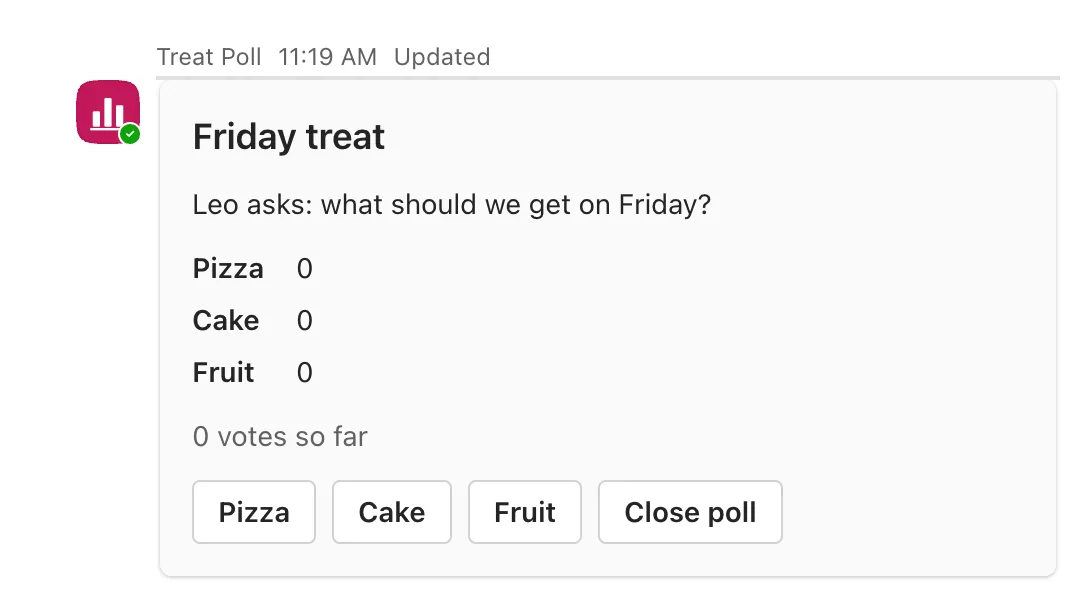
And here's what Maya saw, in the same chat, at the same time:
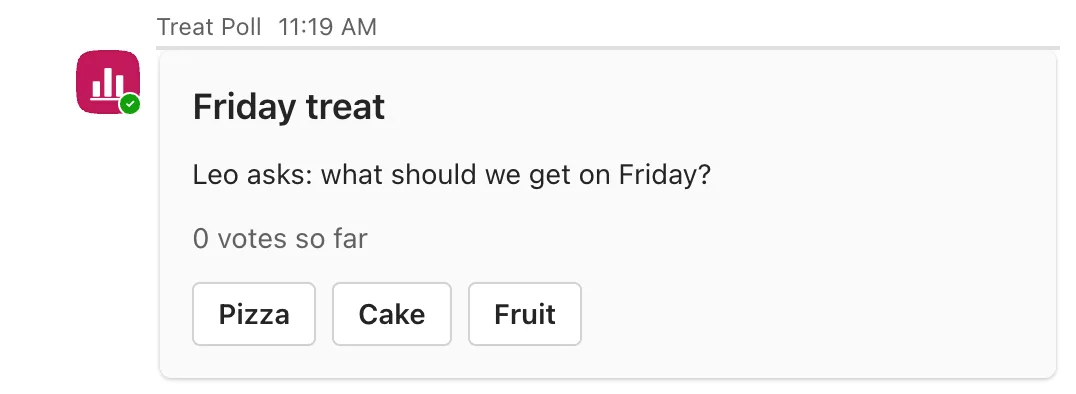
One message, two cards. Maya sees the base card, the one StartPollAsync sent. Leo's is marked Updated: the moment the card appeared, Teams refreshed it for him, because he's in its userIds. The agent's console shows that refresh:
info: TreatPoll.PollAgent[0]
      Refresh of poll 0bc158ae for the creator (automatic).
To see the invoke itself, this page logged each incoming activity's JSON, as How to Log the JSON of an Incoming Activity in the Microsoft 365 Agents SDK in C# shows. The refresh, with the IDs masked:
{
  "type": "invoke",
  "channelId": "msteams",
  "from": { "id": "29:1AbCdEfGh…", "name": "Leo Martin" },
  "conversation": { "isGroup": true, "conversationType": "groupChat", "name": "Friday Treats" },
  "replyToId": "1795864746018",
  "value": {
    "action": {
      "type": "Action.Execute",
      "title": "Refresh",
      "data": { "pollId": "0bc158ae", "trigger": "automatic", "isRefresh": true },
      "verb": "refresh"
    },
    "trigger": "automatic"
  },
  "name": "adaptiveCard/action"
}
fromis Leo: Teams sends a refresh as the person it's for, soturnContext.Activity.From.IdtellsRefreshAsyncwhose view to build.replyToIdis the ID of the message with the card.datahas two keys the card didn't put there: Teams addedtriggerandisRefreshto a refresh's data.PollDatareads onlyPollId, so they do no harm.
Step 9: Vote
As Maya, select Cake. Her card changes in place:
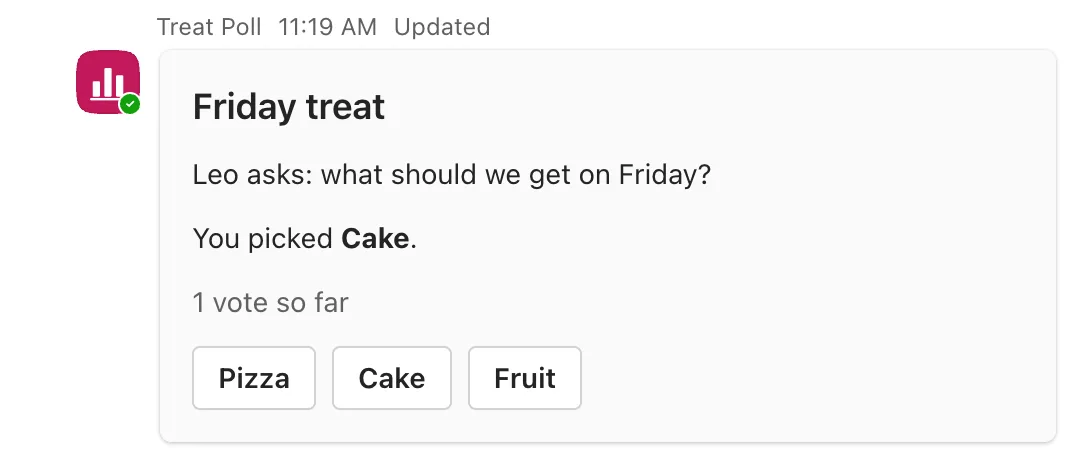
That's VoteAsync's answer, shown to Maya alone. Without Leo doing anything, his card caught up too:
The console shows the order:
info: TreatPoll.PollAgent[0]
      Vote in poll 0bc158ae (manual).
info: TreatPoll.PollAgent[0]
      Refresh of poll 0bc158ae for the creator (automatic).
info: TreatPoll.PollAgent[0]
      Refresh of poll 0bc158ae for a voter (automatic).
Maya's vote came in, the agent updated the message, and the update made Teams refresh the card for everyone in userIds: Leo, and now Maya too, because voting put her in the list. The answer to her vote showed her her view straight away. The refresh keeps it hers whenever the message changes again.
Now Maya selects Cake again. She already picked it, so VoteAsync answers with a message, and the card stays as it was:
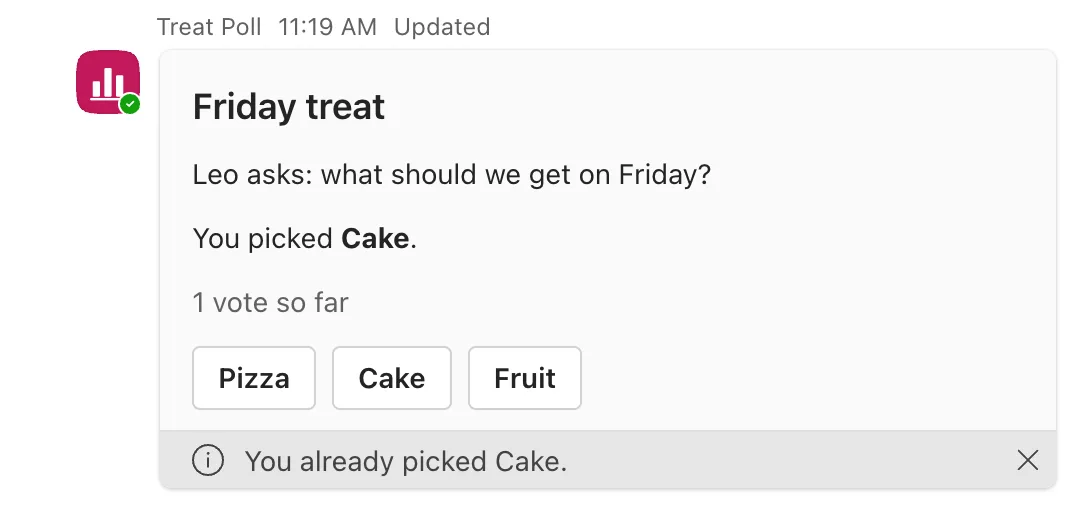
Teams shows a message answer as a bar under the card, with a button to close it. The answer the agent sent:
{
  "statusCode": 200,
  "type": "application/vnd.microsoft.activity.message",
  "value": "You already picked Cake."
}
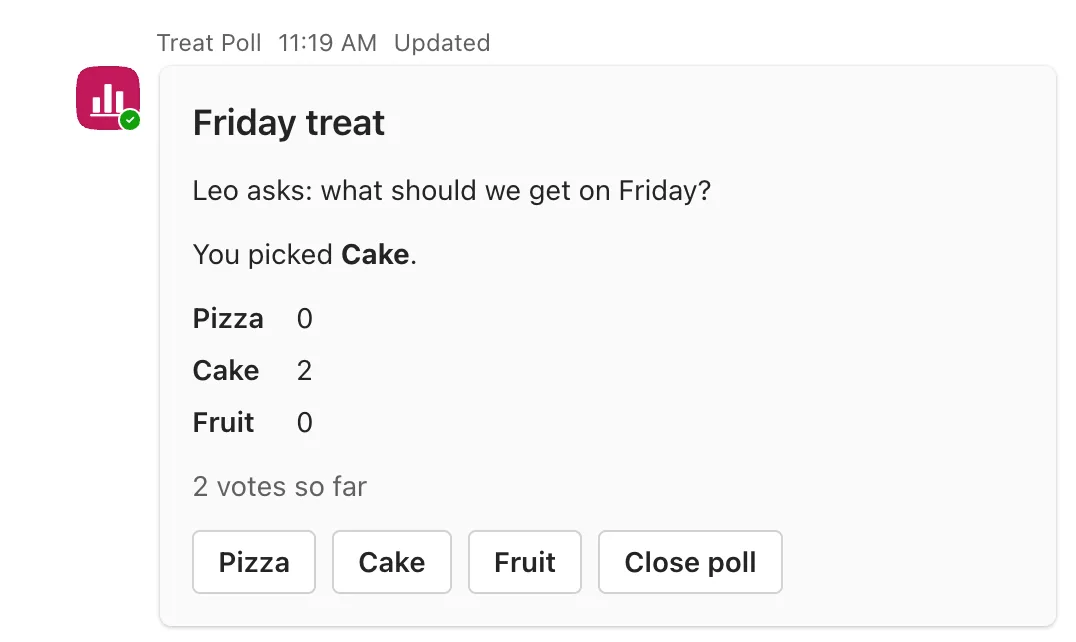
Then Leo votes Cake as well. His answer is his creator view with his own pick in it:
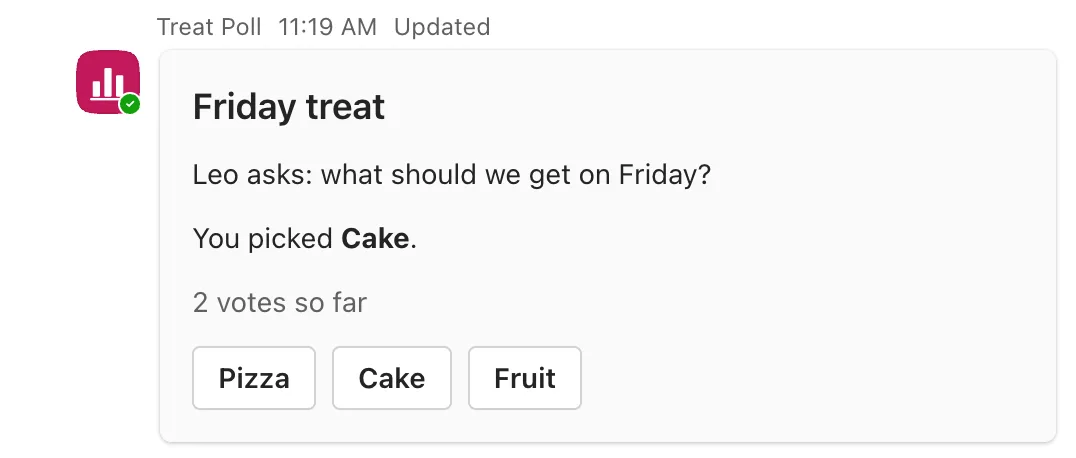
And Maya's card, refreshed by the message update, now counts two votes:
Step 10: Close the Poll
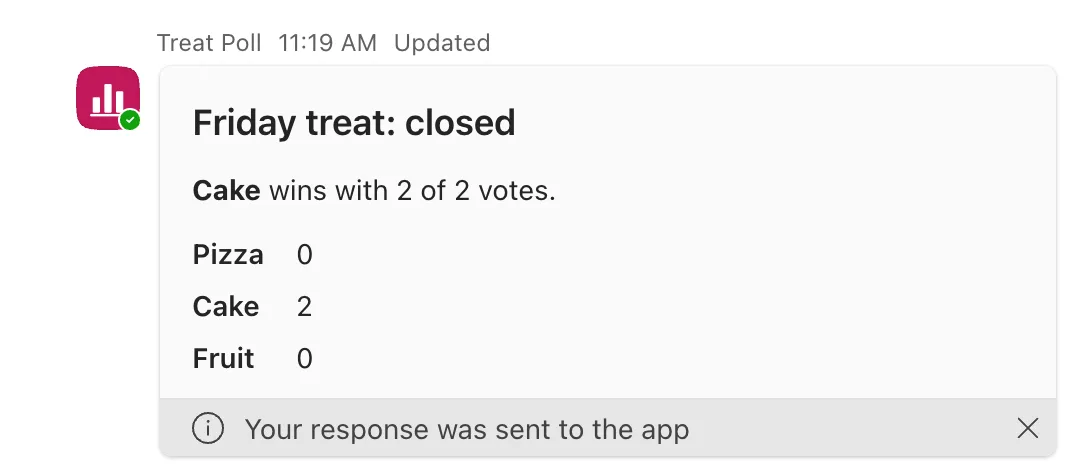
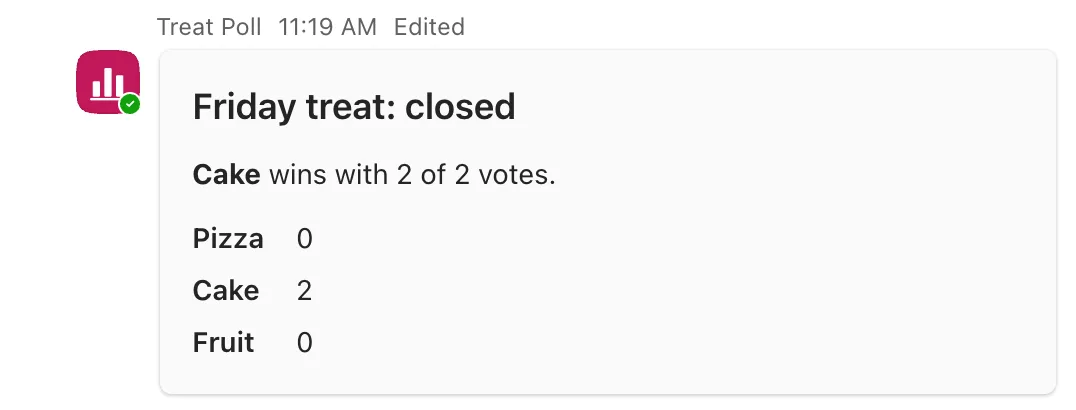
As Leo, select Close poll. ClosePollAsync updates the message to the closed card and answers Leo with the same card:
Maya's card closed too:
Three details worth knowing:
- Maya's card is marked Edited, not Updated. She now sees the message itself, which the agent edited. Leo's is marked Updated, because the answer to his click replaced his card.
- No refresh followed. The closed card has no
refresh, so Teams had nothing to ask the agent, and everyone sees the message as it is. - Teams added its own note under Leo's card: Your response was sent to the app. The agent didn't send it, and Microsoft's documentation doesn't describe when Teams shows it. In this run, it appeared under the closed card, which has no buttons, and not under the cards the votes returned, which do.
Step 11: Refresh a Card by Hand
People not in userIds can ask for their own view too. Leo started a second poll, and Maya, who hadn't voted in it, opened the message's More options menu:
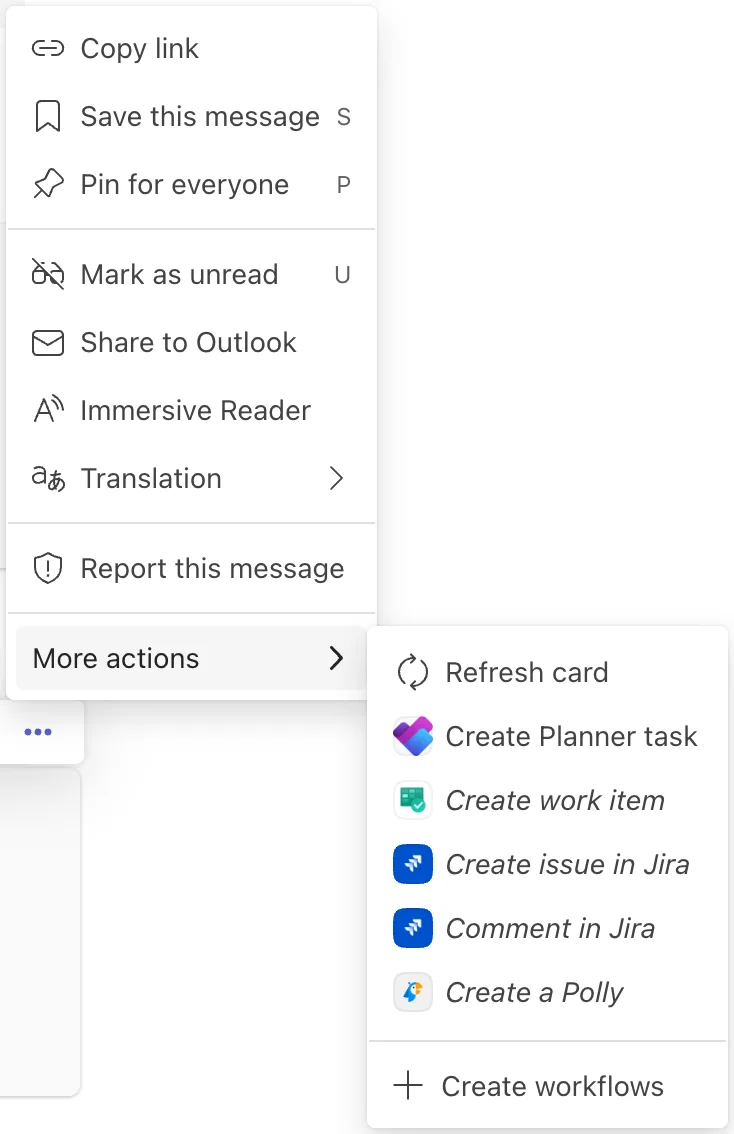
Refresh card is under More actions. Selecting it sent the same refresh invoke, with a different trigger:
info: TreatPoll.PollAgent[0]
      Refresh of poll 95025e5d for someone who hasn't voted (manual).
Microsoft's guide describes this option: For users to manually trigger card refresh, they can select Refresh from the message options menu. How to Refresh an Adaptive Card in Microsoft Teams shows it from the reader's side.
Step 12: See an Error Answer
MemoryStorage keeps conversation state in the agent's memory, so a restart forgets every poll. Stop the agent with Ctrl+C, run it again, and as Maya, select Pizza on the second poll's card:
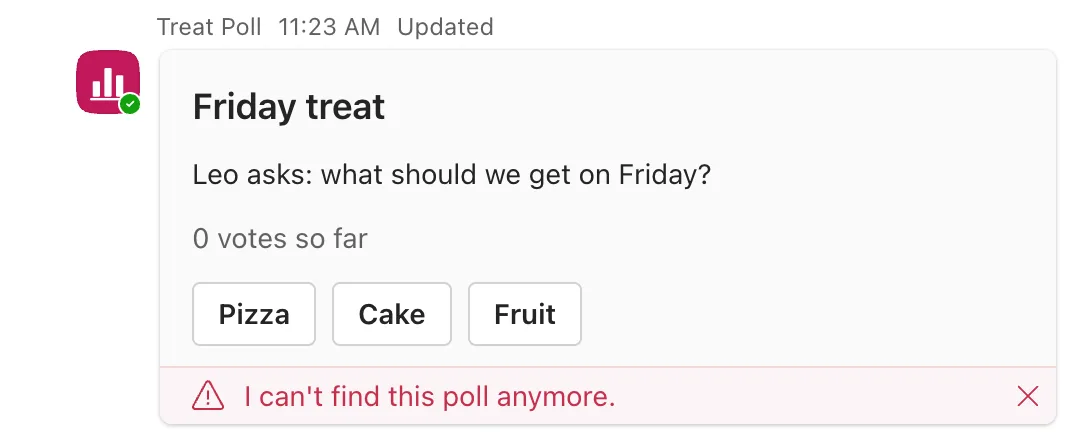
FindPoll found nothing, and VoteAsync answered with BadRequest:
{
  "statusCode": 400,
  "type": "application/vnd.microsoft.error",
  "value": {
    "code": "BadRequest",
    "message": "I can't find this poll anymore."
  }
}
Teams shows an error answer as a red bar, and the card stays as it was. Part 19 moves state into Azure Blob Storage and Cosmos DB, which keep it across restarts.
The Complete Code
The files you wrote in this part, in full. AspNetExtensions.cs, TenantFilterMiddleware.cs and appsettings.json are Lunch Picker's, from Part 8.
using Microsoft.Agents.Builder;
using Microsoft.Agents.Builder.App;
using Microsoft.Agents.Builder.App.AdaptiveCards;
using Microsoft.Agents.Builder.State;
using Microsoft.Agents.Core.Models;
using Microsoft.Agents.Core.Serialization;

namespace TreatPoll;

public class PollAgent : AgentApplication
{
    private const string PollsKey = "polls";

    private readonly ILogger<PollAgent> _logger;

    public PollAgent(AgentApplicationOptions options, ILogger<PollAgent> logger) : base(options)
    {
        _logger = logger;

        OnConversationUpdate(ConversationUpdateEvents.MembersAdded, WelcomeAsync);
        OnMessage("poll", StartPollAsync);
        AdaptiveCards.OnActionExecute("vote", VoteAsync);
        AdaptiveCards.OnActionExecute("refresh", RefreshAsync);
        AdaptiveCards.OnActionExecute("close", ClosePollAsync);
        OnActivity(ActivityTypes.Message, HelpAsync, rank: RouteRank.Last);
    }

    // When someone adds Treat Poll to a chat, the agent itself is among the members added.
    private async Task WelcomeAsync(ITurnContext turnContext, ITurnState turnState, CancellationToken cancellationToken)
    {
        if (turnContext.Activity.MembersAdded.Any(member => member.Id == turnContext.Activity.Recipient.Id))
        {
            await turnContext.SendActivityAsync(
                "Hi everyone! Mention me with **poll** to start a Friday treat poll.",
                cancellationToken: cancellationToken);
        }
    }

    private async Task StartPollAsync(ITurnContext turnContext, ITurnState turnState, CancellationToken cancellationToken)
    {
        Poll poll = new()
        {
            Id = Guid.NewGuid().ToString("N")[..8],
            CreatorId = turnContext.Activity.From.Id,
            CreatorName = FirstName(turnContext.Activity.From.Name),
        };

        // Everyone in the chat gets the same card: the one with no viewer.
        await turnContext.SendActivityAsync(PollMessage(poll, viewerId: null), cancellationToken);
        SavePoll(turnState, poll);
    }

    private async Task<AdaptiveCardInvokeResponse> VoteAsync(ITurnContext turnContext, ITurnState turnState, object data, CancellationToken cancellationToken)
    {
        VoteData vote = ProtocolJsonSerializer.ToObject<VoteData>(data);
        Poll? poll = FindPoll(turnState, vote.PollId);

        if (poll is null)
        {
            return AdaptiveCardInvokeResponseFactory.BadRequest("I can't find this poll anymore.");
        }

        string voterId = turnContext.Activity.From.Id;
        _logger.LogInformation("Vote in poll {PollId} ({Trigger}).", poll.Id, Trigger(turnContext));

        // A closed poll answers every old card with the result.
        if (poll.IsClosed)
        {
            return CardFor(poll, voterId);
        }

        if (vote.Choice is null || !PollCards.Choices.Contains(vote.Choice))
        {
            return AdaptiveCardInvokeResponseFactory.BadRequest("Pick Pizza, Cake or Fruit.");
        }

        if (poll.Votes.GetValueOrDefault(voterId) == vote.Choice)
        {
            return AdaptiveCardInvokeResponseFactory.Message($"You already picked {vote.Choice}.");
        }

        poll.Votes[voterId] = vote.Choice;
        SavePoll(turnState, poll);

        // Update the card everyone shares, so the count is right for everyone.
        await UpdateSharedCardAsync(turnContext, poll, cancellationToken);

        // Replace the voter's own card with their view.
        return CardFor(poll, voterId);
    }

    private Task<AdaptiveCardInvokeResponse> RefreshAsync(ITurnContext turnContext, ITurnState turnState, object data, CancellationToken cancellationToken)
    {
        PollData request = ProtocolJsonSerializer.ToObject<PollData>(data);
        Poll? poll = FindPoll(turnState, request.PollId);

        if (poll is null)
        {
            return Task.FromResult(AdaptiveCardInvokeResponseFactory.BadRequest("I can't find this poll anymore."));
        }

        string viewerId = turnContext.Activity.From.Id;
        _logger.LogInformation("Refresh of poll {PollId} for {Viewer} ({Trigger}).", poll.Id, Role(poll, viewerId), Trigger(turnContext));

        return Task.FromResult(CardFor(poll, viewerId));
    }

    private async Task<AdaptiveCardInvokeResponse> ClosePollAsync(ITurnContext turnContext, ITurnState turnState, object data, CancellationToken cancellationToken)
    {
        PollData request = ProtocolJsonSerializer.ToObject<PollData>(data);
        Poll? poll = FindPoll(turnState, request.PollId);

        if (poll is null)
        {
            return AdaptiveCardInvokeResponseFactory.BadRequest("I can't find this poll anymore.");
        }

        string viewerId = turnContext.Activity.From.Id;
        _logger.LogInformation("Close of poll {PollId} by {Viewer} ({Trigger}).", poll.Id, Role(poll, viewerId), Trigger(turnContext));

        if (viewerId != poll.CreatorId)
        {
            return AdaptiveCardInvokeResponseFactory.BadRequest("Only the person who started the poll can close it.");
        }

        poll.IsClosed = true;
        SavePoll(turnState, poll);
        await UpdateSharedCardAsync(turnContext, poll, cancellationToken);

        return CardFor(poll, viewerId);
    }

    private Task HelpAsync(ITurnContext turnContext, ITurnState turnState, CancellationToken cancellationToken)
        => turnContext.SendActivityAsync("Mention me with **poll** to start a Friday treat poll.", cancellationToken: cancellationToken);

    // A card action's replyToId is the ID of the chat message that holds the card.
    private static async Task UpdateSharedCardAsync(ITurnContext turnContext, Poll poll, CancellationToken cancellationToken)
    {
        IActivity update = PollMessage(poll, viewerId: null);
        update.Id = turnContext.Activity.ReplyToId;
        await turnContext.UpdateActivityAsync(update, cancellationToken);
    }

    private static IActivity PollMessage(Poll poll, string? viewerId)
        => MessageFactory.Attachment(new Attachment { ContentType = ContentTypes.AdaptiveCard, Content = PollCards.PollCard(poll, viewerId) });

    private static AdaptiveCardInvokeResponse CardFor(Poll poll, string viewerId)
        => AdaptiveCardInvokeResponseFactory.AdaptiveCard(PollCards.PollCard(poll, viewerId).ToJsonString());

    private static Dictionary<string, Poll> Polls(ITurnState turnState)
        => turnState.Conversation.GetValue<Dictionary<string, Poll>>(PollsKey, () => []);

    private static Poll? FindPoll(ITurnState turnState, string? pollId)
        => pollId is not null && Polls(turnState).TryGetValue(pollId, out Poll? poll) ? poll : null;

    private static void SavePoll(ITurnState turnState, Poll poll)
    {
        Dictionary<string, Poll> polls = Polls(turnState);
        polls[poll.Id] = poll;
        turnState.Conversation.SetValue(PollsKey, polls);
    }

    // "manual" when someone selected a button, "automatic" when Teams refreshed the card by itself.
    private static string? Trigger(ITurnContext turnContext)
        => ProtocolJsonSerializer.ToObject<AdaptiveCardInvokeValue>(turnContext.Activity.Value)?.Trigger;

    private static string Role(Poll poll, string viewerId)
        => viewerId == poll.CreatorId ? "the creator" : poll.Votes.ContainsKey(viewerId) ? "a voter" : "someone who hasn't voted";

    // Teams sends the person's display name, such as "Leo Martin"; use the first word.
    private static string FirstName(string? name)
        => string.IsNullOrWhiteSpace(name) ? "Someone" : name.Split(' ', StringSplitOptions.RemoveEmptyEntries)[0];
}
Program.cs, Poll.cs, PollActions.cs, PollCards.cs and appPackage/manifest.json are complete in Steps 1 to 5.
Stop and Clean Up
Everything this part created outside your project folder stays until you remove it:
-
Stop the agent and the tunnel host with
Ctrl+Cin their terminals. -
Remove Treat Poll from the group chat: How to Remove an App from a Group Chat in Microsoft Teams. Teams removes it for everyone in the chat.
-
Delete the app under Apps in the Teams Developer Portal: How to Delete an App in the Teams Developer Portal. The Teams CLI that created it has no delete command.
-
Delete the bot under Tools > Bot management: How to Delete a Bot in the Teams Developer Portal.
-
Delete the app registration, which neither of the portal's deletes removes: How to Delete an App Registration in Microsoft Entra ID.
-
Delete the tunnel:
Terminaldevtunnel delete treat-poll -fOutputDeleted: treat-poll.inc1 -
Remove the client secret from your machine:
dotnet user-secrets clear, in the project folder, deletes the project's user secrets and prints nothing.
The group chat stays as an ordinary chat with your colleagues, and Treat Poll's cards stay in its history.
What You Can Do Now
- Answer an
Action.Executebutton withAdaptiveCards.OnActionExecute, and return a card that replaces the one the person used, a message, or an error. - Give each person their own view of one card with
refreshanduserIds, and know what Teams does for people in the list and for everyone else. - Keep a card current for everyone with
UpdateActivityAsyncand the invoke'sreplyToId. - Read an invoke's
triggerto tell a person's click from Teams' own refresh.
Common Mistakes
| Mistake | What happens | Do this instead |
|---|---|---|
Returning nothing for some path in an Action.Execute handler | The C# build fails: every path must return an answer | Return Message, a card or BadRequest on every path |
| Answering a vote only with the voter's card | Nobody else sees the new count | Also update the message with UpdateActivityAsync |
Leaving userIds out of refresh in a big chat | Microsoft's guide: Teams refreshes automatically for everyone only in chats of 60 members or fewer | List the people who need their own view, at most 60 |
version below 1.5 with Action.Execute or refresh | Microsoft's Teams guide: Your card stops working | Set "version": "1.5" |
| Trusting that only the creator can see Close poll | Anyone can send a hand-made request | Check From.Id in the handler, as ClosePollAsync does |
Using MemoryStorage in production | A restart forgets every poll, and old cards answer with errors | Use lasting storage, Part 19's topic |
Troubleshooting
| Symptom | Likely cause | Fix |
|---|---|---|
The agent never sees @Treat Poll poll | The message didn't @mention the agent, or the agent isn't in the chat | Pick the agent from the @ list, and add it to the chat |
| The creator sees the base card, not their own view | The creator's ID isn't in userIds, or the refresh handler failed | Log the refresh invoke, and check its verb and the ID |
| Other people keep seeing an old count | The message was never updated | Call UpdateActivityAsync with the invoke's replyToId |
| A red bar: I can't find this poll anymore. | The agent restarted, and MemoryStorage forgot the poll | Start a new poll; keep state in lasting storage |
| A grey bar: Your response was sent to the app | Teams added it under a card answer | Nothing to fix: the agent didn't send it |
FAQ
Does Action.Execute work outside Teams?
Microsoft's model was built for Teams and Outlook, but they differ. For Outlook, the card needs an originator and the bot must subscribe to the Outlook Actionable Messages channel, Microsoft's Universal Action model says. The Agents Playground ran Action.Execute cards in tests for this series' how-tos, replacing the card the same way.
What about older Teams clients?
Microsoft's guide: To ensure backward compatibility of your Adaptive Cards with older versions of Teams, you must include the fallback property and set its value to Action.Submit. Also, your bot code must process both Action.Execute and Action.Submit. A fallback Action.Submit can't return a card, so those people would get a message instead. This part's run used the new Teams on the web, which ran every Action.Execute.
Can one card lead a person through several steps?
Yes. Each answer can be a different card, so a person can move from one card to the next in place, without new messages. Microsoft calls these sequential workflows.
Why does Leo's card say Updated?
Teams marks a card Updated when it shows a card that replaced the message's card for you, from a refresh or from the answer to your click. A card the agent edited for everyone, with no version of yours on top, is marked Edited.
Conclusion
Universal Actions turn a card into something people work with in place. Action.Execute buttons reach your agent as adaptiveCard/action invokes, and AdaptiveCards.OnActionExecute answers each one, with a card only that person sees, a message, or an error. A refresh with userIds gives each listed person their own view of one message, and UpdateActivityAsync keeps the message current for everyone, which also refreshes those views.
Next: Part 10: Teams Dialogs (coming soon). A card can collect a few answers in place. For a longer form, Teams opens a dialog: a window over the chat, with its own card.
Additional Resources
- Use adaptive cards in agents, on Microsoft Learn:
OnActionExecuteandAdaptiveCardInvokeResponseFactory. - Universal Actions for Adaptive Cards, on Microsoft Learn.
- Work with Universal Actions for Adaptive Cards, on Microsoft Learn: the schema, refresh and
userIds. - User Specific Views and Up to date cards, on Microsoft Learn.
- Universal Action Model, on Microsoft Learn: the invoke's request and every answer it can get.
