Part 7: Stream Responses and Show Progress
Some answers take a while: a report that has to be collected first, a long text that a model writes a few words at a time. If the agent says nothing until it's done, the person on the other side stares at an empty chat and wonders whether anything is happening. In this part you'll make an agent show that it's working, tell people what it's doing, and stream its answer as it's written.
This is Part 7 of the Microsoft 365 Agents SDK Fundamentals, a 26-part series.
- Part 1: Activities and the Activity Protocol
- Part 2: Route Activities with AgentApplication
- Part 3: Turn Events, Error Handling and Middleware
- Part 4: Conversation, User and Turn State
- Part 5: Send Adaptive Cards and Handle Their Actions
- Part 6: Send Proactive Messages
- Part 7: Stream Responses and Show Progress (you are here)
- Part 8: Run Your Agent in Microsoft Teams (coming soon)
- Part 9: Universal Actions: Adaptive Cards That Update (coming soon)
- Part 10: Teams Dialogs (coming soon)
- Part 11: Commands, Suggested Actions and Targeted Messages (coming soon)
- Part 12: Mentions, Rosters and Team Events (coming soon)
- Part 13: Meeting Events (coming soon)
- Part 14: Send and Receive Files (coming soon)
- Part 15: Sign People In with SSO and OAuth (coming soon)
- Part 16: Message Extensions and Link Unfurling (coming soon)
- Part 17: AI Labels, Citations and Feedback (coming soon)
- Part 18: Bring Your Agent to Microsoft 365 Copilot (coming soon)
- Part 19: Store State in Azure Blob Storage and Cosmos DB (coming soon)
- Part 20: Telemetry with OpenTelemetry (coming soon)
- Part 21: Web Chat and Direct Line (coming soon)
- Part 22: Reach People in Slack (coming soon)
- Part 23: Call a Copilot Studio Agent (coming soon)
- Part 24: Agent-to-Agent Communication (coming soon)
- Part 25: Keep Conversation Transcripts (coming soon)
- Part 26: Deploy Your Agent to Azure (coming soon)
By the end of this part you'll know the three ways an agent shows progress, which channels stream and what the others do instead, and how a streamed answer travels. You'll build an agent that sends a typing indicator, shows status updates, streams its answer into the chat as it's written, and ends every stream properly.
Three Ways to Show Progress
The Agents SDK gives you three tools, and they suit different moments:
| Tool | What the person sees | When to use it |
|---|---|---|
| Typing indicator | The channel's own "typing" animation | The agent is working and has nothing to say yet |
| Informative update | A short status line, such as Collecting this week's tickets..., with an animation | The work has steps worth naming |
| Streamed text | The answer appears a few words at a time, in one message that grows | The answer itself takes time to write |
A typing indicator is an ordinary activity of type typing, which Part 1 listed among the activity types. The other two are a stream: a series of activities that build up one answer, all handled by the turn's StreamingResponse.
How a Streamed Answer Travels
Microsoft's documentation for Teams describes the protocol, and the SDK follows it: Despite its name, content streaming does not depend on HTTP streaming or similar technologies. At the HTTP API level, it's implemented as a sequence of requests. Each request is a typing activity with a streamInfo entity that says what it carries, and a final message closes the stream:
Each streaming update carries the whole text so far, not only the new words. Microsoft's guide says so for Teams: each request represents a full message update, not just new content to be appended. You don't build these activities yourself: you hand the SDK pieces of text, and it sends the updates at the channel's pace.
Which Channels Stream
Not every channel can show a message that grows. The SDK decides per turn, from the channel the message came from, and exposes the answer as turnContext.StreamingResponse.IsStreamingChannel. In the SDK's 1.9.205 source:
| Channel | Streams? | How often the SDK sends an update |
|---|---|---|
Microsoft Teams (msteams) | Yes | Once a second, the rate Teams allows per stream |
Web Chat and Direct Line (webchat, directline) | Yes | Twice a second |
Everything else, including the Agents Playground's emulator channel | No | Never: the SDK collects the text and sends it as one message at the end |
On a channel that doesn't stream, informative updates are skipped, and the whole answer arrives at once when you end the stream. That's why the typing indicator still matters: it's the progress signal those channels do show.
The Example: A Weekly Report
The agent for this part writes a weekly support report. Send report, and it collects this week's ticket numbers, which takes a few seconds, then writes a short report a few words at a time. Neither step is real: a Task.Delay stands in for the slow database query and for the language model or service that writes text slowly, so the page stays about streaming. You'll build it in steps:
| Step | You add | What you'll see |
|---|---|---|
| 2 | A report sent as one message | Seven seconds of nothing, then the report |
| 3 | A typing indicator | The typing activities in the Playground's Log Panel |
| 4 | Informative updates and streamed text | One message at the end on emulator, and a live stream on msteams |
| 5 | Typing only where the channel doesn't stream | One kind of progress signal per channel |
| 6 | Nothing | What happens to a stream that isn't ended, on each channel |
You'll run it in the Microsoft 365 Agents Playground, as in the earlier parts.
Prerequisites
- The .NET 10 SDK.
dotnet --versionshould print10.0.and a patch number; this page was built with10.0.404. - The Microsoft 365 Agents Playground.
agentsplayground --versionshould print0.2.30. If the command isn't found, install it withnpm install -g @microsoft/m365agentsplayground.
Step 1: Create the Project
Open a terminal in the folder where you keep your projects and create an empty ASP.NET Core project:
dotnet new web -o WeeklyReport
The template "ASP.NET Core Empty" was created successfully.

Processing post-creation actions...
Restoring /Users/you/source/WeeklyReport/WeeklyReport.csproj:
Restore succeeded.
Add the Agents SDK's hosting package:
cd WeeklyReport
dotnet add package Microsoft.Agents.Hosting.AspNetCore --version 1.9.205
info : PackageReference for package 'Microsoft.Agents.Hosting.AspNetCore' version '1.9.205' added to file '/Users/you/source/WeeklyReport/WeeklyReport.csproj'.
info : Generating MSBuild file /Users/you/source/WeeklyReport/obj/WeeklyReport.csproj.nuget.g.targets.
info : Writing assets file to disk. Path: /Users/you/source/WeeklyReport/obj/project.assets.json
log  : Restored /Users/you/source/WeeklyReport/WeeklyReport.csproj (in 2.01 sec).
Open Properties/launchSettings.json and set the two applicationUrl lines to port 3978:
"applicationUrl": "http://localhost:3978",
"applicationUrl": "https://localhost:3979;http://localhost:3978",
Now the slow work. Create ReportWriter.cs:
using System.Runtime.CompilerServices;

namespace WeeklyReport;

public record TicketStats(int Closed, int Opened, int StillOpen);

public class ReportWriter
{
    // Stands in for slow work, such as counting this week's tickets in a database.
    public async Task<TicketStats> CollectAsync(CancellationToken cancellationToken)
    {
        await Task.Delay(TimeSpan.FromSeconds(3), cancellationToken);
        return new TicketStats(Closed: 42, Opened: 37, StillOpen: 12);
    }

    // Stands in for anything that writes text a little at a time, such as a language model.
    public async IAsyncEnumerable<string> WriteAsync(TicketStats stats, [EnumeratorCancellation] CancellationToken cancellationToken)
    {
        string report =
            "**Weekly report: Support team**\n\n" +
            $"**Closed:** {stats.Closed} tickets. Most were password resets and printer problems.\n\n" +
            $"**Opened:** {stats.Opened} tickets. Monday was the busiest day.\n\n" +
            $"**Still open:** {stats.StillOpen} tickets. Three of them have waited more than a week and need an owner today.";

        foreach (string word in report.Split(' '))
        {
            await Task.Delay(TimeSpan.FromMilliseconds(100), cancellationToken);
            yield return word + " ";
        }
    }
}
CollectAsyncwaits three seconds and returns the week's numbers, as a database query might.WriteAsyncreturns the report a word at a time, one every 100 milliseconds. Its return type,IAsyncEnumerable<string>, is how .NET hands out values that arrive over time: the caller reads them withawait foreachas they come. Model clients return their answers the same way, so this is exactly the shape a real source gives you. How to Use IAsyncEnumerable and await foreach in C# explains it, including why theCancellationTokencarries the[EnumeratorCancellation]attribute.- The
**...**markers are Markdown for bold, which chat apps render.
Replace everything in Program.cs with the hosting from the earlier parts, plus one line that registers the writer:
using Microsoft.Agents.Hosting.AspNetCore;
using Microsoft.Agents.Storage;
using WeeklyReport;

var builder = WebApplication.CreateBuilder(args);

builder.AddAgentDefaults()
    .AddAgent<WeeklyReportAgent>();
builder.Services.AddSingleton<IStorage, MemoryStorage>();
builder.Services.AddSingleton<ReportWriter>();

var app = builder.Build();

app.UseAgents();
app.MapDefaultAgentEndpoints();

app.Run();
AddSingleton<ReportWriter>() lets the agent ask for a ReportWriter in its constructor, the same way it gets a logger.
Step 2: Send the Report the Plain Way
Start with what an agent does without any of this part's tools: do the work, then send one message. Create WeeklyReportAgent.cs:
using Microsoft.Agents.Builder;
using Microsoft.Agents.Builder.App;
using Microsoft.Agents.Builder.State;
using Microsoft.Agents.Core.Models;

namespace WeeklyReport;

public class WeeklyReportAgent : AgentApplication
{
    private readonly ReportWriter _reportWriter;

    public WeeklyReportAgent(AgentApplicationOptions options, ReportWriter reportWriter) : base(options)
    {
        _reportWriter = reportWriter;

        OnMessage("report", SendReportAsync);
        OnActivity(ActivityTypes.Message, HelpAsync, rank: RouteRank.Last);
    }

    private async Task SendReportAsync(ITurnContext turnContext, ITurnState turnState, CancellationToken cancellationToken)
    {
        TicketStats stats = await _reportWriter.CollectAsync(cancellationToken);

        string report = "";
        await foreach (string chunk in _reportWriter.WriteAsync(stats, cancellationToken))
        {
            report += chunk;
        }

        await turnContext.SendActivityAsync(report, cancellationToken: cancellationToken);
    }

    private Task HelpAsync(ITurnContext turnContext, ITurnState turnState, CancellationToken cancellationToken)
        => turnContext.SendActivityAsync("Send **report** for this week's support report.", cancellationToken: cancellationToken);
}
SendReportAsync waits for the numbers, collects every word of the report, and only then sends it. Run the agent:
- VS Code (or any terminal)
- Visual Studio
In the terminal, in the project folder:
dotnet run
Choose Debug → Start Without Debugging (Ctrl+F5). Both launch profiles listen on port 3978. Visual Studio also opens your browser on the agent's GET / page, which you can close.
warn: Microsoft.Agents.Authentication.ConfigurationConnections[0]
      No connections found in configuration.
warn: Microsoft.Agents.Authentication.ConfigurationConnections[0]
      No connections map found in configuration.
info: Microsoft.Agents.Hosting.AspNetCore.BackgroundQueue.HostedActivityService[0]
      Queued Hosted Service is running.
info: Microsoft.Agents.Hosting.AspNetCore.BackgroundQueue.HostedTaskService[0]
      Queued Hosted Service is running.

info: Microsoft.Hosting.Lifetime[14]
      Now listening on: http://localhost:3978
The two warnings mean the agent has no identity of its own, which this part doesn't need. In a second terminal, start the Agents Playground as the emulator channel:
agentsplayground -e http://localhost:3978/api/messages -c emulator
Send report. For a while, nothing happens. Then the whole report appears at once:
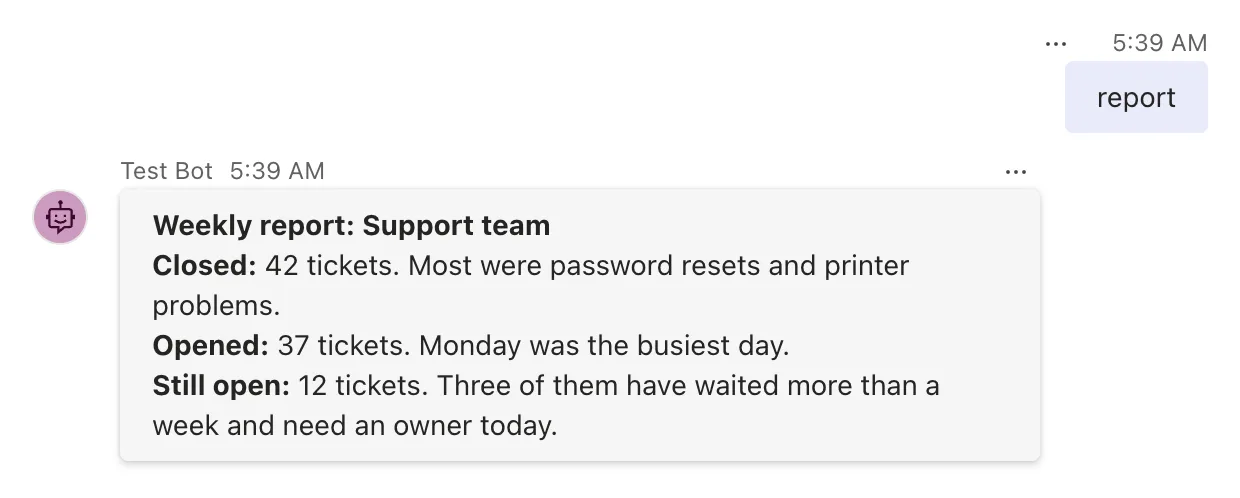
The Playground's Log Panel, on the right, shows every activity with the time it crossed. About seven seconds passed between your message and the agent's answer, with nothing in between:
[5:39:21 AM] Microsoft 365 Agents Playground -> User Application message 202 report
[5:39:28 AM] User Application -> Microsoft 365 Agents Playground message 201 **Weekly report: Support team** **Closed:** 42 tickets. Most were password resets and printer probl...
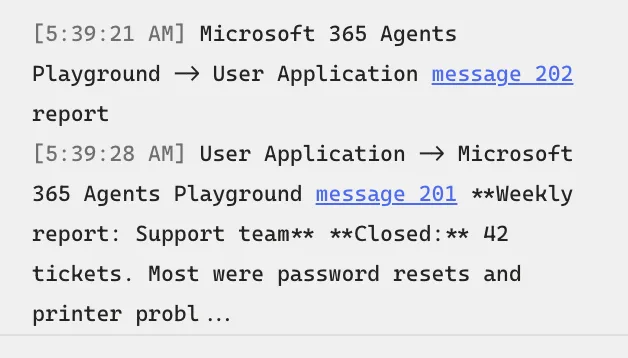
Seven seconds is long enough for someone to send report again, or give up. Stop the agent with Ctrl+C.
Step 3: Show a Typing Indicator
The cheapest fix is to say "I'm on it" the way people do: with a typing indicator. AgentApplication can send typing activities for you while a turn runs, if you turn on StartTypingTimer, which Part 3 mentioned. Add an AgentApplication section to appsettings.json:
{
  "Logging": {
    "LogLevel": {
      "Default": "Information",
      "Microsoft.AspNetCore": "Warning"
    }
  },
  "AllowedHosts": "*",
  "AgentApplication": {
    "StartTypingTimer": true
  }
}
AddAgent<WeeklyReportAgent>() registers the options your agent receives in its constructor, and fills them from the AgentApplication section of your configuration. With StartTypingTimer on, every incoming message starts a timer that sends a typing activity shortly after the message arrives and again every two seconds, until the turn ends.
Start the agent again and send report. The chat looks the same as before, because the Agents Playground doesn't show typing indicators: Microsoft's Playground documentation lists Typing indicator as Not Available. The Log Panel shows what the agent sent:
[5:40:27 AM] Microsoft 365 Agents Playground -> User Application message 202 report
[5:40:28 AM] User Application -> Microsoft 365 Agents Playground typing 202
[5:40:30 AM] User Application -> Microsoft 365 Agents Playground typing 202
[5:40:32 AM] User Application -> Microsoft 365 Agents Playground typing 202
[5:40:34 AM] User Application -> Microsoft 365 Agents Playground typing 202
[5:40:34 AM] User Application -> Microsoft 365 Agents Playground message 201 **Weekly report: Support team** **Closed:** 42 tickets. Most were password resets and printer probl...
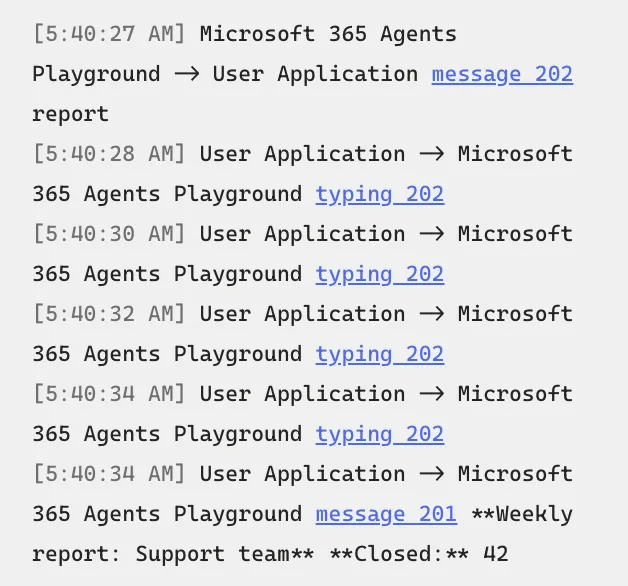
A typing activity within a second of the message, then one every two seconds while the agent worked. Microsoft Teams shows them as its typing animation, and Part 8 takes an agent to Teams.
A typing indicator says I'm working, but not on what, and the answer still arrives in one piece. The next step fixes both.
Step 4: Stream the Report
Every turn has a StreamingResponse, on turnContext.StreamingResponse, with three methods you'll use:
| Method | What it does |
|---|---|
QueueInformativeUpdateAsync(text) | Shows a short status line. Each update replaces the last |
QueueTextChunk(text) | Adds a piece of the answer. The SDK collects the pieces and sends the text so far at the channel's pace |
EndStreamAsync() | Sends the final message and closes the stream |
Replace SendReportAsync with a version that streams:
    private async Task SendReportAsync(ITurnContext turnContext, ITurnState turnState, CancellationToken cancellationToken)
    {
        try
        {
            await turnContext.StreamingResponse.QueueInformativeUpdateAsync("Collecting this week's tickets...", cancellationToken);
            TicketStats stats = await _reportWriter.CollectAsync(cancellationToken);

            await turnContext.StreamingResponse.QueueInformativeUpdateAsync("Writing the report...", cancellationToken);
            await foreach (string chunk in _reportWriter.WriteAsync(stats, cancellationToken))
            {
                turnContext.StreamingResponse.QueueTextChunk(chunk);
            }
        }
        finally
        {
            await turnContext.StreamingResponse.EndStreamAsync(cancellationToken);
        }
    }
- An informative update before each slow step names what the agent is doing. Teams limits each one to 1,000 characters, and shows it under the person's message until the next one replaces it.
QueueTextChunkinsideawait foreachhands each word to the stream as soon as it's written. It doesn't send anything itself: the SDK keeps the text and sends it on a timer, so you can queue words as fast as they come.EndStreamAsyncinfinallyends the stream whatever happens, even if collecting or writing throws. Step 6 shows why that matters.
Restart the agent, leave the Playground as it is, and send report. On the emulator channel, nothing new: the Log Panel shows the typing activities from Step 3 and one message at the end, and no informative updates at all:
[5:41:17 AM] Microsoft 365 Agents Playground -> User Application message 202 report
[5:41:17 AM] User Application -> Microsoft 365 Agents Playground typing 202
[5:41:19 AM] User Application -> Microsoft 365 Agents Playground typing 202
[5:41:21 AM] User Application -> Microsoft 365 Agents Playground typing 202
[5:41:23 AM] User Application -> Microsoft 365 Agents Playground typing 202
[5:41:24 AM] User Application -> Microsoft 365 Agents Playground message 201 **Weekly report: Support team** **Closed:** 42 tickets. Most were password resets and printer probl...
That's the table from earlier at work: emulator isn't a streaming channel, so the SDK skipped the updates, kept the words, and sent them as one message when EndStreamAsync ran. Your code didn't change; the channel did. To see the stream, the Playground has to be a channel that streams. Stop it with Ctrl+C and start it as Microsoft Teams, which How to Test an Agent Locally with the Microsoft 365 Agents Playground covers along with the other channels:
agentsplayground -e http://localhost:3978/api/messages -c msteams
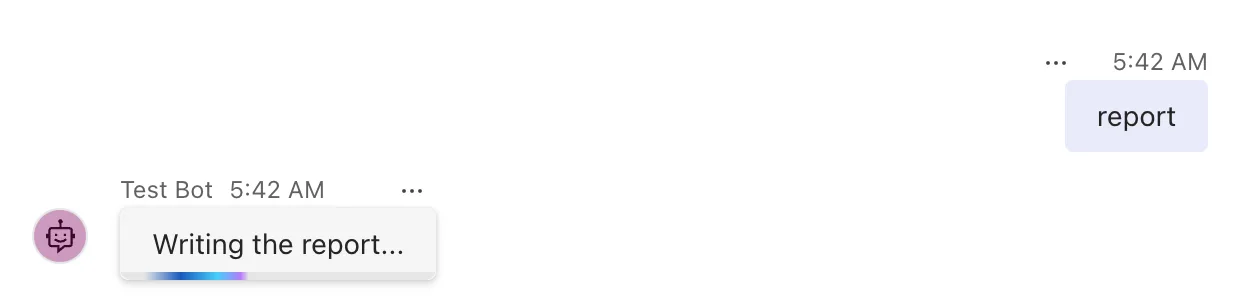
Send report again. First the status line appears, with a moving bar:
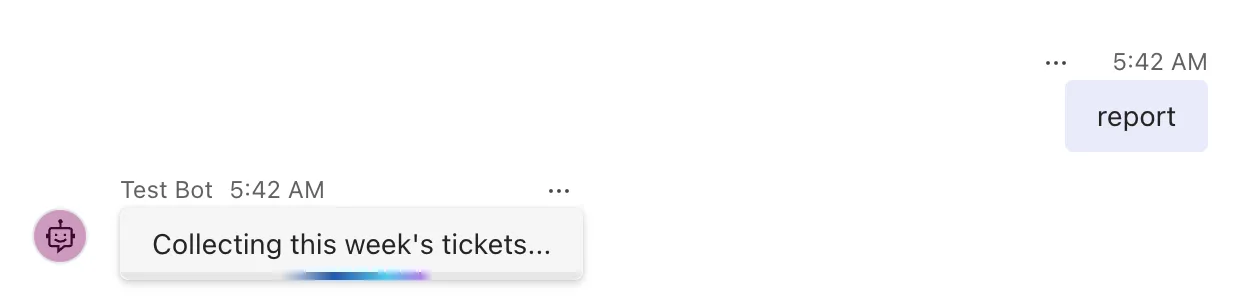
Three seconds later, the second update replaces it:
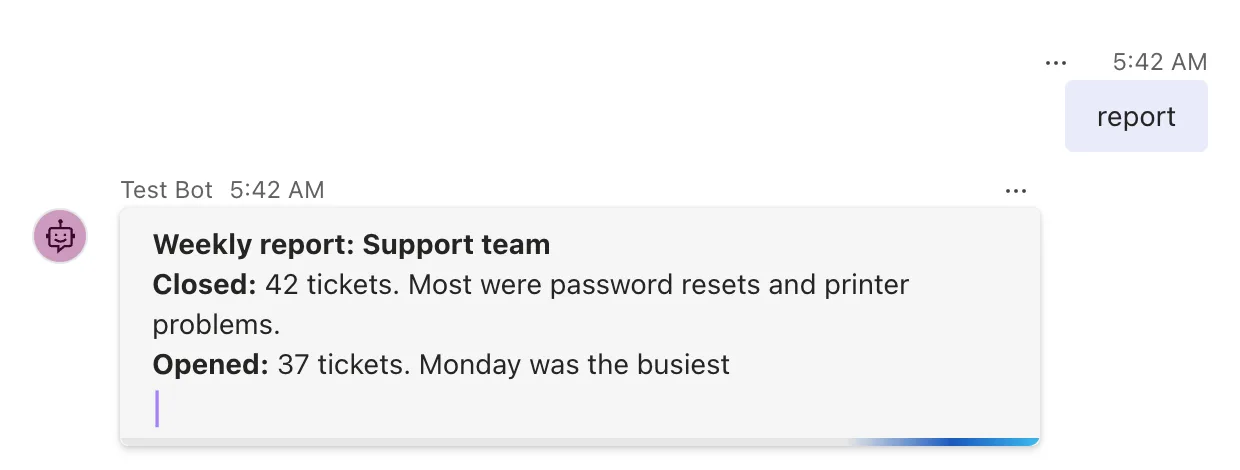
Then the report itself starts, and grows while it's written, with a cursor at the end:
When the stream ends, the cursor goes and the message is complete:
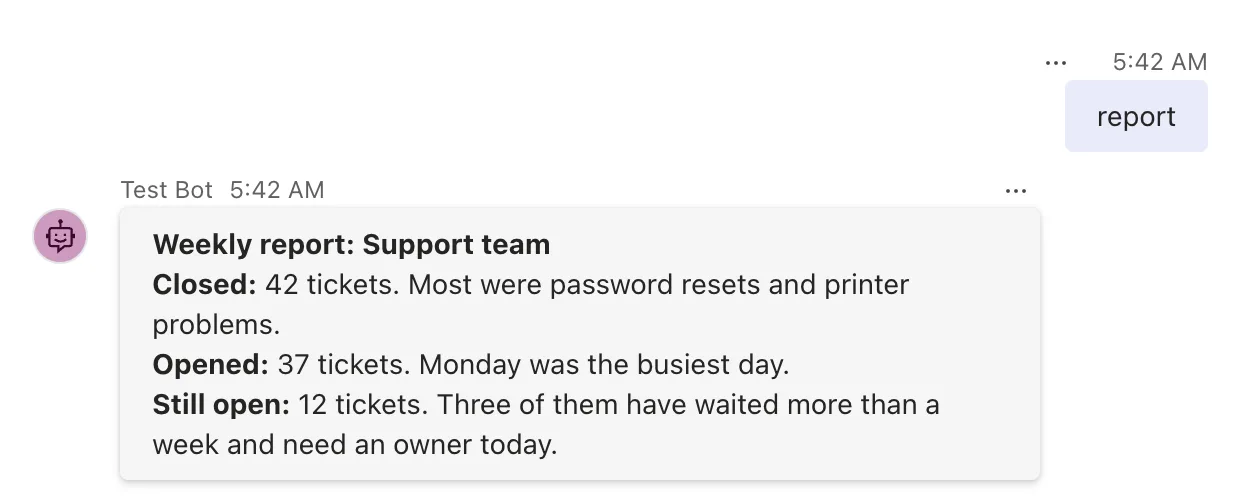
The person saw something within a second, knew what the agent was doing at each step, and started reading before the report was finished. The Log Panel shows how it happened:
[5:42:13 AM] Microsoft 365 Agents Playground -> User Application message 202 report
[5:42:13 AM] User Application -> Microsoft 365 Agents Playground typing 201 Collecting this week's tickets...
[5:42:13 AM] User Application -> Microsoft 365 Agents Playground typing 202
[5:42:15 AM] User Application -> Microsoft 365 Agents Playground typing 202
[5:42:16 AM] User Application -> Microsoft 365 Agents Playground typing 202 Writing the report...
[5:42:17 AM] User Application -> Microsoft 365 Agents Playground typing 202 **Weekly report: Support team** **Closed:** 42 tickets. Most were password resets
[5:42:17 AM] User Application -> Microsoft 365 Agents Playground typing 202
[5:42:18 AM] User Application -> Microsoft 365 Agents Playground typing 202 **Weekly report: Support team** **Closed:** 42 tickets. Most were password resets and printer probl...
[5:42:19 AM] User Application -> Microsoft 365 Agents Playground typing 202 **Weekly report: Support team** **Closed:** 42 tickets. Most were password resets and printer probl...
[5:42:19 AM] User Application -> Microsoft 365 Agents Playground typing 202
[5:42:20 AM] User Application -> Microsoft 365 Agents Playground typing 202 **Weekly report: Support team** **Closed:** 42 tickets. Most were password resets and printer probl...
[5:42:21 AM] User Application -> Microsoft 365 Agents Playground message 202 **Weekly report: Support team** **Closed:** 42 tickets. Most were password resets and printer probl...
- The first update came back with
201, Created: it opened the stream, and the id the channel returned becomes the stream's id. - Typing activities with text are the stream: two informative updates, then the report so far, about once a second.
- The final
messageclosed it, with the whole report. - Typing activities without text are still Step 3's typing timer, running beside the stream.
Select an entry in the Log Panel, and its full JSON opens below the list. The Writing the report... entry carries the entity that makes it an informative update:
  "text": "Writing the report...",
  "attachments": [],
  "entities": [
    {
      "streamId": "1795585333360",
      "streamType": "informative",
      "streamSequence": 2,
      "type": "streaminfo"
    }
  ],
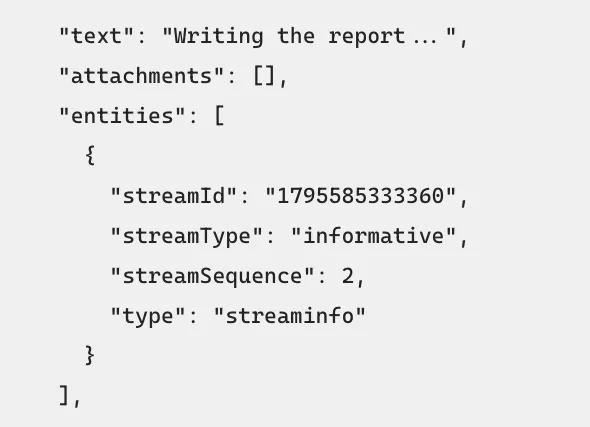
streamType says what the activity is: informative for a status line, streaming for text, final on the closing message. streamSequence numbers the updates in order, and streamId ties them to the stream the first one opened.
Step 5: One Progress Signal per Channel
The Log Panel above shows two signals for the same thing on Teams: the stream's updates and the typing timer's activities. On a channel that streams, the informative updates already say the agent is working, and say more. On a channel that doesn't, the updates are skipped and the typing indicator is all the person gets. So start the typing timer only where the channel doesn't stream.
Remove the AgentApplication section from appsettings.json, so the timer no longer starts for every message:
{
  "Logging": {
    "LogLevel": {
      "Default": "Information",
      "Microsoft.AspNetCore": "Warning"
    }
  },
  "AllowedHosts": "*"
}
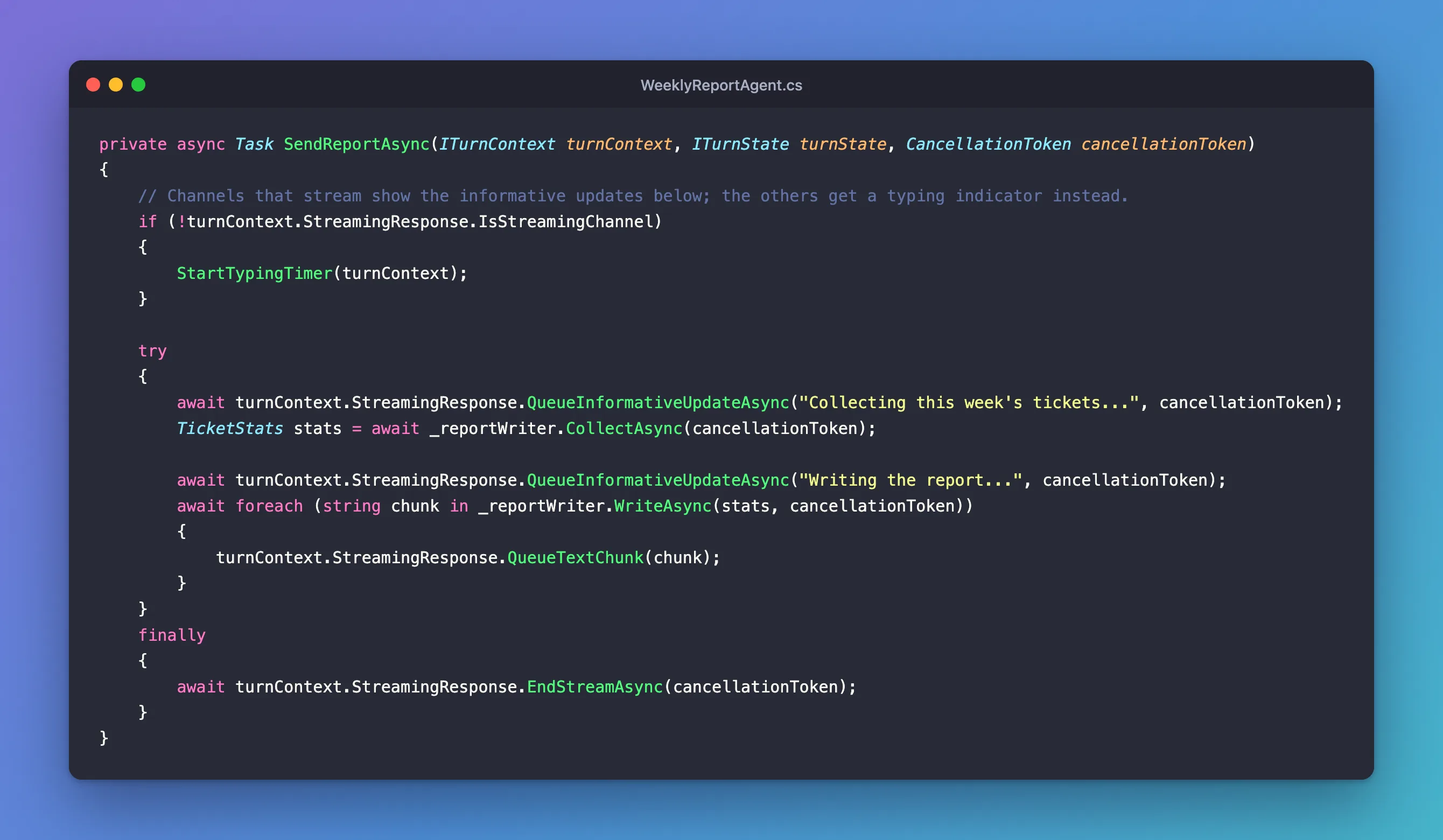
Start it from SendReportAsync instead, when the channel doesn't stream. Add this at the top of the method, before try:
        // Channels that stream show the informative updates below; the others get a typing indicator instead.
        if (!turnContext.StreamingResponse.IsStreamingChannel)
        {
            StartTypingTimer(turnContext);
        }
StartTypingTimer(turnContext) is a method of AgentApplication, so your agent has it: it starts the same timer the setting did, for this turn only, and the SDK stops it when the turn ends. IsStreamingChannel is known as soon as the turn starts, because the SDK sets it from the incoming activity's channel.
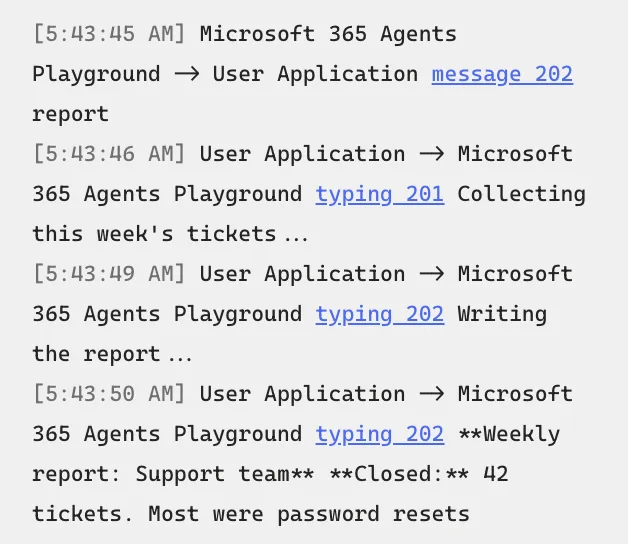
Restart the agent and send report in the msteams Playground. Only the stream's activities go out now:
[5:43:45 AM] Microsoft 365 Agents Playground -> User Application message 202 report
[5:43:46 AM] User Application -> Microsoft 365 Agents Playground typing 201 Collecting this week's tickets...
[5:43:49 AM] User Application -> Microsoft 365 Agents Playground typing 202 Writing the report...
[5:43:50 AM] User Application -> Microsoft 365 Agents Playground typing 202 **Weekly report: Support team** **Closed:** 42 tickets. Most were password resets
[5:43:51 AM] User Application -> Microsoft 365 Agents Playground typing 202 **Weekly report: Support team** **Closed:** 42 tickets. Most were password resets and printer probl...
[5:43:52 AM] User Application -> Microsoft 365 Agents Playground typing 202 **Weekly report: Support team** **Closed:** 42 tickets. Most were password resets and printer probl...
[5:43:53 AM] User Application -> Microsoft 365 Agents Playground typing 202 **Weekly report: Support team** **Closed:** 42 tickets. Most were password resets and printer probl...
[5:43:54 AM] User Application -> Microsoft 365 Agents Playground message 202 **Weekly report: Support team** **Closed:** 42 tickets. Most were password resets and printer probl...
Restart the Playground as emulator and send report there: the typing indicator is back, because that channel doesn't stream:
[5:44:20 AM] Microsoft 365 Agents Playground -> User Application message 202 report
[5:44:21 AM] User Application -> Microsoft 365 Agents Playground typing 202
[5:44:23 AM] User Application -> Microsoft 365 Agents Playground typing 202
[5:44:25 AM] User Application -> Microsoft 365 Agents Playground typing 202
[5:44:27 AM] User Application -> Microsoft 365 Agents Playground typing 202
[5:44:27 AM] User Application -> Microsoft 365 Agents Playground message 201 **Weekly report: Support team** **Closed:** 42 tickets. Most were password resets and printer probl...
The same code gives each channel the progress signal it can show.
Step 6: Why EndStreamAsync Belongs in finally
EndStreamAsync is what sends the final message. To see why it's in a finally block, I took it out for one run, leaving the informative updates and the chunks as they were.
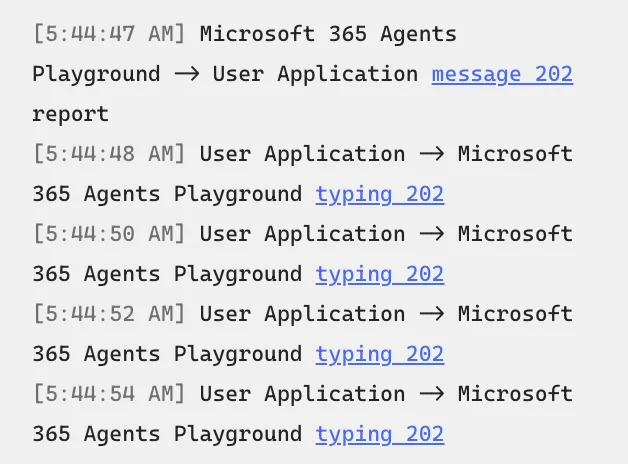
On emulator, the report never arrived. The typing indicator ran while the agent worked, then nothing, and the agent's terminal showed no error:
[5:44:47 AM] Microsoft 365 Agents Playground -> User Application message 202 report
[5:44:48 AM] User Application -> Microsoft 365 Agents Playground typing 202
[5:44:50 AM] User Application -> Microsoft 365 Agents Playground typing 202
[5:44:52 AM] User Application -> Microsoft 365 Agents Playground typing 202
[5:44:54 AM] User Application -> Microsoft 365 Agents Playground typing 202
On msteams, the same code worked: the report streamed and the final message arrived at 5:45:49, as if nothing were missing. The SDK's source explains the difference. When a turn ends, AgentApplication ends any stream that has started, and a stream starts when its first update goes out, which only happens on a channel that streams. On a channel that doesn't, nothing has gone out, the stream never started, and the text you queued waits in memory until the turn is over and it's thrown away.
So a missing EndStreamAsync looks fine in Teams and loses every answer everywhere else. Call it yourself, in finally, so it runs even when the work throws.
The Complete Code
using Microsoft.Agents.Builder;
using Microsoft.Agents.Builder.App;
using Microsoft.Agents.Builder.State;
using Microsoft.Agents.Core.Models;

namespace WeeklyReport;

public class WeeklyReportAgent : AgentApplication
{
    private readonly ReportWriter _reportWriter;

    public WeeklyReportAgent(AgentApplicationOptions options, ReportWriter reportWriter) : base(options)
    {
        _reportWriter = reportWriter;

        OnMessage("report", SendReportAsync);
        OnActivity(ActivityTypes.Message, HelpAsync, rank: RouteRank.Last);
    }

    private async Task SendReportAsync(ITurnContext turnContext, ITurnState turnState, CancellationToken cancellationToken)
    {
        // Channels that stream show the informative updates below; the others get a typing indicator instead.
        if (!turnContext.StreamingResponse.IsStreamingChannel)
        {
            StartTypingTimer(turnContext);
        }

        try
        {
            await turnContext.StreamingResponse.QueueInformativeUpdateAsync("Collecting this week's tickets...", cancellationToken);
            TicketStats stats = await _reportWriter.CollectAsync(cancellationToken);

            await turnContext.StreamingResponse.QueueInformativeUpdateAsync("Writing the report...", cancellationToken);
            await foreach (string chunk in _reportWriter.WriteAsync(stats, cancellationToken))
            {
                turnContext.StreamingResponse.QueueTextChunk(chunk);
            }
        }
        finally
        {
            await turnContext.StreamingResponse.EndStreamAsync(cancellationToken);
        }
    }

    private Task HelpAsync(ITurnContext turnContext, ITurnState turnState, CancellationToken cancellationToken)
        => turnContext.SendActivityAsync("Send **report** for this week's support report.", cancellationToken: cancellationToken);
}
ReportWriter.cs and Program.cs are the ones from Step 1, and appsettings.json is the one from Step 5.
Stop and Clean Up
Stop the agent and the Playground with Ctrl+C in their terminals. Nothing in this part leaves anything running or stored: delete the WeeklyReport folder when you no longer need it.
What You Can Do Now
- Choose between a typing indicator, informative updates and streamed text for what your agent is doing.
- Turn on the typing timer for every message with
StartTypingTimerinappsettings.json, or for one turn withStartTypingTimer(turnContext). - Show status lines with
QueueInformativeUpdateAsync, and stream an answer withQueueTextChunkandEndStreamAsync. - Explain which channels stream, and predict what a channel that doesn't will show.
- Give each channel one progress signal with
IsStreamingChannel. - End every stream in
finally, and say what goes wrong when you don't.
Common Mistakes
| Mistake | What happens | Do this instead |
|---|---|---|
Testing streaming on the emulator channel | You only ever see the finished answer | Start the Playground with -c msteams or -c webchat |
Forgetting EndStreamAsync | Fine in Teams, but on channels that don't stream the answer never arrives | Call it in finally |
Sending the answer with SendActivityAsync after an informative update | An extra No text was streamed message appears above your answer | Send the answer through the stream, or set it as the stream's FinalMessage |
| Sending informative updates after the text has started | Teams doesn't show them once streamed content has begun | Put every status line before the first QueueTextChunk |
| Expecting to see typing indicators in the Playground | They're sent, but the Playground doesn't show them | Read them in the Log Panel, or test in Teams |
Troubleshooting
| Symptom | Likely cause | Fix |
|---|---|---|
| The answer arrives all at once | The channel doesn't stream | Expected on emulator and similar channels; test with -c msteams |
| No answer at all, and no error | EndStreamAsync was never called, on a channel that doesn't stream | Call it in finally |
| No text was streamed above the real answer | The stream started with an informative update, but the answer went out as a separate message | Fixed: "No text was streamed" |
| Informative updates never show | The channel doesn't stream, so the SDK skips them | Use a typing indicator there, as in Step 5 |
FAQ
Do I have to wait for the whole chunk before queuing it?
No. Queue each piece as soon as you have it, however small: QueueTextChunk only adds it to the text, and the SDK sends the text so far at the channel's pace, once a second on Teams and twice a second on Web Chat. Queuing faster doesn't send more requests.
Can I stream a proactive message?
No. Microsoft's Teams documentation says informative updates and streaming are intended for responding to specific user messages within the context of the received message's activity handler. They're not supported in proactive messaging scenarios. Part 6's proactive messages are sent whole.
How long can a stream stay open?
In Teams, ten minutes: Streams time out and are automatically closed 10 minutes after the agent writes the first informative update or content chunk. An agent can also have only one open stream per conversation.
Can a streamed answer end with an Adaptive Card or other extras?
Yes, through the final message: set turnContext.StreamingResponse.FinalMessage to the activity you want, with its attachments, before EndStreamAsync. Teams renders attachments, AI labels and feedback buttons only once the stream has finished; Part 17 adds labels, citations and feedback.
What does EndStreamAsync return?
A StreamingResponseResult: Success, or NotStarted, AlreadyEnded, UserCancelled, Timeout or Error. Calling it twice is safe: the second call returns AlreadyEnded.
Conclusion
An agent that takes a while should say so. A typing indicator works on every channel that shows one. On channels that stream, which today are Teams, Web Chat and Direct Line, informative updates name each step, and QueueTextChunk lets the answer appear as it's written, while the SDK paces the updates for you. Everywhere else, the same code sends one complete message. Start the typing timer where the channel doesn't stream, and always end the stream yourself, in finally.
Next: Part 8: Run Your Agent in Microsoft Teams (coming soon). Everything so far ran in the Playground. Part 8 runs an agent in real Microsoft Teams, which shows the typing indicators the Playground can't.
Additional Resources
- Stream agent messages — Teams' streaming experience and the rules behind it.
- IStreamingResponse interface — every method and property of the turn's stream.
- AgentApplicationOptions.StartTypingTimer property — the setting from Step 3.
- Microsoft 365 Agents Playground — what the Playground supports, including its limitations.
