Part 5: Send Adaptive Cards and Handle Their Actions
Plain text only goes so far. When an agent needs a date, a choice from a list and a yes or no, asking for them one message at a time is slow, and people get the format wrong. An Adaptive Card puts a small form in the chat instead: fields, choices and buttons, drawn by the chat app itself. In this part your agent sends one and handles what happens when someone uses it.
This is Part 5 of the Microsoft 365 Agents SDK Fundamentals, a 26-part series.
- Part 1: Activities and the Activity Protocol
- Part 2: Route Activities with AgentApplication
- Part 3: Turn Events, Error Handling and Middleware
- Part 4: Conversation, User and Turn State
- Part 5: Send Adaptive Cards and Handle Their Actions (you are here)
- Part 6: Send Proactive Messages (coming soon)
- Part 7: Stream Responses and Show Progress (coming soon)
- Part 8: Run Your Agent in Microsoft Teams (coming soon)
- Part 9: Universal Actions: Adaptive Cards That Update (coming soon)
- Part 10: Teams Dialogs (coming soon)
- Part 11: Commands, Suggested Actions and Targeted Messages (coming soon)
- Part 12: Mentions, Rosters and Team Events (coming soon)
- Part 13: Meeting Events (coming soon)
- Part 14: Send and Receive Files (coming soon)
- Part 15: Sign People In with SSO and OAuth (coming soon)
- Part 16: Message Extensions and Link Unfurling (coming soon)
- Part 17: AI Labels, Citations and Feedback (coming soon)
- Part 18: Bring Your Agent to Microsoft 365 Copilot (coming soon)
- Part 19: Store State in Azure Blob Storage and Cosmos DB (coming soon)
- Part 20: Telemetry with OpenTelemetry (coming soon)
- Part 21: Web Chat and Direct Line (coming soon)
- Part 22: Reach People in Slack (coming soon)
- Part 23: Call a Copilot Studio Agent (coming soon)
- Part 24: Agent-to-Agent Communication (coming soon)
- Part 25: Keep Conversation Transcripts (coming soon)
- Part 26: Deploy Your Agent to Azure (coming soon)
By the end of this part you'll know what an Adaptive Card is made of, how it travels to the chat and back, and how AgentApplication hands a button's data to your code. You'll send a card from a JSON file, read what people filled in, check it in the agent, answer with a card built in code, give a card a second button with data of its own, and deal with a card that gets used twice. Every step works in VS Code and in Visual Studio; where they differ, the page shows a tab for each. Every output and screenshot on this page is real.
What an Adaptive Card Is
An Adaptive Card is a JSON document that describes a small piece of interface: some text, a few fields, a couple of buttons. Your agent doesn't draw anything. It sends the JSON, and the chat app the person uses, such as Teams, Copilot or a web chat, draws the card in its own look. That's where the name comes from: the same card adapts to whichever app shows it. Microsoft's Agents SDK documentation calls cards platform-neutral JSON documents that render as interactive user interface elements in supported channels.
A card has three kinds of parts:
| Part | What it does | Examples |
|---|---|---|
| Elements | Show something | TextBlock for text, FactSet for label and value pairs, Image, ColumnSet for columns |
| Inputs | Collect something | Input.Text, Input.Date, Input.Time, Input.Number, Input.Toggle for a check box, Input.ChoiceSet for a list |
| Actions | Buttons | Action.Submit, Action.Execute, Action.OpenUrl, Action.ShowCard, Action.ToggleVisibility |
Each card names the version of the card format it was written for, and each app supports up to a certain version. Microsoft's design guidance for agents lists them:
| Where the card is shown | Highest version |
|---|---|
| Microsoft Teams, desktop, web and mobile | 1.5 |
| Microsoft 365 Copilot Chat | 1.5 |
| Bot Framework Web Chat | 1.6, without Action.Execute |
| Outlook Actionable Messages | 1.0 to 1.2 |
The version matters: according to the card schema, an app that supports a lower version than the card asks for shows the card's fallbackText instead of the card. The cards in this series use version 1.5, so they work in Teams and in Copilot.
How a Card Travels
A card is not a message of its own. It rides on an ordinary message activity, Part 1's message, as an attachment: an item with a content type and some content. For a card, the content type is application/vnd.microsoft.card.adaptive, and the content is the card's JSON. What happens next depends on the button the person selects:
The chat app does the checking that the card asks for, such as making sure a required field isn't empty, before anything is sent. When the person selects an Action.Submit button, the app collects the value of every input, adds whatever the button carries in its data, and sends the result back to your agent as the value of a message activity with no text.
The Actions on a Card
| Action | What the app does | What reaches your agent |
|---|---|---|
Action.Submit | Sends the inputs and the button's data | A message activity with a value and no text, handled with AdaptiveCards.OnActionSubmit. This part covers it. |
Action.Execute | Sends the inputs and the button's data, and waits for an answer that can replace the card | An invoke activity named adaptiveCard/action, handled with AdaptiveCards.OnActionExecute. Part 9 covers it. |
Action.OpenUrl | Opens a web page | Nothing |
Action.ShowCard | Shows another card inside this one | Nothing |
Action.ToggleVisibility | Shows or hides parts of the card | Nothing |
Only the first two involve your agent at all. The last three happen entirely in the chat app.
How AgentApplication Routes a Submit
Every AgentApplication has an AdaptiveCards property with the routes for card actions. This line sends one button's submits to a handler:
AdaptiveCards.OnActionSubmit("bookDesk", BookDeskAsync);
The route matches a message activity that has no text and has a value whose verb field is exactly bookDesk, letter for letter, including case. So you give every Action.Submit button an object in its data with a verb, and register one route per verb. Its handler looks like the handlers from Part 2, with one extra parameter, object data: the activity's value, ready for you to read.
verb is only the default name of that field. If your cards use another name, the field can be changed in configuration.
If you prefer the route attributes from Part 2, [ActionSubmitRoute("bookDesk")] on the handler does the same as the line above.
The Example: Book a Desk
To see a card from both sides, you'll build a desk booking agent for an office with shared desks. Send it book, and it answers with a card: pick a day, pick a floor, tick a box if you need a second monitor, select Book desk. The agent checks the request, keeps the booking, and confirms it with a second card that has a Cancel booking button. You'll build it in steps:
| Step | You add | What you'll see |
|---|---|---|
| 2 | The booking card, as a JSON file | Nothing yet: it's a file |
| 3 | A route that sends the card | The card in the chat, checking its own fields |
| 4 | Nothing | What selecting Book desk sends, and where it goes without a route |
| 5 | A route for Book desk | The values, read into a C# record |
| 6 | Checks, a saved booking and a card built in code | A confirmation card |
| 7 | A Cancel booking button | A second action that carries its own data |
| 8 | A check for the same day | What happens when a card is used twice |
You'll run it in the Microsoft 365 Agents Playground, as in the earlier parts. The Playground shows Adaptive Cards the way Teams does.
Prerequisites
- The .NET 10 SDK.
dotnet --versionshould print10.0.and a patch number; this page was built with10.0.404. - The Microsoft 365 Agents Playground.
agentsplayground --versionshould print0.2.30. If the command isn't found, install it withnpm install -g @microsoft/m365agentsplayground. - User state, from Part 4: Conversation, User and Turn State.
Step 1: Create the Project
Open a terminal in the folder where you keep your projects and create an empty ASP.NET Core project:
dotnet new web -o DeskBooking
The template "ASP.NET Core Empty" was created successfully.

Processing post-creation actions...
Restoring /Users/you/source/DeskBooking/DeskBooking.csproj:
Restore succeeded.
Then add the Agents SDK's hosting package, which brings the rest of the SDK with it:
cd DeskBooking
dotnet add package Microsoft.Agents.Hosting.AspNetCore --version 1.9.205
info : PackageReference for package 'Microsoft.Agents.Hosting.AspNetCore' version '1.9.205' added to file '/Users/you/source/DeskBooking/DeskBooking.csproj'.
info : Generating MSBuild file /Users/you/source/DeskBooking/obj/DeskBooking.csproj.nuget.g.targets.
info : Writing assets file to disk. Path: /Users/you/source/DeskBooking/obj/project.assets.json
log  : Restored /Users/you/source/DeskBooking/DeskBooking.csproj (in 1.61 sec).
Step 2: Write the Card
Cards are easiest to keep in their own files, where you can read them, change them and try them in a designer without touching your code. Create a folder called Cards in the project folder, and in it a file called BookDeskCard.json:
{
  "type": "AdaptiveCard",
  "$schema": "https://adaptivecards.io/schemas/adaptive-card.json",
  "version": "1.5",
  "body": [
    {
      "type": "TextBlock",
      "text": "Book a desk",
      "size": "Large",
      "weight": "Bolder"
    },
    {
      "type": "TextBlock",
      "text": "Pick a day and a floor, and I'll keep a desk for you.",
      "wrap": true
    },
    {
      "type": "Input.Date",
      "id": "date",
      "label": "Day",
      "isRequired": true,
      "errorMessage": "Pick the day you need a desk."
    },
    {
      "type": "Input.ChoiceSet",
      "id": "floor",
      "label": "Floor",
      "style": "expanded",
      "isRequired": true,
      "errorMessage": "Pick a floor.",
      "choices": [
        { "title": "Floor 1: quiet area", "value": "1" },
        { "title": "Floor 2: team area", "value": "2" },
        { "title": "Floor 3: next to the meeting rooms", "value": "3" }
      ]
    },
    {
      "type": "Input.Toggle",
      "id": "monitor",
      "title": "I need a second monitor"
    }
  ],
  "actions": [
    {
      "type": "Action.Submit",
      "title": "Book desk",
      "style": "positive",
      "data": {
        "verb": "bookDesk"
      }
    }
  ]
}
Reading it from the top:
type,$schemaandversionsay this is an Adaptive Card in version 1.5.$schemaalso lets VS Code and Visual Studio check the file and suggest property names as you type.bodyis everything the card shows, from top to bottom: a large bold title, a line of text that wraps, then three inputs.- Every input has an
id. That's the name its value will have when the card is sent back, so these three come back asdate,floorandmonitor. labelis the text above an input.isRequiredtells the chat app not to send the card until the input has a value, anderrorMessageis what it shows under the input when it's empty.Input.ChoiceSetlists choices, each with thetitlepeople see and thevalueyour agent gets."style": "expanded"shows them as round buttons instead of a drop-down list.Input.Toggleis a check box.actionsholds oneAction.Submitbutton."style": "positive"shows it in the accent color, and itsdatais the object that comes back with the inputs: here only theverbthe route will match.
To design your own cards by dragging elements onto a page instead of writing JSON, see How to Design an Adaptive Card with the Adaptive Cards Designer.
Step 3: Send the Card
Create DeskBookingAgent.cs in the project folder:
using System.Text.Json.Nodes;
using Microsoft.Agents.Builder;
using Microsoft.Agents.Builder.App;
using Microsoft.Agents.Builder.State;
using Microsoft.Agents.Core.Models;

namespace DeskBooking;

public class DeskBookingAgent : AgentApplication
{
    private static readonly string BookDeskCardJson =
        File.ReadAllText(Path.Combine(AppContext.BaseDirectory, "Cards", "BookDeskCard.json"));

    public DeskBookingAgent(AgentApplicationOptions options) : base(options)
    {
        OnMessage("book", SendBookingCardAsync);
        OnActivity(ActivityTypes.Message, HelpAsync, rank: RouteRank.Last);
    }

    private async Task SendBookingCardAsync(ITurnContext turnContext, ITurnState turnState, CancellationToken cancellationToken)
    {
        Attachment card = new()
        {
            ContentType = ContentTypes.AdaptiveCard,
            Content = JsonNode.Parse(BookDeskCardJson)
        };

        await turnContext.SendActivityAsync(MessageFactory.Attachment(card), cancellationToken);
    }

    private async Task HelpAsync(ITurnContext turnContext, ITurnState turnState, CancellationToken cancellationToken)
    {
        await turnContext.SendActivityAsync("Send **book** to book a desk.", cancellationToken: cancellationToken);
    }
}
BookDeskCardJsonreads the card file once, the first time the class is used, and keeps its text.AppContext.BaseDirectoryis the folder that holds the agent's compiled files,bin/Debug/net10.0here. ASP.NET Core projects copy.jsonfiles to that folder whenever they build, so the card is there without any change to the project file.Attachmentis the SDK's attachment class.ContentTypes.AdaptiveCardis the content typeapplication/vnd.microsoft.card.adaptive, andJsonNode.Parseturns the file's text into JSON for itsContent. Microsoft's own cards sample loads its card the same way.MessageFactory.Attachmentbuilds a message activity that carries the attachment, ready to send.HelpAsyncanswers every other message, rankedLastso it only runs when nothing else matched, as in Part 2.
Replace everything in Program.cs with the same hosting as the earlier parts, with DeskBookingAgent as the agent:
using DeskBooking;
using Microsoft.Agents.Hosting.AspNetCore;
using Microsoft.Agents.Storage;

var builder = WebApplication.CreateBuilder(args);

builder.AddAgentDefaults()
    .AddAgent<DeskBookingAgent>();
builder.Services.AddSingleton<IStorage, MemoryStorage>();

var app = builder.Build();

app.UseAgents();
app.MapDefaultAgentEndpoints();

app.Run();
Open Properties/launchSettings.json and set the two applicationUrl lines to port 3978, where the Agents Playground looks by default:
"applicationUrl": "http://localhost:3978",
"applicationUrl": "https://localhost:3979;http://localhost:3978",
Build it:
dotnet build
Restore complete (1.3s)
  DeskBooking net10.0 succeeded (3.1s) → bin/Debug/net10.0/DeskBooking.dll

Build succeeded in 6.4s
And start it:
- VS Code (or any terminal)
- Visual Studio
In the terminal, in the project folder:
dotnet run
Choose Debug → Start Without Debugging (Ctrl+F5). Both launch profiles listen on port 3978. Visual Studio also opens your browser on the agent's GET / page, which you can close.
Using launch settings from /Users/you/source/DeskBooking/Properties/launchSettings.json...
Building...
warn: Microsoft.Agents.Authentication.ConfigurationConnections[0]
      No connections found in configuration.
warn: Microsoft.Agents.Authentication.ConfigurationConnections[0]
      No connections map found in configuration.
info: Microsoft.Agents.Hosting.AspNetCore.BackgroundQueue.HostedActivityService[0]
      Queued Hosted Service is running.
info: Microsoft.Agents.Hosting.AspNetCore.BackgroundQueue.HostedTaskService[0]
      Queued Hosted Service is running.

info: Microsoft.Hosting.Lifetime[14]
      Now listening on: http://localhost:3978
info: Microsoft.Hosting.Lifetime[0]
      Application started. Press Ctrl+C to shut down.
info: Microsoft.Hosting.Lifetime[0]
      Hosting environment: Development
info: Microsoft.Hosting.Lifetime[0]
      Content root path: /Users/you/source/DeskBooking
The two warnings mean the agent has no identity of its own yet, which the Playground doesn't need. Open a second terminal and start the Agents Playground as the emulator channel:
agentsplayground -e http://localhost:3978/api/messages -c emulator
Send book:
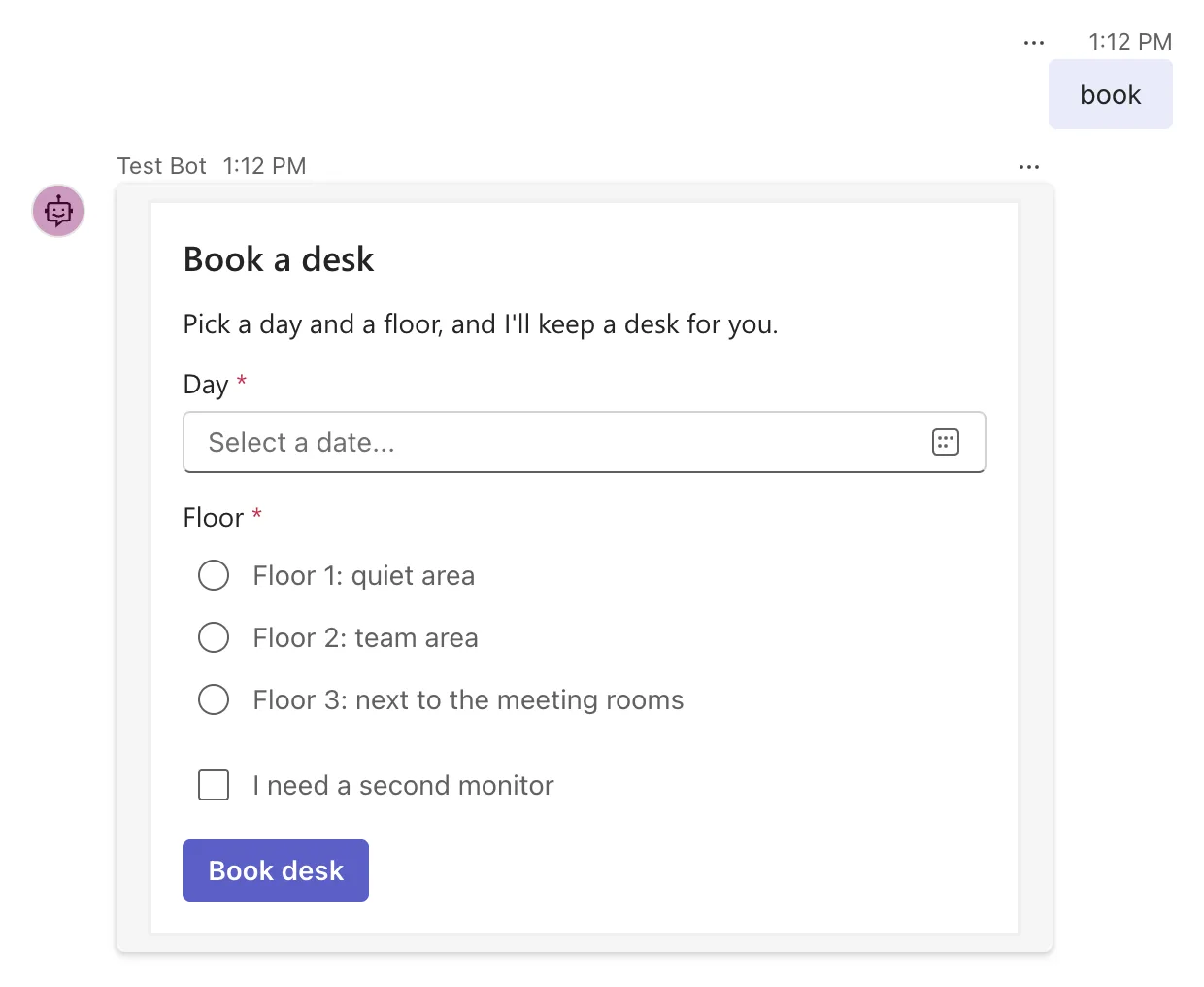
The Playground drew the JSON as a form: the date input became a date picker, the choices became round buttons, and the required inputs got a red star. Now select Book desk without filling anything in:
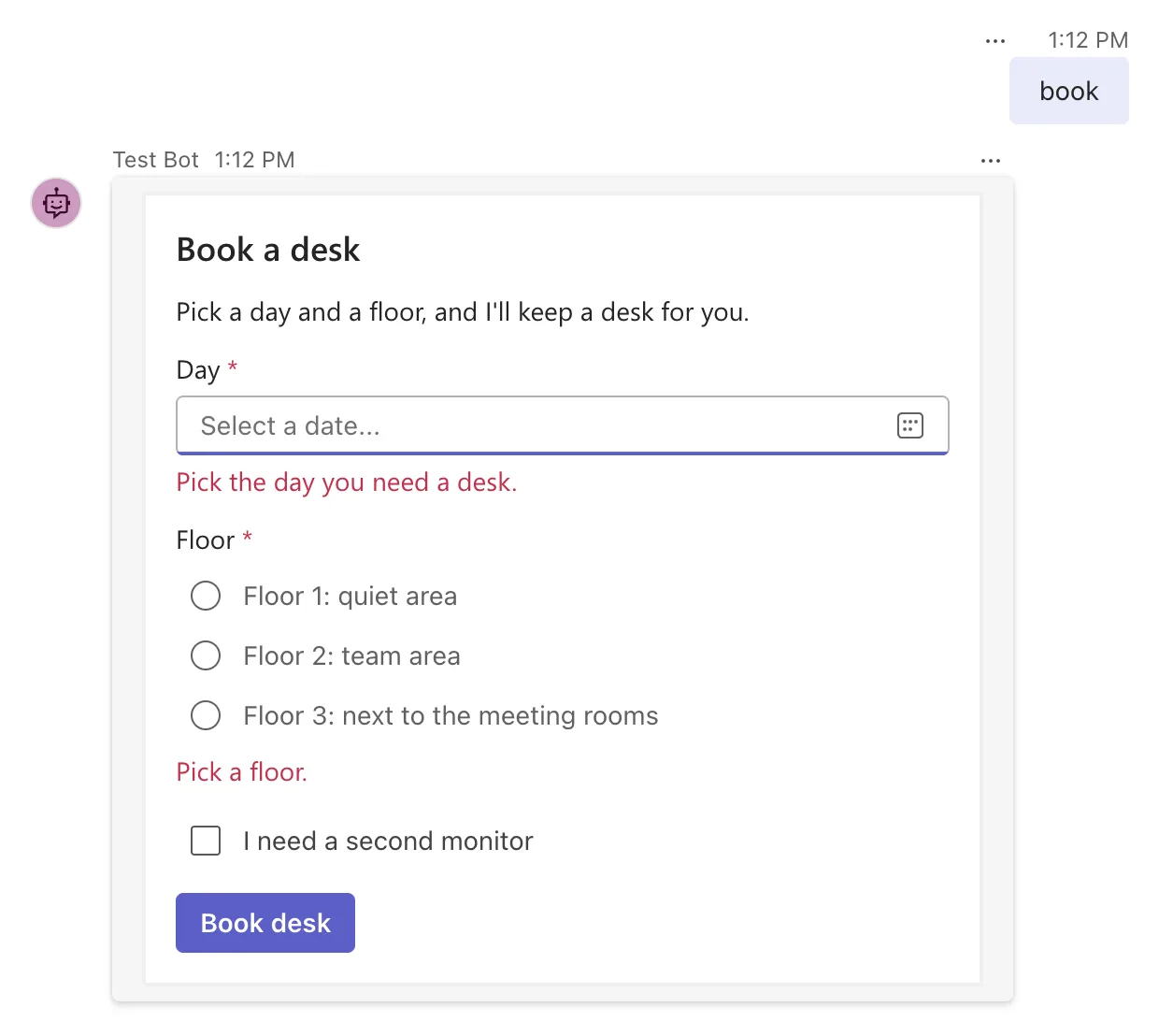
The card's own checks ran, and the error messages from the JSON appeared under the two empty inputs. Nothing was sent: the Playground's Log Panel, on the right, has no new entry. That check happens in the chat app, before your agent is involved. How to Make Adaptive Card Inputs Required covers the other checks a card can make, such as a pattern for an email address.
Step 4: See What the Card Sends
The agent has no route for the button yet, and that's a good moment to see what the button sends. Pick Monday 23 November 2026 (any day from today on works), Floor 2: team area, and tick I need a second monitor:
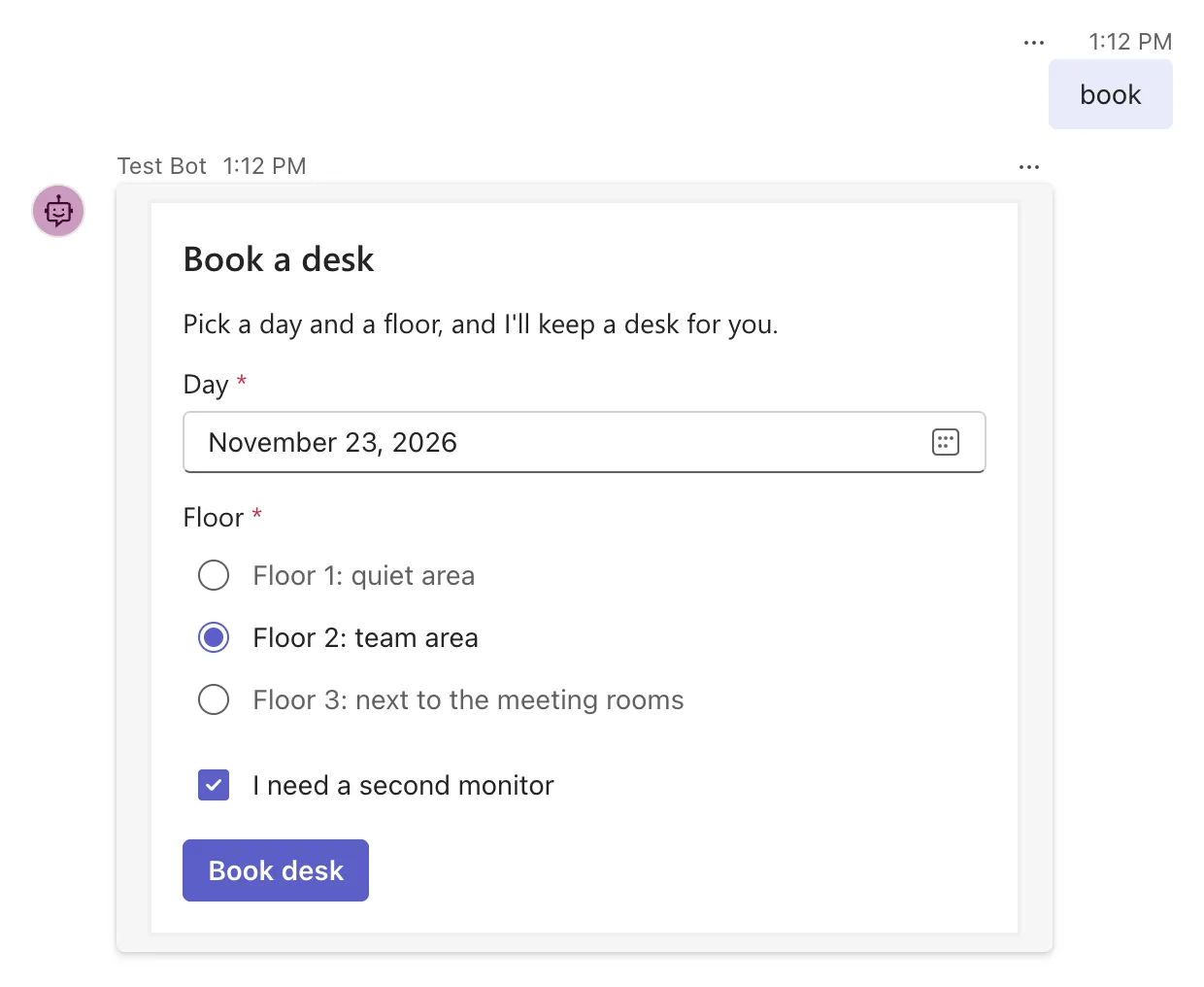
Then select Book desk:
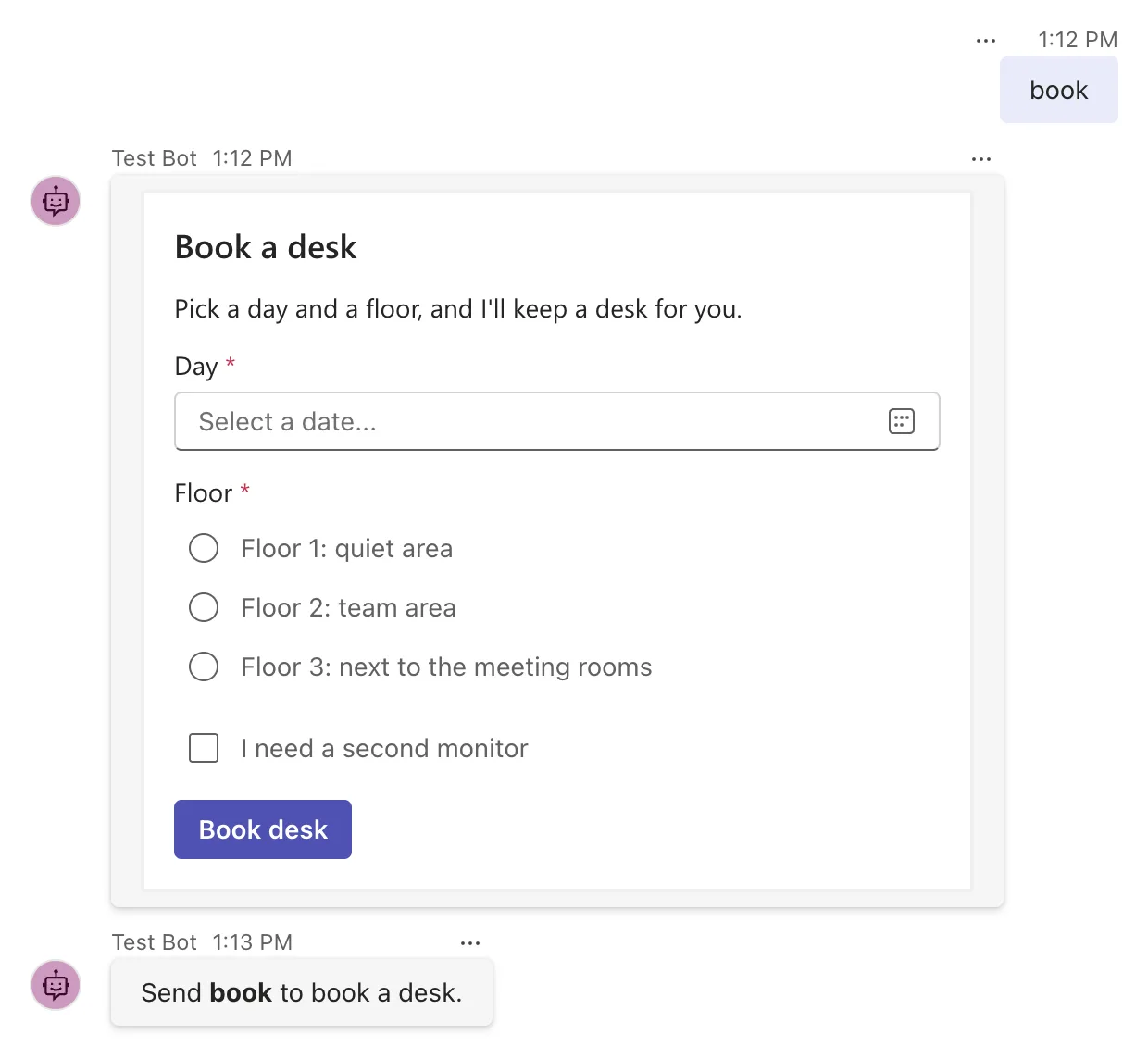
Two things happened. The Playground emptied the card after sending it, and it didn't show the submit in the chat the way it shows a typed message. And the agent answered with its help message: the submit was a message activity, no route matched it, so the catch-all took it.
To see what arrived, select the last message 202 entry in the Log Panel. Its Request tab shows the activity the Playground sent to the agent. The end of it:
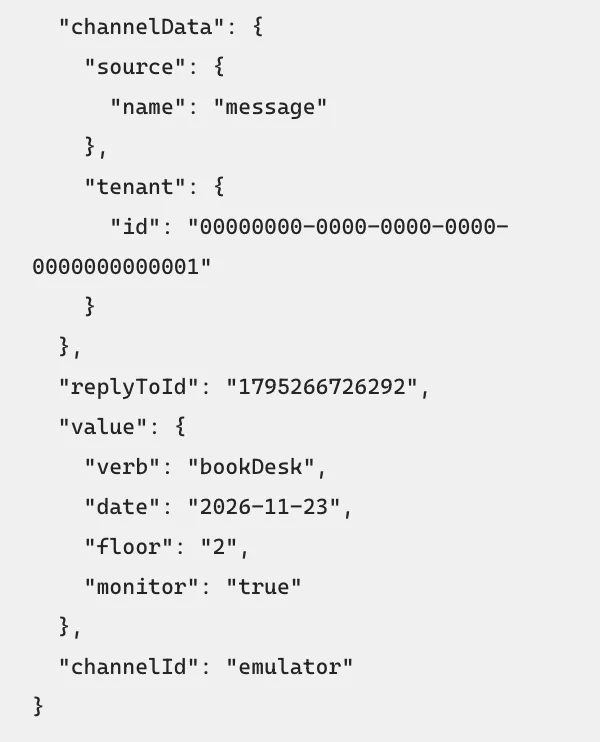
The activity has no text field at all, and its value is the card's answer:
"value": {
  "verb": "bookDesk",
  "date": "2026-11-23",
  "floor": "2",
  "monitor": "true"
}
verbcame from the button'sdata. The inputs' values were added next to it, each under its input'sid.- The date arrived in the
YYYY-MM-DDform, whatever the date picker showed on screen. - The floor is the choice's
value, not the title the person saw. - Every value is text, in quotes, even the check box:
"true", nottrue. Inputs that are left empty and aren't required are left out ofvaluealtogether.
Step 5: Handle the Book Desk Button
Stop the agent with Ctrl+C. Start with a record for what the card sends. Create DeskRequest.cs in the project folder, written the way most people would first write it, with a bool for the check box:
namespace DeskBooking;

public record DeskRequest(DateOnly Date, string Floor, bool Monitor);
In DeskBookingAgent.cs, add two using lines at the top:
using System.Globalization;
using Microsoft.Agents.Core.Serialization;
Register a route for the button's verb, between the two routes you have:
    public DeskBookingAgent(AgentApplicationOptions options) : base(options)
    {
        OnMessage("book", SendBookingCardAsync);
        AdaptiveCards.OnActionSubmit("bookDesk", BookDeskAsync);
        OnActivity(ActivityTypes.Message, HelpAsync, rank: RouteRank.Last);
    }
And add its handler, plus a small method that writes a date the way people read it, below SendBookingCardAsync:
    private async Task BookDeskAsync(ITurnContext turnContext, ITurnState turnState, object data, CancellationToken cancellationToken)
    {
        DeskRequest request = ProtocolJsonSerializer.ToObject<DeskRequest>(data);

        string monitor = request.Monitor ? ", with a second monitor" : "";
        await turnContext.SendActivityAsync($"You asked for a desk on floor {request.Floor} on {Day(request.Date)}{monitor}.", cancellationToken: cancellationToken);
    }

    private static string Day(DateOnly date) => date.ToString("dddd d MMMM yyyy", CultureInfo.InvariantCulture);
object datais the submit'svalue.ProtocolJsonSerializer.ToObject<DeskRequest>(data)turns it into aDeskRequest, using the same JSON settings the SDK uses for activities. Those settings ignore the case of property names, sodatefillsDate.Daywrites a date such as Monday 23 November 2026, in English whatever the computer's language settings are.
Build and run the agent, send book, fill in the card as before and select Book desk. The answer is an error:
The JSON value could not be converted to DeskBooking.DeskRequest. Path: $.monitor | LineNumber: 0 | BytePositionInLine: 67. => Cannot get the value of a token type 'String' as a boolean.
That's Step 4's finding coming back. The check box sent the text "true", and the JSON reader won't turn text into a bool. It does turn text into a number, which is why a number field wouldn't have failed here. The whole story, with what the documentation says about it, is in Fixed: Cannot get the value of a token type 'String' as a boolean when reading Adaptive Card values in C#.
The fix is to take the values as what they are, text, and convert them yourself. Change the record to strings:
namespace DeskBooking;

public record DeskRequest(string? Date, string? Floor, string? Monitor);
Every property can be null, because a value that wasn't sent stays empty, as Step 4 showed. In BookDeskAsync, compare the check box's text, and show the date as it arrived for now:
    private async Task BookDeskAsync(ITurnContext turnContext, ITurnState turnState, object data, CancellationToken cancellationToken)
    {
        DeskRequest request = ProtocolJsonSerializer.ToObject<DeskRequest>(data);

        string monitor = request.Monitor == "true" ? ", with a second monitor" : "";
        await turnContext.SendActivityAsync($"You asked for a desk on floor {request.Floor} on {request.Date}{monitor}.", cancellationToken: cancellationToken);
    }
Run it again, and book the same desk:
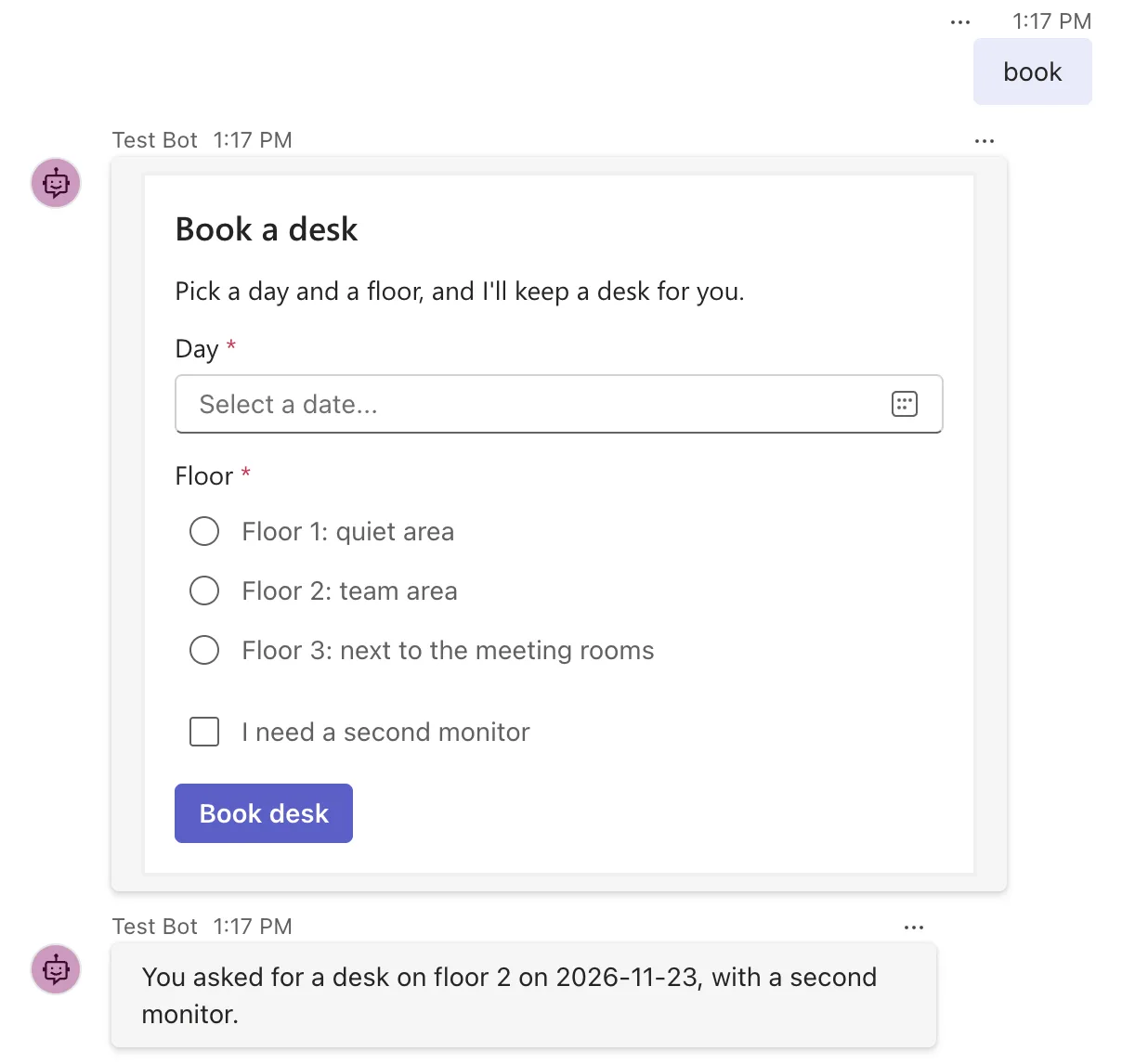
The submit reached BookDeskAsync this time, not the help message: the new route matched it first.
Step 6: Check the Values and Confirm with a Card
The card checked that the day and the floor aren't empty, but your agent can't rely on that. Those checks run in the person's chat app, which your agent doesn't control: another app may not run them, an old copy of the card may be used, and nothing stops a value from being made by hand. So the agent checks again, and only then keeps the booking.
A booking is a day, a floor and the monitor, as real types this time. Create Booking.cs:
namespace DeskBooking;

public record Booking(DateOnly Date, string Floor, bool NeedsMonitor);
At the top of the class, add a name for the bookings in state:
private const string BookingsKey = "bookings";
Then replace BookDeskAsync with the version that checks, keeps and confirms:
    private async Task BookDeskAsync(ITurnContext turnContext, ITurnState turnState, object data, CancellationToken cancellationToken)
    {
        DeskRequest request = ProtocolJsonSerializer.ToObject<DeskRequest>(data);

        if (!DateOnly.TryParseExact(request.Date, "yyyy-MM-dd", CultureInfo.InvariantCulture, DateTimeStyles.None, out DateOnly date))
        {
            await turnContext.SendActivityAsync("Pick the day you need a desk.", cancellationToken: cancellationToken);
            return;
        }

        DateOnly today = DateOnly.FromDateTime((turnContext.Activity.LocalTimestamp ?? DateTimeOffset.UtcNow).DateTime);
        if (date < today)
        {
            await turnContext.SendActivityAsync($"{Day(date)} has already passed. Pick today or a later day.", cancellationToken: cancellationToken);
            return;
        }

        if (request.Floor is not ("1" or "2" or "3"))
        {
            await turnContext.SendActivityAsync("Pick floor 1, 2 or 3.", cancellationToken: cancellationToken);
            return;
        }

        Booking booking = new(date, request.Floor, request.Monitor == "true");

        List<Booking> bookings = turnState.User.GetValue<List<Booking>>(BookingsKey, () => []);
        bookings.Add(booking);
        turnState.User.SetValue(BookingsKey, bookings);

        await turnContext.SendActivityAsync(MessageFactory.Attachment(BookingConfirmedCard(booking)), cancellationToken);
    }
DateOnly.TryParseExactturns the text into a date only if it has the exactyyyy-MM-ddform. Anything else, including a missing date, gets a polite answer instead of an exception.turnContext.Activity.LocalTimestampis when the person sent the submit, in their own time zone. Taking today from it means the check uses the person's date, not the date where the agent runs. If a channel leaves it out, the code falls back to the current time in UTC.request.Floor is not ("1" or "2" or "3")accepts only the three floors the card offers.- The booking goes into user state, as a list of bookings, the way Part 4 kept each person's usual drink. Bookings belong to a person, whichever chat they book from.
The confirmation is another card, but this one changes with every booking, so it isn't a file. Build it in code, below HelpAsync, along with two small helpers:
    private static Attachment BookingConfirmedCard(Booking booking)
    {
        JsonObject card = new()
        {
            ["type"] = "AdaptiveCard",
            ["version"] = "1.5",
            ["body"] = new JsonArray
            {
                new JsonObject
                {
                    ["type"] = "TextBlock",
                    ["text"] = "Desk booked",
                    ["size"] = "Large",
                    ["weight"] = "Bolder"
                },
                new JsonObject
                {
                    ["type"] = "FactSet",
                    ["facts"] = new JsonArray
                    {
                        Fact("Day", Day(booking.Date)),
                        Fact("Floor", booking.Floor),
                        Fact("Second monitor", booking.NeedsMonitor ? "Yes" : "No")
                    }
                }
            }
        };

        return new Attachment { ContentType = ContentTypes.AdaptiveCard, Content = card };
    }

    private static JsonObject Fact(string title, string value) => new() { ["title"] = title, ["value"] = value };
JsonObject and JsonArray come from System.Text.Json.Nodes, which the file already uses. They build the same JSON you'd write by hand, one property at a time, and they write each value safely: a day, a floor or any text a person typed can't break the card's JSON, which pasting values into a JSON string can do. A FactSet shows its facts as two columns of labels and values.
Run the agent, send book, and pick a day that has already passed, such as yesterday:
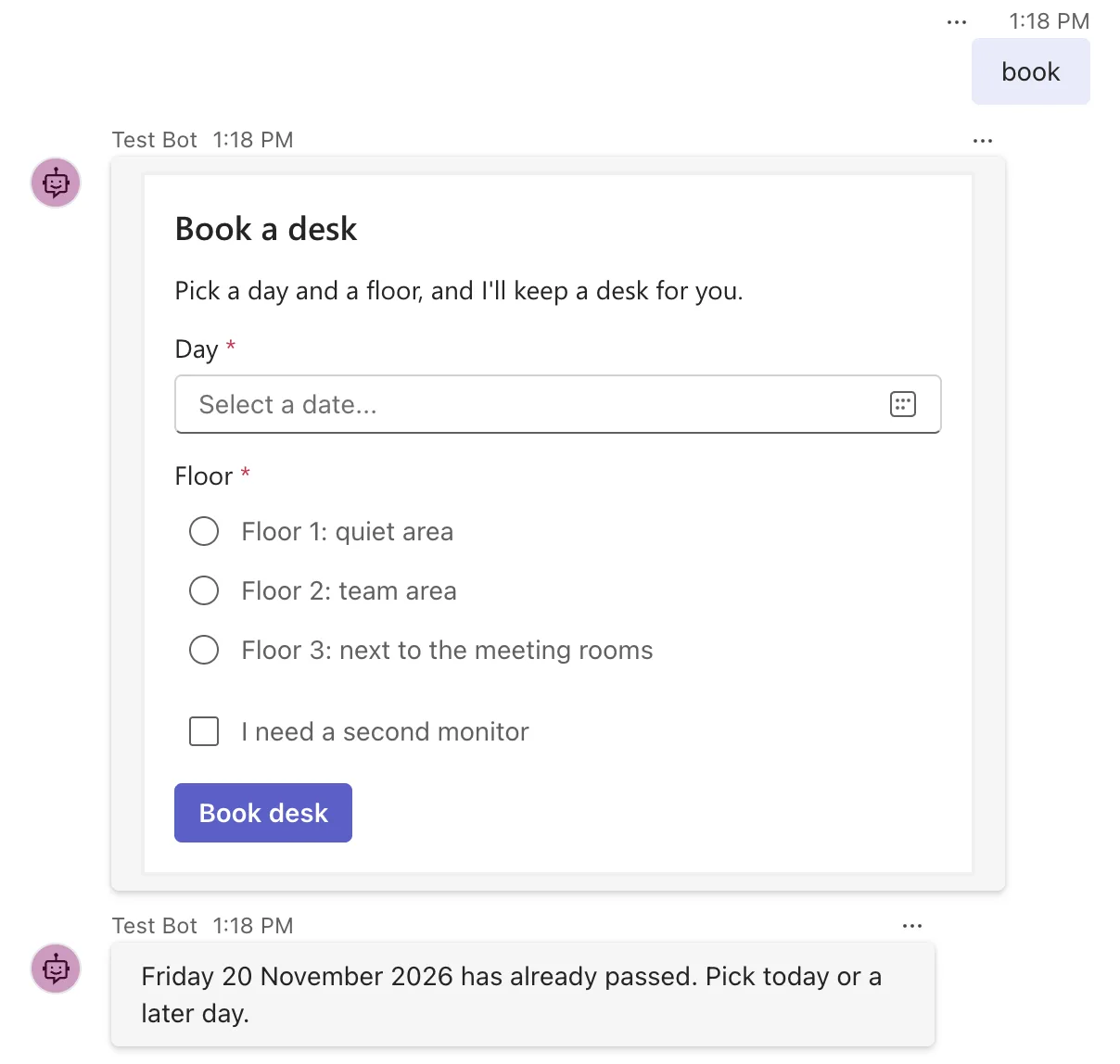
The card let it through, because a past day isn't empty, and the agent's own check caught it. Pick Monday 23 November 2026, Floor 2 and the second monitor on the same card, and select Book desk again:
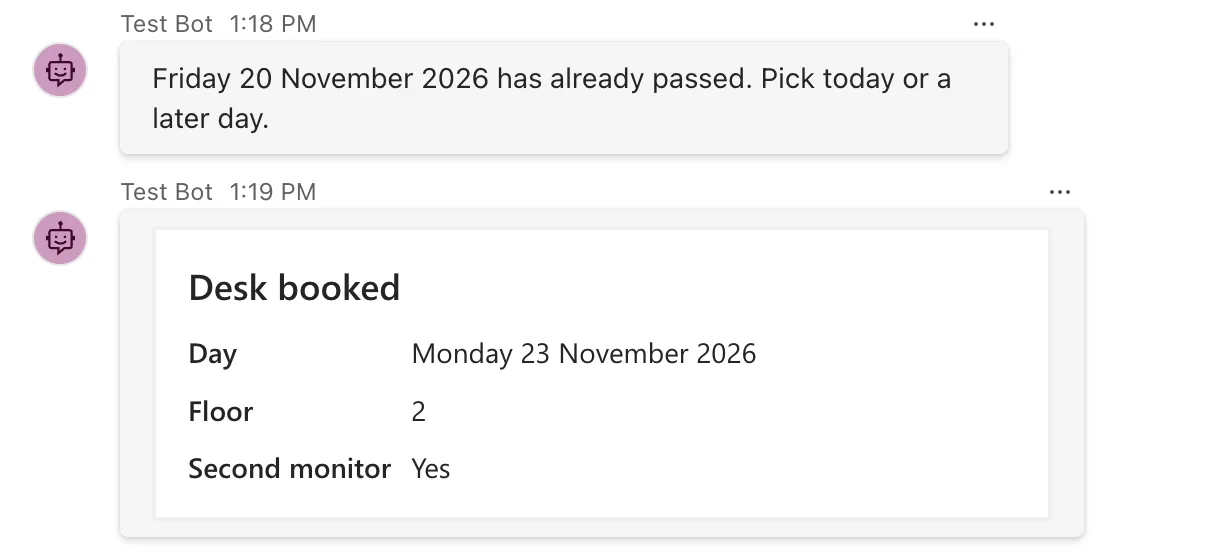
The confirmation is a card too, drawn from the JSON your code built.
Step 7: Add a Second Action: Cancel Booking
A confirmation is a good place for an undo. The Cancel booking button has to tell the agent which booking to cancel, and the card has no input for that. It doesn't need one: the button's data can carry anything, so it carries the day.
Create CancelRequest.cs for what the button sends:
namespace DeskBooking;

public record CancelRequest(string? Date);
In BookingConfirmedCard, add an actions array after the body:
            },
            ["actions"] = new JsonArray
            {
                new JsonObject
                {
                    ["type"] = "Action.Submit",
                    ["title"] = "Cancel booking",
                    ["data"] = new JsonObject
                    {
                        ["verb"] = "cancelBooking",
                        ["date"] = booking.Date.ToString("yyyy-MM-dd", CultureInfo.InvariantCulture)
                    }
                }
            }
        };
The button has its own verb, cancelBooking, and a date the agent wrote into the card when it built it. Register a route for the verb, next to the first one:
        AdaptiveCards.OnActionSubmit("bookDesk", BookDeskAsync);
        AdaptiveCards.OnActionSubmit("cancelBooking", CancelBookingAsync);
And add its handler, below BookDeskAsync:
    private async Task CancelBookingAsync(ITurnContext turnContext, ITurnState turnState, object data, CancellationToken cancellationToken)
    {
        CancelRequest request = ProtocolJsonSerializer.ToObject<CancelRequest>(data);

        if (!DateOnly.TryParseExact(request.Date, "yyyy-MM-dd", CultureInfo.InvariantCulture, DateTimeStyles.None, out DateOnly date))
        {
            await turnContext.SendActivityAsync("I couldn't tell which booking to cancel.", cancellationToken: cancellationToken);
            return;
        }

        List<Booking> bookings = turnState.User.GetValue<List<Booking>>(BookingsKey, () => []);
        if (bookings.RemoveAll(booking => booking.Date == date) == 0)
        {
            await turnContext.SendActivityAsync($"You have no desk booked on {Day(date)}.", cancellationToken: cancellationToken);
            return;
        }

        turnState.User.SetValue(BookingsKey, bookings);
        await turnContext.SendActivityAsync($"Cancelled your desk on {Day(date)}.", cancellationToken: cancellationToken);
    }
RemoveAll removes every booking for that day and returns how many it removed, so zero means there was nothing to cancel. Run the agent, book Monday 23 November 2026 again, then select Cancel booking on the confirmation. Then select it a second time:
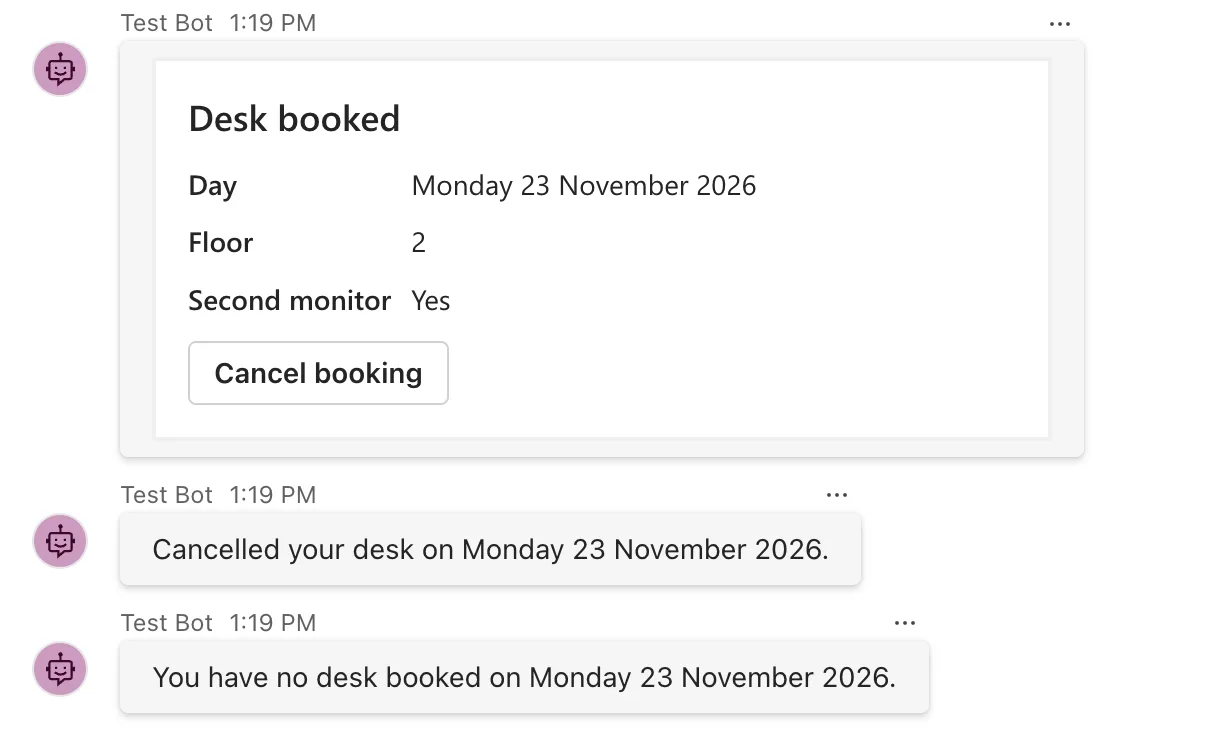
The first press cancelled the booking. The second press was the same button on the same card, and it still worked: cards stay in the chat, and their buttons keep working. The handler checked the state instead of assuming, so the second press got a sensible answer.
Step 8: Handle a Card That's Used Twice
That second press is worth taking seriously, because it can happen with every card: a double click, a slow connection that makes someone try again, or an old card scrolled back to days later. Microsoft's Copilot Studio documentation puts it plainly: by design, Adaptive Cards allow selecting their submit buttons multiple times.
The booking card has the same weakness. Send book, book Tuesday 24 November 2026 on Floor 1 without a monitor, then fill in the same card with the same answers and select Book desk again:
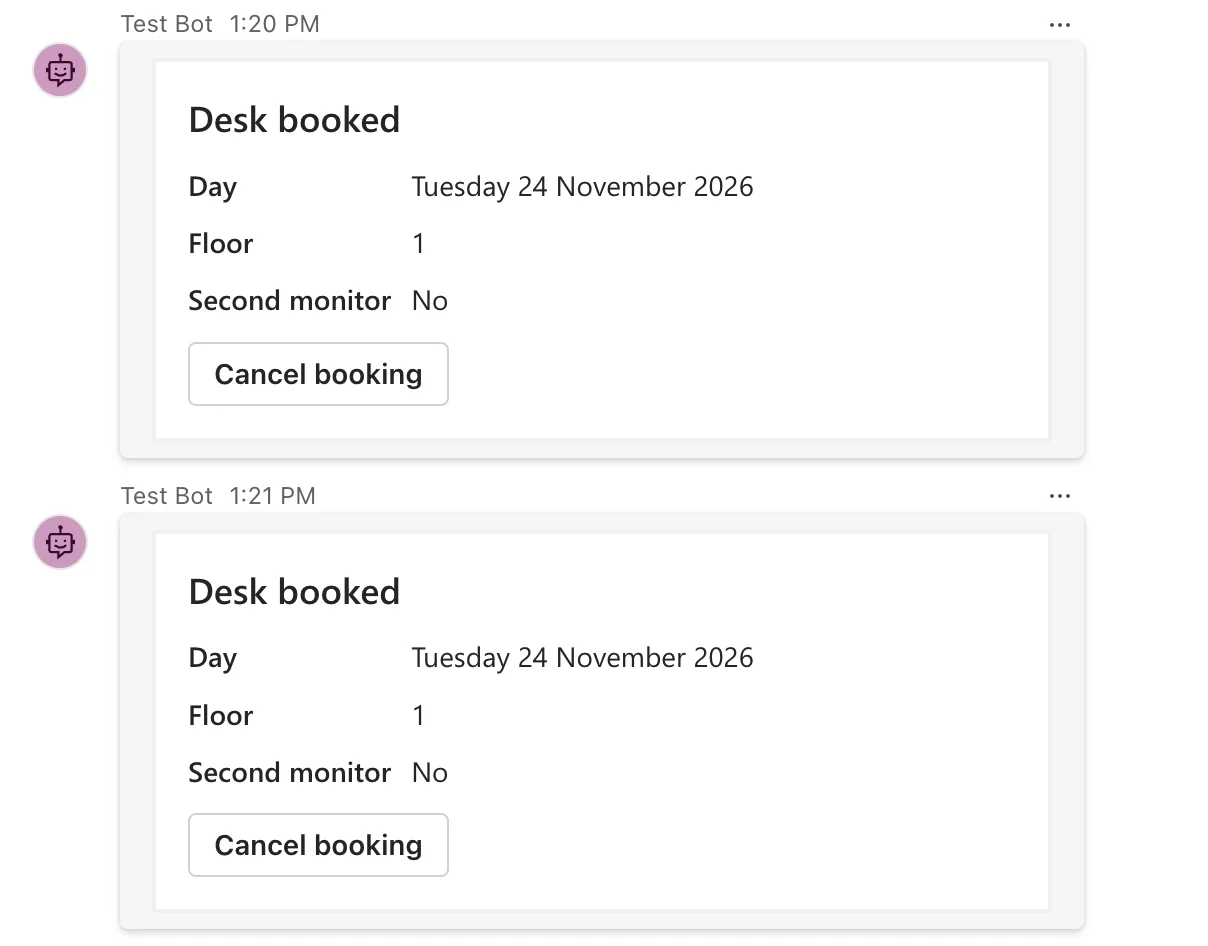
Two desks for one person on one day. The fix belongs in the agent, which knows what it has already done: before keeping a booking, look for one on the same day. In BookDeskAsync, replace the lines that create and keep the booking with these:
        List<Booking> bookings = turnState.User.GetValue<List<Booking>>(BookingsKey, () => []);
        if (bookings.Any(existing => existing.Date == date))
        {
            await turnContext.SendActivityAsync($"You already have a desk on {Day(date)}.", cancellationToken: cancellationToken);
            return;
        }

        Booking booking = new(date, request.Floor, request.Monitor == "true");
        bookings.Add(booking);
        turnState.User.SetValue(BookingsKey, bookings);

        await turnContext.SendActivityAsync(MessageFactory.Attachment(BookingConfirmedCard(booking)), cancellationToken);
Restart the agent, which also empties its MemoryStorage, and try the same thing:
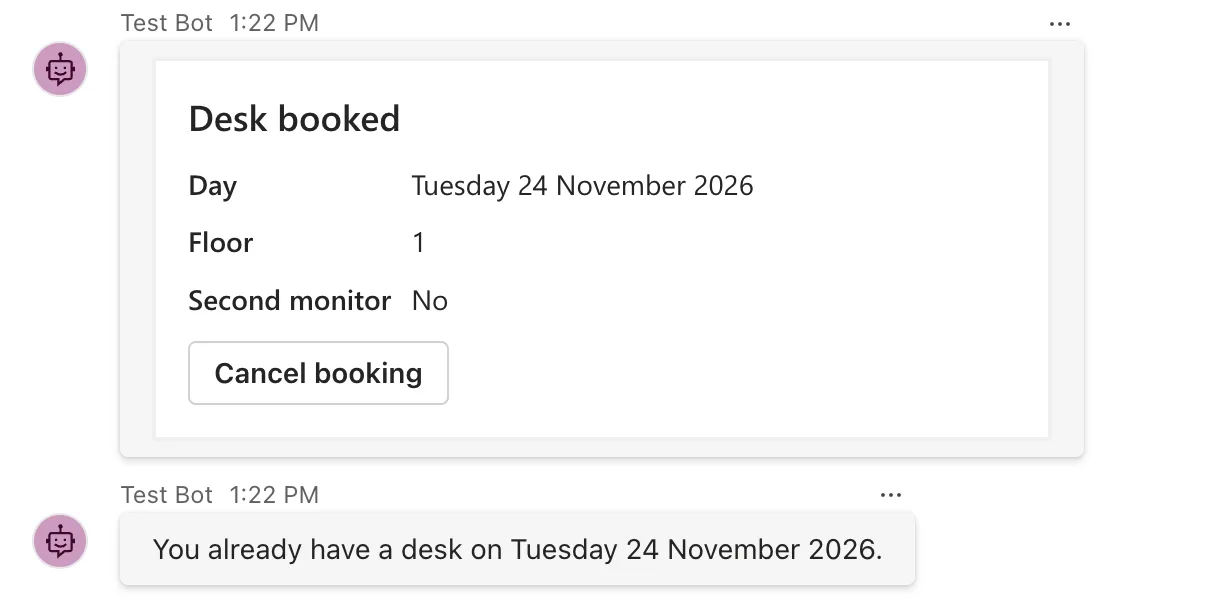
The first submit booked the desk, and the second found the booking and said so. A rule from your own domain, one desk per person per day, is the best guard when you have one. When you don't, give each card an ID of its own and remember the IDs you've handled: How to Stop an Adaptive Card from Being Submitted Twice in the Microsoft 365 Agents SDK in C# shows how.
The Complete Code
The finished agent:
using System.Globalization;
using System.Text.Json.Nodes;
using Microsoft.Agents.Builder;
using Microsoft.Agents.Builder.App;
using Microsoft.Agents.Builder.State;
using Microsoft.Agents.Core.Models;
using Microsoft.Agents.Core.Serialization;

namespace DeskBooking;

public class DeskBookingAgent : AgentApplication
{
    private const string BookingsKey = "bookings";

    private static readonly string BookDeskCardJson =
        File.ReadAllText(Path.Combine(AppContext.BaseDirectory, "Cards", "BookDeskCard.json"));

    public DeskBookingAgent(AgentApplicationOptions options) : base(options)
    {
        OnMessage("book", SendBookingCardAsync);
        AdaptiveCards.OnActionSubmit("bookDesk", BookDeskAsync);
        AdaptiveCards.OnActionSubmit("cancelBooking", CancelBookingAsync);
        OnActivity(ActivityTypes.Message, HelpAsync, rank: RouteRank.Last);
    }

    private async Task SendBookingCardAsync(ITurnContext turnContext, ITurnState turnState, CancellationToken cancellationToken)
    {
        Attachment card = new()
        {
            ContentType = ContentTypes.AdaptiveCard,
            Content = JsonNode.Parse(BookDeskCardJson)
        };

        await turnContext.SendActivityAsync(MessageFactory.Attachment(card), cancellationToken);
    }

    private async Task BookDeskAsync(ITurnContext turnContext, ITurnState turnState, object data, CancellationToken cancellationToken)
    {
        DeskRequest request = ProtocolJsonSerializer.ToObject<DeskRequest>(data);

        if (!DateOnly.TryParseExact(request.Date, "yyyy-MM-dd", CultureInfo.InvariantCulture, DateTimeStyles.None, out DateOnly date))
        {
            await turnContext.SendActivityAsync("Pick the day you need a desk.", cancellationToken: cancellationToken);
            return;
        }

        DateOnly today = DateOnly.FromDateTime((turnContext.Activity.LocalTimestamp ?? DateTimeOffset.UtcNow).DateTime);
        if (date < today)
        {
            await turnContext.SendActivityAsync($"{Day(date)} has already passed. Pick today or a later day.", cancellationToken: cancellationToken);
            return;
        }

        if (request.Floor is not ("1" or "2" or "3"))
        {
            await turnContext.SendActivityAsync("Pick floor 1, 2 or 3.", cancellationToken: cancellationToken);
            return;
        }

        List<Booking> bookings = turnState.User.GetValue<List<Booking>>(BookingsKey, () => []);
        if (bookings.Any(existing => existing.Date == date))
        {
            await turnContext.SendActivityAsync($"You already have a desk on {Day(date)}.", cancellationToken: cancellationToken);
            return;
        }

        Booking booking = new(date, request.Floor, request.Monitor == "true");
        bookings.Add(booking);
        turnState.User.SetValue(BookingsKey, bookings);

        await turnContext.SendActivityAsync(MessageFactory.Attachment(BookingConfirmedCard(booking)), cancellationToken);
    }

    private async Task CancelBookingAsync(ITurnContext turnContext, ITurnState turnState, object data, CancellationToken cancellationToken)
    {
        CancelRequest request = ProtocolJsonSerializer.ToObject<CancelRequest>(data);

        if (!DateOnly.TryParseExact(request.Date, "yyyy-MM-dd", CultureInfo.InvariantCulture, DateTimeStyles.None, out DateOnly date))
        {
            await turnContext.SendActivityAsync("I couldn't tell which booking to cancel.", cancellationToken: cancellationToken);
            return;
        }

        List<Booking> bookings = turnState.User.GetValue<List<Booking>>(BookingsKey, () => []);
        if (bookings.RemoveAll(booking => booking.Date == date) == 0)
        {
            await turnContext.SendActivityAsync($"You have no desk booked on {Day(date)}.", cancellationToken: cancellationToken);
            return;
        }

        turnState.User.SetValue(BookingsKey, bookings);
        await turnContext.SendActivityAsync($"Cancelled your desk on {Day(date)}.", cancellationToken: cancellationToken);
    }

    private async Task HelpAsync(ITurnContext turnContext, ITurnState turnState, CancellationToken cancellationToken)
    {
        await turnContext.SendActivityAsync("Send **book** to book a desk.", cancellationToken: cancellationToken);
    }

    private static Attachment BookingConfirmedCard(Booking booking)
    {
        JsonObject card = new()
        {
            ["type"] = "AdaptiveCard",
            ["version"] = "1.5",
            ["body"] = new JsonArray
            {
                new JsonObject
                {
                    ["type"] = "TextBlock",
                    ["text"] = "Desk booked",
                    ["size"] = "Large",
                    ["weight"] = "Bolder"
                },
                new JsonObject
                {
                    ["type"] = "FactSet",
                    ["facts"] = new JsonArray
                    {
                        Fact("Day", Day(booking.Date)),
                        Fact("Floor", booking.Floor),
                        Fact("Second monitor", booking.NeedsMonitor ? "Yes" : "No")
                    }
                }
            },
            ["actions"] = new JsonArray
            {
                new JsonObject
                {
                    ["type"] = "Action.Submit",
                    ["title"] = "Cancel booking",
                    ["data"] = new JsonObject
                    {
                        ["verb"] = "cancelBooking",
                        ["date"] = booking.Date.ToString("yyyy-MM-dd", CultureInfo.InvariantCulture)
                    }
                }
            }
        };

        return new Attachment { ContentType = ContentTypes.AdaptiveCard, Content = card };
    }

    private static JsonObject Fact(string title, string value) => new() { ["title"] = title, ["value"] = value };

    private static string Day(DateOnly date) => date.ToString("dddd d MMMM yyyy", CultureInfo.InvariantCulture);
}
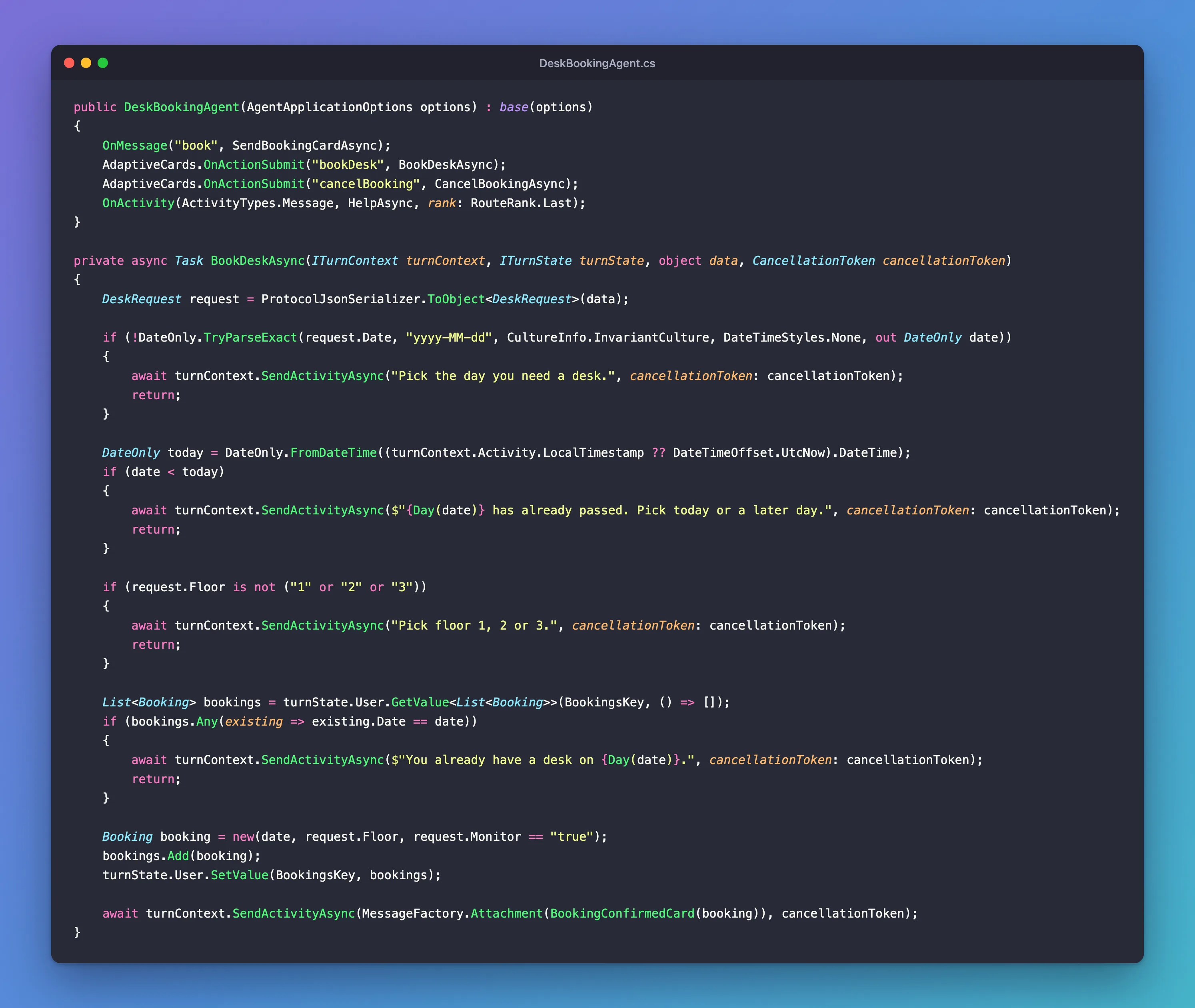
The three records, each in its own file:
namespace DeskBooking;

public record DeskRequest(string? Date, string? Floor, string? Monitor);
namespace DeskBooking;

public record Booking(DateOnly Date, string Floor, bool NeedsMonitor);
namespace DeskBooking;

public record CancelRequest(string? Date);
Cards/BookDeskCard.json and Program.cs are unchanged from Steps 2 and 3.
Stop and Clean Up
Stop the agent and the Playground with Ctrl+C in their terminals. Nothing was created outside the project folder, and the bookings only ever lived in the agent's memory, so they went when the agent stopped. Delete the DeskBooking folder if you don't want to keep it.
What You Can Do Now
- Describe what an Adaptive Card is made of, which version a host supports, and which actions reach your agent.
- Send a card from a JSON file as an attachment on a message.
- Route a card's
Action.Submitbuttons by their verb withAdaptiveCards.OnActionSubmit, and read what they send. - Treat every value a card sends as text, and check it in the agent before acting on it.
- Build a card in code that shows values safely, and give a button data of its own, such as the item it acts on.
- Expect a card to be used more than once, and answer sensibly when it is.
Common Mistakes
| Mistake | What happens | Do this instead |
|---|---|---|
Reading a check box into a bool, or other values into non-text types | The turn fails with Cannot get the value of a token type 'String' as a boolean | Read the values as strings and convert them in the handler |
A catch-all message route registered before OnActionSubmit, without RouteRank.Last | The catch-all gets every submit, because a submit is a message too | Register the catch-all with rank: RouteRank.Last |
A button whose data is a plain string instead of an object | In the Playground the submit arrived with an empty value and no verb, so no submit route matched | Give data an object with a verb |
A verb that differs in case, such as BookDesk in the card and bookDesk in the route | No route matches: the comparison is exact | Copy the verb from one place to the other |
| Relying on the card's own checks | Other chat apps, old cards and hand-made requests skip them | Check every value in the handler, as Step 6 does |
| Building a card by pasting values into a JSON string | A quote in a value breaks the JSON | Build it with JsonObject and JsonArray |
| Assuming each button is pressed once | Duplicate bookings, orders or approvals | Check what the agent already did before doing it again |
Troubleshooting
| Symptom | Likely cause | Fix |
|---|---|---|
| Selecting a button does nothing at all | A required input is empty; its error message is under it on the card | Fill it in, or make the input optional |
| The help message answers a button | No submit route for that verb, a verb with different case, or a catch-all registered first | Check the verb in the card and in OnActionSubmit, and rank the catch-all Last |
| The answer says Cannot get the value of a token type 'String' as a boolean | A card value is read into a bool | Fixed: Cannot get the value of a token type 'String' as a boolean |
A value in your record is always null | The input was empty and not required, so it wasn't sent, or its id differs from the property name | Match the property names to the inputs' ids, and handle null |
| A card from the Adaptive Cards Designer says version 1.6 | The Designer writes 1.6, the highest Teams supports is 1.5 | Fixed: The Adaptive Cards Designer saves the card as version 1.6 |
FAQ
Should I use Action.Submit or Action.Execute?
Both send the card's inputs to your agent. Action.Submit arrives as an ordinary message, and the agent answers with a new message, as in this part. Action.Execute arrives as an invoke activity, and its answer can replace the card itself, which is how cards update in place. Not every host supports it: Microsoft's design guidance lists Bot Framework Web Chat without Action.Execute. Part 9 covers it.
Why don't my button presses appear in the chat?
The Playground shows only the agent's answer to a submit, not the submit itself. Its Log Panel lists every submit as a message entry, as Step 4 showed.
Why is the card empty again after I select a button?
The Playground cleared the card's inputs after each submit in every test on this page. The values had already been sent, as the Log Panel showed.
Can I keep the card in my code instead of a file?
Yes. A C# raw string literal, between """ marks, holds the JSON as it is, and JsonObject builds it step by step as Step 6 did. A file is easier to read and to try in a designer, which is why the fixed booking card lives in one.
Can my cards use a field other than verb for the route?
Yes. The field is a setting: How to Change the Field That Routes Adaptive Card Submits in the Microsoft 365 Agents SDK in C#.
How do I add a Cancel button to a card with required inputs?
A plain Action.Submit would be blocked by the empty required inputs. Tell the button not to send or check them: How to Add a Cancel Button That Skips Validation to an Adaptive Card.
Can the agent change a card after it's been used, such as marking it as booked?
Yes, but how depends on the action and the channel. Part 9 covers it, with Action.Execute.
Conclusion
An Adaptive Card is JSON that the chat app turns into a small form, sent as an attachment on an ordinary message. When someone selects an Action.Submit button, the app sends back a message with no text and a value that holds every input and the button's data, and AdaptiveCards.OnActionSubmit routes it by the verb in that data. Everything in value is text, nothing in it can be trusted until your agent checks it, and any card can be used more than once. Design for those three facts, and cards become a reliable way to ask people for exactly what your agent needs.
Next: Part 6: Send Proactive Messages (coming soon). Every message your agents have sent so far was an answer to something. Part 6 sends messages that nobody asked for yet, such as a reminder about tomorrow's desk.
Additional Resources
- Use adaptive cards in agents — sending cards and handling their actions in the Agents SDK.
- AdaptiveCard.OnActionSubmit method — the API reference.
- Adaptive Cards for agent design — design guidance and the versions each host supports.
- Action.Submit — the action's properties, including
dataandassociatedInputs. - Microsoft 365 Agents Playground: Limitations — the card features the Playground doesn't show.
