Part 1: Activities and the Activity Protocol
Everything that reaches your agent is an activity: a message someone types, a person joining the chat, your agent being installed, a thumbs-up on a reply, a signal from a web page. Your agent answers with activities too. Learn how to read one, and you can read all of them. In this part you look inside them, field by field, with a small agent built to show you exactly what arrives.
This is Part 1 of the Microsoft 365 Agents SDK Fundamentals, a 26-part series.
- Part 1: Activities and the Activity Protocol (you are here)
- Part 2: Route Activities with AgentApplication
- Part 3: Turn Events, Error Handling and Middleware
- Part 4: Conversation, User and Turn State
- Part 5: Send Adaptive Cards and Handle Their Actions
- Part 6: Send Proactive Messages (coming soon)
- Part 7: Stream Responses and Show Progress (coming soon)
- Part 8: Run Your Agent in Microsoft Teams (coming soon)
- Part 9: Universal Actions: Adaptive Cards That Update (coming soon)
- Part 10: Teams Dialogs (coming soon)
- Part 11: Commands, Suggested Actions and Targeted Messages (coming soon)
- Part 12: Mentions, Rosters and Team Events (coming soon)
- Part 13: Meeting Events (coming soon)
- Part 14: Send and Receive Files (coming soon)
- Part 15: Sign People In with SSO and OAuth (coming soon)
- Part 16: Message Extensions and Link Unfurling (coming soon)
- Part 17: AI Labels, Citations and Feedback (coming soon)
- Part 18: Bring Your Agent to Microsoft 365 Copilot (coming soon)
- Part 19: Store State in Azure Blob Storage and Cosmos DB (coming soon)
- Part 20: Telemetry with OpenTelemetry (coming soon)
- Part 21: Web Chat and Direct Line (coming soon)
- Part 22: Reach People in Slack (coming soon)
- Part 23: Call a Copilot Studio Agent (coming soon)
- Part 24: Agent-to-Agent Communication (coming soon)
- Part 25: Keep Conversation Transcripts (coming soon)
- Part 26: Deploy Your Agent to Azure (coming soon)
By the end of this part you'll know what an activity is, which fields every activity carries and who fills them in, the activity types you'll meet most, and how a reply travels back to the right conversation. You'll have seen all of it live, in three channels. Every step works in VS Code and in Visual Studio; where they differ, the page shows a tab for each. Every output and screenshot on this page is real.
What an Activity Is
An activity is a JSON object that describes one thing that happened in a conversation. The rules for that object are the Activity Protocol, a specification Microsoft publishes and uses across its products: Microsoft Teams, Microsoft Copilot, Copilot Studio and the Microsoft 365 Agents SDK all speak it.
That's why the SDK can promise write your agent once. Teams, Web Chat and the other channels each have their own apps, servers and features, but they all deliver the same kind of object to your agent. Your code reads type, from, text and the rest the same way, whichever channel sent them. What a channel can't express in the common fields, it puts in fields made for extras, which you'll meet below.
Here is one activity's round trip, the one you'll watch for real in a moment:
The channel delivers the activity to your agent's /api/messages endpoint, and the agent accepts it at once. The answer doesn't travel back in that response: your agent sends it as a new request to the channel's own service, at the address the incoming activity told it to use. The Echo agent showed that this happens; this part shows how the activity makes it possible.
The Fields Every Activity Carries
The specification defines dozens of fields, but a handful appear in almost every activity. It also says who should set each one, and that matters: some values come only from the channel, and your agent must never invent them.
| Field | What it holds | Who sets it |
|---|---|---|
type | What kind of activity this is, such as message | The sender |
id | The activity's identity once the channel has recorded it | The channel; clients and agents should leave it out |
timestamp | When the channel recorded the activity, in UTC | The channel |
localTimestamp, localTimezone | The sender's own clock and time zone | The client, when it wants to |
channelId | Which channel the activity belongs to, such as msteams | The channel |
serviceUrl | Where replies to this activity must be sent | The channel; agents must not set it |
from, recipient | The sender's and the receiver's accounts: an id, usually a name, sometimes a role | The channel |
conversation | The conversation the activity belongs to: its id, and in some channels its type and tenant | The channel |
replyToId | The activity this one answers or refers to | The sender |
text, textFormat, locale, attachments | A message's content | The sender |
entities | Small metadata objects about the activity; receivers ignore any they don't understand | The sender |
channelData | Extras specific to one channel, in a shape that channel defines | The channel |
Activity Types
type decides what the rest of the activity means. These are the ones you'll meet most:
| Type | What it means |
|---|---|
message | Something to show in the conversation: text, cards, files |
conversationUpdate | Members joined or left the conversation, or it changed |
installationUpdate | Your agent was installed (add) or uninstalled (remove) for someone |
messageReaction | Someone reacted to a message, such as a like |
event | A custom signal from a client, with a name and a value; nobody waits for an answer |
invoke | A request that expects an answer in the response to the request itself, such as a Teams dialog asking for its content |
typing | Someone is typing |
The SDK defines a constant for every type in the ActivityTypes class, eighteen in version 1.9.205, so you never have to type the strings yourself.
TurnContext: One Activity and Everything You Do About It
Your code never parses this JSON. Each time an activity arrives, the SDK creates a TurnContext for it and passes it to your handler. A turn is the round trip in the diagram: one incoming activity, your agent's work, and the activities it sends back. When the turn ends, the TurnContext is gone.
Two members of TurnContext do most of the work, and you'll use both in this part:
turnContext.Activityis the incoming activity, with every field as a C# property:Type,From,Text,ChannelDataand so on.turnContext.SendActivityAsync(...)sends an activity back. It fills in the addressing for you, from the activity you received.
The Example: An Activity Inspector
To see activities instead of reading about them, you'll build an Activity Inspector: an agent that answers every activity with a summary of what it received, and writes the complete activity as JSON in its console.
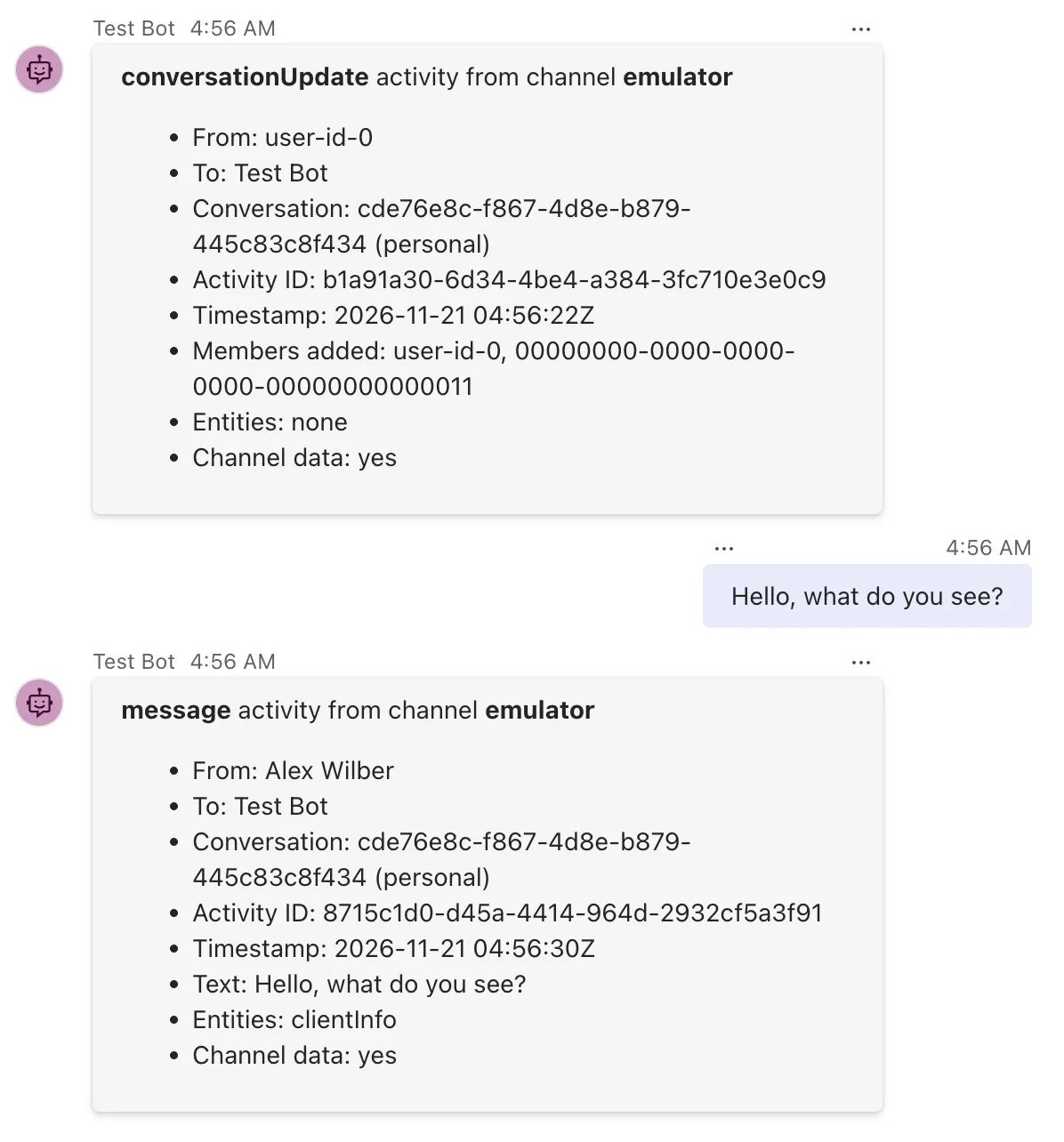
It has no AI and no business logic, so the activity is the only new thing on the page. You'll run it in the Microsoft 365 Agents Playground as three different channels, and send it activities that a chat box can't produce.
Prerequisites
- The .NET 10 SDK.
dotnet --versionshould print10.0.and a patch number; this page was built with10.0.404. - The Microsoft 365 Agents Playground.
agentsplayground --versionshould print0.2.30. If the command isn't found, install it withnpm install -g @microsoft/m365agentsplayground.
Step 1: Create the Project
The Inspector starts like any agent: an empty ASP.NET Core project with the Agents SDK's hosting package, set up the same way as in Building an Echo Agent in C#, which explains each command in more detail. Open a terminal in the folder where you keep your projects and run:
dotnet new web -o ActivityInspector
dotnet new web creates a project from the ASP.NET Core Empty template, and -o ActivityInspector puts it in a new folder of that name.
The template "ASP.NET Core Empty" was created successfully.

Processing post-creation actions...
Restoring /Users/you/source/ActivityInspector/ActivityInspector.csproj:
Restore succeeded.
Then go into the folder and add the Agents SDK:
cd ActivityInspector
dotnet add package Microsoft.Agents.Hosting.AspNetCore --version 1.9.205
Microsoft.Agents.Hosting.AspNetCore hosts an agent in ASP.NET Core, and it brings the rest of the SDK with it, including Microsoft.Agents.Core, the package that defines the Activity class. Its last lines confirm it:
info : PackageReference for package 'Microsoft.Agents.Hosting.AspNetCore' version '1.9.205' added to file '/Users/you/source/ActivityInspector/ActivityInspector.csproj'.
info : Generating MSBuild file /Users/you/source/ActivityInspector/obj/ActivityInspector.csproj.nuget.g.targets.
info : Writing assets file to disk. Path: /Users/you/source/ActivityInspector/obj/project.assets.json
log  : Restored /Users/you/source/ActivityInspector/ActivityInspector.csproj (in 854 ms).
Step 2: Write the Inspector Agent
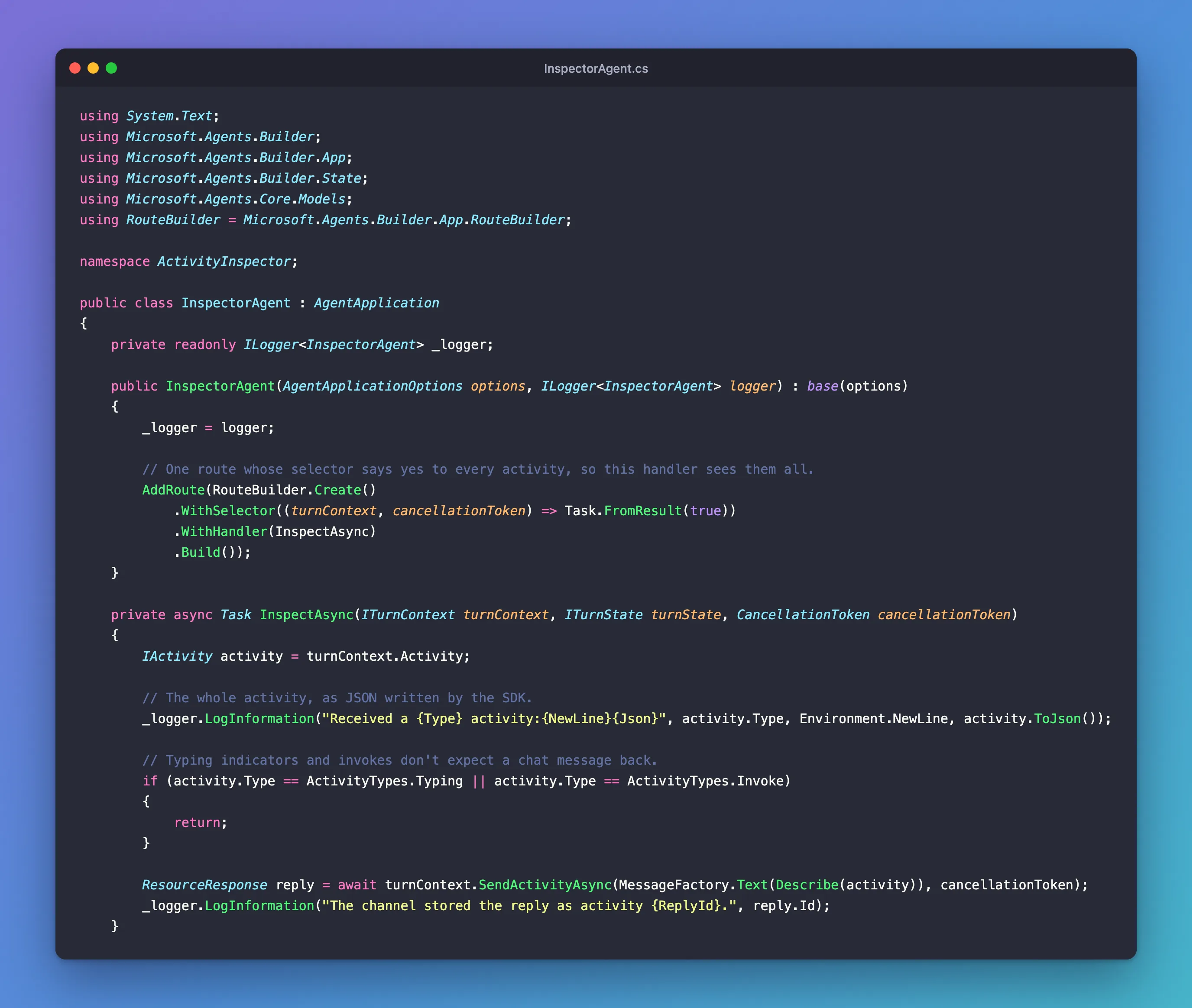
Create a file called InspectorAgent.cs in the project folder. You'll build it in three pieces, then see the whole file.
One Route for Every Activity
An agent is a class that inherits from AgentApplication. Its constructor registers routes: each route pairs a selector, which decides whether the route wants an activity, with a handler, the method that runs when it does. The Inspector needs only one route, one that wants everything:
using System.Text;
using Microsoft.Agents.Builder;
using Microsoft.Agents.Builder.App;
using Microsoft.Agents.Builder.State;
using Microsoft.Agents.Core.Models;
using RouteBuilder = Microsoft.Agents.Builder.App.RouteBuilder;

namespace ActivityInspector;

public class InspectorAgent : AgentApplication
{
    private readonly ILogger<InspectorAgent> _logger;

    public InspectorAgent(AgentApplicationOptions options, ILogger<InspectorAgent> logger) : base(options)
    {
        _logger = logger;

        // One route whose selector says yes to every activity, so this handler sees them all.
        AddRoute(RouteBuilder.Create()
            .WithSelector((turnContext, cancellationToken) => Task.FromResult(true))
            .WithHandler(InspectAsync)
            .Build());
    }
AgentApplicationOptionscomes from the SDK's hosting setup;base(options)passes it on.ILogger<InspectorAgent>is ASP.NET Core's logger, for writing to the console.RouteBuilder.Create()starts a route..WithSelector(...)gets a function that returnstruefor every activity, whatever its type;.WithHandler(InspectAsync)names the method to run;.Build()finishes the route, andAddRouteregisters it. Part 2 is all about routes; this one just catches everything.- The
using RouteBuilder = ...;line is needed. A web project already imports ASP.NET Core's routing namespace, which has aRouteBuilderof its own, so without this alias the compiler can't tell which one you mean: Fixed: "error CS0104: 'RouteBuilder' is an ambiguous reference between 'Microsoft.Agents.Builder.App.RouteBuilder' and 'Microsoft.AspNetCore.Routing.RouteBuilder'".
I first wrote this route the shorter way, OnActivity((turnContext, cancellationToken) => Task.FromResult(true), InspectAsync). It works, but in version 1.9.205 that overload of OnActivity is marked obsolete, and the build warns about it: Fixed: "warning CS0618: 'AgentApplication.OnActivity(RouteSelector, RouteHandler, ushort, string[], bool)' is obsolete".
The Handler: Read the Activity, Answer It
The handler receives the turn's TurnContext. It logs the whole activity, then answers with a summary:
    private async Task InspectAsync(ITurnContext turnContext, ITurnState turnState, CancellationToken cancellationToken)
    {
        IActivity activity = turnContext.Activity;

        // The whole activity, as JSON written by the SDK.
        _logger.LogInformation("Received a {Type} activity:{NewLine}{Json}", activity.Type, Environment.NewLine, activity.ToJson());

        // Typing indicators and invokes don't expect a chat message back.
        if (activity.Type == ActivityTypes.Typing || activity.Type == ActivityTypes.Invoke)
        {
            return;
        }

        ResourceResponse reply = await turnContext.SendActivityAsync(MessageFactory.Text(Describe(activity)), cancellationToken);
        _logger.LogInformation("The channel stored the reply as activity {ReplyId}.", reply.Id);
    }
turnContext.Activityis the activity this turn is about.IActivityis the SDK's interface for it.activity.ToJson(), fromMicrosoft.Agents.Core.Models, turns the activity back into JSON. Logging it is the most useful debugging habit you can have with agents: in real Teams, there's no other way to see what arrived.- An invoke expects its answer in the response to its own request, and a typing activity only says someone is typing, so the Inspector doesn't answer either with a chat message.
MessageFactory.Text(...)creates amessageactivity with the text you give it.SendActivityAsyncsends it and returns aResourceResponse, whoseIdis the id the channel gave your reply.
The Summary: Common Fields, Then Type-Specific Ones
Describe builds the reply. It writes Markdown, which the Playground and Teams display as bold text and a list:
    // The fields every activity has, then the ones its type adds.
    private static string Describe(IActivity activity)
    {
        var summary = new StringBuilder();
        summary.AppendLine($"**{activity.Type}** activity from channel **{activity.ChannelId}**");
        summary.AppendLine();
        summary.AppendLine($"- From: {Account(activity.From)}");
        summary.AppendLine($"- To: {Account(activity.Recipient)}");
        summary.AppendLine($"- Conversation: {activity.Conversation?.Id} ({activity.Conversation?.ConversationType})");
        summary.AppendLine($"- Activity ID: {activity.Id}");
        summary.AppendLine($"- Timestamp: {activity.Timestamp:u}");

        switch (activity.Type)
        {
            case ActivityTypes.Message:
                summary.AppendLine($"- Text: {activity.Text}");
                break;
            case ActivityTypes.ConversationUpdate:
                summary.AppendLine($"- Members added: {List(activity.MembersAdded?.Select(Account))}");
                break;
            case ActivityTypes.MessageReaction:
                summary.AppendLine($"- Reactions added: {List(activity.ReactionsAdded?.Select(r => r.Type))}, to activity {activity.ReplyToId}");
                break;
            case ActivityTypes.Event:
                summary.AppendLine($"- Event: {activity.Name}, value: {activity.Value}");
                break;
            case ActivityTypes.InstallationUpdate:
                summary.AppendLine($"- Action: {activity.Action}");
                break;
        }

        summary.AppendLine($"- Entities: {List(activity.Entities?.Select(e => e.Type))}");
        summary.AppendLine($"- Channel data: {(activity.ChannelData is null ? "none" : "yes")}");
        return summary.ToString();
    }

    // A person or agent: its name and role, or its id when the channel sent no name.
    private static string Account(ChannelAccount? account)
    {
        if (account is null)
        {
            return "none";
        }

        string who = string.IsNullOrEmpty(account.Name) ? account.Id : account.Name;
        return string.IsNullOrEmpty(account.Role) ? who : $"{who} ({account.Role})";
    }

    private static string List(IEnumerable<string>? items) =>
        items is not null && items.Any() ? string.Join(", ", items) : "none";
}
- The first lines read fields every activity has. The
?.afterFrom,RecipientandConversationmatters: the protocol doesn't promise that every field is present, so the code never assumes it. - The
switchreads the fields only some types have:MembersAddedon aconversationUpdate,ReactionsAddedandReplyToIdon amessageReaction,NameandValueon anevent,Actionon aninstallationUpdate. Accountdescribes aChannelAccount, the type ofFrom,Recipientand every member. Not every channel sends a name or a role, so it falls back to the account'sid.
The Complete File
using System.Text;
using Microsoft.Agents.Builder;
using Microsoft.Agents.Builder.App;
using Microsoft.Agents.Builder.State;
using Microsoft.Agents.Core.Models;
using RouteBuilder = Microsoft.Agents.Builder.App.RouteBuilder;

namespace ActivityInspector;

public class InspectorAgent : AgentApplication
{
    private readonly ILogger<InspectorAgent> _logger;

    public InspectorAgent(AgentApplicationOptions options, ILogger<InspectorAgent> logger) : base(options)
    {
        _logger = logger;

        // One route whose selector says yes to every activity, so this handler sees them all.
        AddRoute(RouteBuilder.Create()
            .WithSelector((turnContext, cancellationToken) => Task.FromResult(true))
            .WithHandler(InspectAsync)
            .Build());
    }

    private async Task InspectAsync(ITurnContext turnContext, ITurnState turnState, CancellationToken cancellationToken)
    {
        IActivity activity = turnContext.Activity;

        // The whole activity, as JSON written by the SDK.
        _logger.LogInformation("Received a {Type} activity:{NewLine}{Json}", activity.Type, Environment.NewLine, activity.ToJson());

        // Typing indicators and invokes don't expect a chat message back.
        if (activity.Type == ActivityTypes.Typing || activity.Type == ActivityTypes.Invoke)
        {
            return;
        }

        ResourceResponse reply = await turnContext.SendActivityAsync(MessageFactory.Text(Describe(activity)), cancellationToken);
        _logger.LogInformation("The channel stored the reply as activity {ReplyId}.", reply.Id);
    }

    // The fields every activity has, then the ones its type adds.
    private static string Describe(IActivity activity)
    {
        var summary = new StringBuilder();
        summary.AppendLine($"**{activity.Type}** activity from channel **{activity.ChannelId}**");
        summary.AppendLine();
        summary.AppendLine($"- From: {Account(activity.From)}");
        summary.AppendLine($"- To: {Account(activity.Recipient)}");
        summary.AppendLine($"- Conversation: {activity.Conversation?.Id} ({activity.Conversation?.ConversationType})");
        summary.AppendLine($"- Activity ID: {activity.Id}");
        summary.AppendLine($"- Timestamp: {activity.Timestamp:u}");

        switch (activity.Type)
        {
            case ActivityTypes.Message:
                summary.AppendLine($"- Text: {activity.Text}");
                break;
            case ActivityTypes.ConversationUpdate:
                summary.AppendLine($"- Members added: {List(activity.MembersAdded?.Select(Account))}");
                break;
            case ActivityTypes.MessageReaction:
                summary.AppendLine($"- Reactions added: {List(activity.ReactionsAdded?.Select(r => r.Type))}, to activity {activity.ReplyToId}");
                break;
            case ActivityTypes.Event:
                summary.AppendLine($"- Event: {activity.Name}, value: {activity.Value}");
                break;
            case ActivityTypes.InstallationUpdate:
                summary.AppendLine($"- Action: {activity.Action}");
                break;
        }

        summary.AppendLine($"- Entities: {List(activity.Entities?.Select(e => e.Type))}");
        summary.AppendLine($"- Channel data: {(activity.ChannelData is null ? "none" : "yes")}");
        return summary.ToString();
    }

    // A person or agent: its name and role, or its id when the channel sent no name.
    private static string Account(ChannelAccount? account)
    {
        if (account is null)
        {
            return "none";
        }

        string who = string.IsNullOrEmpty(account.Name) ? account.Id : account.Name;
        return string.IsNullOrEmpty(account.Role) ? who : $"{who} ({account.Role})";
    }

    private static string List(IEnumerable<string>? items) =>
        items is not null && items.Any() ? string.Join(", ", items) : "none";
}
Step 3: Host the Agent
Replace everything in Program.cs with the same hosting the Echo agent uses, with InspectorAgent in place of the echo agent:
using ActivityInspector;
using Microsoft.Agents.Hosting.AspNetCore;
using Microsoft.Agents.Storage;

var builder = WebApplication.CreateBuilder(args);

builder.AddAgentDefaults()
    .AddAgent<InspectorAgent>();
builder.Services.AddSingleton<IStorage, MemoryStorage>();

var app = builder.Build();

app.UseAgents();
app.MapDefaultAgentEndpoints();

app.Run();
AddAgent<InspectorAgent>() registers your agent, MemoryStorage gives it somewhere to keep state, and MapDefaultAgentEndpoints() creates the POST /api/messages endpoint the channels deliver activities to. Like the Echo agent, it doesn't check who sends it requests yet, which is fine only on your own machine.
Then open Properties/launchSettings.json and set the two applicationUrl lines to port 3978, where the Agents Playground looks by default. Your file has random port numbers in their place:
"applicationUrl": "http://localhost:3978",
"applicationUrl": "https://localhost:3979;http://localhost:3978",
Step 4: Build and Run It
dotnet build
Restore complete (0.3s)
  ActivityInspector net10.0 succeeded (0.8s) → bin/Debug/net10.0/ActivityInspector.dll

Build succeeded in 1.5s
Then start it:
- VS Code (or any terminal)
- Visual Studio
In the terminal, in the project folder:
dotnet run
Choose Debug → Start Without Debugging (Ctrl+F5). Visual Studio starts the profile selected next to the green arrow on the toolbar; both profiles listen on port 3978. It also opens your browser on the agent's GET / page, which you can close. You can instead run dotnet run in View → Terminal.
Using launch settings from /Users/you/source/ActivityInspector/Properties/launchSettings.json...
Building...
warn: Microsoft.Agents.Authentication.ConfigurationConnections[0]
      No connections found in configuration.
warn: Microsoft.Agents.Authentication.ConfigurationConnections[0]
      No connections map found in configuration.
info: Microsoft.Agents.Hosting.AspNetCore.BackgroundQueue.HostedActivityService[0]
      Queued Hosted Service is running.
info: Microsoft.Agents.Hosting.AspNetCore.BackgroundQueue.HostedTaskService[0]
      Queued Hosted Service is running.

info: Microsoft.Hosting.Lifetime[14]
      Now listening on: http://localhost:3978
info: Microsoft.Hosting.Lifetime[0]
      Application started. Press Ctrl+C to shut down.
info: Microsoft.Hosting.Lifetime[0]
      Hosting environment: Development
info: Microsoft.Hosting.Lifetime[0]
      Content root path: /Users/you/source/ActivityInspector
The two warnings mean the agent has no identity of its own yet, which the Playground doesn't need; the Echo agent page explains them. Leave the agent running.
Step 5: Read Your First Activities
Open a second terminal and start the Playground as the emulator channel, a plain test channel:
agentsplayground -e http://localhost:3978/api/messages -c emulator
-e is your agent's endpoint and -c the channel the Playground pretends to be. It opens in your browser and connects. The first thing your agent receives is a conversationUpdate: the conversation has started, and two members were added, the user and the agent itself. Type Hello, what do you see? and press Enter, and a message activity arrives. The screenshot at the top of the Example section shows both answers.
Look at the conversationUpdate summary first. Members added lists two ids, user-id-0 and a long one, and To shows the agent's name, Test Bot. The long id is the agent's own: it's the same as recipient.id. That's how an agent tells I was added from someone else was added, and why welcome code compares each new member with turnContext.Activity.Recipient.Id.
The Activity on the Wire
The Playground's Log Panel, on the right, lists every request between the Playground and your agent. Microsoft 365 Agents Playground → User Application lines are activities sent to your agent; User Application → Microsoft 365 Agents Playground lines are what your agent sent back. Click message 202 on the line with your text, and the Request tab below shows the activity exactly as it was sent:
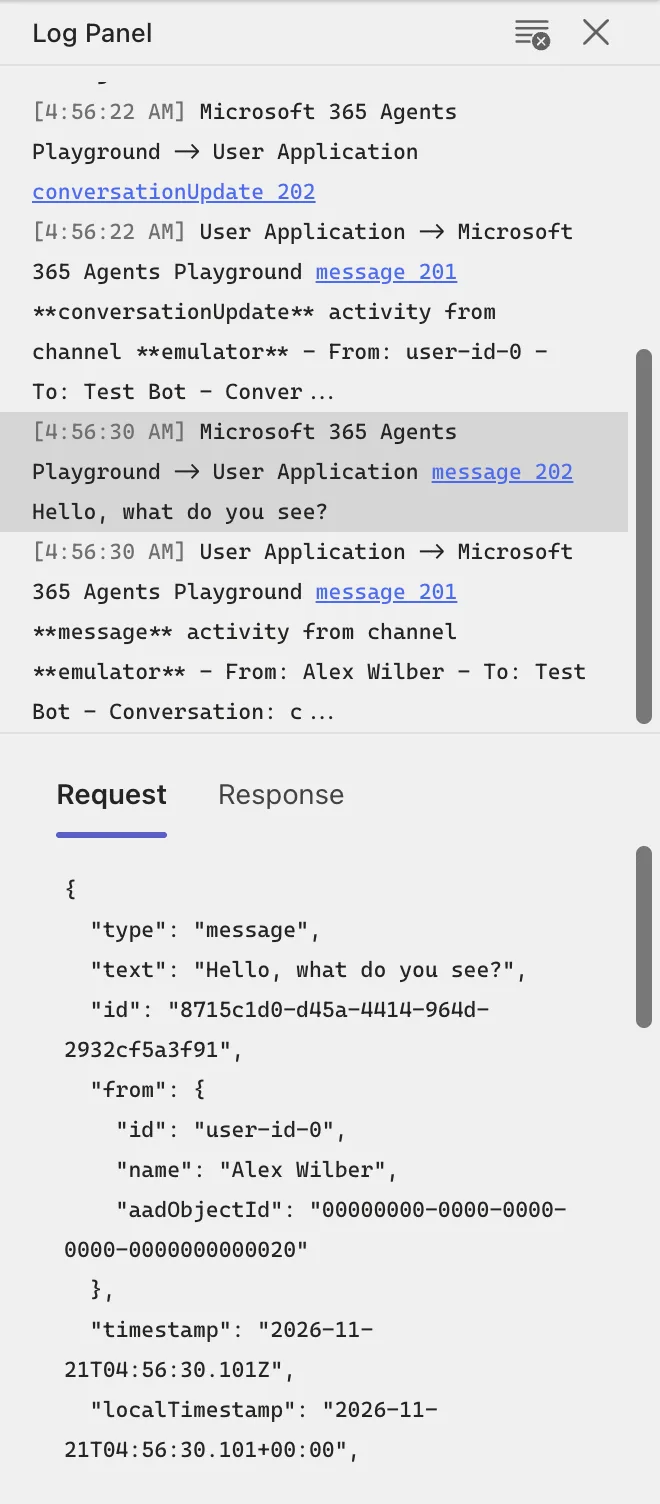
This is the whole activity your agent received:
{
  "type": "message",
  "text": "Hello, what do you see?",
  "id": "8715c1d0-d45a-4414-964d-2932cf5a3f91",
  "from": {
    "id": "user-id-0",
    "name": "Alex Wilber",
    "aadObjectId": "00000000-0000-0000-0000-0000000000020"
  },
  "timestamp": "2026-11-21T04:56:30.101Z",
  "localTimestamp": "2026-11-21T04:56:30.101+00:00",
  "localTimezone": "UTC",
  "serviceUrl": "http://localhost:56150/_connector",
  "conversation": {
    "conversationType": "personal",
    "tenantId": "00000000-0000-0000-0000-0000000000001",
    "id": "cde76e8c-f867-4d8e-b879-445c83c8f434"
  },
  "recipient": {
    "id": "00000000-0000-0000-0000-00000000000011",
    "name": "Test Bot"
  },
  "textFormat": "plain",
  "locale": "en-US",
  "entities": [
    {
      "type": "clientInfo",
      "locale": "en-US",
      "country": "US",
      "platform": "Web",
      "timezone": "UTC"
    }
  ],
  "channelData": {
    "tenant": {
      "id": "00000000-0000-0000-0000-0000000000001"
    }
  },
  "channelId": "emulator"
}
Read it with the fields table in mind:
- The channel's fields.
id,timestamp,serviceUrl,channelId,conversation,fromandrecipientall came from the channel. Alex Wilber is the Playground's made-up user, and the ids full of zeros are its made-up directory ids. - The client's fields.
localTimestampandlocalTimezonecome from the sender's device;timestampis when the channel recorded the message. Your values show your own time zone. textis what you typed, andtextFormat: "plain"says how to read it.entitiesholds one entity,clientInfo: the sender's locale, country, platform and time zone. Entities are hints; an agent that doesn't know an entity type ignores it.channelDatais this channel's extra: the tenant, the organization the conversation belongs to.
The Same Activity, as Your Code Sees It
Now look at the agent's terminal. Your handler logged the same activity with ToJson():
info: ActivityInspector.InspectorAgent[0]
      Received a message activity:
      {"type":"message","id":"8715c1d0-d45a-4414-964d-2932cf5a3f91","timestamp":"2026-11-21T04:56:30.101+00:00","localTimestamp":"2026-11-21T04:56:30.101+00:00","localTimezone":"UTC","serviceUrl":"http://localhost:56150/_connector","channelId":"emulator","from":{"id":"user-id-0","name":"Alex Wilber","aadObjectId":"00000000-0000-0000-0000-0000000000020"},"conversation":{"conversationType":"personal","tenantId":"00000000-0000-0000-0000-0000000000001","id":"cde76e8c-f867-4d8e-b879-445c83c8f434"},"recipient":{"id":"00000000-0000-0000-0000-00000000000011","name":"Test Bot"},"textFormat":"plain","membersAdded":[],"membersRemoved":[],"reactionsAdded":[],"reactionsRemoved":[],"locale":"en-US","text":"Hello, what do you see?","attachments":[],"entities":[{"type":"clientInfo","locale":"en-US","country":"US","platform":"Web","timezone":"UTC"}],"channelData":{"tenant":{"id":"00000000-0000-0000-0000-0000000000001"}},"listenFor":[],"textHighlights":[]}
The values are the same, with three differences worth knowing:
ToJson()writes the activity on one line, which is convenient in logs.- It includes empty lists the channel never sent, such as
membersAddedandattachments: the SDK'sActivityobject always has them, so your code can read them without checking for nothing. - It writes
+as+, the JSON escape for the same character, and the UTCtimestampas+00:00instead ofZ, which means the same thing.
Step 6: Follow the Reply Back
Your handler called SendActivityAsync with a message that had only text in it. Click the message 201 line under your message in the Log Panel to see what actually left your agent:
{
  "type": "message",
  "serviceUrl": "http://localhost:56150/_connector",
  "channelId": "emulator",
  "from": {
    "id": "00000000-0000-0000-0000-00000000000011",
    "name": "Test Bot"
  },
  "conversation": {
    "conversationType": "personal",
    "tenantId": "00000000-0000-0000-0000-0000000000001",
    "id": "cde76e8c-f867-4d8e-b879-445c83c8f434"
  },
  "recipient": {
    "id": "user-id-0",
    "name": "Alex Wilber",
    "aadObjectId": "00000000-0000-0000-0000-0000000000020"
  },
  "membersAdded": [],
  "membersRemoved": [],
  "reactionsAdded": [],
  "reactionsRemoved": [],
  "locale": "en-US",
  "text": "**message** activity from channel **emulator**\n\n- From: Alex Wilber\n- To: Test Bot\n- Conversation: cde76e8c-f867-4d8e-b879-445c83c8f434 (personal)\n- Activity ID: 8715c1d0-d45a-4414-964d-2932cf5a3f91\n- Timestamp: 2026-11-21 04:56:30Z\n- Text: Hello, what do you see?\n- Entities: clientInfo\n- Channel data: yes\n",
  "inputHint": "acceptingInput",
  "attachments": [],
  "entities": [],
  "replyToId": "8715c1d0-d45a-4414-964d-2932cf5a3f91",
  "listenFor": [],
  "textHighlights": []
}
You wrote the text. The SDK filled in everything else from the activity you received:
fromandrecipientare swapped: now the agent is the sender and Alex Wilber the receiver.conversation,channelIdandserviceUrlare copied, so the reply lands in the same conversation of the same channel.replyToIdis theidof the message you're answering.- It has no
idand notimestamp: those are the channel's to give.
The Response tab of the same line shows the channel's answer:
{
  "id": "1795236990130"
}
And the agent's terminal shows the address it posted to, and the id your code got back:
info: System.Net.Http.HttpClient.Microsoft.Agents.Builder.RestChannelServiceClientFactory.ClientHandler[100]
      Sending HTTP request POST http://localhost:56150/_connector/v3/conversations/cde76e8c-f867-4d8e-b879-445c83c8f434/activities/8715c1d0-d45a-4414-964d-2932cf5a3f91
info: System.Net.Http.HttpClient.Microsoft.Agents.Builder.RestChannelServiceClientFactory.ClientHandler[101]
      Received HTTP response headers after 5.373ms - 201
info: ActivityInspector.InspectorAgent[0]
      The channel stored the reply as activity 1795236990130.
The address is built from three values in the incoming activity: the serviceUrl, then /v3/conversations/ and the conversation.id, then /activities/ and the id being answered. The channel answered 201 Created with the reply's new id, and SendActivityAsync returned it to your code as ResourceResponse.Id. That id is how you refer to your own message later, and you'll use one in Step 8.
Step 7: The Same Agent in Teams and Web Chat
Channels agree on the common fields and differ in the rest. To see that, stop the Playground in its terminal with Ctrl+C and start it again as Teams, leaving your agent running:
agentsplayground -e http://localhost:3978/api/messages -c msteams
Before you type anything, two activities arrive. The new one is an installationUpdate, the way Teams tells an agent it was installed for someone:
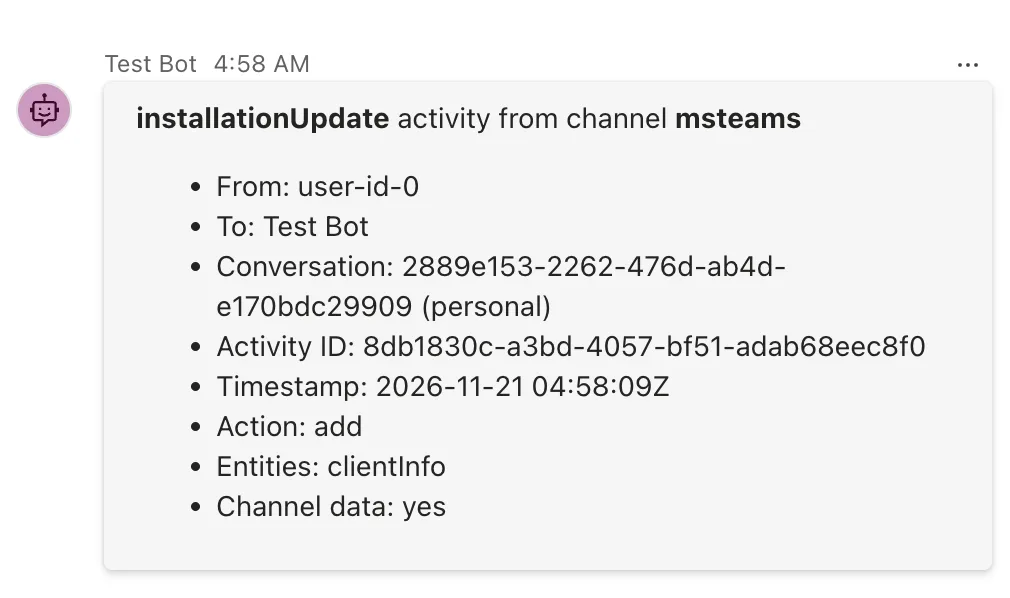
Its JSON, from the Log Panel, shows the action and a richer channelData:
{
  "type": "installationUpdate",
  "id": "8db1830c-a3bd-4057-bf51-adab68eec8f0",
  "from": {
    "id": "user-id-0",
    "aadObjectId": "00000000-0000-0000-0000-0000000000020"
  },
  "timestamp": "2026-11-21T04:58:09.531Z",
  "serviceUrl": "http://localhost:56150/_connector",
  "conversation": {
    "conversationType": "personal",
    "tenantId": "00000000-0000-0000-0000-0000000000001",
    "id": "2889e153-2262-476d-ab4d-e170bdc29909"
  },
  "recipient": {
    "id": "00000000-0000-0000-0000-00000000000011",
    "name": "Test Bot"
  },
  "locale": "en-US",
  "entities": [
    {
      "type": "clientInfo",
      "locale": "en-US"
    }
  ],
  "channelData": {
    "tenant": {
      "id": "00000000-0000-0000-0000-0000000000001"
    },
    "source": {
      "name": "message"
    },
    "settings": {
      "selectedChannel": {
        "id": "2889e153-2262-476d-ab4d-e170bdc29909"
      }
    }
  },
  "action": "add",
  "channelId": "msteams"
}
action is add for an install and remove for an uninstall, the only two values the protocol defines. channelData now has Teams fields beside the tenant: source and settings. Send Hello, what do you see? again, and the message activity has the same fields as the emulator's, with "channelId": "msteams".
Now stop the Playground again and start it as Web Chat:
agentsplayground -e http://localhost:3978/api/messages -c webchat
The Playground switches to a Web Chat window. Send the same message, and its activity is noticeably different:
{
  "type": "message",
  "text": "Hello, what do you see?",
  "id": "0895aeac-c51a-4b1b-ba6e-0efddb0256e0",
  "from": {
    "id": "user-id-0",
    "name": "Alex Wilber"
  },
  "timestamp": "2026-11-21T05:01:26.107Z",
  "localTimestamp": "2026-11-21T05:01:26.107+00:00",
  "localTimezone": "UTC",
  "serviceUrl": "http://localhost:56150/_connector",
  "conversation": {
    "id": "ea31efc8-9fbe-4c9c-8865-1d13bdf49aa2"
  },
  "recipient": {
    "id": "00000000-0000-0000-0000-00000000000011",
    "name": "Test Bot"
  },
  "textFormat": "plain",
  "locale": "en-US",
  "entities": [
    {
      "type": "ClientCapabilities",
      "requiresBotState": true,
      "supportsListening": true,
      "supportsTts": true
    }
  ],
  "channelData": {
    "clientActivityID": "5985765c-dac2-4050-bd97-372732bdaede",
    "directLineConversationId": "ea31efc8-9fbe-4c9c-8865-1d13bdf49aa2"
  },
  "channelId": "webchat"
}
Side by side, the same message in the three channels:
| Field | emulator | msteams | webchat |
|---|---|---|---|
from | id, name, aadObjectId | id, name, aadObjectId | id, name |
conversation | id, conversationType, tenantId | id, conversationType, tenantId | id only |
entities | clientInfo | clientInfo | ClientCapabilities |
channelData | tenant | tenant | clientActivityID, directLineConversationId |
The common fields, type, text, id, timestamp, serviceUrl, channelId and the account ids, are there in every channel. What differs is exactly what the protocol leaves to each channel: optional account details, the conversation's type, entities and channelData. Web Chat sends no conversation type at all, so the Inspector's summary shows empty brackets after the conversation id, and Web Chat draws the same Markdown its own way:
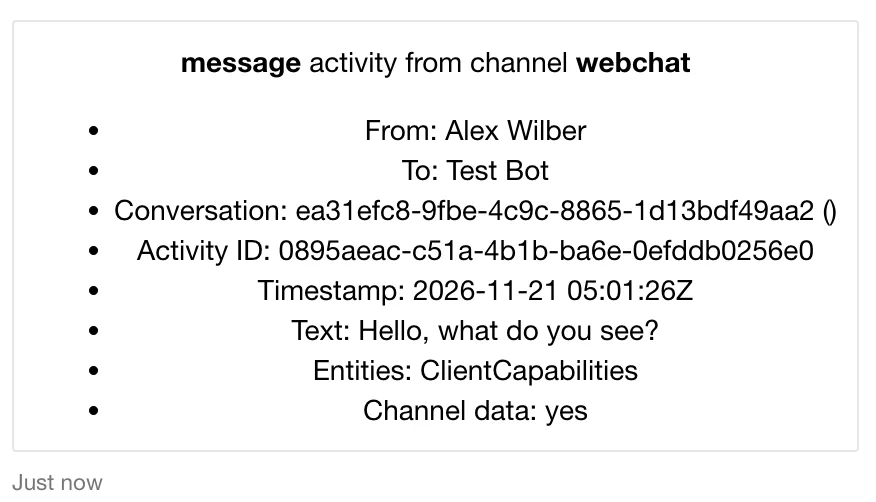
That's the rule to code by: read the common fields freely, and treat everything else as optional. These are the Playground's stand-ins for each channel. Microsoft notes that real Teams has channel data for Teams features such as mentions and meeting info, and Part 8 runs this kind of agent in real Teams.
Step 8: Send Activities a Chat Box Can't
Reactions and custom events don't come from typing. The Playground can send them for you: restart it as Teams once more (-c msteams), send any message so your agent has replied at least once, and open Mock an Activity in the toolbar:
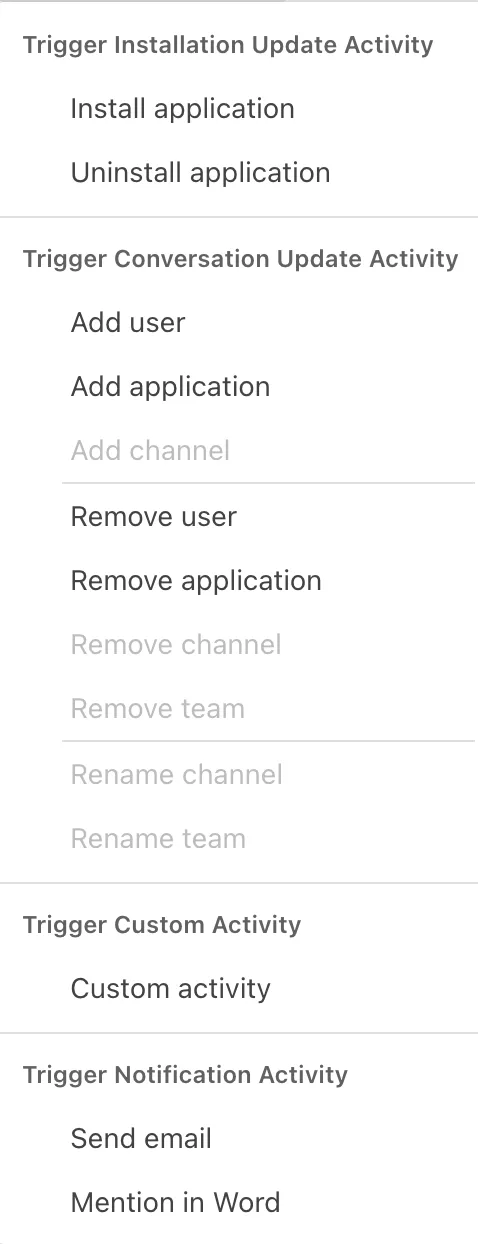
The predefined triggers send installation and conversation updates; the channel and team ones are greyed out because they don't exist in a personal chat. The notification triggers are for Microsoft Agent 365 agents. Custom activity sends any activity you write, and that's the one to use here.
A Reaction
A reaction refers to the message it's on. In the Log Panel, click the newest message 201 line, your agent's latest reply, and copy the id from its Response tab. Then choose Mock an Activity → Custom activity. The dialog opens with an activity already addressed to your agent, ending in "type": "<custom-activity-type>". Replace that line with these three, using your own id:
"type": "messageReaction",
"reactionsAdded": [{ "type": "like" }],
"replyToId": "1795237097530"
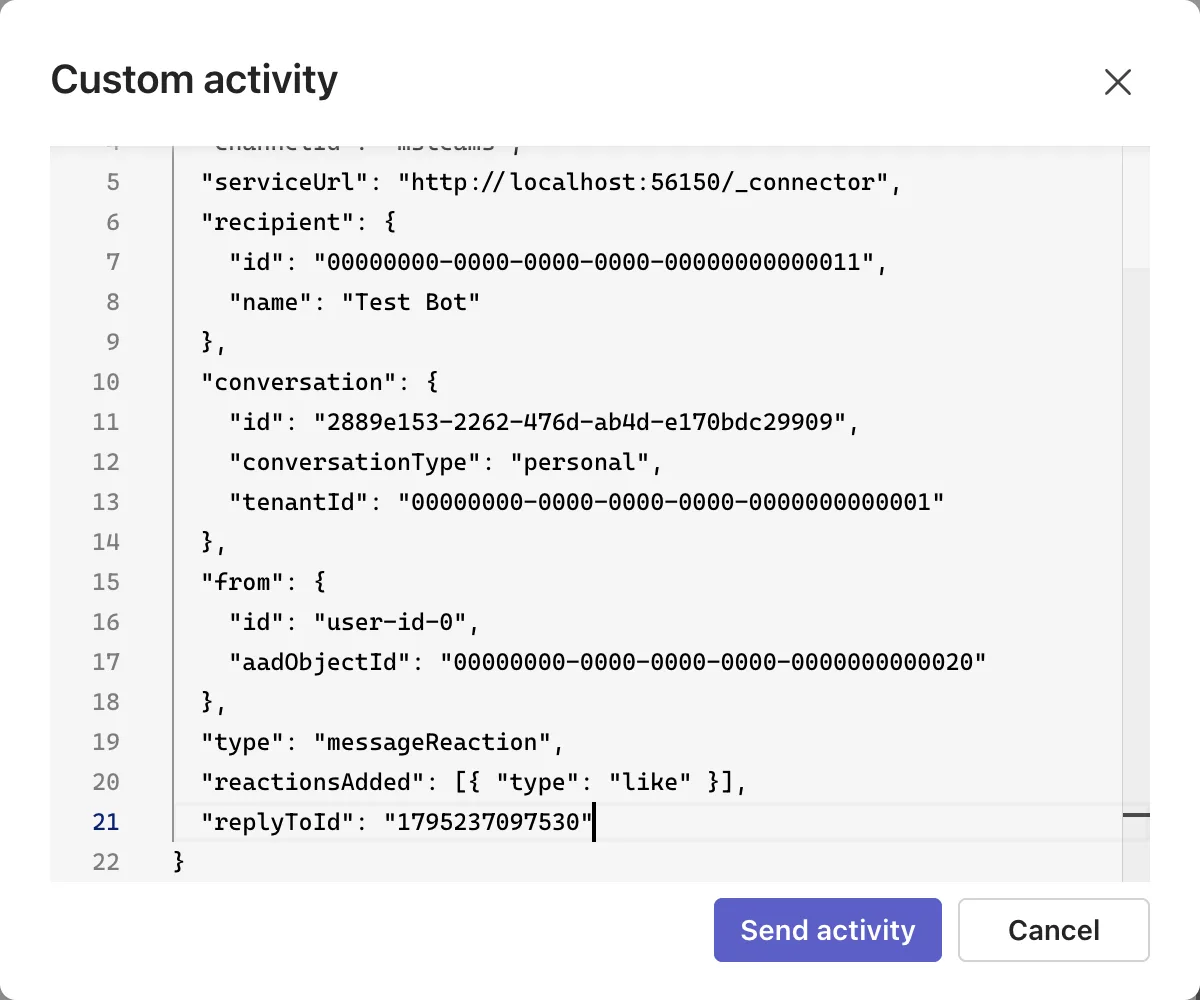
Select Send activity. reactionsAdded lists the reactions, and in Teams and the Playground replyToId holds the id of the message that was reacted to, the one the channel gave your reply in Step 6.
A Custom Event
Open Custom activity again and replace the type line with an event. An event's name says what happened, and its value carries any data, in whatever shape the sender and the agent agree on:
"type": "event",
"name": "themeChanged",
"value": { "theme": "dark" }
Select Send activity. The Inspector answers both:
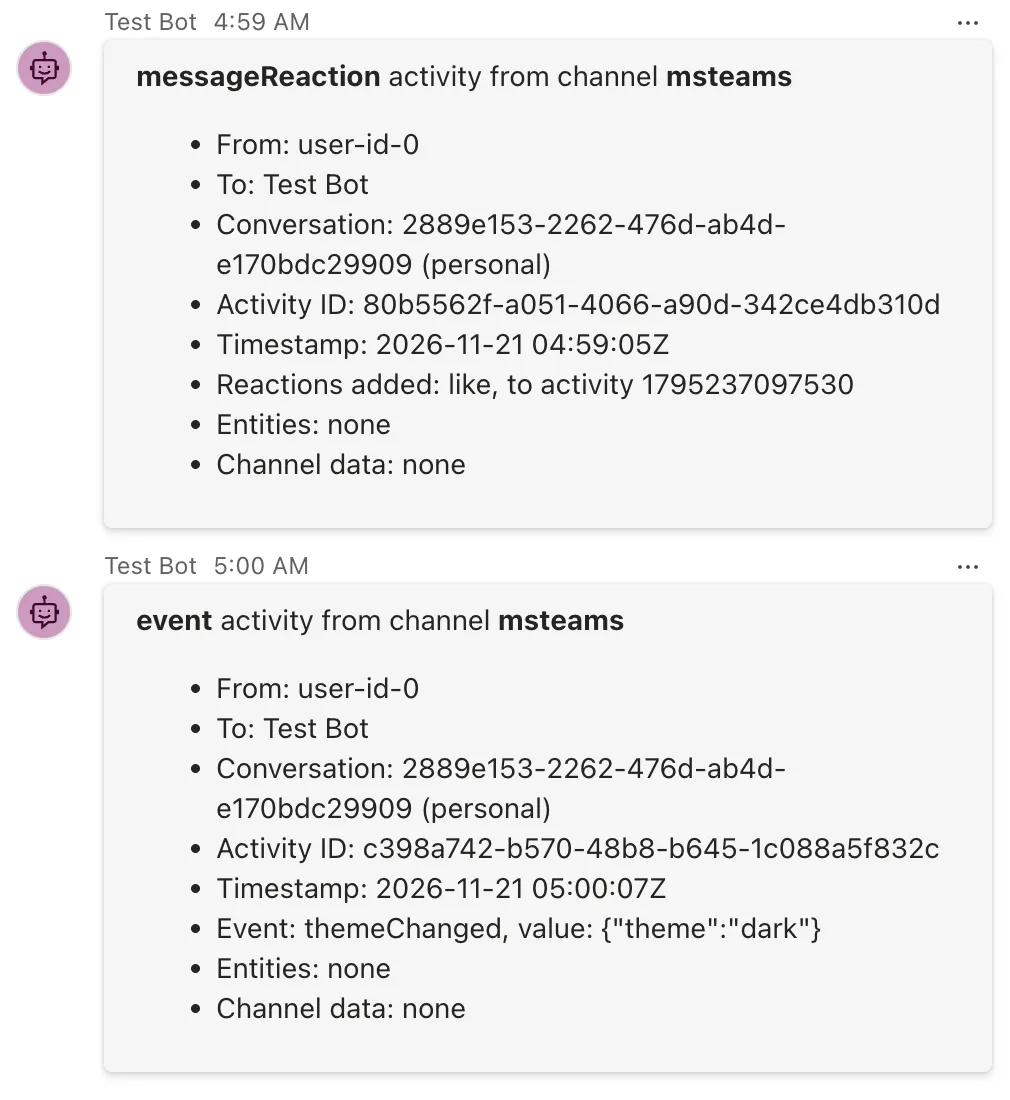
Both have Channel data: none, because your custom activities didn't include any. In a real app, a web page that hosts your agent might send an event like this one when the user changes a setting, and the agent reads Name and Value to react to it.
Stop and Clean Up
Press Ctrl+C in both terminals, or use Debug → Stop Debugging (Shift+F5) in Visual Studio. This part created nothing outside your project folder, and nothing in the cloud. The Playground wrote its log to a devTools folder in the folder you started it from; delete it whenever you like. When you've finished with the Inspector, delete the ActivityInspector folder.
What You Can Do Now
- Explain what an activity is, and why one format works for every channel.
- Read any activity's JSON and say which fields came from the channel, the client and the sender.
- Use
turnContext.Activityto read the activity in C#, andactivity.ToJson()to log all of it. - Follow a reply: what
SendActivityAsyncfills in for you, where it posts, and whatResourceResponse.Idis. - Tell
message,conversationUpdate,installationUpdate,messageReaction,event,invokeandtypingapart. - Send reactions and custom events from the Agents Playground to test the code that handles them.
Common Mistakes
| Mistake | What happens | Do this instead |
|---|---|---|
| Assuming every channel sends a field, such as a name or a conversation type | null values, or crashes in some channels | Use ?. and treat anything outside the common fields as optional |
Setting id, timestamp or serviceUrl on activities you send | They're the channel's to set: the protocol says agents shouldn't send them, and channels must ignore an agent's serviceUrl | Let SendActivityAsync and the channel fill them in |
Welcoming every member in a conversationUpdate | The agent welcomes itself | Skip the member whose Id equals turnContext.Activity.Recipient.Id |
Answering an invoke with a chat message | The client is still waiting for its answer | Answer invokes in their response; later parts show how |
Reading ToJson() output as the exact wire format | Empty lists and escapes that the channel never sent | Use the Playground's Log Panel to see what was sent |
Troubleshooting
| Symptom | Likely cause | Fix |
|---|---|---|
warning CS0618: ... OnActivity(RouteSelector, ...) is obsolete | The selector overload of OnActivity is obsolete in 1.9.205 | Use AddRoute with RouteBuilder |
error CS0104: 'RouteBuilder' is an ambiguous reference | The web project's implicit usings include ASP.NET Core's RouteBuilder | Add the using RouteBuilder = ...; alias |
| No reply in the Playground, and nothing in the agent's terminal | The agent isn't running, or not on port 3978 | Check that Now listening on: http://localhost:3978 appears |
The Members added line shows long ids instead of names | That channel sends members without names | Expected; the Inspector falls back to the id |
The reaction arrives but its replyToId matches nothing | The id wasn't copied from the agent's reply | Copy it from the Response tab of the latest message 201 line |
FAQ
Is the Activity Protocol the same as the Bot Framework's?
Yes, continued. The specification's change history goes back to the Bot Framework years, and its Bot Framework branding was dropped in November 2024. That's why the Agents SDK talks to the same channels the Bot Framework did.
Where do I see the raw JSON when my agent runs in real Teams?
There's no Log Panel there, so log it yourself, exactly as the Inspector does: activity.ToJson() in your handler, written to your logs.
Why is there a 202 and then a 201?
They're two requests. The channel's request delivering the activity got 202 Accepted from your agent. Your agent's own request delivering the reply got 201 Created from the channel.
What's inputHint: "acceptingInput" in the reply?
The SDK set it on the message it sent for you. The protocol describes inputHint as whether the sender is waiting for a response, used mostly in channels with modal interfaces, such as voice, and typically not in continuous chat feeds like Teams.
Can I send my own activity types?
The protocol lets senders define their own types, and receivers should ignore types they don't understand. For signals between your own client and agent, use an event: the protocol designed it to be extended by client applications, with a name that says what happened.
Conclusion
An activity is one JSON object that describes one thing that happened, in a format every Microsoft channel shares. The channel sets the identity, time and addressing; the sender sets the content; entities and channelData carry the extras. Your code reads it through turnContext.Activity and answers with SendActivityAsync, which addresses the reply for you and returns the id the channel gave it. You've now watched all of it happen, in three channels.
Next: Part 2: Route Activities with AgentApplication. The Inspector used one route that catches everything; Part 2 shows how agents route each activity to the right handler, by type, by text and by your own rules.
Additional Resources
- Understanding Activity Protocol — Microsoft Learn's introduction to activities, types and
TurnContext. - Activity Protocol – Activity — the specification, with every field and who may set it.
- AgentApplication in Microsoft 365 Agents SDK — routes, turn state and the turn's lifecycle.
- Microsoft 365 Agents Playground — the Playground's activity triggers and configuration.
